

Page 1
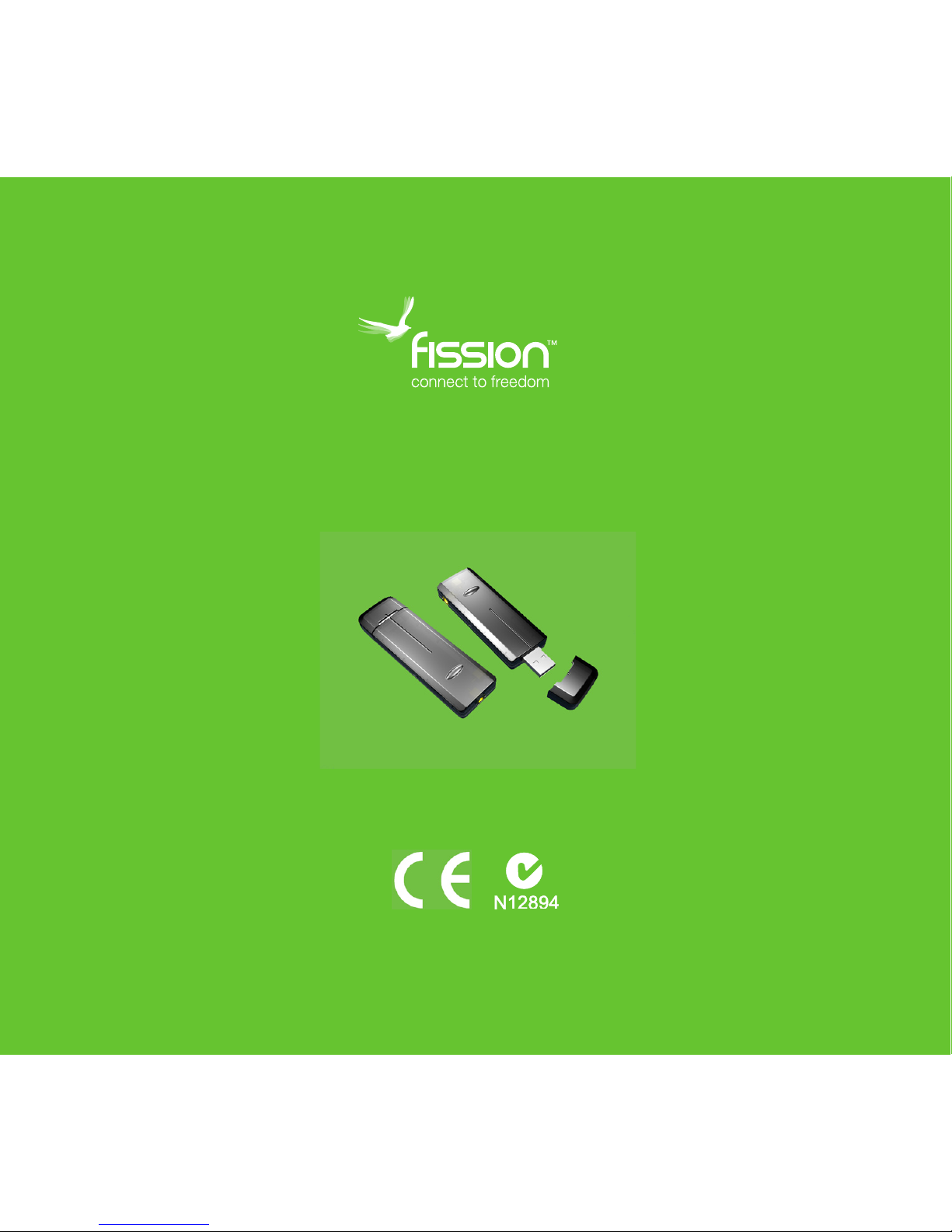
DUAL High Denition DVB-T Receiver
User Manual
Model Number: DK-5901
After Sales Support TEL: 1300 558 702 WEB: www.unisupport.net
Page 2

Contents
What Your 1 Year Warranty Means 03
General Information and Safety Instructions 04
Assembly and Parts List 05
Instructions 06
Hardware Driver Installation 06
Software Installation 08
Arcsoft Total Media™ User Manual 11
Hardware Installation 12
Arcsoft Total Media™ Introduction 13
Remote Control 20
After Sales Support TEL: 1300 558 702 WEB: www.unisupport.net
2
Page 3

What Your 1 Year Warranty Means
Great care has gone into the manufacture of this product and it should
therefore provide you with years of good service when used properly. In
the event of product failure within its intended use over the course of the
rst 1 year after the date of purchase, we will rectify the problem as quickly
as possible once it has been brought to our attention. In the unlikely event
of such an occurrence, or if you require any information about the product
please contact us via our after sales support services, details of which can
be found in this manual and on the product itself.
After Sales Support TEL: 1300 558 702 WEB: www.unisupport.net
3
Page 4

General Information and Safety Instructions
Quick Installation Guide / Special Notes
1. This device requires Microsoft Windows™ XP (SP2) or Vista, as well as
Microsoft DirectX™ 9.0 or above. Before driver and software installation,
download DirectX™ 9.0 from Microsoft website www.microsoft.com (if
not already installed).
2. Before using the DUAL DVB-T Receiver install driver and software from
CD
3. The power consumption of a USB port is limited; therefore, please
disconnect all other USB devices when using your USB Digital TV
device (DTV). If the “USB Device Not Recognized” error message pops
up while connecting the USB DTV device, please disconnect all USB
devices and try to reconnect.
4. Please note that each USB port has a unique ID; therefore, when the
USB DTV device is connected to a USB port, which has never been
connected with this device before, the system will promptly re-install
the driver. Please follow the procedures of Driver Installation to install
the drivers properly (after installation as below). This is particularly
obvious when using a USB Hub.
After Sales Support TEL: 1300 558 702 WEB: www.unisupport.net
4
Page 5

Assembly and Parts List
1x Fission™ DUAL High Denition DVB-T Receiver
2x Portable Outdoor Antennas
2x Antenna Adapters
1x Remote Control
1x Arcsoft Total Media™ Software CD with Manual
After Sales Support TEL: 1300 558 702 WEB: www.unisupport.net
5
Page 6
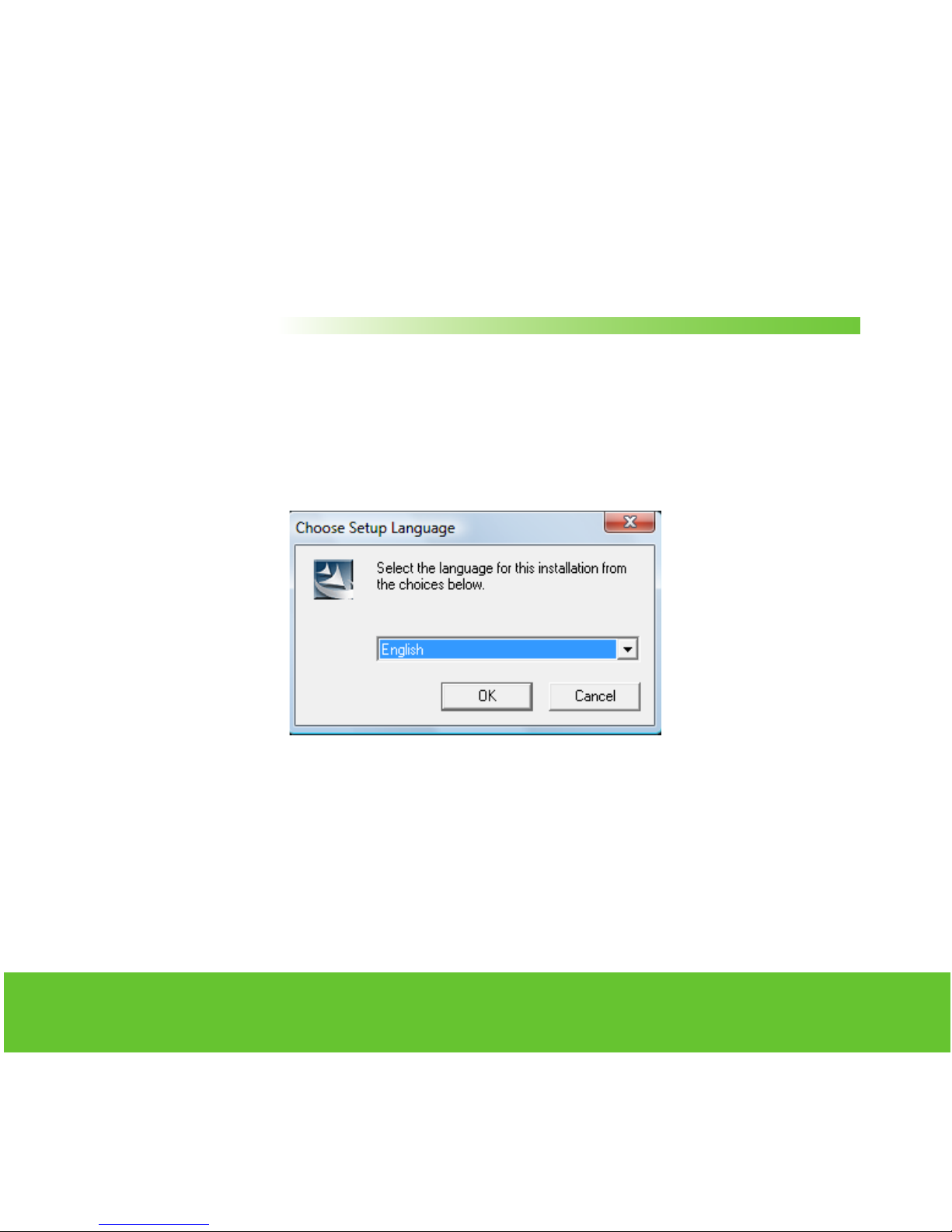
Instructions
Hardware Driver Installation
1. Insert the software CD into the CD-ROM drive.
2. The CD ROM will automatically enable the Autorun program.
3. Please click “Driver Installation” to install the driver for the USB DUAL
DVB-T receiver. (If the installation does not automatically start, please
go to the directory of “E:\Driver\Driver” and execute “setup.exe” to
install the driver - if E:\ is your CD Rom drive).
After Sales Support TEL: 1300 558 702 WEB: www.unisupport.net
6
Page 7
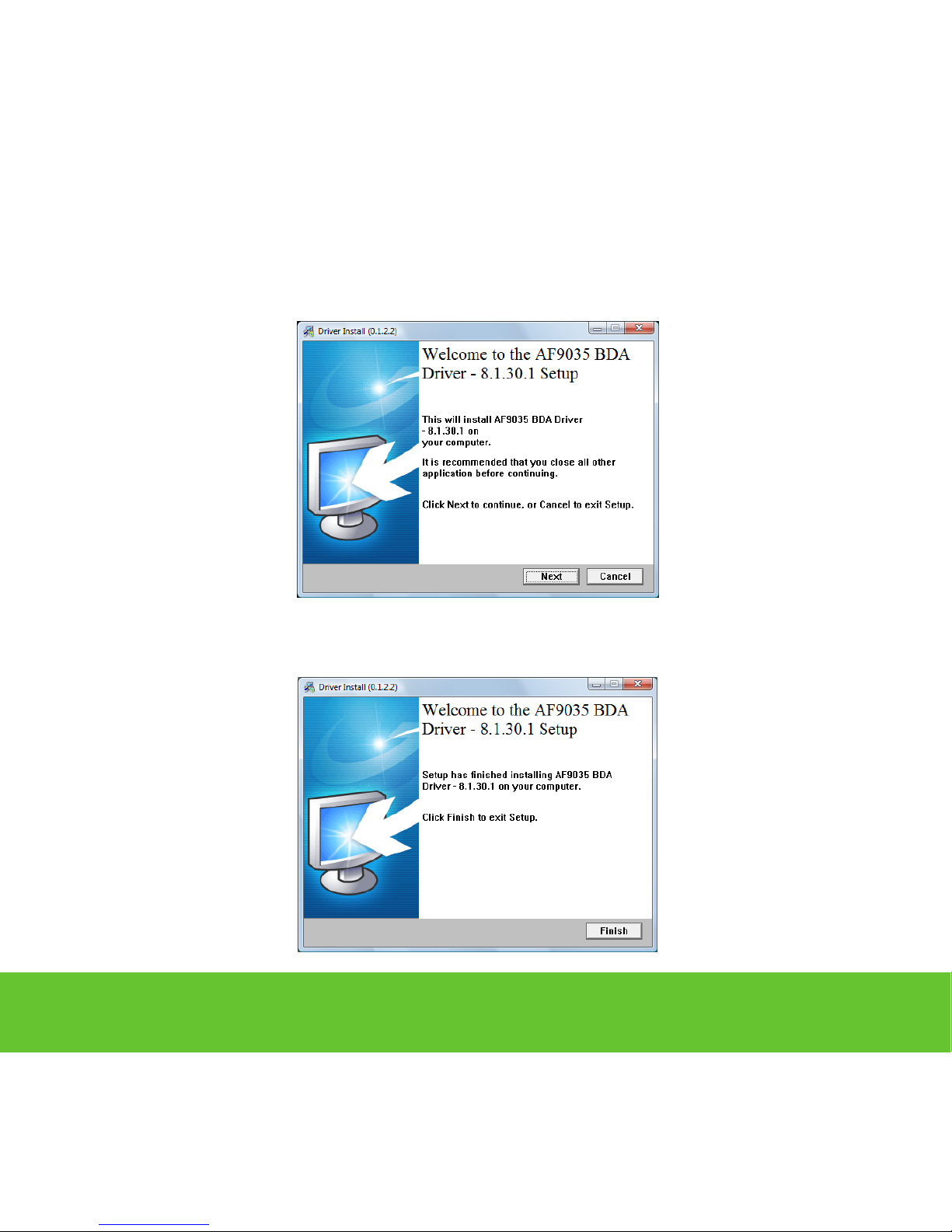
4. Click "Next"
5. Click “Finish” to complete the driver install.
After Sales Support TEL: 1300 558 702 WEB: www.unisupport.net
7
Page 8
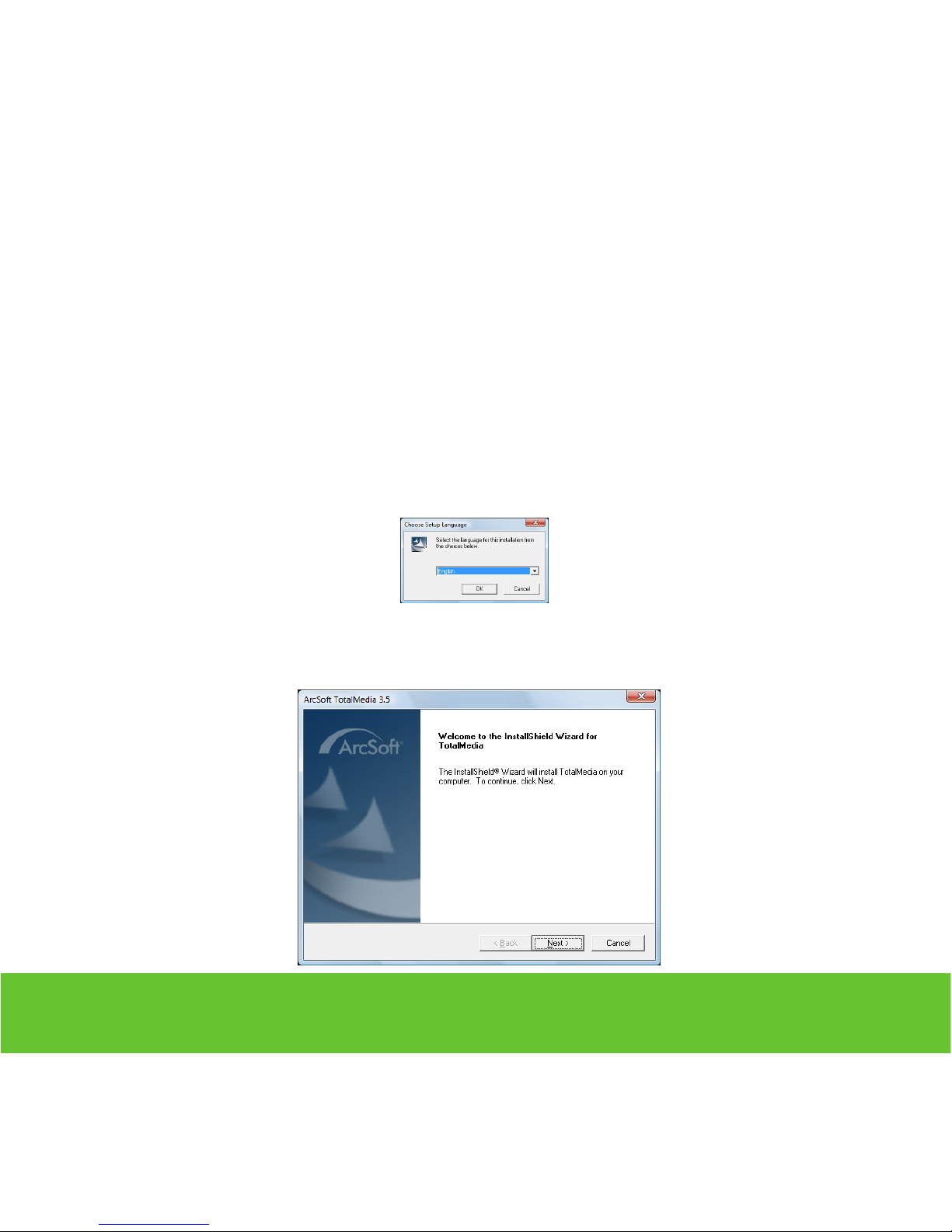
Software Installation
1. Click the “Arcsoft Total Media” option on the Autorun page to install
Total Media software. (If the installation does not automatically start,
please go to the directory of “E:\TotalMedia 3” and execute “setup.exe”
to install the software - if E:\ is your CD Rom drive).
2. Please choose your preferred language.
3. Click “Next”
After Sales Support TEL: 1300 558 702 WEB: www.unisupport.net
8
Page 9
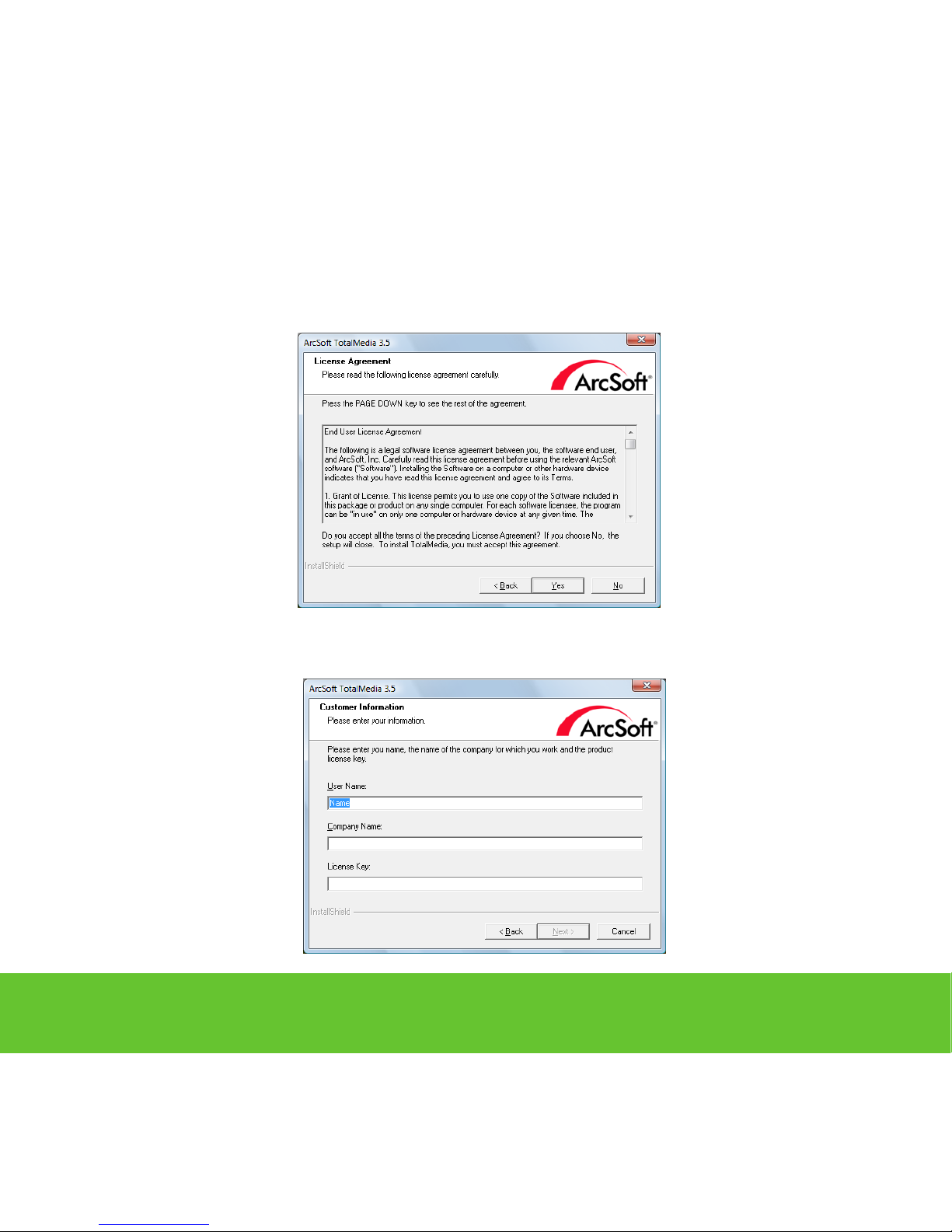
4. Click “Yes”
5. Put in Name, Company Name and Licence Key (from White CD-cover)
and Click “Next”
After Sales Support TEL: 1300 558 702 WEB: www.unisupport.net
9
Page 10
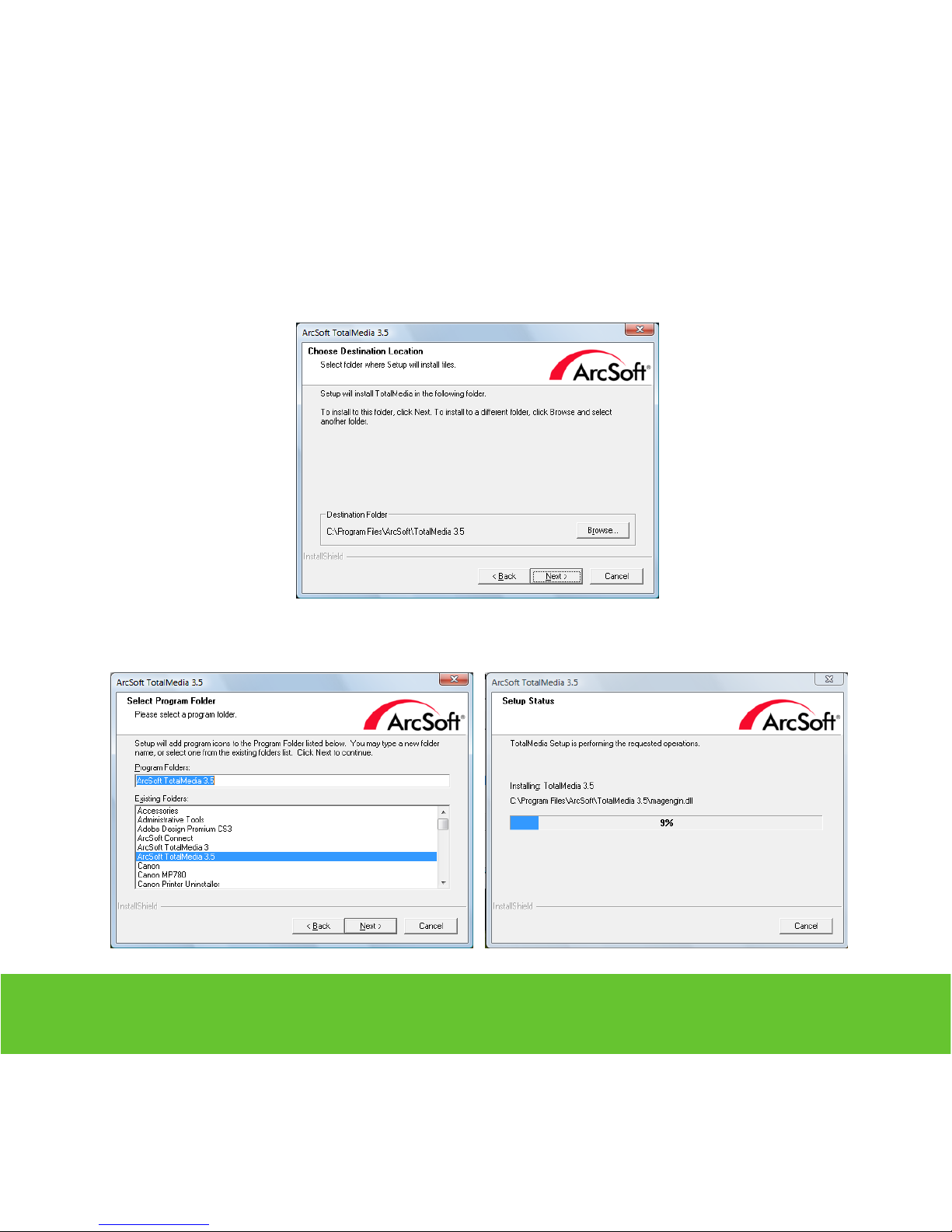
6. Click “Next
7. Click “Next
After Sales Support TEL: 1300 558 702 WEB: www.unisupport.net
10
Page 11
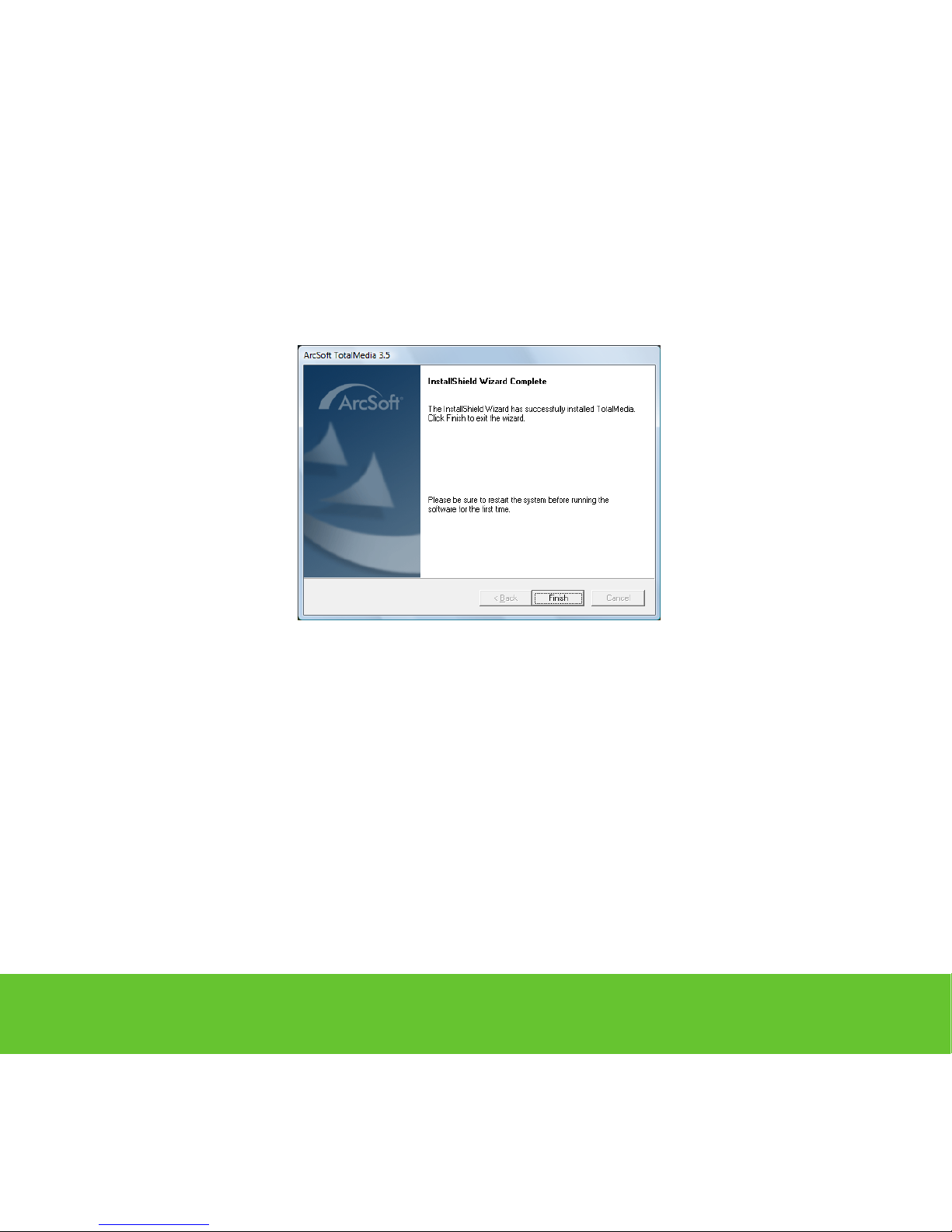
8. Click “Finish” to nish the software installation
Arcsoft Total Media™ User Manual
1. Double click the “Manual” option on the Autorun page. It will
automatically open the “Manual” folder.
2. Please choose your preferred language for the operational reference.
After Sales Support TEL: 1300 558 702 WEB: www.unisupport.net
11
Page 12
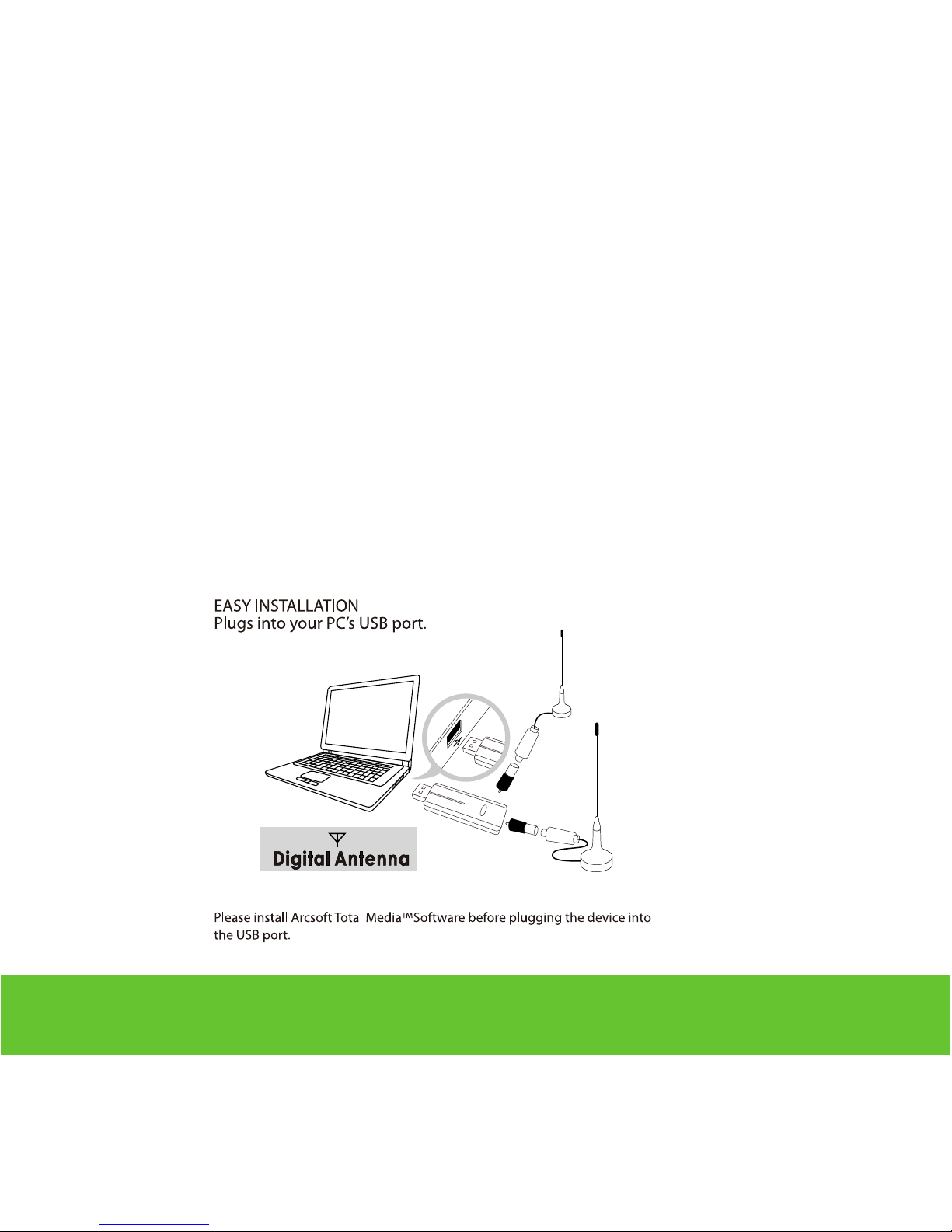
Hardware Installation
1. Please connect antennas rst.
Note: The antennas supplied are for outdoor use only.
For indoor use please use your home aerial for optimum reception.
2. Take the USB connector of the device and connect it directly into any
available USB port of the computer.
After Sales Support TEL: 1300 558 702 WEB: www.unisupport.net
12
Page 13
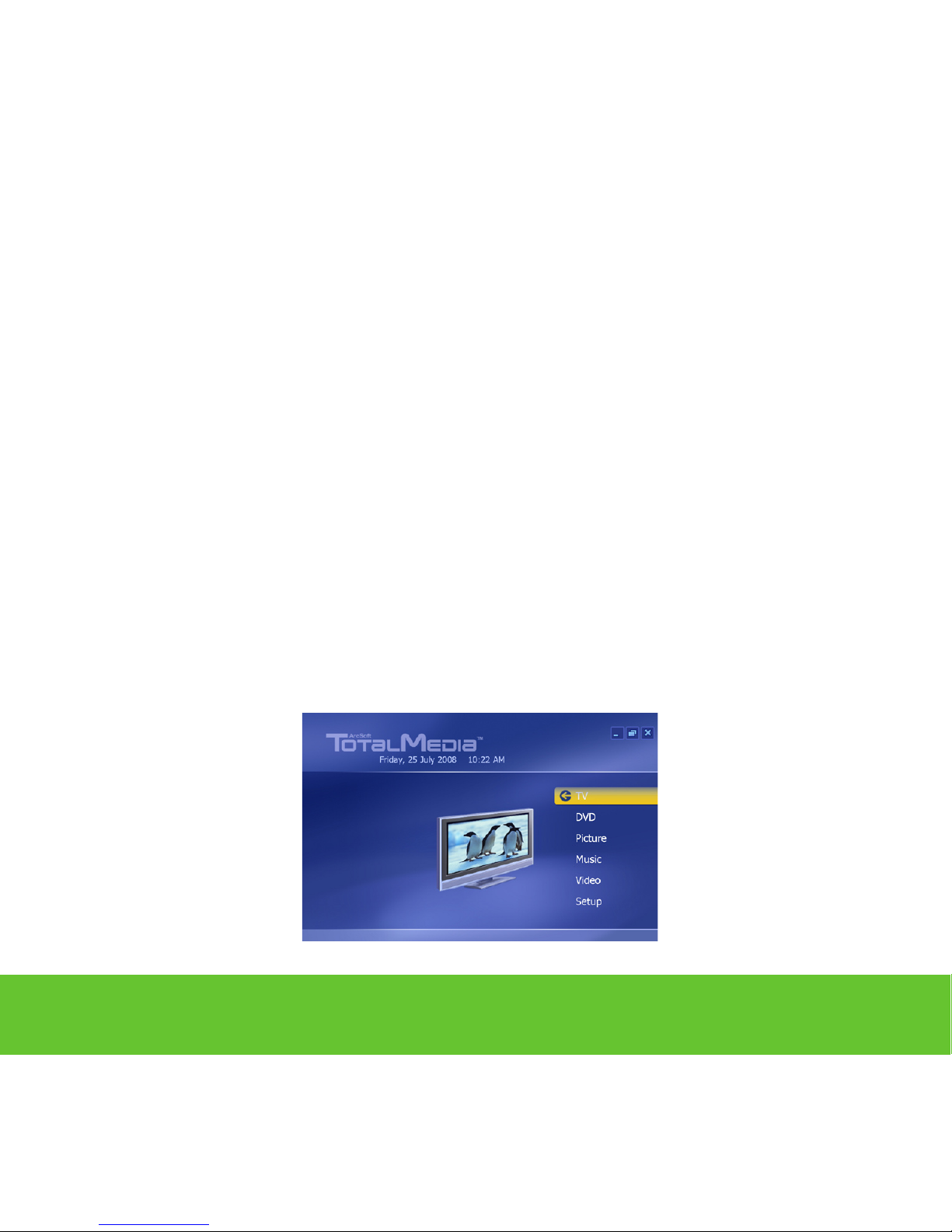
Arcsoft Total Media™ Introduction
1. Before launching TotalMedia, please make sure the DUAL DVB-T USB
device has been connected.
2. Total Media is a MCE like software. When launched, you will see
dierent features on the front panel.
3. Click “TV” to watch DVB-T TV
Click “DVD” to watch your favorite DVD movie
Click “Picture” to manage your picture
Click “Music” to manage your music les
Click “Video” to watch video clips
Click “Setup” to adjust dierent parameter for functions.
After Sales Support TEL: 1300 558 702 WEB: www.unisupport.net
13
Page 14

Total Media DVB-T TV Scanning
For the rst time to use TotalMedia on watching DVB-T TV, the TV program
scanning is required. Please follow the following TV scanning process to
run the TV program scanning.
1. Press “Next” to start the TV signal scanning
After Sales Support TEL: 1300 558 702 WEB: www.unisupport.net
14
Page 15
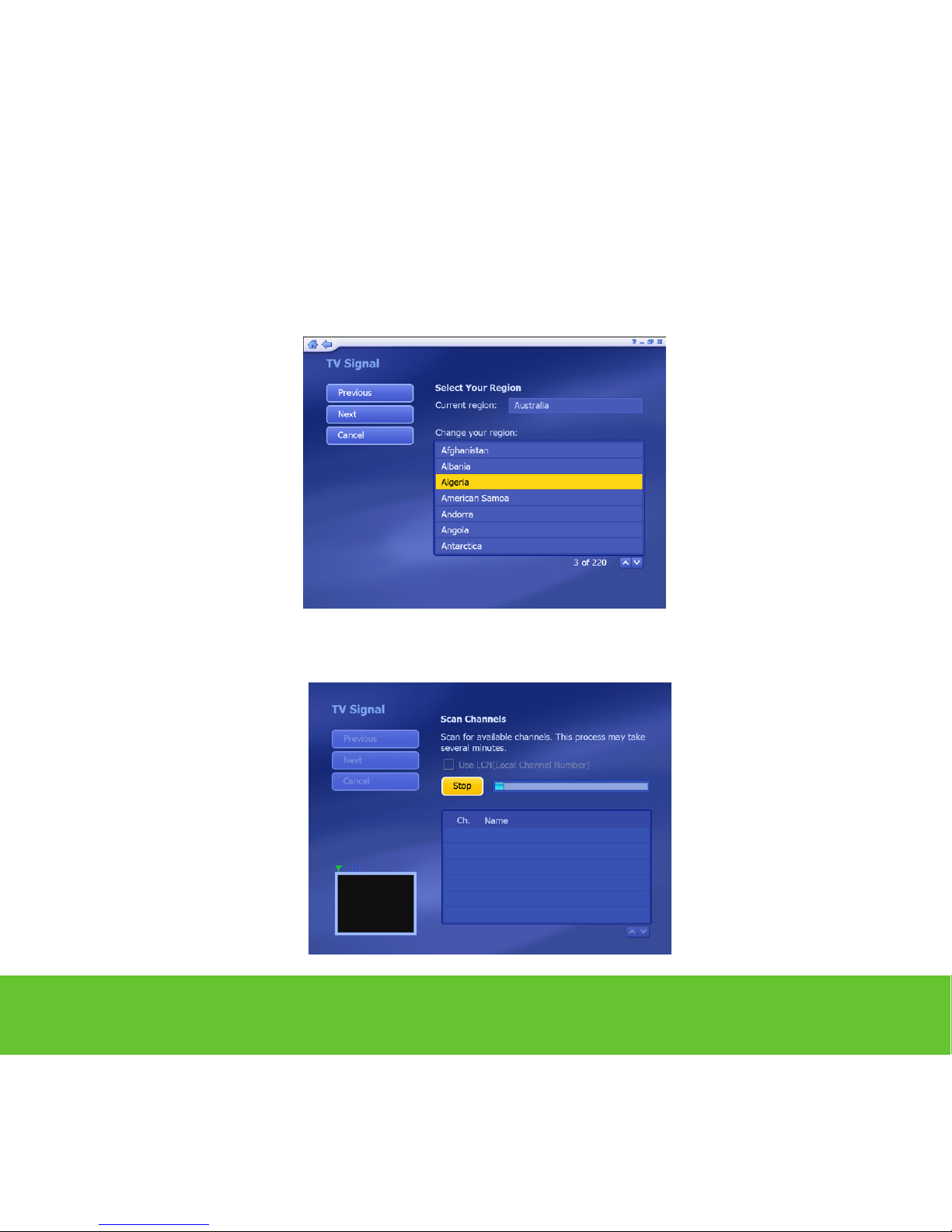
2. Select your region and press “Next”
3. Press “Start” to run the Channel scanning
After Sales Support TEL: 1300 558 702 WEB: www.unisupport.net
15
Page 16
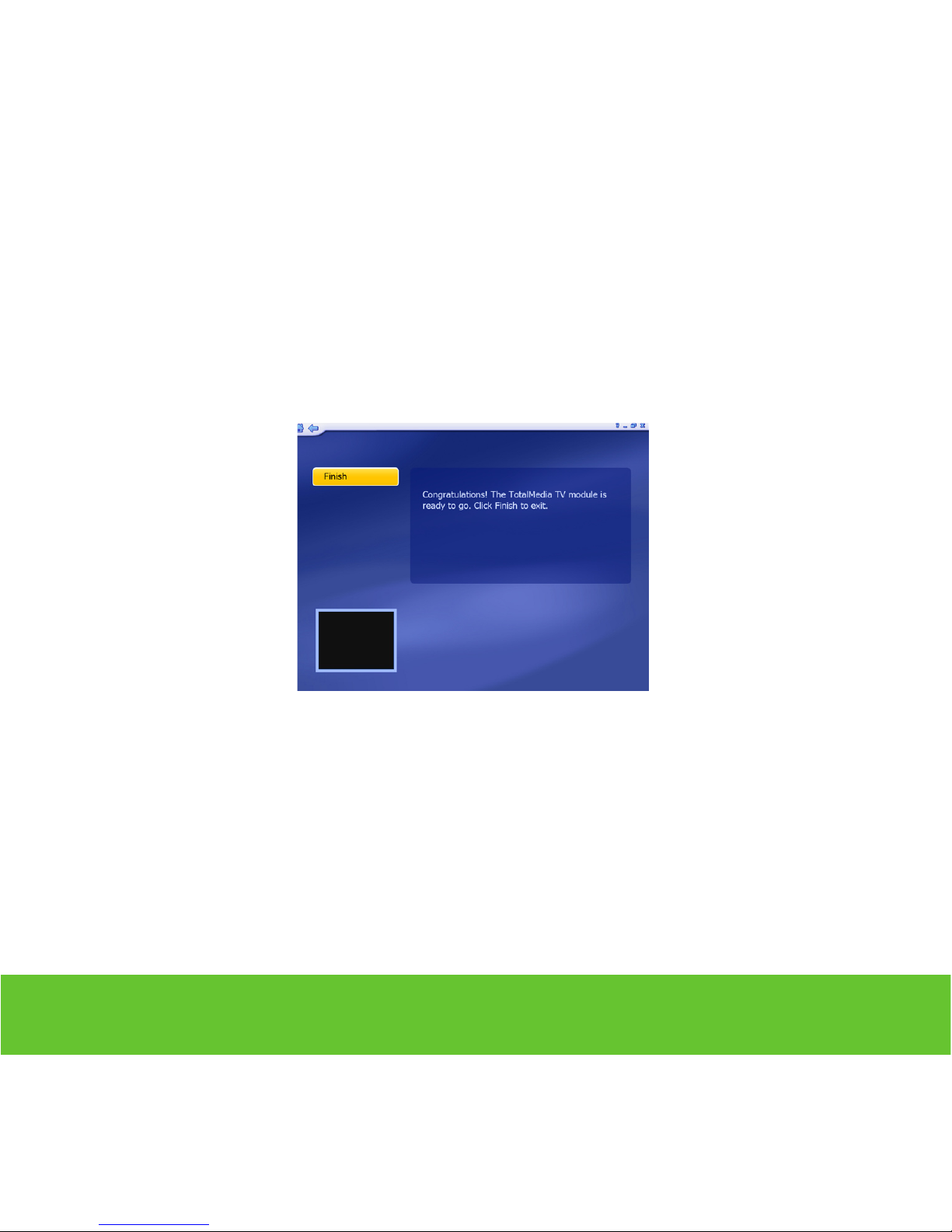
4. When the scan is nished, please press “Finish” to nalize the DVB-T TV
Program scanning
After Sales Support TEL: 1300 558 702 WEB: www.unisupport.net
16
Page 17
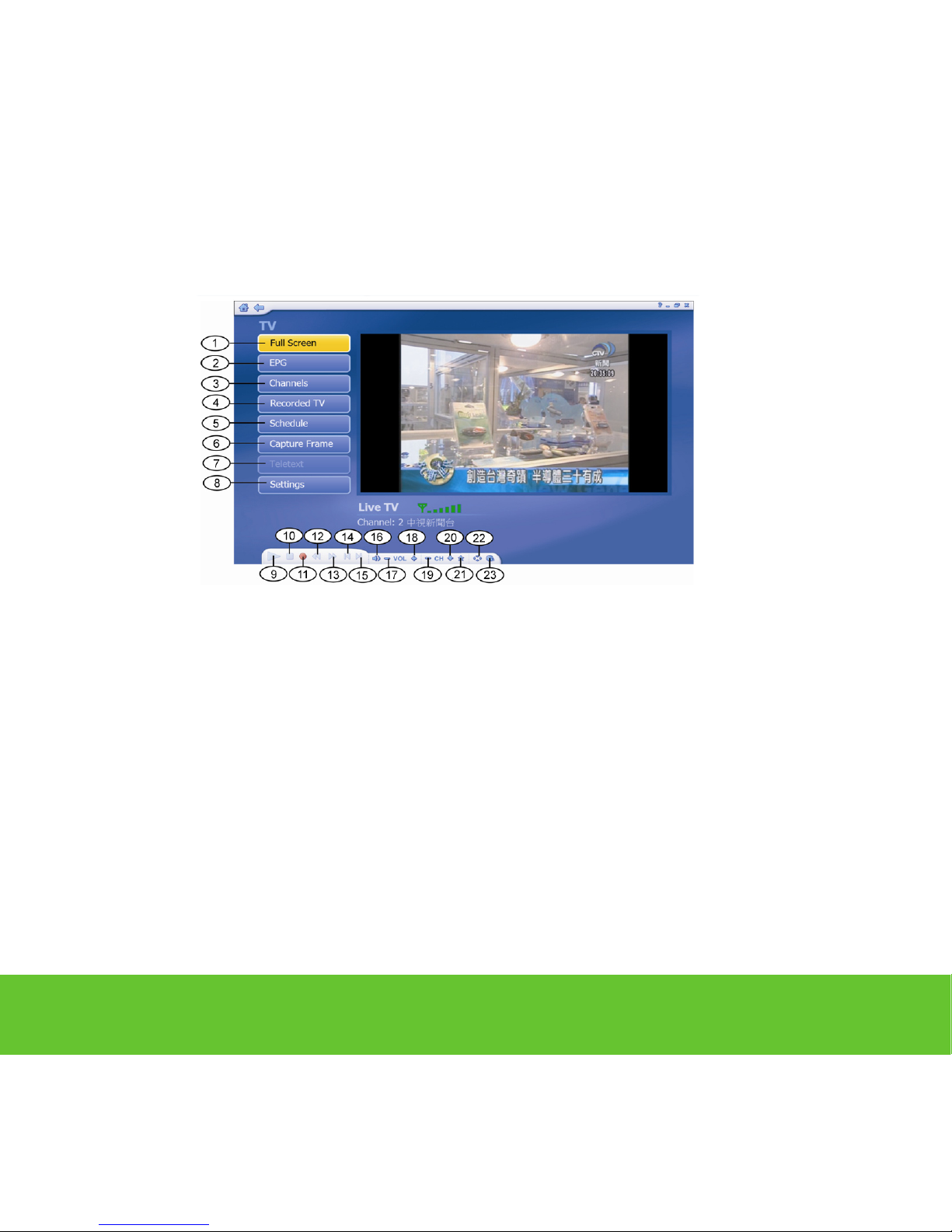
1. Full Screen 13. Forward
2. EPG 14. Skip to beginning
3. Channels 15. Skip to end
4. Recorded TV 16. Volume Bar
5. Shedule 17. Volume Down
6. Capture Frames 18. Volume Up
7. Teletext 19. Channel Down
8. Settings 20. Channel Up
9. Playback 21. My Favorite
10. Stop 22. Aspect Ratio
11. Record 23. MTS
12. Backward
5. Total Media Interface Interview
After Sales Support TEL: 1300 558 702 WEB: www.unisupport.net
17
Page 18

PIP Feature
From the control panel, you can choose the PIP location when you enable
the PIP feature. You can do the recording for big screen TV program, then
switching it to the small screen and record another at the same time.
After Sales Support TEL: 1300 558 702 WEB: www.unisupport.net
18
Page 19

PBP Feature
While Total Media is in full screen mode, you can enable the PBP feature. 2
programs will share the half size of screen.
Please note that the PBP feature will consume the CPU resources a lot. We
recommend that the CPU should be higher than Pentium IV 2.0 GHz, and
the Ram should be higher than 1G.
After Sales Support TEL: 1300 558 702 WEB: www.unisupport.net
19
Page 20
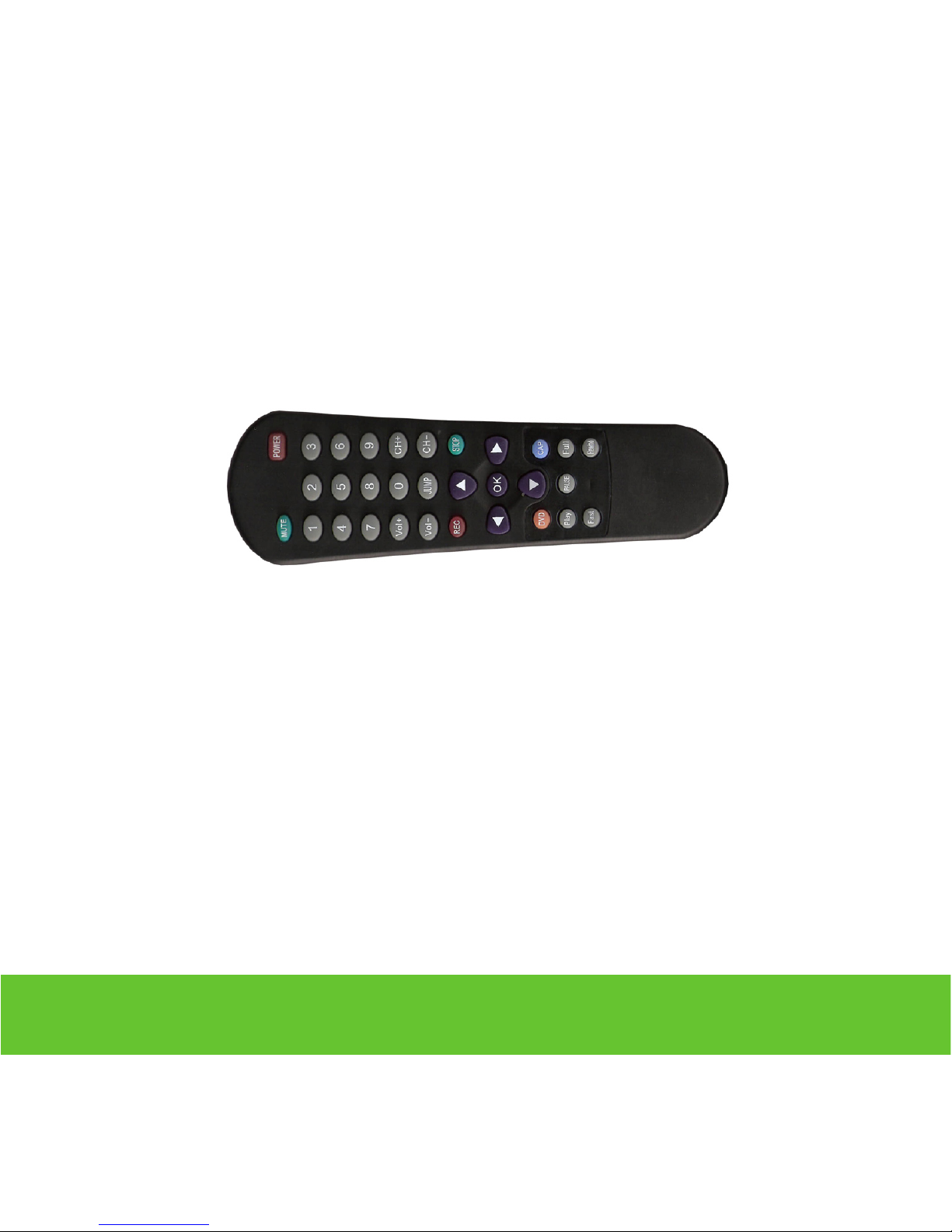
1. Power 12. Left
2. Mute 13. Down
3. Number 0-9 14. Right
4. Volume Up 15. OK
5. Volume Down 16. DVD
6. Jump 17. Capture
7. Channel Up 18. Play
8. Channel Down 19. Pause
9. Record 20. Full Screen
10. Stop 21. Fast Forward
11. Up 22. Rewind
Remote Control
Note: The Remote Control supports Arcsoft Total Media™ only!
After Sales Support TEL: 1300 558 702 WEB: www.unisupport.net
20
Page 21

Page 22

 Loading...