

Page 1

USB 2.0 6-Port with Bluetooth HUB
1. Introduction
The USB 2.0 6-Port with Bluetooth HUB allows you to attach your USB devices to
computer by USB port and communicate with other Bluetooth device. This HUB
supports low speed (1.5Mbps), full speed (12Mbps) and high speed (480Mbps).
2. Package Content
Hardware: USB 2.0 6-Port HUB
User’s Manual
USB2.0 A-B Cable
Power Adapter 5V 3.8A
USER’S MANUAL
BF-4720
3. Product Features
USB specification revision 2.0 compliant
Data transfer rate up to 480Mbps
Support up to 127 USB devices
Fully compatible with USB 1.1 devices
OHCI specification for USB 1.1 compliant
Three downstream ports (2 external ports and one internal port) support High-
speed (480Mbps), Full-speed (12Mbps) or Low-speed (1.5Mbps)
Support hot swap and wake-up
4. System Requirements
PC
IBM PC Pentium II 266MHz CPU or higher or compatible system
Windows® 2000, Windows® XP
5. Software Installation
5.1 Windows® 2000 Driver Installation
5.1.1 Power on the computer, connect the USB 2.0 6-PORT HUB to your
computer, Windows® will detect a new hardware and pop-up “Found
New Hardware Wizard” dialog box, click “Cancel” to continue.
USB 2.0 6-Port with Bluetooth HUB User’s Manual 1
Page 2

5.1.2 Windows® load HUB driver automatically, after installation is complete,
you have to check “My Computer”-“Control Panel”-“ System”-
“Device Manager” and you can see two “Generic USB Hub” under
the “Universal Serial Bus Controller”.
5.1.3 Double click on “install” at “E:\BF-4720\WINDOWS\” to start
installing Bluetooth.
5.1.4 Click on “Install Drivers and Application Software” to continue.
USB 2.0 6-Port With Bluetooth HUB User’s Manual 2
Page 3
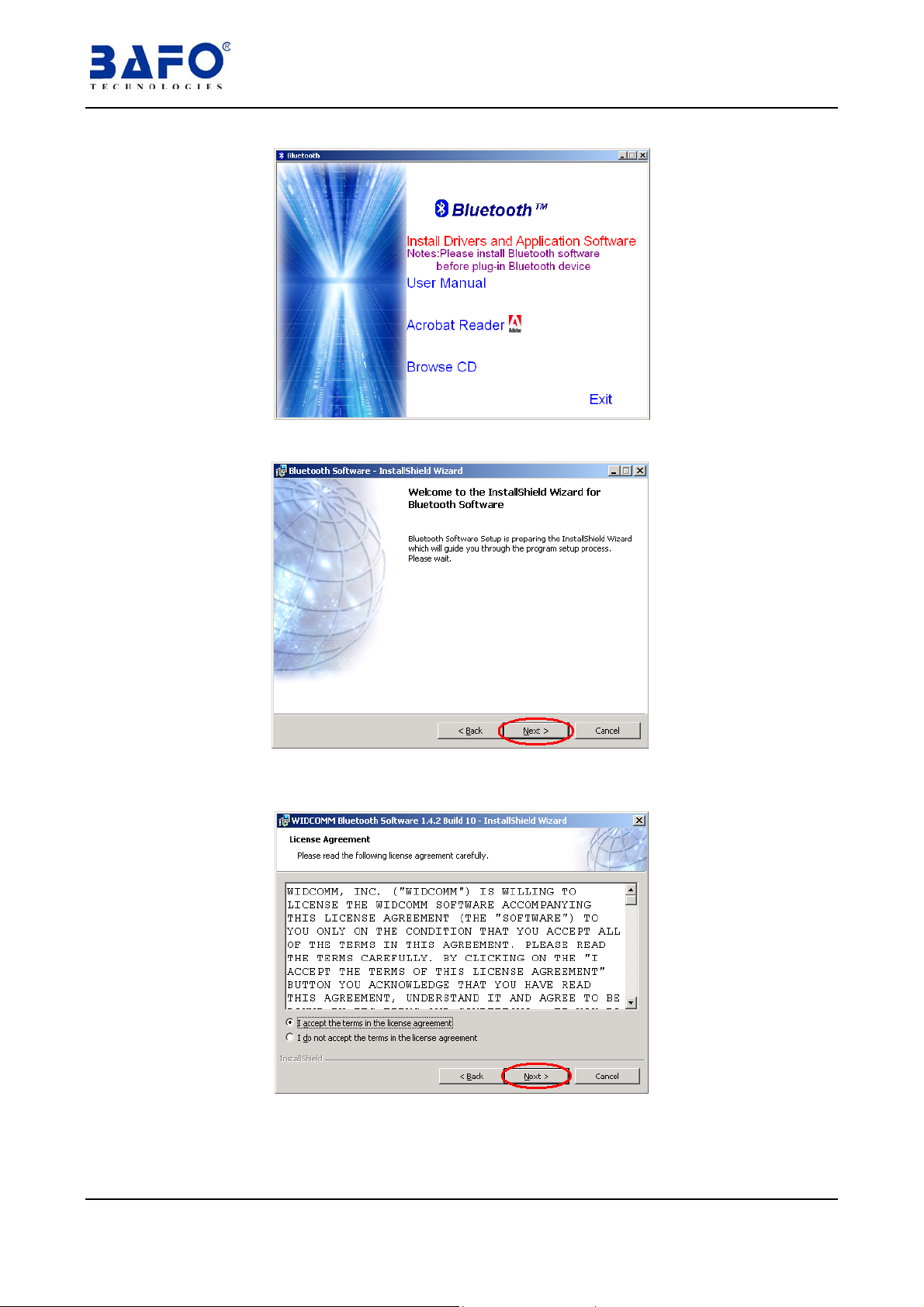
5.1.5 Click “NEXT” to continue.
5.1.6 Select “I accept the terms in the license agreement” and then click
“NEXT” to continue.
5.1.7 Chose folder to where software will be installed, click “Next” to
continue.
USB 2.0 6-Port with Bluetooth HUB User’s Manual 3
Page 4

5.1.8 Click on “Install” to start installation.
5.1.9 Click “OK” to continue.
5.1.10 Click on “Cancel ” to skip it.
USB 2.0 6-Port With Bluetooth HUB User’s Manual 4
Page 5
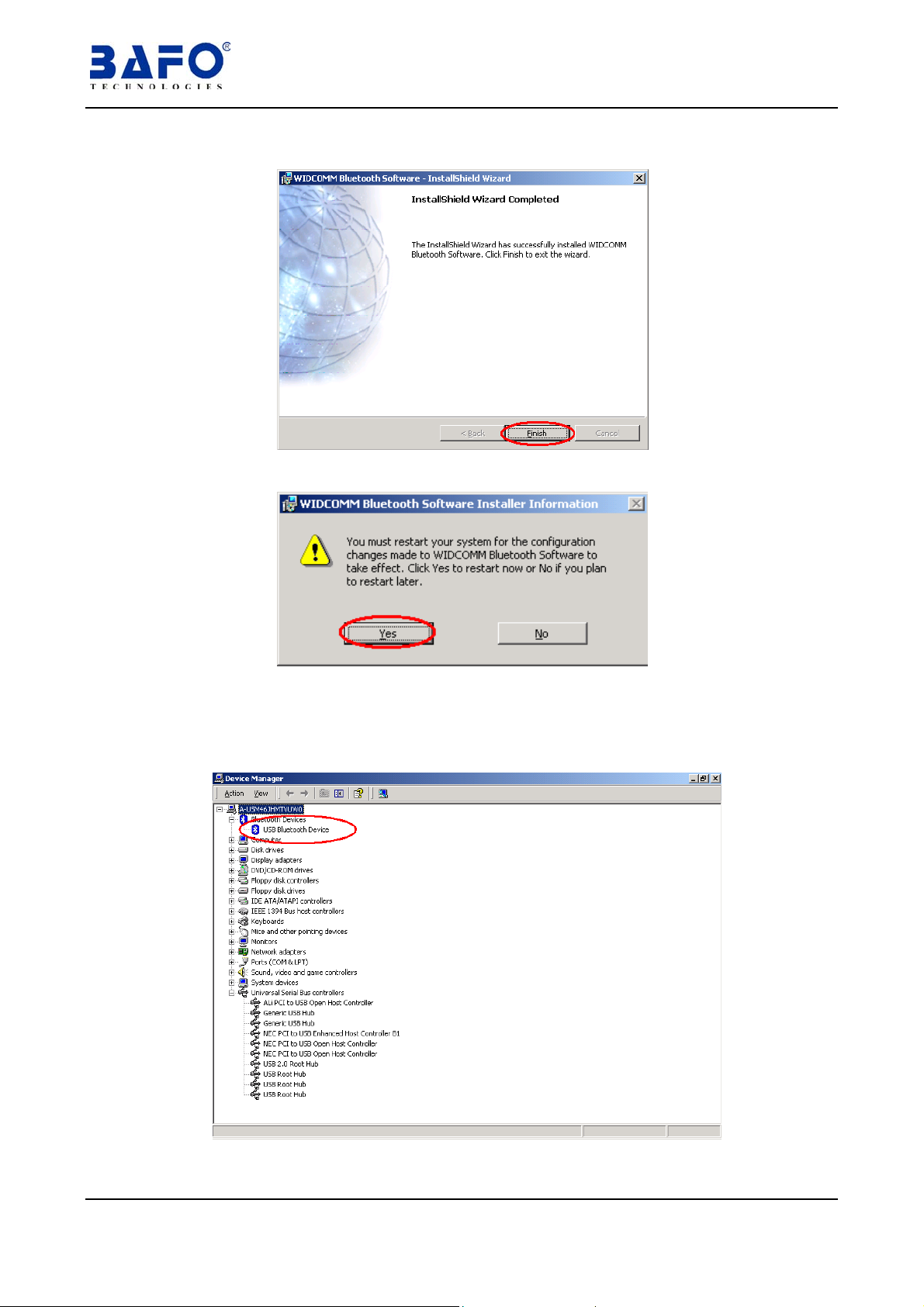
5.1.11 Click on “Finish” to end this installation.
5.1.12 Click on “Yes” to re-start computer.
5.1.13 After re-start computer, you my check “My Computer”-“Control
Panel”-“ System”-“Device Manager” and you will find a new
created item “USB Bluetooth Device” under the ”Bluetooth
Devices” .
USB 2.0 6-Port with Bluetooth HUB User’s Manual 5
Page 6
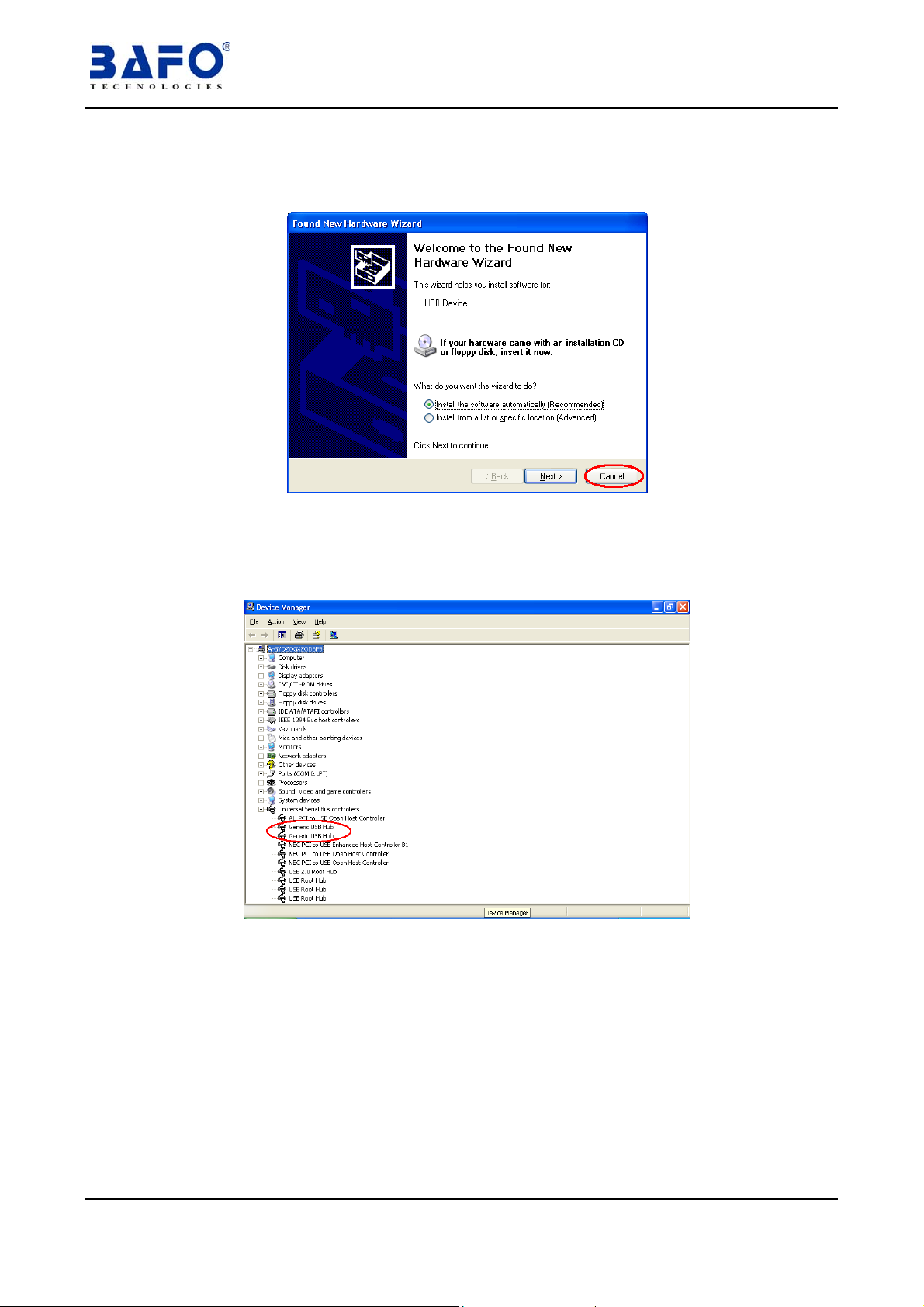
5.2 W indows® XP Driver Installation
5.2.1 Power on the computer, connect the USB 2.0 6-PORT HUB to your
computer, Windows® will detect a new hardware and pop-up “Found
New Hardware Wizard” dialog box, click “Cancel” to continue.
5.2.2 Windows® will load HUB driver automatically, after installation is
complete, you have to check “My Computer”-“Control Panel”-
“ System”-“Device Manager” and you can see two “Generic USB
Hub” under the “Universal Serial Bus Controller”.
5.2.3 Double click on “install” at “E:\BF-4720\WINDOWS\” to start
installing Bluetooth.
USB 2.0 6-Port With Bluetooth HUB User’s Manual 6
Page 7
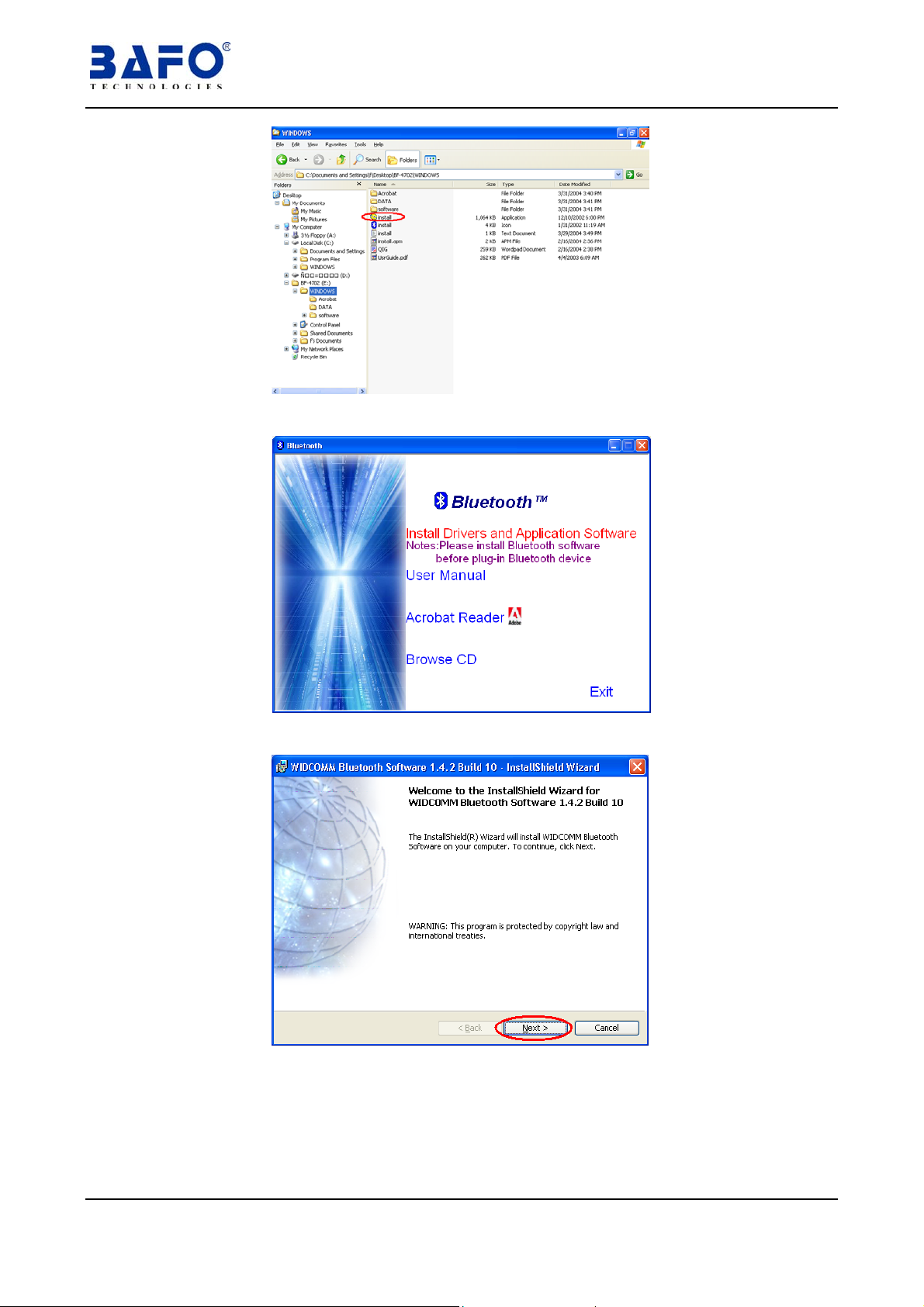
5.2.4 Click on “Install Drivers and Application Software” to continue.
5.2.5 Click “NEXT” to continue.
5.2.6 Select “I accept the terms in the license agreement” and then click
“NEXT” to continue.
USB 2.0 6-Port with Bluetooth HUB User’s Manual 7
Page 8
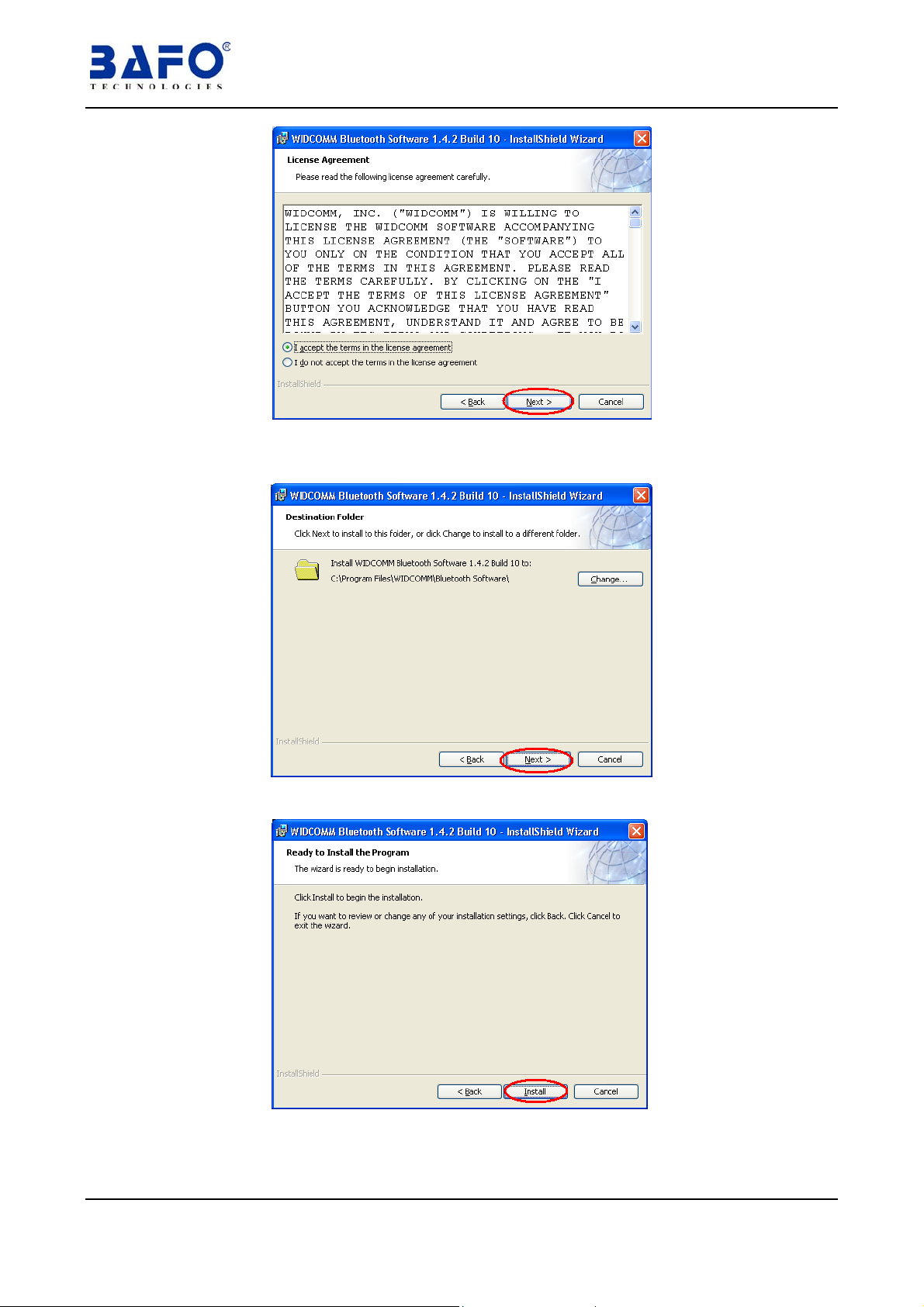
5.2.7 Chose folder to where software will be installed, click “Next” to this
folder or click “Change” to a different folder.
5.2.8 Click on “Install” to start installation.
5.2.9 Click “OK” to continue.
USB 2.0 6-Port With Bluetooth HUB User’s Manual 8
Page 9
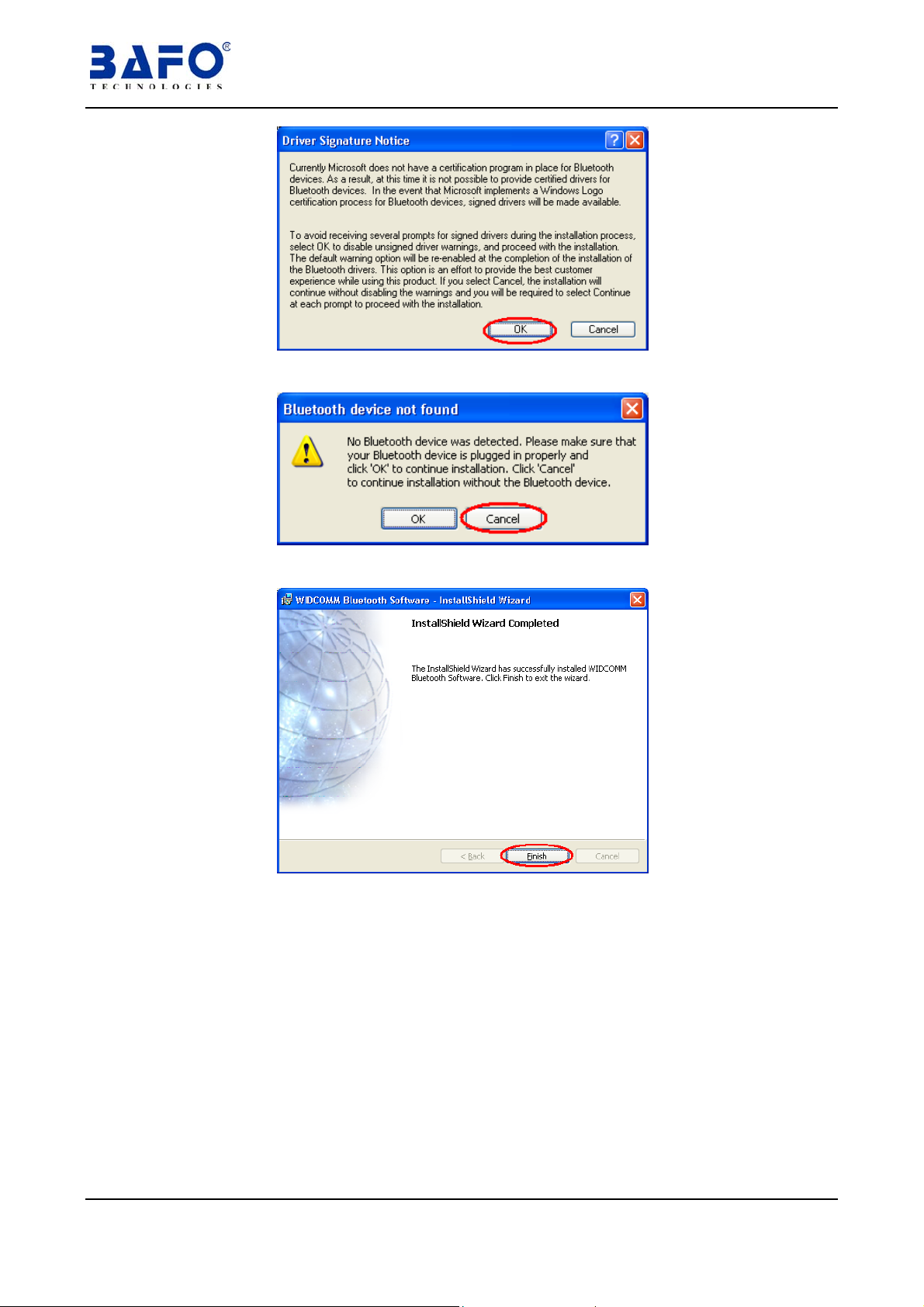
5.2.10 Click on “Cancel ” to skip it.
5.2.11 Click on “Finish” to end this installation.
5.2.12 Select “Install the software automatically” then click “Next”.
USB 2.0 6-Port with Bluetooth HUB User’s Manual 9
Page 10
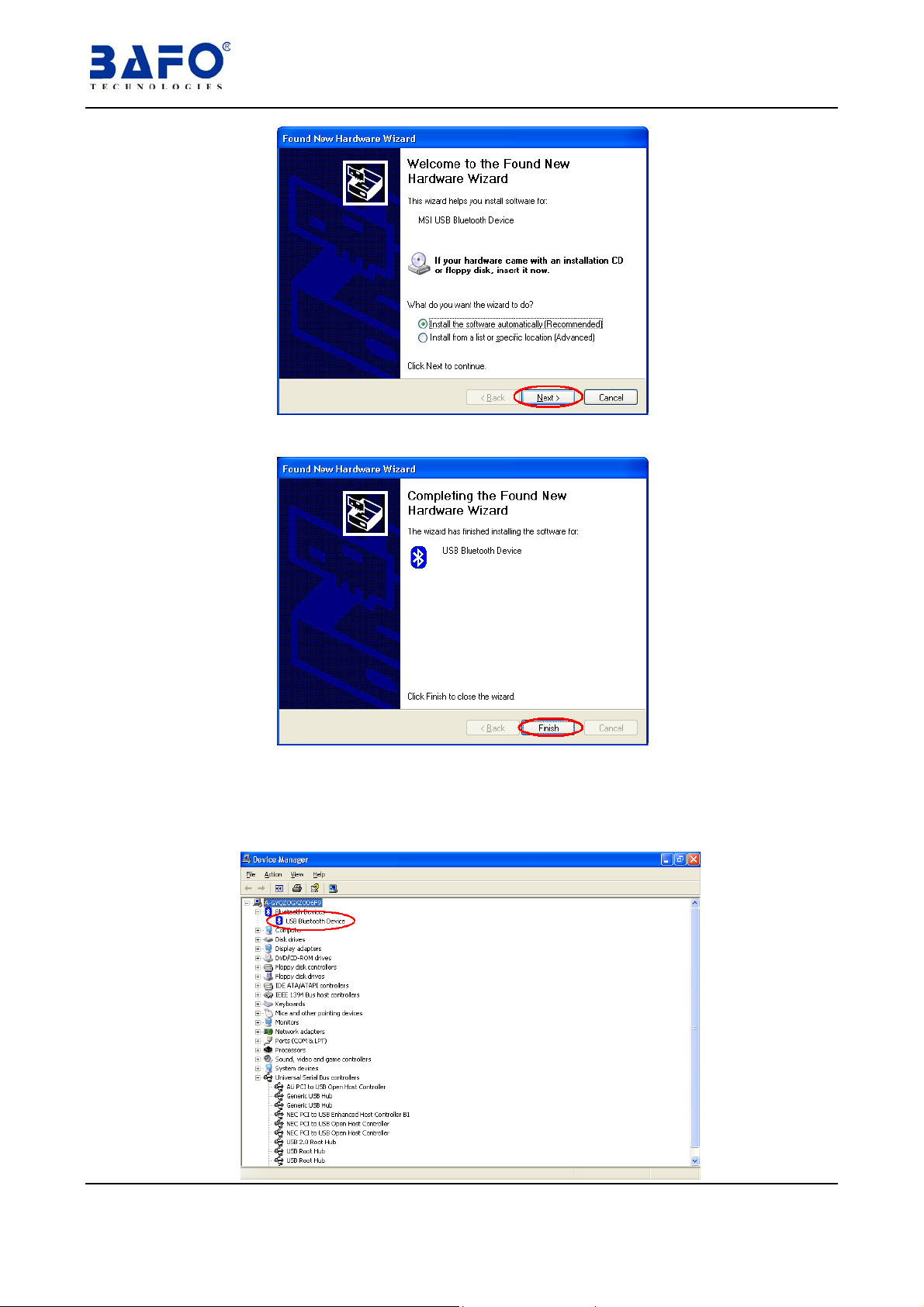
5.2.13 Click on “Finish” to end this installation.
5.2.14 After re-start computer, you my check “My Computer”-“Control
Panel”-“ System”-“Device Manager” and you will find a new
created item “USB Bluetooth Device” under the ”Bluetooth
Devices” .
USB 2.0 6-Port With Bluetooth HUB User’s Manual
10
Page 11

6. FCC Statement
This device generates and uses radio frequency and may cause interference to radio and television
reception if not installed and used properly. This has been tested and found to comply with the limits
of a Class B computing device in accordance with the specifications in Part 15 of FCC Rules. These
specifications are designed to provide reasonable protection against such interference in a
residential installation. However, there is no guarantee that interference will not occur in a particular
installation. If this device does cause harmful interference to radio or television reception, which can
be determined by plugging the device in and out, the user can try to correct the interference by one
or more of the followings:
Reorient or relocate the receiving antenna.
Increase the separation between the device and receiver.
Connect the computer into an outlet on a circuit different from that to which the receiver is
connected.
Consult the dealer or an experienced radio/TV technician for help
This Transmitter must not be co-located or operating in conjunction with any other antenna or
transmitter.
---This equipment complies with FCC RF radiation exposure limits set forth for an uncontrolled
environment.
This equipment should be installed and operated with a minimum distance of 20 centimeters
between the radiator and your body.
---Any changes or modifications (including the antennas) made to this device that are not expressly
approved by the manufacturer may void the user’s authority to operate the equipment.
7. Product Specifications
◆ Standard USB V2.0
Bluetooth V1.1
◆ Data Rate 1.5Mbps,12Mbps,480Mbps (USB2.0)
721Kbps (Bluetooth V1.1)
◆ LED indications Power x1, Port x6
◆ Emission FCC Class B, CE
◆ Operating Temperature 0℃ - 40℃
◆ Operating Humidity 10% - 90%
◆ Power Supply 5V/3.8A
8. Technical Support
If you encounter any technical problem, please contact us through:
Taiwan First line electronics Corp.
NO. 40,Chung-Shan Road, Tu-Cheng Industrial Zone, Taipei County ,
Taiwan, R.O.C.
Web site: www.bafo.com.tw
OR
Quality Computer Accessories Inc. NJ
70 Ethel Road West, Unit 1, Piscataway, NJ 08854, USA
Web site: www.bafo.com
USB 2.0 6-Port with Bluetooth HUB User’s Manual
11
 Loading...