

Page 1

FireID
Phone User Guide for Java Mobile
Phones
Version 2.6.9
Page 2

Table of Contents
INTRODUCTION .......................................................................................................................................................... 1
REQUIREMENTS .......................................................................................................................................................... 1
SECTION A - INSTALLING THE FIREID MOBILE APPLICATION FOR THE FIRST TIME ....................................................... 2
STEP 1 INITIATING THE PROVISIONING................................................................................................................................ 2
STEP 2 DOWNLOADING & INSTALLING THE APPLICATION ....................................................................................................... 3
STEP 3 ACTIVATING THE APPLICATION ................................................................................................................................ 6
SECTION B - INSTALLING A NEW TOKEN ON AN EXISTING FIREID MOBILE APPLICATION ............................................ 8
STEP 1 INITIATING THE PROVISIONING................................................................................................................................ 8
STEP 2 DOWNLOADING THE NEW TOKEN ............................................................................................................................ 8
Page 3

FireID Phone User Guide
FOR JAVA MOBILE PHONES
Introduction
This user guide will take you through the installation process for your mobile phone. Please follow the stepby-step instructions to complete the installation on your phone.
If you do not have the FireID Mobile Application installed on your mobile phone, please follow the
instructions under Section A.
If you already have the FireID Mobile Application installed on your mobile phone and only need to download
a new token, please follow the instructions under Section B.
Please ensure that you have setup your mobile phone correctly by reading the Requirements section below.
Requirements
You will need GPRS/3G and SMS connectivity enabled on your phone before starting the installation
process. If you are unsure of the status of these services on your phone, please consult your phone user
manual or contact your service provider for assistance.
FireID
Phone User Guide for Java Mobile Phones
Version 2.6.9
Page 1 of 9
Page 4
Section A - Installing the FireID Mobile Application for the first time
Step 1 Initiating the Provisioning
You will receive an email from your systems administrator containing a Secret Key and a download link.
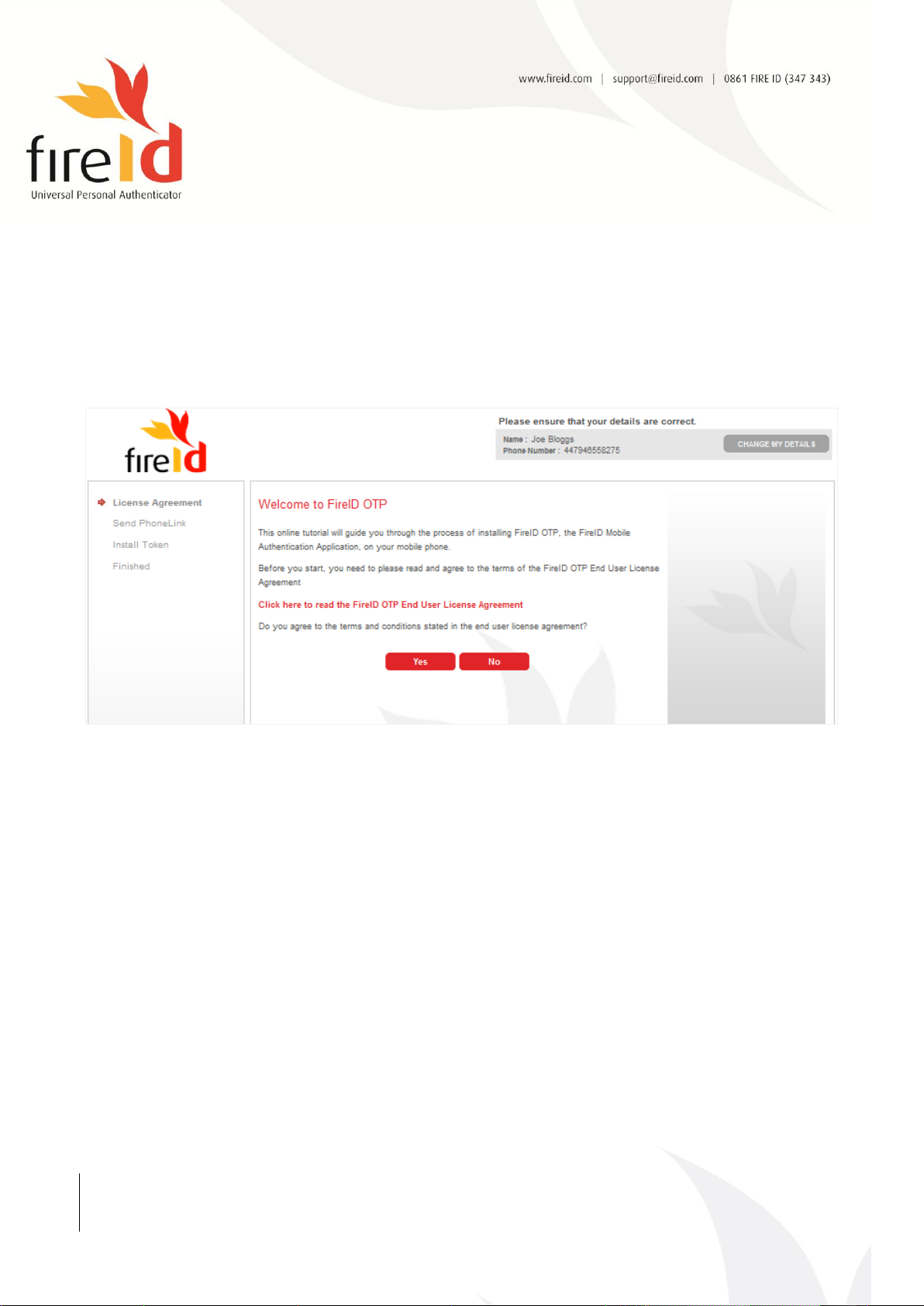
1.1 Click on the download link to start the provisioning process. The following page will load in your
web browser:
Figure 1 - FireID Online Tutorial
1.2 Click on the End User License Agreement link to read the FireID End User License Agreement and
click on the Yes button to proceed with the provisioning.
FireID
Phone User Guide for Java Mobile Phones
Version 2.6.9
Page 2 of 9
Page 5
Step 2 Downloading & Installing the Application
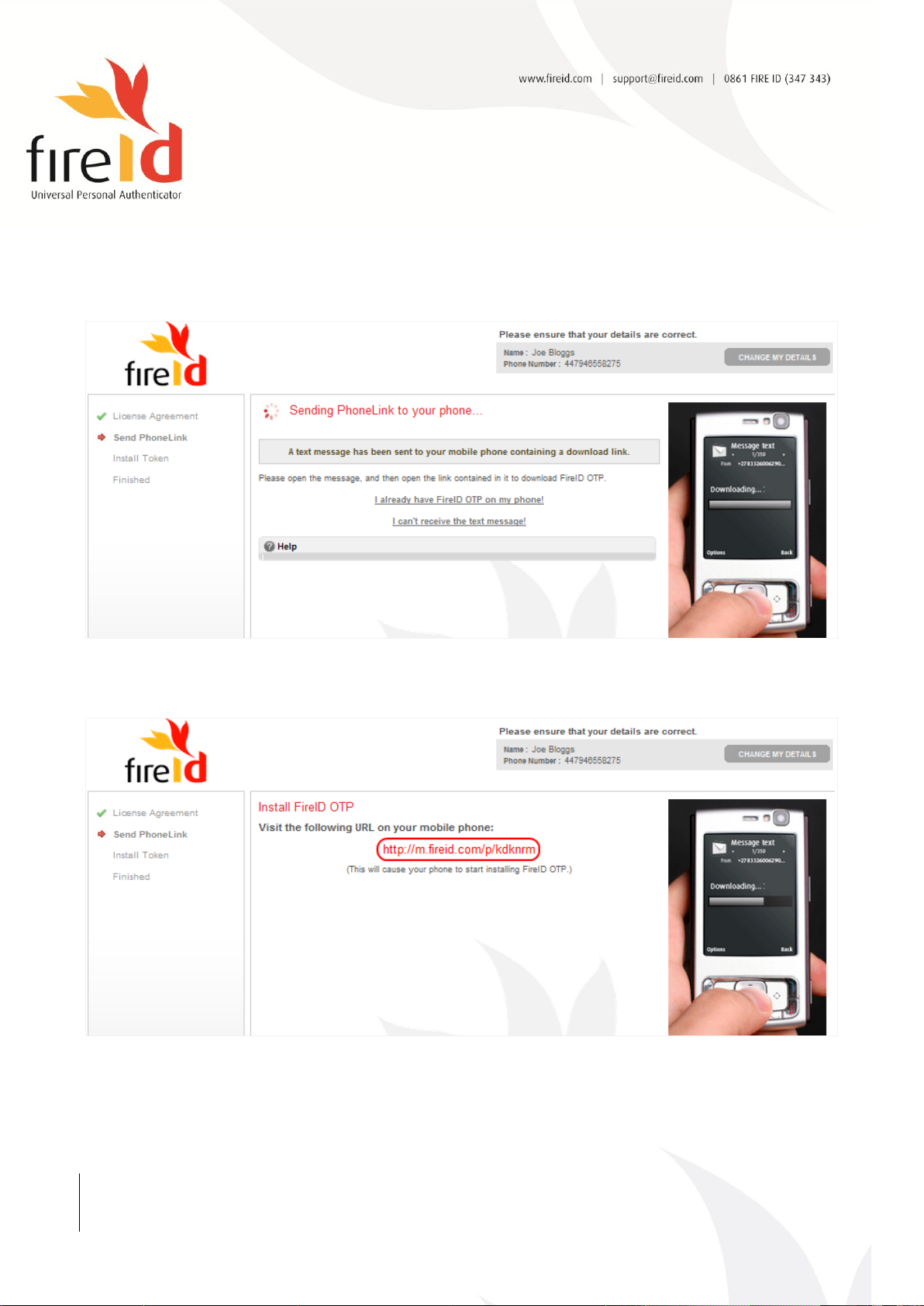
You will receive an SMS on your mobile phone containing a download link, and the following page will be
displayed in the online tutorial:
Figure 2 – Receiving the SMS
If you do not receive an SMS on your phone, click on the ‘I can’t receive the test message!’ link and enter
the resulting URL into your phone’s web browser:
Figure 3 - Manual download link
2.1 Open the SMS on your phone and click on the download link:
FireID
Phone User Guide for Java Mobile Phones
Version 2.6.9
Page 3 of 9
Page 6
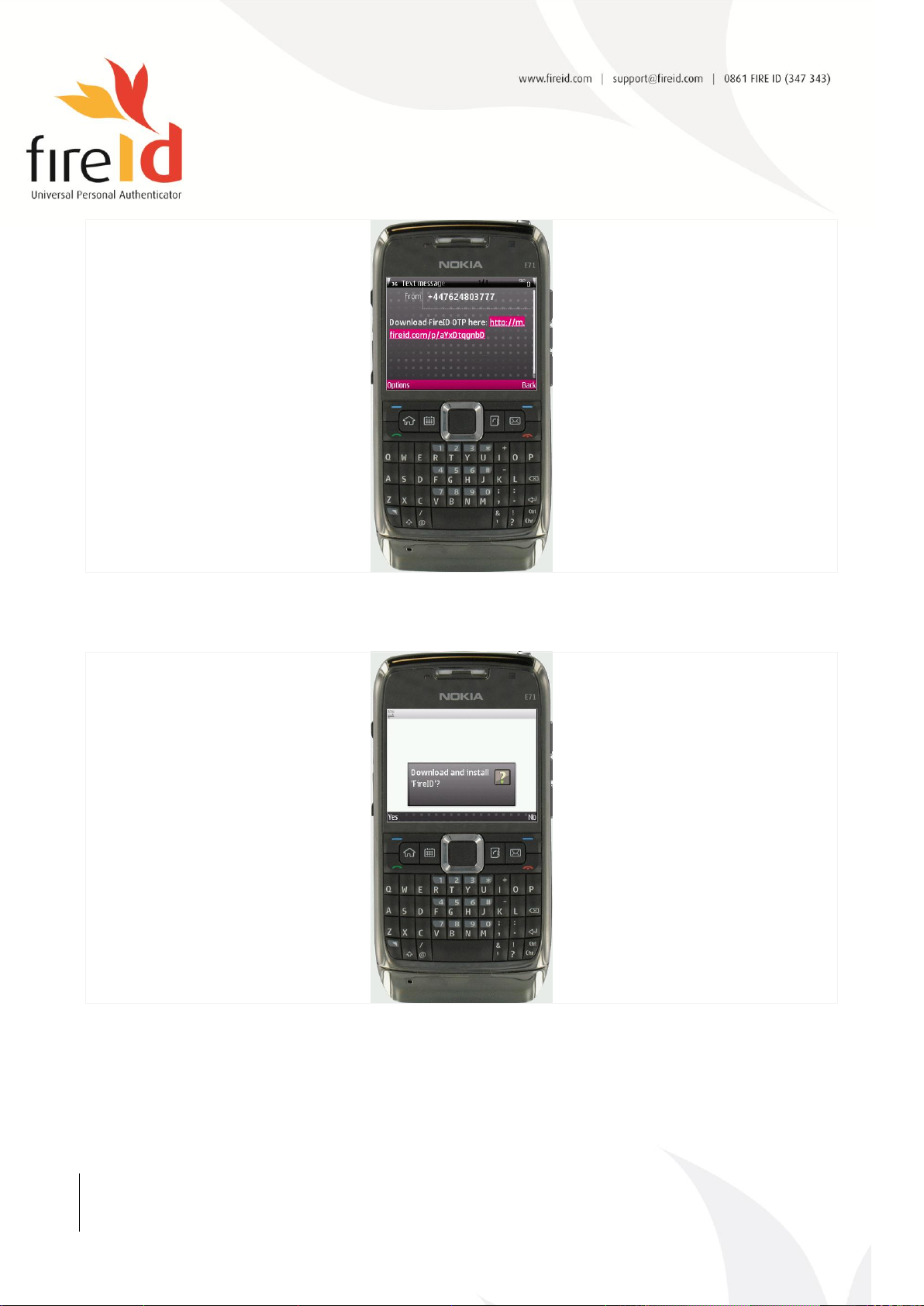
Figure 4 – Opening the download link
2.2 Your mobile phone will download the FireID mobile application. When prompted to download and
install FireID, please choose Yes:
Figure 5 – Starting the installation
2.3 Follow the onscreen instructions to complete the installation. If prompted to install an application from
an untrusted source, please click on Yes/Continue:
FireID
Phone User Guide for Java Mobile Phones
Version 2.6.9
Page 4 of 9
Page 7
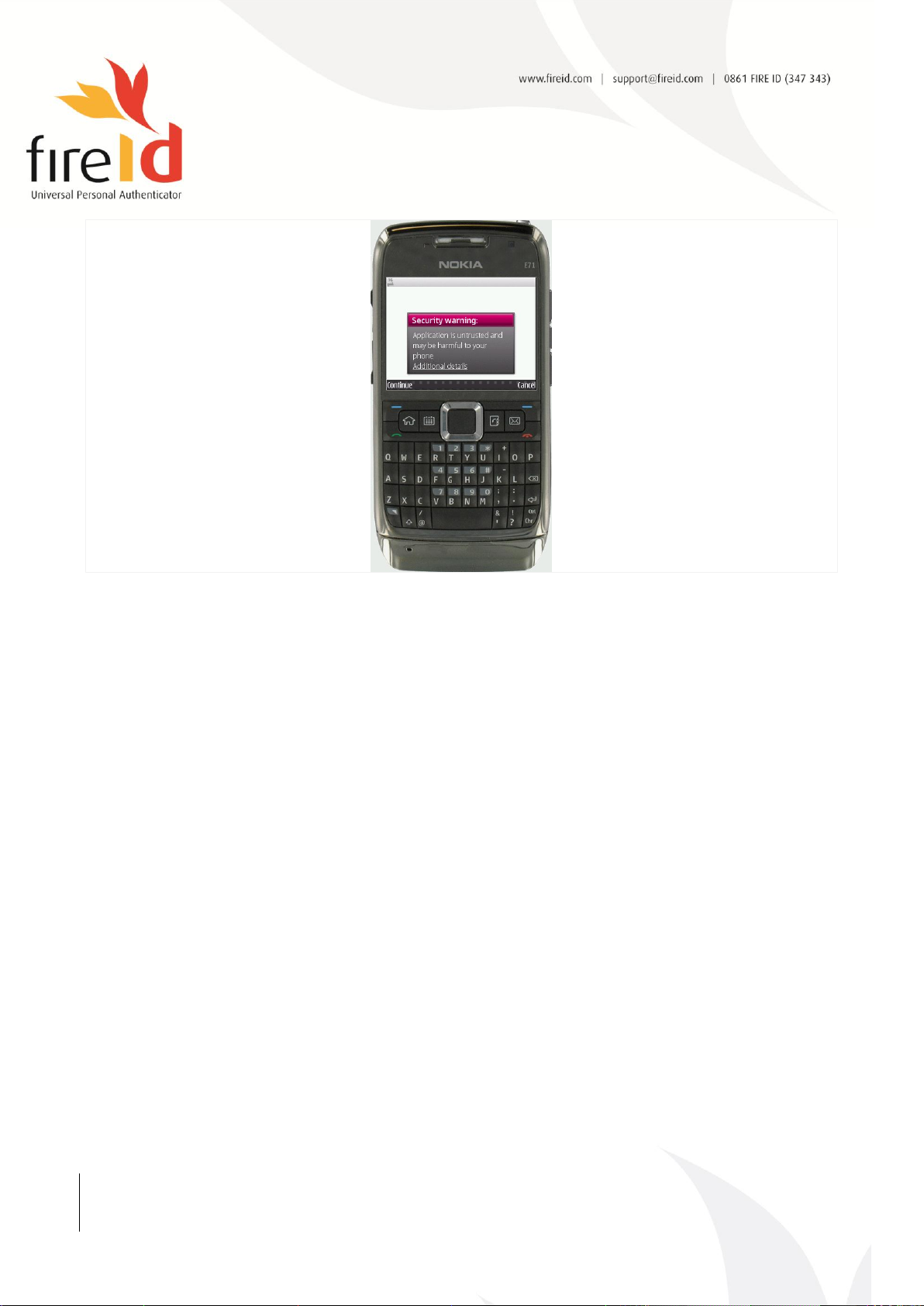
Figure 6 – Agreeing to the security warning
FireID
Phone User Guide for Java Mobile Phones
Version 2.6.9
Page 5 of 9
Page 8
Step 3 Activating the Application
Once the FireID application has been downloaded and installed on your phone, open it and follow the steps
below to complete the installation:
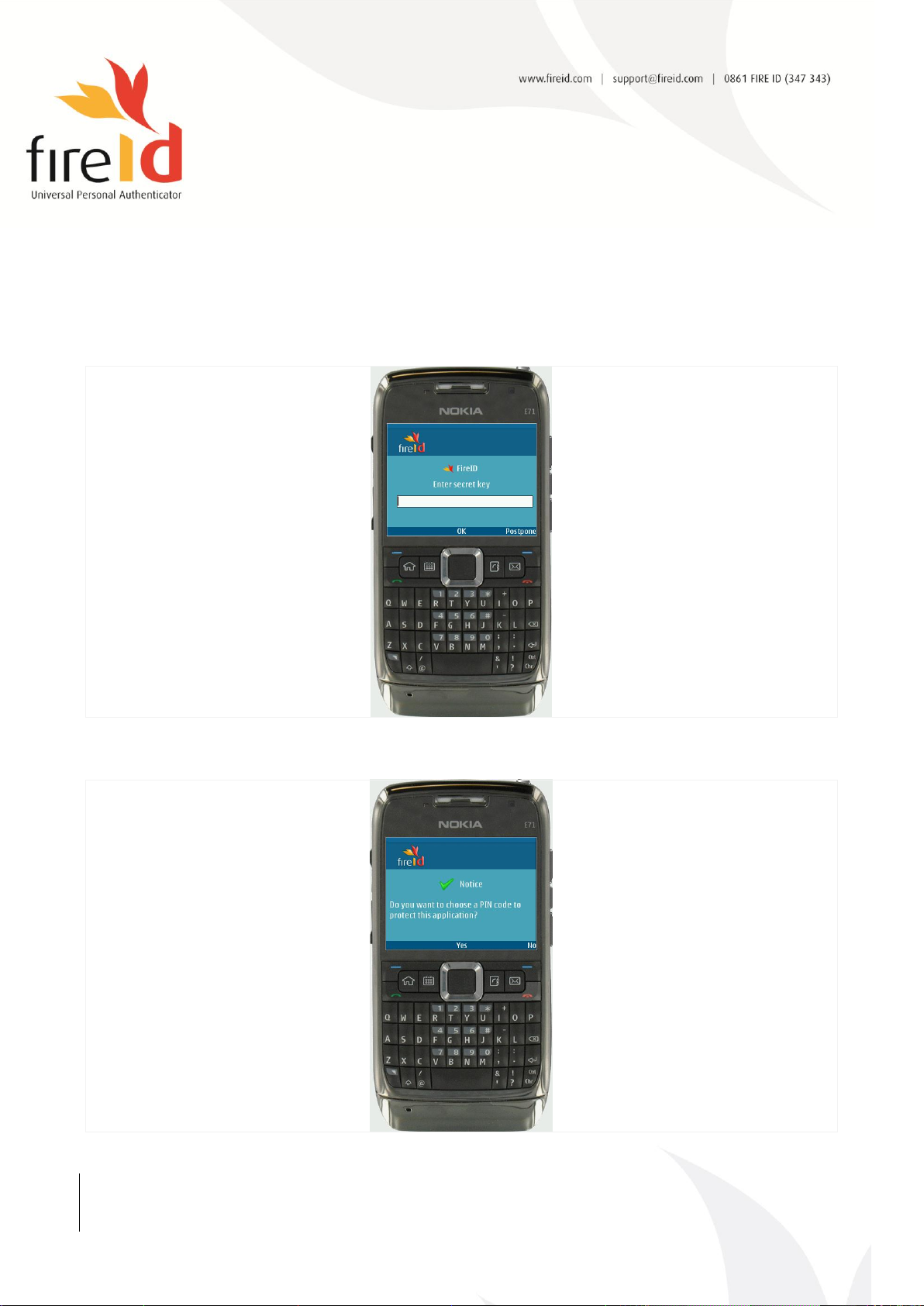
3.1 You will be prompted to enter a Secret Key for the FireID token. Please enter the Secret Key
provided by your systems administrator:
Figure 7 - Entering the Secret Key
3.1 You will need to choose whether to provide a PIN code to protect the application on your phone:
Figure 8 - PIN requirements
FireID
Phone User Guide for Java Mobile Phones
Version 2.6.9
Page 6 of 9
Page 9
You are now ready to generate OTPs to login to your FireID-protected company
resources.
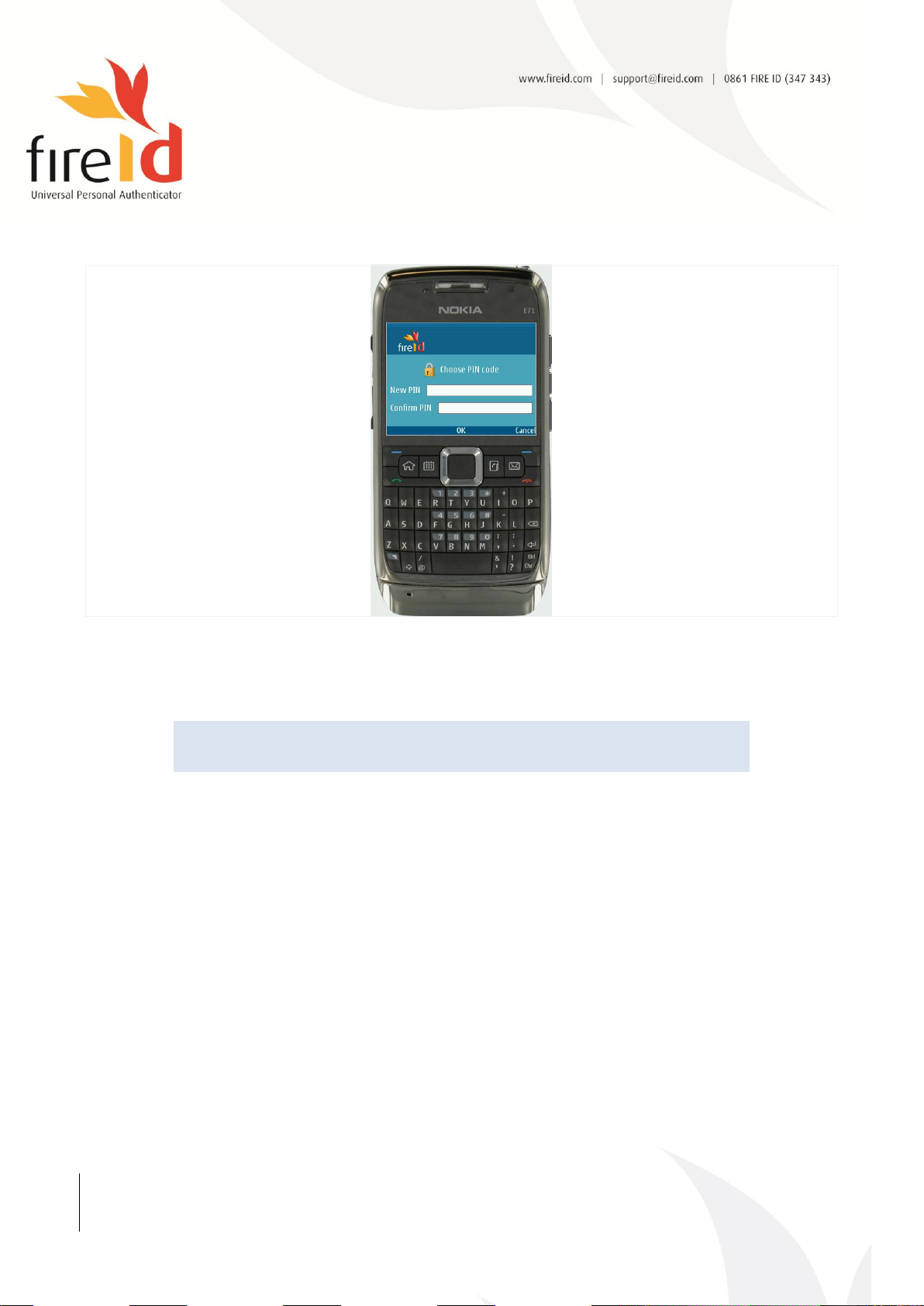
3.1 You will be prompted to enter a PIN code on your phone. You may choose any numerical code.
Enter this PIN in the New PIN and in the Confirm PIN fields, and click on OK to proceed:
Figure 9 - Choosing a PIN code
3.2 The FireID Mobile Application is now installed on your mobile phone and you can start generating
one-time-passwords (OTPs).
FireID
Phone User Guide for Java Mobile Phones
Version 2.6.9
Page 7 of 9
Page 10
Your new token is now installed on your mobile phone. You can start generating
and using OTPs to access your FireID-protected company resources.
Section B - Installing a new Token on an existing FireID Mobile
Application
Step 1 Initiating the Provisioning
You will receive an email from your systems administrator containing a Secret Key and a download link.
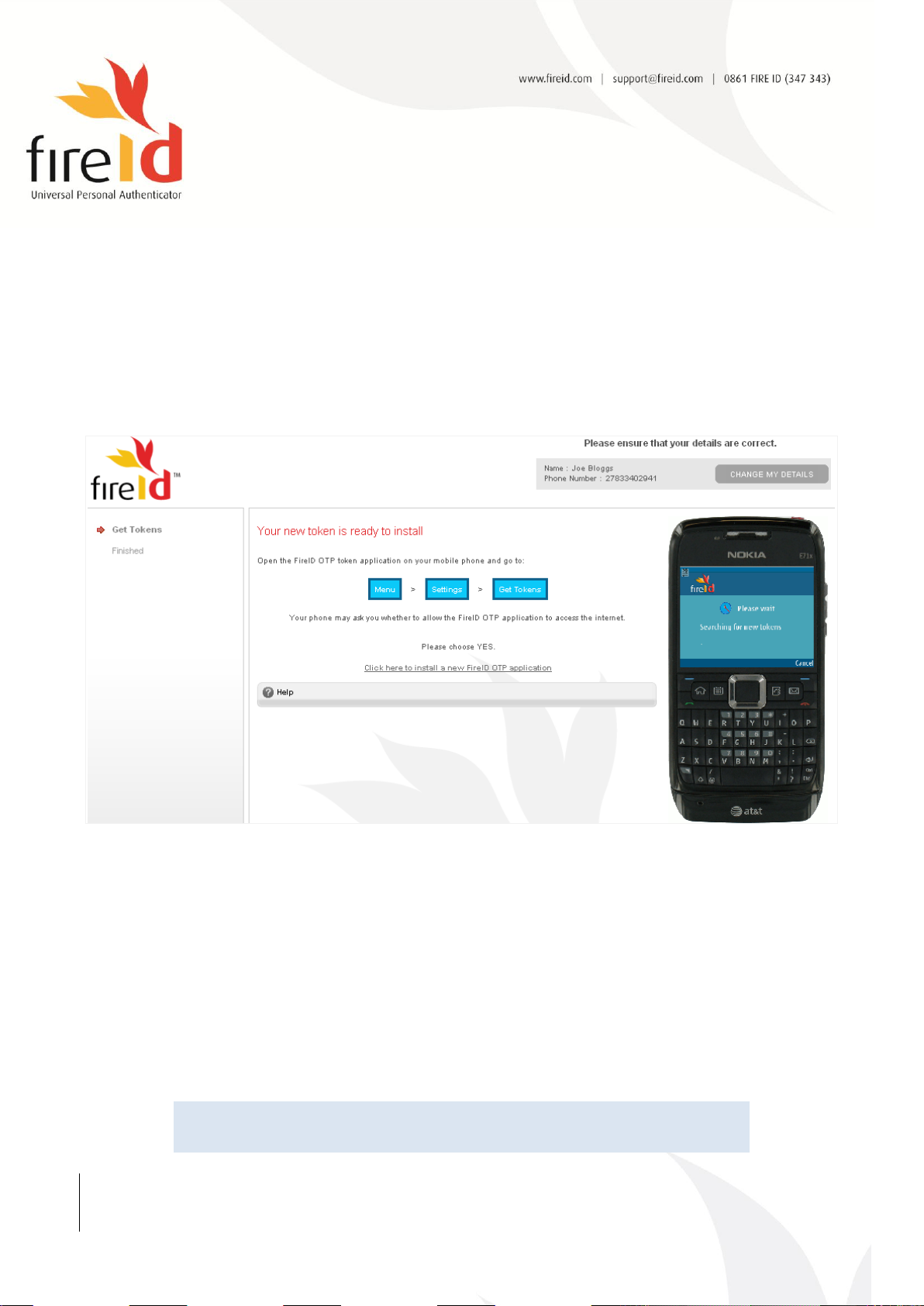
1.1 Click on the download link to start the provisioning process. The following page will load in your
web browser:
Figure 10 - Requesting a New Token
Step 2 Downloading the new Token
2.1 Open the FireID Application on your mobile phone.
2.2 Go to Settings.
2.3 Click on the Get Tokens option.
2.4 Your mobile phone will now download the new token.
2.5 Click on Yes if prompted to allow the application to use the network and send or receive data.
2.6 Enter the Secret Key provided to you when prompted to do so.
FireID
Phone User Guide for Java Mobile Phones
Version 2.6.9
Page 8 of 9
Page 11

WWW.FIREID.COM
INFO@FIREID.COM
+27 21 880 2647
2ND FLOOR
BLOCK C, OCTO PLACE
ELECTRON ROAD
TECHNOPARK
STELLENBOSCH 7600
WESTERN CAPE
SOUTH AFRICA
FireID
Phone User Guide for Java Mobile Phones
Version 2.6.9
Page 9 of 9
 Loading...