

Page 1
Laan van Kronenburg 14,
1183 AS Amstelveen,
the Netherlands
Tel: +31 208 932047
Email: [email protected]
Website: fieldbee.com
User Manual
FieldBee RTK GNSS system
Page 2

FieldBee toolbox manual v.1.0
Introduction 4
Technical assistance 4
Your comments 4
FieldBee Toolbox Operation 4
Installation 4
Menu Controls and Indicators 4
FieldBee GNSS receiver 6
Standalone sensor without any correction services 6
Standalone sensor with correction from local NTRIP provider 6
FieldBee RTK GPS system 14
FieldBee RTK base station+FieldBee GNSS receiver 14
FieldBee adjustment 19
FieldBee base station adjustment 19
Base station modes 19
Base survey mode 19
Base Static mode 20
Status/Summary 21
Radio channel and region 21
Elevation Mask 22
Constellation Mask 22
RTK Mode parameters 22
Wi-Fi settings 22
Firmware update 23
Profiles 23
Reset 23
RTCM settings 23
Binary Config 23
FieldBee GNSS receiver adjustment 24
Switch RTK mode 24
Set correction mode 24
Status/Summary 27
Radio Channel and region 27
Elevation Mask 27
Constellation Mask 28
RTK Mode Parameters 28
Wi-Fi settings 28
Profiles 28
Reset 28
Fix Status 29
Start Navigation with FieldBee 29
2
Page 3

FieldBee toolbox manual v.1.0
Introduction
Welcome to the FieldBee RTK GPS system User Guide. This manual describes how to install, set up, and use the
FieldBee GNSS receiver and FieldBee RTK base station with android toolbox application .
Technical assistance
If you have a problem and cannot find the information you need in the product documentation, contact our support team,
writing an email to [email protected]
Your comments
Your feedback about the supporting documentation helps us to improve it with each revision. E-mail your comments to
[email protected]
FieldBee Toolbox Operation
The FieldBee Toolbox allows for creating and managing FieldBee GNSS devices, connect FieldBee GNSS to FieldBee
Base station over radio or internet, setup internet connection. If changes need to be made for FieldBee , the operator will
need to manage those options in the FieldBee Toolbox application.
Installation
Download FieldBee toolbox from Play Store, following this link:
https://play.google.com/store/apps/details?id=mobi.efarmer.device.toolkit
3
Page 4
FieldBee toolbox manual v.1.0
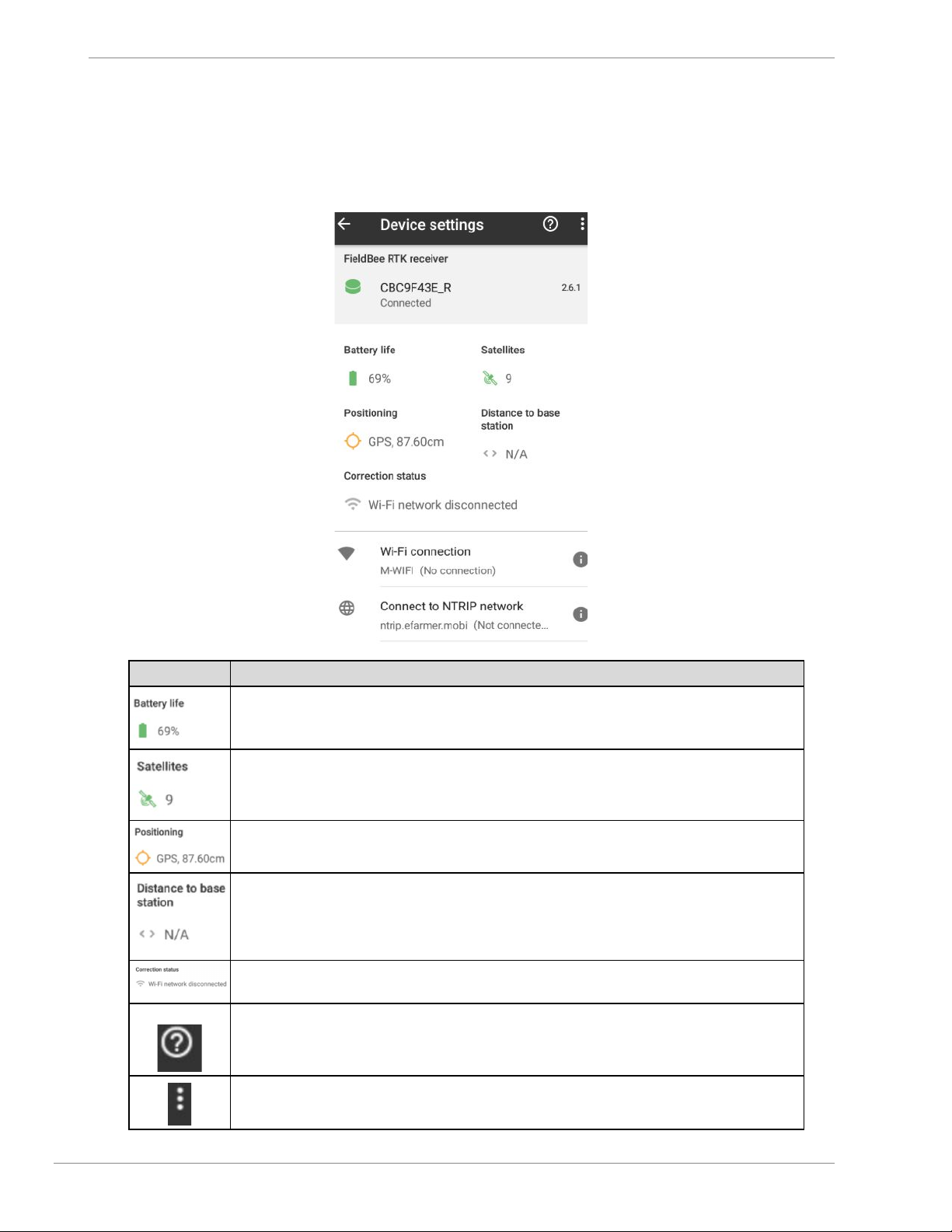
Menu Controls and Indicators
Menu and Control Indicators Definitions
Item
Function
Battery level
Amount of satellites which is used for defining location
Current estimation of accuracy.
Distance between FieldBee GNSS and FieldBee RTK base station
For base station status transmitting correction, for rover status of receiving correction over
radio or over internet
Help
Advanced menu for adjustment fieldbee.
4
Page 5
FieldBee toolbox manual v.1.0
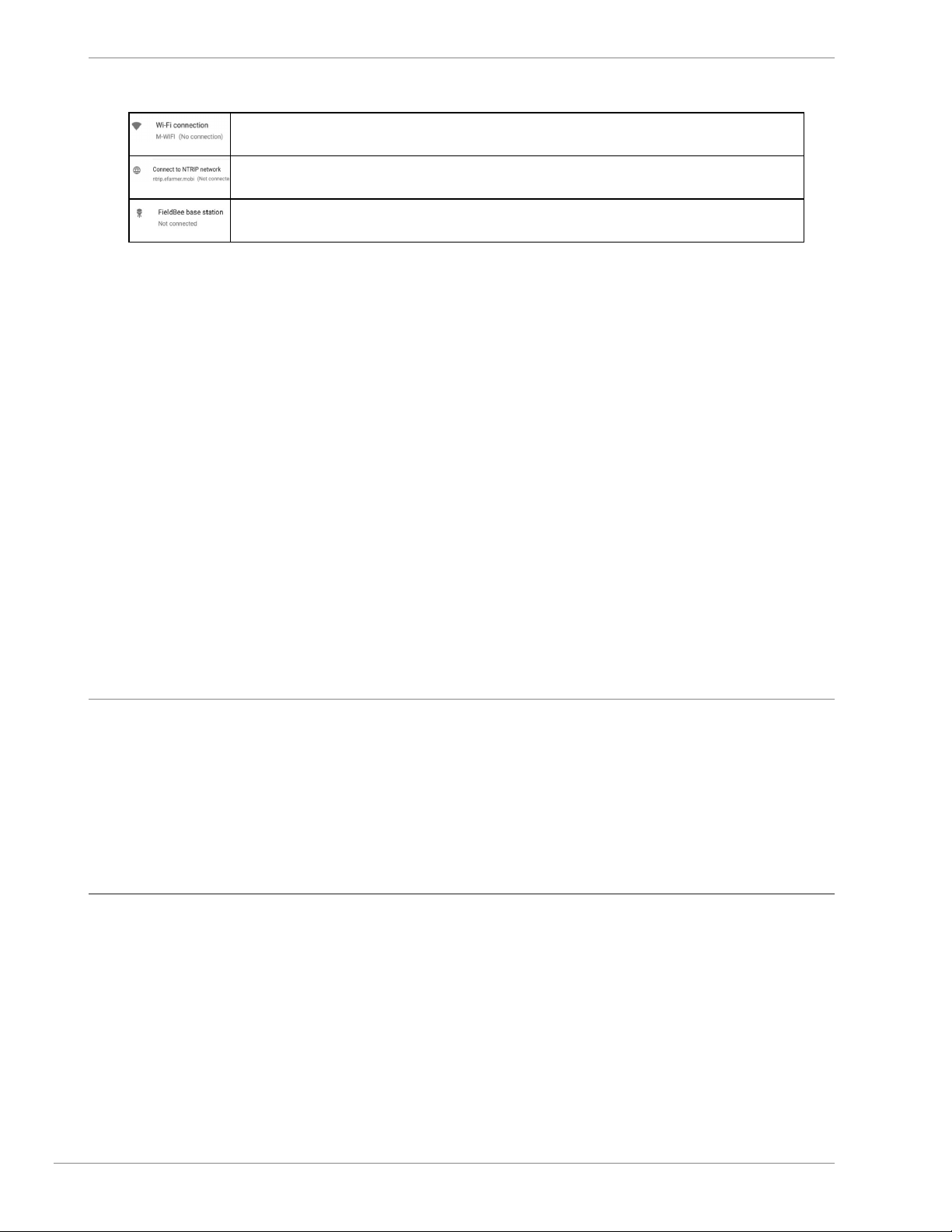
Parameters for connecting to WiFi network or for connecting to mobile hotspot
Connecting to public RTK network, RTCM 3.x compatible
Connect FieldBee GNSS to FieldBee RTK base station
FieldBee GNSS receiver
If you have ordered only FieldBee receiver you may use it as standalone sensor :
1. without any correction and it will provide submeter accuracy ( 50 cm - 1,5 m depends on external
factors);
2. with correction from local NTRIP provider.
1. Standalone sensor without any correction services
FieldBee GNSS receiver without any correction services is not required specific steps for set up.
Only need to locate FieldBee receiver in the middle of the tractor’s roof ( if it is possible)* and turn it on (by pressing the
power button or plugging in charging cable to receiver and cigarette lighter).
To start driving with FieldBee GNSS receiver you will need to connect Fieldbee app to receiver.
You may find this info at GPS Antenna connection chapter FieldBee app manual.
* if it is not possible to locate in the middle of the tractor’s roof you need to apply this changes in FieldBee app.
You may Find it in Settings -> GPS-> GPS preferences
For this :
1. Go to FieldBee app
2. Open Settings
3. GPS preferences
4. Input offset value and direction
5. Save changes
2. Standalone sensor with correction from local NTRIP provider
FieldBee GNSS receiver can provide 0 – 4 cm accuracy with connection to local NTRIP provider.
There are few required conditions for getting 0-4 cm accuracy from local NTRIP provider. FieldBee GNSS receiver
needs to :
● receive signal from more than 8 satellites;
● be connected to the Internet ( WiFi network or Hotspot network);
5
Page 6
FieldBee toolbox manual v.1.0
● be set up to the active account at local NTRIP provider.
You can connect FieldBee receiver to any 2,4 GHz Wi-Fi networks or mobile Hotspot, enabled from device which is not
using for FieldBee setup.
5G networks are not available for RTK correction reception.
Start initial set up by locating FieldBee GNSS receiver at 1-1,5 m height above the ground and wide open area.
Download FieldBee toolbox from Play Store, following this link:
https://play.google.com/store/apps/details?id=mobi.efarmer.device.toolkit
1. Turn FieldBee receiver on.
2. Open FieldBee toolbox app
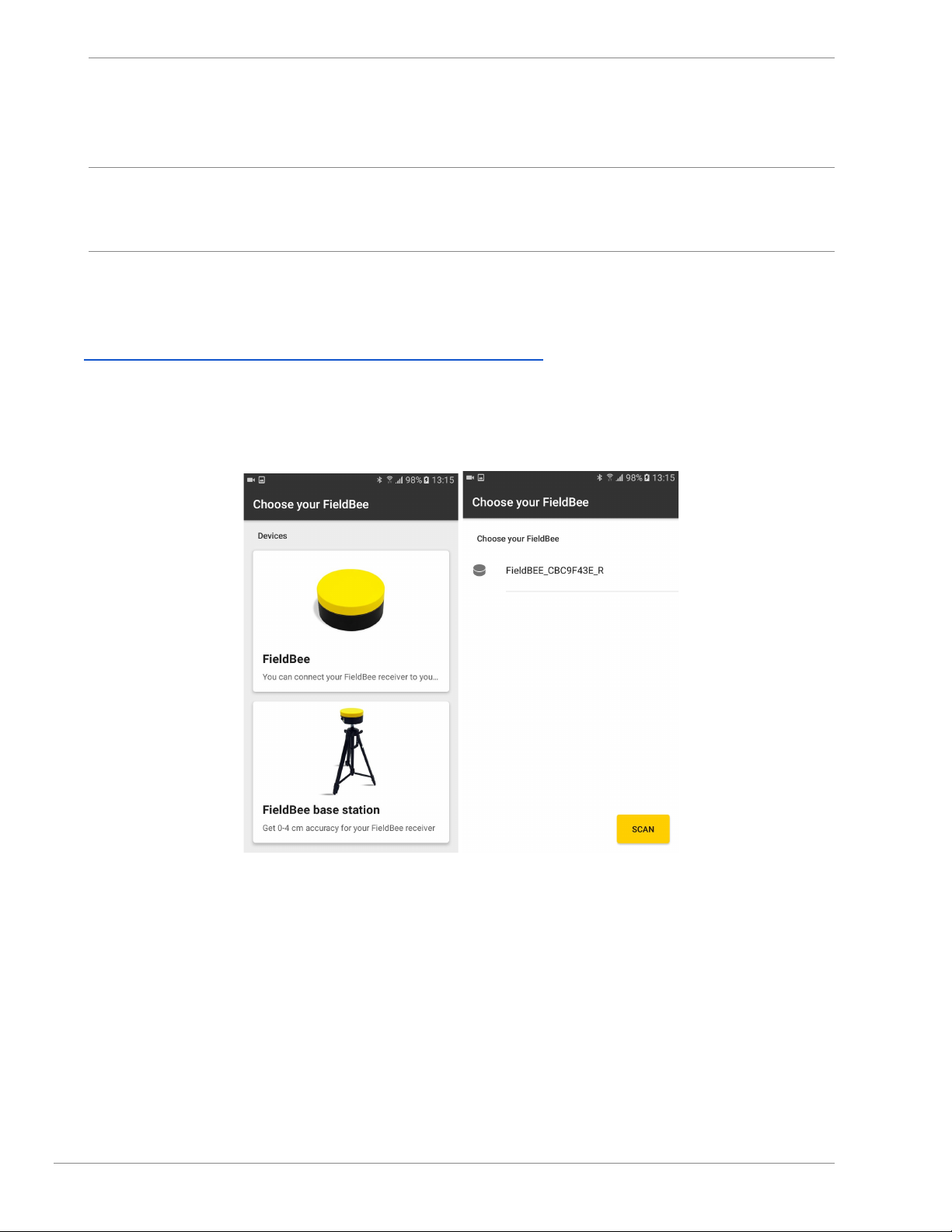
3. Choose FieldBee (fig.1.1)
4. Tap FieldBee serial number to continue setup (fig.1.2)
This screen name is “Main Menu”
fig.1.1 fig.1.2
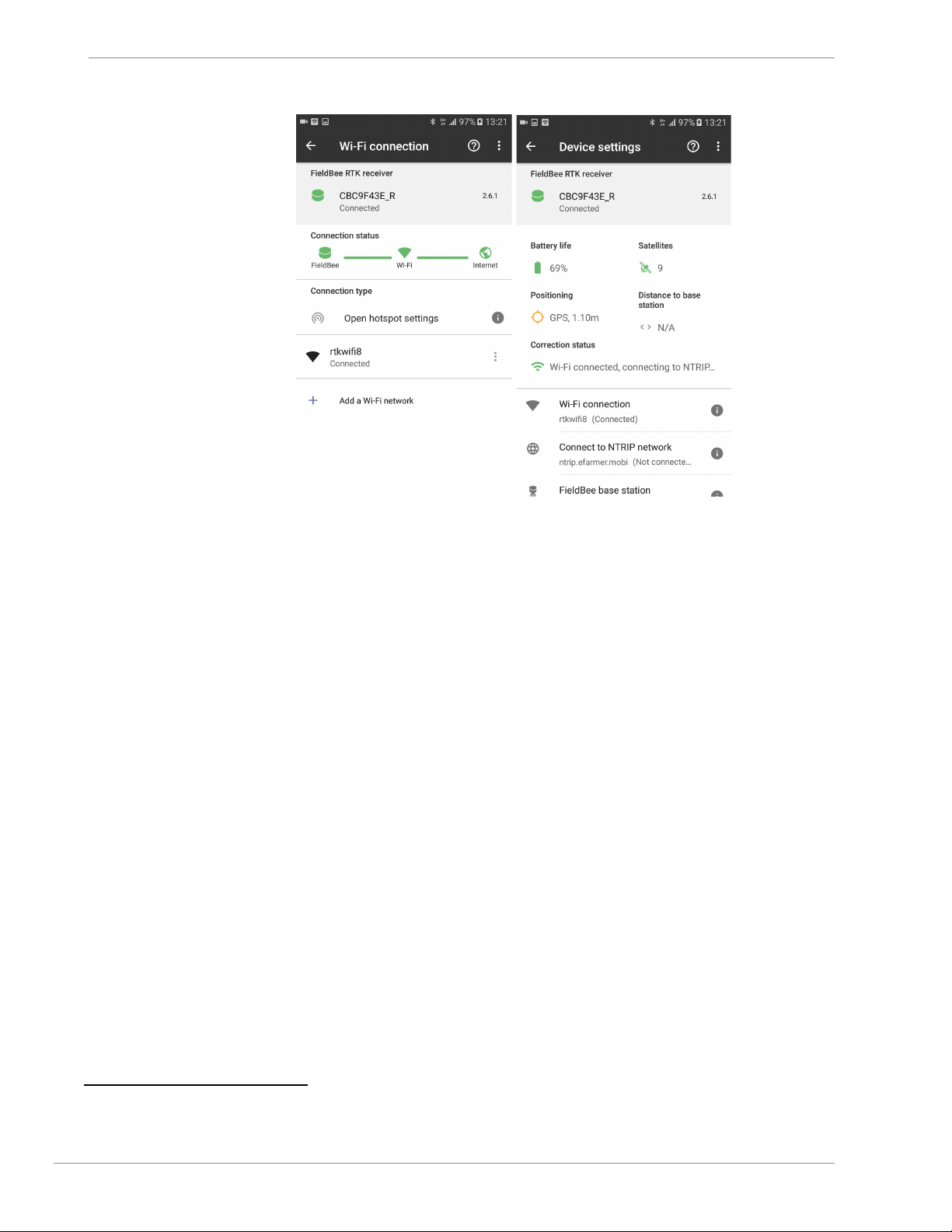
5. Connect FieldBee GNSS receiver to internet:
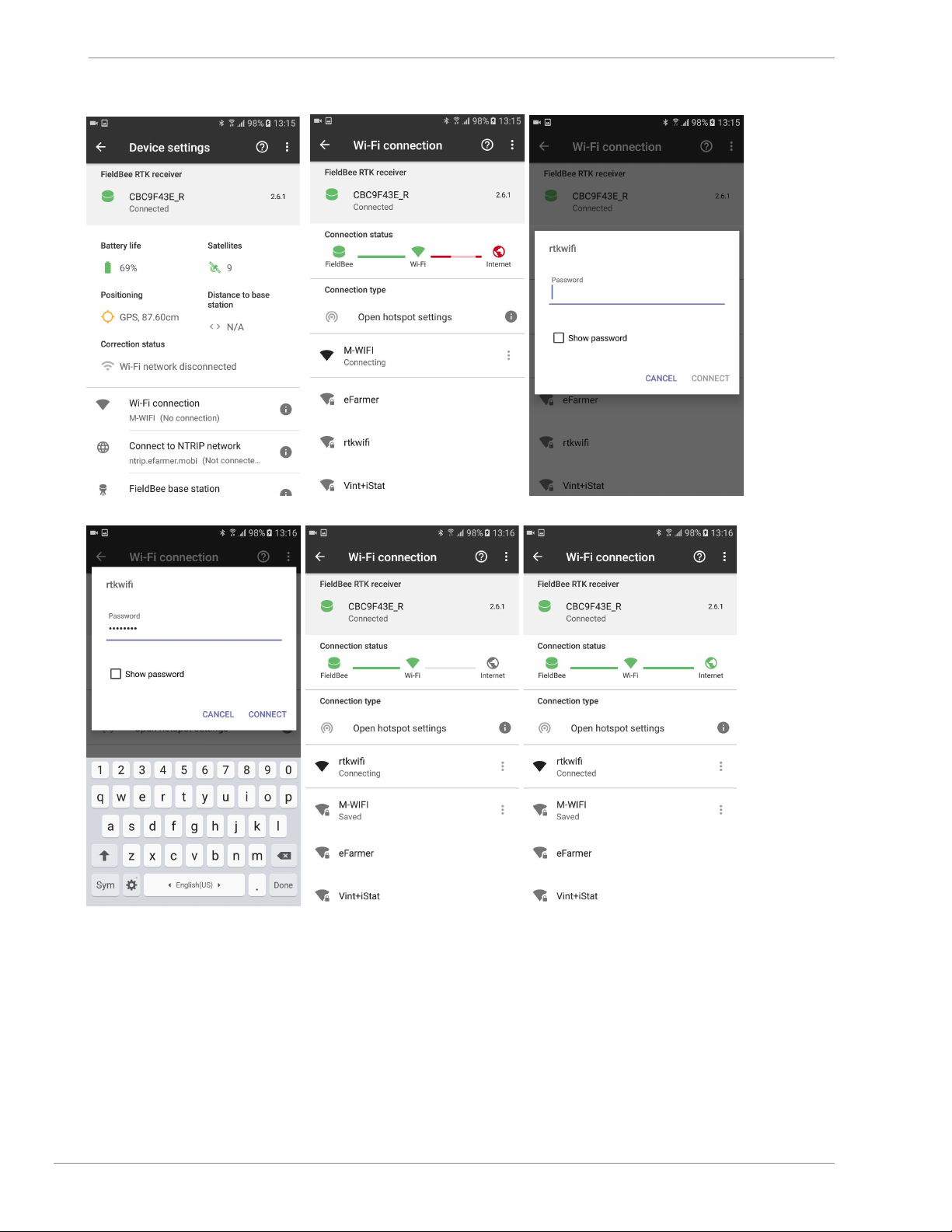
● Connecting receiver to available WiFi network:
1) tap Wi-Fi connection; fig.2.1
2) tap one of available Wi-Fi networks; fig.2.2
3) input password for this network fig.2.3
4) tap Connect button; fig.2.4
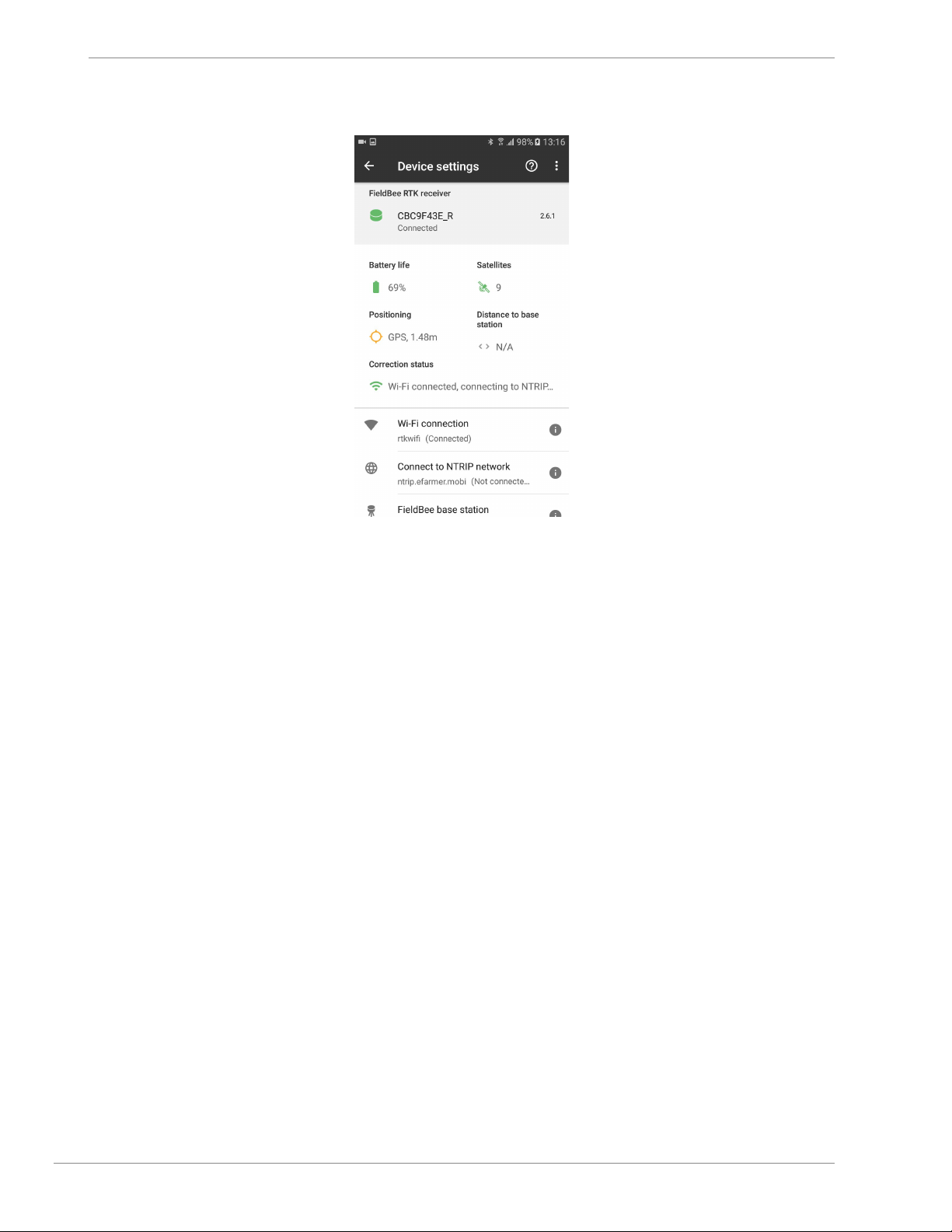
5) *wait until FieldBee will become connected to Wi-Fi network fig.2.5,
FieldBee is connected to Wi-Fi network. fig.2.6, fig.2.7
6
Page 7
FieldBee toolbox manual v.1.0
fig.2.1 fig.2.2 fig.2.3
fig.2.4 fig.2.5 fig.2.6
7
Page 8
FieldBee toolbox manual v.1.0
fig.2.7
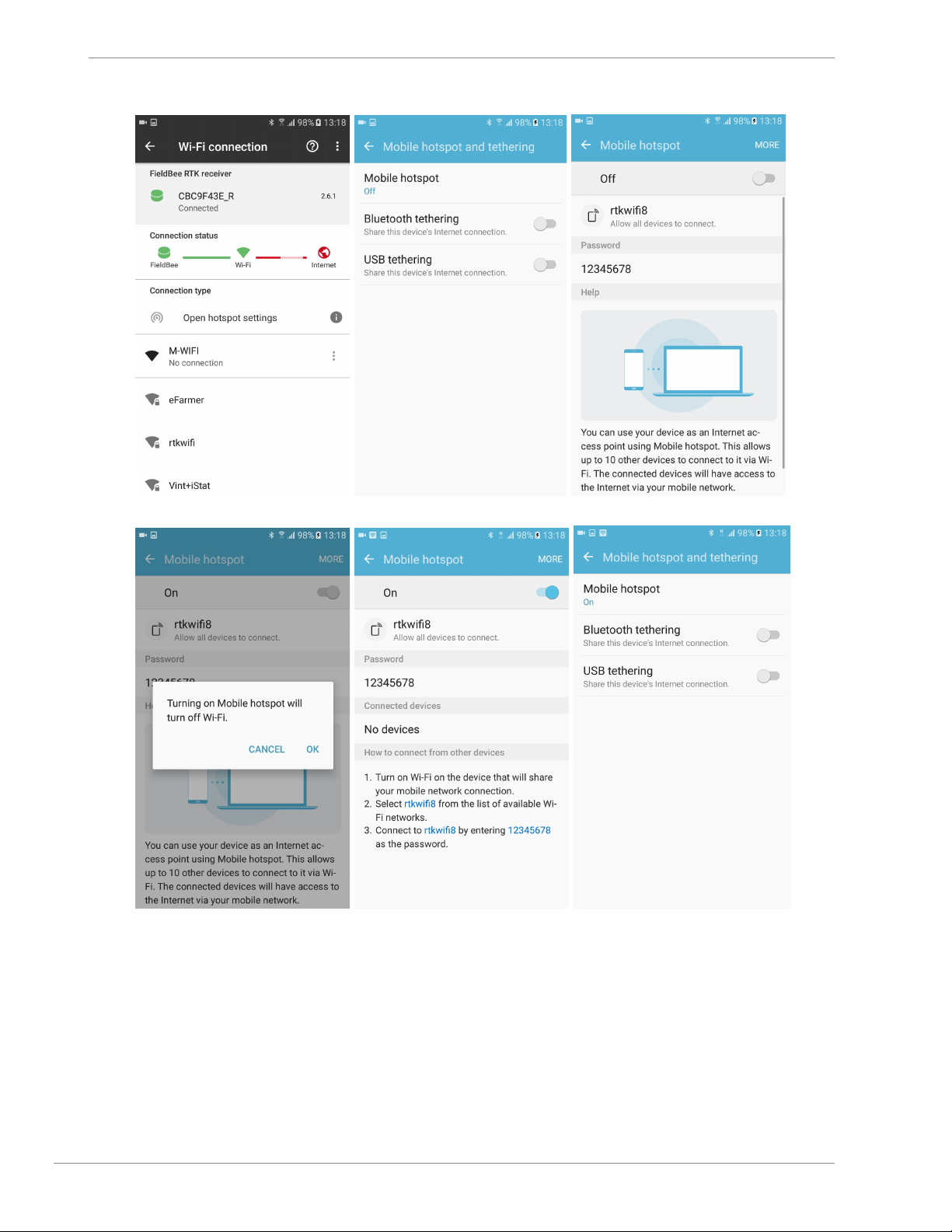
● Connecting receiver to current device’s Hotspot:
1) tap Wi-Fi connection; (fig.2.1)
2) tap Open hotspot settings; (fig.3.1)
3) tap Mobile hotspot; (fig.3.2)
4) enable hotspot; (fig.3.3)
5) allow to turn on Mobile hotspot; (fig.3.4)
6) tap back; (fig.3.5, fig.3.6)
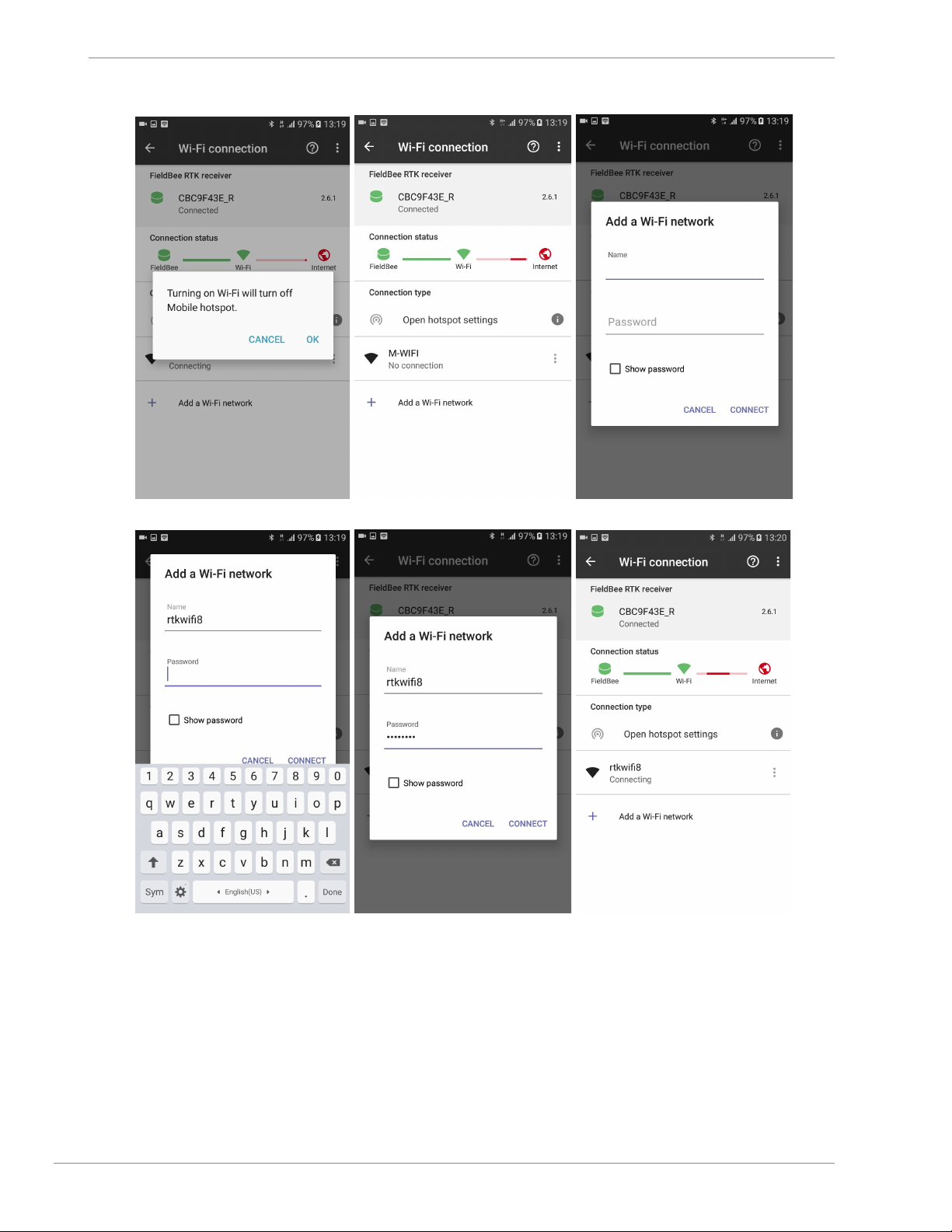
7) allow to turn off WiFi network while using hotspot; (fig.3.7)
8) tap Add a Wi-Fi network; (fig.3.8)
9) input name; (fig.3.9)
10) input password; (fig.3.10)
11) tap Connect button; (fig.3.11)
12) allow to turn off WiFi network while using hotspot; (fig.3.7)
13) *wait until FieldBee will become connected to hotspot network (fig.3.12)
FieldBee is connected to hotspot network. (fig.3.13, fig.3.14)
8
Page 9
FieldBee toolbox manual v.1.0
fig3.1 fig.3.2 fig.3.3
fig.3.4 fig.3.5 fig.3.6
9
Page 10
FieldBee toolbox manual v.1.0
fig3.7 fig.3.8 fig.3.9
fig3.10 fig.3.11 fig.3.12
10
Page 11
FieldBee toolbox manual v.1.0
fig.3.13 fig.3.14
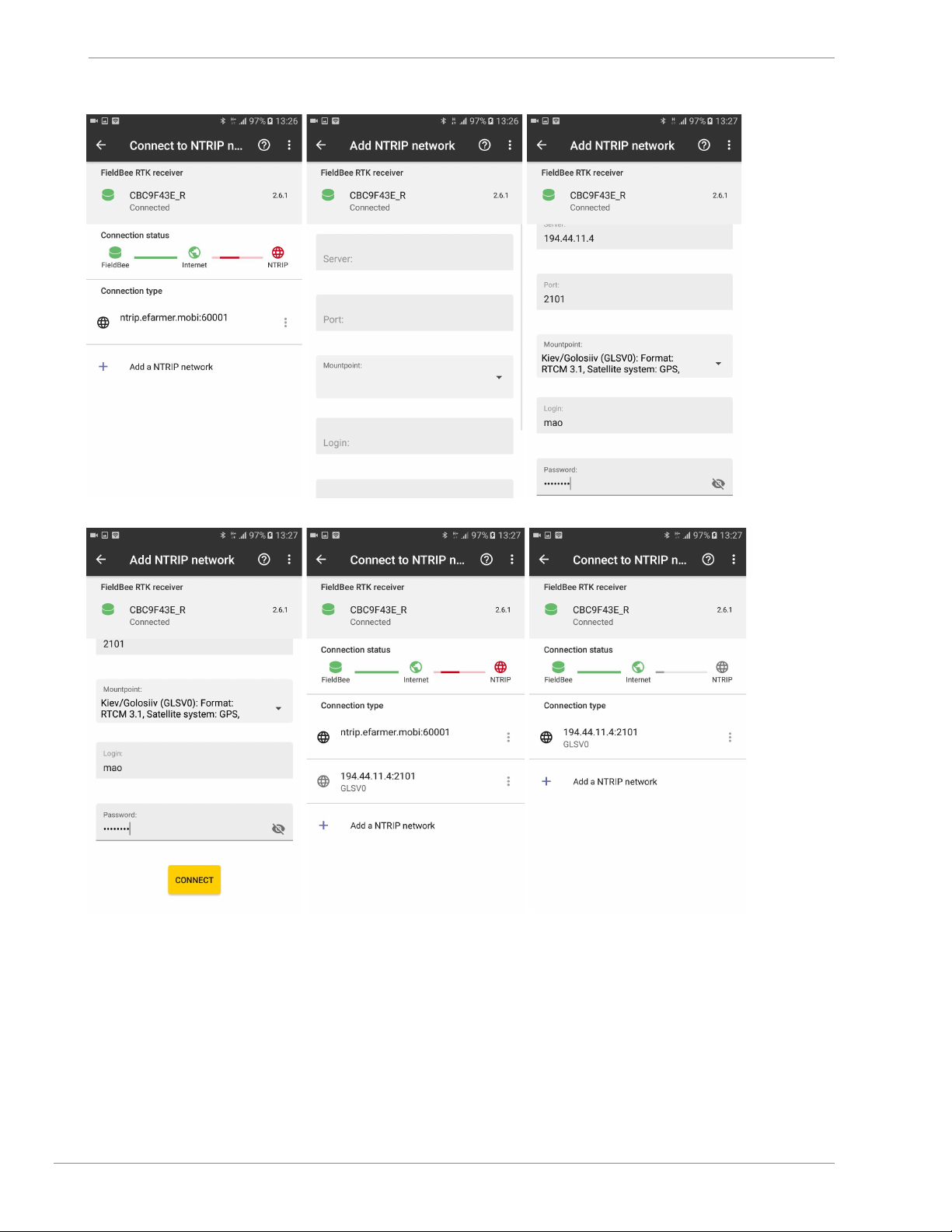
6. Setup NTRIP connection
1. Tap Connect to NTRIP Network. (fig.4.1)
2. Tap Add NTRIP network button. (fig.4.1)
3. Input : server, port, choose available mountpoint*, login and password (fig.4.2, fig.4.3)
1
4. Tap Connect button. (fig.4.4)
NTRIP profile is added to list successfully. (fig.4.5)
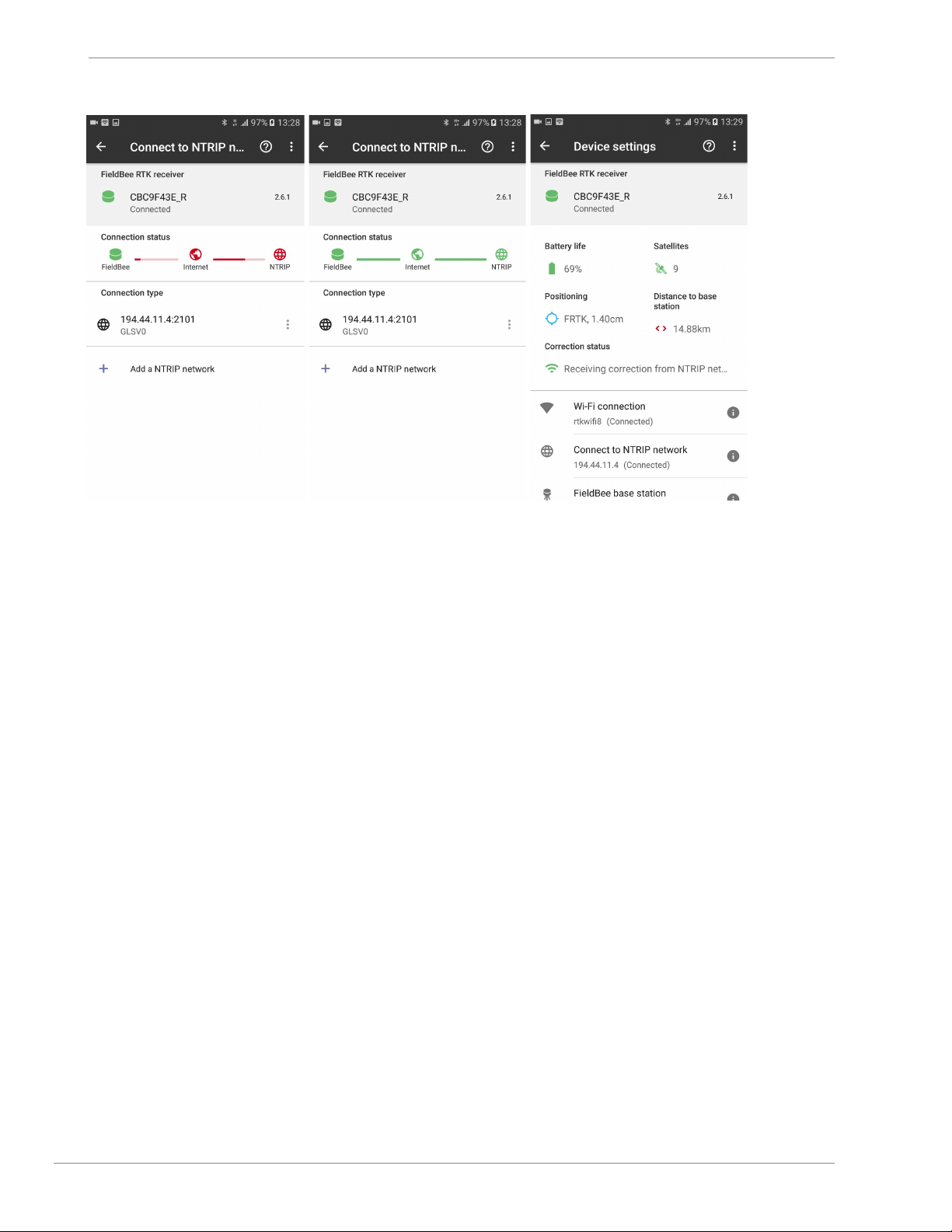
5. Tap NTRIP profile to apply this settings. (fig.4.6, fig.4.7)
6. NTRIP profile has been applied. (fig.4.8)
7. Wait until FieldBee receiver will be connected to NTRIP network. (fig.4.9)
2
1
Login and password are attached into registration confirmation email from NTRIP provider. #
2
It takes 1 minute to reconneсt WiFi source and get connection to NTRIP correction stream.
11
Page 12
FieldBee toolbox manual v.1.0
fig.4.1 fig.4.2 fig.4.3
fig.4.4 fig.4.5 fig.4.6
12
Page 13
FieldBee toolbox manual v.1.0
fig.4.7 fig.4.8 fig.4.9
FieldBee RTK GPS system
FieldBee RTK base station+FieldBee GNSS receiver
With the FieldBee RTK-GPS system you will be able to reach an exceptional accuracy of 0-4 cm. No need to pay extra
charges for RTK correction signal, you will receive your own base station that provides correction. You can connect an
unlimited number of antennas to the FieldBee RTK base station. You can share your signal with your neighbours and
create free RTK network.
Base station transmits correction via 2 ways:
1. Radio channel
2. Internet
1. FieldBee RTK base station+FieldBee GNSS receiver connection via Radio channel
The range of RTK signal coverage is 2 km via Radio.
!!!Before turning on RTK Bee Station it is necessary to screw in external radio antenna!!!
There are few required conditions for getting 0-4 cm accuracy from FieldBee RTK base station. FieldBee GNSS
receiver and Base station needs to :
● receive signal from more than 8 satellites;
● have same Radio region and Radio channel;
● have straight view between receiver and base station.
13
Page 14

FieldBee toolbox manual v.1.0
To start set up RTK Bee station and FieldBee follow next steps:
1) Take RTK Bee Station and FieldBee outside and place them at 1-1,5 m above ground level on an open
sky leaving at least 2 meter in between.
2) Make sure that external radio antennas have been screwed in to FieldBee and RTK base station.
3) Turn on antennas.
!Factory settings for FieldBee has active Radio mode. After turning on antennas you should receive accuracy >1 meter
for the GPS (Normal) or DGPS fix and 15-20 satellites. After few minutes -fix type will change to Float RTK and then
RTK.
Congrats, you have configured antenna for centimeter level accuracy.
If you have found difficulties with RTK correction reception - visit page Settings editing to know how to solve most
common issue.
But if not - open Chapter and Set correction mode to Radio.
We recommend to move RTK base station and FieldBee and make distance between each other 30m - 200m. For this
distance you may check radio transmitting correction.
After Receiver has got RTK - you can start work with antennas.
If you receive poor signal open FieldBee app with the available FieldBee list (first screenshot in editing mode) - open
additional menu -> advanced settings -> Radio channel and choose another channel ( Region should stay as it is.)
For US, Canada, Australia and New Zealand countries you should apply US region.
For Europe, Africa and South America you should apply EU region.
It is necessary to change channel on both antennas (FieldBee and RTK Bee Station) for stable receiving correction.
2. FieldBee RTK base station+FieldBee GNSS receiver connection via Internet
!!!Before turning on RTK Base Station it is necessary to screw in external radio antenna!!!
The range of RTK signal coverage is 10 km via Internet.
There are few required conditions for getting 0-4 cm accuracy from RTK base station. FieldBee RTK base station and
FieldBee GNSS receiver needs to :
● receive signal from more than 8 satellites;
● be connected to the Internet (WiFi network or Hotspot network);
● have correct settings and connected to each other at server.
Base station is streaming correction via radio channel when it is turned on.
Base station is streaming correction via Internet when it is turned on and is connected to the Internet.
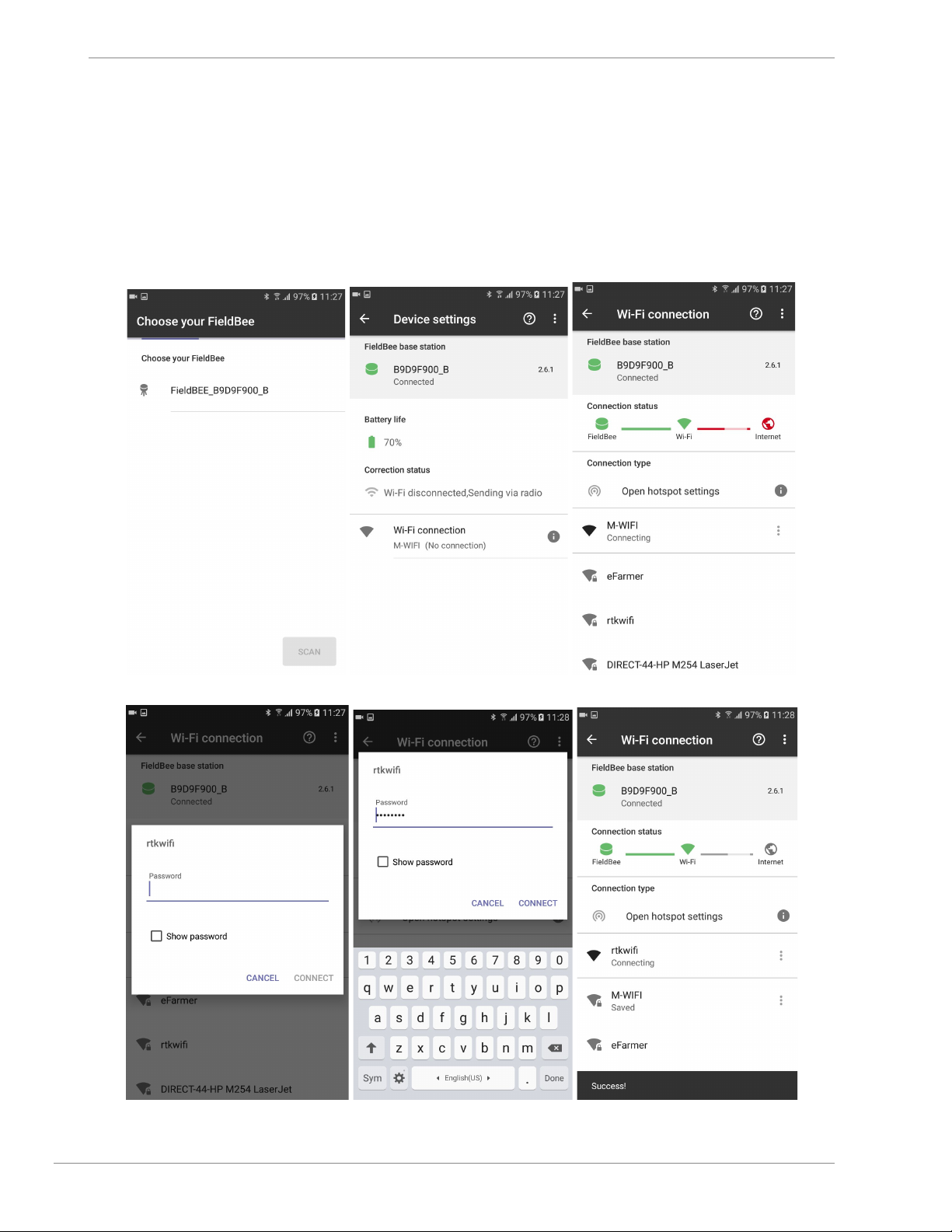
1. Connect Base station to the Internet.
1) Turn Base station on;
2) open FieldBee toolbox app;
14
Page 15
FieldBee toolbox manual v.1.0
3) choose Base station; (fig.1.1)
4) tap Base station serial number to continue setup; (fig.5.1)
5) tap Wi-Fi connection; (fig.5.2)
6) tap on available Wi-Fi network; (fig.5.3)
7) input password for this network (fig.5.4)
8) tap Connect button; (fig.5.5)
9) wait until Base station will be connected to Wi-Fi network. (fig.5.6)
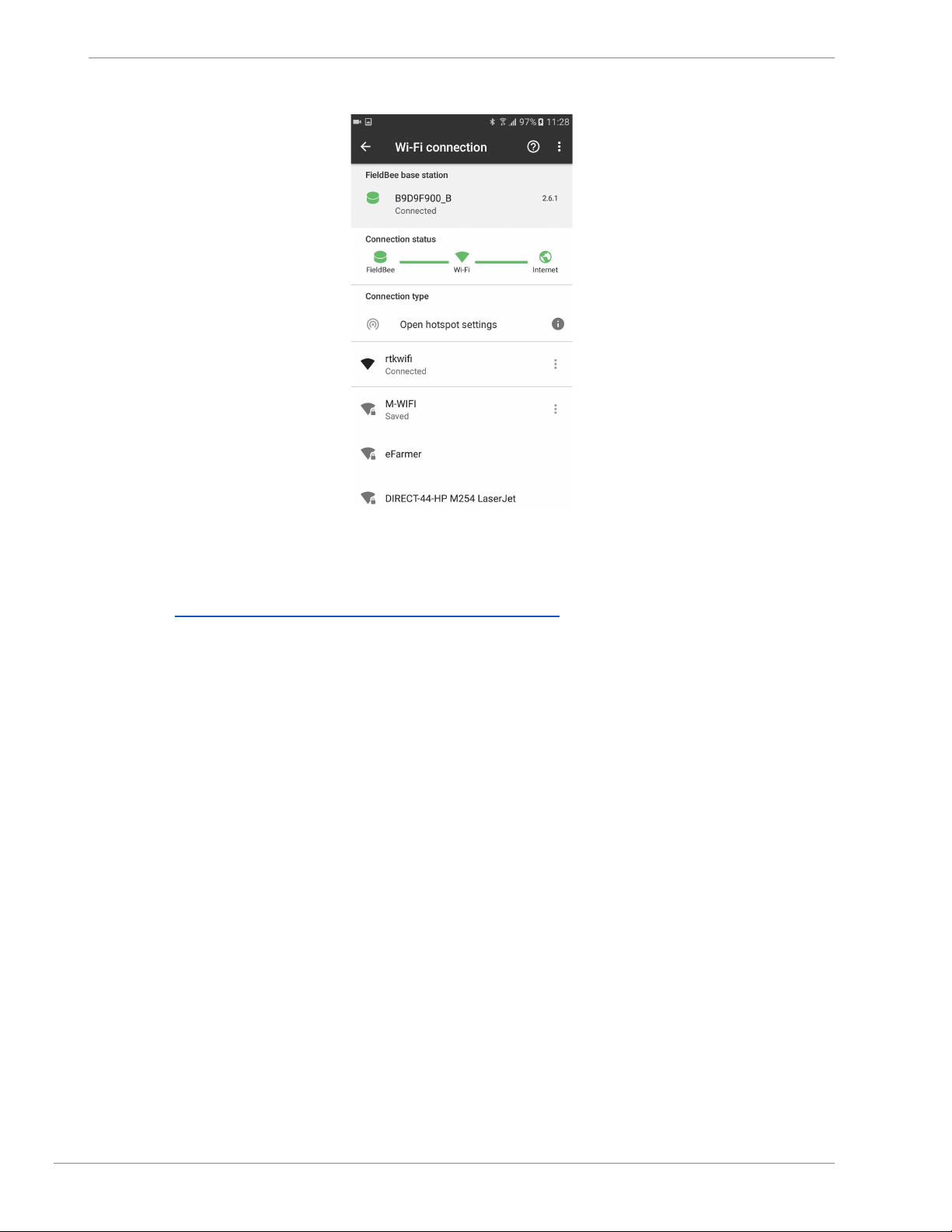
Now Base station is connected to the Internet and is streaming correction to the server. (fig.5.7)
fig.5.1 fig.5.2 fig.5.3
fig.5.4 fig.5.5 fig.5.6
15
Page 16
FieldBee toolbox manual v.1.0
fig.5.7
2. Connect Receiver to the Internet
Open Chapter Standalone sensor with correction from local NTRIP provider
3. Connect FieldBee GNSS Receiver to FieldBee base station.
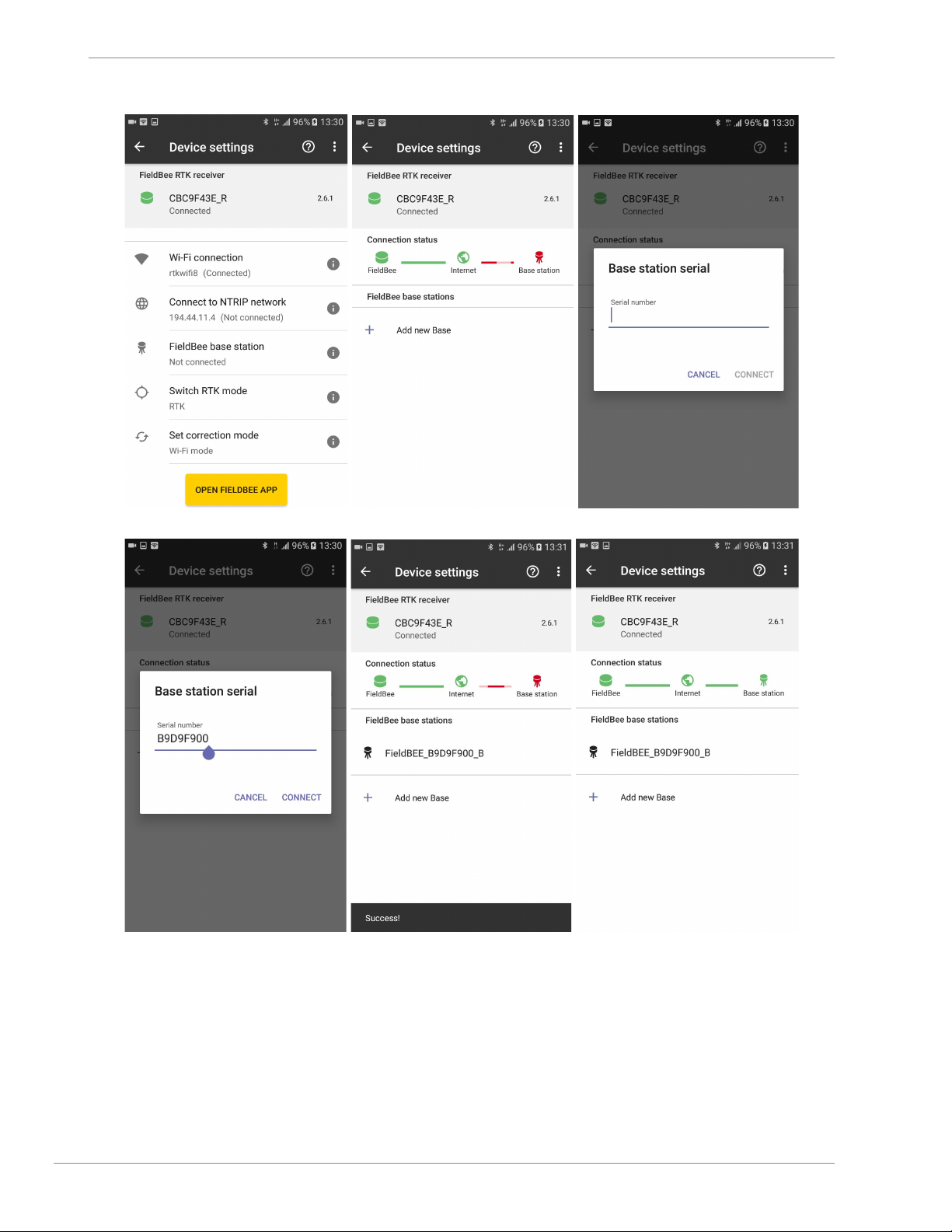
1) Open Main Menu for FieldBee GNSS Receiver.
2) Tap FieldBee base station. (fig.6.1)
3) Tap Add new base. (fig.6.2)
4) Input Base serial number. (fig.6.3)
5) Tap Connect button to apply. (fig.6.4)
Base is added to the list
6) Tap on Base serial number to apply connection (fig.6.5)
7) FieldBee GNSS Receiver is connected to Base station (fig.6.6)
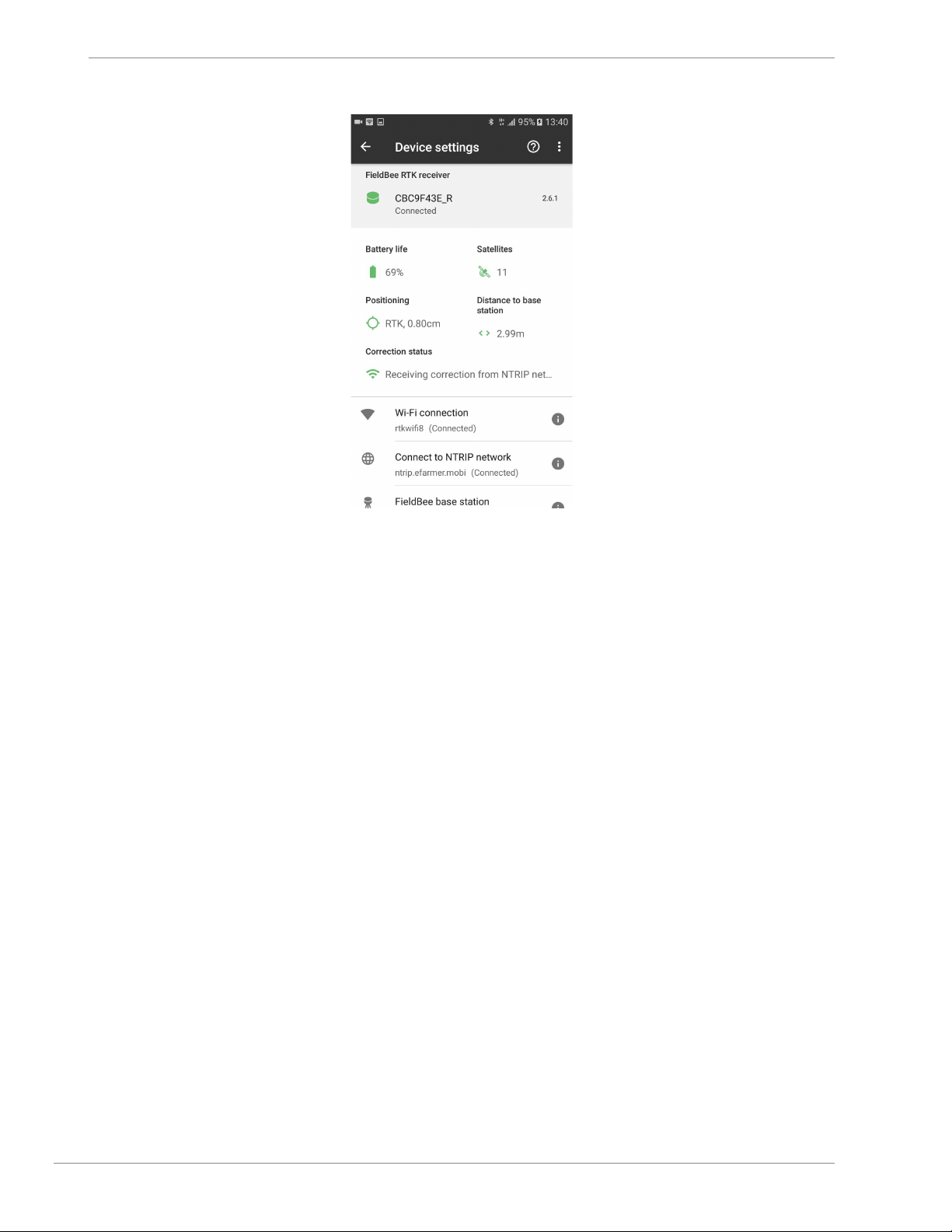
8) FieldBee GNSS Receiver has RTK correction (fig.6.7)
16
Page 17
FieldBee toolbox manual v.1.0
fig.6.1 fig.6.2 fig.6.3
fig.6.4 fig.6.5 fig.6.6
17
Page 18
FieldBee toolbox manual v.1.0
fig.6.7
FieldBee adjustment
FieldBee base station adjustment
FieldBee base station provide 0-4 cm accuracy for receiver. Such accuracy is achieved by streaming correction to
receiver.
Base station needs satellites reception ( to be located at wide open area and have horizon line without obstacles.
Common parameters for Base station:
Base station modes
Base station can provide absolute or relative accuracy for receiver. For these parameters there are survey and static
modes.
Base survey mode
With survey mode you will have relative 0-4 cm accuracy for your field works before restart base station. After base
station restart position will be determined with few cm shift but you will still have high accuracy.
Factory settings for base station is Survey mode. It is more than enough to work with 0-4 cm accuracy.
Base Static mode
Static mode provides absolute accuracy with guiding lines repeating in days, weeks, months and even years.
18
Page 19
FieldBee toolbox manual v.1.0
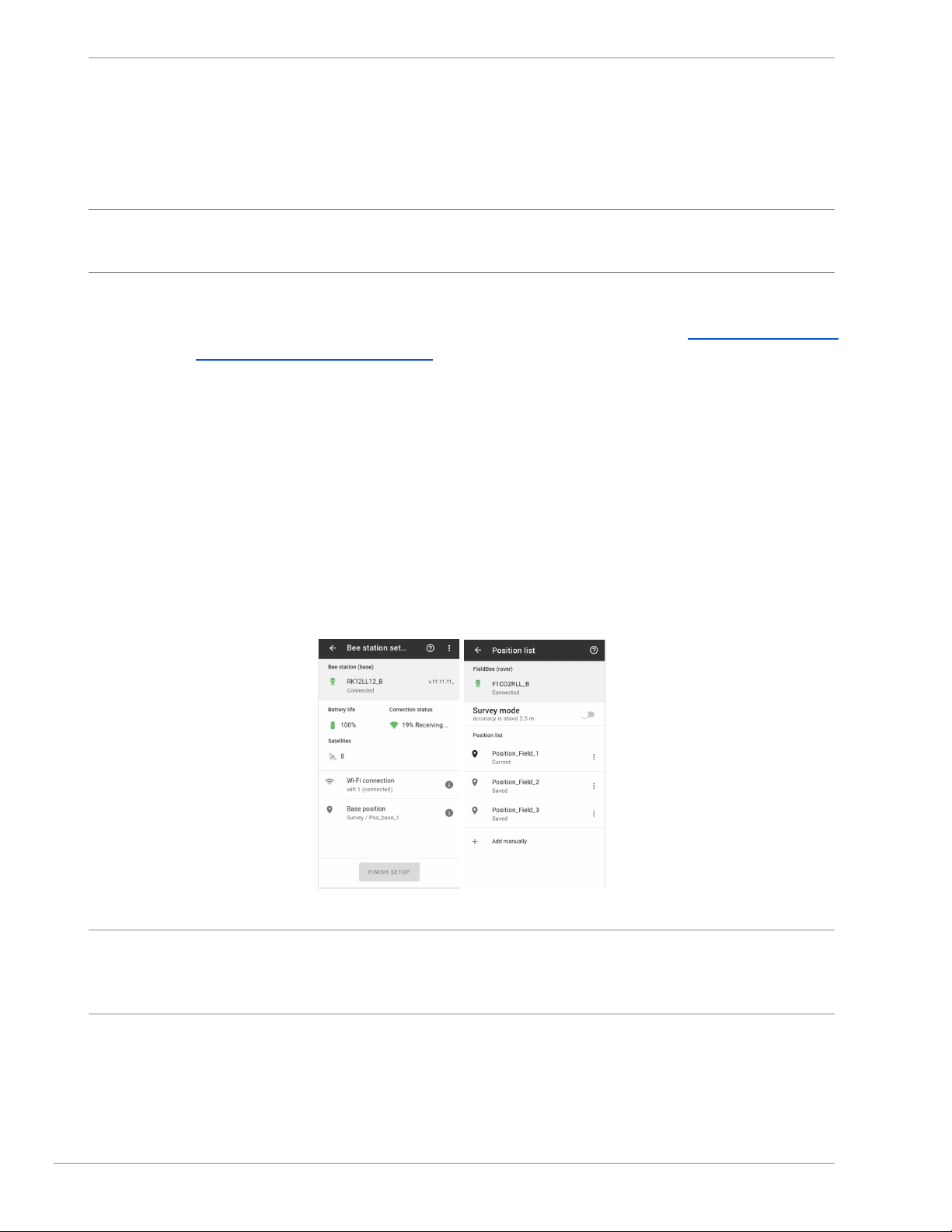
To apply static mode for base station you will need to:
○ prepare fixed place for base station ( it can be fixed plate at house, office roof or stable mounted tripod
at the field - to have the same spot for antenna);
If you have determined coordinates with cm accuracy (local geodetic company or another source) for such place - you
can easily input them to base station profile. If not, follow the next steps:
○ locate FieldBee GNSS Receiver at the spot where base station will be located;
○ connect FieldBee GNSS Receiver to local NTRIP network (see chapter Standalone sensor with
correction from local NTRIP provider );
○ get RTK correction with cm accuracy;
○ open Advanced setting;
○ go to Fix Status;
○ copy coordinates;
○ save coordinates to any text editor at your device;
○ locate base station to the same spot where receiver got RTK correction;
○ connect to base station with toolbox app;
○ open Base station position;
○ tap Add manually button;
○ input position name (for example: Home, Office, Field1 etc);
○ paste coordinates from receiver;
○ tap Save button; (coordinates are added to the Base station position list)
○ tap created position and base station will apply Static mode with inputted coordinates.
fig.7.1 fig.7.2
Note: It is necessary to have accurate coordinates inputted for Static position . If coordinates will have shifting in more
than 30 cm in position - Receiver can lose satellites and do not receive correction.
If this happens - capture coordinates again or simply change mode to Survey mode.
Status/Summary
Status/Summary displays all current FieldBee receiver statuses:
● power source: external source (charging cable)/ battery
● power level: min level for correct work is 3,7 V. max level is 4.2V.
19
Page 20

FieldBee toolbox manual v.1.0
○ if your receiver has power level less than 3,7V we strongly recommend to charge it.
● SOC: status of charge - display current power level in % in range of 100%.
● Charger Status:
○ Discharging ( when power source is Battery)
○ Charging ( when power source is External)
○ Charged (when Battery level/SOC has maximum value)
● GNSS Status: current Positioning status:
INVALID- Base station does not display GNSS status as it is for the receiver. INVALID is normal
state for Base station.
● LoRa RSSI ( Received Signal Strength Indication) for base is constant value 20.
● LoRa SNR (Signal-to-Noise Ratio) for base is 0 all the time.
● Wi-Fi Status : display current status for Wi-Fi connection
○ Not_Connected - FieldBee receiver is not connected to any Wi-Fi network
○ Connected - FieldBee receiver is connected to Wi-Fi Network
○ Connected_NTRIP - - FieldBee receiver is connected to NTRIP network via Wi-Fi.
● Wi-Fi RSSI: displays Wi-Fi network power level.
● Version for MCU, GNSS, Wi-Fi display current version for each module.
Radio channel and region
To get RTK correction via radio channel base station and receiver should have the same radio channel and region.
To edit radio channel follow next steps:
A. open Advanced settings
B. open Radio channel
Note: For US, Canada, Australia and New Zealand countries need to apply US region.
For Europe, Africa and South America need to apply EU region.
If you have any difficulties with radio signal reception ( signal is poor, noises or interferences) we recommend to change
radio channel.
● EU channel 1=862.0 Mhz
● EU channel 2=862.4 Mhz
● EU channel 3=862.8 Mhz
● EU channel 4=863.2 Mhz
● EU channel 5=863.6 Mhz
● EU channel 6=864.0 Mhz
● EU channel 7=864.4 Mhz
● EU channel 8=864.8 Mhz
● EU channel 9=865.2 Mhz
● EU channel 10=865.6 Mhz
● EU channel 11=866.0 Mhz
● EU channel 12=866.4 Mhz
● EU channel 13=866.8 Mhz
● EU channel 14=867.2 Mhz
● EU channel 15=867.6 Mhz
● EU channel 16=868.0 Mhz
Elevation Mask
Elevation mask adjustment helps to receive more or less satellites with stronger or weaker signal.
Factory setting are 7 degree and 35 dB.
This is optimal parameters for maximum satellites with useful signal.
You may adjust this parameters if you have not horison at base station view. Range is between : for degrees from 5 to 85
20
Page 21

FieldBee toolbox manual v.1.0
for CNR from 0 to 40 dB.
Constellation Mask
Constellation mask adjustment helps to manage satellites constellations which are in use.
To have maximum useful satellites constellation:
choose GPS and GLONASS
tap Save button.
After applying configurations: GPS and GLONASS should be On.
RTK Mode parameters
Base station can work in Survey and Static mode.
Survey mode provide relative accuracy for Navigation and free choosing of base station position (not as static).
To apply Survey mode:
open Main menu
go to Base station position
apply Survey mode.
If there is any difficulties with applying:
go to Advanced settings;
open RTK Mode parameters;
choose Survey;
input survey length 60 and standard deviation 60
tap the Apply button.
Static Mode - see Chapter Static mode.
Wi-Fi settings
Wi-Fi settings display full info about FieldBee connection to NTRIP server.
Next lines should stay constantly:
Caster IP: 104.199.73.93
Caster port:60008
Feeder IP: 104.199.73.93
Feeder port:60008
Settings server IP: 104.199.73.93
Settings server port: 64004
Caster mountpoint - serial number of your Base station( 8 symbols, e.g. CBC91111)
Caster login - first 4 symbols of Base station serial number. Example: CBC9
Caster password - last 4 symbols of Base station serial number. Example: 1111
Feeder mountpoint for your Base station
Feeder login : first 4 symbols of Base station serial number
Feeder password: last 4 symbols of Base station serial number
Firmware update
Contact your dealer or our support to know does your FieldBee need to be updated.
21
Page 22

FieldBee toolbox manual v.1.0
Profiles
Profiles provide possibility to set up base as antenna with specific parameters for radio channel (EU or other World).
Reset
You can reset FieldBee modules separately without manual restarting antenna.
If you have no physical chance to restart antenna ( FieldBee is located at the roof or other place without possibility to
restart it manually) - Choose MCU and apply to restart FieldBee.
If there are any problems with satellites reception - choose GPS2 module and apply to restart GPS module.
Radio module and Wi-Fi module restart only by applying MCU restart.
RTCM settings
If you need to set up your Base station for transmitting correction in RTCM format :
Enable RTCM
Add mark to message 1005, message 1087, message 1077 and message 1107
Binary Config
Base station should have 1Hz update rate.
Time measurement : false
Raw measurement: false
SV CH status: false
RCV status: true
Ext.Raw measurement : true
GPS: true
GLONASS: true
Galileo: false
Beidou: false
FieldBee GNSS receiver adjustment
Switch RTK mode
We recommend to limit FieldBee GNSS Receiver accuracy to Float RTK if RTK correction is not stable (e.g. when the
base station is more than 10 km away).
To switch RTK mode:
1) turn fieldbee receiver on.
2) open fieldbee toolbox app
3) choose fieldbee (fig.1.1)
4) tap fieldbee serial number to continue setup (fig.1.2)
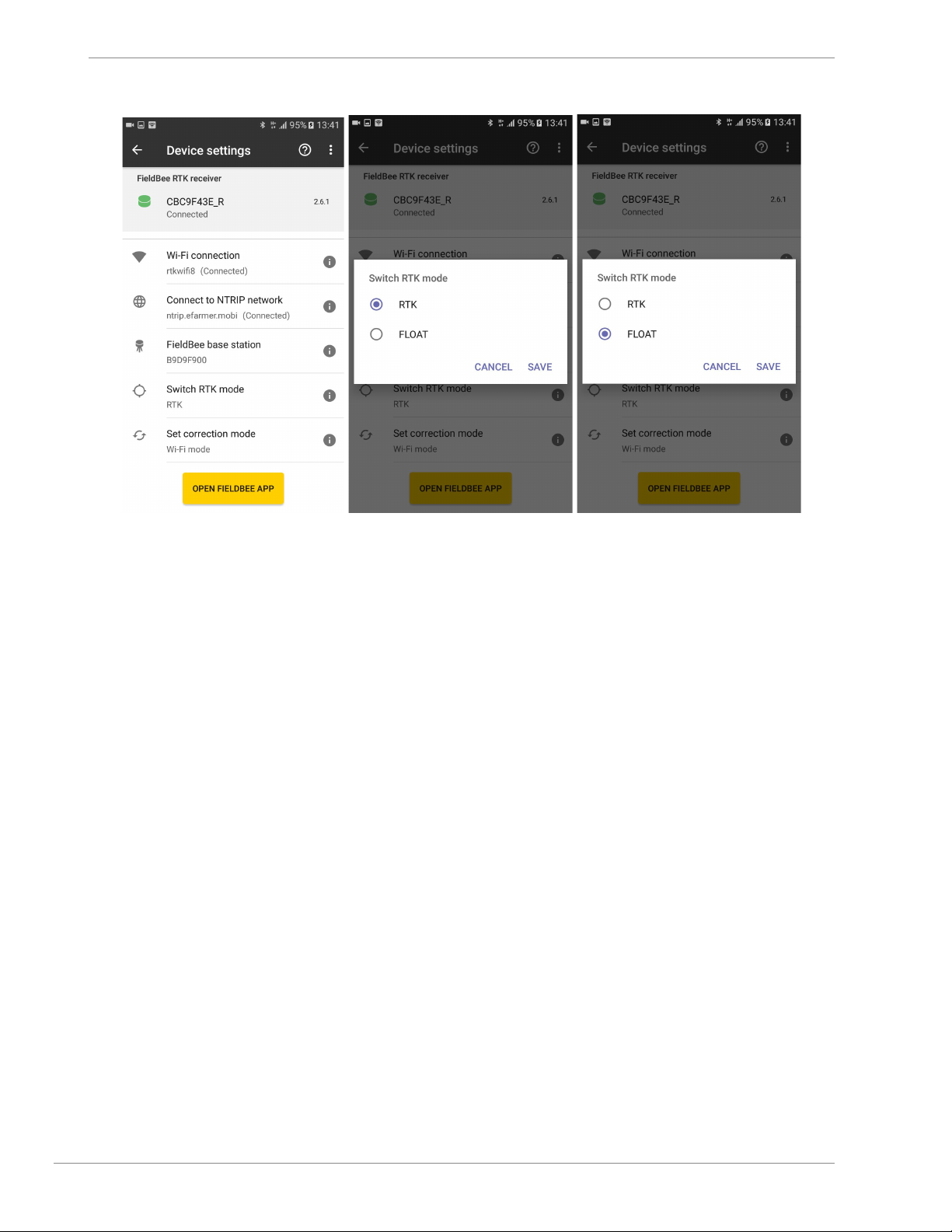
5) tap Switch RTK mode (fig.8.1)
6) choose mode that you want to work with (fig.8.2)
7) tap Save button (fig.8.3)
Restart Fieldbee receiver and wait for correction signal.
22
Page 23
FieldBee toolbox manual v.1.0
fig.8.1 fig.8.2 fig.8.3
Set correction mode
(for FieldBee RTK base station+FieldBee GNSS receiver kit)
Depends on working conditions and requirements FieldBee GNSS receiver can work in few modes:
1) Only Wi-Fi mode;
2) Only Radio mode;
3) Wi-Fi/Radio mixed mode.
Wi-Fi mode needs to be enabled for receiving correction via internet.
Radio mode needs to be enabled for receiving correction via radio.
Wi-Fi/Radio mixed mode needs to be enabled if base station is located in 2km range and there might be places without
GSM coverage at the field. So FieldBee will automatically switch between radio and internet reception channel.
To switch correction mode:
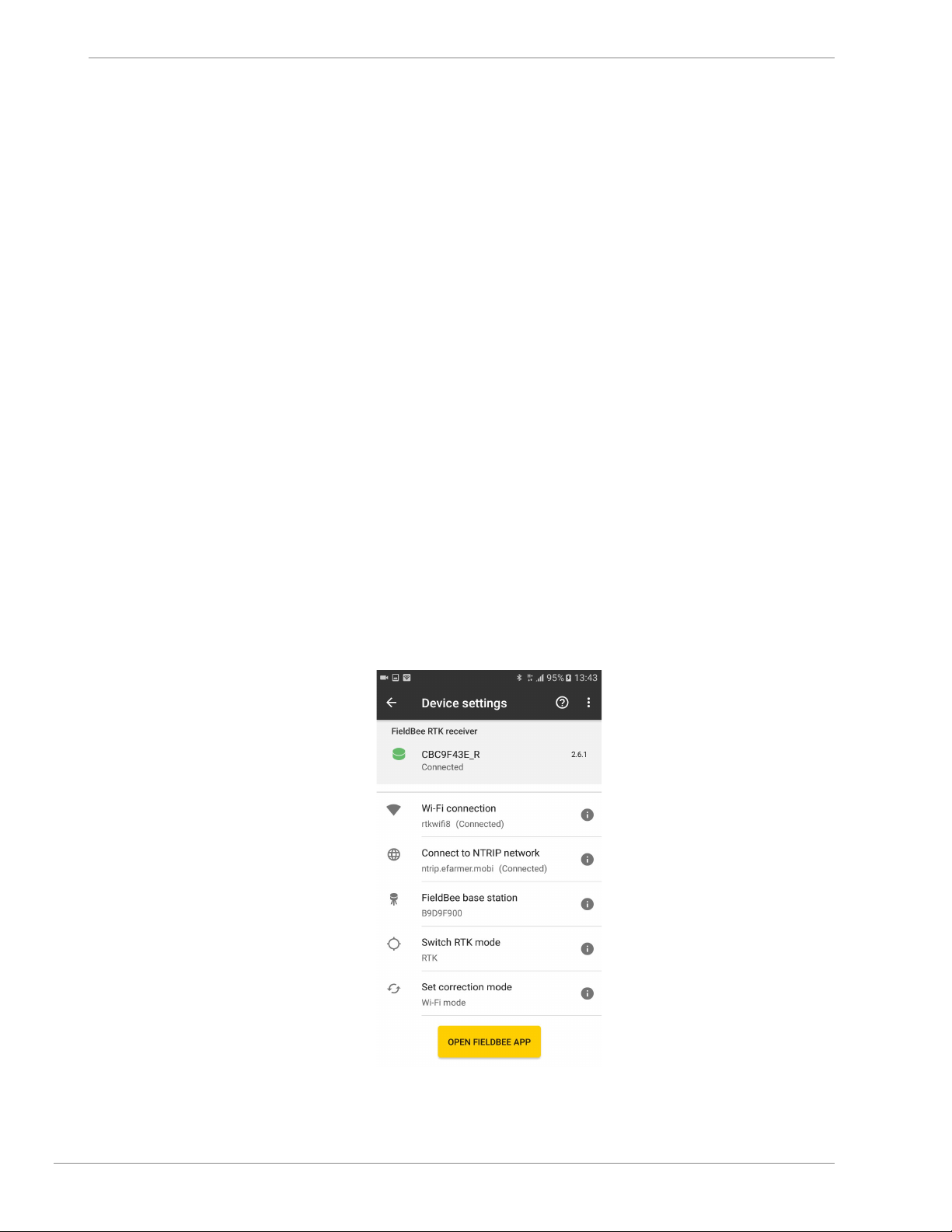
1) open FieldBee receiver setup Main Menu; (fig.1.2)
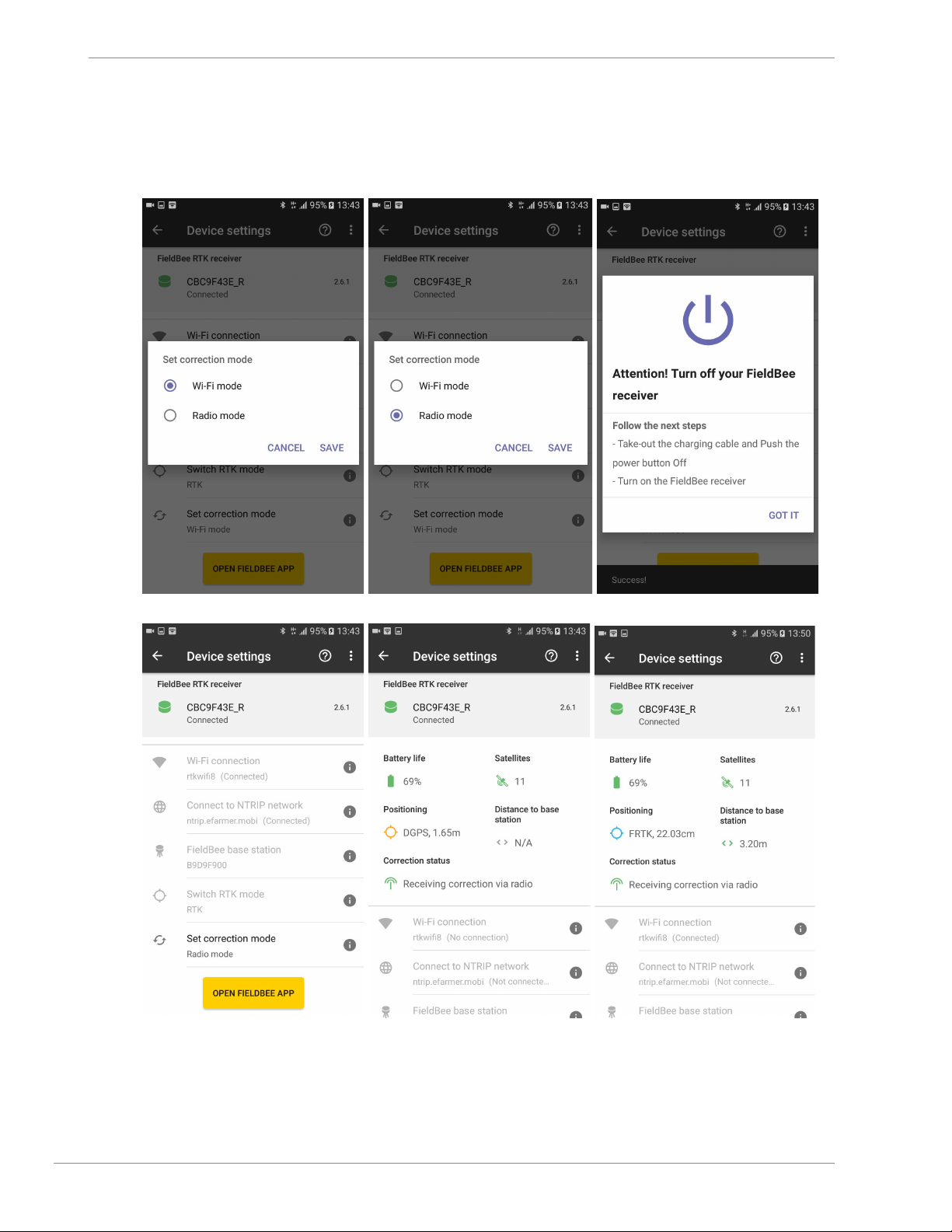
2) tap Set correction mode; (fig.9.1)
3) choose mode for further work according to your needs and connection parameters: (fig.9.2)
We suggest to use Wi-Fi mode if:
● field operations will be executed on hilly surface;
● distance to base station during operation will be more than 2 km;
● base station is located at house/office roof ;
● there are no straight view between base station and receiver during operation.
We suggest to use Radio mode if:
● field operations will be executed on flat surface (without hills and obstacles between base station and receiver );
● distance to base station during operation will be in range of 2 km;
We suggest to use Wi-Fi/Radio mixed mode if correction reception via Wi-Fi suddenly interrupts and Radio
mode will be available, e.g., You work at the field in the 2 km range and receive correction via Wi-Fi and drive
around some huge obstacle or hill that interrupts correction reception via Wi-Fi ( no internet coverage etc.). In
this case Radio mode will be activated receiver will continue get correction via Radio channel.
23
Page 24
FieldBee toolbox manual v.1.0
4) tap Save button; (fig.9.2)
5) follow described steps to restart FieldBee receiver; (fig.9.3)
6) correction mode has been set successfully; (fig.9.4, fig.9.5)
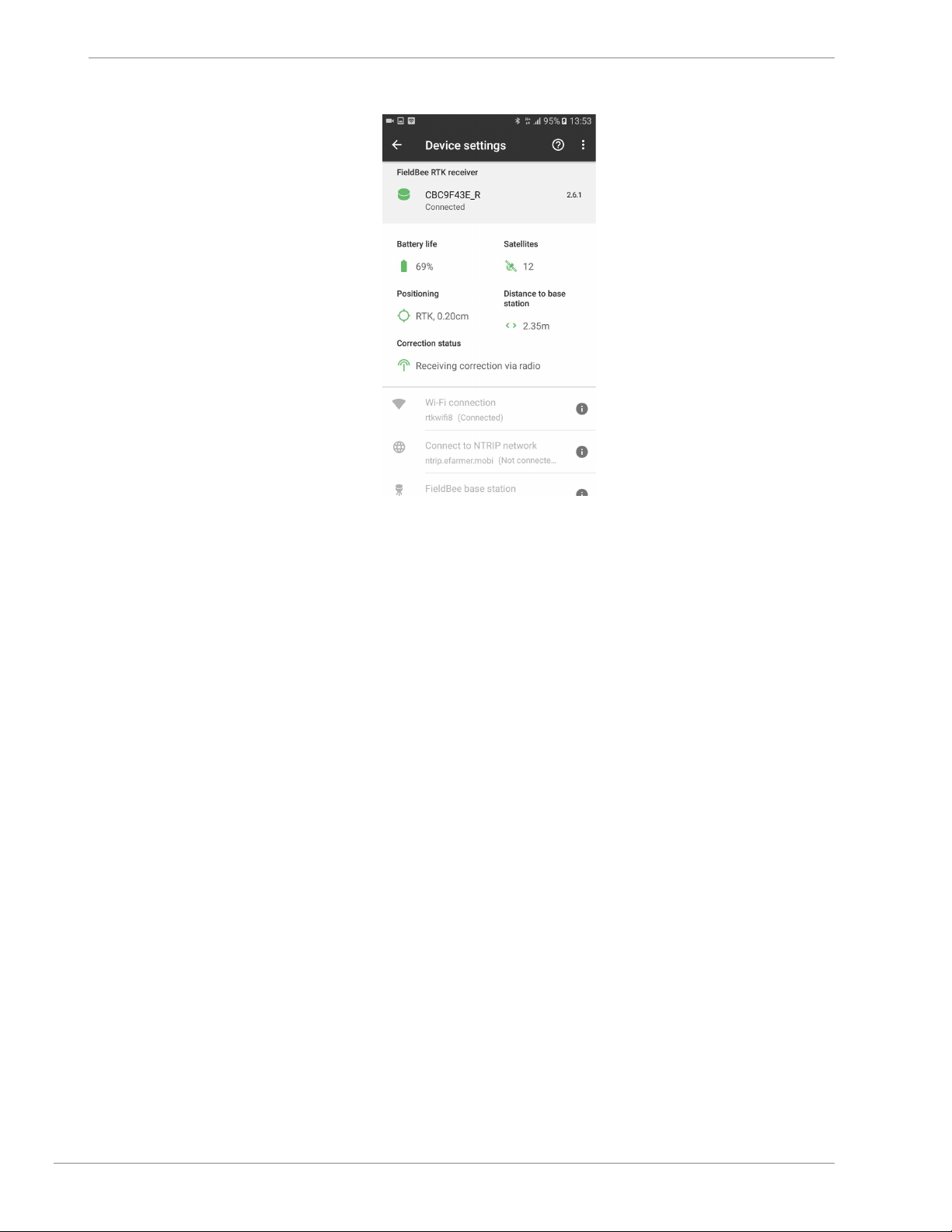
7) wait for a while to receive correction.(fig.9.6, fig.9.7)
fig.9.1 fig.9.2 fig.9.3
fig.9.4 fig.9.5 fig.9.6
24
Page 25
FieldBee toolbox manual v.1.0
fig.9.7
Status/Summary
Status/Summary displays all current FieldBee receiver statuses:
● power source: external source (charging cable)/ battery
● power level: min level for correct work is 3,7 V. max level is 4.2V.
○ if your receiver has power level less than 3,7V we strongly recommend to charge it.
● SOC: status of charge - display current power level in % in range of 100%.
● Charger Status:
○ Discharging ( when power source is Battery)
○ Charging ( when power source is External)
○ Charged (when Battery level/SOC has maximum value)
● GNSS Status: current Positioning status:
○ INVALID- FieldBee receiver has no satellites signal reception
○ GPS - FieldBee receiver has no correction (1-3m)
○ DGPS -FieldBee receiver has improved location accuracy without correction (30cm -1m)
○ FRTK - FieldBee receiver has received correction ( 5-30cm)
○ RTK- FieldBee receiver has RTK Fix accuracy ( 1-4 cm)
● LoRa RSSI ( Received Signal Strength Indication) indicates how good is received radio signal.
For test 1-10 meters LoRa RSSI values should be around -10…-30 dB. If RSSI is not so high - change radio channel
and check this parameter.
● LoRa SNR (Signal-to-Noise Ratio) is the ratio between the received power signal and the noise floor power
level. Positive values (4...7) are optimal values
● Wi-Fi Status : display current status for Wi-Fi connection
○ Not_Connected - FieldBee receiver is not connected to any Wi-Fi network
25
Page 26

FieldBee toolbox manual v.1.0
○ Connected - FieldBee receiver is connected to Wi-Fi Network
○ Connected_NTRIP - - FieldBee receiver is connected to NTRIP network via Wi-Fi.
● Wi-Fi RSSI: displays Wi-Fi network power level.
● Fix Status : display current satellites amount is use, GNSS Status and RMS (value for accuracy in cm)
● Version for MCU, GNSS, Wi-Fi display current version for each module.
Radio Channel and region
Check Radio Channel settings for Base, following the link Radio Channel
Elevation Mask
Elevation mask adjustment helps to receive more or less satellites with stronger or weaker signal.
Factory setting are 7 degree and 35 dB.
This is optimal parameters for maximum satellites with useful signal.
You may adjust this parameters if you have not horison at base station view. Range is between : for degrees from 5 to 85
for CNR from 0 to 40 dB.
Constellation Mask
Constellation mask adjustment helps to manage satellites constellations which are in use.
To have maximum useful satellites constellation:
choose GPS and GLONASS
tap Save button.
After applying configurations: GPS and GLONASS should be On.
RTK Mode Parameters
RTK Mode parameter for receiver you can edit from the Switch RTK mode screen.
Wi-Fi settings
Wi-Fi settings display full info about FieldBee connection to NTRIP server.
But next lines should stay constantly:
Caster IP: 104.199.73.93
Caster port:60008
Settings server IP: 104.199.73.93
Settings server port: 64004
Caster mountpoint - serial number of your antenna ( 8 symbols, e.g. CBC91111)
Caster login - first 4 symbols of antenna serial number. Example: CBC9
Caster password - last 4 symbols of antenna serial number. Example: 1111
Feeder Ip, port, mountpoint, login and password depends on the NTRIP network you are using.
If you are using FieldBee base station it will be next configuration:
Feeder IP: 104.199.73.93
Feeder port:60008
Feeder mountpoint for your Base station
Feeder login : first 4 symbols of Base station serial number
26
Page 27
FieldBee toolbox manual v.1.0
Feeder password: last 4 symbols of Base station serial number
Firmware update
Contact your dealer or our support to know does your FieldBee need to be updated.
Profiles
Profiles give you chance to set receiver to wit specific parameters for radio channel (EU or other World)
Reset
You can reset FieldBee modules separately without manual restarting antenna.
If you have no physical chance to restart antenna ( FieldBee is located at the roof or other place without possibility to
restart it manually) - Choose MCU and apply to restart FieldBee.
If there are any problems with satellites reception - choose GPS2 module and apply to restart GPS module.
Radio module and Wi-Fi module restart only by applying MCU restart.
Fix Status
Fix Status display current positioning ( Satellites amount in use, RMS( accuracy), distance to Base station and location)
You can tap Copy Location to get precise coordinates ( latitude, longitude, altitude) and use them furter for positioning.
Start Navigation with FieldBee
When you have set up FieldBee receiver and Base station you can start your work with FieldBee app.
For this Tap Open FieldBee app button.
27
Page 28
FieldBee toolbox manual v.1.0
FAQ
Note: Restarting your devices (phone, tablet, FieldBee, Wi-Fi router etc.) will solve most issues.
Why is my FieldBee not visible in the available device list?
In order to set-up/start working with FieldBee, you will need to connect your Android device to FieldBee via Bluetooth.
Please check if FieldBee is fully charged and turned on (by pushing power button or plug in power cable). If FieldBee
has been turned on, then restart, and refresh the searching list.
Important! FieldBee antenna will only remain connected to only one of our apps at a time: FieldBee configuration app
OR eFarmer navigation app. Therefore, it may not be visible in the list of visible devices (or it appears as inactive) if it is
connected to the other app. In this case please close the application that you are no longer using and connect antenna to
the app with which you wish to work: FieldBee app for antenna configuration or eFarmer app for field navigation.
When I turn my FieldBee on, why it is not connecting via Bluetooth?
In this case, your FieldBee antenna most likely has discharged batteries. Please plug in the power cable. You can start
working with the battery charging level of minimum 10%.
Why my FieldBee is not connected to the Wi-Fi?
After entering the password for the selected Wi-Fi network, it may take 20–40 seconds to refresh the Wi-Fi connection
status. If after one minute the status is still NOT CONNECTED, you have possibly entered the wrong Wi-Fi password.
Please try it one more time.
What to do if there is NTRIP server connection problem?
Please check your internet connection. It is necessary to be connected to internet (Wi-Fi, Hotspot) while setting up and
working with FieldBee and NTRIP service.
While working with NTRIP provider, why are there no mountpoints available for selection ?
Mountpoints/correction streams become available automatically after correctly inputting server and port. Please input
server and port in the format: server:port.
For example:
Why is my FieldBee not connecting to NTRIP server?
In order to successfully connect FieldBee to the NTRIP server, please follow the steps:
• Mount FieldBee antenna on the outside of the building under the wide- open sky (to receive satellite coordinates)
• Have Wi-Fi network (or Hotspot) near you
• Connect to Wi-Fi and set up NTRIP server to receive correction.
Why is my Hotspot not visible?
28
Page 29

FieldBee toolbox manual v.1.0
In order to connect FieldBee to a hotspot, you will need to tap on ALLOW TO USE THE HOTSPOT and then
CHANGE SYSTEM SETTINGS as required. Then tap back arrow, and ENABLE Hotspot. Please remember that
enabled Hotspot turns off Wi-Fi connectivity for your device, but FieldBee will be connected to the internet and will be
ready to set up with NTRIP server.
Why is there no RTK correction for my FieldBee?
If you have a FieldBee Base station at a distance of less than 10 km – please check the FieldBee settings and Base station
settings (connection to Wi-Fi, if base station is correctly selected).
If the distance to base station is more than 10 km, we recommend that you switch RTK mode on your FieldBee to “Use
only Float RTK”. In this case you will have accurate FRTK correction, which will be close to RTK correction. (Please
see page X in FULL MANUAL).
Why can’t I find Base station to connect FieldBee?
There are three probable reasons:
1. Base station is turned off – please press “turn on” button
2. Discharged batteries – please connect base station to the charger.
3. Base station is not transmitting correction – please check if you have a
Wi-Fi connection.
Why is FieldBee not receiving correction but I can see CONNECTED_NTRIP in Status/Summary in Advanced settings?
Your FieldBee might be set up for radio mode. You need to scroll down in the Main Menu and tap button SET
CORRECTION MODE TO Wi-Fi. After applying this setting FieldBee will receive correction.
How long does it take to receive RTK correction?
Receiving RTK correction can take on average 5–15 minutes. It could take up to 30 minutes depending on weather
conditions, distance to the mount point/ base station, and correctly applied settings.
Where can I find battery power level in voltage?
To see the power level in voltage (rather than percentage) you need to go to Advanced settings and open
Status/Summary. There you will find Power Level and also Charger Status.
29
 Loading...