

Page 1
FedEx Ship Manager® Software
FedEx Ship Manager
Quick Installation Guide
LP 2844 Thermal Printer
®
at fedex.com
Page 2
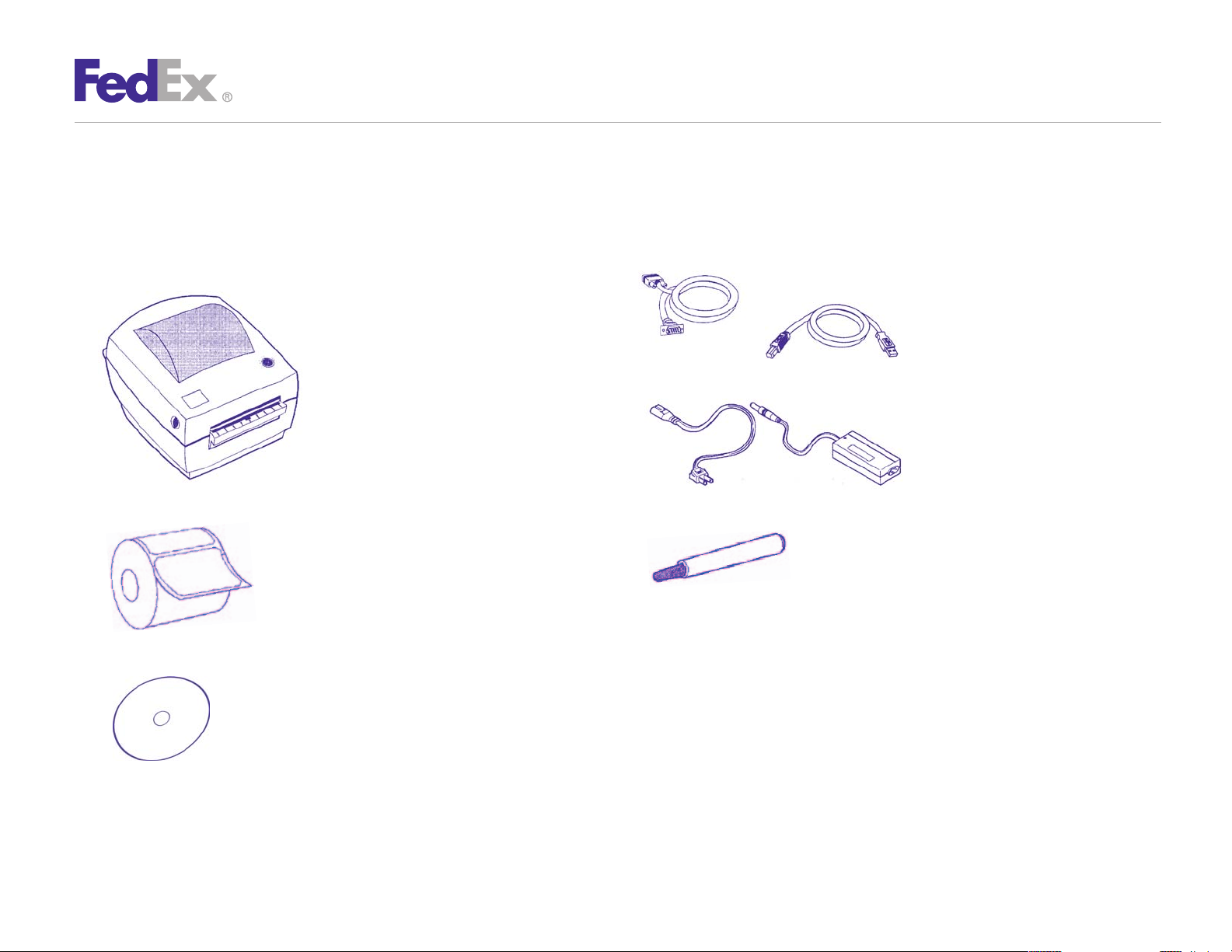
Step 1: Confirm Printer Kit Contents
LP 2844 Thermal Printer
Your printer kit contains:
1. Thermal Printer
2. Thermal Labels
3. Zebra Printer Driver Install CD
4. Serial Cable OR USB Cable
5. Power Supply and Cord
6. The Clean Penn
With the Clean Penn you can preserve print quality
and extend print head life. You should use it to clean residue
on the thermal print head whenever you are replacing
a roll of labels.
™
Quick Installation Guide 2
Page 3
Step 2: Install Printer Labels
LP 2844 Thermal Printer
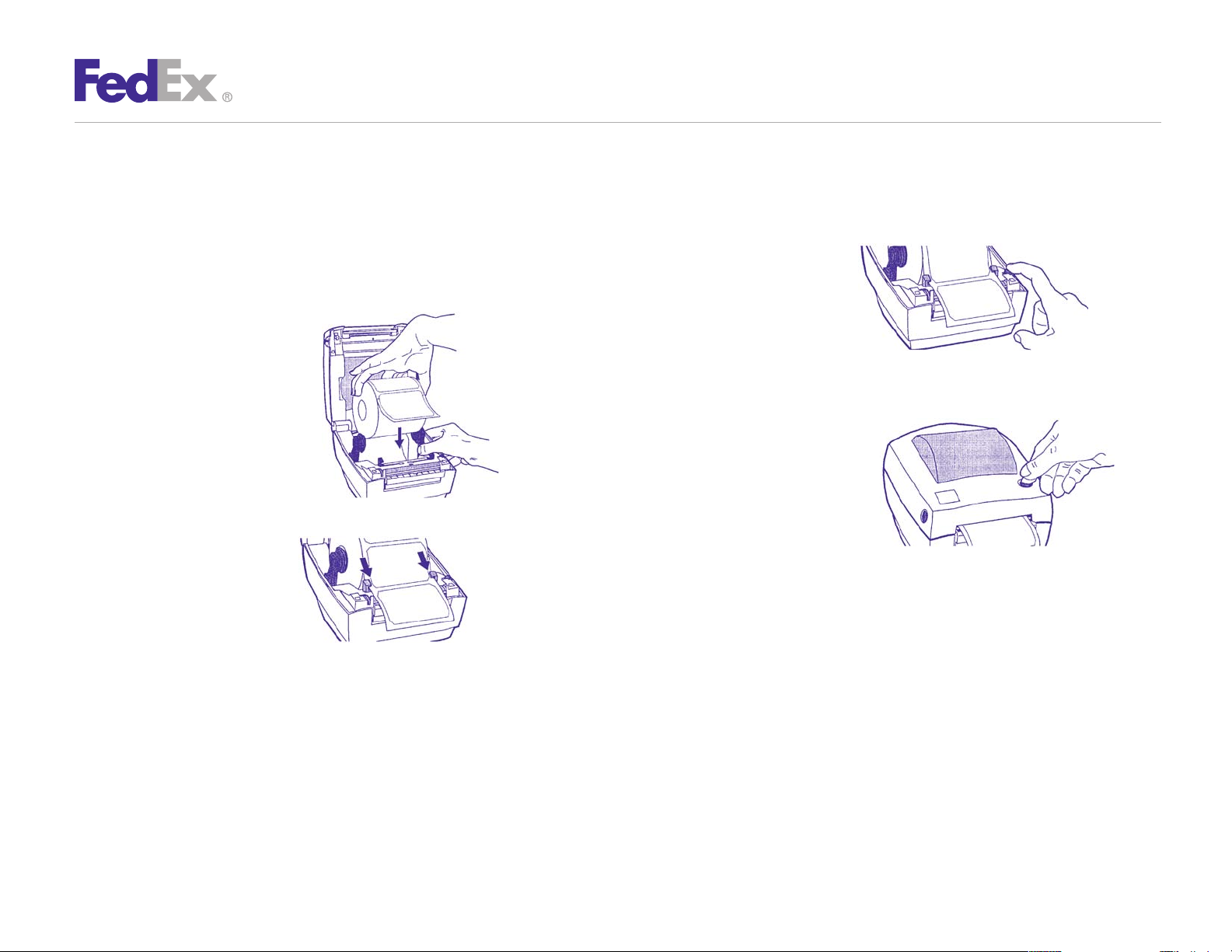
Install the printer labels as indicated in the steps below.
The instructions can also be found in the inside of the top
of the printer cover.
1. Open the printer by pressing
the cover release buttons on
the sides of the printer.
Load the thermal printer
labels as shown.
Note: FedEx Ship Manager®
at fedex.com supports only
nondoc-tab labels.
2. Feed the labels through
the guides.
3. Adjust guides so that there
is minimal space between
the sides of the label and
the guides themselves.
4. Close printer cover, connect
power cord, then press the
TAB FEED button to ensure
the labels are installed correctly.
Quick Installation Guide 3
Page 4
LP 2844 Thermal Printer
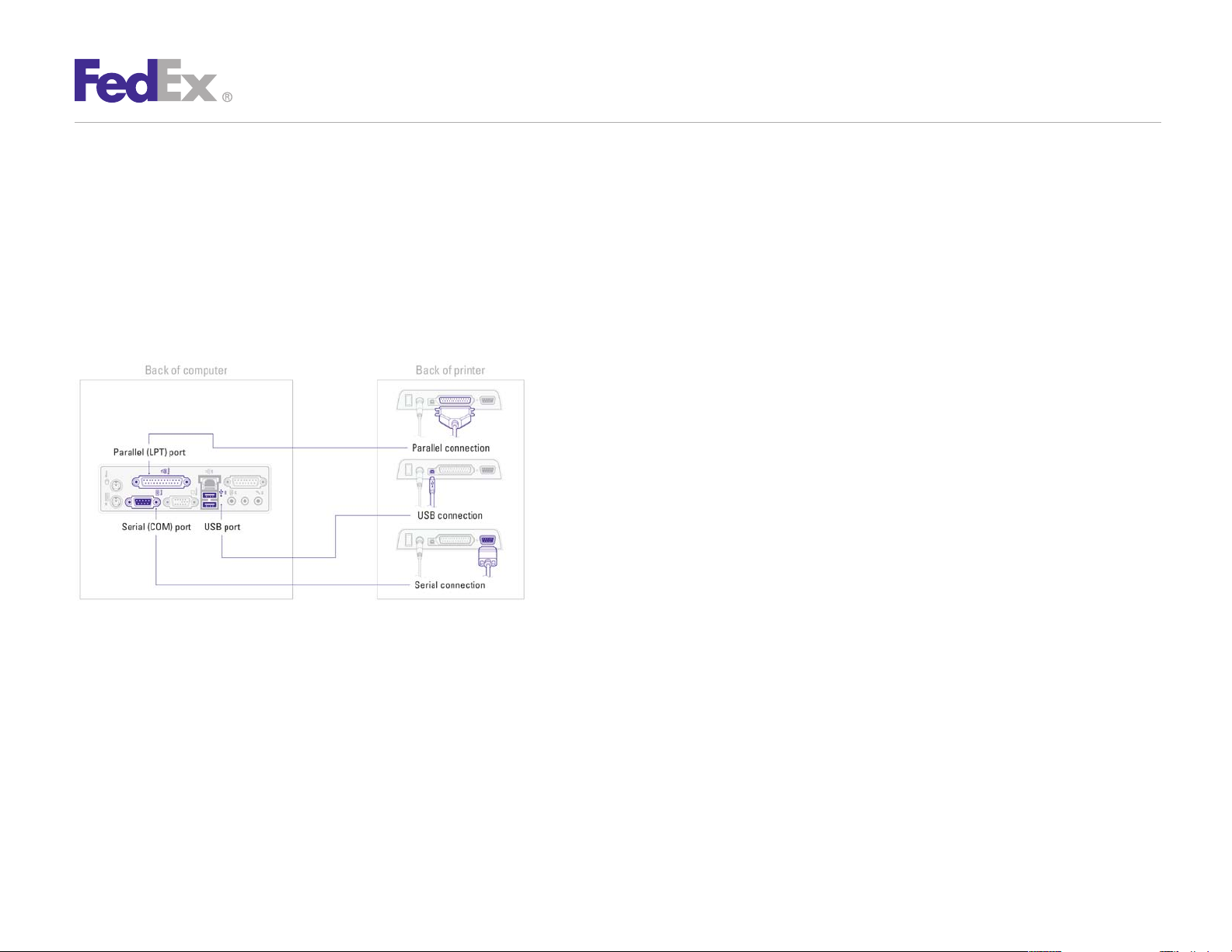
Step 3: Connect the Printer
to Your Computer
Turn off your computer before connecting printer. Connect the
printer by using the supplied serial or USB cable. You may also
use a parallel cable (not included).
Note: USB cable cannot be used with FedEx Ship Manager at fedex.com
Step 4: Install the Printer Driver
After connecting the printer, turn your computer on, insert the
Zebra Printer Driver Install CD and follow the instructions.
®
If you are using Microsoft
operating systems, you must install the designated Zebra
printer driver designed for those operating systems. Refer
to the Printer Support Guide for current installation
procedures.
Windows® 7 (32-bit and 64-bit)
Quick Installation Guide 4
Page 5

Step 5: Complete Setup
LP 2844 Thermal Printer
Now that you have installed the thermal printer driver, follow the
instructions below to complete the setup of your thermal printer
®
driver with the appropriate FedEx Ship Manager
solution:
If you are using FedEx Ship Manager at fedex.com:
1. Log in to FedEx Ship Manager at fedex.com. (Go to
fedex.com, place your cursor over the Ship tab and select
Prepare Shipment from the drop-down menu. The fedex.com
Login screen displays.)
2. Click Preferences at the top of the screen.
3. In the Printer and Scale Options area of the Preferences
screen, click the Thermal Printer radio button or click
Set up thermal printer. The Thermal printer setup
instructions screen displays.
4. Follow the steps on the Thermal printer setup instructions
screen to set up your thermal printer, including printing a test
page to ensure the printer is properly configured.
Note: To prevent printing problems, you must comply with the Java requirements
listed in the thermal printer setup instructions. To access the Java requirements
for the LP 2844 thermal printer, click Detailed instructions on the Thermal
printer setup instructions screen. When the resulting screen displays, click
FedEx Ship Manager at fedex.com – Thermal Label Printer Selection.
Scroll through the Frequently Asked Questions section and locate the “What are
the minimum hardware requirements?” question. The current Java requirements
for the LP 2844 thermal printer are located in the LP 2844 minimum hardware
requirements list.
5. Once completed, click Done and then click Save changes
on the Preferences screen.
If you are using FedEx Ship Manager® Software and have not
installed the software insert the FedEx Ship Manager Software
CD and follow the installation instructions.
If you are using FedEx Ship Manager Software and have already
installed the software:
1. Launch FedEx Ship Manager Software.
2. From the tool bar, click Customize and select
System Settings.
3. Select the appropriate system number and click modify.
4. Select the 2 – FedEx Customer Admin tab.
5. At the bottom of the screen in the section labeled Set Default
Printers, click the printer icon next to the Label Printer field.
Select the Zebra 2844 thermal printer driver you just installed
and click OK.
6. Click OK to exit System Settings. To verify that the printer is
properly configured, click Utilities from the tool bar and select
Printer Setup. The label printer you just installed should
display in the Label Printer section. If not, select the label
printer from the drop-down menu. Click Test Printer and then
click OK.
Quick Installation Guide 5
 Loading...