

Page 1

SMARTCAPTURE
USB 2.0 BASED, AUDIO VIDEO CAPTURE,
H.264/AAC ENCODER
Manual v0.43b
Page 2

Disclaimer
© FastVDO LLC 2007
All rights reserved
Manual
This document is provided “AS IS”. FastVDO LLC does not make warranty of any kind expressed or implied, including but
not limited to, the implied warranties of merchantability and fitness for a particular purpose. Information in this document is
provided solely to end users to use FastVDO’s SmartCapture. FastVDO does not warrant that the contents of this
publication, whether individually or as one or more groups, meets your requirements or that the publication is error-free.
This publication could include technical inaccuracies to typographical errors. Changes may be made to the information
herein, and these changes may be incorporated in new editions of this publication without any notice
This manual is organized by function & Operations of the SmartCapture device & is presented in order of probable use,
but feel free to review the information in whatever manner you desire - even skip sections if the content is familiar. No part
of this documentation may be reproduced or transmitted in any form or by any means, electronic or mechanical, including
photocopying, recording, or information storage and retrieval systems, for any purpose other than personal use, without
the permission of FastVDO LLC. FastVDO LLC may update, change or remove parts of or the entire manual without
warning or notice. Updated versions of the manual maybe obtained from FastVDO LLC, if there is valid proof of purchase
of the product & upon request by the user.
SmartCapture Package
SmartCapture package is provided "as is" and any express or implied warranties, including, but not limited to, the implied
warranties of merchantability and fitness for a particular purpose are disclaimed. in no event shall FastVDO LLC be liable
for any direct, indirect, incidental, special, exemplary, or consequential damages (including, but not limited to,
procurement of substitute goods or services; loss of use, data, or profits; or business interruption) however caused and on
any theory of liability, whether in contract, strict liability, or tort (including negligence or otherwise) arising in any way out of
the use of the contents of the SmartCapture package, even if advised of the possibility of such damage.
Trademarks
Many of the designations used by manufacturers and sellers to distinguish their products are claimed as trademarks.
Where those designations appear in this documentation, FastVDO LLC was aware of a trademark claim, the designations
have been printed with the ® symbol beside the trademark.
IPod®, IPod® trademarks, QuickTime® & QuickTime® trademarks are the property of Apple Inc.
Sony PSP® & Sony ® trademarks are the property of Sony Inc.
User Manual 2
Page 3

CONTENTS
Package Contents.................................................................................................4
System Requirements...........................................................................................4
Introduction ...........................................................................................................5
Installing SmartCapture Device drivers.................................................................6
Installing the SmartPlayer .....................................................................................8
SmartCapture Setup .............................................................................................9
SmartPlayer ........................................................................................................10
Recording from SmartCapture ............................................................................10
Previewing from SmartCapture...........................................................................11
Recording/Saving the encoded data ...................................................................11
Stop Preview/Recording .....................................................................................12
Brightness / Color settings ..................................................................................12
Full Screen and Volume Control .........................................................................12
Options and Settings...........................................................................................13
Play list ...............................................................................................................16
Always on Top ....................................................................................................16
Using Help Option in the Player..........................................................................16
User Manual 3
Page 4
Package Contents
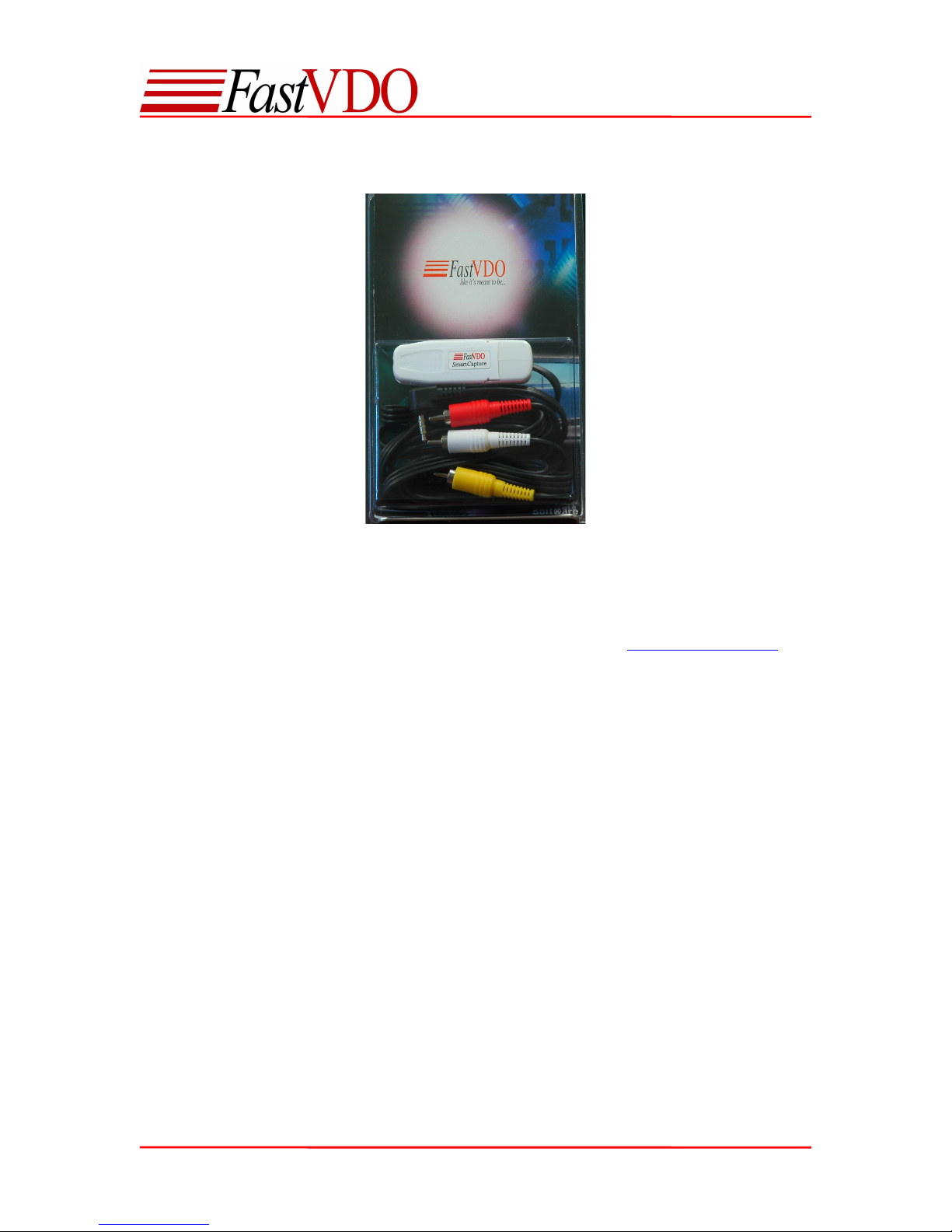
• SmartCapture Device
• CD ROM (Containing Drivers, SmartPlayer and Manuals)
• RCA male cable
If any of the above mentioned contents are missing, please email us at [email protected] .
System Requirements
• Windows XP (Service Pack 2)
• Pentium 4 or higher
• 256 MB RAM or higher
• High speed USB port (USB 2.0 recommended)
User Manual 4
Page 5
Introduction
Congratulations on choosing SmartCapture for your video capture and encoding needs.
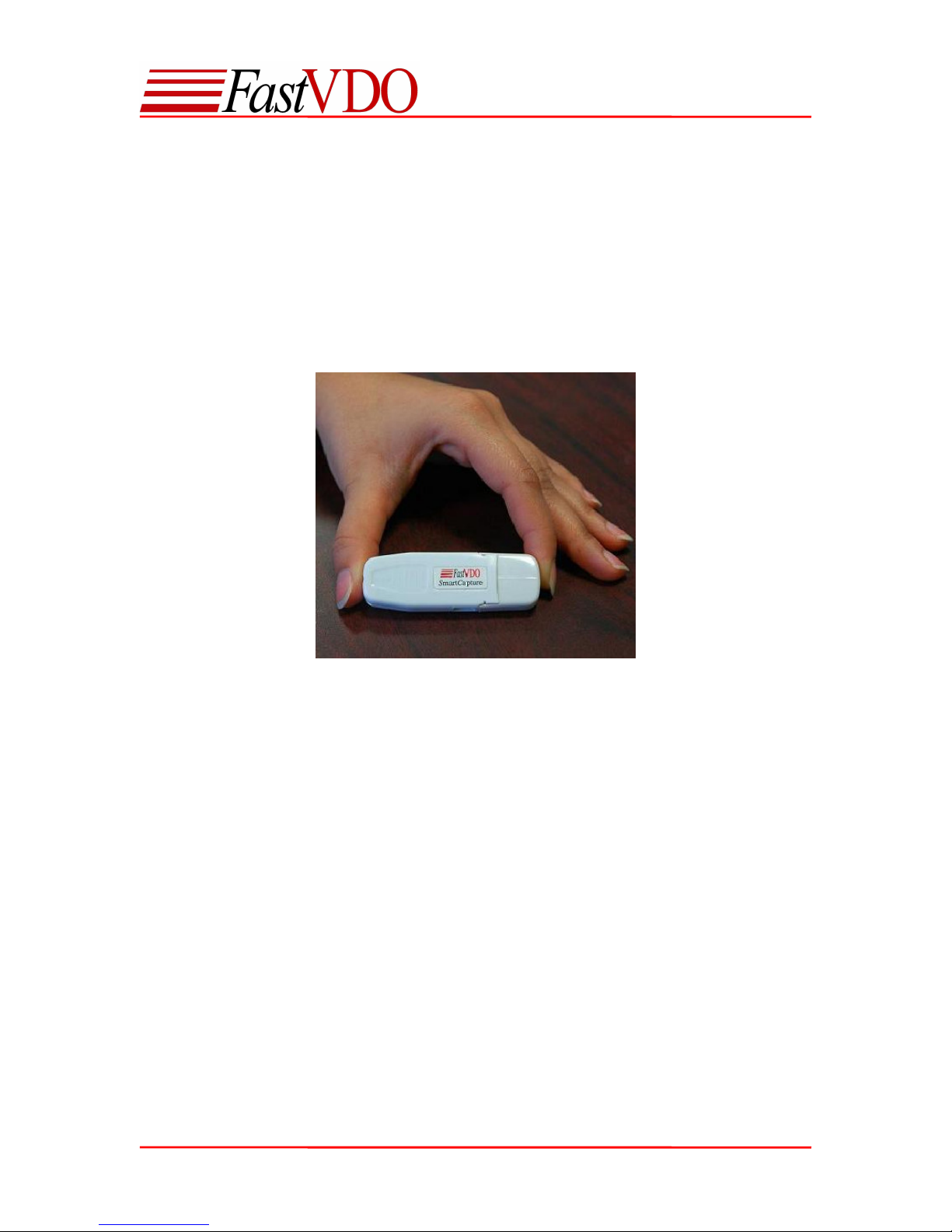
SmartCapture is the world’s smallest USB based Audio/Video capture and encoding device. It
supports real-time, high quality Audio Video capture and compresses using the latest H.264/AVC
video standard and AAC audio standard. Captured and compressed video/audio streams are
delivered to PC through simple USB interface for storage. Content creation, content repurposing,
field acquisition, surveillance, news gathering, and a host of applications are now available in a
compact, cost-effective form. A user friendly SmartPlayer software provided can be used to
capture and store encoded video from SmartCapture. SmartPlayer can also play back the media
files encoded by SmartCapture and other media formats.
Features
• USB-powered, no external power source required.
• Low-power
• Low cost
• Light weight and compact form factor
• Real time audio/video coding
• Video encoding using the latest H.264 compression standard.
• Audio encoding using the AAC compression standard.
• Minimal processor usage as Capture and encoding done on the USB device.
• Configurable Bitrate range: 32 kb/s up to 4 Mb/s
• Configurable frame resolution (resize) : 160x120 up to 720x504
• Configurable frame rate.
• Supports full D1 resolution NTSC/PAL analog Input.
• Two channel Audio (stereo L/R).
• Encoded file formats: H.264 video and AAC audio, in MP4 file format
• Encoded files compatible to play on QuickTime®, Apple iPod® and Sony PSP®.
User Manual 5
Page 6
Installing SmartCapture Device drivers
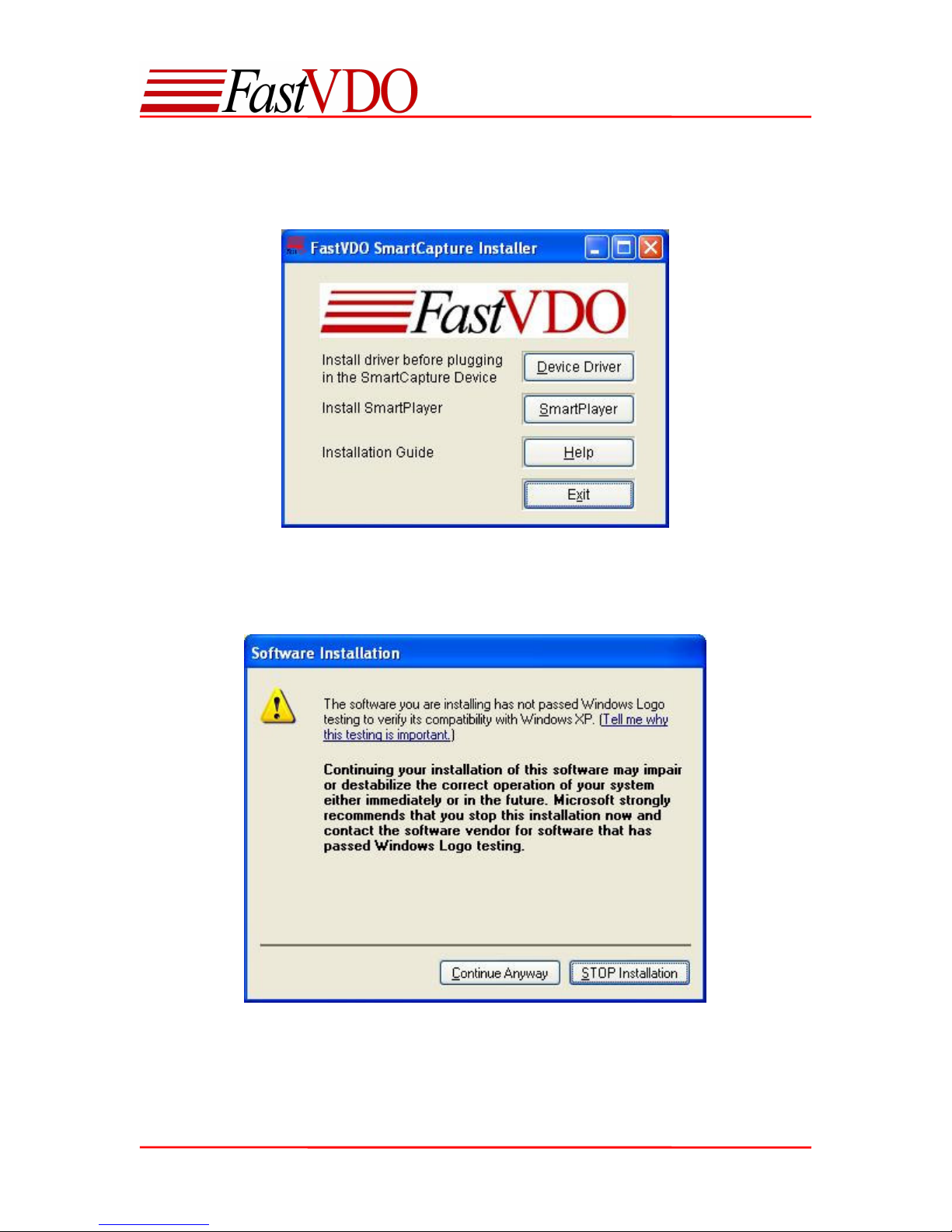
Insert the CD into your CD-ROM drive to launch the FastVDO SmartCapture installer.
(If auto run is disabled, please browse to the CD-ROM drive and double click on setup.exe)
Click on Install Device Driver button and follow the installation wizard.
NOTE: Please install device drivers before plugging in the device
When prompted with the above dialog box, click Continue Anyway.
User Manual 6
Page 7
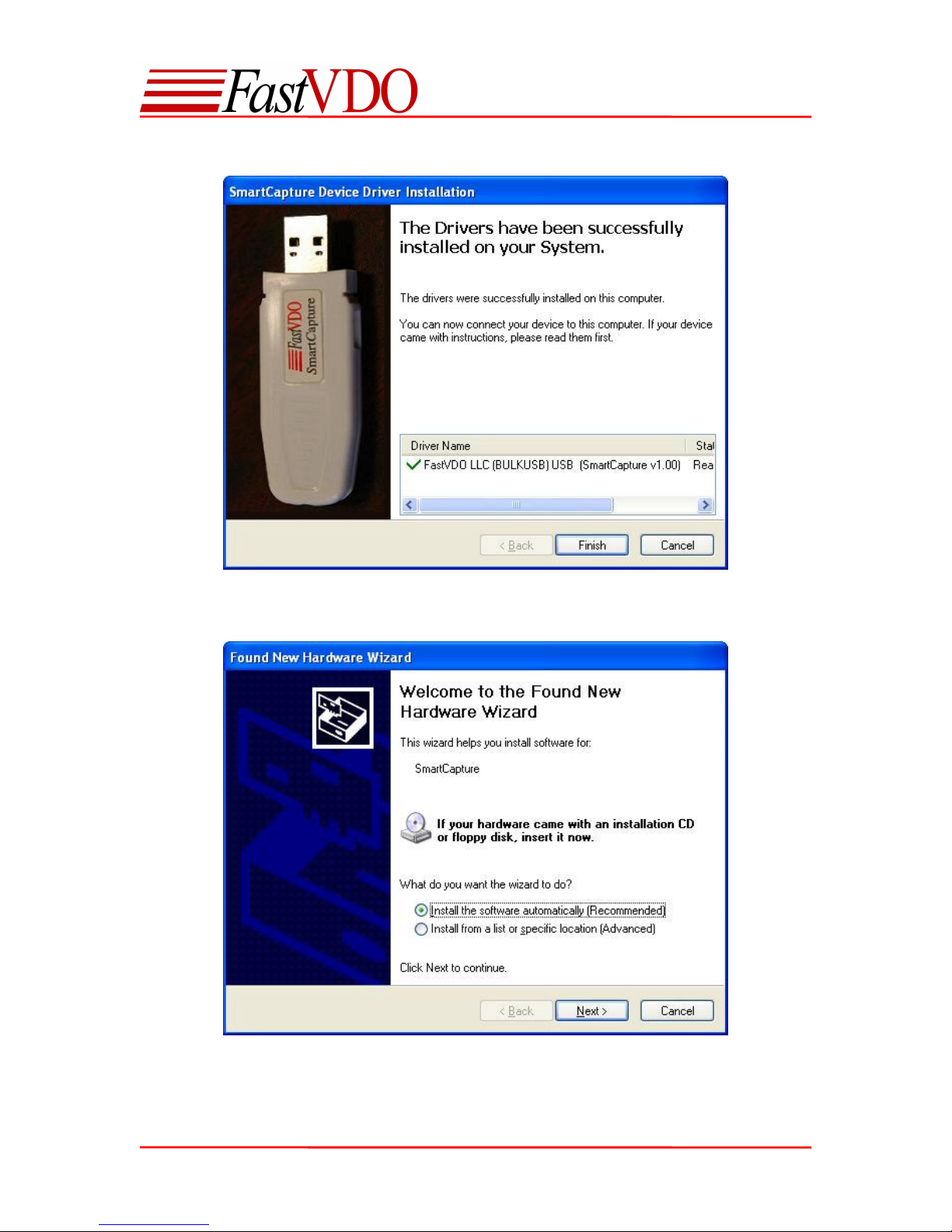
Click Finish to complete the Driver installation and plug in the device.
After plugging the device in, windows will pop-up the Found New Hardware Wizard. Select “Install
the software automatically” option and click next.
User Manual 7
Page 8
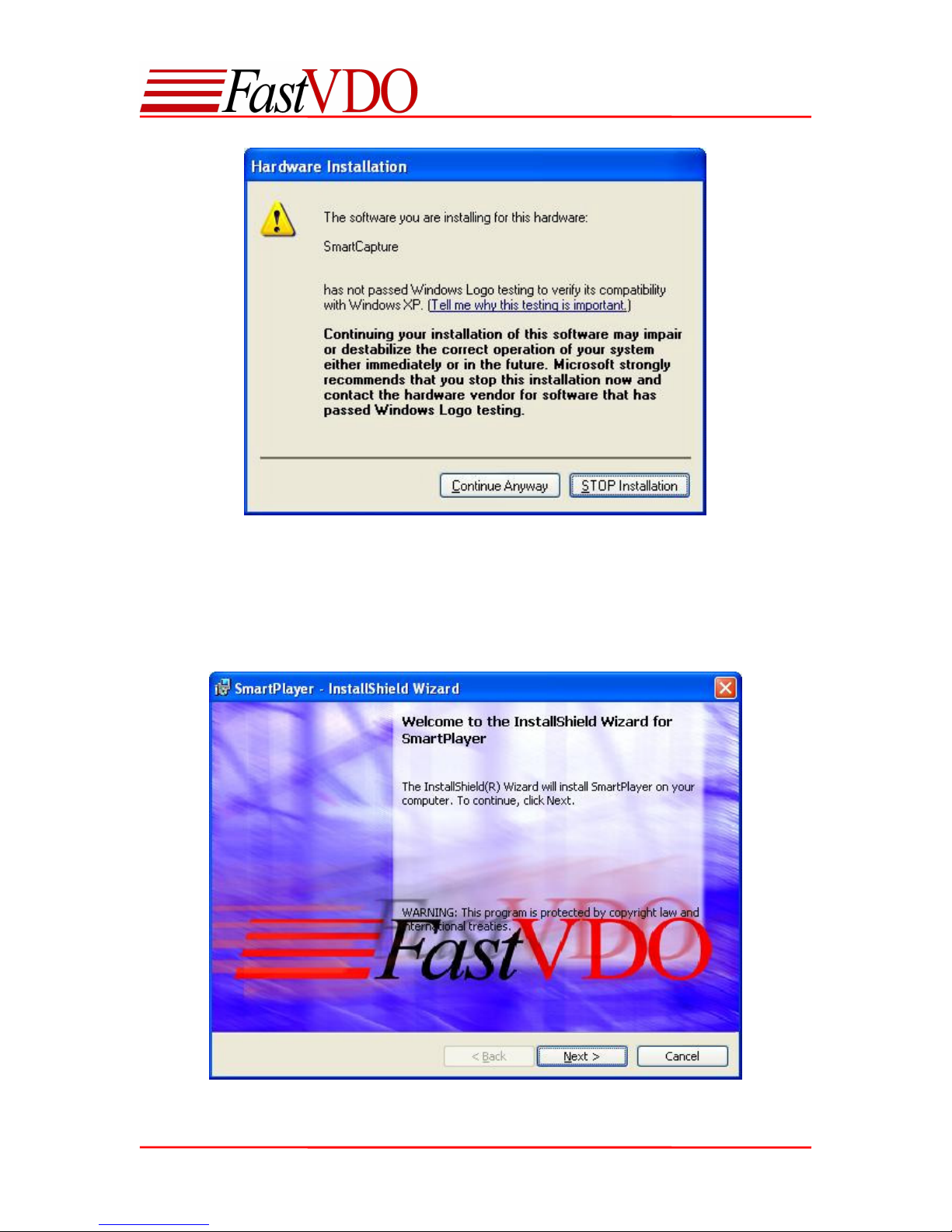
When prompted with the above dialog box, click Continue Anyway and complete the driver
installation.
Installing the SmartPlayer
Click the SmartPlayer button on the FastVDO SmartCapture installer and follow the wizard to
install the Player.
User Manual 8
Page 9
S
mart
C
apture Setup
SmartCapture Setup
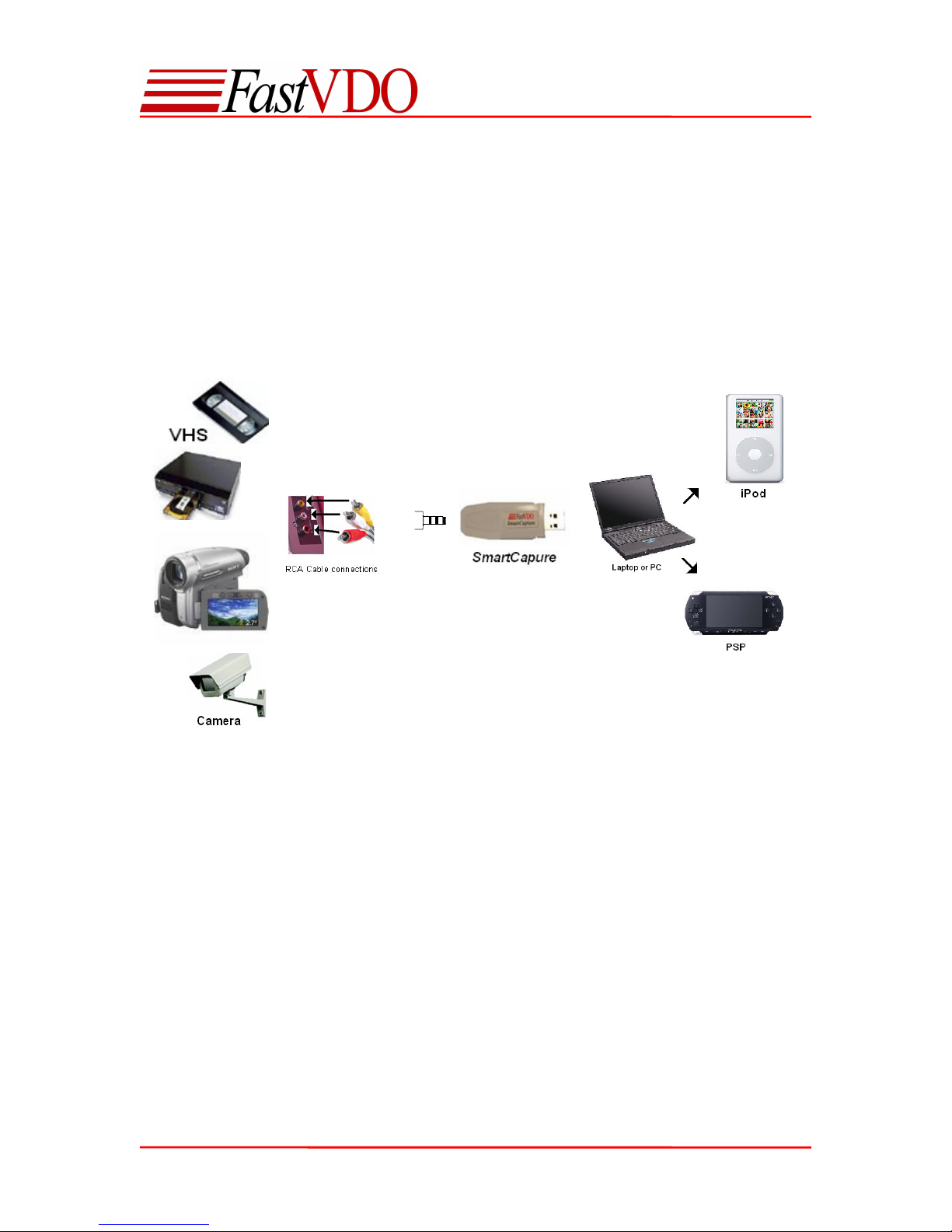
To capture and encode from any analog source like camera, DVD player or TV using the
SmartCapture, connect the RCA plugs of the cable (Yellow (video), Red and White) to “A/V-OUT”
of the source. Connect the 3.5mm jack of the cable to the “A/V-IN” of the SmartCapture. Plug the
SmartCapture device to the USB port of your computer or laptop.
NOTE: Install the drivers from the CD before plugging in the device.
User Manual 9
Page 10
SmartPlayer
The SmartPlayer provides both recording and playback functionalities. The audio video data
being captured and encoded can be previewed or saved using the SmartPlayer. Following
multimedia formats are supported by SmartPlayer
Video: H.264
Audio: MP3, AAC
File formats: MPEG-2 TS (.mpg), MP4 (.mp4), QBox (.qbx) – proprietary file format
Recording from SmartCapture
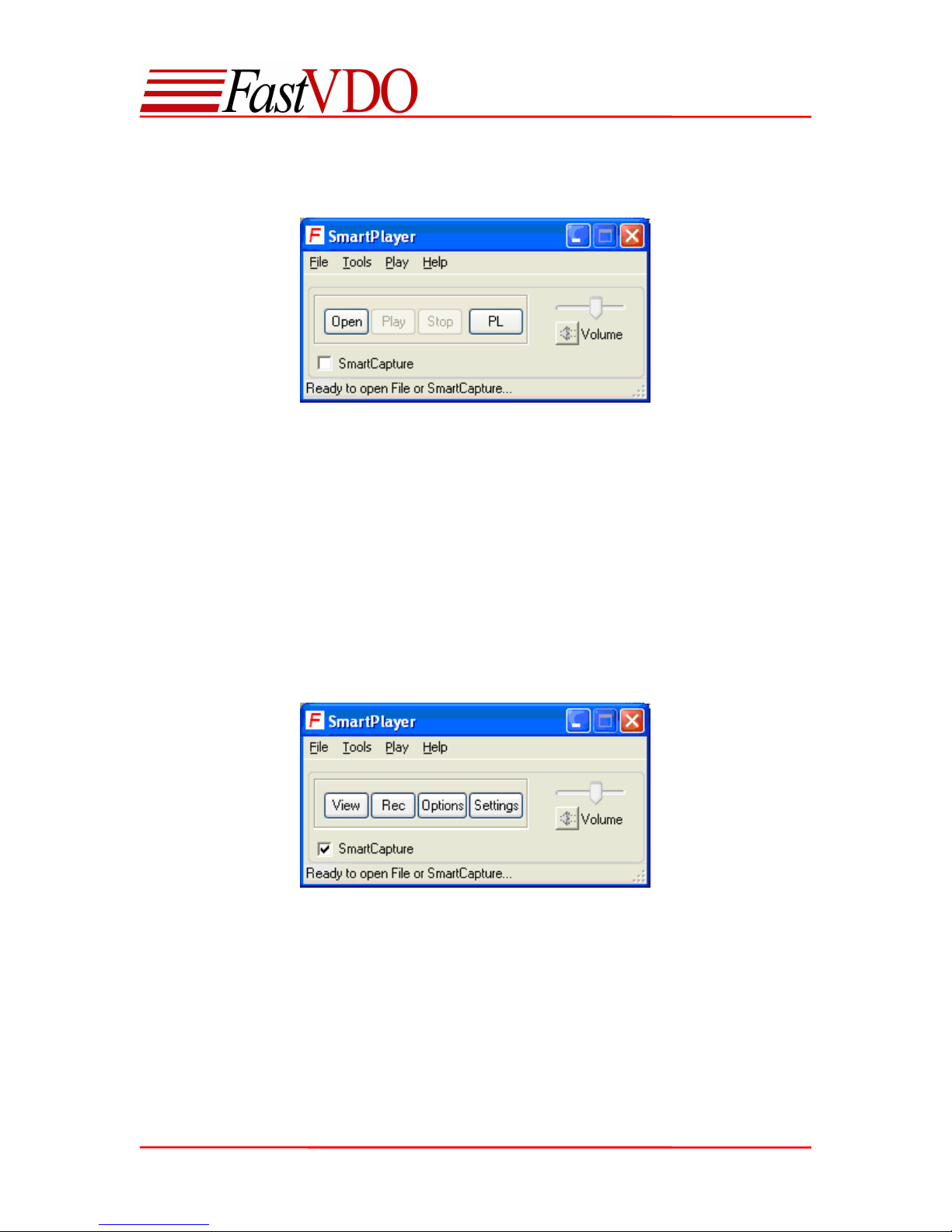
Launch the Player. Check the SmartCapture check box to enable the SmartCapture device
options. These options can also be enabled through the menu bar (FileRead SmartCapture).
.
• View – Preview the video/audio data encoded by SmartCapture.
• Rec – Recording/Saving the SmartCapture encoded data.
• Options – Customize device & recorder settings.
• Settings – Change Brightness & Color saturation on the video data encoded.
User Manual 10
Page 11
Previewing from SmartCapture
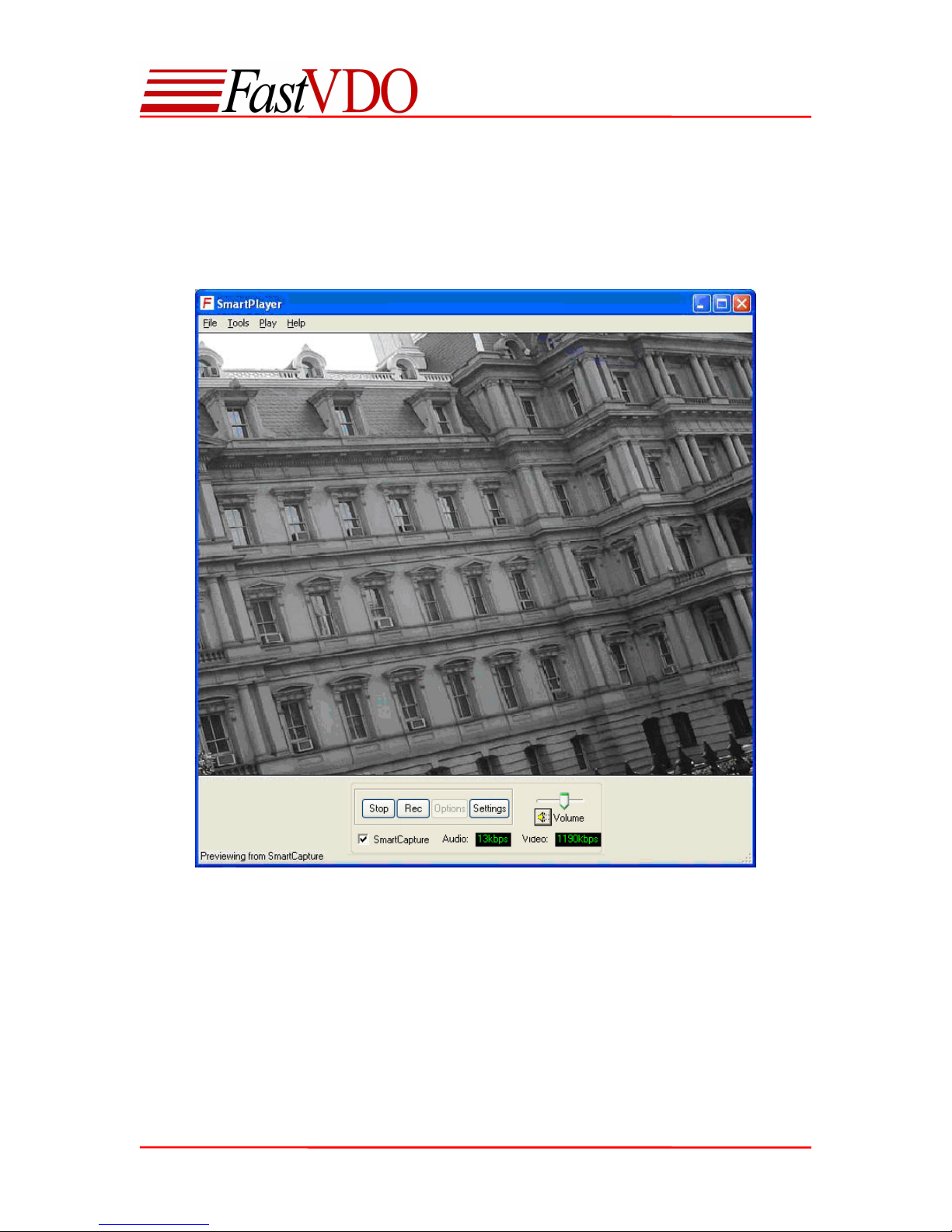
Plug RCA cable into the audio/video source, plug the 3.5 mm jack into the SmartCapture A/V in.
Plug the device into an USB port on your PC.
Click the “View” button, to view the captured sequence.
Recording/Saving the encoded data
Click the “Rec” button to start saving/recording the encoded sequence. SmartPlayer automatically
generates the file name when the Rec button is clicked, the file name given is based on the time
at which the Rec operation was started. For example if the recording was started on May 16th
2007 at 7:26:18 P.M. then the file name will be May1607-072618PM.mp4.
User Manual 11
Page 12
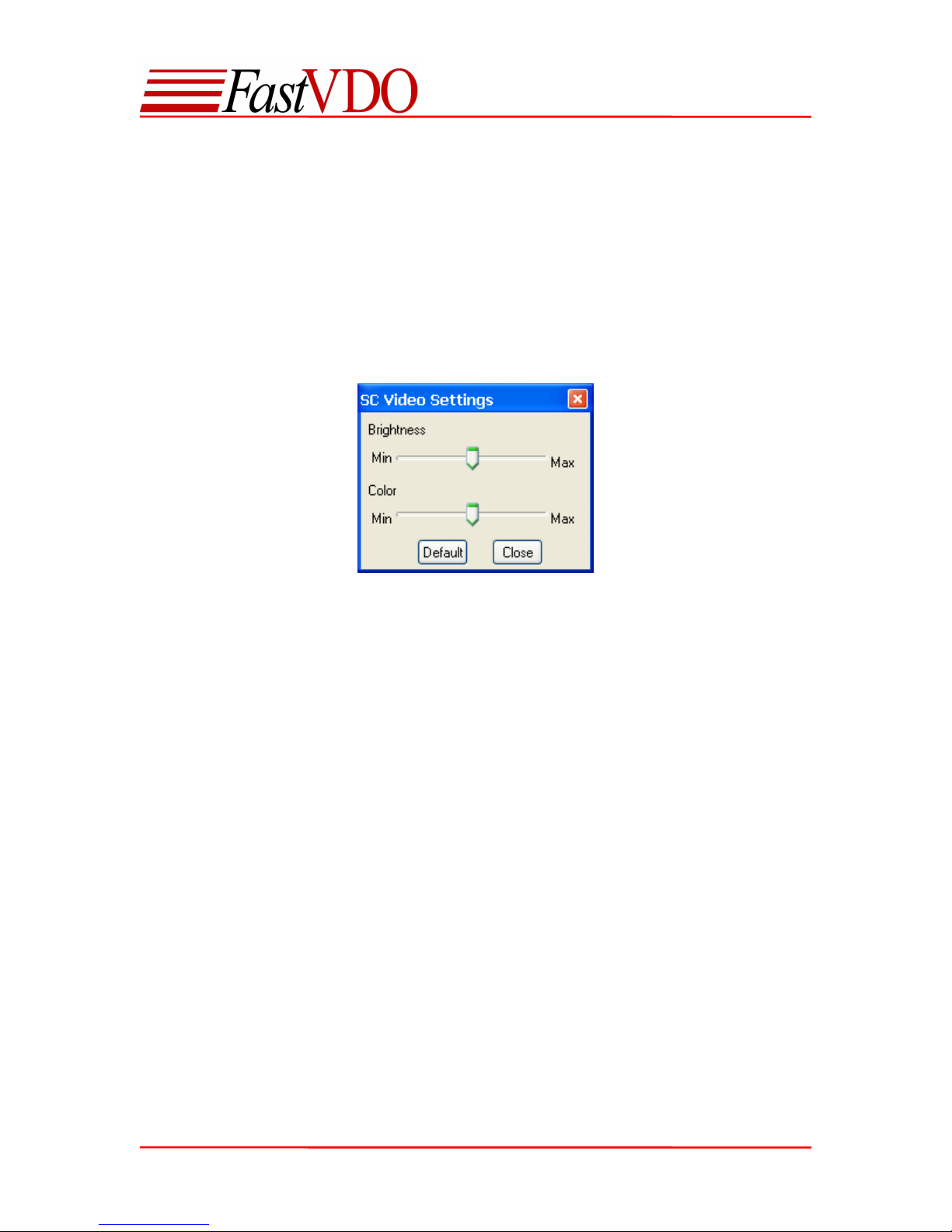
NOTE: With default settings encoded file will be saved at the location C:\Temp. You may choose
to save the files at a different location through Options or Record settings (Tools Record
Settings).
Stop Preview/Recording
Click the “Stop” button to stop preview/recording.
Brightness / Color settings
The brightness and color saturation settings maybe changed for the video being encoded or
previewed, by clicking on the settings button.
The brightness / color saturation may be varied while previewing or recording.
NOTE: The recorded video will have the brightness / color saturation settings as adjusted by the
user.
Full Screen and Volume Control
The sequence being previewed may be viewed in full screen mode by pressing Alt+Enter. To exit
from full screen, press Alt+Enter or Esc.
The Volume scroll bar increases or decreases the volume of the sequence being previewed. The
Volume Mute button will mute or un-mute the volume of the sequence being previewed.
NOTE: Controlling the Volume on the player does not control the volume of the recorded
sequence. The recorded sequence will have the same volume as of the source.
User Manual 12
Page 13
Options and Settings
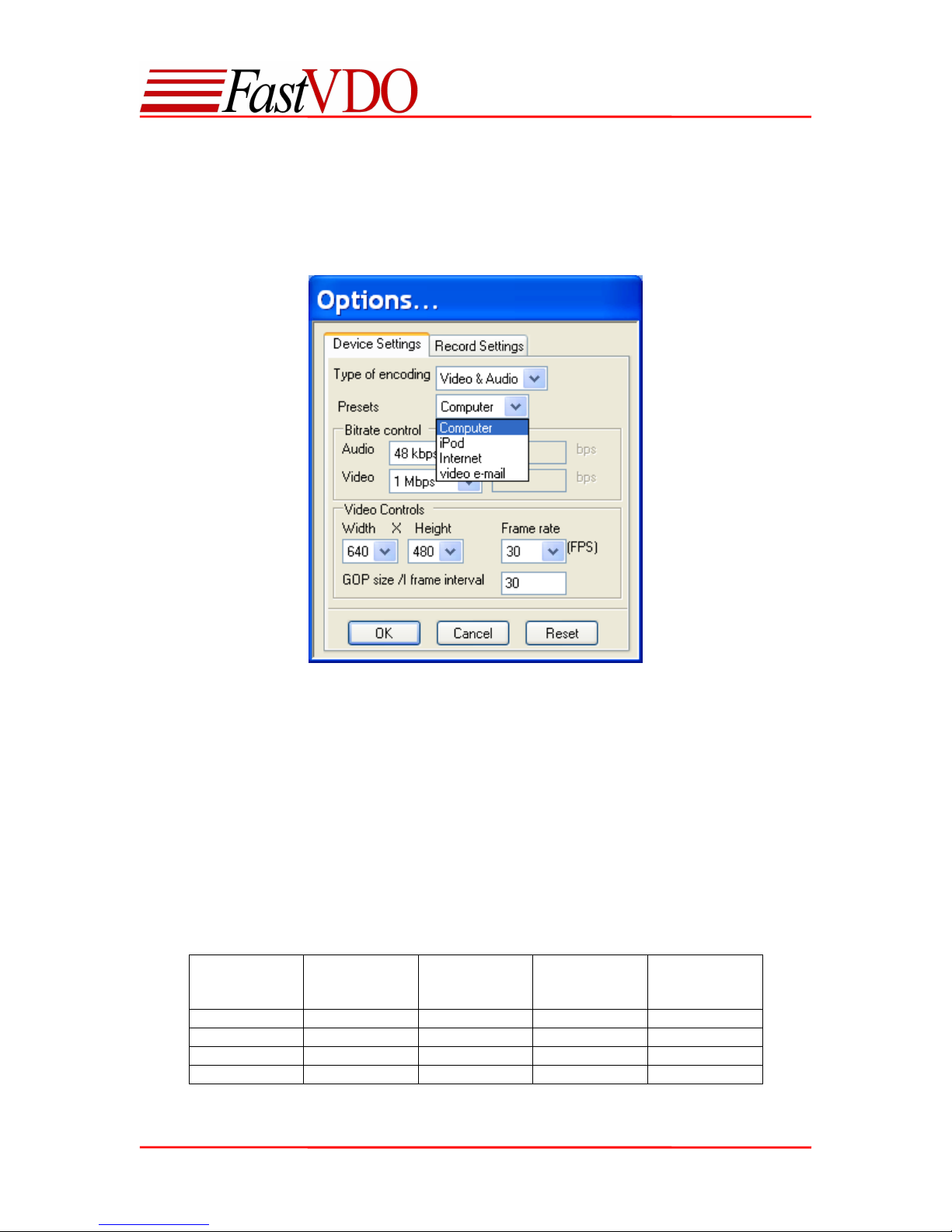
Click the “Options” button to change the Device Settings or Record Settings.
Device Settings
Device settings can also be accessed from the menu bar (ToolsDevice settings).
• Type of encoding - This option allows the user to select the source type for encoding.
Video only
Audio only
Both Video and Audio
• Presets – This option allows the user to select the presets for encoding a sequence for:
Computer/Laptop
iPod®
Internet
Video e-mail
The table below describes the default presets for each of the targets.
Target Resolution
(Width x
Height)
Computer 640 x 420 1000 48 30
iPod® 320 x 240 512 48 30
Internet 320 x 240 256 32 30
Video e-mail 320 x 240 128 24 15
Video bitrate
(Kbps)
Audio bitrate
(Kbps)
Frame rate
(fps)
User Manual 13
Page 14
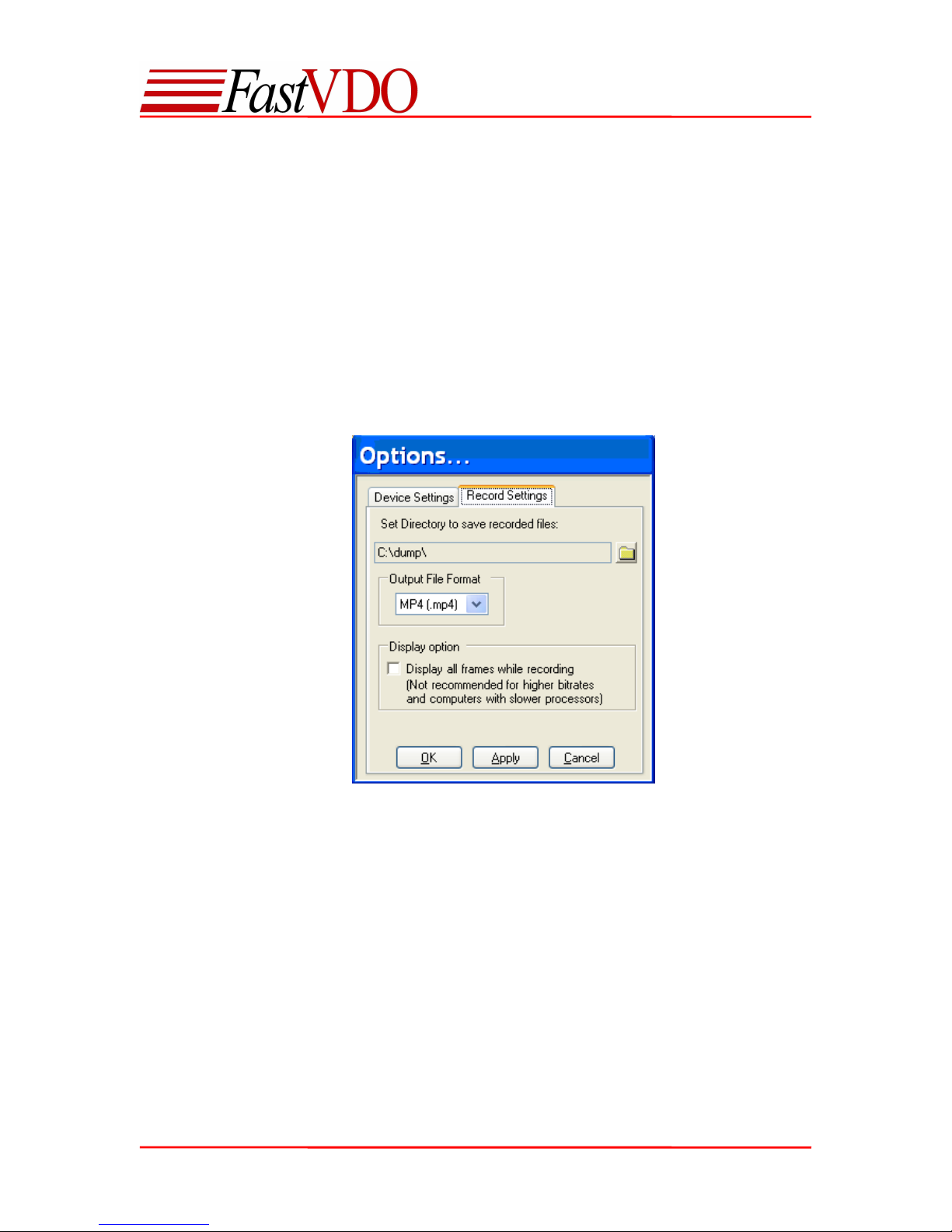
• Bitrate control - The bit rates at which SmartCapture should encode the Audio/Video data
can be preset using this option.
Audio Range – 48 kbps to 128 kbps
Video Range – 32 kbps to 4 Mbps
• Video Controls– These options can be used to modify video resolution, frame rate and I
frame intervals in encoded video
Width x Height – Resizes the output video to specified width and height.
Frame Rate – Sets the number of frames that are encoded in one second. Default
value is 30 fps. Using lower frame rates is recommended for lower bit rates.
NOTE: At Lower frame rates, video output might not be smooth.
I Frame Interval – Sets the refresh frame or intra-frame interval. I Frame at every 30
frames is recommended.
Record Settings
Record settings tab maybe used to chose a different location to store the recorded files. The file
format drop down box allows the user to select MP4 or Qbox file format.
NOTE: These file formats may be played back using the SmartPlayer.
• .mp4 – multimedia format compatible for playing on IPod®
• .qbx – multimedia format with H.264 video and AAC audio.
Display Options check box maybe used to enable or disable displaying all frames while recording.
NOTE: Decoding H.264 Video requires lot of processing power, displaying all frames while
recording is not recommended at higher bitrates and computers with slower processors.
User Manual 14
Page 15
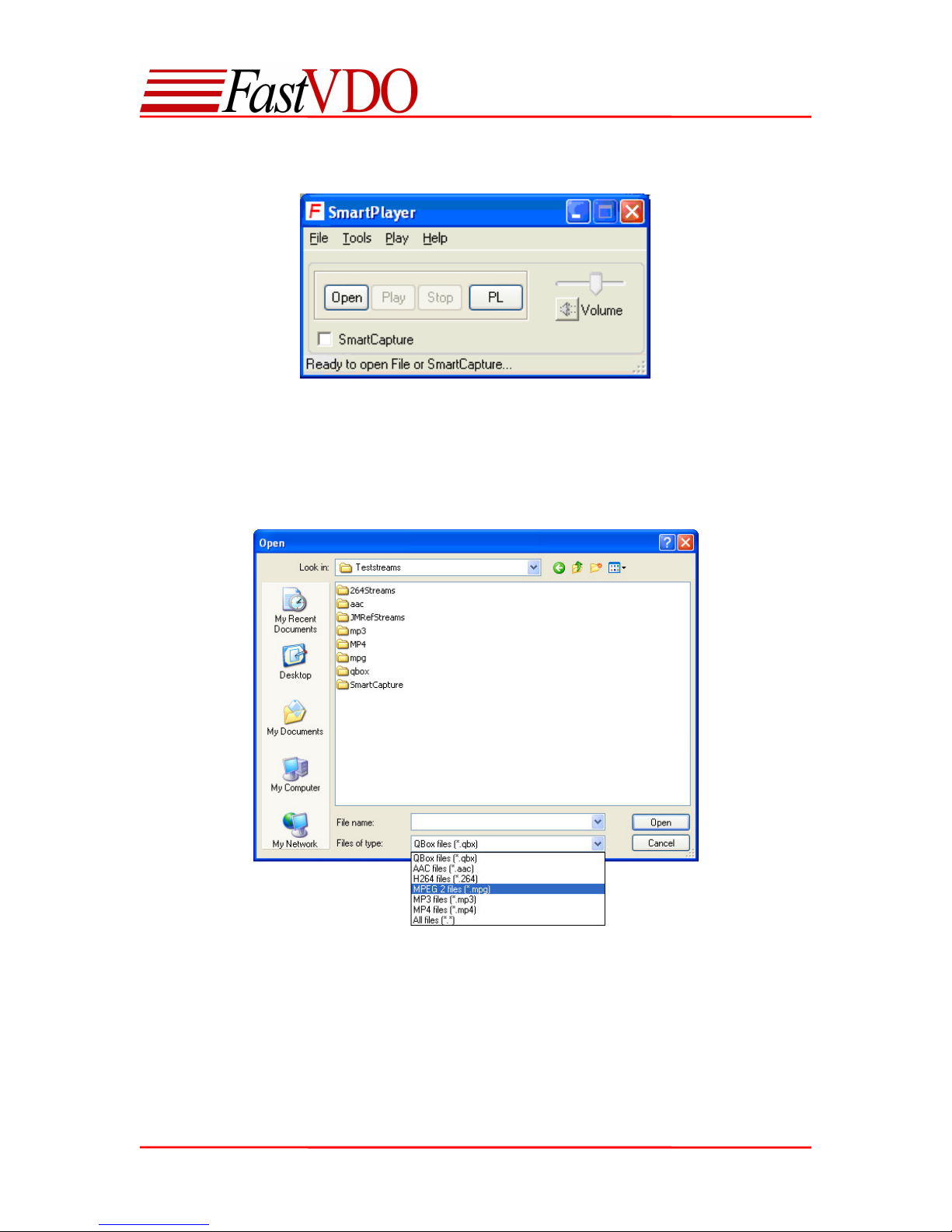
Playback Options in SmartPlayer
Opening a Recorded/Saved file
Click “Open” and browse the folder containing supported multimedia files. All supported file
formats will be shown. You can also select a desired file format, or choose “All files (*.*)” to view
all the files. Select the desired file and click open.
User Manual 15
Page 16
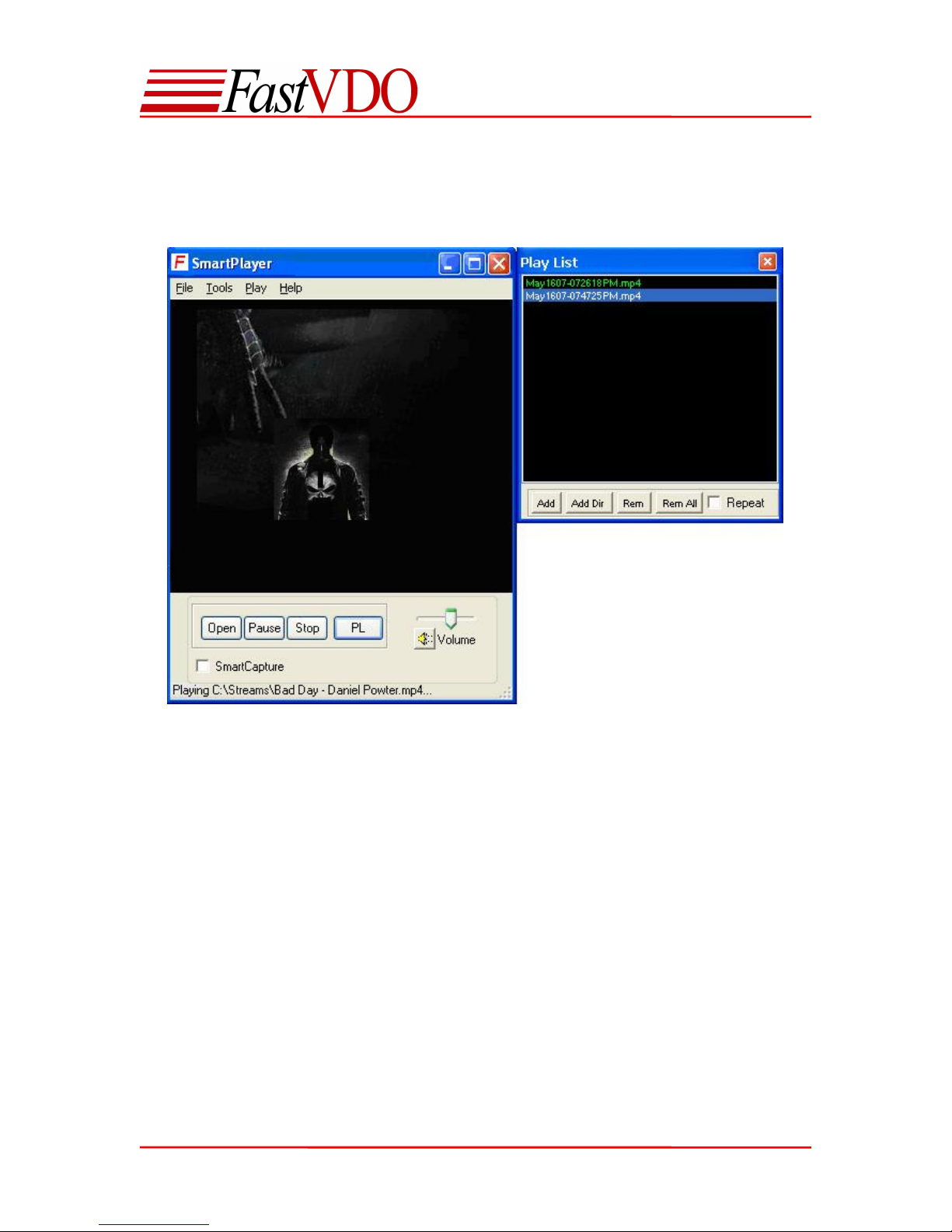
Player options
Click “Play” to play the selected file. Currently playing file maybe paused or stopped using the
respective buttons.
Play list
The play list window maybe used to create a play list of the encoded files for play back on the
SmartPlayer. The play list window can be shown / hidden by clicking the PL button.
(Tools Show /Hide Playlist)
Always on Top
This feature maybe used to retain the SmartPlayer always on top of all the windows.
(Tools Always on Top).
Using Help Option in the Player
Go to “Help” menu on the menu bar and select “Help” (Help→Help) to get help on the Device and
Player functionalities. This may also be accessed by pressing F1 on the keyboard.
User Manual 16
 Loading...