

Page 1
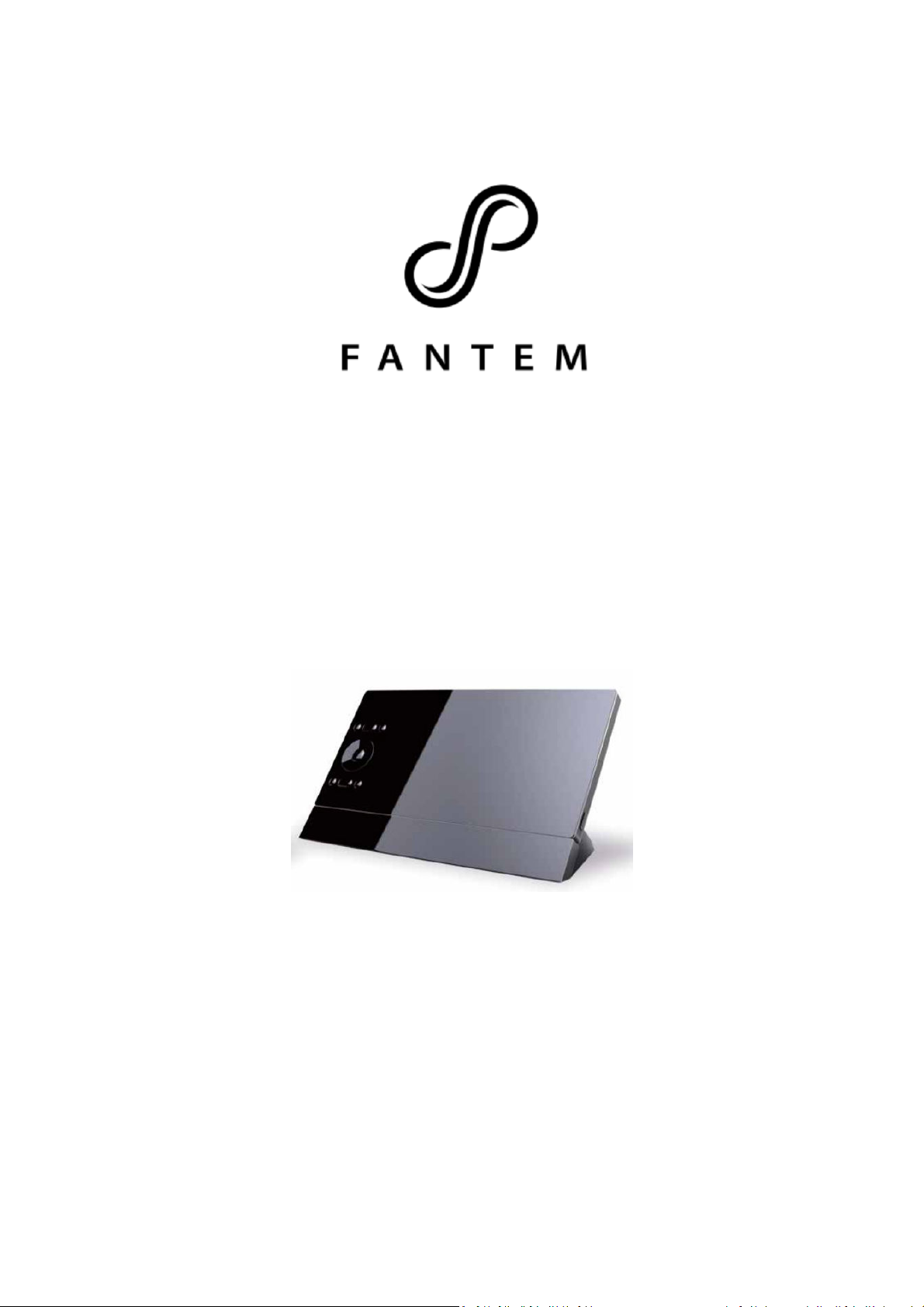
Oomi Touch
(Z-Wave Touch)
Page 2

Change history
Revision
Date
Change Description
1 11/20
/2015 Initial draft
.
Page 3

Table and contents
Change history ........................................................................................................................................ 2
1. Introduction ..................................................................................................................................... 4
2. Familiarize yourself with your Touch ................................................................................................ 4
3. Basic Network Installation Functions ................................................................................................ 4
4. Reset your Touch ............................................................................................................................. 5
5. Z-Wave Chip ..................................................................................................................................... 5
6. Z-Wave version ................................................................................................................................ 5
7. Z-Wave library type .......................................................................................................................... 5
8. Z-Wave Device Type ......................................................................................................................... 5
9. Z-Wave Role Type ............................................................................................................................ 5
10. Installer Icon Type ........................................................................................................................ 6
11. User Icon Type .............................................................................................................................. 6
12. Manufacture ID ............................................................................................................................ 6
13. Product Type ID ............................................................................................................................ 6
14. Product ID .................................................................................................................................... 6
15. RF Range ...................................................................................................................................... 6
16. Wireless technology ..................................................................................................................... 6
17. Z-Wave Command Class list .......................................................................................................... 6
18. Button functions of each trigger in the touch sensor page ............................................................ 7
19. Association information................................................................................................................ 7
20. Special rule of each command ...................................................................................................... 7
Page 4
1. Introduction
Oomi Touch is a smart mobility device based on the android OS.It is not only a touch device but also a ZWave touch sensor, it has built in a Z-Wave module, which let you can easily receive its sensor
notifications form anywhere in the world.
It is a sensor binary device based on Z-Wave routing slave library of V6.51.06.
It is also a security Z-Wave device and supports the Over The Air (OTA) feature for the product’s
firmware upgrade.
Oomi Touch can be included and operated in any Z-Wave network with other Z-Wave certified devices
from other manufacturers and/or other applications. All non-battery operated nodes within the network
will act as repeaters regardless of vendor to increase reliability of the network.
It also supports Security Command Class and has the AES 128 bit security encryption built right in, so a
security enabled controller is needed for fully to utilize its function.
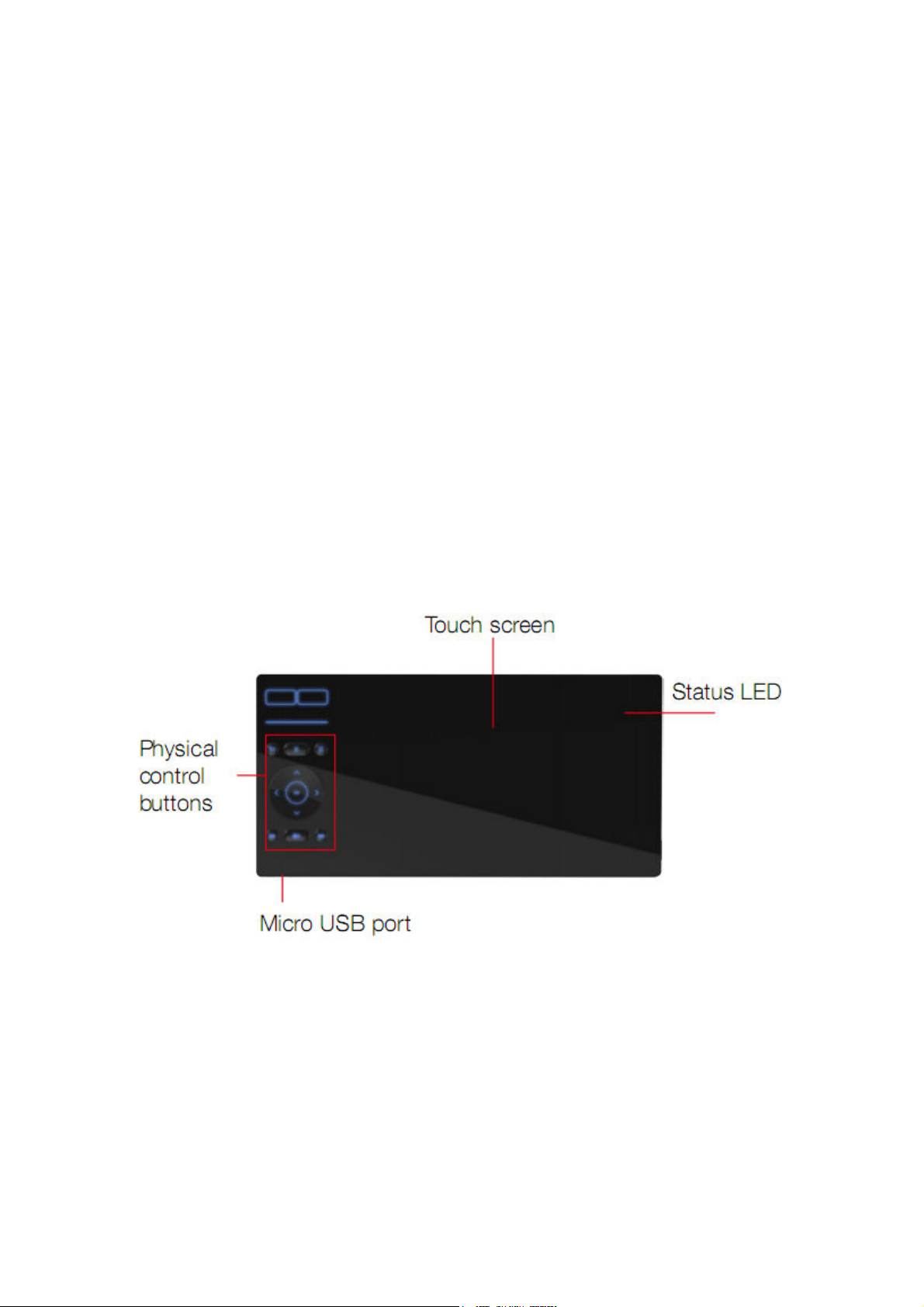
2. Familiarize yourself with your Touch
3. Basic Network Installation Functions
Add your Touch to a Z-Wave network.
Press the power button once on the Touch, the Touch would be waked up (Note: If it is in low
battery power, please use the DC 5V adapter provided to charge your Touch first). Find out the
“ZwaveControl” icon and click it to enter into the operation page.
Page 5

1. Set your Z-Wave hub/primary Controller into adding/inclusion mode.
2. Press the “Learn” button on the operation page of your Touch.
3. If the Touch has been successfully added to your Z-Wave network, it will pop up a message “the
adding is successful”, if not, repeat the steps above.
Remove your Touch from a Z-Wave network.
Press the power button once on the Touch, the Touch would be waked up (Note: If it is in low
battery power, please use the DC 5V adapter provided to charge your Touch first). Find out the
“ZwaveControl” icon and click it to enter into the operation page.
1. Set your Z-Wave hub/primary Controller into Removing/exclusion mode.
2. Press the “Learn” button on the operation page of your Touch.
3. If the Touch has been successfully removed from your Z-Wave network, it will pop up a message
“Touch is removed from the Z-Wave network”, if not, repeat the steps above.
4. Reset your Touch
When your primary controller/ gateway is missing or inoperable, you may want to reset your
Touch, to do this, press the “Reset” button on the operation page of your Touch, your Touch would
be reset to its factory default settings.
5. Z-Wave Chip
ZM5101
6. Z-Wave version
SDK V6.51.06
7. Z-Wave library type
Sensor-Notification
8. Z-Wave Device Type
Notification:
Generic Device class: GENERIC_TYPE_SENSOR_NOTIFICATION
Specific Device Class: SPECIFIC_TYPE_NOTIFICATION_SENSOR
9. Z-Wave Role Type
Listening Sleeping Slave
Page 6

Included Non
-
Secure
Included Secure
Node Info
COMMAND_CLASS_ZWAVEPLUS_INFO V2
COMMAND_CLASS_ZWAVEPLUS_INFO V2
Security
COMMAND_CLASS_ASSOCIATION_GRP_INFO V1
10. Installer Icon Type
0x0C06 (ICON_TYPE_SPECIFIC_SENSOR_NOTIFICATION_ACCESS_CONTROL)
11. User Icon Type
0x0C06 (ICON_TYPE_SPECIFIC_SENSOR_NOTIFICATION_ACCESS_CONTROL)
12. Manufacture ID
0x016A
13. Product Type ID
US version: 0x0102
AU version: 0x0002
EU version: 0x0202
14. Product ID
0x0066
15. RF Range
Up to 100 meters outdoors.
16. Wireless technology
Z-Wave 908.42MHz/868.42MHz/921.42MHz. Wi-Fi 2.4GHz 802.11b/g/n. Bluetooth 4.0. NFC.
17. Z-Wave Command Class list
Frame
COMMAND_CLASS_VERSION V2
COMMAND_CLASS_MANUFACTURER_SPECIFIC
V2
COMMAND_CLASS_NOTIFICATION V4
COMMAND_CLASS_ASSOCIATION_GRP_INFO V1
COMMAND_CLASS_ASSOCIATION V2
COMMAND_CLASS_POWERLEVEL V1
COMMAND_CLASS_BASIC
COMMAND_CLASS_BATTERY
COMMAND_CLASS_CONFIGURATION V1
COMMAND_CLASS_SECURITY V1
COMMAND_CLASS_FIRMWARE_UPDATE_MD V2
COMMAND_CLASS_MARK V1
COMMAND_CLASS_DEVICE_RESET_LOCALLY V1
----
COMMAND_CLASS_VERSION V2
COMMAND_CLASS_MANUFACTURER_SPECIFIC
V2
COMMAND_CLASS_SECURITY V1
COMMAND_CLASS_MARK V1
COMMAND_CLASS_DEVICE_RESET_LOCALLY V1
Page 7

Command
COMMAND_CLASS_ASSOCIATION V
2
Button
Trigger
Description
Parameter
Value
Supported
Report
Frame
COMMAND_CLASS_POWERLEVEL V1
COMMAND_CLASS_NOTIFICATION V4
COMMAND_CLASS_BASIC
COMMAND_CLASS_BATTERY
COMMAND_CLASS_CONFIGURATION V1
COMMAND_CLASS_FIRMWARE_UPDATE_MD
V2
18. Button functions of each trigger in the touch sensor page
Learn Button Click 1. Let your Touch into Learn Mode which can add it into Z-Wave
network or remove it from Z-Wave network.
2. Trigger to send out a Node info frame.
Unlock Button Click Send out a Notification Report CC or Hail CC (configurable).
19. Association information
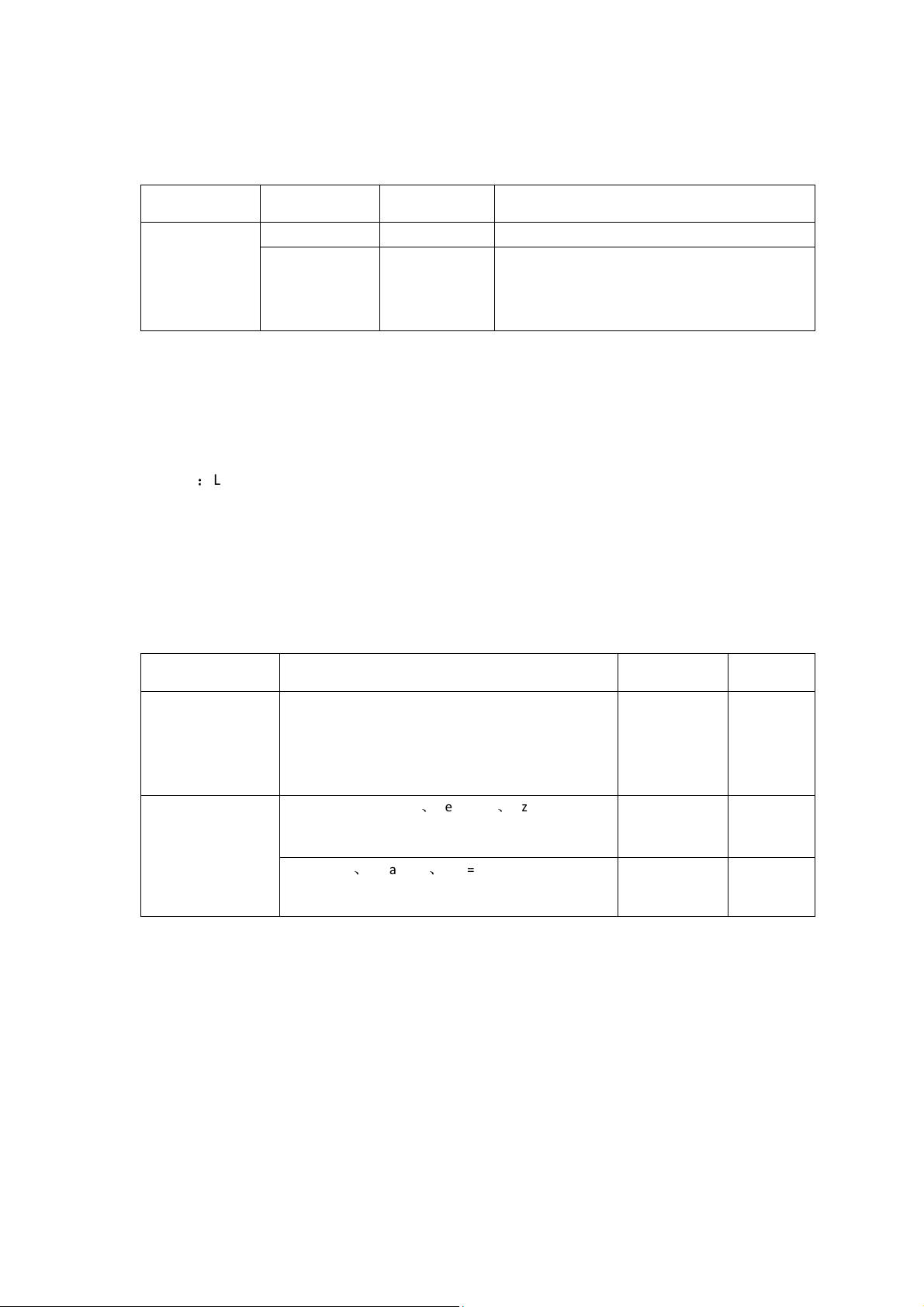
The Touch supports only 1 association group and can add max 5 nodes to this group.
The association group 1 is the lifeline group.
The Notification Report CC and Basic Set CC can be sent to the associated nodes in association
group 1.
20. Special rule of each command
Z-Wave Plus Info Report Command Class
Parameter Value
Z-Wave Plus Version 2
Role Type 6 (ROLE_TYPE_SLAVE_SLEEPING_REPORTING)
Node Type 0 (ZWAVEPLUS_INFO_REPORT_NODE_TYPE_ZWAVEPLUS_NODE)
Installer Icon Type 0x0C06 (ICON_TYPE_SPECIFIC_SENSOR_NOTIFICATION_ACCESS_CONTROL)
User Icon Type 0x0C06 (ICON_TYPE_SPECIFIC_SENSOR_NOTIFICATION_ACCESS_CONTROL)
Manufacturer Specific Report
Manufacturer ID 1 0x01
Manufacturer ID 2 0x6A
Product Type ID 1 EU=0x00, US=0x01, AU=0x02 CN=0x1D (29)
Product Type ID 2 0x02
Product ID 1 0x00
Product ID 2 0x66 (102)
Association Command Class
Page 8
Association
Nodes
Send Mode
Send
C
ommands
Parameter Number
Description
Default Value
Size
0xFF (255)
4
The Touch supports 1 association group and can add Max 5 nodes in group 1.
Group
Group 1 0 N/A N/A
[1,5]
Single Cast Send Notification Report CC/Hail CC when the
Sensor is triggered.
Association Group Info Command Class
Association Group Info Report Command Class
Profile: General: NA (Profile MSB=0, Profile LSB=0)
Association Group Name Report Command Class
Group 1:Lifeline
Notification Command Class
Supported Notification type and Event:
Notification Type: Access Control (0x06).
Notification Events for Access Control: MANUAL UNLOCK OPERATION (0x02).
Configuration Command Class
Hex / Decimal
0x50 (80)
To configure which command will be sent when the
Sensor is triggered.
Value=0, Send Notification Report.
Value=1, Send Hail CC.
Other values are ignored.
1, Value=0x55555555、Default=1、Size=4
Reset to factory default setting and removed from
the z-wave network
2, Value=0、Default=1、Size=1
Reset to factory default setting
0
N/A
N/A
1
1
 Loading...