

Page 1
FANTEC MWiD25-DS
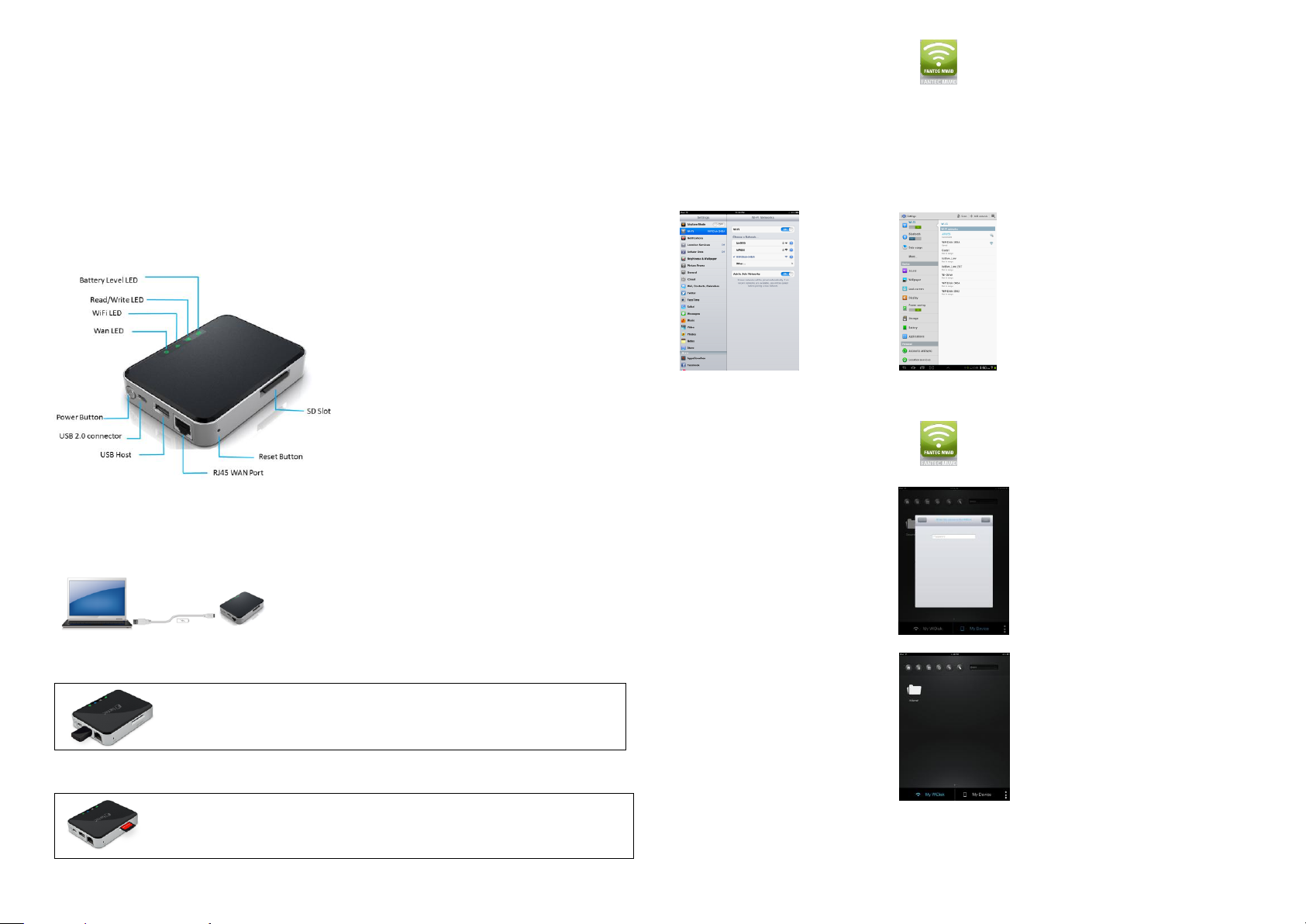
Battery LED:
LED Off: The device is switched-off
Green Steady Light: Battery is fully charged
Green Slowly Blinking: Battery charging
Green Blinking Fast: Device Shutting-Down
Red Steady Light: Less than 30% available power
Red Blinking Fast: Will soon shut-down, must be
charged immediately
Read/Write LED:
Blue Steady Light: Ready to use
Blue Blinking: Read/Write activities
WiFi LED:
LED Off: The device is switched-off
Blue Flashing: Starts the Initialization process
Blue Steady Light: a) Initialization process completed
b) Ready to use
c) WiFi signal is normal
WAN LED:
LED off: No connection established
Green Steady Light: Good signal
Locate the USB port on the device. Simply insert the any USB Mass Storage device including Flash
Drives, External Hard Drive and card readers into the USB port of the device as seen the image left. Press
the power button to switch on the device. Wait for few seconds to complete the initialization process and
your USB external storage is ready to use.
Installing the SD memory card is very simple. Locate the SD memory card slot. Simply insert the memory card
as seen on the image left. Gently push the memory card all the way in until it locks into its place. Press the
power button to switch on the device. Wait for few seconds to complete the initialization process and your SD
memory card is ready to use.
Wireless Docking Station
Quick Start Guide
The FANTEC MWiD25-DS mobile wireless Docking Station enables wireless access to your videos, music, photos and data and allows
you to stream everything to your iPad®, iPhone®, tablet, Smartphone or notebook. Cords and cables are not needed anymore. With this
additional Docking Station storage, you do not have to worry about running out of space on your mobile device.
For maximum portability, the mobile wireless Docking Station has a built-in rechargeable Li-Ion battery. You can charge it at any available
USB port on your computer or with your Smartphone’s power adapter with Micro USB connector. The mobile wireless Docking Station can
be accessed while the battery is charged.
1. Device Information and LED Indication
3. Client App for iOS and Android
1. Search and locate the free “FANTEC MWiD25” app
at Apple App Store or Google Play Store.
2. Once the installation process has been completed, the “FANTEC MWiD25” app can be found on the desktop.
4. Wireless connect the WiFi Docking Station to your iPhone/iPad/Smartphone/Tablet
1. Turn-on the WiFi Docking Station. Wait for few moments to complete the booting process. The blue WiFi LED on the device should remain
solid indicating that the initialization process has been completed.
2. Turn-on your iOS/Android device. Click on the “Settings” icon on the desktop, then on the “WiFi” option. Inside of the WiFi Network, the
SSID “WiFiSD-XXXX” should appear on the list. Click on the “WiFiSD-XXXX” as seen on the image below. The 4 characters “XXXX”
represent the 4 last digits of the device’s MAC-Address. The WPA2 key is: 11111111
2. Device Interface
Micro USB Interface
The built-in Micro USB 2.0 is for data transfer and charging the internal battery when connected directly into the computer’s USB port or wall
chargers. For charging you can also use a USB charge adaptor with 0.5A or for faster charging use a USB charge adaptor with 1A or 2A.
USB Host Interface
The built-in USB 2.0 Host Interface for connecting any USB Mass Storage device and for charging mobile devices such as smartphones,
MP3 Players, and tablets.
SD Card Slot
Available SD slot to support SD, SDHC, and SDXC. SD adapter is needed to support Micro SD and Mini SD.
Once the “WiFiSD -XXXX” is connected, a check mark will appear before the SSID or the WiFi logo display as “Connected”.
5. User Login
1. Click on the “FANTEC MWiD25” icon to launch the app
as seen on the image below.
2. Enter the password “admin”.
The password is only required during the first login.
The device remembers the password and
there is no need to enter it again.
3. Once the password has been entered correctly,
you will be automatically connected to
the “My WiDisk”.
The “My WiDisk” is the MWiD25-DS storage device.
Note:
For more information on handling, configuration and operation, please read the manual!
License information: This product contains free software which is licensed under the GNU General Public License.
Please download the GPL source code for FANTEC MWiD25-DS here:
www.fantec.de/unternehmen/bestimmungenrichtlinien/gnu-general-public-license/
Page 2
FANTEC MWiD25-DS
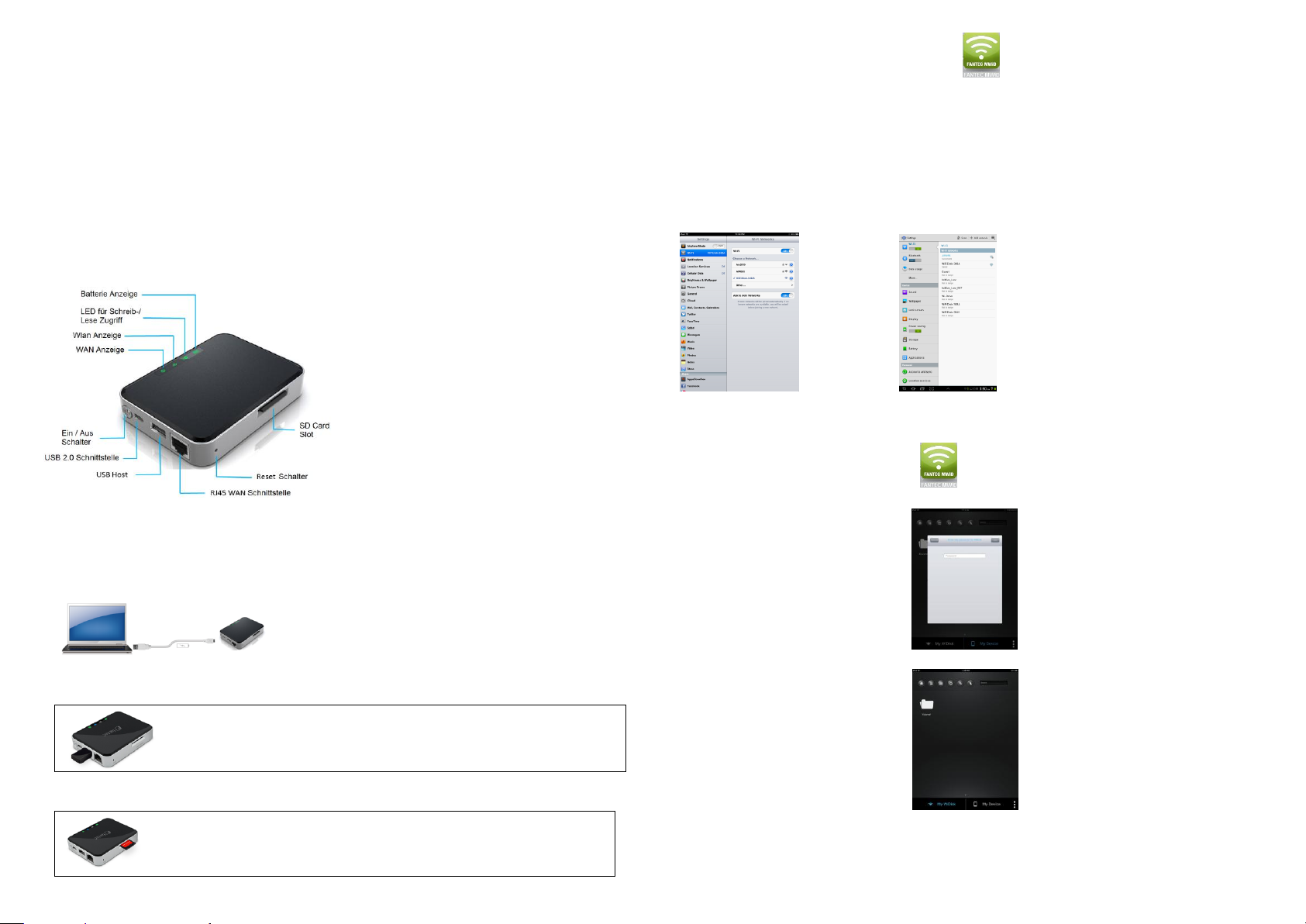
Batterie Anzeige-LED:
LED aus: Das Gerät ist ausgeschaltet
Leuchtet dauerhaft Grün: Akku ist vollgeladen
Blinkt langsam Grün: Akku lädt
Blinkt schnell Grün: Gerät schaltet sich aus
leuchtet dauerhaft Rot: Weniger als 30 % Kapazität verfügbar
Blinkt schnell Rot: Gerät schaltet sich in Kürze aus, muss
dringend geladen werden
Schreib-/ Lese-LED:
Blaue LED Leuchtet: Betriebsbereit
Blaue LED Blinkt: Schreib- /Lese Zugriff
WLAN-LED:
LED aus: Das Gerät ist ausgeschaltet
Blinkt Blau: Start der Initialisierung
Leuchtet Blau: a) Initialisierung beendet
b) Betriebsbereit
c) WLAN-Signal ist normal
WAN-LED:
LED aus: Keine Verbindung
Leuchtet Grün: Gutes Signal
Den USB Host Anschluss finden Sie auf der Frontseite. Stecken Sie einfach den USB Stick oder die externe
Festplatte in den USB-Port des Geräts, wie auf dem Bild links zu sehen. Drücken Sie den Netzschalter, um
das Gerät einzuschalten. Warten Sie einige Sekunden, um die Initialisierung abzuschließen bzw. bis Ihr
USB Speicher Gerät eingelesen ist.
Den SD-Speicherkartensteckplatz finden Sie auf der rechten Seite. Schieben Sie die Speicherkarte wie
auf dem Bild links zu sehen in den Einschub, bis diese am Ende einrastet. Drücken Sie den Netzschalter,
um das Gerät einzuschalten. Warten Sie einige Sekunden, um die Initialisierung abzuschließen bzw. bis
Ihre SD-Speicherkarte eingelesen ist.
WLAN Docking Station
Schnellstart Anleitung
Die FANTEC MWiD25-DS Mobile Docking Station ermöglicht drahtlosen Zugriff auf Ihre Videos, Musik, Fotos und Daten sowie das
Streaming aller Inhalte zu Ihrem iPad®, iPhone®, Tablet-PC, Smartphone oder Notebook. Kabel werden nicht mehr benötigt. Mit dieser
Docking Station müssen Sie sich keine Gedanken mehr darüber machen, dass Sie auf Ihrem Mobilgerät nicht ausreichend
Speicherkapazität zur Verfügung haben.
Für die bestmögliche Mobilität hat die mobile Docking Station einen integrierten Lithium-Ionen-Akku. Er kann über jeden USB-Port eines
Computers oder über das Netzteil Ihres Smartphones mit Mikro-USB Stecker geladen werden. Auf die mobile WLAN-Docking Station kann
während des Ladezyklus zugegriffen werden.
1. Geräteinformationen und LED Anzeigen:
3. App für den Zugriff unter iOS und Android
1. Suchen und laden Sie die kostenlose App “FANTEC MWiD25”
im Apple App Store oder im Google Play Store herunter.
2. Nachdem die Installation beendet ist, finden Sie die “FANTEC MWiD25” App auf Ihrem Desktop.
4. WLAN Docking Station kabellos mit einem iPhone/iPad/Smartphone/Tablet verbinden
1. Schalten Sie die WLAN Docking Station ein und warten Sie einige Augenblicke bis der Bootvorgang abgeschlossen ist. Sofern die blaue
WLAN-LED durchgehend leuchtet, ist die Initialisierung abgeschlossen.
2. Schalten sie Ihr iOS/Android Gerät ein und klicken Sie danach auf das "Einstellungen"-Symbol auf dem Desktop. Wählen Sie die "WLAN"Option. Innerhalb des WLAN-Netzwerkes sollte die SSID "WiFiSD-XXXX" auf der Liste erscheinen. Klicken Sie auf "WiFiSD-XXXX" wie auf
dem Bild unten zu sehen. Die 4 Zeichen "XXXX" repräsentieren die 4 letzten Ziffern der MAC-Adresse der WLAN Docking Station.
Der WPA2 Schlüssel lautet: 11111111.
2. Anschlüsse:
Micro USB Schnittstelle
Die eingebaute Micro USB 2.0 Schnittstelle, zum Verbinden des Kartenlesers mit dem PC. Zudem kann man die Wlan Docking Station mit
der eingebauten Micro USB 2.0 Schnittstelle am PC oder über ein USB Netzteil laden. Für schnelles Laden können Sie ein USB Netzteil
mit 1A oder 2A verwenden.
USB Host Anschluss
Der eingebaute USB 2.0 Host Anschluss, zum anschließen eines USB Sticks oder einer externen USB Festplatte. Zudem kann man mit dem
USB 2.0 Host Anschluss USB Geräte wie Smartphones, MP3 Player und Kameras laden.
SD Karten Einschub
Unterstützt SDXC, SDHC und SD Speicherkarten. Für Mirco SD und Mini SD wird ein Adapter benötigt.
Sobald die "WiFiSD-XXXX" verbunden ist, erscheint ein Häkchen vor der SSID oder das WLAN-Logo wird als Verbunden angezeigt.
5. Benutzer Login
1. Klicken Sie auf das “FANTEC MWiD25” Logo,
um die App zu starten.
2. Tragen Sie das Passwort “admin” ein.
Das Passwort wird nur bei der allerersten Verbindung
abgefragt. Danach merkt sich das Gerät das
Passwort und Sie müssen es nicht erneut eintragen.
3. Nachdem Sie das korrekte Passwort eingetragen
haben, wird automatisch eine Verbindung
zur WLAN Docking Station hergestellt. Die Auswahl
“My WiDisk” zeigt den Inhalt auf der WLAN
Docking Station FANTEC MWiD25-DS an.
Hinweis:
Weitere Informationen zur Handhabung, Konfiguration und Bedienung finden sie im Handbuch!
Lizenzinformationen: Dieses Produkt enthält freie Software, die unter der GNU General Public License lizenziert ist.
Den GPL-Quellcode für die FANTEC MWiD25-DS finden Sie hier:
www.fantec.de/unternehmen/bestimmungenrichtlinien/gnu-general-public-license/
 Loading...