

Page 1
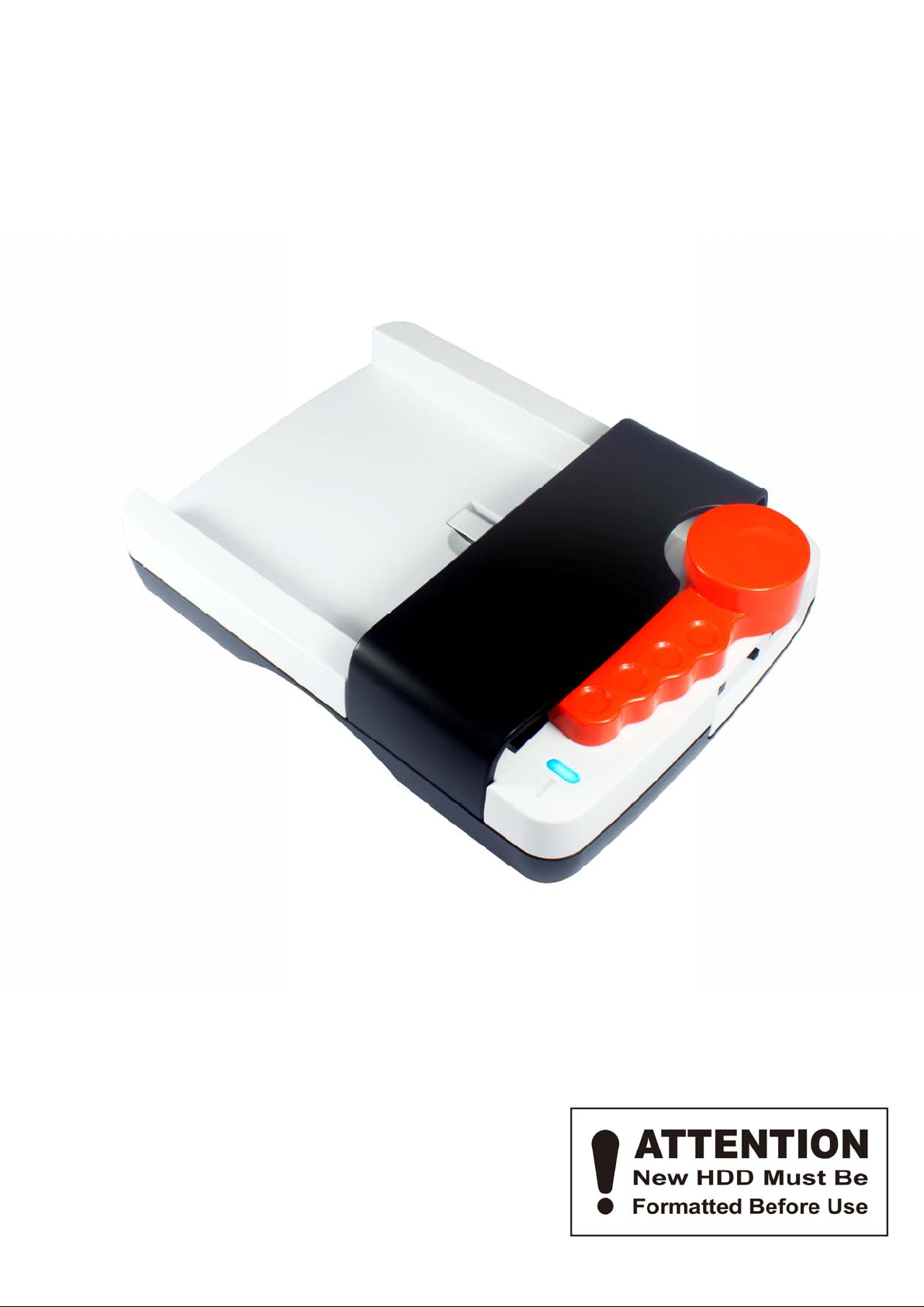
FANTEC HDD-Sneaker
USER MANUAL
Includes
Hardware Installation Guide
Hard Drive Formatting Guide
PCClone EX Installation Guide
Page 2
Fantec HDD-Sneaker Manual
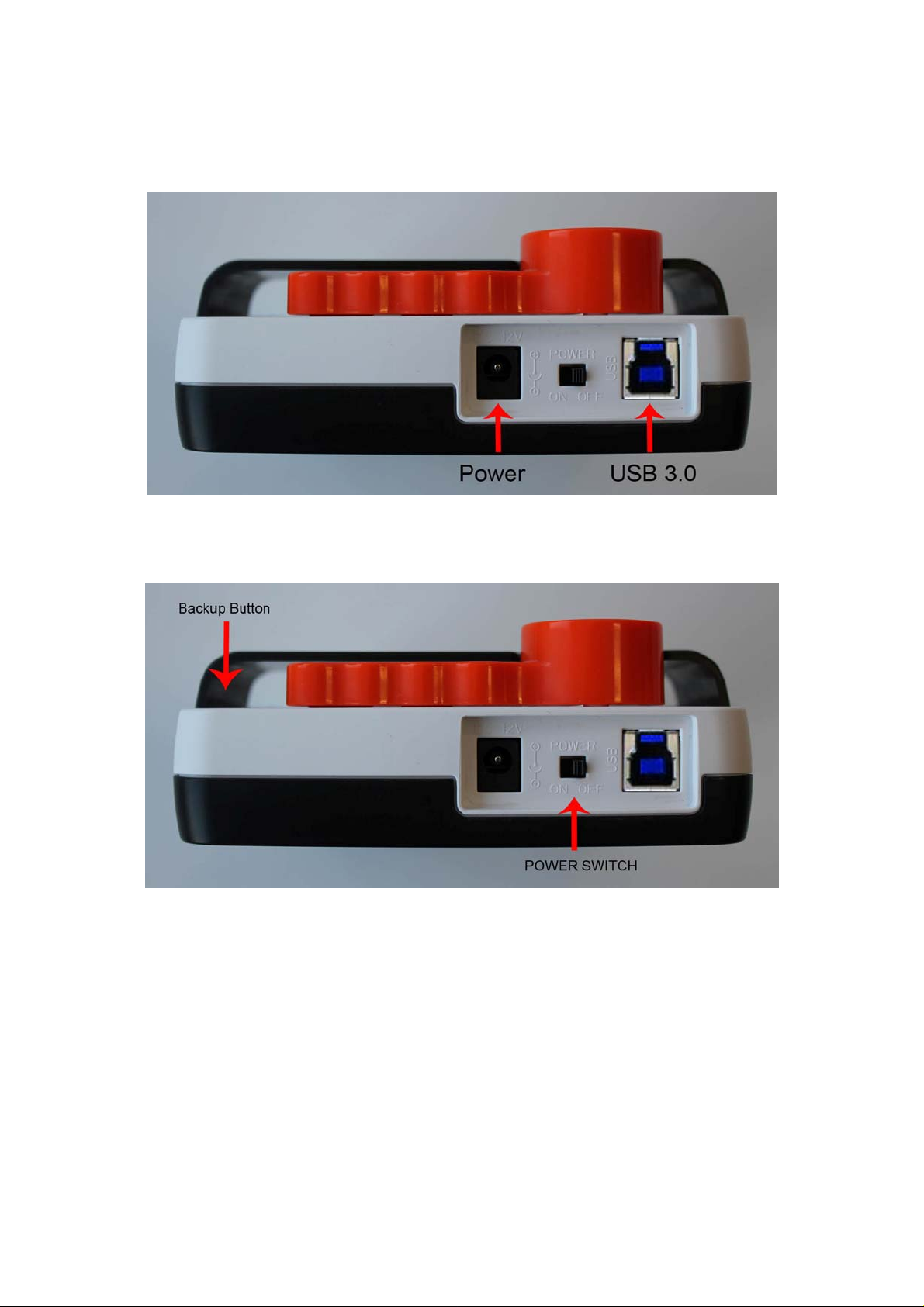
Power connector and USB 3.0 port:
Backup button and power switch
Note:
1. In order not to damage HDD, it is strongly recommended that HDD swapping is
practiced when main power is off.
2. PCClone one-touch-backup software only works with Windows OS.
3. LED indicator: Blue: USB 3.0 connection
Green: USB 2.0 connection
1
Page 3
Fantec HDD-Sneaker Manual
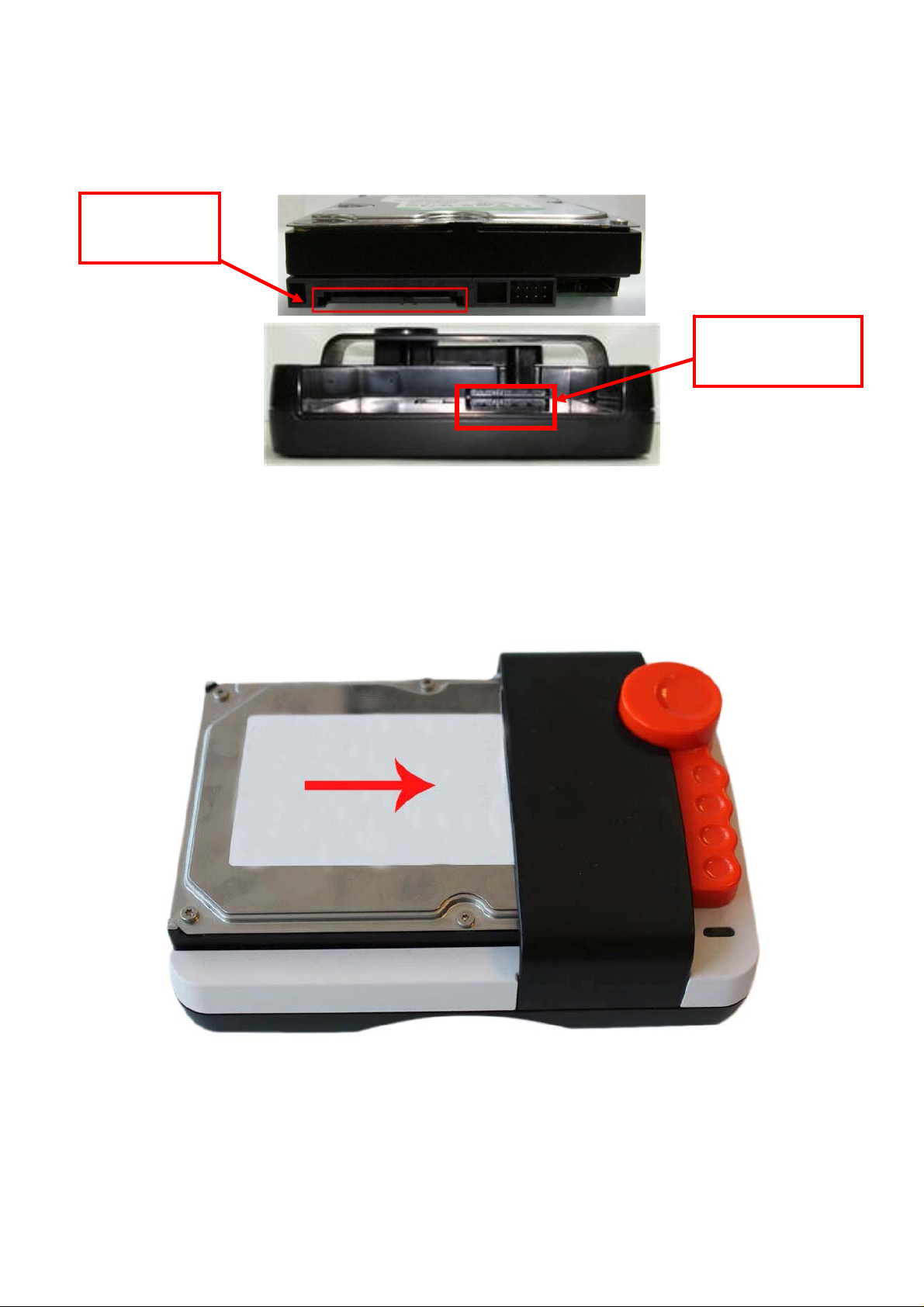
Hard Drive Installation Guide
HDD SATA
connector
HDD station
connector
Push the hard drive towards the SAT A connector and make sure
the SATA connector is properly connected.
2
Page 4
Fantec HDD-Sneaker Manual
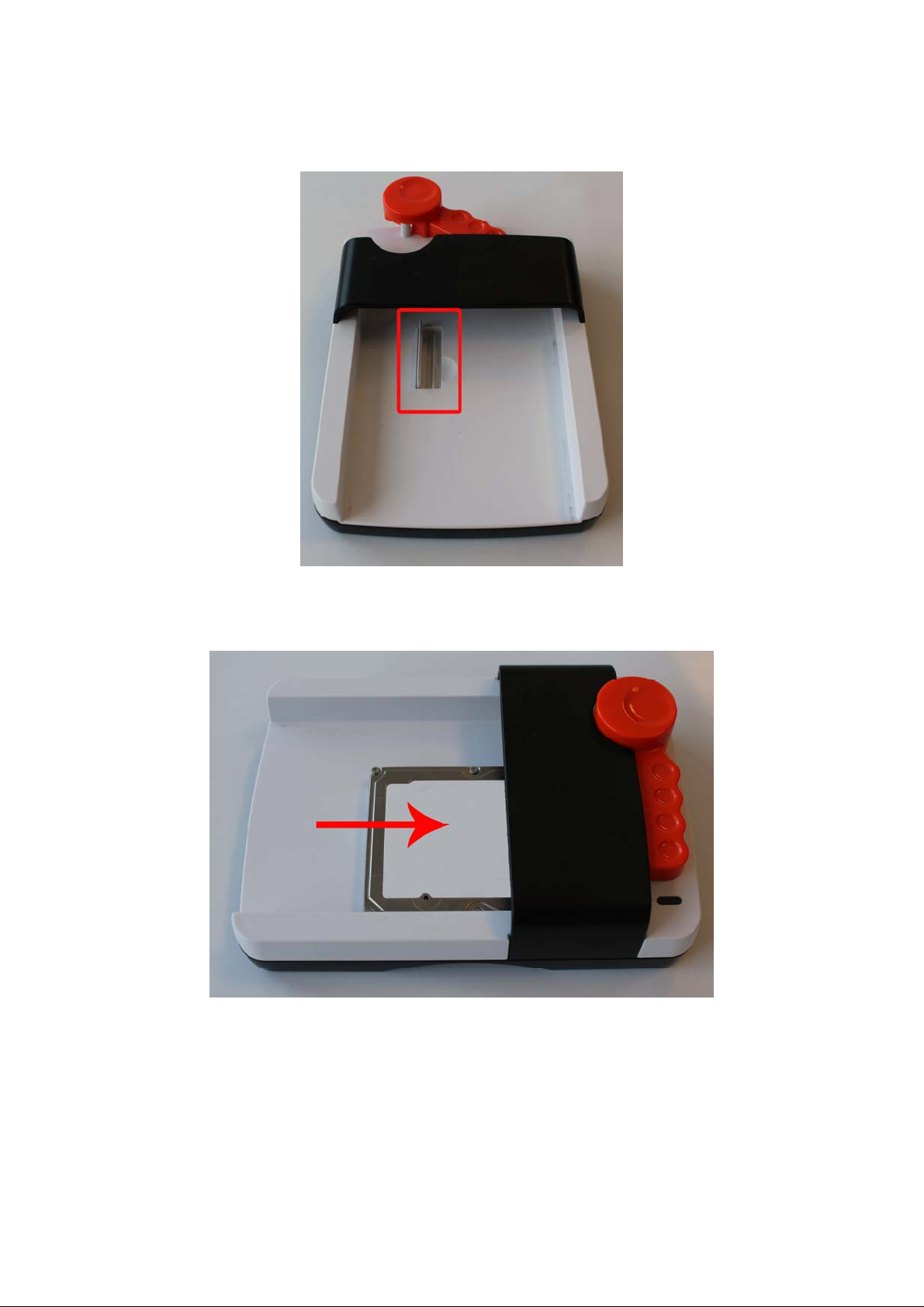
STEP1:
For the use of a 2.5” notebook hard drive, please turn up the 2.5” guide bar.
STEP2:
Push the hard drive towards the SATA connector and make sure the SATA
connector is properly connected.
3
Page 5
Fantec HDD-Sneaker Manual
STEP3:
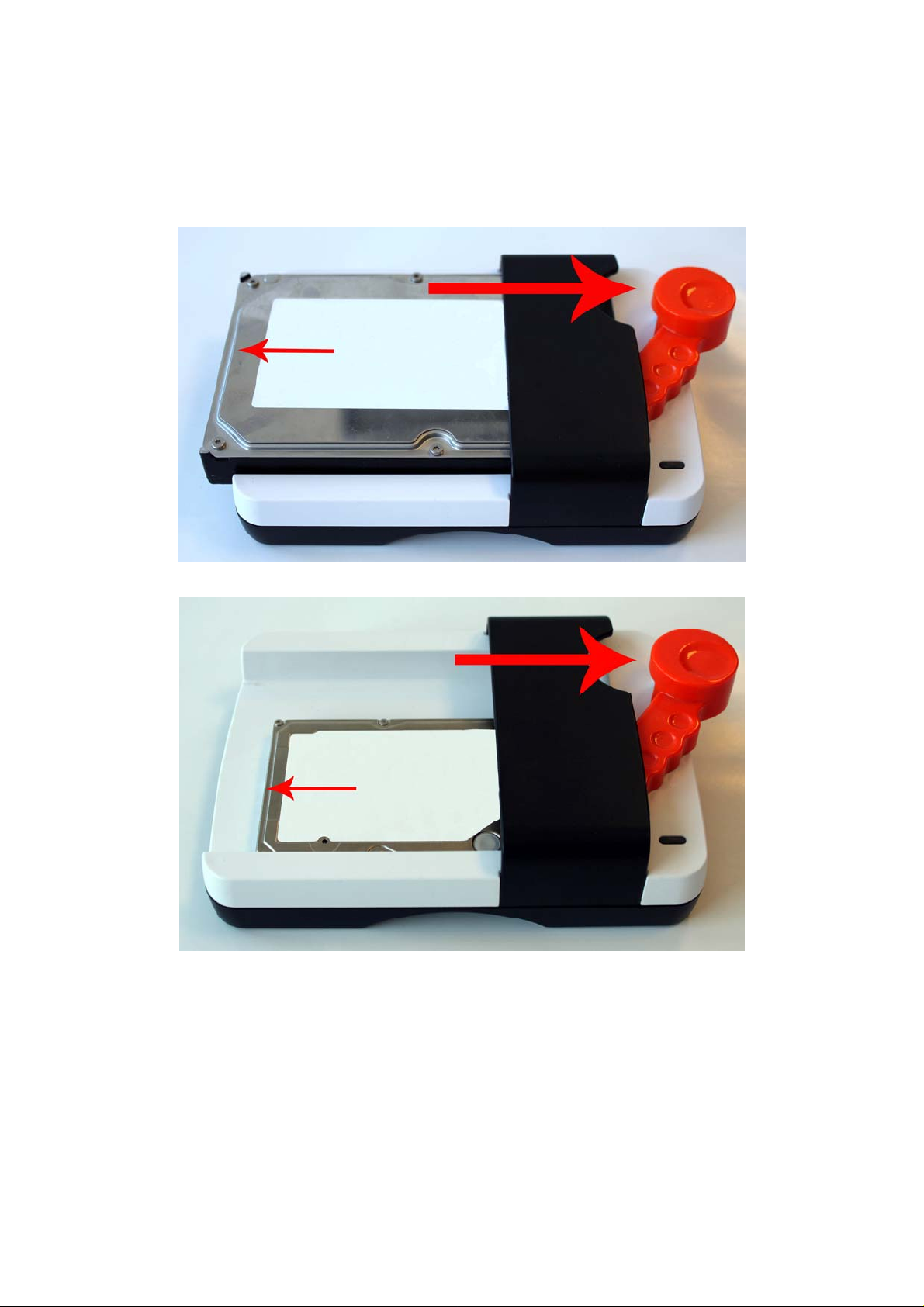
To remove the hard drive pull the lever and the hard drive is automatically ejected.
Note: Power off the device before removing the hard drive.
4
Page 6
Fantec HDD-Sneaker Manual
HDD Formatting Guide
- New hard disks have to be formatted, before you can use them.
- Connect the device via USB to your PC. Then turn the power on.
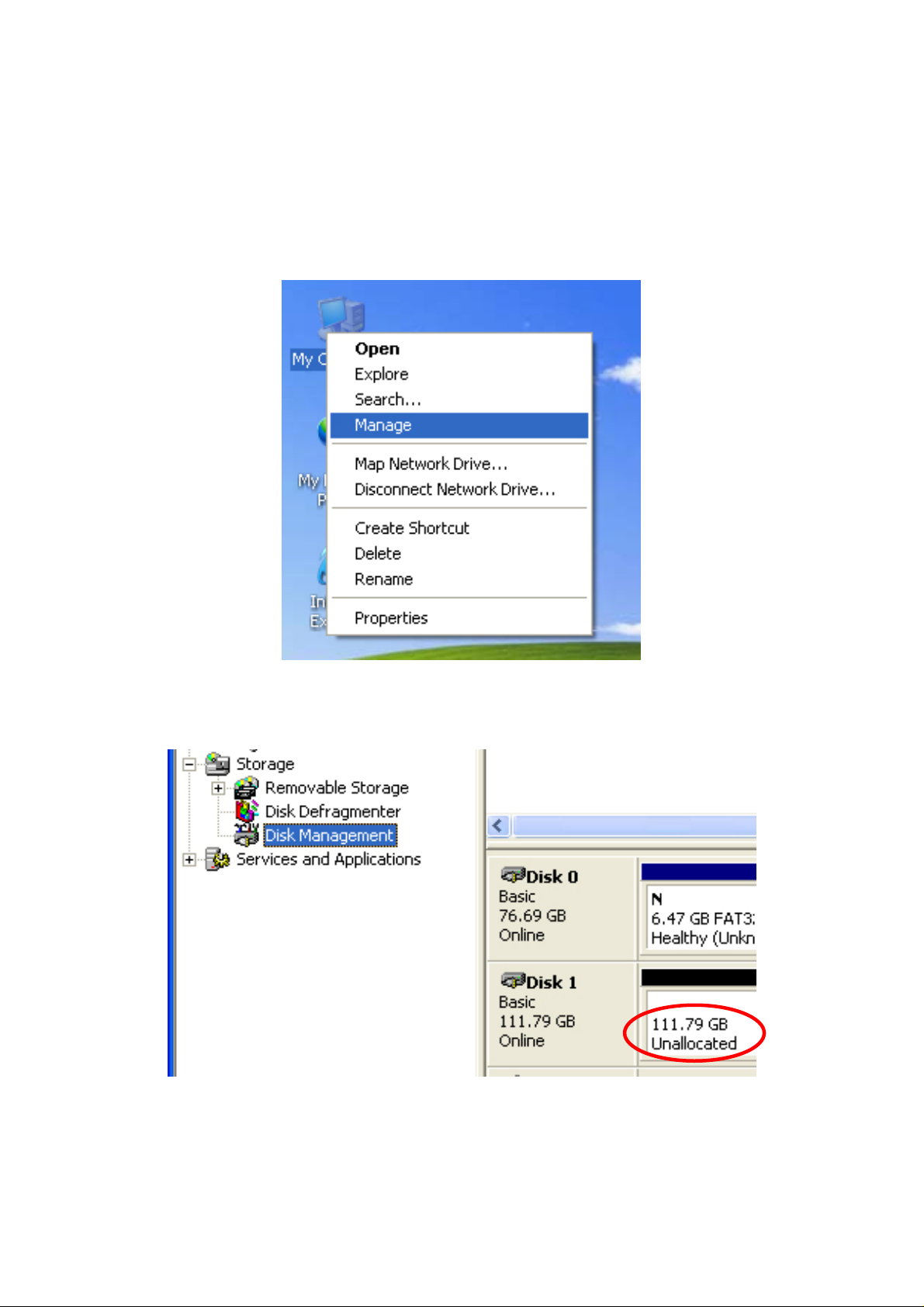
STEP1: Right-click on “My Computer” icon and select the ”Manage” column.
STEP2: Select “Disk Management” and you will see your External HDD showed
“Unallocated”.
5
Page 7
Fantec HDD-Sneaker Manual
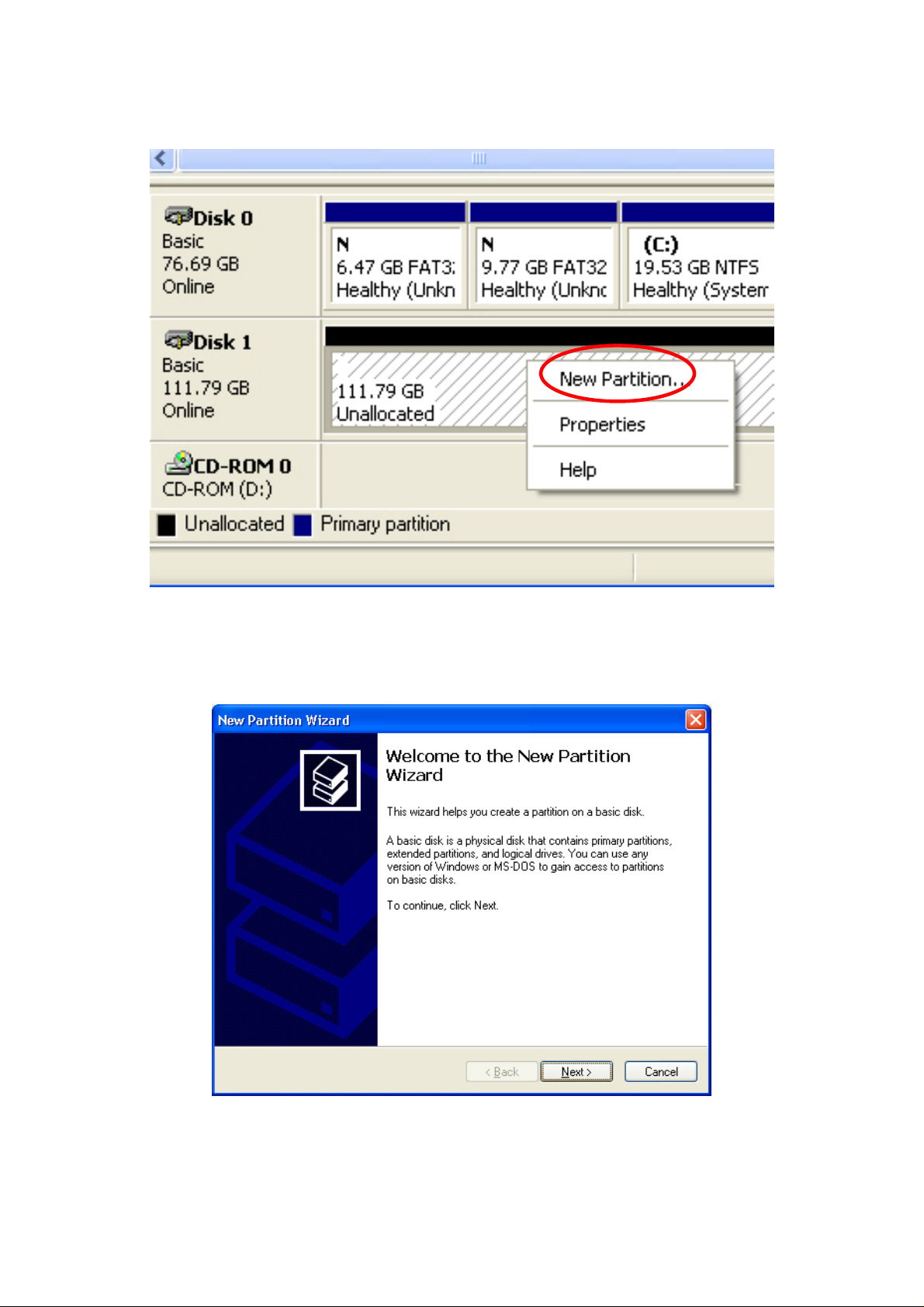
STEP3: Right-click on the “Unallocated” block and select “New Partition”.
STEP4: The “New Partition Wizard” will appear. Please follow the instruction of the
wizard to complete.
6
Page 8
Fantec HDD-Sneaker Manual
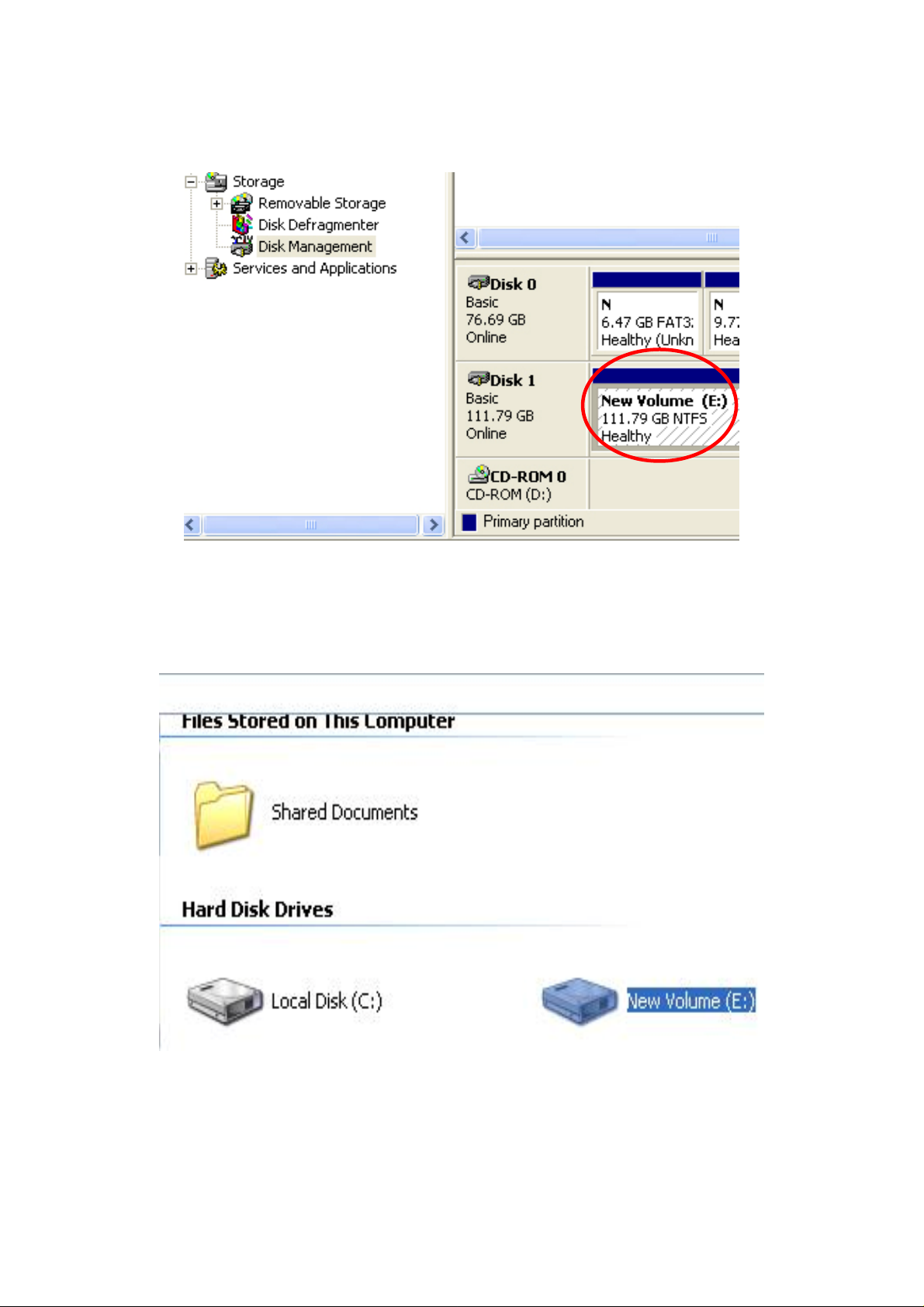
STEP5: When partitioning is completed, the external HDD will be recognized as a
“New Volume”.
STEP6: Double-click “My Computer”. You will see the new volume appears on your
PC.
7
Page 9
Fantec HDD-Sneaker Manual
Installation of backup software
Insert the CD and select “Setup.exe”, to enter the installation menu.
Click “Install” for next step. Select the path for installation and click “install”.
After the installation is complete, click “ok” to exit.
The icon of PC CloneEX appears on the notify area. Double click the icon or right
click to configure the PC CloneEX.
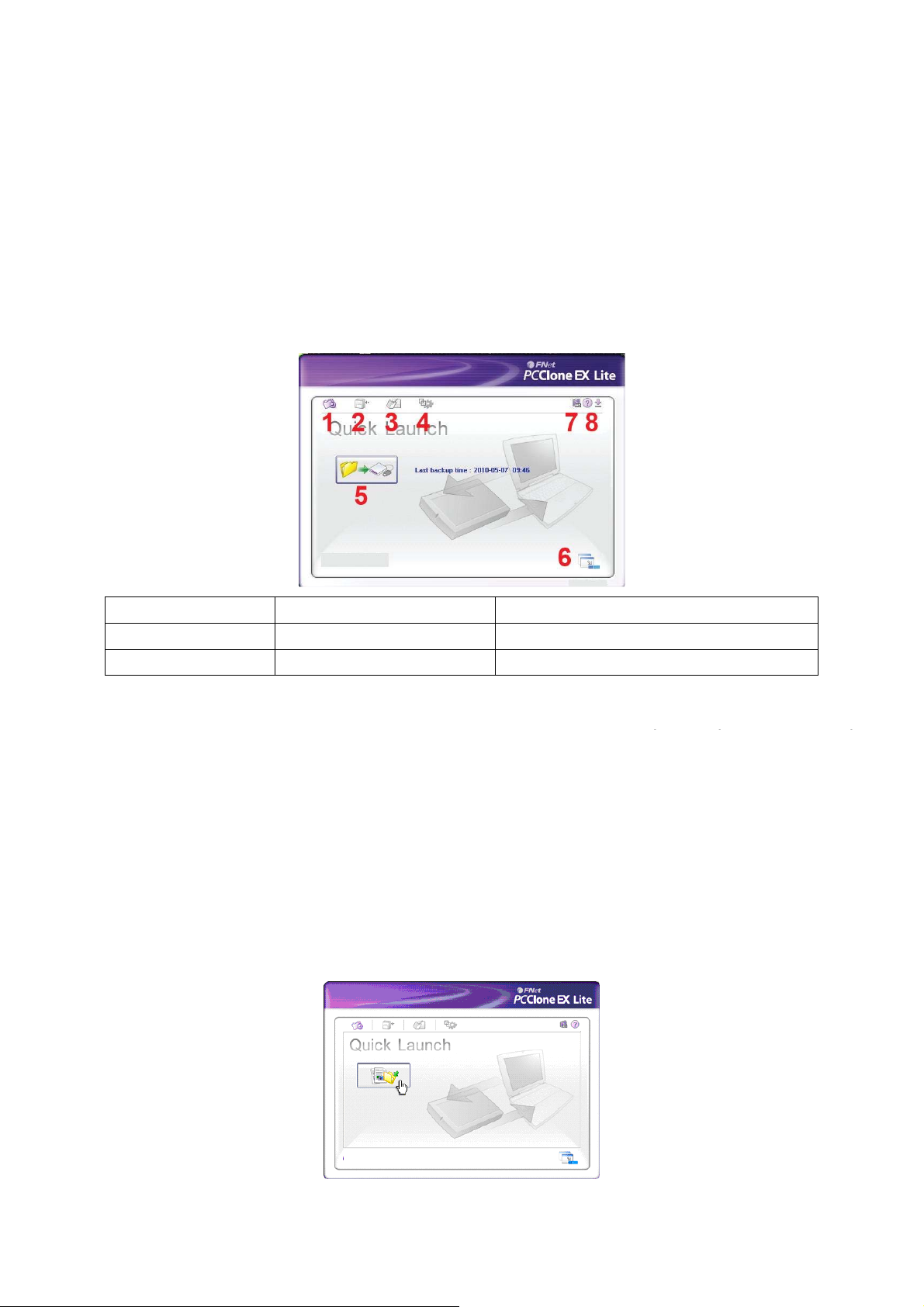
Usage of backup software - main menu:
1. Fast Backup 2. File backup 3. File management
4. Setup 5. File backup key 6. Assign to the system arrange
7. Info 8. Help
Fast File Backup
Click the “File Backup” or use the backup key directly, you only need one step and
no complicated setup.
A. Connect the product to the PC and turn on the power.
B. Implement program PCClone EX Lite.
C. Enter the menu of Quick Launch.
D. Select option of File Backup.
E. Click “OK” once a dialogue box appears and the backup will start.
It is also possible to press the backup button to achieve the file backup. One push
on the backup button and the file backup dialogue box appears. Press again to
start the backup.
8
Page 10
Fantec HDD-Sneaker Manual
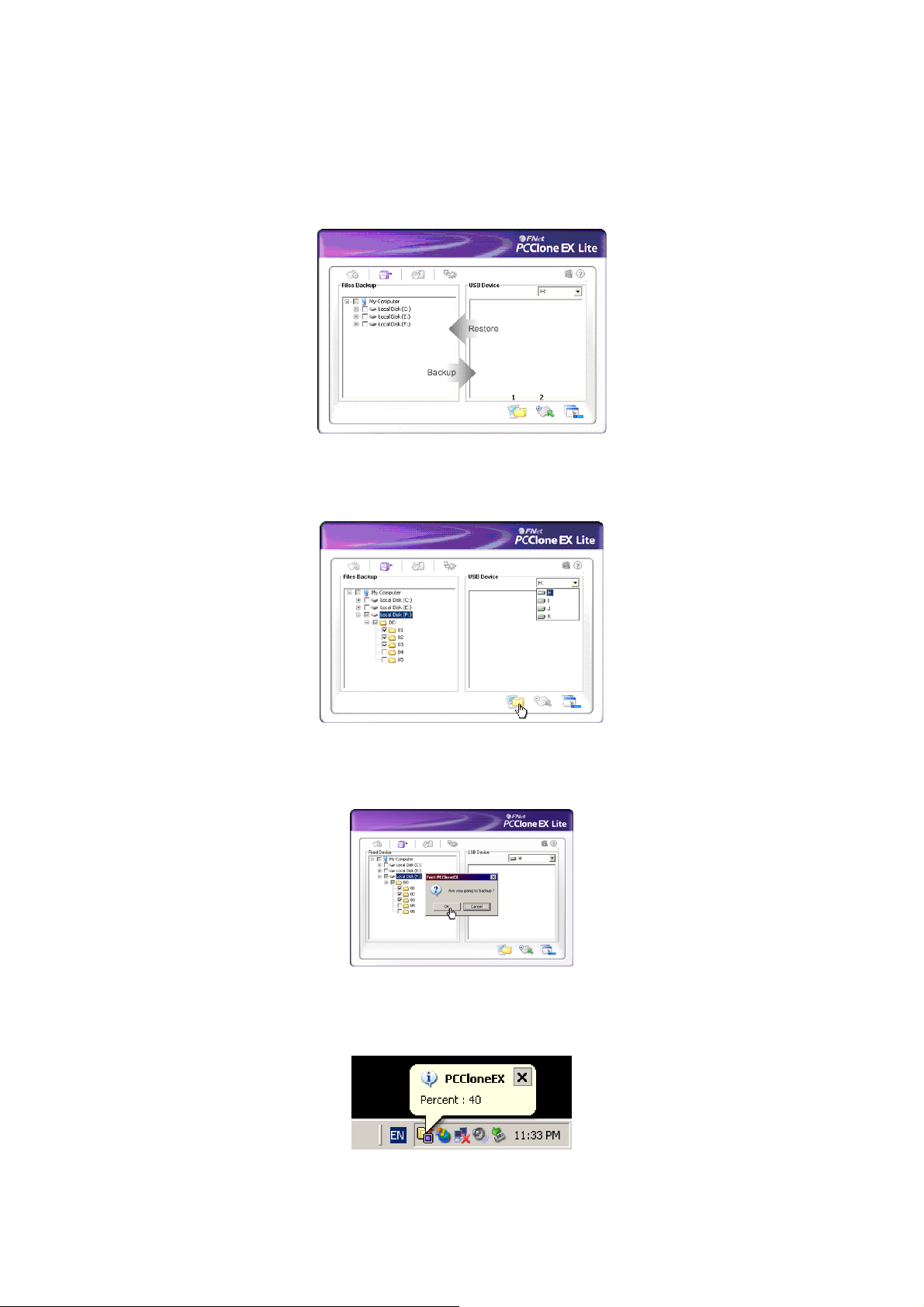
File backup menu:
Backup
Recover
Setup the files for backup and then press the backup button to start (If there were
more USB hard disks, you are able to select which one to store the files).
Click” OK” to confirm the backup:
The system prompts the percent of the current progress.
9
Page 11
Fantec HDD-Sneaker Manual
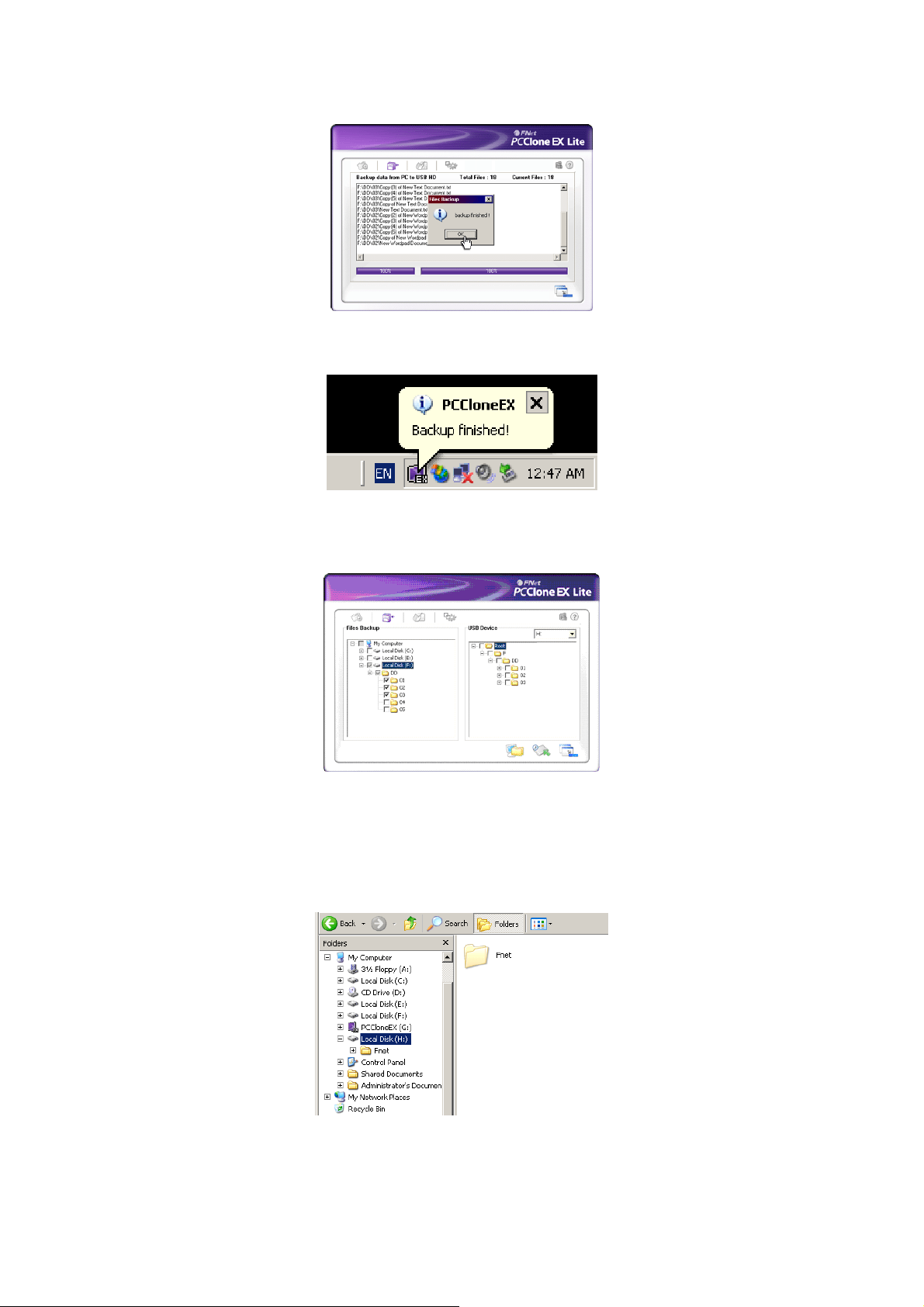
If the Backup is complete click “OK”.
The system prompts as follows once the backup is complete.
Files:
(PCClone EX completes the backup to the USB HDD)
USB Drive: If there were more than two hard disks connected to the PC, your are
able to select which one to store the file.
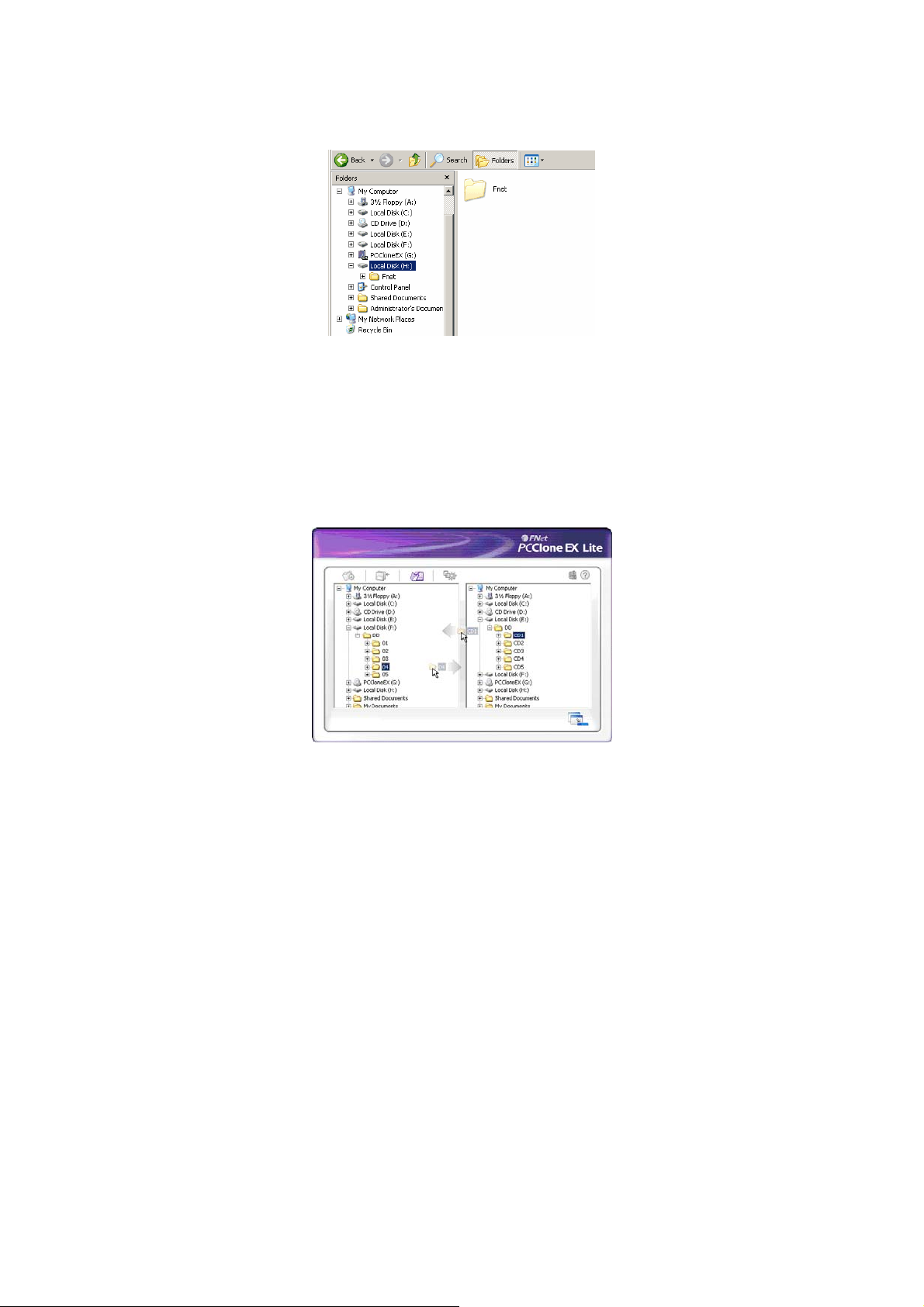
There is a hidden folder” Fnet” under the root directory of USB disk and the
data is stored in this folder. (Please don’t delete this folder)
10
Page 12
Fantec HDD-Sneaker Manual
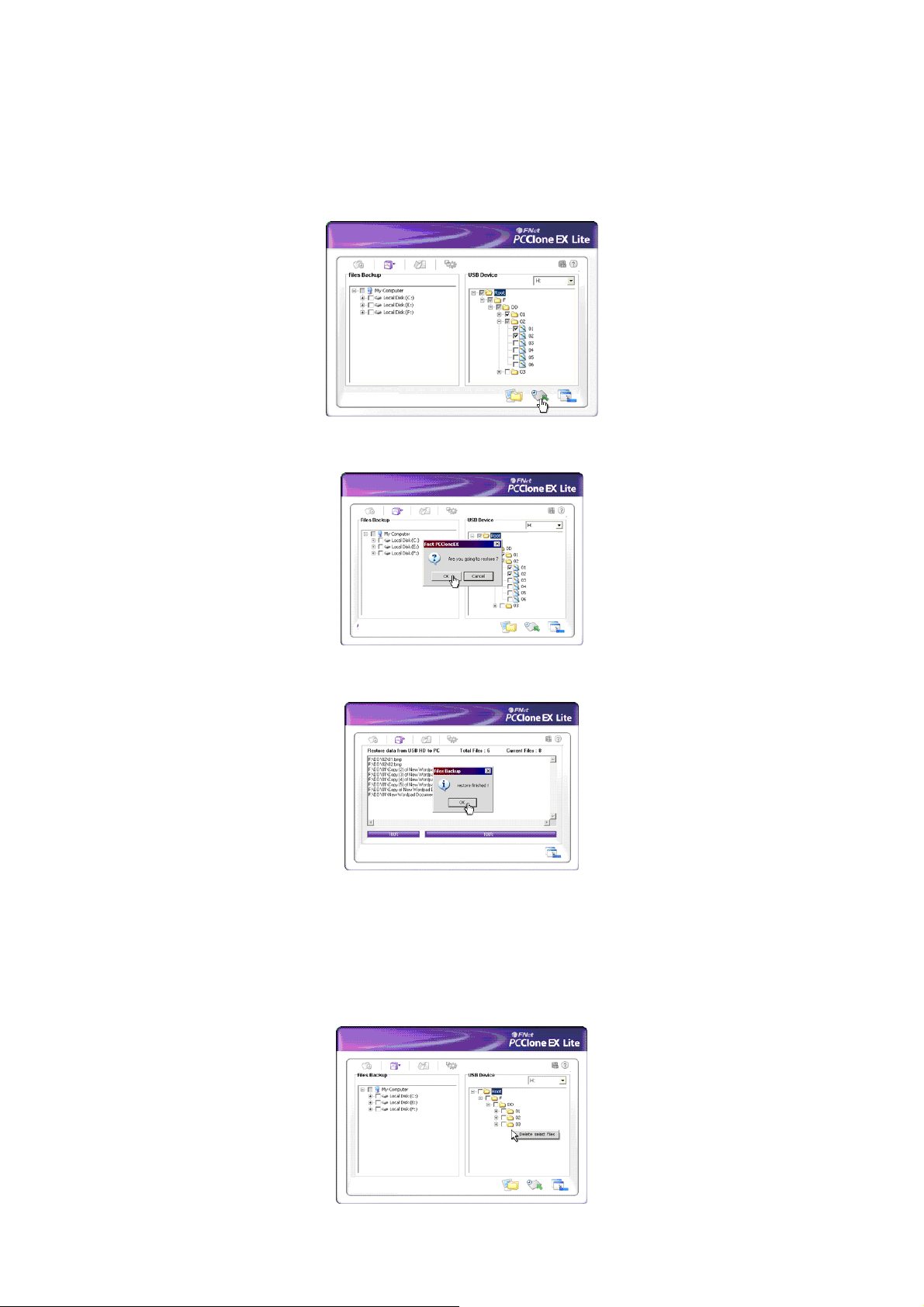
File recover
A. Connect the disk to the PC and then turn on the power
B. Enter PCClone EX menu.
C. Select File Backup option.
D. Select the target files or folder.
E. Select "Restore” and then click “OK” to start the recovery.
F. After the recovery is complete click “‘OK”.
Delete file backup
A. Enter the menu of File Backup.
B. Move the cursor to the windows of the USB Device, right click and then
click "Delete selected file".
C.
11
Page 13
Fantec HDD-Sneaker Manual
D. It is also possible to delete the hidden folder “FNet” under the root directory
of the USB disk.
File management
The function of the File Manager is similar to the file management under Windows.
It is possible to drag the files or folders between the left and right windows. After
recovering the files, you are able to check, move or access the files in a very
convenient way.
12
 Loading...