

Page 1

FANTEC
HDC Portable
USER Manual
Version 1.0
Page 2
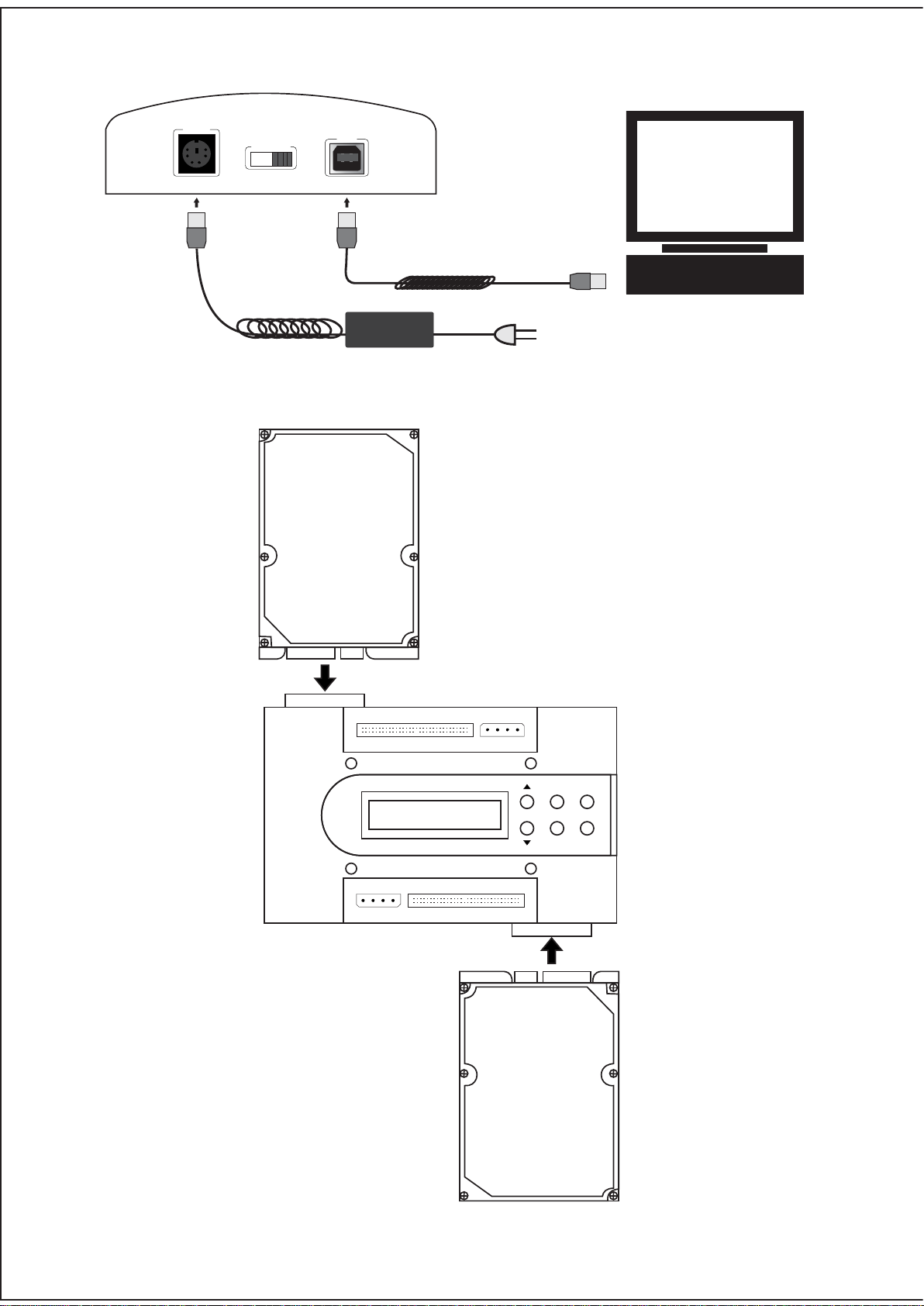
DC- IN
ON OFF•
USB
Source 1•
SATA HDD
Source 2•
Object 2
ENT RESET
ESC•MUTE
•
Object 1
•
SATA HDD
Page 3
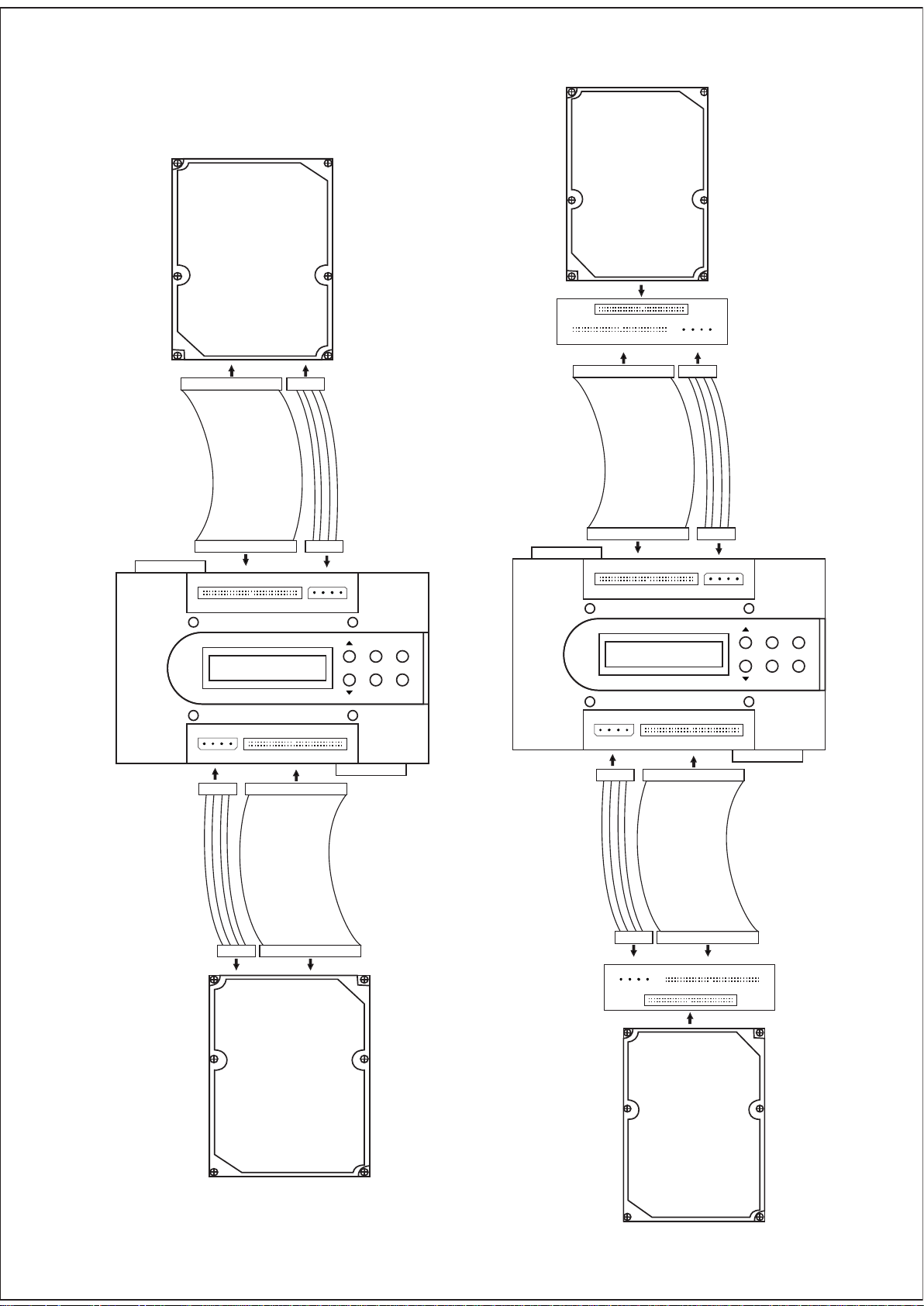
Source 1
2.5”IDE
3.5”IDE
•
•
Sourc e 2
•
ENT RESET
Sou rce 1
Source 2
•
ENT RESET
Object 2
•
3.5”IDE
ESC•MUTE
Objec t 1
•
Object 2
ESC• MUTE
•
Object 1
•
2.5”IDE
Page 4
1. Feature
IDE/SATA HDD portable copy-station for all 2.5”&3.5” HDD.
USB2.0 Raid bridge external station for all 2.5”&3.5” HDD.
Duplicator mode: Copy/Compare/Pre-scan/Erase.
Raid mode: Raid0/Raid1/Normal/JBOD.
Easy handling over display
Stand alone usage without PC(Duplicator mode).
2. Operating System
Windows 98SE/2000/XP/Vista, Mac, Linux
3.Package Contents
1 x Copy station
1 x USB cable
1 x Power supply
1 x AC cable
2 x IDE cable
2 x ATX-4pin power cable
2 x 3.5” to 2.5” IDE converter
Protection cap for connectors
1 x User manual
4. The Button Function
Button Function
▲ pU
▼ nwoD
ENT Enter
ESC Cancel
RESET Reset station
MUTE Mute the alarm sound
Page 5

6. System Mode
(1). Duplicator Mode
1. Copy HDD
Clone the boot sectors from the source HDD to the object HDD.
2. Compare HDD
Compare the sectors of the source HDD to the object HDD.
3. Pre-scan
Pre-scan the bad sectors of the source HDD.
4. Erase
Erase all the data of the object HDD.
5. Rescan BUS
Rescan all HDD which connected to the satation.
6. Source Size
Show the capacity of the source HDD.
7. Setup
Show the system information.
Note: If users want to discontinue the Copy/ compare/ pre-scan during working
status, please press the" ESC" button for 3 seconds for stopping them.
(2). USB2.0 Raid Bridge Mode
Connect the station to your HDD(2 bay), the raid mode as following,
1. RAID0(Stripping mode)
Maximum speed through two simultaneous working HDD.
2. RAID1(Mirroring mode)
Maximum security by HDD mirroring.
3. JBOD(Spanning mode)
Two HDD combined to one single HDD(no raid).
4. Normal
Two independent HDD.
Page 6

5. Duplicator operating
(1) Press the ▲ and ▼ button to select the Menu, and press the ENT
Button to enter the next step.
(2) For example, the display show the HDD copy information.
6. Raid operating
(1) Press the ▲ and ▼ button to change the raid mode.
Page 7

(2) Press the ENT button to enter the next step.
(3) Press the ENT button to ensure change the mode.
(4) Show the raid information.
Page 8

5 Click the My Computer , right-clicking pop-up menu, click the Options
Management , select the Computer Management , then you can operate the hard
disk in your PC.
The hard disk information as following,
Normal mode
Page 9

JBOD mode
RAID0 mode
Page 10

RAID1 mode
Page 11

(6) RAID1 HDD Rebuild.
When the system in RAID1 mode, if one HDD has broken, the system will rebuild
automatically as following,
1. If the Raid1 system is broken, the “F” will be show as following, and the buzzer
will alarm once per second.
2. Press the ▲ and ▼ button to select the “Information ” “Drive1” or
“Drive2”.
NOTE: The Drive1 one is the “source HDD”, the Drive2 is the “Object HDD”
3. If the HDD is broken, the display will show as following, then you can change
the bad one.
Page 12

4. Insert a new HDD, and retsart the system, the system will prompt you rebuild
the Raid1 system.
5. The display will show the rebuild speed, spare volume and the spare time.
Page 13
 Loading...