

Page 1

Faleemi Technologies Ltd
Mini WiFi Security IP Camera
Quick Start Guide
M1
www.faleemi.com [email protected]
© Faleemi Technologies Ltd or its affiliates. All rights reserved.
No part of this publication may be reproduced or transmitted in any form or by any means or used to
make any derivative work (such as translation, transformation, or adaptation) without written
permission from Faleemi Technologies Ltd (“Faleemi”). Faleemi reserves the right to revise this
publication and to make changes in content from time to time without obligation on the part of Faleemi
to provide notification of such revision or change.
Faleemi provides this guide without warranty of any kind, implied or expressed, including, but not
limited to, the implied warranties of merchantability and fitness for a particular purpose. Faleemi may
make improvements or changes in the product(s) described in this manual at any time.
The capabilities, system requirements and/or compatibility with third-party products described herein
are subject to change without notice.
Version.03. 2019
www.facebook.com/faleemi
youtube.com/c/Faleemi
twitter.com/faleemi
Faleemi and the Faleemi logo are all trademarks or registered trademarks of Faleemi Technologies Ltd.
Other trademarks and trade names may be used in this document to refer to either the entities claiming
the marks and the names of their products. Faleemi disclaims proprietary interest in the marks and
names of others.
Apple®, Apple Store®, iPad®, iPhone®, MAC® (Text, Logo, Picture) are trademarks of Apple, Inc.
Android®, Google Play® (Text, Logo, Picture) are trademarks of Google Inc.
Samsung® (Text, Logo, Picture) is a registered trademark of Samsung Electronics Co., Ltd.
Skype ® (Text, Logo, Picture) is a registered trademark of Microsoft Corporation
Facebook® (Text, Logo, Picture) is a registered trademark of Facebook, Inc.
Twitter® (Text, Logo, Picture) is a registered trademark of Twitter, Inc.
Micro SD® text and logo are the trademark of SD-3C, LLC.
Wi-Fi® is a registered trademark of the Wi-Fi Alliance.
All other products, names or companies are the brands or registered trademarks of their respective owners.
We at Faleemi are committed to do our part in protecting our environment. In this continuing
effect, we have supplied the detailed manuals, documentation, software, troubleshooting and
video guides on our website.
www.faleemi.com/support
Page 2

Dear Customer,
Thank you for choosing Faleemi among all the brands. We hope our products will protect your home and give you peace of mind.
At Faleemi, we tly care about our customers’ Purchase Exerience and User Exerience, so “Customer satisfaction garanteed
is our goal”. We are 100% dedicated to your complete satisfaction.
If your exerience has been something less than amazing, or need additional inforation, please drop us an email at
[email protected]. Or you are welcome to visit our website www.faleemi.com/faq for more inforation. Please do
remember that we are always more than happy to ensure you’re a HAPPY Customer.
As a gowing company, we are improving all aspects of our serice and products. If you got any suggestion or comment, welcome
to let us know. We will continue to improve and provide our customers with qualit products and serice.
Yours sincerely,
Team Faleemi
www.faleemi.com
youtube.com/c/Faleemi
facebook.com/faleemi
Contents
Product information
Download APP and Getting started
Add camera
Live Video Interface
Installation
How to connect the camera to the second Phone?
Advanced Settings
How to do the settings for receiving message alert on your phone?
[Push Setting]
[Alarm Event]
[Notifications]
How to set it to record constantly to the memory card?
How to record alarm video to the memory card?
How to view the recorded video on memory card?
How do i change my camera password?
Trouble Shooting Frequently Asked Questions
1. How to reset your camera (restore to factory default)?
2. Timer Restart option
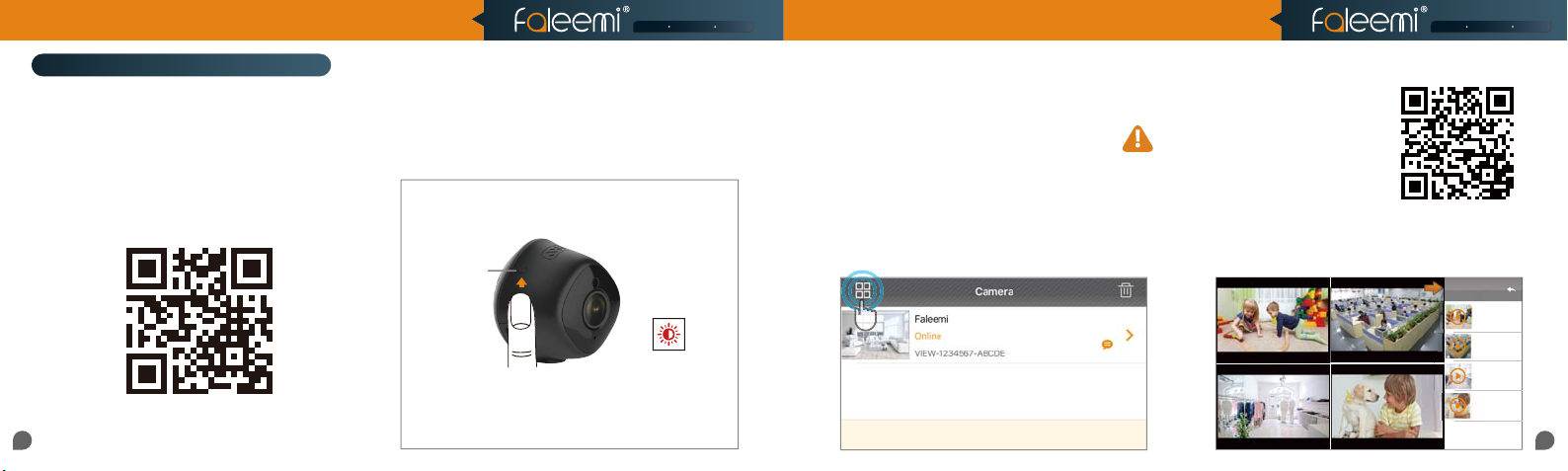
3. Multi-view
4. How do I change my video stream resolution?
5. How do I flip my camera’s video stream?
6. How do I find the WiFi MAC address of my camera?
7. If I change the router, how do I reconnect the camera?
8. How do I change the WiFi SSID on my router?
9. How to set Faleemi camera IP Address and Port ?
10. How to set email alert?
11. How to link your camera to your PC/Mac by Faleemi Plus?
........................................................................................................................................................................................................................................
.....................................................................................................................................................................................................................................................
..........................................................................................................................................................................................................................................
..........................................................................................................................................................................................................................................................
............................................................................................................................................................................................................................................
.............................................................................................................................................................................................................................................
.............................................................................................................................................................................................................................................
............................................................................................................................................................................................................................................
.................................................................................................................................................................................................................................................
............................................................................................................................................................................................................
...........................................................................................................................................................................
.................................................................................................................................................
................................................................................................................................................................
....................................................................................................................................................................................
.................................................................................................................................................................................
..............................................................................................................................................................................................
.................................................................................................................................................................................
...............................................................................................................................................................................................................................
.........................................................................................................................................................................................
..........................................................................................................................................................................................................................
......................................................................................................................................................
...............................................................................................................................................................................
.....................................................................................................................................................................
.............................................................................................................................................................
................................................................................................................................................................................
.........................................................................................................................................................................
......................................................................................................................................................
1
2
3
7
8
9
11
12
13
14
14
15
16
17
18
19
19
20
20
21
21
21
22
22
23
23
23
Page 3
Plug in
1080P Mini WiFi Security IP Camera
Model: M1
Quick Start Guide
Smart Reliable SecureSmart Reliable Secure
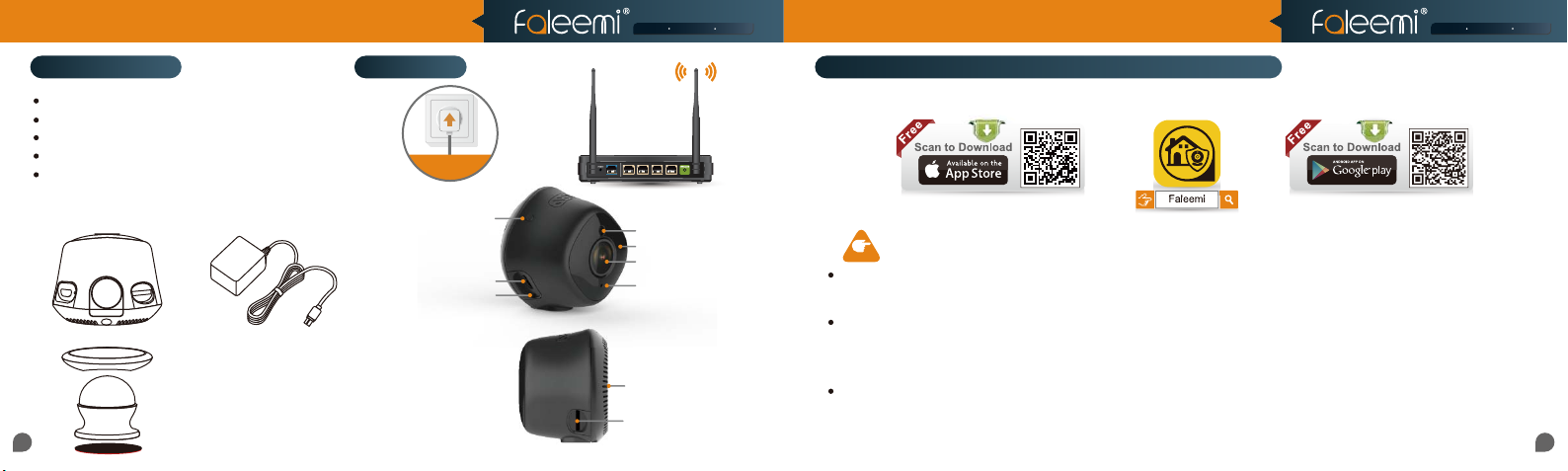
What’s in the box? Connections
Faleemi 1080P Mini WiFi Security IP Camera
Power Adapter
Quick Start Guide
Magnetic wall mount
Wall mounting Tape
Set/Reset Button
DC 5V Power
Status LED
Light Sensor
IR LEDs
Lens
Microphone
Rear Cover
Memory Card
Slot
Download the Faleemi APP (Android / iOS) before doing the setup
Connect your mobile device to your WiFi and download the App “Faleemi” from the App Store or Google Play store, or scan below QR code
to download it.
Before configuring your camera, please read the points below.
NOTE
Please
make sure your phone is connected to your
WiFi name (SSID) must be different from your 5.0GHz one.
Please make sure your WiFi name and password do not have the special characters " # ", " ; ", " \ ".
If you are not sure, please go to your router settings to find this out.
Note: THIS WILL NOT AFFECT THE 5GHz WIFI USE OF YOUR OTHER WIRELESS DEVICES : )
If you don’t know how to go to your router settings, please visit our website
or contact us at
.
2.4GHz WiFi (not cellular data and 5GHz WiFi)
www.faleemi.com/blocks/router
before doing the setup. Your 2.4GHz
to find the instructions
Now, please follow below instructions to get your camera set up.
0201
Page 4
If you can’t scan the QRcode,
please click on
Please use the d efault username of
admin
and password of
123456
here.
You can change them whe n the camera is all
set up. You will find the instructions in
Page 18.
if you can't scan the QR code, please enter the
DID (something like
VIEW-1234567-ABCDE)
in the label on the camera manually.
If you see this, pleas e click on
1080P Mini WiFi Security IP Camera
Add camera
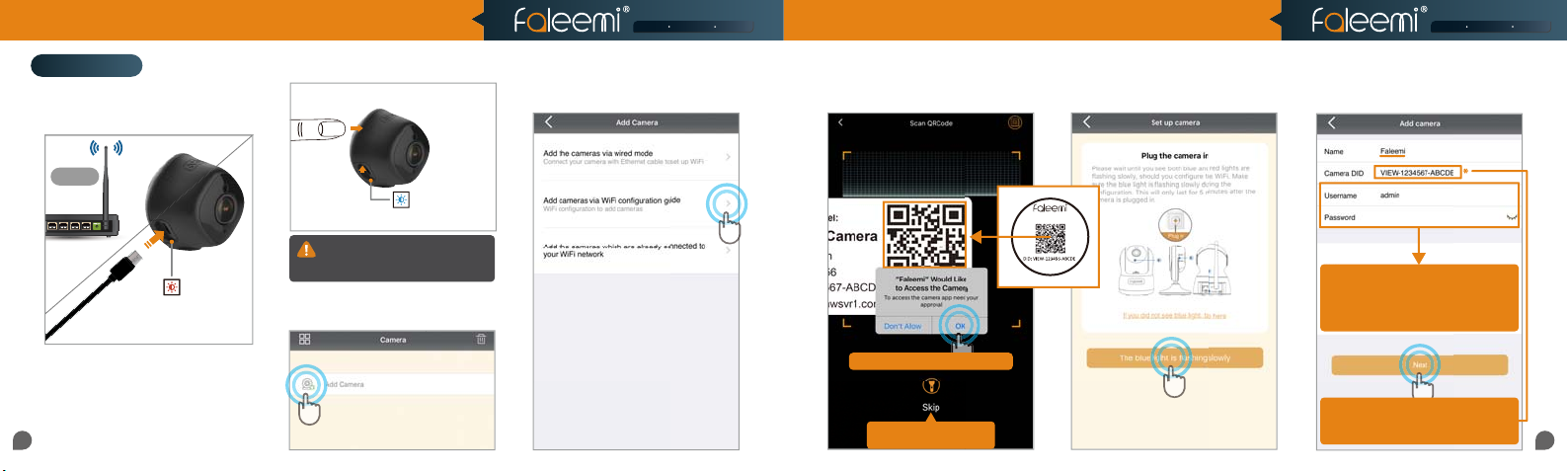
1. Please put your camera close to your
WiFi router and plug it in, and then you
will see the red light is blinking slowly.
2.4GHz
Router
The Red light
blinking slowly.
2. Press the Set Button (a protruded
black Dot) for about 3 seconds until you
see the red light changes to a blue light.
The camera has been in WiFi
conguration mode.
Model: M1
1.
Press down
Set Button
3s+
CAUTION: The button is small. Holding
for longer than 10 seconds will reset
the camera.
3. Open the Faleemi App, click on
[Add Camera].
2.
The Blue light
blinking slowly
4. Click on [Add cameras via WiFi
configuration guide].
5. Please scan the QR Code at the bottom
of the camera.
QR Code
If you see this, please click on
If you can’t scan the QRcode,
please click on
[OK]
[Skip]
Quick Start Guide
6. Click on [The blue light is flashing
slowly].
Mini Camera
Model: M1
Smart Reliable SecureSmart Reliable Secure
7. Type in the name you have selected for
your camera and click on [Next].
123456
Please use the default username of
admin
and password of
You can change them when the camera is all
set up. You will find the instructions in
if you can't scan the QR code, please enter the
DID (something like
in the label on the camera manually.
123456
Page 18.
VIEW-1234567-ABCDE
here.
0403
Page 5
Click on it to make sure your
You will see it says the camera is Online.
1. To ensure the security of your camera,
you
are suggested changing the default password.
Please refer to the instruction in
Page 18.
2. You can relocate the camera now. Please just
unplug it and move it to the new location and
plug it in, the camera will connect to your WiFi
automatically, no need to set it up again.
* But please make sure the new location will be
not far from your router.
Congratulations!
Your camera is connected now
1080P Mini WiFi Security IP Camera
Model: M1
Quick Start Guide
Smart Reliable SecureSmart Reliable Secure
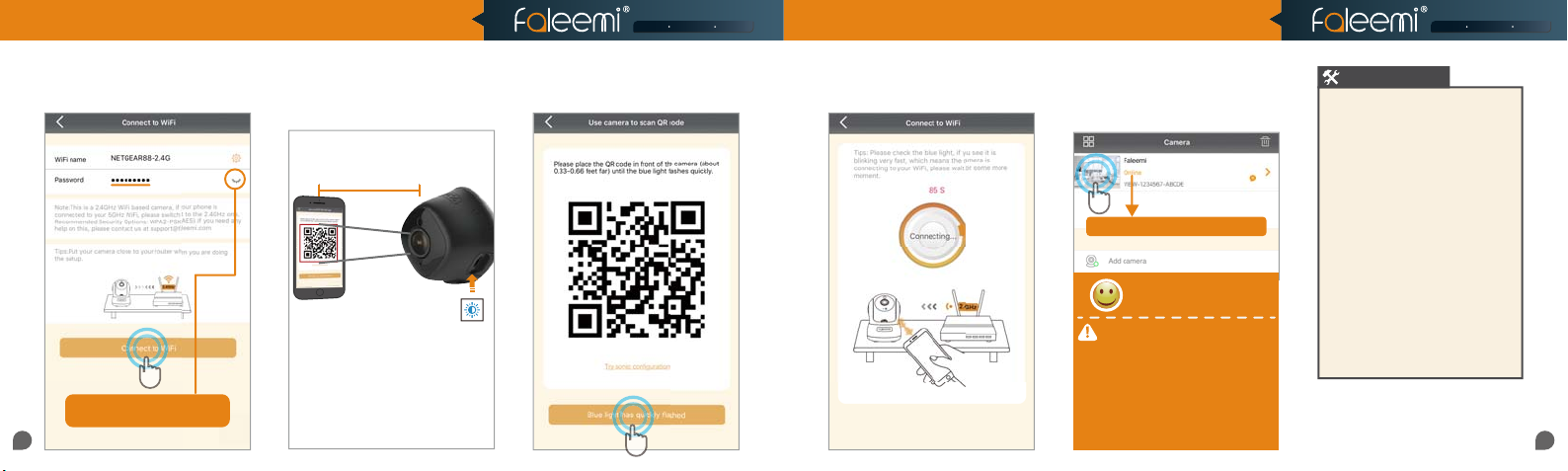
7. Input your 2.4GHz WiFi password and
click on [Connect to WiFi].
Click on it to make sure your
WiFi password is correct.
8. Place the camera 6 inches from the
QR code on your phone and keep it still.
If the scan is successful, the blue light
will blink very rapidly.
15cm(6 in)
The blue light will
blink very rapidly
9. Click on [Blue light has quickly
flashed].
10. Connect to WiFi.
11. You will see it says the camera is
Online. Congratulations! Your camera is
all set up. Click on the image to enjoy
viewing and controlling it now.
You will see it says the camera is Online.
Congratulations!
Your camera is connected now
1. To ensure the security of your camera,
are suggested changing the default password.
Please refer to the instruction in
2. You can relocate the camera now. Please just
unplug it and move it to the new location and
plug it in, the camera will connect to your WiFi
automatically, no need to set it up again.
* But please make sure the new location will be
not far from your router.
Page 18.
you
Troubleshooting
1. If the connection was failed, the WiFi
password you just input may be wrong.
Please hold the “Set” button again for 3
seconds and start it over again. .
2. If your WiFi password was correct but still
failed.
(a). Please make sure your phone is connected
to your
2.4GHz WiFi (not 5GHz WiFi) before
doing the setup.
(b). Your 2.4GHz WiFi name (SSID) must be
different from your 5.0GHz one.
(c). Please make sure your WiFi name and
password do not have the special characters
# ", " ; ", " \ ".
"
If you are not sure, please go to your router
settings to find this out.
If you don’t know how to go to your router
settings, please visit our website
www.faleemi.com/blocks/router to find
the instructions.
For more FAQ information, please visit
https://www.faleemi.com/faq/
Or contact us:
06
0605
Page 6
1080P Mini WiFi Security IP Camera
Model: M1
Live Video Interface Installation
Quick Start Guide
Smart Reliable SecureSmart Reliable Secure
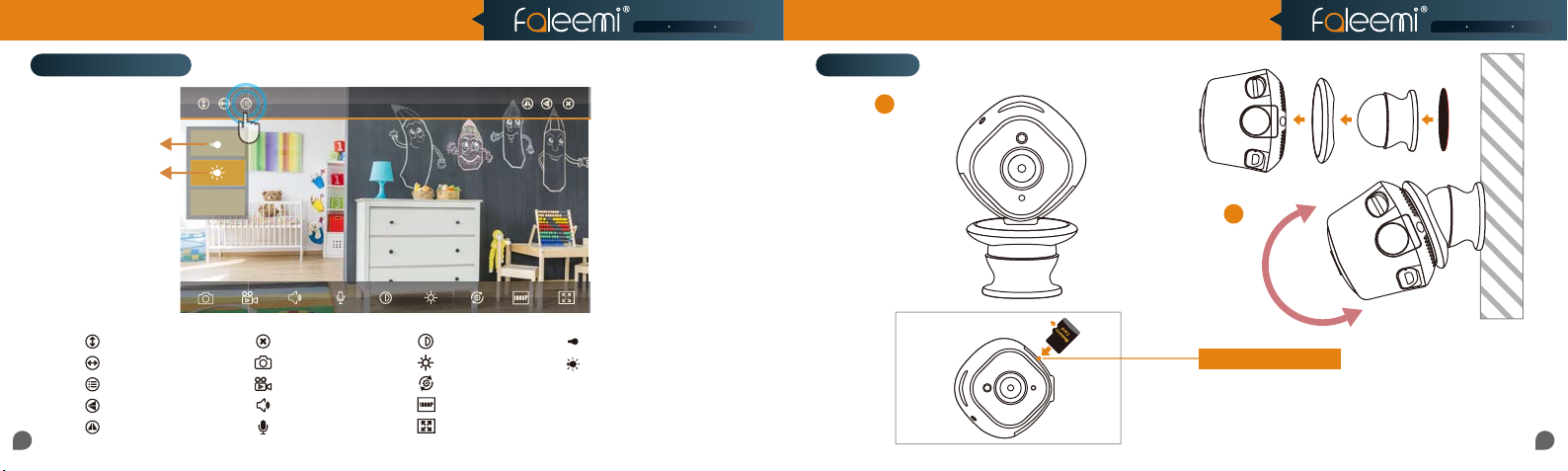
Turn off LED
LED Auto Mode
Cruise Vertically (N/A)
Cruise Horizontally (N/A)
Menu
Flip
Mirror
Preset
Faleemi_M1
Exit
Snapshot to phone
Record video to phone
Audio On/Off
Microphone On/Off (N/A)
Contrast
Brightness
Restore to default
480P/1080P
Contract
IR LED Off
LED Auto Mode
Preset
Set or Call Preset (N/A)
A
B
Memory Card Slot
Please insert the Micro SD card as what shows at left.
Suggest using Micro SDHC/SDXC
(* MicroSD, MicroSDHC text and logo are the trademark of SD-3C, LLC)
0807
Page 7
Tips:
Default
, but if you change d
the password on your first phone, please
enter your new pa ssword here.
If you don’t find it, please make sure your
phone is connected to your WiFi
(Not cellular data) and click on this icon to
refresh.
Tips:
Default
, but if you change d
the password on your first phone, please
enter your new pa ssword here.
Camera DID
1080P Mini WiFi Security IP Camera
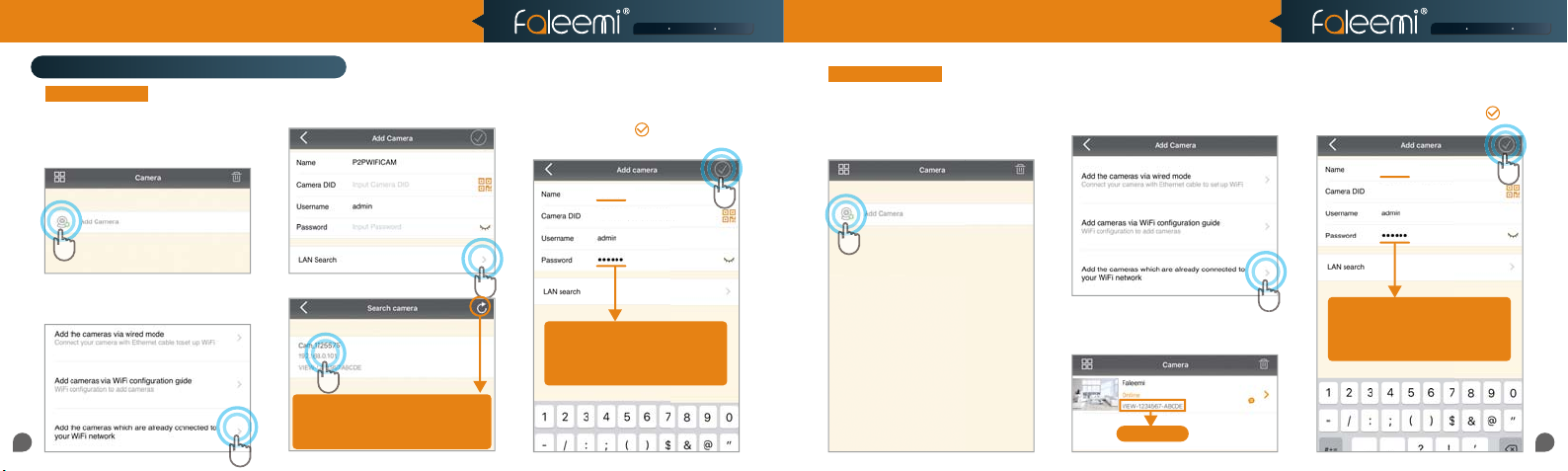
How to connect the camera to the second Phone?
Option A Locally
1. Download the Faleemi App to your
second phone.
2. Open the Faleemi App,
click on [Add Camera].
If your second phone can be connected to the same WiFi as your camera, please follow below instructions.
4. Click on [LAN Search].
Model: M1
After you use one phone to get your camera connected, if you would like to add your
camera to the second phone, please follow below instructions to do the setup.
6. Give your camera a name, and input
Passwo rd, click on [ ].
It will take you to the home page.
Faleemi
VIEW-1234567-ABCDE
Option B Remotely
1. Download the Faleemi App to your
second phone.
2. Open the Faleemi App,
click on [Add Camera].
If your second phone can not be connected to the same WiFi, please follow below instructions.
Quick Start Guide
3. Click on [Add the cameras which are
already connected to your WiFi
network].
Smart Reliable SecureSmart Reliable Secure
5. Give your camera a name, and input
Camera DID, Password, click on [ ].
It will take you to the home page.
Faleemi
VIEW-1234567-ABCDE
3. Click on [Add the cameras which are
already connected to your WiFi
network].
5. Click on the camera searched.
If you don’t find it, please make sure your
phone is connected to your WiFi
(Not cellular data) and click on this icon to
refresh.
Tips:
Default
(123456), but if you changed
the password on your first phone, please
enter your new password here.
4. Please find your camera DID (some-
thing like VIEW-1234567-ABCDE) in
your first phone or the label on the camera.
Camera DID
Tips:
Default
(123456), but if you changed
the password on your first phone, please
enter your new password here.
1009
Page 8
Tips:
If you change you r password, please
remember to update the new password
to your other pho ne and click on " "
1080P Mini WiFi Security IP Camera
Model: M1
Quick Start Guide
Smart Reliable SecureSmart Reliable Secure
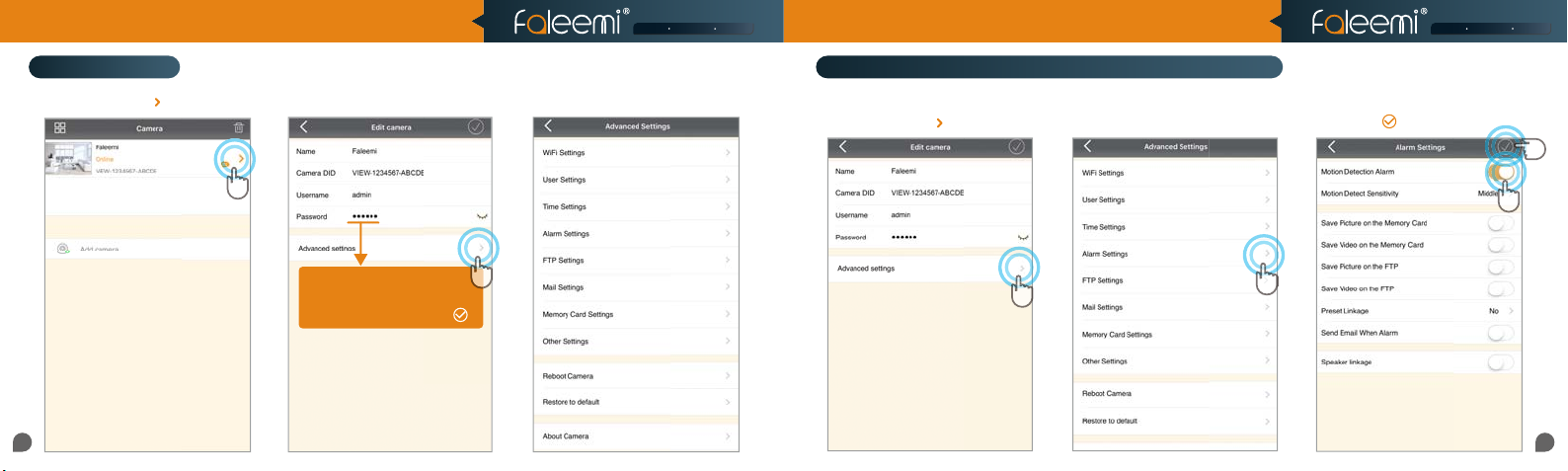
Advanced Settings
1. Click on the icon [ ].
Please follow below steps to go to Advanced Settings to do more settings.
2. Click on [Advanced Settings].
Tips:
If you change your password, please
remember to update the new password
to your other phone and click on " "
3. Do [Advanced Settings] here.
How to do the settings for receiving message alert on your phone?
[Alarm Settings]
1. Click on the icon [ ].
2. Click on [Alarm Settings].
1
3. Enable [Motion Detection Alarm].
4. Click on [ ].
4
3
2
1211
Page 9
1080P Mini WiFi Security IP Camera
Model: M1
Quick Start Guide
Smart Reliable SecureSmart Reliable Secure
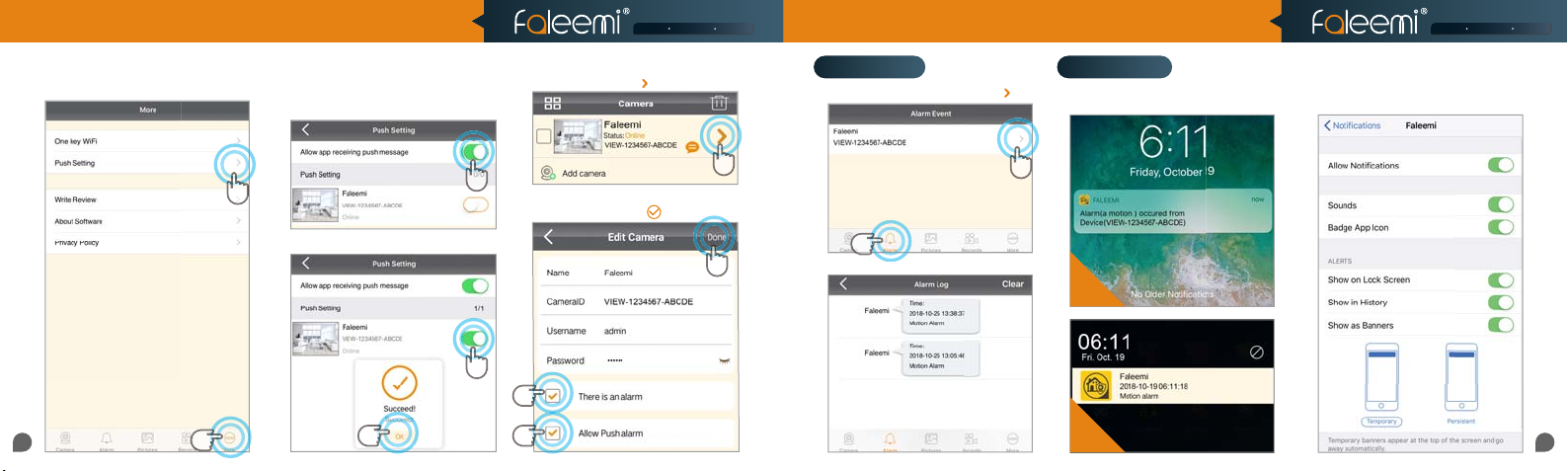
[Push Setting - iOS] [Push Setting - Android]
1. Click on [More]. 2. Click on [Push Setting].
2
3. Find the camera you want to receive
message alert and turn on the button
[Allow app receiving push message].
4. Click on push setting and click on [OK].
1. Click on the icon [ ].
2. Enable [There is an alarm], [Allow Push
3. Click on [ ].
alarm]
1
1
22
If you don’t receive the message, please go
to your phone’s [Settings]—[Notica-
tions]—[Faleemi APP] to check if you turn
on the button “Allow Notications”.
1. Click on [Alarm]. 2. Click on [ ].
NotificationsAlarm Event
You will receive text messages when
there’s motion.
2
1
3
3. It shows alarm log list.
iOS
Android
1413 1
Page 10
Tips: Max 15 Minutes
Tips:
If you just wan t to record alarm
video to the m emory card,
Please turn of f this button.
1080P Mini WiFi Security IP Camera
Model: M1
Quick Start Guide
Smart Reliable SecureSmart Reliable Secure
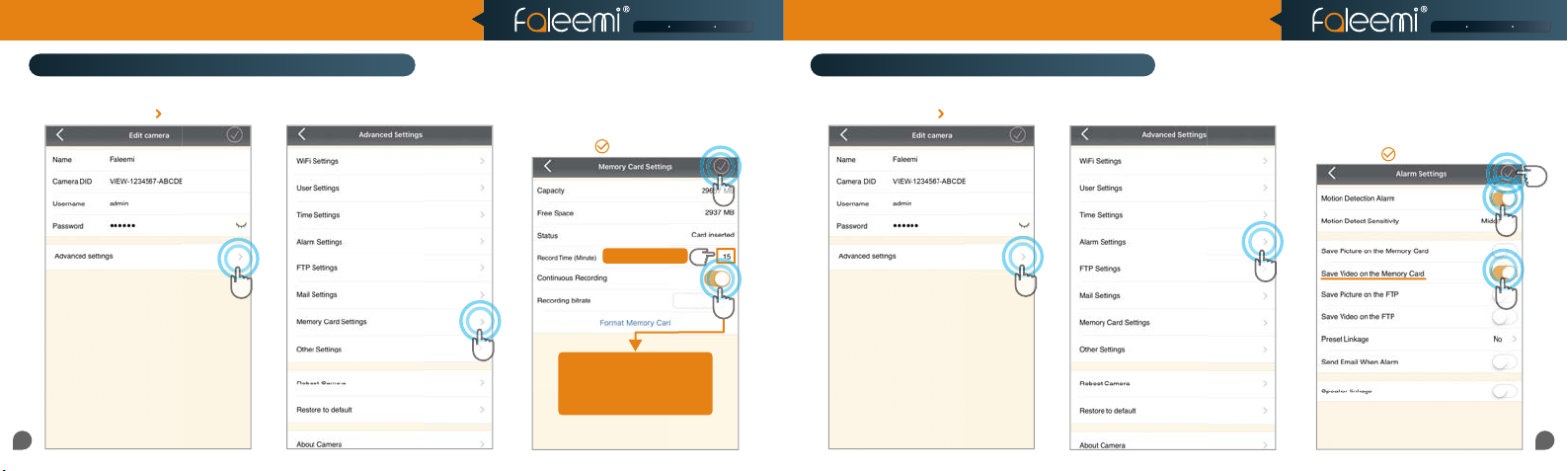
How to set it to record constantly to the memory card?
How to record alarm video to the memory card?
* Please follow the instruction in Page 08 to insert the SD card and format your memory card before using.
1. Click on the icon [ ]. 1. Click on the icon [ ].
2. Click on [Memory Card Settings].
3. Enable [Continuous Recording].
4. Set [Record Time] (15 Mins Max).
5. Click on [ ].
5
Tips: Max 15 Minutes
1
2
If you just want to record alarm
Tips:
video to the memory card,
Please turn off this button.
1080P
4
3
2. Click on [Alarm Settings].
1
3. Enable [Motion Detect Alarm].
4. Enable [Save Video on the Memory
Card].
5. Click on [ ].
2
5
3
5
1615
Page 11
1080P Mini WiFi Security IP Camera
Model: M1
Quick Start Guide
Smart Reliable SecureSmart Reliable Secure
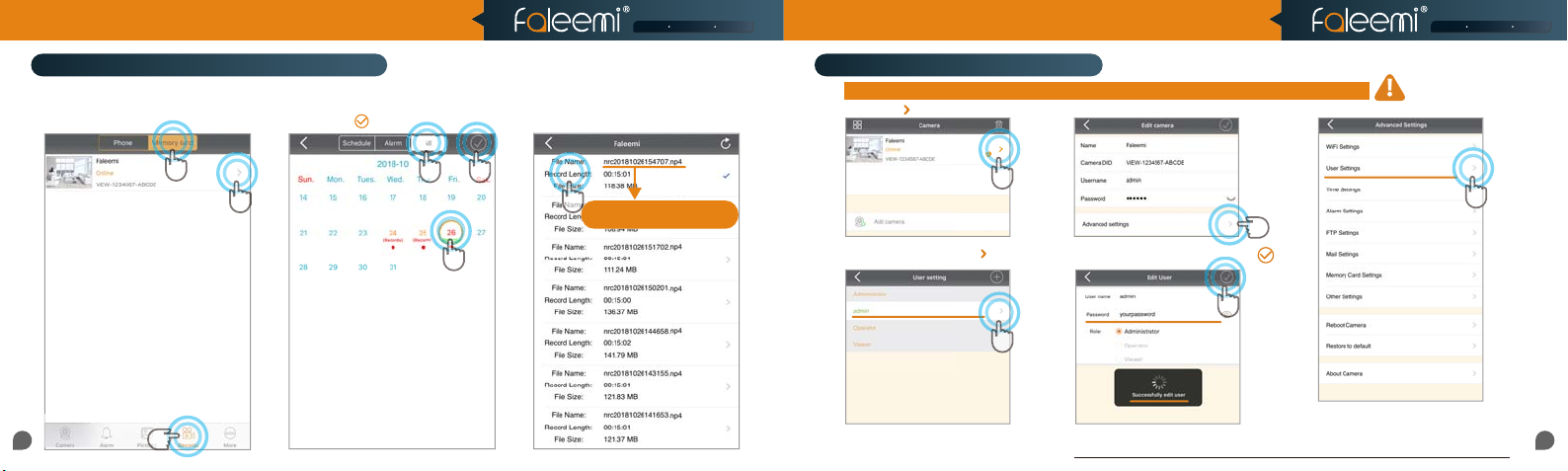
How to view the recorded video on memory card?
1. Click on [Records].
2. Click on [Memory Card].
3. Click on [Camera].
4. Click on [All], Sel ect recording.
5. Select Date.
6. Click on [ ].
2
3
1
4 6
5
7. Click on the file to playback the
recorded video.
7
NRC 2018/10/26/15:47:07.mp4
Tips:
NRC YEAR/MONTH/DAY/START TIME
How do i change my camera password?
To ensure the security of your camera, you are suggested changing the default password.
1. Click on [ ].
4. Select [admin], Click on [ ].
2. Click on [Advanced Settings].
5. Enter your new password,Click on [ ].
Record your new password here:
3. Click on [User Settings].
1817
Page 12
Home
Office
Store
Pets
Office
1080P Mini WiFi Security IP Camera
Troubleshooting Frequently Asked Questions
For more setting guides, please visit our website:
https://www.faleemi.com/faq
If you don’t find the instructions you are looking for
there, please contact us at
https://www.faleemi.com/faq
Model: M1
1. How to reset your camera (restore to factory default)?
Push down the “Reset” button for around 10-15 seconds
until the red light changes to blink very quickly and then
let it go. If the reset is done successfully, the camera will
reboot automatically.
Reset Button
Blink very quickly
1. Press down
Reset Button
10~15s
Quick Start Guide
2.
If you will be away from your camera for a long time, for example, you will be on holiday for
Smart Reliable SecureSmart Reliable Secure
several months, there may be power outage or network disconnection.
We suggest you using Timer Restart option.
You can set the camera to reboot by itself during this time period.
Please refer to this instruction to do the setup.
http://support.faleemi.com/help/reboot.pdf
3. If you have several cameras, please set them up one by one according to the instruction from page 3.
After all of them are set up, please follow below steps to use multi-view function.
2.
Home
Home Office
Store
Store Pets
Office
Pets
Four Cameras
Home
online
Playing
VIEW-462517-FHO..
Office
online
Playing
VIEW-462517-OFF..
Store
online
Playing
VIEW-462517-STO..
Pets
online
Playing
VIEW-462517-FPE..
2019
Page 13
1080P Mini WiFi Security IP Camera
Model: M1
Quick Start Guide
Smart Reliable SecureSmart Reliable Secure
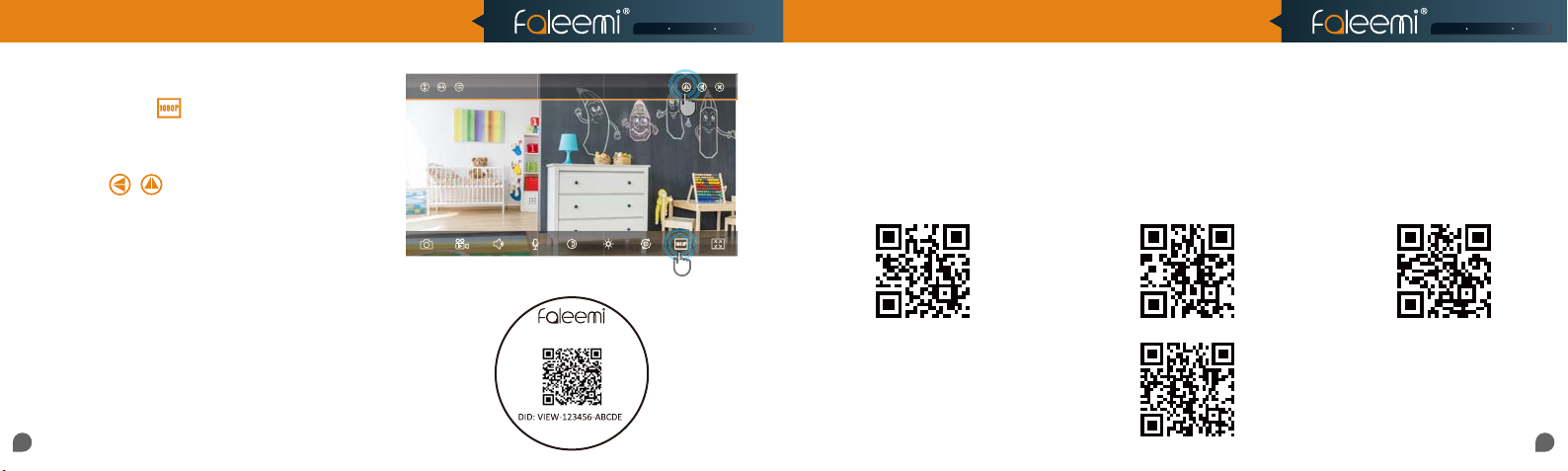
4. How do i change my video stream resolution?
Click on the icon to change the resolution.
5. I mounted my camera upside down,
how do I flip my camera’s video stream?
Click on to flip and mirror your camera.
6. How do I find the WiFi MAC address of my camera?
If you need the WiFi MAC address of the camera to
connect it to your router, please take the photo of the
label on the camera and send it to
We will provide you with the WiFi Mac address.
Faleemi_M1
Mini Camera
Model: M1
7. If I change the router, how do I reconnect the camera?
A. We recommend that you change the WiFi name (SSID) and password for the new router to the same as the old router, so you
don't need to reconnect your camera, please just replug it in and it will be online automatically. So do your other wireless devices.
B. If you can not change the new router WiFi name (SSID) and password, you just reconnect it according to the instructions
again. (
page 3)
8. How do I change the WiFi SSID on my router?
Windows 7
https://youtu.be/8gx60SEHSu4 https://youtu.be/V3pgXHvQ67U
Windows 10
https://youtu.be/qzwRIwLnNPg
MAC
for more router settings,
please visit
https://www.faleemi.com/blocks/router
If there is no the guide
for your router settings,
please email us at [email protected]
More Router Settings
2221
Page 14
1080P Mini WiFi Security IP Camera
Model: M1
Quick Start Guide
Smart Reliable SecureSmart Reliable Secure
9. How to set Faleemi camera IP Address and Port ?
Please visit https://youtu.be/2uFUQkM6cBo
10. How to set Email alert?
Please visit
http://support.faleemi.com/mail/Email_alert.pdf
If there is no the guide for your email server,
please email us at [email protected]
11. How to link your camera to your PC/Mac by Faleemi Plus?
Download Link:
Faleemi Plus for Windows:
http://support.faleemi.com/software/Faleemi_Plus_v1.0.2.exe
Faleemi Plus for Mac:
http://support.faleemi.com/software/Faleemi_Plus_v1.0.2.dmg
Windows:
https://youtu.be/sEuauwrchbs
Mac:
https://youtu.be/pljGg0l86N8
Faleemi Technologies Ltd
www.faleemi.com [email protected]
www.facebook.com/faleemi
youtube.com/c/Faleemi
twitter.com/faleemi
2423
 Loading...