

Page 1

Smart Reliable Secure
Faleemi Technologies Ltd
Wireless Pan&Tilt IP Camera
QUICK START GUIDE
FSC881
www.faleemi.com
Apple, Apple Store, iPad, iPhone, MAC (Text, Logo, Picture) are trademarks of Apple, Inc.
Android, Google Play (Text, Logo, Picture) are trademarks of Google Inc.
Samsung (Text, Logo, Picture) is a registered trademark of Samsung Electronics Co., Ltd.
MicroSD text and logo are the trademark of SD-3C, LLC.
Wi-Fi is a registered trademark of the Wi-Fi Alliance.
All other products, names or companies are the brands or registered trademarks of their
respective owners.
www.facebook.com/faleemi
Technical specifications are subject to change without notice.
No responsibility is taken for errors in contents or printing.
© Faleemi Technologies Ltd or its affiliates. All rights reserved.
Version . 01.2018
We at Faleemi are committed to do our part in protecting our environment.
In this continuing effect, we have supplied the detailed manual and startup
guide on our website http://support.faleemi.com.
www.faleemi.com
Page 2
FSC881 QUICK START GUIDE
Dear Customer,
Thanks for purchasing our products. If you encounter any problem while
configuring your camera, or need additional information, please feel free to
contact the Faleemi Support by email/skype: [email protected].
Or visit the Faleemi website : https://www.faleemi.com/faq.
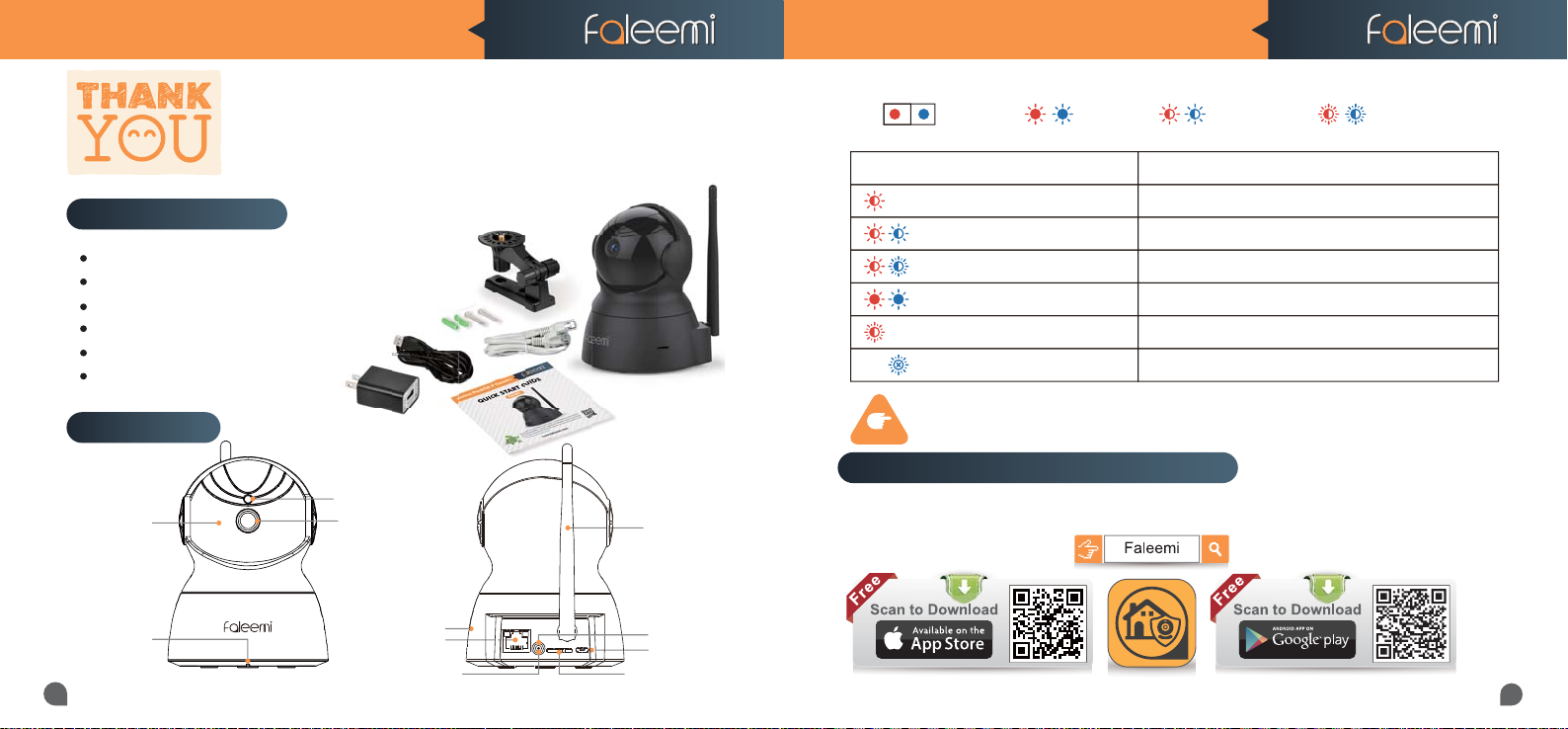
What’s in the box ?
Faleemi 1080P Pan&Tilt Wifi IP Camera FSC881
Ceiling/Wall Mounting Bracket
Mounting Screws & Plugs
Power Adapter
Network Cable
Quick Start Guide
FSC881 QUICK START GUIDE
*
Status LED
Indicator Light Status Device Status
Red light is blinking slowly Power up and activating
Red and blue lights are blinking slowly The device is ready to connect
Blue light is blinking quickly The device is receiving the wifi signal or connecting to the wifi
Blue and red lights are solid and steady The device is connected to the network
Red light is blinking quickly The device is reset to restore to factory default
Blue light goes off The device failed to connect to the network
Solid Light Blinking Quickly
Blinking Slowly
Connections
Built-in
Microphone
01
IR LEDs
Light Sensor
Lens
RJ45 10/100M
LAN Port
WPS/Reset Button
Speaker
Please download the Faleemi APP before doing the setup
TIPS
Download the App (Android and iOS)
First, connect your mobile device to your WiFi and download the App “Faleemi” from the App Store
Wi-Fi Antenna
ANT
ETH
DC5V
RST
Status LED
DC 5V Power
Memory Card Slot
or Google Play store,or scan below QR code to download it.
02
Page 3
FSC881 QUICK START GUIDE FSC881 QUICK START GUIDE
Setup by Ethernet Cable
SETUP
03
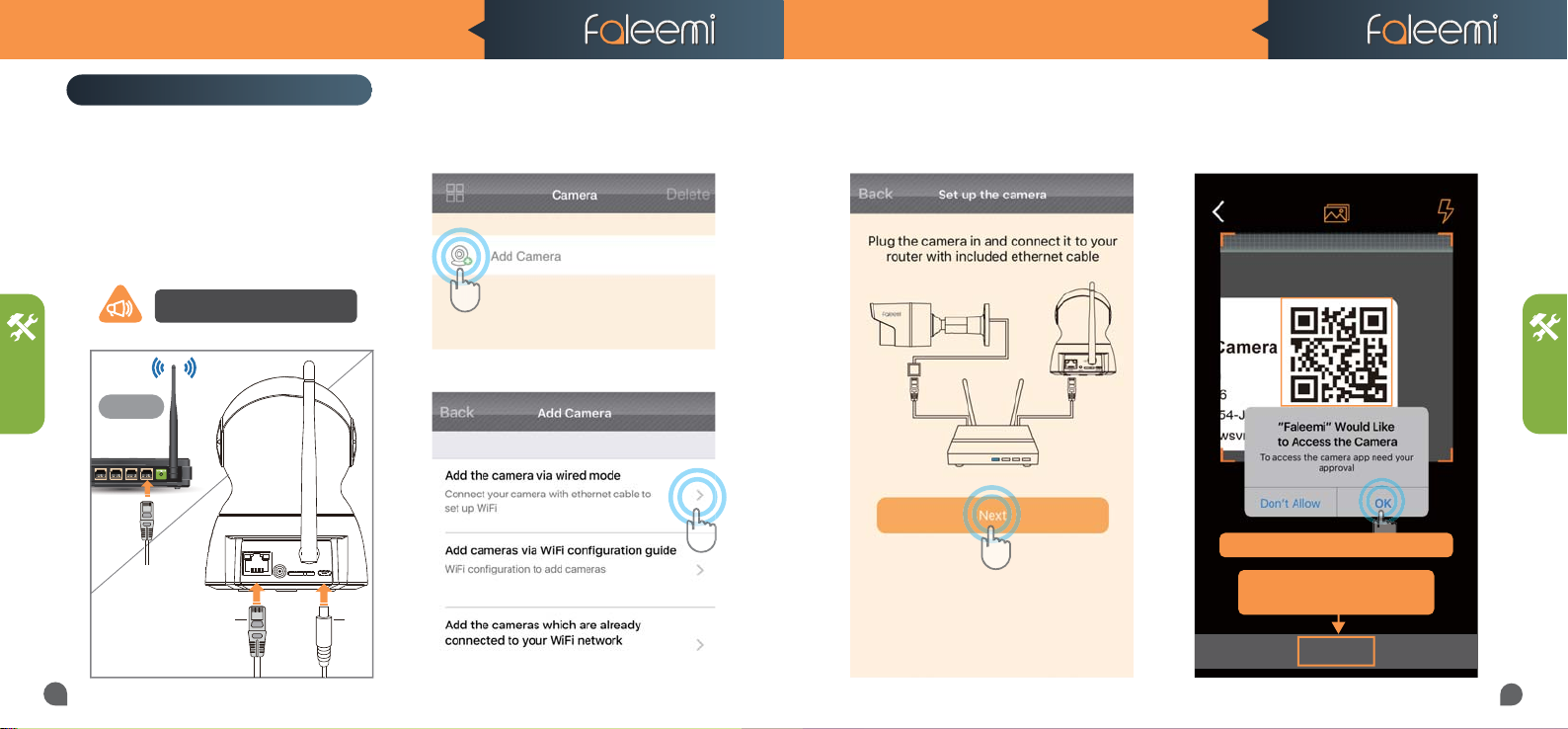
1. Please plug the camera in with the
included power supply. Please connect
the camera to your router with the
included ethernet cable.
Note, when the camera is startup,
it will sound one“beep”
2.4GHz
Router
ANT
ETH
DC5V
RST
PlugCable
2. Open the Faleemi App,
Click on [Add Camera].
3. Click on [Add the camera via wired mode].
4. Click on [Next].
5. Please scan the QR Code at the bottom of
the camera
QR Code
SETUP
If you see this, please click on "OK"
If you can’t scan the QRcode,
please Click on [Skip]
Skip
04
Page 4
FSC881 QUICK START GUIDE FSC881 QUICK START GUIDE
SETUP
05
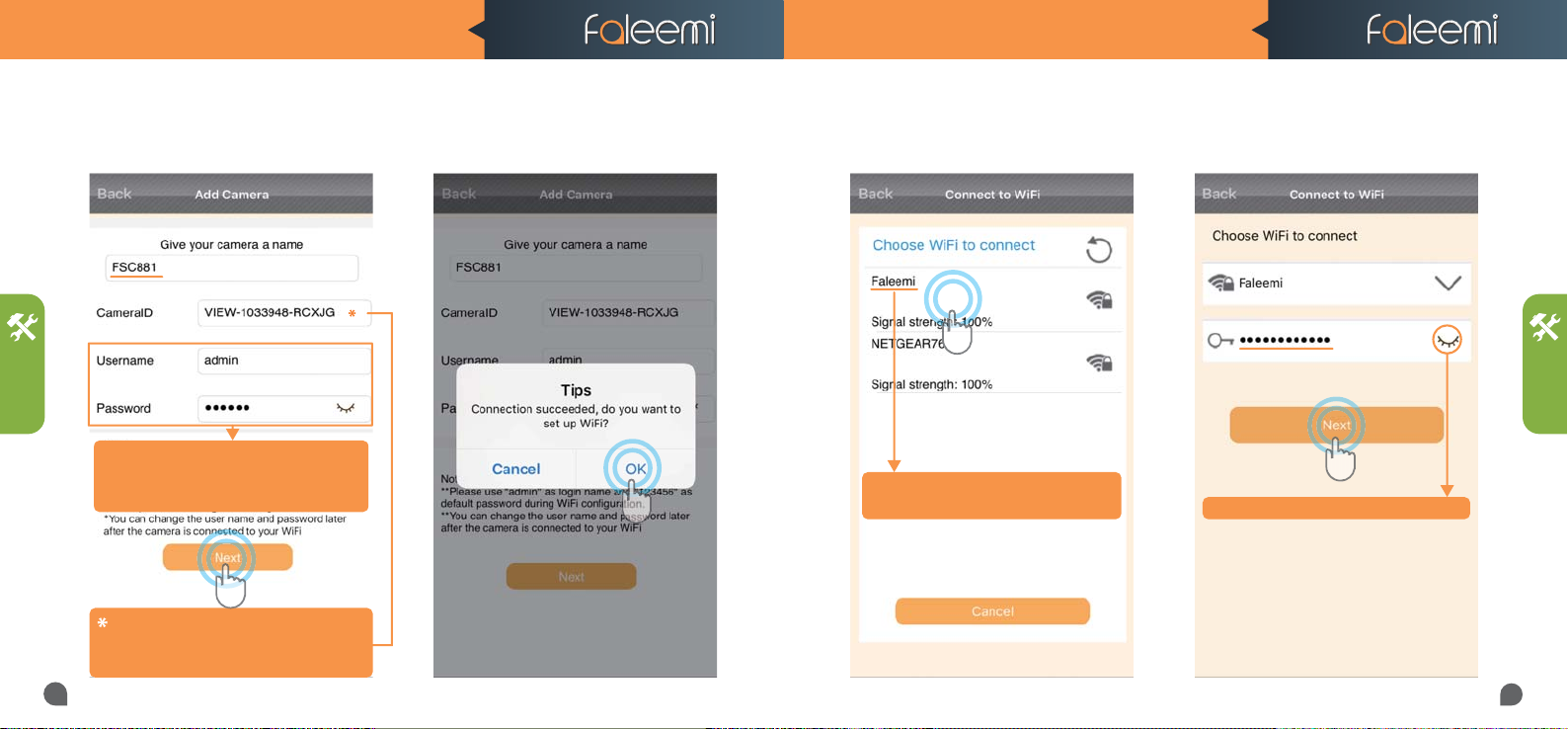
6.Type in the name you have selected for your
camera and click on [Next].
Please don't change the user name and password. You
have to use the default ones here. But you can change
them after your camera is connected. Please refer to
the instruction on page 17.
if you can't scan the QR code, please enter the
DID (something like VIEW-1234567-ABCDE) in
the label on the camera manually.
7. It says Connection succeeded, if you want
to use wired connection, please click on
[Cancel]; if you want to use wifi, please click
on [OK] to do the wifi connection.
8. Choose WiFi to connect 9. Please enter your wifi password, click on
[Next].
Please make sure the wifi you are going to
connect the camera to is the 2.4GHz WiFi.
Click on it to show and check your password
SETUP
06
Page 5
FSC881 QUICK START GUIDE FSC881 QUICK START GUIDE
SETUP
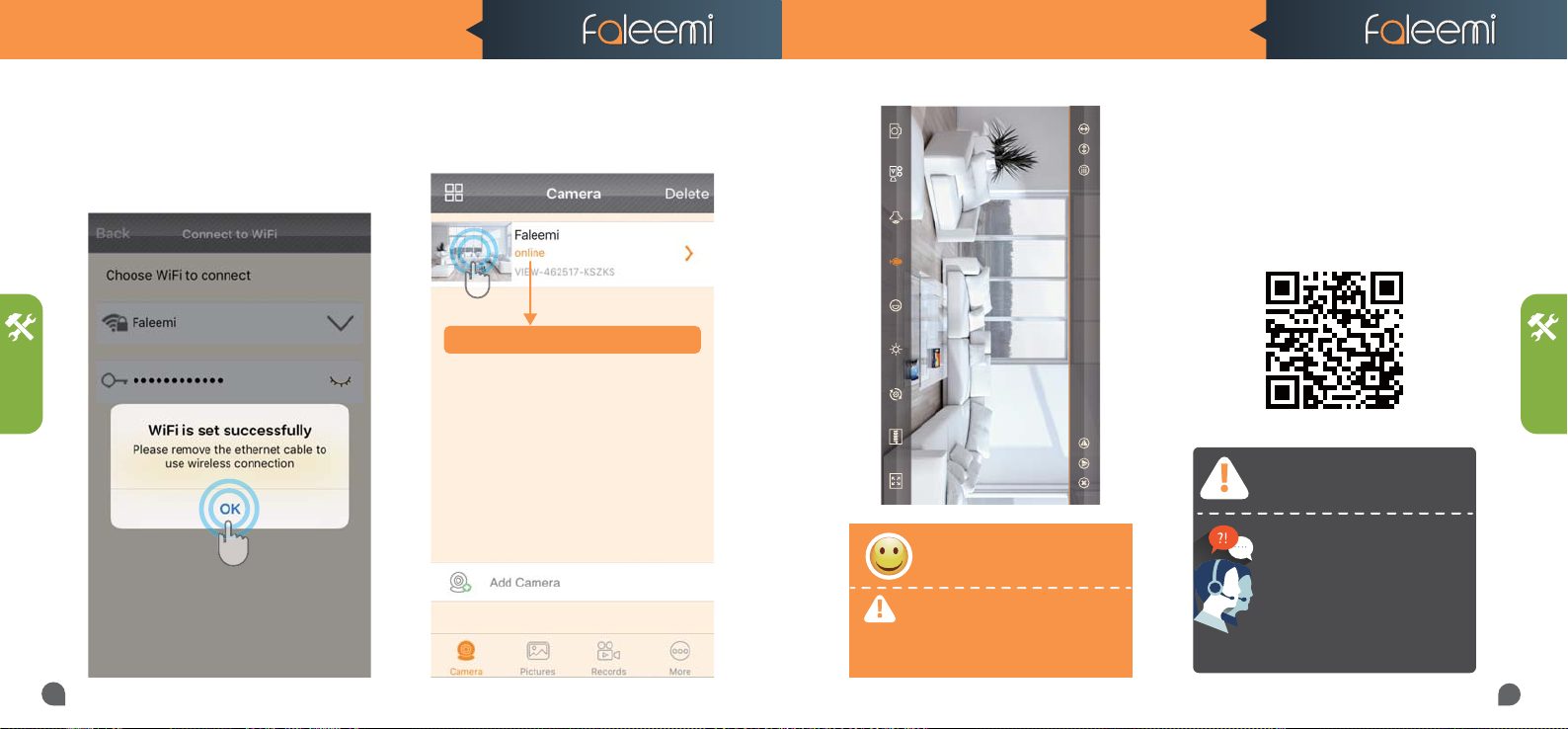
10. It will show WiFi is set successfully. there
will be 2 beep sound. It means the camera is
connected to your wifi, Click on [OK ] ,
please remove the ethernet cable.
11. Click on the image to start to view &
control.
You will see it shows the camera online
Faleemi_FSC881
Congratulations!
Your camera is connected now
To ensure the security of your camera,
you are suggested to change the default password. Please refer to the instruction in Page 17.
If you are not able to connect your camera to
your router with ethernet cable, here are the
other 2 wireless connection instructions.
Please visit
http://support.faleemi.com/fsc881/setup2.pdf
SETUP
If the setting is failed, please find
below solution or contact us by
Email: [email protected]
Skype: [email protected]
Phone: 213 293 3560
EST: 6am~11am, 8pm-11pm
PST: 6am~8am, 5pm-12pm
When you call us, please wait some more
moment until it gets through.
07
08
Page 6
FSC881 QUICK START GUIDE FSC881 QUICK START GUIDE
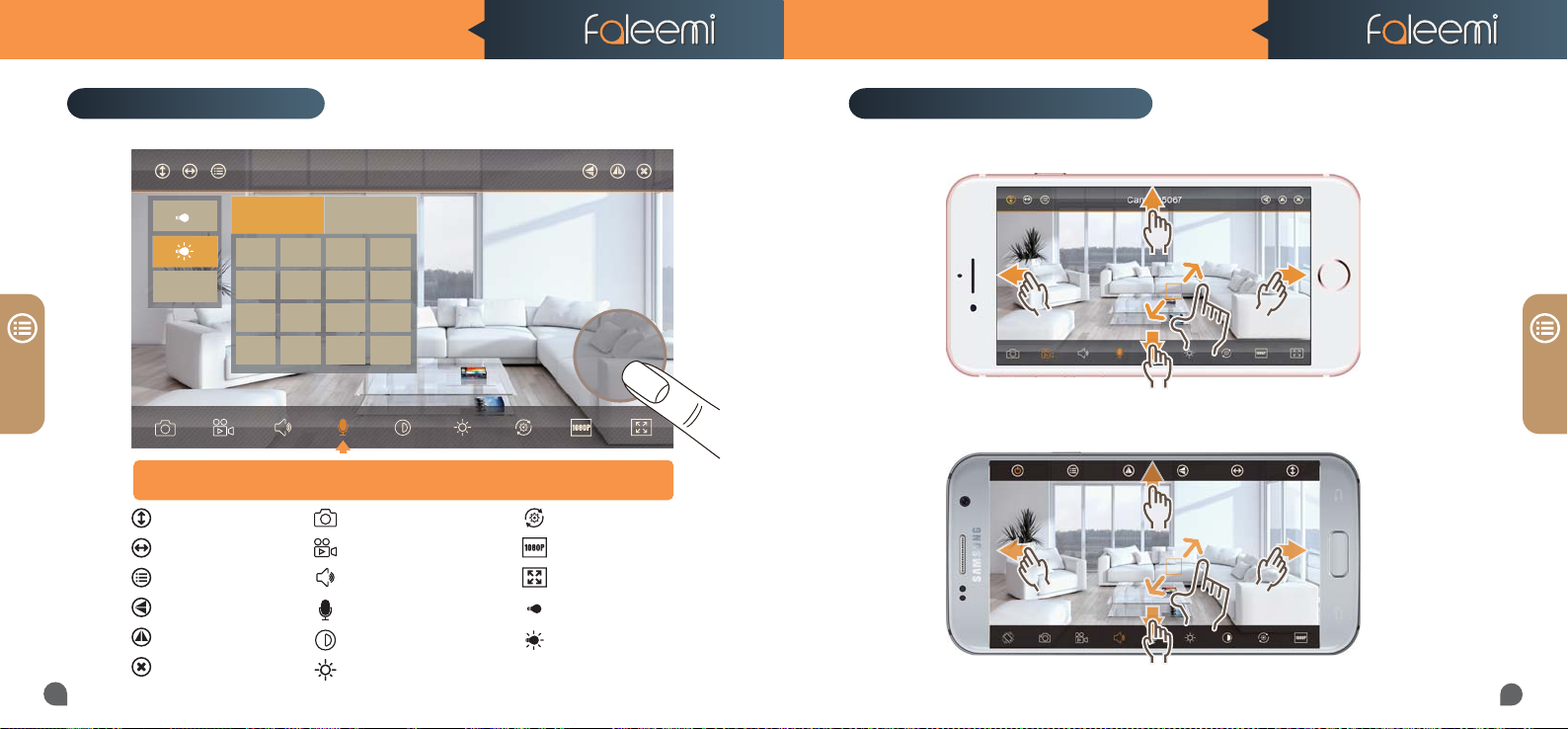
Live Video Interface
PANEL
09
Faleemi_FSC881
Call Set
1234
Preset
5678
9101112
13 14 15 16
Turn on the Microphone; you will see a pop-up button “Hold Talk”, press down
Cruise Vertically
Cruise Horizontally
Menu
Flip
Mirror
Exit
this button to talk to the people at the camera side.
Snapshot to phone
Record video to phone
Audio on/off
Microphone on/off
Contrast
Brightness
Preset
Hold Talk
Restore to default
480P/1080P
Contract
IR LED Off
Auto
Set or Call Preset
Pan / Tilt / Zoom Control
iOS
Android
PANEL
10
Page 7
FSC881 QUICK START GUIDE FSC881 QUICK START GUIDE
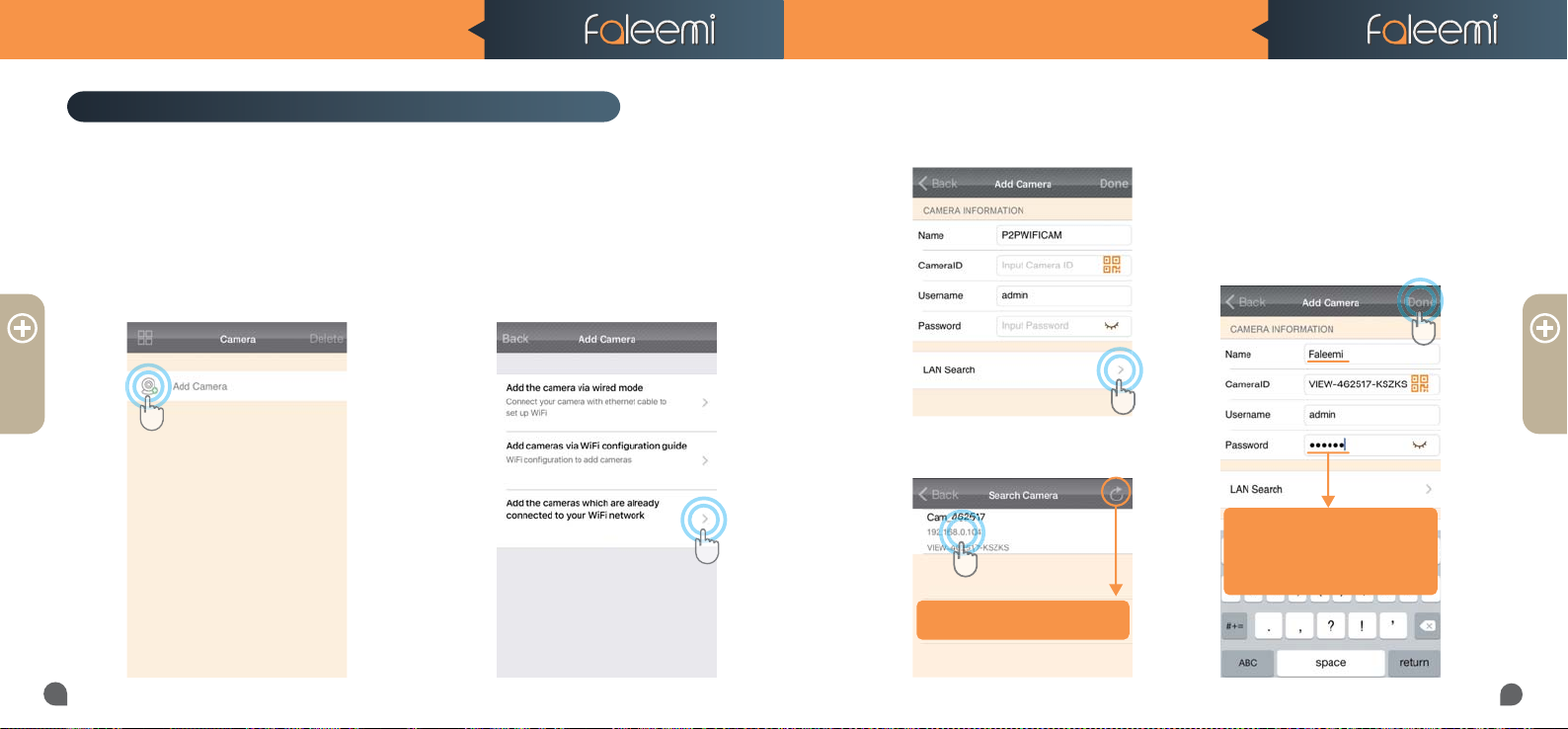
How to connect the camera to the second Phone?
ADD
11
After you use one phone to get your camera connected to your WiFi and you can view the live
video from your first phone.
If you would like to add your camera to the second phone, please ensure your second phone
connects to your WiFi (the same WiFi your camera connected to) .
1. Download the Faleemi App to your second phone.
2. Open the Faleemi App,
Click on [Add Camera].
3. Click on [Add the cameras
which are already connected to
your WiFi network]
4. Click on [LAN Search].
5.Click on the camera searched.
If you don’t find it, please click on
this icon to refresh.
6. Give your camera a name, and
input your Password, click on
[Done] go back to home to start
to view & control.
ADD
Tips:
Default (123456), but if you
changed the password on your
first phone, please enter your
new password here.
12
Page 8
DC5V
RST
ETH
ANT
FSC881 QUICK START GUIDE FSC881 QUICK START GUIDE
Advanced Settings
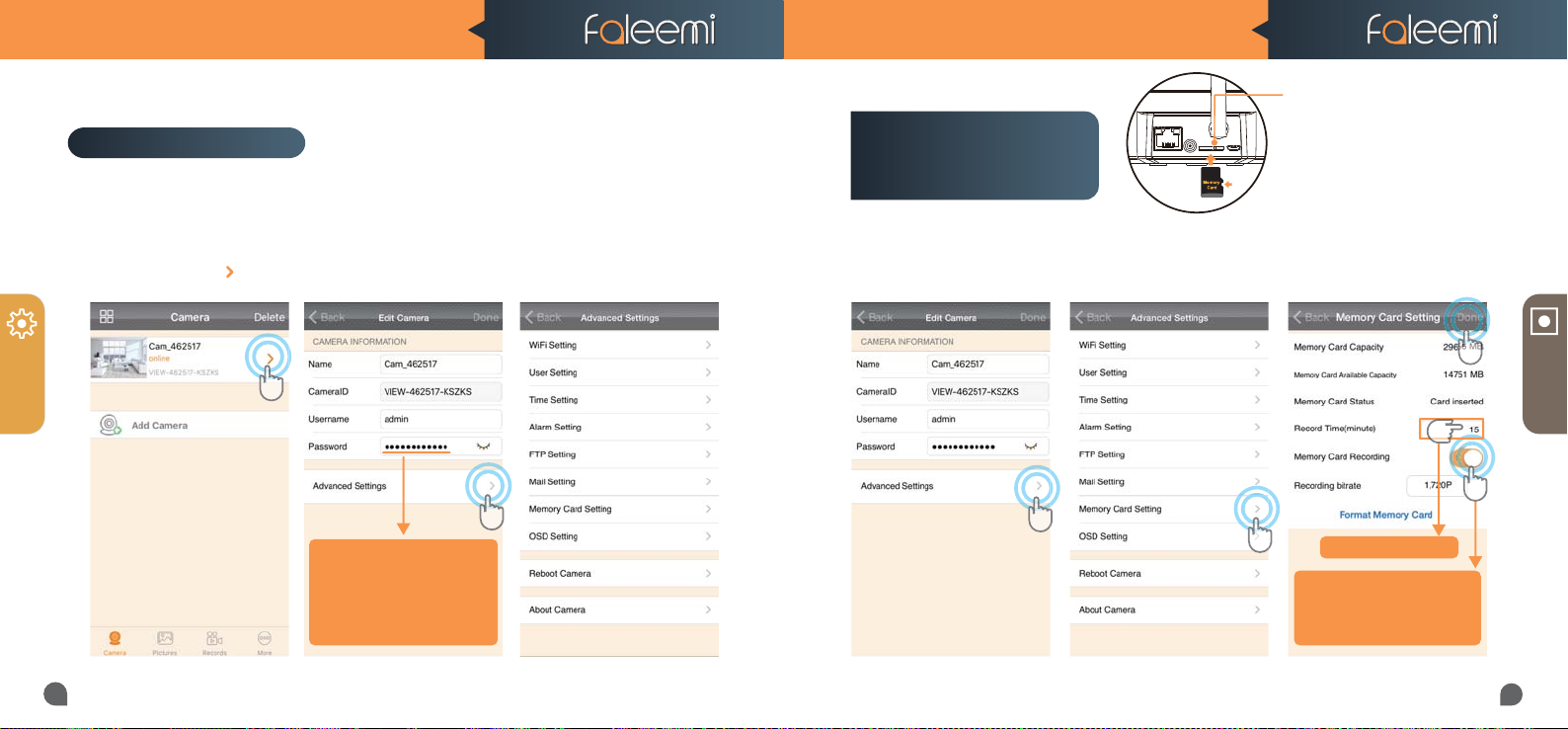
Please follow below steps to go to Advanced Settings to do more settings.
2. Click on [Advanced Settings]. 3. Do advanced settings here.1. Click on the icon [ ].
How to set it to record
constantly to the
memory card?
* Please format your memory card before using.
1. Click on [Advanced Settings].
2. Click on [Memory Card Setting].
Meromy Card Slot
Please insert the Micro SD card as what
shows at left.
Suggest to use MicroSDHC* Class10
UHS-1 Memory Card.
(* MicroSD, MicroSDHC text and logo are the trademark
of SD-3C, LLC)
3. Enable [Memory Card Recording]
4. Set [Record Time] (15 mins Max)
5. Click on [Done].
5
MORE
13
4
RECORD
3
1
If you change your password,
Tips:
please remember to update
the new password to your
other phone and click on
"Done"
2
Tips: Max 15 Minutes
Tips:
If you just want to record alarm
video to the memory card,
please disable this button.
14
Page 9
FSC881 QUICK START GUIDE FSC881 QUICK START GUIDE
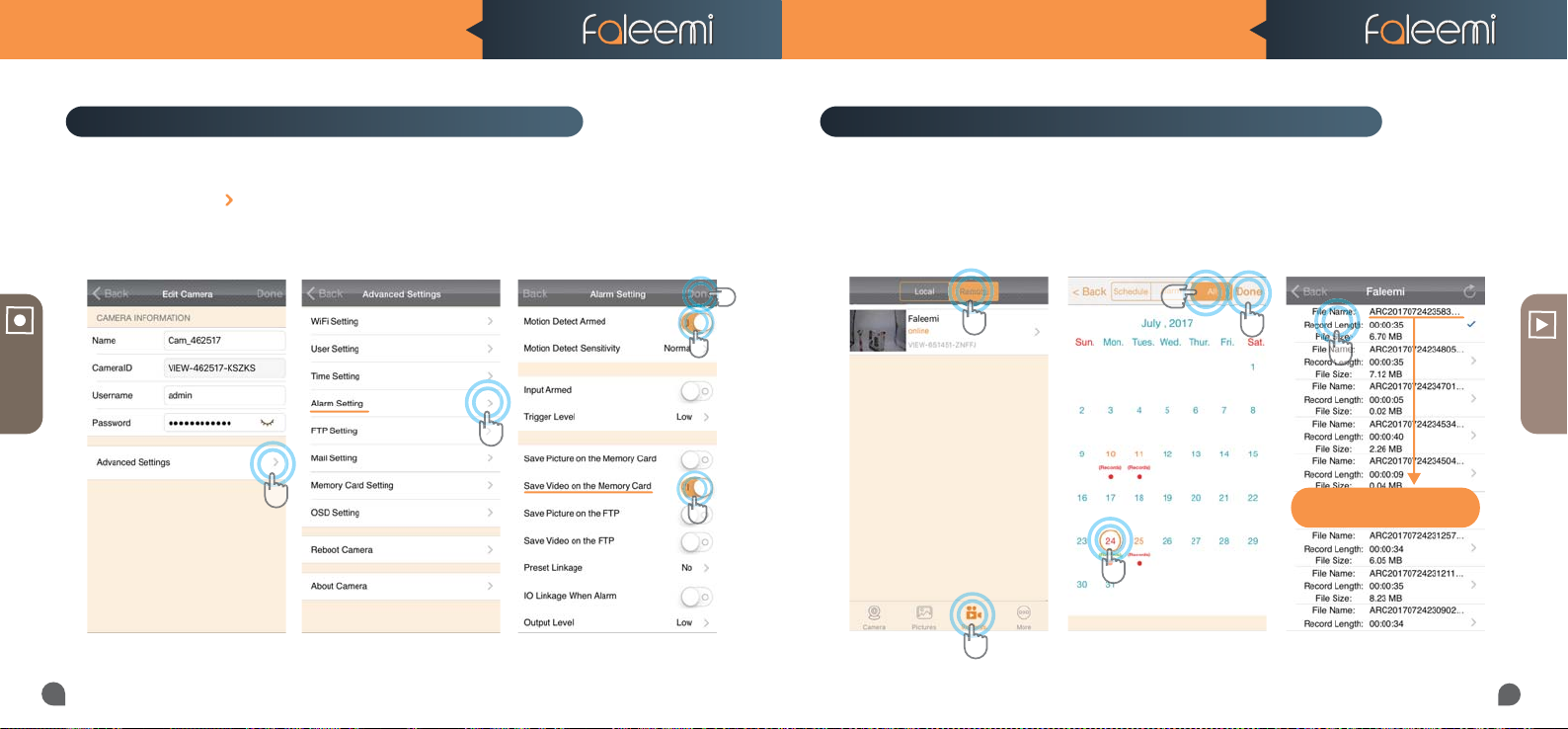
How to record alarm video to the memory card?
RECORD
15
How to view the recorded video on memory card?
2. Click on [Alarm Setting]1. Click on the icon [ ].
3. Enable [Motion Detect Armed]
4. Enable [Save Video on the
memory card]
5. Click on [Done]
5
1. Click on [Records],
2. Click on [Remote].
2
3
3. Click on [All], select recording
4. Select Date
5. Click on [Done]
3
5
6. Click the file to play the
recorded video
6
VIEW
2
1
4
ARC 2017-07-24 23:58:30
Tips:
ARC YEAR-MM-DD-Start Time
4
1
16
Page 10
DC5V
RST
ETH
ANT
FSC881 QUICK START GUIDE FSC881 QUICK START GUIDE
Trouble Shooting Frequently Asked Questions
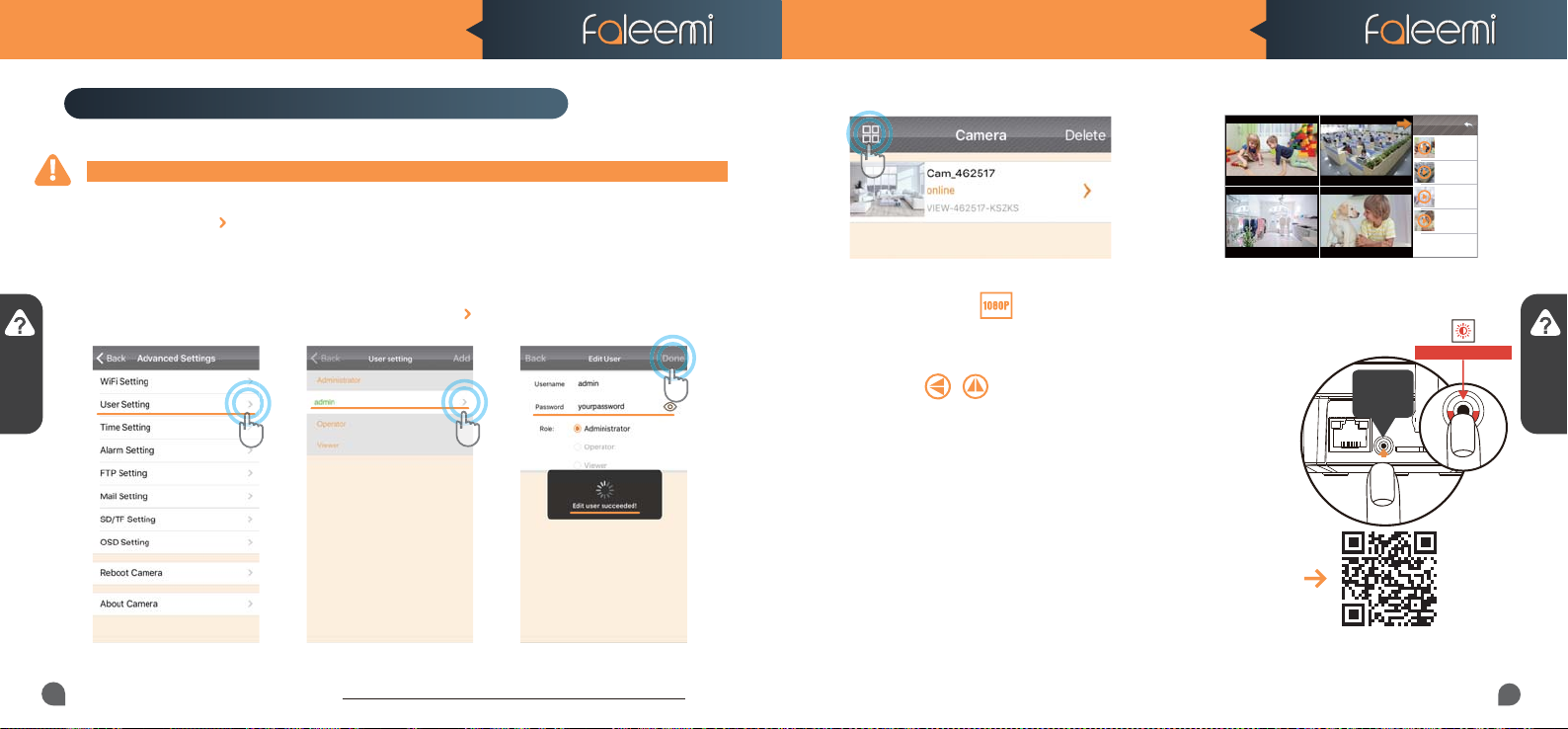
1. How do I change my camera password?
To ensure the security of your camera, you are suggested to change the default password.
Please follow below steps to do it.
Click on the icon [ ] at the right of the camera and select [Advanced Settings] and next [User
Setting]. Enter your new password and click on [Done] on the top right. Note that once the password
is changed here, it will take effect immediately.
1. Click on the [User Setting].
Q & A
17
Record your new password here:
2. Select [admin], Click on [ ].
3. Enter your new password,
Click on [Done].
2.If you have several cameras, please follow below steps to use multi-view function.
Home
Home Oce
Store
Store Pets
Oce
Pets
Four Cameras
Home
online
Playing
VIEW-462517-FHO..
Oce
online
Playing
VIEW-462517-OFF..
Store
online
Playing
VIEW-462517-STO..
Pets
online
Playing
VIEW-462517-FPE..
3. How do I change my video stream resolution?
Click on the icon to change the resolution.
4. I mounted my camera upside down, how do I flip my camera’s
video stream?
Click on to flip and mirror your camera.
5. How to restore to factory default?
WPS/Reset
Button
10S+
Blinking Quickly
Push down the “Reset” button for around 10-15 seconds until
the red light changes from blinking slowly to very quickly
and then let the Reset button go. If the reset is done successfully,
you will hear beep. The camera will reboot automatially.
6. How to set email alert?
Please visit
http://support.faleemi.com/FSC881/Email_alert.pdf
If there is no the guide for your email server,
please email us [email protected].
Scan the
QR Code
to view
7. How to link your camera to your PC/Mac by Faleemi Plus
Windows: Please visit https://youtu.be/sEuauwrchbs
Mac: Please visit https://youtu.be/pljGg0l86N8
Q & A
18
 Loading...