

Page 1

Smart Reliable Secure
86
Faleemi Technologies Ltd
Wireless Waterproof IP Camera
QUICK START GUIDE
FSC760/FSC860
www.faleemi.com
Apple, Apple Store, iPad, iPhone, MAC (Text, Logo, Picture) are trademarks of Apple, Inc.
Android, Google Play (Text, Logo, Picture) are trademarks of Google Inc.
Samsung (Text, Logo, Picture) is a registered trademark of Samsung Electronics Co., Ltd.
MicroSD text and logo are the trademark of SD-3C, LLC.
Wi-Fi is a registered trademark of the Wi-Fi Alliance.
All other products, names or companies are the brands or registered trademarks of their
respective owners.
www.facebook.com/faleemi
Technical specifications are subject to change without notice.
No responsibility is taken for errors in contents or printing.
© Faleemi Technologies Ltd or its affiliates. All rights reserved.
Version . 07.2018
FSC760 720P FSC860 1080P
We at Faleemi are committed to do our part in protecting our environment. In this continuing
effect, we have supplied the detailed manual and startup gui de on our website
https://www.faleemi.com/support
www.faleemi.com
Page 2

FSC760/FSC860 QUICK START GUIDEFSC760/FSC860 QUICK START GUIDE
What’s in the box ?
Faleemi Wireless Waterproof IP Camera
Wi-Fi Antenna
Power Adapter
Network Cable
Mounting Screws & Plugs
Allen key
Quick Start Guide
01
Dear Customer,
Thanks for purchasing our products. If you encounter any problem while configuring your camera,
or need additional information, please feel free to contact the Faleemi Support by
Email/Skype: [email protected]
. Or visit the Faleemi website : www.faleemi.com/faq.
Faleemi’s channel : youtube.com/c/Faleemi
Wi-Fi Antenna
IR LEDs
Lens
Light Sensor
WPS/Reset Button
RJ45 10/100M LAN Port
DC 12V Power
Please download the Faleemi APP before doing the setup
TIPS
Download the App (Android and iOS)
First, connect your mobile device to your WiFi and
download the App “Faleemi” from the App Store
or Google Play store,or scan below QR code to
download it.
Get started
Router
TIPS
3.
Make sure your phone is connected to your 2.4GHz WiFi (not cellular data
and 5GHz WiFi)
4. Make sure your wifi name and password do not have the special characters " & "
and " ' ".
5. If the connection fails, please do a “Factory Reset”. This process is outlined
Plug
on Page 14 of this manual. (“How to restore to factory default”).
Before configuring your camera, please read the points below.
1. To ensure the camera works stable, please make sure to put your
camera close to your wifi router, if you could put them in the same
room, that will be better.
2. Make sure your wifi router is connected to the Internet.
before doing the setup.
02
Page 3
Mobile Phone Setup
If you can’t scan the QRcode,
please Click on [Skip]
if you can't scan the QR code, please enter the
DID (something like VIEW-1234567-ABCDE) in
the label on the camera manually.
Please use the default username of
admin
and
password of
123456
here. You can change them
when the came ra is all set up. You w ill find the
instructions in page 21.
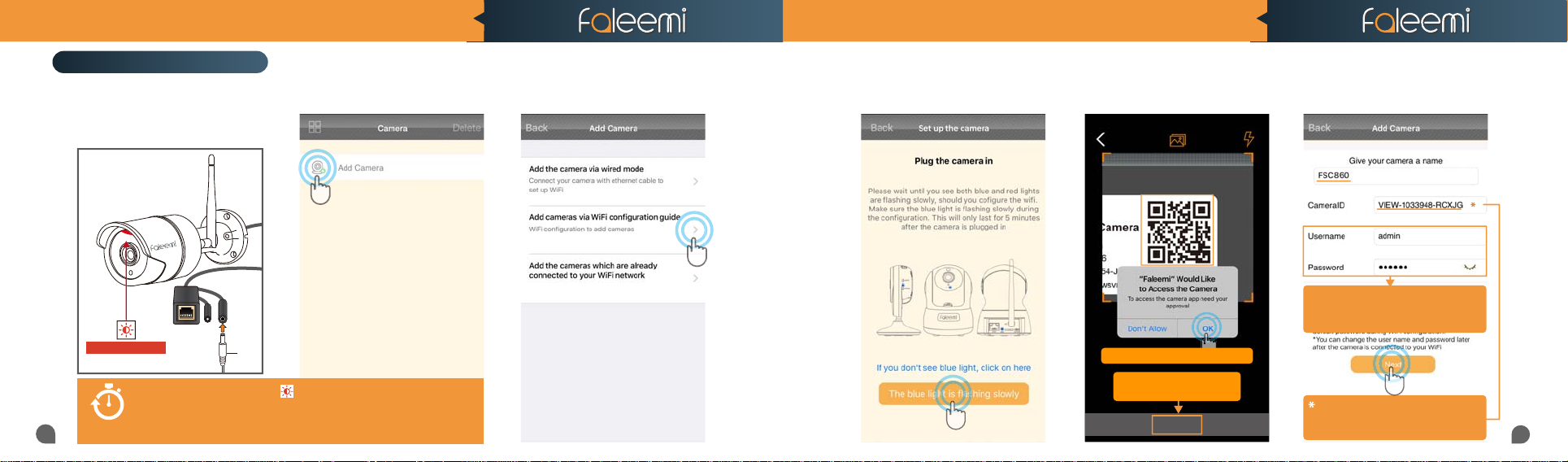
1. Please put your camera close to
your wi router and plug it in, And
then you will see the red light
blinking slowly.
2. Open the Faleemi App,
Click on [Add Camera].
3. Click on [Add cameras via WiFi
conguration guide].
FSC760/FSC860 QUICK START GUIDEFSC760/FSC860 QUICK START GUIDE
4. Click on
[The blue light is ashing slowly].
5. Please scan the QR Code at the
bottom of the camera
QR Code
6. Type in the name you have selected
for your camera and click on [Next].
03
Blinking Slowly
Only when it blinks red slowly , you are able to set up the camera. It
lasts only 5 mins after the camera is powered up.
If you don’t do the setup in 5 mins, please unplug the camera and plug it
in again to get another 5 mins setting time.
5 mins
Plug
If you see this, please click on "OK"
If you can’t scan the QRcode,
please Click on [Skip]
Skip
Please use the default username of
password of
123456
when the camera is all set up. You will find the
instructions in page 21.
if you can't scan the QR code, please enter the
DID (something like VIEW-1234567-ABCDE) in
the label on the camera manually.
admin
and
here. You can change them
04
Page 4
FSC760/FSC860 QUICK START GUIDE
Click on it to show and check your password
Note: Please click on "Start"
button. Your phone will make a
loud sound to transmit the data
to the camera.
1. To ensure the security of your camera,
you are suggested to change the default
password. Please refer to the instruction in page
12.
2. You can relocate the camera now. Please just
unplug it and move it to the new location and
plug it in, the camera will connect to your WiFi
automatically, no need to set it up again.
* But please make sure the new location will be
not far from your router.
Congratulations!
Your camera is connected now
Make sure your W iFi na me (SS ID) a nd pas sword do not have the special chara cters “ & &
” and “ ’ ’
” (apo strophe ). If y ou are using a d ual
band router, ple ase mak e sure your 2. 4GHz WiFi name (S SID) is differ ent from your 5 .0GHz o ne. You c an find this o ut in yo ur rout er sett ings.
If y ou don’t know ho w to go to your router settin gs, please refer t o below our vi deo tuto rial.
or contac t us at
.
When you call us, please wait some more
moment until it gets through.
FSC760/FSC860 QUICK START GUIDE
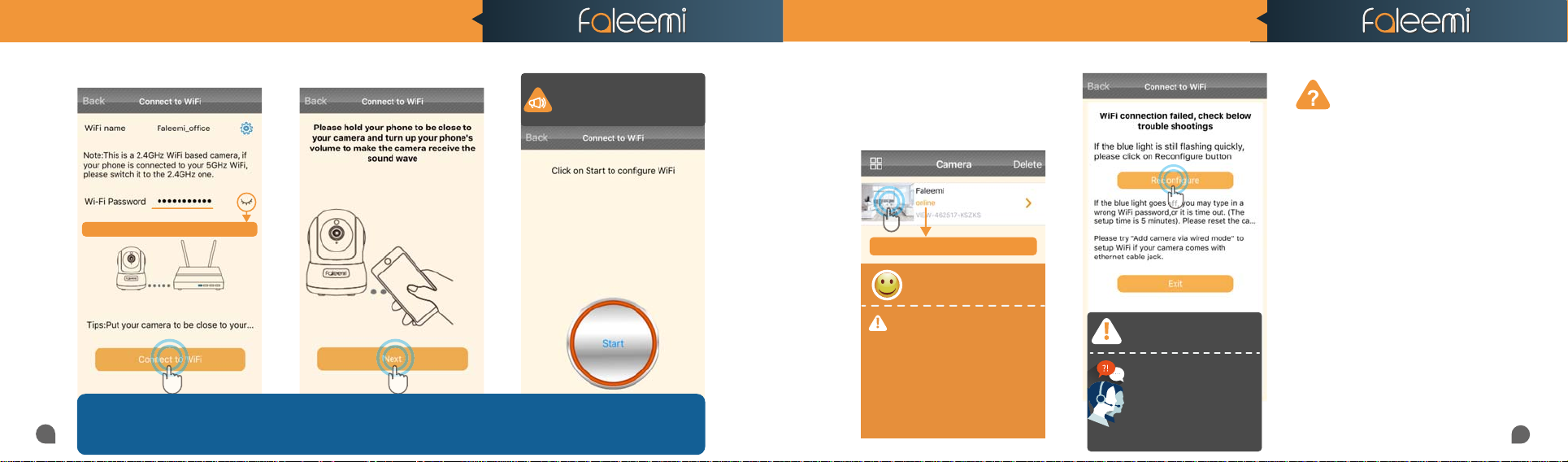
7. Input your WiFi password and
click on [Connect to WiFi].
Click on it to show and check your password
TIPS: Make sure your WiFi name (SSID) and password do not have the special characters “
band router, please make sure your 2.4GHz WiFi name (SSID) is different from your 5.0GHz one. You can find this out in your router settings.
If you don’t know how to go to your router settings, please refer to below our video tutorial.
05
https://www.youtube.com/c/Faleemi or contact us at
8. Click on [Next].
9. Click on [Start]
Note: Please click on "Start"
button. Your phone will make a
loud sound to transmit the data
to the camera.
” an d “
” (apostrophe). If you are using a dual
10.You should see it says online.
Congratulations! Your camera is
all set up. Click on the image to
enjoy viewing and controlling it
now.
You will see it shows the camera online
Congratulations!
Your camera is connected now
1. To ensure the security of your camera,
you are suggested to change the default
password. Please refer to the instruction in page
12.
2. You can relocate the camera now. Please just
unplug it and move it to the new location and
plug it in, the camera will connect to your WiFi
automatically, no need to set it up again.
* But please make sure the new location will be
not far from your router.
If the setting is failed, please find
below solution or contact us by
Email: [email protected]
Skype: [email protected]
Phone: 213 293 3560
EDT: 6am~11am, 8pm-11pm
PDT: 6am~8am, 5pm-12pm
When you call us, please wait some more
moment until it gets through.
If the setting is failed,
please nd below solution.
1.Please make sure the WiFi password you just
input was correct. If you are not sure, please
reset the camera (instructions in page 14) and
do the setup again.
2.If your WiFi password was correct but still
failed, you may try to connect the camera to
your 5GHz WiFi. While the camera is 2.4GHz
WiFi based.
Please make sure your phone is connected to
your 2.4GHz WiFi. And your 2.4GHz WiFi name
(SSID) is different from your 5GHZ one. If you
are not sure; please follow our below video
tutorials to go to your router settings and find
this out.
www.youtube.com/c/faleemi
Or contact us at [email protected]
06
Page 5
FSC760/FSC860 QUICK START GUIDEFSC760/FSC860 QUICK START GUIDE
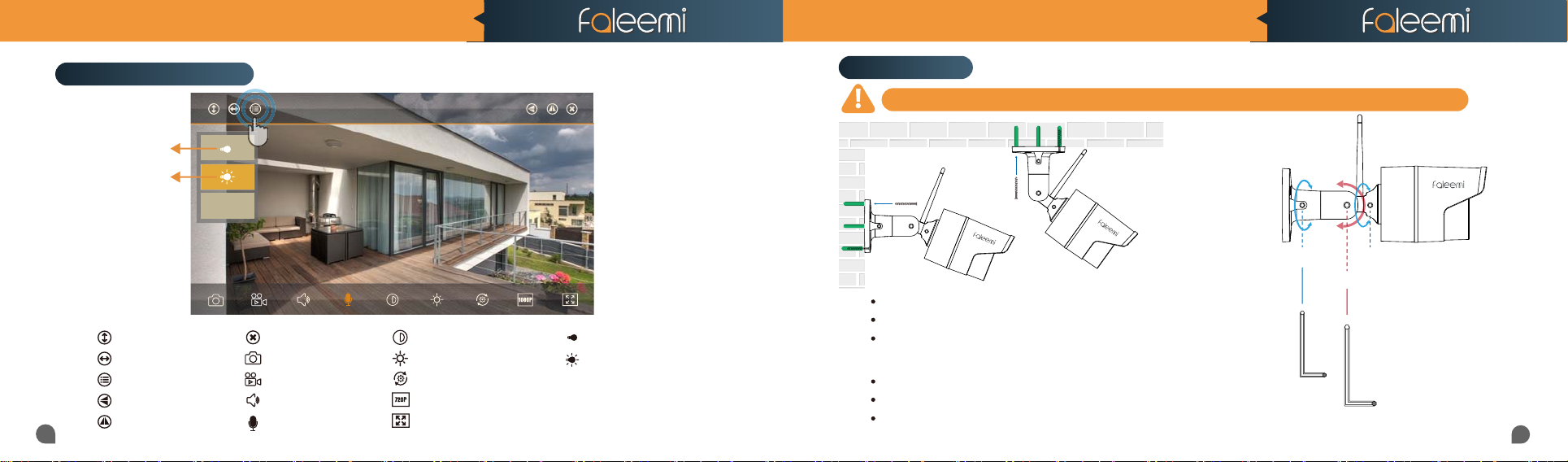
Live Video Interface
Turn off LED
LED Auto Mode
Cruise Vertically (N/A)
Cruise Horizontally(N/A)
Menu
Flip
07
Mirror
Preset
Faleemi_FSC860
Exit
Snapshot to phone
Record video to phone
Audio on/off (N/A)
Microphone on/off (N/A)
Contrast
Brightness
Restore to default
480P/720P/1080P*(*FSC860)
Contract
IR LED Off
LED Auto Mode
Preset
Set or Call Preset (N/A)
Installation
Please install the camera after it is connected. Please pay attention to safety when you are installing it.
Screw A Screw A
Screw B
Mark the positions of the screw holes on the mounting surface.
Drill holes and insert the anchors(included) as needed.
Firmly attach the camera to the mounting surface using the included screws.
Loosen the Screw[A, A],[B] by turning them counter clockwise.
Adjust the angle of the cameras until the desired view is set.
Tighten the screws to secure camera's position.
Allen key A
Allen key B
08
Page 6
Tips:
Default (123456), but if you
changed the password on your
first phone, please enter your
new password here.
If you don’t find it, please click on
this icon to refresh.
FSC760/FSC860 QUICK START GUIDEFSC760/FSC860 QUICK START GUIDE
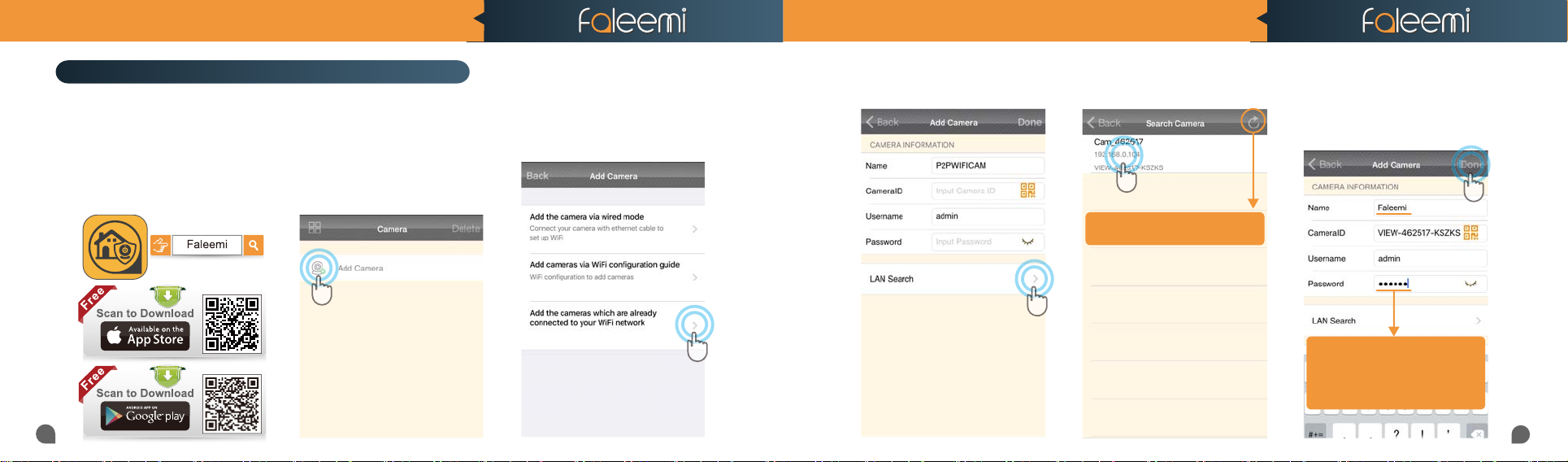
How to connect the camera to the second Phone?
After you use one phone to get your camera connected.
If you would like to add your camera to the second phone, please connect
the second phone to the same WiFi which your camera is connected to.
1. Download the Faleemi App to your
second phone.
09
2. Open the Faleemi App,
Click on [Add Camera].
3. Click on [Add the cameras
which are already connected to
your WiFi network]
4. Click on [LAN Search].
5.Click on the camera searched. 6. Give your camera a name, and
input your Password, click on
[Done] go back to home to start to
view & control.
If you don’t find it, please click on
this icon to refresh.
Tips:
Default (123456), but if you
changed the password on your
first phone, please enter your
new password here.
10
Page 7
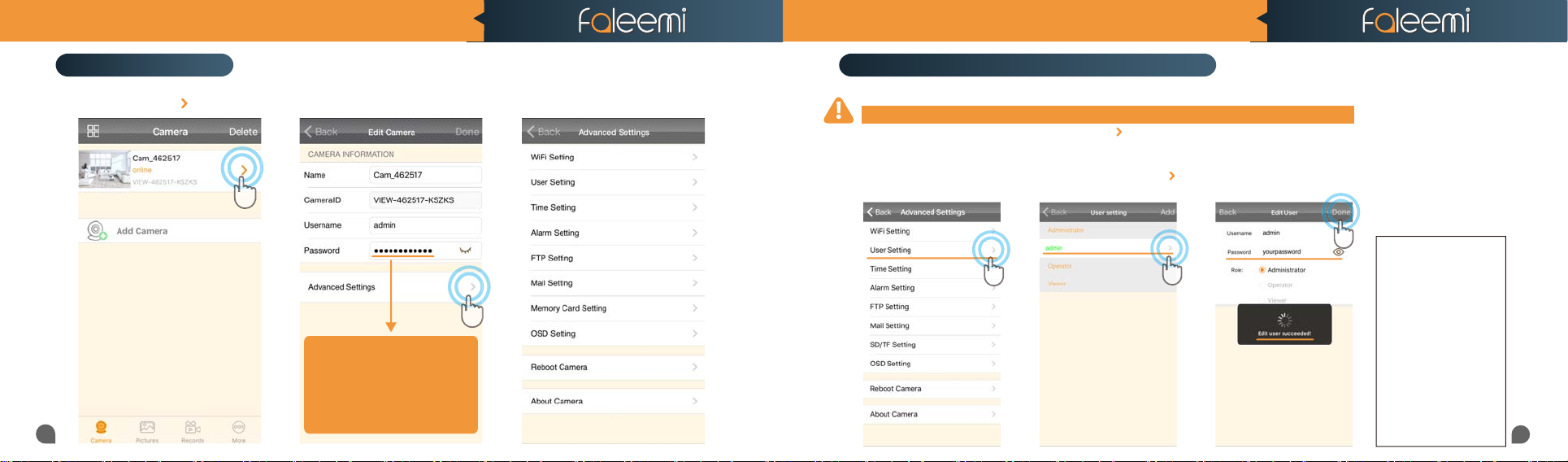
Tips:
If you change your password,
please remember to update
the new password to your
other phone and click on
"Done"
FSC760/FSC860 QUICK START GUIDEFSC760/FSC860 QUICK START GUIDE
Advanced Settings
11
Please follow below steps to go to Advanced Settings to do more settings.
2. Click on [Advanced Settings]. 3. Do advanced settings here.1. Click on the icon [ ].
Tips:
If you change your password,
please remember to update
the new password to your
other phone and click on
"Done"
Trouble Shooting Frequently Asked Questions
1. How do I change my camera password?
To ensure the security of your camera, you are suggested to change the default password.
Please follow below steps to do it. Click on the icon [ ] at the right of the camera and select [Advanced Settings] and next [User Setting].
Enter your new password and click on [Done] on the top right. Note that once the password is changed here, it will take effect immediately.
1. Click on the [User Setting].
2. Select [admin], Click on [ ].
3. Enter your new password,
Click on [Done].
Record your
new password here:
12
Page 8
Home
Office
Store
Pets
Office
FSC760/FSC860 QUICK START GUIDEFSC760/FSC860 QUICK START GUIDE
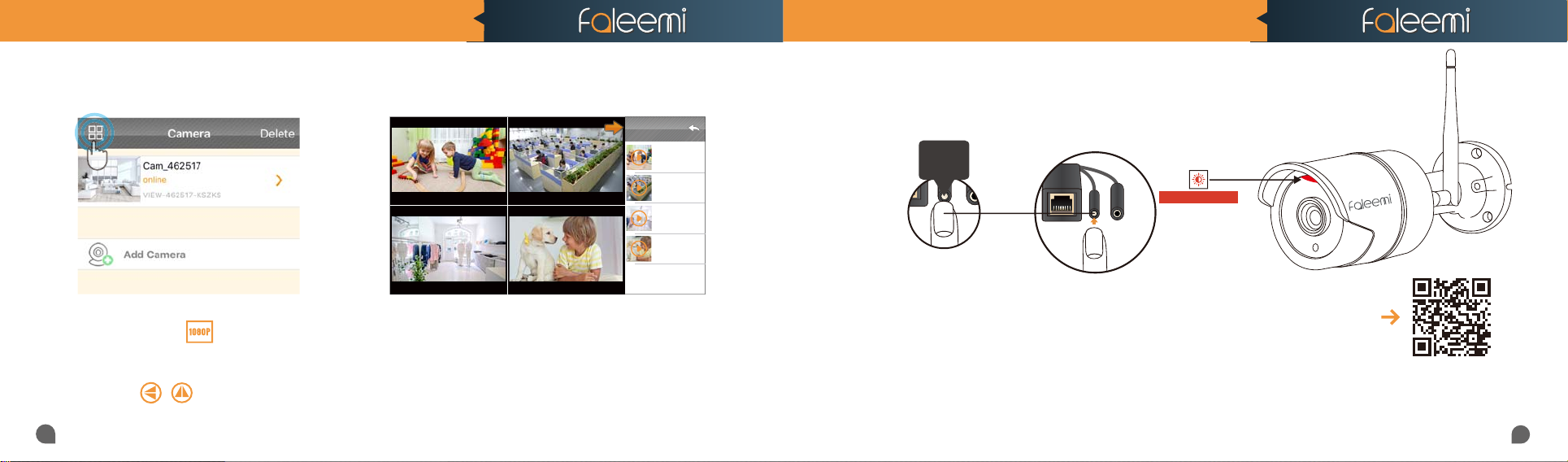
2.If you have several cameras, please set them up one by one according to the instruction from page 3.
After all of them are set up, please follow below steps to use multi-view function.
Home
Home Office
Store
Store Pets
Office
Pets
Four Cameras
3. How do I change my video stream resolution?
Click on the icon to change the resolution.
4. I mounted my camera upside down, how do I flip my camera’s
video stream?
Click on to flip and mirror your camera.
13
Home
online
Playing
VIEW-462517-FHO..
Office
online
Playing
VIEW-462517-OFF..
Store
online
Playing
VIEW-462517-STO..
Pets
online
Playing
VIEW-462517-FPE..
5. How to reset your camera (restore to factory default)?
Push down the “Reset” button for around 10-15 seconds until the red light changes from blinking
slowly to very quickly and then let the Reset button go.The camera will reboot automatially.
WPS/Reset
Button
10S+
Blinking Quickly
6. How to set email alert?
Please visit
http://support.faleemi.com/FSC860/Email_alert.pdf , If there is no
the guide for your email server, please email us [email protected].
Scan the
QR Code
to view
7. How to link your camera to your PC/Mac by Faleemi Plus
Windows: Please visit https://youtu.be/sEuauwrchbs
Mac: Please visit https://youtu.be/pljGg0l86N8
14
 Loading...