

Page 1

Faleemi Technologies Ltd
Quick Start Guide
Wire-Free Battery-Powered
1080P Indoor & Outdoor Home Security Camera
BS01/BC01
www.faleemi.com [email protected]
© Faleemi Technologies Ltd or its affiliates. All rights reserved.
No part of this publication may be reproduced or transmitted in any form or by any
means or used to make any derivative work (such as translation, transformation, or
adaptation) without written permission from Faleemi Technologies Ltd (“Faleemi”).
Faleemi reserves the right to revise this publication and to make changes in content
from time to time without obligation on the part of Faleemi to provide notification of
such revision or change.
Faleemi provides this guide without warranty of any kind, implied or expressed,
including, but not limited to, the implied warranties of merchantability and fitness for a
particular purpose. Faleemi may make improvements or changes in the product(s)
described in this manual at any time.
The capabilities, system requirements and/or compatibility with third-party products
described herein are subject to change without notice.
Version.03. 2019
www.facebook.com/faleemi
youtube.com/c/Faleemi
twitter.com/faleemi
Faleemi and the Faleemi logo are all trademarks or registered trademarks of Faleemi
Technologies Ltd. Other trademarks and trade names may be used in this document
to refer to either the entities claiming the marks and the names of their products.
Faleemi disclaims proprietary interest in the marks and names of others.
Apple®, Apple Store®, iPad®, iPhone®, MAC® (Text, Logo, Picture) are trademarks of Apple,
Inc.
Android®, Google Play® (Text, Logo, Picture) are trademarks of Google Inc.
Samsung® (Text, Logo, Picture) is a registered trademark of Samsung Electronics Co., Ltd.
Skype ® (Text, Logo, Picture) is a registered trademark of Microsoft Corporation
Facebook® (Text, Logo, Picture) is a registered trademark of Facebook, Inc.
Twitter® (Text, Logo, Picture) is a registered trademark of Twitter, Inc.
Micro SD® text and logo are the trademark of SD-3C, LLC.
Wi-Fi® is a registered trademark of the Wi-Fi Alliance.
All other products, names or companies are the brands or registered trademarks of their
respective owners.
We at Faleemi are committed to do our part in protecting our environment. In this
continuing effect, we have supplied the detailed manuals, documentation, software,
troubleshooting and video guides on our website.
www.faleemi.com/support
Page 2

Contents
Dear Customer,
Thank you for choosing Faleemi among all the brands. We hope our products will protect your home and give
you peace of mind.
At Faleemi, we tly care about our customers’ Purchase Exerience and User Exerience, so “Customer
satisfaction garanteed is our goal”. We are 100% dedicated to your complete satisfaction.
If your exerience has been something less than amazing, or need additional inforation, please drop us an
email at
inforation. Please do remember that we are always more than happy to ensure you’re a HAPPY Customer.
As a gowing company, we are improving all aspects of our serice and products. If you got any suggestion or
comment, welcome to let us know. We will continue to improve and provide our customers with qualit products
and serice.
Yours sincerely,
Team Faleemi
www.faleemi.com
youtube.com/c/Faleemi
facebook.com/faleemi
Product information
Download APP and Getting started
Get Base Station connected to your WiFi network
Sync Battery Camera to Base Station
Live Video Interface
Mount the Base Station on the wall
How to connect the camera to the second Phone?
Advanced Settings
How to do the settings for receiving message alert on your phone?
How to record alarm video to the memory card?
How to view the recorded video on memory card?
Trouble Shooting Frequently Asked Questions
1. How do I change my camera password?
2. How to reset your camera (restore to factory default)?
3. How do I flip my camera’s video stream?
4. How do I change the WiFi SSID on my router?
................................................................................................................................................
.......................................................................................................................
........................................................................................
...............................................................................................................
..................................................................................................................................................
.......................................................................................................................
........................................................................................
...................................................................................................................................................
.................................................................
..........................................................................................
..............................................................................................
....................................................................................................
................................................................................................
.....................................................................
......................................................................................................
.............................................................................................
1
5
7
10
12
13
15
17
18
19
20
21
22
23
23
23
Page 3
1080P Indoor & Outdoor Home Security Camera
Model: BS01/BC01
Quick Start Guide
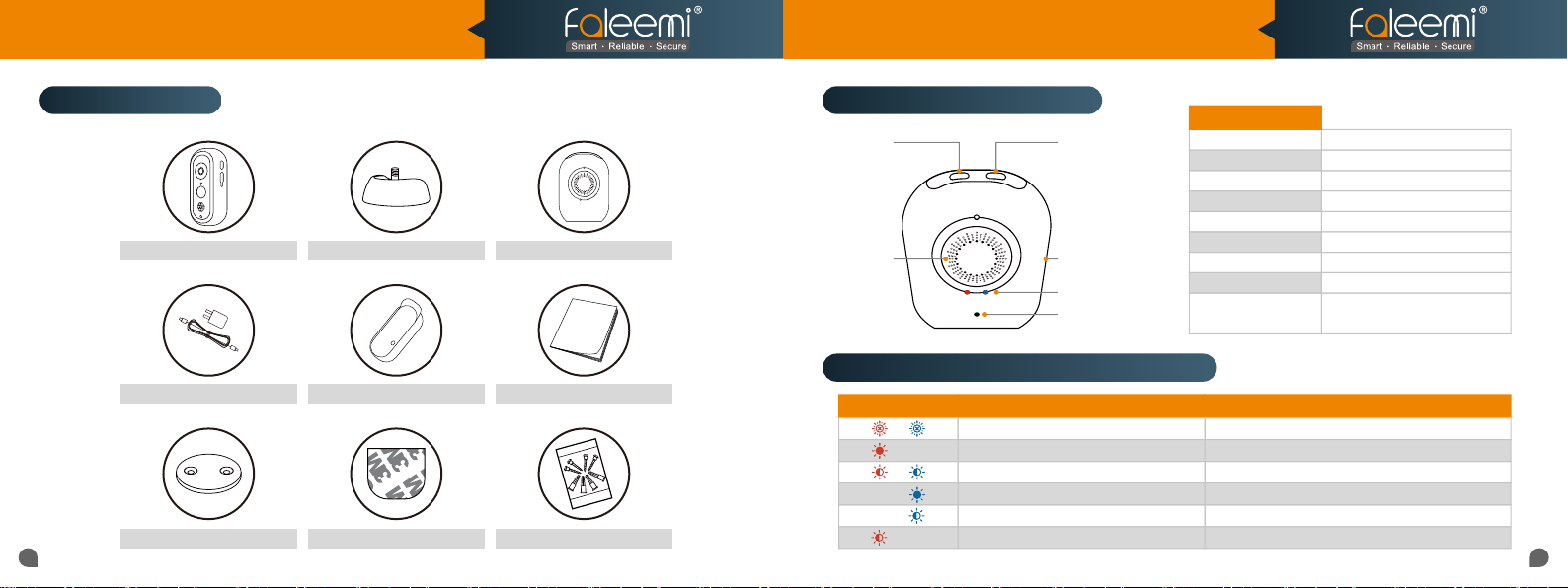
What’s in the box? Product Diagram (Base Station)
WiFi Pair ButtonSync
Memory Card Slot
Status LED
Microphone
Battery Camera
Button
Base StationBase Bracket
Speaker
LED Indicator & Working Status (Base Station)
Power Adapter
Magnetic Wall Mount Wall Mounting Tape
Weatherproof Cover
Quick Start Guide
Mounting Screws and Plugs
Indicator Light Status Base Station Status
Off
Red light is solid and steady
Red and blue lights are blinking together
Blue light is solid on
Blue light is blinking
Red light is blinking
Base Station
Speaker
Microphone
Micro Memory Card
Internet Connection
Expand Capability
Power
Dimensions
Weight
Working Environment
Power Off
No Internet connection
The device is ready to connect to WiFi network
The device is connected to the WiFi network
The device is ready to pair with cameras.
The device is reset to restore to factory default
Built-in 1W 8Ω
Built-in
Up to 128GB
2.4 GHz WiFi Connections
Expand to up to 4 cameras
5V/2A
60*31.5*81.9mm
54g
-10°C to 50°C/14°F to 122°F,
RH≤95%
0201
Page 4
1080P Indoor & Outdoor Home Security Camera
Model: BS01/BC01
Quick Start Guide
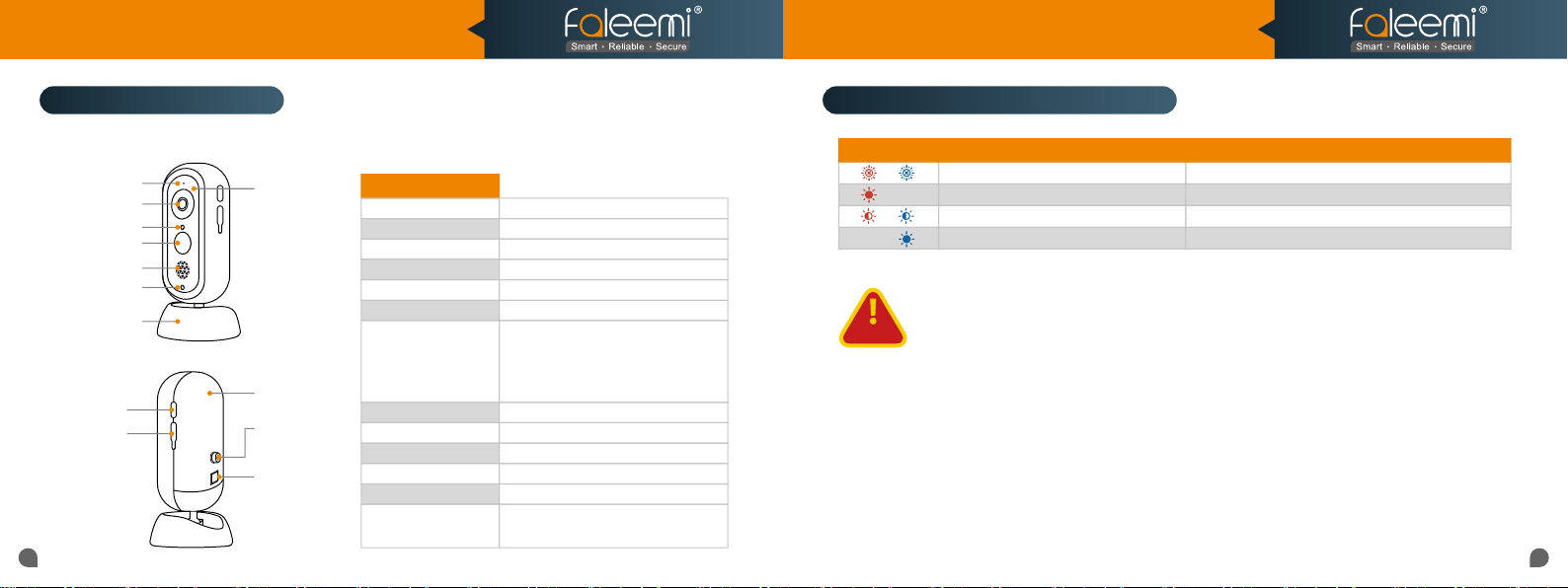
Product Diagram (Camera)
Microphone
Lens
Light Sensor
PIR Sensor
Speaker
Status LED
Base Bracket
Sync Button
Micro USB
Port
Night Vision
LED
Battery
Compartment
Screw Port for
Bracket
Button to
Open the
Battery
Compartment
Camera
Lens
Sensor
Resolution
Microphone
Speaker
PIR Detection
Battery life
Weig ht
Power
Internet
Weather Proof
Dimensions
Working Environment
105° wide angle, f=2.0
1/2.7 inch
1080P (1920*1080) Full HD Resolution
Built-in
Built-in 1W 8Ω
Detection angle 110°
Two Samsung 18650 Lithium
rechargeable batteries, Battery life will
vary based on device settings, usage,
and environmental factors.
193g
5V/2A or Two 18650 Lithium batteries
2.4G Wi-Fi
IP65
61.8*61.8*130.2mm
-10°C to 50°C/14°F to 122°F,
RH≤95%
LED Indicator & Working Status (Camera)
Indicator Light Status Battery Camera Status
Off
Red light is solid and steady
Red and blue lights are blinking together
Blue light is solid on
CAUTION
● Please pay attention to the power supply specifications if you want to use other adapter to charge the camera.
● Only the camera is weatherproof, should you install it outside. But the base station and power supply are indoor models,
not weatherproof, please put them indoor.
● Please pay attention to the working temperature range.
● Do not use in environments with strong electromagnetic interference or near corrosive substances.
● The warranty does not cover defects and damages caused by misuse, unauthorized dismantling, or natural hazards.
● The 18650 battery life varies according to the frequency of the triggers and the video resolution settings.
● The PIR motion sensor can only detect motions within a certain range and will not be activated by motions out of the
range
Sleep mode/Power off
The camera is connected to the base station or charging
The camera is pairing to the base station
The camera is fully charged
0403
Page 5
1080P Indoor & Outdoor Home Security Camera
Tips:
In order to extend the working time of the battery, please
turn off the motion sensor when using it outdoors.
Note:
The blue light on the Base Station will be solid and steady
when it is connected to the internet.
Plug in
Model: BS01/BC01
Quick Start Guide
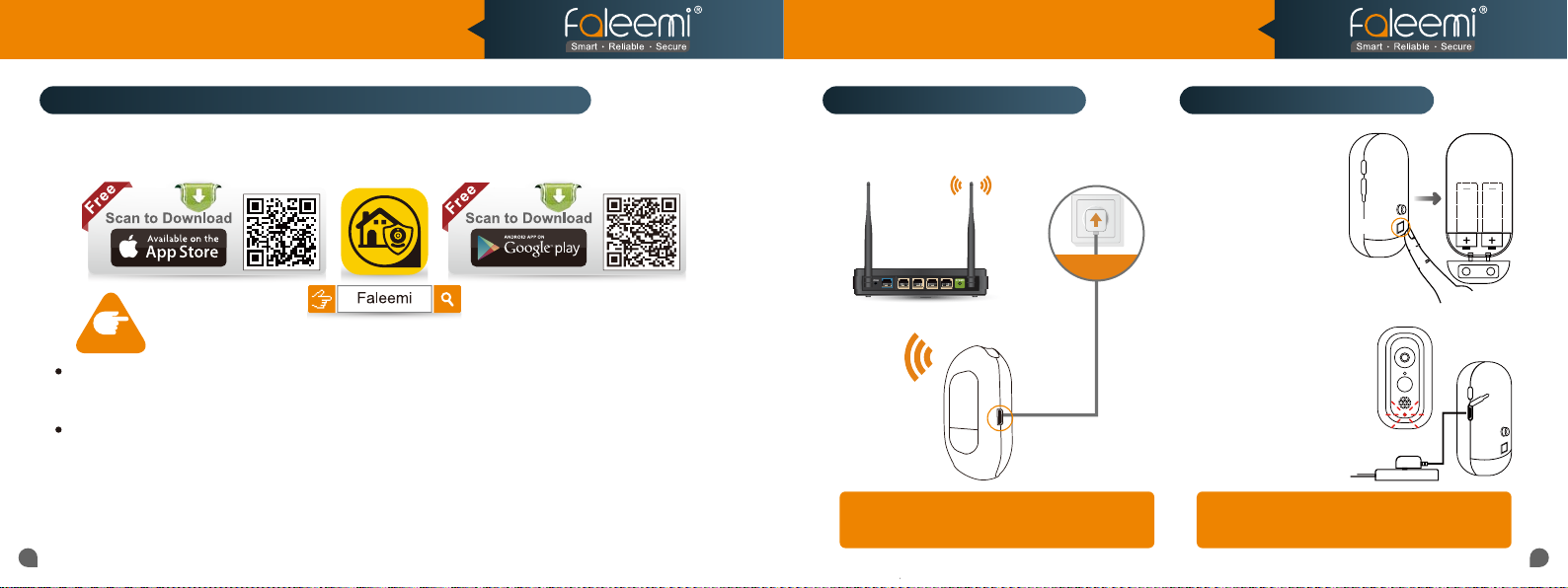
Download the Faleemi APP (Android / iOS) before doing the setup
Connect your mobile device to your WiFi and download the App “Faleemi” from the App Store or
Google Play store, or scan below QR code to download it.
NOTE
Please make sure the camera and base station are in the same room as your WiFi router, You can relocate the
camera and base station to where you want after they are all set up. You just unplug them and move them to
the new location, and the base station will reconnect to your WiFi automatically after it is plugged in again.
Please
2.4GHz WiFi name (SSID) must be different from your 5.0GHz one.
Please make sure your WiFi name and password do not have the special characters " ' "(apostrophe).
If you are not sure, please go to your router settings to find this out.
Note: THIS WILL NOT AFFECT THE 5GHz WIFI USE OF YOUR OTHER WIRELESS DEVICES : )
Before configuring your camera, please read the points below.
make sure your phone is connected to your
2.4GHz WiFi (not cellular data and 5GHz WiFi)
Now, please follow below instructions to get your camera set up.
. Your
Get Base Station powered up
1. Put the Base Station close to your WiFi router
and plug it in with the included power supply.
Note:
The blue light on the Base Station will be solid and steady
when it is connected to the internet.
Get the Camera powered up
1. Please take off the
insulation film to
power the camera
up
PRESS
Note:
When it says “low battery”,
you can recharge the batteries
with the included power
supply for Base Station,
or a universal 5V 2A phone
charger.
Tips:
In order to extend the working time of the battery, please
turn off the motion sensor when using it outdoors.
0605
Page 6
1080P Indoor & Outdoor Home Security Camera
If you s ee this, please click on
Model: BS01/BC01
Quick Start Guide
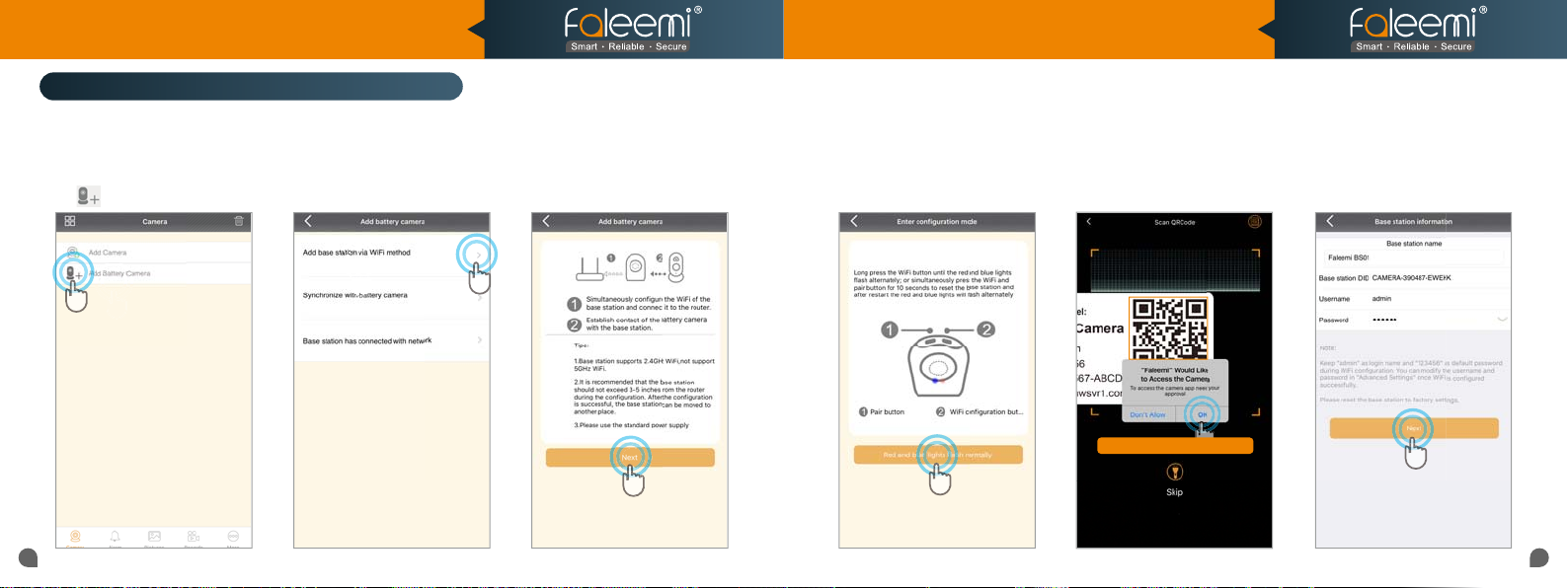
Get Base Station connected to your WiFi network
Please make sure your cell phone is connected to your 2.4GHz WiFi.(It is a 2.4GHz WiFi based product).
If you are using a dual band router, please use different WiFi SSIDs for 2.4GHz WiFi and 5.0GHz WiFi.
1. Launch Faleemi App, Click
on [Add Battery Camera].
2. Click on [Add Base Station
via WiFi method].
3. Click on [Next].
4. Please hold down [WiFi
Pair Button] until you hear
[Please Sync the base
station to the router], and
then click on [Red and Blue
lights ash normally].
5. Scan the QR Code at the
back of the Base Station.
QR Code
If you see this, please click on
[OK]
6. Name Base Station, and then
click on [Next].
0807
Page 7
1080P Indoor & Outdoor Home Security Camera
Model: BS01/BC01
Quick Start Guide
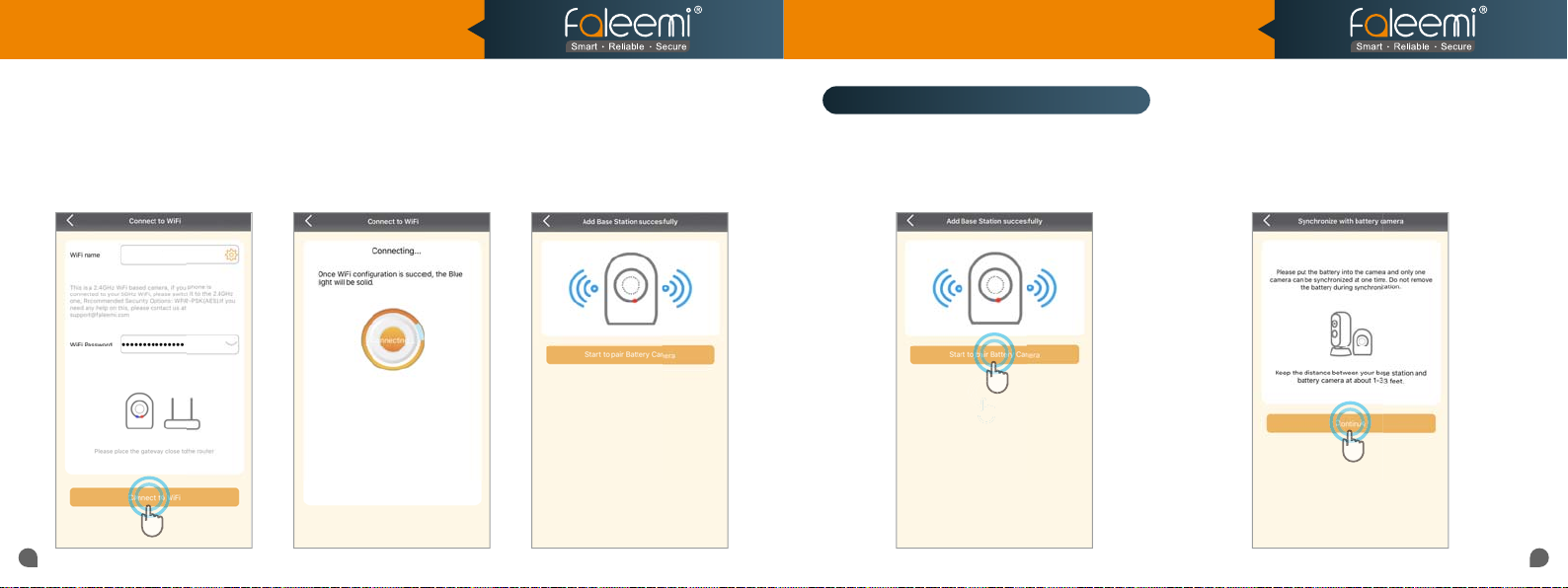
Sync Battery Camera to Base Station
7. Your home WiFi will be
located, please input your
WiFi password correctly. Click
on [Connect to WiFi].
Faleemi 2.4G
8. Base Station will try to
connect to your 2.4G WiFi, and
you will hear [Received WiFi
information].
9. Once the Base Station is
connected, you will hear
[Succeed to Connect Router].
1. Click On [Start to pair Battery Camera].
2. Please make sure the camera is powered up
properly and click on [Continue].
1009
Page 8
1080P Indoor & Outdoor Home Security Camera
Model: BS01/BC01
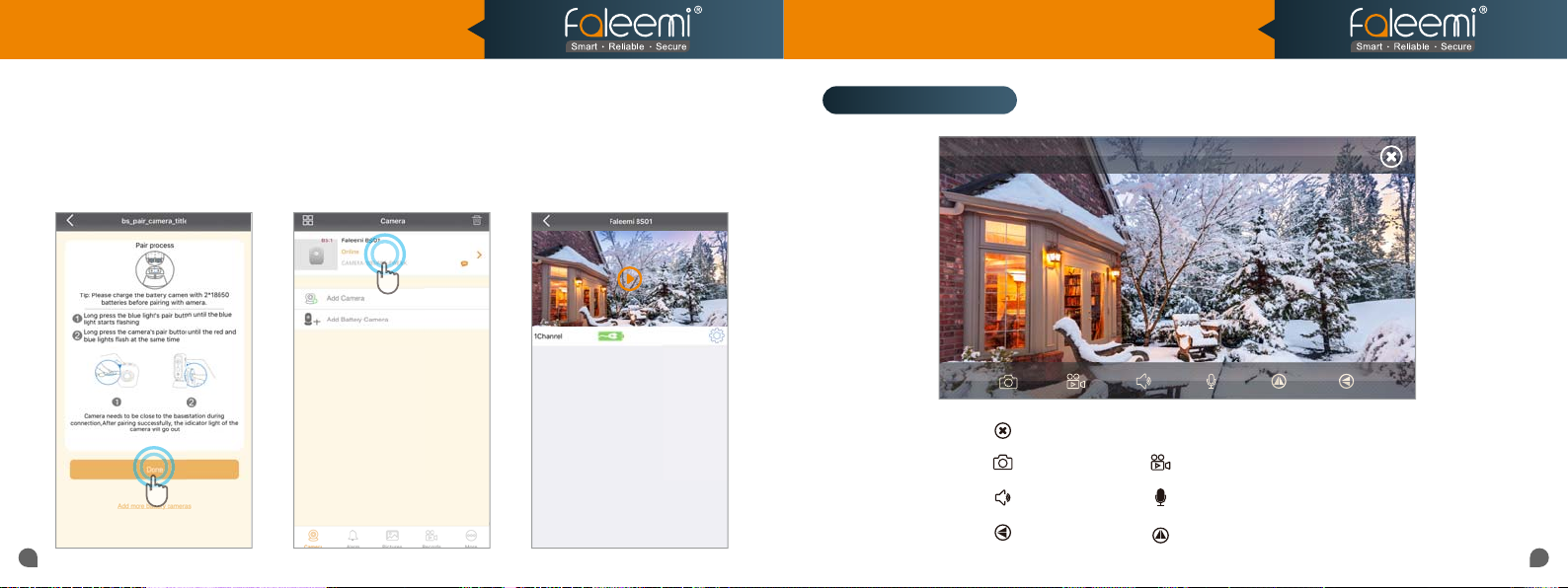
3. Hold down [Sync Button] on base station until you see the blue light is flashing and you will hear
“Entering Sync Mode”. And then hold down [Sync Button] on camera until the red and blue lights are
blinking together, and click on [Finish].
When you hear “Sync Succeed”, you will see it says [Online] on Faleemi App.
Live Video Interface
1Channel
Quick Start Guide
Exit
Snapshot to phone
Audio On/Off Microphone On/Off
Flip Mirror
Record video to phone
1211
Page 9
1080P Indoor & Outdoor Home Security Camera
Model: BS01/BC01
Quick Start Guide
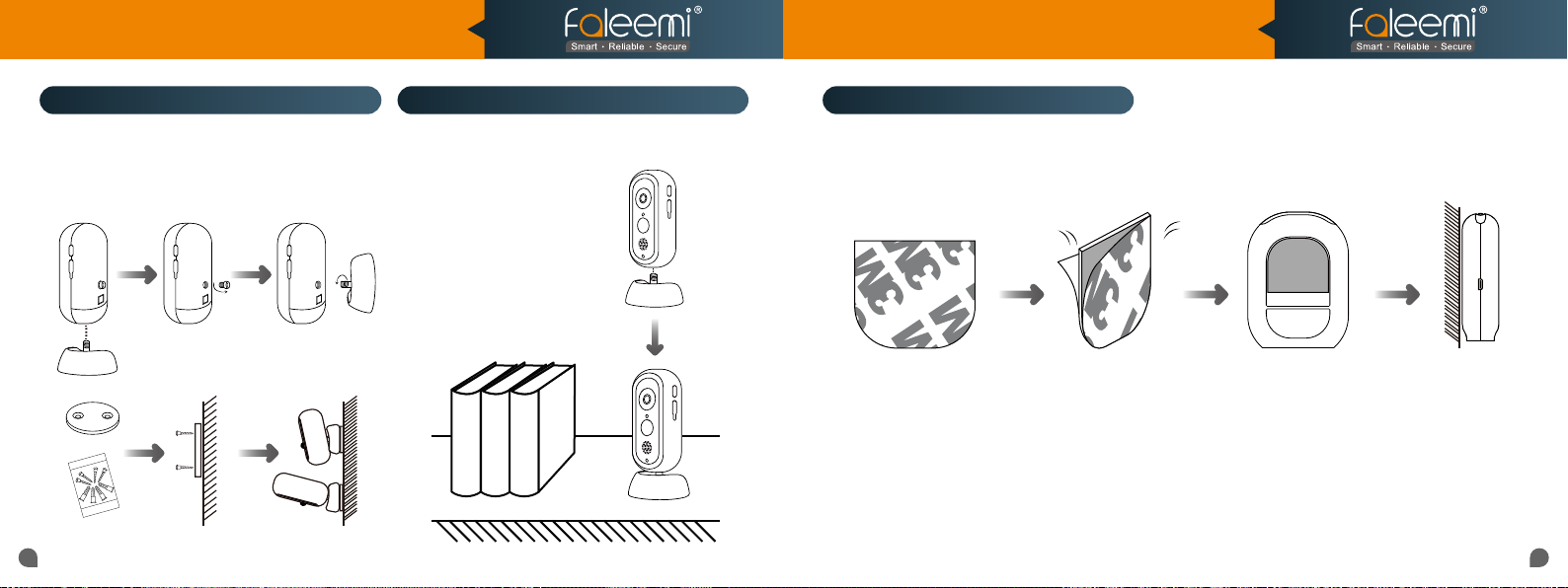
Mount the battery camera on the wall
Fasten the mounting screws onto the wall and
attach the magnetic mount.
When you are mounting the camera to drywall,
be sure to use the plastic plugs.
Mount the Base Station on the wallMount the camera on a desktop or shelf
1413
Page 10
1080P Indoor & Outdoor Home Security Camera
Tips:
Default
, but if you changed
the password on your first phone, please
enter your new password here.
Camera DID
Model: BS01/BC01
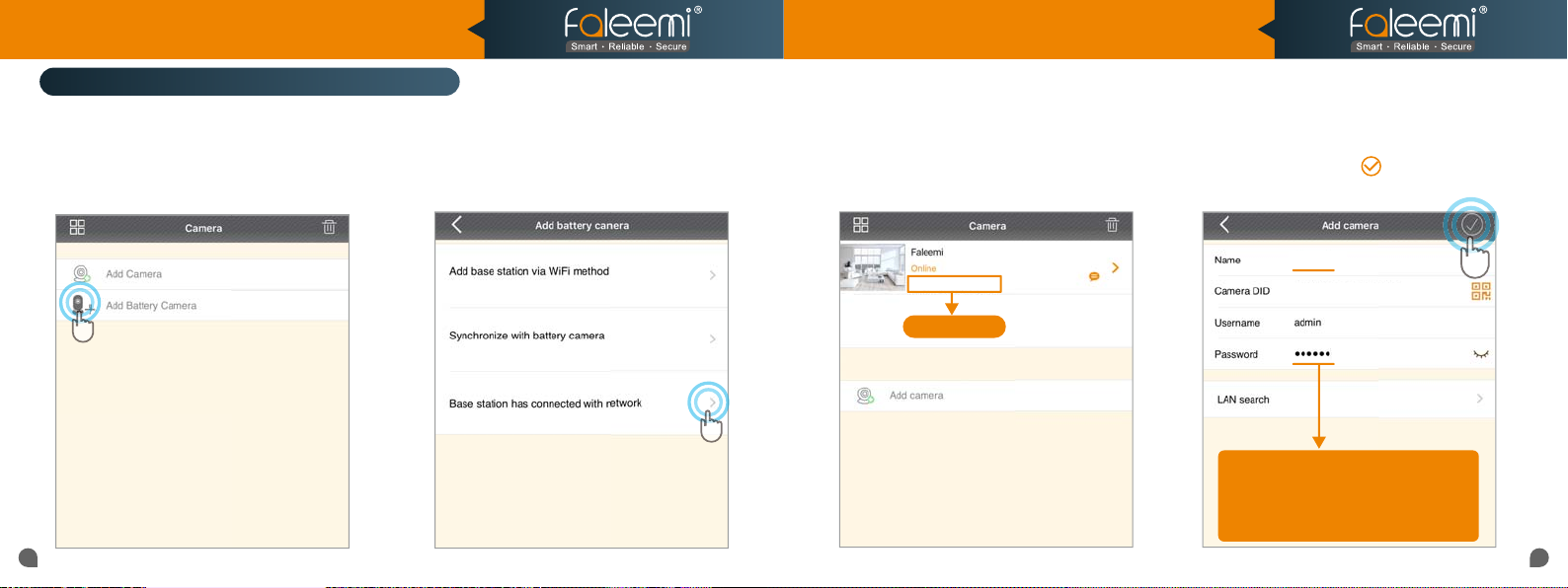
How to connect the camera to the second Phone?
After you use one phone to get your camera connected, if you would like to add your camera to the
second phone.
1.Download the Faleemi App to your second phone.
2. Open the Faleemi App, Click on [Add Battery
Camera].
3. Click on [Base station has connected
with network].
Quick Start Guide
4. Please find your camera DID (something
like CAMERA-1234567-ABCDE) in your first
phone or in the label on the camera.
CAMERA-123456-ABCD
Camera DID
5. Give your camera a name, and input Camera
DID, Password, click on [ ].
It will take you to the home page.
Faleemi
VIEW-1234567-ABCDE
Tips:
Default
(123456), but if you changed
the password on your first phone, please
enter your new password here.
1615
Page 11
1080P Indoor & Outdoor Home Security Camera
Tips:
If you change you r password, please
remember to updat e the new password
to your other pho ne and click on " "
Model: BS01/BC01
Quick Start Guide
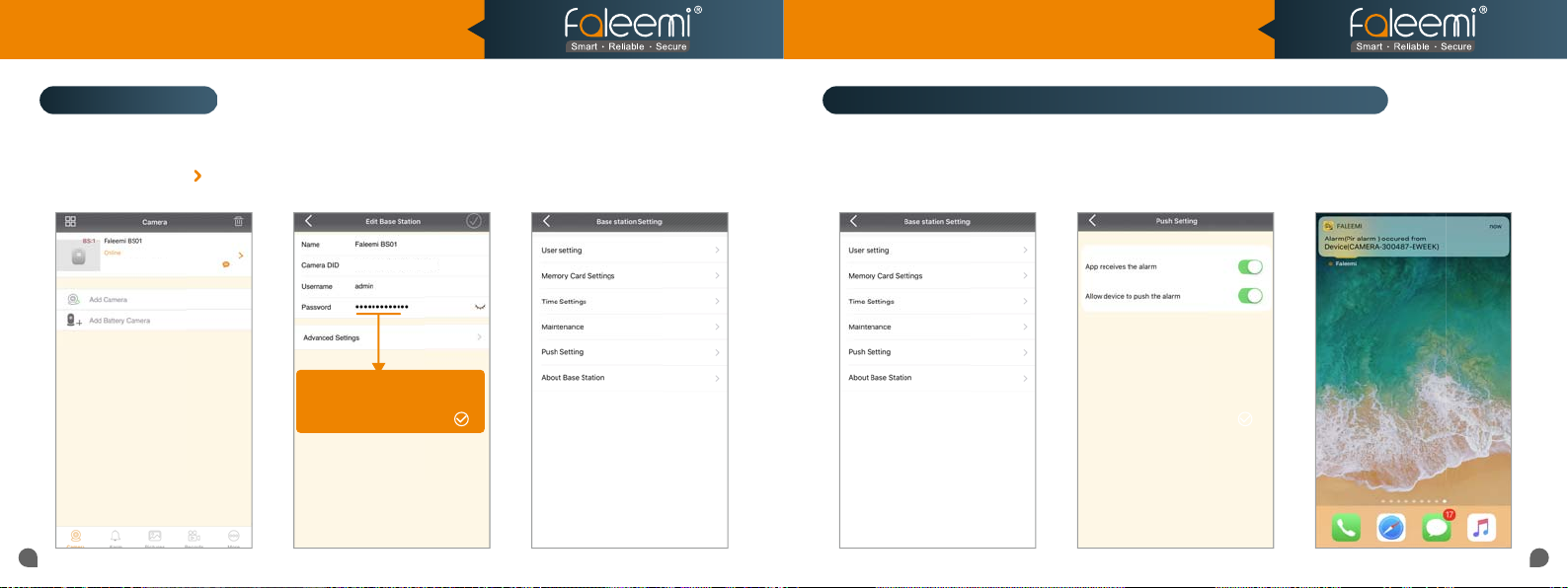
Advanced Settings
Please follow below steps to go to Advanced Settings to do more settings.
2. Click on [Advanced Settings]. 3. Do [Advanced Settings] here.1. Click on the icon [ ].
CAMERA-123456-ABCDE
CAMERA-123456-ABCDE
Tips:
If you change your password, please
remember to update the new password
to your other phone and click on " "
How to do the settings for receiving message alert on your phone?
1. In Advanced Settings, click
on [Push Setting].
2. Turn on the buttons. 3. You will receive text messages
when there’s motion.
1817
Page 12
1080P Indoor & Outdoor Home Security Camera
reme
mberrto
to
upda
up
u
te t
he n
ew p
assw
ord
"
our
one
and
clic
k on
"
Tips: Max 30 Seconds
cl
onkk
Model: BS01/BC01
Quick Start Guide
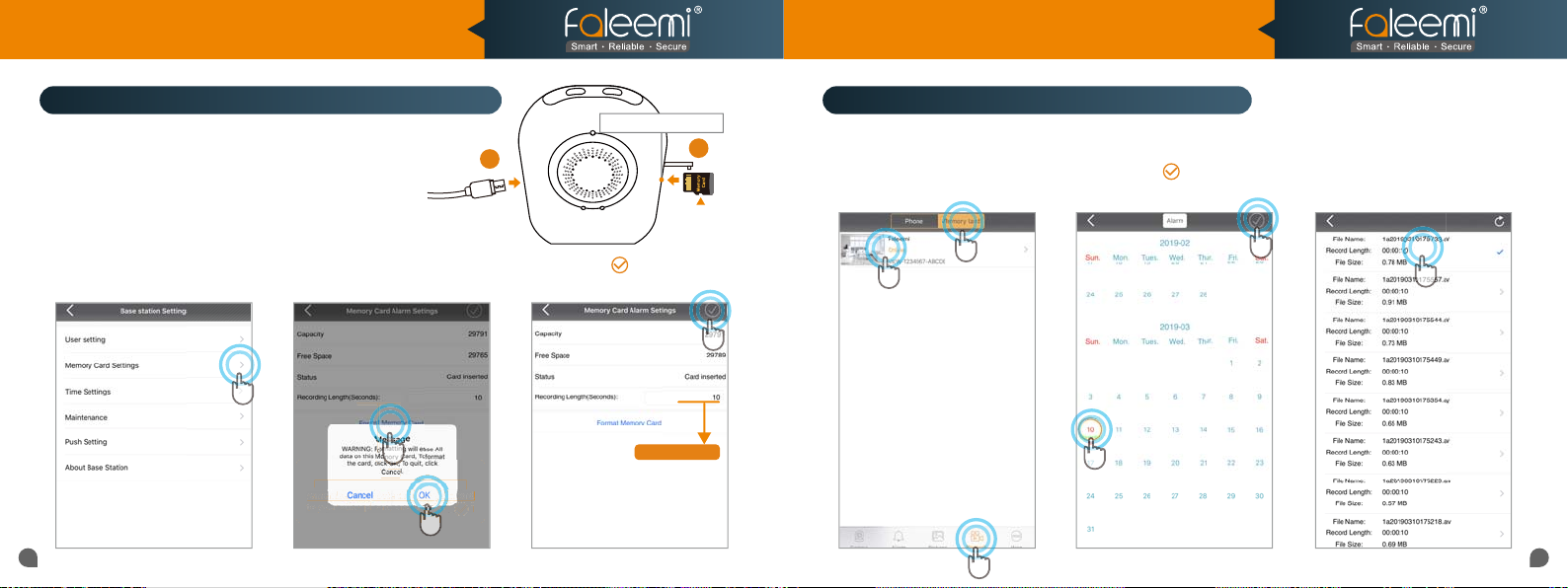
How to record alarm video to the memory card?
* Please put the memory card in the Base Station before you power it up.
Please insert the Micro SD card as what shows at right
Suggest using Micro SDHC/SDXC
(* MicroSD, MicroSDHC text and logo are the trademark of SD-3C, LLC)
1. In Advanced Settings, click
on [Memory Card Settings].
2. Click on [Format Memory Card
Settings], and click on [OK].
1
remember to update the new password
to your other phone and click on " "
How to view the recorded video on memory card?
Memory Card Slot
B
A
1. Click on [Records].
2. Click on [Memory Card].
4. Click on [Date].
5. Click on [ ].
6. Click on the file to
playback the recorded video.
3. Click on [Camera].
3. Click on [ ] .
Tips: Max 30 Seconds
2
3
4
5
6
2
1
2019
Page 13
1080P Indoor & Outdoor Home Security Camera
Model: BS01/BC01
Quick Start Guide
Troubleshooting Frequently Asked Questions
1. If your WiFi password was correct but still failed.
(a). Please make sure your phone is connected to your 2.4GHz WiFi (not 5GHz WiFi) before doing the
setup.
(b). Your 2.4GHz WiFi name (SSID) must be different from your 5.0GHz one.
(c). Please sure your WiFi name and password do not have the special characters " ' "(apostrophe).
If you are not sure, please go to your router settings to find this out.
If you don’t know how to go to your router settings, please visit our website
www.faleemi.com/blocks/router to find the instructions.
For more setting guides,
Please visit our website:
https://www.faleemi.com/faq
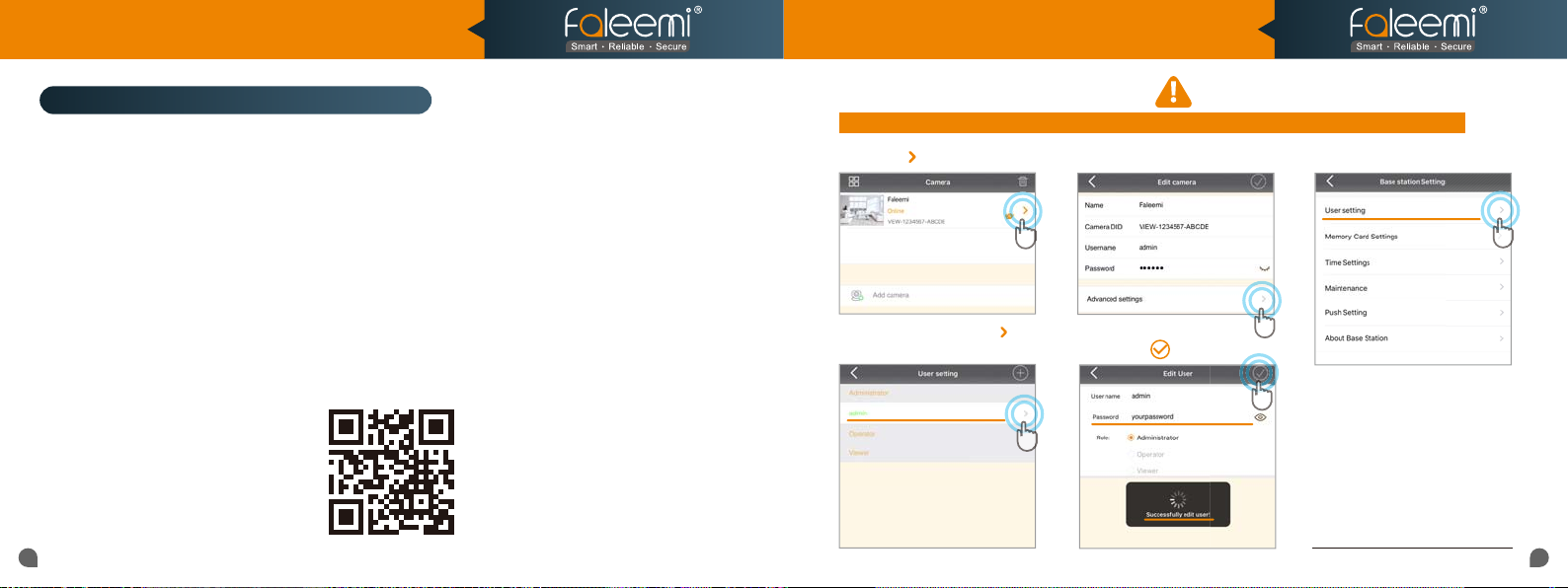
1. How do I change my camera password?
To ensure the security of your camera, you are suggested changing the default password.
1. Click on [ ].
4. Select [admin], Click on [ ].
2. Click on [Advanced Settings].
5. Enter your new password,
Click on [ ].
3. Click on [User Settings].
Record your new password here:
2221
Page 14
1080P Indoor & Outdoor Home Security Camera
Model: BS01/BC01
Quick Start Guide
WiFi Pair ButtonSync
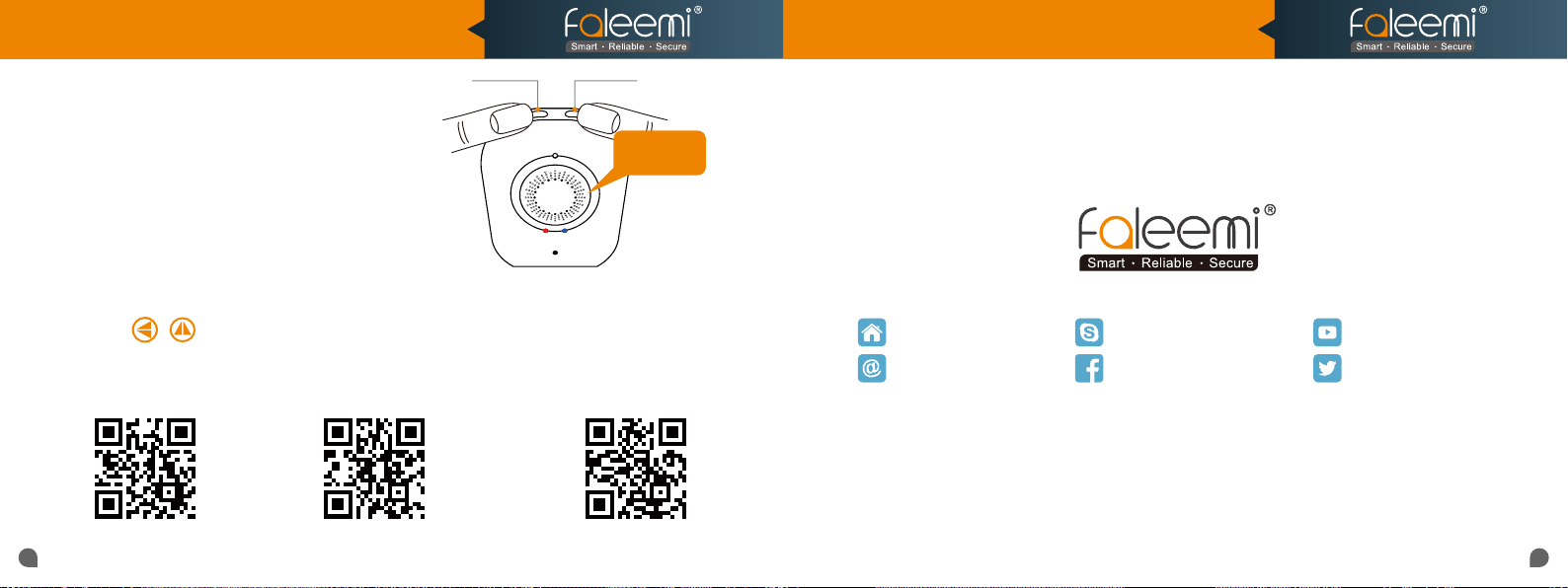
2. How to reset your base station
Button
(Restore to factory default)?
Reset
Press down [Sync Button] and [WiFi Pair
is successful
Button] together on Base Station until you
hear it says "Reset is successful". The base
station will reboot and you have to connect it
to your wifi and pair the camera again.
3. I mounted my camera upside down, how do I flip my camera’s video stream?
Click on to flip and mirror your camera.
4. How do I change the WiFi SSID on my router?
Windows 7
https://youtu.be/8gx60SEHSu4 https://youtu.be/V3pgXHvQ67U https://youtu.be/qzwRIwLnNPg
Windows 10
MAC
Faleemi Technologies Ltd
www.faleemi.com [email protected]
www.facebook.com/faleemi
youtube.com/c/Faleemi
twitter.com/faleemi
2423
 Loading...