

Page 1

Quick User Guide
Mobile Key install with EZSET App
Page 2
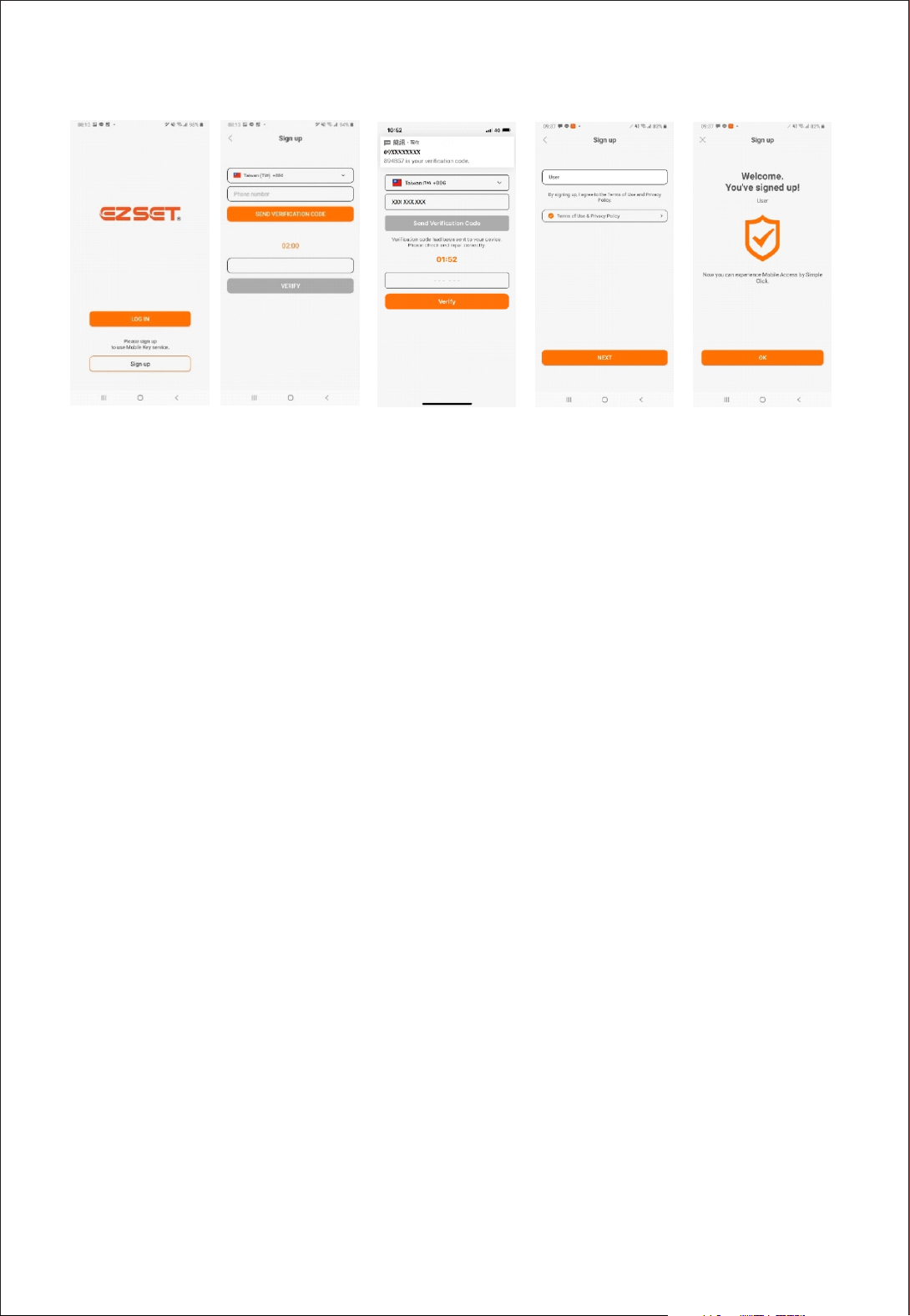
Step 1 : Sign up
Please sign up for using EZSET.
Verify your phone number and proceed registration step by step.
Page 3
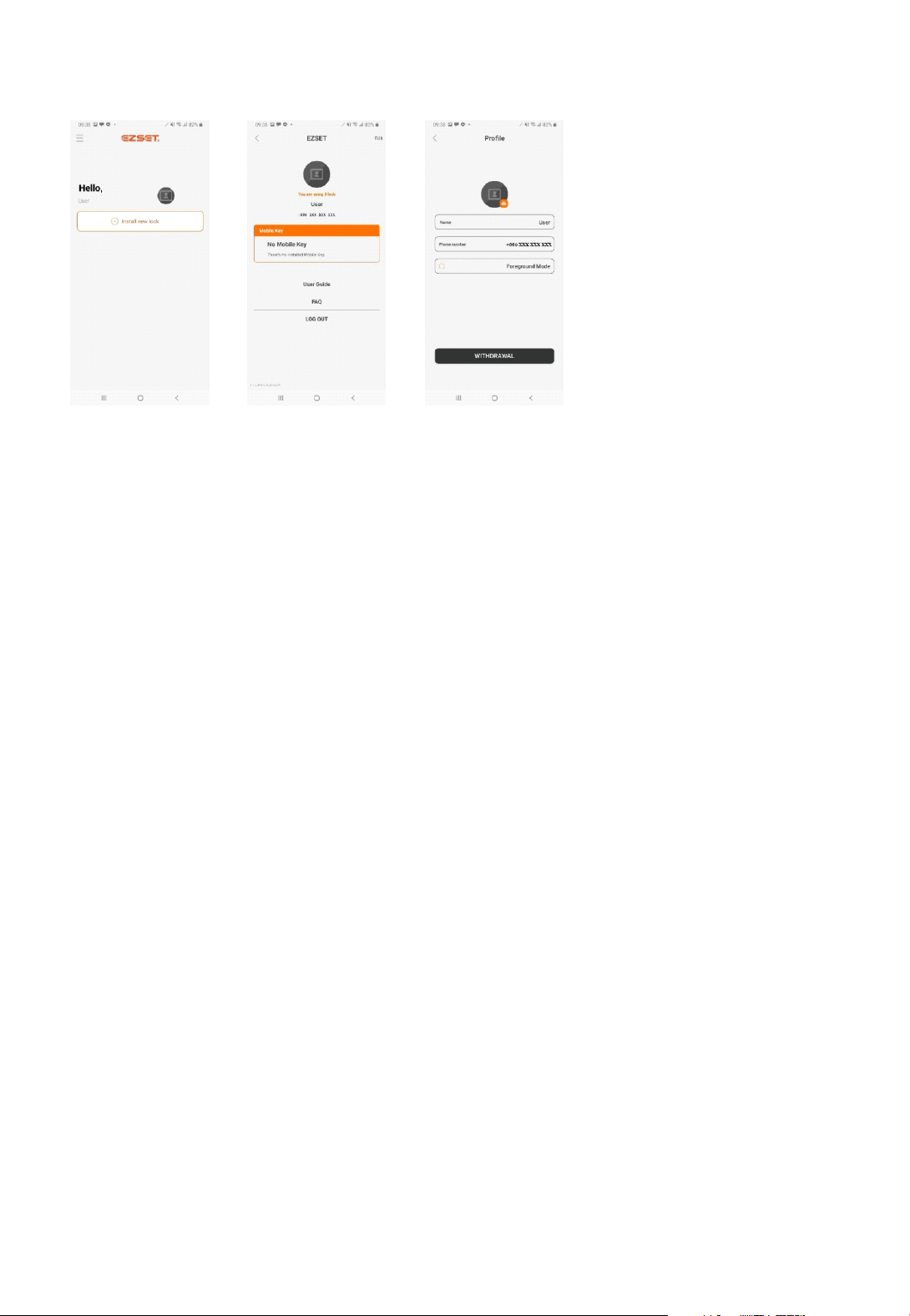
Step 2 : Profile
You can attach a photo when you register.
Press “Edit” to go to Profile menu.
To set a beautiful photo of you press camera icon.
You can choose it from gallery.
Page 4
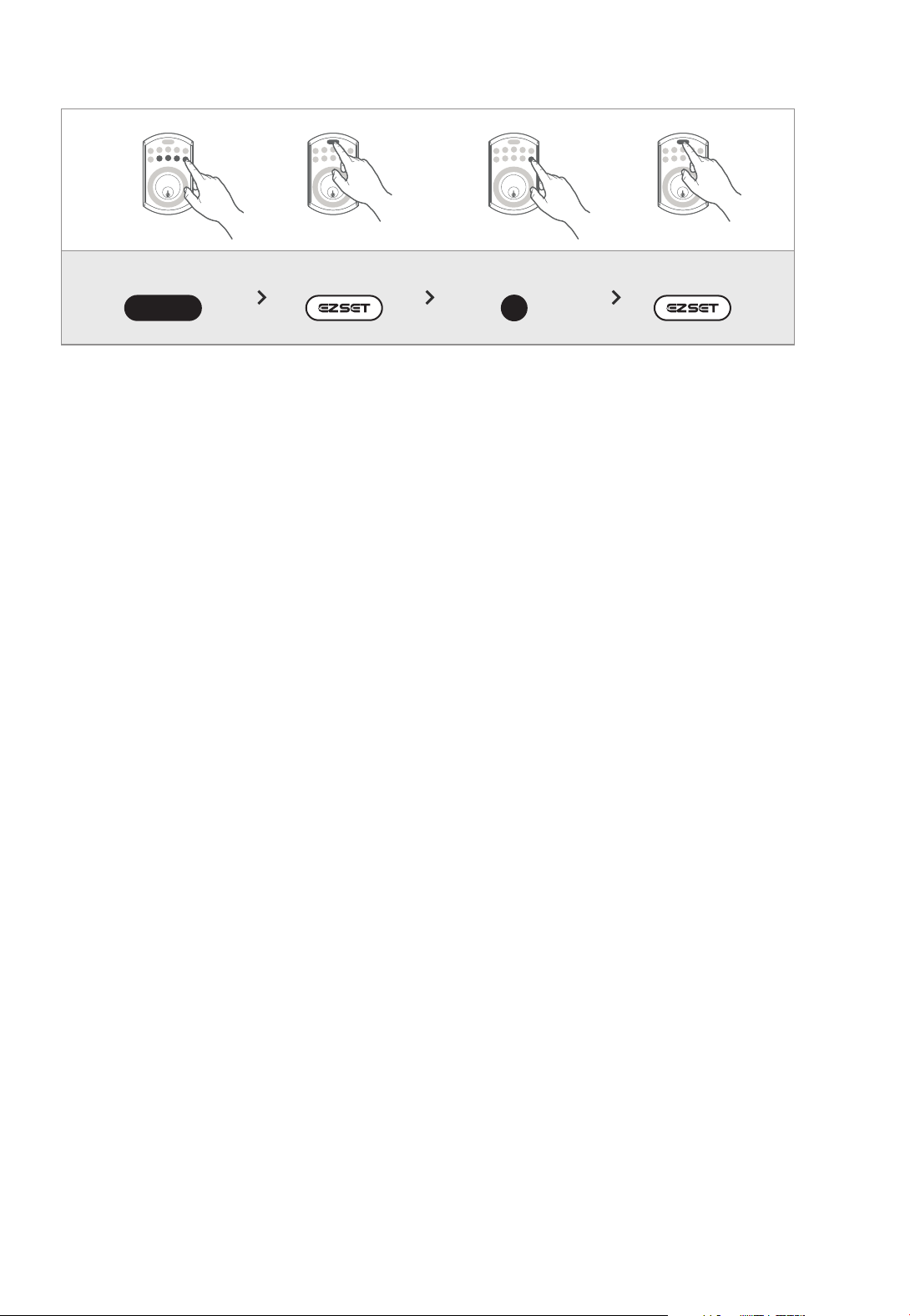
Step 3 : Door handle direction setup
Press Press Press Press
PC
After you mount the lock on door, you have to set direction for door lock
deadbolt to close. (Left-side door or Right-side door).
Please follow above to set door direction.
If you skip this part, door will not work properly.
0
Page 5
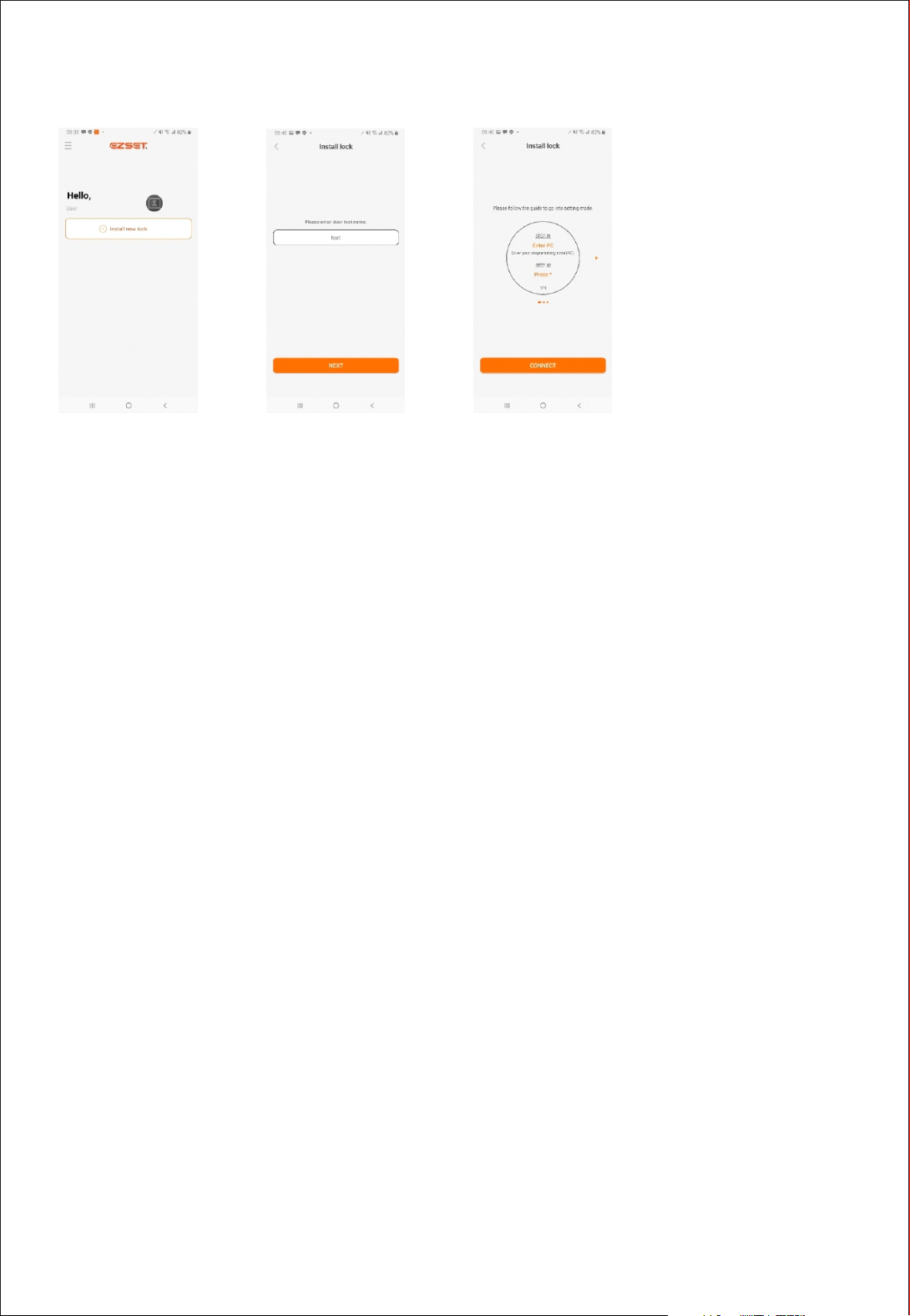
Step 4 : Installing Mobile Key
After log in, press “+ ” to install Mobile Key.
Input door lock name and click NEXT.
To install or change lock settings, activate door lock Setting mode .
Page 6
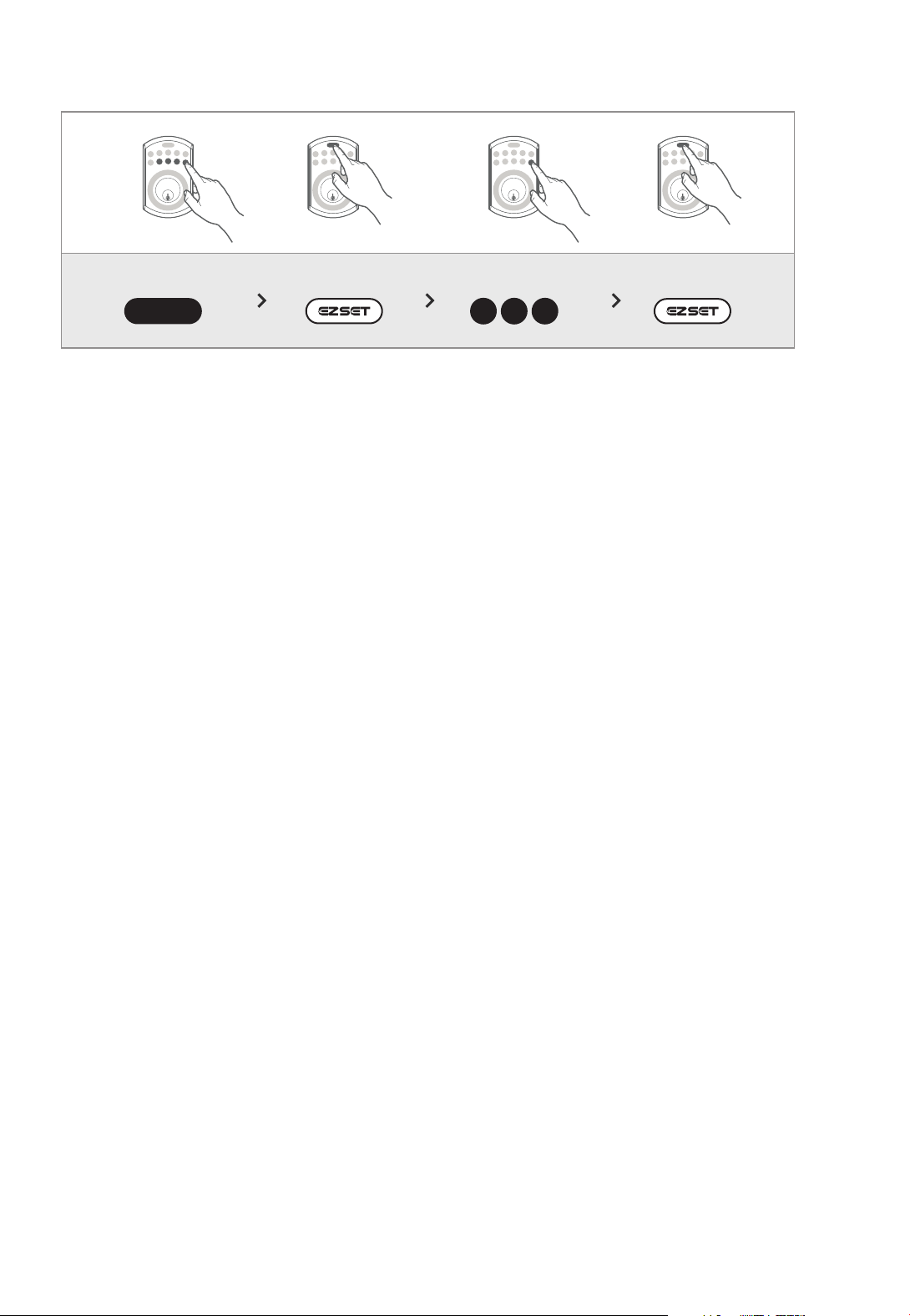
Step 5 : Activate Setting mode
Press Press Press Press
PC
0 00
Turn on smartphone Bluetooth
and Location (GPS).
To activate Setting mode, follow as described above.
After you activated Setting mode, door lock will be flashing with blue light.
If you couldn’t activate Setting mode, please repeat steps above.
For better connection, place your smartphone close to lock.
Page 7
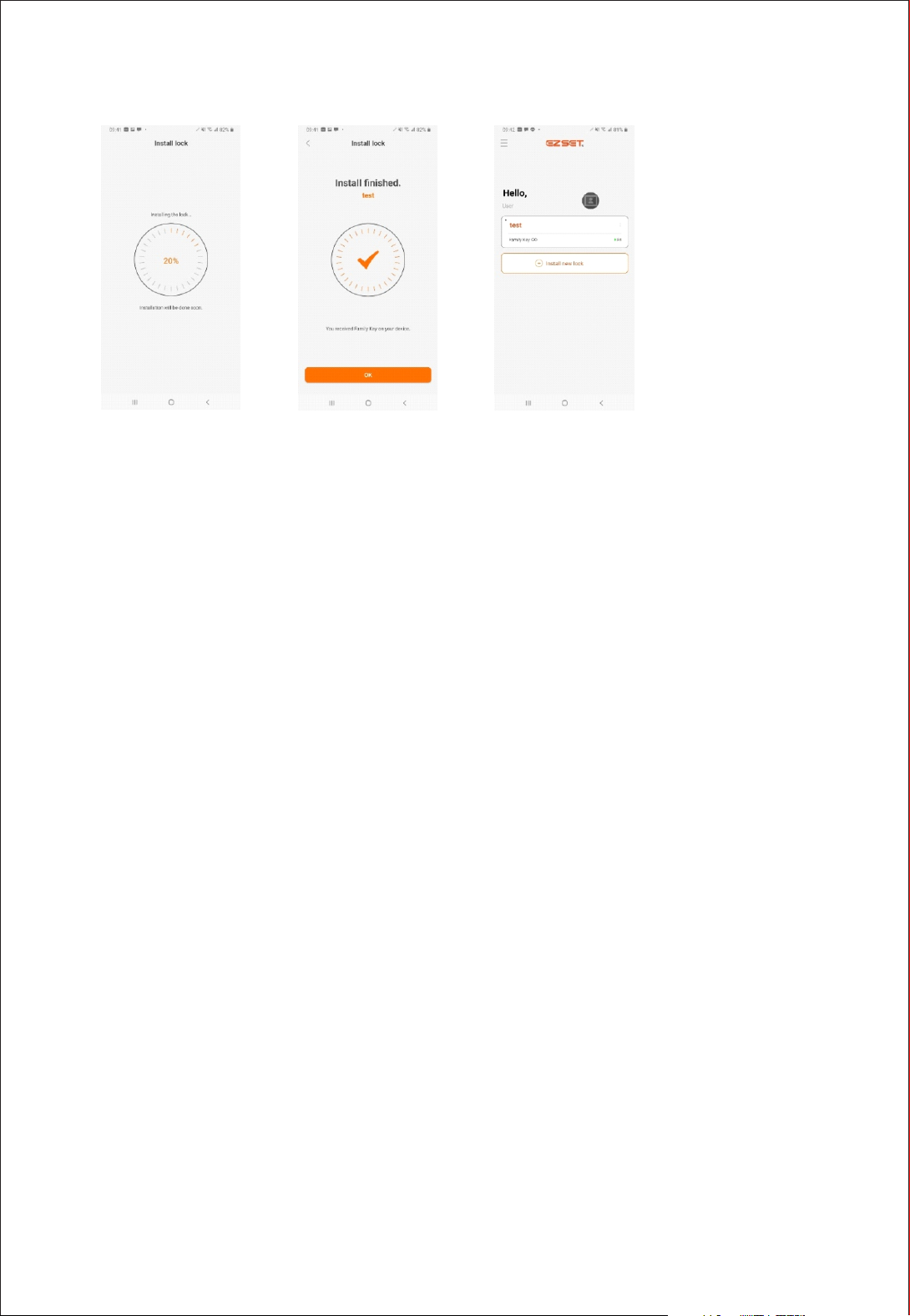
Step 6 : Installing Mobile Key
Mobile Key installation will be proceeded automatically after connection
between your smartphone and lock.
Check installed Mobile Key.
Page 8

Assigning keys to family & friends
Page 9
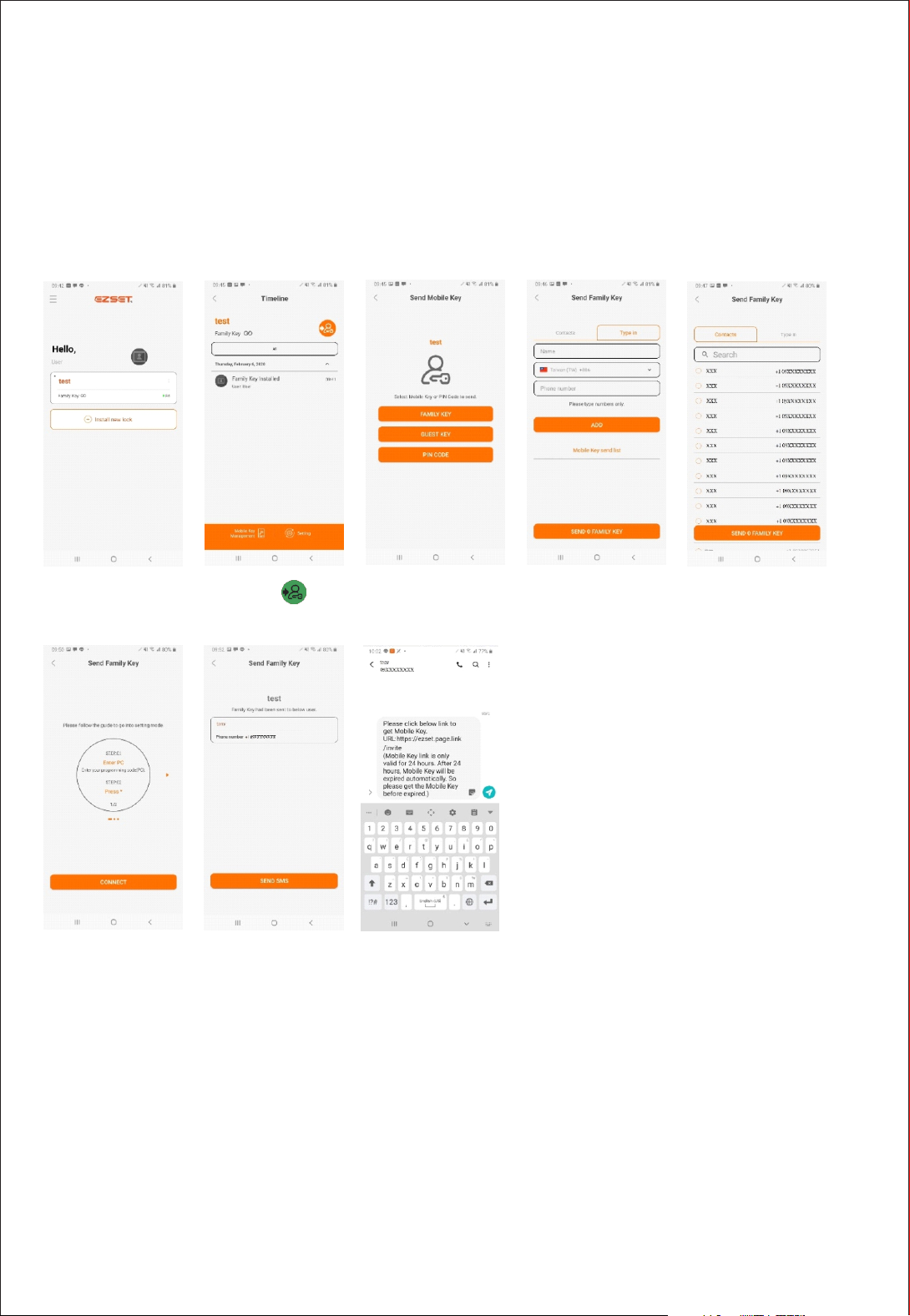
1. Sending Family Key
Family Key users have admin rights and can send Mobile Key to others and
change lock settings.
Up to 8 Family Keys can be enrolled per 1 lock set.
Select contact or input phone number to send Family Key.
Family Key Family Key buttonPRESS
Check guide manual
(activate Setting mode)
Send Message with link
to download Family Key
Select contact or input phone number
to add contact > Send Family Key
Those who got Mobile Key download link from Family Key user have to
download EZSET App first and then Sign up.
Link is valid for only 24 hours, please download it in time.
After registration, Family Key will be enrolled automatically.
Touch door lock to open the door.
Page 10
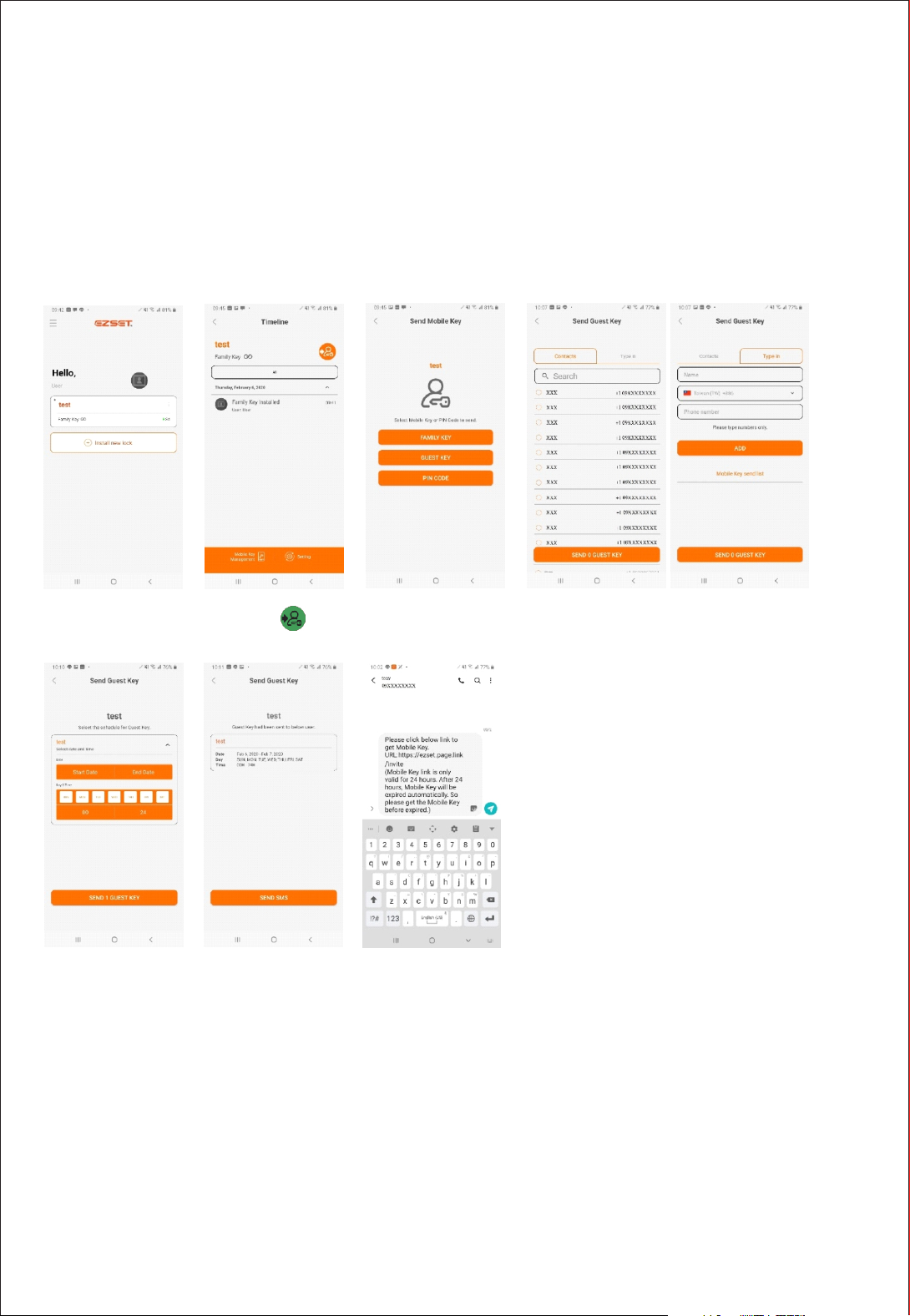
2. Sending Guest Key
Only Family Key user can send Guest Key.
Family Key user can send maximum 256 Guest Keys and duration of the
Guest Key would be from 1 hour to Max 180 days.
Guest Key user can not send Mobile Key.
The day before the Guest Key expiration Guest Key user can request
for Guest Key again.
Family Key Guest Key button
Set Guest Key duration
>Send Guest Key
PRESS
Send Message with link to download Guest Key
Select from contact or
input phone number to add contact
Those who got link to download Mobile Key from Family Key user have to
download EZSET App first and then Sign up.
Link is valid for only 24 hours, please download it in time.
After registration, Guest Key will be enrolled automatically.
Guest Key can be used within the allowed period.
Touch door lock to open the door.
Page 11

Sending Access PIN code
Page 12
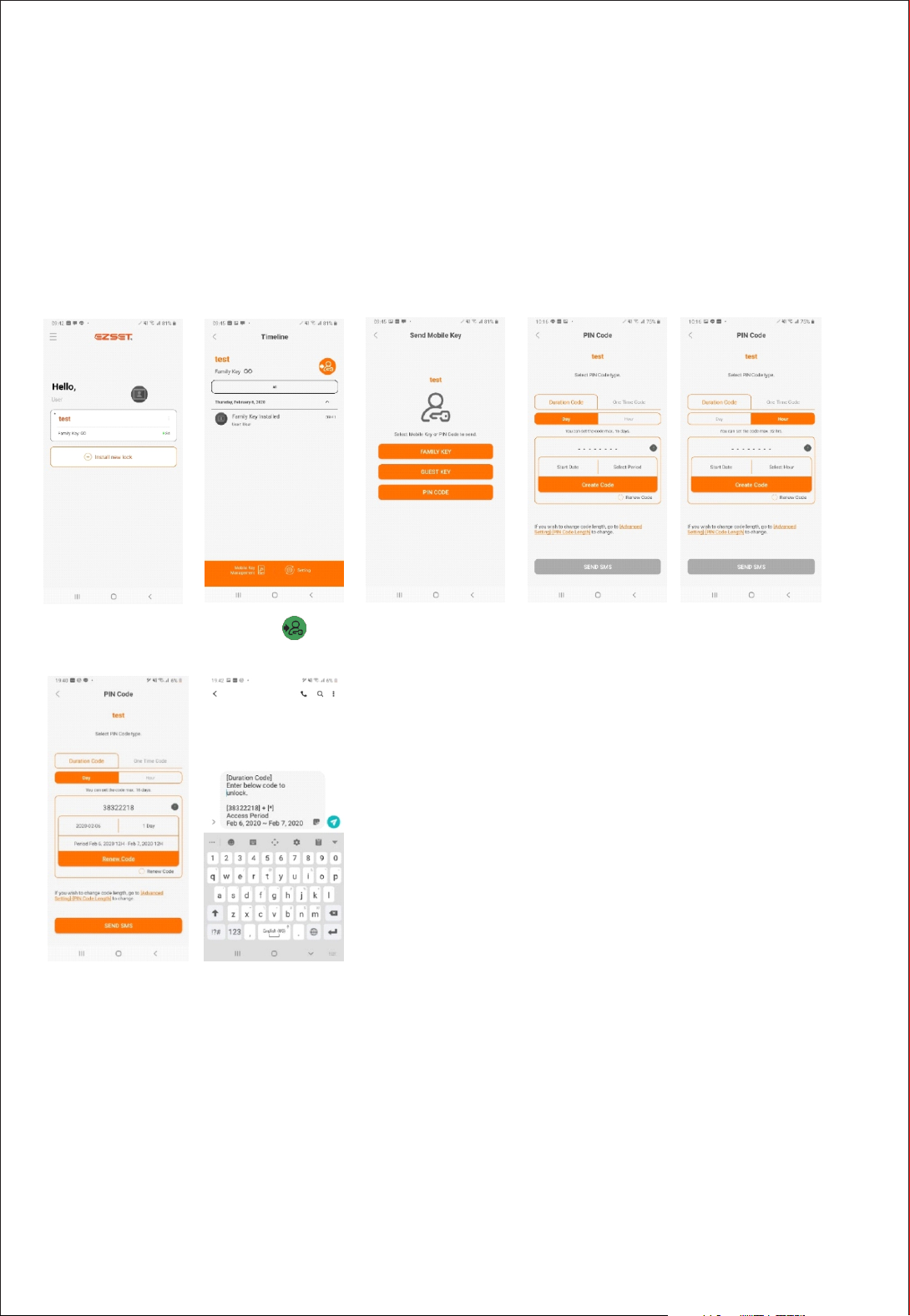
1. PIN Code (Duration Code)
You can send PIN Code for those who don’t have smartphone or
don’t want to use Mobile Key.
PIN Code is the code enable to open door lock without using
smartphone.
There are 2 types of PIN Code.
Duration Code and One Time Code.
Family Key
and set duration
PRESS PIN Code button
Send MessageSelect start date
Duration code
>Day or Hour basis
Duration Code is 8 digits in length as default.
You can choose daily basis or hourly basis PIN Code.
If you wish to change the digit length for the PIN code,
Select start date
and set duration
please go to setting and change.
Page 13
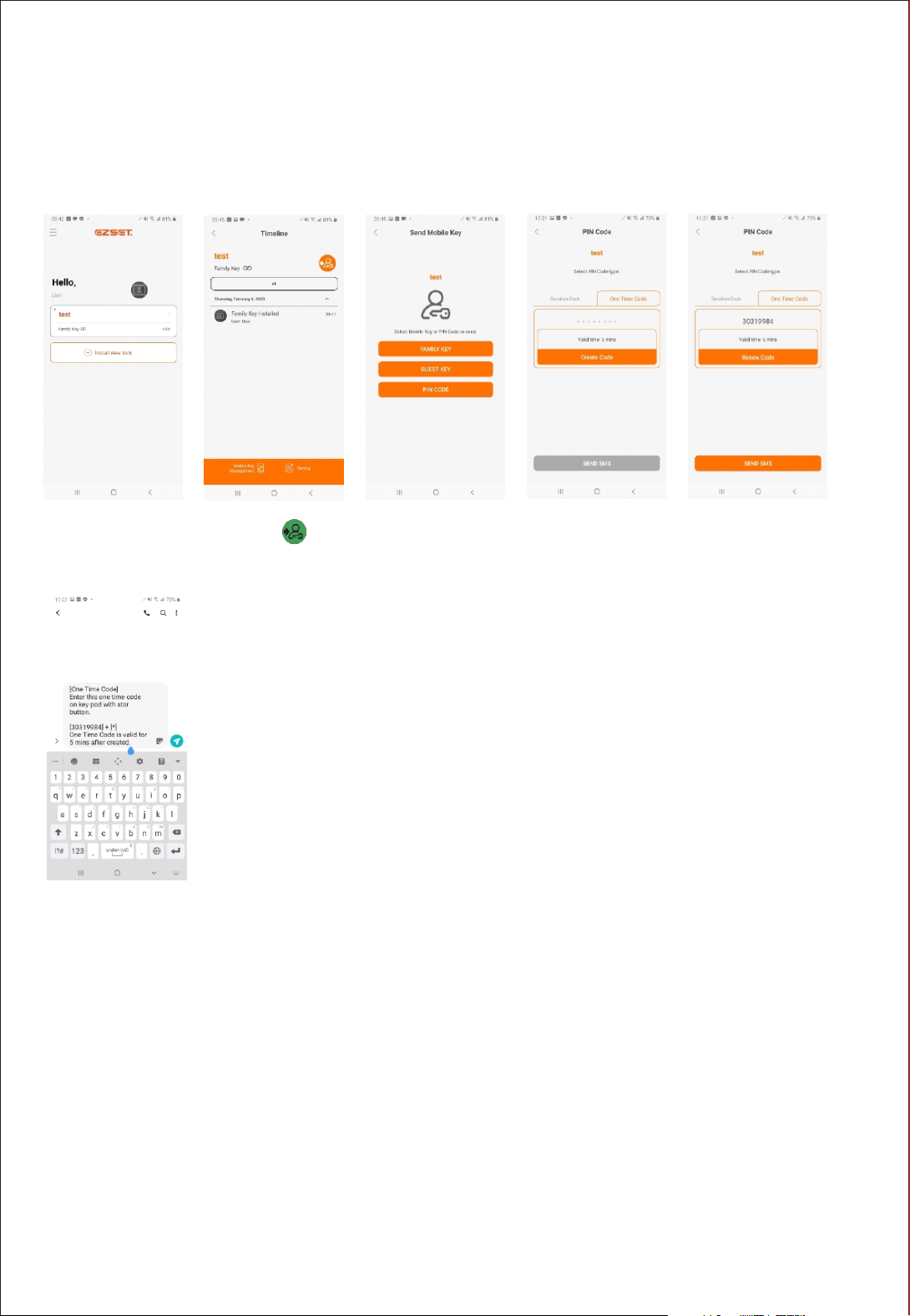
2. PIN Code (One Time Code)
One Time Code is valid for only one time use.
One Time Code is 8 digits in length as default.
Family Key
Send Message
PRESS PIN Code button
One Time Code
Create Code
Page 14

APP Setting
Page 15

APP Setting
Key type
1. Mobile Key
Open the lock using Smartphone App.
Family Key
Mobile Key for home owner. Only Family Key users are permitted
to send Family Key, PIN Code and manage the lock setting.
Up to 8 Family Keys can be stored per 1 door lock.
Guest Key
Mobile Key for guest. Will be sent from Family Key user.
Up to 256 Guest Keys can be generated per 1 Family Key.
2. PIN Code
PIN code to punch on door lock to unlock.
Duration Code
Code that can be used during the certain duration.
One Time Code
Only one time use PIN code.
Page 16

APP Setting
App download
1. Scan QR Code
2. Type “EZSET” on App Store or Google Play
Android user: Google Play
iPhone user: App Store
Page 17
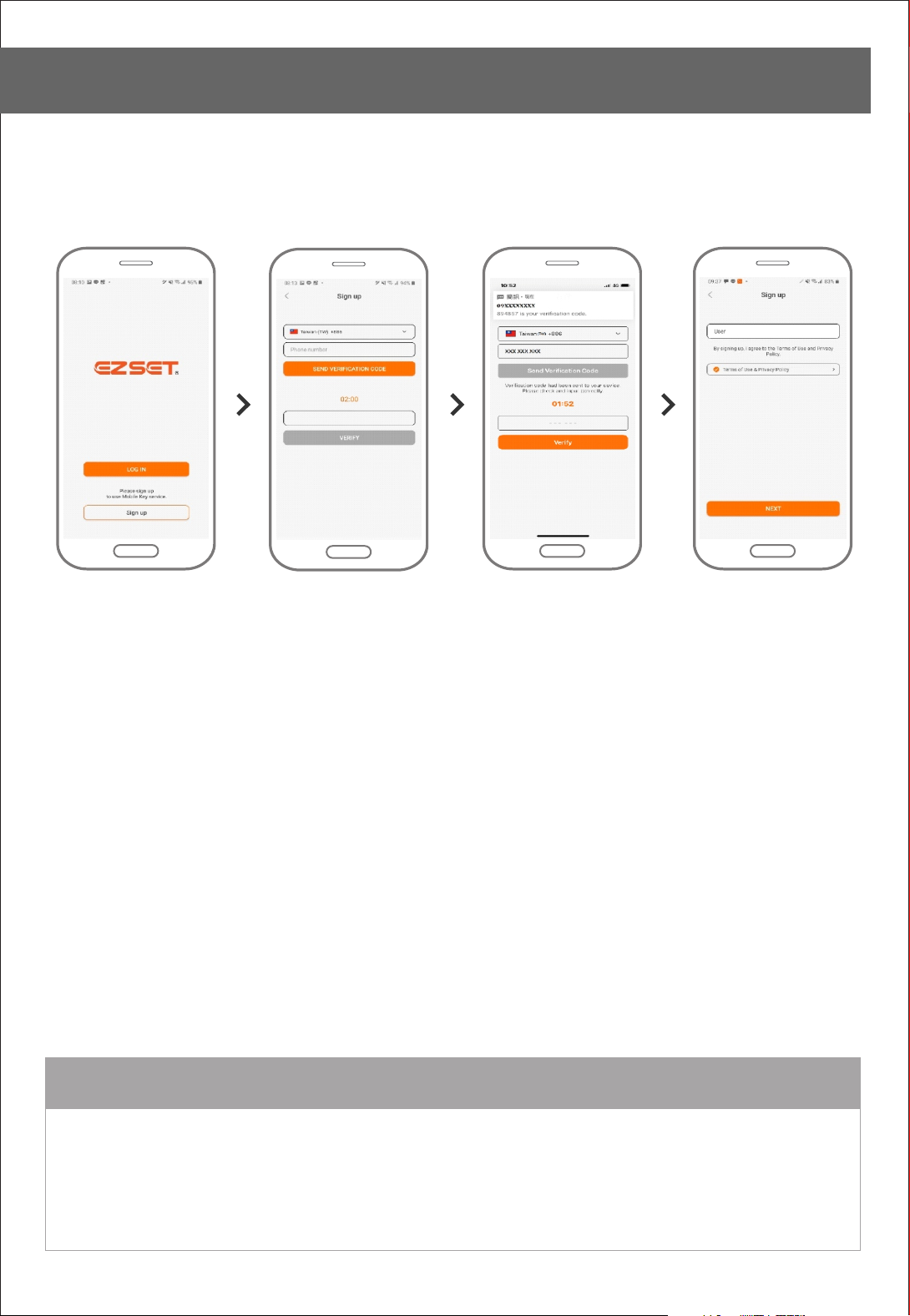
APP Setting
Sign up
Click Sign up
Input phone number
Verification Agree on Terms of use
REMARK
Please sign up to use Mobile Key service.
Page 18
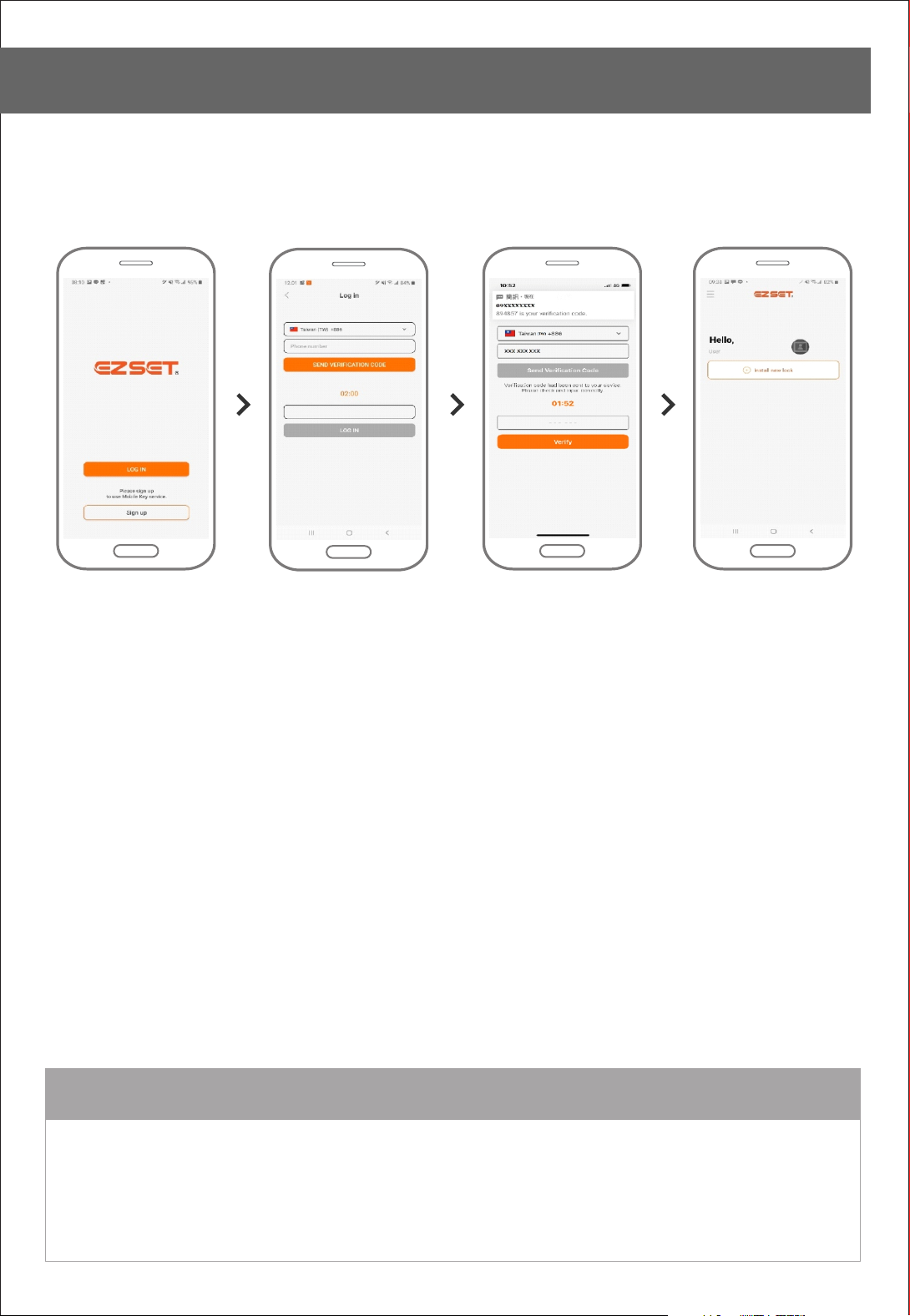
APP Setting
Login
Click Login
Input phone number Verification Logged in
REMARK
Once you signed up, you can log in by verifying your phone number.
Duplicate log in on multidevices is prohibited.
Page 19
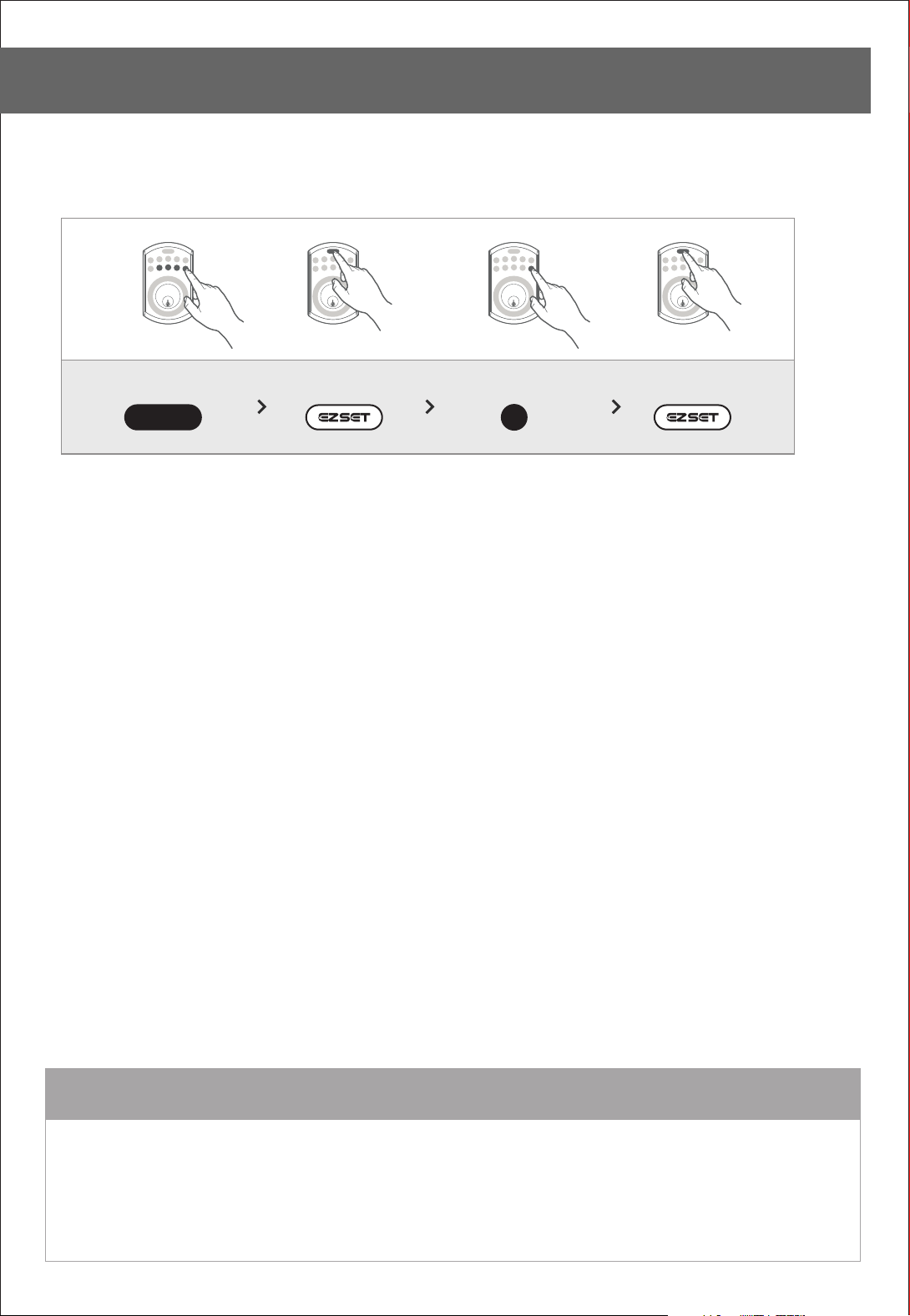
APP Setting
Verifying Locking Direction
Press Press Press Press
PC
0
REMARK
Please verify Locking Direction as instructed.
Proceed this process right after you mount the lock or reset the lock.
Page 20
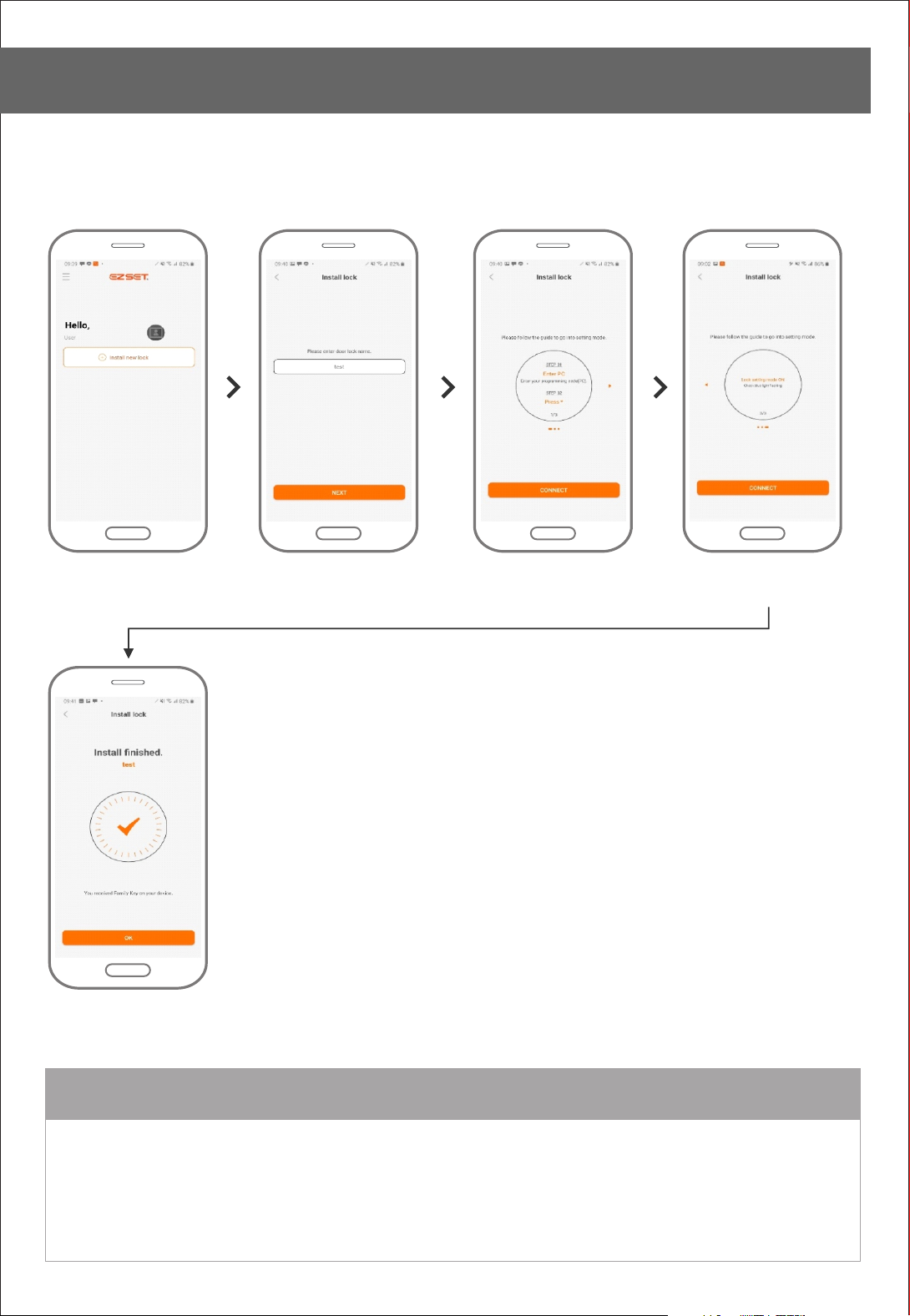
APP Setting
Enroll Family Key
Click “+” button
Install finish
Enter door lock name
Make door lock as setting mode
Click Connect
REMARK
Family Key is for home owner.
By enrolling Family Key, user can unlock the door using Smartphone App.
Make sure you turn on Bluetooth all the time.
Due to make the lock as Setting mode, user need to be in front of door lock.
Page 21
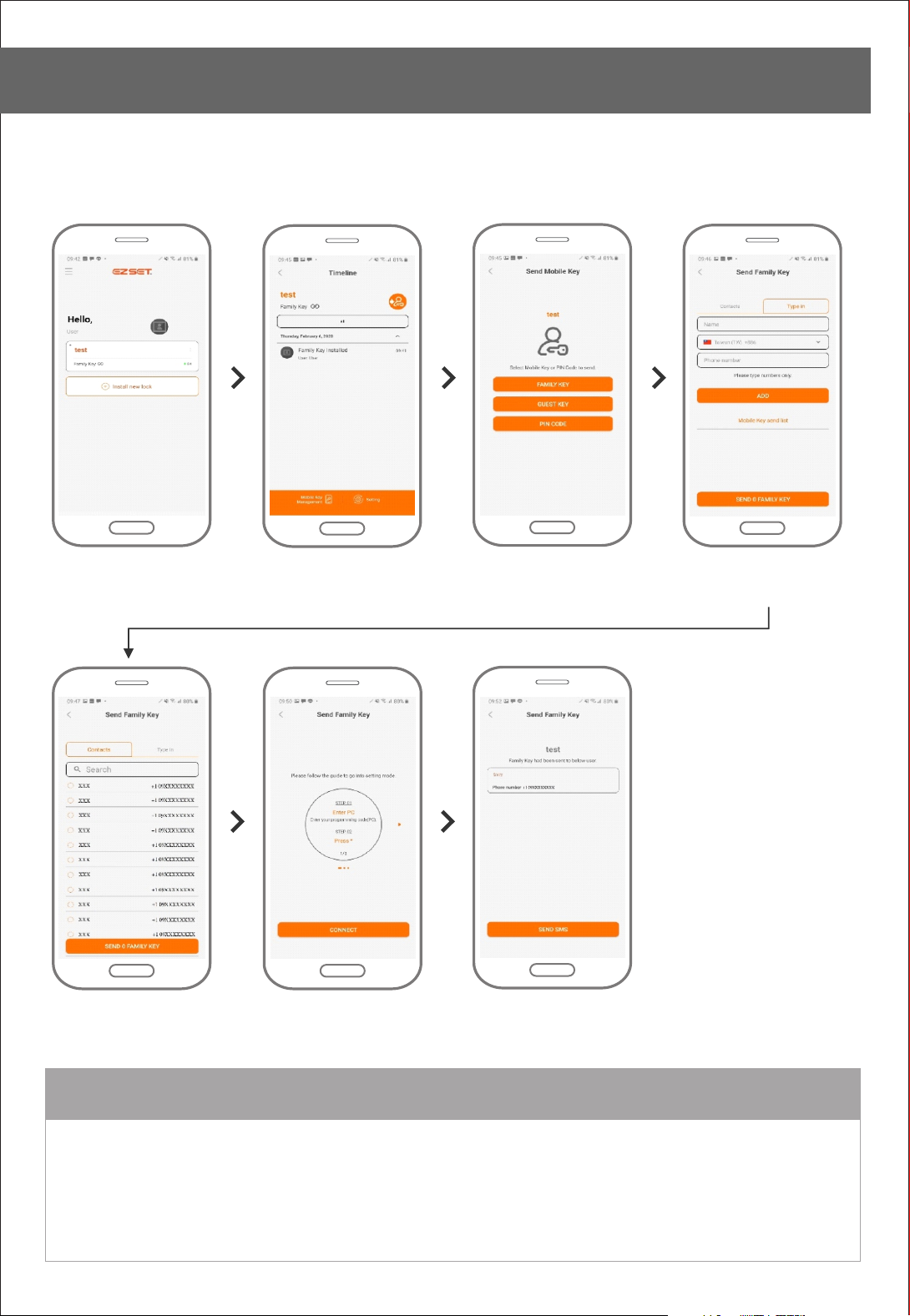
APP Setting
Family Key Send
Select Family Key Click Key send icon Click Family Key Select from contacts
Click Send Family Key Send MessageMake door lock
as Setting mode
or type phone number
REMARK
8 Family Keys can be enrolled per one door lock.
To send Family Key you have to make door lock as Setting mode, so it needs you to be in front of door lock
at this moment.
Family Key users can send Mobile Key, PIN Code and change settings.
Page 22
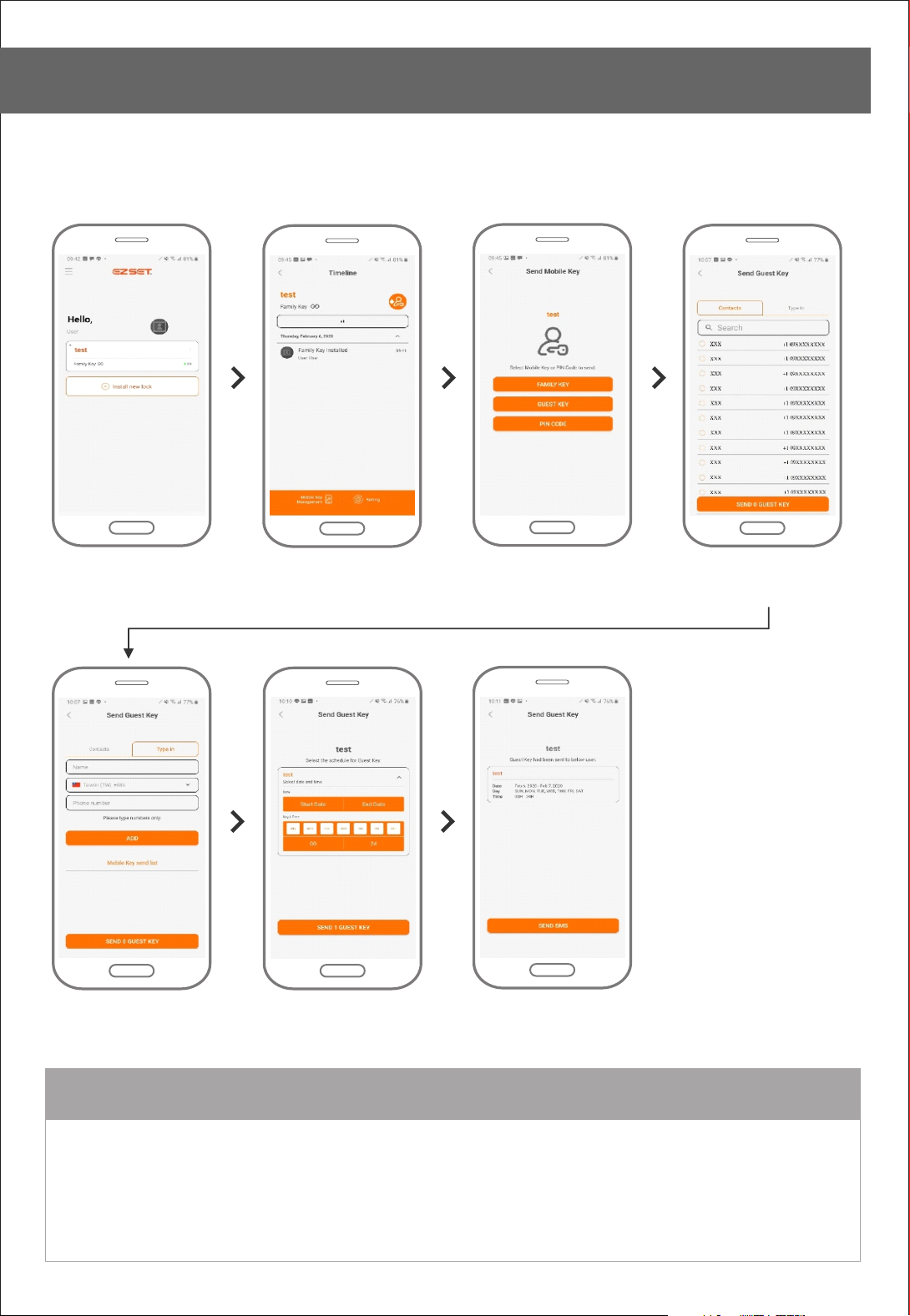
APP Setting
Guest Key Send
Select Family Key Click Key send icon Click Guest Key Select from contacts
Click send Guest Key ShareSet date and time
Click send Guest Key
or type phone number
REMARK
Guest will receive the Guest Key from Family Key user.
Guest Key is only valid for certain period of time that Family Key user set.
This can’t be transferred to other users.
To use Guest Key, user should download the app and sign up.
Page 23
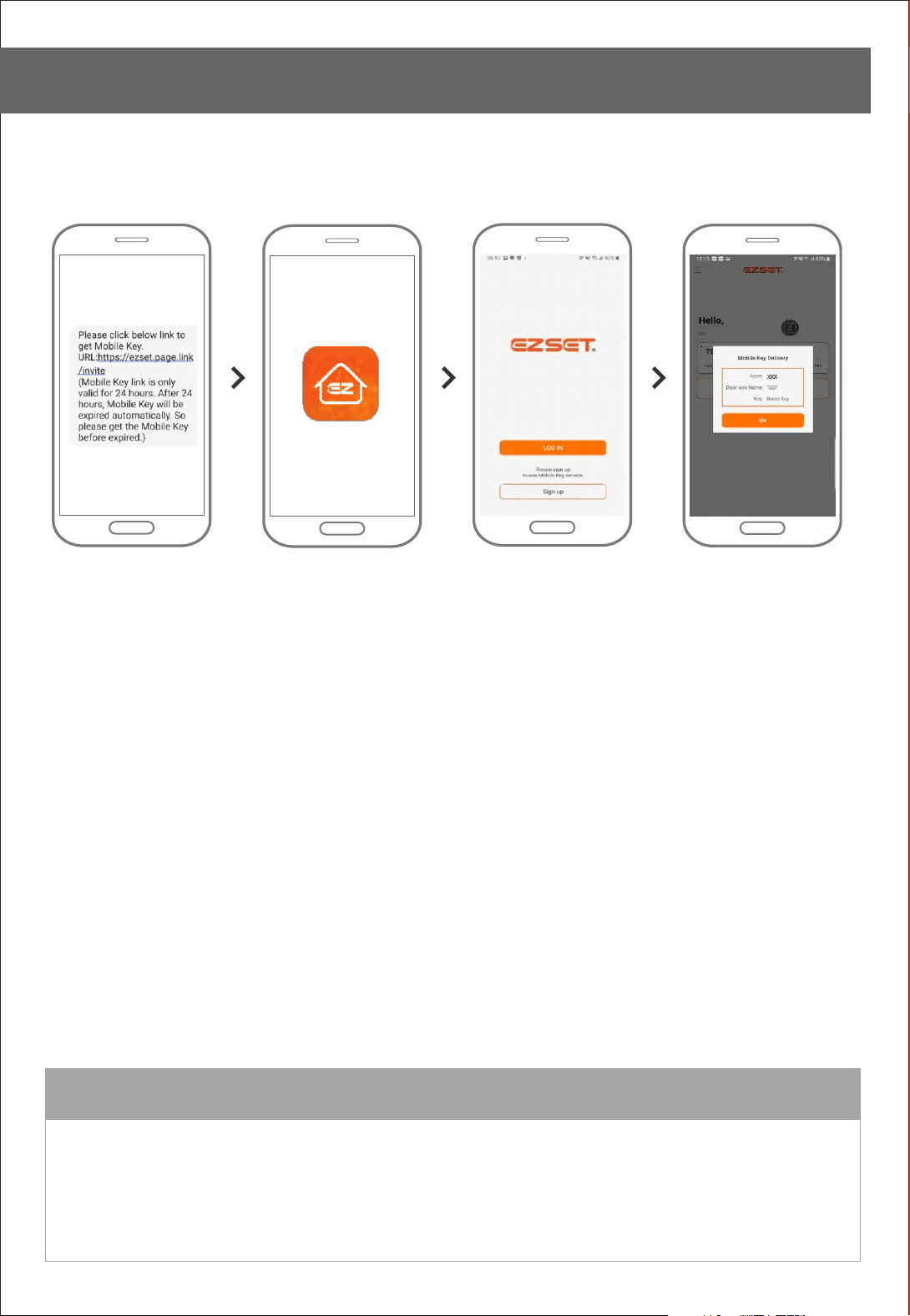
APP Setting
Mobile Key Receive (Non-member)
Click the link
from the message
Download the App Sign up Receive Mobile Key
REMARK
To use Mobile Key service, you need to download the EZSET App and sign up.
Click the link and sign up as instructed to receive Mobile Key.
Page 24
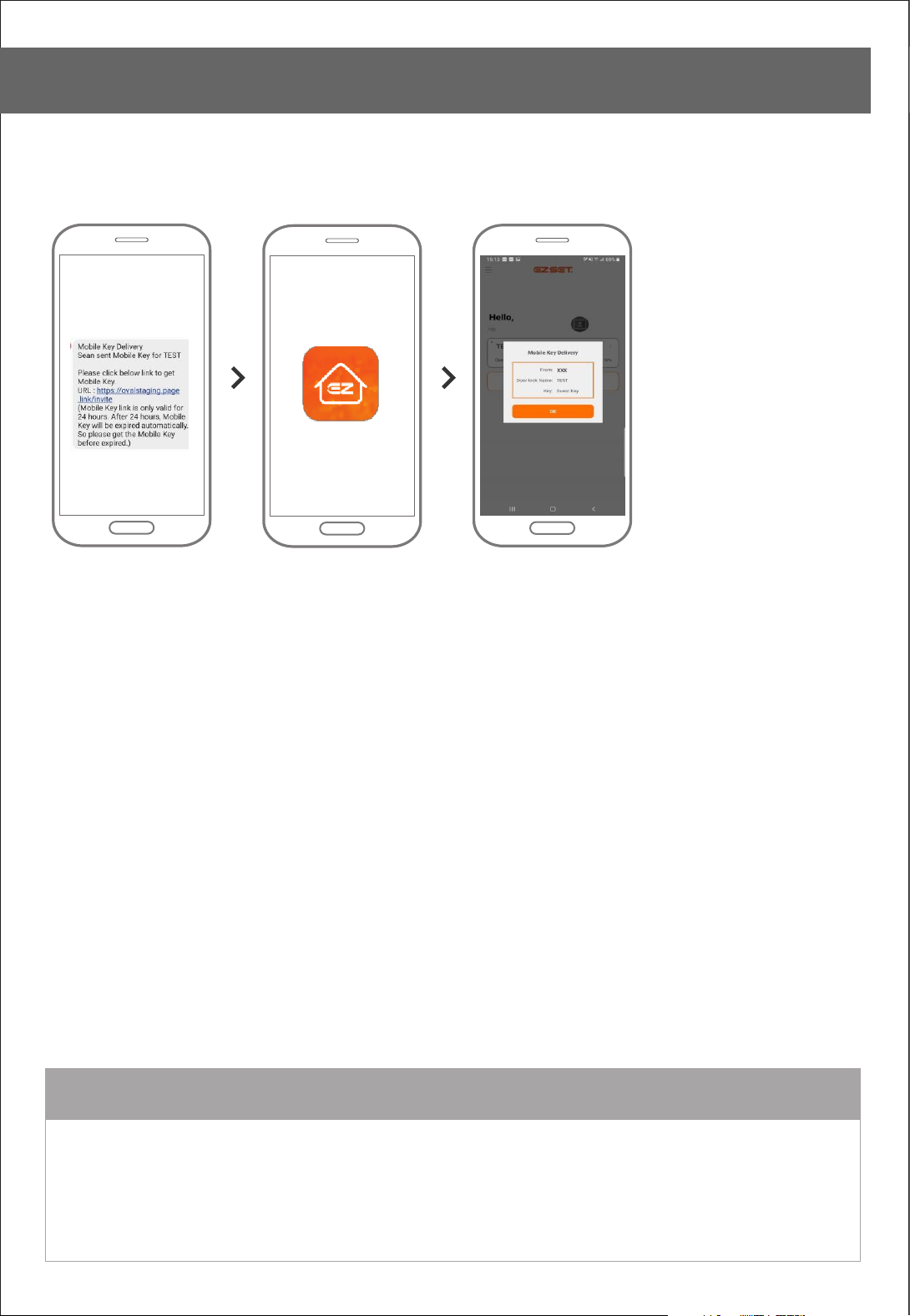
APP Setting
Mobile Key Receive (Member)
Click the link
from the message
Open the App
Receive Mobile Key
REMARK
Click the link from the message you received.
If you already have the EZSET App and logged in Mobile Key will be received automatically.
If you are not logged in yet, proceed it to get Mobile Key.
Page 25
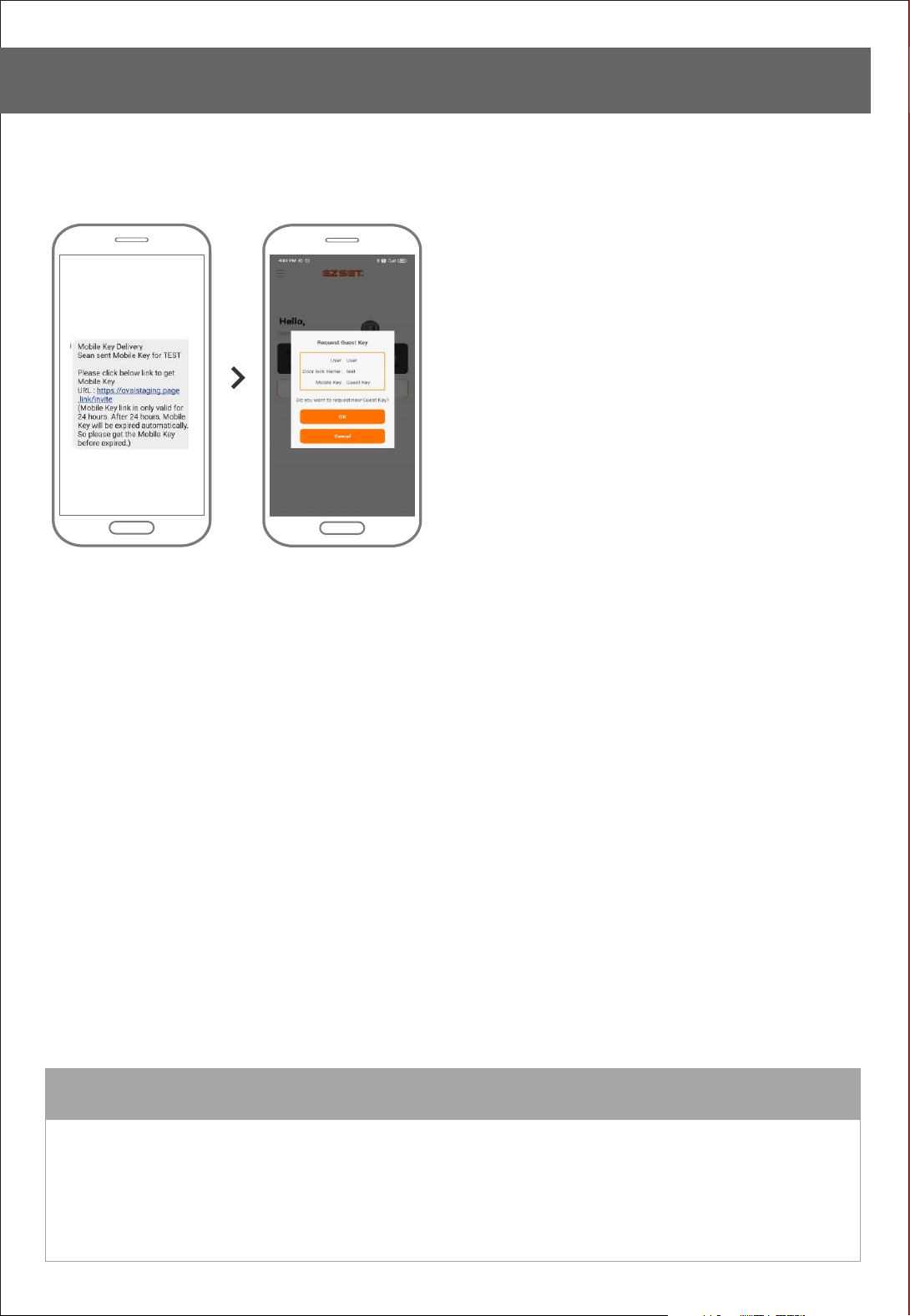
APP Setting
Mobile Key Receive - Time out
Mobile Key link
Time out
REMARK
Mobile Key Link is valid only for 24 hours once it’s sent.
After 24 hours, Mobile Key will be invalid. So please click the link before time out.
Page 26
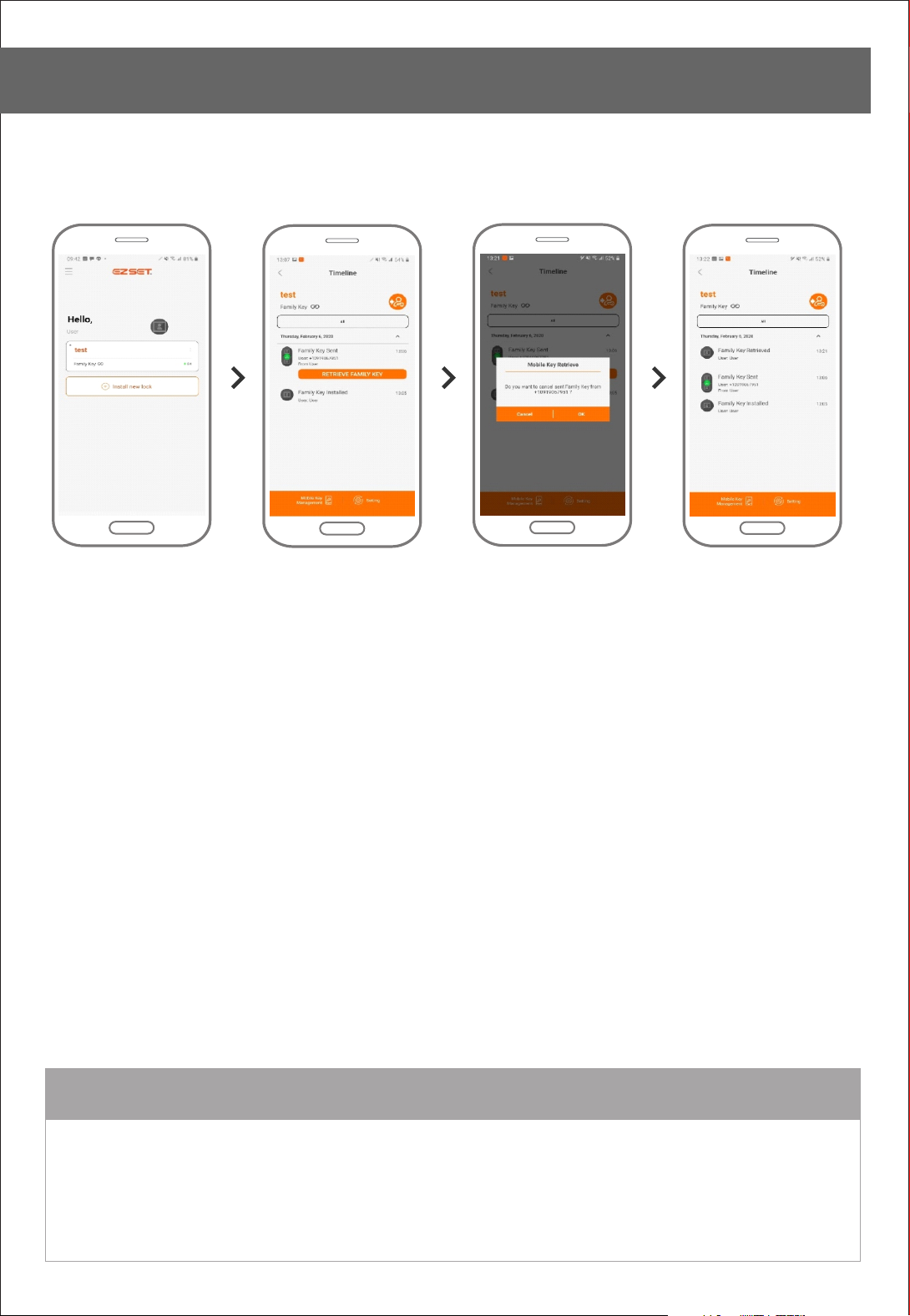
APP Setting
Retrieve Sent Family Key
Click Family Key Click “Retrieve Family Key”
from history
OK Sent Family Key retrieved
REMARK
In case Family Key user wants to retrieve already sent Family Key, click the “Retrieve Family Key” button.
Please note if the receiver already received the Family Key, you can’t retrieve it.
To delete sent Family Key, please go to [Setting - - Family Key] and delete it.Advanced Setting
Page 27
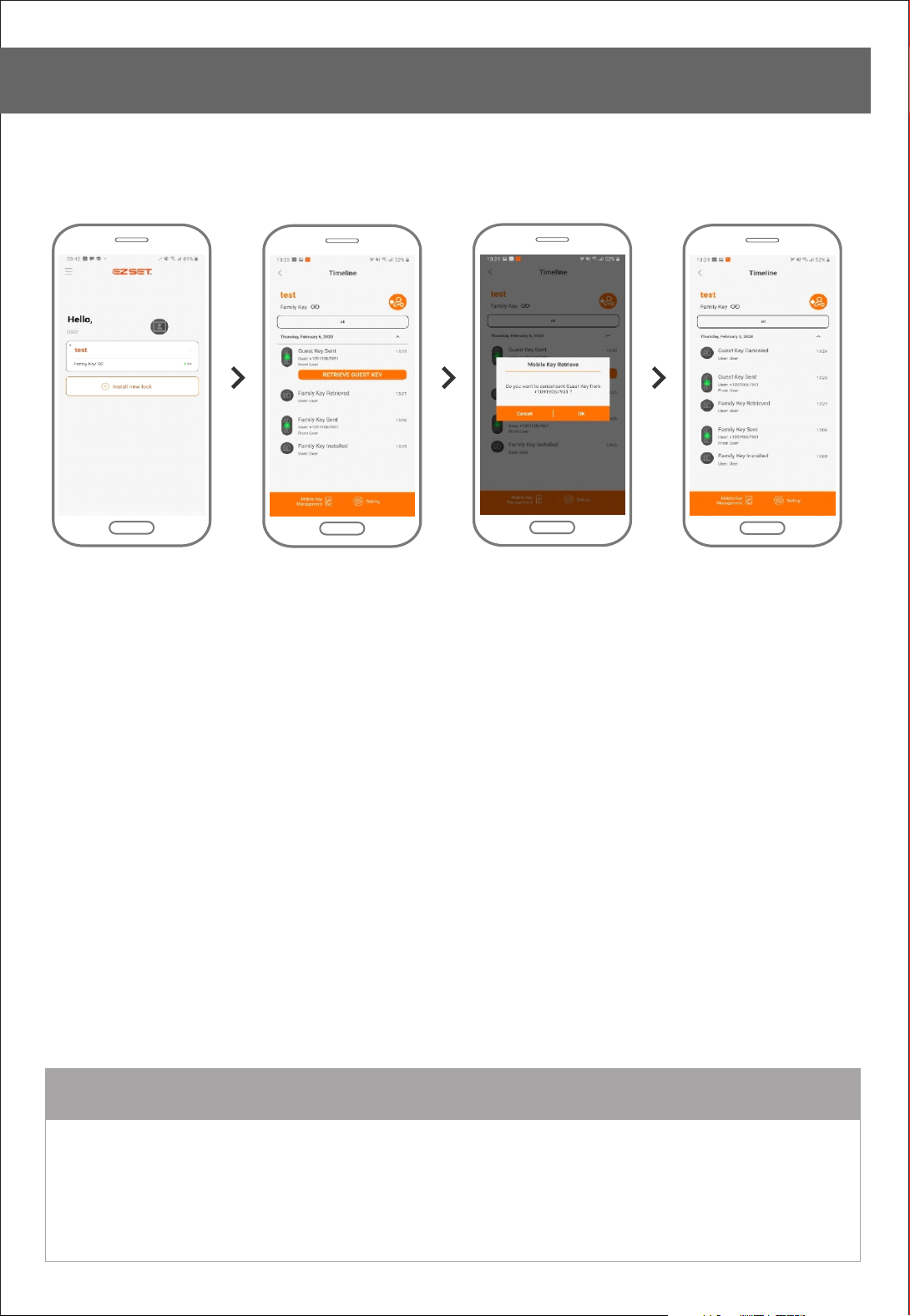
APP Setting
Retrieve Sent Guest Key
Click Family Key Click “Retrieve Guest Key”
from history
OK Sent Guest Key Canceled
REMARK
In case Family Key user wants to retrieve already sent Guest Key, click the “Retrieve Guest Key” button.
Please note if the receiver already received the Guest Key, you can’t retrieve it.
To delete sent Guest Key, please go to [Mobile Key Management] and click Bin icon to delete it.
Page 28
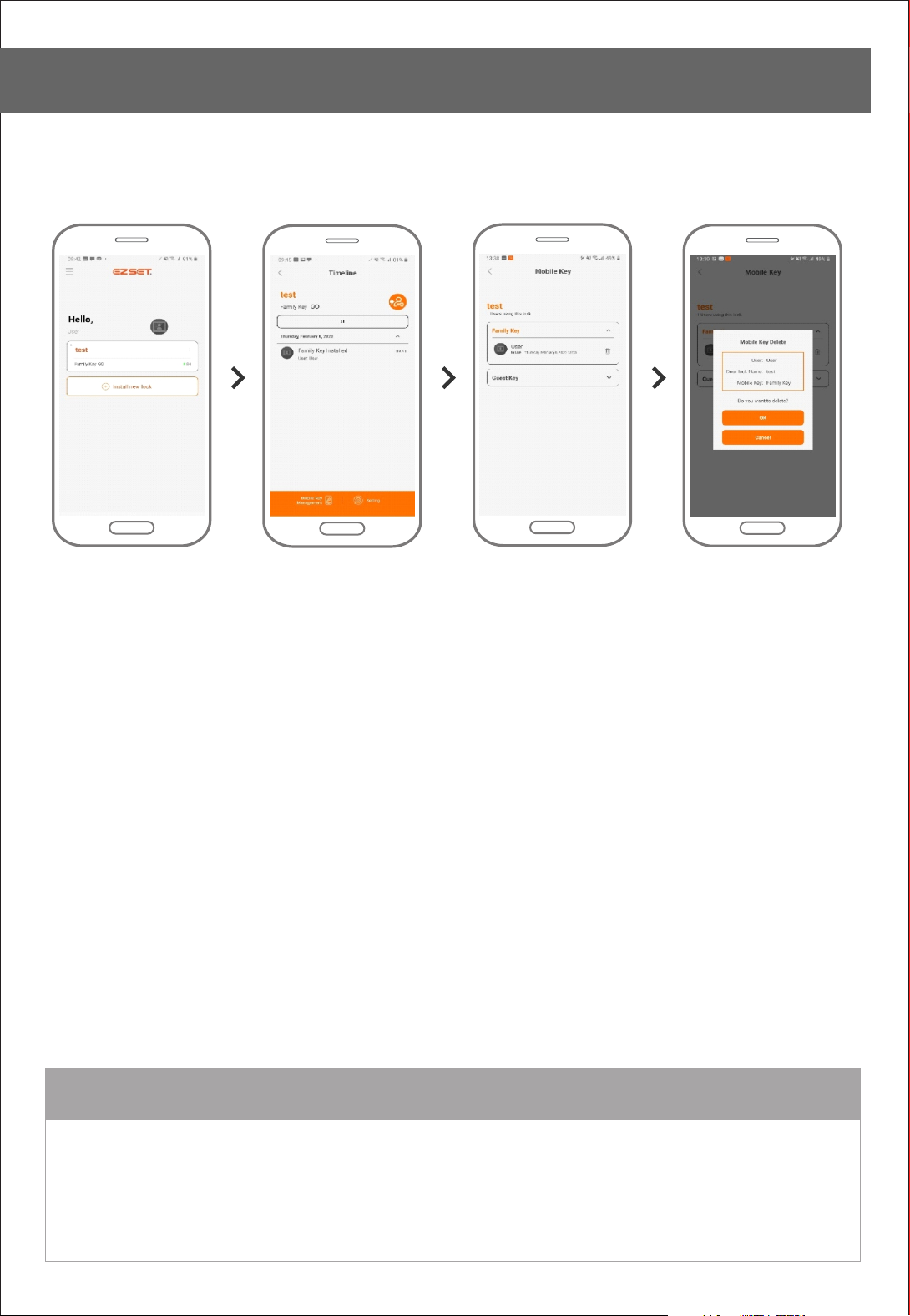
APP Setting
Family Key Delete
Click Family Key Click “Mobile Key Management” Select Bin icon
next to Mobile Key
Click OK
REMARK
Delete Family Key or Guest Key from Key Management section.
Deleted Family Key from Management section still remained in Door lock,
to delete Family Key from both Door lock and App go to [Setting - Change Door lock Settings - Family Key].
Please make sure deleted Mobile Key will be invalid when you try to unlock it.
Page 29
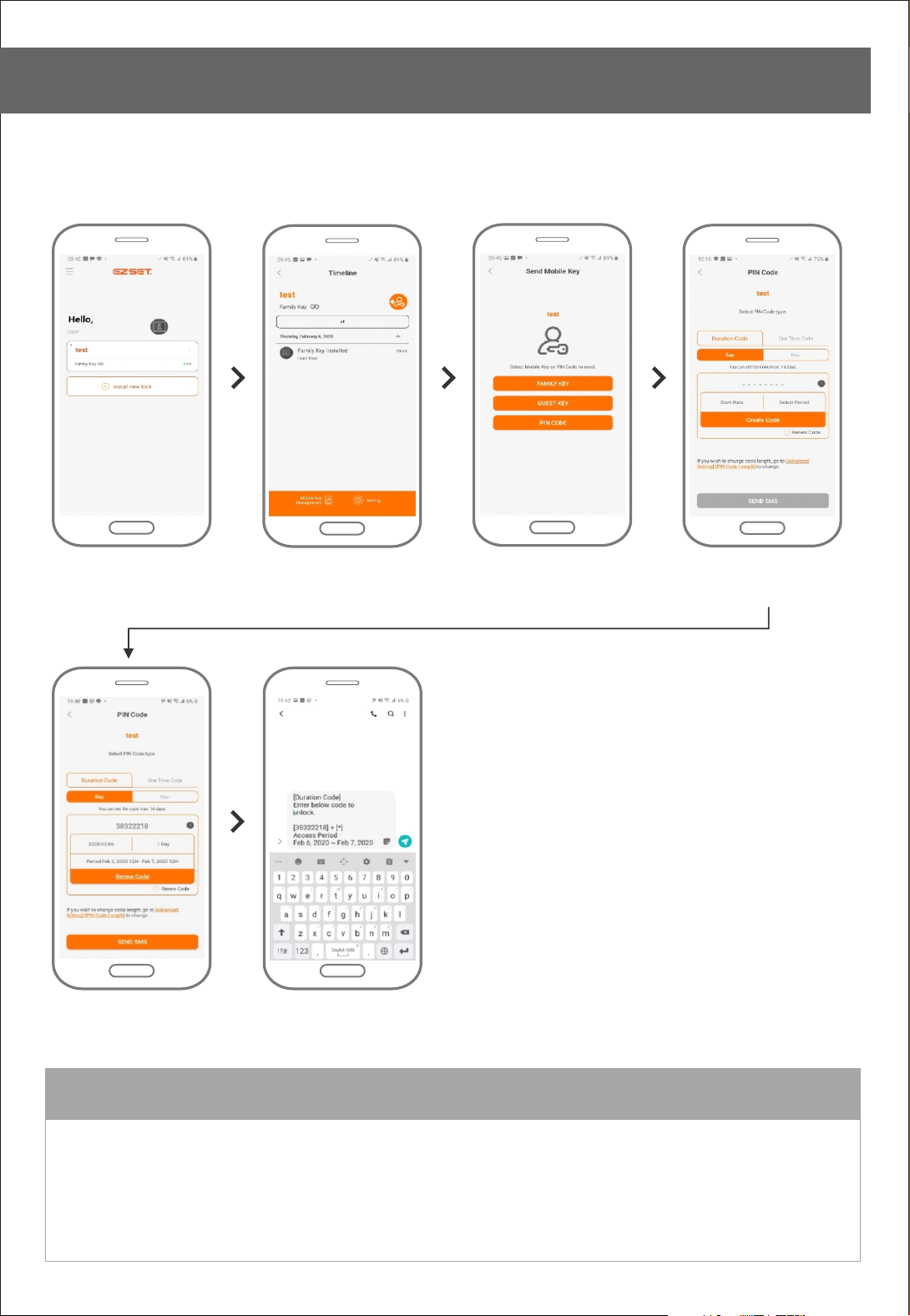
APP Setting
PIN Code Send (Duration Code)
Click Family Key Click Key Send Icon Select Duration Code
Click Create Code and
Share PIN Code
Send Message
Click PIN Code
Day or Hour Basis
REMARK
Duration Code is scheduled PIN code, user can generate based on day and hour.
For the day based PIN code, user can generate up to 16 days use PIN code.
For the hour based PIN code, user can generate up to 32 hours use PIN code.
Once you renew the code and enter it, previously generated PIN code will be overridden.
Page 30
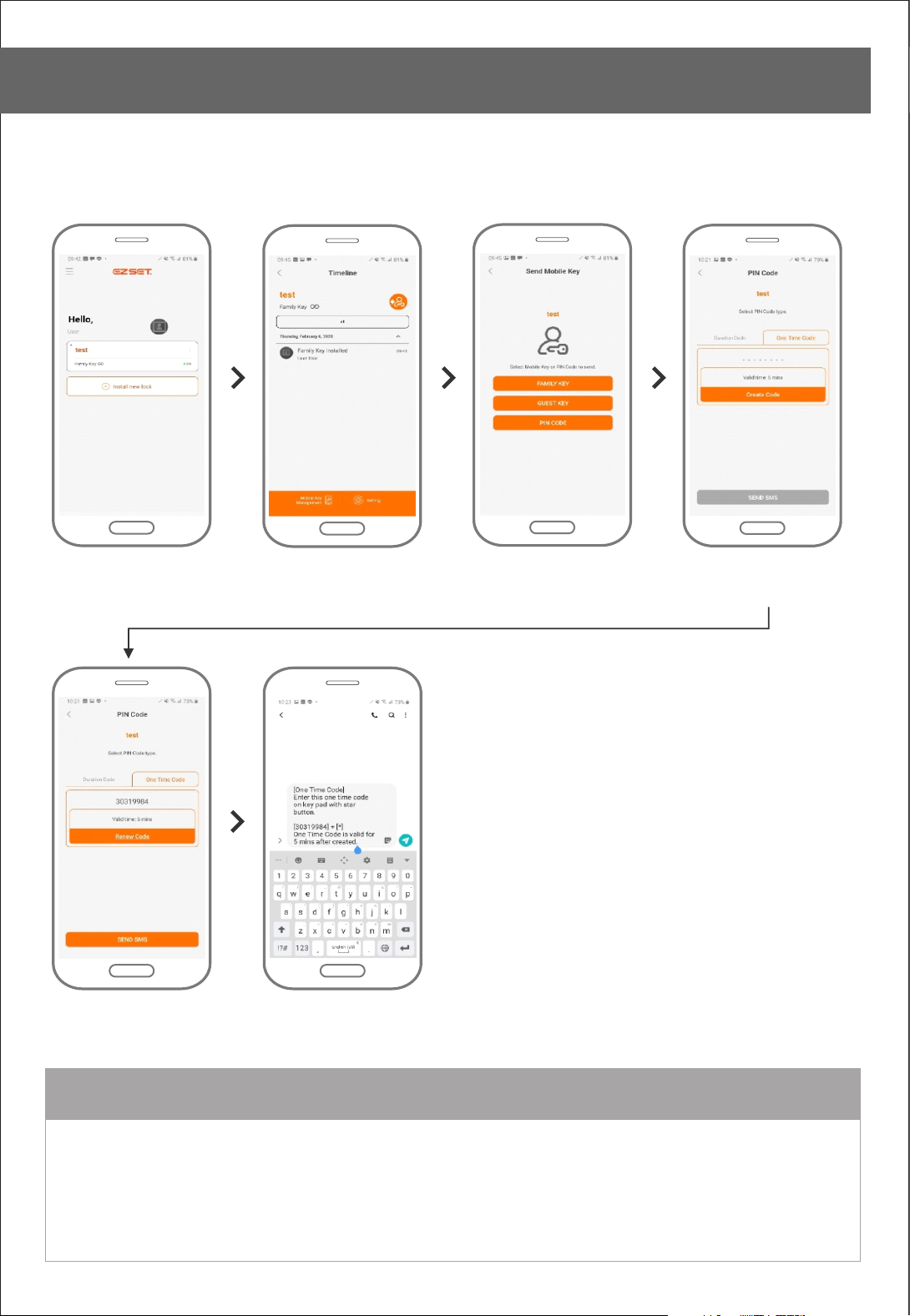
APP Setting
PIN Code Send (One Time Code)
Click Family Key Click Key send icon Click PIN Code Select One Time Code
Click Create Code and
Share PIN Code
Send Message
REMARK
One Time Code is only one time use PIN code.
One Time Code has valid time as 5 mins after created.
PIN code receiver should enter the code within 5 mins.
Page 31
APP Setting
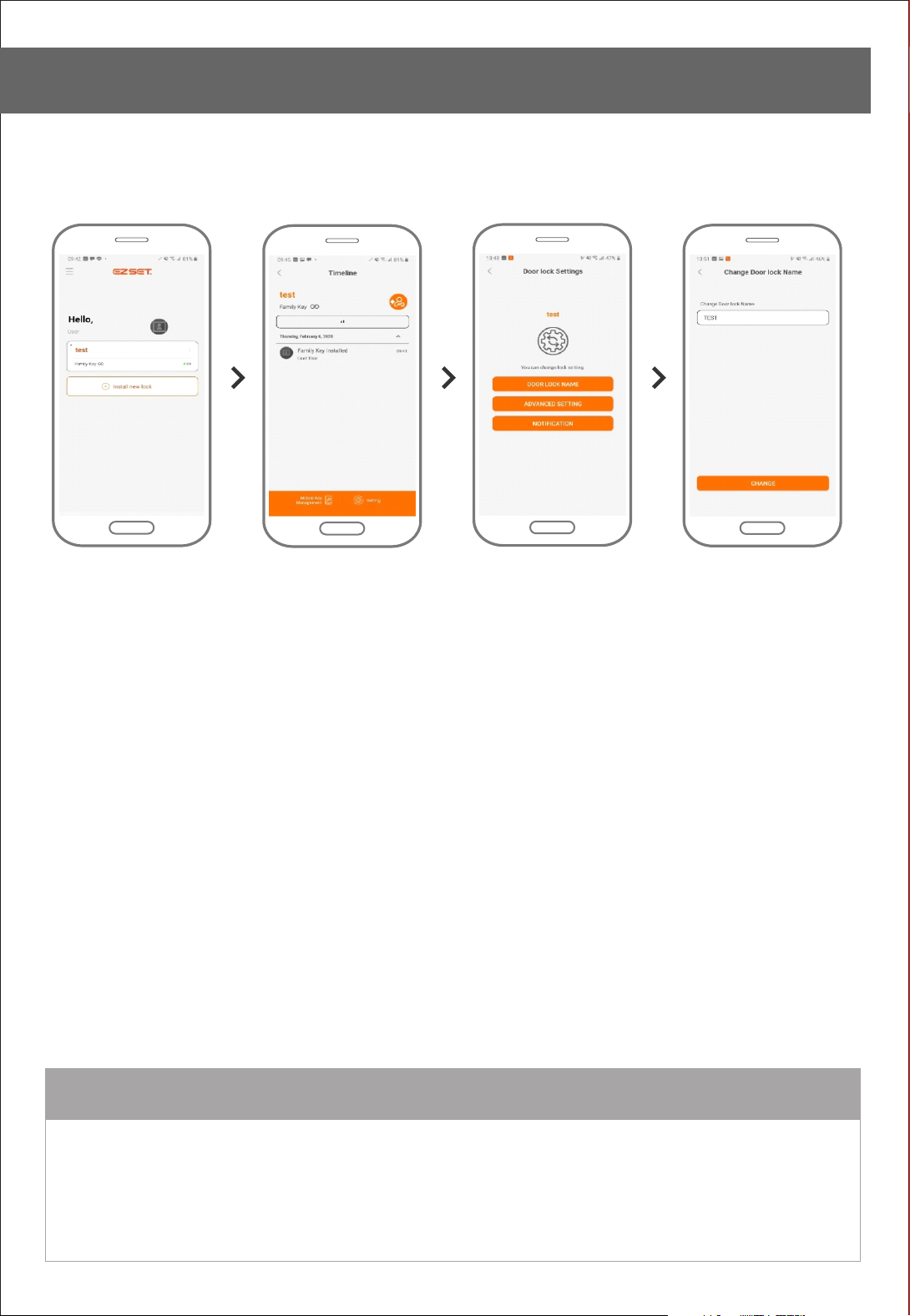
Setting Change - Change Door lock Name
Click Family Key Click Setting Click Door lock Name Enter new Door lock Name
REMARK
You can change the Door lock Name whenever you want.
Page 32
APP Setting
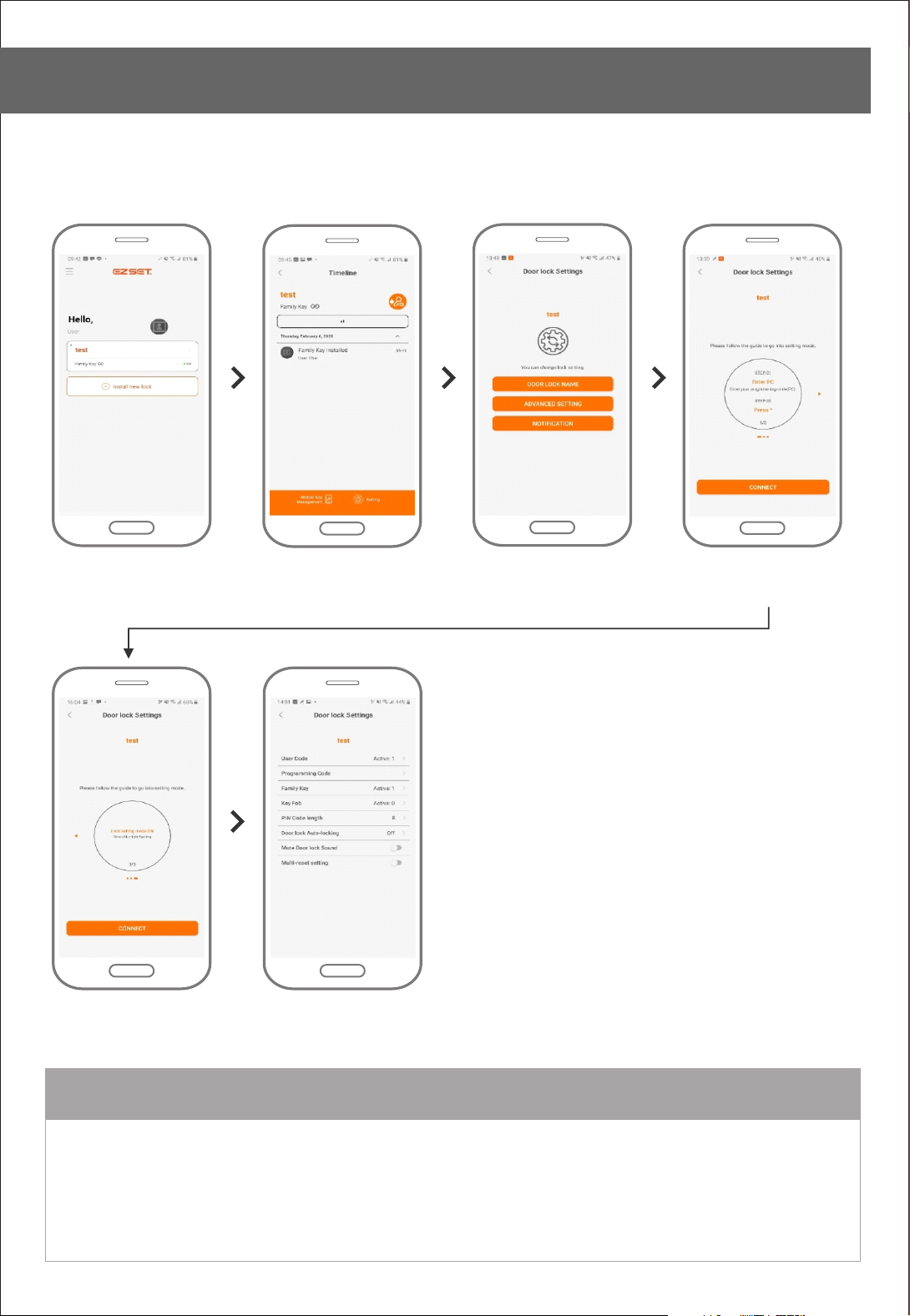
Setting Change - User Code
Click Family Key Click Setting Click Advanced Settings Make Door lock as
Click Connect
Setting Mode
REMARK
You can add or delete User Code in Setting mode.
Please make sure you deleted default User Code 1234 and make your own User Code for security purpose.
User Code is 4-10 digits in length and up to 10 sets of code can be stored.
Page 33
APP Setting
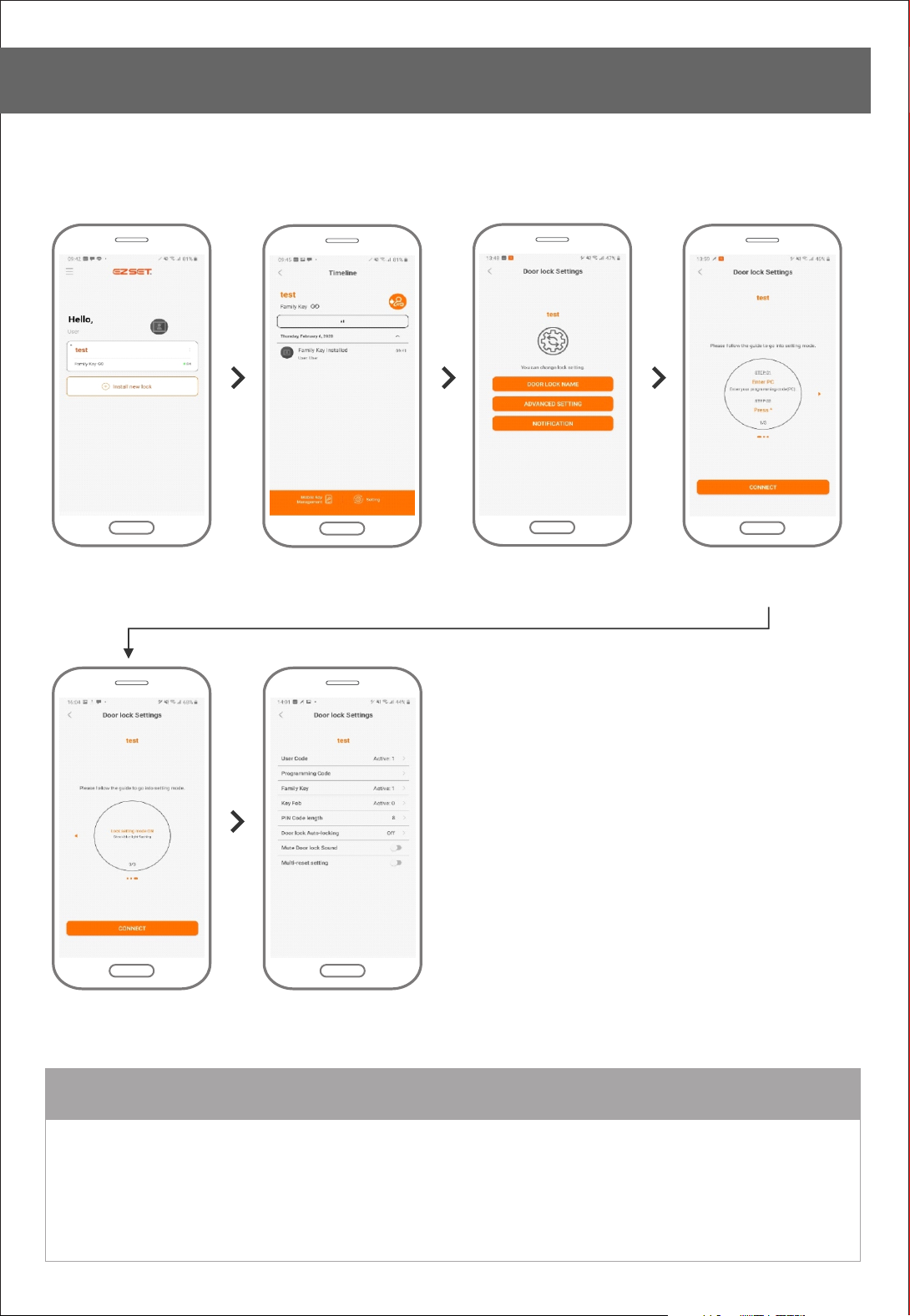
Setting Change - Programming Code
Click Family Key Click Setting Click Advanced Settings Make Door lock as
Click Connect Click Programming Code
Setting Mode
REMARK
For security purpose, change default Programming Code 0000.
Programming Code is 4-10 digits in length and only one code can be stored.
Page 34
APP Setting
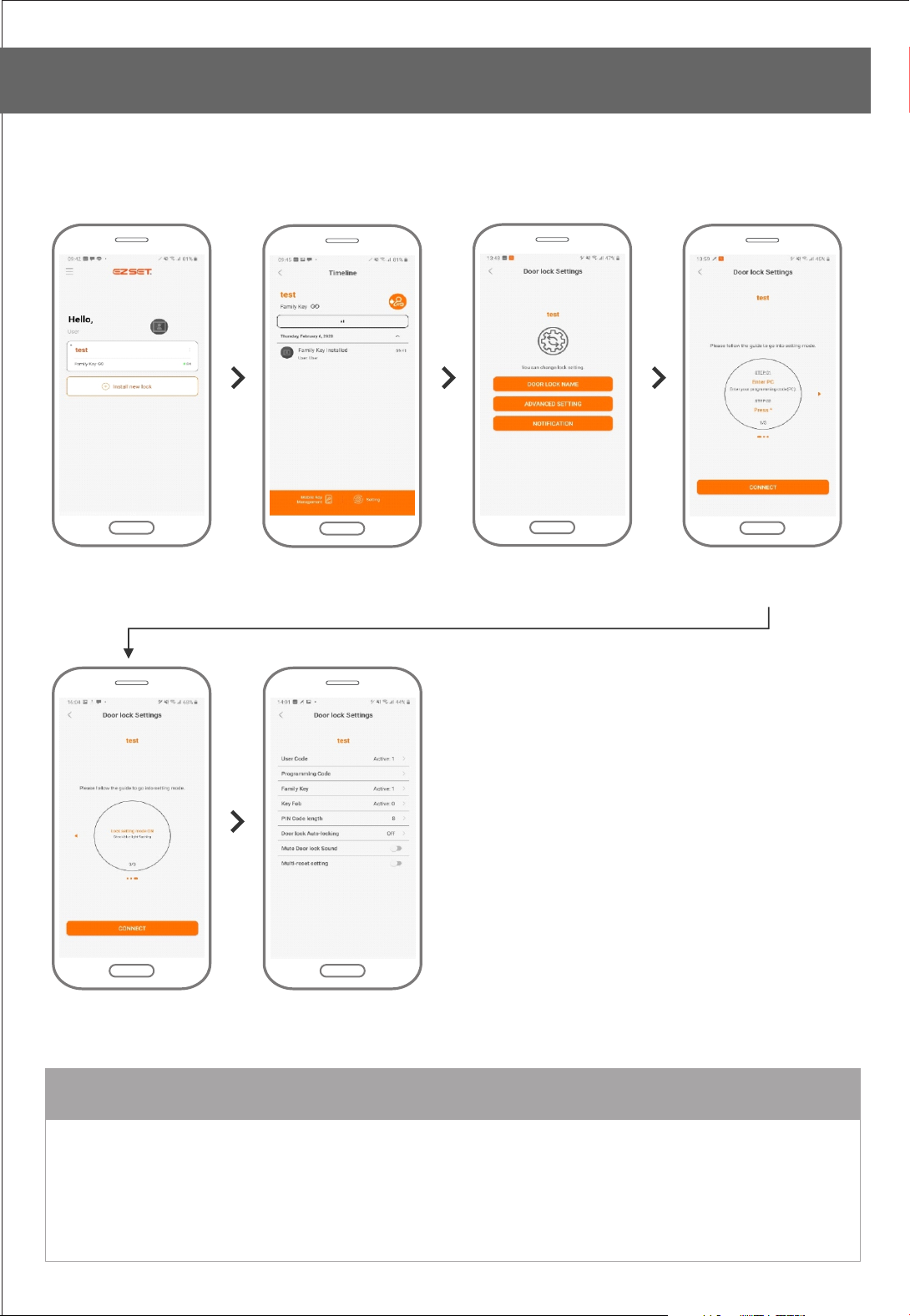
Setting Change - Family Key
Click Family Key Click Setting Click Advanced Setting Make Door lock as
Click Connect Click Family Key
Setting Mode
REMARK
To delete Family Key from both Smartphone and door lock, go to Setting mode and delete Family Key.
Please make sure up to 8 Family Key can be stored per lock.
Page 35
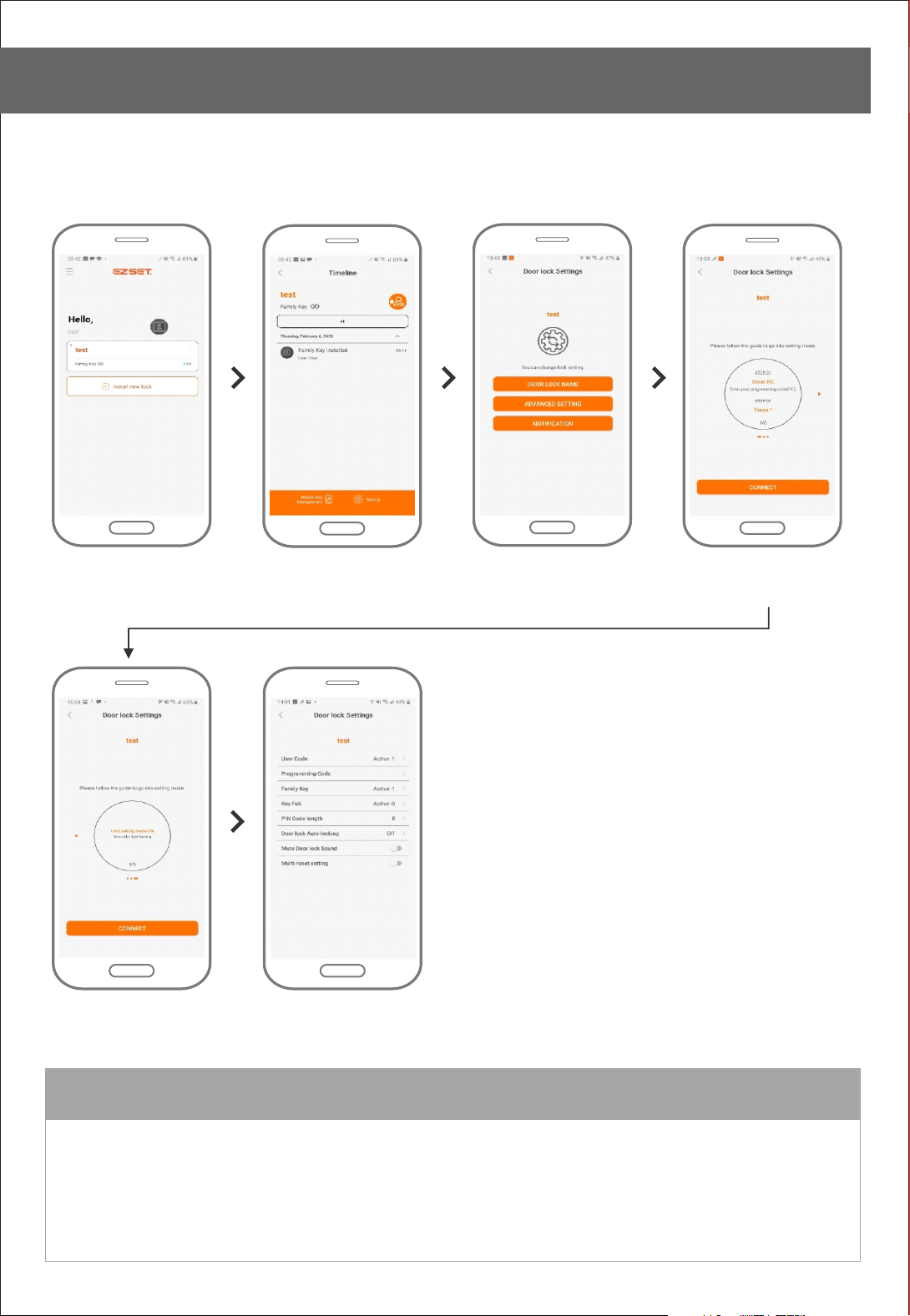
APP Setting
Setting Change - PIN Code length
Click Family Key Click Setting Click Advanced Settings Make Door lock as
Click Connect Click PIN Code length
Setting Mode
REMARK
Default digit length of Access PIN Code is 8 digits.Based on access duration, digit length of access code
can be changed. If you wish to make longer day of Access PIN Code, please change longer digits.
Day and Hour basis Duration Code are available only with 8 digits.
4 digits: 1-3 days
6 digits: 1-7 days
8 digits: 1-16 days
Page 36
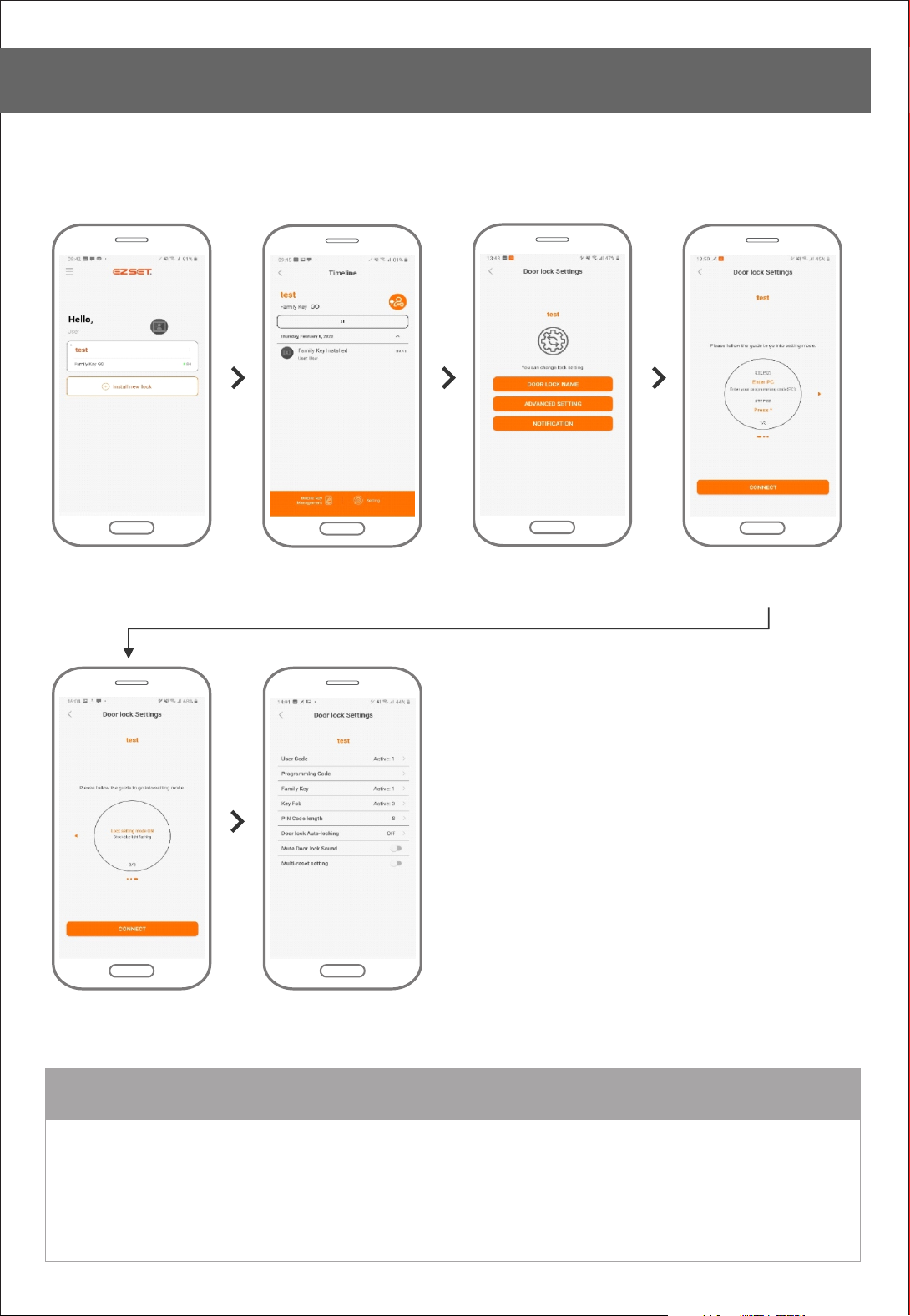
APP Setting
Setting Change - Door lock Auto-Locking
Click Family Key Click Setting Click Advanced Settings Make Door lock as
Click Connect Click Door lock
Auto-Locking
Setting Mode
REMARK
Auto-Locking is off as default.
This is automatic door locking function after door close.
Auto-Locking time could be set as 10-99 sec and default time is 10 sec.
Door will be locked after the time you set.
Page 37
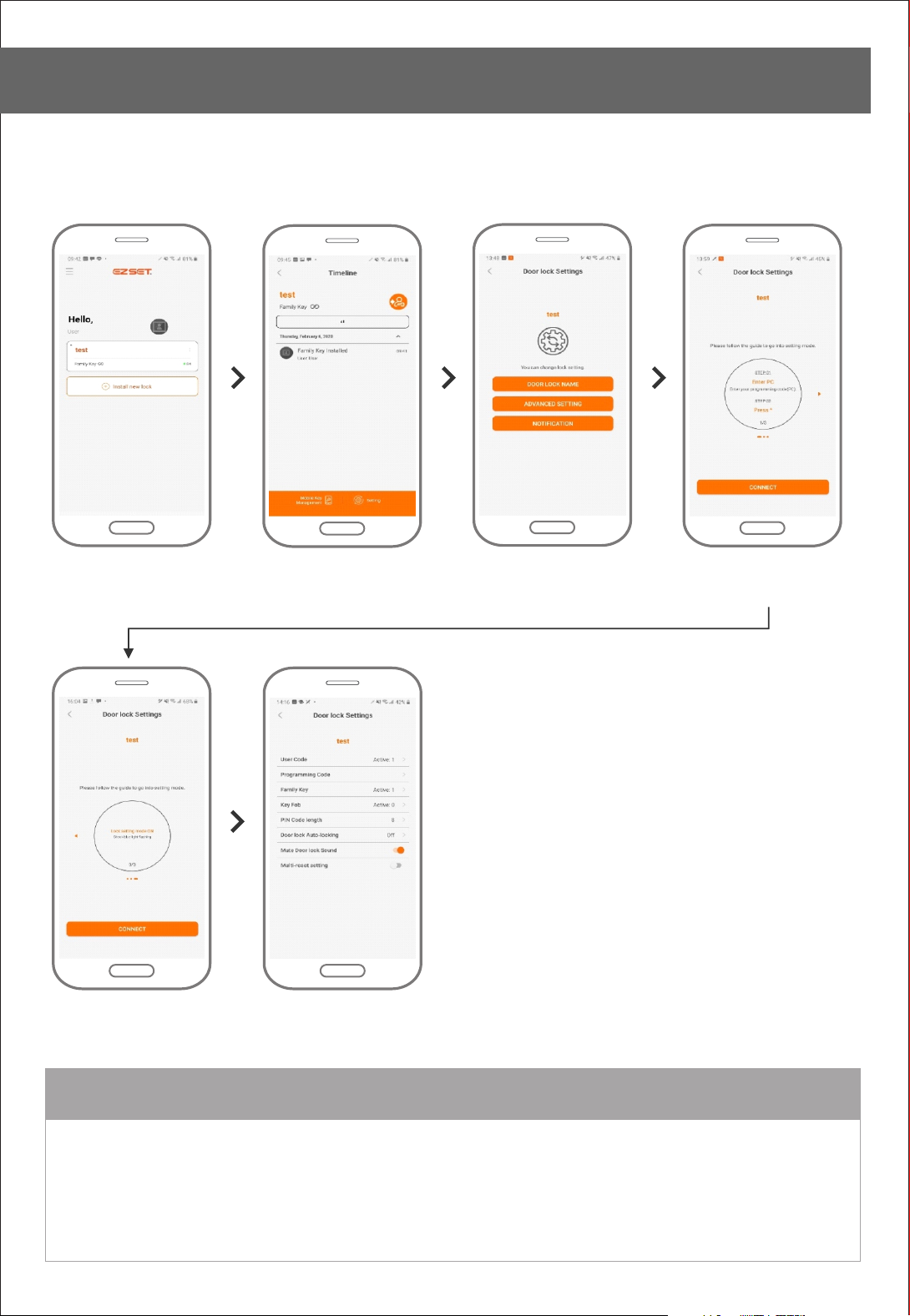
APP Setting
Setting Change - Mute Door lock Sound
Click Family Key Click Setting Make Door lock as
Click Connect Click Mute Door lock Sound
Click Advanced Settings
Setting Mode
REMARK
When you turn door lock mute on, all door lock’s sound function
(open, close, error sounds and etc.) will be off.
Page 38
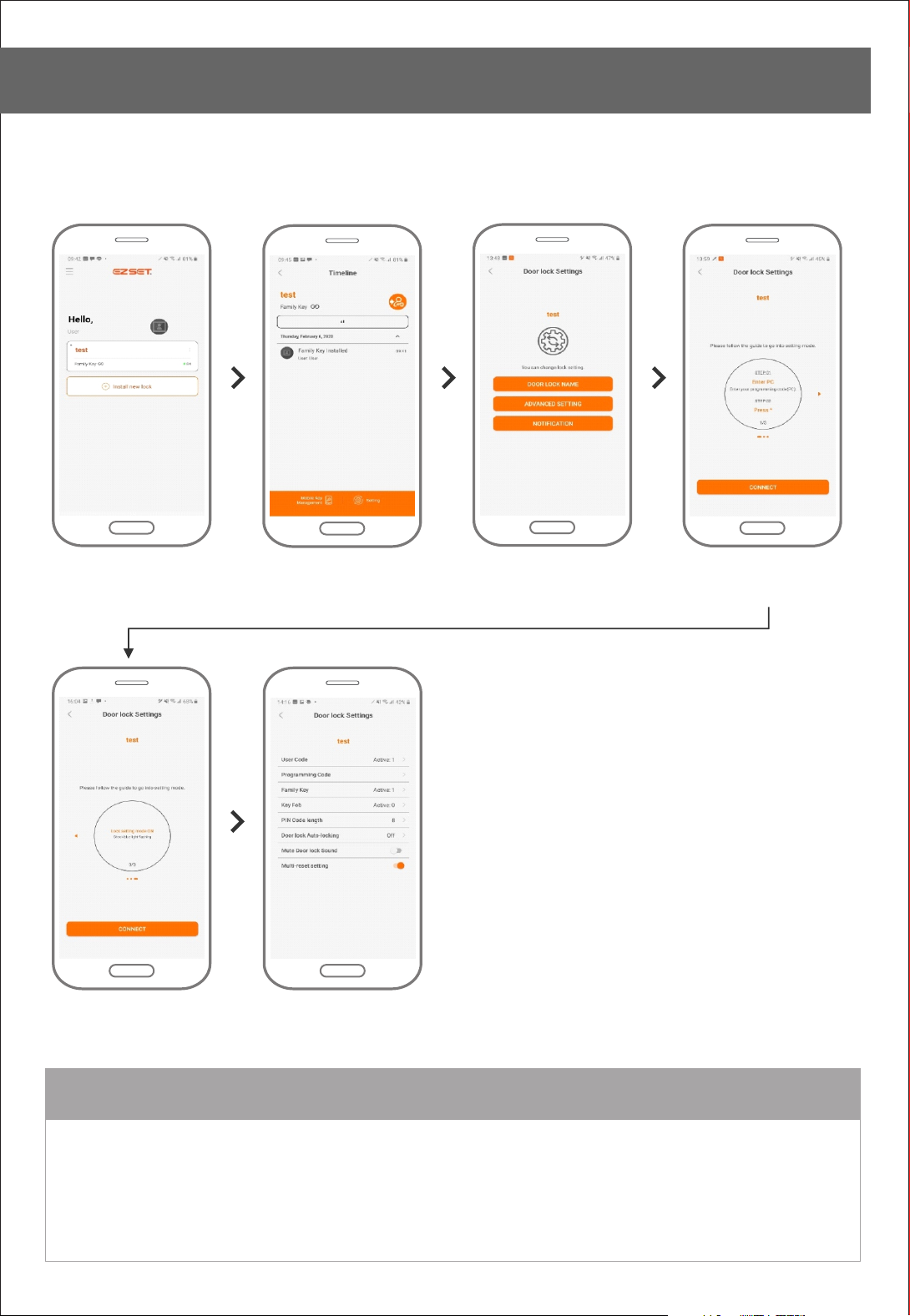
APP Setting
Setting Change - Multi-Reset setting
Click Family Key Click Setting Make Door lock as
Click Connect Click Multi-Reset Setting
Click Advanced Settings
Setting Mode
REMARK
To block unauthorized reset from anyone, you can set Multi-Reset setting.
Once you set this function, you should enter Programming Code when you reset the lock.
Page 39
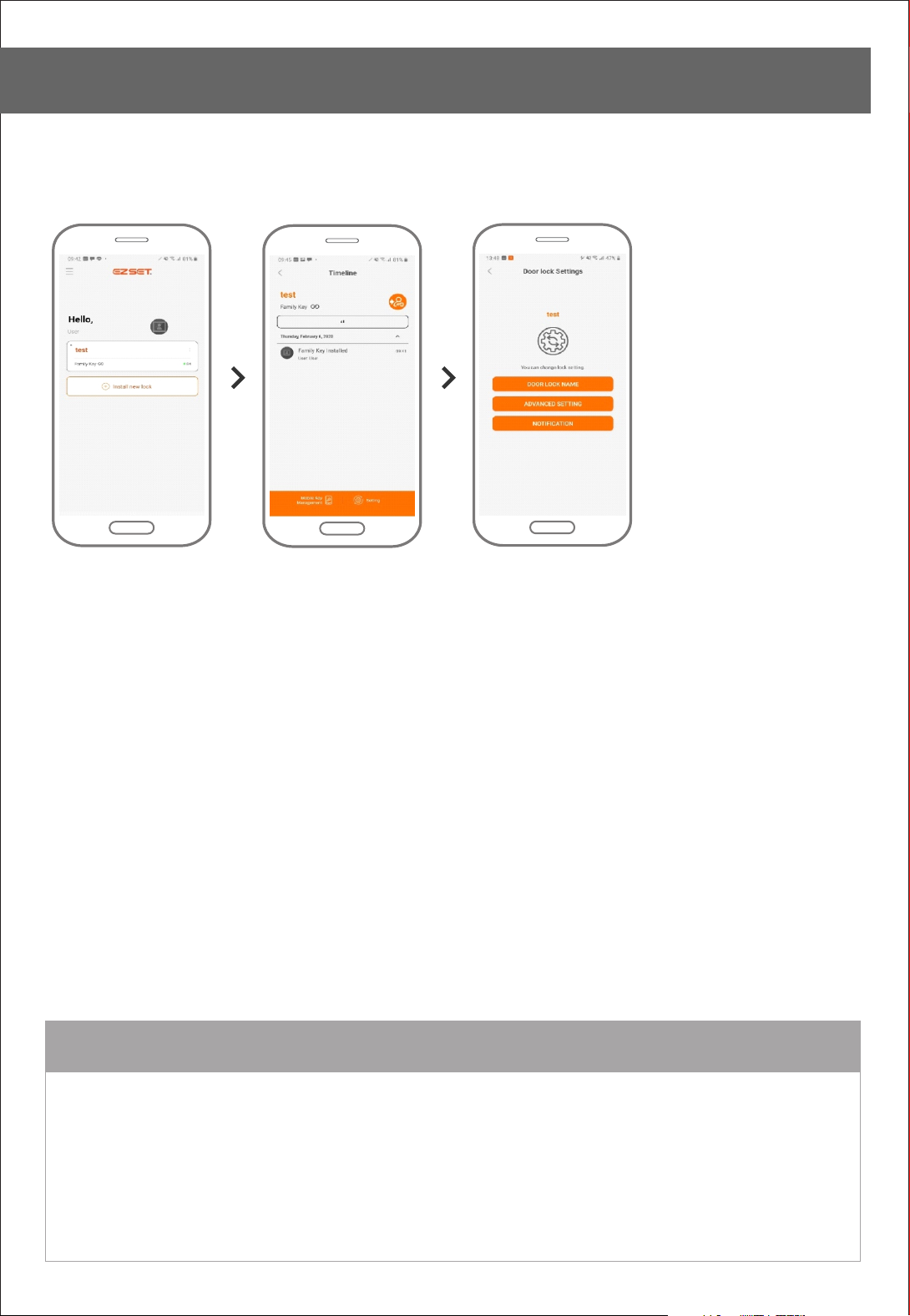
APP Setting
Setting Change - Notification
Click Family Key Click Setting
Click Notification
REMARK
Manage Notification. If you wish to stop receiving notification, turn it off.
Unlock History: Whenever door opens by smartphone, record will be listed.
Setting Change: Whenever lock setting changes by smartphone, record will be listed.
User status : Whenever Door lock user related changes such as Family Key user withdrawn, Guest Key expiry,
Expired Guest Key request and etc. happen, record will be listed.
Mobile Key Install, Delete, Send and Accept notification will be provided regardless of the setting changes.
change
Page 40
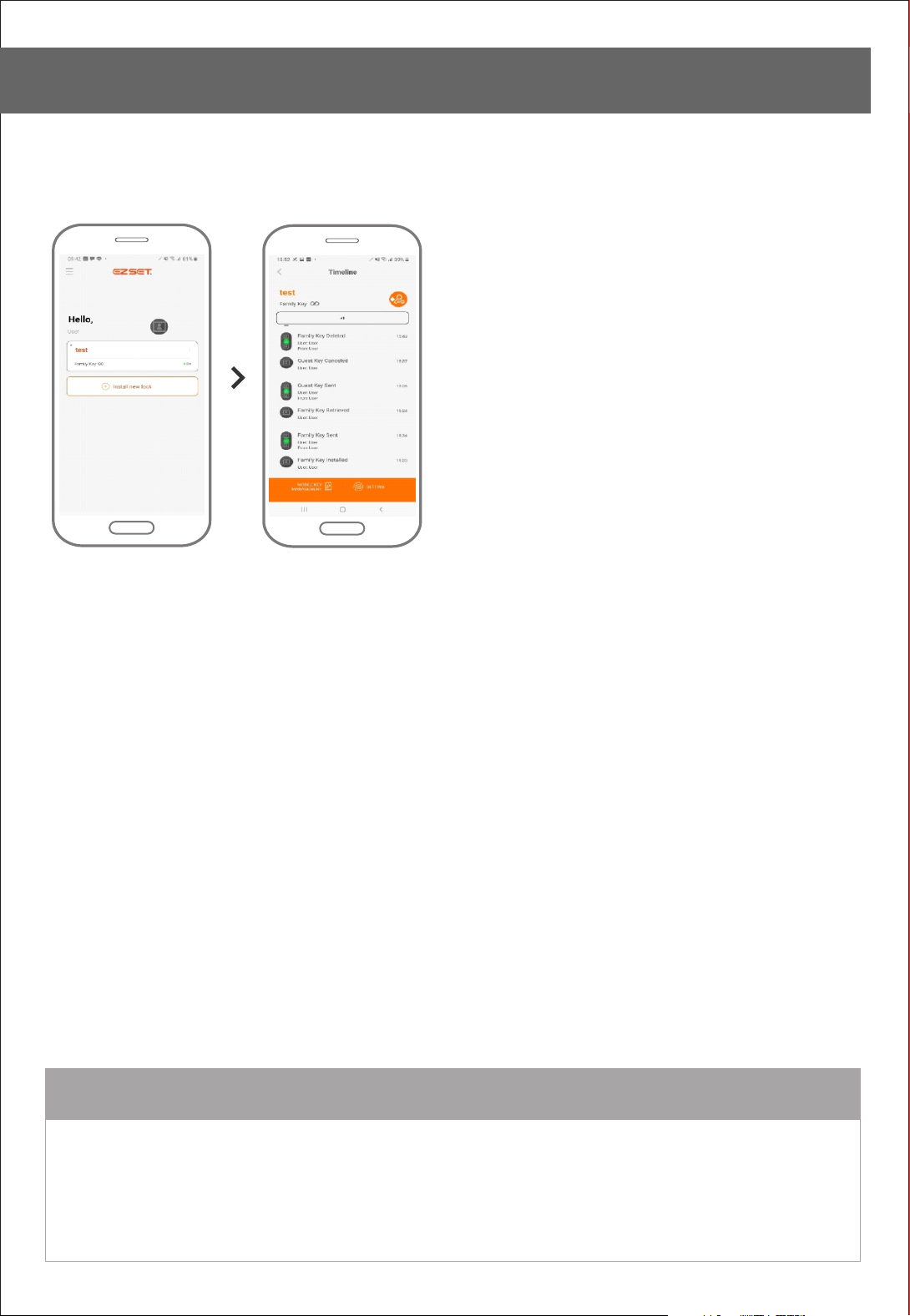
APP Setting
Notification (Timeline)
Click Family Key Timeline on door lock
REMARK
Every action on door lock using smartphone will be displayed on timeline.
Page 41
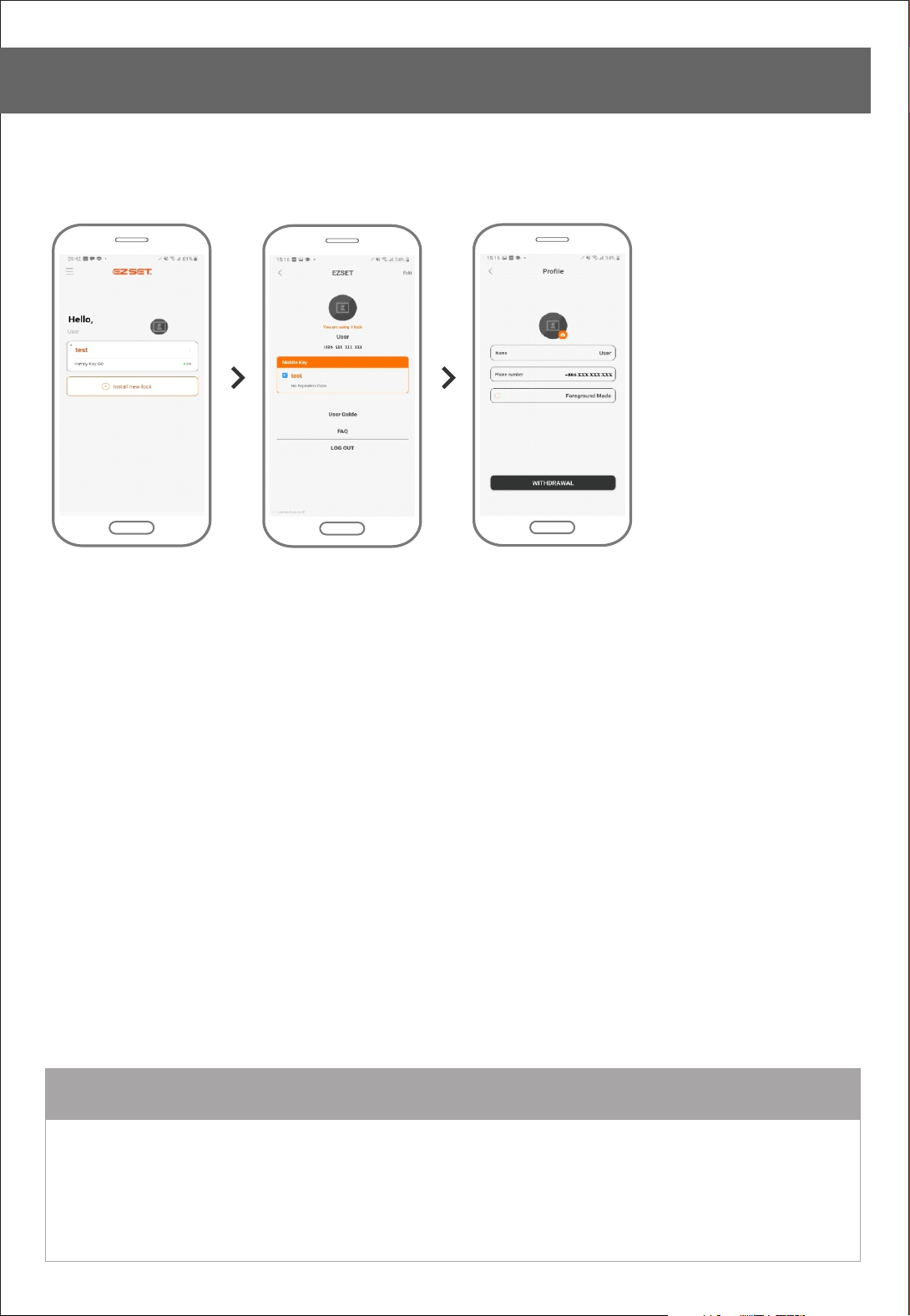
APP Setting
Profile
Click Menu Click Edit Profile
Manage your profile.
REMARK
Page 42
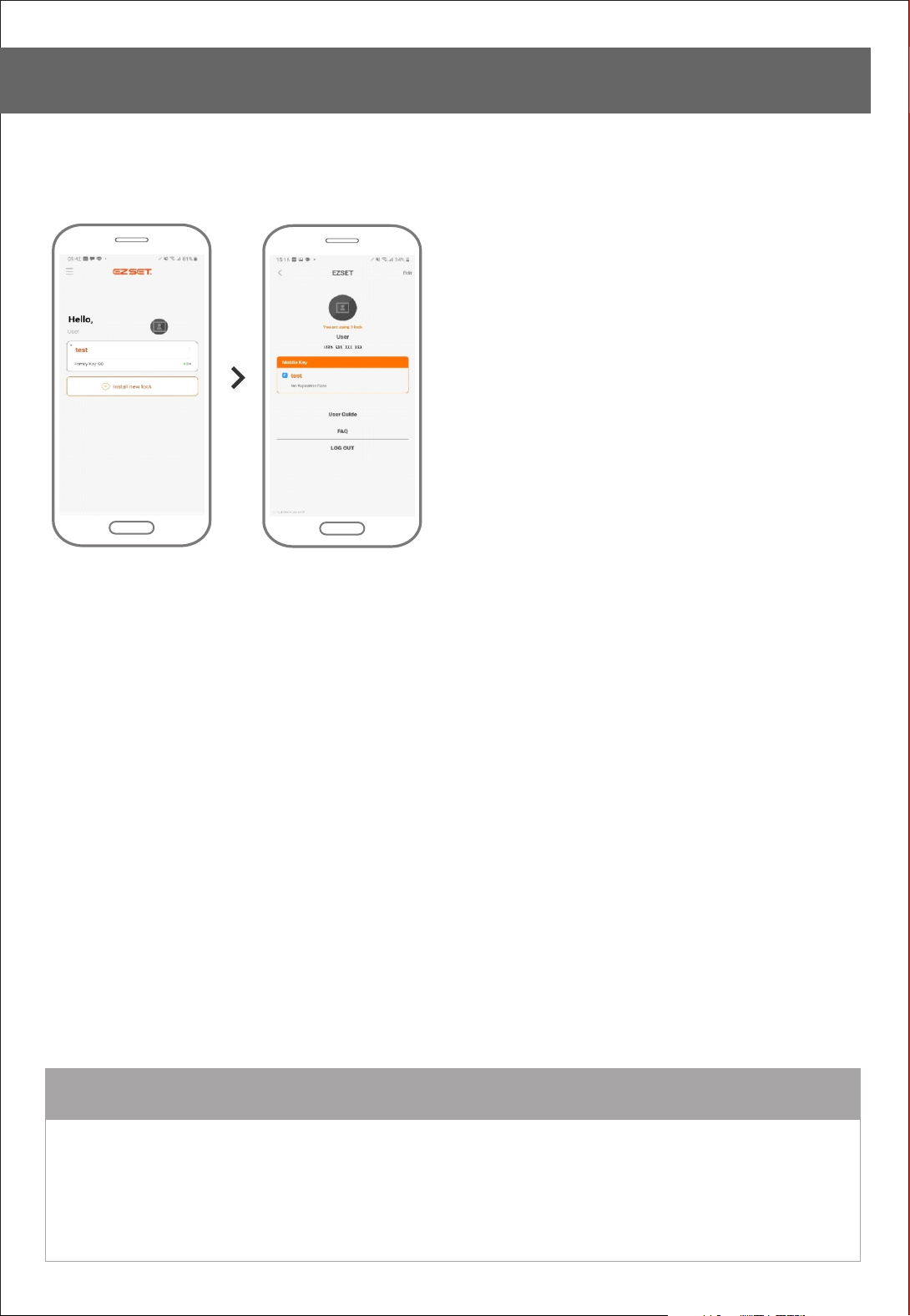
APP Setting
User Guide
Click Menu Click User Guide
Check User Guide how to use EZSET app.
REMARK
Page 43
APP Setting
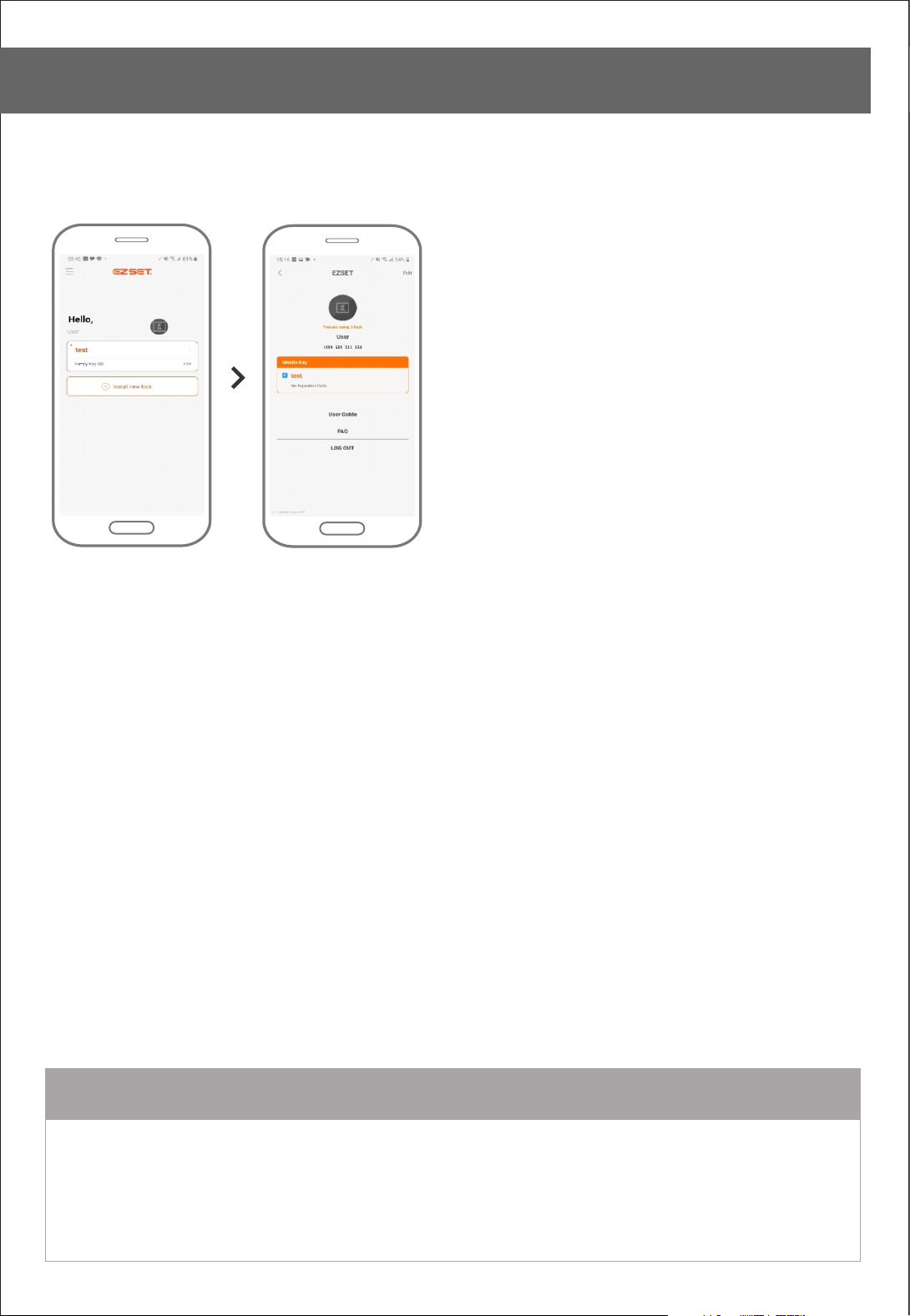
FAQ
Click Menu Click FAQ
REMARK
You can check frequently asked quetions.
If there is no information you are looking for, leave your message and we will reply soon.
Page 44
APP Setting
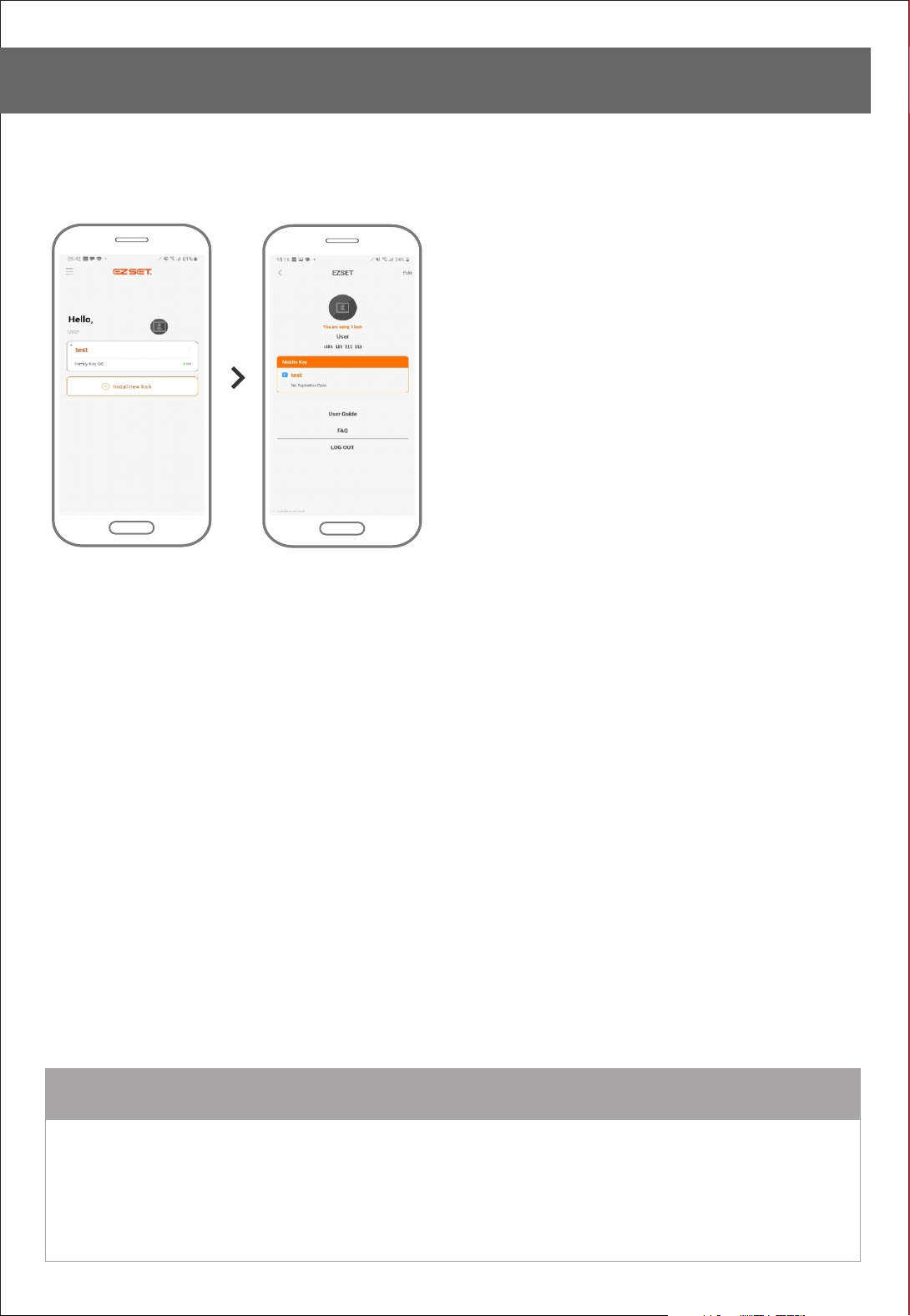
Log out
Click Menu Click Log out
REMARK
Please make sure if you log out, you can’t use Mobile Key.
Page 45
APP Setting
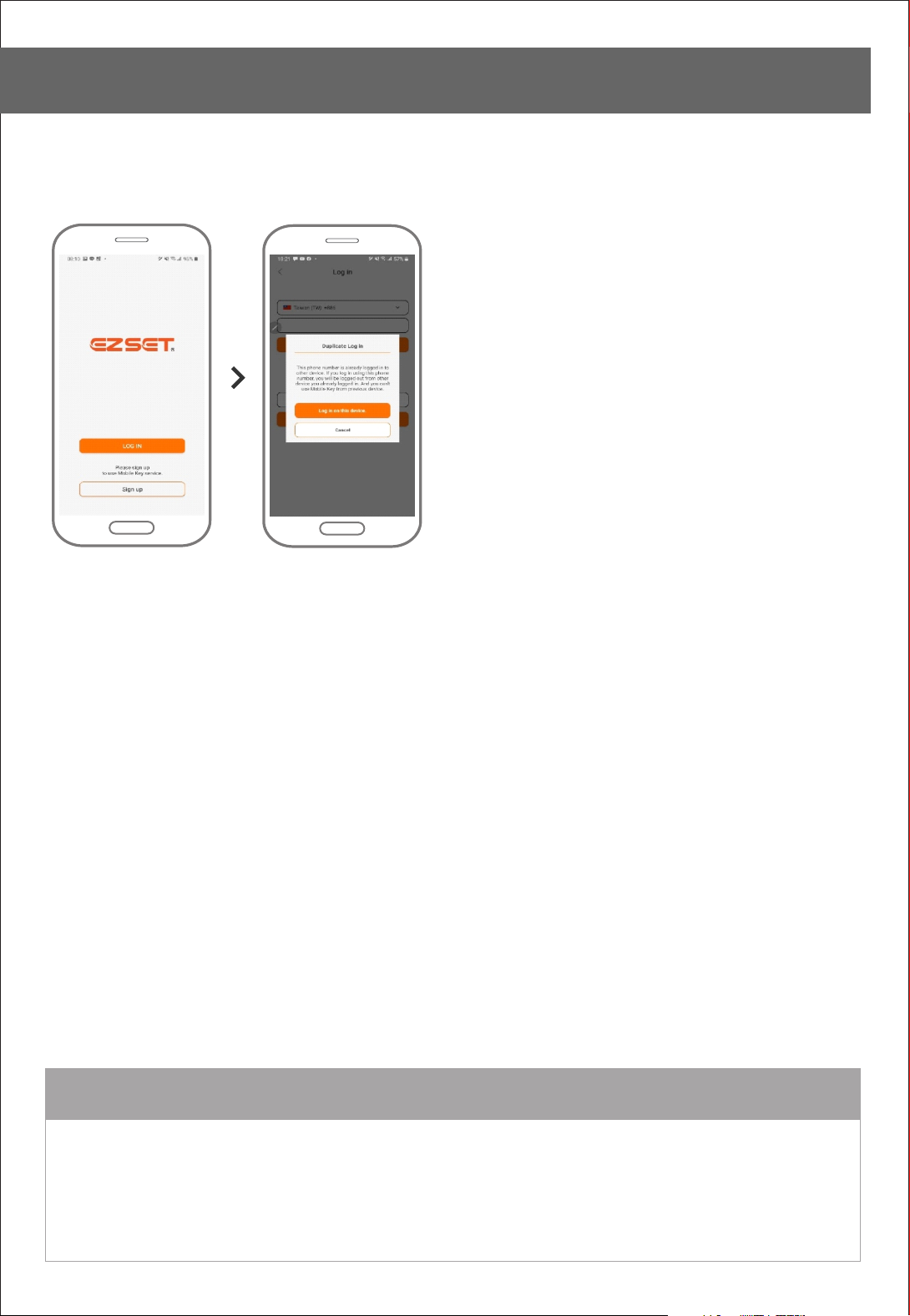
Duplicate Log in
Log in Error Message
REMARK
Duplicate log in is prohibited.
You can log in on one device with one phone number.
If you log in with your phone number on another device, you will be logged out automatically from old device.
Page 46
APP Setting
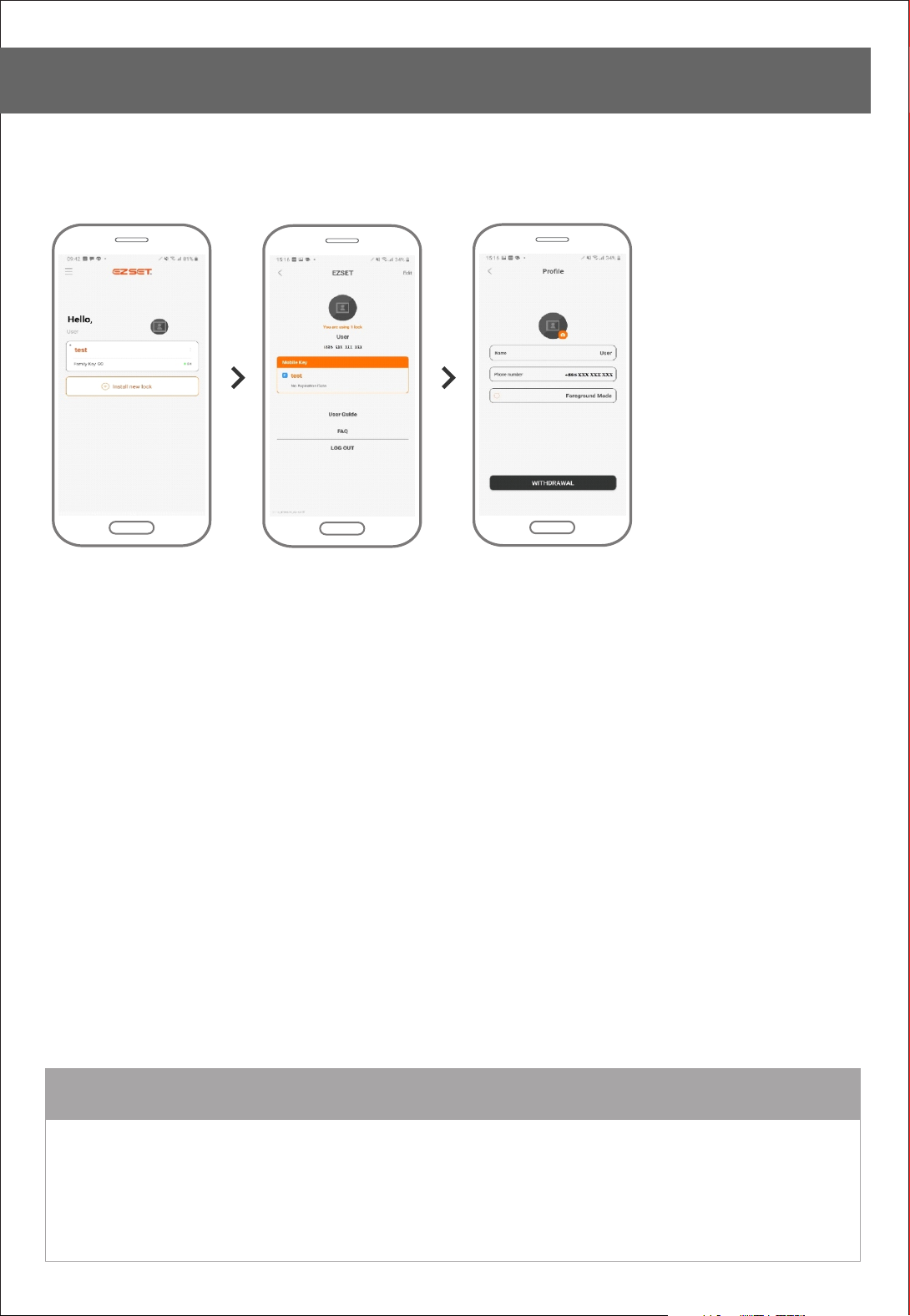
Withdraw Account
Click Menu Click Edit Click Withdrawal
REMARK
Once you withdraw your account, all your information will be discarded and you can’t use Mobile Key.
 Loading...