

Page 1

EZCast Wire
User’s Manual
Rev. 2.01
Page 2

Introduction
Thanks for choosing EZCast! The EZCast Wire contains the
cutting-edge EZCast technology, and firmware upgrade will be provided
accordingly in order to compatible with latest devices. The EZCast Wire
cooperates with the EZCast app, which support iOS, Android, Mac, and
Microsoft Windows. Please read the installation guide below to setup
your EZCast Wire. Happy Casting!
Page 3
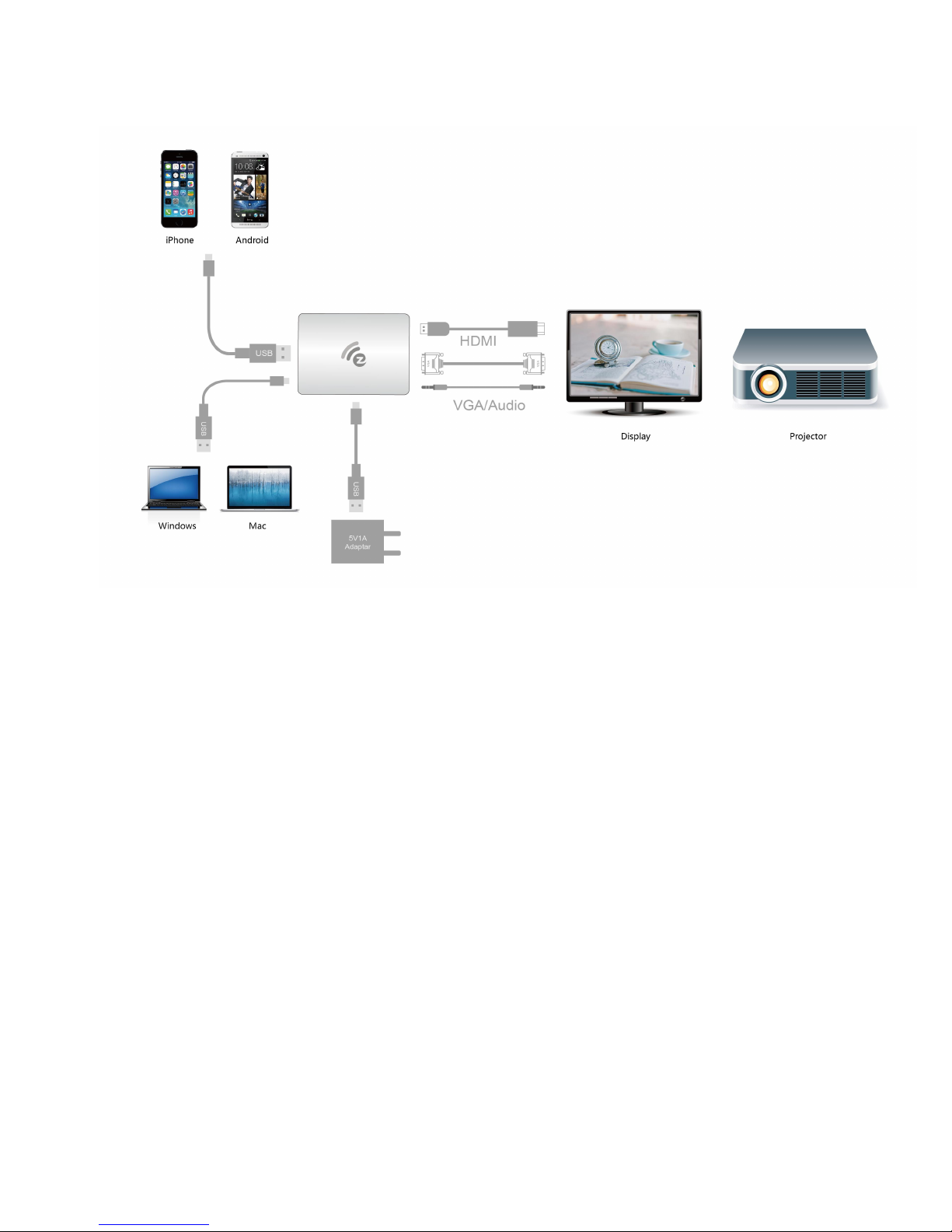
Hardware Installation
Please follow below steps to setup EZCast Wire:
Step 1: Connect EZCast Wire into any HDMI input port on your TV,
Monitor, or Projector. If your EZCast Wire contains a VGA port, you may
also use it for VGA display. Plug one end (smaller one, micro USB) of
the USB power cable into your EZCast Wire and the other end of the
USB power cable (bigger one, USB Type-A) into an external 5V1A
power adapter.
Note: In general, the audio and video quality of HDMI port should be
better than VGA port.
Page 4
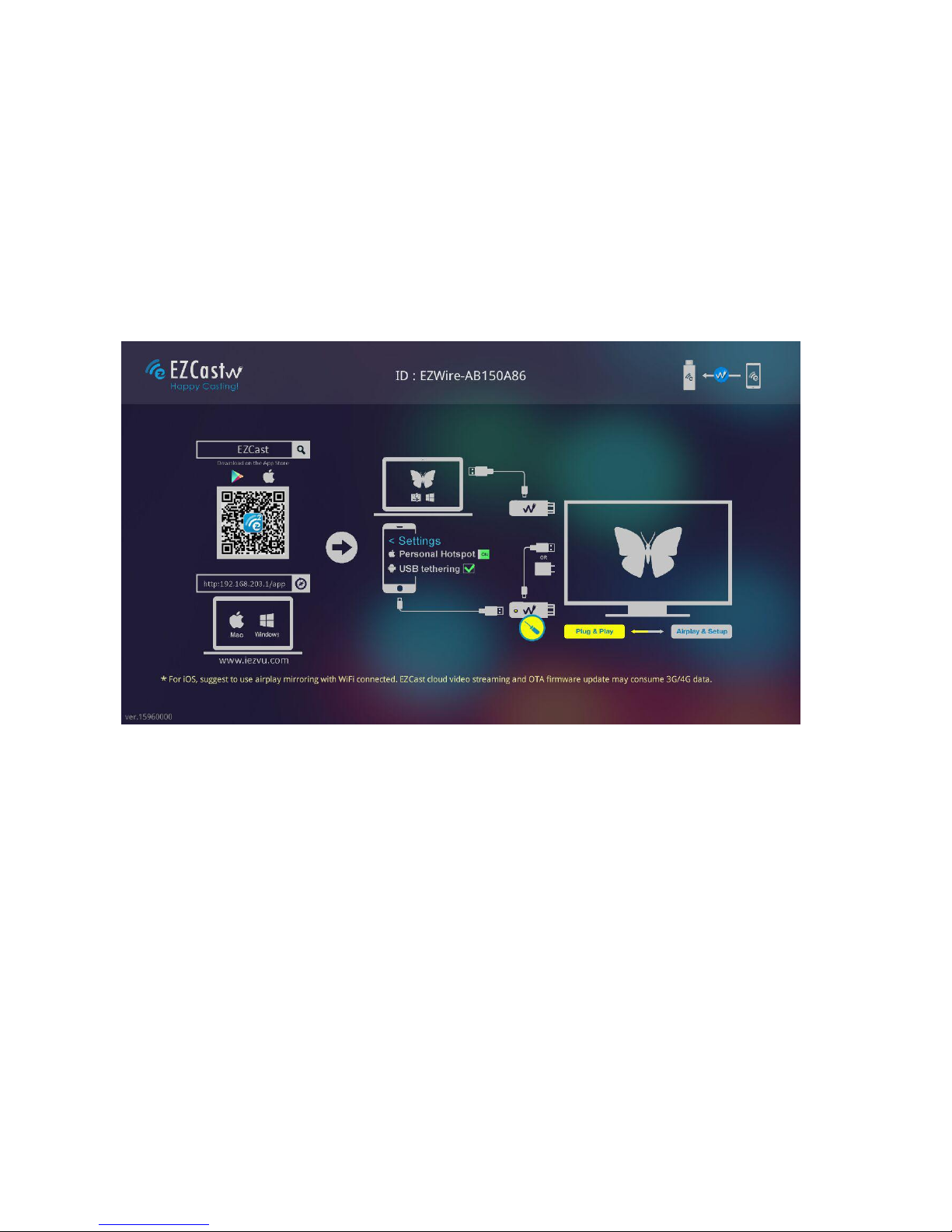
Step 2: Switch to the correct HDMI (VGA) source
If the HDMI (VGA) source is set correctly, you should see the EZCast
Wire setup screen as shown below.
If your TV (Monitor, Projector) does not show this screen, it usually
means you do not choose the source correctly. In your TV remote
control, find the source button and press to select the correct source.
For iOS (iPhone/iPad) Device
Hardware Installation
Connect EZCast Wire with your iOS devices
Plug one end (smaller one, micro USB) of the USB power cable into
your EZCast Wire and the other end of the USB power cable (bigger
Page 5
one, USB Type-A) into an external 5V1A power adapter.
Use your lightning cable to connect your iOS device and EZCast Wire
(bigger one, USB Type-A)
Software Installation
Please download “EZCast” from App Store.
You may also scan the QR code on TV screen for download.
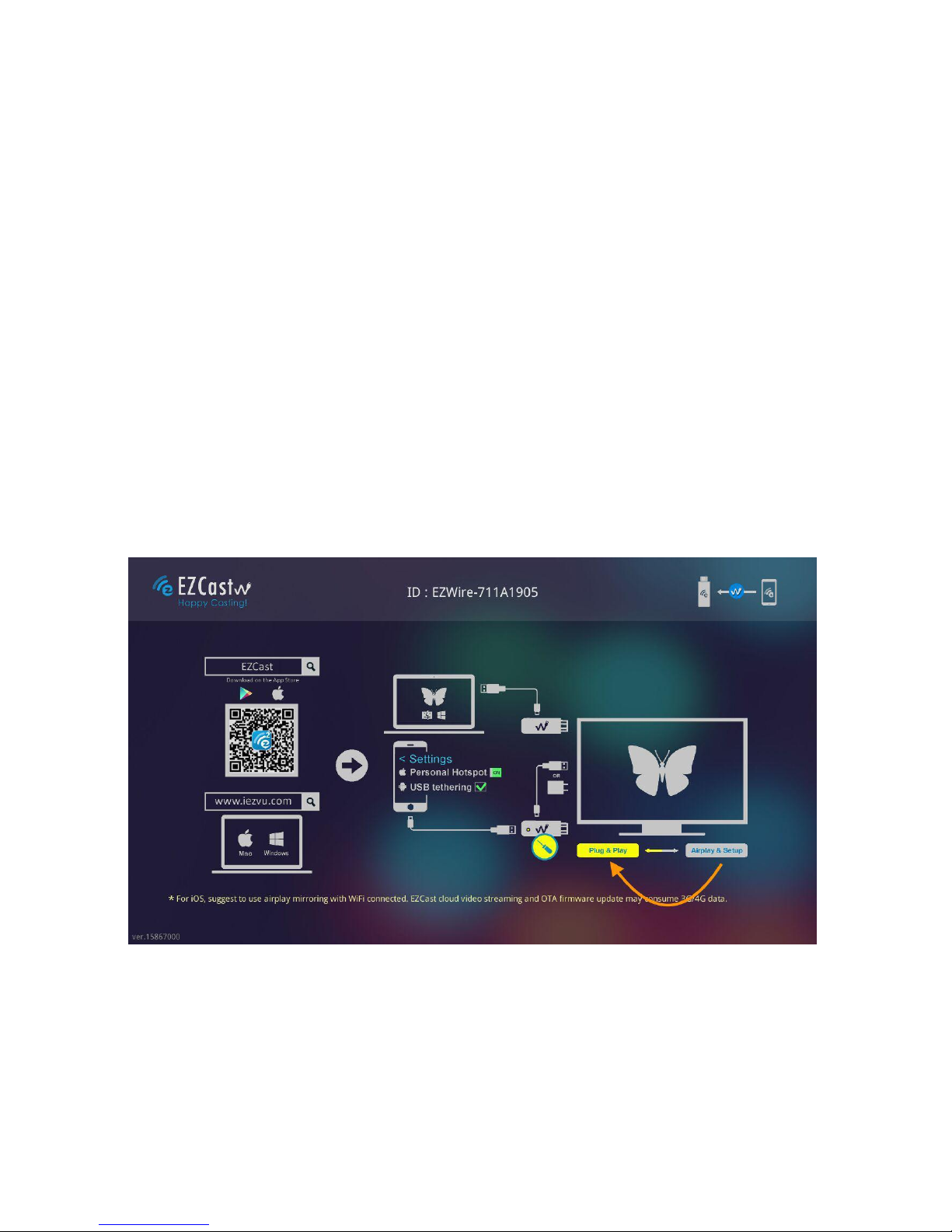
Setup EZCast Wire
Insert a paper clip into the hole on the EZCast Wire, and push the key
inside the hole to switch to “Plug & Play mode” as below
Page 6
After connecting EZCast Wire and your iOS devices, please wait for a
few seconds for initialization*, the screen of your iOS device will be
shown on TV.
* Note: Supports iOS8 and above
* Some iOS devices may popup "This accessory may not be
supported". Please feel at ease to use as this is a normal notification.
* If iOS device popup a ‘Trust This Computer’ message, please select
‘Trust’.
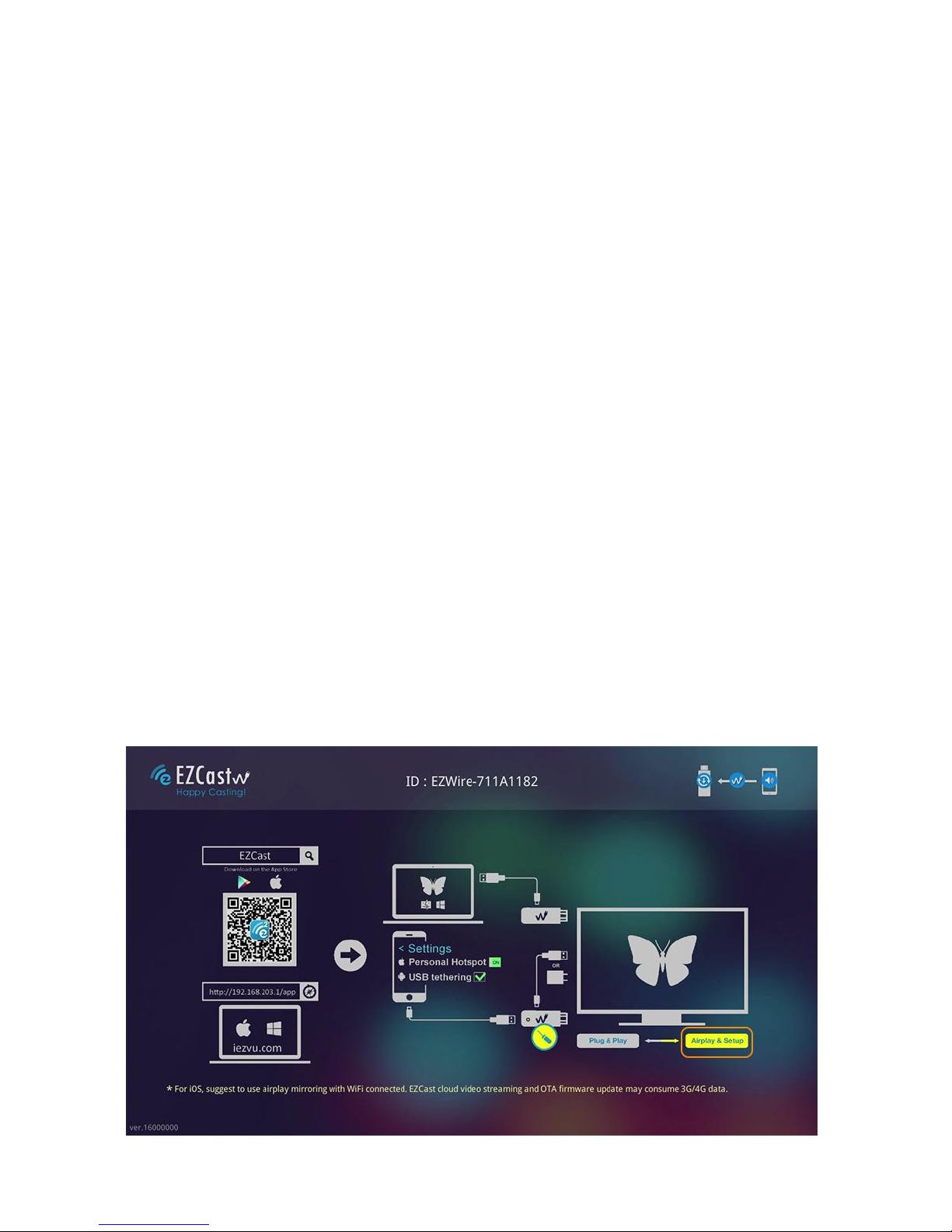
Firmware Upgrade
Insert a paper clip into the hole on the EZCast Wire, and push the key
inside the hole to switch to “Setup mode”. After that please turn on the
Personal Hotspot of your iOS devices.
Page 7
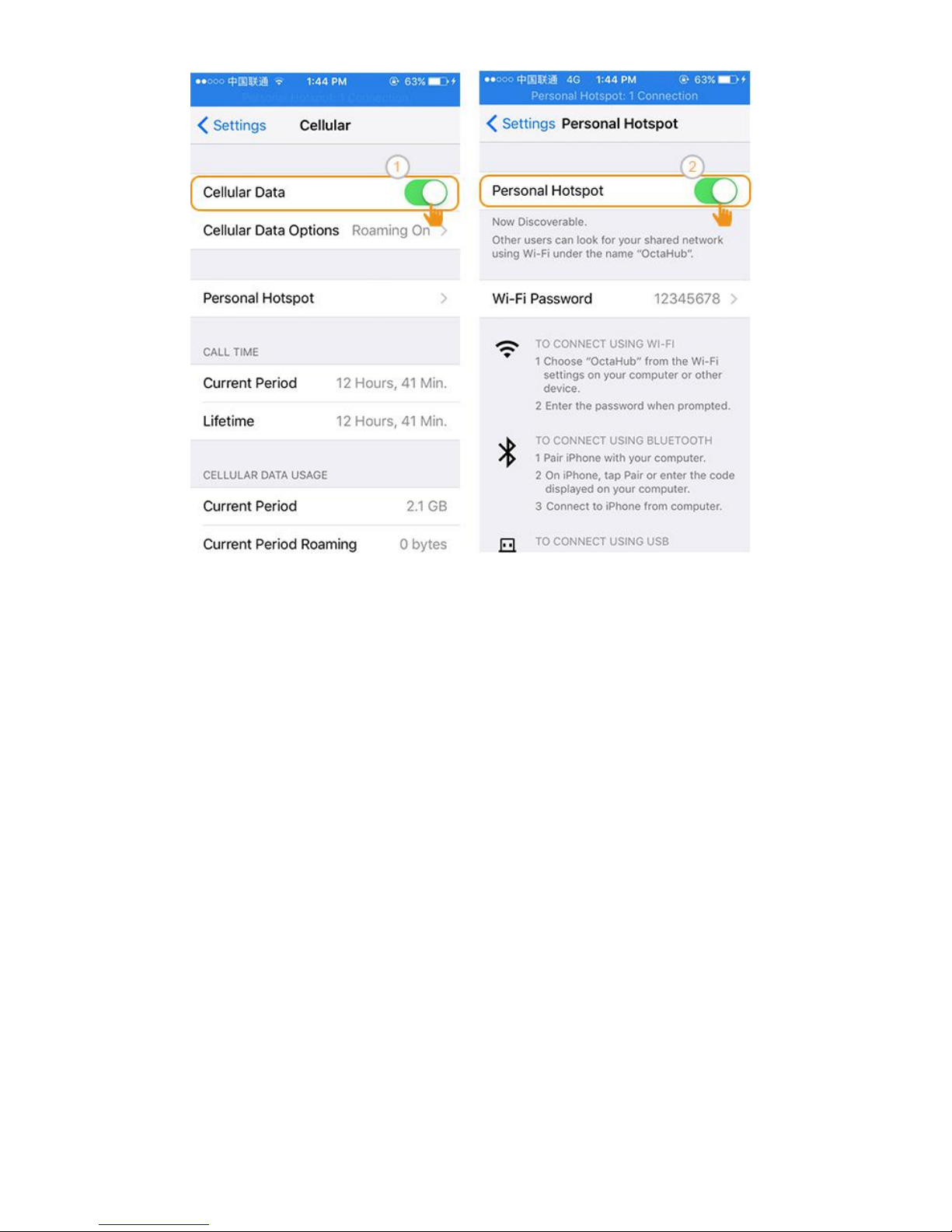
Then please launch the “EZCast” app, and click the “Wire” button to
establish connection between your iOS device and EZCast Wire. After
that please click the “Menu” button and then the “Firmware OTA” button
Note: Cellular (3G/4G) data is needed at your iOS device
Page 8
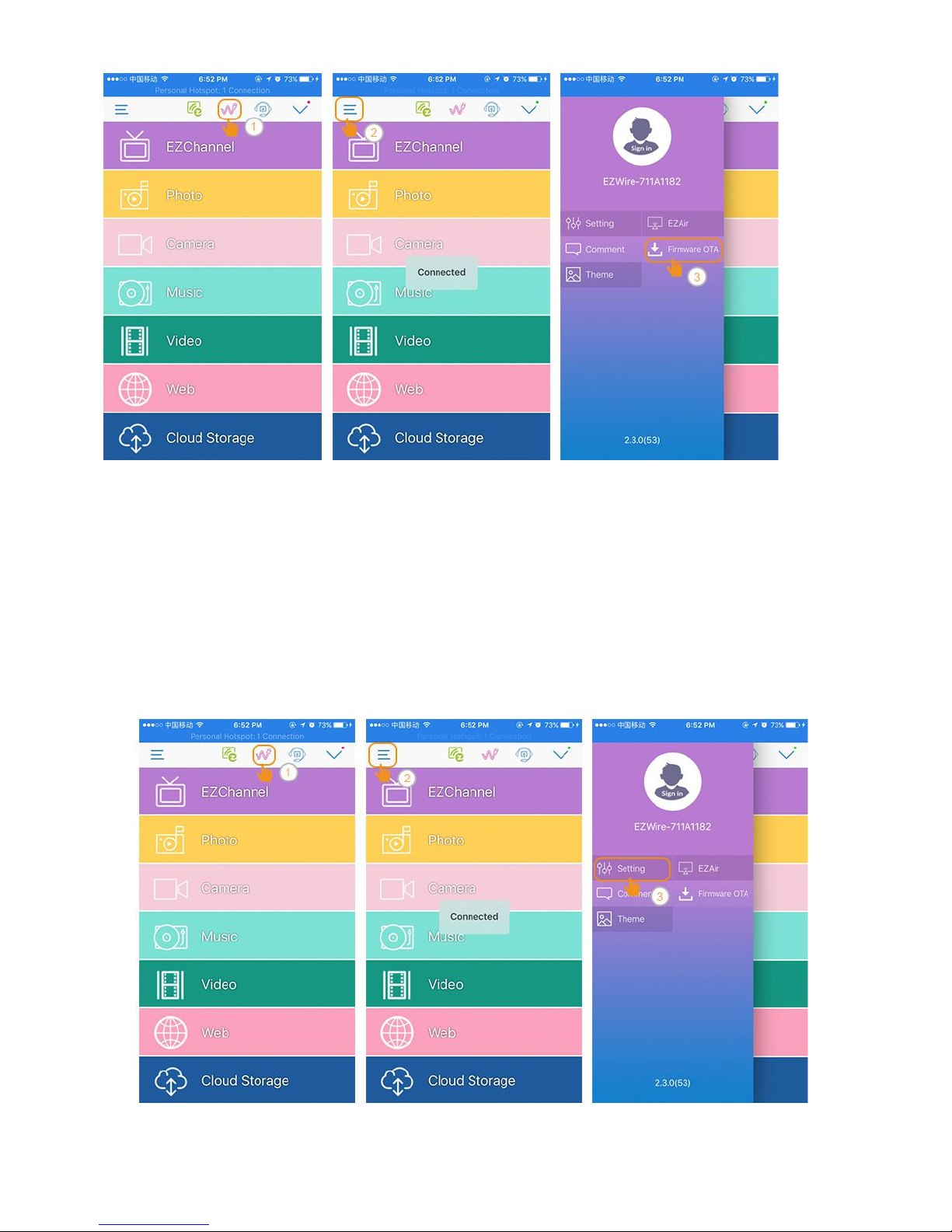
Setting
Insert a paper clip into the hole on the EZCast Wire, and push the key
inside the hole to switch to “Setup mode”. After that please turn on the
Personal Hotspot of your iOS devices.
Page 9
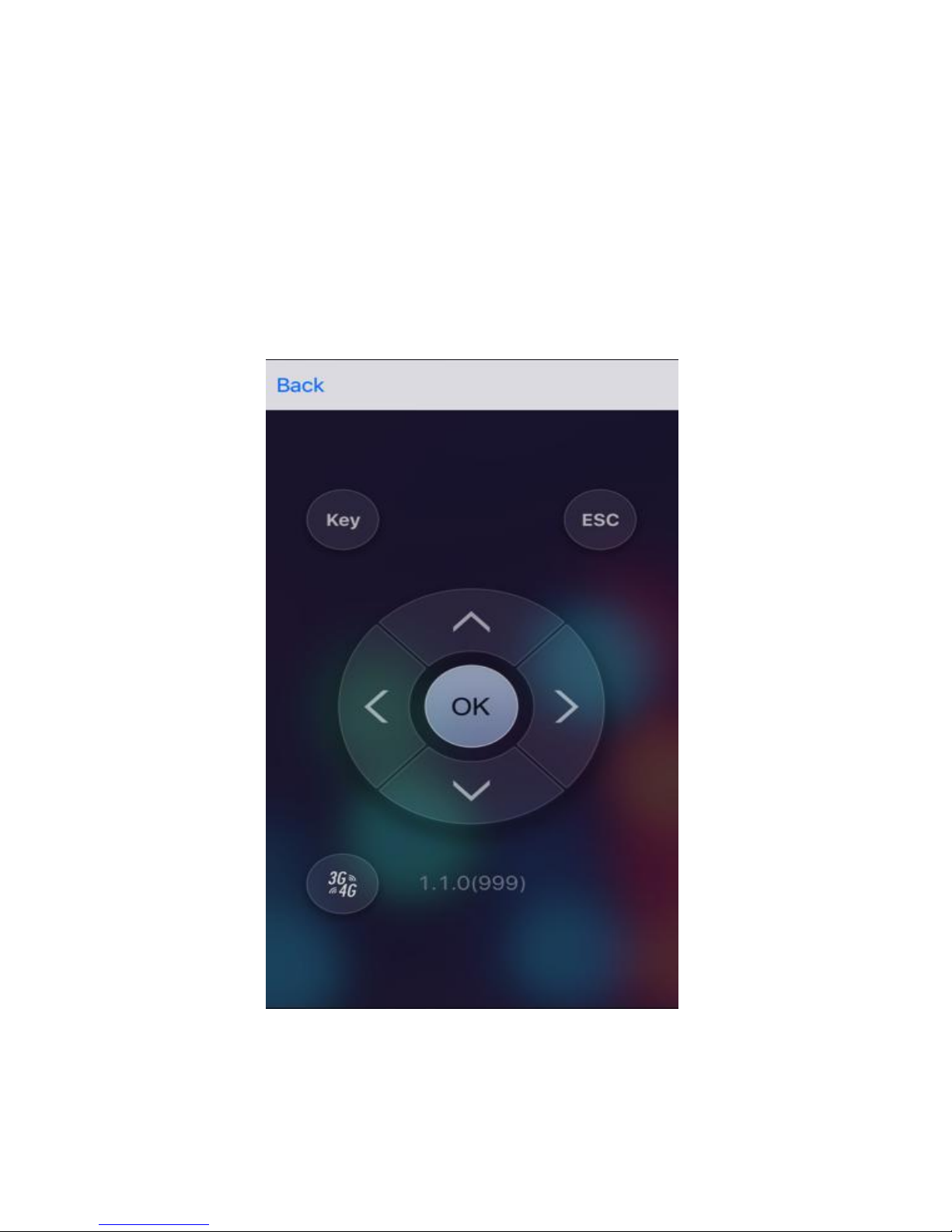
Then please launch the “EZCast” app, and click the “Wire” button to
establish connection between your iOS device and EZCast Wire. After
that please click the “Menu” button and then the “Setting” button. Then
you could config EZCast Wire from the control pad as shown below.
Page 10
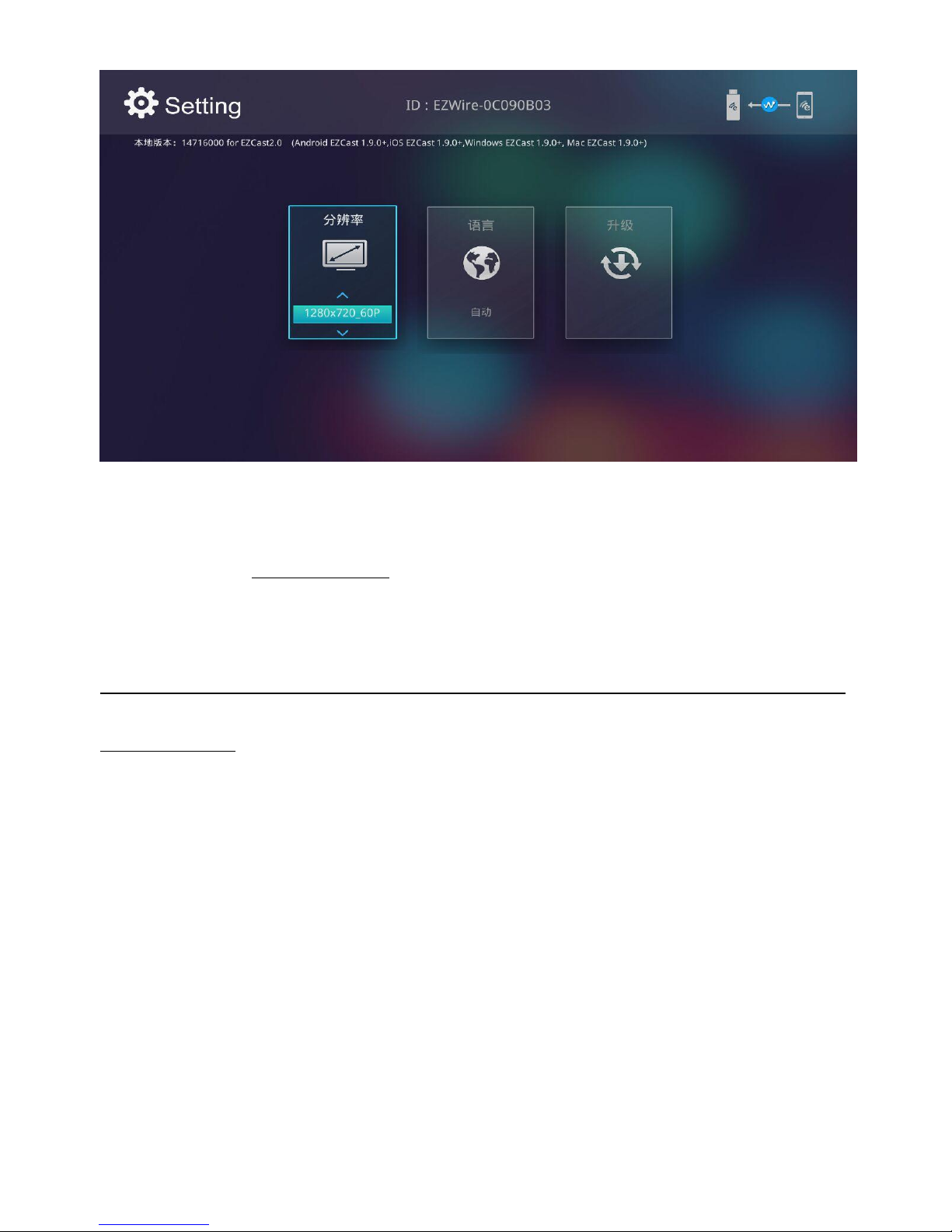
(1) Language: Change the language of the EZCast Wire
(2) Resolution: Change the output resolution of the EZCast Wire
(3) Upgrade: IMPORTANT! Please upgrade your EZCast Wire to the
latest version according to the App instruction in order to compatible
with up-to-date devices (iOS and Android).
*Note: It may consume your 3G/4G data traffic during upgrade of
EZCast Wire.
For Android Device
Hardware Installation
Connect EZCast Wire with your Android devices
Plug one end (smaller one, micro USB) of the USB power cable into
your EZCast Wire and the other end of the USB power cable (bigger
one, USB Type-A) into an external 5V1A power adapter.
Use your micro USB (or USB Type-C) cable to connect your Android
Page 11
device and EZCast Wire (bigger one, USB Type-A)
Software Installation
Please download “EZCast” from Google play (Android).
You may also scan the QR code on TV screen for download.
Note: Supports Android 4.4 and above
*Note: Not all Android 4.4 devices support USB Mirror.
**Not all smartphone supports USB audio, and consequently the
sound may come from the smartphone instead of TV/Projector.
Setup EZCast Wire
(A) Android USB tethering mode
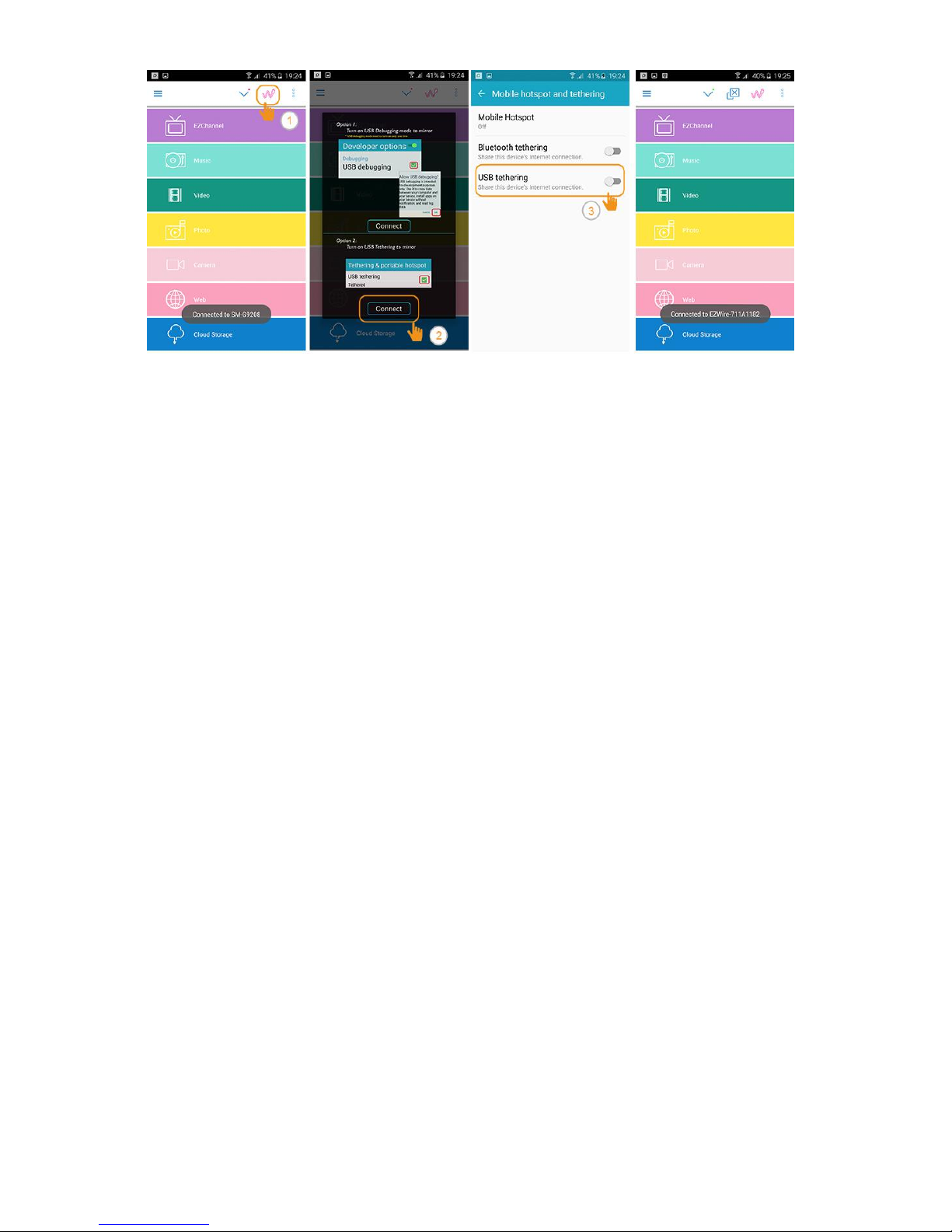
Please launch the “EZCast” app, and click the “Wire” button. After that
please click the “Connect” button, and then enable “USB tethering”.
Then you may start mirroring your Android screen.
Note: Supports Android 5.0 and above
Page 12
(B) Android USB Mirror mode
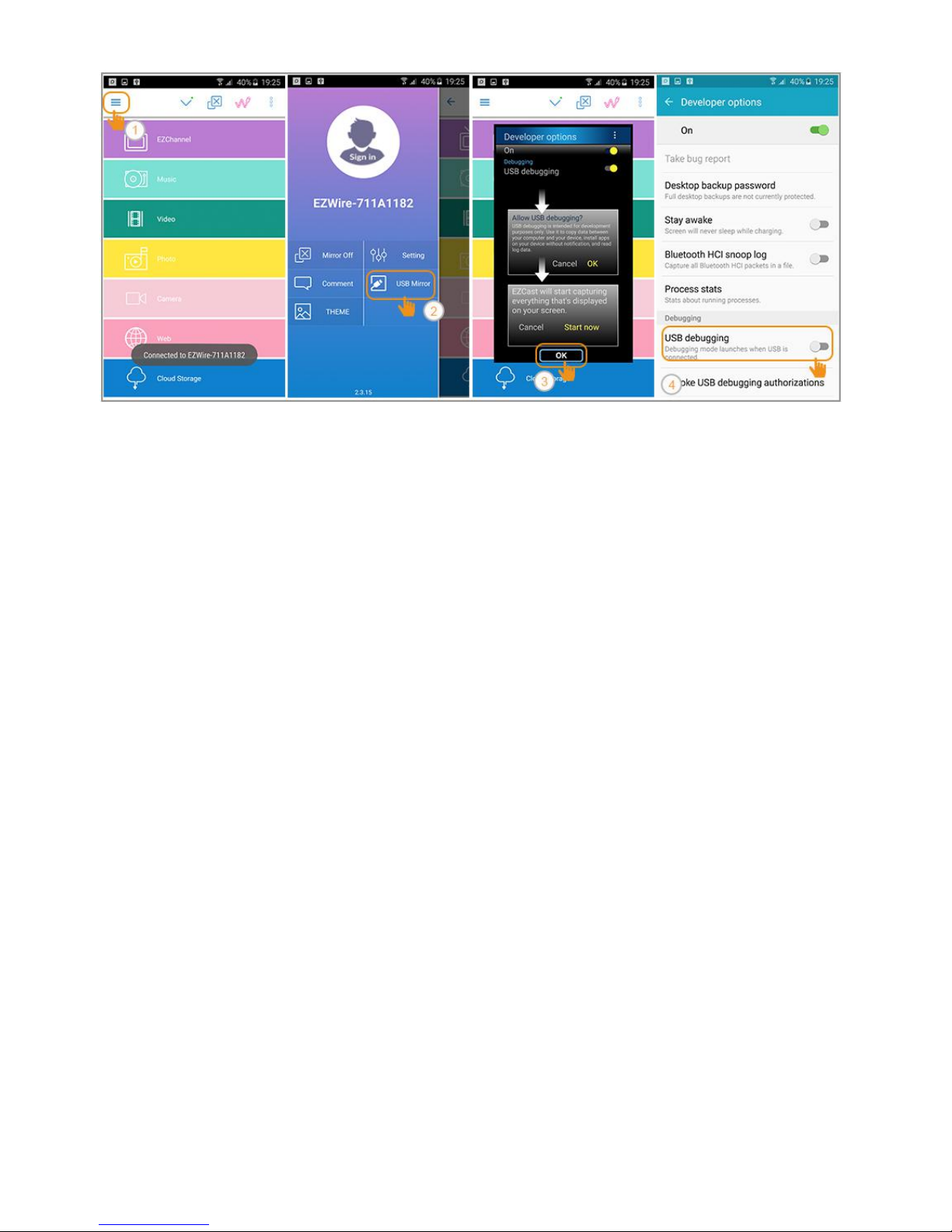
USB Mirror mode is an alternative for supporting more Android devices
(4.4 and above). Please launch the “EZCast” app, and then enable
“USB tethering” according to previous section.
Click the “Menu” button, and then “USB Mirror” button on menu page,
and follow the App instructions to enable “USB debugging”. You may
start mirroring your Android screen. If “USB Mirror” failed to enable,
please unplug USB cable from your Android device, and then re-plug in
for retry.
Note: Supports Android 4.4 and above
Note: USB debugging should be turned on for activating USB Mirror.
Note: Not all Android 4.4 devices support USB Mirror.
Page 13
Android Audio Control
Some Android devices might fail to convey audio/sound through “USB
Mirror”. Please use below alternatives to switch on Android’s speaker
Press audio switch button on the case: If your EZCast Wire contains a
button on the case, you may press the button for switching audio/sound
to your Android’s speaker. You may also see the sound status change
on the right-top concern of your TV (monitor or projector) screen as
shown below.
Page 14
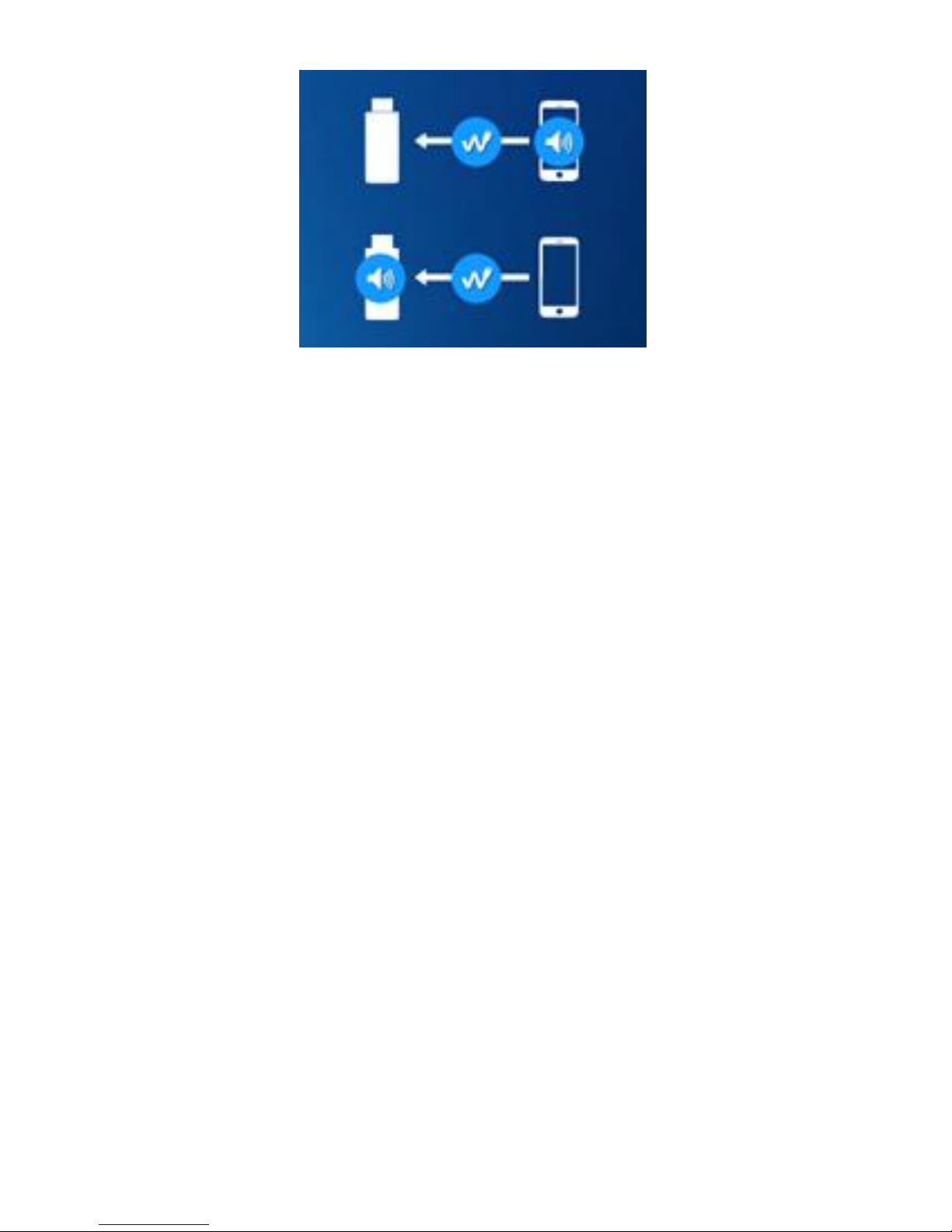
(top) Output from “Phone”
(bottom) Output from “Dongle”
Firmware Upgrade and Setting
Please launch the “EZCast” app, and click the “Wire” button to
establish “Android USB tethering mode” connection between your
Android device and EZCast Wire. After that please click the “Menu”
button and then the “Setting” button. Then you could config EZCast
Wire from the control pad as shown below.
Page 15
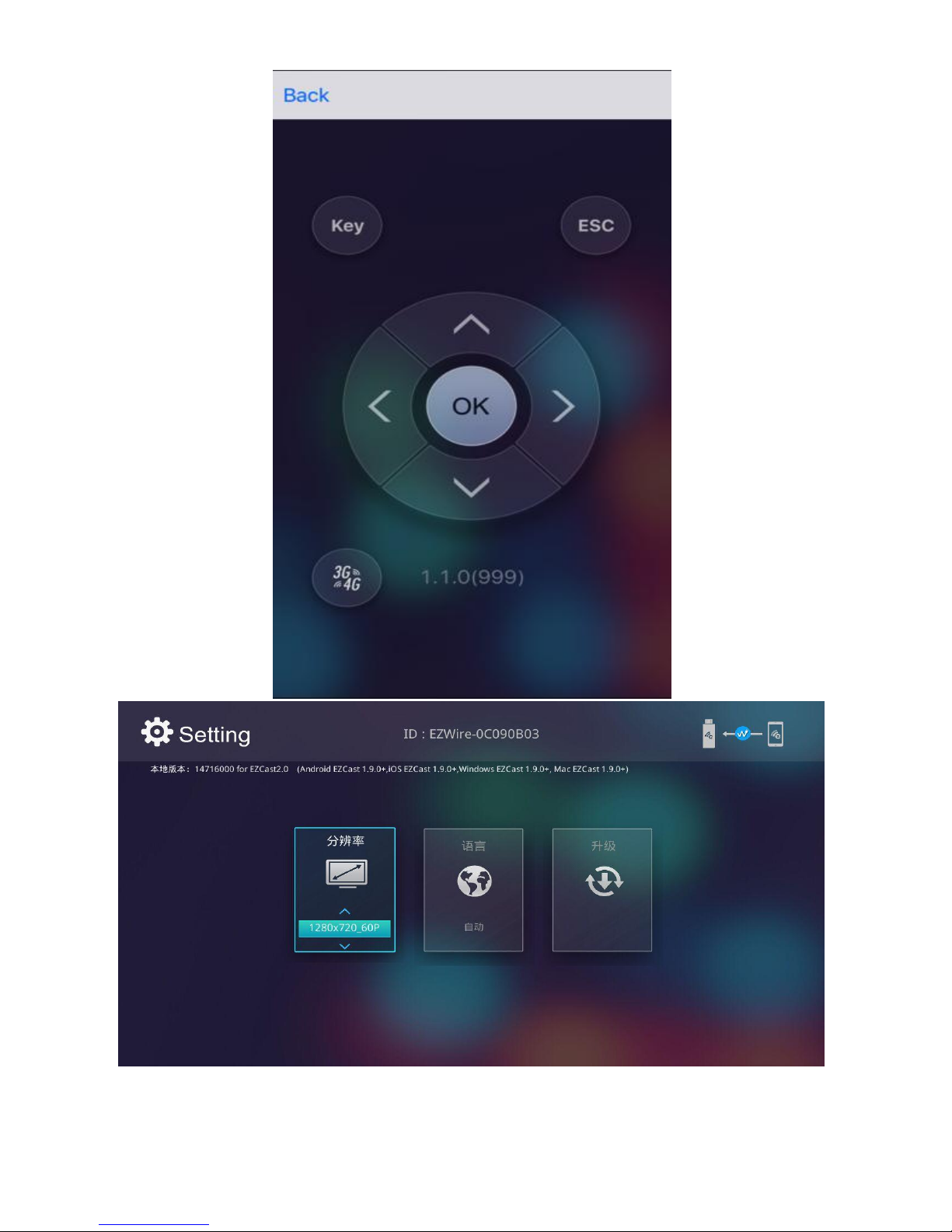
(1) Language: Change the language of the EZCast Wire
Page 16
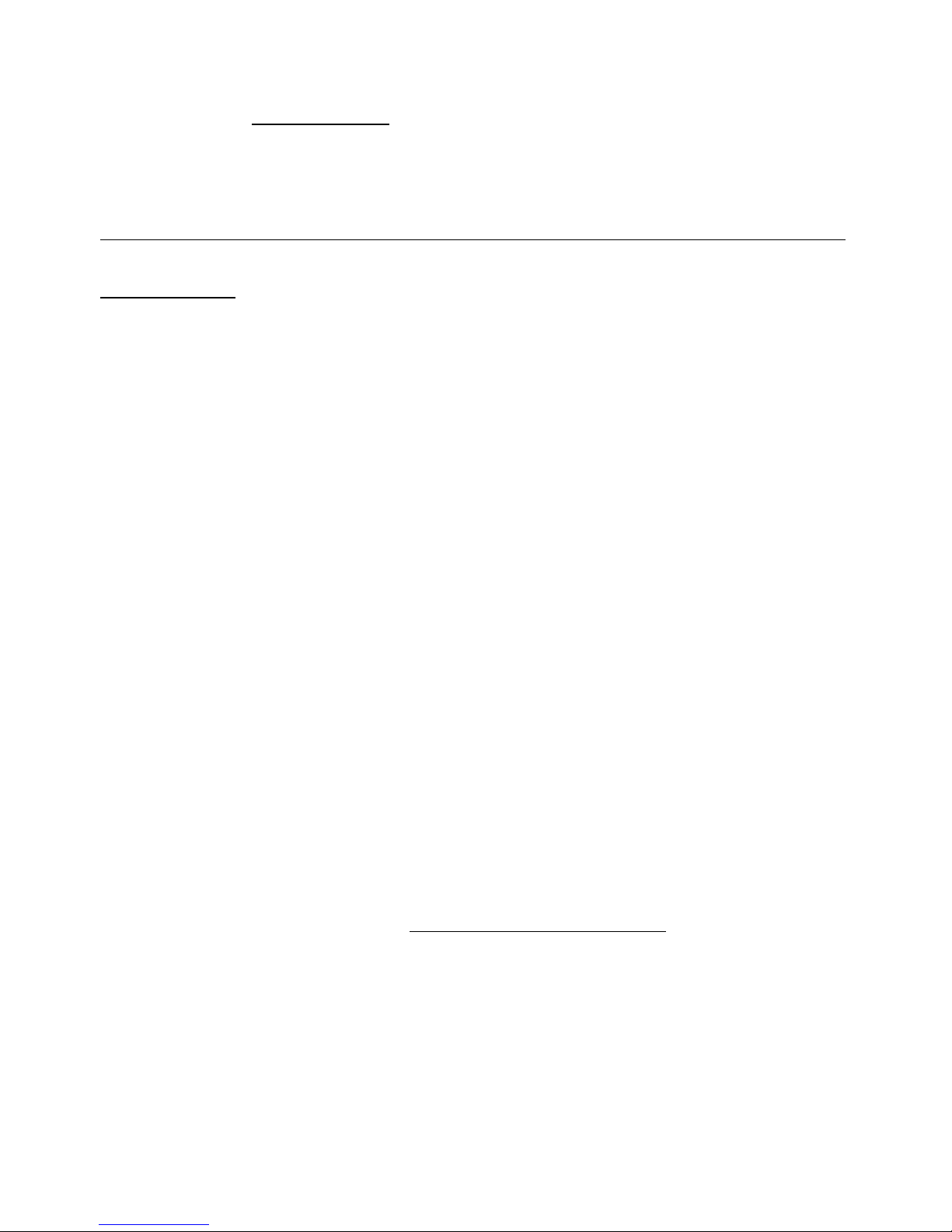
(2) Resolution: Change the output resolution of the EZCast Wire
(3) Upgrade: IMPORTANT! Please upgrade your EZCast Wire to the
latest version according to the App instruction in order to compatible
with up-to-date devices (iOS and Android).
*Note: It may consume your 3G/4G data traffic during upgrade of
EZCast Wire.
For Mac Device
Hardware Installation
Connect EZCast Wire with your Mac devices
Plug one end (smaller one, micro USB) of the USB cable into your
EZCast Wire and the other end of the USB cable (bigger one, USB
Type-A) into your Mac.
Software Installation
Note: Please connect your Mac to Internet for installation
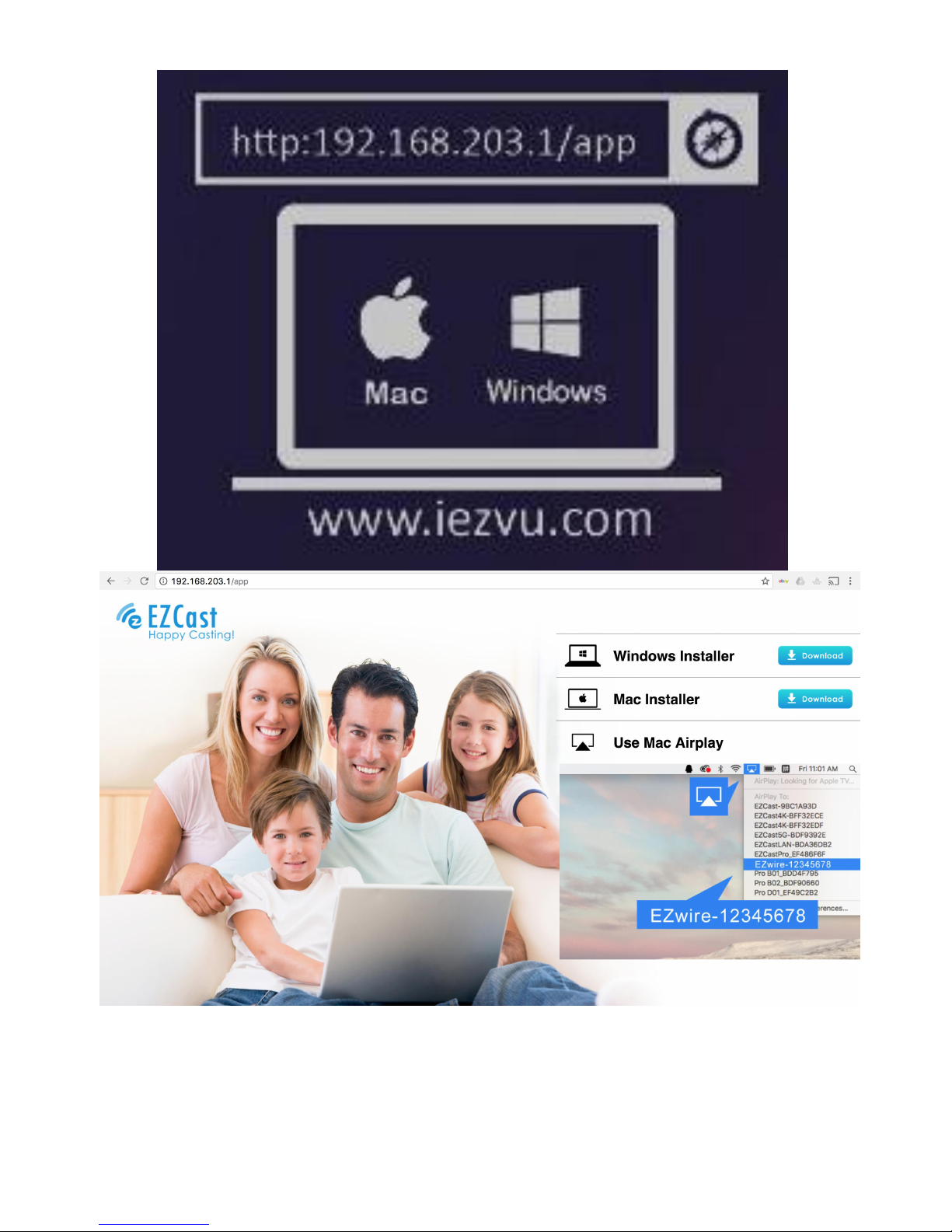
(1) Installer (For firmware version 15960000 ‘Dec 9th2016’ or later)
After connect your Mac with EZCast, please use Mac’s browser to
access installer as below (ex: http://192.168.203.1/app), and then you
may download Installer for your Mac.
Page 17
(2) Please download software from EZCast website below (For firmware
Page 18
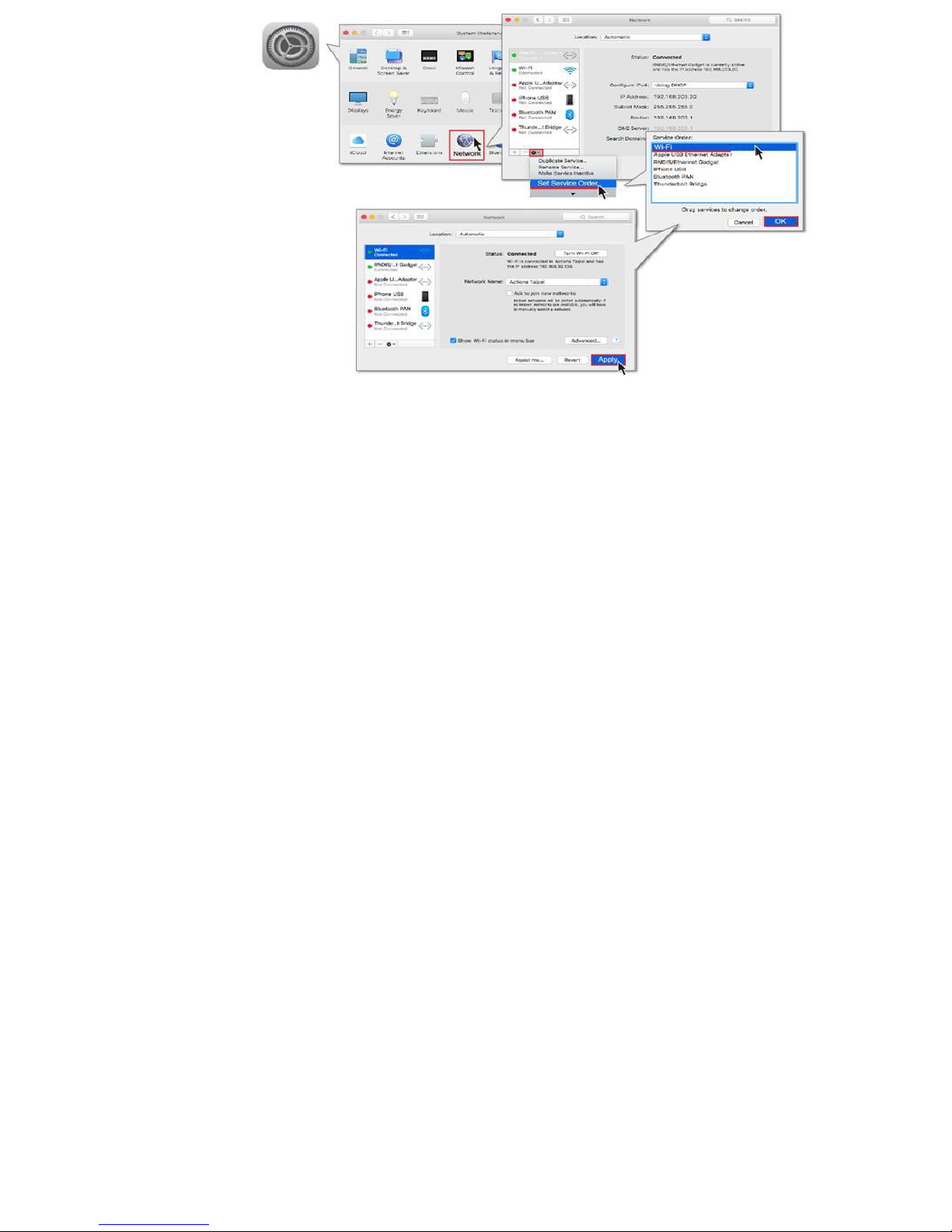
version before 15960000)
http://www.iezvu.com
Note: Supports Mac OS 10.10 and above.
Setup EZCast Wire
Please configure your Mac (Internet Service Order) as below
Firmware Upgrade and Setting
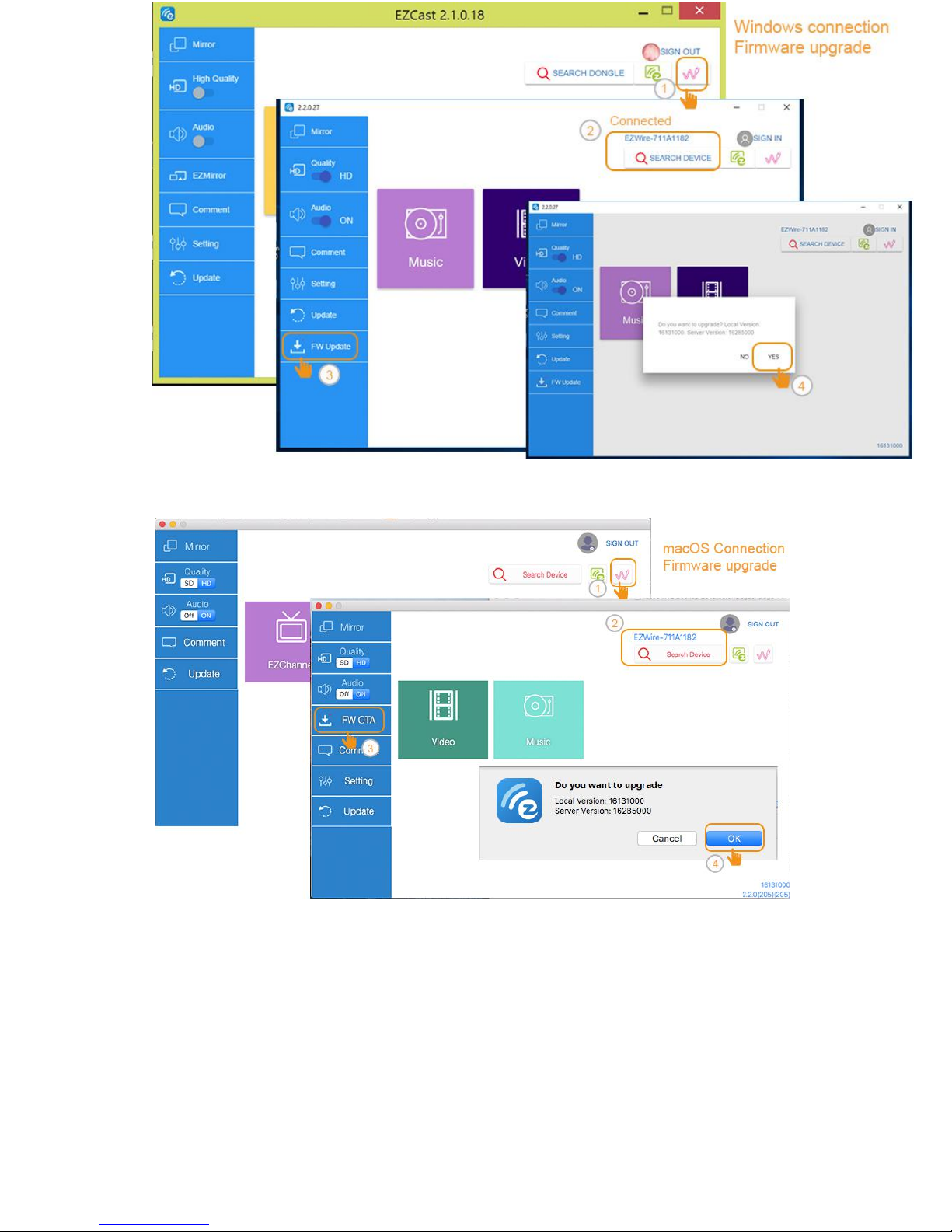
Please launch EZCast Application on your Mac for firmware upgrade
and settings.
Page 19
For Windows Device
Hardware Installation
Connect EZCast Wire with your Windows devices
Plug one end (smaller one, micro USB) of the USB cable into your
Page 20
EZCast Wire and the other end of the USB cable (bigger one, USB
Type-A) into your Windows.
Software Installation
Note: Please connect your Windows to Internet for installation
(1) Installer (For firmware version 15960000 ‘Dec 9th2016’ or later)
After connect your Windows with EZCast, wait for around 10 seconds
for RNDIS auto-installation.
Page 21
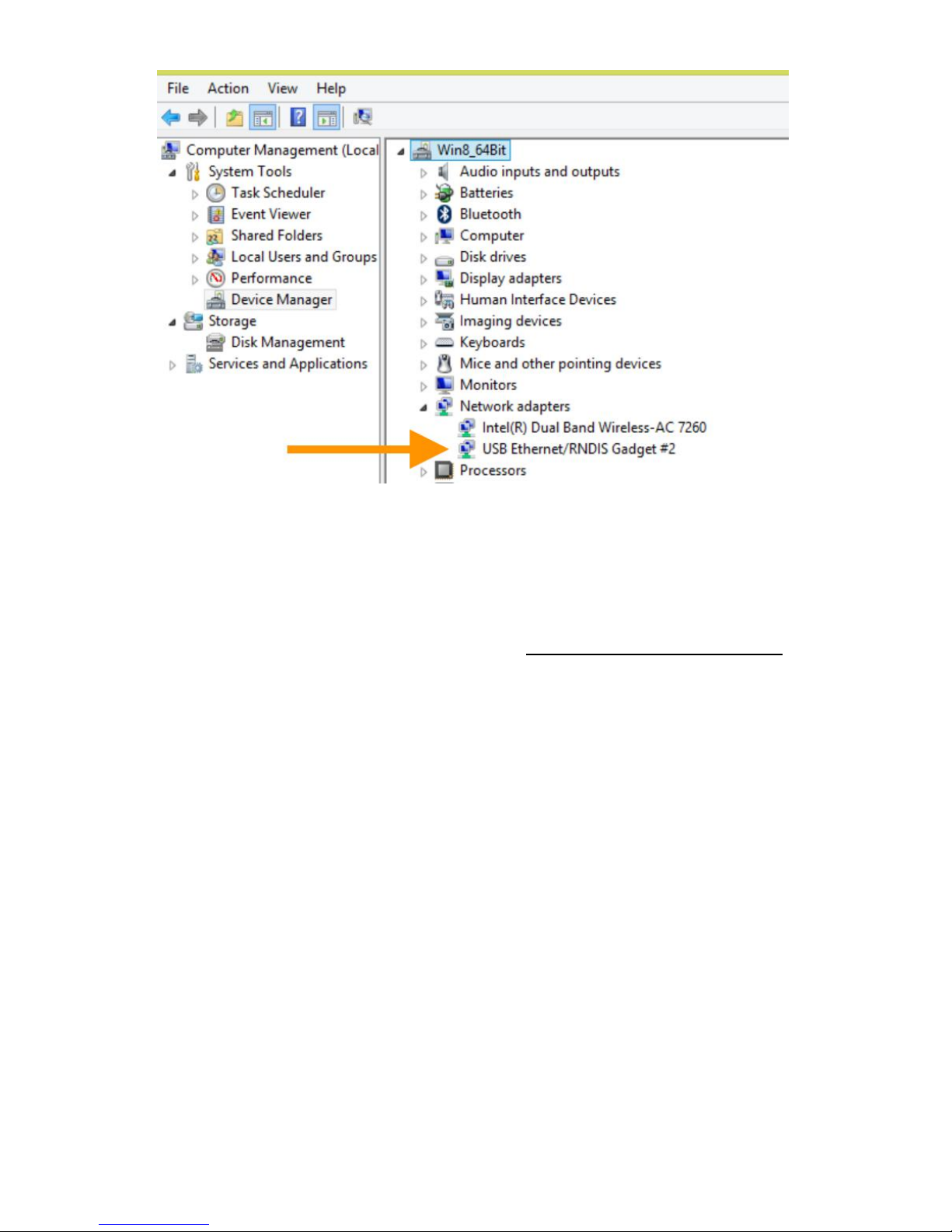
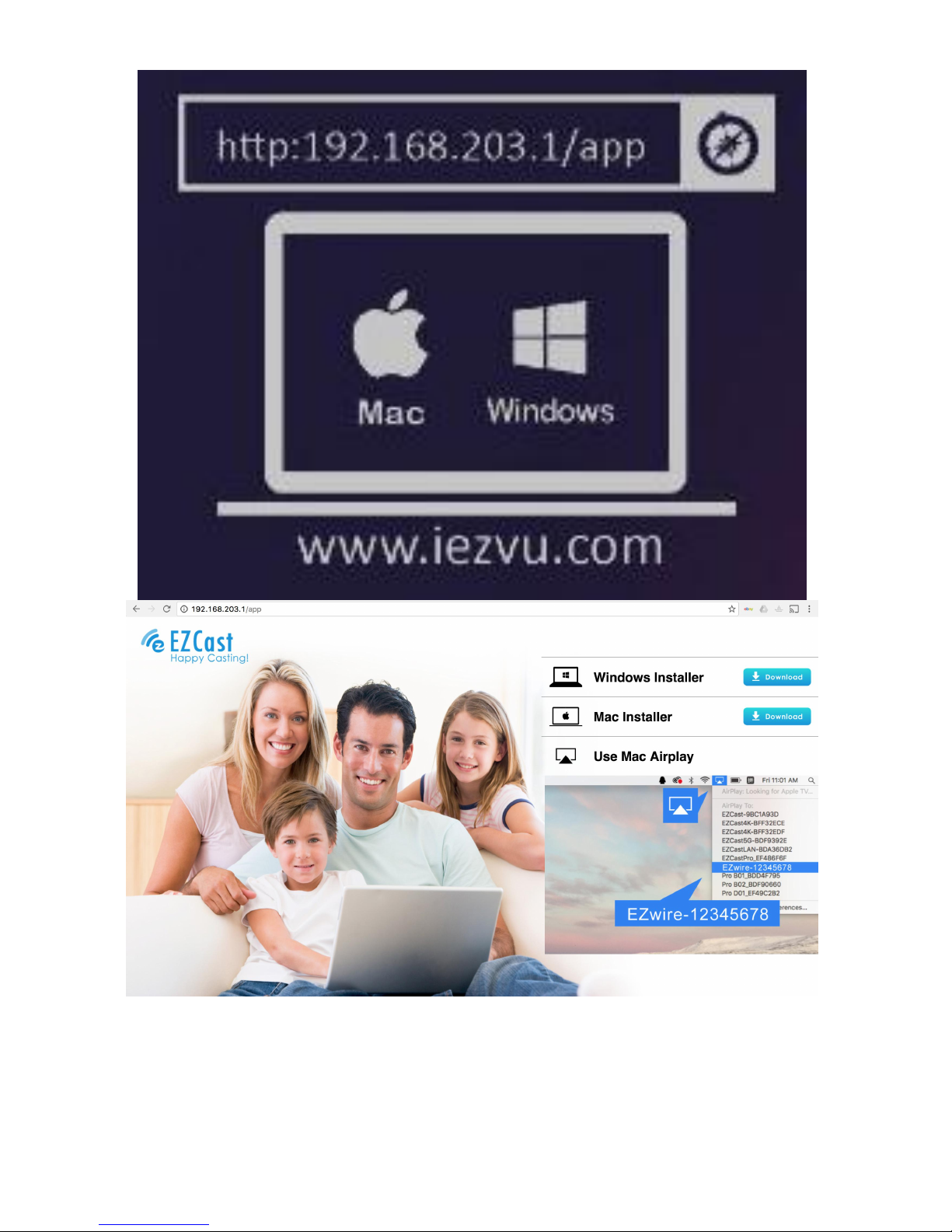
After “USB Ethernet/RNDIS Gadget” installed, please use Windows’
browser to access installer as below (ex: http://192.168.203.1/app), and
then you may download Installer for your Windows.
Page 22
(2) Please download software from EZCast website below (For
Page 23

firmware version before 15960000)
http://www.iezvu.com
Note: Supports Windows 7 and above.
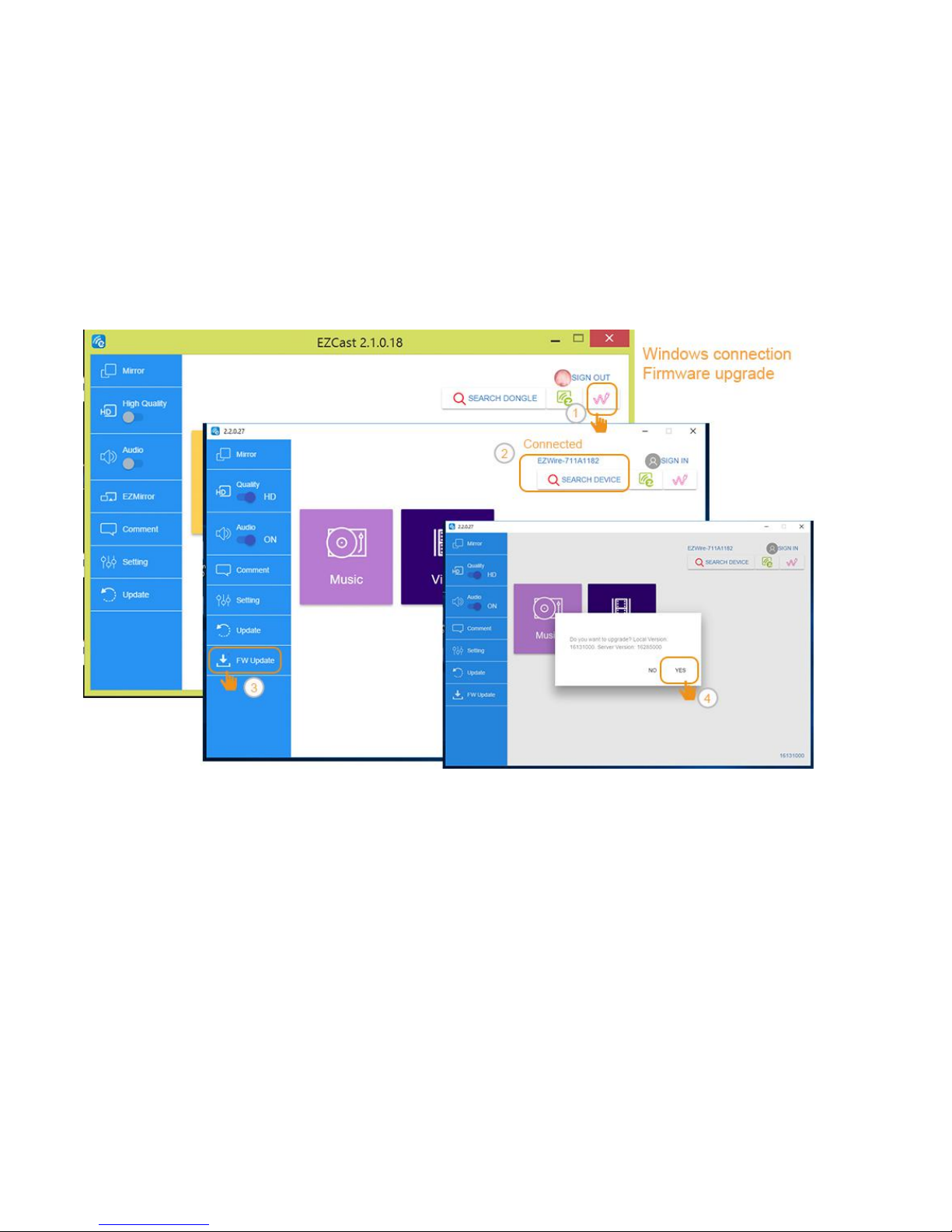
Firmware Upgrade and Setting
Please launch EZCast Application on your Windows for firmware
upgrade and settings.
EZCast 2.0 App
* Video and Music (Main Menu): to watch and listen local media files at
your device
* Mirror On/Off (Android) (Menu > Mirror On/Off): to mirror your
Android's screen to your TV/Projector
* USB Mirror (Android)(Menu > USB Mirror): to turn on USB Mirror for
your Android device
* Firmware OTA (iOS) (Menu > Firmware OTA): to upgrade firmware for
your EZCast Wire
* Setting (Menu > Setting): to change the setting of EZCast Wire
Page 24

©2014 Actions Microelectronics Co., Ltd. All right reserved. EZCast,
and EZCast Pro are trademarks of Actions Microelectronic Co., Ltd.,
registered in China and other countries. Other product and company
names mentioned herein may be trademarks other respective
companies.
FCC STATEMENT
1. This device complies with Part 15 of the FCC Rules. Operation is
subject to the following two conditions:
(1) This device may not cause harmful interference.
(2) This device must accept any interference received, including
interference that may cause undesired operation.
2. Changes or modifications not expressly approved by the party
responsible for compliance could void the user's authority to operate
the equipment.
NOTE: This equipment has been tested and found to comply with the
limits for a Class B digital device, pursuant to Part 15 of the FCC Rules.
These limits are designed to provide reasonable protection against
harmful interference in a residential installation.
This equipment generates uses and can radiate radio frequency energy
and, if not installed and used in accordance with the instructions, may
Page 25

cause harmful interference to radio communications. However, there is
no guarantee that interference will not occur in a particular installation. If
this equipment does cause harmful interference to radio or television
reception, which can be determined by turning the equipment off and
on, the user is encouraged to try to correct the interference by one or
more of the following measures:
Reorient or relocate the receiving antenna.
Increase the separation between the equipment and receiver.
Connect the equipment into an outlet on a circuit different from
that to which the receiver is connected.
Consult the dealer or an experienced radio/TV technician for
help.
FCC Radiation Exposure Statement
This equipment complies with FCC radiation exposure limits set forth for
an uncontrolled environment. This equipment should be installed and
operated with minimum distance 20cm between the radiator & your
body
Page 26

本產品符合國家通訊傳撥委員會(NCC)之規範:
低功率電波輻射性電機管理辦法
第十二條 經型式認證合格之低功率射頻電機,非經許可,公司、商號
或使用者均不得擅自變更頻率、加大功率或變更原設計之特性及功能。
第十四條 低功率射頻電機之使用不得影響飛航安全及干擾合法通信;
經發現有干擾現象時,應改善至無干擾時方得繼續使用。前項合法通
信,指依電信法規定作業之無線電通信。低功率射頻電機須忍受合法
通信或工業、科學及醫療用電波輻射性電機設備之干擾。
*您可以在官網下載到最新版完整手冊以及相關品問題:
www.iezvu.com
©2014 Actions Microelectronics Co., Ltd. : EZCast 與 EZCast Pro 為
Actions Microelectronic Co., Ltd.,
炬力北方股份有限公司在大陸地區與
其他國家註冊之商標,說明書中提到的相關產品名稱或商標則屬於相
對應之該公司所有。
 Loading...