

Page 1
EZCast
Pro Box
B02
Page 2
User’s Manual
Rev. 1.02
History:
Revision Change Note Date
V1.00 Initial version 2016/4/14
V1.01 MiscellaneousModification
2016/4/26
V1.02 Function changes 2016/11/20
Page 3

Introduction
Thanks for choosing EZCastPro Box B02, it is based on popular
EZCast Pro appand adding new dual WiFi to support 2.4Ghz and
5Ghz at the same time. It’s the most advanced WiFi Display device
ever, which supports most Wireless display standardslike Miracast,
DLNA and AirPlay, Multimedia decoding, PDF/Office Viewer, Web
browser, Real object projection (Live camera), as well as our
advanced split screen control. It alsoembedded 10M/100M
Ethernet, which will provide stable connection and easier setup
steps.The USB port supports HID device and USB disk,and the
extended control port helps you to control projectors or other
devices at one time. With the regularly firmware update, it will keep
compatible with latest OS platforms and keep improving features.
This will be the best device for classroom, and conference rooms!!
What’s in Box
EZCast Pro Box x1
Antenna x2
Page 4

5V-1.5A DC adapter with cable x1
VGA cable x1
HDMI cable x1
Audio out cable x1
UART cable x1
QSG x1
Hardware Installation
There will be an HDMI cable and USB adapter inside of the box, use
the 5V-1.5A DC adapter to power upEZCastPro Box, and plug HDMI
or VGA cable to your TV or Projector. We also suggest connect
RJ-45 port with your router to simplify setup procedures and get
stable connection.
Page 5
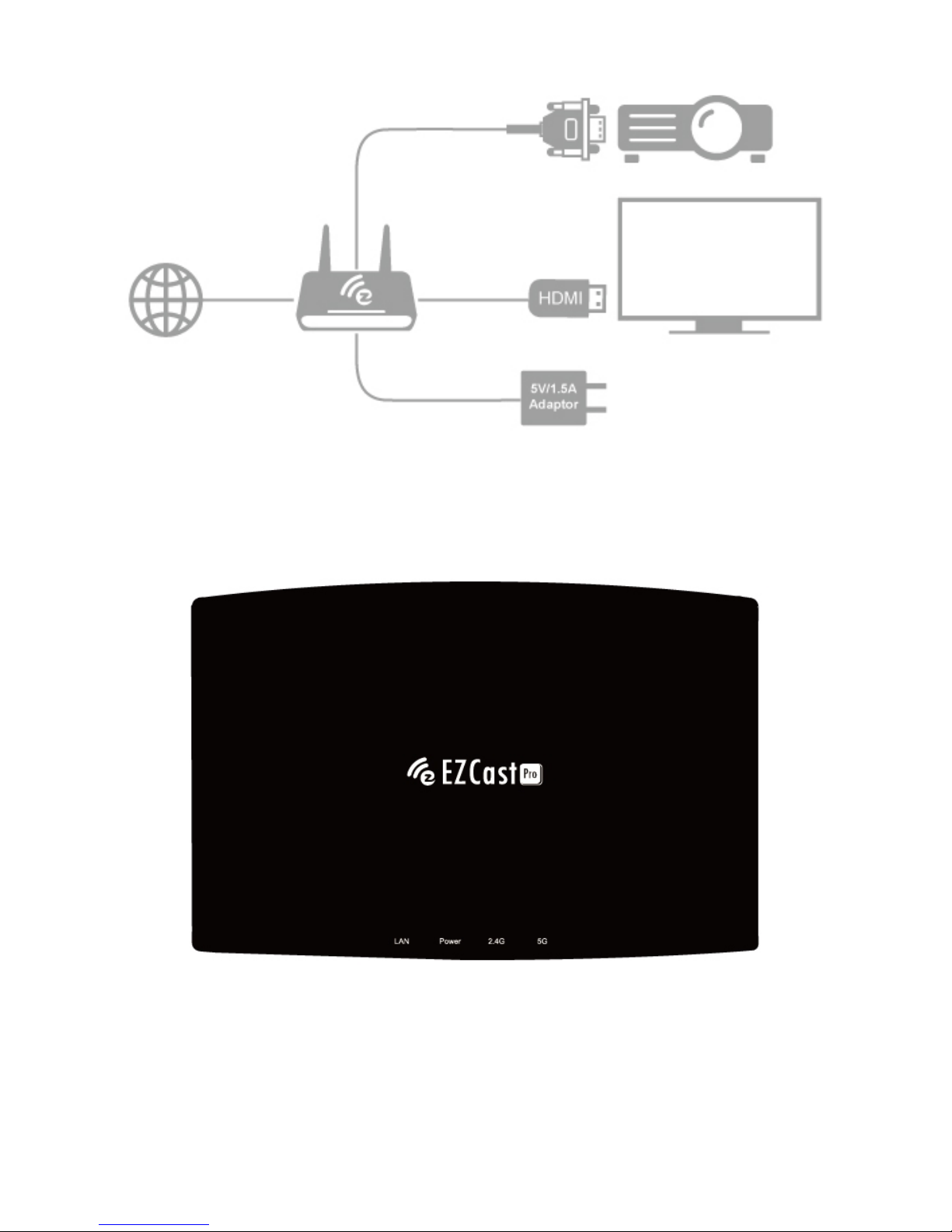
LED Indication
There will be 4 different LEDs color for different status in front of
EZCast Pro Box, you can refer to it to know the working status:
Page 6

2.4Ghz: Stays on while 802.11n 2.4Ghz WiFi is working
5Ghz: Stays on while 802.11ac 5Ghz WiFi is working
LAN: Turns on when LAN port is connected
DC:Power on/off indication
App Installation
IOS and Android users:
Please search “EZCast Pro” in Apple’s App Store or Google Play and
install it.
Or Use the QR scanner app to scan the QR code on EZCastPro Box’s
main page.
*Supports iOS9 and Android 4.2 above
Windows and Mac OS users:
Please download it from our official website: www.iezcast.com or
www.iezvu.com
*Supports from Windows 7/8.1/10, and Mac OS 10.10 and after.
*Note: OS support may change along withfuture OS
updatewithoutnotification in advance.
Page 7
Get Started
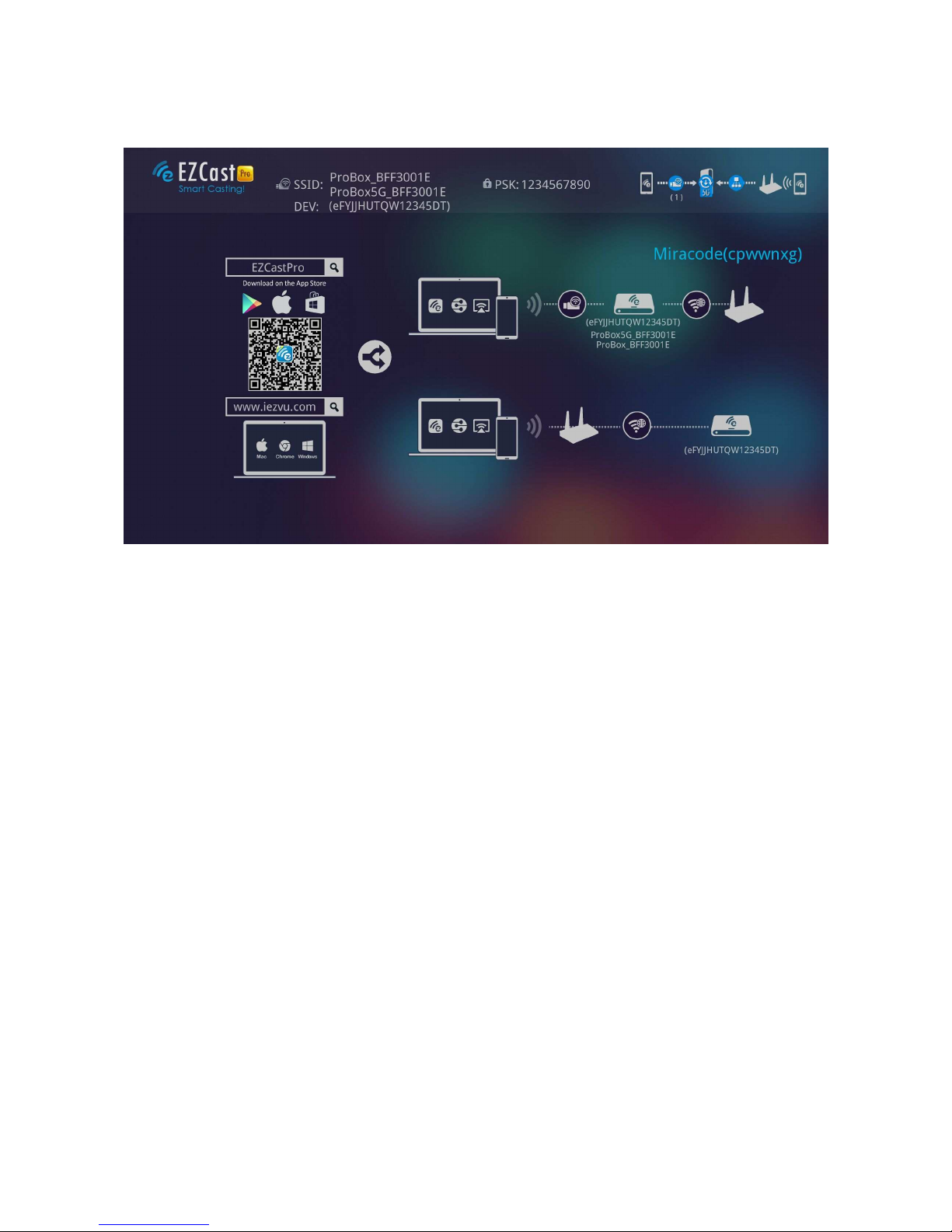
Enteryour NB/PC/Smartphone/Tablet’s WiFi setting, find the
SSID (ProBox_xxxxxxxx/ProBox5G_xxxxxxxx, or Pro
B02_xxxxxxxx/Pro B02-5G_xxxxxxxx)and connect with it.
The Dev means device’s host name, you can change it in the
setting later.
You may connect Pro Box’s 2.4Ghz or 5Ghz WiFi with
different devices but they are under differentsubnet.
Open EZCastPro app on your device.Once you’ve connected to
EZCastPro Box, the on-screen link status will beupdated and
show how many devices are linking to it directly.
Page 8
If there is any new FW available, the updated icon will be shown
on device.
The Miracode is a direct IP link shortcut, you can turn it off in
administrator mode later.
The main screen may change based on different connecting
methods (direct or via router)
There may be another 4 digits CastCode, which is a display gate
keeper to let users who can see this code to cast content.
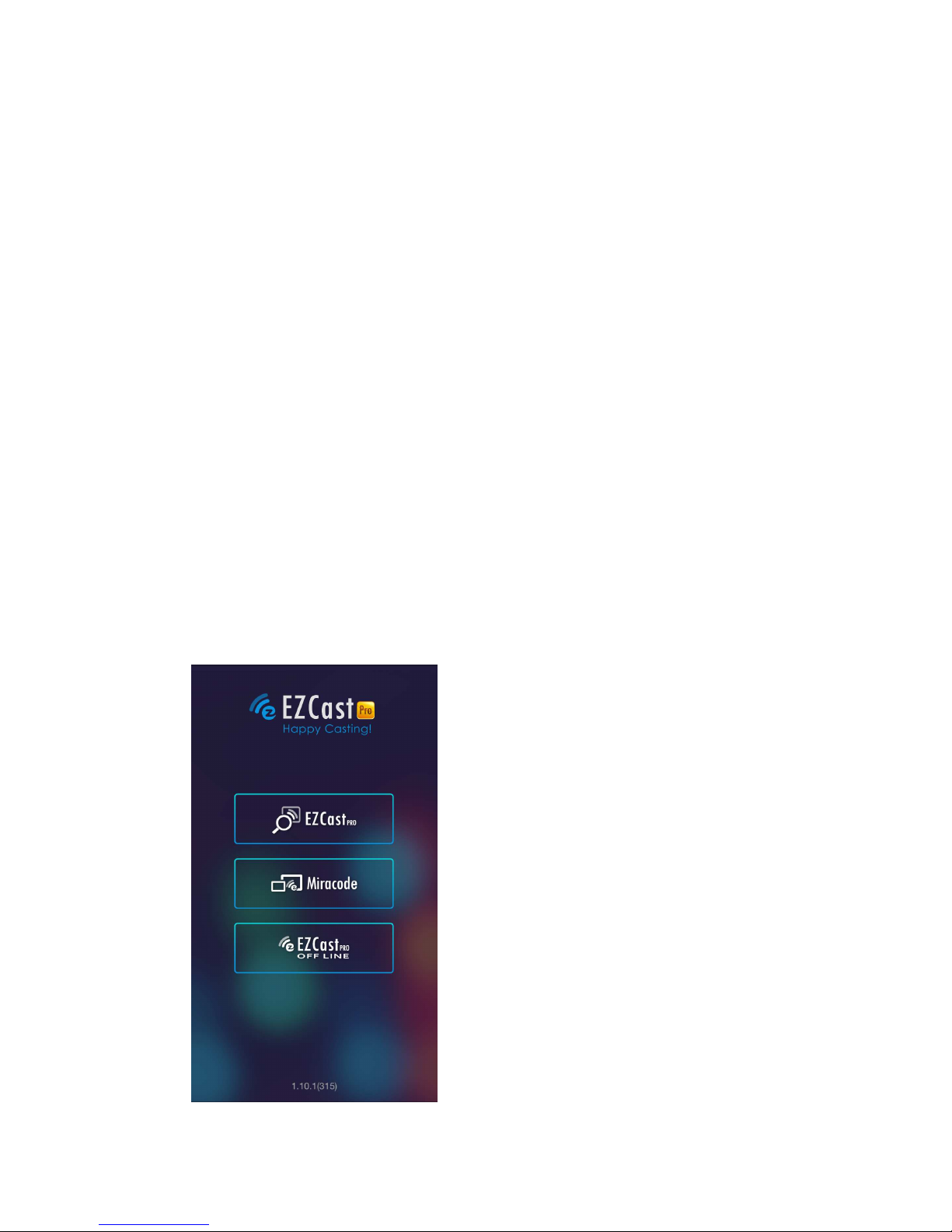
App starts
(belowphotosarebasedoniosversion)
Discover device
Input IP or Miracode to link
manually
Work under offline mode
Page 9
Click “EZCastPro” icon, the device will be listed, you can select
thedevice you like to cast if there are more than one.
If you are not linking to EZCast Pro, youcan only use several
functions in offline mode.
*Note:EZCastProapponlyworkswithEZCastProhardwarenow,it’snotcompatiblewithnorma
lEZCastproducts.
Important: WiFi Link modeexplanations
EZCast Pro devices allow variousconnection methods, here are
the descriptions:
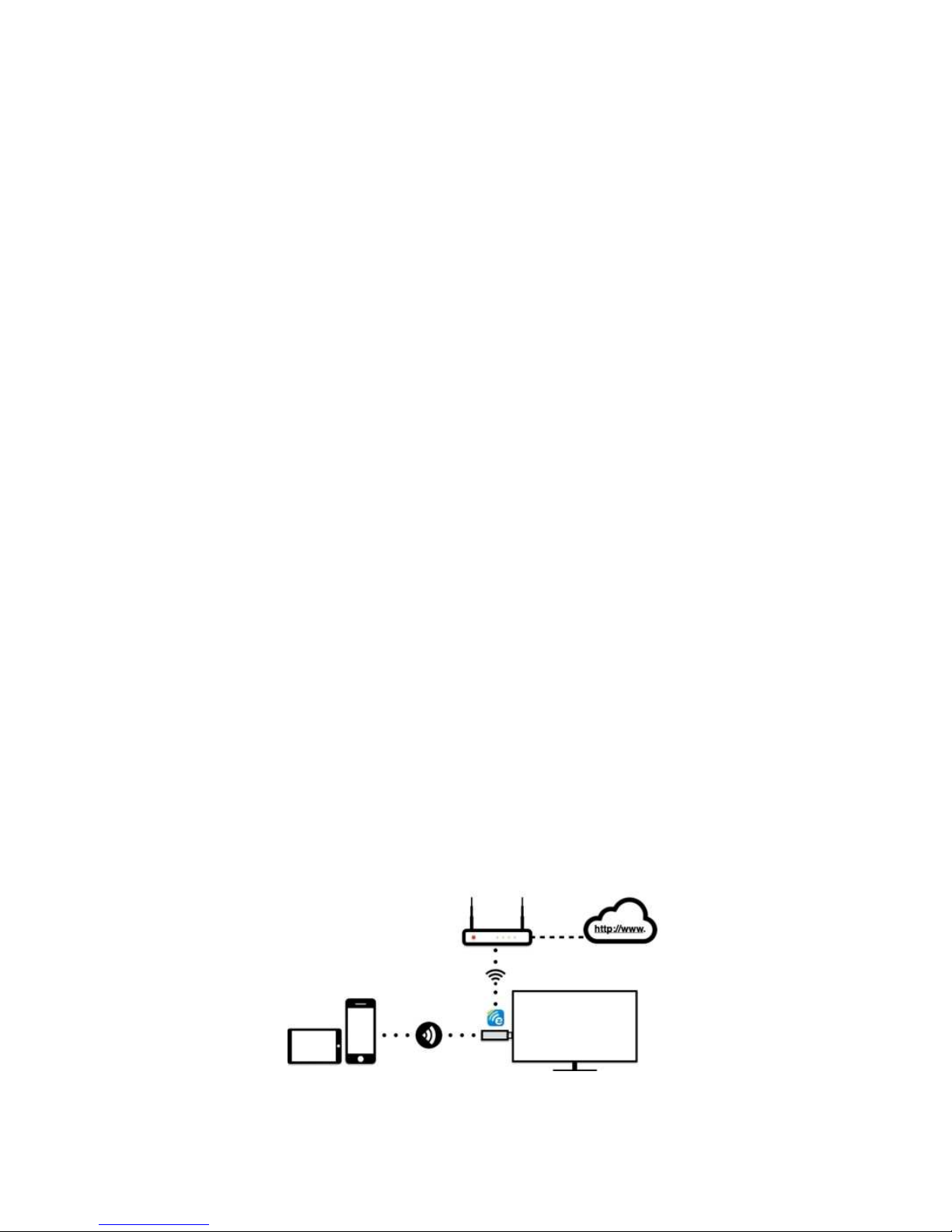
SoftAP mode: It’s direct linking from PC/MobilePhone/Tablet to
a Pro device, you can link to EZCast Pro’s SSID directly to
discover it, and you can also setup Pro devices’WiFi to link with
your router to keep internet surfing.
*Note: After setting up your internet, sometimes the connection between EZCastPro and
your mobile phone might be disconnected because of different WiFi routerchannel.
Page 10
Please remember to reconnect again.
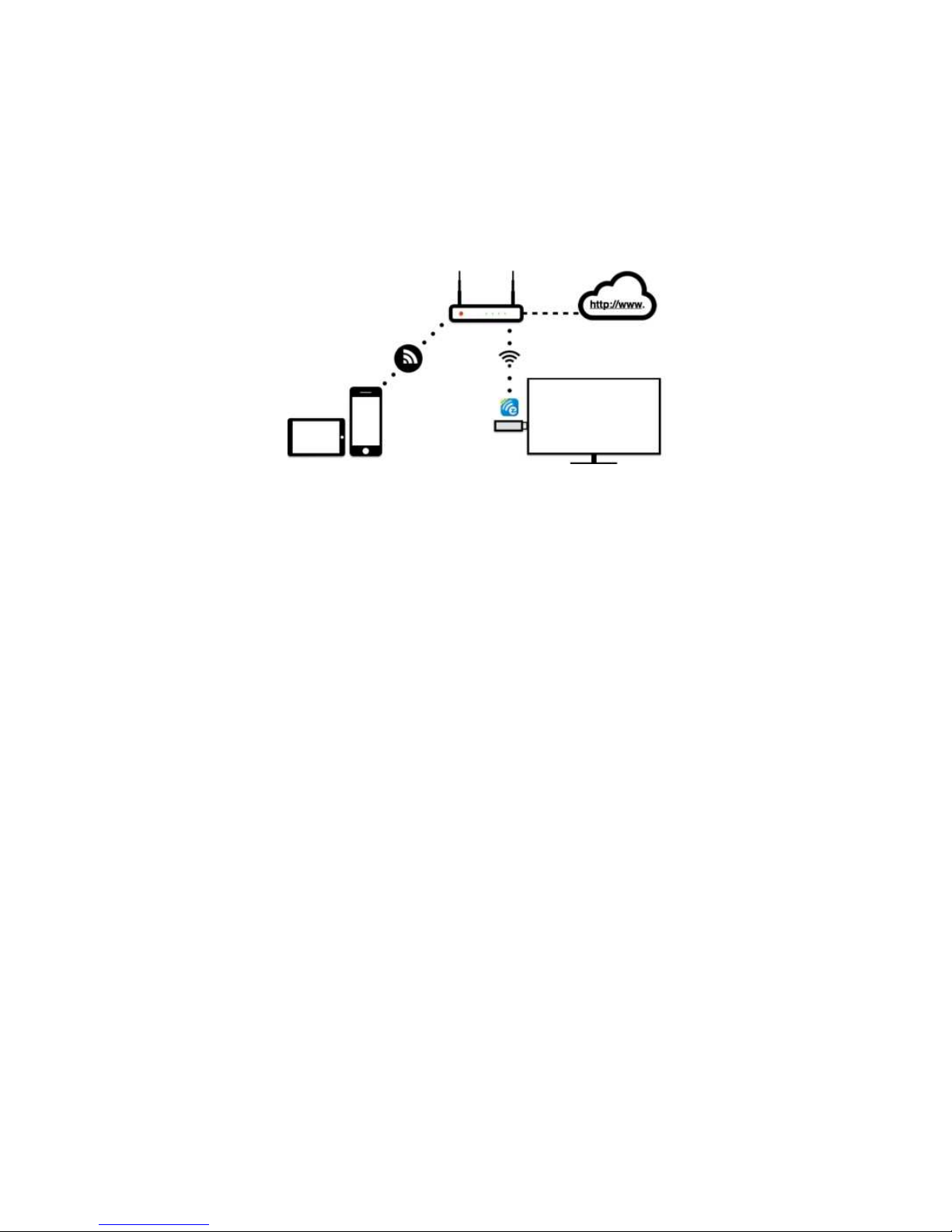
There is another link mode“Infrastructure mode”, which allows
you tolink with EZCast Pro Box through router instead of SoftAP
mode. However, the performance maynot as good as direct link,
and you will need to enter the setting toenable it if need it.
There is 2 special modesfor WiFi connections in our advanced
setting, one is “Direct link only” and the other is“Via Router
only”.
In “Direct Link Only” mode, you will not be able to discover
EZCast Pro through your home router. Under “Via Router Only”
mode, the Pro device will shut down Soft AP (SSID), in this mode
the SSID will be turned off so that no one can search it directly
to prevent some hacker’s attack. Please be careful you will need
to connect device through router under this mode.
Page 11
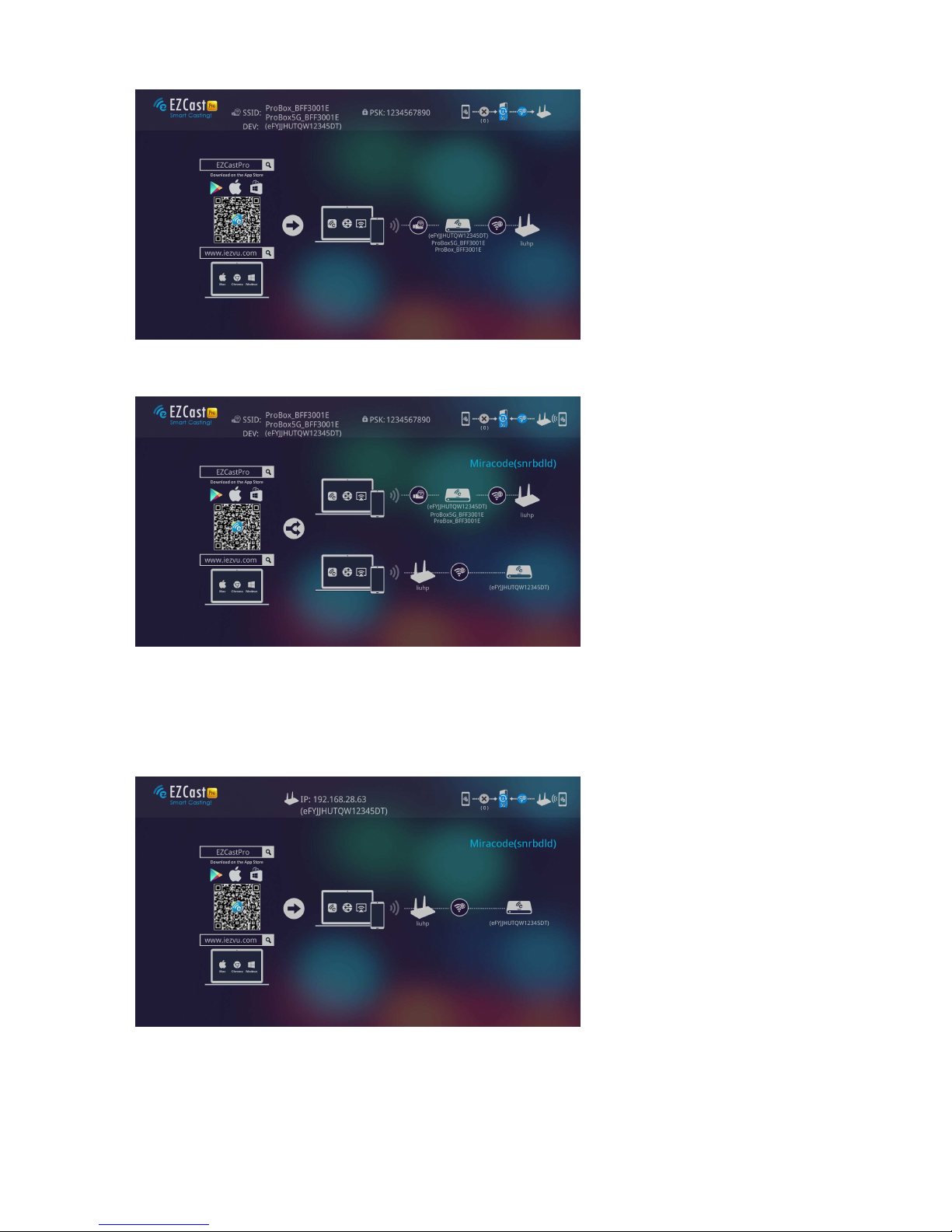
Direct Link: This provides
best bandwidth between
your Smart devices/PC
and EZCast Pro
Via Router Allowed: You
will be able to discover
EZCast Pro through
home router if you have
established the
connection with router.
Via Router Only: In this
mode, the SoftAP of
2.4Ghz/5Ghz WiFi will be
turned off, you can use it
under some
particularpurpose so no
one can link to EZCast
Page 12
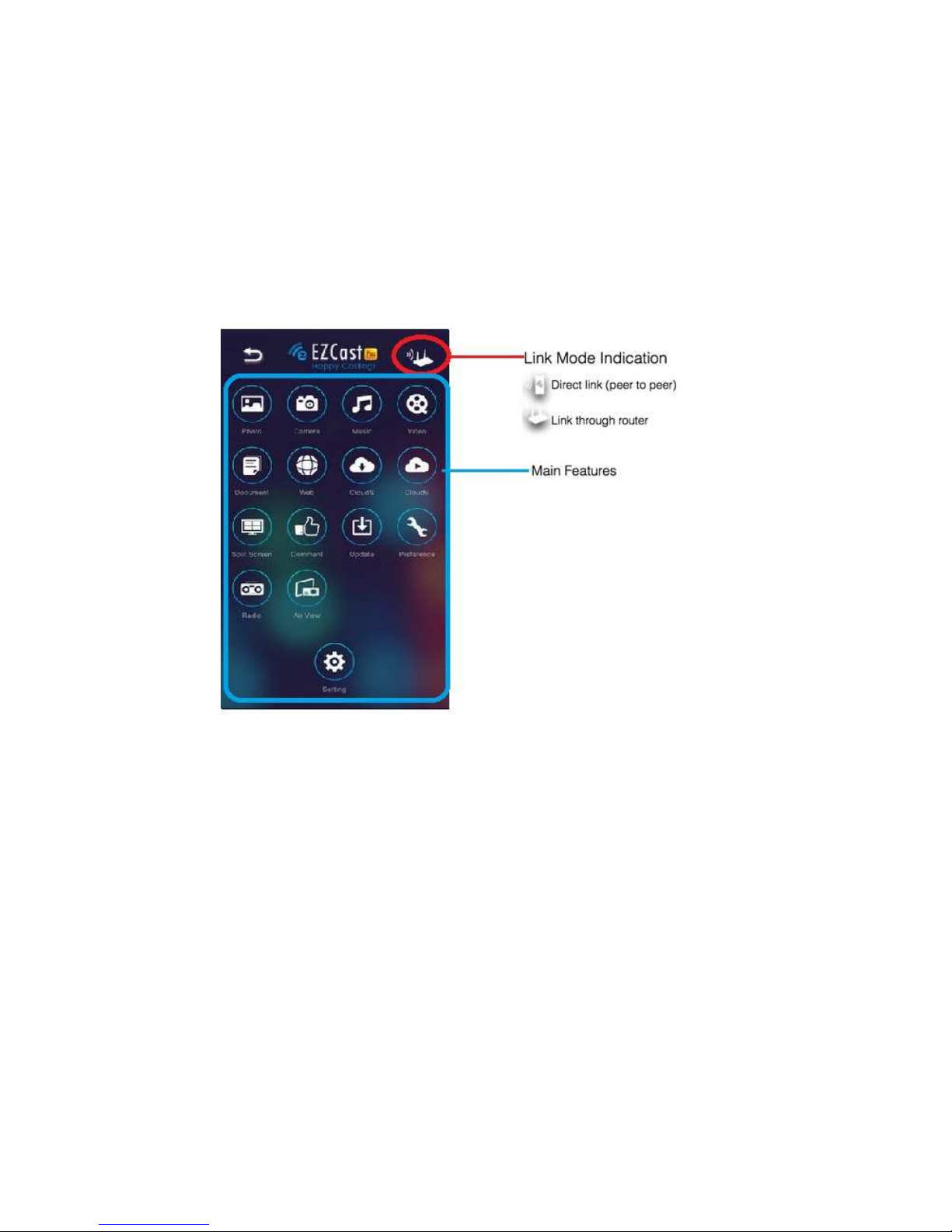
Pro directly.
App Tips
You can cast your multimedia data wirelessly now, however,
please be noted some features like cloud video or web will
require internet connection.
Please be noted EZMirror(Miracast) mode will disconnect
current WiFi and you will need to connect to internet by your
phone (3G or WiFi) if you want to keep internet surfing.
Page 13
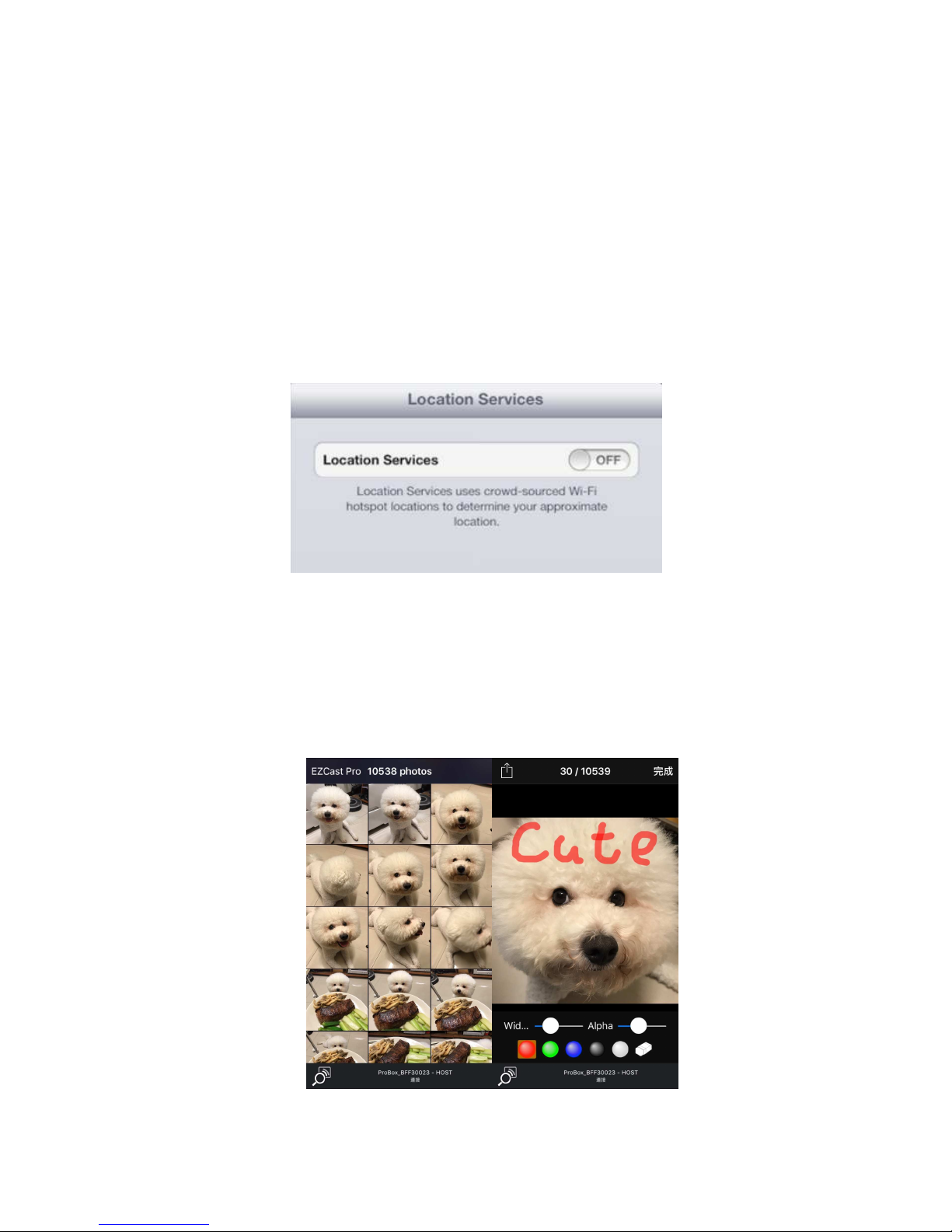
App Features
(*based on iOS app for your reference)
Photo
You will have to allow EZCast Pro to share your camera roll andenable
the location service before using Photo function.
In Photo viewer, you can select photo and it will be displayed onyour
TV/Projector. You can also use gesture control to zoom in/out
orchange photos.
We developed a practical Sketch tool ,you can drawon the photo you
Page 14
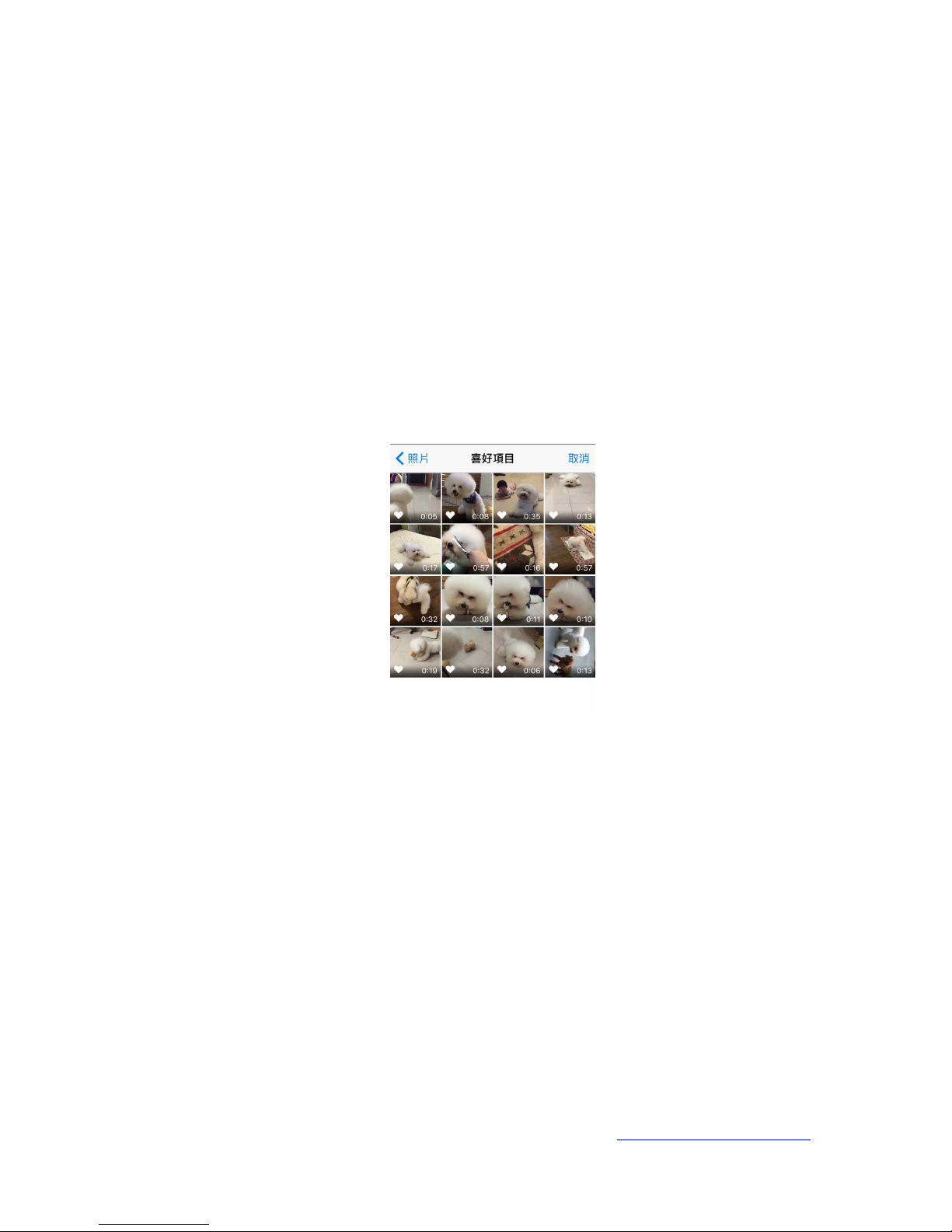
picked, and save it if you like.
Video
There are 2 sources to video streaming. One is to sync the videoyou
like through iTunes (iTunes File Syncing), or you can selectvideo from
your recorded video (Camera Roll)
Please be noted iOS will compress the recorded video
beforestreaming to save the bandwidth, you can decide if you want
tosave it in EZCast Pro app for future use.
You can also sync subtitle file to EZCast Pro, just make sure
thefilename is the same with your video and sync through iTunes,
itwill be automatically shown with video playing.
*For subtitle, wesupport srt, smi, ssa and cdg formats with UTF-8 coding.
For subtitle support, please see demo video: http://goo.gl/0yq5Z8
Page 15
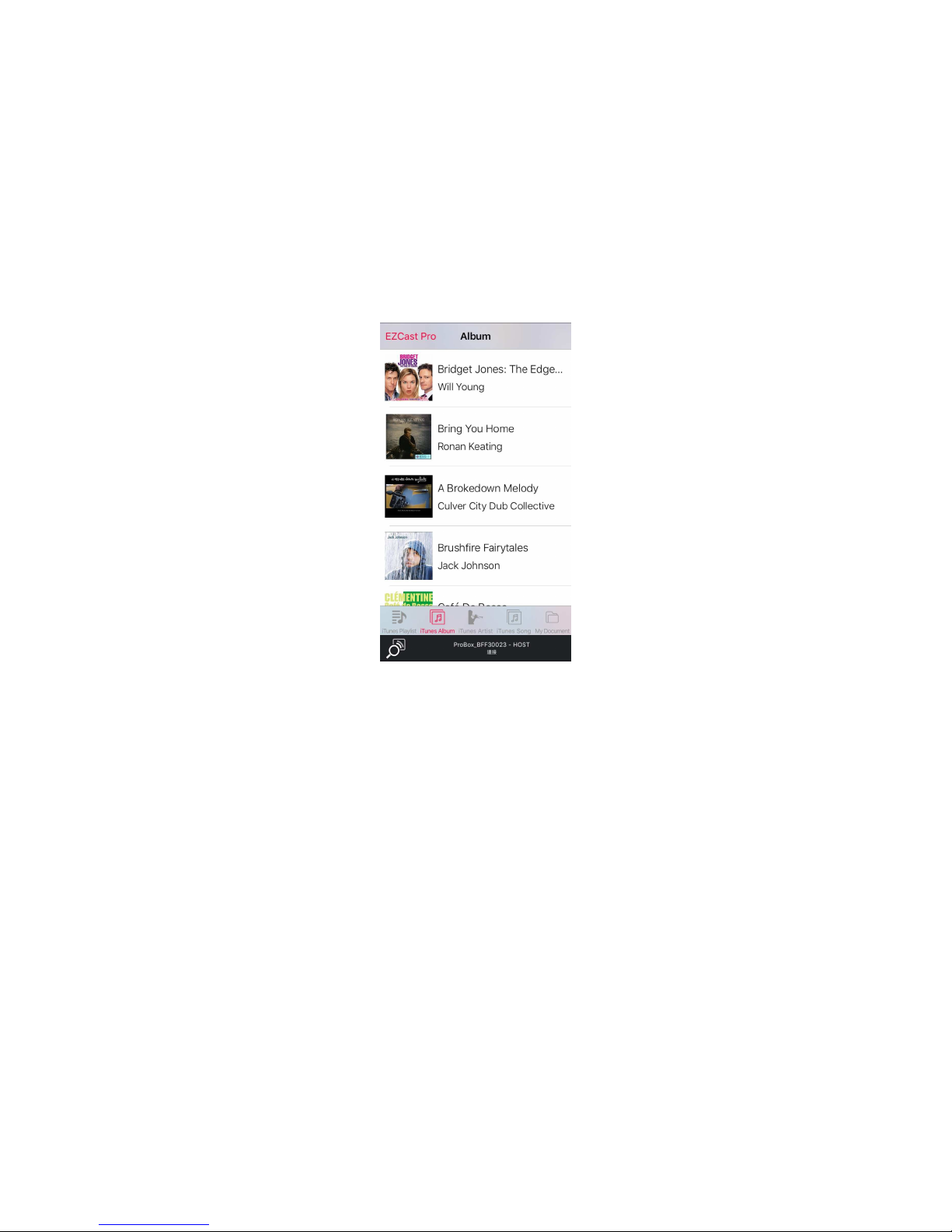
Music
The music player allows you to stream music through WiFi, andwe
can support playlist.
Live Camera
Live camera is a real object camera which allows you to streamthe
image from mobile device’s camera, and take a snap shot toedit.
Page 16
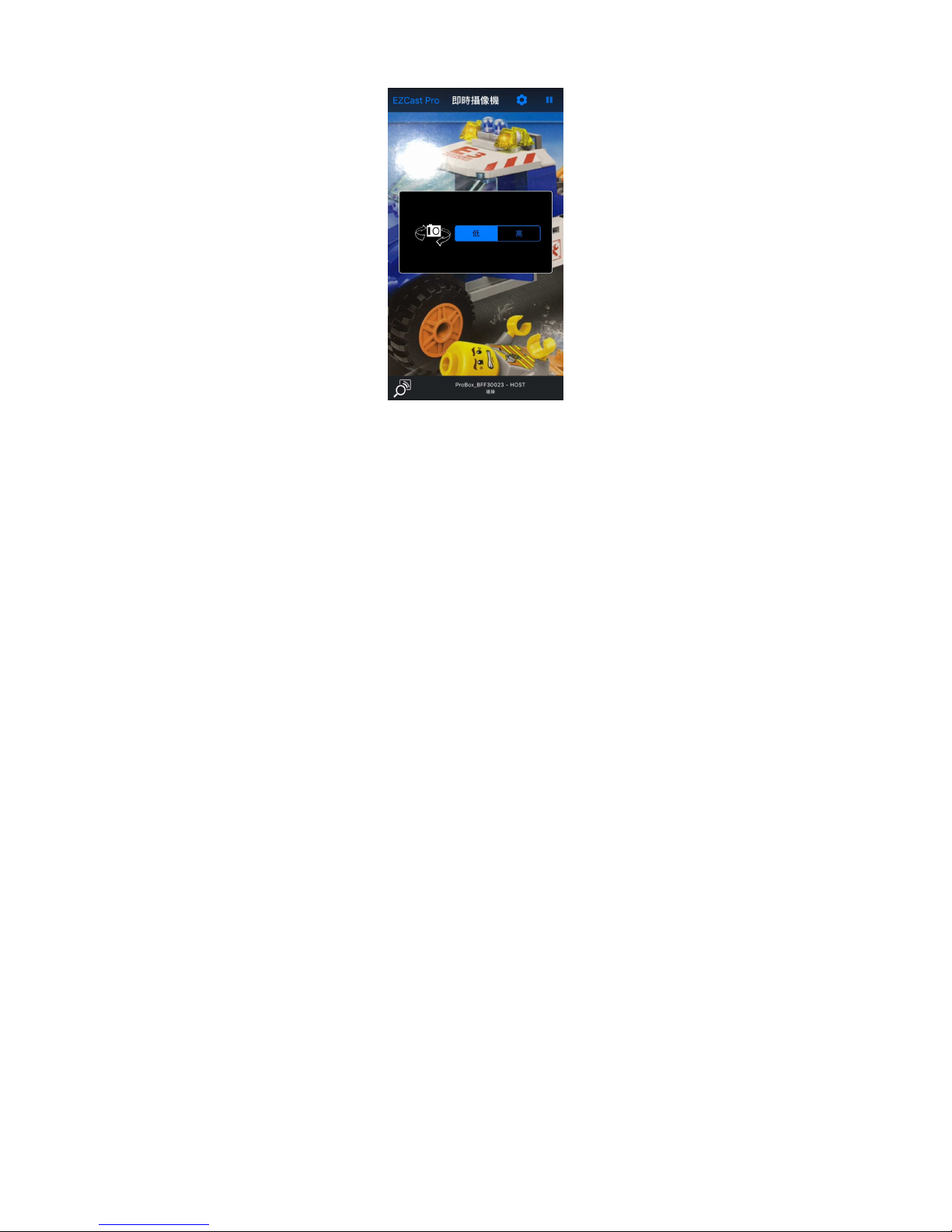
You can adjust image quality, switch from Front/Rear camera. Youcan
enable Sketch and save the current image to album.
Document
The document viewer can support MS-office, PDF, and Apple’siWorks.
Before you start to cast, please remember to sync thedocument files
to your iOS device through iTunes.
Page 17
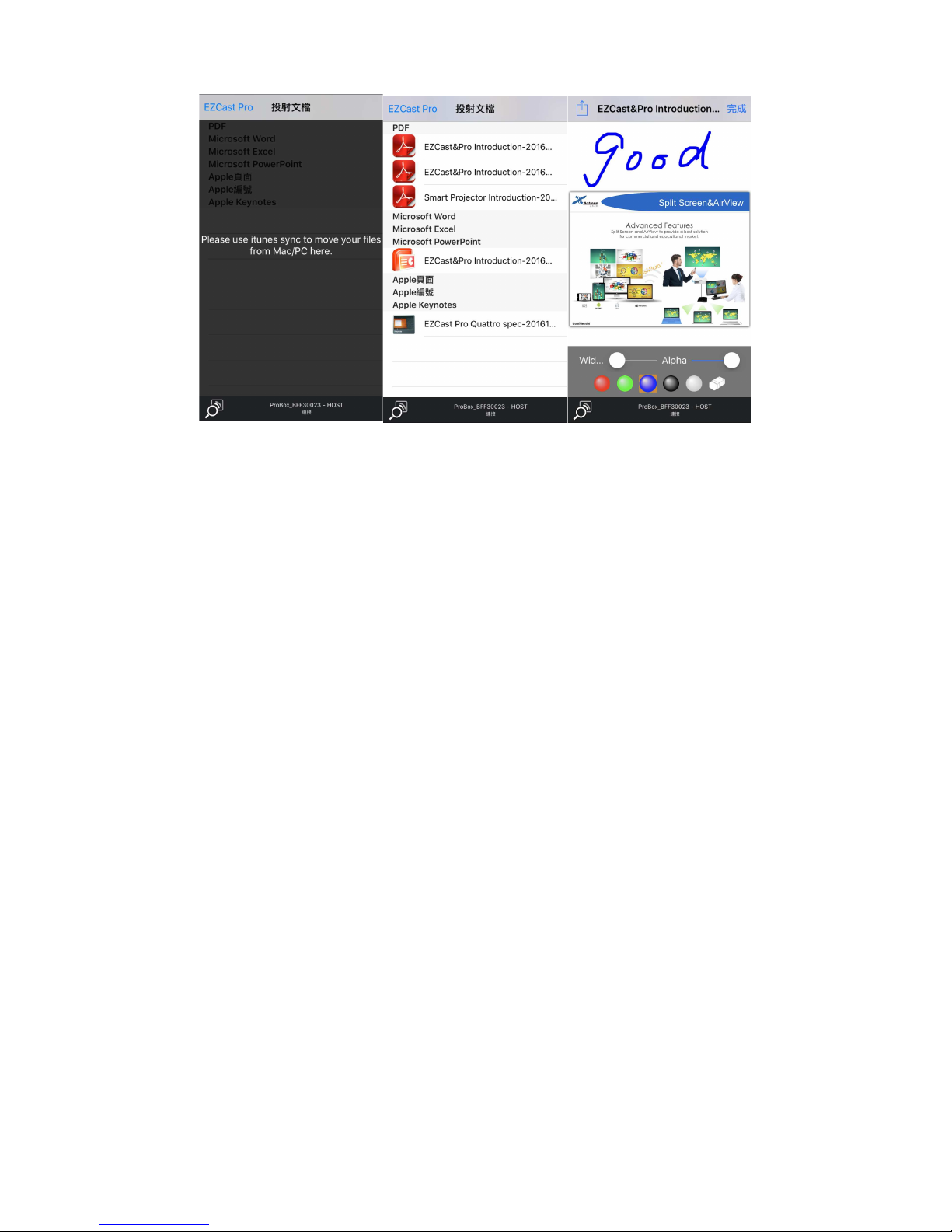
The document viewer supports sketch as well, that means you
canmake some note on the document, and save the page to
cameraroll.
*
Please be noted some documents may not be displayed the same as shownon PC.
Web
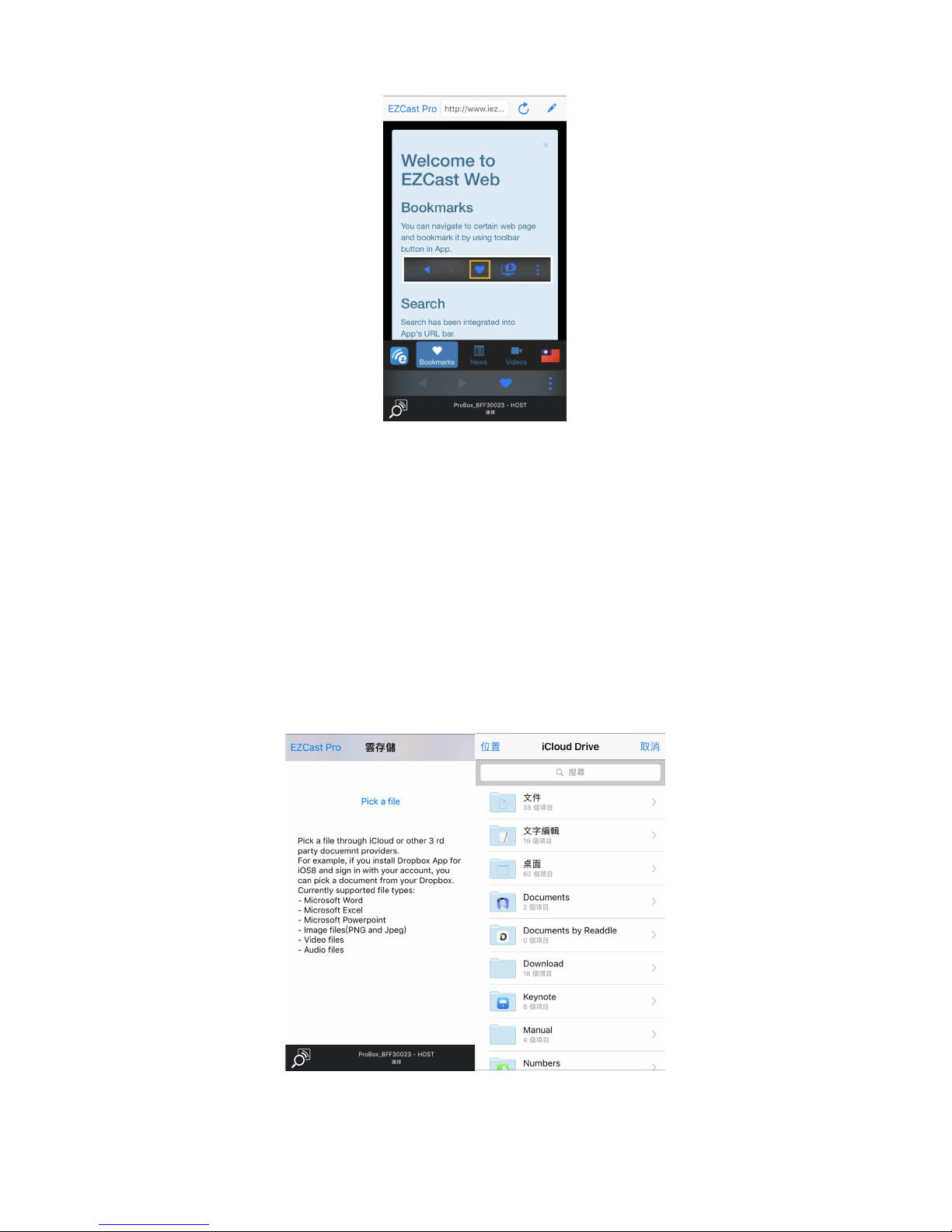
EZCast
Pro comes with a built
categorizeseveral popular websites for you.
The web page will dynamically change with different countrysetting
in your device.
Sketch function is also supported.
-
in browser, and we also
Page 18
Cloud Storage
We will link to your personal Dropbox and *Google Drive accountto
let you access your cloud storage anywhere. All content will beshown
for you to download and display.
You can enable sketch function if you download and decode
Page 19
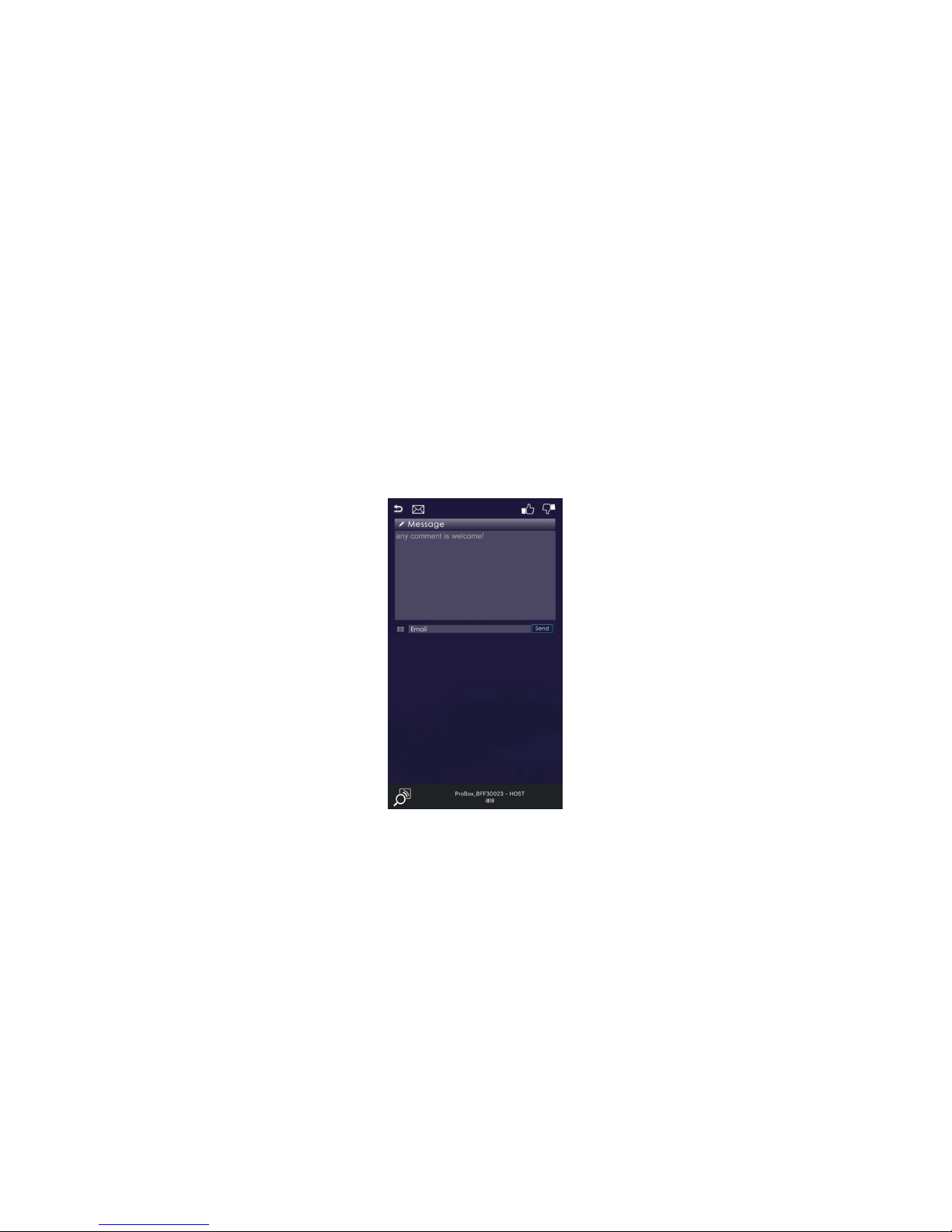
adocument file
Comment
We
treasure your feedback either good or bad, so we created
aninnovative way to communicate with you. You can send
somecomments,
suggestions
inputs will
make our product better.
Split Screen
and Host Control
or even bugs
to us directly, and all the
Page 20
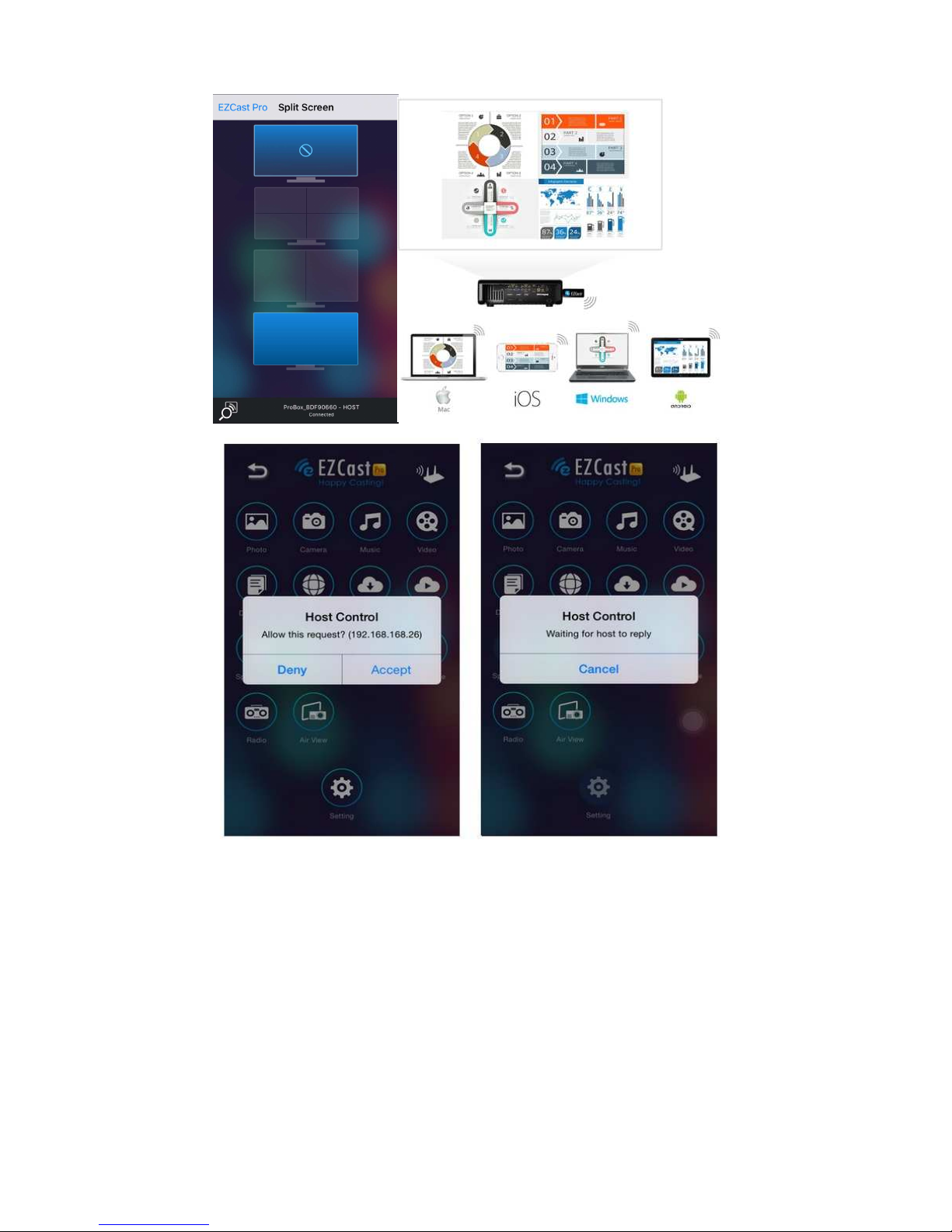
When you are the first user link to EZCast Pro and open the app,you
will become the “Host”.
Host has the authority to control the display, that means Host rolecan
use all features without limitation. The next or later coming users will
be treated as “Guest”, somefunctions will be disabled under Guest
Page 21
mode, and you will need toget Host’s permission to display.
EZCast Pro device will allow max. 4 users to display on screentogether,
but only Host can decide the position he wants, otherguest’s screens
will be placed automatically after the request isallowed.
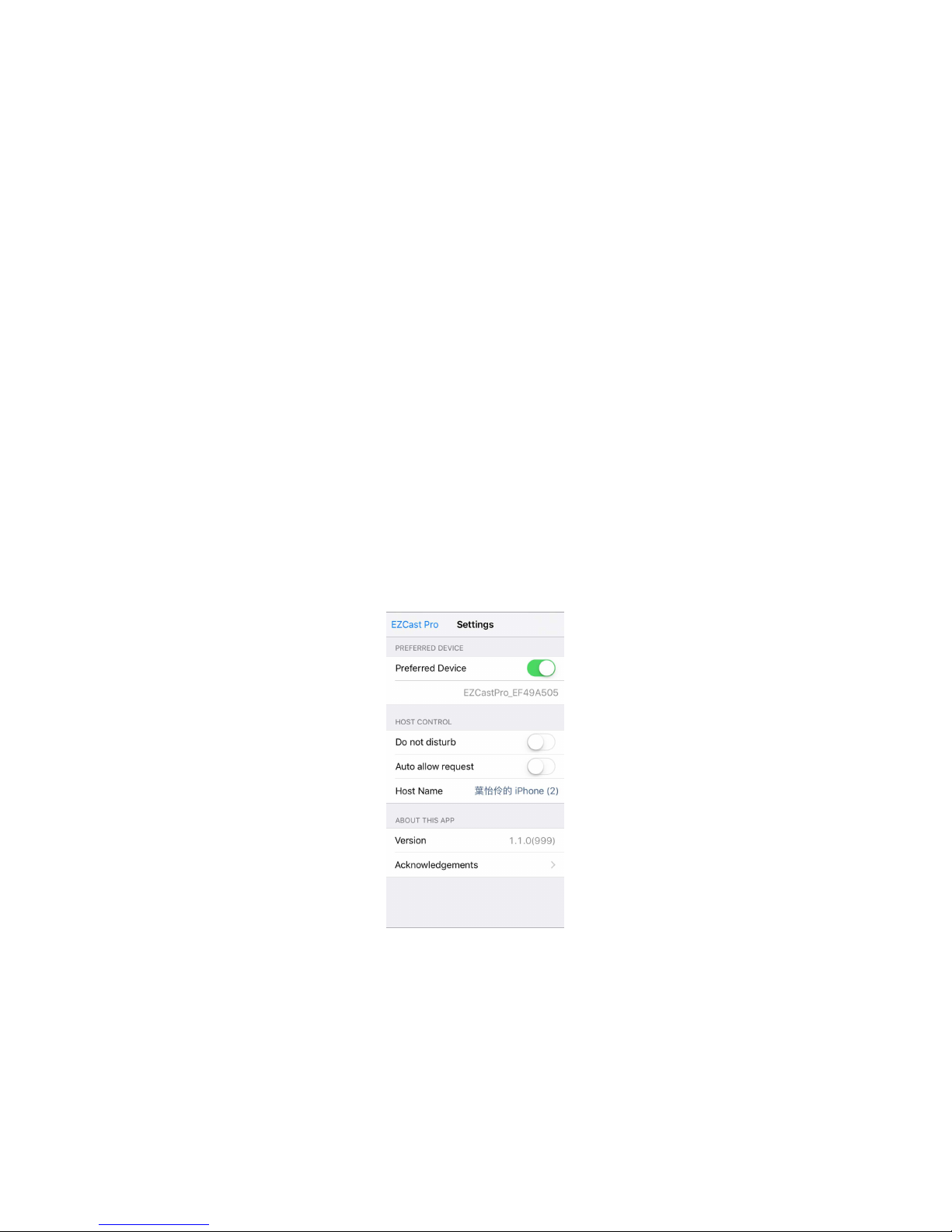
Preference
Except Preferred device setting, you can also enable/disable
theinquiry from guests, or automatically allow all display
requestsfrom guests without showing pop-up message.
AirView
Page 22
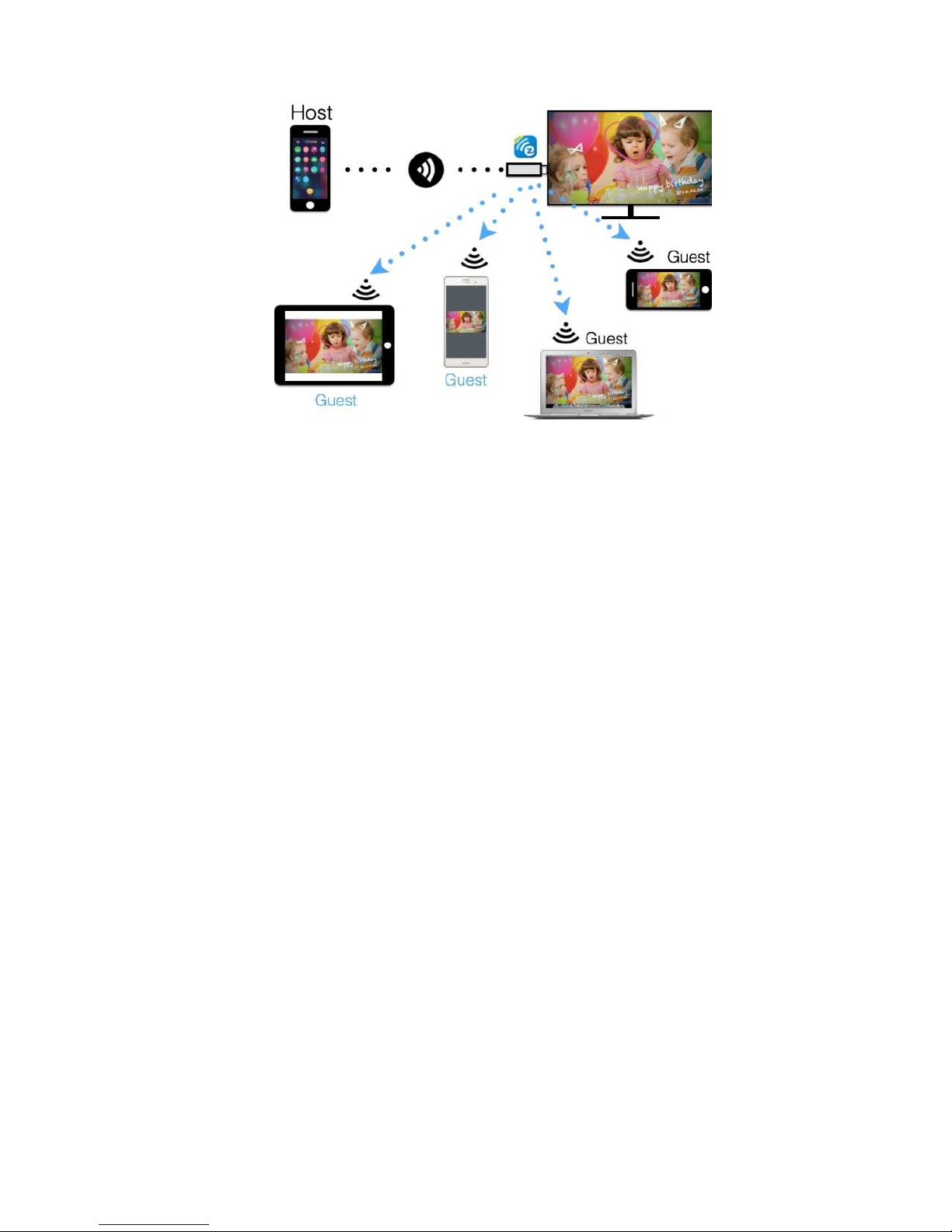
You can enable AirView function to see the current display contenton
EZCast Pro hardware, this is a great tool for display sharing.
This function will not need Host’s permission to enable.
* This feature doesn’t support video or audio streaming.
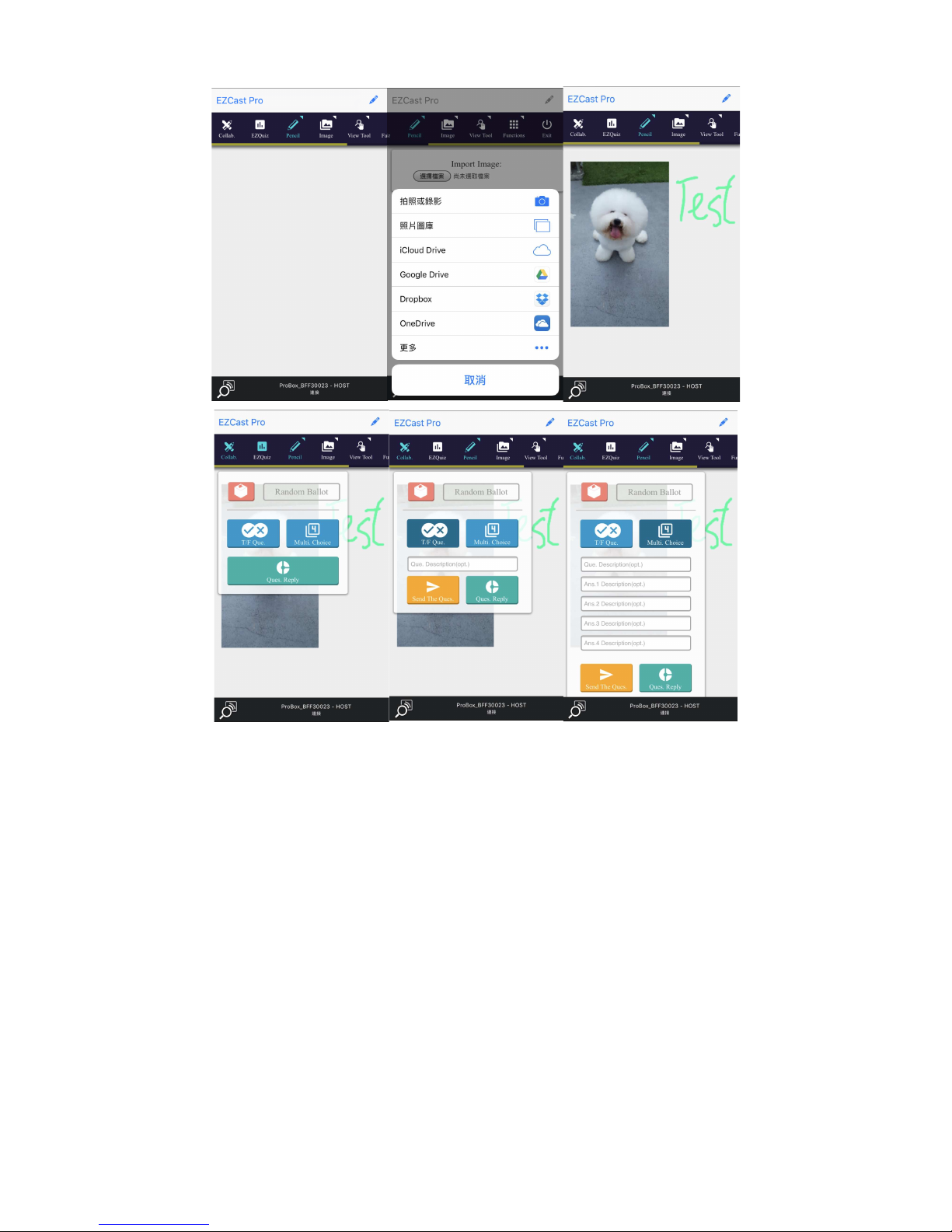
EZBoard
EZBoard is an innovativefunction to achieve real collaboration, which
will allow all users share/collaborate in the same board. It can
support sketch, insert photosortexts,all users can see the real-time
result either on Pro or their own devices. Furthermore, we also
integrate a quick tool for quiz purpose.
Page 23
*
Please be noted EZBoard will
EZChannel
require internet connection.
Page 24
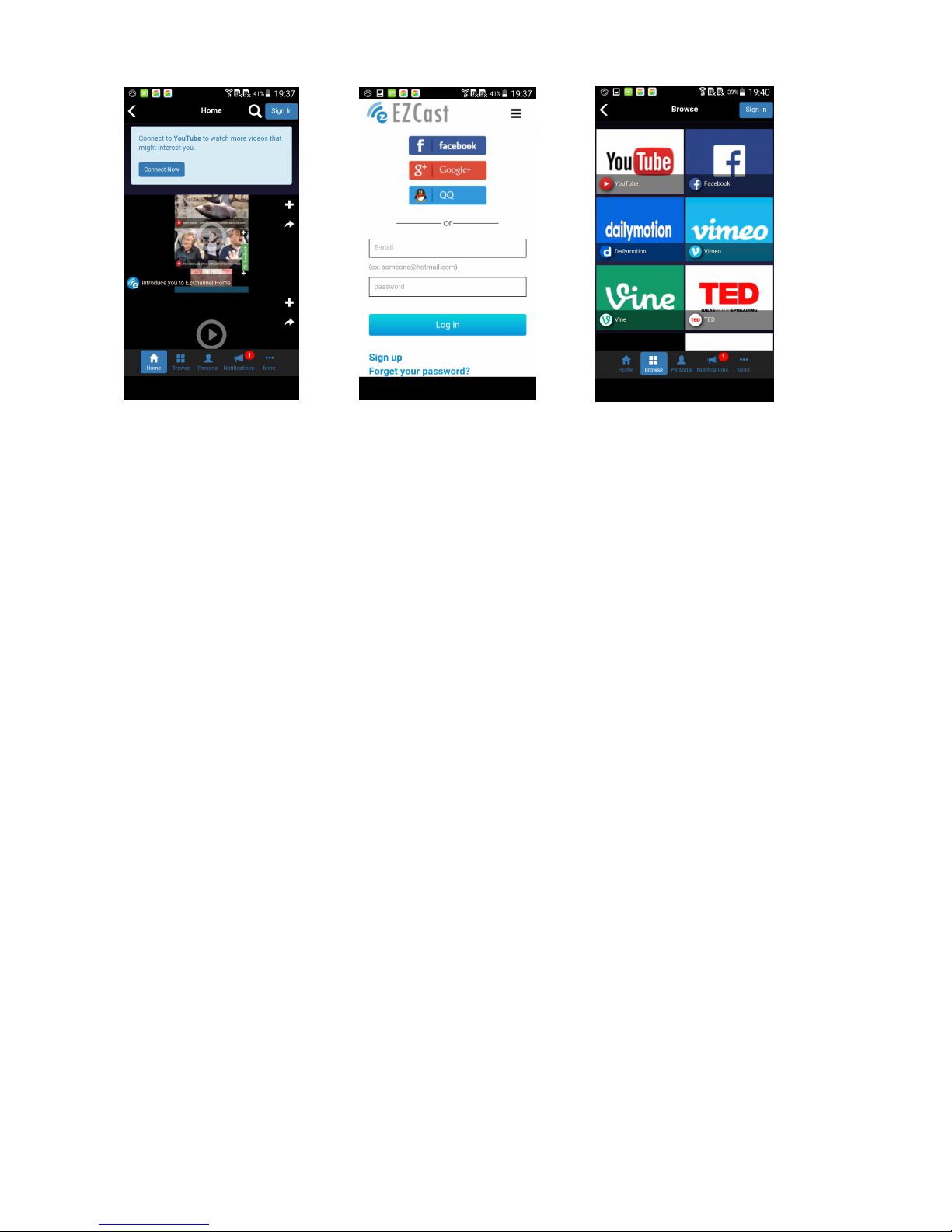
Once you enter EZChannel, you can enjoy default featured channel,
public channel or your friend’s channel. Please be noted some
features will require logging in.
You can subscribe your channel here, review your playlists(collections)
or install Chrome plug-in in the setting.
* Please be noted this function will require internet connection.
DLNA DMR
Page 25
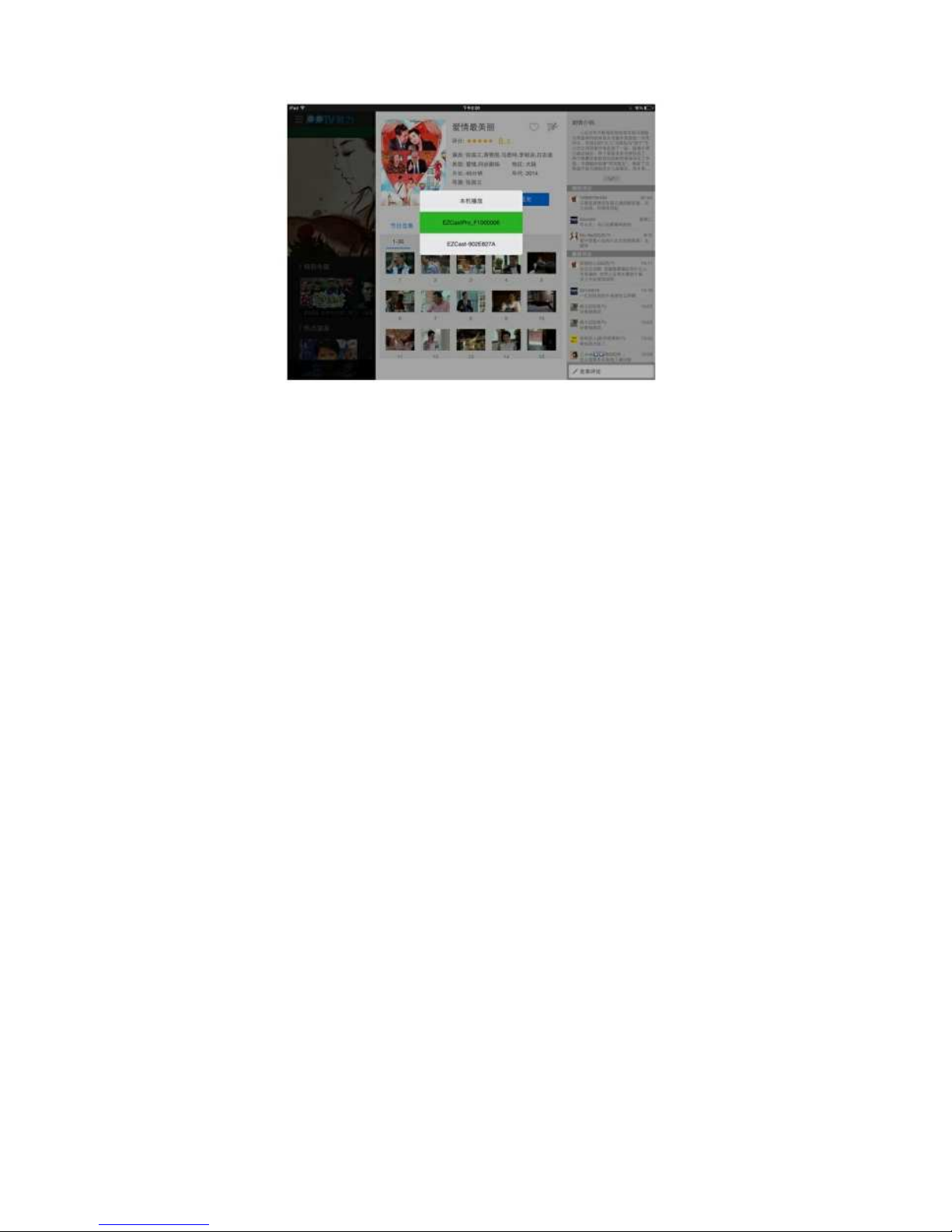
DLNA is an industrial standard which allows you to streammultimedia
formats through WiFi/LAN
In the main menu, you can also use DMLA app to push
multimediafiles to EZCast Pro for streaming.
EZMirror(Miracast, this is only available for Windows and
Android)
Page 26
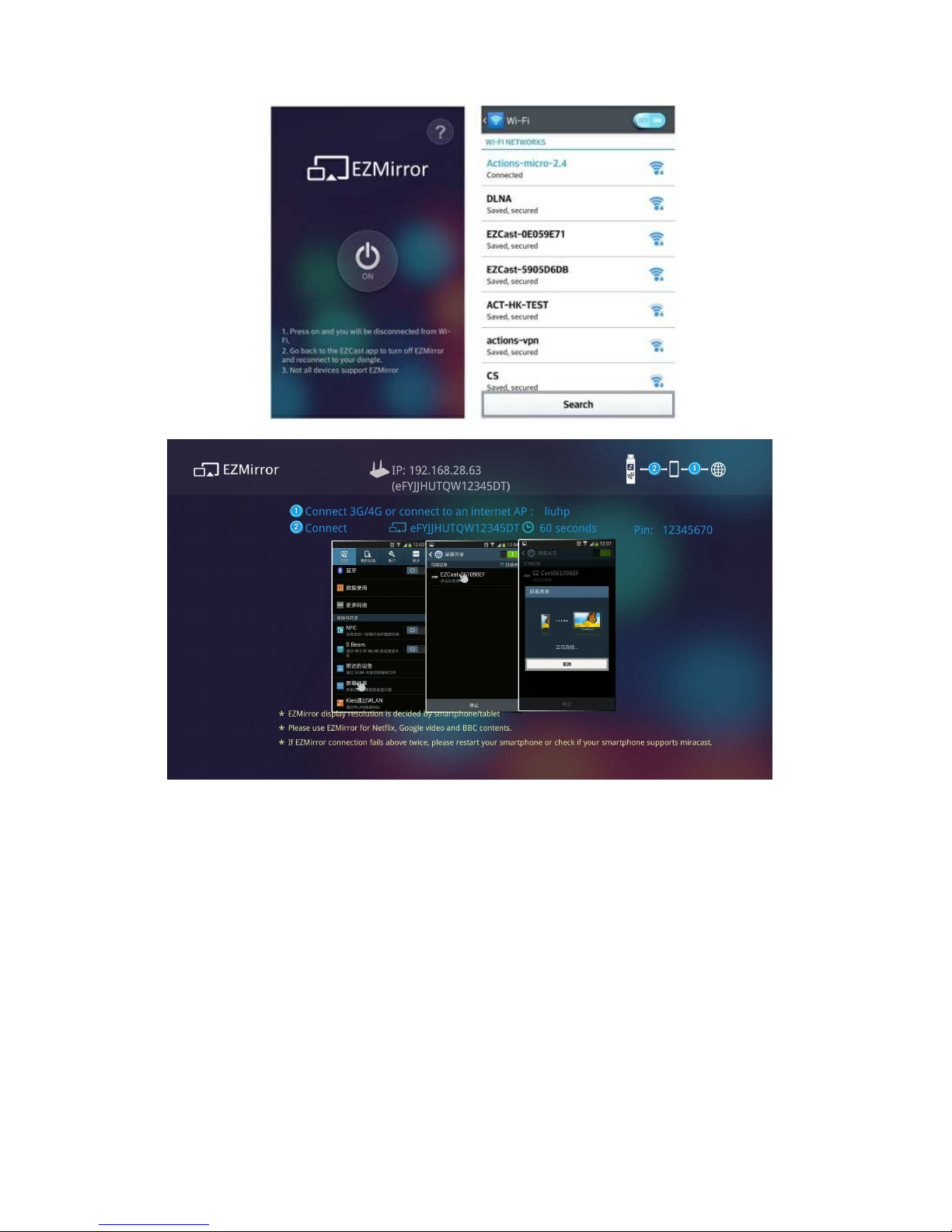
EZMirror is fully compatible with Miracast, you can click theEZMirror
button in EZCast app, and the receiver will be switchedto Miracast
mode.
Once you turn it on, there will be a 60seconds countdown for
yourmobile phone to connect with the receiver. Please select
yourMiracast function in your mobile phone setting page.
Page 27
We also recommend you link your smart phone to your
homenetwork at the same time to keep internet connection.
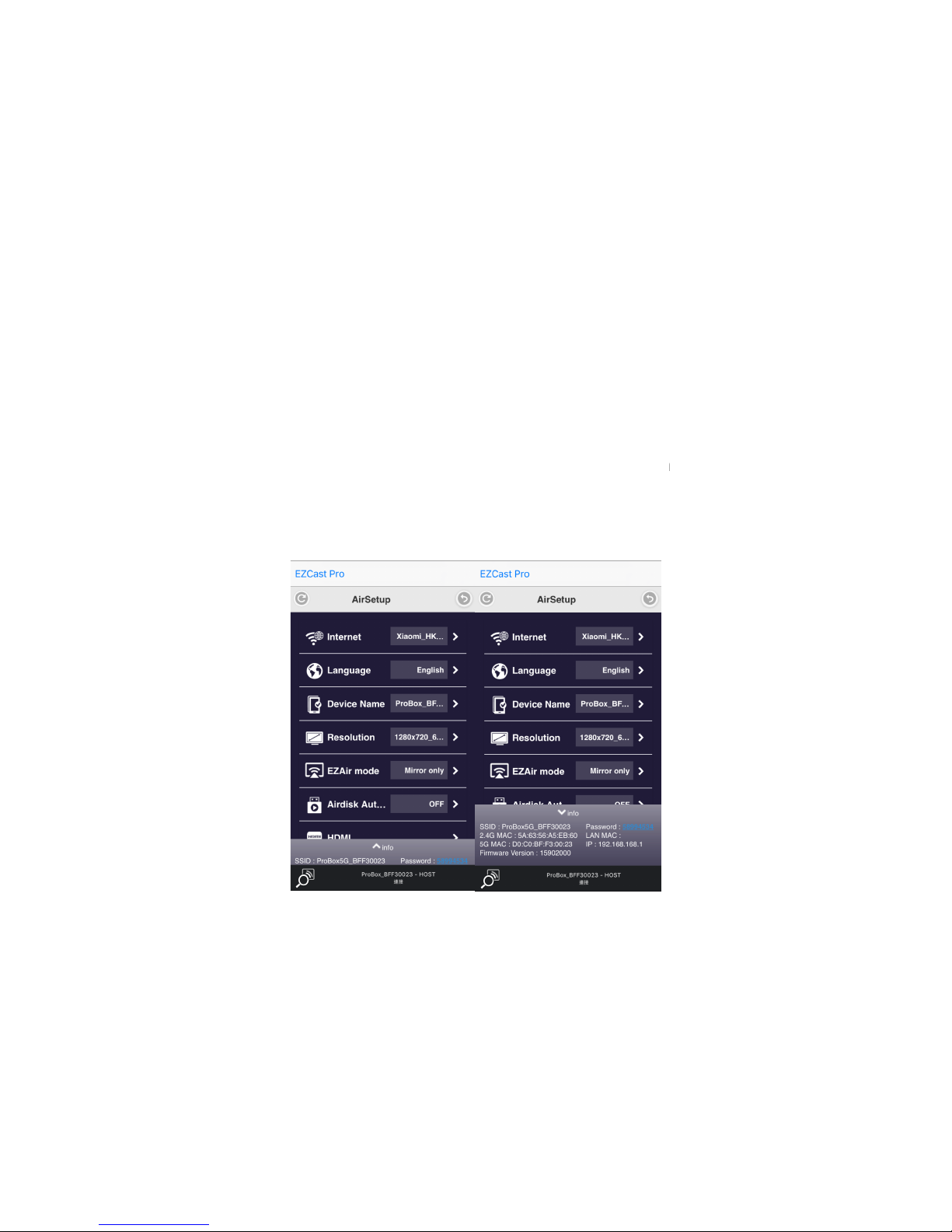
AirSetup
In setting function, you can setup EZCas
including output resolution, change SSID password,setup router
connection for internet surfing,
on/off Airview/Castcode/Miracode
Miracode: this is a special code for IP
protection
Castcode:
Except host control, the admin can turn on Castcode for
guests, they will need to input the 4 digits Castcode shown on screen
tPro device
languages, EZAir modes, and turn
…etc.
translation
for better IP
’sconfigurations
Page 28
to cast their content. This will prevent accidentally interruption by
some users not in the same conference room..
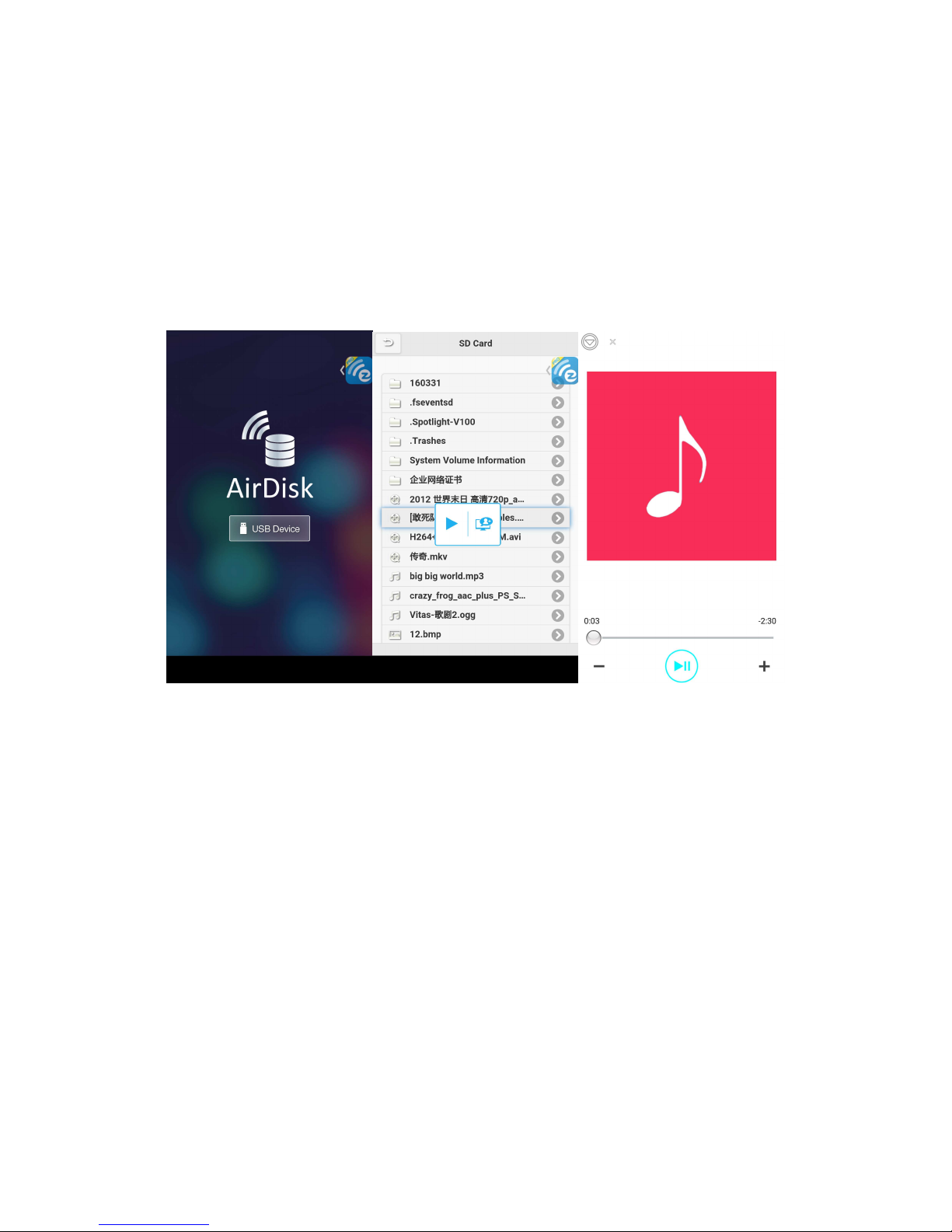
AirDisk
AirDisk allows you to play the content on USB disk, just plug the USB
storage device to Pro Box’s USB port, and you can play the content
inside of the USB drive
* Please awarePro Box only supports USB device with max. 500mA.
Advanced
Page 29
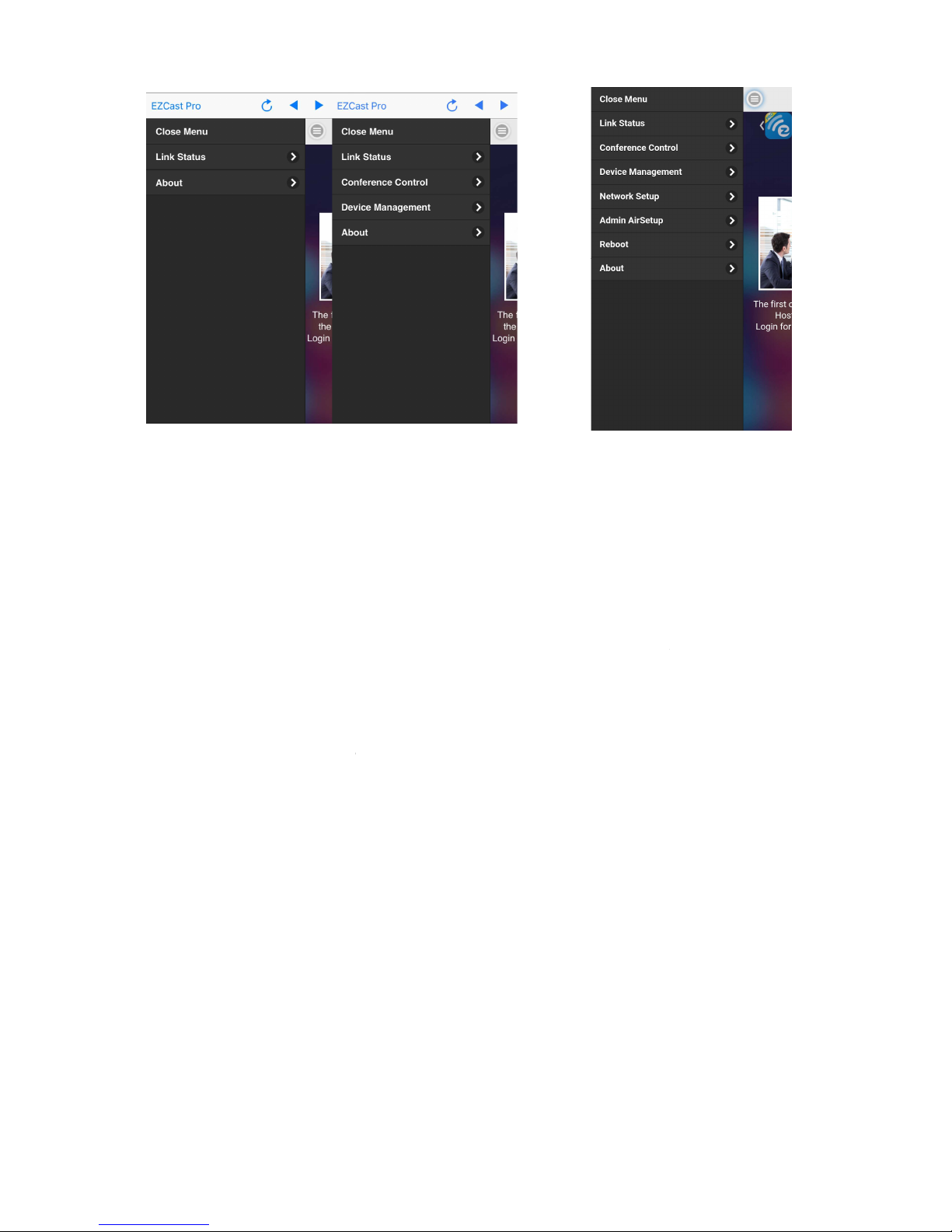
Example: Non-admin
mode
The Advanced
functioncontain
including C
onference
Admin Setup, Host Authority control,
Reboot and Upgrade FW
you will have to change it while 1st time log
*Important!!!! Please be
careful and keep the new password safe, if you forget the
password, the only way to reset it is
Link Status
You can check all
Conference Control
(Guest/Host) Example:
Admin
s all advance
d setting/control
Control,
Device Management, Network setup,
Add CA and Access Control
…etc. The
defaultpassword
-
in admin.
to contact us
for security reason
connect
ed devices status here.
(Default for Host/Admin only)
istrator mode
or
is “000000”, and
.
Page 30
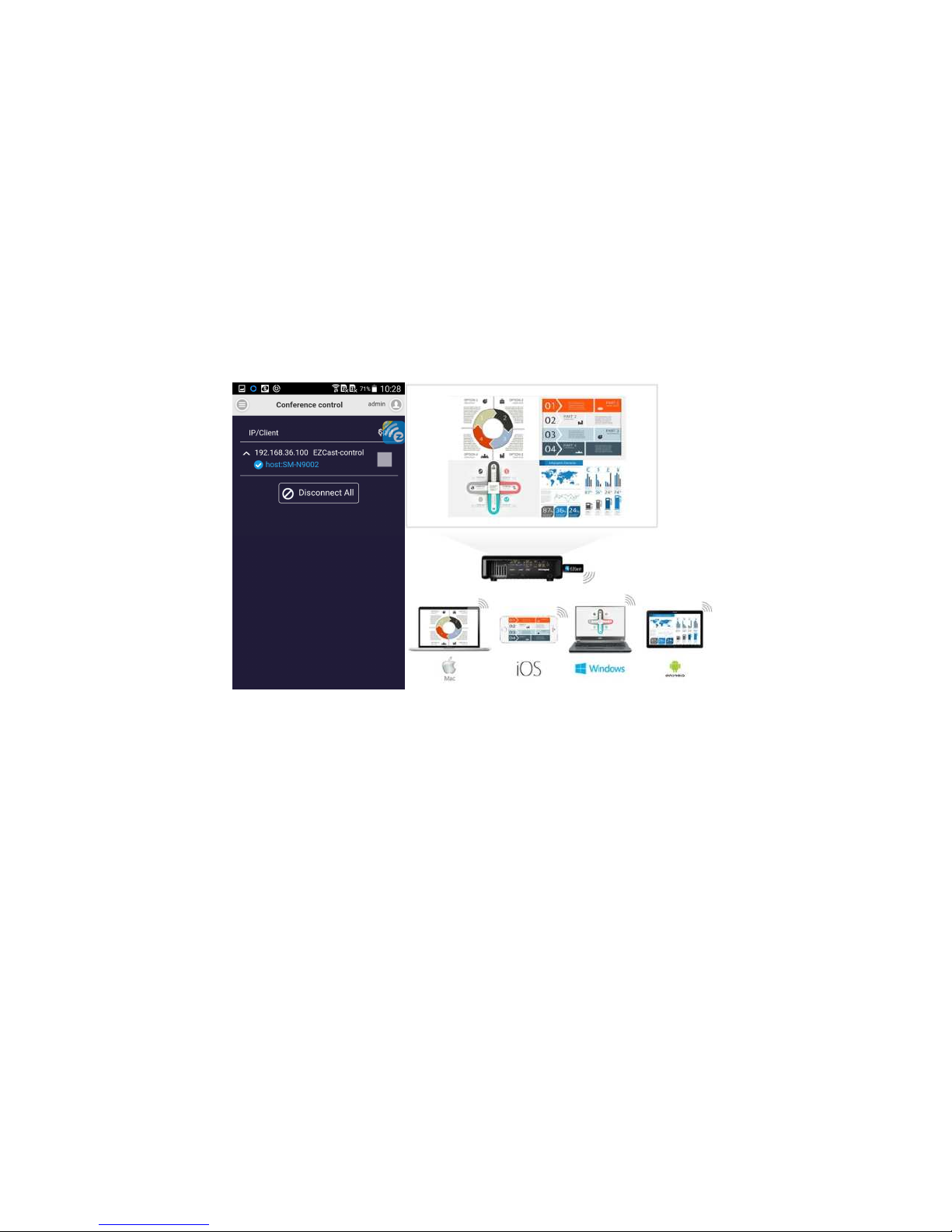
This is an advanced control for all connected devices, you can
select the position and place it.
You can disconnect all at one time, too.
Please be noted some special mode like Miracast will not be
controlled by it.
Device Management (Default for Host/Admin only)
You can modify device setting here, includinglanguage, device’s
host name(not SSID), change resolution, change EZAir mode
while playing video (only mirror or stream video), turn on/off
AirDisk auto play, HDMI CEC, AirView on/off, Castcode
on/off/fixed digit, Miracode on/off, as well as the max.
Page 31
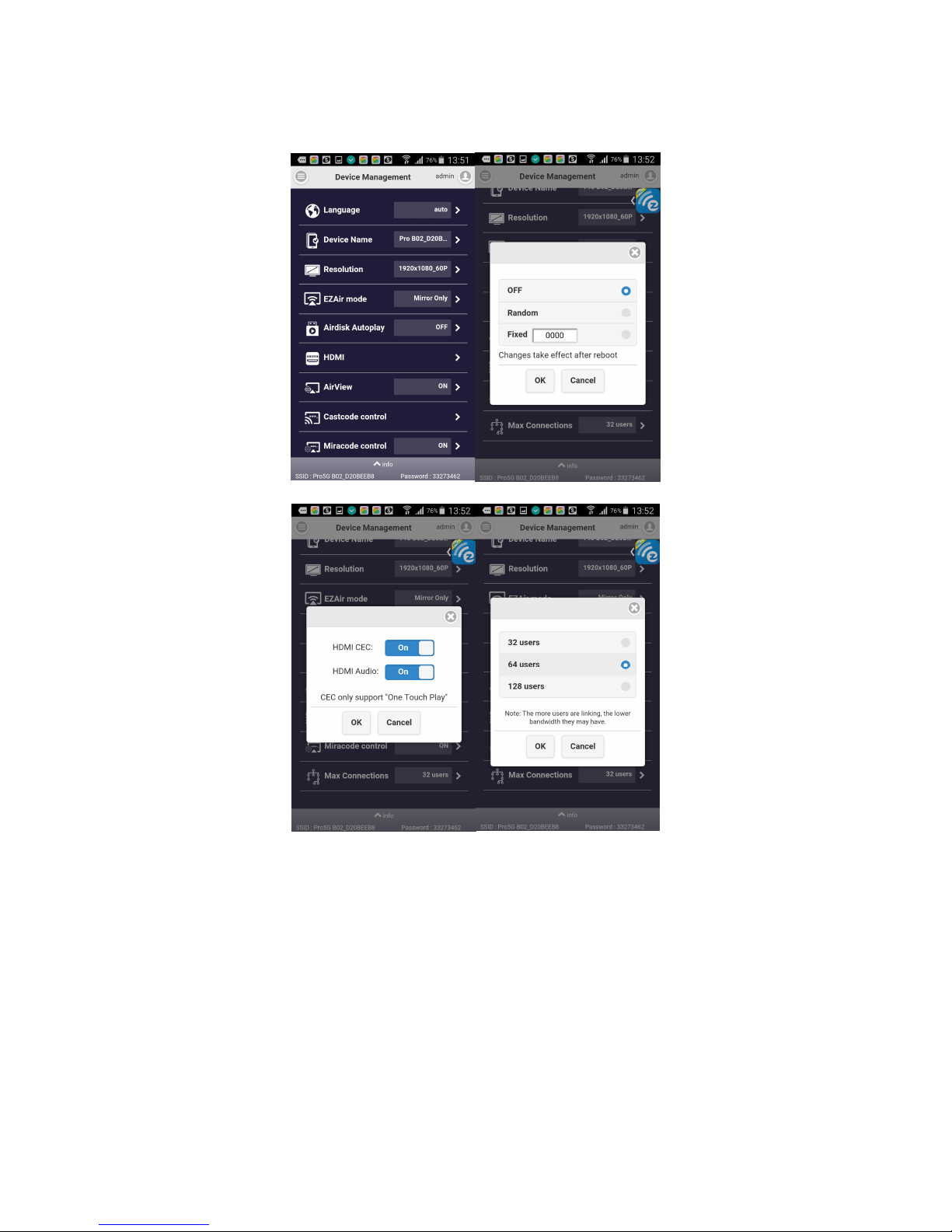
usersconnection.
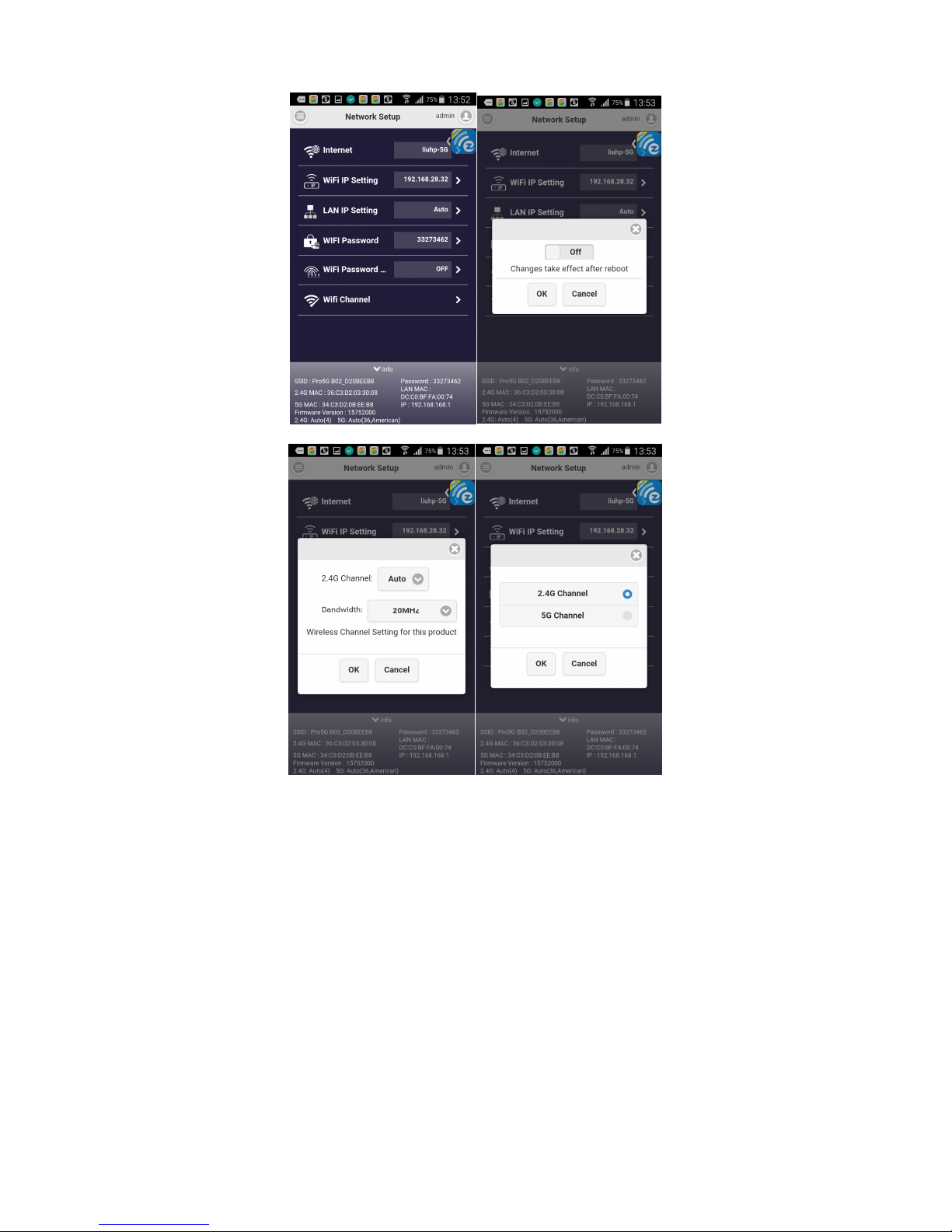
Network Setup (Default for Admin, but can be enabled for Host
by Administrator)
You can adjustnetwork related setting here. Please be noted
some settings will require reboot.
Page 32
Admin Setup (Only for Admin)
You can adjust more detailed functions here, and you can also
release some authorities for Host to control the device, and here
are some major features descriptions.
Password
Page 33
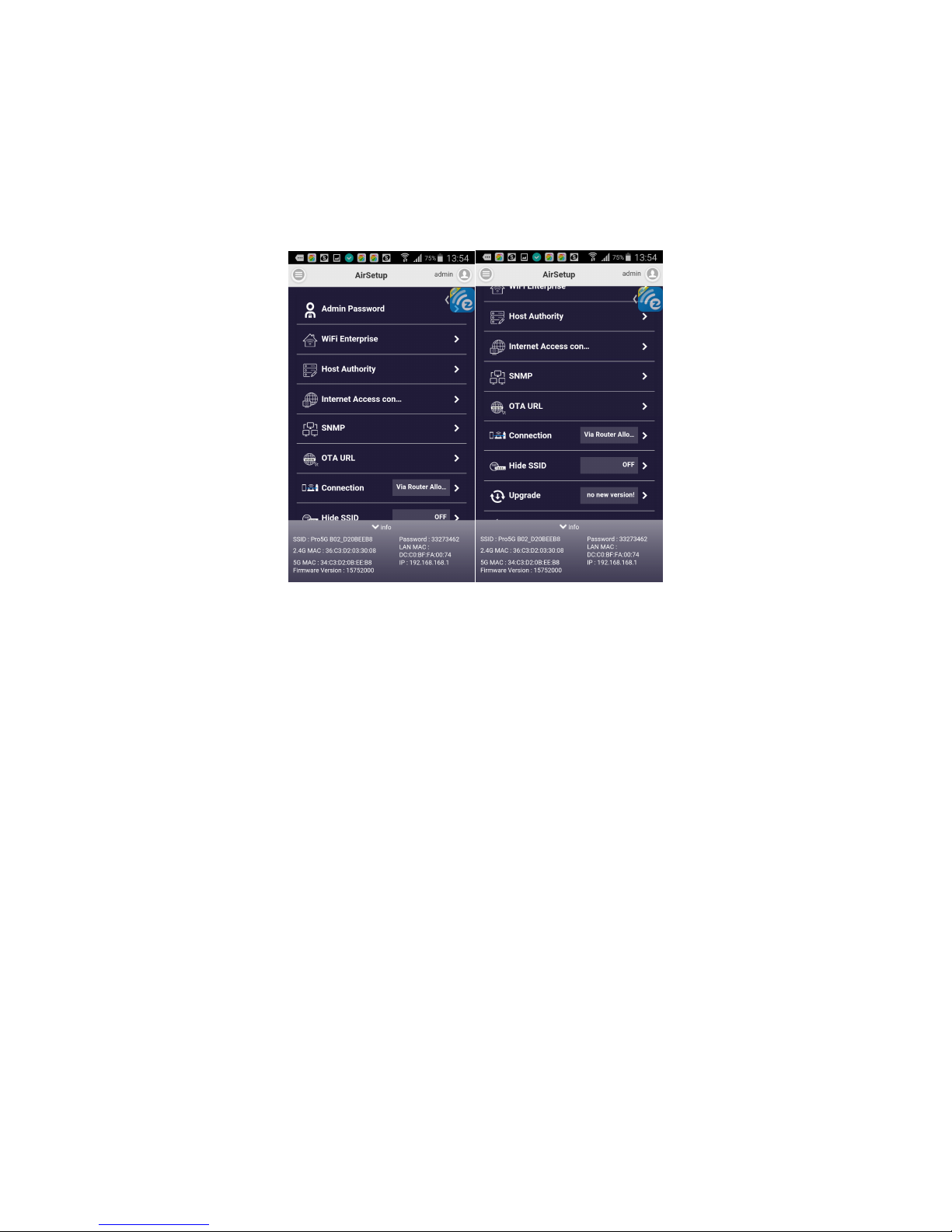
Admin password change, the defaultpassword is “000000”,
you will have to change it in the 1st time log-in as admin.
*Please be noted to preserve the Administrator passwordcarefully, due to security
reason, if you forget it or lose it, this only way to grant it is to contact us to reset it.
Host Authority
The admin can release some functions to Host so that the host
can get some control, too. If some functions are released to host,
then the host can use some functions withoutlogging in as
administrator.
Page 34
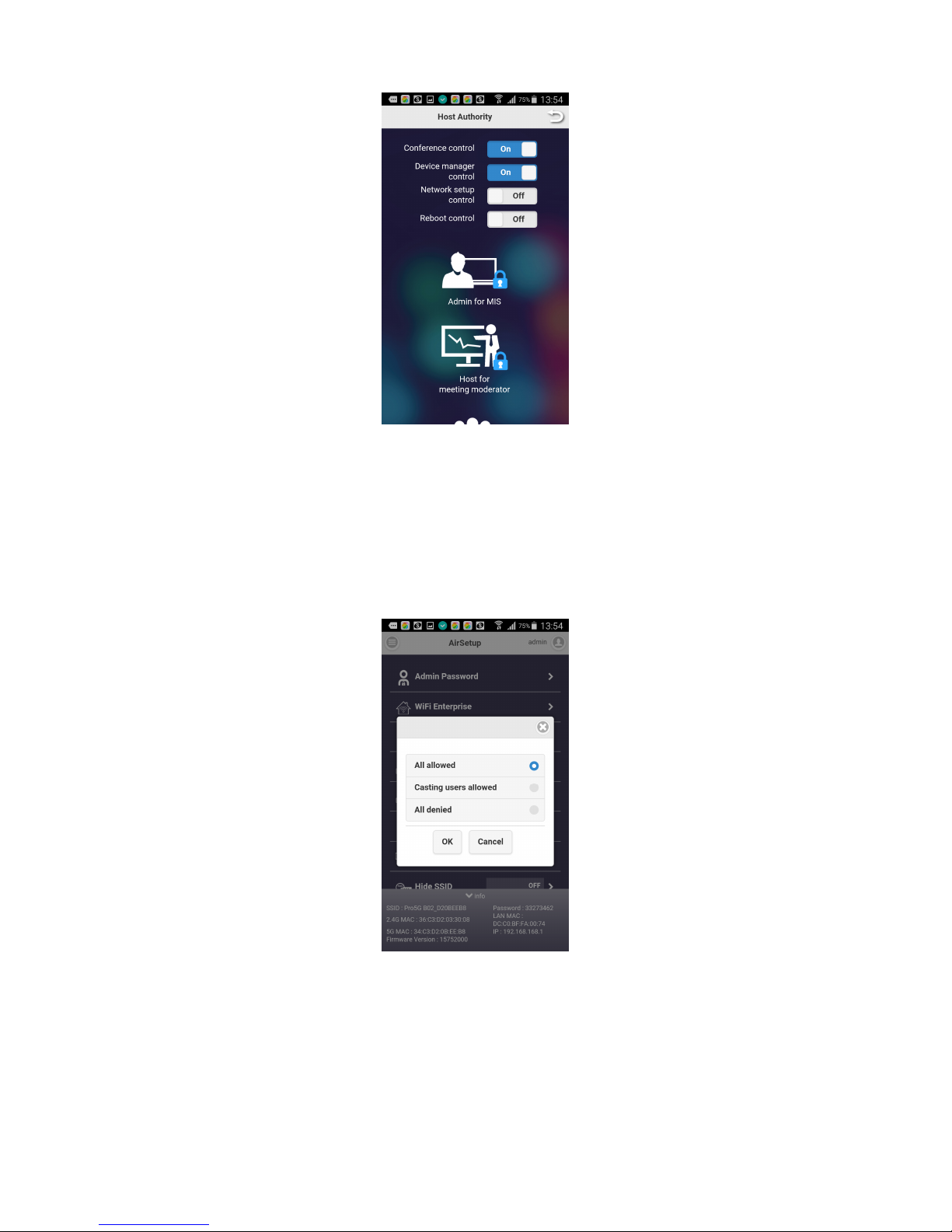
Access Control
The admin can decide if the connected devices can go for
internet through EZCast Pro device or not.
Add CA for WiFi enterprise (802.1x), this is for WiFi Enterprise
connection, consult with your MIS for the CA if needed.
Page 35
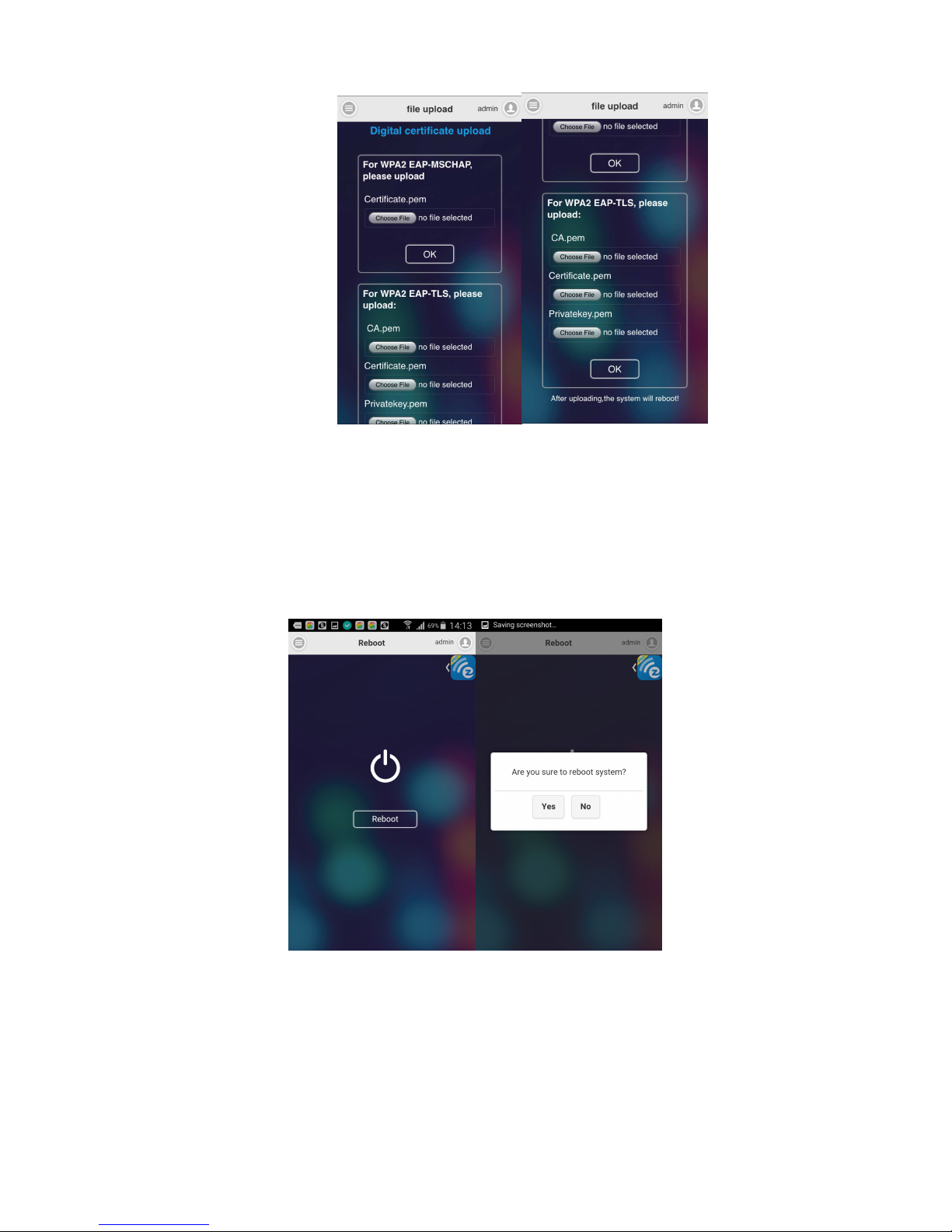
Reboot Control (Default for Admin only, but can be released to Host)
You can reboot the device if you need.
Reset to Default
Reset all parameters to default.
You can also hold the hardware reset button for 10 seconds aside
Page 36

of Pro LAN device to reset to default if you forget admin
password.
About
Show some device information like version and others.
Page 37

©2014 Actions Microelectronics Co., Ltd. All right reserved. EZCast, and EZCast Pro are trademarks of
Actions Microelectronic Co., Ltd., registered in China and other countries. Other product and company
names mentioned herein may be trademarks other respective companies.
FCC STATEMENT
1. This device complies with Part 15 of the FCC Rules. Operation is subject to the following
two conditions:
(1) This device may not cause harmful interference.
(2) This device must accept any interference received, including interference that may
cause undesired operation.
2. Changes or modifications not expressly approved by the party responsible for
compliance could void the user's authority to operate the equipment.
NOTE: This equipment has been tested and found to comply with the limits for a Class B
digital device, pursuant to Part 15 of the FCC Rules. These limits are designed to provide
reasonable protection against harmful interference in a residential installation.
This equipment generates uses and can radiate radio frequency energy and, if not
installed and used in accordance with the instructions, may cause harmful interference to
radio communications. However, there is no guarantee that interference will not occur in
a particular installation. If this equipment does cause harmful interference to radio or
television reception, which can be determined by turning the equipment off and on, the
user is encouraged to try to correct the interference by one or more of the following
measures:
Reorient or relocate the receiving antenna.
Increase the separation between the equipment and receiver.
Connect the equipment into an outlet on a circuit different from that to which the
receiver is connected.
Consult the dealer or an experienced radio/TV technician for help.
FCC Radiation Exposure Statement
This equipment complies with FCC radiation exposure limits set forth for an uncontrolled
environment. This equipment should be installed and operated with minimum distance
20cm between the radiator & your body
本產品符合國家通訊傳撥委員會(NCC)之規範:
低功率電波輻射性電機管理辦法
第十二條經型式認證合格之低功率射頻電機,非經許可,公司、商號或使用者均不得擅自變
更頻率、加大功率或變更原設計之特性及功能。
Page 38

第十四條低功率射頻電機之使用不得影響飛航安全及干擾合法通信;經發現有干擾現象時,
應改善至無干擾時方得繼續使用。前項合法通信,指依電信法規定作業之無線電通信。低功
率射頻電機須忍受合法通信或工業、科學及醫療用電波輻射性電機設備之干擾。
*您可以在官網下載到最新版完整手冊以及相關品問題:www.iezvu.com 或
www.iezcast.com
©2014 Actions Microelectronics Co., Ltd. :EZCast與EZCast Pro為Actions Microelectronic
Co., Ltd., 炬力北方股份有限公司在大陸地區與其他國家註冊之商標,說明書中提到的相關產
品名稱或商標則屬於相對應之該公司所有。
 Loading...