

Page 1
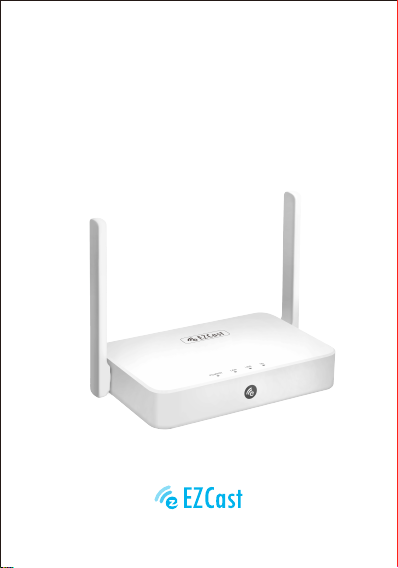
EZCast Mini Box Display Receiver
Quick Start Guide
Rev 1.5
Product information is subject to change without prior notice.
Page 2
Introduction
EZCast supports multiple wireless display standards, including
EZCast, Miracast, DLNA and EZAir (compatible with iOS and
macOS). Ongoing firmware upgrades are provided to support
latest operating systems. Please read this guide to install and
setup your EZCast. Happy Casting!
Software Installation
Visit https://www.EZCast.com/app to download platform-specif-
Scan the QRCode below to download EZCast mobile App.
ic applications and User Manual.
1
Page 3
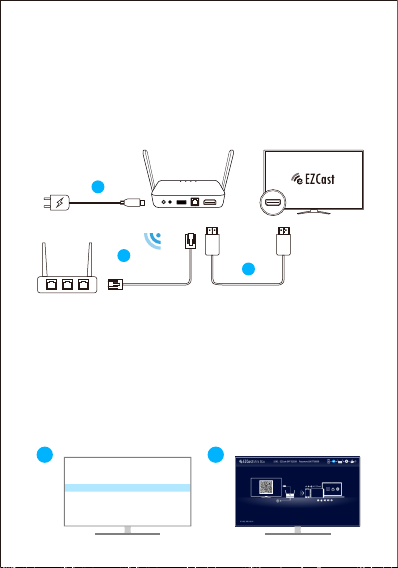
Hardware Installation
1
Install EZCast Mini Box
(a)Mini Box to power: Connect DC port to power (5V/2A).
(b)Mini Box to TV: Connect to the HDMI port of your TV.
(c)Connect to network: Connect to network wirelessly or via
LAN port.
c
USB
PC
HDMI1
HDMI2
HDMI3
or
LAN port
Mini Box
HDMI
b
5V/2A
a
Router
2
Select source
Set your TV’s source/ input selection to HDMI port that
connected to the EZCast dongle
3
Connect successfully
Your TV screen shall display the instructions once EZCast is
connected successfully. Please follow the instructions to
complete setup.
3 4
2
Page 4
Setup for smart device (Android/ iOS)
Download EZCast app
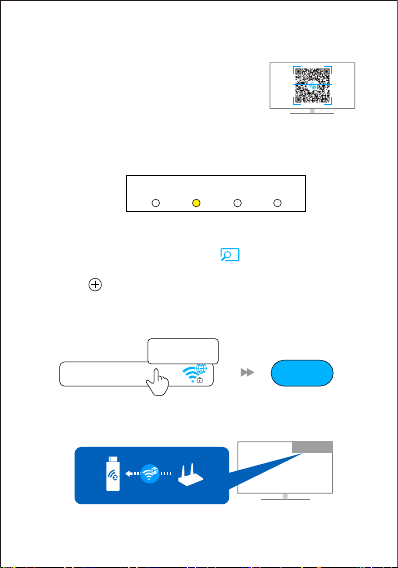
Scan QRCode on TV screen or search
“EZCast” on Google Play/App Store.
Connect to network:
Via LAN port
LAN light of Mini Box turns on when connected to router via
LAN port.
Connect wirelessly
(1) Launch EZCast App and follow the guide to add device.
If the guide doesn’t pop out, click at the upper right and
click “+” at the upper left.
(2) Press and scan the QRCode on your screen.
(3) Make sure the SSID and picture shown are correct.
(4) Connect the device to your home Wi-Fi by entering the
correct password. After the connection, press “next” button.
Home Wi-Fi
(5) Check whether the connection status at the upper right on
your screen shows your home wifi or not. If connection fails,
please connect again.
(6) Sign up an EZCast account to save hashtags, create
playlists, voice control, and autoplay.
POWER LAN USB WIFI
Password
Next
Home Wi-Fi
3
Page 5
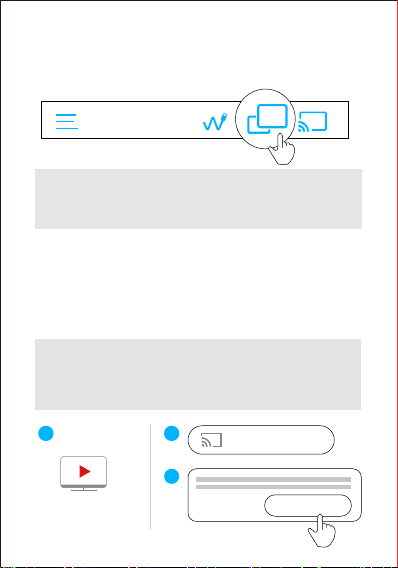
Screen Mirroring for Android
EZCast/ Mirror (Android 5.0 above)
Click the Mirror icon on the top bar.
Note: For EZCast/ Mirror, it only captures the screen
without sound due to limitations in Android. To mirror the
sound to your TV, please use EZMirror instead.
Google Home
You may download Google Home App from Google Play.
Launch the Google Home App, login with Google account.
Then you may mirror to EZCast using Google Home.
Steps: Choose device name: MiniBox-xxxxxxxx > Cast my
screen > Cast screen
Note: Make sure that Mini Box and your device are both
connected to same Wi-Fi. Use 5GHz WiFi, instead of
2.4GHz, which provides higher speed connection and
better performance for Google Home mirroring.
1
MiniBox-12345678
2
3
Cast my screen
Cast screen
4
Page 6
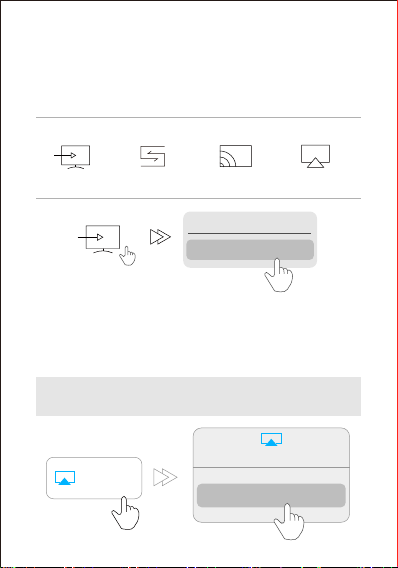
Miracast
Mirror to EZCast using Miracast if your Android devices
support Smart View on Samsung, Multi-screen on Huawei,
Multi-screen Interaction on OPPO, or etc.
Samsung
Smart View
Huawei
Multi-screen
OPPO
Multi-screen
Interaction
Cast to
MiniBox-12345678
Vivo
Screen mirroring
Screen Mirroring for iOS
EZAir
Screen mirroring may be done by EZAir on iOS smart devices.
Swipe and click Screen Mirroring, and then find and select
MiniBox-xxxxxxxx.
Note: Make sure that EZCast and your iOS device are
both connected to same network.
Screen
Mirroring
Screen Mirroring
MiniBox-12345678
5
Page 7

EZCast Mini Box Settings
Internet:
Connect EZCast to WiFi.
Resolution:
Change output resolution.
Language:
Change language preference.
Password:
Change password of EZCast.
Device Name:
Change device name of EZCast.
EZChannel (Auto play):
Automatically start video streaming which created at your
EZChannel playlist once your EZCast dongle is connected to
WiFi.
EZAir Mode (only for iOS):
Switch mirroring mode of EZCast between “mirror only” and
“mirror + streaming” for iOS devices.
Wallpaper:
Set a keyword and automatically play the pictures related
during standby mode.
Upgrade:
Upgrade your EZCast firmware to latest version for better user
experience. Please do NOT turn off the Wifi and the power of
EZCast during firmware.
Reset to default:
Reset EZCast to default settings.
6
Page 8

Features of EZCast
EZChannel:
Create an EZCast account and bind with your Mini Box to get
advance functions.
(1) Discover and personalize your video channels.
(2) Search videos across different media sites.
(3) Auto-play: Automatically start video streaming which are
created at your EZChannel playlist once your EZCast dongle
is connected to WiFi.
Video/ Photo/ Music:
Stream and playback local media files from devices to EZCast
dongle wirelessly.
Live Camera:
Capture videos from local camera to EZCast dongle.
DLNA:
Stream multimedia files via DLNA protocol.
Cloud Storage:
Access data from Cloud server (Dropbox, Google drive, or
etc.).
Voice Control:
Pair EZCast Mini Box with any Google Home/ Assistant/
Amazon Echo Dot, and stream cloud videos just by asking.
e.g.
“Hey Google, ask EZCast to play holiday video.”
User manual please refers to website as below.
https://www.ezcast.com/support
7
Page 9
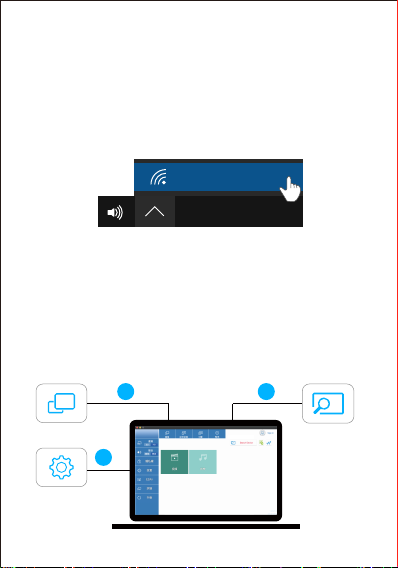
Setup for laptop (Windows/ MacOS)
Download and install EZCast application
1
Download at https://www.ezcast.com/app.
Connect to WiFi
2
(1) Click Wi-Fi list from your laptop and connect to your
MiniBox-xxxxxxxx by entering password on TV screen.
MiniBox-12345678
Mon 09:30 AM
ENG
2019/07/01
(2) Launch EZCast application, your EZCast device will
connect automatically and shows SSID at the upper right.
Setting shall pop out (or find from side bar). Click Internet
and connect to your Wi-Fi.
(3) Click Search Device and select your MiniBox-xxxxxxxx
on the device list.
Screen Mirroring
3
Click Mirroring in EZCast application.
3
1
Mirror
Setting
MiniBox-xxxxxxxx
Search Device
2
EZCast app
8
Page 10
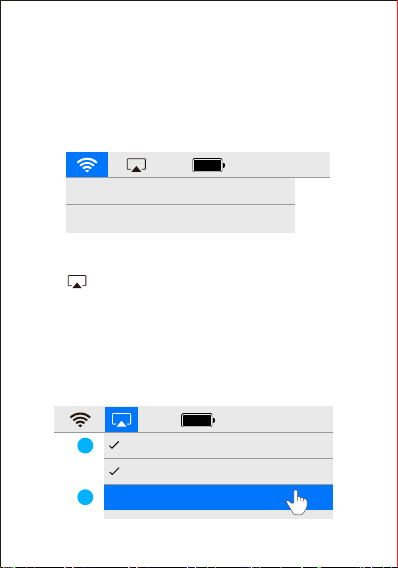
Mirror/ Extend Screen for Mac
Connect to EZCast dongle
1
Connect to EZCast dongle from Wi-Fi setting on the top bar:
directly connect to MiniBox-xxxxxxxx or connect to the same
Wi-Fi as EZCast Mini Box.
100% Fri 09:30 AM
MiniBox-12345678
Same Wi-Fi as EZCast Mini Box
Screen Mirroring
2
Click icon on the top bar and select MiniBox-xxxxxxxx to
mirror.
Mirror/ Extend
3
Once your Mac is screen mirroring, you could select “Mirror
Built-in Display” to mirror, or “Use As Separate Display” to
extend your screen.
100% Fri 09:30 AM
2
MiniBox-12345678
Mirror Built-in Display
3
Use As Separate Display
9
Page 11

©2019 Actions Microelectronics Co., Ltd. All right reserved.
EZCast are trademarks of Actions Microelectronic Co., Ltd.,
registered in US, Europe, and other countries. Other product
and company names mentioned herein may be trademarks
other respective companies.
FCC STATEMENT
1. This device complies with Part 15 of the FCC Rules. Operation is subject
to the following two conditions:
(1) This device may not cause harmful interference.
(2) This device must accept any interference received, including
interference that may cause undesired operation.
2. Changes or modifications not expressly approved by the party
responsible for compliance could void the user's authority to operate the
equipment.
NOTE: This equipment has been tested and found to comply with the limits
for a Class B digital device, pursuant to Part 15 of the FCC Rules. These
limits are designed to provide reasonable protection against harmful
interference in a residential installation.
This equipment generates uses and can radiate radio frequency energy
and, if not installed and used in accordance with the instructions, may
cause harmful interference to radio communications. However, there is no
guarantee that interference will not occur in a particular installation. If this
equipment does cause harmful interference to radio or television
reception, which can be determined by turning the equipment off and on,
the user is encouraged to try to correct the interference by one or more of
the following measures:
Reorient or relocate the receiving antenna.
Increase the separation between the equipment and receiver.
Connect the equipment into an outlet on a circuit different from that to
which the receiver is connected.
Consult the dealer or an experienced radio/TV technician for help.
FCC Radiation Exposure Statement
This equipment complies with FCC radiation exposure limits set forth for
an uncontrolled environment. This equipment should be installed and
operated with minimum distance 20cm between the radiator & your body
Page 12
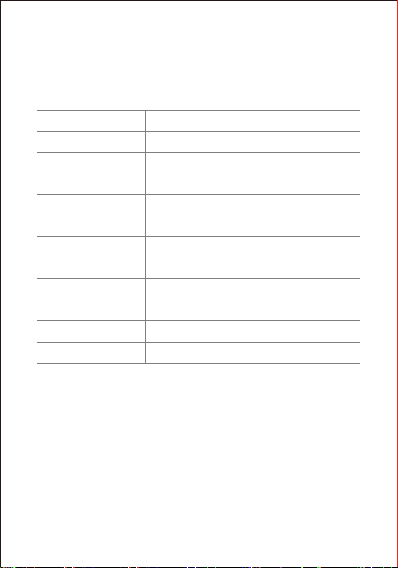
Product informations
Model EZCast Mini Box
Main Chip AM8270
Network
Display Output
Function
Support OS
Color White
Power DC 5V/2A
802.11AC 2.4/5GHz 2T2R,
RJ-45 10/100/1000 Ethernet
HDMI 3840x2160/30p,
1920x1080/60p, 1280x720/60p
EZCast, EZAir, DLNA, Miracast,
Google Home, Voice Control
Android/ iOS/ Windows/
MacOS/ ChromeOS
Learn More
Visit https://www.EZCast.com for more information.
Visit https://www.YouTube.com/EZCast for video tutorials.
 Loading...