

Page 1
Express EC8500T Hybrid DVB-T
Quick install manual
1. Getting Started
Express EC8500T Hybrid DVB-T is fully compatible for your desktop PC or laptop use. Its tiny size
design with Express interface lets you enjoy digital (FTA) Radio and TV programs and Analog TV
programs.
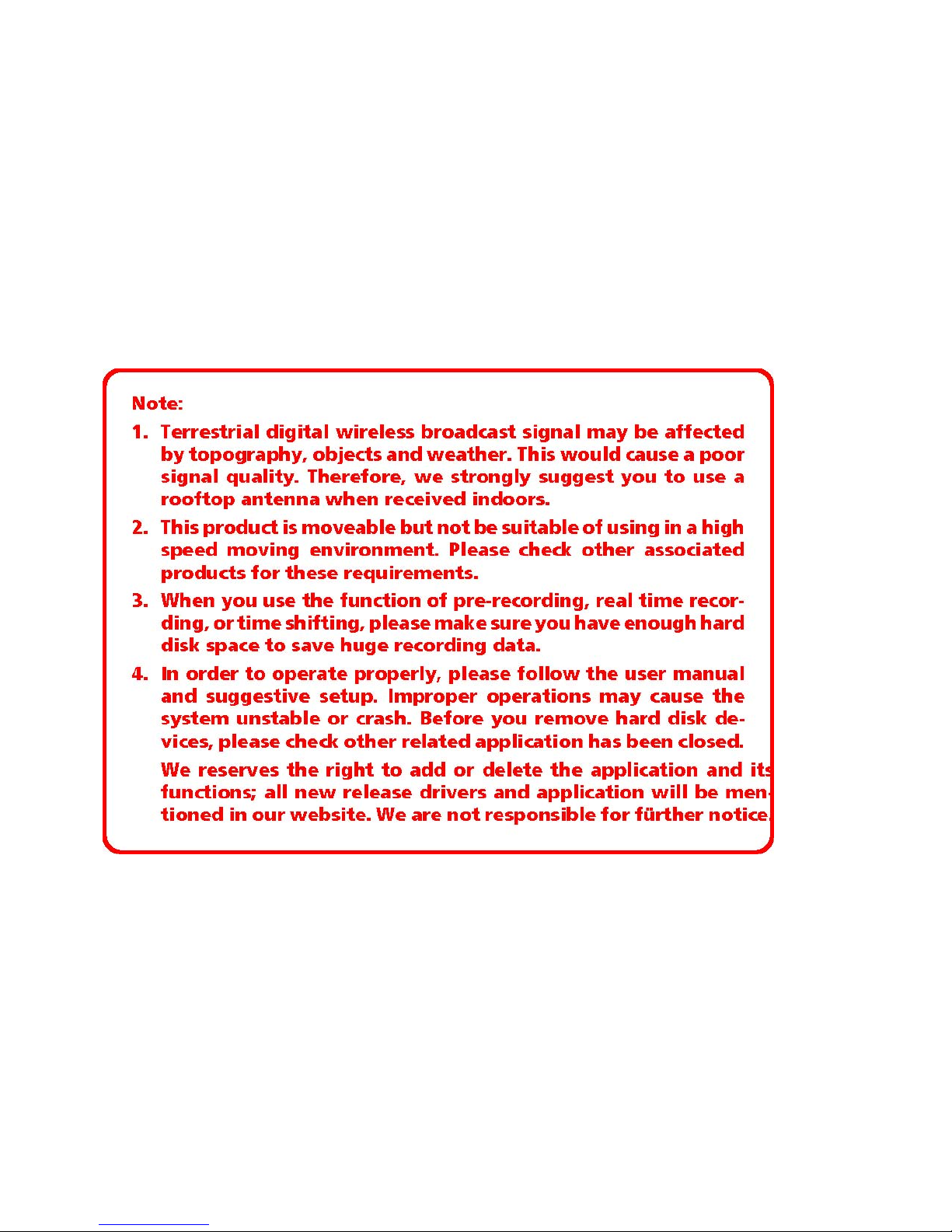
Important Notice: “All channels are subject to coverage and may be changed from time to time.
Reception may depend on the type and condition of your existing aerial. Aerial upgrade may be
required. Please confirm coverage in your area.” We strongly recommend that you install an
outdoors antenna when you use the DTV receiver indoors.
1.1 Feature
• Advanced TV Application
Watch DVB-T/World Wilde Analogue TV on PC
Rewind and fast forward live TV shows with Always Time Shifting recording
Electronic Program Guide (EPG)
Support HDTV Receiving
• Listen to DVB-T digital radio
Receive digital radio stations from your PC
Automatic station searching
Create favorite stations for convenient listening
• Digital Personal Video Recording
Schedule TV recording and save directly to your PC’s hard drive
34mm Express Interface
1
Page 2
1.2 System Requirements
Recommended OS system(Watching TV and recording)
2.0 GHz CPU
256 MB RAM (minimum), 512 MB RAM recommended
Sound card for audio
One free 34mm Express Interface
CD-ROM (install driver & application)
Windows XP Service Pack2
1.3 Express EC8500T Hybrid DVB-T Contents
Express EC8500T Hybrid DVB-T x1
Remote Controller x1
A/V Cable x1
Quick installation Guide x1
DVB-T Antenna (Optional) x1
Software CD (Driver and Application Software)
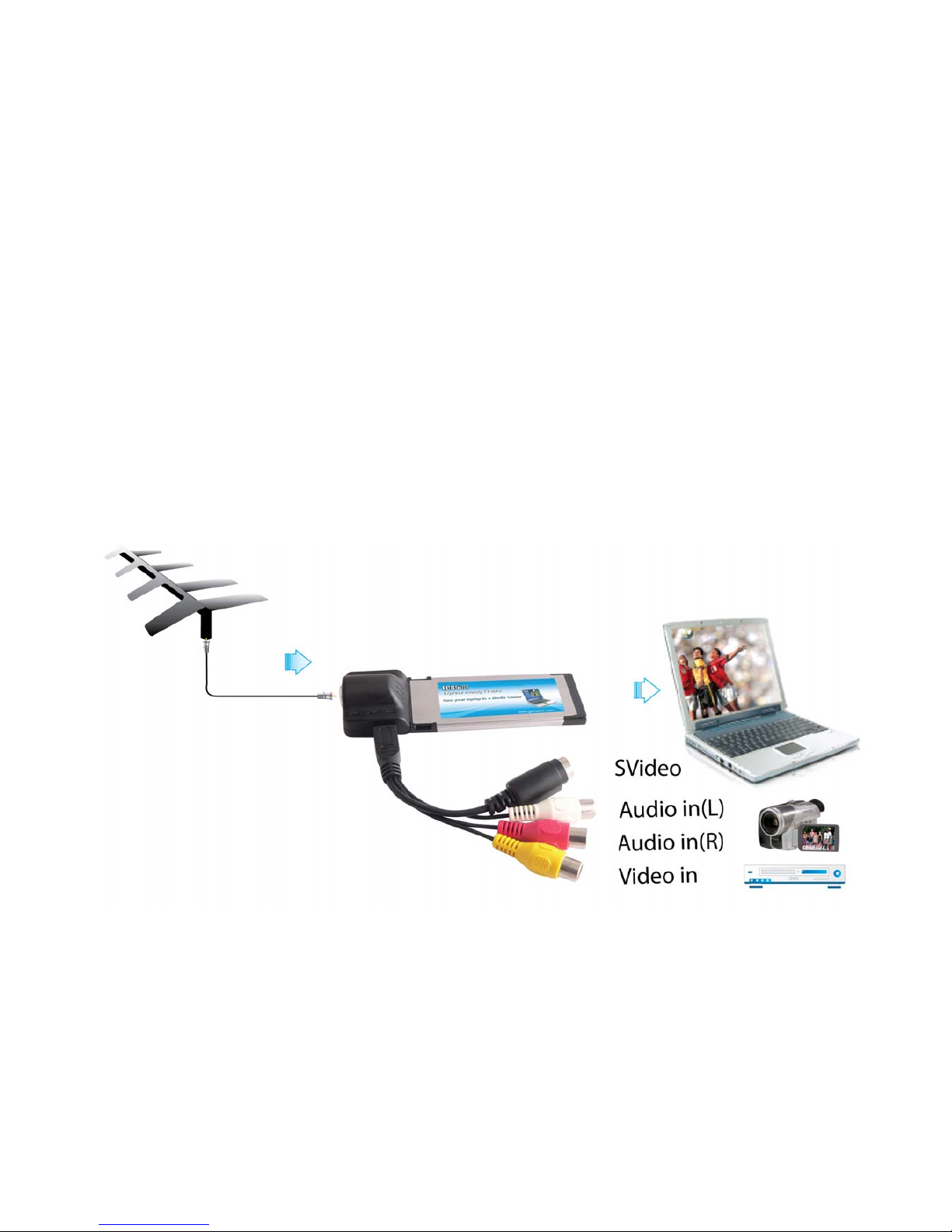
2. Connections
2
Page 3
3. Driver and Software installation
Installation:
Turn on the PC. Insert the install CD to CD ROM. Then plug the Express EC8500T Hybrid DVB-T
into one of the 34mm Express port:
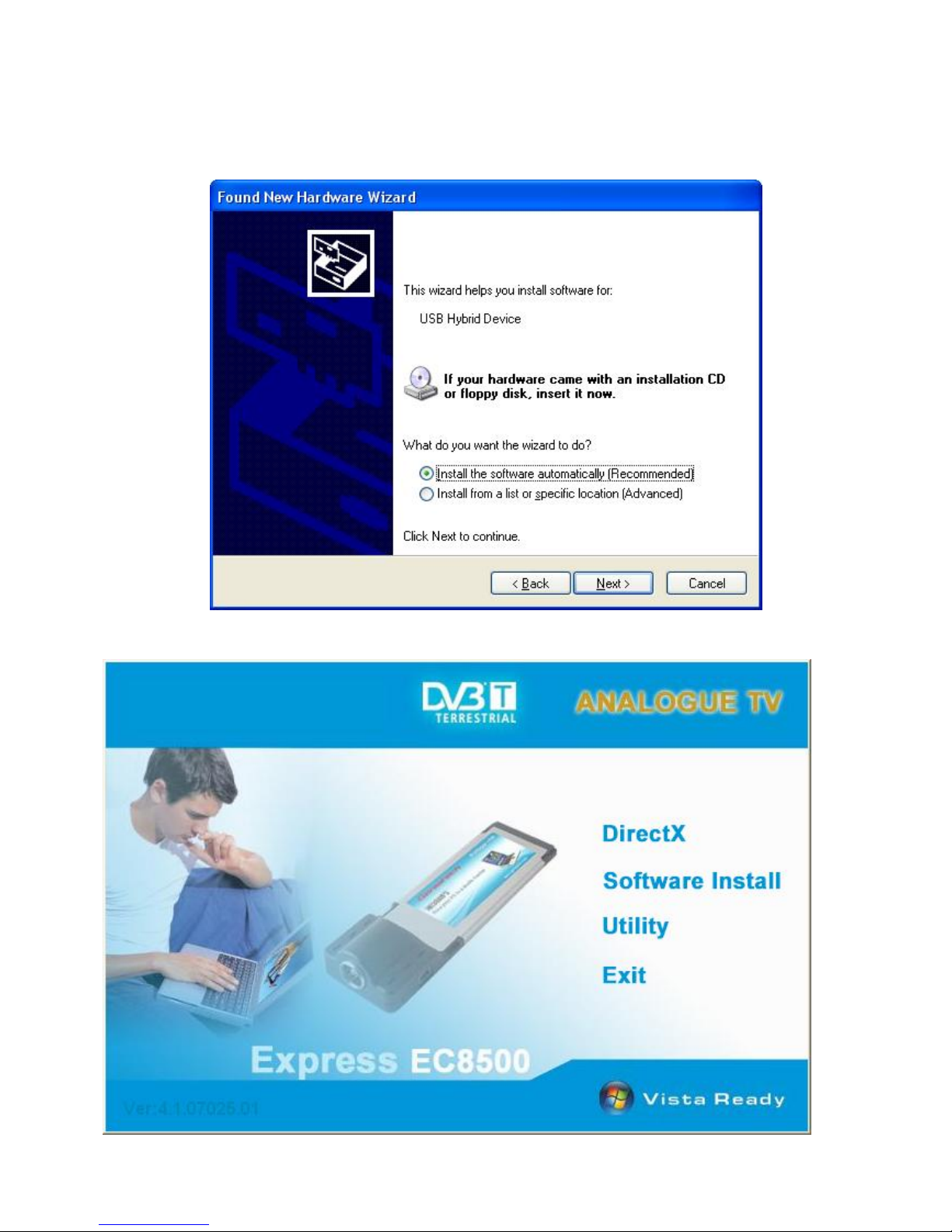
Step1: OS will remind a new hardware-- “USB Hybrid Device”. Please choose “Cancel”.
Step 2:When insert CD, OS will promote setup automatically.
Step3: Run “Software Install” Computer will now automatically show an install page.
3
Page 4
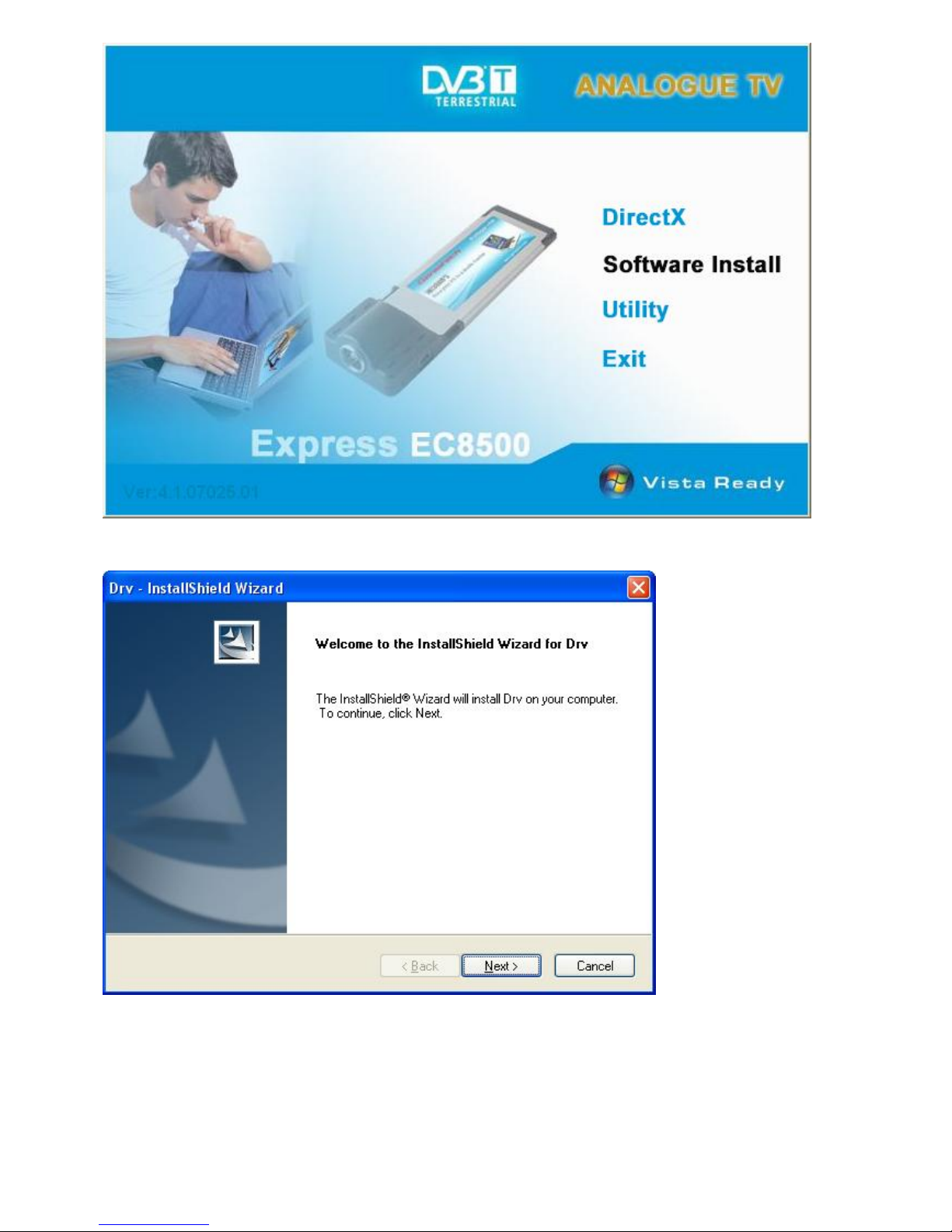
Step4: Click “next” to continue installation
Step5:Click “Install” to continue installation driver
4
Page 5
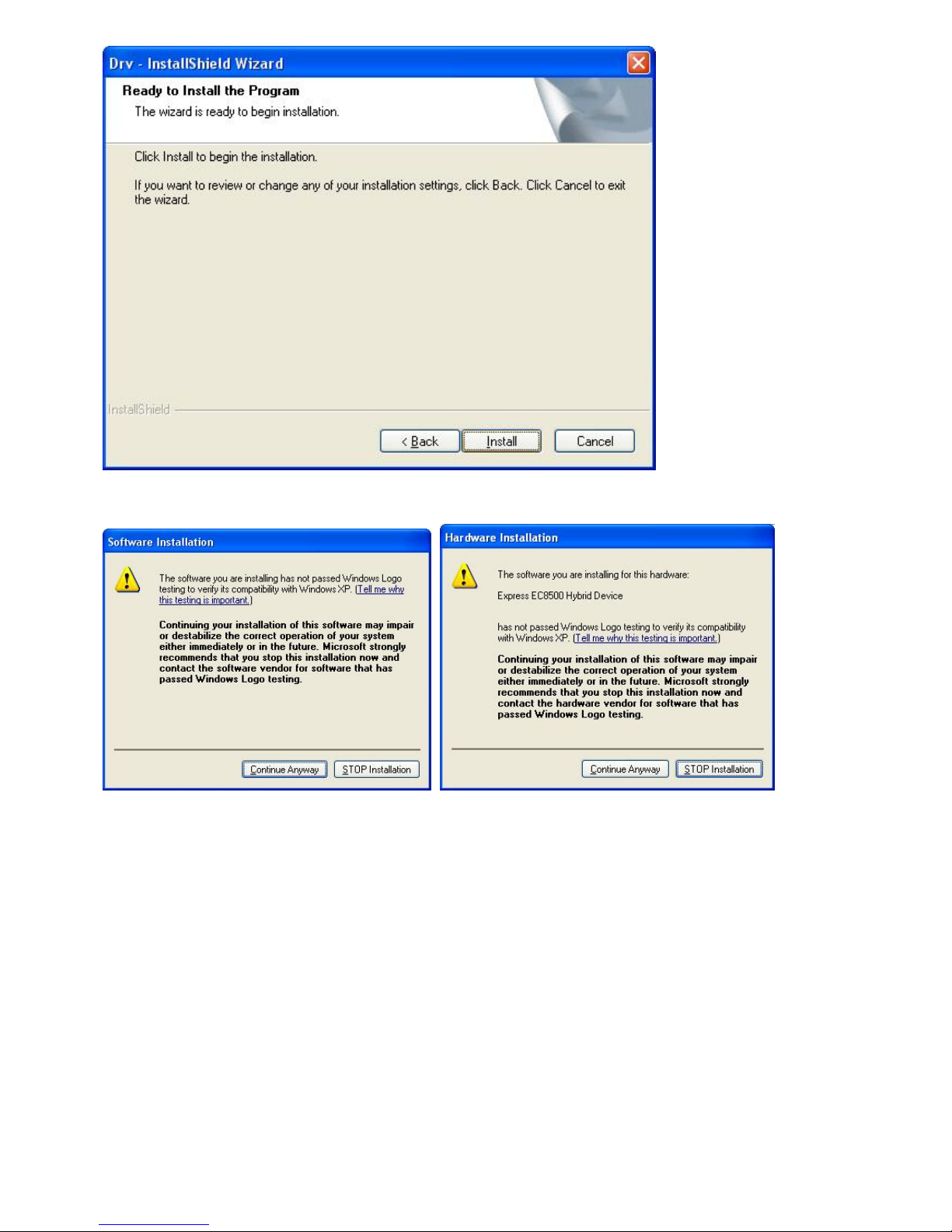
Step6: OS will promote to install devices,Click “Continue Anyway”
Step7: Click “Finish” to completely install the Driver Software
5
Page 6
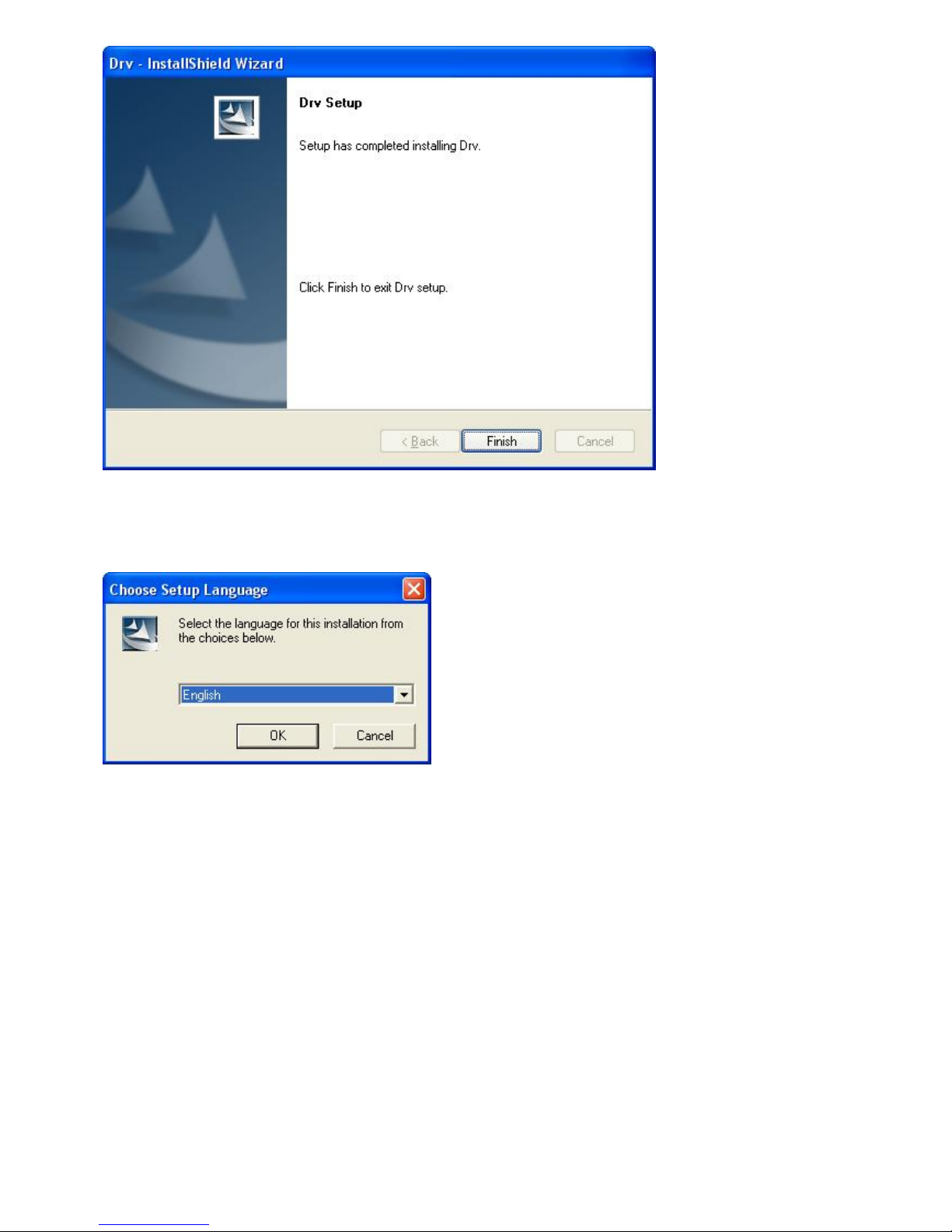
Installing TotalMedia
Step8: Installation of Total Media, Choose setup languag
Step9: Click “Next” to continue installation
6
Page 7
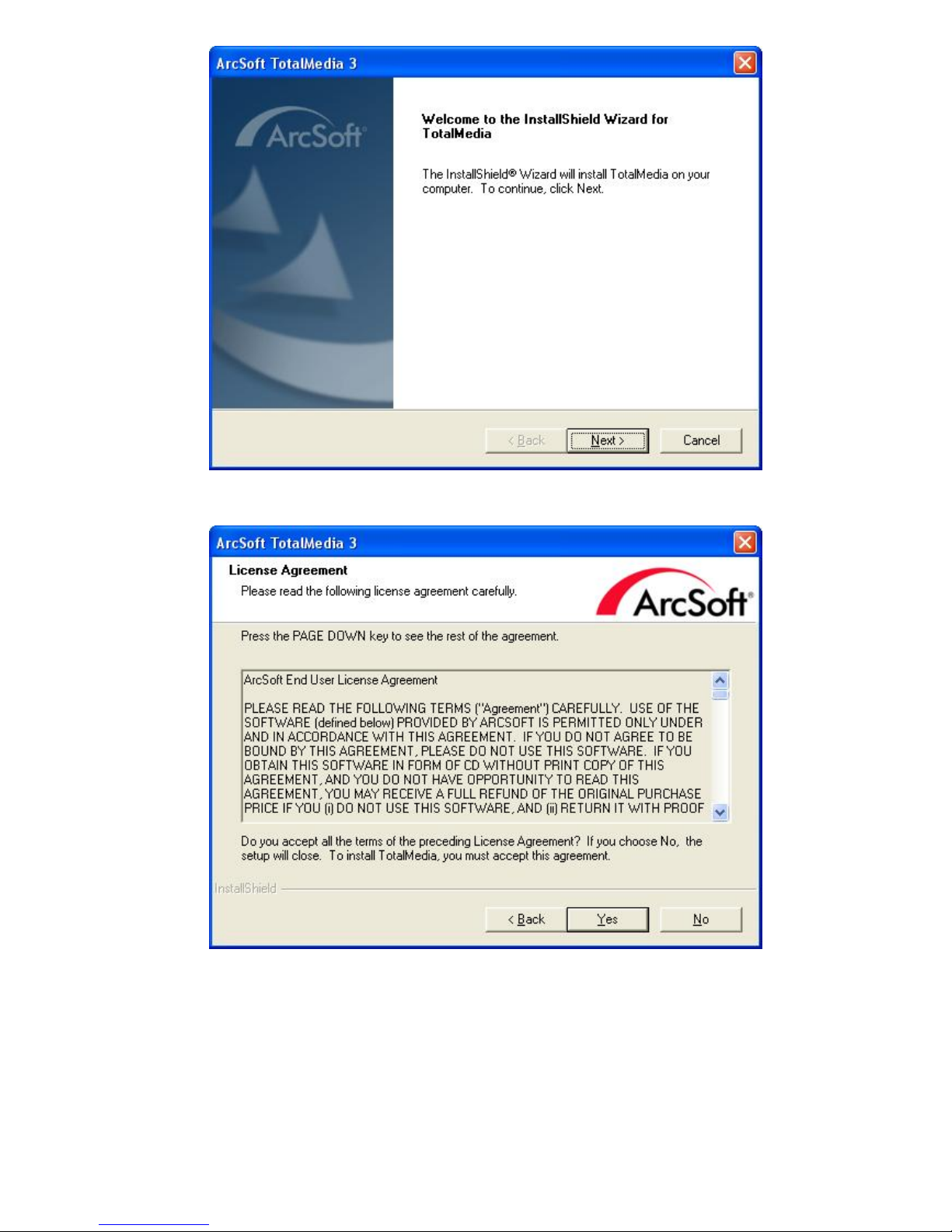
Step10: Click “Yes” and then it will install “Arcsoft TotalMedia”
Step11: If you want to change the destination folder, please click “Browse” and click “next”
(Recommended is better)
7
Page 8
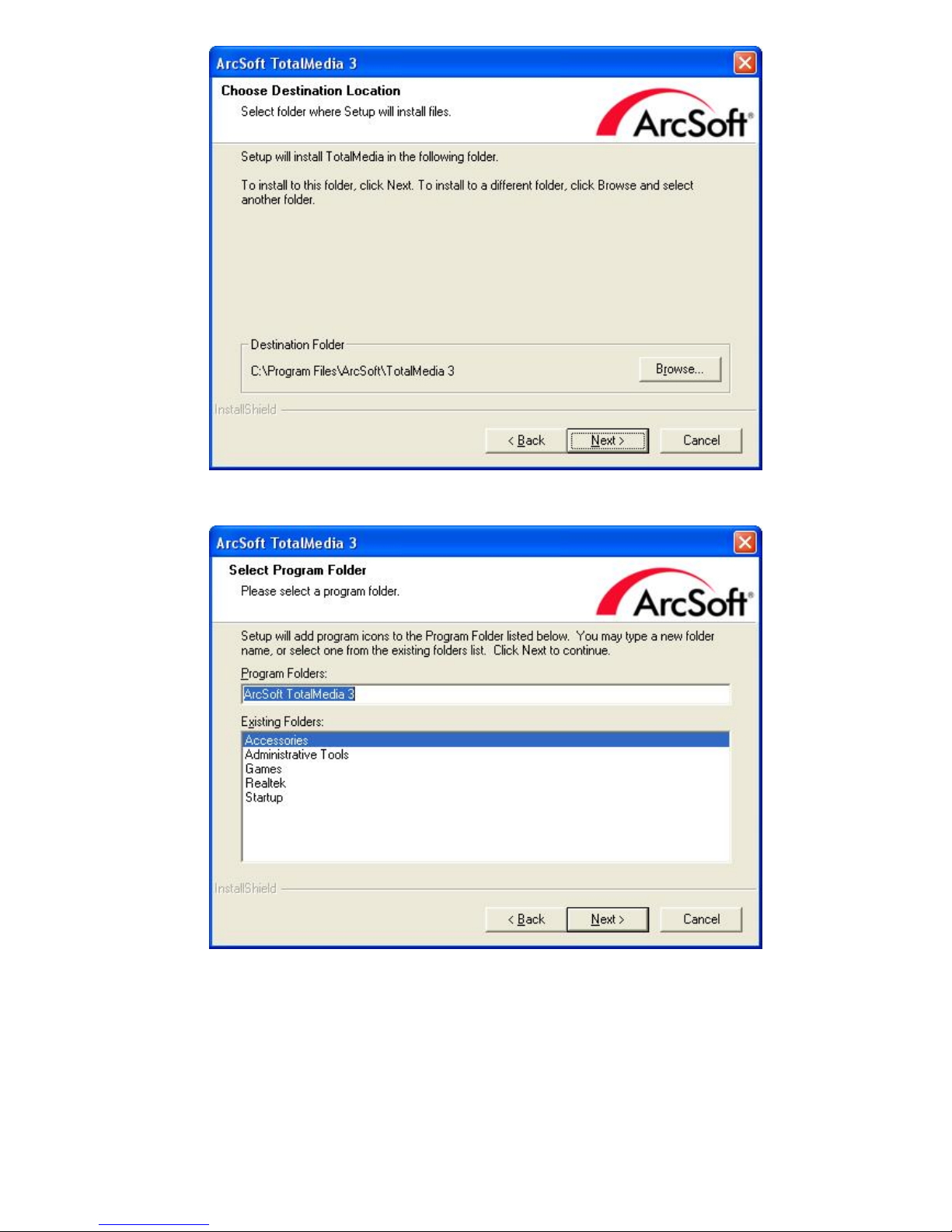
Step12: Please click “Next”
Step13: Program starts to copy files.
8
Page 9
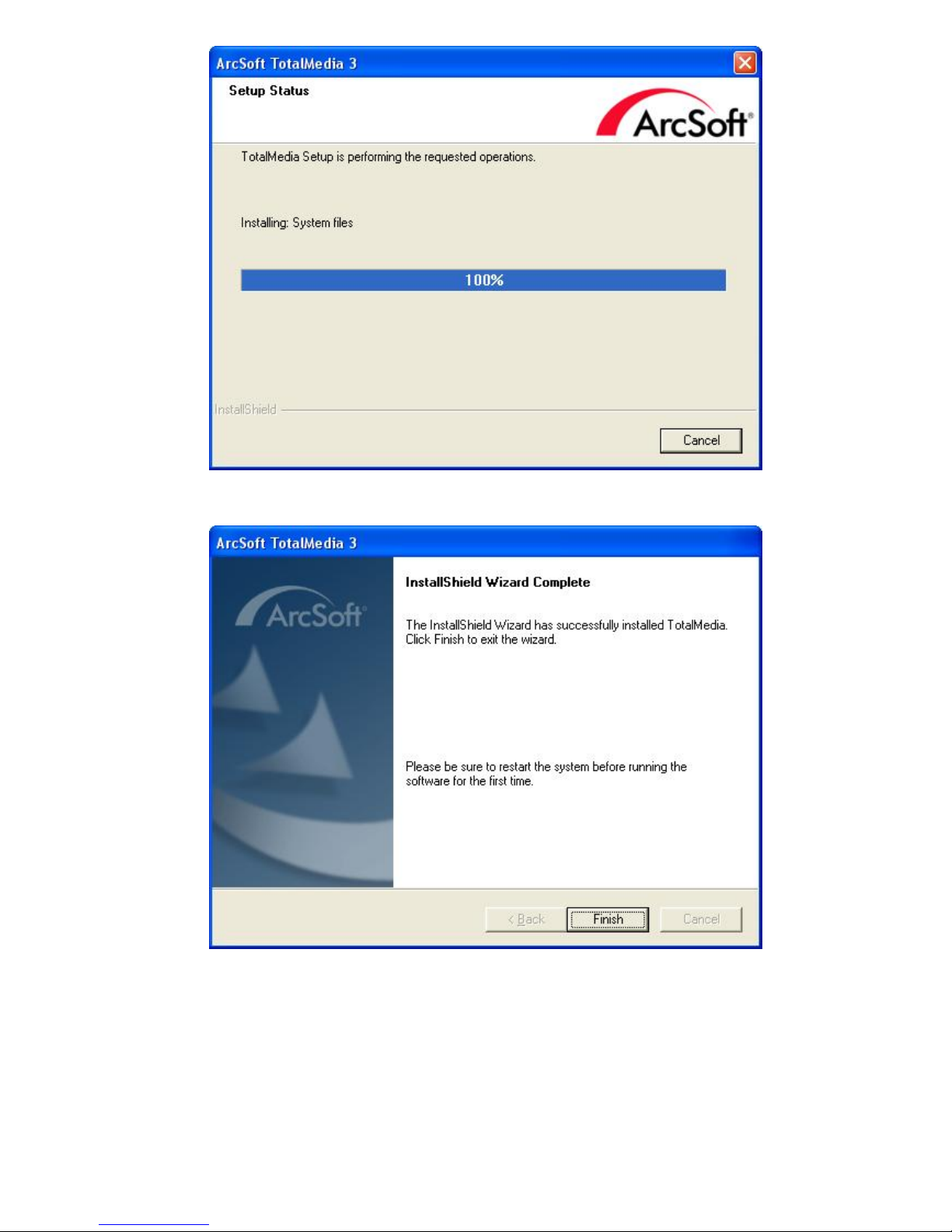
Step14: Click “Finish”, the Arcsoft TotalMedia software is installed on your computer.
Step15: Click “Next” to continue installation “IR Receive”
9
Page 10
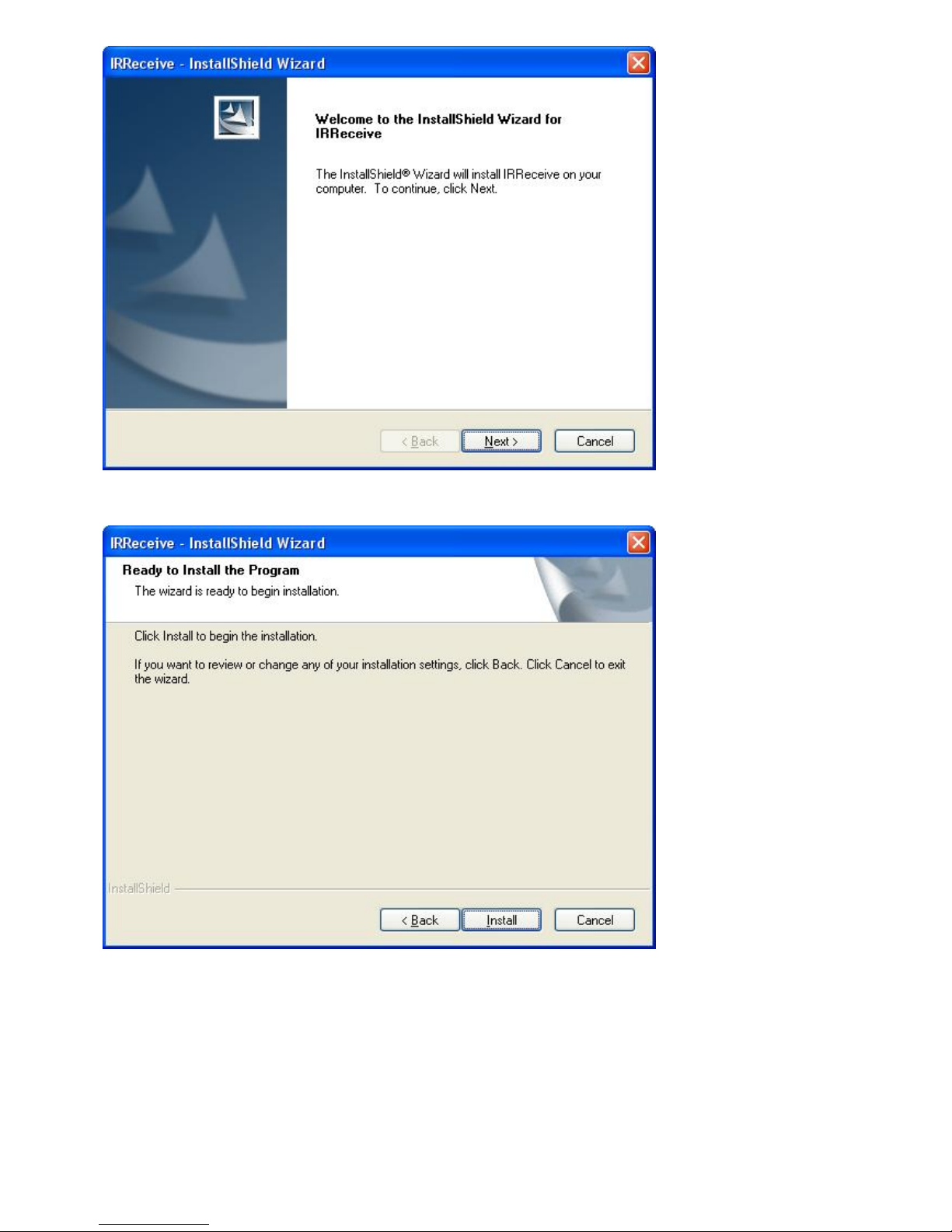
Step16: Click “Install” and then it will install “IR Receive”
Step17: Click “Finish”, the IR Receive software is installed on your computer. System will inform
you to restart PC.
10
Page 11
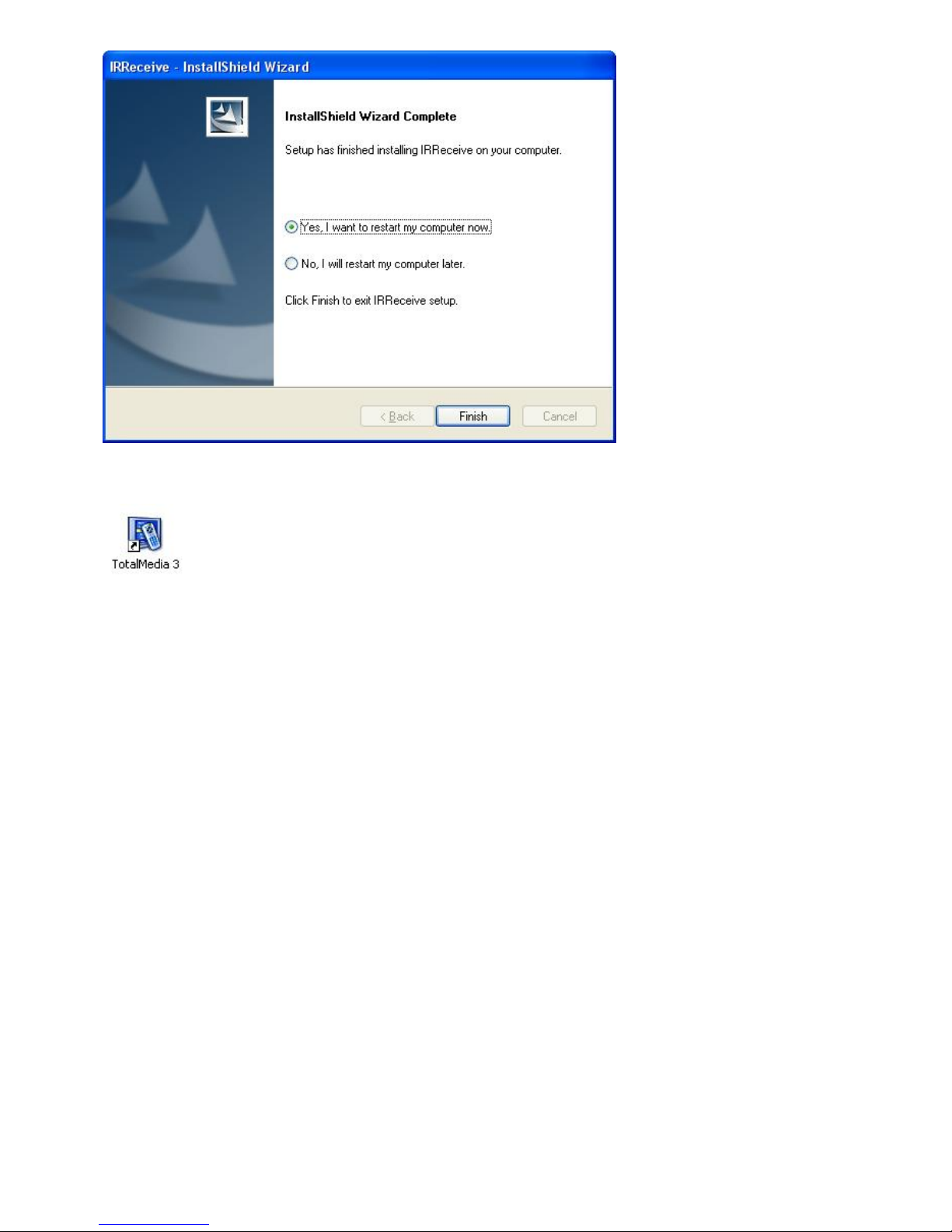
Step18: You will see that DVB-T application icons will appear on your desktop.
Step19: When all finished, please check on Control panel, select “System”—“System
properties”—“Device Manager”, you can see one device installed.
11
Page 12
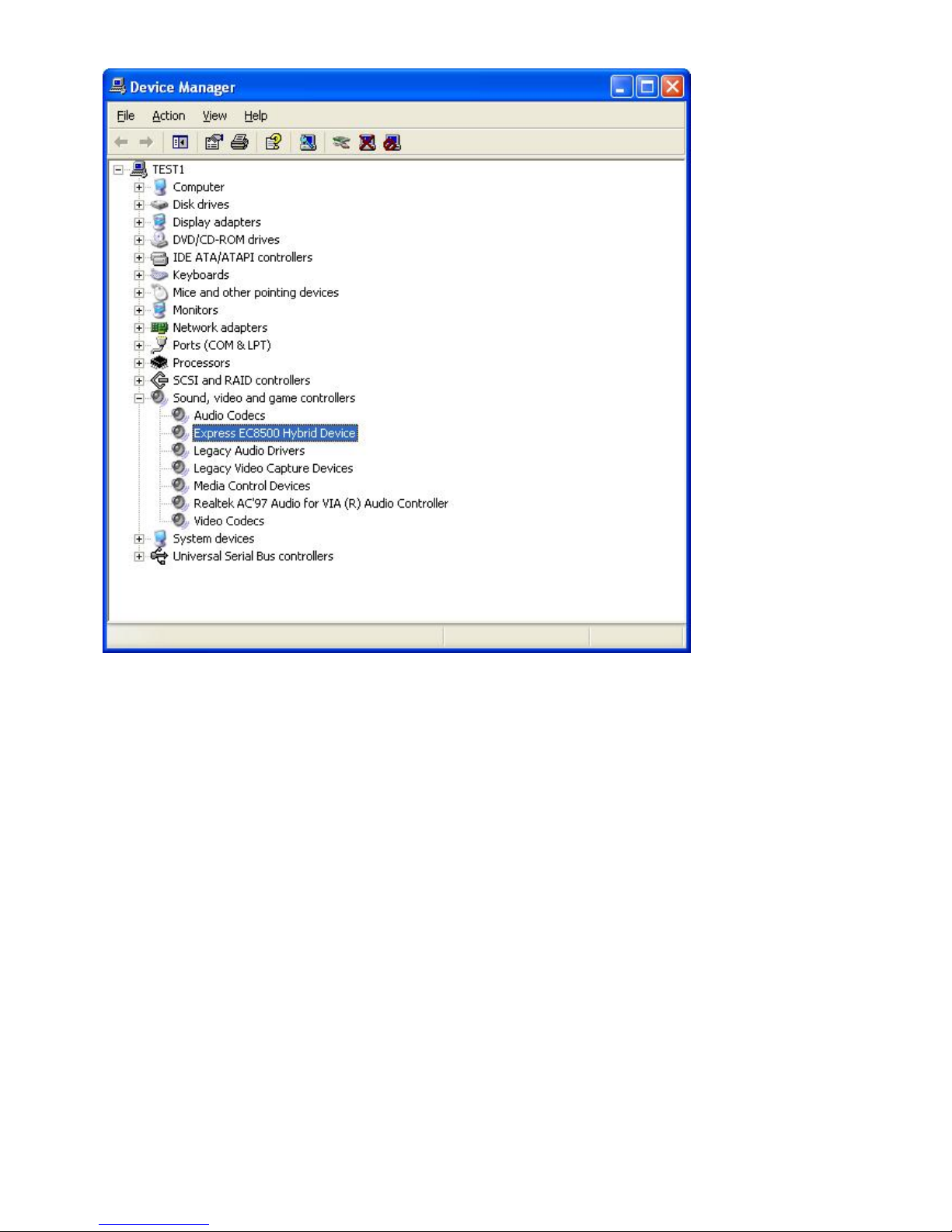
Express EC8500 Hybrid Device
4. Arcsoft Total Media
How to use TotalMedia, you can get online help.
12
Page 13
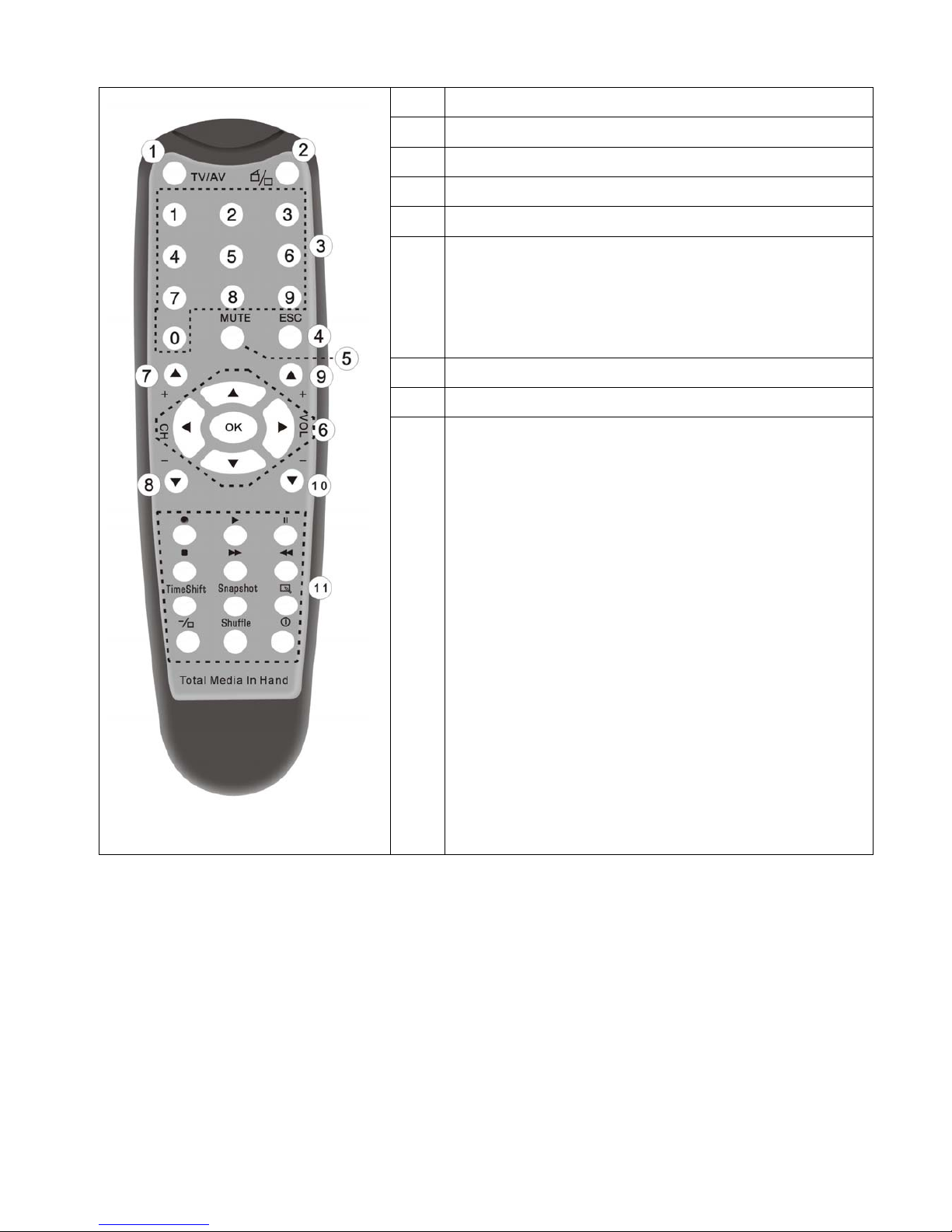
5. Remote Controller Button List
1 TV/AV: Switch between S-Video, Composite, and TV
2
TotalMedia: Open/Close
TotalMedia Software
3 0 - 9: Channel Number Keys
4 ESC: Return
5 MUTE: On/Off volume mute
6 Up
Down
Left
Right
OK
7,8 CH+/CH-: Channel Up/Channel Down
9、10
VOL-/VOL+: Volume Down/Volume Up
11 Record: Record/Stop recording the current program
Play: Play a recorded program
Pause: Pause a program
Stop: Stops pre-recorded viewing and returns to live TV
Forward: Forward the current movie clip
Rewind: Rewind the current movie clip
Time-Shift: Time-Shift function
Snapshot: Takes a picture of what is on screen
Show/Hide Control Center: Show/hides the display panel
Full Screen/Restore: Switches from full screen to the
default screen
Shuffle: TV wall function
Power: Turns computer off
Trouble shooting
1. Can not lock any program channel when auto scan.
1. Please check if there is DVBT broad casting program in your area;
2. Please check if your signal condition is too weak, try to move the antenna around and
re-scan again, it is better to move the antenna near the window
3. Please check you connect the antenna and tightly
4. Please check you select right country in the Total Media software scan function page.
5. Please try to use an outdoor antenna and scan once more.
2. I do find some channels,, but this time I get fewer channels than last time
1. Maybe you moved antenna’s position or angle, try to find the better position and keep the
antenna vertical
13
Page 14

2. The weather also can also affect your receiving signal quality, if the weather is bad today, that is
the reason
3. In some new start DVBT broadcasting area, the provider of DVBT broadcasting may change
their broadcasting power day by day, try to find the best power strength.
4. If you put a CAN of cola on the antenna, that will make signal weak, please move them away.
3. When I watch program, Screen blacked out when playing or freezes on first picture.
Unfortunately, you are in a weak signal condition. You can see that from the Yellow light on the top
of Express EC8500T Hybrid DVB-T. The reason is same as question 2.
4. Video playing but Audio failed
Please check the sound card or the volume setting.
5. Remote control does not work
1. Check remote controller batteries.
2. Check remote receiver: the light will be on when receive, that is showing it is getting signal.
3. Check if you are in 5m between the Express EC8500T Hybrid DVB-T, don’t keep to far away.
4. Please point the receive window, that is to say, the angle of the receiving and sending is
important
6. Watching TV some time freeze or slow, also audio stroke
1. Please check your PC is not Pentium 3 or 2, Express EC8500T Hybrid DVB-T need a high CPU
to decoding DVBT stream
2. Please check you VGA driver is properly installed and updated
3. Please don’t run other high CPU loading software such as game and CAD.
14
 Loading...