

Page 1
INTRODUCTION
TO RECONNECT AFTER SLEEP MODE
SYNCB
GUIDE
SIX PACK MK9 Sync • MAXX D MK11 Sync
DIABLO MK10 Sync
Ensure you are familiar with your light’s standard operation as detailed in the User Guide supplied.
The Diablo Sync and the handle bar Sync lights, MaXx-D and Six Pack (Bar Lights) have Bluetooth
capability to connect to both a Remote Switch and the Sync App or either one individually. In the
Sync App it is possible to customise the relationship of button(s) to light(s).
Out of the box the Light and its Remote are paired, but they will be in a sleep mode to save
batteries. They will need to be woken up and connected.
Diablo – Press the Function button once (one green ash to conrm). It will now be ready to reconnect.
Bar Lights - Press the Function button once. The screen will end up showing SYNC, it is now ready
to reconnect, limited to 15 seconds.
Remote - Press the
A button once to wake it up (one green ash to conrm). Press the A button
once more to activate Bluetooth (
A ashes red to indicate it is broadcasting).
Diablo’s rear LED will ash Amber/Red to show it is trying to connect to the Remote. When
connected it will ash Green once to conrm successful connection. This process could take up to
20 seconds dependant on your phone.
Bar Lights’ screen will show, SYNCING and SYNCED when connected.
Light should now operate from the remote. The default mode on the Remote is that both buttons
scroll the mode and default program is User program 1. This can be changed within the Sync App.
Video instructions are available on our channel.
POWER SAVING - SLEEP
To minimise any battery wastage, the Lights and Remote will automatically go to sleep after four
hours of inactivity. This can be actioned manually by pressing the
B button 4 times rapidly on the
remote (the
B button ashes red once to conrm).
Page 2
CONNECTING A SECOND LIGHT TO A SINGLE REMOTE
TO CONNECT THE LIGHT TO THE SYNC APP
Ensure the rst light is working correctly with its remote.
On the second light – put its remote to sleep by pressing the
B button rapidly 4 times (ashes red
to conrm).
Reset the second light, see Factory Reset – Light
Remote - Press the
A button once, both buttons will begin to ash green.
Diablo’s rear LED will ash Amber/Red to show it is trying to connect to the Remote.
When connected it will ash Green once to conrm successful connection. This process could take
up to 20 seconds dependant on your phone.
Bar Lights’ screen will show, SYNCING and SYNCED when connected.
You are now successfully connected to the 2nd light.
The Remote will now operate both lights. By default, each light will react in the same way to button
presses. Ensure the lights are in programs with the same number of brightness modes, if they are
not the lights will become out of sequence. If they are out, press the function button on the light to
synchronise them.
In the Sync App it is possible to customise the relationship of button(s) to light(s).
Should any problems occur reset the memory of both the Light and Remote. See Factory Reset.
Install the Exposure light app on the phone and open it. If prompted turn the phone’s Bluetooth on.
On the light:
Diablo - press and hold the function button, after rapid ash count 9 ashes, release. The rear LED
will ash red and green to show the light is waiting for a connection.
Bar Lights – press and hold the function button to PGM 1, multiple press to go to PGM 9.
The screen will show SYNCING (pulsing for the period it is connecting).
After a few seconds the light will appear on the App screen. You may need to refresh the screen by
dragging down.
Pair with the device when prompted. The Light, Remote and App are now all Synced. The Light will
show SYNCED to conrm.
Follow the same sequence for a second light.
Within the app you can select the active program, create user program 1 and 2, and set up the remote.
Page 3
FACTORY RESET - LIGHT
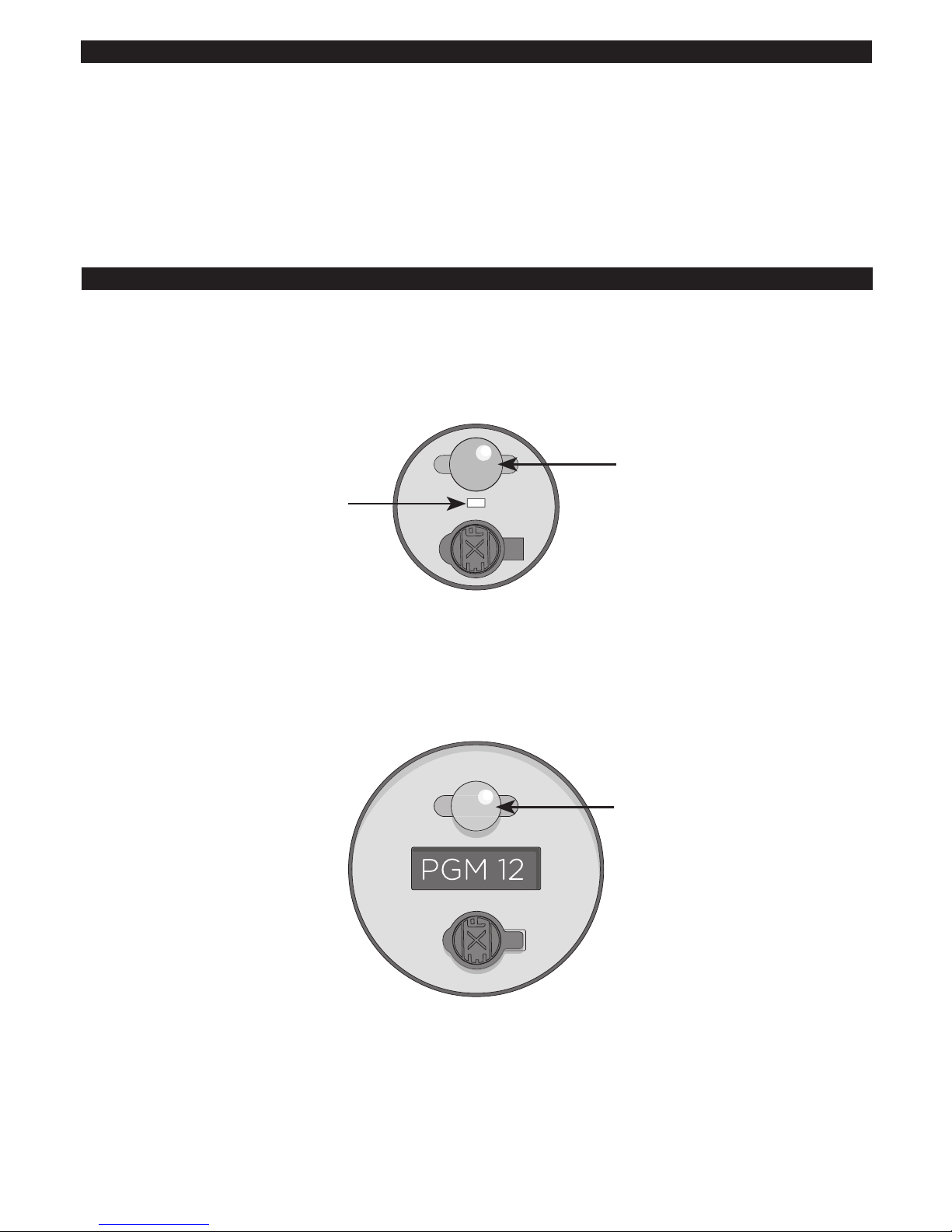
Diablo - Press and hold the function button for approximately 12 seconds, in that time it will multi
ash and then count through 12 ashes, (the rear LED will also ash red/green), release. The rear
LED will ash once, green to conrm.
Bar Lights – Press and hold the function button until PGM 1 appears on the screen, release.
Without delay Press the function button a further 11 times to enter PGM 12, the screen will then
show RESET for 1 second.
FUNCTION
BUTTON
FUNCTION
BUTTON
REAR LED
TROUBLE SHOOTING
If any connection procedure is struggling the easiest solution is to factory reset. This clears any
history/memory to enable a fresh start. However, USER Programs and Remote settings will still
be maintained.
If the
A button ashes red unexpectedly it may have lost its connection to its light. The solution
is to press the function button once on the light, this may reconnect them. If this is unsuccessful,
press the
B button 4 times to go to sleep. Reconnect after sleep mode as normal.
Page 4
TO CHANGE A BATTERY IN THE REMOTE
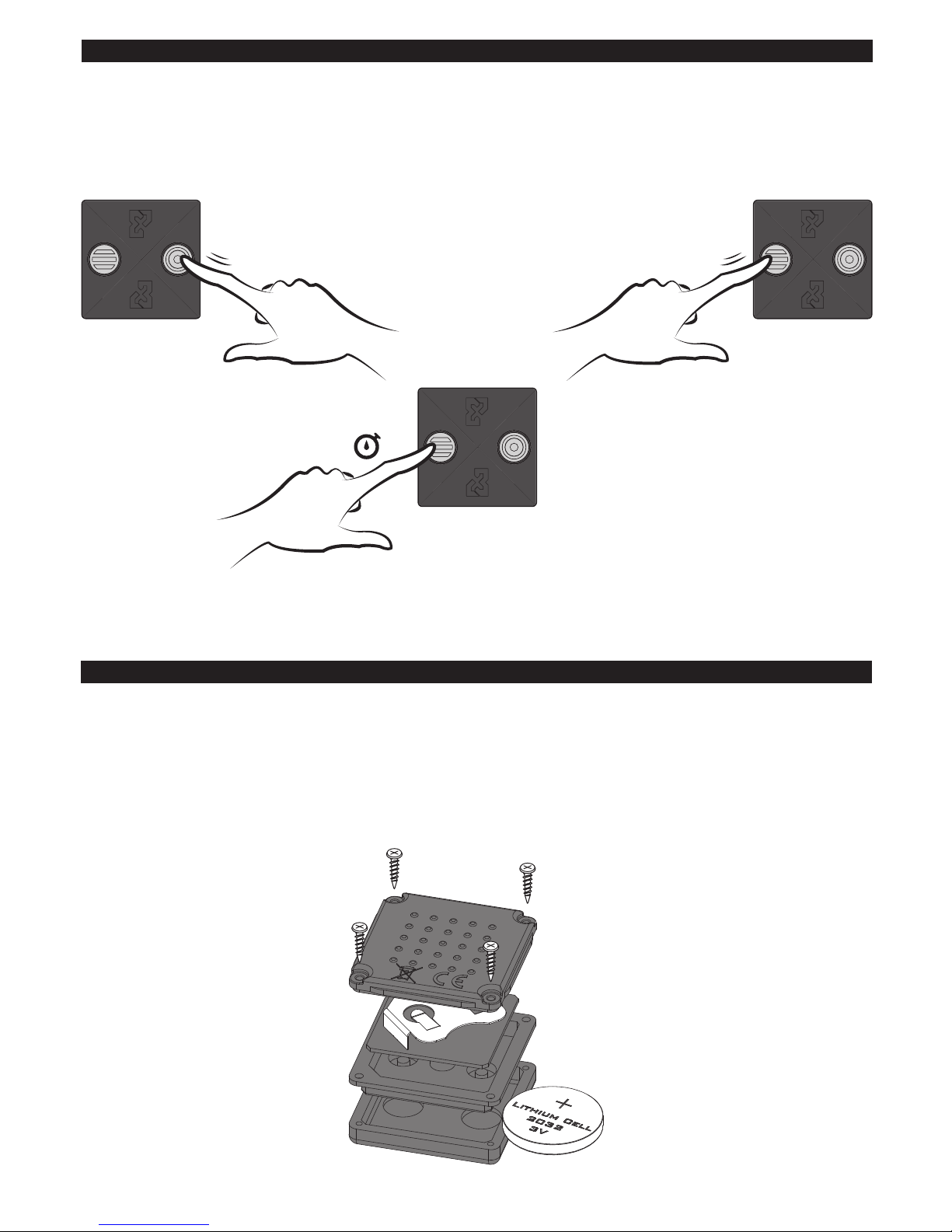
Carefully remove the four screws, noting how tight they are. Open the case, carefully push out the
existing battery and slide in the new. Ensure the PCB and gasket align with the corner feature.
Screw on the back to a similar tightness to that noted when unscrewing.
To reconnect to the light, press the
A button.
FACTORY RESET - REMOTE
Remote - Press the
B button rapidly 4 times, (ash Red to conrm). Press the A button once (one
green ash) and then press and hold the
A button again for 10 seconds (one green ash to conrm).
After this reset, the Lights and Remote are in Sleep mode. To reconnect them see To Reconnect
after Sleep Mode at the beginning of the guide.
x 4 x 1
10 seconds
Page 5
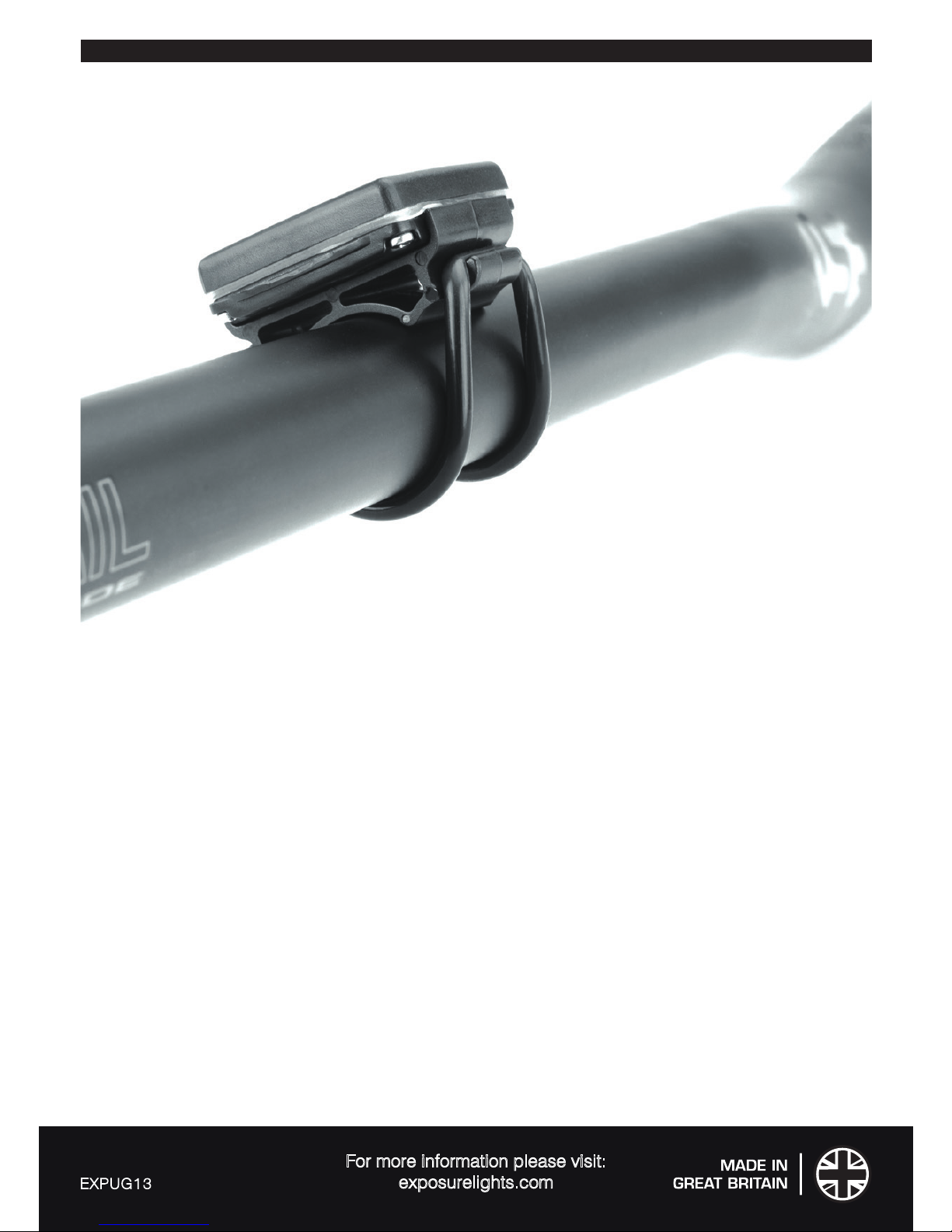
SYNC REMOTE ATTACHMENT
Ensure the Remote is tted securely and check the attachment regularly.
For more information please visit:
exposurelights.com
EXPUG13
 Loading...