

Page 1

ExcelStor WSD User's manual
WSD
14
ExcelStor
ExcelStor
ExcelStor
wireless
wireless
wireless
storage
storage
storage
and
and
and
media
media
media
server
server
server
user's
user's
user's
manual
manual
manual
Thank you for selecting an ExcelStor wireless storage and
media server. This user's manual will guide you through the use
of your server.
Note: Printed capacity on the product label is Decimal.
(Decimal: 1GB=1,000,000,000 Bytes)
Computer's hardware & software recognize the HDD capacity
with Binary.
(Binary: 1GB=1,073,741,824 Bytes)
Accessable capacity may very depending on operating
environment and formatting.
Package
Package
Package
content
content
content
1 Wireless storage and media server 1
2 USB cable 1
3 AC power adapter 1
4 Travel pouch 1
5 User's manual 1
6 Quick start guide 1
Page 2

ExcelStor WSD User's manual
WSD
15
111
: Product
Product
Product
Specification
Specification
Specification
Build-in
Build-in
Build-in
hard
hard
hard
drive
drive
drive
- 1.8" IDE interface
- 60GB / 120GB
Media
Media
Media
file
file
file
formats
formats
formats
supported
supported
supported
for
for
for
RSP
RSP
RSP
streaming
streaming
streaming
Music - MP3, WMA, AAC
Photo - JPEG, PNG
Video - MPEG2, MPEG4, H.264, H.263, AMR, WMV
File
File
File
system
system
system
supported
supported
supported
FAT32
Wireless
Wireless
Wireless
security
security
security
WPA2, WPA-PSK, WEP64, WEP128
Battery
Battery
Battery
LithiumPolymer 2000mAh, 3.7V, user-replaceable
Standby: 48 hours
Operating: 3 hours
Charging cycles (minimum): 500
System
System
System
requirements
requirements
requirements
PC with Windows 2000/XP/Vista, Linux 2.6.x or later
MAC OS X 10.3.x or later
PC, network router, mobile phone, game console or handheld
with 802.11 b/g Wi-Fi wireless capability
Page 3
ExcelStor WSD User's manual
WSD
16
222
: Connection
Connection
Connection
and
and
and
LED
LED
LED
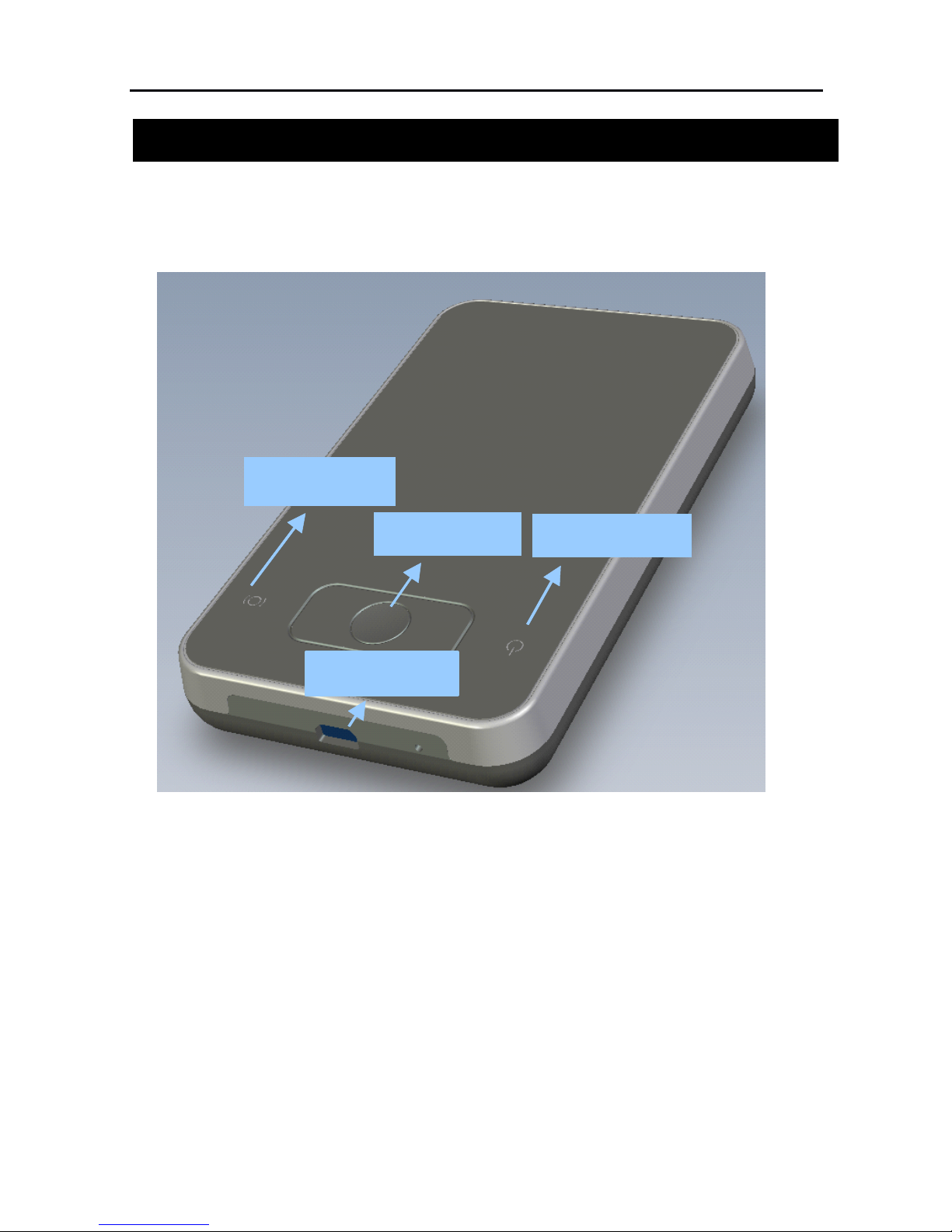
ExcelStor WSD is a media server with a build-in HDD that
user can attach to and access via a wireless connection.
Power button, Power indicator, Wi-Fi indicator place in top
surface. USB connect place in front side.
Note: "Power on" / "Power off" need to press power button for
about 10 secs.
Power indicator
Wi-Fi indicator
USB connect
Power button
Page 4

ExcelStor WSD User's manual
WSD
17
333
: LED
LED
LED
indicator
indicator
indicator
meaning
meaning
meaning
Power
Power
Power
Indicator:
Indicator:
Indicator:
With
With
With
Charger
Charger
Charger
Charging = Red, Solid ON
Fully Charged = Green, Solid ON
Pre-Boot Charging = Red, 1 Blink per second
Without
Without
Without
Charger
Charger
Charger
Booting = Green, Solid ON
Ready = Green, 1 Blink per second
Standby = Green, 1 fast Blink per 2 seconds
Low Battery = Red, 3 fast blink per 2 seconds
Battery Critical = Red, 6 fast blink per 2 seconds ( system will be
shut off in next 5 minutes )
WIFI/HDD
WIFI/HDD
WIFI/HDD
Indicator:
Indicator:
Indicator:
Connection with client established = Orange, Solid ON
HDD R/W = Orange, Blinking
Page 5
ExcelStor WSD User's manual
WSD
18
444
: Web
Web
Web
browser
browser
browser
management
management
management
interface
interface
interface
4.1
4.1
4.1
Log
Log
Log
ininin
interface
interface
interface
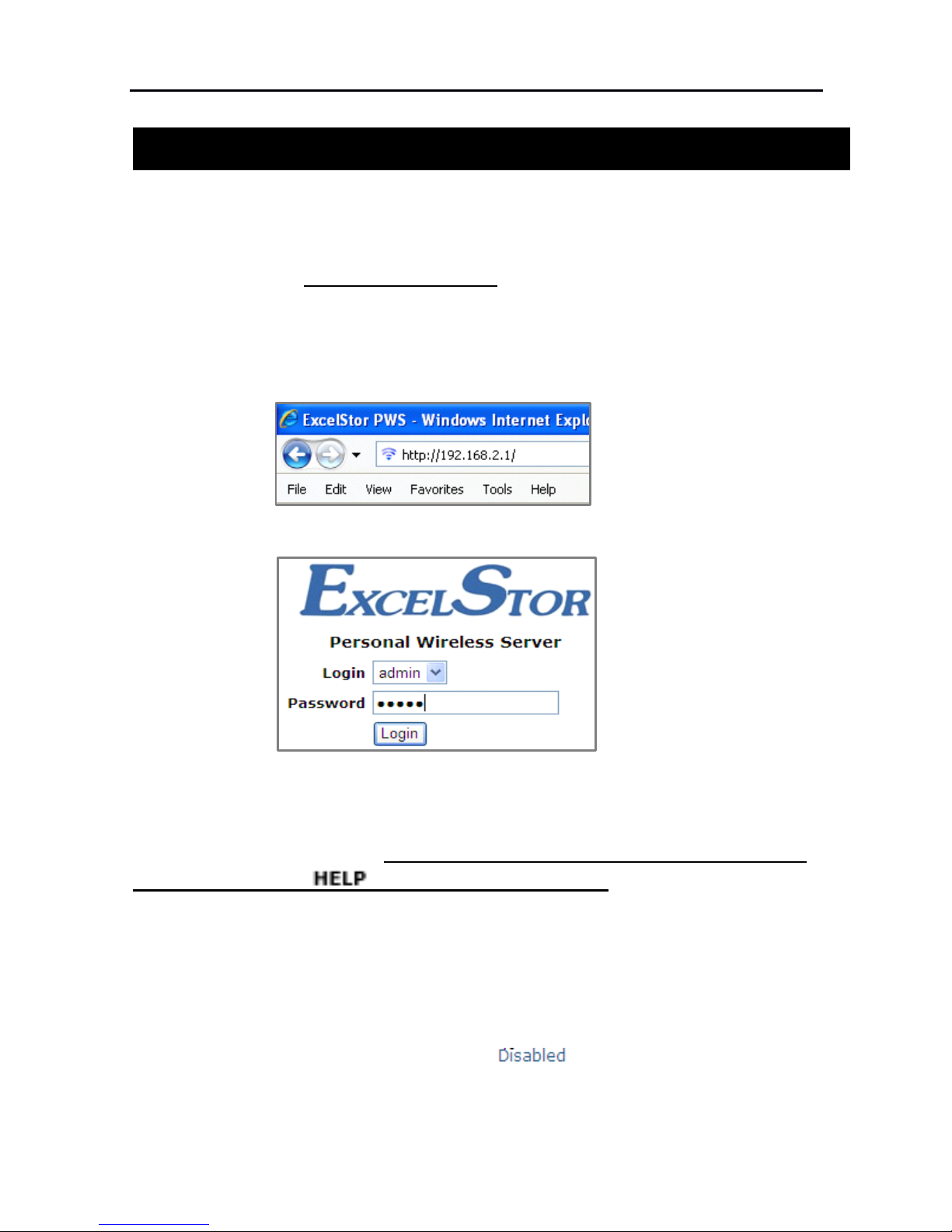
Turn on your web browser (Microsoft Internet Explorer or
others) in your laptop, cell phone, or other equipment with WiFi
capability. Input http://192.168.2.1/ in address bar. (picture 3.1.1)
In logo in interface, use correct user name and password to log
in. (default user name is "admin", password is "admin") (picture
3.1.2) 。
Picture 3.1.1 address bar
Picture 3.1.2 log in interface
4.2
4.2
4.2
User
User
User
main
main
main
interface
interface
interface
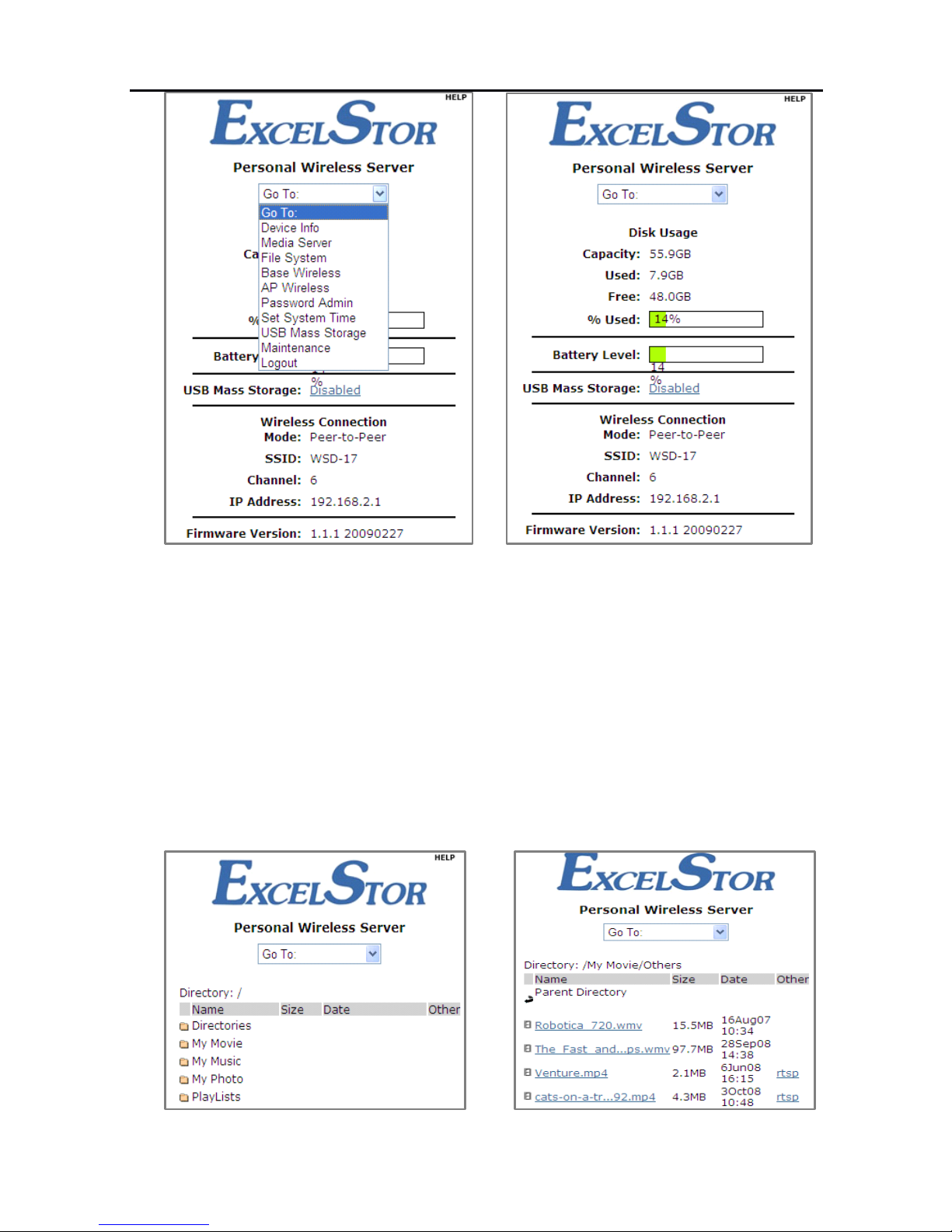
In main interface, user can enter each item via a pull-down
menu, (picture 3.2.1).
You
can get detailed description of each
item by link the " " in top-right of screen.
go to Device Info
In this page, you can view the basic information of you media
server, such as disk usage, battery level, connection model, IP
address and firmware version. ( picture 3.2.2).
You
can click 并
且您可以点击 "USB Mass Storage: " to turn off "USB Mass
Storage" function. Detailed operation please read paragraph "go
to USB Mass Storage".
Page 6
ExcelStor WSD User's manual
WSD
19
Picture
Picture
Picture
3.2.1
3.2.1
3.2.1
Fall-down
Fall-down
Fall-down
menu
menu
menu
Picture
Picture
Picture
3.2.2
3.2.2
3.2.2
device
device
device
information
information
information
go to Media Server
In this page , you can connect to media server and play
video/audio save in it.
You
can enter a folder by click the folder
icon.(picture 3.2.3),
You
can click one media icon to play it.
(picture 3.2.4). If you want to return to previous menu, pleases
clic k "Parent Directory" in the top 。
Media content can only be identified when they were put into
folder "audio" "audio" "images" under “ media ”
Picture
Picture
Picture
3.2.3
3.2.3
3.2.3
Media
Media
Media
folder
folder
folder
Picture
Picture
Picture
3.2.4
3.2.4
3.2.4
Media
Media
Media
file
file
file
Page 7
ExcelStor WSD User's manual
WSD
20
go to File System
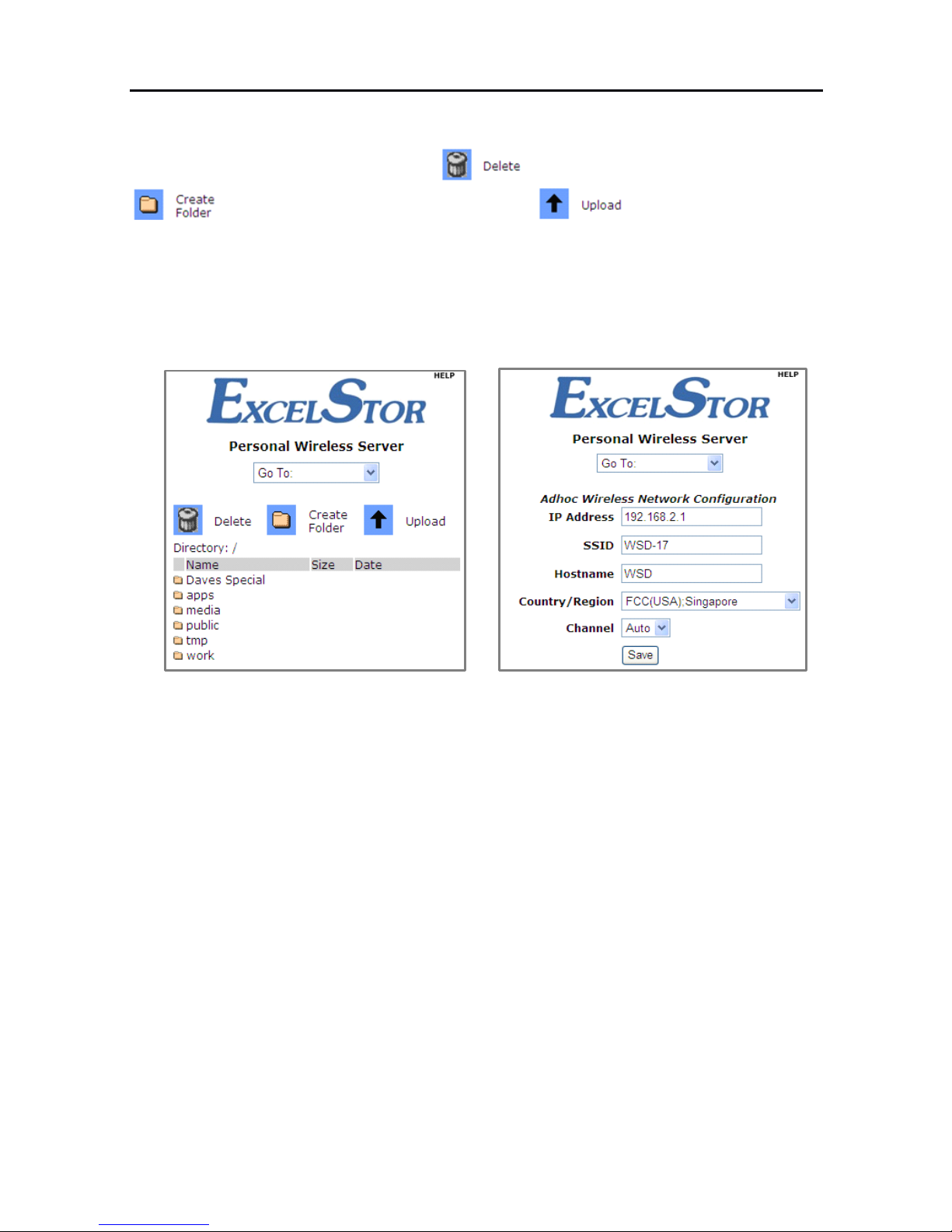
In this page, you can view and manage the whole file
system,(picture 3.2.5). Click to delete folder , click
to create a new folder , click to upload media
file to current folder.
go to Base Wireless
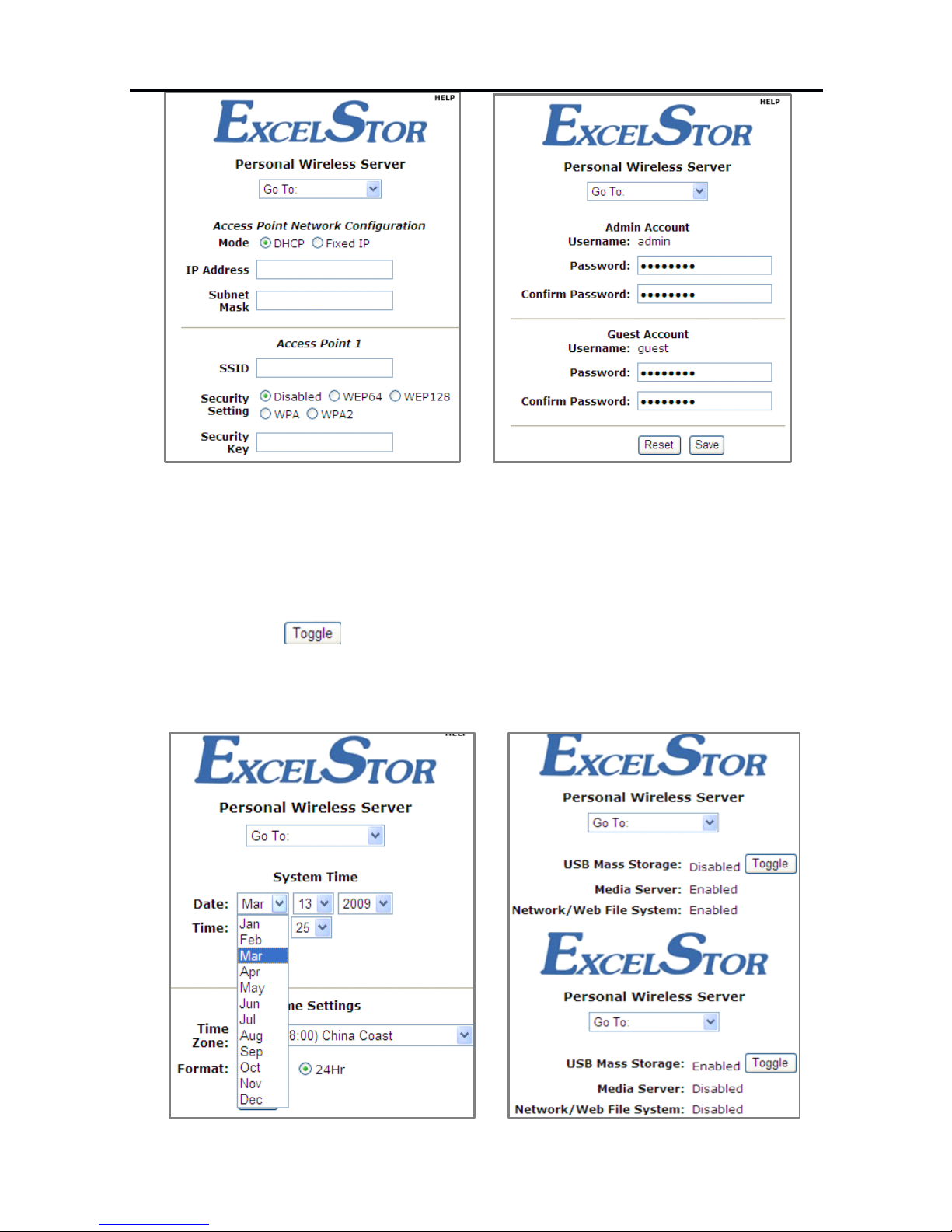
In this page, you can set IP address, SSID , Hostname ,
Country/region and channel (picture 3.2.6).
Picture
Picture
Picture
3.2.5
3.2.5
3.2.5
File
File
File
system
system
system
page
page
page
picture
picture
picture
3.2.6
3.2.6
3.2.6
Base
Base
Base
wireless
wireless
wireless
page
page
page
go to AP Wireless
In this page, you can set the equimpment SSID for each
access point and set password for each access point.(picture
3.2.7) .
Click "save" to save any changes.
A
message box will
display to ask for confirmation to restart WSD.
Select "Ok" to restart now, and "cancel" to restart later.
go to Password Admin
In this page, you can set or modify password of "admin" and
"guest" (picture 3.2.8)
Page 8
ExcelStor WSD User's manual
WSD
21
picture3.2.7
picture3.2.7
picture3.2.7
APAPAP
security
security
security
setting
setting
setting
page
page
page
picture
picture
picture
3.2.8
3.2.8
3.2.8
password
password
password
setting
setting
setting
page
page
page
go to Set System Time
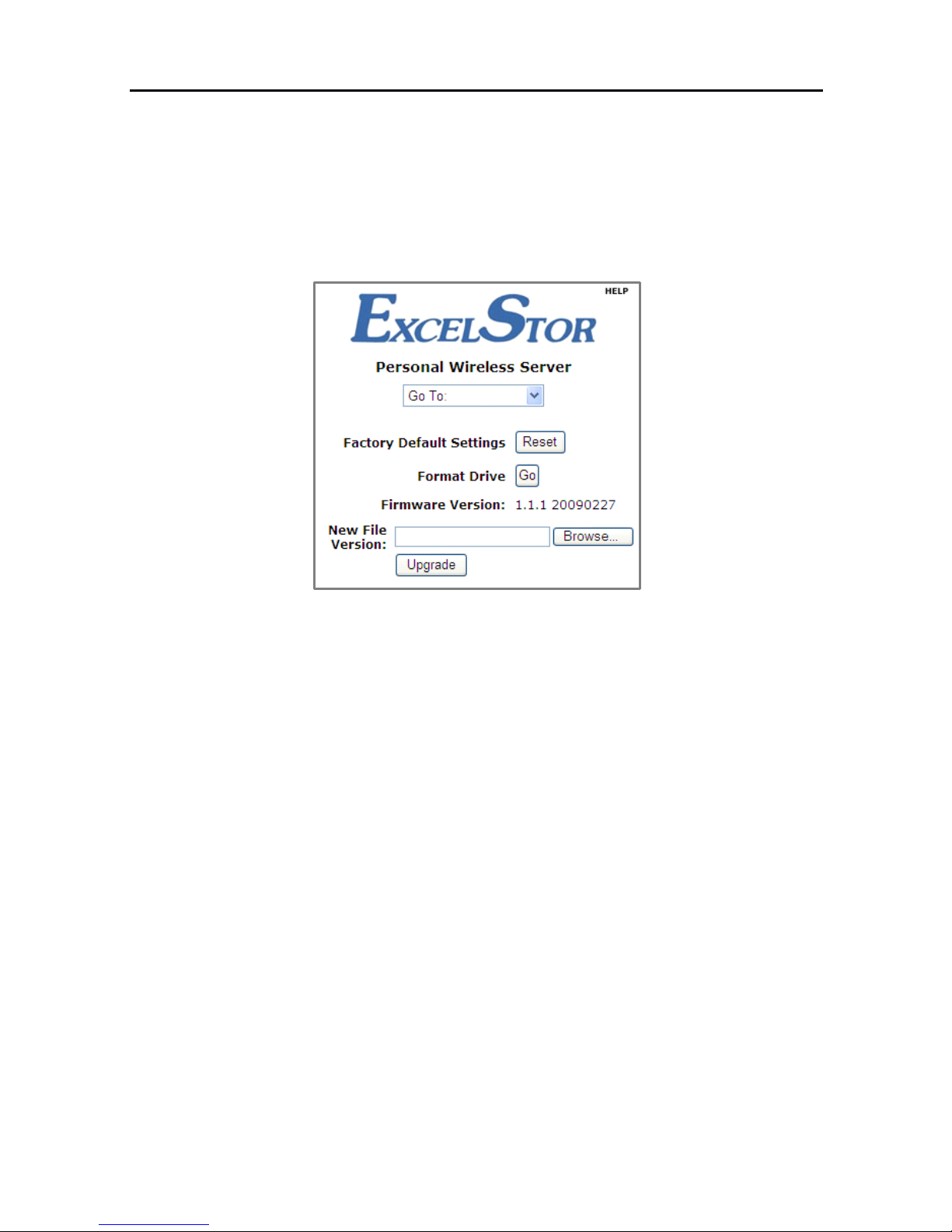
In this page, you can set system date, time, zone and time
format. (picture 3.2.9).
go to USB Mass Storage
In this page, you can enable / disable USB connection
function.click then you can switch between
enable/disable USB connection.( picture 3.2.10).
When you enabling USB Mass Storage, "Media Server" and
"File System" are disabling automatically.
Picture 3.2.9 system time setup picture 3.2.10 enable/disable USB connection
Page 9
ExcelStor WSD User's manual
WSD 用户指南
22
go to Maintenance
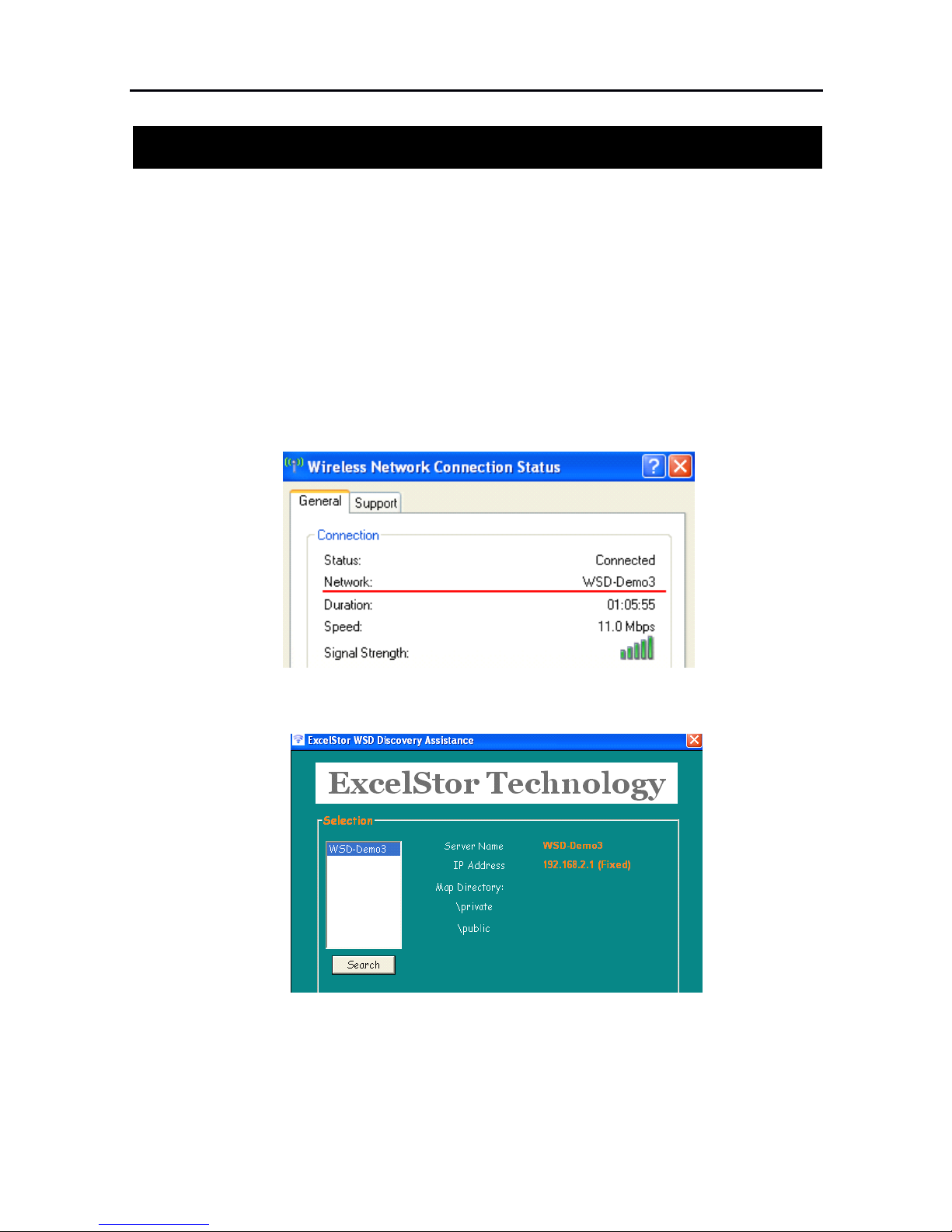
In this page, you can resume to factory default setting, format
drive and update firmware. (picture 3.2.11). ( caution: please
backup your data before these action. Otherwise, you may lost
your data! )
Picture 3.2.11 Maintenance page
go to Logout
Select this option, you will log out current user and return to
log in page.
Page 10
ExcelStor WSD User's manual
WSD
23
555
: WSD
WSD
WSD
finder
finder
finder
use
use
use
guide
guide
guide
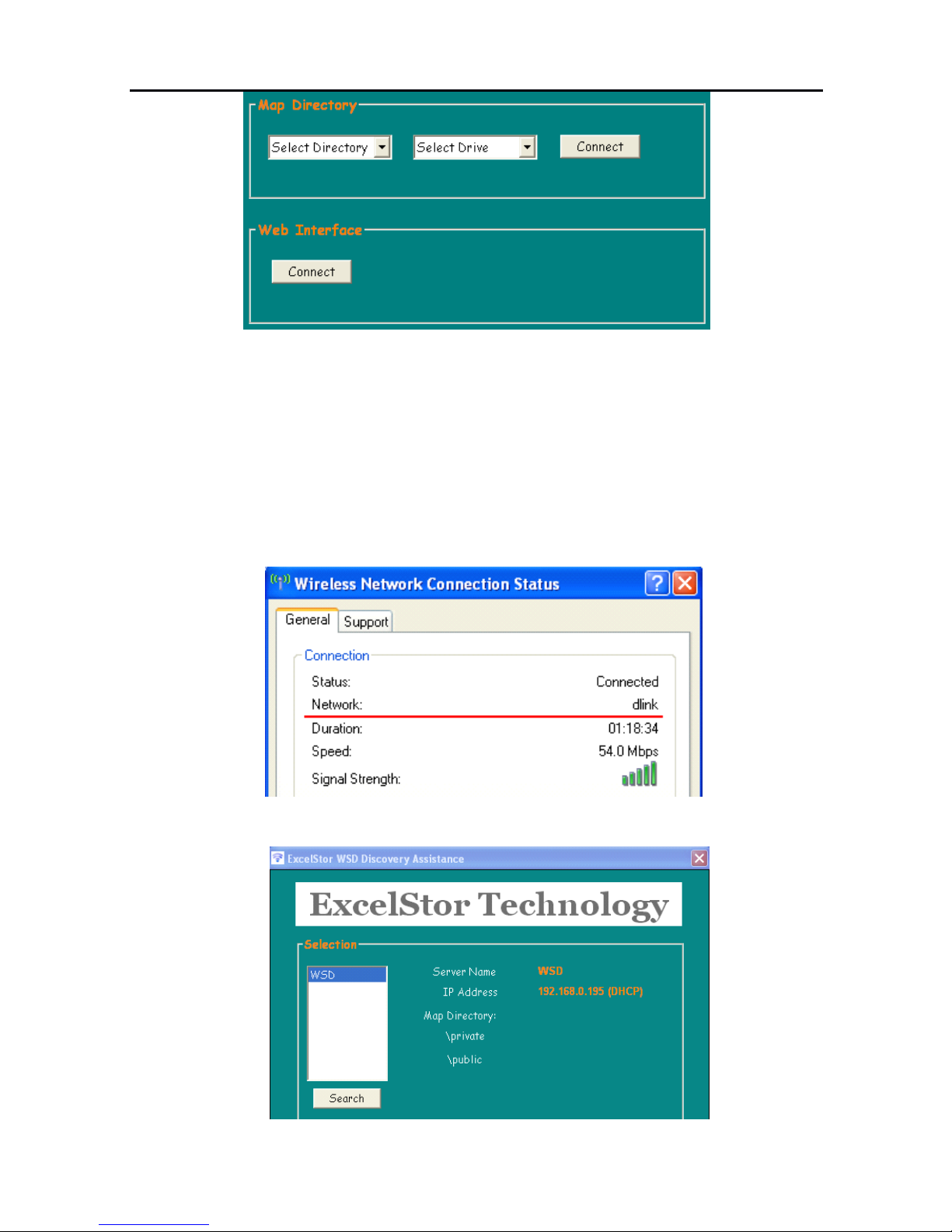
Finder is a attached program of WSD .
You
can use this
program to connect to WSD and map it to a network drive.
You
can find it in the build-in HDD or you can download from
Excelstor support website. www.excelstor.com
When your network connect to WSD (Picture 5.1.1).
After you have searched WSD via finder.(picture 5.1.2)
You
can map it to a network drive via "Map Directory".
You
can
launch the web browser interface to manage WSD via "Web
Interface"(picture 5.13).
Picture 5.1.1 network connect to WSD
Picture 5.1.2 search for WSD
Page 11
ExcelStor WSD User's manual
WSD
24
Picture 5.13 Mapping and visit WSD
When your network connect to wireless router
(picture 5.1.4)
Wirelss router will assign DHCP
IP
address for all available
WSD in network. After you have searched all WSD via
finder.(picture 5.1.4)
You
can map them to a network drive via
"Map Directory".
You
can launch the web browser interface to
manage each WSD via "Web Interface"(picture 5.1.5).
Pictur e 5.1.4 network connect to wireless router
Picture 5.1.5 search for all WSD connected to router
Page 12

ExcelStor WSD User's manual
WSD
25
6:6:6:
Frequently
Frequently
Frequently
asked
asked
asked
question
question
question
1. Q : Why when I input correct IP address, web browser
reminded "Internet Explorer cannot display the
webpage"?
A: Before you accessing the WSD, you should
connect WSD to your PC correctly. Please read the
"Quick Start Guide" for detailed description.
2. Q : Why My PC cannot recognize WSD when it
connect to USB port ?
A : you didn't turn on the USB Mass Storag of WSD,
please access the WSD via wireless connection. Turn on
the USB Mass Storage in web browser interface.(refer to
chapter
4:
go to USB mass storage).
Or you can connect to USB port after power off
the WSD. it will automatically power on. Then you
unplug it and plug it again. Then WSD should be
recognized by PC.
Page 13

ExcelStor WSD User's manual
WSD
26
Warranty
Warranty
Warranty
limitation
limitation
limitation
Warranty is void if returned product exhibits a defect attributable
to :
Abuse, unreasonable use, mistreatment, or neglect
Damage caused by the equipment or system with which the product
is used
Damage caused by modification or repair not made or authorized by
ExcelStor
Products whose ExcelStor Serial Number and/or Material Number
label have been removed, torn or defaced
Damage caused by use of non-ExcelStor packaging
Damage caused by improper or improperly used packaging
Damage caused by lack of ESD protection
Products that are determined to be stolen
The product is warranted against workmanship and material defects
and conforms to ExcelStor ’ s specification for the particular product. The
warranty period commences from the manufacturer ’ s original shipping
date. If the product is deemed defective due to workmanship or material
defect, you may return it to the retailer where you bought the hard disk.
For more detailed information, you may reach us at:
ExcelStor
ExcelStor
ExcelStor
Technology
Technology
Technology
5F, #8 Building,Kaifa Industrial District,
7006 Caitian Road, Futian District, Shenzhen PRC 518035
Tel.: (86) 755-83346668
Fax: (86) 755-83275922
Website: www.excelstor.com
Technical support: [email protected]
Page 14

For a Class B digital device or peripheral, the instructions furnished the user shall include
the following or similar statement, placed in a prominent location in the text of the manual:
NOTE: This equipment has been tested and found to comply with the limits for
a Class B digital device, pursuant to Part 15 of the FCC Rules. These limits are
designed
to
provide reasonable protection against harmful interference in a
residential
installation. This equipment generates, uses and can radiate radio
frequency
energy and, if not installed and used in accordance with the
instructions, may cause harmful interference to radio communications.
However, there is no guarantee that interference will not occur in a particular
installation.
If this equipment does cause harmful interference to radio or television reception,
which
can be determined by turning the equipment off and on, the user is
encouraged
to
try to correct the interference by one or more of the following
measures:
-- Reorient or relocate the receiving antenna.
-- Increase the separation between the equipment and receiver.
-- Connect the equipment into an outlet on a circuit
different from that to which the receiver is
connected.
-- Consult the dealer or an experienced radio/TV technician
for help.
Note: RF exposure from the user's distance is 20cm.
 Loading...