

Page 1

42
Processor: 1 GHz
Operation system: Android 4
Operation memory: 512 RAM
Display: 5.0” multi capacity
Flash memory extension: by
using microSDHC card
Resolution: 480 * 800 pixels
Photo camera with autofocus
FM radio
Wireless connection: Wireless
LAN 802.11 b/g
Data: GSM/EDGE:
850/900/1800/1900 MHz;
WCDMA/UMTS/HSPA:
850/2100 MHz
Battery: 2 100 mAh/3.7V, Li-Pol
User guide
EN
Page 2

43
Dear customer,
thank you that you have chosen EVOLVE mobile phone.
Recommendation for care of your phone and its safe using
This phone is a complicated electronic device therefore
protect it against impacts and from the effects of magnetic
field, keep it in clean and dust-free environment
For cleaning the phone display, use a dry soft (small) cloth.
(do not use dissolving agents such as petrol, thinner or
alcohol)
Do not expose the phone to the effect of liquids or
humidity, if the phone gets into contact with water, dry it
with a small cloth and wipe it
Do not press too much on the phone display or the buttons
on the phone body
Warning: The battery can explode in the fire!
Repairs and service are possible to do in authorized service
place for EVOLVE phone (more on www.evolve-
europe.com), otherwise you may damage phone and lose
warranty.
Important business legal regulations
No part of this manual can be copied, extended or changed
without prior written agreement of the producer.
The producer reserves the right to make changes in this
product against the state written in this manual without
prior warning, because the product goes through the
continual progress and improving, potential difference is
not a defect of product and is not the reason for a
complaint.
Manufacturers, distributors and sellers are not responsible
for any loss of data, direct or indirect damages caused in
connection with the phone using no matter how they
occurred.
Page 3
44
Charge the phone battery if:
Android system notifies low capacity of battery
The keys do not respond on pressing
The phone is not used at least once a month
The phone turns off due to low battery; you have to wait a
moment after connecting the charger, than the battery will
recharge a little bit and the phone can be used again.
TIPS for lengthening the phone battery life
turned on Wi-Fi, the display backlight or playing the games
discharge the battery more than is usual
for playing the games it is mostly not necessary to turn on
the Wi-Fi
reduce the display brightness and set a shorter interval for
switching off the display
turn off automatic synchronization for Gmail, calendar,
contacts, automatic update of applications, Update of
Facebook/ Twitter status – updates on the background
use the “Application manager” if you want to control the
processes running in your phone
forbit or uninstall applications which you do not use
forbit the “Widgets” on the opening screen, which you do
not need
do not use the “Live” wallpaper for background
prevent the phone battery overheating – do not expose it to
high temperatures, prolonged exposure to direct sun etc.
capacity of battery also depends on the level of charging
after completion of the charging process, disconnect the
charger
TIPS for increasing the phone output
The phone during the operation uses its operating memory
RAM. Some applications after ending run on the “background”
and that still burdens the memory. For better management of
applications use “ES Task Manager”, for example.
Page 4
45
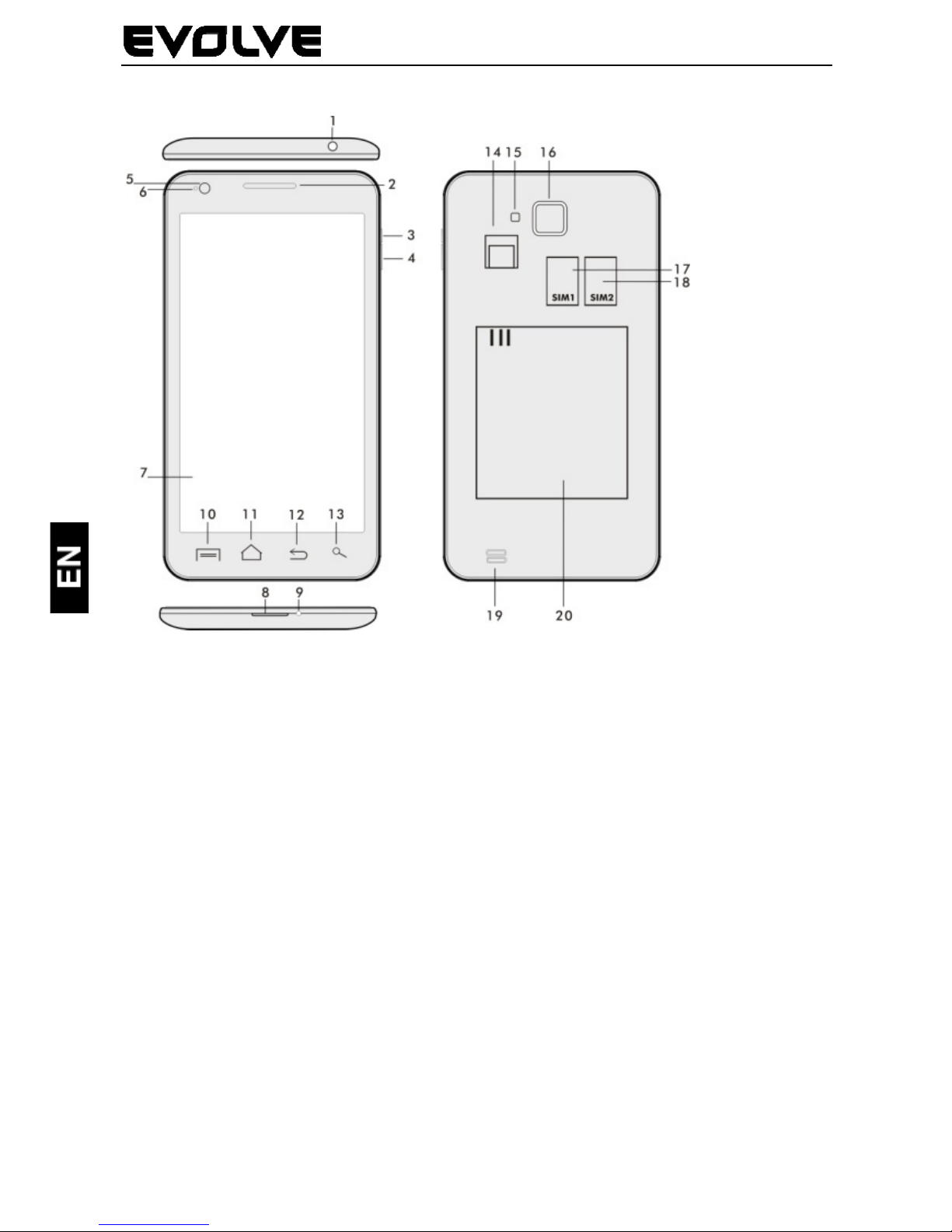
Introduction
1. Input for
receiver
14. Slot for microSDHC card
2. Volume +/-
15. Flash
3. Power/lock key
16. Photo camera
4. Volume key
17. Slot for SIM 1
5. Light sensor
18. Slot for SIM 2
6. Front camera
18. Speaker
7. Touch display
19. Battery
8. USB input
9. Microphone
10. Options – for showing options on the screen or in a
running application
11. Main screen – for return to the Main screen; by pressing
this key you activate the window with the last open
applications, you can delete this application from the list by
dragging the window with the application to the left.
12. Back (for return to the previous screen)
13. Search
Page 5
46
Inserting the battery
Insert the battery and press the edges of the back cover in
order to secure its closure.
Inserting the SIM cards and memory card micro SDHC
Open the back cover and insert the SIM cards into the
appropriate SIM card slots. Insert the memory card micro
SDHC in card reader and ensure it in the slot against falling
off by the lock.
Turning the phone on and off
Press and hold the power key on the side of the phone for 2
seconds. After starting the phone, you can unlock the phone
screen by dragging the lock icon to the right and the phone
will be ready for use. You can switch the camera on by
dragging the key to the left to the camera icon. To switch the
phone off, press and hold the power key. In the dialog, select
the desired action and confirm it.
If you press the power key only briefly, the LCD screen will
get locked and turned off, for unlocking it press the key
again.
Connecting to a computer and files transfer
The dialog window will be displayed after connecting to the
computer with asking for permission for removable disk
mode. Click the confirmation key for permitting it. Copy the
files into the phone the same way as into the computer.
(“Copy” and “Paste”)
Connecting to the charger
The charging status will be displayed during charging. Do not
keep the device in the charger too long after charging. The
phone can be warmed up a little bit during the charging, this
is common and it is not a fault. The accumulator by the time
(as all types) loses its capacity, and therefore it´ll be
necessary to change the accumulator if the time from
charging to discharging is extremely brief. However this
Page 6
47
capacity should endure throughout the moral life of the
device. If you charge the phone you can use it. Be careful
though not to break the charging connector or not to pull out
the cable from USB port during the manipulation with the
phone.
Operating the phone
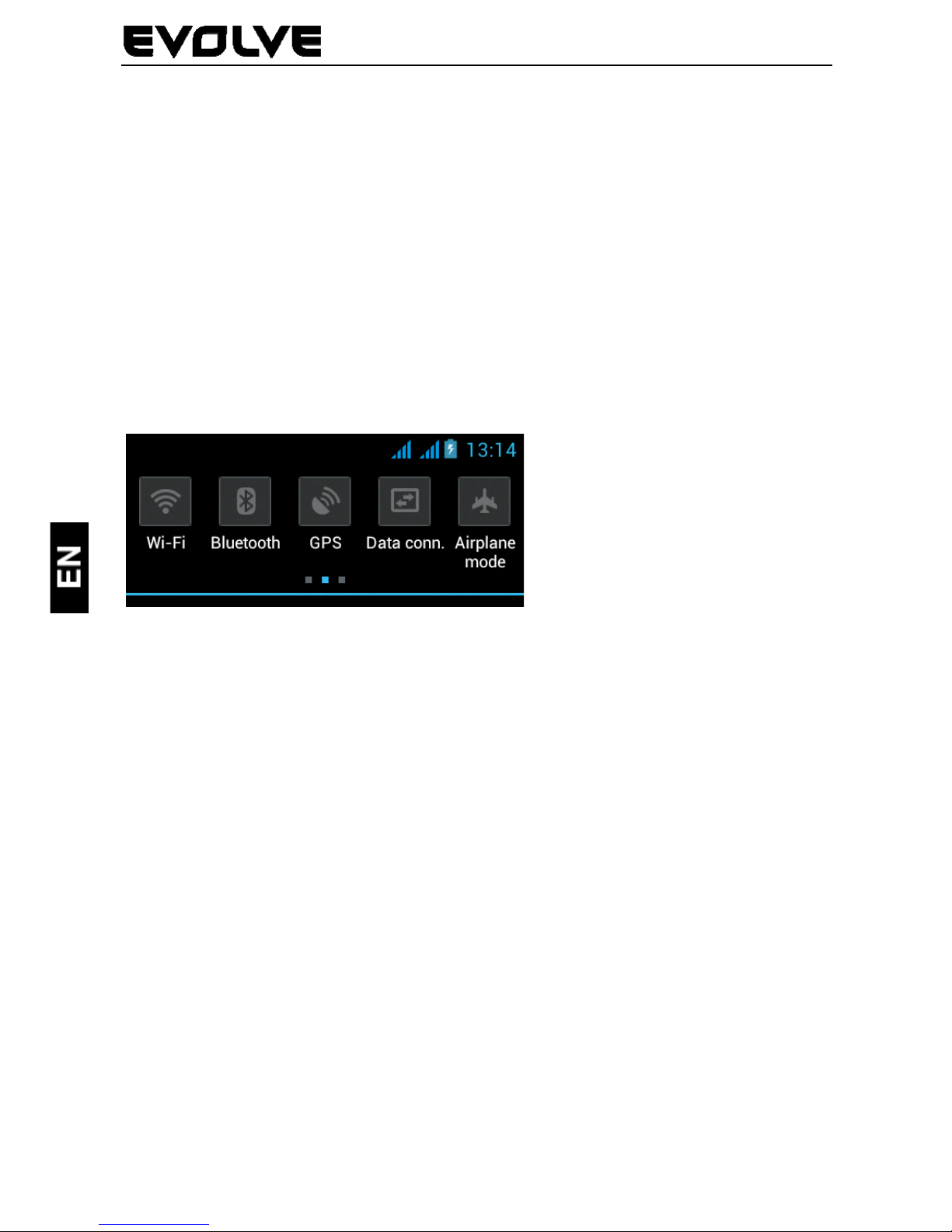
Information bar
Drag by the finger the upper information bar in the Main
screen downwards for showing some information e. g. turning
the Wi-Fi on and off, GPS income to the Phone setting, and so
on.
By moving the icons to the right or to the left, you get the
fast access to the phone settings, as e. g. turning the Wi-Fi
on and off, Bluetooth, GPS, Data connection, Display light
settings or the Sound mode options.
Touch activation
For activating the display items, such
as the application icons and settings,
for writing the sings and symbols using
the virtual keypad or for pressing the
display keys just click on the
appropriate keys by the finger.
Moving the item on
the display
Keep the finger on the item and
without lifting it, move the finger on
the display until you get the aimed
position. Move the items on the Home
screen to change their position.
Double clic
k
Click twice fast on the chosen web
page, map or another display to
enlarge it.
Page 7
48
Display rotation The orientation rotates mostly due to
the phone rotation in portrait or
landscape format. You can switch this
function on or off.
Drawing
closer/apart
In some applications (e. g. Maps,
Viewer and Gallery) you can make
the enlargement/reduction by putting
two fingers on the display at the same
time and draw them closer (for
reduction) or apart (for enlargement).
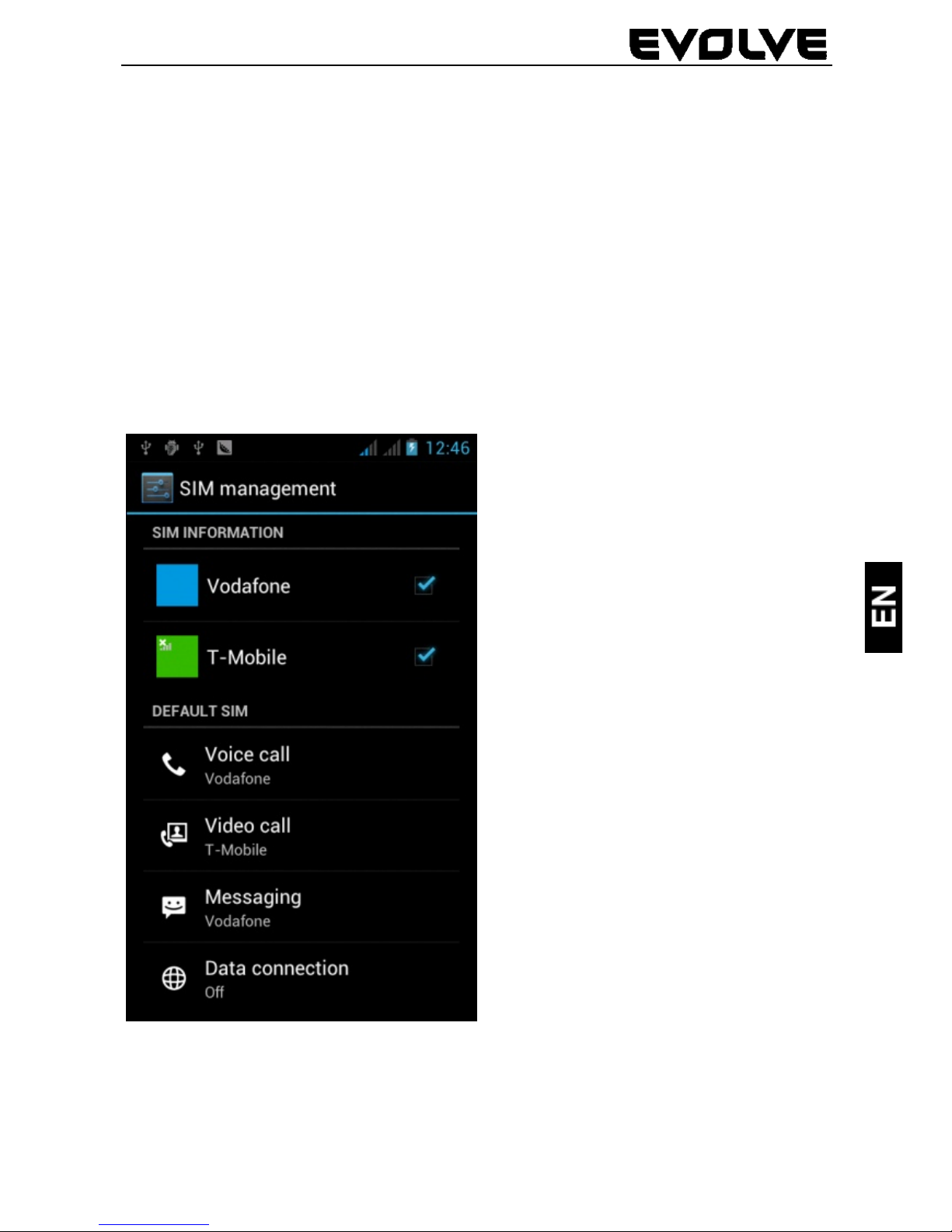
Dual SIM mode
By
opening the menu it is
possible to set the details
about SIM1 and SIM2 card
Setting the preferred
SIM card for:
Voice calls
Video calls
Messaging
Data connection
(3G support only in SIM1
slot)
Operation system Android
It was made by the firm Google and therefore you can find in
this phone some of its application, such as Google Gmail,
Page 8
49
Google Play and so on. It is possible to install some other
application from Google Play – it is necessary to open the
Google account.
How to create the Google account
In the Main screen choose , then „Settings“ > „Accounts
& Synchronization“ > „Add account“.
Setting
In the Main screen choose , then „Settings “.
The expanded description of other functions of the operation
system Google Android 4.0 (Ice Cream Sandwich) you can find
on http://support.google.com/android/
- choose the item 4.0 (Ice Cream Sandwich).
Troubleshooting
If you have a problem during using the phone, check the
solution options according to the following table. If you can´t
find the solution, contact the sales assistant or the service.
Don´t try to dismantle and repair the phone, you can lose the
guarantee.
The list of the service points is to be found on www.evolve-
europe.com. Your packet with the phone that you send to the
service should include: the device packed against damage
caused by transport (bubble wrap) – valid warranty card,
event. the invoice containing IMEI of the device – the
described defect – your contact (address, telephone number,
email).
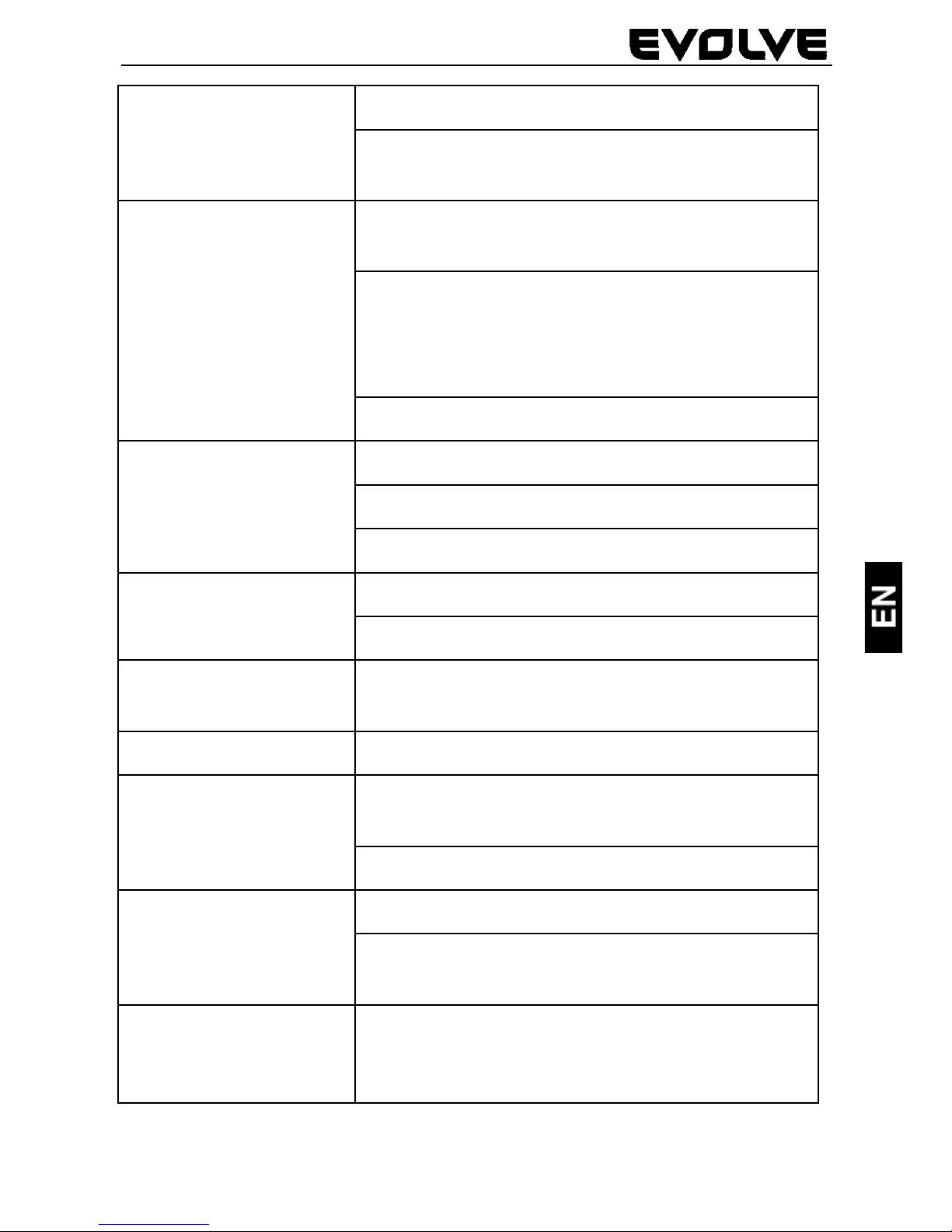
Problem Solving
The phone can´t be
switched on
Press the key for switching on for 2
seconds at least (or longer).
Recharge the battery.
Check or replace the SIM card.
Page 9
50
The sound can´t be
heard
Check if the sound isn´t muted.
Check if the phone isn´t switched to the
Airplane mode
Recharging failure
Check the contacts; change the cable or
the charger.
At first recharge the battery
approximately half an hour, then
disconnect the charger a re-connect it
and recharge the battery fully.
Use the suitable charger.
The phone call
can´t be made
Check or change the SIM card.
Dial the number again.
Contact the operator.
The partial call
failure
Check the phone number.
Check the call blocking.
The SMS can´t be
sent
Contact the operator and get the SMS
centre number.
The wrong PIN
Contact the operator.
The phone freezes
or restarts itself
Uninstall the application that causes this
problem.
Make the reset to the factory setting.
Mobil phone keeps
switching off itself
Recharge the battery.
Check if the function for automatic
switching off isn´t active.
The phone isn´t
ringing at the
incoming call
Set the volume again.
Page 10
51
The warranty DOESN´T APPLY to:
installation of another firmware then the one that was in
EVOLVE telephone installed as the original from the factory
or that is to be downloaded on ftp.evolve-europe.com
mechanic damage of the phone caused by inappropriate
using (e. g. burst display, burst front or back phone cove,
damaged power microUSB connector or input for the
earphone and so on)
damage caused by the natural elements as fire, water,
static electricity, higher temperature and so on
damage caused by unauthorized repair
deliberate damage
Disposal
The symbol of crossed out container on the product, in the
literature or on the wrapping means that in the European
Union all the electric and electronic products, batteries and
accumulators must be placed into the separate salvage after
finishing their lifetime. Do not throw these products into the
unsorted municipal waste
Settings, manuals and other information relating to the
products EVOLVE can be found on www.evolve-europe.com.
0197 DECLARATION OF CONFORMITY:
Hereby, the company ABACUS Electric s.r.o. declares that GSM
phone EVOLVE FX500 (EAN: 8594161334088) is in compliance
with the requirements of the norms and regulations, relevant
for the given type of device. The complete text of
Declaration of conformity can be found on ftp.evolve-
europe.com/ce
Copyright © 2012 ABACUS Electric s.r.o.
All rights reserved. Design and specification can be changed
without prior notice.
 Loading...