

Page 1
QUICK
START GUIDE
Engli
sh
Droid 9.7
Page 2
Quick
Start Guide (English)
! !2!
Assembly
Charge the battery
Before using the device for the first time, you must charge the battery.
Use only EVOLVE III approved chargers and cables. Unauthorised chargers or cables can cause
batteries to explode or damage your device.
1. Connect the power adapter cable to the DC connector.
2. Plug the power adapter into a power outlet.
While the device is charging, the touch screen and the touch keys may not function due to an unstable
power supply. If this happens, unplug the power adapter from the power outlet or unplug the cable
from the device.
3. When the battery is fully charged, unplug the power adapter from the device and then from t
he
power outlet.
To save energy, unplug the power adapter when not in use. The power adapter does not have a power
switch, so you must unplug the power adapter from the outlet to interrupt the power supply. The power
adapter should remain close to the socket when in use.
Page 3
Quick Start
Guide (English)
! !3!
Getting started
Turn your d
evice on and off
To turn on your dev
ice, press and hold [
]. If you tur
n on your device for the first time, follow the on-
screen instructions to set up your device. To turn off your device, press and hold [
] and select Power
off
→ OK.
Follow all posted warnings and directions from authorised personnel in areas where the use of wireless
devices is restricted, such as aeroplanes and hospitals.
Get to know
your device
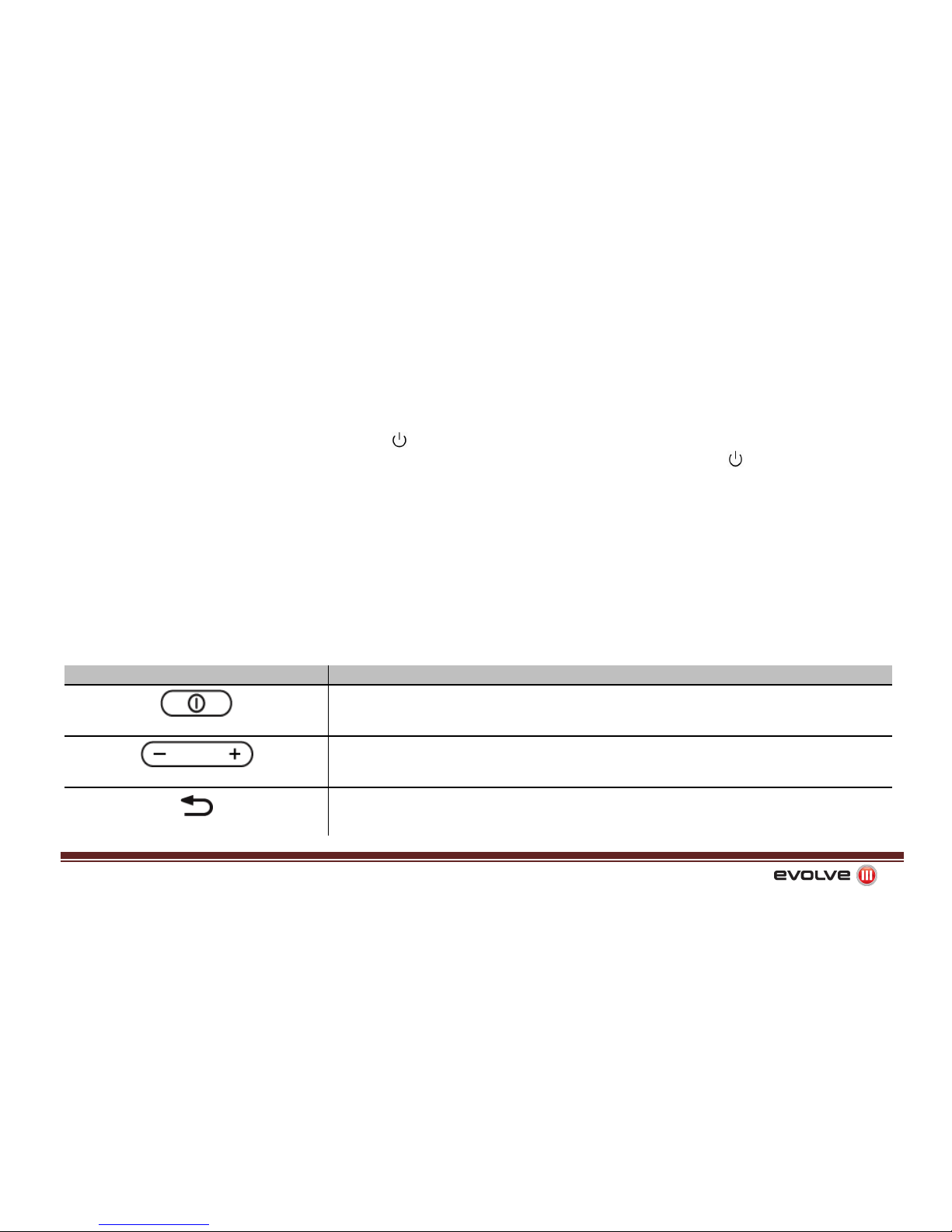
Keys
Key Function
Power/Lock
Turn on the device
(press and hold); Access the quick menus
(press and hold); Lock the touch screen.
Volume
Adjust the devi
ce’s volume.
Back
Return to
the previous screen.
Page 4
Quick
Start Guide (English)
! !4!
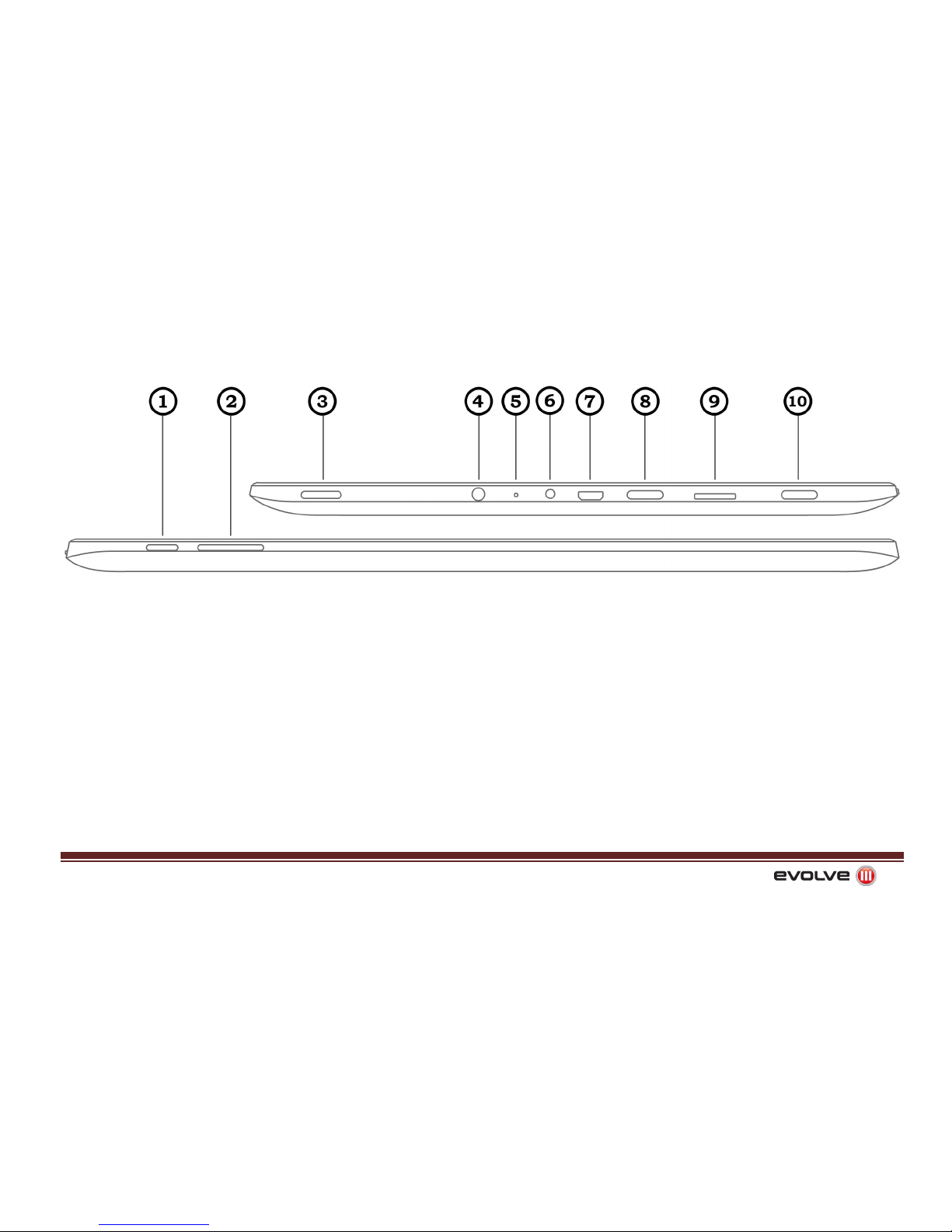
1. Back key
2. Volume
3. Speaker
4. Earphone jack
5. Microphone
6. DC in
7.
Mini USB
8.
Mini HDMI
9. Memory card slot
10. Power/Lock key
Page 5
Quick S
tart Guide (English)
! !5!
Touch screen
Your device’s touch screen lets you easily select items or perform functions. Control the
touch screen by tapping, tapping and holding, or dragging across it.
Home screen
When the device is powered on it will enter the home screen. From the home screen
you can view indicator icons, widgets, shortcuts to applications, and other items. The
home screen has multiple tabs. Scroll left or right on your screen to view and customise
them. You can also select a dot at the top of the screen and move your finger to go
directly to the corresponding home screen.
Access applications
1.
From the home screen, select Applications to access Menu mode.
2. Scroll left or right to another menu screen. You can also select a dot at the top of th
e
screen to move directly to the corresponding menu screen.
3. Select an application.
4.
Press the Home key to return to the home screen.
Access recent applications
Press and hold the Home key to view the applications you have accessed recently.
Page 6
Quick St
art Guide (English)
! !6!
Launch multiple applications
Your
device allows you to multi-task by running multiple applications at the same time. To
launch multiple applications, press the Home key while using an application to return to
the home screen, and then select an application to launch.
Enter text
You can enter text by selecting characters on the virtual keyboard. You can also use
editing options to copy and paste text.
You cannot enter text in some languages. To enter text, you must select one of the
supported languages.
When entering text, you can rotate the device to display the QWERTY keyboard in a
widescreen layout.
Connect to the internet
You can connect to the internet wirelessly by using the WLAN feature or mobile
network connections. To go on the internet, simply open an internet browser or web
application. You can bookmark your favourite web pages or use various web options.
Page 7
Quick Start Guide (English)!
!7!
Using the Miracaster display
Your device allows you to wirelessly display your tablet screen to a monitor or TV via the
Miracaster display unit.
To connect your device:
1.
Attach the Miracaster display unit to the HDMI and USB sockets on your desired monitor.
2.
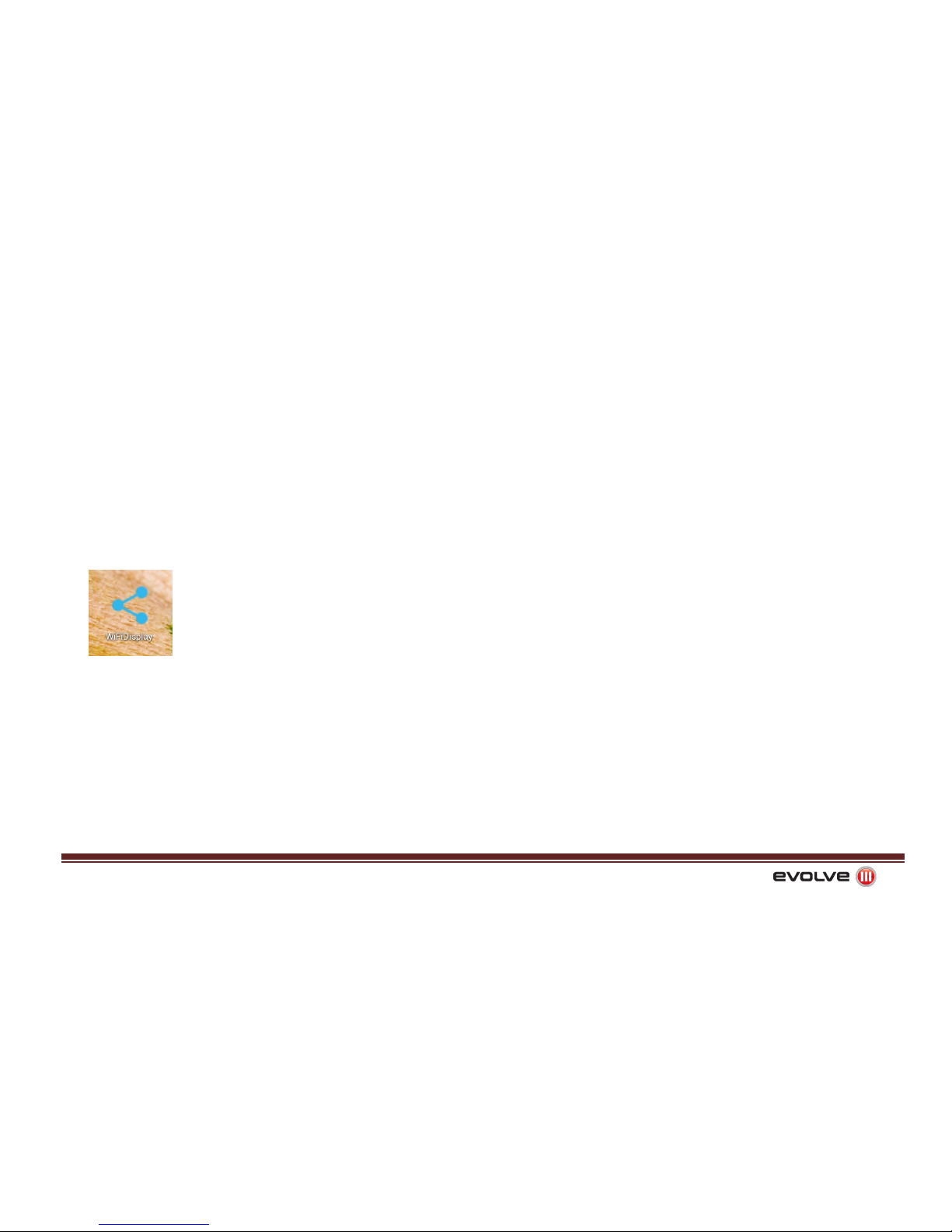
Open the WifiDisplay application on your device.
3.
Once the application is open, press the 'Search' button to search for your monitor or TV
connected with the Miracaster display unit.
4.
When the search has completed, your monitor or TV will show under the 'Available
Devices' menu. Select the display to pair your tablet to the external screen (may take up
to one minute).
5.
Once the two screens have been paired, your tablet display will mirror onto your new
Miracaster display.
Page 8
Quick Start Guide (English)! !8!
Safety information
To prevent injury to yourself and others or damage to your device, read all of the following
information before using your device.
Do not use damaged power cords or plugs, or loose electrical sockets.
Do not touch the power cord with wet hands, or disconnect the charger by pulling on the cord.
Do not bend or damage the power cord.
Do not charge the battery with chargers that are not approved by the manufacturer.
Do not use your device during a thunderstorm. Your device may malfunction and your risk of electric
shock is increased.
Protect the device, batteries, and chargers from damage.
Avoid exposing your device and batteries to very cold or very hot temperatures.
Extreme temperatures can cause the deformation of the device and reduce the charging capacity
and life of your device and batteries.
Prevent batteries from contacting metal objects, this can create a connection between the + and
–
terminals of your batteries and lead to temporary or permanent battery damage.
Never use a damaged charger or battery.
Turn off your device where prohibited.
Page 9
Quick Start Guide (English)! !9!
Do not
use your device near other electronic devices. Most electronic devices use radio frequency
signals. Your device may interfere with other electronic devices.
Do not use your device near a pacemaker.
Turn off your device when in an aircraft. Using your device in an aircraft is illegal. Your device may
interfere with the electronic navigation instruments of the aircraft.
Proper
care and use of your mobile device
Keep yo
ur device dry.
• Humidity and all types of liquids may damage device parts or electronic circuits.
• When wet, turn off your device. Dry your device with a towel and take it to a service centre.
Do not use or store your device in dusty, dirty areas. Dust
can cause your device to malfunction.
Do not store your device in hot or cold areas. Use your device at -20 °C to 45 °C.
• Your dev
ice may explode if left inside a closed vehicle, as the inside temperature can reach up to 80 °C.
• Do not expose your device to direct sunlight for extended periods of time (such as on the
dashboard of a car).
• Store the battery at -20 °C to 45 °C.
Do not store your device near magnetic fields.
• Your
dev
ice may malfunction or the battery may discharge from exposure to magnetic fields.
• Magnet
ic stripe cards, including credit cards, phone cards, passbooks, and boarding passes, may be
damaged by magnetic fields.
•
•
•
Page 10
Quick Start Guide (English)! !10!
• Do not use carrying cases or accessories with magnetic closures or allow your device to come in
contact with magnetic fields for extended periods of time.
Do not store your device near or in heaters, microwaves, hot cooking equipment, or high
pressure containers.
• The battery may leak.
•
Ensure your device does not overheat as it may cause a fire.
Do not drop your device or cause impact to it, the screen of your device may get damaged.
• If bent or deformed, your device may be damaged or parts may malfunction.
Ensure maximum battery and charger life.
• Avoid charging batteries for more than a week, as overcharging may shorten battery life.
• Over time, unused batteries will discharge and must be recharged before use.
• Disconnect chargers from power sources when not in use.
• Use batteries only for their intended purposes.
Use manufacturer-approved batteries, chargers, accessories and supplies.
• Using generic batteries or chargers may shorten the life of your device or cause the device to
malfunction.
•
EVOLVE III cannot be responsible for the user’s safety when using accessories or
supplies that are
not approved by EVOLVE III.
•
•
•
•
Page 11
Quick Start Guide (English)!
!11!
Protect your hearing.
• Excessive exposure to loud sounds can cause hearing damage.
• Exposure to loud sounds while driving may distract your attention and cause an accident.
• Always turn the volume down before plugging the earphones into an audio source and use only the
minimum volume setting necessary to hear your conversation or music.
Do not disassemble, modify, or repair your device.
• Any changes or modifications to your device can void your manufacturer’s warranty. For service,
take your device to a EVO III Service Centre.
• Do not disassemble or puncture the battery, as this can cause explosion or fire.
When cleaning your device:
•
Wipe your device or charger with an anti-static cloth.
• Clean the terminals of the battery with a cotton ball or a towel.
• Do not use chemicals or detergents.
Do not use the device if the screen is cracked or broken. Broken glass or acrylic could cause injury to
your hands and face. Take the device to a EVO III Service Centre to have it repaired.
Be sure to backup important data. EVO III is not responsible for data loss.
Page 12
Quick Start Guide (English)! !12!
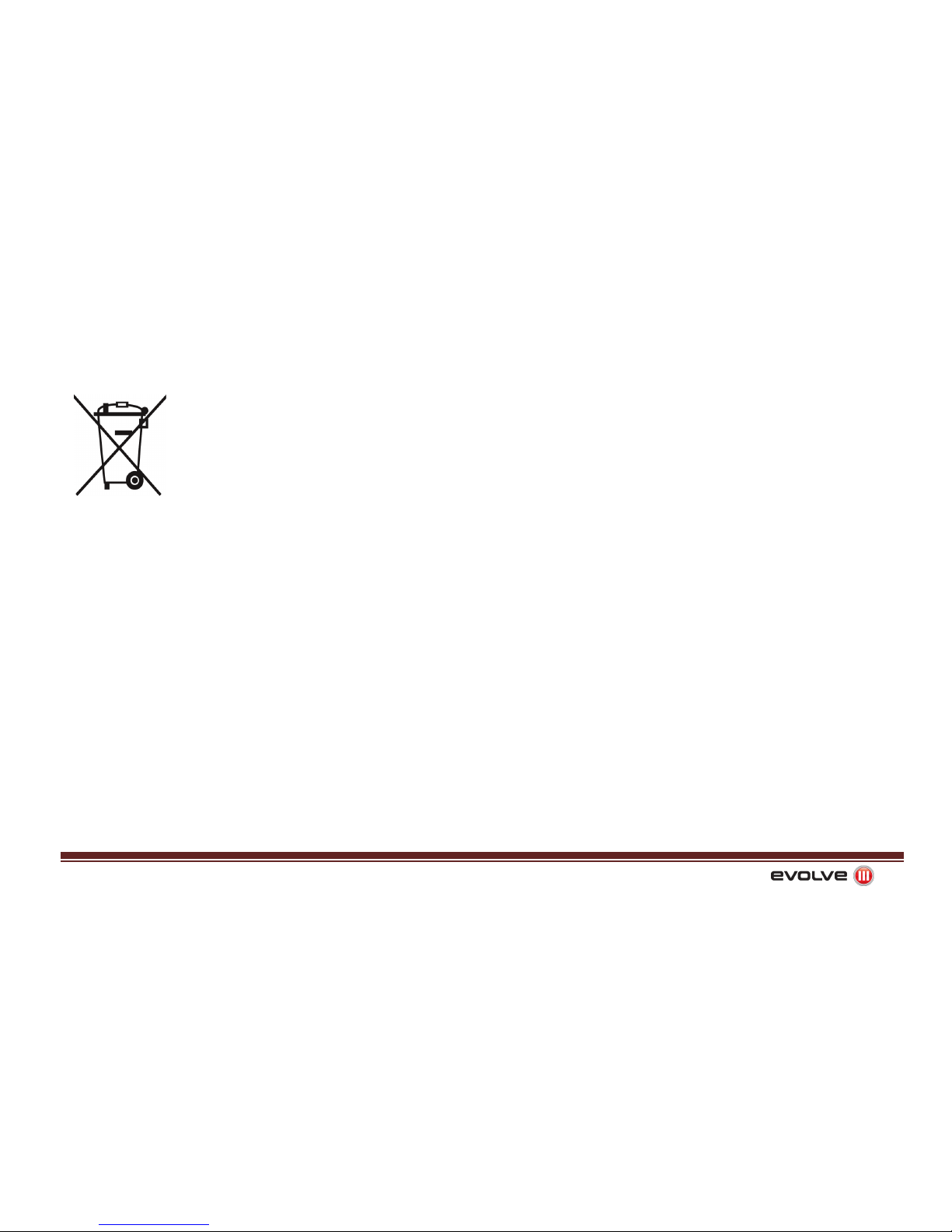
Correct
disposal of this product
(Waste Electr
ical & Electronic Equipment)
(Applicable in the European Union and other European countries with separate collection
systems)
This marking on the product, accessories or literature indicates that the product and its
electronic accessories (e.g. charger, headset, USB cable) should not be disposed of with
other household waste at the end of their working life.
To prevent possible harm to the environment or human health from uncontrolled waste disposal, please
separate these items from other types of waste and recycle them responsibly to promote the
sustainable reuse of material resources.
Household users should contact either the retailer where they purchased this product, or their local
government office, for details of where and how they can take these items for environmentally safe
recycling.
Business users should contact their supplier and check the terms and conditions of the purchase
contract. This product and its electronic accessories should not be mixed with other commercial wastes
for disposal.
Some of the contents in this manual may differ from your device depending on the software
of the device.
 Loading...