

Page 1

IMPRESS
IMPRESS
IMPRESS IMPRESS
User Manual
User Manual
User ManualUser Manual
Srirama, 15/6, 3rd Floor, Cambridge Road,
th
th
thth
20
20
FEB
FEB 20
2010
2020
FEBFEB
Doc No:
Doc No: IIIIUM
Doc No: Doc No:
Project ID
Project ID----PRD/A001
Project IDProject ID
Version
Evolute Systems Pvt. Ltd.
Evolute Systems Pvt. Ltd.
Evolute Systems Pvt. Ltd.Evolute Systems Pvt. Ltd.
Ulsoor, Bangalore - 560 008
Ph: +9180-42074082/42078198
UM////PRD
UMUM
Version:::: 1111.0
VersionVersion
Prepared by
Prepared by
Prepared byPrepared by
10
2020
1010
PRD////A001
A001/V
PRDPRD
A001A001
PRD/A001
PRD/A001PRD/A001
.00000
.0.0
/V1111.0
.00000
/V/V
.0.0
Page 2
Prd ID: PRD/A001 IMPRESS
Evolute Systems Pvt. Ltd.
Evolute Systems Pvt. Ltd.Evolute Systems Pvt. Ltd.
Evolute Systems Pvt. Ltd.
Proprietary & Confidential
Proprietary & ConfidentialProprietary & Confidential
Proprietary & Confidential
IMPRESS
IMPRESS IMPRESS
IMPRESS
User Manual
User ManualUser Manual
User Manual
Page
2 of
9
Ver/Rel
Ver/RelVer/Rel
Ver/Rel
Rel.
Rel.Rel.
Rel.
Mod.By
Mod.By Mod.By
Mod.By
Rev. By
Rev. By Rev. By
Rev. By
Auth By
Auth ByAuth By
Auth By
Remarks
RemarksRemarks
Remarks
0.01 17.02.10 VM BGP
JVS
Draft release
17.02.10 17.02.10 17.02.10
0.02
20.02.10 VM
BGP
JVS
Draft release
20.02.10 20.02.10 20.02.10
1.00 20.02.10 VM BGP
JVS
Draft release
20.02.10 20.02.10 20.02.10
DOCUMENT RECORD LIST
DOCUMENT RECORD LIST
DOCUMENT RECORD LISTDOCUMENT RECORD LIST
No
No
NoNo
Date
Date
DateDate
Mod. Dt
Mod. Dt
Mod. DtMod. Dt
Rev. Dt.
Rev. Dt.
Rev. Dt.Rev. Dt.
Auth Dt.
Auth Dt.
Auth Dt.Auth Dt.
Page 3

Prd ID: PRD/A001 IMPRESS
Evolute Systems Pvt. Ltd.
Evolute Systems Pvt. Ltd.Evolute Systems Pvt. Ltd.
Evolute Systems Pvt. Ltd.
Proprietary & Confidential
Proprietary & ConfidentialProprietary & Confidential
Proprietary & Confidential
IMPRESS
IMPRESS IMPRESS
IMPRESS
User Manual
User ManualUser Manual
User Manual
Page
3 of
9
Table of contents
Table of contents
Table of contentsTable of contents
1111 INTRODUCTION
INTRODUCTION ................................
INTRODUCTIONINTRODUCTION
1.1
IMPRESS POWER ON
AIRING WITH IMPRESS BLUETOOTH
1.2 P
USB C
1.3
1.4
MAGNETIC CARD SWIPE
1.5
SERIAL COMMUNICATION PORT
BATTERY CHARGING
1.6
SMART CARD
1.7
OMMUNICATION
................................................................
................................................................
................................................................
................................................................
............................................
................................................................
...................................................................................................... 8
................................................................................ 8
................................................................................................... 8
.................................................................................................. 8
....................................................................................... 9
....................................................................................................... 9
................................................................................................................. 9
1.7.1 Primary Smart card ............................................................................................ 9
1.7.2 Secondary Smart card ....................................................................................... 9
1.8 T
EST PRINT THROUGH SWITCH
1.9
WAKE UP SWITCH
1.10 P
1.11 F
2222 CONCLUSION
CONCLUSION ................................
CONCLUSIONCONCLUSION
APER FEED SWITCH
INGER PRINT SCANNER
........................................................................................................... 9
.................................................................................................... 9
................................................................
................................................................
........................................................................................ 9
.............................................................................................. 9
................................................................
................................................................
...............................................
................................................................
............ 4444
........................
............... 9999
..............................
Page 4
Prd ID: PRD/A001 IMPRESS
Evolute Systems Pvt. Ltd.
Evolute Systems Pvt. Ltd.Evolute Systems Pvt. Ltd.
Evolute Systems Pvt. Ltd.
Proprietary & Confidential
Proprietary & ConfidentialProprietary & Confidential
Proprietary & Confidential
IMPRESS
IMPRESS IMPRESS
IMPRESS
User Manual
User ManualUser Manual
User Manual
Page
4 of
9
USB Cable Insert
Adaptor Inser
t for
Slide
Switch for
Paper Feed Switch
Wake Up Switch
1111 Introduction
Introduction
IntroductionIntroduction
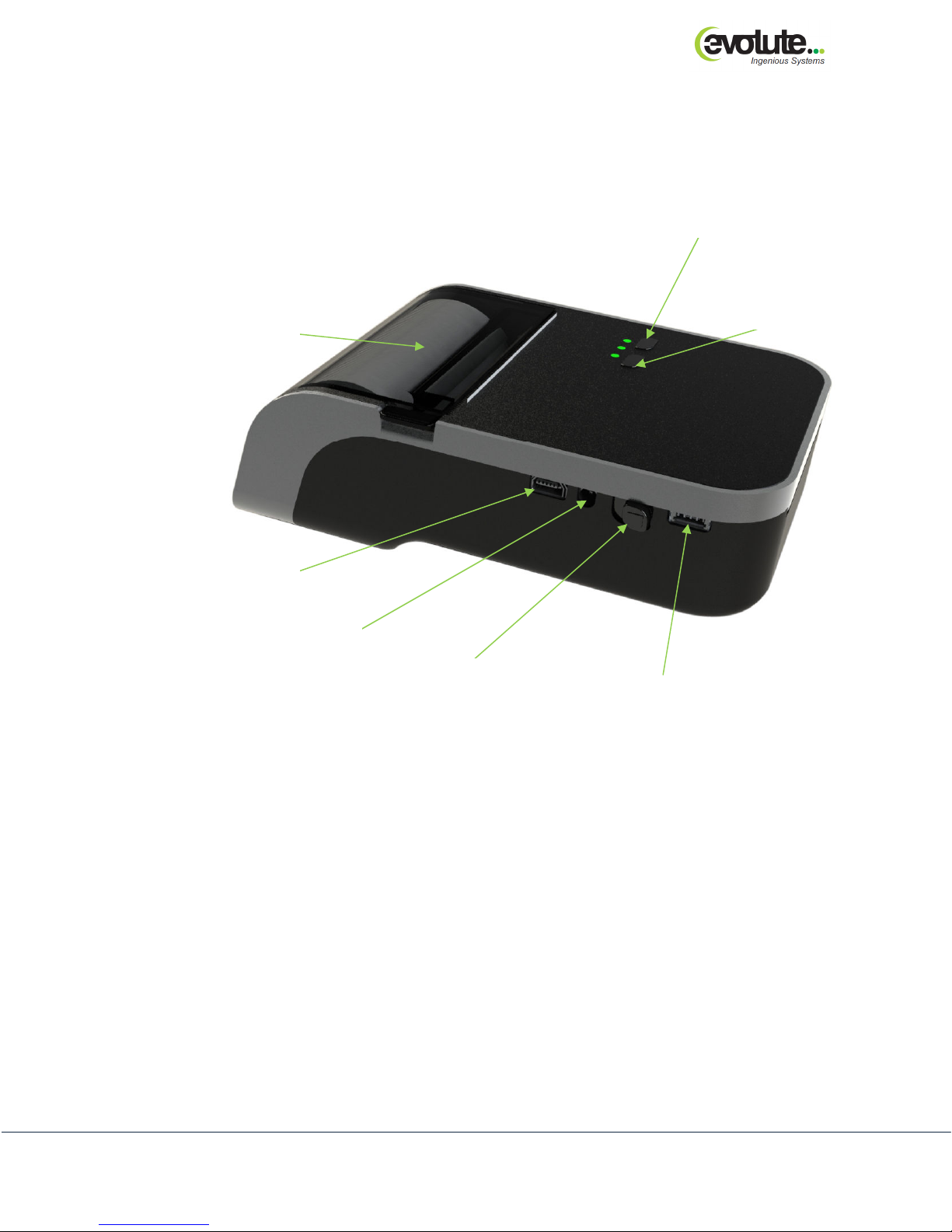
This document describes the overview of Impress functionalities.
Paper Cover
Battery Charging
Impress Power On
Figure 1
Serial Cable Insert
Page 5
Prd ID: PRD/A001 IMPRESS
Evolute Systems Pvt. Ltd.
Evolute Systems Pvt. Ltd.Evolute Systems Pvt. Ltd.
Evolute Systems Pvt. Ltd.
Proprietary & Confidential
Proprietary & ConfidentialProprietary & Confidential
Proprietary & Confidential
IMPRESS
IMPRESS IMPRESS
IMPRESS
User Manual
User ManualUser Manual
User Manual
Page
5 of
9
Primary Smart
Card
Insert
Magnetic
Card
Swipe
Secondary Smart
Card
Insert
Status LED
Bluetooth LED
Charge
Indication LED
Figure 2
Page 6
Prd ID: PRD/A001 IMPRESS
Evolute Systems Pvt. Ltd.
Evolute Systems Pvt. Ltd.Evolute Systems Pvt. Ltd.
Evolute Systems Pvt. Ltd.
Proprietary & Confidential
Proprietary & ConfidentialProprietary & Confidential
Proprietary & Confidential
IMPRESS
IMPRESS IMPRESS
IMPRESS
User Manual
User ManualUser Manual
User Manual
Page
6 of
9
Paper Cover
Finger Print
Scanner
Place the finger here
Open
Figure 3
Page 7
Prd ID: PRD/A001 IMPRESS
Evolute Systems Pvt. Ltd.
Evolute Systems Pvt. Ltd.Evolute Systems Pvt. Ltd.
Evolute Systems Pvt. Ltd.
Proprietary & Confidential
Proprietary & ConfidentialProprietary & Confidential
Proprietary & Confidential
IMPRESS
IMPRESS IMPRESS
IMPRESS
User Manual
User ManualUser Manual
User Manual
Page
7 of
9
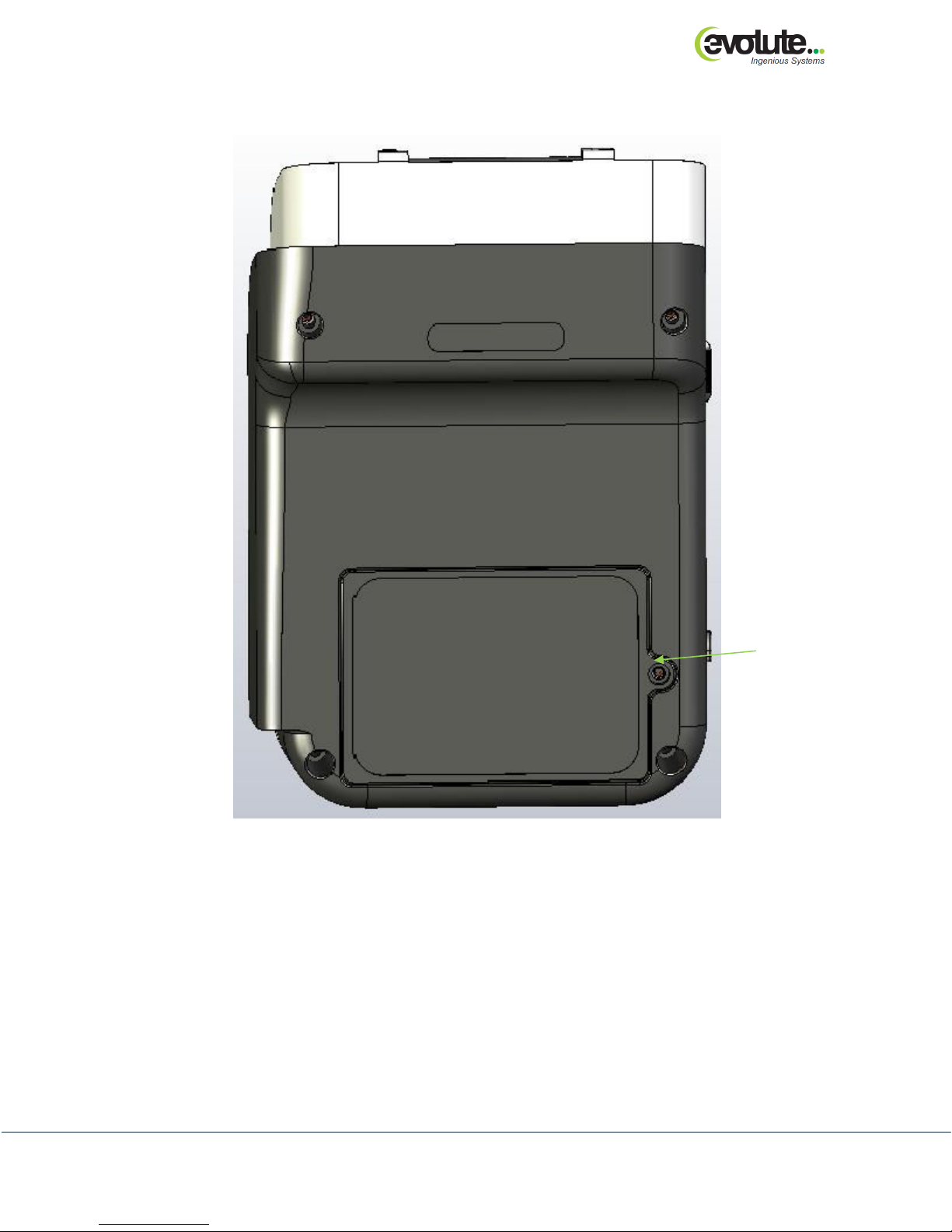
Battery
Figure 4: Bottom View of IMPRESS without Secondary Smart Card
Compartment
Page 8
Prd ID: PRD/A001 IMPRESS
Evolute Systems Pvt. Ltd.
Evolute Systems Pvt. Ltd.Evolute Systems Pvt. Ltd.
Evolute Systems Pvt. Ltd.
Proprietary & Confidential
Proprietary & ConfidentialProprietary & Confidential
Proprietary & Confidential
IMPRESS
IMPRESS IMPRESS
IMPRESS
User Manual
User ManualUser Manual
User Manual
Page
8 of
9
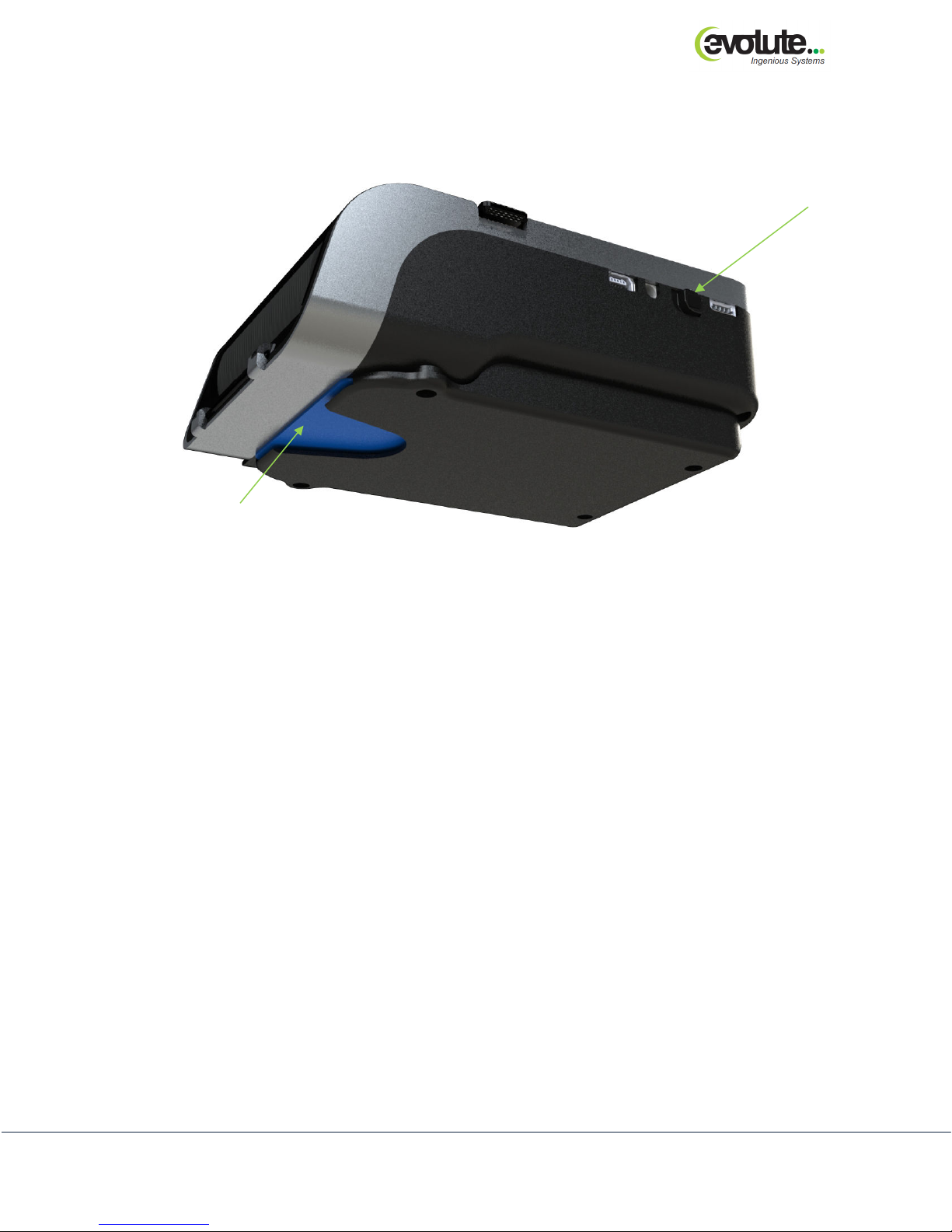
Secondary Smart
Slide
Switch for
Impress Power On
Card
(Card is inserted in
the picture)
Figure 5: Impress with Secondary Smart Card
1.1
1.1 Impress Power On
Impress Power On
1.11.1
Impress Power OnImpress Power On
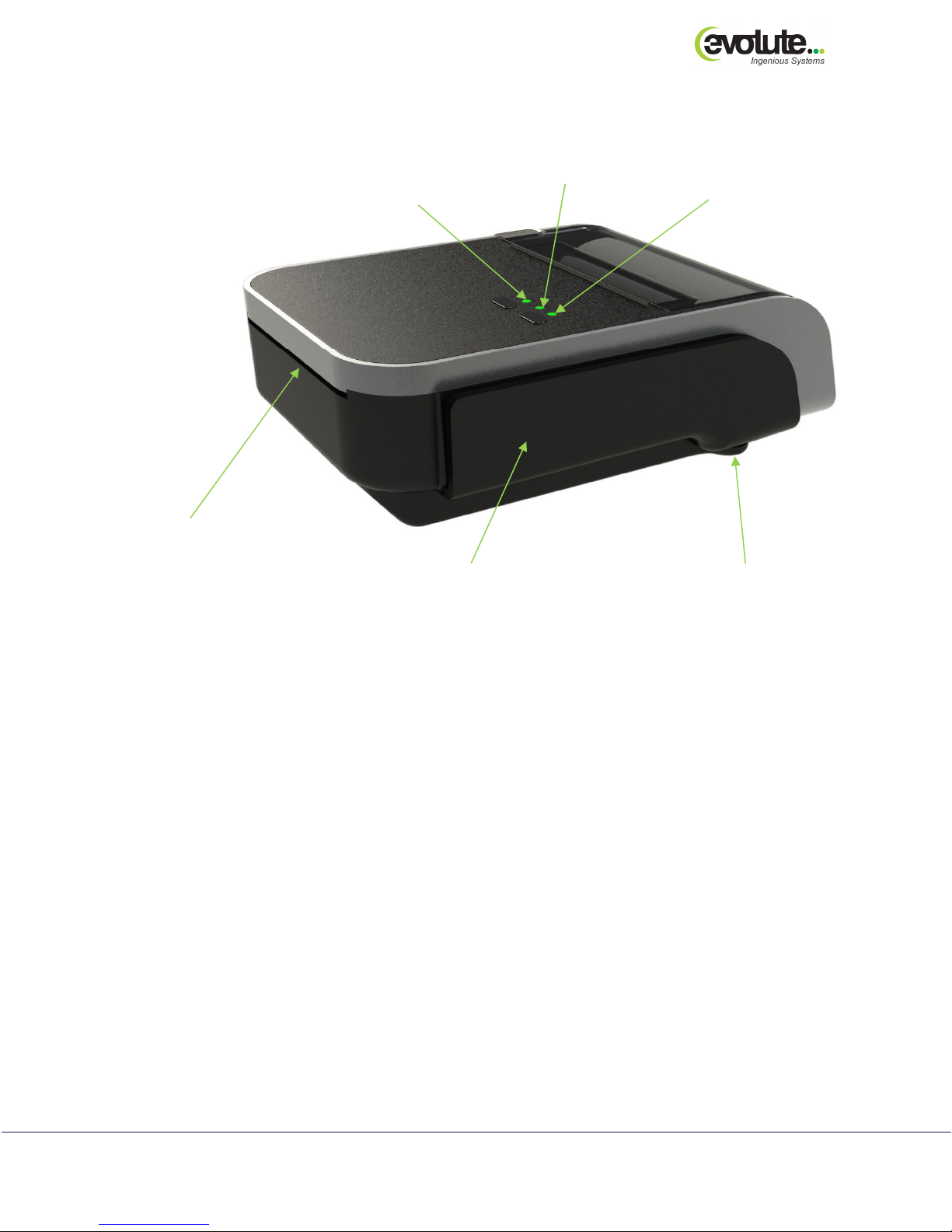
Slide the SPST Switch to Power On the Impress. Switch On is indicated by
glowing Green in the status LED. If there are any errors like Platen open, Paper
not present it is indicated by glowing Red in the status LED. Bluetooth LED starts
to blink as soon as the Impress is powered on indicating that it is ready to get
paired.
Note: Bluetooth is turned off if the USB cable is plugged in.
1.2
1.2 Pairing with Impress Bluetooth
Pairing with Impress Bluetooth
1.21.2
Pairing with Impress BluetoothPairing with Impress Bluetooth
Search and connect the Impress Bluetooth through the external Master Bluetooth
Module and once the connection is established, Bluetooth LED glows
continuously. Now communicate with Impress using the commands and
protocols provided.
1.3
1.3 USB Communication
USB Communication
1.31.3
USB CommunicationUSB Communication
Insert the USB cable into the connector shown in the figure1. Now communicate
with Impress using the commands and protocols provided. When USB cable is
plugged in Bluetooth switches off and communication can be done using USB
only. USB driver has to be installed prior to the usage.
1.4
1.4 Magnetic Card Swipe
Magnetic Card Swipe
1.41.4
Magnetic Card SwipeMagnetic Card Swipe
While Magnetic card swipe the Mag Card strip has to face IMPRESS & swipe can
be done in both forward & backward directions.
Page 9

Prd ID: PRD/A001 IMPRESS
Evolute Systems Pvt. Ltd.
Evolute Systems Pvt. Ltd.Evolute Systems Pvt. Ltd.
Evolute Systems Pvt. Ltd.
Proprietary & Confidential
Proprietary & ConfidentialProprietary & Confidential
Proprietary & Confidential
IMPRESS
IMPRESS IMPRESS
IMPRESS
User Manual
User ManualUser Manual
User Manual
Page
9 of
9
1.5
1.5 Serial
Serial Communication
1.51.5
SerialSerial
Communication Port
Communication Communication
Port
PortPort
This serial connector is used for interfacing any RS232 serial peripheral devices.
Example: Barcode reader, GPS provided by Evolute.
1.6
1.6 Battery Charging
Battery Charging
1.61.6
Battery ChargingBattery Charging
Connect the adaptor into the connector shown in the figure1. Battery charging
LED starts to glow indicating the charging condition and once the battery is
charged completely the battery charging LED turns off.
1.7
1.7 Smart Card
Smart Card
1.71.7
Smart CardSmart Card
1.7.1
1.7.1
1.7.11.7.1
Primary Smart card
Smart card has to be inserted from bottom with smart card chip facing
upwards.
1.7.2
1.7.2
1.7.21.7.2
Secondary Smart card
Smart card has to be inserted from top with smart card chip facing
upwards. Smart Card will get completely inserted into the slot in case of
secondary smart card insert.
1.8
1.8 Test Print through switch
Test Print through switch
1.81.8
Test Print through switchTest Print through switch
While the IMPRESS is off (IMPRESS on slide switch is in off position), Press &
hold the wake up switch and switch on the Impress using the slide switch.
1.9
1.9 Wake Up switch
Wake Up switch
1.91.9
Wake Up switchWake Up switch
Impress Device goes to sleep mode/wait mode automatically if no operation is
done for 10 Minutes. Press the wake up switch to wake up the Impress device.
1.10
1.10 Paper Feed switch
Paper Feed switch
1.101.10
Paper Feed switchPaper Feed switch
Pressing this switch feeds the paper by 1.5cm. Press & hold the switch to
continuously feed paper, till switch is released.
1.11
1.11 Finger Print Scanner
Finger Print Scanner
1.111.11
Finger Print ScannerFinger Print Scanner
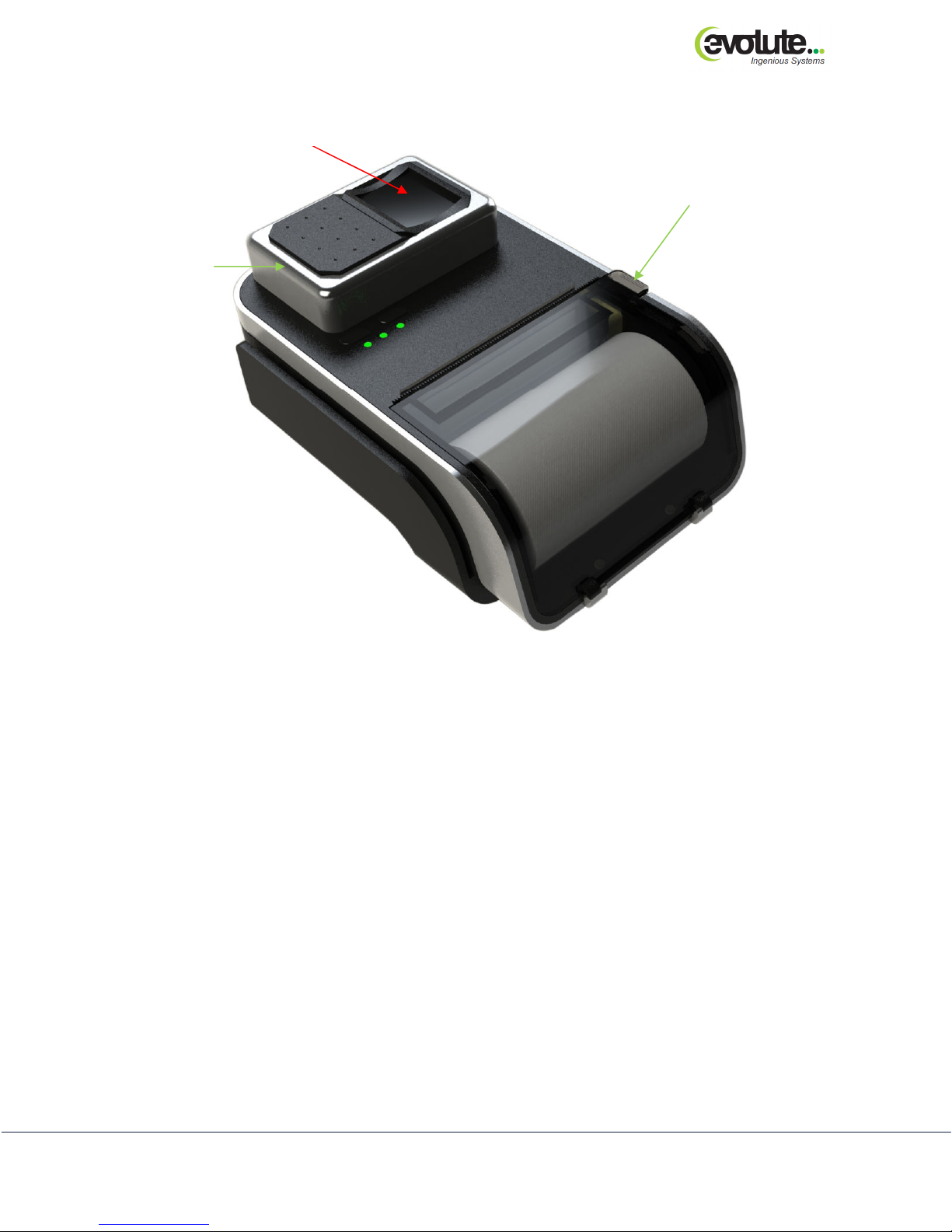
When communicating with the Finger Print Scanner, finger has to be placed
when LED glows.
2222 CCCConclusion
onclusion
onclusiononclusion
This document describes the Impress Device’s functionality.
 Loading...