

Page 1

Quick guide / User Manual
Vertical Mouse Evoluent 4 Small
Page 2
Vertical Mouse
Evoluent 4 Small
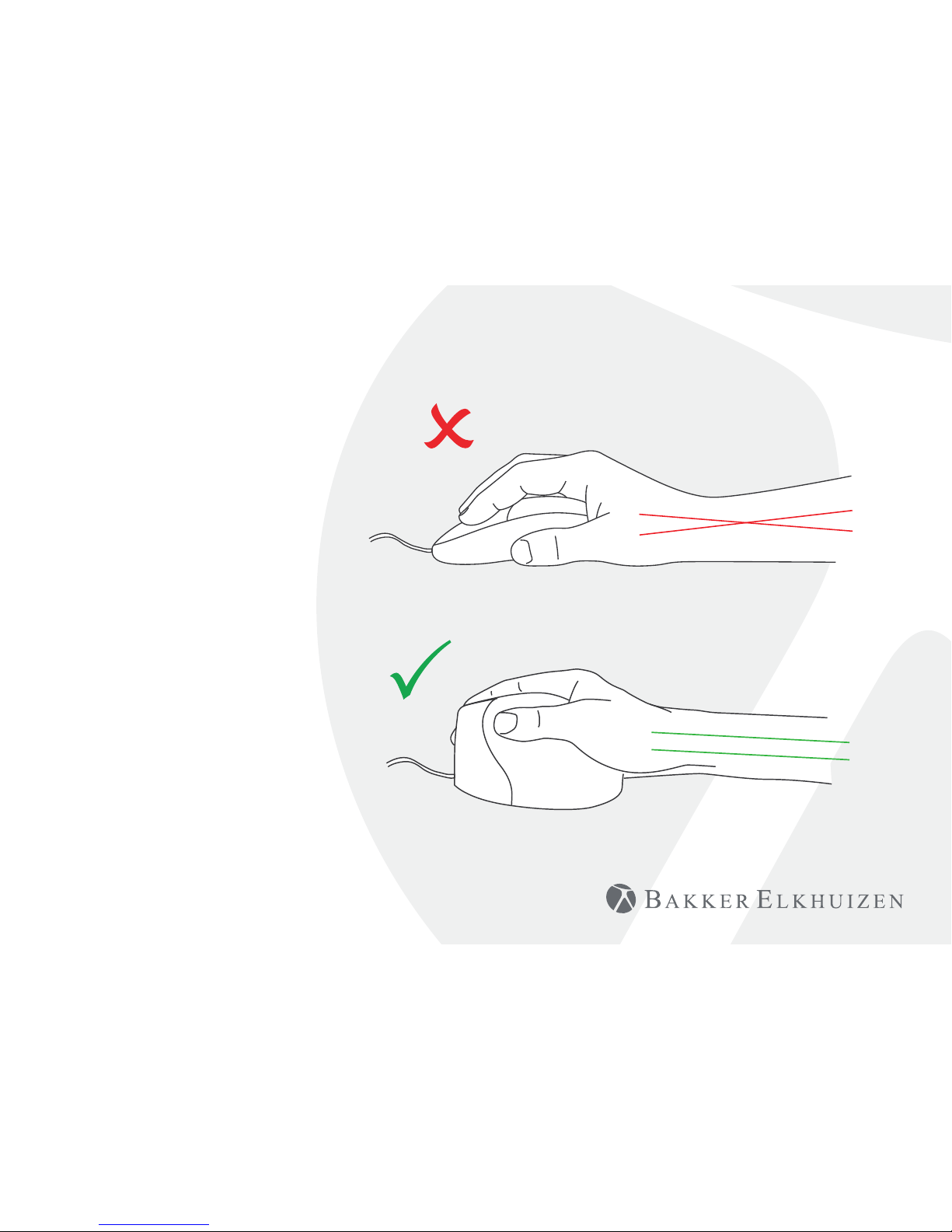
With a standard mouse, the wrist
is fully turned, i.e. the palm faces
downwards. This is not a natural
posture.
When you place your wrist in the
‘handshake grip’ position, it has
assumed a neutral posture.
This is easier to maintain and is,
at the same time, more pleasant.
And the more comfortable you are
sitting in front of your computer,
the more productive you are.
The Evoluent Mouse is the most
advanced vertical mouse in the
BakkerElkhuizen product portfolio.
Page 3
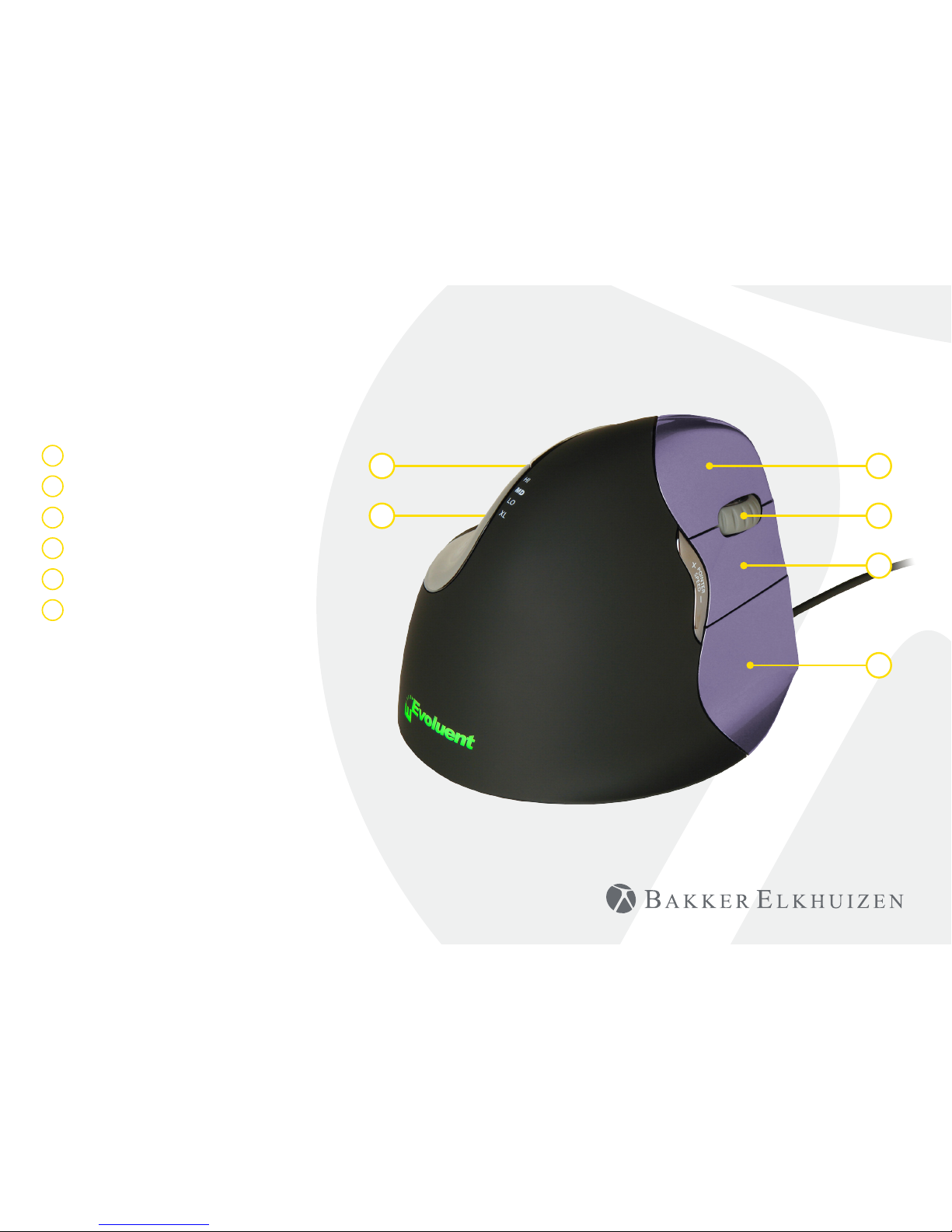
Standard button settings
1 Top button - left click
2 Middle button - auto-scroll
3 Bottom button - right click
4 Wheel button - forward
5 Upper thumb button - back
6 Bottom thumb button -
no function without driver
1
4
2
5
6
3
Vertical Mouse
Evoluent 4 Small
Page 4
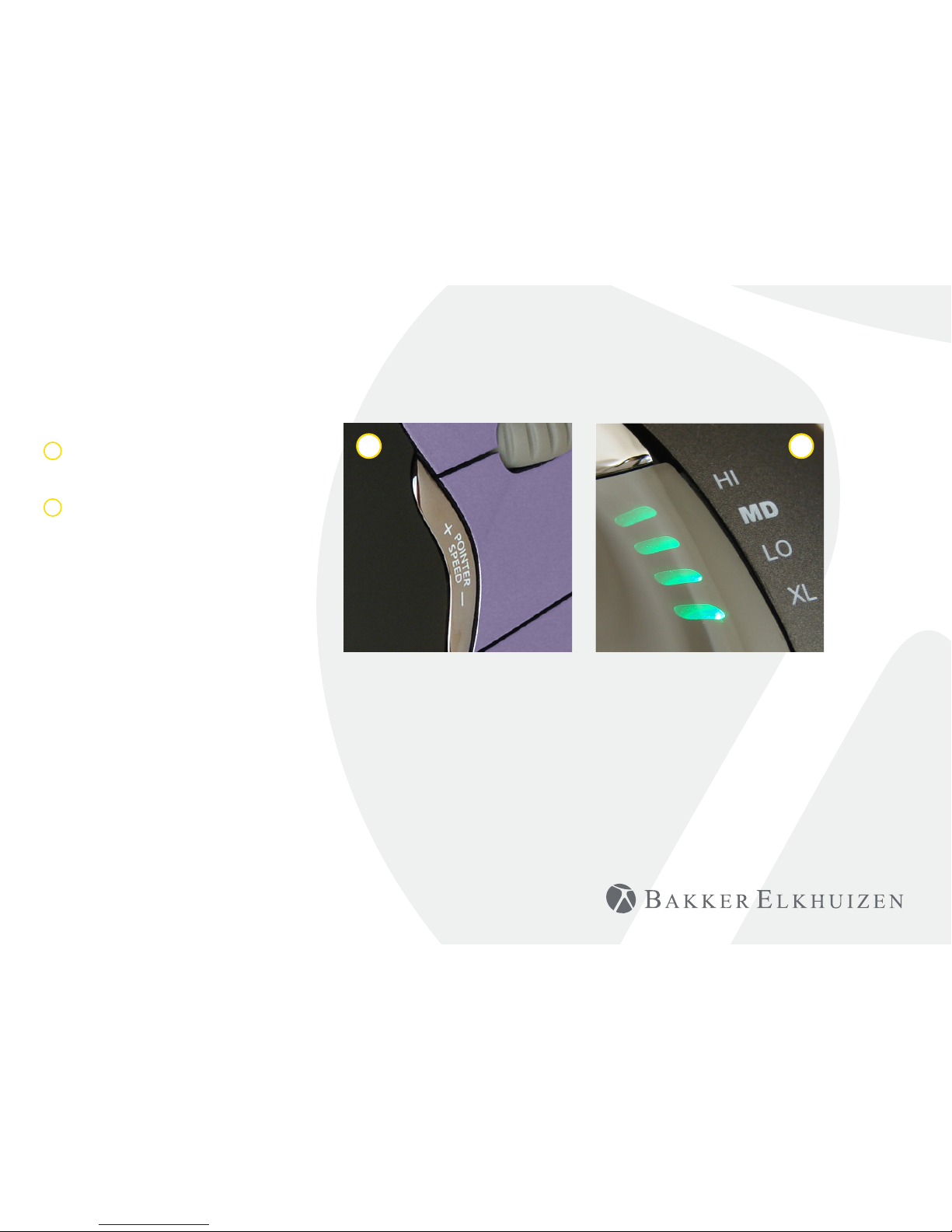
Adjusting speed
1 Press the + or - button on the
side of the mouse to set the
speed.
2 Current setting can be read
from the indicator lights on
the top of the mouse.
1 2
Vertical Mouse
Evoluent 4 Small
Page 5
Windows Install
Before connecting Evoluent Mouse, go to Control
Panel, Add or Remove Programs and remove any
previous Evoluent Mouse Manager and any other
mouse software, except touchpad driver. If there is
no mouse software listed, skip this step.
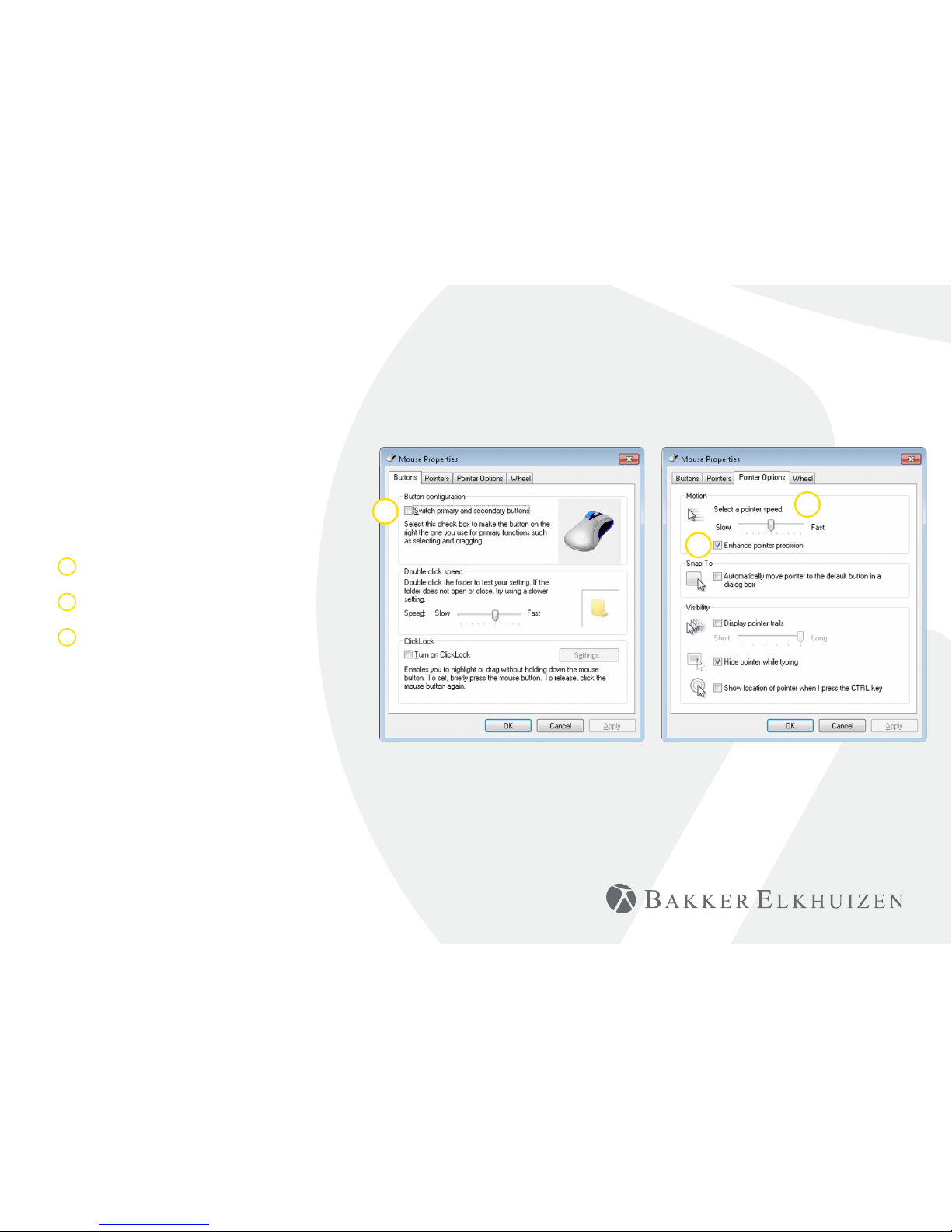
• Before connecting the Evoluent Mouse, go to
Control Panel, Mouse, and:
1. Uncheck the box for Swap Primary and
Secondary Buttons.
2. Check the box for Enhance Pointer Precision.
This is very important.
3. In Pointer Options, set the pointer speed slider
to the middle position.
• Insert the USB connector into a USB port directly
on the computer.
• If the Add Hardware Wizard appears, do not
select Search for Best Driver, but choose Display
All Drivers, and select Human Interface Device
(HID) Compliant Mouse.
1
2
3
Vertical Mouse
Evoluent 4 Small
Page 6
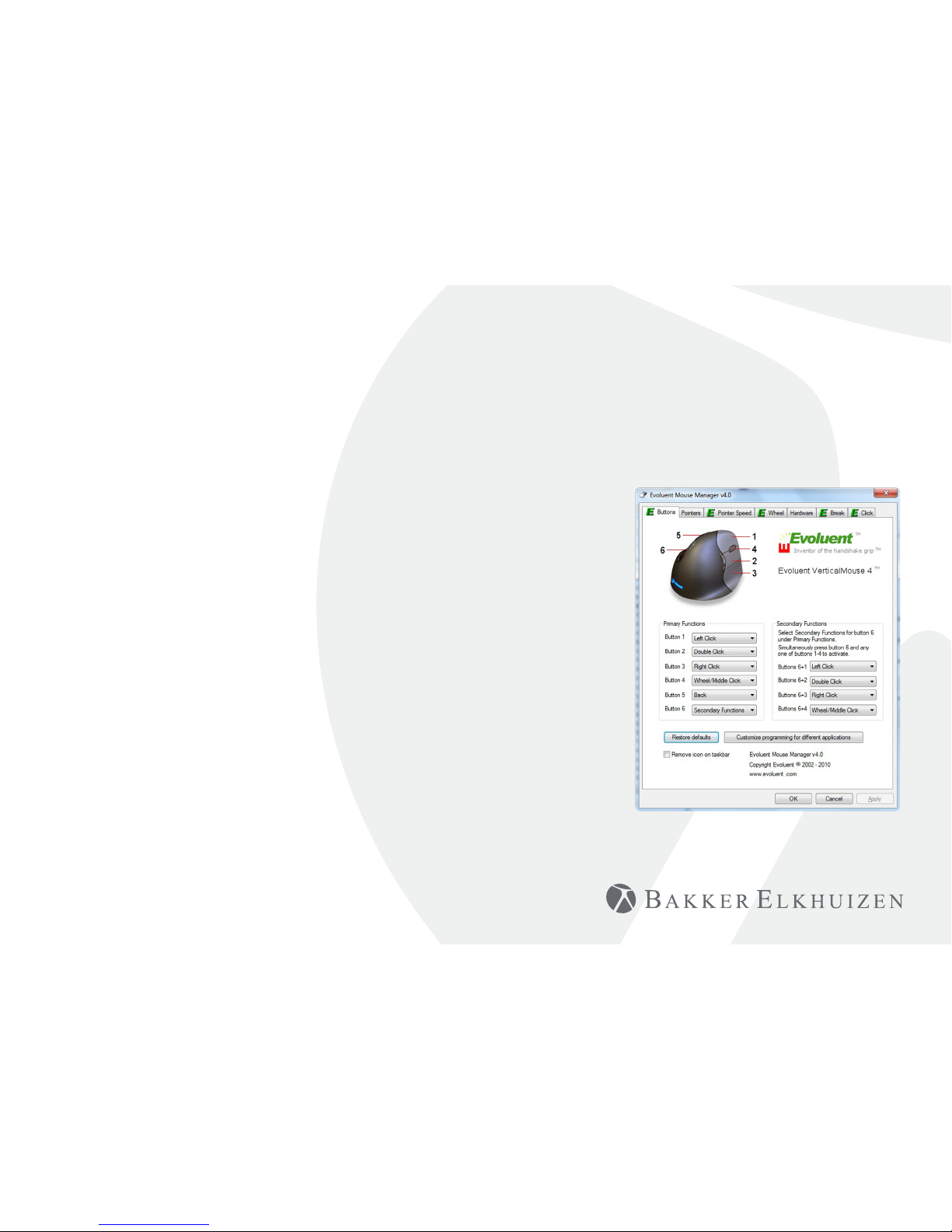
Customize your Evoluent mouse
Download the latest MAC or Windows driver for your Evoluent Mouse
http://www.bakkerelkhuizen.com/ergonomic-mice/evoluent4-right-small/
Vertical Mouse
Evoluent 4 Small
Driver
Evoluent Mouse Manager (driver)
may optionally be installed to
program the buttons. Download
the most current driver from our
website.
After you have completed the
installation, you can program the
buttons on the Evoluent .
You can even set dierent
functions for each application!
See the list with the optional
functions.
• Disabled
• Left Click
• Right Click
• Wheel/Middle Click
• Alt
• Auto Pan
• Back
• Backspace
• Close
• Copy
• Ctrl
• Cut
• Delete
• Double Click
• Enter
• Esc
• Explorer
• F1 – F12
• Forward
• Keystroke
Recording
• Launch Application
• Maximize
• Minimize
• Page Down
• Page Up
• Paste
• Pointer Speed
Toggle
• Print Screen
• Run
• Shift
• Show/Hide Desktop
• Spacebar
• Start
• Switch Applications
• Tab
• Undo
• Zoom
Page 7
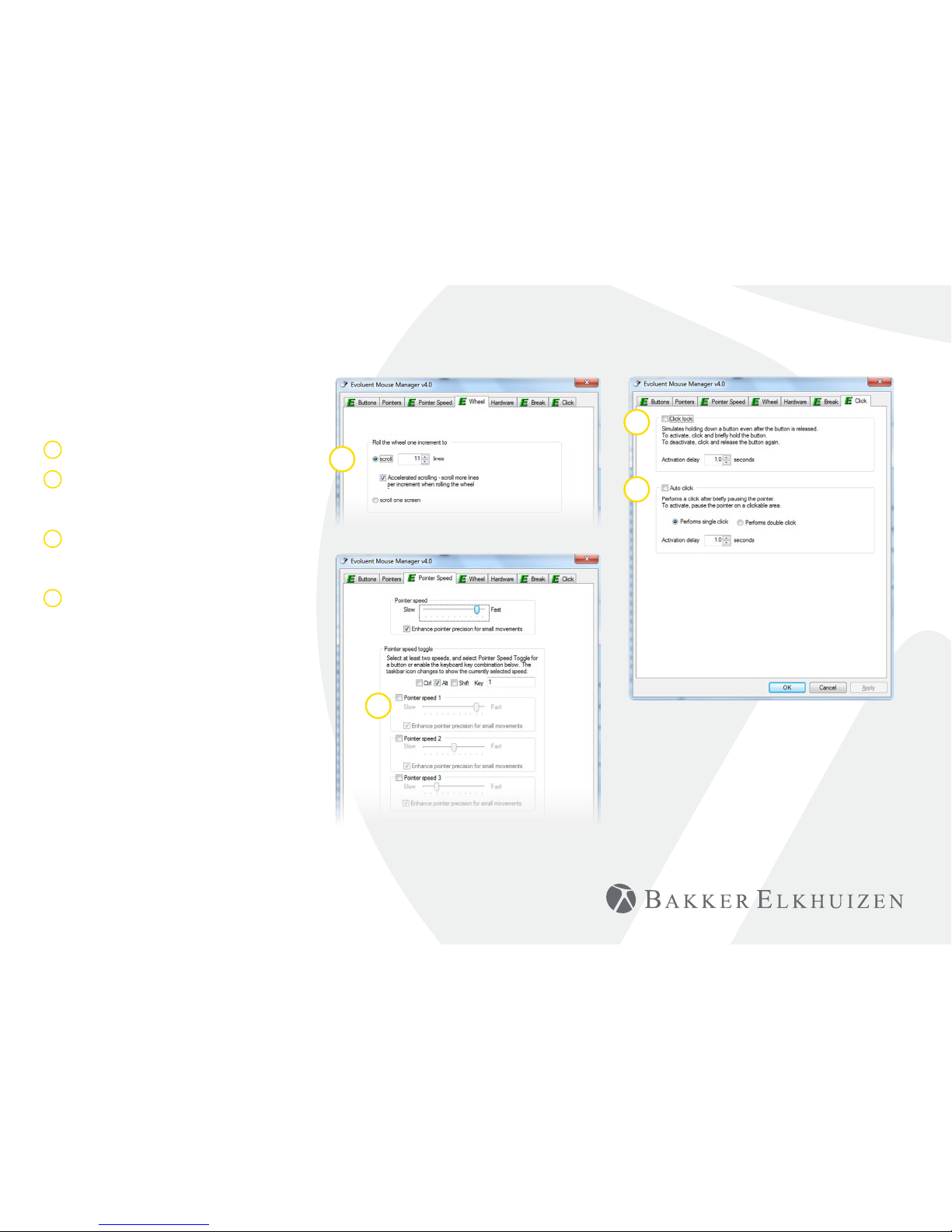
Driver
1 Adjust the speed of the scroll wheel.
2 Here you can set 2 or 3 speeds. By
setting a key combination you can
toggle between the speeds.
3 The click lock functions enables you to
keep the left mouse button activated.
Deactivate with another click.
4 The auto click function creates an
automatic click after a set time on a
clickable area.
1
3
4
2
Vertical Mouse
Evoluent 4 Small
Page 8
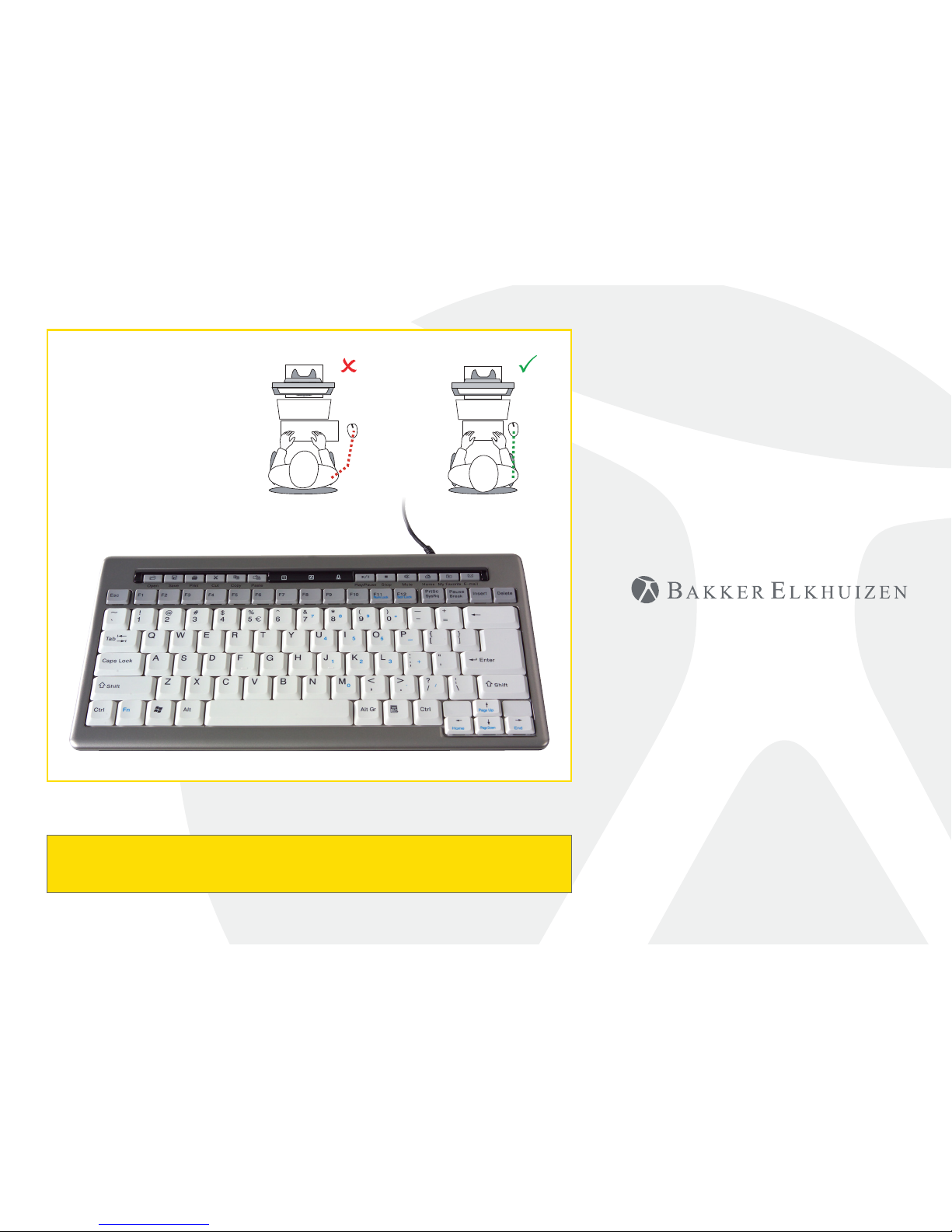
Tip
Combine the
Evoluent Mouse with
a compact keyboard
to reduce Arm strain
by reaching to the
mouse.
For more information about our ergonomic solutions,
go to our website: www.bakkerelkhuizen.com
www.bakkerelkhuizen.com
 Loading...