

Page 1

*** USER’S MANUAL ***
FCC ID : S3R05031401700
Page 2

The Federal Communication Commission Statement
This equipment has been tested and found to comply with the limits for a Class B Digital Device,
pursuant to Part 15 of the FCC rules. These limits are designed to provide reasonable protection
against harmful interference in a residential installation. This equipment generates, uses and can
radiate radio frequency energy and, if not installed and used in accordance with the instruction, may
cause harmful interference to radio communication. However, there is no guarantee that
interference will not occur in a particular installation. If this equipment does cause harmful
interference to radio or television reception, which can be determined by turning the equipment off
and on, the user is encouraged to try to correct the interference by one of more of the following
measures: -
- Reorient or relocate the receiving antenna.
- Increase the separation between the equipment and receiver.
- Connect the equipment into an outlet on a circuit different from that to which the receiver
is connected.
- Consult the dealer or an experienced Radio/TV technician for help.
Use only shielded cables to connect I/O devices to this equipment. You are cautioned that change
or modifications not expressly approved by the party responsible for compliance could void your
authority to operate the equipment.
THIS DEVICE COMPLIES WITH PART 15 OF THE FCC RULES. OPERATION IS SUBJECT TO
THE FOLLOWING TWO CONDITIONS: (1) THIS DEVICE MAY NOT CAUSE HARMFUL
INTERFERENCE, AND (2) THIS DEVICE MUST ACCEPT ANY INTERFERECE RECEIVED,
INCLUDING INTERFERENCE THAT MAY CAUSE UNDESIRED OPERATION.
1. This device may not cause harmful interference and
2. This device must accept any interference received, including interference that may cause
undesired operation.
Page 3
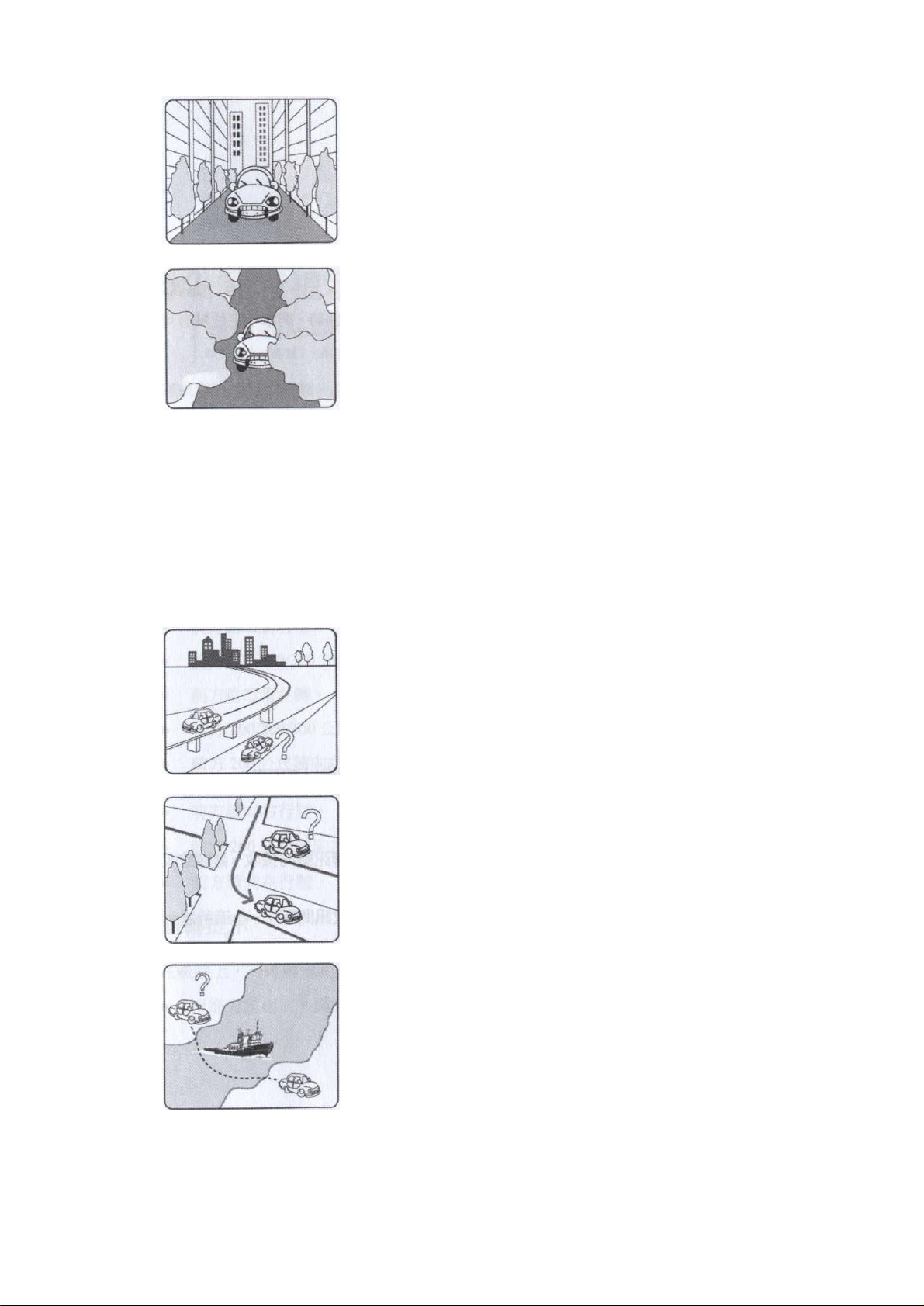
Bluetooth GPS Receiver User Manual
You are driving on the freeway, but the GPS navigation
software shows you are on the road beside. Or the opposite
sible to show
If you translate the GPS receiver inside somewhere with no
satellite signal, the GPS position may stay at the position
Ø Beside some buildings, GPS signal is disturbed.
Ø Inside forests, or too many covers, GPS signal is disturbed.
n If you use G-Mouse inside the car, some sun-control film will makes the GPS signal low or
lost.
n GPS satellite is owned by America military, sometimes they will tune-down the accuracy by
some reason. In such cases, the GPS position may not fixed exactly.
7.3 Problem of Position Fix Error
The position fix problem below does not mean the G-Mouse GPS receiver’s malfunction:
Ø
situation.
Ø You are driving on a grid like lane, it is pos
your car on an incorrect lane, if these 2 lane very near.
Ø
before.
7.4 Problem of Position Fix Fail
If you found [Not Fix] after you start up the map software, please consider about following:
-20-
Page 4

Bluetooth GPS Receiver User Manual
n Please wait longer. Inquire position from satellites may cost several minutes depends on
your GPS signal quality.
n Please make sure that you put the G-Mouse GPS receiver at a proper place. Some
sun-control film for car may cutoff the satellite signal. You may replace it and try again.
Please make sure that you are not inside of somewhere the GPS signal shaded. Please reference
the chapter [Satellite Signal Problem] about this.
8. Order Information
(1) Part No: FGPXBT01
(2) Color of shell available
BK: Black shell (None transparent)
BL: Blue shell (transparent)
-21-
Page 5

Bluetooth GPS Receiver
Contents
1. INTRODUCTION..........................................................................................................................1
1.1. OVERVIEW ...............................................................................................................................1
1.2. MAIN FEATURES.......................................................................................................................1
2. TECHNICAL SPECIFICATIONS .................................……............................................................ 2
3. OPERATION AND TEST.................................................................................................................3
3.1. HARDWARE DESCRIPTION........................................................................................................4
3.2. WHAT DO YOU GET IN THE BOX?..............................................................................................5
3.3. SOFTWARE INSTALL .................................................................................................................5
4. APPENDIX A TEST REFERENCE FOR ONLY..............................................................................10
Page 6

1. Introduction
1.1. Overview
The BT-R700 Bluetooth GPS receiver is a Global Position System Receiver with Bluetooth wireless technology.
This BT GPS receiver allows you to receive GPS data on mobile handhelds wirelessly. By sending GPS
position data over Bluetooth, you can position the receiver for the best possible reception all without wires.
The advent of Bluetooth GPS receiver will become the next level of GPS receivers. The BT GPS receiver integrates
Bluetooth module into GPS device. It shows the high performance, low power consumption,
easily portable, rechargeable & removable battery function and wireless data transmission. If you have a Pocket
PC or other portable devices enabled with Bluetooth function, for example ASUS-620, iPAQ 2210, HP
and Palm , you can take advantage of your device’s Bluetooth capability to wirelessly add GPS positioning
technology. When you choose suitable navigation software, you can apply to personal, vehicle tracking,
and marine navigation. If you use this Bluetooth GPS receiver, you will ignore the messy cords and antenna
and add the portability of your Pocket PC. In addition, This Bluetooth GPS receiver can change the
exhausted battery to full battery like battery of mobile phone.
1.2. Main Features
16 Channels “All-In-View” Tracking
Cold/Warm/Hot Start Time: 45/38/ 10 Seconds : Reacquisition Time: 0.1 seconds
Support Standard NMEA-0183 at 9600 bps baund rate
Compatible with Bluetooth devices with Serial Port Profile (SPP)
Small, sleek, and lightweight design easily fits in your hand
Two LEDs at the top of the device show Bluetooth and GPS. & On/off push button
Fleet management/Asset tracking
Personal/Portable Navigation (PDA, Pocket PC etc.)
Location Based Services enabled device s
Ultra low power -up t o 16 hours after fully charged (850mA Li-ion Battery)
High sensitivity-147dBm Integrated GPS receiver, Active antenna, and Bluetooth transceiver
Page 7
2.TECHNICAL SPECIFICATIONS
Power Socket
General
GPS technology NEMERIX GPS modu le
Frequency L1, 1575.42 MHz
C/A code 1.023 MHz chip rate
Channels 16 channels all in view tracking
Antenna (internal) Built-in low noise
External Antenna Port active MMCX an te nn a
Sensitivity
to -147 dBm tracking, superior urban canyon
performance
Accuracy
Posi tion 3 meters CEP (50%),
without SA (horizontal)
7 meters (90%)
Velocity 0.1 meters/second,
without SA
Time ±100 ns synchronized to
GPS time
Datum
WGS-84 (or by demanded)
Acquisition Rate
Cold start 45 sec, average
Warm start 38 sec, average
Hot start 10 sec, average
Reacquisition 100ms, average
Interface
Communication protocol
Communicate with host platform via
Bluetooth (Class 2) serial port profile
Bluetooth communication distance 10M. Typ.
GPS protocol
Default: N M E A-0183 (V3.0 1 )
—GGA, GSA, GSV, RMC,
the update interval 1 second (Default)
Band rate 9600 bps(Data bit : 8,stop bit : 1)
Power
Built-in r e c h argeable 850mA/h Li-ion
battery and 5V DC input charging circuit
Operation current 45mA (Typical)
Operatio n time 20hrs, after fully charged, in
Continuous mode
Charging time 2.5hrs. (Typical)
Device Size
81(L) x 44(W) x 20(H) mm
3.2 (L)x 1.75 (W) x 0.79 (H) inch
Accessories AC adaptor(5.3V output ,500mA)
Environmental
Operating Temperature -20°C to + 60°C
Relative Humidity 5% to 90% non-condensing
Dynamic Conditions
Altitude <18,000 meters
Velocity <515 meters/second
Acceleration <4g
Motional Jerk 20 meters/second
3. Operation and Test
3.1. Hardware Description
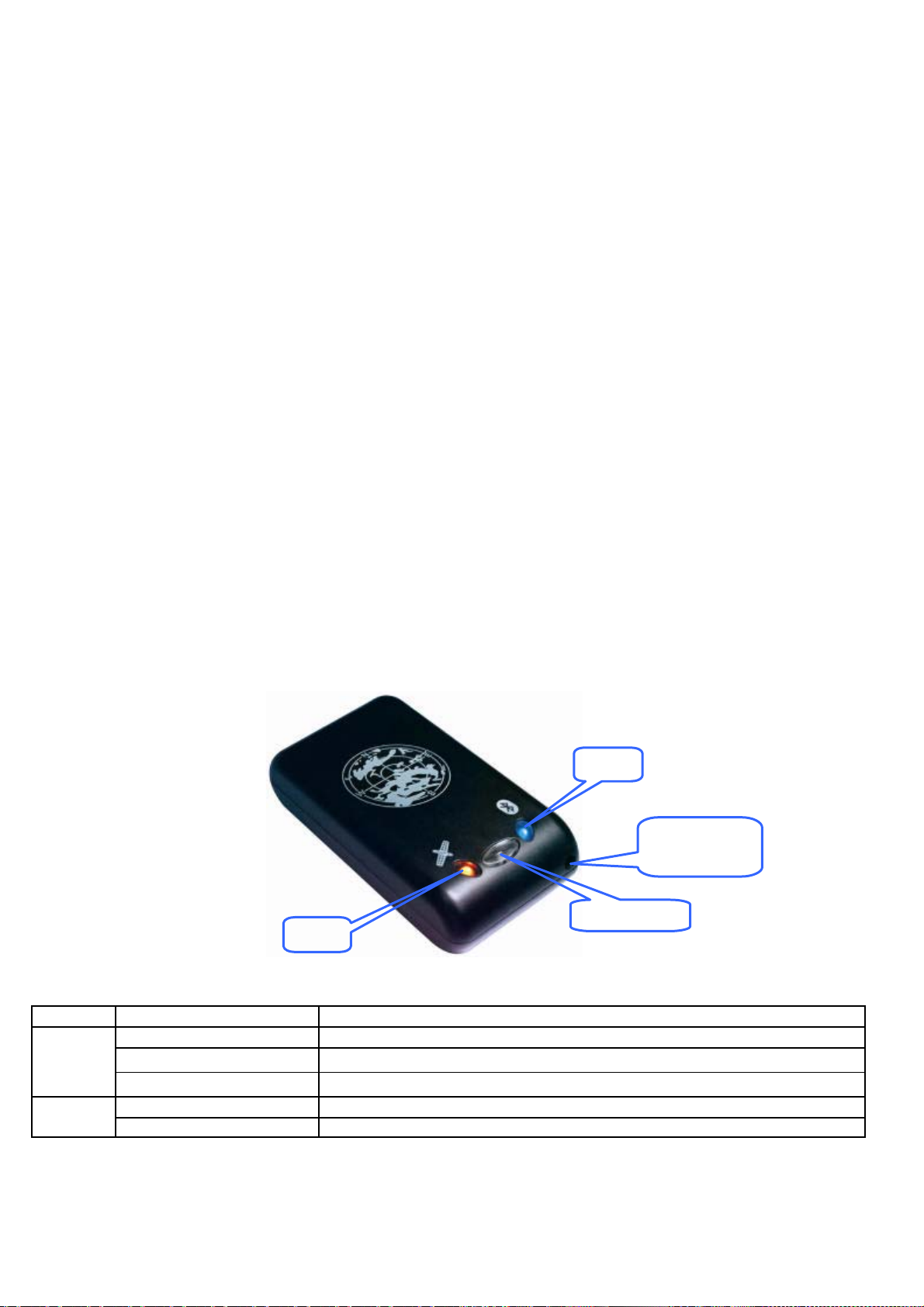
LED2
External
Power
LED1
The Bluetooth GPS has two LED light which each has thr e e colors.
One is GPS (LED2) & Charge status (LED 1) . The status table of LED shows as follows:
LED Color Status
RED Power On
LED 1
LED 2
GREEN Battery is chargin g until full
GREEN (Flashing) Low Power
BLUE ( Flash quickly) Detecting satellites , GPS position not fix.
BLUE ( Flash slowly) GPS Position fix , Navigation
Page 8
3.2. What do you get in the box?
9 BT GPS receiver
9 A Adapter , 5.3V/500mA output
9 A user’s manual ( CD disc )
9 A Li-Polymer rechargeable battery 850mAh
3.3. 1 Software Install - Po ck et PC CE
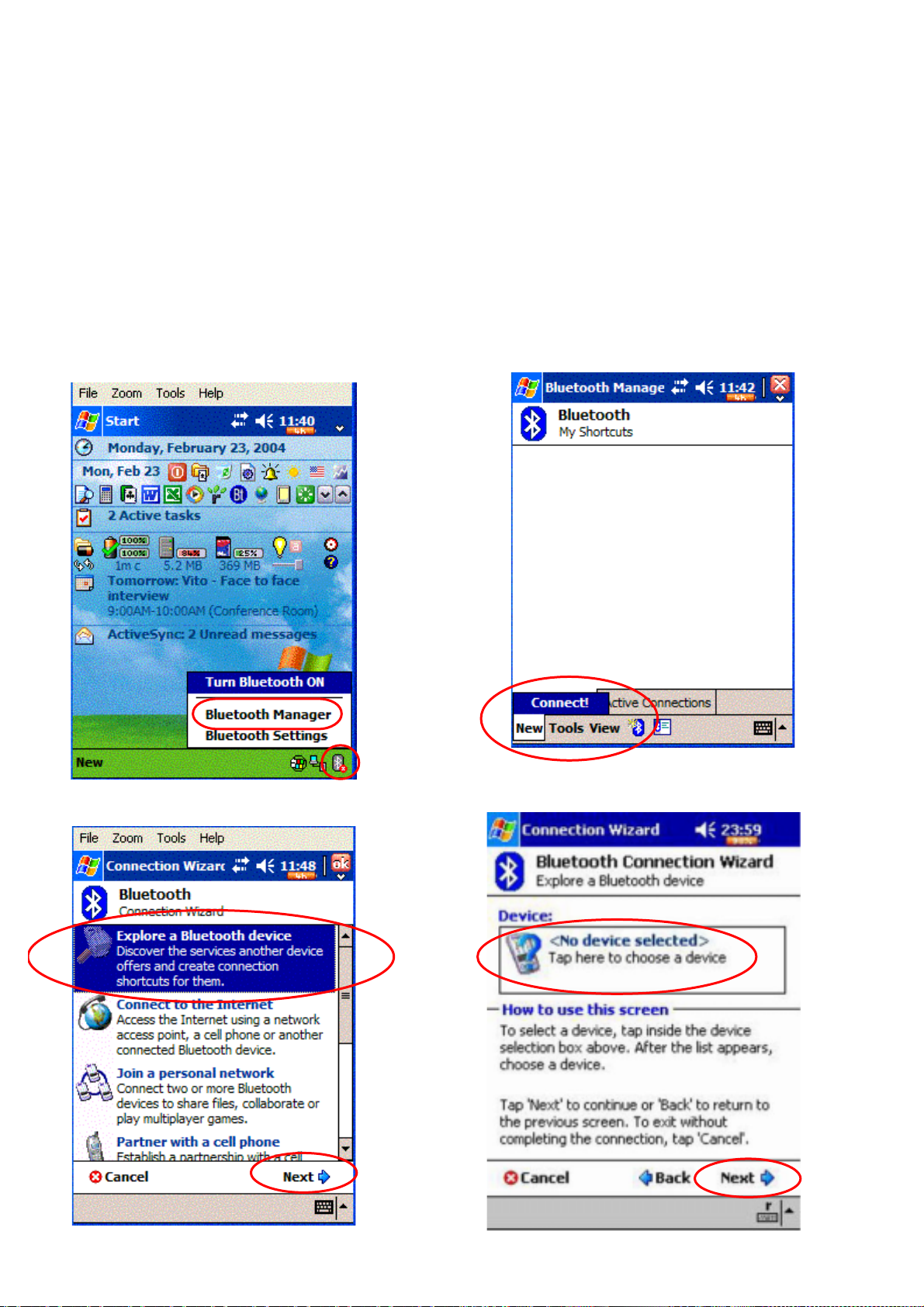
iPAQ Bluetooth fuction s etup with Pocket PC software
<Note 1> On the client, make sure the Bluetooth device is available.
<1> Tap Bluetooth pop-up menu, <2> Established new connection , click .
Turn Bluetooth ON and select Bluetooth manager.
<3> Select “Explore a Bluetooth device “ ,Then, <4> Tap device , then click “ next “ .
turn Bluetooth GPS on bef ore going next step .
<5>Choose BT_GPS , click it. <6> Enter passkey “ 0000”. Enter.
Page 9
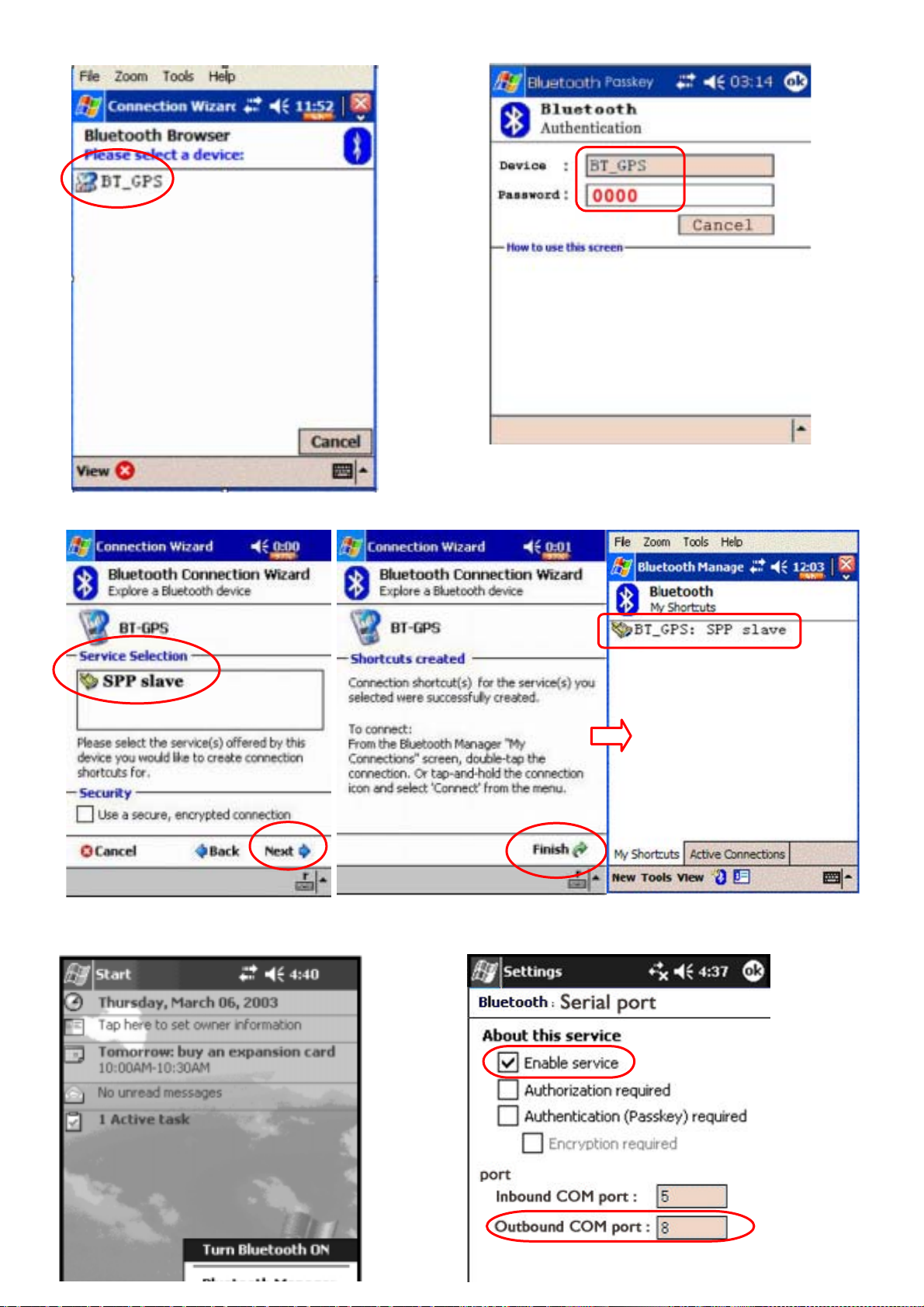
<7> Select “ SPP slave “ , click “Next” Ш“Finish “ And BT-GPS connection Established successfully.
<9> Tap “ Bluetooth icon “ again , <9> Tap “ Serial port “ , Enable service first , then
and select “ Bluetooth setting “. , set up outbound COM port to be “8”.
3.3.2 Software setup – Navigator (PaPaGo! 5)
Page 10
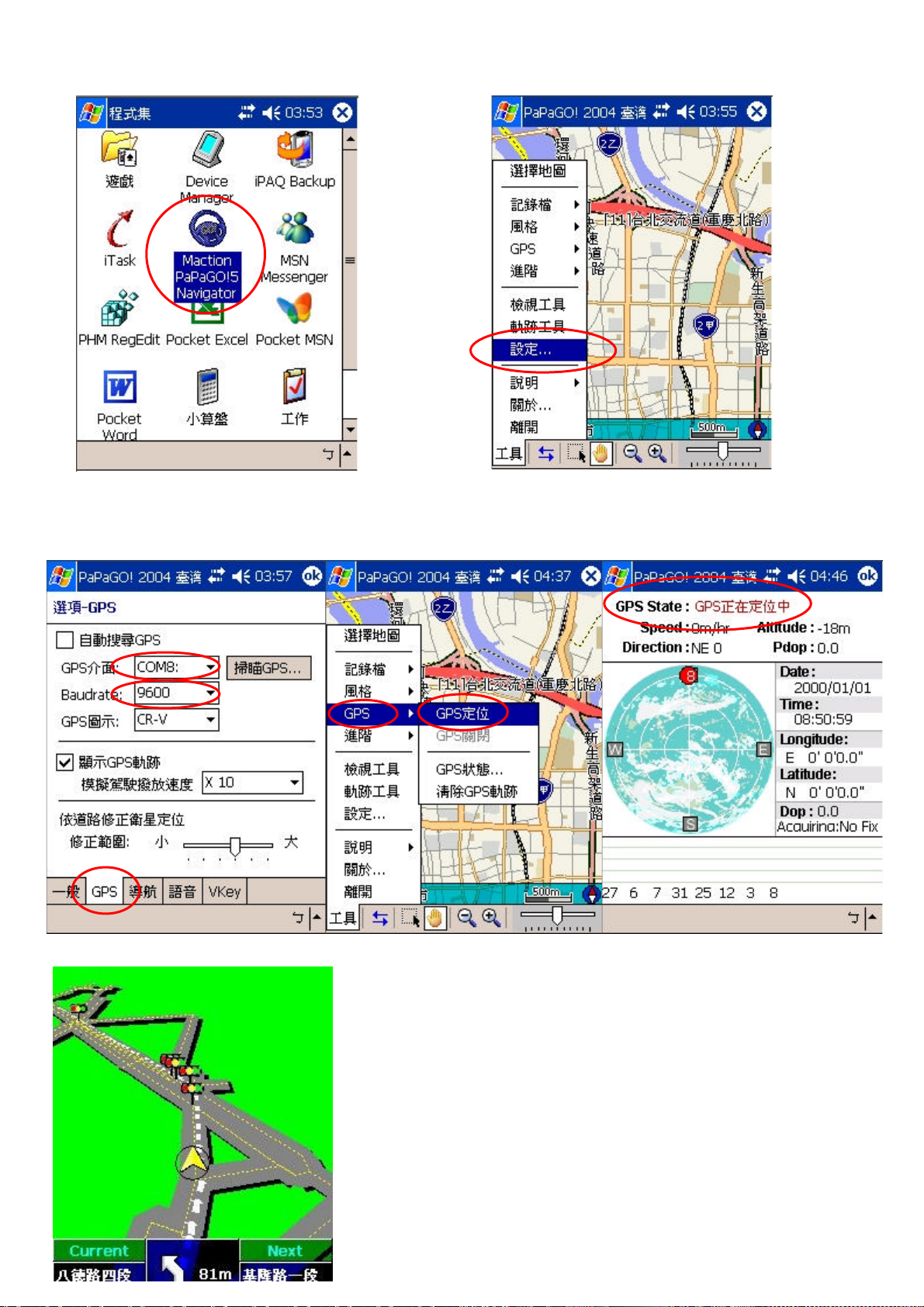
<1.> Find Navigator software in programs , <2.> Tap “t ools” a nd select “setup”.
and tap PaPaGo! 5 Navigator
<Note2> The Navigator of map is Chinese version ,and shows as follow. The English version should be similar with Chinese.
<3.> Tap “GP S” table , as fol lowin g setup. <4.> Return to PaPaGo main screen .
tap “tools” and select “GPS” Ш “ GPS position “
<5.> GPS position fixed ans start navigating.
Page 11
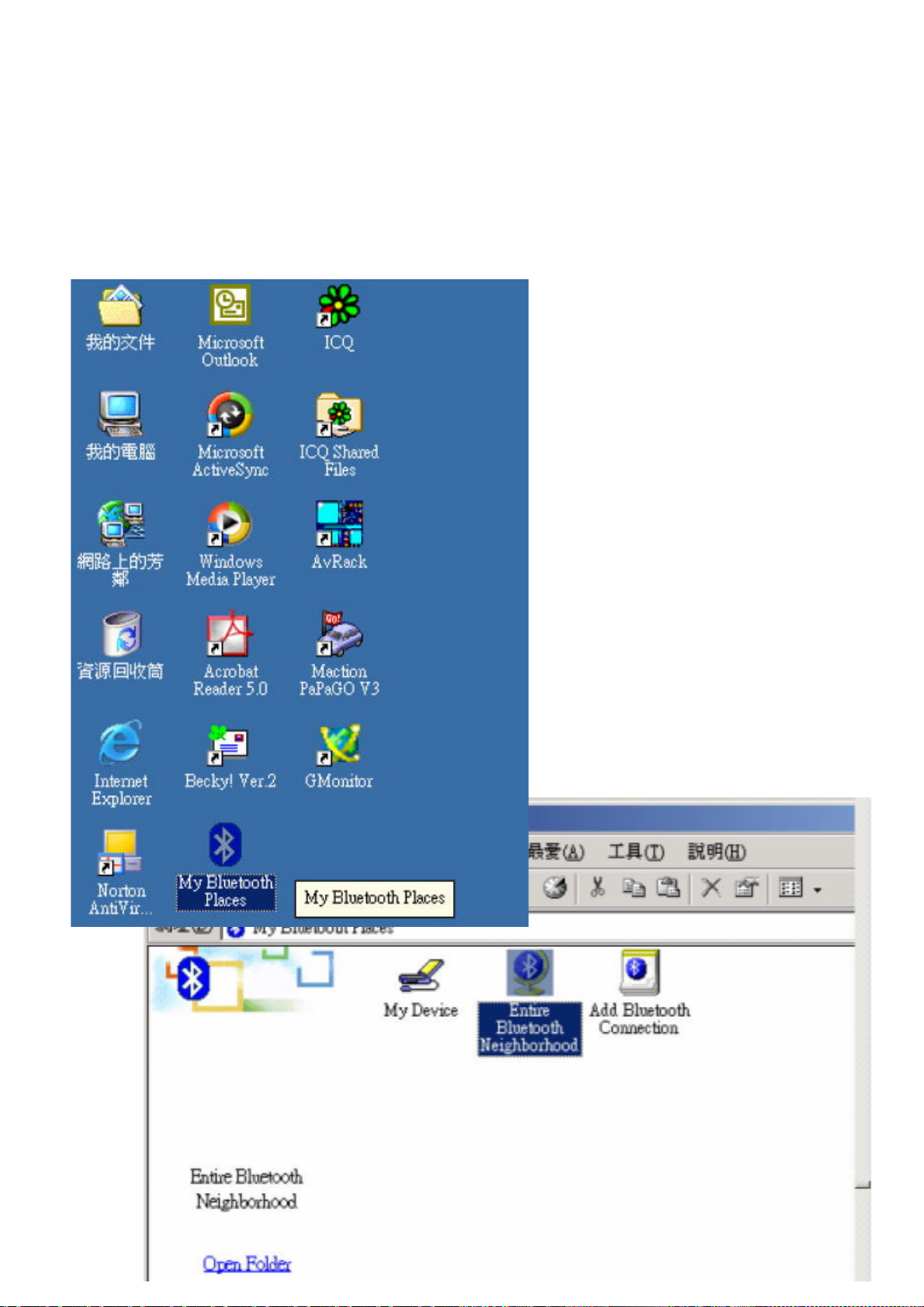
Appendix A Test Reference for Only
PC Bluetooth Setup with Widcomm BTW
<Note>This software does belong to copyright reserved of Widcomm company and you have to
get the authorized software to use it. The follow method is only for reference.
The Bluetooth Serial Port service allows two Bluetooth devices to establish a wireless
connection through virtual communications ports and then use that connection as if it
were a hardwired serial cable between the devices.
To establish a Bluetooth serial port connection:
Connections are initiated from the client:
<1> On the client, in the Folders pane of My Bluetooth Places, select Entire Bluetooth Neighborhood.
Page 12
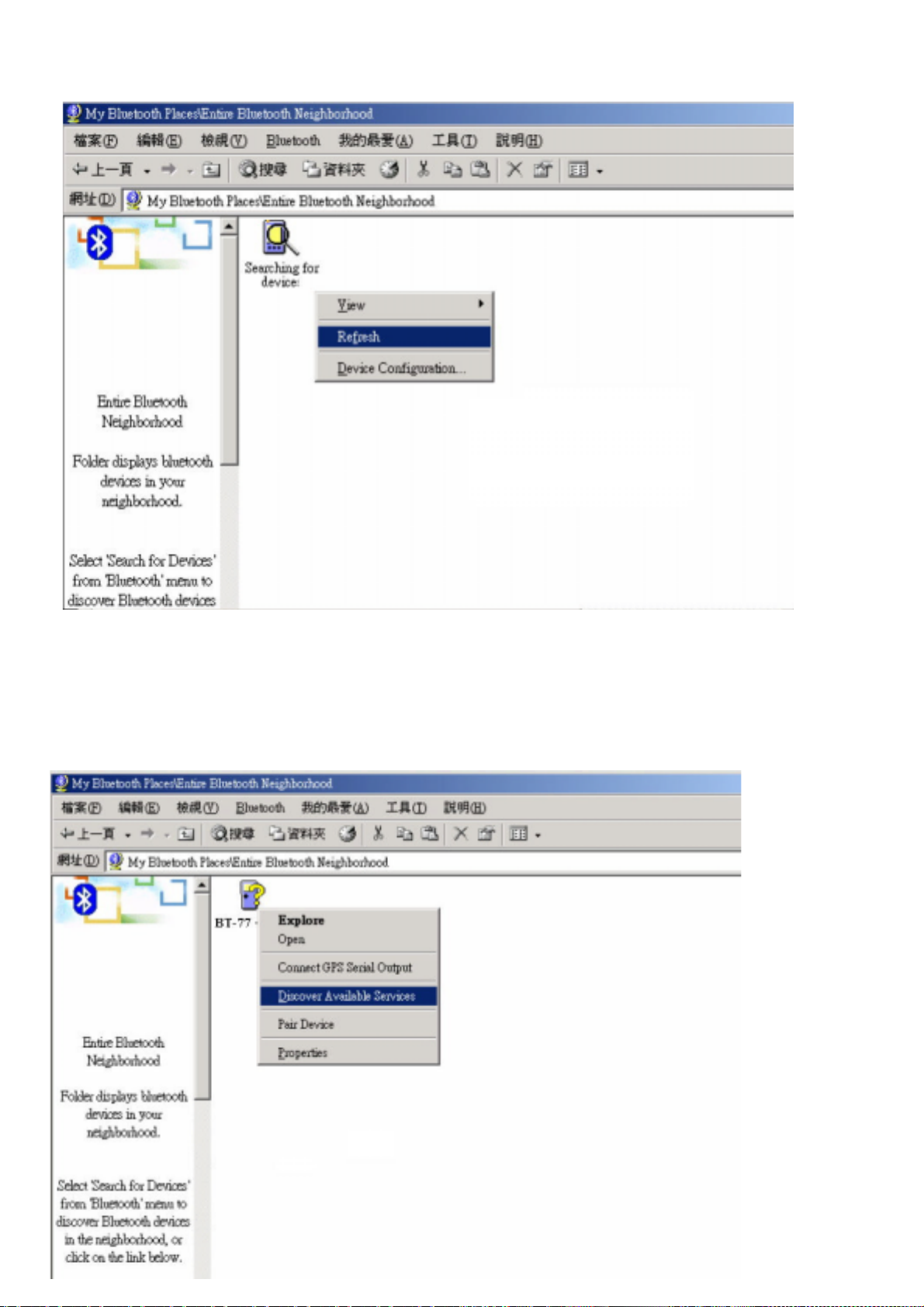
<2> In the right pane of Entire Bluetooth Neighborhood, right-click anywhere excep t on
a device name and select Refresh from the pop-up menu.
<3> In the Folders pane of My Bluetooth Places, right-click the server you want to establish a
connection with and select Discover Available Services from the popup menu to update the available
services list. The available services will be displayed in the right pane of My Bluetooth Places.
Page 13
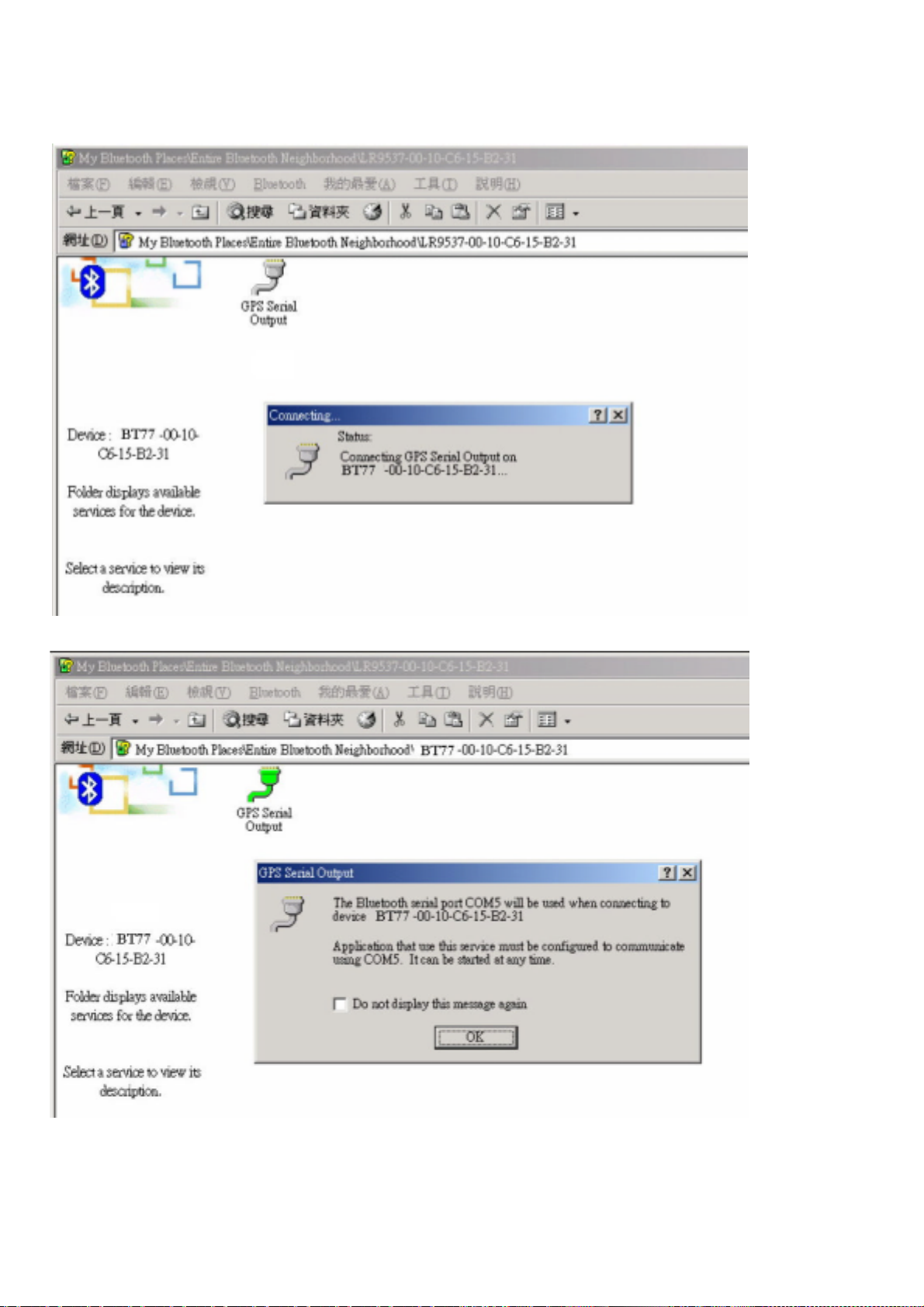
<4> In the right pane of My Bluetooth Places, double-click Bluetooth Serial Port. A dialog box appears
that contains the communications port number assigned to this connection by the client. The
application that will use this connection must be configured to send data to this port.
Page 14
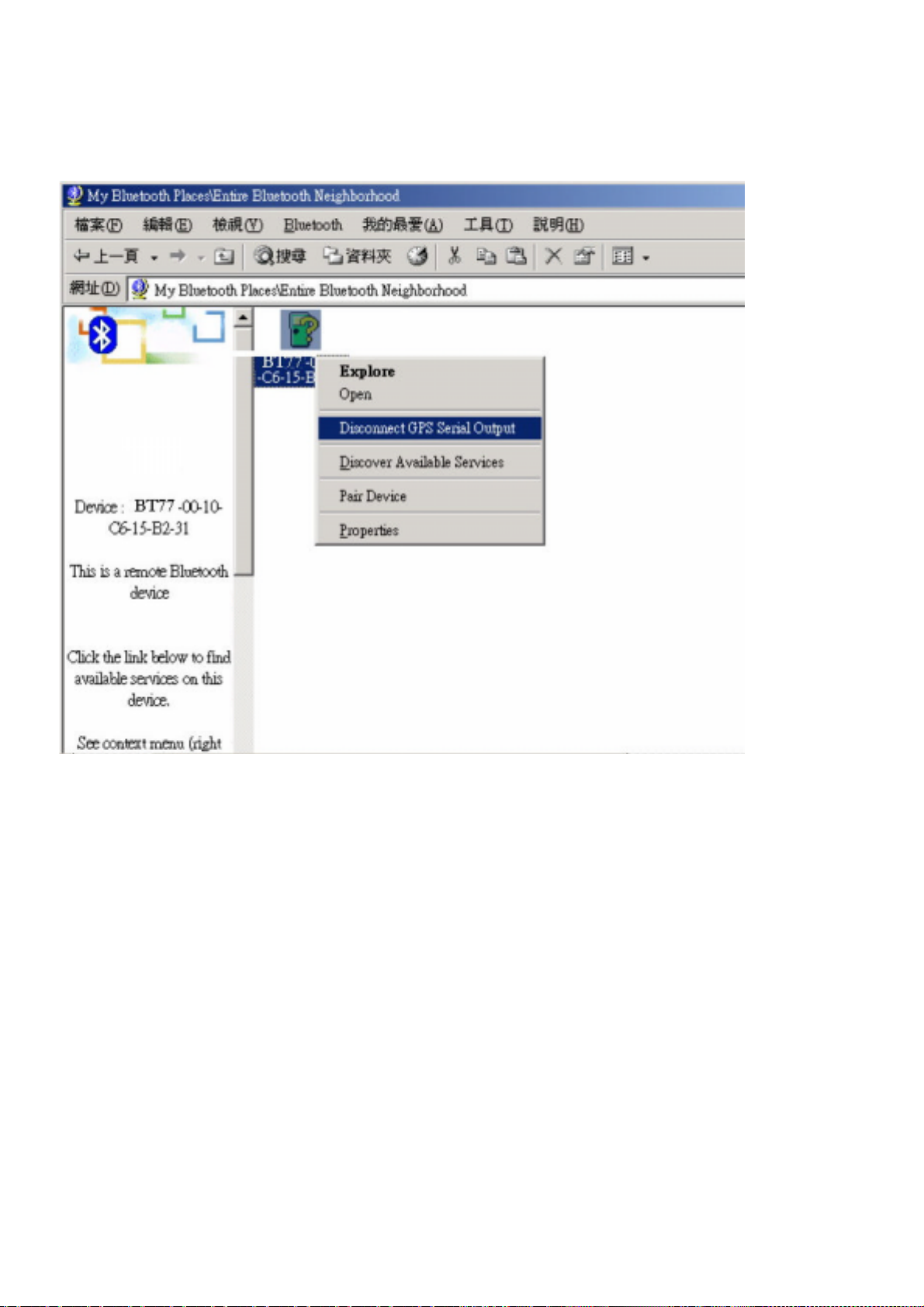
To close a Bluetooth serial port connection , Connections are normally closed from the client:
.. On the client, in the Folders pane of My Bluetooth Places, select (highlight) the device that is
providing the Bluetooth Serial Port service.
.. In the right pane of My Bluetooth Places, right-click Bluetooth Serial Port and then select
Disconnect Bluetooth Serial Port from the pop-up menu.
 Loading...