

Page 1
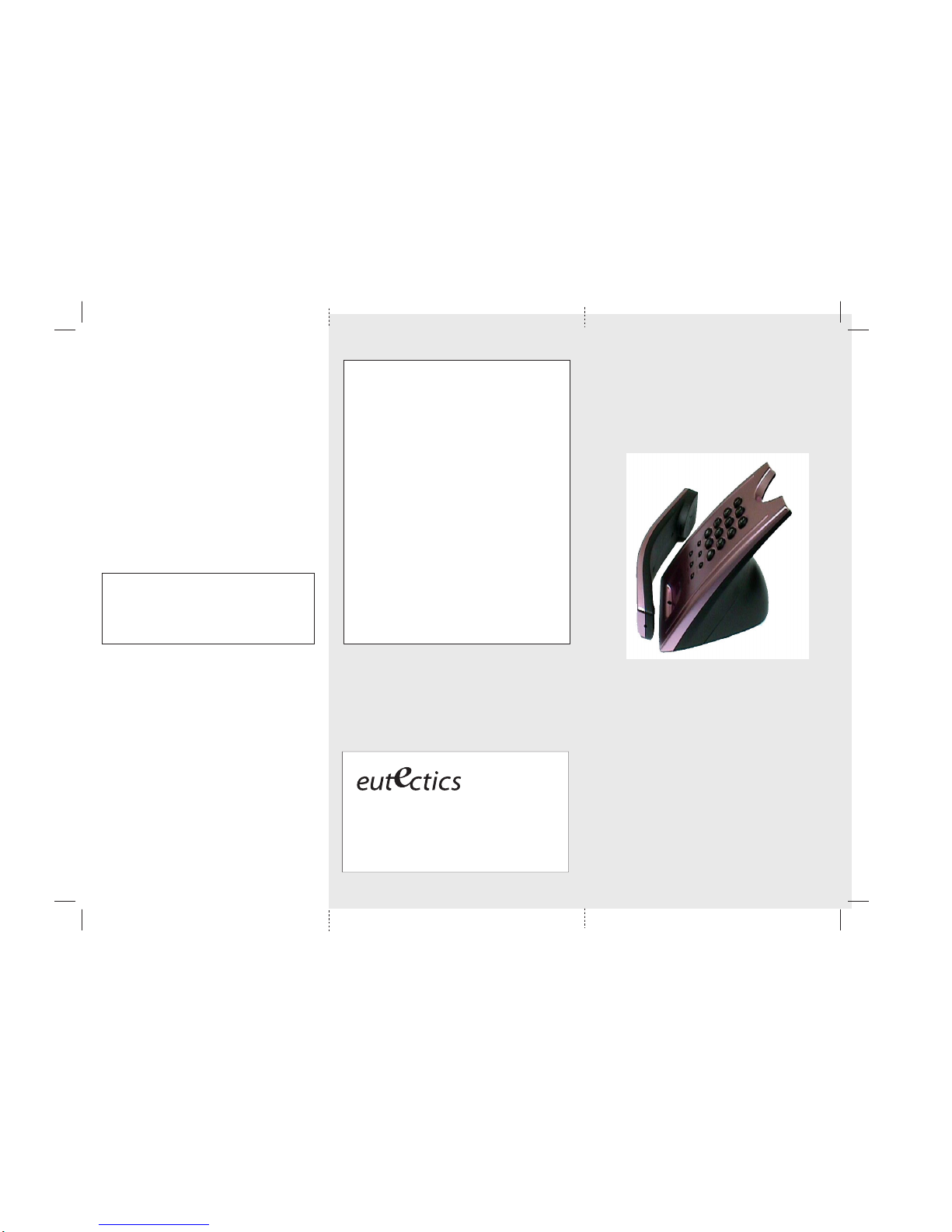
Internet Power Phone
Installation Guide
www.eutecticsinc.com
Office:1973 227 4051
343 Passaic Ave
Fairfield NJ 07461
Limited Warranty
Eutectics provides original consumer purchasers of the
Internet Power Phone™ with a warranty against defects
in material and workmanship for 90 days from the
original date of purchase as recorded on the sales receipt.
This warranty is extended only to original consumer
purchasers. In the event that, during this warranty period,
your new Internet Power Phone should prove to have
material or workmanship defects, Eutectics will, without
charge, repair or, at its discretion, replace your Internet
Power Phone. This warranty does not apply to defects
or malfunctions caused by abuse, accident, modification,
negligence, or any other damage not resulting from
defects in material or workmanship or for reasons beyond
the control of Eutectics.
THIS WARRANTY IS IN LIEU OF AND
EXCLUDES ANY CLAIMS BY THE
CONSUMER FOR CONSEQUENTIAL OR
INCIDENTAL DAMAGES.
Repair of Internet Power Phones must be performed
by Eutectics or by an authorized agent. Defective
Internet Power Phones should be returned to place of
purchase or alternatively, ma y be sent to Eutectics with
proof of purchase, properly packaged, insured and
shipped, freight prepaid, to Eutectics, 343 Passaic Av e,
Fairfield, NJ 07004.
Please include your name, return address, telephone
number, e-mail address, and a description of the
malfunction. Eutectics assumes no responsibility for
Internet Power Phones received damaged due to
improper packing or shipping. No responsibility is
assumed for the repair and/or return of foreign
attachments including adapter plugs, extra length cords,
custom faceplates, headset jacks, etc.
NOTE: This equipment has been tested and
found to comply with the limits for a Class B
digital device, pursuant to Part 15 of the FCC
Rules. These limits are designed to provide
reasonable protection against harmful
interference in a residential installation. This
equipment generates, uses and can radiate
radio frequency energy and, if not installed and
used in accordance with the instructions, may
cause harmful interference to radio
communications. However, there is no guarantee
that interference will not occur in a particular
installation.
If this equipment does cause harmful
interference to radio or television reception,
which can be determined by turning the
equipment off and on, the user is encouraged
to try to correct the interference by one or more
of the following measures:
• Reorient or relocate the receiving antenna.
• Increase the separation between the equipment
and receiver.
• Connect the equipment into an outlet on a
circuit different from that to which the receiver
is connected.
IPP400
Page 2
•
•
Eutectics develops and markets a new generation of
phones, designed for home and office use. The Eutectics
Internet Power Phone™ line of products connect to the
USB port on your PC instead of the standard wall socket
and enable all the powerful benefits of IP Telephony in
a simple, convenient way. The IPP400 integrates
completely with a variety of Internet Tele phon y services
such as offered by ITSP’s, CLEC’ s, SIP Service Pro viders,
Windows Messenger and Yahoo . If you need more
information or would like to evaluate alternative Internet
Power Phone models please visit our website at
www.eutecticsinc.com.
Step1 . V erify Opera ting System Version:
IPP 400 Deskset device requires one of the following
Operating Systems:
Windows 98™ SE (Second Edition) or
Windows ME™ or Windows 2000™ or
Windows XP™
In case you need to verify the
Operating System and version go to the start button
and choose settings\control
panel\system. If you use
•
•
•
•
•
•
•
Windows 98 please make sure it is the Second Edition.
Step 2. Plug In your Internet Po w er Phone:
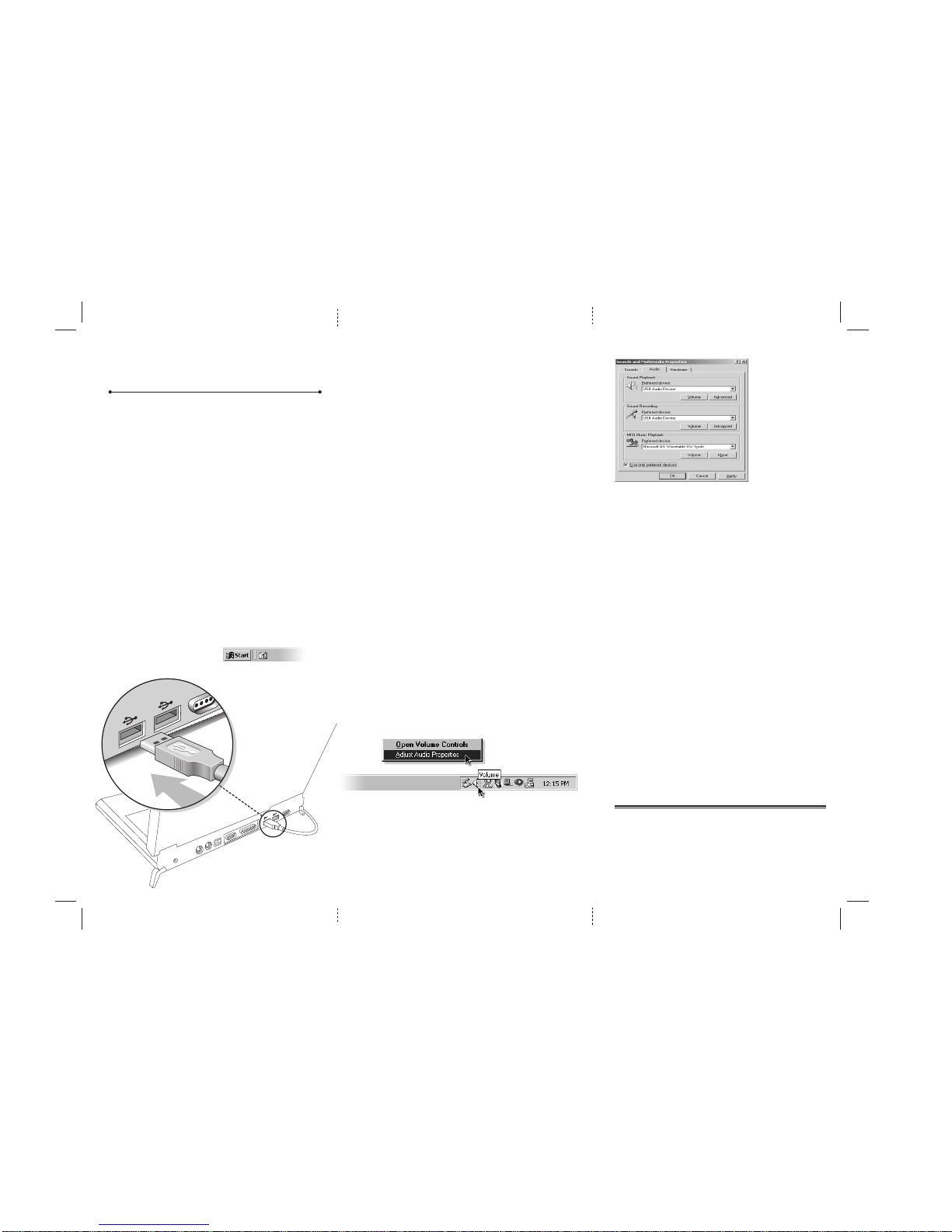
Make sure you have one free USB port (see Figure 1)
Plug your IPP 400 Deskset in an available USB port
Place the Phone set on your desktop in a convenient
location.
Step 3. Installation & setup:
Your PC will now automatically start to install your Internet
Power Phone. In case you use Windows ME, 2000 or XP
all proper device drivers will load automatically.
If you use Windows XP please choose the ‘Continue
Anyway’ option when loading the IPP400 drivers. The
drivers have been fully tested for XP compatibility.
If you use Windows 98 SE, your PC will identify that
it needs three sets of drivers:
Simply click "Next" for each window that opens and
"Finish" in the end.
You may need to insert your original CDROM of
Windows 98 Second Edition or download the IPP400
drivers.
The IPP400 will act as your default sound device. Your
speakers may be set as the sound device for other
applications, while the IPP400 is used for Internet
Telephony applications. Please check with your
application provider for more information.
Step 4. Test the Installation Process:
Move your cursor over the "Volume" icon in the system
tray and click your right mouse button (see figure2).
Choose: "Adjust Audio Properties" (see figure 2).
Select the Audio tab (see figure 3).
Make sure that the "preferred device" drop down
windows for "Sound Playback" and "Sound Recording"
both are set to "USB Audio Device" or "Eutectics
IPP400" for Windows XP.
Make sure that the "Use only preferred devices" option
box on same screen is Checked (see figure 3). The
magnetic hook switch is activated when the phone is
placed on the deskset base.
Features:
3 Memory Dial Keys
Ringer Volume Control (Hi/Lo/Off)
Automatic Last Number REDIAL
ProgramMemory and FLASH keys
Store Number in Memory:
1. Lift Handset - Press the P/M button once.
2. Dial number - Press M1 - M3 to store.
3. Replace Handset
Dial Number in Memory:
1. Lift Handset - Press M1 - M3 to dial stored number.
FLASH:
1. Press the FLASH button to disconnect an active call
and get a new dialtone.
Congratulations!
You have successfully installed your IPP 400
Internet Power Phone.
NOTE: In order utilize the full phone capabilities of your IPP400
USB telephone you need to have an account with an Internet Telephony
service provider such as MCI, Vonage, MSN, Yahoo or an IPPBX such as Cisco Call Manager, 3Com NBX or Nortel or any
other provider of your choice.
Figure 1 - USB
Figure 2 - Volume Icon Dialog
Figure 3 - Adjust Audio Properties Dialog
Internet Power Phone 400™
Installation Guide
 Loading...