

Page 1
Page 2

Page 3
I
Preface
Notice
The company reserves the right to revise this publication or to change its contents without notice. Information contained herein is for reference only and does not constitute a commitment on the part of the manufacturer or any subsequent vendor. They assume no responsibility or liability for any errors or
inaccuracies that may appear in this publication nor are they in anyway responsible for any loss or damage
resulting from the use (or misuse) of this publication.
This publication and any accompanying software may not, in whole or in part, be reproduced, translated,
transmitted or reduced to any machine readable form without prior consent from the vendor, manufacturer
or creators of this publication, except for copies kept by the user for backup purposes.
Brand and product names mentioned in this publication may or may not be copyrights and/or registered
trademarks of their respective companies. They are mentioned for identification purposes only and are not
intended as an endorsement of that product or its manufacturer.
©September 2006
Trademarks
This product incorporates copyright protection technology that is protected by method claims of certain
U.S. patents and other intellectual property rights owned by Macrovision Corporation and other rights
owners. Use of this copyright protection technology must be authorized by Macrovision Corporation, and
is intended for home or other limited viewing uses only unless otherwise authorized by Macrovision Corporation. Reverse engineering or disassembly is prohibited.
Intel® and Pentium® are US registered trademarks of Intel Corporation.
is a trademark of SRS Labs, Inc.
WOW technology is incorporated under license from SRS Labs, Inc.
Page 4

II
Preface
FCC Statement
(Federal Communications Commission)
This equipment has been tested and found to comply with the limits for a Class B digital device, pursuant
to Part 15 of the FCC Rules. These limits are designed to provide reasonable protection against harmful
interference in a residential installation. This equipment generates, uses and can radiate radio frequency
energy and, if not installed and used in accordance with the instructions, may cause harmful interference
to radio communications. However, there is no guarantee that interference will not occur in a particular
installation. If this equipment does cause harmful interference to radio or television reception, which can
be determined by turning the equipment off and on, the user is encouraged to try to correct the interference
by one or more of the following measures:
• Re orient or relocate the receiving antenna.
• Increase the separation between the equipment and receiver.
• Connect the equipment into an outlet on a circuit different from that to which the receiver is connected.
• Consult the service representative or an experienced radio/TV technician for help.
Warning
Use only shielded cables to connect I/O devices to this equipment. You are cautioned that changes or modifications not expressly approved by the manufacturer for compliance with the above standards could void your authority to operate the equipment.
Page 5

III
Preface
IMPORTANT SAFETY INSTRUCTIONS
Follow basic safety precautions, including those listed below, to reduce the risk of fire, electric shock, and
injury to persons when using any electrical equipment:
1. Do not use this product near water, for example near a bath tub, wash bowl, kitchen sink or laundry tub,
in a wet basement or near a swimming pool.
2. Avoid using this equipment with a telephone line (other than a cordless type) during an electrical storm.
There may be a remote risk of electrical shock from lightning.
3. Do not use the telephone to report a gas leak in the vicinity of the leak.
4. Use only the power cord and b atteries indicated in this manual. Do not d ispose of batterie s in a fire. They
may explode. Check with local codes for possible special disposal instructions.
5. This product is intende d to be supplied by a Listed Power Unit (DC Output 20V, 11A minimum).
CAUTION
Always disconnect all telephone lines from the wall outlet before servicing or disassembling this equipment.
TO REDUCE THE RISK OF FIRE, USE ONLY NO. 26 AWG OR LARGER,
TELECOMMUNICATION LINE CORD
This Computer’s Optical Device is a Laser Class I Product
Page 6
IV
Preface
Instructions for Care and Operation
The notebook computer is quite rugged, but it can be damaged. To prevent this, follow these suggestions:
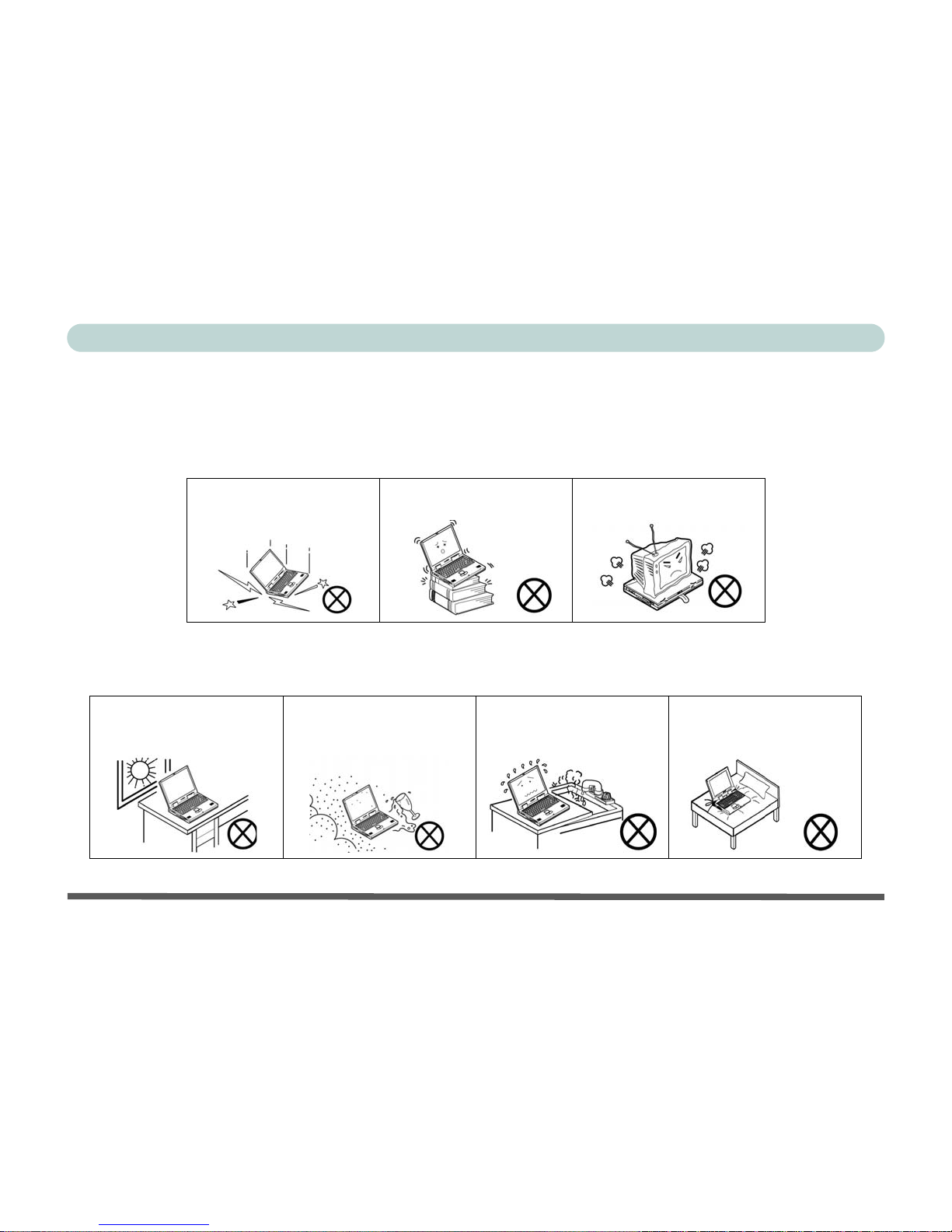
1. Don’t drop it, or expose it to shock. If the computer falls, the case and the components could be damaged.
2. Keep it dry, and don’t overheat it. Keep the com puter and p ower sup ply away from any kind of heating
element. This is an electrical appliance. If water or any other liquid gets into it, the computer could be
badly damaged.
Do not expose the computer
to any shock or vibration.
Do not place it on an unstable
surface.
Do not place anything heavy
on the computer.
Do not expose it to excessive
heat or direct sunlight.
Do not leave it in a place
where foreign matter or moisture may affect the system.
Don’t use or store the computer in a humid environment.
Do not place the computer on
any surface that will block the
vents.
Page 7
V
Preface
3. A void interference. Keep the computer away from high capacity transformers, electric motors, and other
strong magnetic fields. These can hinder proper performance and damage your data.
4. Follow the proper working pro ced ures fo r the compute r. Shut the co mpu ter d own prop erly and don ’t
forget to save your work. Remember to periodically save your data as data may be lost if the battery is
depleted.
5. Take care when using peripheral devices.
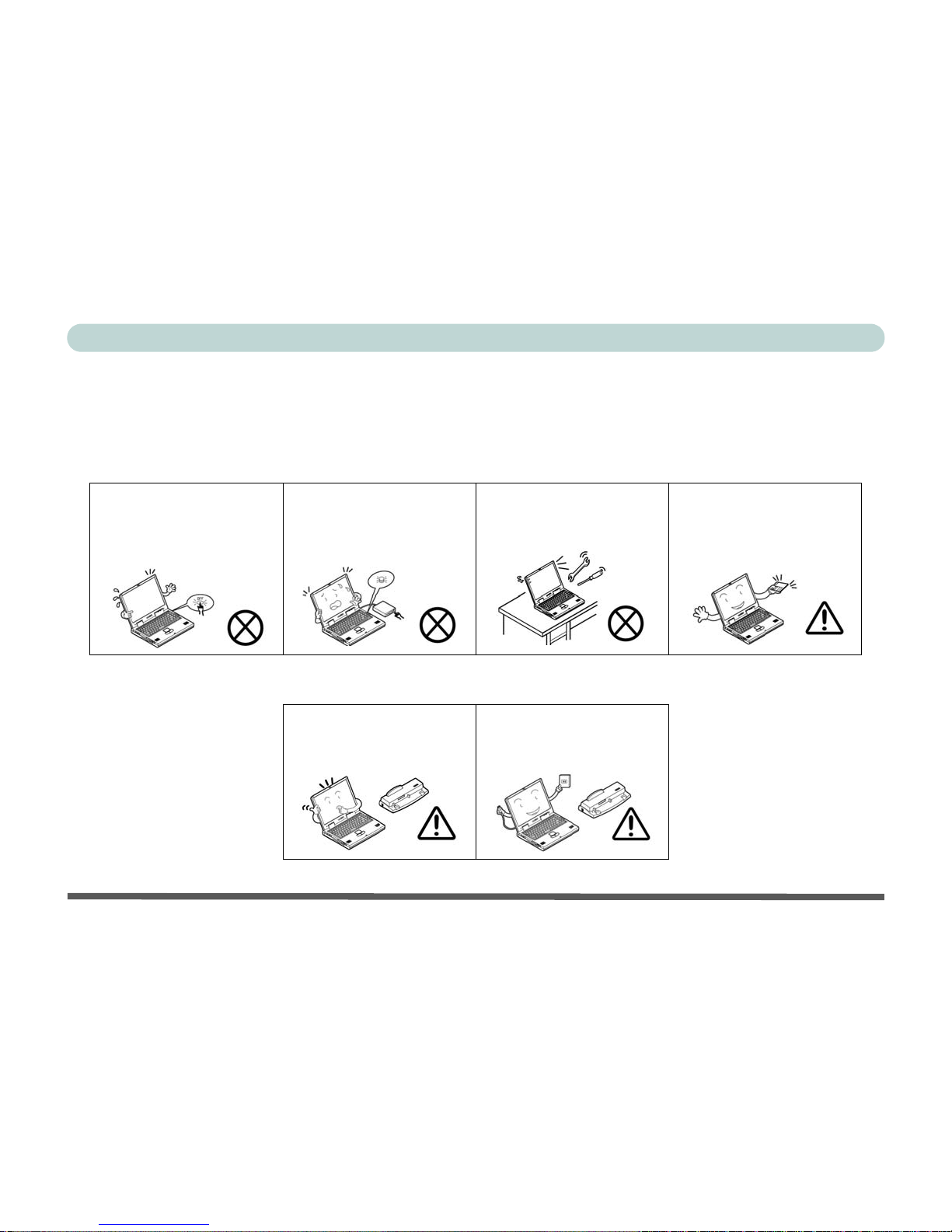
Do not turn off the power
until you properly shut down
all programs.
Do not turn off any peripheral
devices when the computer is
on.
Do not disassemble the computer by yourself.
Perform routine maintenance
on your computer.
Use only approved brands of
peripherals.
Unplug the power cord befor e
attaching peripheral devices.
Page 8
VI
Preface
Power Safety
The computer has specific power requirements:
• Only use a power adapter approved for use with this computer.
• Your AC adapter may be designed for international travel but it still requires a
steady, uninterrupted power supply. If you are unsure of your local power specifications, consult your service representative or local power company.
• The power adapter may have either a 2-prong or a 3-prong grounded plug. The
third prong is an important safety feature; do not defeat its purpose. If you do not
have access to a compatible outlet, have a qualified electrician install one.
• When you want to unplug the power c ord, be sure to disconnect it by the plug head,
not by its wire.
• Make sure the socket and any extension cord(s) you use can support the total current load of all the connected devices.
• Before cleaning the computer, make sure it is disconnected from any external
power supplies (i.e. AC adapter or car adapter).
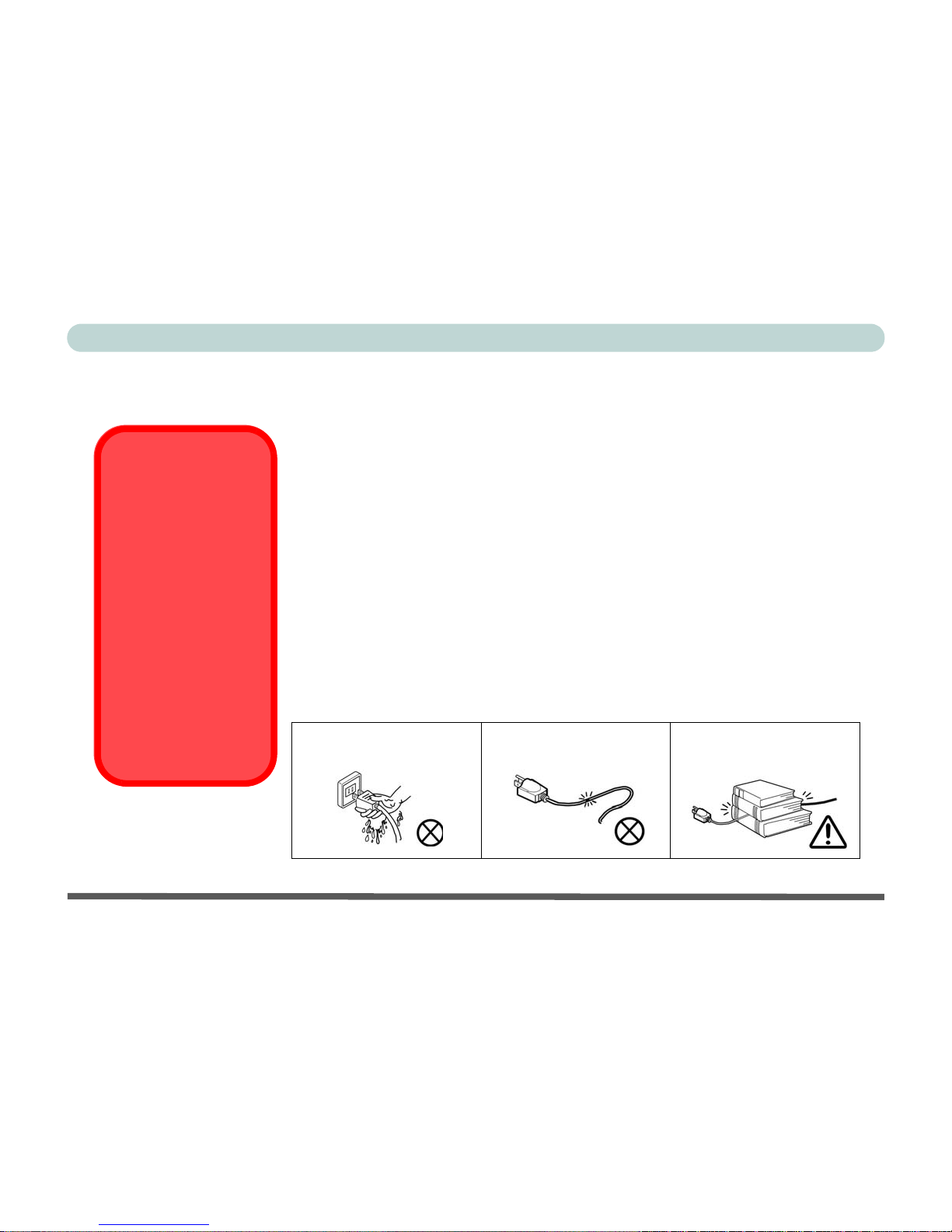
Do not plug in the power
cord if you are wet.
Do not use the power cord if
it is broken.
Do not place heavy objects
on the power cord.
Power Safety
Warning
Before you undertake
any upgrade procedures, make sure that
you have turned off the
power, and disconnected all peripherals
and cables (including
telephone lines). It is
advisable to also remove your battery in
order to prevent accidentally turning the
machine on.
Page 9

VII
Preface
Battery Precautions
• Only use batteries designed for this computer. The wrong battery type may explode, leak or damage the computer.
• Do not continue to use a battery that has been dropped, or that appears damaged (e.g. bent or twisted) in any
way. Even if the computer continues to work with a damaged battery in place, it may cause circuit damage,
which may possibly result in fire.
• Recharge the batteries using the notebook’s system. Incorrect recharging may make the battery explode.
• Do not try to repair a battery pack. Refer any battery pack repair or replacement to your service representative
or qualified service personnel.
• Keep children away from, and promptly dispose of a damaged battery. Always dispose of batteries carefully.
Batteries may explode or leak if exposed to fire, or improperly handled or discarded.
• Keep the battery away from metal appliances.
• Affix tape to the battery contacts before disposing of the batt ery.
• Do not touch the battery contacts with your hands or metal objects.
Battery Disposal & Caution
The product that you have purchased contains a rechargeable battery. The battery is recyclable. At the end of its
useful life, under various state and local laws, it may be illegal to disp ose of thi s battery into the municip al w aste
stream. Check with your local solid waste officials for details in your area for recycling options or proper disposal.
Danger of explosion if battery is incorrectly replaced. Replace only with the same or equivalent type recommended
by the manufacturer. Discard used battery according to the manufacturer’s instructions .
Page 10

VIII
Preface
Cleaning
Do not apply cleaner directly to the computer; use a soft clean cloth.
Do not use volatile (petroleum distillates) or abrasive cleaners on any part of the computer.
Servicing
Do not attempt to service the computer yourself. Doing so may violate your warranty and expose you and
the computer to electric shock. Refer all servicing to authorized service personnel. Unplug the computer
from the power supply. Then refer servicing to qualified service personnel under any of the following conditions:
• When the power cord or AC/DC adapter is damaged or frayed.
• If the computer has been exposed to rain or other liquids.
• If the computer does not work normally when you follow the operating instructions.
• If the computer has been dropped or damaged (do not touch the poisonous liquid if the LCD pan el breaks).
• If there is an unusual odor, heat or smoke coming from your computer.
Removal Warning
When removing any cover(s) and screw(s) for the purposes of device upgrade, remember to replace the cover(s)
and screw(s) before turning the computer on.
Page 11

IX
Preface
Travel Considerations
Packing
As you get ready for your trip, run through this list to make sure the system is ready to go:
1. Check that the battery pack and any spares are fully charged.
2. Power off the computer and peripherals.
3. Close the display panel and make sure it’s latched.
4. Disconnect the AC adapter and cables. Stow them in the carrying bag.
5. The AC adapter uses voltages from 100 to 240 volts so you won’t need a second voltage adapter. How-
ever, check with your tra vel agent to see if you need any socket adapters.
6. Put the notebook in its carrying bag and secure it with the bag’s straps.
7. If you’re taking any peripherals (e.g. a printer , mouse or digital camera), pack them and those devices’
adapters and/or cables.
8. Anticipate customs - Some jurisdictions may have import restrictions or require proof of ownership for
both hardware and software. Make sure your “papers” are handy.
Power Off Before Traveling
Make sure that your notebook is completely powered off before putting it into a travel bag (or any such container).
Putting a notebook which is powered on in a travel bag may cause the vents/fan intakes to be blocked. To prevent your computer from overheating make sure nothing blocks the vent/fan intake while the computer is in use.
Page 12

X
Preface
On the Road
In addition to the general safety and maintenance suggestions in this preface, and Chapter 8: Troubleshooting, keep these points in mind:
Hand-carry the notebook - For security, don’t let it out of your sight. In some areas, computer theft is
very common. Don’t check it with “normal” luggage. Baggage handlers may not be sufficiently careful.
Avoid knocking the computer against hard objects.
Beware of Electromagnetic fields - Devices such as metal detectors & X-ray machines can damage the
computer, hard disk, floppy disks, and other media. They may also destroy any stored data - Pass your
computer and disks around the devices. Ask security officials to hand-inspect them (you may be asked to
turn it on). Note: Some airports also scan luggage with these devices.
Fly safely - Most airlines have regulations about the use of computers and other electronic devices in
flight. These restrictions are for your safety, follow them. If you stow the notebook in an overhead compartment, make sure it’s secure. Contents may shift and/or fall out when the compartment is opened.
Get power where you can - If an electrical outlet is available, use the AC adapter and keep your battery(ies) charged.
Keep it dry - If you move quickly from a cold to a warm location, water vapor can condense inside the
computer. Wait a few minutes before turning it on so that any moisture can evaporate.
Page 13
XI
Preface
Developing Good Work Habits
Developing good work habits is important if you need to work in front of the computer for long periods
of time. Improper work habits can result in discomfort or serious injury from repetitive strain to your
hands, wrists or other joints. The following are some tips to reduce the strain:
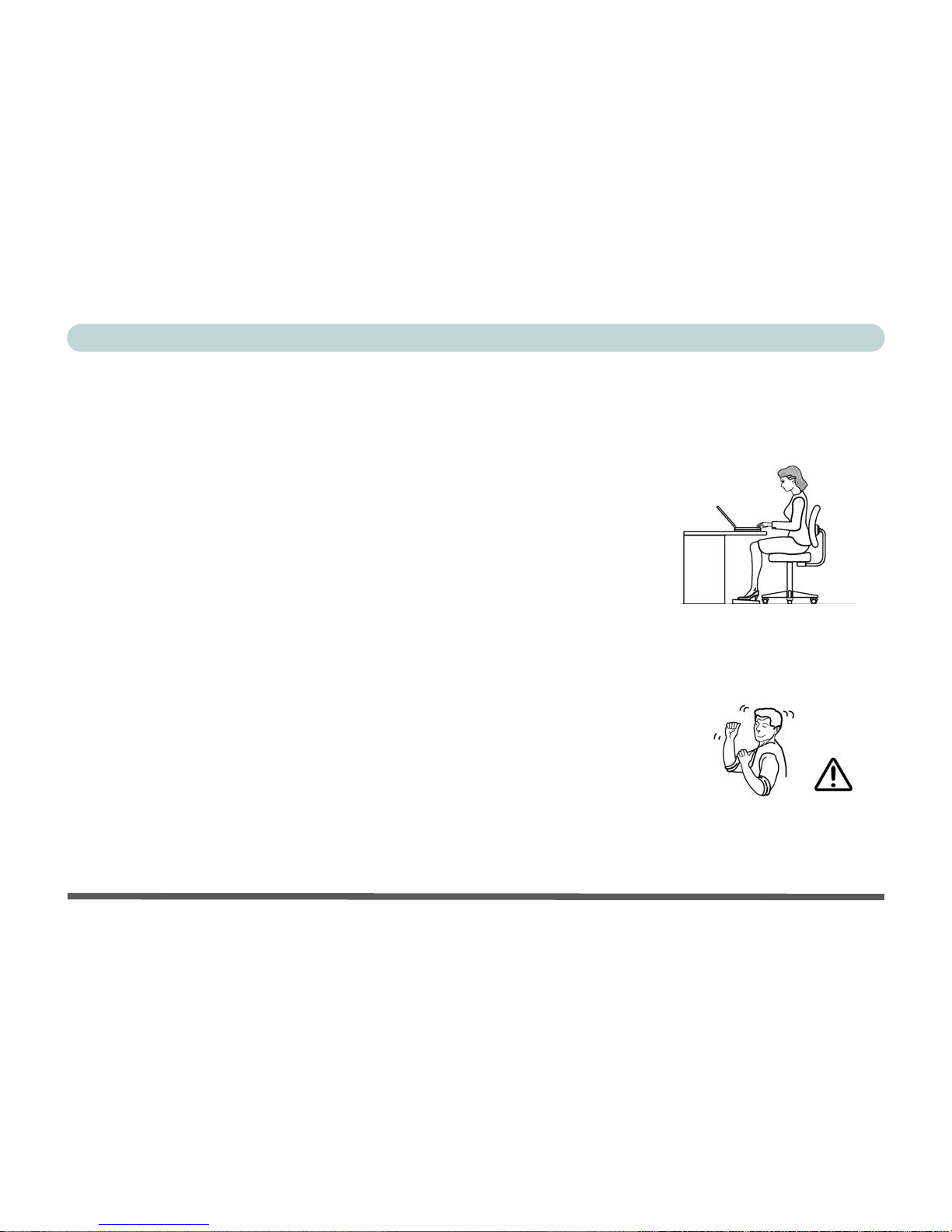
• Adjust the height of the chair and/or desk so that the keyboard is at or slightly
below the level of your elbow. Keep your forearms, wrists, and hands in a relaxed
position.
• Your knees should be slightly higher than your hips. Place your feet flat on the
floor or on a footrest if necessary.
• Use a chair with a back and adjust it to support your lower back comfortably.
• Sit straight so that your knees, hips and elbows form approximat ely 90-degree
angles when you are working.
• Take periodic breaks if you are using the computer for long periods of time.
Remember to:
• Alter your posture frequently.
• Stretch and exercise your body several times a day.
• Take periodic breaks when you work at the computer for long periods of time. Frequent and short breaks are better than fewer and longer breaks.
Page 14

XII
Preface
Lighting
Proper lighting and comfortable display viewing angle can reduce eye strain and muscle fatigue in your
neck and shoulders.
• Position the display to avoid glare or reflections from overhead lighting or outside sources of light.
• Keep the display screen clean and set the brightness and contrast to levels that allow you to see the screen
clearly.
• Position the display directly in front of you at a comfortable viewing distance.
• Adjust the display-viewing angle to find the best position.
Page 15

XIII
Preface
Contents
Notice ...........................................................................I
FCC Statement ...................................................II
Instructions for Care and Operation .................IV
Power Safety .....................................................VI
Battery Precautions ..........................................VII
Cleaning ........................................................ VIII
Servicing ........................................................ VIII
Travel Considerations .......................................IX
Quick Start Guide
Overview ..................................................................1-1
Advanced Users .....................................................1-2
Beginners and Not-So-Advanced Users .................1-2
Warning Boxes .......................................................1-2
Not Included ...........................................................1-2
System Software .....................................................1-3
System Startup .......................................................1-4
System Map: Top View with LCD Panel Open .......1-5
LED Indicators .......................................................1-6
AP-Key Buttons .....................................................1-7
Function Keys & Numeric Keypad ........................1-7
System Map: Front & Rear Views ........................... 1-9
System Map: Left View .........................................1-10
System Map: Right View ....................................... 1-11
System Map: Bottom View ....................................1-12
Windows XP Start Menu & Control Panel ............ 1-13
Video Features ....................................................... 1-14
Video Driver Controls ........................................1-14
Display Devices & Options .................................1-16
Power Management Features ................................. 1-17
Storage Devices, Mouse, Audio &
Printer
Overview ..................................................................2-1
Hard Disk Drive ....................................................... 2-2
Optical Device ......................................................... 2-3
Loading Discs ........................................................ 2-3
Handling CDs or DVDs ......................................... 2-4
DVD Regional Codes ............................................ 2-5
10-in-1 Card Reader ................................................. 2-6
PC Card Slot ............................................................ 2-7
Inserting and Removing PC Cards ........................ 2-7
TouchPad and Buttons/Mouse ................................. 2-8
Configuring the Infrared Settings for FIR ............... 2-9
Audio Features .......................................................2-10
8 Channel Sound Support ................................... 2-11
Page 16

XIV
Preface
Audio "DJ" CD Player ...........................................2-12
Adding a Printer .....................................................2-14
USB Printer ..........................................................2-14
Install Instructions: .............................................. 2-14
Parallel Printer ......................................................2-14
Power Management
Overview ..................................................................3-1
Advanced Configuration and Power Interface .......3-1
The Power Sources ......................................... ..........3-2
AC Adapter ............................................................3-2
Battery .................................................................... 3-2
Turning on the Computer .........................................3-3
Power Schemes .................................................. ......3-4
System Power Options .............................................3-6
Hibernate Mode vs. Shutdown ...............................3-6
Standby Mode vs. Hibernate Mode ........................3-6
Standby ..................................................................3-7
Hibernate ............................................................... 3-7
Configuring the Power Button .................................3-8
Battery Information ..................................................3-9
New Battery ..........................................................3-9
Battery Life ...........................................................3-9
Recharging the Battery with the AC Adapter ......3-10
Proper handling of the Battery Pack ...................3-11
Battery FAQ ........................................................3-12
Drivers & Utilities
System Software Installation ................................... 4-1
ATA Mode Configuration ....................................... 4-2
ATA Mode Setup ............................................. .... ..4-3
RAID Mode Configuration ...................................... 4-6
RAID Mode Setup ................................................. 4-7
What to Install ........................................................4-15
Module Driver Installation .................................. 4-15
Service Packs .......................................................4-17
Authorized Driver Message .................................4-18
Version Conflict Message ...................................4-18
Updating/Reinstalling Individual Drivers ........... 4-18
Driver Installation .................................................. 4-19
Manual Driver Installation ................................. 4-20
Windows XP .......................................................... 4-21
New Hardware Found .......................................... 4-21
Chipset (WinXP) ................................................ 4-21
Audio (WinXP) ..................................................4-22
Modem (WinXP) ................................................ 4-22
LAN (WinXP) .................................................... 4-23
Video (WinXP) ................................................... 4-23
AP-Key Buttons (WinXP) .................................. 4-23
TouchPad (WinXP) ............................................ 4-23
Page 17

XV
Preface
Module Drivers ....................................................4-24
Wireless LAN (WinXP) ......................................4-24
WLAN & Bluetooth Combo (WinXP) ...............4-24
TV Tuner (WinXP) .............................................4-24
PC Camera (WinXP) ...........................................4-24
BIOS Utilities
Overview ..................................................................5-1
The Power-On Self Test (POST) .............................5-2
Failing the POST ....................................................5-3
Fatal Errors ............................................................5-3
Non-Fatal Errors ...................................................5-3
The Setup Program ...................................................5-4
Entering Setup ........................................................5-4
Setup Screens ................................................... .... ..5-5
Main Menu ...............................................................5-6
System Time & Date (Main Menu) ..........................5-6
IDE 0/1 Optical Device (Main Menu) ......................5-7
Installed memory (Main Menu) ...............................5-7
Advanced Menu .......................................................5-8
System Information (Advanced Menu) ....................5-8
I/O Device Configuration (Advanced Menu) ...........5-9
Reset Configuration Data (Advanced Menu) ...........5-9
Hyper-Threading Technology (Advanced Menu) ....5-9
Power On Beep (Advanced Menu) ........................5-10
Card Reader: (Advanced Menu) ............................ 5-10
RAID/ATA Mode Select: (Advanced Menu) ........ 5-10
Display Time on LED (Advanced Menu) .............. 5-10
Security Menu ........................................................ 5-11
Set Supervisor Password (Security Menu) ............ 5-11
Password on boot: (Security Menu) .......................5-12
Boot Menu .............................................................5-13
Exit Menu .............................................................. 5-15
Upgrading The Computer
Overview ..................................................................6-1
When Not to Upgrade ............................................6-2
Removing the Battery .............................................. 6-3
Upgrading the Hard Disk Drive(s) ...........................6-4
Upgrading the System Memory (RAM) .................. 6-7
Upgrading the Optical (CD/DVD) Device(s) .......... 6-9
Upgrading the Processor ........................................ 6-10
Modules
Overview ..................................................................7-1
The Wireless LAN & Bluetooth Modules ............... 7-2
Mini-PCI Wireless LAN Module ............................ 7-3
IPN2220 (802.11g) Wireless LAN
Driver Installation ................................................. 7-4
MP54G3 (802.11g) WLAN Module
Page 18

XVI
Preface
Driver Installation .................................................7-5
Bluetooth/WLAN Combo Module ...........................7-6
Combo Module Bluetooth Driver Installation ......7-7
Combo Module WLAN Driver Installation ..........7-8
TV Tuner Module Options ....................................... 7-9
AverMedia M102 Mini-PCI TV Tuner Module ..7-10
Installing the AverTV Utility Software ..............7-10
Installing the InterVideo WinDVD 4 Software ..7-10
YUAN PVR Mini-PCI MPC622-MCE TV Tuner
Module .................................................................7-11
Installing the MPC622 Driver for
Windows XP Media Center Edition (MCE) .......7-11
PC Camera ..............................................................7-12
PC Camera Driver Installation ............................7-12
PC Camera Audio Setup ......................................7-13
BisonCap .............................................................. 7-15
Troubleshooting
Overview ..................................................................8-1
Basic Hints and Tips ................................................8-2
Backup and General Maintenance ............................8-3
Viruses ...................................................................... 8-4
Upgrading and Adding New Hardware/Software ....8-5
Power ........................................................................8-7
Display .....................................................................8-9
Boot Password ....................................................... 8-10
Audio & CD Device ..............................................8-11
Keyboard ................................................................ 8-12
Operation ............................................................... 8-13
Modules ................................................................. 8-14
Interface (Ports & Jacks)
Overview ......................................................A-1
Ports and Jacks .............................................A-2
Built-In Microphone ...............................................A-2
DC-In Jack ..............................................................A-2
Serial Port ...............................................................A-2
Parallel Port .............................................................A-2
DVI-Out Port ..........................................................A-2
PS/2 Port .................................................................A-3
RJ-11 Phone Jack ....................................................A-3
RJ-45 LAN Jack ......................................................A-3
CATV-In Jack .........................................................A-3
S-Video-In Jack ......................................................A-3
S-Video-Out Jack ....................................................A-3
USB 2.0/1.1 Ports ...................................................A-4
Mini-IEEE 1394a Ports ...........................................A-4
Line-In Jack ............................................................A-4
S/PDIF-Out Jack .....................................................A-4
Microphone-In Jack ................................................A-5
Page 19

XVII
Preface
Headphone-Out Jack ...............................................A-5
Security Lock Slot ...................................................A-5
NVIDIA Video Driver Controls
NVIDIA Video Driver Installation .........................B-1
NVIDIA Display Properties ....................................B-2
Additional Properties ........................................... B-3
NVIDIA nView Desktop Manager ......................B-5
Display Devices .......................................................B-6
Attaching Other Displays ........................................ B-7
Display Modes .........................................................B-9
Enabling TV Display .............................................B-10
ATI Video Driver Controls
ATI Video Driver Installation ................................. C-1
ATI Mobility Radeon Properties ............................. C-2
Display Devices .......................................................C-4
Attaching Other Displays ........................................ C-5
Display Modes .........................................................C-6
Enabling TV Display .............................................C-11
Specifications
Processor Types .......................................................D-1
Core Logic ...............................................................D-2
Security ................................................................... D-2
Memory ................................................................... D-2
BIOS ....................................................................... D-2
LCD ........................................................................ D-2
Video Card Options ................................................ D-3
Storage Options ....................................................... D-4
Audio ...................................................................... D-4
Keyboard & Pointing Device .................................. D-4
PCMCIA ................................................................. D-4
I/O Ports .................................................................. D-5
Communication ....................................................... D-5
Card Reader ............................................................ D-5
Power Management ................................................ D-6
Power ...................................................................... D-6
Environmental Spec ................................................ D-6
Physical Dimensions & Weight .............................. D-6
Optional .................................................................. D-7
Page 20

XVIII
Preface
Page 21

Overview 1 - 1
Quick Start Guide
1
Chapter 1: Quick Start Guide
Overview
This Quick Start Guide is a brief introduction to the basic features of your computer, to navigating around the
computer and to getting your system started. The remainder of the manual covers the following:
• Chapter 2 The Storage Devices (hard disk, optical device, 10-in-1 Card Reader, PC Card), Mouse, Audio
& Printer.
• Chapter 3 The computer’s power saving options.
• Chapter 4 The installation of the drivers and utilities essential to the operation or improvement of some of the
computer’s subsystems (including information on setting up ATA or RAID modes).
• Chapter 5 An outline of the computer’s built-in software, or BIOS (Basic Input Output System).
• Chapter 6 Instructions for upgrading your computer.
• Chapter 7 A quick guide to the computer’s TV Tuner, wireless, Bluetooth, camera modules (some of which
may be optional depending on your purchase configuration).
• Chapter 8 A troubleshooting guide.
• Appendix A A definition of the interface, ports/jacks which allow your computer communicate with external
devices.
• Appendix B Information on the NVIDIA Video driver controls.
• Appendix C Information on the ATI Video driver controls.
• Appendix D The computer’s specification.
Page 22
1 - 2 Overview
Quick Start Guide
1
Advanced Users
If you are an advanced user you may skip over most of this Quick Start Guide. However you may find it useful
to refer to “Drivers & Utilities” on page 4 - 1, “BIOS Utilities” on page 5 - 1 and “Upgrading The Computer”
on page 6 - 1 in the User’s Manual. You may also find the notes marked with a
of interest to you.
Beginners and Not-So-Advanced Users
If you are new to computers (or do not have an advanced knowledge of them) then
the information contained in this Quick Start Guide should be enough to get you up
and running. Eventually you should try to look through all the documentation (more
detailed descriptions of the functions, setup and system controls are covered in the
remainder of the User’s Manual), but do not worry if you do not understand everything the first time. Keep this manual nearby and refer to it to learn as you go. You
may find it useful to refer to the notes marked with a
as indicated in the margin.
For a more detailed description of any of the interface ports and jacks see “Interface
(Ports & Jacks)” on page A - 1.
Warning Boxes
No matter what your level please pay careful attention to the warning and safety information indicated by the
symbol. Also please note the safety and handling instructions as indicated in the Preface.
Not Included
Operating Systems (e.g. Windows XP etc.) and applications (e.g. word processing, spreadsheet and database pro-
grams) have their own manuals, so please consult the appropriate manuals.
Notes
Check the light colored
boxes with the mark
above to find detailed
information about the
computer’s features.
Page 23
Overview 1 - 3
Quick Start Guide
1
System Software
Your computer may already come with system software pre-installed. Where this is not the case, or where you
are re-configuring your computer for a different system, you will find this manual refers to the following operating systems:
• Microsoft Windows XP Home & Professional Editions
• Microsoft Windows XP Media Center Edition 2005
Drivers
If you are installing new system software, or are re-configuring your computer for a different system, you will need to install
the appropriate drivers. Drivers are programs which act as an interface between the computer and a hardware component
e.g. a wireless network module. It is very important that you install the drivers in the order listed in Table 4 - 2, on page 4
- 20. You will be unable to use most advanced controls until the necessary drivers and utilities are properly installed. If your
system hasn’t been properly configured (your service representative may have already done that for you), refer to “What
to Install” on page 4 - 15 for installation instructions.
Operating System Software Installation
You will need an external USB floppy drive attached when installing a Windows XP OS. Enable either RAID or ATA mode in
the BIOS (“RAID/ATA Mode Select: (Advanced Menu)” on page 5 - 10), then setup the system according to the instructions
in “System Software Installation” on page 4 - 1.
Page 24
1 - 4 Overview
Quick Start Guide
1
System Startup
1. Remove all packing materials.
2. Place the computer on a stable surface.
3. Securely attach any peripherals you want to use with the
notebook (e.g. keyboard and mouse) to their ports.
4. Attach the AC adapter to the DC-In jack at the rear of the
computer, then plug the AC power cord into an outlet, and connect
the AC power cord to the AC adapter.
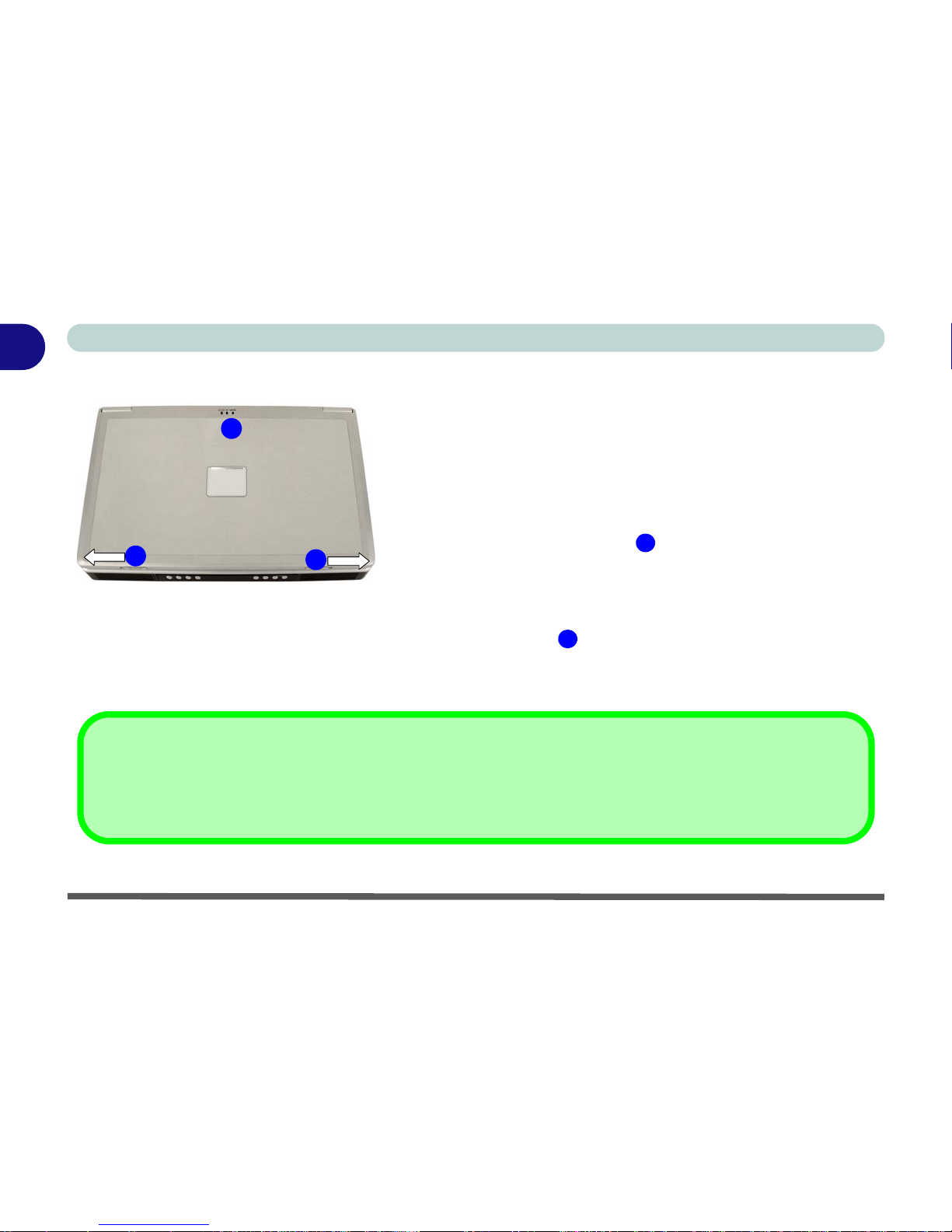
5. Move and hold the LCD latches in the direction of the arrows to
release the top cover .
6. Raise the lid/LCD to a comfortable viewing angle, and press the
power button to turn the computer “on”.
7. Adjust the LCD panel to a comfortable viewing angle.
8. The LED indicators show the power and battery status of the
computer.
Figure 1 - 1 - Top Panel with LCD Closed
1
2
Shutdown
Please note that you should always shut your computer down by choosing the Shut Down/Turn Off Computer command
from the Start menu in Windows. This will help prevent hard disk or system problems.
1. LCD Latches
2. LED Power & Communication
Indicators
1
1
2
Page 25
System Map: Top View with LCD Panel Open 1 - 5
Quick Start Guide
1
System Map: Top View with LCD Panel Open
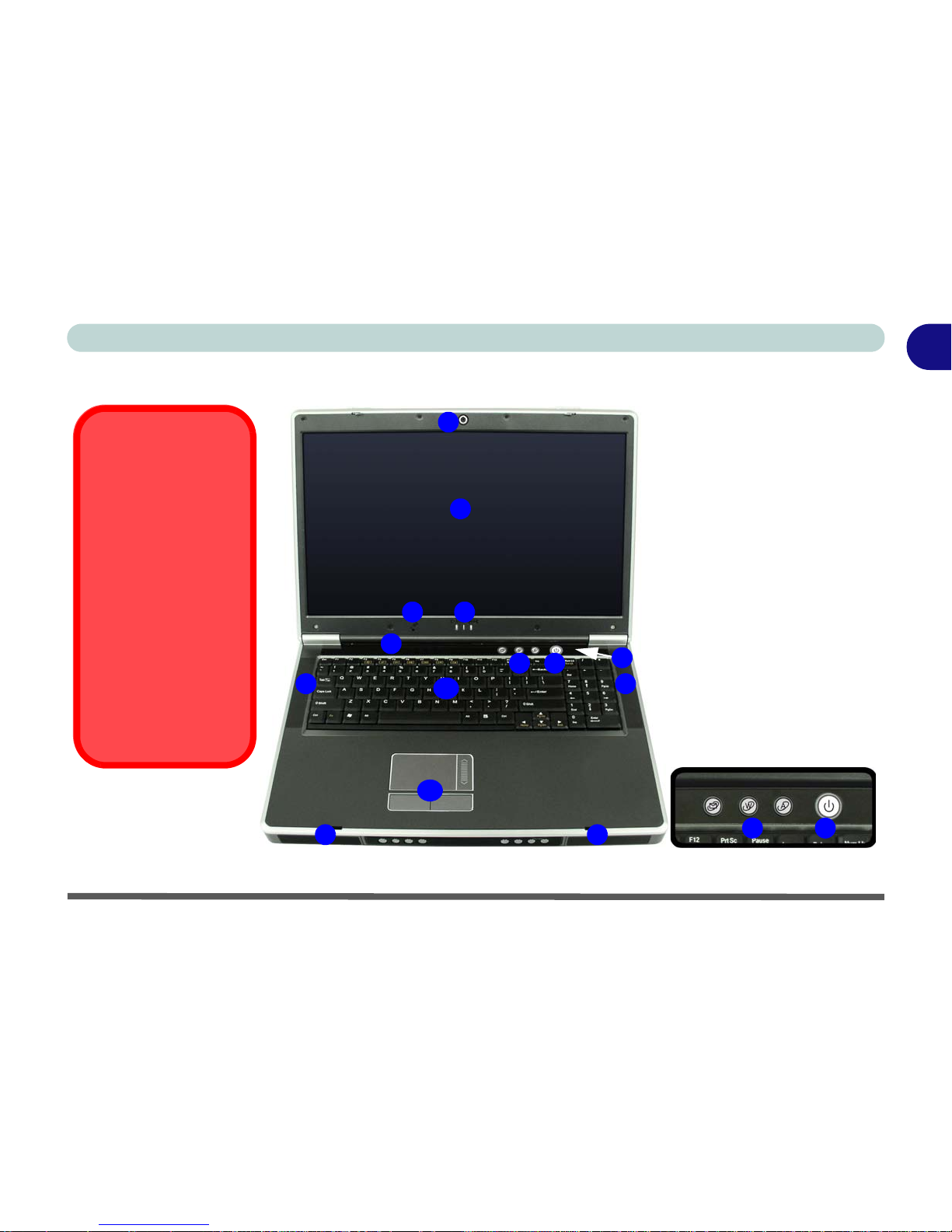
Figure 1 - 2 - Top View with LCD Panel Open
2
5
3
4
1
7
11
4
8
4 4
7
8
1. Optional Built-In PC
Camera
2. LCD
3. LED Power &
Communication
Indicators
4. Speakers
5. LED Status Indicators
6. Built-In Microphone
7. AP-Key Buttons
8. Power Button
9. Lid Sensor (not visible
externally - see page 3 -
8)
10. Keyboard
11. TouchPad and Buttons
Wireless Device
Operation Aboard
Aircraft
The use of any portable
electronic transmission
devices aboard aircraft
is usually prohibited.
Make sure the module(s) are OFF if you are
using the computer
aboard aircraft.
The key combination Fn
+ F11 toggles power to
the WLAN module, Fn +
F12 to the Bluetooth
module.
9
6
10
Page 26
Quick Start Guide
1 - 6 System Map: Top View with LCD Panel Open
1
LED Indicators
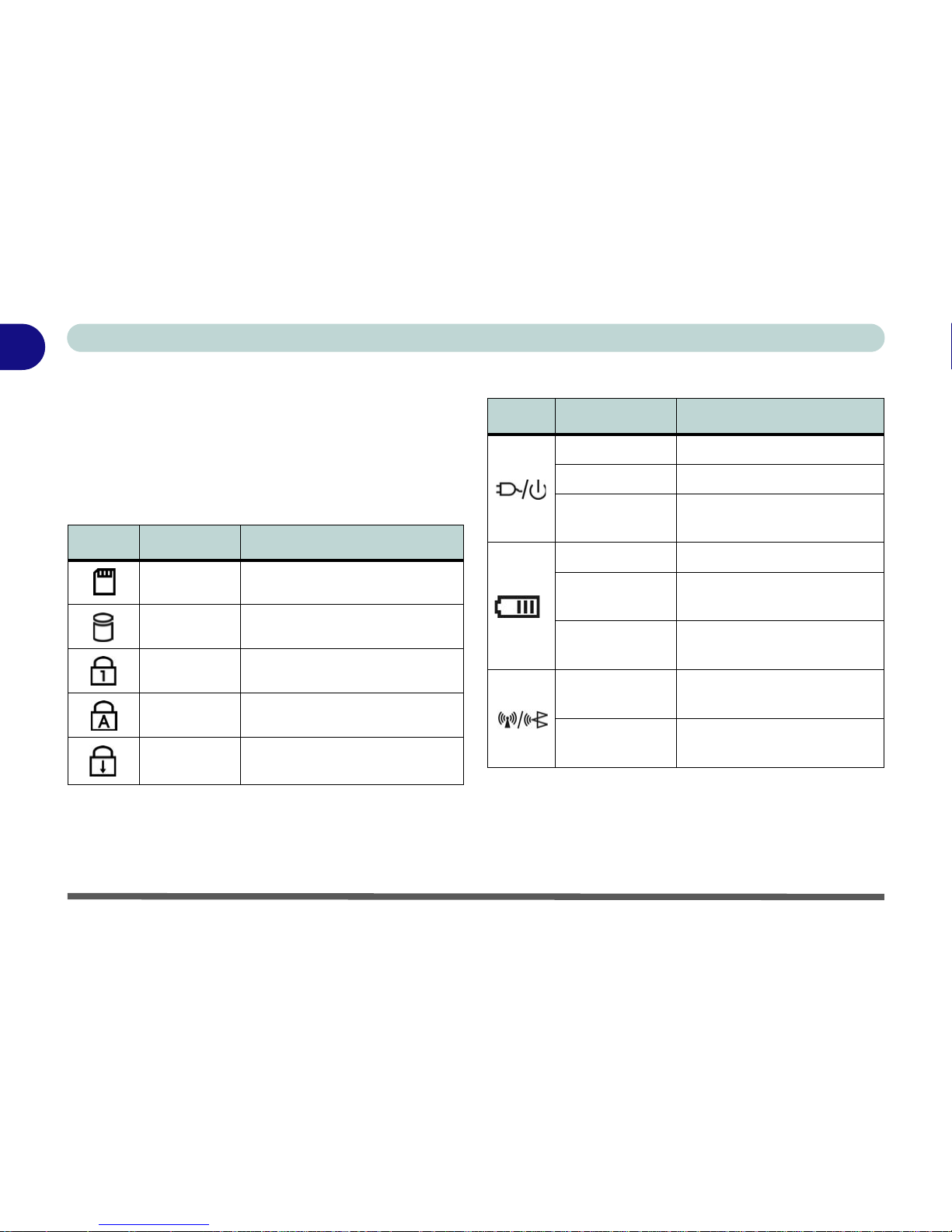
The two sets of LED indicators (LED Status Indicators and LED Power & Communication Indicators)
on the computer display helpful information about the
current status of the computer.
Table 1 - 1 - LED Status Indicators
Table 1 - 2 - LED Power & Communication Indicators
Icon Color Description
Green Card Reader Activity
Green Hard Disk Activity
Green Number Lock Activated
Green Caps Lock Activated
Green
Scroll Lock Activated (to
activate press Fn & Scr Lk)
Icon Color Description
Orange DC Power is Plugged In
Green The Computer is On
Blinking Green
The Computer is in
Standby Mode
Orange The Battery is Charging
Green
The Battery is Fully
Charged
Blinking
Orange
The Battery Has Reached
Critically Low Power Status
Green
The (optional) Wireless
LAN Module is powered On
Orange
The (optional) Bluetooth
Module is powered On
Page 27
Quick Start Guide
System Map: Top View with LCD Panel Open 1 - 7
1
AP-Key Buttons
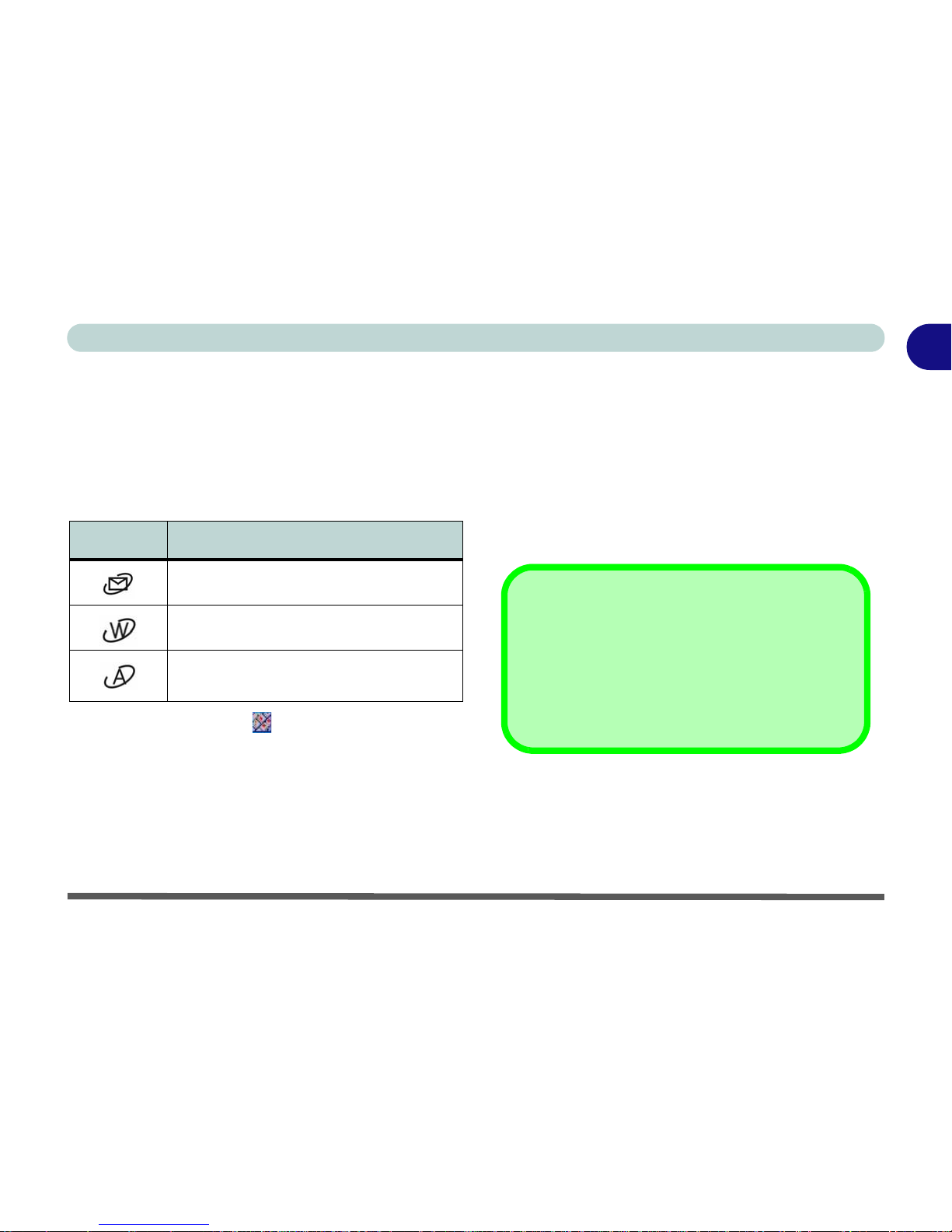
These buttons access the internet, e-mail or a user-defined application with one quick button press. Make
sure you install the driver to enable the AP-Key Button
functions (refer to “What to Install” on page 4 - 15).
Table 1 - 3 - AP-Key Buttons
The AP-Key driver icon will appear in the taskbar
after the driver is installed. Right-Click the icon and
browse to Setup > Application 1, and an open dialog
box will appear. Select an application (e.g. Microsoft
Word) to open when you press the Application APKey Button (make sure you select the .exe file not a
shortcut to it).
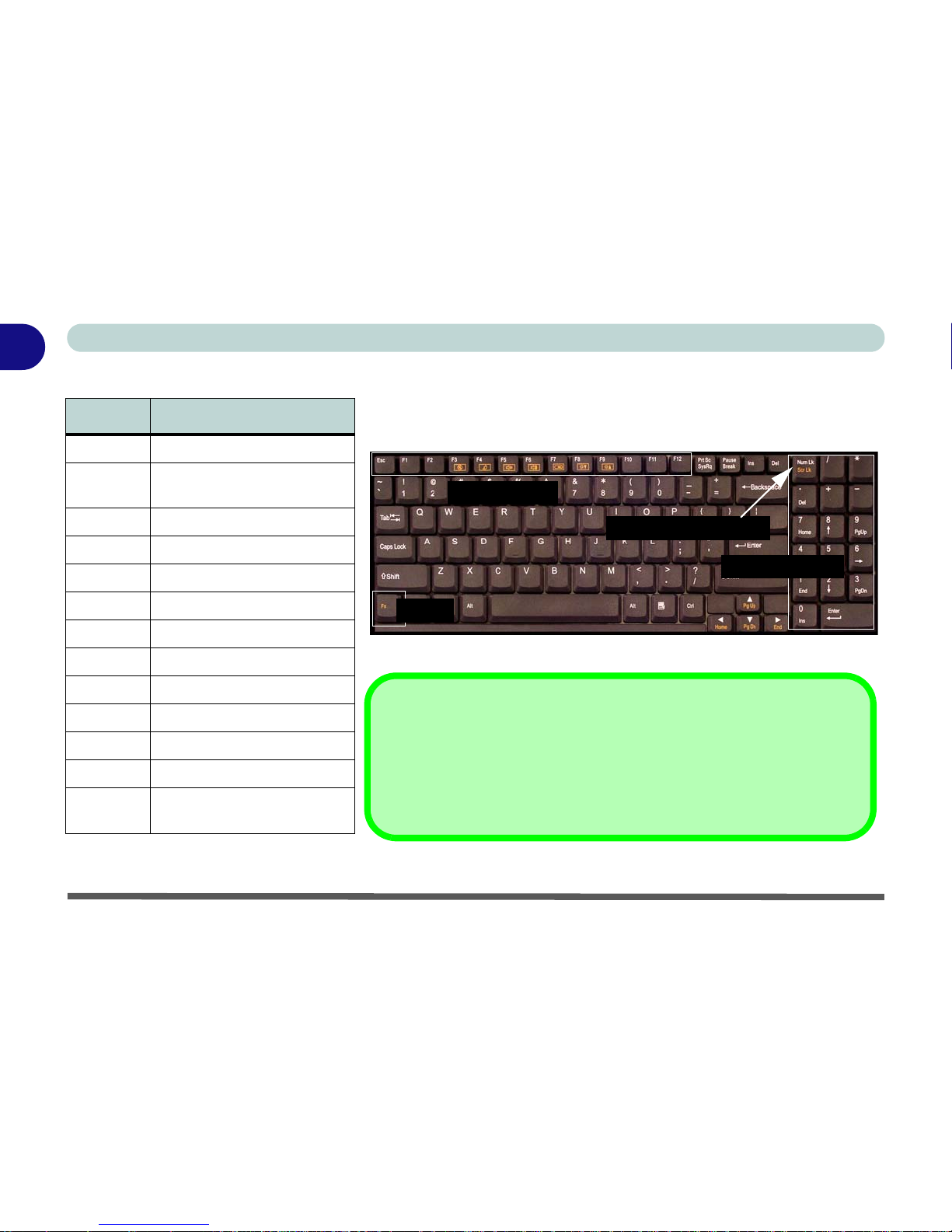
Function Keys & Numeric Keypad
The keyboard has an embedded numerical keypad for
easy numeric data input (see Figure 1 - 3).
Activate the Number Lock feature by pressing the
Num Lk key at the top right of the keyboard. You may
check if Number Lock is enabled or not by looking at
the LED status indicators.
AP-Key Function
Activate the Default E-mail Program
Activate the Default Intern et Browser
Activate a User Specified Application
(default is Windows Media Player)
Other Keyboards
If your keyboard is damaged or you just want to make
a change, you can use any standard USB keyboard.
The system will detect and enable it automatically.
However special functions/AP-Key buttons unique to
the system’s regular keyboard may not work.
Page 28
1 - 8 System Map: Top View with LCD Panel Open
Quick Start Guide
1
Table 1 - 4 - Function Keys
Keys Description
Figure 1 - 3 - Keyboard
Fn Function Key
Fn + F2
Fan Automatic Control /
Full Power
Fn + F3 Mute Toggle
Fn + F4 Sleep Toggle
Fn + F5 Decrease Audio Volume
Fn + F6 Increase Audio Volume
Fn + F7 Display Toggle
Fn + F8 Decrease LCD Brightness
Fn + F9 Increase LCD Brightness
Fn + F10 TouchPad Module Toggle
Fn + F11 WLAN Toggle
Fn + F12 Bluetooth Module Toggle
Fn + Scr
Lk
Scroll Lock Toggle
Numeric Keypad
Num Lk & Scr Lk Keys
Function Keys
Fn Key
Special Characters
Some software applications allow the number-keys to be used with Alt to
produce special characters. These special characters can only be produced
by using the numeric keypad. Regular number keys (in the upper row of the
keyboard) will not work. Make sure that Num Lk is on.
Page 29
System Map: Front & Rear Views 1 - 9
Quick Start Guide
1
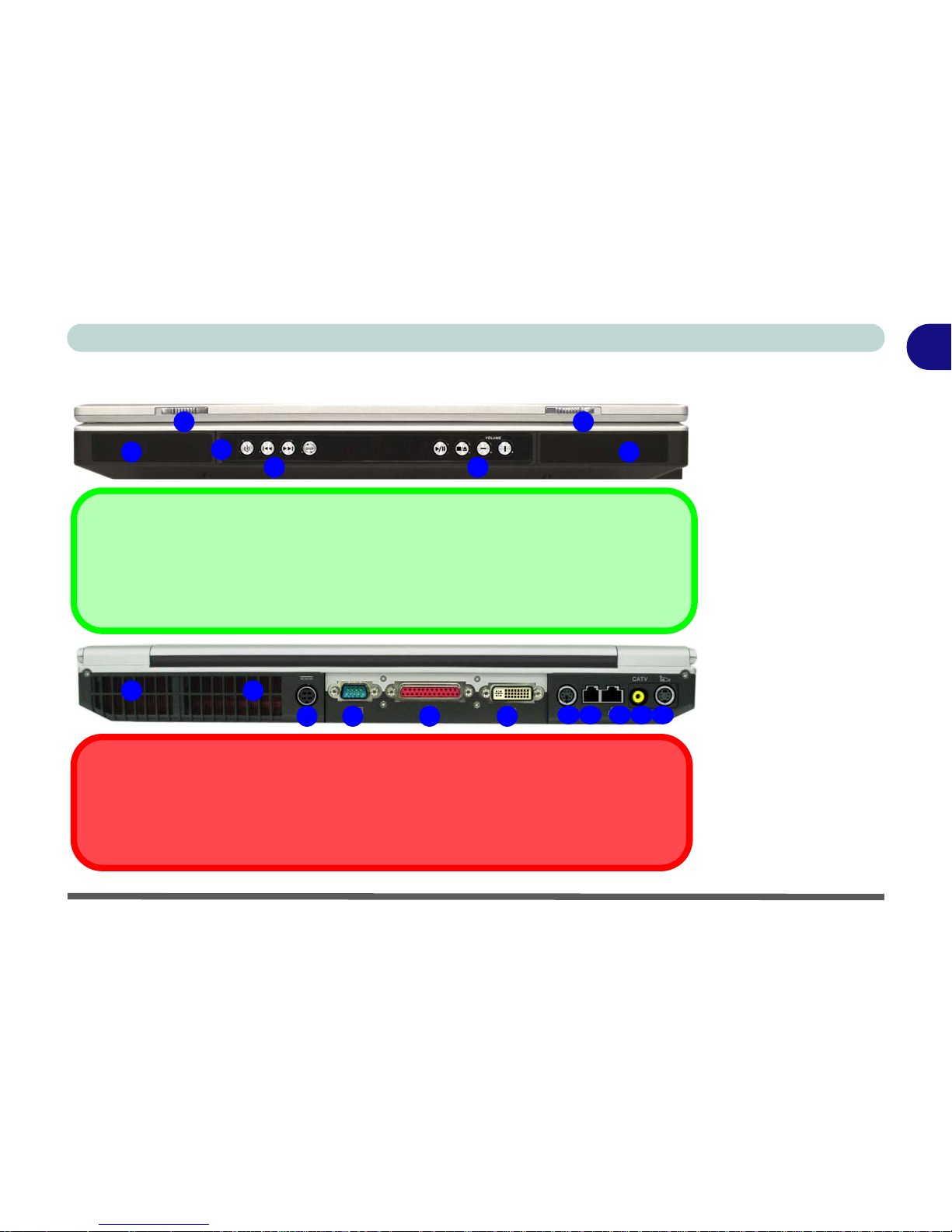
System Map: Front & Rear Views
1
2
1
5
Figure 1 - 4
Front & Rear Views
1. LCD Latches
2. Audio "DJ" Player
Controls
3. Consumer Infrared
Transceiver
*
4. Speakers
5. Vent/Fan Intake
6. DC-In Jack
7. Serial Port
8. Parallel Port
9. DVI-Out Port
10. PS2 Port
11. RJ-11 Phone Jack
12. RJ-45 LAN Jack
13. CATV Jack
*
14. S-Video-In Jack*
*Enabled with Optional
Mini-PCI TV Tuner Only
Overheating
To prevent your computer from overheating make sure nothi ng blocks the vent(s)/fan intake(s) while
the computer is in use.
2
5
7 8 96
11 12 13
Audio "DJ" Player
The built-in standalone audio CD player gives you direct hardware control for audio CDs (MP3
compatible) when the computer is shut down, but has a working power source.
3
10
4 4
14
Page 30
1 - 10 System Map: Left View
Quick Start Guide
1
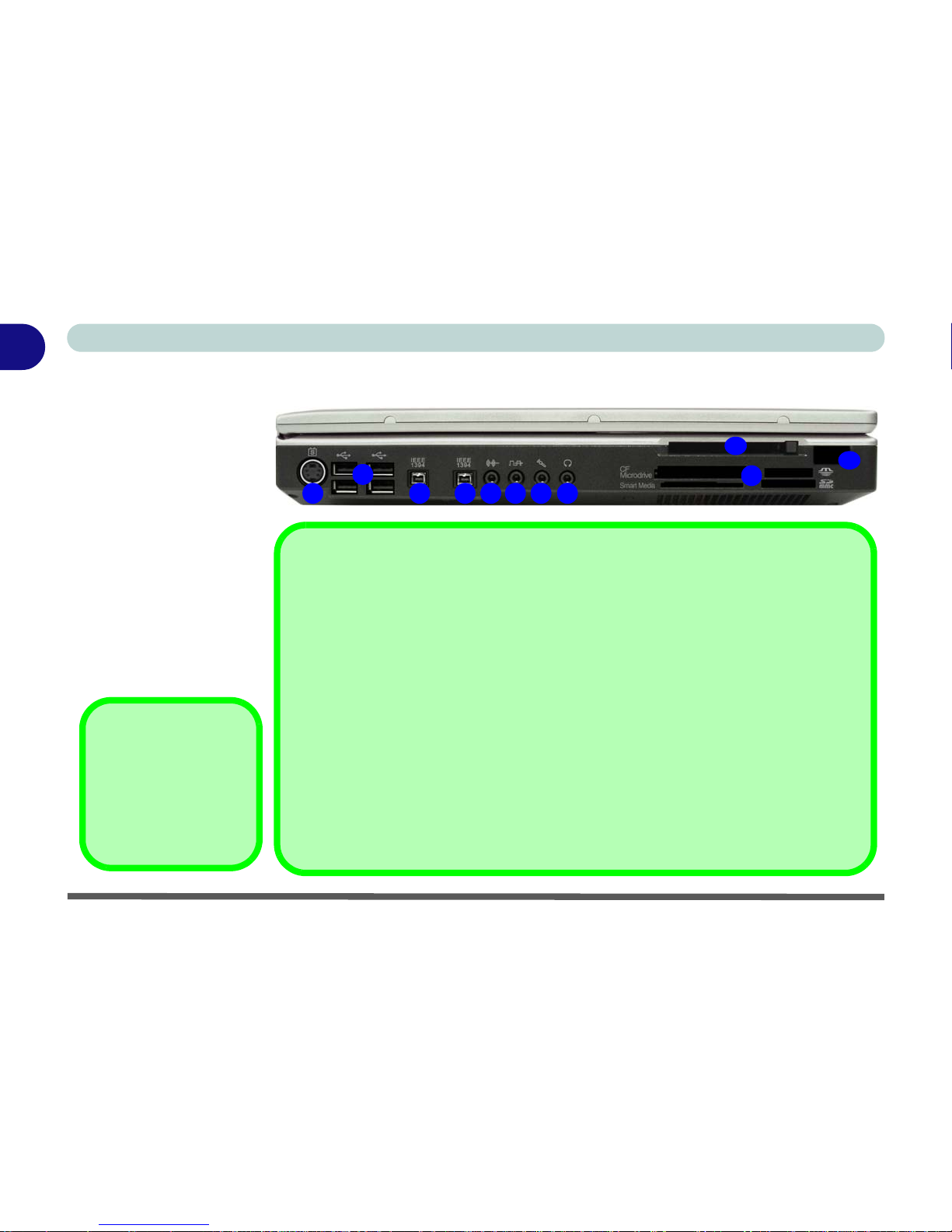
System Map: Left View
Figure 1 - 5
Left View
1. S-Video-Out Jack
2. 4 * USB 2.0 Ports
3. 2 * Mini-IEEE 1394a
Port
4. Line-In Jack
5. S/PDIF-Out Jack
6. Microphone-In Jack
7. Headphone-Out Jack
8. 10-in-1 Card Reader
9. PC Card Slot
10. Infrared Transceiver
(see page 2 - 9)
3 31 5
2
4 6 7
8
10
9
10-in-1 Card Reader Formats
The card reader allows you to use the most popular digital storage card formats:
• MMC (MultiMedia Card)
• SD (Secure Digital)
• MS (Memory Stick)
• MS (Memory Stick Pro)
• SM (SmartMedia Card)
• CF (Compact Flash)
• IBM Microdrive
• MS Duo (requires PC adapter)
• Mini SD (requires PC adapter)
• RS MMC (requires PC adapter)
Note: If you are installing an operating system (e.g. Windows XP) you will need to disable
the card reader in the BIOS (see “Card Reader: (Advanced Menu)” on page 5 - 10).
Mini-IEEE 1394a
Both Mini-IEEE 1394a
ports only support
SELF POWERED
IEEE 1394a devices.
Page 31

System Map: Right View 1 - 11
Quick Start Guide
1
System Map: Right View
Figure 1 - 6 - Right View
1. Primary Optical Device Drive
Bay (for CD/DVD Device)
2. Secondary Optical Device
Drive Bay (for CD/DVD
Device)
3. Security Lock Slot
2
1
Changing DVD Regional Codes
Go to the Control Panel and double-click System >
Hardware (tab), click Device Manag er, then click
the + next to DVD/CD-ROM drives. Double-click on
the DVD-ROM device to bring up the Properties di-
alogue box, and select the DVD Region (tab) to
bring up the control panel to allow you to adjust the
regional code (see “DVD Regional Codes” on
page 2 - 5).
DVD region detection is device dependent, not OSdependent. You can select your module’s region
code 5 times. The fifth selection is permanent. This
cannot be altered even if you change your operating
system or you use the module in another computer.
CD Emergency Eject
If you need to manually eject a CD/DVD (e.g. due to an
unexpected power interruption) you may push the end of a
straightened paper clip into the emergency eject hole. Do not use
a sharpened pencil or similar object that may break and become
lodged in the hole.
Media Warning
Don’t try to remove a floppy disk/CD/DVD while the system is accessing it. This may cause the system to “crash”.
3
Page 32

1 - 12 System Map: Bottom View
Quick Start Guide
1
System Map: Bottom View
Figure 1 - 7 - Bottom View
1. Battery
2. Vent/Fan Intake
3. Memory (RAM) Cover
4. Hard Disk Cover
5. Sub Woofer
6. Video Card Cover
7. CPU Cover
2
1
2
2
4
2
3
CPU
The CPU is not a user
serviceable part.
Opening this compartment, or accessing the
CPU in any way, may
violate your warranty.
Battery Information
Always completely discharge, then fully charge, a new battery before using it. Completely discharge and charge the battery
at least once every 30 days or after about 20 partial discharges. See “Battery Information” on page 3 - 9 for full instructions.
5
6
7
Page 33

Windows XP Start Menu & Control Panel 1 - 13
Quick Start Guide
1
Windows XP Start Menu & Control Panel
Most of the control panels, utilities and programs within Windows XP are accessed from the Start menu. When
you install programs and utilities they will be installed on your hard disk drive, and a shortcut will usually be
placed in the Start menu and/or the desktop. You can customize the look of the Start menu by right-clicking
the Start menu and selecting Properties from the menu.
In many instances throughout this manual you will see an instruction to open the Control Panel. The Control
Panel is accessed from the Start menu. The Control Panel allows you to configure the settings for most of the
key features in Windows (e.g. power, video, network, audio etc.). Windows XP provides basic control p anels for
many of the features, however many new control panels are added (or existing ones are enhanced) when you
install the drivers listed in Table 4 - 2, on page 4 - 20. To see all controls it may be necessary to toggle off
Cat-
egory View
.
Figure 1 - 8
Start Menu & Control Panel
Page 34

1 - 14 Video Features
Quick Start Guide
1
Video Features
Video Driver Controls
This computer features different (NVIDIA or ATI) PCI Express video card options (see “Video Card Options”
on page D - 3).
You can switch display devices, and configure display options, from the Display Properties control panel in
Windows as long as the appropriate video driver is installed. For more detailed video information see Appendix
B:“NVIDIA Video Driver Controls” or Appendix C:“ATI Video Driver Controls” as appropriate for your vid-
eo card option.
To access Display Properties in Windows:
1. Click Start, point to Settings and click Control Panel (or just click Control Panel).
2. Double-click Display (icon) - In the Appearances and Themes category.
3. Click Settings (tab) in the Display Properties dialog box.
4. Move the slider to the preferred setting in Screen area/resolution (Figure 1 - 9 on page 1 - 15).
5. Click the arrow, and scroll to the preferred setting In Colors/Color quality (Figure 1 - 9 on pag e 1 - 15 ).
6. You can also access Display Properties by right-clicking the desktop and scrolling down and clicking
Properties. Click Settings (tab) and adjust as above.
7. Open the Display Properties control panel, and click Advanced (button) (Figure 1 - 9 on page 1 - 15) to
bring up the Advanced properties tabs. Clicking through these tabs (NVIDIA or ATI) allows you to make any
video adjustments you require.
1
2
3
Page 35

Video Features 1 - 15
Quick Start Guide
1
Figure 1 - 9 - Display Properties Desktop
NVIDIA Display Properties
ATI Display Properties
1
2
3
1
2
3
Page 36

1 - 16 Video Features
Quick Start Guide
1
Display Devices & Options
Besides the built-in LCD, you can also use an external VGA monitor (CRT)/external Flat Panel Display or
TV as your display device. A VGA monitor/Flat Panel Display connects to the DVI-Out port, a TV to the S-
Video-Out jack.
The following display modes are available (see Appendix B:“NVIDIA Video Driver Controls”
or Appendix C:“ATI Video Driver Controls” for details)
.
Table 1 - 5 - Display Options
NVIDIA Display Mode Description
Single One of the connected displays is used as the display device
Clone Both connected displays output the same view
Dualview Both connected displays are treated as separate devices, and act as a virtual desktop
ATI Display Mode Description
Single One of the connected displays is used as the display device
Multiple - Clone Mode Both connected displays output the same view
Multiple - Extended Desktop Mode Both connected displays are treated as separate devices, and act as a virtual desktop
Page 37

Power Management Features 1 - 17
Quick Start Guide
1
Power Management Features
The Power Options cont rol panel in Windows (see page 1 - 13) allows you to configure power management
features for your computer. You may conserve power throug h individual components such as the monitor or hard
disk (by means of Power Schemes), or you may use either Standby or Hibernate mode to conserve power
throughout the system (enable Hibernate support from the control panel as pictured in Figure 1 - 10). Pay at-
tention to the instructions on battery care in “Battery Information” on page 3 - 9.
Figure 1 - 10 - Power Options
The computer’s power button, sleep button (Fn + F4 key combination), and Lid Sensor may be set to send
the computer in to either Standby or Hibernate mode.
Power Saving and Performance
Power Schemes may have an affect on your computer performance (see “Power Schemes” on page 3 - 4).
Page 38

Concise User’s Guide
1 - 18
1
Page 39

Storage Devices, Mouse, Audio & Printer
Overview 2 - 1
2
Chapter 2: Storage Devices, Mouse, Audio &
Printer
Overview
Read this chapter to learn more about the following main features and components of the computer:
• The Hard Disk Drive
• The Optical (CD/DVD) Device
• 10-in-1 Card Reader
• The PC Card Slot
• The TouchPad & Buttons/Mouse
• The Infrared Transceiver
• Audio Features
• Audio "DJ" Player
• Adding a Printer (general guidelines)
Page 40

Storage Devices, Mouse, Audio & Printer
2 - 2 Hard Disk Drive
2
Hard Disk Drive
The hard disk drive is used to store your data in the computer. The hard disk
can be taken out to accommodate other 2.5" hard disk drives with a height of
9.5 mm. The hard disk is accessible from the bottom of your computer as
seen below. Further details on removing and inserting the hard disk are available in “Upgrading the Hard Disk Drive(s)” on page 6 - 4.
If you need to setup your hard disk(s) in ATA or RAID mode see “ATA Mode
Configuration” on page 4 - 2 or “RAID Mode Configuration” on page 4 - 6.
Power Safety
Before attempting to
access any of the internal components of
your computer please
ensure that the machine is not connected
to the AC power, and
that the machine is
turned off. Also ensure
that all peripheral cables, including phone
lines, are disconnected
from the computer.
Figure 2 - 1
Hard Disk Location
1
Hard Disk
1
Page 41

Storage Devices, Mouse, Audio & Printer
Optical Device 2 - 3
2
Optical Device
There is a bay for a 5.25" optical (CD/DVD) device (12.7mm height). The actual device will depend on the model you purchased (see “Storage Options”
on page D - 4). The optical device is usually labeled “Drive D:” and may be
used as a boot device if properly set in the BIOS (“Boot Menu” on page 5 -
13).
Loading Discs
To insert a CD/DVD, press the open button and carefully place a CD/DVD
onto the disc tray with label-side facing up (use just enough force for the disc
to click onto the tray’s spindle). Gently push the CD/DVD tray in until its lock
“clicks” and you are ready to start. The busy indicator will light up while
data is being accessed, or while an audio/video CD, or DVD, is playing. If
power is unexpectedly interrupted, insert an object such as a straightened paper clip into the emergency eject hole to open the tray.
Sound Volume
Adjustment
How high the sound
volume can be set depends on the setting of
the volume control
within Windows. Click
the Volume icon on
the taskbar to check
the setting.
Peripherals must be
connected before you
turn on the system.
Figure 2 - 2
Optical Device
1
2
3
1
2
3
1
2
3
Page 42

Storage Devices, Mouse, Audio & Printer
2 - 4 Optical Device
2
Handling CDs or DVDs
Proper handling of your CDs/DVDs will prevent them from being damaged.
Please follow the advice below to make sure that the data stored on your CDs/
DVDs can be accessed.
Note the following:
• Hold the CD or DVD by the edges; do not touch the surface of the disc.
• Use a clean, soft, dry cloth to remove dust or fingerprints.
• Do not write on the surface with a pen.
• Do not attach paper or other materials to the surface of the disc.
• Do not store or place the CD or DVD in high-temperature areas.
• Do not use benzene, thinner, or other cleaners to clean the CD or DVD.
• Do not bend the CD or DVD.
• Do not drop or subject the CD or DVD to shock.
CD Emergency Eject
If you need to manually
eject a CD (e.g. due to
an unexpected power
interruption) you may
push the end of a
straightened paper clip
into the emergency
eject hole. However
please do NOT use a
sharpened pencil or
similar object that may
break and become
lodged in the hole.
Disk Eject Warning
Don’t try to remove a
CD/DVD while the system is accessing it.
This may cause the
system to “crash”.
Page 43

Storage Devices, Mouse, Audio & Printer
Optical Device 2 - 5
2
DVD Regional Codes
To change the DVD regional codes see “Changing DVD Regional Codes” on
page 1 - 11.
.
DVD Regional Coding
Region
Geographical Location
1 USA, Canada
2
Western Europe, Japan, South
Africa, Middle East & Egypt
3
South-East Asia, Taiwan,
South Korea, The Philippines,
Indonesia, Hong Kong
4
South & Central America,
Mexico, Australia,
New Zealand
5
N Korea, Russia, Eastern
Europe, India & Most of Africa
6 China
Table 2 - 1
DVD Regional Coding
Figure 2 - 3
DVD Regions
Page 44

Storage Devices, Mouse, Audio & Printer
2 - 6 10-in-1 Card Reader
2
10-in-1 Card Reader
The card reader allows you to use some of the latest digital storage cards. Push
the card into the slot and it will appear as a removable device.
*Note: The PC adapters are usually supplied with these cards.
The cards will appear as removable disks on the computer and can be accessed
in the same way as your hard disk(s).
Operating System
Installation Warning
If you are installing an
operating system (e.g.
Windows XP), and
have a 10-in-1 Card
Reader present, make
sure to set the Card
Reader option in the
BIOS to “Disabled”.
See “Card Reader:
(Advanced Menu)”
on page 5 - 10.
Figure 2 - 4
Removable Disks
• MMC (MultiMedia Card)
• SD (Secure Digital)
• MS (Memory Stick)
• MS (Memory Stick Pro)
• SM (SmartMedia Card)
• CF (Compact Flash Types I & II)
• MD (IBM Microdrive)
• MS Duo (requires PC adapter*)
• Mini SD (requires PC adapter*)
• RS MMC (requires PC adapter*)
Card Reader Cover
Make sure you keep the
cover in the card reader
when not is use. This will
help prevent foreign objects
and/or dust getting in to the
card reader.
Page 45

Storage Devices, Mouse, Audio & Printer
PC Card Slot 2 - 7
2
PC Card Slot
The computer is equipped with a PCMCIA 3.3V/5V slot for one type II PC
Card.
Inserting and Removing PC Cards
• Align the PC Card with the slot and push it in until it locks into place.
• To remove a PC Card, simply press the eject button next to the slot.
Figure 2 - 5
PC Card Slot
1
1
Page 46

Storage Devices, Mouse, Audio & Printer
2 - 8 TouchPad and Buttons/Mouse
2
TouchPad and Buttons/Mouse
The TouchPad is an alternative to the mouse; however, you can also add a
mouse to your computer through one of the USB p orts. The TouchPad buttons
function in much the same way as a two-button mouse. The central button may
be configured to function as you require.
Once you have installed the TouchPad drivers (see “What to Install” on
page 4 - 15) you can configure the functions by double-clicking the TouchPad
driver icon in the taskbar. You may then configure the TouchPad tapping,
buttons, scrolling, pointer motion and sensitivity options to your preferences.
You will find further information on this at www.synaptics.com.
Mouse Driver
If you are using an external mouse your operating system may be
able to auto-configure
your mouse during its
installation or only enable its basic functions.
Be sure to check the
device’s user documentation for details.
Toggle TouchPad
On/Off
You may toggle the
TouchPad On/Off by
using the Fn + F10 key
combination.
Figure 2 - 6
Mouse Properties
Page 47

Storage Devices, Mouse, Audio & Printer
Configuring the Infrared Settings for FIR 2 - 9
2
Configuring the Infrared Settings for FIR
To configure your computer for Fast Infrared (FIR) communication follow
these steps:
1. Click Start, point to Settings and click Control Panel (or just click Start >
Control Panel).
2. Double-click Wireless Link (Printers and Other Hardware Category) icon.
3. Click Hardware (tab), and click the Properties button, then click the
Advanced (tab).
4. Select “Infrared Transceiver A” and change the Value to “HP HSDL-
2300/3600”.
5. Click OK > OK.
6. Restart the computer if prompted to do so.
For further information, please refer to the manual of the device you wish to
connect.
Infrared
Communication
The infrared transceiver operates on a “Line
of Sight”.
Make sure nothing is
blocking the “Line of
Sight” between your
system’s transceiver
and the destination’s
transceiver.
Page 48

Storage Devices, Mouse, Audio & Printer
2 - 10 Audio Features
2
Audio Features
You can configure the audio options on your computer from the Sounds and
Audio Devices Windows control panel (see Figure 1 - 8 on page 1 - 13),
or from the Sound Effect Manager icon in the taskbar/control panel (this
will bring up the Realtek Audio Configuration menus). The volume may also
be adjusted by means of the Fn + F5/F6 key combination.
Sound Volume
Adjustment
How high the sound
volume can be set using the volume control
knob depends on the
setting of the volume
control within Win-
dows. Click the Volume icon on the
taskbar to check the
setting.
Figure 2 - 7
Realtek Audio
Configuration
Menus
Page 49

Storage Devices, Mouse, Audio & Printer
Audio Features 2 - 11
2
8 Channel Sound Support
If you wish to configure your system for 8 channel sound sup port, then the following ports should be used as outputs.
• Side Speaker Out - Connect to S/PDIF Out
• Center/Subwoofer Speaker Out - Connect to Microphone In
• Front Speaker Out - Connect to Speaker/Headphone Out
• Rear Speaker Out - Connect to Line In
Figure 2 - 8
8 Channel Sound
Support
Page 50

Storage Devices, Mouse, Audio & Printer
2 - 12 Audio "DJ" CD Player
2
Audio "DJ" CD Player
The built-in standalone audio CD player gives you direct hardware control for
audio CDs/DVDs when the computer is shut down, but has a working power
source.
1. Make sure that the computer is shut down (i.e. the operating system is not
running) but you have a working power source (either battery or AC Power).
2. Press the Audio "DJ" power button.
3. Press the open button on your CD/DV D device (or press the stop button
twice) and carefully place an audio CD onto the disc tray with label-side
facing up (DVD drives will also play audio CDs).
4. Gently push the CD/DVD tray in until its lock “clicks” and you are ready to
start.
5. The Audio Format Indicator will flash while data is being accessed and will
then display the audio format of the CD/DVD (CD or MP3).
6. The LED will display the number of tracks.
7. Click the play/pause button to start the CD/DVD.
8. You can control the CD/DVD tracking and volume from the control panel.
9. Use the stop button to stop the disc, or press it twice to eject the disk.
10. The player can be turned off by pressing the power bu tton again.
Disk Eject Warning
Don’t try to eject a CD/
DVD while the system
is accessing it. This
may cause the system
to “crash”. Stop the
disk first then eject it,
or press the stop button twice.
7
Page 51

Storage Devices, Mouse, Audio & Printer
Audio "DJ" CD Player 2 - 13
2
2
4
5
6
7
8
1
1. Audio "DJ" Power Button
2. Previous Track
3. Next Track
4. Shuffle (loop, in order, shuffle)
5. LED Display
6. Play/Pause
7. Stop (press twice to eject the CD/DVD)
8. Volume Down
9. Volume Up
10. Audio Format Indicator
11. Shuffle Mode Indicator
12. Track Indicator
Note: The time will be displayed on the LED Display if set in the
BIOS (see “Display Time on LED (Advanced Menu)” on
page 5 - 10).
3
9
101112
TV Tuner Option
If you have included
the optional TV Tuner
in your purchase configuration, you can use
the supplied remote
control unit to control
the Audio "DJ".
Figure 2 - 9
Audio "DJ"
Controls
Page 52

Storage Devices, Mouse, Audio & Printer
2 - 14 Adding a Printer
2
Adding a Printer
The most commonly used peripheral is a printer. The following conventions
will help you to add a printer, however it is always best to refer to the printer
manual for specific instructions and configuration options.
USB Printer
Most new printers have a USB interface connection. You may use any one of
the ports to connect the printer.
Install Instructions:
1. Set up the printer according to its instructions (unpacking, paper tray, toner/
ink cartridge etc.).
2. Turn ON the computer.
3. Turn ON the printer.
4. Connect the printer’s USB cable to one of the USB port s on the computer .
5. Windows will identify the printer and either load one of its own drivers or
ask you to supply one. Follow the on-screen instructions.
Parallel Printer
This is still a very common type of printer. The install instructions are in the
sidebar.
Parallel Printer
After setting up the
printer attach the parallel cable to the printer.
Connect the printer’s
parallel cable to the
Parallel port.
Turn ON the printer,
then the computer.
Windows will identify
the printer and either
load one of its own
drivers or ask you to
supply one. Follow the
on-screen instructions.
Page 53

Power Management
Overview 3 - 1
3
Chapter 3: Power Management
Overview
To conserve power, especially when using the battery, your computer uses the
ACPI power management system. Power management conserves power by
controlling individual components of the computer (the monitor and hard disk
drive) or the whole system.
This chapter covers:
• The Power Sources
• Turning On the Computer
•Power Schemes
• System Power Options (Standby and Hibernate)
• Configuring the Power Button
• Battery Information
Advanced Configuration and Power Interface
The ACPI interface provides the computer with enhanced power saving techniques and gives the operating system (OS) direct control over the power and
thermal states of devices and processors. For example, it enables the OS to set
devices into low-power states based on user settings and information from applications. ACPI is fully supported in Windows XP.
OS Note
Power management
functions will vary
slightly depending on
your operating system.
For more information it
is best to refer to the
user’s manual of your
operating system.
(Note: All pictures
used on the following
pages are from the
Windows XP OS.)
Page 54

Power Management
3 - 2 The Power Sources
3
The Power Sources
The computer can be powered by either an AC adapter or a battery pack.
AC Adapter
Use only the AC adapter that comes with your computer. The wrong type of
AC adapter will damage the computer and its components (see page D - 6).
1. Attach the AC adapter to the DC-In jack at the rear of the computer.
2. Plug the AC po we r co rd in to an outlet, an d th en conn ect the AC p ower cor d
to the AC adapter.
3. Raise the lid/LCD to a comfortab le viewing angle.
4. Press the power button to turn “On”.
Battery
The battery allows you to use your computer while you are on the road or
when an electrical outlet is unavailable. Battery life varies depending on the
applications and the configuration you're using. To increase battery life, let
the battery discharge completely before recharging (see “How do I com-
pletely discharge the battery?” on page 3 - 12).
We recommend that you do not remove the battery. For more information on
the battery, please refer to “Battery Information” on page 3 - 9.
Power Button as
Standby or Hibernate
Button
If you are using a fully
ACPI-compliant OS,
(such as Windows XP)
you can use the OS’s
“Power Options” control panel to set the
power button to send
the system into Stand-
by or Hibernate mode
(see your OS’s documentation, or “Config-
uring the Power
Button” on page 3 - 8
for details).
Page 55

Power Management
Turning on the Computer 3 - 3
3
Turning on the Computer
Now you are ready to begin using your computer. To turn it on simply press
the power button on the front panel.
When the computer is on, you can use the power button as a Standby/Hibernate/Shutdown hot-key button when it is pressed for less than 4 seconds
(pressing and holding the power button for longer than this will shut the computer down). Use Power Options in the Windows control panel to configure
this feature.
Shutdown
Note that you should
always shut your computer down by choosing the Shut Down/
Turn Off Computer
command from the
Start menu in Windows. This will help
prevent hard disk or
system problems.
Forced Off
If the system “hangs”, and the Ctrl + Alt + Del key combination doesn’t work, press
the power button for 4 seconds, or longer, to force the system to turn itself off.
Page 56

Power Management
3-4Power Schemes
3
Power Schemes
You can set your computer to conserve power through individual components
by means of Power Schemes. You can also adjust the settings for each
scheme to set the monitor to turn off after a specified time, and the computer's
hard disk motor to turn off if the hard disk drive has not been accessed for a
specified period of time (if the system reads or writes data, the hard disk motor
will be turned back on). The schemes may also be set to set a specified time
for the system to enter Standby or Hibernate modes (see “System Power Op-
tions” on page 3 - 6).
Resuming Operation
The system can resume from Monitor or
Hard Disk Standby by
pressing a key on the
keyboard.
Figure 3 - 1
Power Schemes
Page 57

Power Management
Power Schemes 3 - 5
3
Each Windows Power Scheme will also adjust the processor performance of
your machine in order to save power. This is worth bearing in mind if yo u are
experiencing any reduced performance (especially under DC/battery power).
Choose the Home/Office Desk scheme for maximum performance when the
computer is powered from an AC power source. Choose the Max Battery
scheme (bear in mind that this scheme may slow down the overall performance of the computer in order to save power) for maximum power saving
when the computer is battery (DC power) powered.
Windows will use Portable/Laptop as the default scheme.
Page 58

Power Management
3 - 6 System Power Options
3
System Power Options
You can use the system power options to stop the computer’s operation and
restart where you left off. This system features Standby and Hibernate sleep
mode levels (Hibernate mode will need to be enabled by clicking the option
in the Hibernate tab in the Power Options control panel - Figure 3 - 2 on
page 3 - 7).
Hibernate Mode vs. Shutdown
Hibernate mode and Shutdown are the same in that the system is off and you
need to press the power button to turn it on. Their main difference is:
When you come back from hibernation, you can return to where you last left
off (what was on your desktop) without reopening the application(s) and
file(s) you last used.
You can use either method depending on your needs.
Standby Mode vs. Hibernate Mode
If you want to stay away from your work for just a while, you can put the system on standby instead of in hibernation. It takes a longer time to wak e up the
system from Hibernate mode than from Standby mode.
Page 59

Power Management
System Power Options 3 - 7
3
Standby
Standby saves the least amount of power, but takes the shortest time to return
to full operation. During Standby the hard disk is turned off, and the CPU is
made to idle at its slowest speed. All open applications are retained in memory. When you are not using your computer for a certain length of time, which
you specify in the operating system, it will enter Standby mode to save power.
Hibernate
Hibernate uses no power and saves all of your information on a part of the
HDD before it turns the system off. Although it saves the most power it takes
the longest time to return to full operation. You can set your computer to automatically enter Hibernate mode when the battery power is almost depleted.
You will need to enable Hibernate mode from the Hibernate tab in the Power
Options control panel. The system will resume from Hibernate mode by
pressing the power button.
System Resume
The system can resume
from Standby mode by:
• Pressing the power
button
• Pressing a key on the
keyboard
• An alarm resume that
is enabled and
expires
• An incoming call
received on the
modem (if enabled)
• Network card activity
(if enabled)
Figure 3 - 2
Enable Hibernation
Page 60

Power Management
3 - 8 Configuring the Power Button
3
Configuring the Power Button
The power button may be set to send the computer in to either Standby or Hibernate mode (Figure 3 - 3). In Standby mode, the LED will flash
green. In Hibernate mode the LED will be off. If you are in a power saving
mode set to save power through individual components (e.g. hard disk, monitor), the LED will remain green.
Figure 3 - 3
Power Options
(Advanced - Power
Buttons)
(Sleep) Button
Sleep Button
You may also configure the Sleep/Resume key combination (Fn + F4) from the
menu illustrated in Figure 3 - 3. In Windows this is referred to as the Sleep button.
Power Button Sleep/ResumeLid
Page 61

Power Management
Battery Information 3 - 9
3
Battery Information
Please follow these simple guidelines to get the best use out of your battery.
New Battery
Always completely discharge, then fully charge, a new battery (see “Battery
FAQ” on page 3 - 12 for instructions on how to do this).
Battery Life
Your computer’s battery life is dependent upon many factors, including the
programs you are running, and peripheral devices attached. Power Options
(you may set low battery Alarms and actions, and check the Power Meter
from the Power Options control panel), and settings in the OS will help prolong the battery life if configured appropriately.
Low Battery Warning
When the battery is
critically low, immediately connect the AC
adapter to the computer or save your work,
otherwise, the unsaved data will be lost
when the power is depleted.
Figure 3 - 4
Power Options
(Alarm & Power
Meter)
Page 62

Power Management
3 - 10 Battery Information
3
Battery life may be shortened through improper maintenance. To optimize
the life and improve its performance, fully discharge and recharge the
battery at least once every 30 days.
We recommend that you do not remove the battery yourself. If you do need to
remove the battery for any reason see “Removing the Battery” on page 6 - 3.
Recharging the Battery with the AC Adapter
The battery pack automatically recharges when the AC adapter is attached and
plugged into an electrical outlet. If the computer is powered on, and in use, it
will take several hours to fully recharge the battery. When the computer is
turned off but plugged into an electrical outlet, battery charge time is less. (Refer to “LED Indicators” on page 1 - 6 for information on the battery charge
status, and to “Battery Information” on page 3 - 9 for more information on
how to maintain and properly recharge the battery pack.)
Conserving Battery
Power
To conserve battery power:
Lower the brightness level of the LCD display. The
system will decrease LCD
brightness slightly to save
power when it is not powered by the AC adapter.
Close modem or communication applications
when they are not being
used.
Remove any unused PC
Cards from the computer
(PC Cards quickly use up
battery power even if the
system enters sleep
mode).
Disconnect any unnecessary external devices.
Page 63

Power Management
Battery Information 3 - 11
3
Proper handling of the Battery Pack
• DO NOT disassemble the battery pack under any circumstances
• DO NOT expose the battery to fire or high temperatures, it may explode
• DO NOT connect the metal terminals (+, -) to each other
Damaged Battery Warning
Should you notice any physical defects (e.g. the battery is bent out of shape after
being dropped), or any unusual smells emanating from th e notebook batte ry, shut
your computer down immediately and contact your service center. If the battery has
been dropped we do not recommend using it any further, as even if the computer
continues to work with a damaged battery in place, it may cause circuit damage,
which may possibly result in fire. It is recommended that you replace your computer
battery every two years.
Page 64

Power Management
3 - 12 Battery Information
3
Battery FAQ
How do I completely discharge the battery?
Use the computer with battery power until it shuts down due to a low battery.
Don’t turn off the computer by yourself even when you see a message that indicates the battery is critically low, just let the computer use up all of the battery power and shut down on its own. Disable the Power Options functions
in the Control Panel, especially any Alarms (unclick the tickboxes - see 3 -
9) and Schemes (change all the settings to Never - see page 3 - 4). As the bat-
tery nears the end of its life save and close any critical files.
How do I fully charge the battery?
When charging the battery, don’t stop until the LED charging indicator light
changes from orange to green.
How do I maintain the battery?
Completely discharge and charge the battery at least once every 30 days or after about 20 partial discharges.
Caution
Danger of explosion if
battery is incorrectly
replaced.
Replace only with the
same or equivalent
type recommended by
the manufacturer. Discard used battery according to the
manufacturer’s instructions.
Page 65

Drivers & Utilities
System Software Installation 4 - 1
4
Chapter 4: Drivers & Utilities
This chapter deals with installing the drivers and
utilities essential to the operation or improvement
of some of the computer’s subsystems. The system
takes advantage of some newer hardware components for which the latest versions of most available
operating systems haven’t built in drivers and utilities. Thus, some of the system components won’t
be auto-configured with an appropriate driver or
utility during operating system installation. Instead,
you need to manually install some system-required
drivers and utilities.The following operating system are covered.
• Windows XP Professional and Home Editions
• Windows XP Media Center Edition
System Software
Installation
If you want to install a Windows XP operating system prepare the following before beginning to install the OS:
• A USB floppy disk drive
• A Windows XP OS CD/DVD
• A formatted blank 3.5" 1.44MB floppy diskette
•The Device Drivers & Utilities + User’s Man-
ual CD-ROM
See the instructions on the following pages to setup
the hard disk(s) in ATA (from page 4 - 2) or RAID
(from page 4 - 6) mode, and then install the operating system. You can then install the appropriate
drivers and utilities (from page 4 - 15).
Page 66

Drivers & Utilities
4 - 2 ATA Mode Configuration
4
ATA Mode Configuration
If you wish to configure your hard disk(s) in ATA mode, then see the instructions on following next pages.
You will need an external floppy drive attached to install the driver ATA driver when setting up Windows.
Jumper Settings for Two Parallel ATA Hard Disks
If you are using Parallel ATA (PATA) hard disk drives. then set the jumper on the
Slave hard disk to the Cable Select option in order for the system to recognize the
disks (see your hard disk manual or the information printed on the hard disk itsel f
for details on the jumper settings). The Slave disk will automatically be in the upper
slot of the hard disk bracket, the Master will be in the lower slot (as defined by the
hard disk cable).
See Chapter 6: “Upgrading the Hard Dis k Drive(s)” on page 6 - 4 for instructions on removing the hard disk.
Page 67

Drivers & Utilities
ATA Mode Configuration 4 - 3
4
ATA Mode Setup
1. Prepare a formatted blank 3.5" 1.44MB flop p y diskette, and an external USB floppy disk drive.
2. Create an ATA Driver Diskette by using an operable computer to copy the Drivers\RAID\ATA folder
from the Device Drivers & Utilities + User’s Manual CD-ROM (Navigate/Browse.. to
D:Drivers\RAID\ATA) to the blank floppy diskette.
3. Connect the external USB floppy disk drive to the notebook computer.
4. Startup your computer and press <F2> to enter the BIOS (see “The Setup Program” on page 5 - 4).
5. Set the RAID/ATA Mode Select to ATA Mode (see “RAID/ATA Mode Select: (Advanced Menu)” on
page 5 - 10).
PhoenixBIOS Setup Utility
Main Advanced Security Power Boot Exit
F1 Help Select Item -/+ Change Values F9 Setup Defaults
Esc Exit Select Menu Enter Select Sub-Menu F10 Save and Exit
Item Specific Help
Setup Warning
Setting items on this menu to incorrect
values may cause your system to malfunction.
System Information
I/O Device Configuration
Reset Configuration Data: [No]
Hyper Threading Technology: [Enabled]
Power On Beep [Disabled]
Card Reader : [Enabled]
RAID/ATA Mode Select [ATA Mode]
Advanced
Figure 4 - 1
BIOS Advanced
Menu
Page 68

Drivers & Utilities
4 - 4 ATA Mode Configuration
4
6. Select the CD-ROM/DVD-ROM as the first device in the "Boot priority order" by pressing the <Shift>
and <+> keys to move the CD-ROM/DVD-ROM to the top of the order.
7. Insert the Microsoft Windows XP OS CD/DVD into the CD/DVD drive.
8. Make sure that the computer is connected to the AC power source, and press F10 to save the changes,
and exit the BIOS.
9. Press a key when you see th e message "Press any key to start up from t he CD/Press any key to boot
from CD".
10. Press the F6 key when you see the message “Press F6 if you need to install third party SCSI or RAID
driver”.
11. When the Windows Setup menu appears, press the <S> key to "Specify Additional Device".
12. Insert the ATA Driver Diskette into the external USB Floppy drive.
PhoenixBIOS Setup Utility
Main Advanced Security Exit
F1 Help Select Item -/+ Change Values F9 Setup Defaults
Esc Exit Select Menu Enter Select Sub-Menu F10 Save and Exit
Item Specific Help
Keys used to view or
configure devices:
Up and Down arrows
select a device.
<+> and <-> moves the
device up or down.
<f> and <r> specifies
the device fixed or
removable.
<x> exclude or include
the device to boot.
<Shift + 1> enables or
disables a device.
<1 - 4> Loads default
boot sequence.
Boot priority order:
1: IDE 0: TOSHIBA DVD-ROM SD-C2612-
2: USB FDC Y-E DATA USB-FDU-(USB)
3: PCI SCSI: FT TX Ary 1
4: IDE 1:
5:
6:
7:
8:
Excluded from boot order:
: USB HDD
: USB CDROM
Boot
Figure 4 - 2
BIOS Boot Menu
Page 69

Drivers & Utilities
ATA Mode Configuration 4 - 5
4
13. Select the appropriate controller for your Windows XP operating system, and press Enter (see below).
14. The system will now read from the floppy disk drive and then return to the Windows Setup menu.
15. Press Enter to continue installing the operating system as normal (see your Windows documentation if
you need help on installing the Windows OS).
WinXP Promise SATA378 (tm) Controller
Win2000 Promise SATA378(tm) Controller
Figure 4 - 3
ATA Controller OS Select
Page 70

Drivers & Utilities
4 - 6 RAID Mode Configuration
4
RAID Mode Configuration
If you wish to configure your hard disk(s) in RAID (Redundant Array of Independent Disks) mode, then
see the instructions on the following pages. This will allow you to use your hard disks in combination with
Striping (RAID 0) or Mirroring (RAID 1) for fault tolerance and performance. You will need an external
floppy drive attached when installing the driver when setting up Windows.
The following pages provide a basic introduction to setting up the RAID configuration.
RAID Level Description
Table 4 - 1
RAID Description
RAID 0
Identical drives reading and writing data in parallel to increase
performance. RAID 0 implements a striped disk array and the
data is broken into blocks and each block is written to a separate disk drive.
RAID 1
Identical drives in a mirrored configuration used to protect data.
Should a drive that is part of a mirrored array fail, the mirrored
drive (which contains identical data) will handle all the data.
When a new replacement drive is installed, data to the new
drive is rebuilt from the mirrored drive to restore fault tolerance.
Page 71

Drivers & Utilities
RAID Mode Configuration 4 - 7
4
RAID Mode Setup
1. Install two identical hard disk drives (see the note below for Parallel ATA Hard Disks).
Jumper Settings for Two Parallel ATA Hard Disks
If you are using Parallel ATA (PATA) hard disk drives. then set the jumper on the
Slave hard disk to the Cable Select option in order for the system to recognize the
disks (see your hard disk manual or the information printed on the hard disk itsel f
for details on the jumper settings). The Slave disk will automatically be in the upper
slot of the hard disk bracket, the Master will be in the lower slot (as defined by the
hard disk cable).
See Chapter 6: “Upgrading the Hard Dis k Drive(s)” on page 6 - 4 for instructions on removing the hard disk.
Slave
Master
(Upper Slot)
(Lower Slot)
Figure 4 - 4
Parallel ATA Hard
Disks (Slave/
Master)
Page 72

Drivers & Utilities
4 - 8 RAID Mode Configuration
4
2. Prepare a formatted blank 3.5" 1.44MB floppy diskette, and an external USB floppy disk drive.
3. Create a RAID Driver Diskette by using an operable computer to copy the Drivers\RAID\FASTTRAK
folder from the Device Drivers & Utilities + User’s Manual CD-ROM (Navigate/Browse.. to
D:Drivers\RAID\FASTTRAK) to the blank floppy diskette.
4. Connect the external USB floppy disk drive to the notebook computer.
5. Startup your computer and press <F2> to enter the BIOS (see “The Setup Program” on page 5 - 4).
6. Set the RAID/ATA Mode Select to RAID Mode (see “RAID/ATA Mode Select: (Advanced Menu)” on
page 5 - 10).
PhoenixBIOS Setup Utility
Main Advanced Security Power Boot Exit
F1 Help Select Item -/+ Change Values F9 Setup Defaults
Esc Exit Select Menu Enter Select Sub-Menu F10 Save and Exit
Item Specific Help
Setup Warning
Setting items on this menu to incorrect
values may cause your system to malfunction.
System Information
I/O Device Configuration
Reset Configuration Data: [No]
Hyper Threading Technology: [Enabled]
Power On Beep [Disabled]
Card Reader : [Enabled]
RAID/ATA Mode Select [RAID Mode]
Display Time on LED [Enabled]
Advanced
Figure 4 - 5
BIOS Advanced
Menu
Page 73

Drivers & Utilities
RAID Mode Configuration 4 - 9
4
7. Select the CD-ROM/DVD-ROM as the first device in the "Boot priority order" by pressing the <Shift>
and <+> keys to move the CD-ROM/DVD-ROM to the top of the order.
8. Insert the Microsoft Windows OS CD into the CD/DVD drive.
9. Make sure that the computer is connected to the AC power source, and press F10 to save the changes,
and exit the BIOS.
10. As the computer boots up you will see the screen below if no disk array is defined (press the Ctrl + F key
combination to enter the utility).
PhoenixBIOS Setup Utility
Main Advanced Security Exit
F1 Help Select Item -/+ Change Values F9 Setup Defaults
Esc Exit Select Menu Enter Select Sub-Menu F10 Save and Exit
Item Specific Help
Keys used to view or
configure devices:
Up and Down arrows
select a device.
<+> and <-> moves the
device up or down.
<f> and <r> specifies
the device fixed or
removable.
<x> exclude or include
the device to boot.
<Shift + 1> enables or
disables a device.
<1 - 4> Loads default
boot sequence.
Boot priority order:
1: IDE 0: TOSHIBA DVD-ROM SD-C2612-
2: USB FDC Y-E DATA USB-FDU-(USB)
3: PCI SCSI: FT TX Ary 1
4: IDE 1:
5:
6:
7:
8:
Excluded from boot order:
: USB HDD
: USB CDROM
Boot
Figure 4 - 6
BIOS Boot Menu
FastTrak 378(tm) BIOS Version 1.00.1.35
(C) 2002-2005 Promise Technology, Inc. All rights reserved.
No Array is defined ...........................
Press <Ctrl-F> to enter FastBuild (tm) Utility or
Press <ESC> to continue booting......
Figure 4 - 7
FastTrak BIOS
(No Array Defined)
Page 74

Drivers & Utilities
4 - 10 RAID Mode Configuration
4
1 1. If a disk array is defined the screen will appear as follows (press the Ctrl + F key combination to enter the
utility).
12. You can create two types of array RAID 0 - A Striped array for enhanced performance (1 or 2 drives),
OR RAID 1 - A Mirrored array for data security (2 drives treated as one) from the FastBuild Utility.
FastTrak 378(tm) BIOS Version 1.00.1.35
(C) 2002-2005 Promise Technology, Inc. All rights reserved.
ID MODE SIZE TRACK-MAPPING STATUS
1 1x2 Mirror 30000M 3647/255/63 Functional
Press <Ctrl-F> to enter FastBuild (tm) Utility......
Figure 4 - 8
FastTrak BIOS
(Array Defined)
Auto Setup....................[ 1 ]
View Drive Assignments........[ 2 ]
Define Array..................[ 3 ]
Delete Array..................[ 4 ]
Rebuild Array.................[ 5 ]
FastBuild (tm) Utility 2.01 (c) 2002-2005 Promise Technology, Inc.
[ Main Menu ]
[ Keys Available ]
Press 1..5 to Select Option [ESC] Exit
Figure 4 - 9
FastBuild Utility
(Main Menu)
Page 75

Drivers & Utilities
RAID Mode Configuration 4 - 11
4
13. Press <4> to enter the Delete Array Menu in order to delete existing arrays (press <Esc> to return to the
Main Menu).
14. Press <1> to enter the Auto Setup Menu (recommended) as this is the easiest and fastest way to setup
your first array. Use <Spacebar> to cycle through the “Optimize Array for” section for Performance
(RAID 0, Stripe) or Security (RAID 1, Mirror) RAID mode, and then press <Ctrl> + <Y> to save your
selection.
15. If you wish to define an array manually then press <3> fr om th e Ma in Menu (this will bring up the Define
Array Menu - See Figure 4 - 11).
16. To create an array manually from the Define Array Menu (Figure 4 - 11) use the arrow keys to highlight
any array you wish to define, then press <Enter> to select it.
Mode......................................Stripe
Spare Drive...............................0
Drive(s) used in Array....................2
Array Disk Capacity (size in MB)..........200060
FastBuild (tm) Utility 2.01 (c) 2002-2005 Promise Technology, Inc.
[ Auto Setup Options Menu ]
Optimize Array for: Performance
[ Array Setup Configuration ]
[ Keys Available ]
[← , , Space] Change Option [Esc] Exit [Ctrl-Y] Save
Figure 4 - 10
FastBuild Utility
(Auto Setup Menu)
Page 76

Drivers & Utilities
4 - 12 RAID Mode Configuration
4
17. After pressing <Enter> to select the array the following menu will appear.
18. First assign the type of RAID Mode you want to use by using the <Spacebar> to cycle through the array
types (Stripe or Mirror).
FastBuild (tm) Utility 2.01 (c) 2002-2005 Promise Technology, Inc.
[ Keys Available ]
[ Define Array Menu ]
A
e
a
y
Arr
a
y
2
Arr
ay3
Arr
a
y
4
--
-
[↑]Up [↓] Down [Esc] Exit [Enter] Select
Figure 4 - 11
FastBuild Utility
(Define Array Menu)
FastBuild (tm) Utility 2.01 (c) 2002-2005 Promise Technology, Inc.
[ View Array Definition Menu ]
A
e
S
tpe
S
1
28K
B
C
v
eod
eCa
p
p
actys
M
a
s
F
U
J
I
T
S
U
MHT
2
030
A
T
30005
S
laF
U
J
I
T
S
U
MHT
2
030
A
T
30005
[↑]Up[↓] Down [Esc] Exit [Space] Change Option [Ctrl - Y] Save
[ Keys Available ]
Figure 4 - 12
FastBuild Utility
(View Array
Definition Menu)
Page 77

Drivers & Utilities
RAID Mode Configuration 4 - 13
4
Gigabyte Boundary
The Gigabyte Boundary feature is designed for fault tolerant arrays RAID 1 (Mirror)
in which a drive has failed, and the user cannot replace the drive with a drive of the
same capacity or larger. This featur e permits the installation of a replacement drive
that is slightly smaller than any remaining working drive (e.g. a 20.50GB drive would
be rounded down to 20GB). This can be useful if a drive fails and an exact replacement is no longer available. Without this feature enabled, The Promise RAID controller will NOT permit the use of a replacement drive the is slightly smaller than the
remaining working drive.
Stripe Block
The Promise RAID Controller will allow you to change the stripe block size for RAID
0 Arrays. To change the block size, use the arrow keys to highlight the field and the
<Spacebar> to cycle through the available size options (16, 32, 64 or 128K). Note
you cannot change the block size after the Array has been created.
Assigning Drives to an Array
Highlight a drive under Drive Assignments using the <Spacebar>, and change
the assignment option to "Y" to add the drive to the disk array. Press <Ctrl> + <Y>
to save the information.
Page 78

Drivers & Utilities
4 - 14 RAID Mode Configuration
4
19. Press a key when you see the message "Press any key to start up from the CD/Press any k ey to boot
from CD".
20. Press the F6 key when you see the message “Press F6 if you need to install third party SCSI or RAID
driver”.
21. When the Windows Setup menu appears, press the <S> key to "Specify Additional Device".
22. Insert the RAID Driver Diskette into the external USB Floppy drive.
23. Select the appropriate controller for your Windows XP operating system, and press Enter (see below).
24. The system will now read from the floppy disk drive and then return to the Windows Setup menu.
25. Press Enter to continue installing the operating system as normal (see your Windows documentation if
you need help on installing the Windows OS).
WinXP Promise FastTrak 376/378(tm) Lite Controller
Win2000 Promise FastTrak 378(tm) Lite Controller
Figure 4 - 13
RAID Controller OS Select
Page 79

Drivers & Utilities
What to Install 4 - 15
4
What to Install
The Device Drivers & Utilities + User’s Manual
CD-ROM contains the drivers and utilities neces-
sary for the proper operation of the computer. The
drivers for all the modules (WLAN, Bluetooth, PC
Camera, TV Tuner and RAID) are on the separate
CD-ROMs supplied. Table 4 - 2, on page 4 - 20
lists what you need to install manually according to
your choice of the operating system, and it is very
important that the drivers are installed in the
order indicated.
Module Driver Installation
The procedures for installing drivers for the Wireless LAN, Bluetooth, TV Tuner, and PC Camera
modules are provided in “Modules” on page 7 - 1.
Make sure that the drivers are installed in the order
indicated in Table 4 - 2, on page 4 - 20.
Page 80

Drivers & Utilities
4 - 16 What to Install
4
Navigate (Browse..) to D:
You will notice that many of the instructions for driver
installation require you to “Navigate (Browse) to D:”.
We assume that you will install all drivers and utilities
from the built-in CD device and it is assigned to “Drive
D:”. In addition, all file extensions can be seen
In this case “D:” is the drive specified for your CD device. Not all computers are setup the same way, and
some computers have the CD listed under a different
drive letter - e.g. if you have two hard drives (or hard
disk partitions) one may be designated as “Drive C:”
and the other as “Drive D:”. In this case the CD device
may be designated as “Drive E:” - Please make sure
you are actually navigating to the correct drive letter
for the CD device.
When you click the Browse (button) after clicking
Run in the Start menu you will see the “Look in:” dialog box at the top of the Browse window. Click the
scroll button to navigate to My Comput er to display
the devices and drive letters.
Figure 4 - 14 - Navigate (Browse..) to..
Page 81

Drivers & Utilities
What to Install 4 - 17
4
Service Packs
Check the warnings on the following pages regarding installation of the appropriate Service Pack for
your Windows OS. If you are unsure of the Service
Pack currently installed see below. Make sure you
have installed the appropriate Service Pack before
installing all the drivers.
Service Pack Installed
To see which Service Pack is currently installed on
your computer go to the General tab of the System
control panel. Right-click the My Computer icon on
the desktop or in the Start menu and select Proper-
ties. The Service Pack currently installed on your system will be listed under the “System:” heading. (If no
Service Pack information is listed, then no Service
Pack is installed.)
Windows XP Service Pack 2
Make sure you install Windows XP Service Pack 2
(or a Windows XP version which includes Service
Pack 2) before installing any drivers. Service
Pack 2 includes support for USB 2.0.
If you have upgraded the system by installing Ser-
vice Pack 2 (i.e. your Windows XP version does not
include Service Pack 2) then follow these instructions:
1.Click Start (menu), point to Settings and click
Control Panel (or click Control Panel).
2.Double-click System (icon); System (icon) is in
Performance and Maintenance (category).
3.Click the Hardware (tab) > Device Manager (button).
4.Click “+” next to Other Devices (if its sub-items
are not shown).
5.Right-click Universal Seria l Bus (USB) Control-
ler and select Uninstall > OK (if you don’t see the
item then there is no need to take any further action).
6.Restart the computer and it will find the USB 2.0
controller.
Page 82

Drivers & Utilities
4 - 18 What to Install
4
Authorized Driver Message
If you receive a message telling you that the driver
you are installing is not authorized (Digital Signa-
ture Not Found), just click Yes or Continue Anyway to ignore the message and continue the
installation procedure.
You will receive this message in cases where the
driver has been released after the version of Win-
dows you are currently using. All the drivers provided will have already received certification for
Windows.
Version Conflict Message
During driver installation if you encounter any “file
version conflict” message, please click Yes to
choose to keep the existing (newer) version.
Updating/Reinstalling Individual
Drivers
If you wish to update/reinstall individual drivers it
may be necessary to uninstall the original driver.To
do this go to the Control Panel in the Windows OS
and double-click the Add/Remove Programs
item. If you see the individual driver listed (if not
see below), uninstall it, following the on screen
prompts (it may be necessary to restart the computer). Go to the appropriate section of the manual to
complete the update/reinstall procedure for the
driver in question.
If the driver is not listed in the Add/Remove Pro-
grams item:
1. Click Start (menu), point to Settings and click
Control Panel (or click Control Panel).
2. Double-click System (icon); System (icon) is in
Performance and Maintenance (category).
3. Click Hardware (tab) > Device Manager
(button).
4. Double-click the device you wish to update/
reinstall the driver for (you may need to click
“+”).
5. Look for the Update Driver button (check the
Driver tab) and follow the on screen prompts.
Page 83

Drivers & Utilities
Driver Installation 4 - 19
4
Driver Installation
Insert the Device Drivers & Utilities + User’s Manual CD-ROM and the Notebook Driver Installation application will run automatically. If you want
to install the driver manually see “Manual Driver
Installation” on page 4 - 20.
1. Check the driver installation order from Table 4 -
2, on page 4 - 20 (the drivers must be
installed in this order) which is the same as
that listed in the driver installation screen menu.
2. Double-click to select the name of th e driver yo u
wish to install.
3. Follow the instructions as listed in this chapter.
4. Make a note of the drivers you have inst alled.
5. If a restart is required af ter installing a driver , you
will usually need to click the “Yes/Finish” button
when prompted to restart the computer.
6. To get back to the Driver Inst allation screen cli ck
Start (menu) > Run... and navigate (Browse..)
to D:\SETUP.EXE and click OK.
OR
Double-click the My Computer icon, and then
double-click the CD icon.
Figure 4 - 15
Driver Installation Screen
Page 84

Drivers & Utilities
4 - 20 Driver Installation
4
Table 4 - 2 - Driver Installation Order
Manual Driver Installation
If you wish to install the drivers manually, click the
Exit button to quit the Notebook Driver Installa-
tion application, and then follow the manual instal-
lation procedure for each driver. The manual
installation procedure begins with instructions on
how to browse to the executable file; “Click Start
(menu) > Run
..”.
Windows XP (SP2)
Windows XP Media
Center Edition
(SP2)
Feature
Chipset
page 4 - 21
Audio
page 4 - 22
Modem
page 4 - 22
Network (LAN)
page 4 - 23
Video
NVDIA - see page B - 1
ATI - see page C - 1
AP-Key Buttons
page 4 - 23
TouchPad
page 4 - 23
802.11g WLAN Modules
See page 7 - 4 & 7 - 5
Bluetooth & WLAN Combo
See pages 7 - 7 & 7 - 8
TV Tuner Drivers & Apps
See pages 7 - 10 & 7 - 11
PC Camera
See page 7 - 12
Page 85

Drivers & Utilities
Windows XP 4 - 21
4
Windows XP
This section covers driver and utility installation instructions for Windows XP (Professional & Home)
and Windows XP Media Center Edition.
New Hardware Found
If you see the message “New Hardware Found”
(Found New Hardware Wizard) during the installation procedure (other than when outlined in
the driver install procedure), click Cancel to
close the window, and follow the installation procedure.
Chipset (WinXP)
1. Double-click CHIPSET from the Notebook
Driver Installation menu
.
OR
Click Start (menu) > Run
... and navigate
(Browse..) to D:\Drivers\CHIPSET\Setup.exe and click OK.
2. Click Next > Yes > Next.
3. Click Finish to restart the computer.
Windows XP Service Pack 2
Make sure you install Windows XP Service Pack 2
(or a Windows XP version which includes Service
Pack 2) before installing any drivers. Service
Pack 2 includes support for USB 2.0.
If you have upgraded the system by installing Ser-
vice Pack 2 (i.e. your Windows XP version does not
include Service Pack 2) then follow the instructions
in “Windows XP Service Pack 2” on page 4 - 17.
Page 86

Drivers & Utilities
4 - 22 Windows XP
4
Audio (WinXP)
1. Double-click AUDIO from the Notebook
Driver Installation menu
.
OR
Click Start (menu) > Run
... and navigate
(Browse..) to D:\Drivers\AUDIO\Setup.exe
and click OK.
2. Click Next (click Cancel if The Found New
Hardware Wizard appears).
3. Click Finish to restart the computer.
4. When the computer restarts click Cancel if the
The Found New Hardware Wizard appears
(click Continue Anyway if asked if you want
to continue at any time).
5. Click Yes to restart the computer (click Cancel
if The Found New Hardware Wizard appears).
Modem (WinXP)
1. Double-click MODEM from the Notebook
Driver Installation menu
.
OR
Click Start (menu) > Run
... and navigate
(Browse..) to D:\Drivers\MODEM\WINXP\Setup.exe and click
OK.
2. Click
(button).
3. Click .
4. The modem is ready for dial-up configuration.
Modem Country Selection
Be sure to check if the modem country selection is appropriate for you (Control Panel > Ph one and Mo-
dem Options).
Page 87

Drivers & Utilities
Windows XP 4 - 23
4
LAN (WinXP)
1. Double-click LAN from the Notebook Driver
Installation menu
.
OR
Click Start (menu) > Run
... and navigate
(Browse..) to D:\Drivers\LAN\Setup.exe and
click OK.
2. Click Next.
3. Click Finish.
4. The network settings can now be configured.
Video (WinXP)
The installation of the video driver will depend on
your PCI Express video card:
For NVIDIA PCI Express video cards see “NVID-
IA Video Driver Installation” on page B - 1.
For ATI PCI Express video cards see “ATI Video
Driver Installation” on page C - 1.
AP-Key Buttons (WinXP)
1. Double-click AP-KEY from the Notebook
Driver Installation menu
.
OR
Click Start (menu) > Run
... and navigate
(Browse..) to D:\Drivers\AP-Key\SETUP.exe
and click OK.
2. Click Next.
3. Click Finish to restart your computer.
TouchPad (WinXP)
1. Double-click TOUCHPAD from the Notebook
Driver Installation menu
.
OR
Click Start (menu) > Run... and navigate
(Browse...) to D:\Drivers\TOUCH-
PAD\WINXP\Setup.exe and click OK.
2. Click Next > Next > Next (click Continue
Anyway/Yes if asked if you want to continue at
any time).
3. Click Finish to restart your computer.
4. You may then configure your TouchPad as
outlined in “TouchPad and Buttons/Mouse”
on page 2 - 8.
Page 88

Drivers & Utilities
4 - 24 Windows XP
4
Module Drivers
See the following pages for the driver installation
procedures for any modules included in your purchase option.
Wireless LAN (WinXP)
See the install procedure in “IPN2220 (802.11g)
Wireless LAN Driver Installation” on page 7 - 4
or “MP54G3 (802.11g) WLAN Module Driver In-
stallation” on page 7 - 5.
WLAN & Bluetooth Combo (WinXP)
See the install procedure in “Combo Module Blue-
tooth Driver Installation” on pag e 7 - 7 & “Combo Module WLAN Driver Installation” on page 7
- 8.
TV Tuner (WinXP)
See the install procedure in “Installing the AverTV
Utility Software” on page 7 - 10, “Installing the
InterVideo WinDVD 4 Software” on page 7 - 10,
or “Installing the MPC622 Driver for Windows
XP Media Center Edition (MCE)” on page 7 - 11.
PC Camera (WinXP)
See the install procedure in “PC Camera Driver
Installation” on page 7 - 12.
Page 89

BIOS Utilities
Overview 5 - 1
5
Chapter 5: BIOS Utilities
Overview
This chapter gives a brief introduction to the computer’s built-in software:
Diagnostics: The POST (Power-On Self Test)
Configuration: The Setup utility
If your computer has never been set up, or you are making important changes
to the system (e.g. hard disk setup), then you should review this chapter first
and note the original settings found in Setup. Even if you are a beginner, keep
a record of the settings you find and any changes you make. This information
could be useful if your system ever needs servicing.
There is one general rule: Don’t make any changes unless you are sure of what
you are doing. Many of the settings are required by the system, and changing
them could cause it to become unstable or worse. If you have any doubts, consult your service representative.
BIOS Settings
Warning
Incorrect settings can
cause your system to
malfunction. To correct
mistakes, return to
Setup and restore the
Setup Defaults with
<F9>.
Page 90

BIOS Utilities
5 - 2 The Power-On Self Test (POST)
5
The Power-On Self Test (POST)
Each time you turn on the computer, the system takes a few seconds to conduct a POST, including a quick test of the on-board RAM (memory).
As the POST proceeds, the computer will tell you if there is anything wrong.
If there is a problem that prevents the system from booting, it will display a
system summary and prompt you to run Setup.
If there are no problems, the Setup prompt will disappear and the system will
load the operating system. Once that starts, you can’t get into Setup without
rebooting.
POST Screen
1.BIOS information
2.CPU type
3.Memory status
4.Enter Setup prompt
appears only during
POST
Note: The POST
screen as pictured is
for guideline purposes
only. The POST
screen on your computer may appear slightly
different.
Figure 5 - 1
POST Screen
Phoenix cME FirstBIOS Notebook Pro
Copyright 1985-2003 Phoenix Technologies Ltd.
All Rights Reserved
BIOS Revision: V133 1.00.E08
KBC/EC Firmware Revision: 1.00.E5
VBIOS Revision: VER008.017M.202-000-2004/06/07
CPU = Intel(R) Pentium(R) 4 CPU 3.20GHz
255M System RAM Passed
1024K Cache SRAM Passed
System BIOS shadowed
Video BIOS shadowed
ATAPI CD-ROM: QSI CD-RW/DVD-ROM SBW242B
USB: Y-E DATA USB-FDU
Mouse intialized
Press <F2> to enter SETUP
1
2
3
4
Page 91

BIOS Utilities
The Power-On Self Test (POST) 5 - 3
5
Failing the POST
Errors can be detected during the POST. There are two categories, “fatal” and
“non-fatal”.
Fatal Errors
These stop the boot process and usually indicate there is something seriously
wrong with your system. Take the computer to your service representative or
authorized service center as soon as possible.
Non-Fatal Errors
This kind of error still allows you to boot. You will get a message identifying
the problem (make a note of this message!) followed by the prompt:
• Press <F1> to resume
• <F2> to enter Setup
Press F1 to see if the boot process can continue. It may wo rk, without the correct configuration.
Press F2 to run the Setup program and try to correct the problem. If you still
get an error message after you change the setting, or if the “cure” seems even
worse, call for help.
Page 92

BIOS Utilities
5 - 4 The Setup Program
5
The Setup Program
The Phoenix Setup program tells the system how to configure itself and manage basic features and subsystems (e.g. port configuration).
Entering Setup
To enter Setup, turn on the computer and press F2 during the POST. The
prompt (Press F2 to Enter Setup) seen in Figure 5 - 1 is usually present for a
few seconds after you turn on the system. If you get a “Key board Error”, (usually because you pressed F2 too quickly) just press F2 again.
If the computer is already on, reboot using the Ctrl + Alt + Delete combina-
tion and then hold down F2 when prompted. The Setup main menu will appear.
Page 93

BIOS Utilities
The Setup Program 5 - 5
5
Setup Screens
The following pages contain additional advice on portions of the Setup.
Along the top of the screen is a menu bar with five (5) menu headings. When
you select a heading, a new screen appears. Scroll through the features listed
on each screen to make changes to Setup.
Instructions on how to navigate each screen are in the box along the bottom of
the screen. If these tools are confusing, press F1 to call up a General Help
screen, and then use the arrow keys to scroll up or down the page.
The Item Specific Help on the right side of each screen explains the highlight-
ed item and has useful messages about its options.
If you see an arrow next to an item, press Enter to go to a sub-menu on that
subject. The sub-menu screen that appears has a similar layout, but the Enter
key may execute a command.
Setup Menus
The Setup menus
shown in this section
are for reference only.
Your computer’s menus will indicate the configuration appropriate
for your model and options.
Page 94

BIOS Utilities
5-6Main Menu
5
Main Menu
System Time & Date (Main Menu)
The hour setting uses the 24-hour system (i.e., ØØ = midnight; 13 = 1 pm). If
you can change the date and time settings in your operating system, you will
also change these settings. Some applications may also alter data file s to reflect these changes.
Figure 5 - 2
Main Menu
PhoenixBIOS Setup Utility
Main Advanced Security Boot Exit
F1 Help Select Item -/+ Change Values F9 Setup Defaults
Esc Exit Select Menu Enter Select Sub-Menu F10 Save and Exit
Item Specific Help
<Tab>, <Shift Tab>, or
<Enter> selects field.
System Time: [22:11:05]
System Date: [09/22/2004]
IDE 0 Optical Device [None]
IDE 1 Optical Device [CD-ROM]
Installed memory 512 MB
Available to OS 510 MB
Used by devices 2 MB
Main
13
Page 95

BIOS Utilities
Main Menu 5 - 7
5
IDE 0/1 Optical Device (Main Menu)
Pressing Enter here opens the sub-menu to show the configuration of a CD/
DVD Device on the computer’s IDE Channels 0 or 1. Use the Auto (Type:)
setting to have the items configured automatically for you.
Installed memory (Main Menu)
This item contains information on the system memory, and is not user configurable. The system will auto detect the amount of memory installed, the
amount used by devices, and the unused memory available to the operating
system (OS).
Page 96

BIOS Utilities
5 - 8 Advanced Menu
5
Advanced Menu
System Information (Advanced Menu)
Pressing Enter here will p rovide valuable information on your system including CPU type and speed etc.
Figure 5 - 3
Advanced Menu
PhoenixBIOS Setup Utility
Main Advanced Security Power Boot Exit
F1 Help Select Item -/+ Change Values F9 Setup Defaults
Esc Exit Select Menu Enter Select Sub-Menu F10 Save and Exit
Item Specific Help
Setup Warning
Setting items on this menu to incorrect
values may cause your system to malfunction.
System Information
I/O Device Configuration
Reset Configuration Data: [No]
Hyper Threading Technology: [Enabled]
Power On Beep [Disabled]
Card Reader : [Enabled]
RAID/ATA Mode Select [RAID Mode]
Display Time on LED [Enabled]
Advanced
Page 97

BIOS Utilities
Advanced Menu 5 - 9
5
I/O Device Configuration (Advanced Menu)
The sub-menus under this item include options to configure the Serial port A
(Serial Mouse), Serial port B (Infrared) and Parallel (Printer) port . These
can be left to the default settings; however you may wish to use certain devices
that require settings to be adjusted accordingly. Check the documentation for
any such devices to see what settings are required.
Reset Configuration Data (Advanced Menu)
This item is set to No as default. You can change the setting to Yes if you have
installed a new add-on which has reconfigured the system, resulting in such a
serious system conflict that the operating system is unable to boot.
Hyper-Threading Technology (Advanced Menu)
Enable Hyper-Threading (it is “Enabled” by default) to increase performance
of your computer depending on the hardware and software you use (all the
processor options in this notebook series support Hyper Threading Technology). Hyper Threading is supported fully in Windows XP, but it is strongly
recommended you DO NOT enable this option in other operating systems. Once you have enabled Hyper-Threading, DO NOT disable the option. (If you do disable the option you will need to reinstall your operating
system.)
Page 98

BIOS Utilities
5 - 10 Advanced Menu
5
Power On Beep (Advanced Menu)
Use this menu to enable/disable the single beep sound at the end of the POST.
This item is “Disabled” by default.
Card Reader: (Advanced Menu)
This option allows you to enable/disable support for the 10-in-1 Card Reader. and is “Enabled” by default. However if you are installing an operating
system (e.g. Windows XP) it is recommended that you disable the card
reader, as otherwise the card reader slots will automatically be defined as
drives “C:” through “F:” (your hard disk drive will then be defined as
drive “G:” etc.). If you set this option to “Disabled” in order to install the op-
erating system, don’t forget to reset the option to “Enabled” after you have installed the operating system.
RAID/ATA Mode Select: (Advanced Menu)
Configure your hard disk(s) in ATA or RAID mode here. Setup according to
the instructions in “ATA Mode Configuration” on page 4 - 2 or “RAID Mode
Configuration” on page 4 - 6.
Display Time on LED (Advanced Menu)
This option allows you to toggle the time display on the Audio "DJ" LED display.
Page 99

BIOS Utilities
Security Menu 5 - 11
5
Security Menu
Set Supervisor Password (Security Menu)
You can set a password for access to the Setup utility. This will not affect access to the computer OS, (only the Setup utility) unless you choose to set a
Password on Boot (see over).
Security Menu
The changes you
make here affect the
access to the Setup
utility itself, and also
access to your machine as it boots up after you turn it on.
These settings do not
affect your machine or
network passwords
which will be set in
your software OS.
Figure 5 - 4
Security Menu
PhoenixBIOS Setup Utility
Main Advanced Security Boot Exit
F1 Help Select Item -/+ Change Values F9 Setup Defaults
Esc Exit Select Menu Enter Select Sub-Menu F10 Save and Exit
Item Specific Help
Supervisor Password
controls access to the
setup utility.
Security
Supervisor Password Is: Clear
Set Supervisor Password [E
E
nter]
Password on boot: [Disabled]
Page 100

BIOS Utilities
5 - 12 Security Menu
5
Password on boot: (Security Menu)
Specify whether or not a password (supervisor or user password) should be
entered to boot the computer. If “Enabled” is selected, only users who enter a
correct password can boot the system (see the warning in the sidebar). The
default setting is “Disabled”.
Note: To clear existing passwords press Enter and type the existing password,
then press Enter for the new password (without typing any password entry)
and Enter again to confirm the password clearance.
Password Warning
If you set a boot password (Password on boot
is “Enabled“), NEVER
forget your password.
The consequences of
this could be serious. If
you cannot remember
your boot password you
must contact your vendor and you may lose all
of the information on
your hard disk.
 Loading...