

Page 1

1111111111111111111Page 1 of 82
1
04
1
EV3151/EV3151A
Video Server
User’s Manual Ver. 6.1
Page 2
About This Guide
Model
EV3151 Video Server
EV3151A Video Server
Before Using the Video Server
Check PC requirement
Check OS platform requirement
Install EtroStation™ 3.0 software before you start using the video
server.
Read special and important precautionary information.
Basic knowledge of network setup and configuration will be helpful.
Icon Descriptions
Notes: This icon represents a tip for operation.
Caution: This icon stands for an action that probably impairs the
operation.
Warning: This icon stands for a hazard that can cause damage to the
operation.
Disclaimer
© 2007 Etrovision Technology. All rights reserved.
Etrolink™ & AnyUSB™ are trademarks of Etrovision Technology; other
product or service names mentioned herein are the trademarks of their
respective owners. Information contained in this document may be
superseded by updates. No representation or warranty is given and no
liability is assumed by Etrovision Technology with respect to the accuracy or
use of the information, or infringement of patents or other intellectual
property rights. No licenses are conveyed, implicitly or otherwise, under any
intellectual property rights.
Page 3

04
3
TABLE OF CONTENTS
PACKAGE CHECKLIST ............................................................................... 6
FRONT ...................................................................................................... 6
CONNECTORS ........................................................................................... 6
EV3151 .................................................................................................... 6
EV3151A................................................................................................... 7
PIN DEFINE .............................................................................................. 7
2. SETTING AND INSTALLATION ............................................................ 8
PRODUCT CD ............................................................................................ 8
POWER ON VIDEO SERVER ....................................................................... 9
CONNECT TO NETWORK............................................................................ 9
CONNECT TO ANALOG CAMERA ................................................................ 9
CONNECT I/O ........................................................................................... 9
ENABLE AUDIO FUNCTION (EV3151A ONLY) ............................................ 9
PAN/TILT/ZOOM CONTROL ...................................................................... 9
3. USING THE VIDEO SERVER FOR THE FIRST TIME ............................. 10
BEFORE YOU INSTALL SOFTWARE .......................................................... 10
LANGUAGE SUPPORT .............................................................................. 10
INSTALL ETROSTATION™ 3.0 ................................................................. 10
BROWSER FOR LIVE VIEWING AND VIDEO SETTINGS ............................ 11
FACTORY SETTING - INITIAL IP ADDRESS ............................................. 11
NETWORK DOMAIN ................................................................................ 11
USE ETROSCAN™ .................................................................................... 11
CHANGE NETWORK SETTING VIA ETROSCAN™ ....................................... 13
4. ACCESS VIDEO SERVER ...................................................................... 14
BROWSER ................................................................................................. 14
INITIAL USERNAME & PASSWORD ...................................................................... 15
Administrator ....................................................................................... 15
CONTROL PANEL SETTINGS ....................................................................... 16
Page 4

04
4
5. WEB INTERFACE SETTINGS - BASIC ................................................ 18
STA TUS .................................................................................................. 18
NETWORK ............................................................................................... 19
Static IP ................................................................................................. 19
Dynamic IP ............................................................................................. 20
PPPoE Settings ........................................................................................ 21
WIRELESS (ONLY FOR EV3151A MODEL) ........................................................... 23
Wireless SETTINGS .................................................................................. 23
Station SETTINGS .................................................................................... 24
VIDEO ..................................................................................................... 28
Video Settings ......................................................................................... 28
Max Client ............................................................................................... 29
Color Settings .......................................................................................... 30
Video Preview .......................................................................................... 31
EVENT RULE .............................................................................................. 32
EVENTS HANDLED .................................................................................... 34
ACTIONS TRIGGERED ............................................................................... 35
RULE LISTS - ADDING/DELETING ............................................................... 35
MODIFYING RULE LISTS ........................................................................... 35
6. WEB INTERFACE SETTINGS - EXPERT ....................................................... 39
→
Email – SMTP Setting ............................................................................. 43
Enter the port number, user name, password, and server name information of the SMTP server.
If you’d like to receive the attached snapshots, please enable the appropriate check box.
Authentication is not a mandatory requirement by SMTP servers. In some situations, the required
information includes the SMTP server name and e-mail address only. .............. 43
→
FTP SETTING ........................................................................................ 43
Please fill in the address of remote FTP server, port number, user name, and password. 43
TRIGGER SETUP ....................................................................................... 44
Digital Input (DI) ..................................................................................... 44
Periodic Timer ......................................................................................... 45
MOTION DETECTION ................................................................................ 45
→
Video Loss ............................................................................................ 47
7. FACTORY DEFAULT ............................................................................. 52
8. REBOOT .............................................................................................. 52
9. LOGOUT ........................................................................................... 52
10. ETROLINK™ CONFIG PORT – FIRST TIME EXPERIENCE .................... 53
Page 5
04
5
1. PRODUCT OVERVIEW
EV3151/EV3151A supports dual streams simultaneously.
Combination options include:
Stream 1 Stream 2
H.264 M-JPEG
H.264 MPEG-4
H.264 H.264
M-JPEG MPEG-4
M-JPEG H.264
M-JPEG M-JPEG
MPEG-4 H.264
MPEG-4 M-JPEG
MPEG-4 MPEG-4
Stream 1 Stream 2
Note: If users assign MPEG-4 for both Stream 1 and 2, the image will be unable to reach
real-time performance. M-JPEG for both Stream 1 and 2 leads to the same result. This is
system limitation.
Differences between EV3151 and EV3151A:
Features EV3151 EV3151A
Video In
● ●
Audio In
●
Audio Out
●
Page 6

04
6
PTZ
● ●
DI / DO
●
Wireless Socket
●
Package Checklist
Video server X 1
Power adapter X 1
USB cable X 1
Product CD X 1
Terminal block connector X 1 (EV3151 ONLY)
Mini DIN cable (EV3151A ONLY)
Front
Connectors
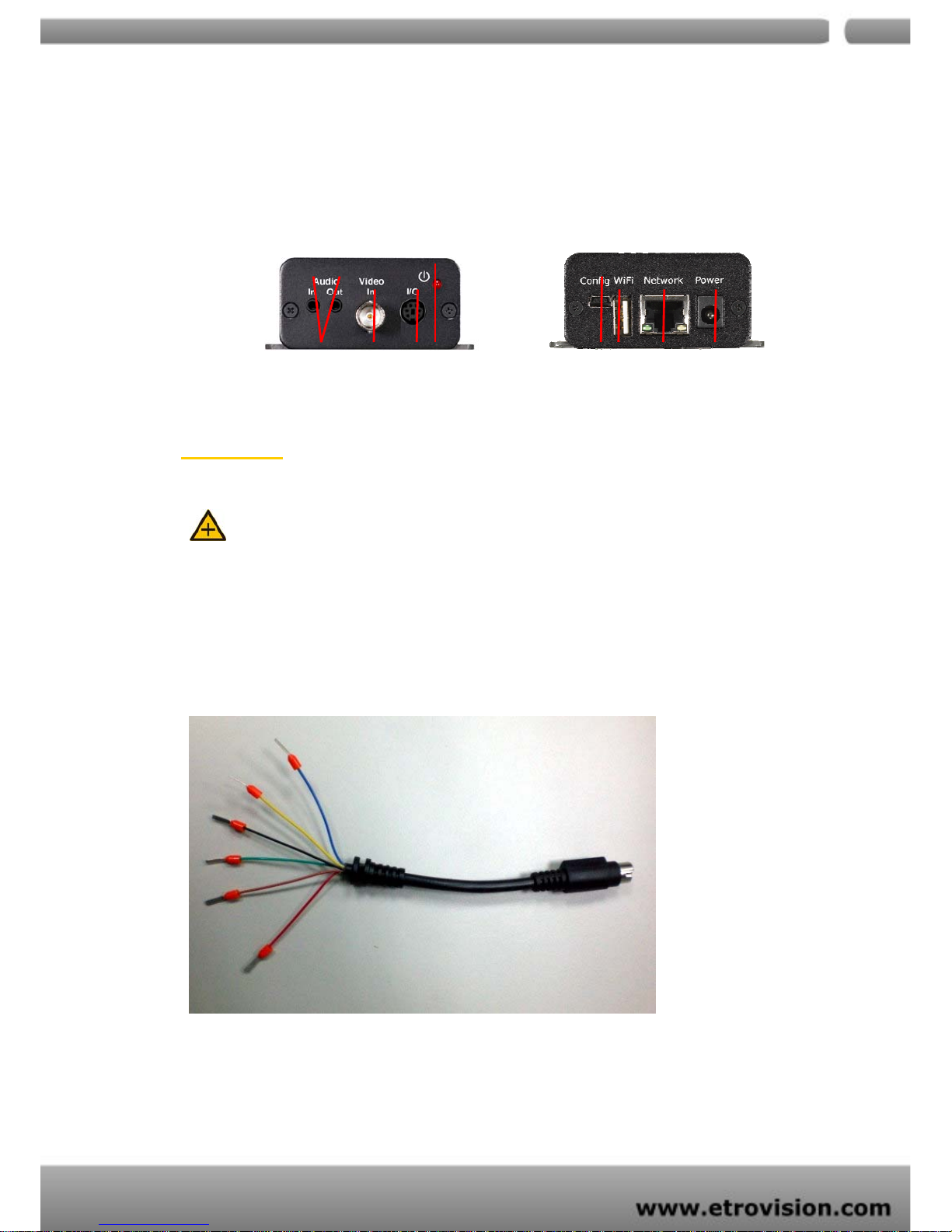
EV3151
EV3151 EV3151A
Page 7
04
7
EV3151A
PIN Define
Note: There is no Mini DIN cable in the package of EV3151.
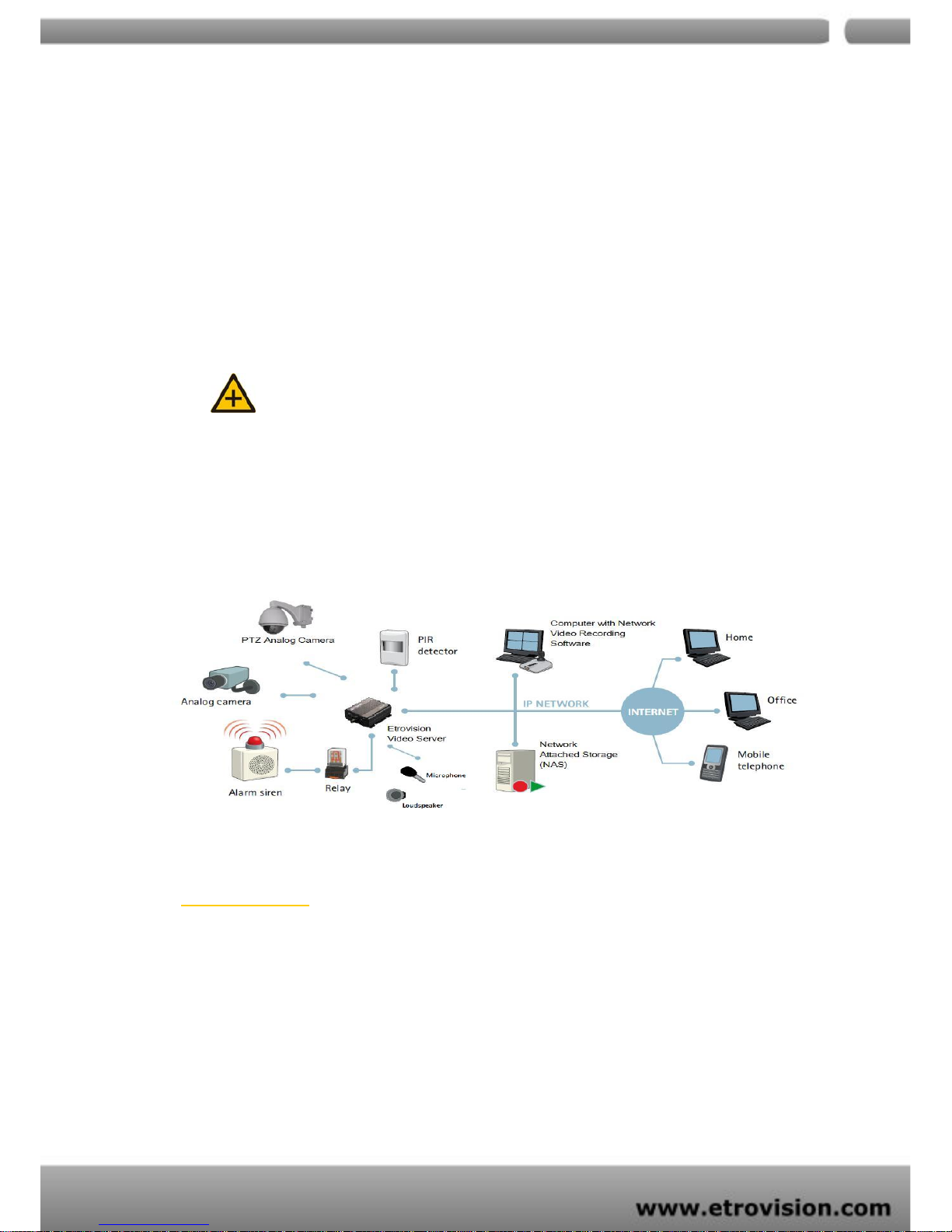
The functions of mini Din cable include:
Two lines support Digital Input
Two lines support Digital Output
Two lines support RS485 interface
- Blue line : RS485 +
- Yellow line : DI +
1 2 3 4 5 6
1. 12V DC Power
2. RJ-45 Ethernet Port
3. EtroLink™ Config Port
4. Video In Connector
5. RS-485 PTZ Camera Control
6. Power LED & USB LED
1 2 3 4 5 6 7 8
1. Audio Line In / Audio Line Out
2. BNC Video Input
3. Mini-Din I/O Soclet
4. Power LED
5. EtroLink™ Config Port
6. USB Host for WiFi Support
7. RJ-45 Ethernet Port
8. 12V DC Power
Page 8
04
8
- Black line : DI -
- Green line : RS485 -
- Brown line : DO +
- Red line : DO –
2. SETTING AND INSTALLATION
Note:
Connect EV3151 / EV3151A to your network by using a standard Cat-5 cable.
Connect the video output of your camera with video in of video server, using standard
75Ω coaxial cable with BNC type connector.
Connect speaker and active microphone to Audio Out/In.
Product CD
Product CD in the package contains:
EtroStation™3.0 NVR management software
o 16CH Live View / Recording / 4CH Playback
User’s Manual
Page 9

04
9
Power on Video Server
Use the power adapter, provided in the package, to power on the video server. The
adapter should be connected to 110v-220v AC socket.
Connect to Network
Connect the video server and the network hub/switch via a standard CAT5 Ethernet
cable and RJ45 socket. Plea se pay attention that the PC must be on the same network
domain with the video server.
Connect to Analog Camera
Connect the video server and the analog camera (CCTV) via a BNC cable.
Connect I/O
Users have to make pin-to-pin correctly to enable this function.
Enable Audio Function (EV3151A only)
The video flicker may occur when enabling or disenabling audio in and
audio out. The situation normally lasts for a second.
Pan/Tilt/Zoom Control
Preset: set preset point
Page 10

04
10
stands for setting. Users may set the amount
of preset number.
stands for going. Users may set the starting
point and the terminal one. The camera will cruise
from the starting point to the terminal one once.
Focus: Users can adjust the camera focus.
Zoom: Users can control the camera zoom ratio.
Iris: Users can adjust the camera IRIS level.
3. USING THE VIDEO SERVER FOR THE FIRST TIME
Before You Install Software
Please check PC OS platform. Microsoft Windows 2000 or Windows XP is
capable of running EtroStation™3.0 software.
PLEASE read EtroStation™3.0 user’s manual before installation.
Language Support
English
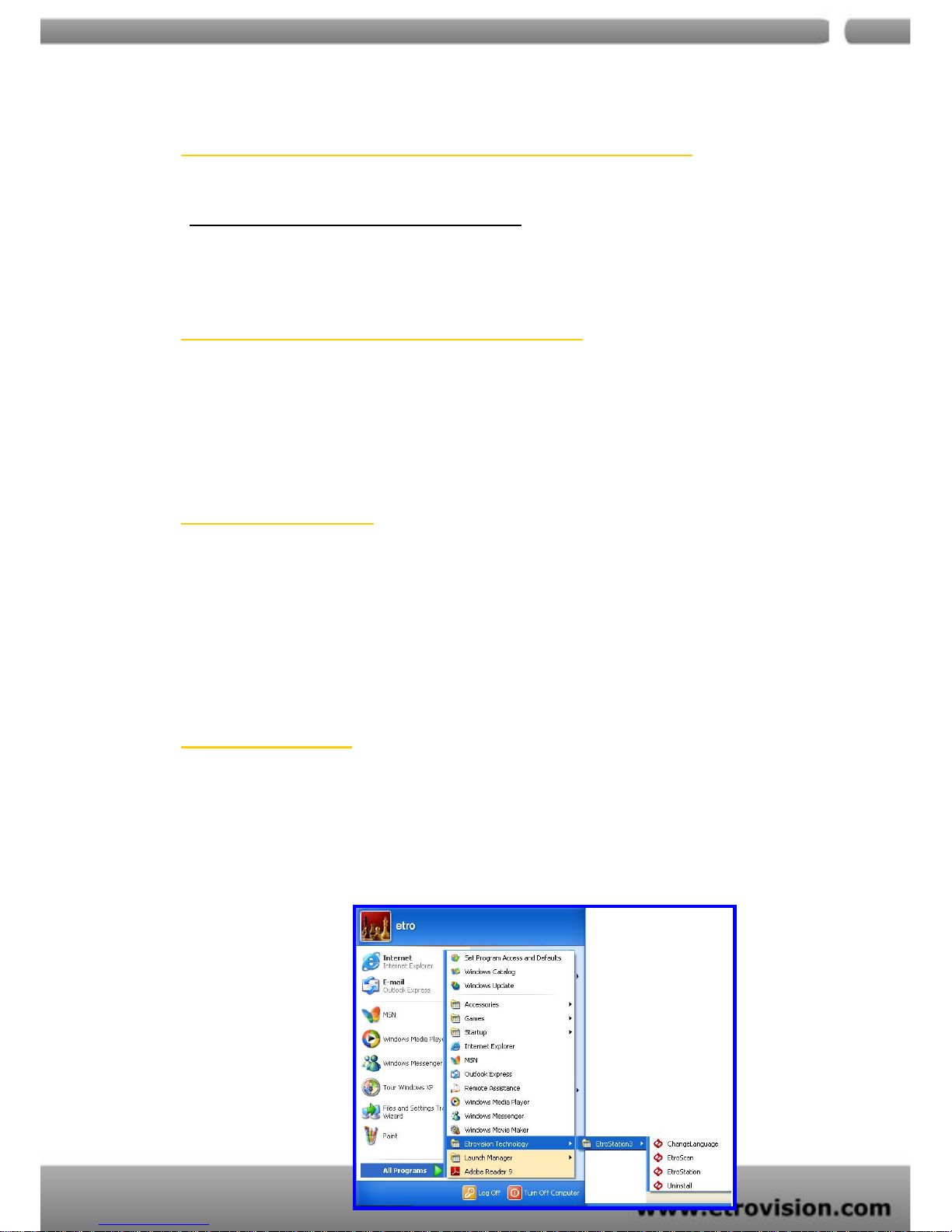
Install EtroStation™ 3.0
User can easily find the specific video server on the network via this software.
Page 11
04
11
Browser for Live Viewing and Video Settings
Microsoft IE browser version 6 or higher is recommended. Currently Mozilla Firefox
and others are not compatible.
Factory Setting - Initial IP Address
Default IP Address: 192.168.1.2
Gateway: 192.168.1.1
Subnet Mask: 255.255.255.0
Network Domain
Alter the IP address of the PC to the same domain of default value (192.168.1.2). You
may alter the IP address of the video server to the same of PC via EtroScan™. Please
refer to page 45 to check detailed information.
Use EtroScan™
The software allows users easily and quickly find the specific video server on the
network. Run EtroStation™3.0 setup and install the two applications. The following
is the brief instruction:
Page 12
04
12
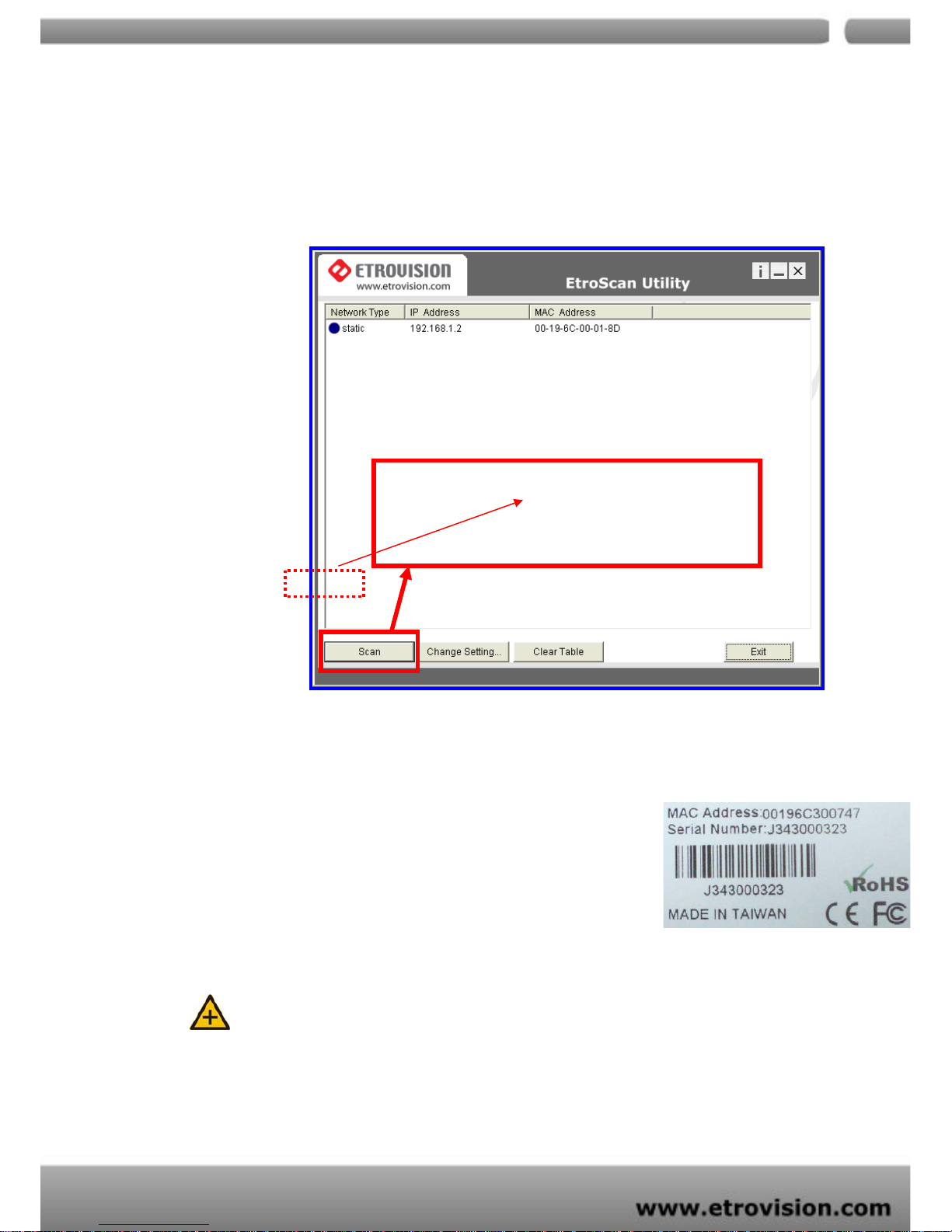
Select EtroScan™ from the start menu. User can see the following image:
Press Scan button to check the IP and MAC address list. Press Clear Table button and
press Scan again to refresh.
You will find the list of IP and MAC address listed. To
identify your EV3151 / EV3151A you can flip over the
video server and check the label for MAC address on the
bottom side.
Note:
Please pay attention that a completed RMA form must contain the serial number of the product.
For more information, please refer to www.etrovision.com
Click scan to automatically
find online EV315X on the
network domain
Press Scan to automatically find online EV3151 or
EV3151A on the network domain
Page 13
04
13
Change Network Setting via EtroScan™
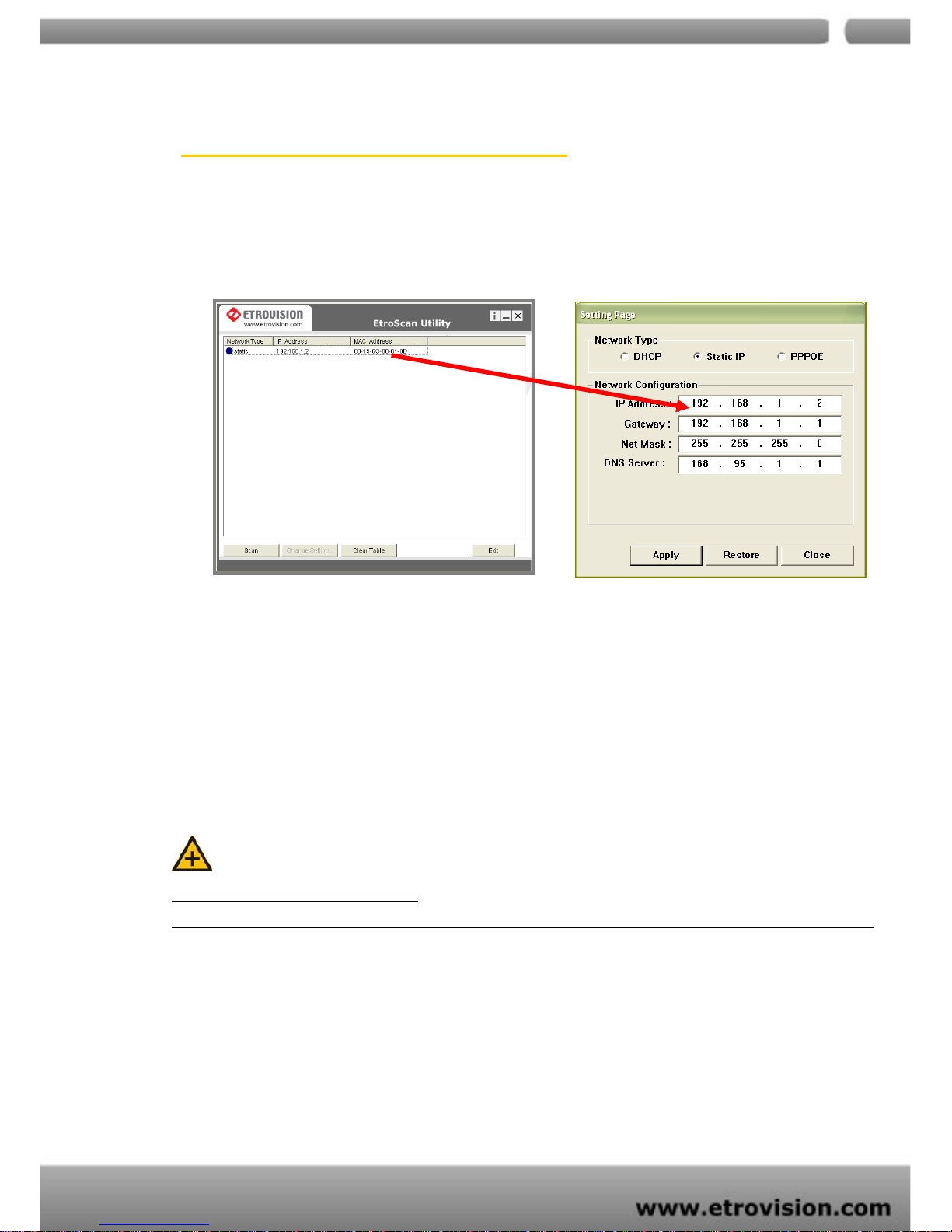
Double click on a specific IP address; the setting page will pop out. Users may alter
some basic network parameters in this page.
Be sure to press Apply to enable the new setting
Within 10 seconds, the dialog box would disappear. This indicates that the new
settings are deployed. After typing in the new IP address, user may close the setting
page and wait for 45 seconds. It takes 45 seconds to restart the system. After
rebooting, user may press Scan to check the new IP address.
Note
“DOUBLE RIGHT CLICK” Function
Double right click on a specific IP address on the list; user can quickly open the live viewing browser page.
Press Exit to quit.
Double click
Page 14
04
14
4. ACCESS VIDEO SERVER
Browser
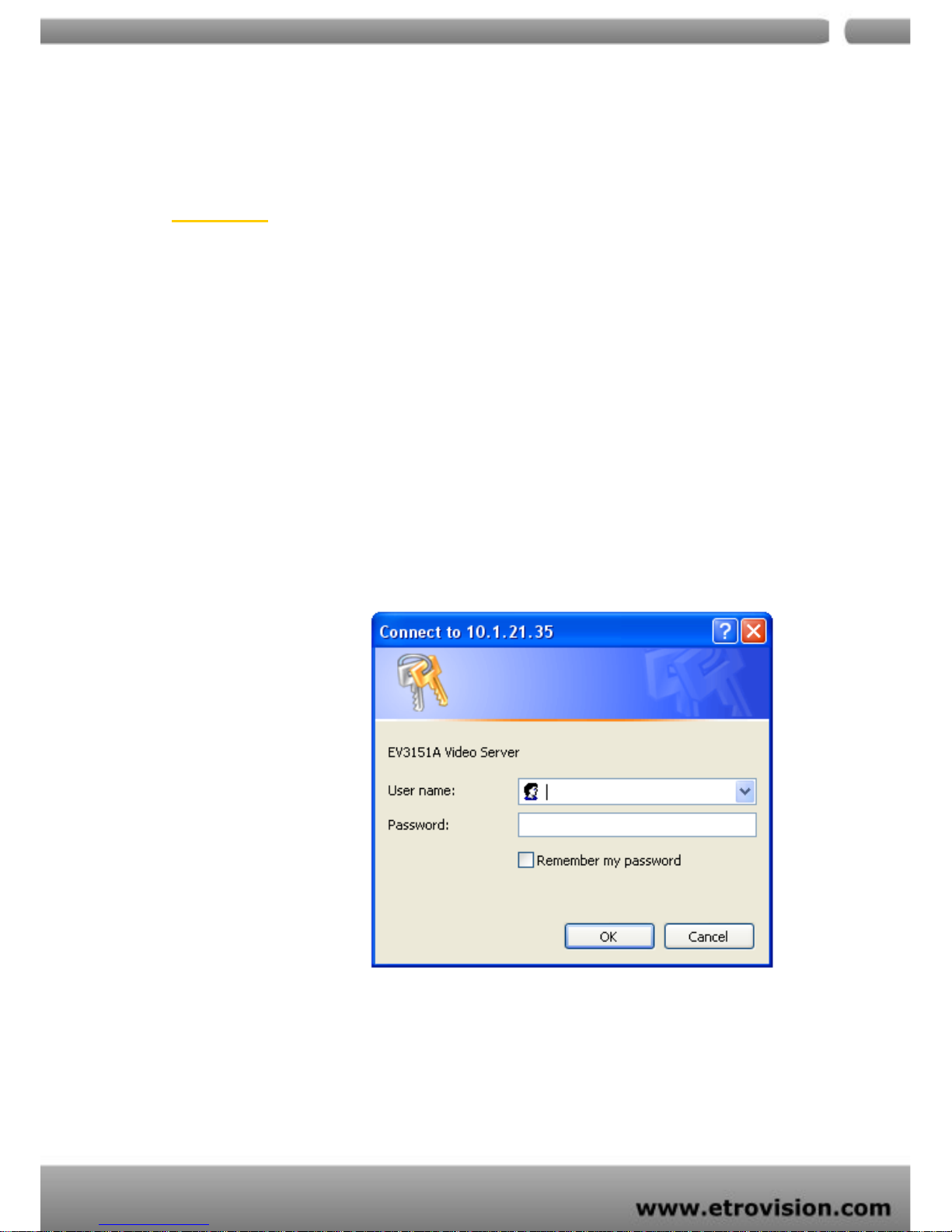
Open an IE browser
Type in the IP address of video server that you found via EtroScan™ For
example : 192.168.1.2 (default IP address)
A pop-up login dialog box will automatically display.
Initial username and password (case-sensitive) :
Login: root
Password: pass
Press OK button to access to the live viewing web page.
root
pass
Page 15
04
15
Initial Username & Password
Administrator
Default ID/Password = root/pass.
The ID of administrator can not be changed or deleted; only the password is
changeable.
Administrator has the authority to view and control system settings.
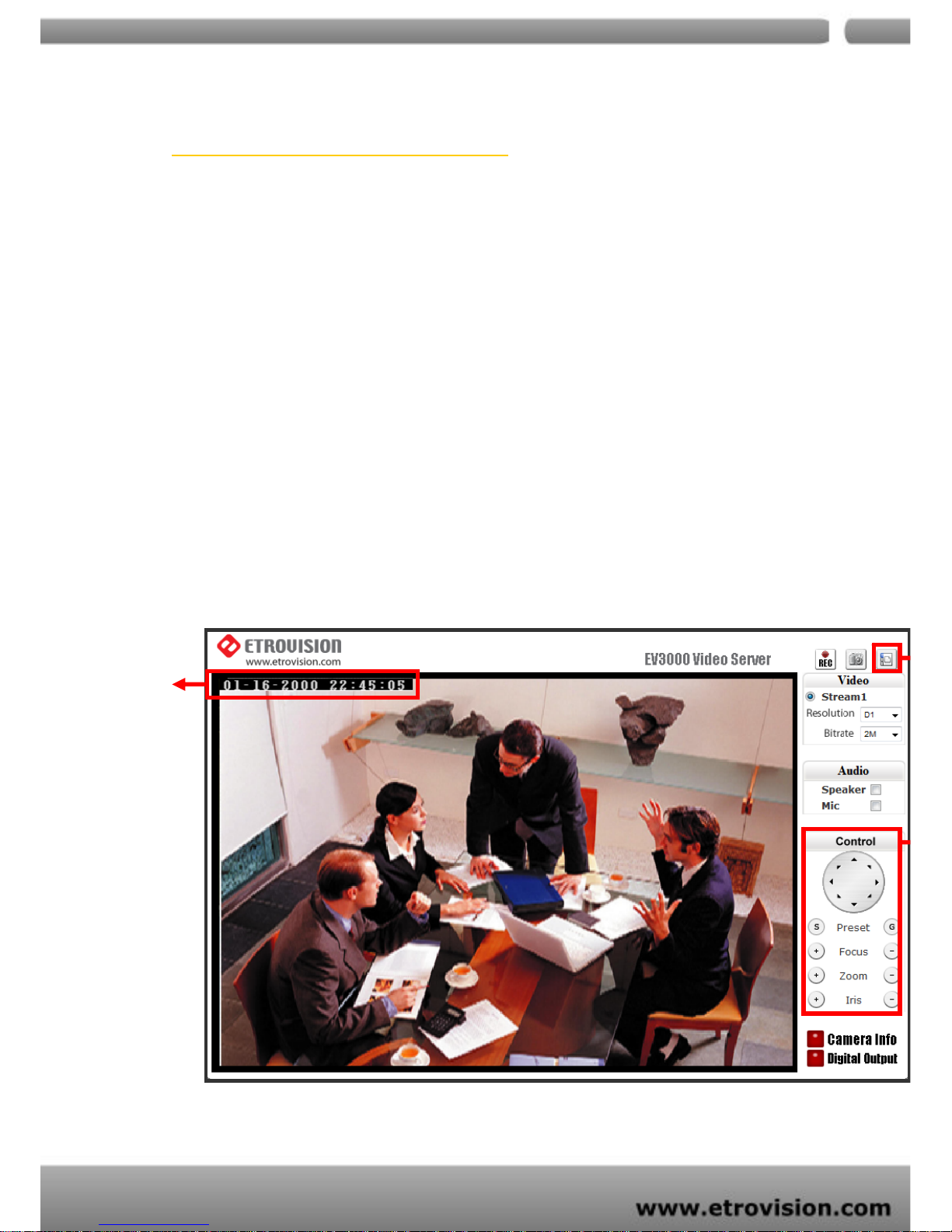
After logging in with root/pass as administrator , user may see the live viewing page.
EV3151/EV3151A Live Viewing Page (Admin Mode)
4
Page 16
04
16
1. There is a toggle button on the top right corner of the live viewing page.
2. User may press this button to switch web configuration page to the live viewing
page and vice versa.
3. Control options are listed on the right side.
4. OSD is displayed on top left corner of the screen.
The sequence is date (mm-dd-yyyy), time, and camera name.
(camera name is optionally displayed)
CONTROL PANEL SETTINGS
1. Video\Resolution
The following table shows common resolution format values:
Resolution CIF QCIF D1
NTSC
352X240 176X120 720X480
4
54
Page 17
04
17
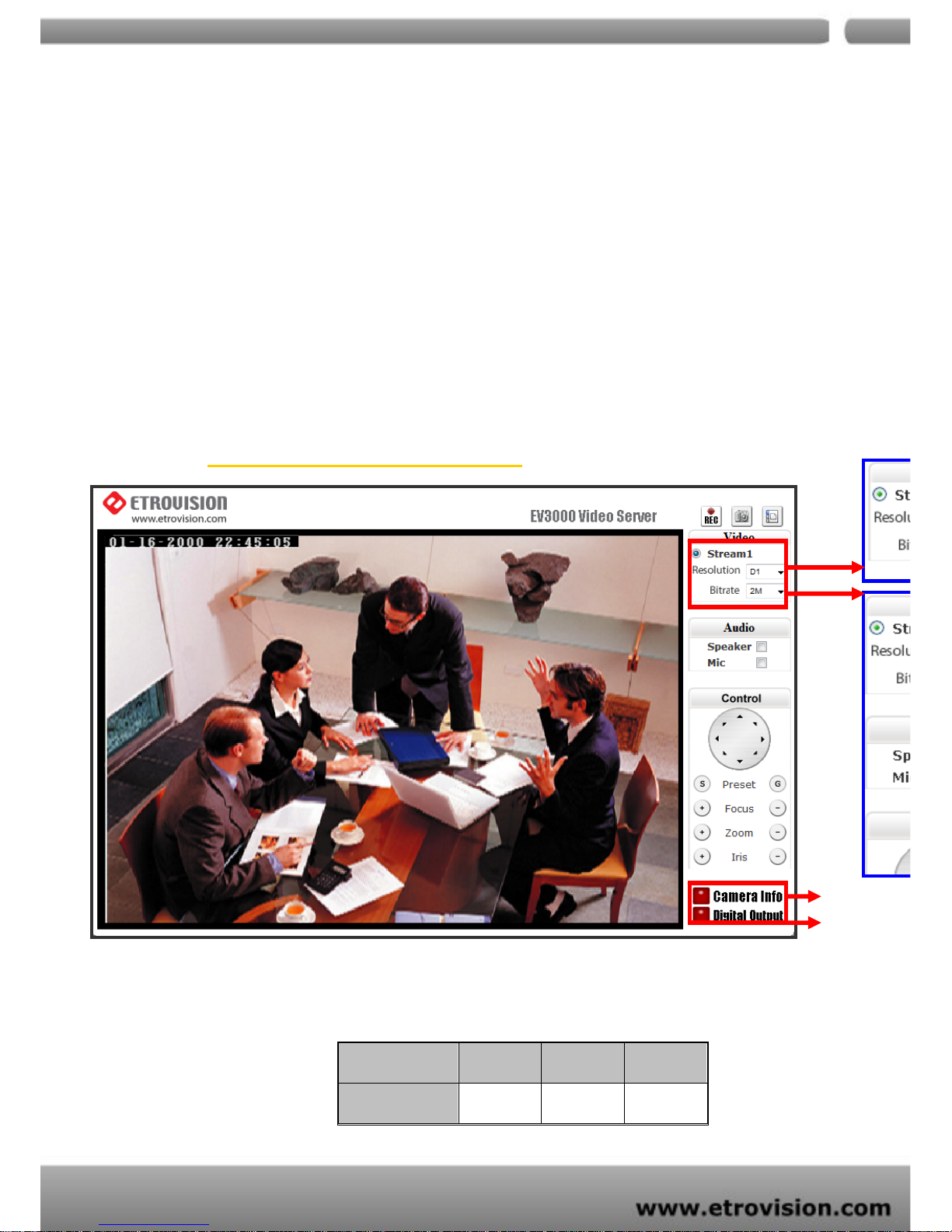
2. Video rates\Bit rates
3. Choose a specific value and the se tti ng will be enab led wit hin few se cond s. The
image on the screen might briefly pause.
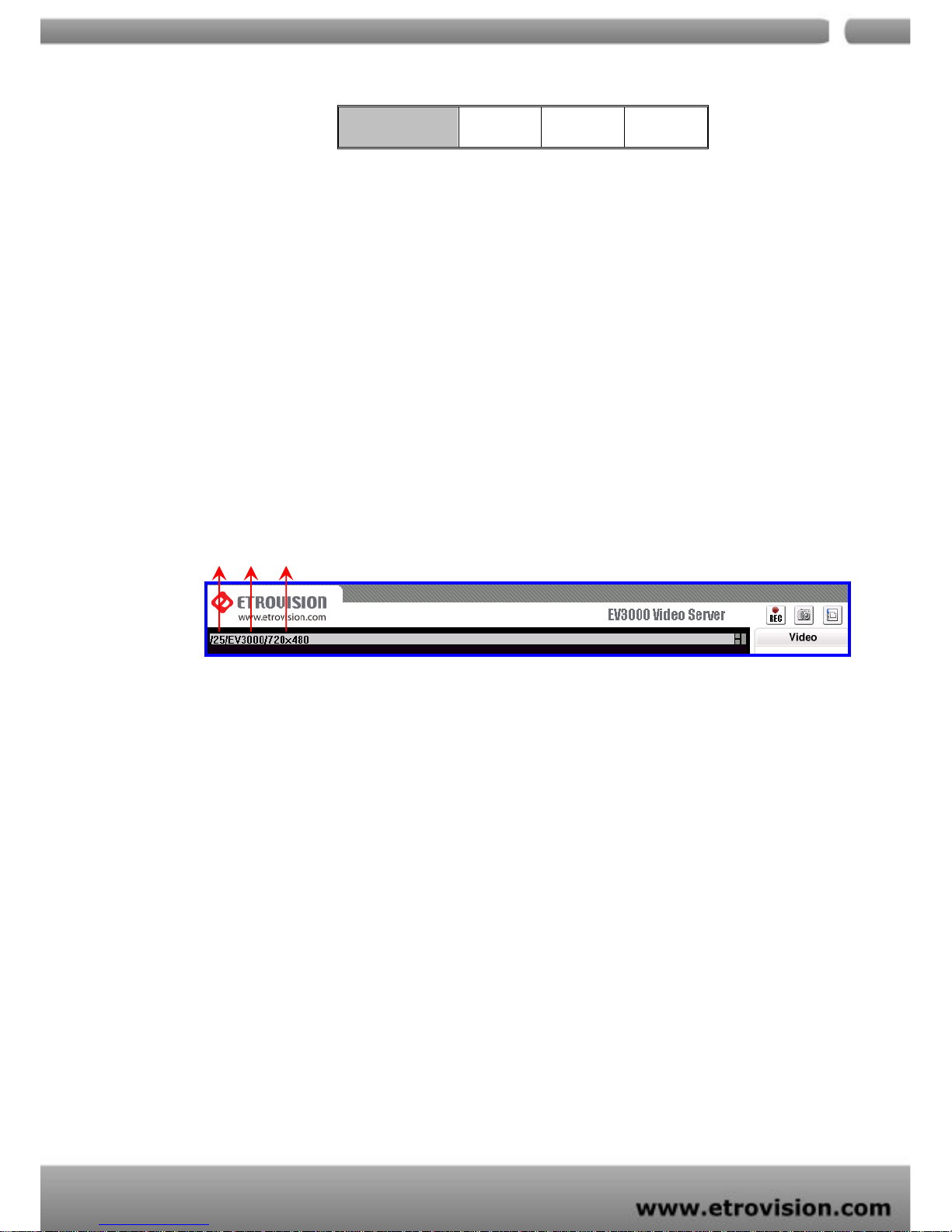
4. Camera Information (Please refer to the picture)
The button is on the lower right corner of the live viewing image, showing video
information such as frame rate (fps), model name, and resolution.
5. Digital Output (EV3151A only) (Please refer to the picture)
T o enable this function, user has to connect the PIN via the Mini DIN cable. The
toggle button works as a switch to enable/disenable Digital Out function.
PAL
352X288 176X144 720X576
FPS Name Resolution
Page 18

04
18
5. WEB INTERFACE SETTINGS - BASIC
EV3151 / EV3151A built-in web interface provides the access to further settings.
Enable the top-right side icon in the live viewing page to access to the further
settings. This button also works as a switch between Config and Live viewing page.
(Please refer to the picture in p.16)
STATUS
1. Status is the first item of the setting options.
2. This page shows the IP address, MAC address of the video server, hardware,
firmware information, and other related information.
Page 19
04
19
NETWORK
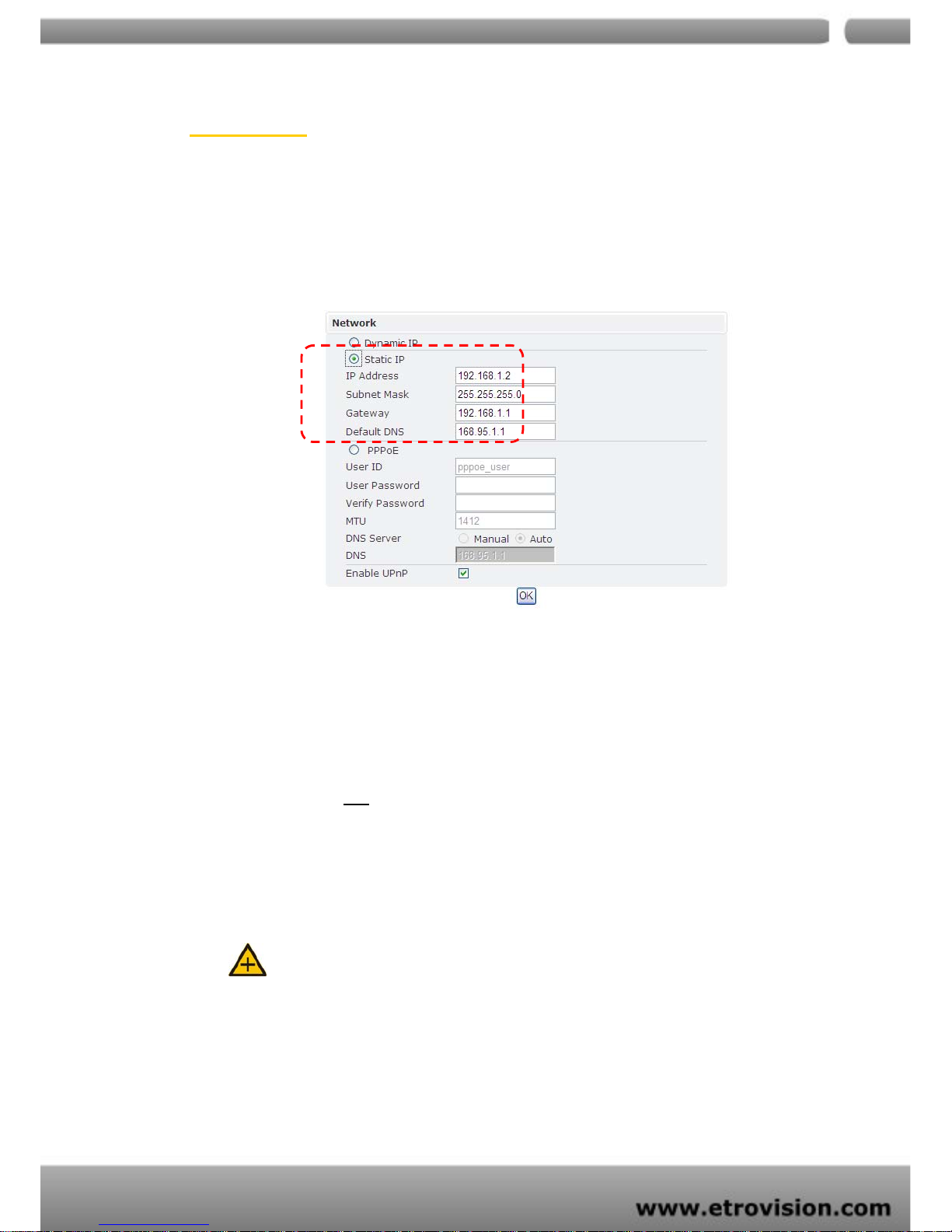
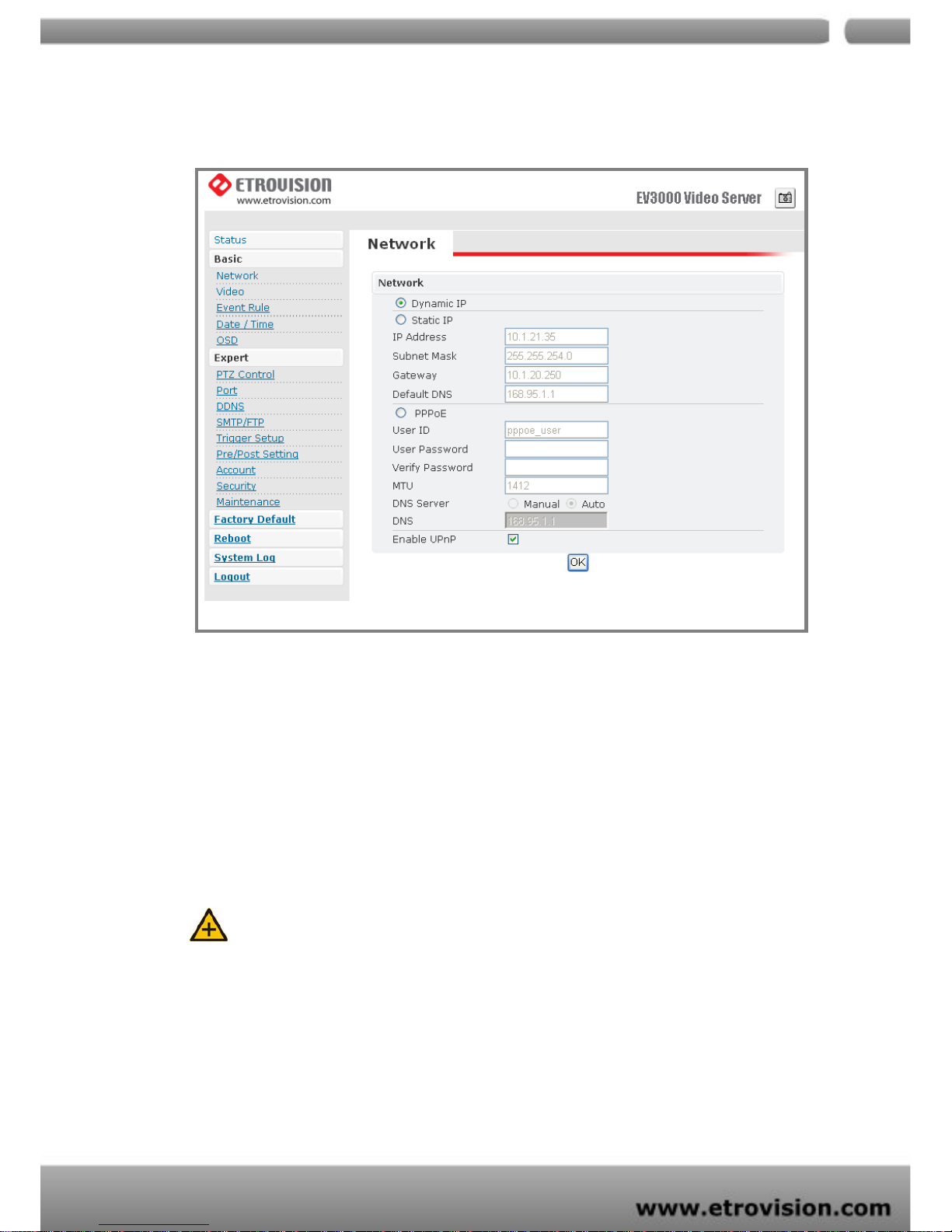
There are three available types of wired network connection: STA TIC, DYNAMIC and,
PPPoE.
Static IP
1. IP Address
Please confirm with the network administrator.
2. Subnet Mask/Gateway/Default DNS
Please confirm with the network administrator.
3. Be sure to press “OK
” to save the new setting.
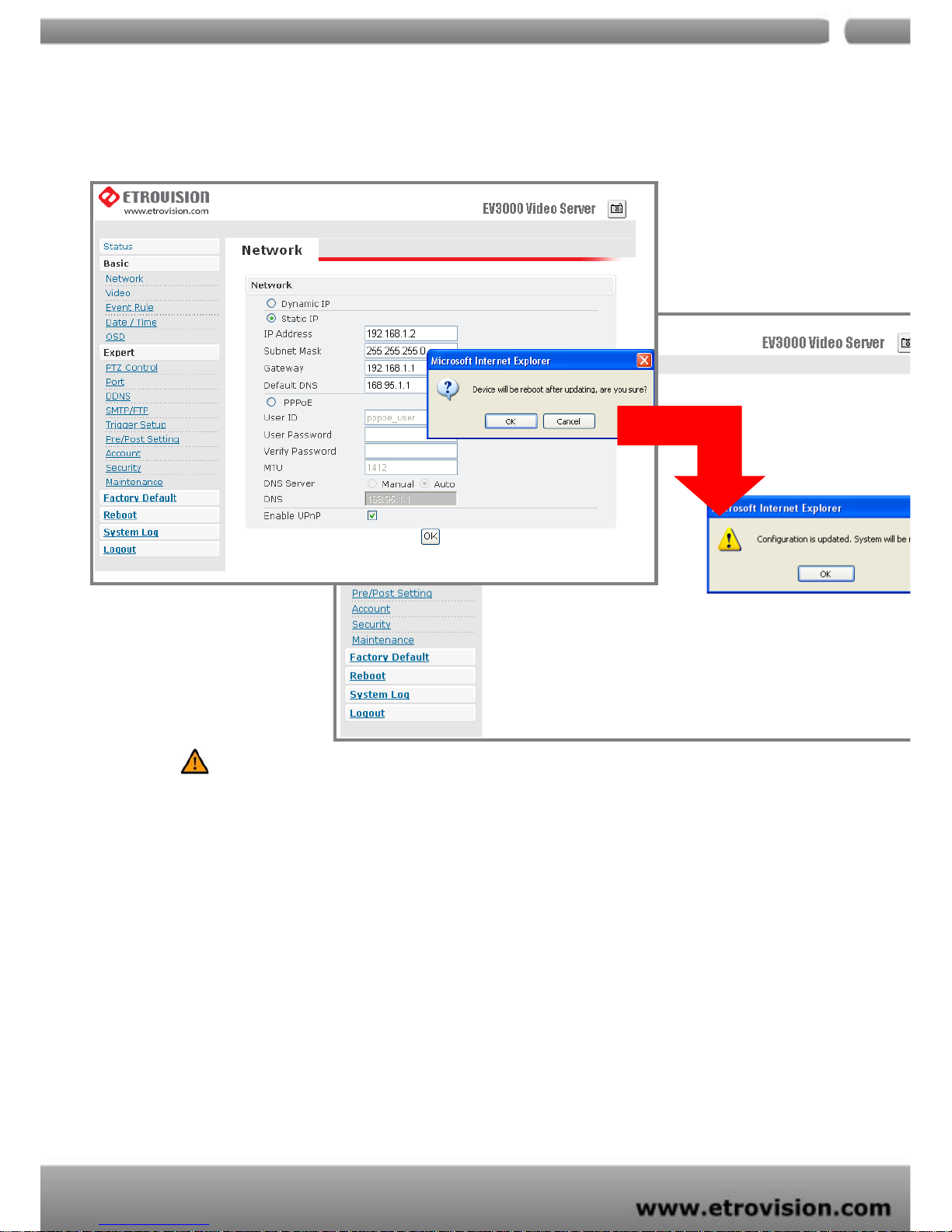
4. Reboot will be required and automatically triggered after pressing OK. Please wait
for a moment to the count down timer stop. The page will be redirected to the
initial login one.
Notes:
Always use EtroScan™ to find the MAC addresses after reboot and double check the IP
address. Make sure the IP address is correct. If IP was changed in web configuration,
you cannot return to initial login page after reboot.
Page 20
04
20
Dynamic IP
1. If DHCP server is on LAN and you want to allocate Dynamic IP address, use DHCP.
2. Press “OK” button.
3. Reboot will be required and automatically triggered after pressing OK.
4. Please wait for a moment to the count down timer stop. The page will be redirected
to the initial login one.
Note:
Always use EtroScan™ to find the MAC address after reboot and double check the IP
address is correct. If IP was changed in web configuration, you cannot return to initial
login page after reboot.
Page 21

04
21
PPPoE Settings
1. If the network supports PPPoE like xDSL, this option is available.
2. Require ISP(Internet Service Provider) to provide ID/Password.
3. User ID / Password
4. PPPoE user ID / Password
5. Service Name: Service name of ISP
6. MTU
。Maximum transmission unit of data
7. IP address of DNS sever can be set to be automatically created.
8. If xDSL does not use static IP, you should use DHCP.
Page 22
04
22
Caution
Be sure press “OK” after you have changed the setting in a particular setting page. After
few seconds, a confirmation dialog box will pop up to indicate that the setting has been
updated. To return to the same page, please press OK.
Page 23
04
23
Wireless (ONLY for EV3151A model)
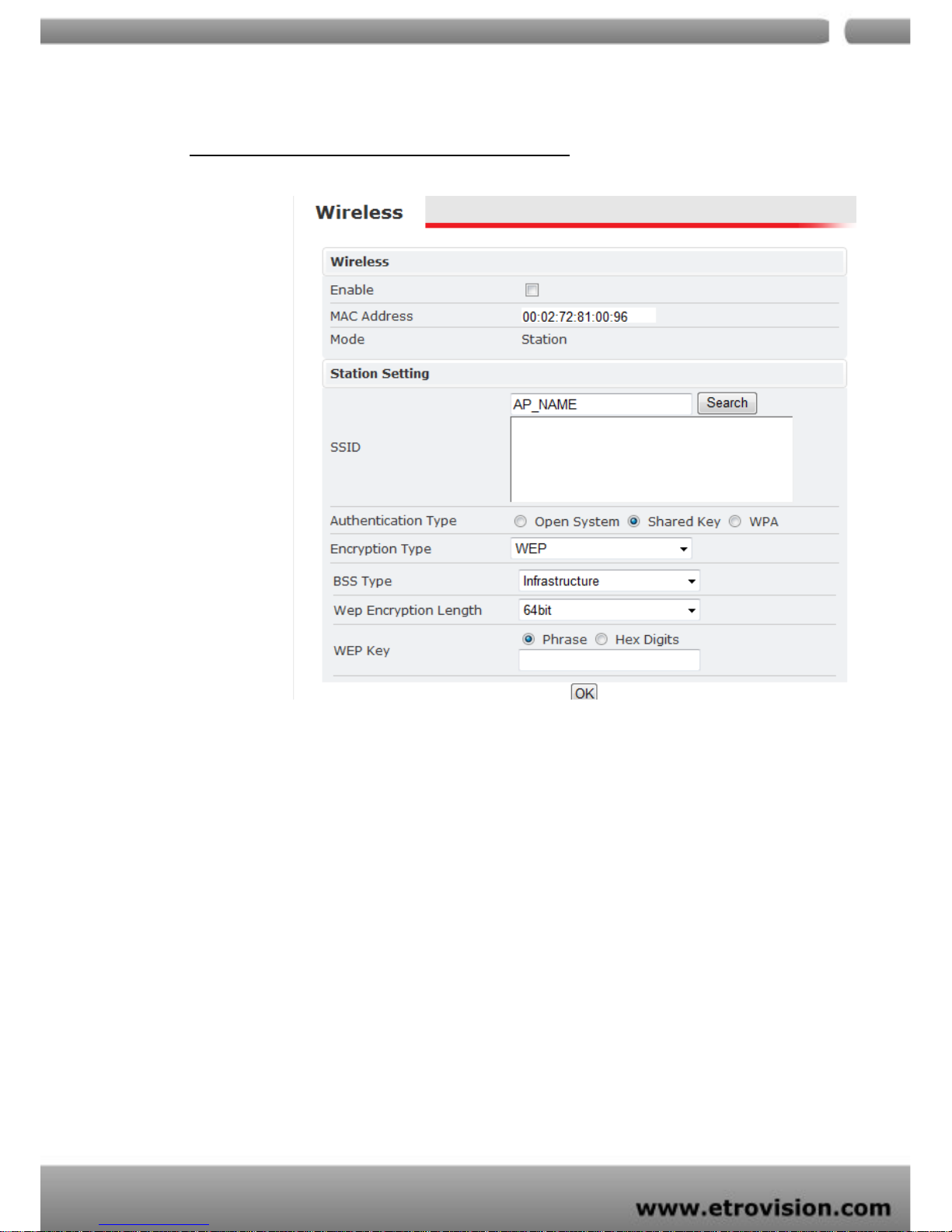
Wireless SETTINGS
Enable
Click this check box to enable/disable wireless function
MAC Address
MAC Address of wireless NIC is displayed here
Mode
System only support “Station mode” now
Page 24
04
24
Station SETTINGS
SSID
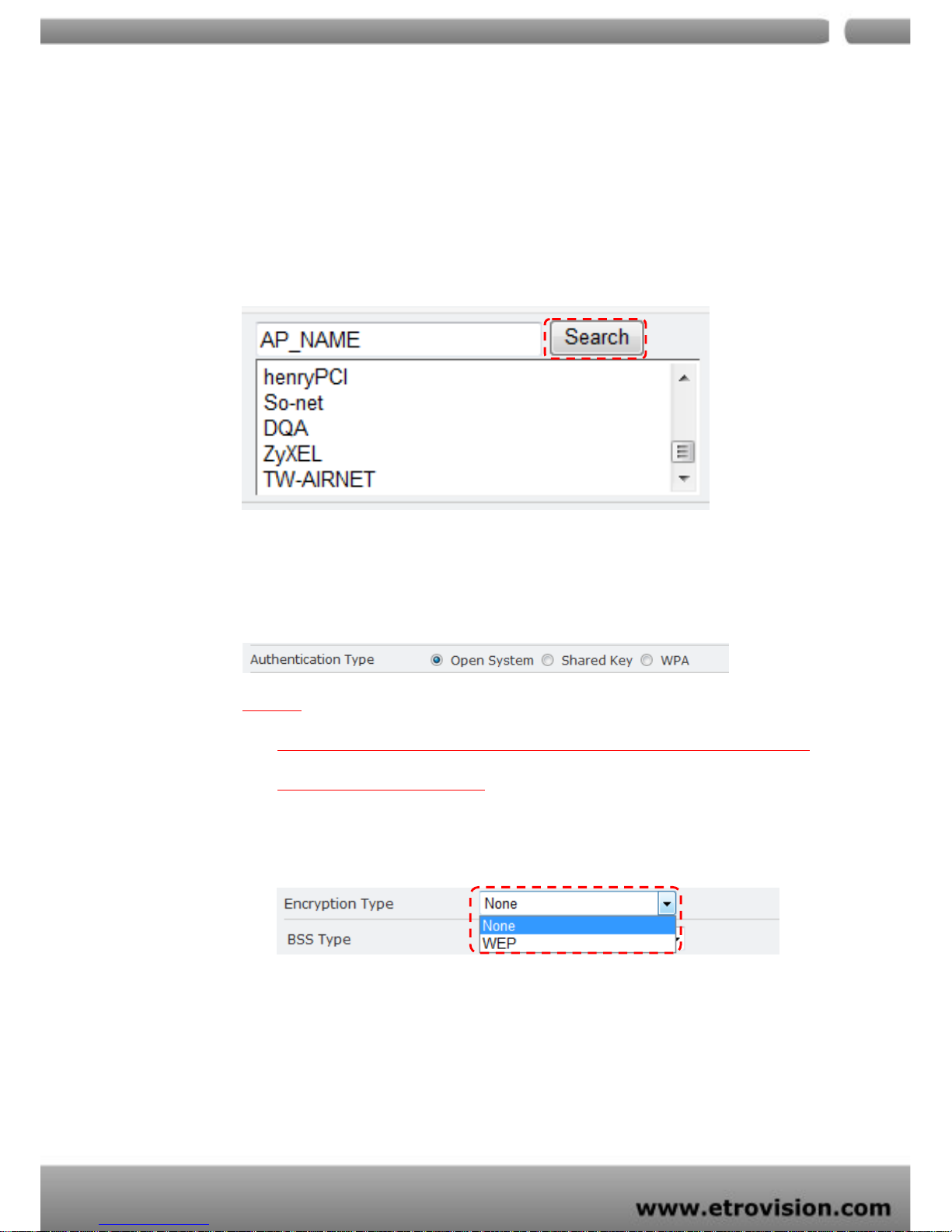
Click “Search” bottom, after 8~12 sec, system will search available
access point signals and list on the box below
Select the SSID of access point you want to link
Authentication Type
Select “Open System” or Shared Key“ or “WPA” type
**NOTE
Contact with your network administrator if you are not sure which type of Wi-Fi
authentication on your network
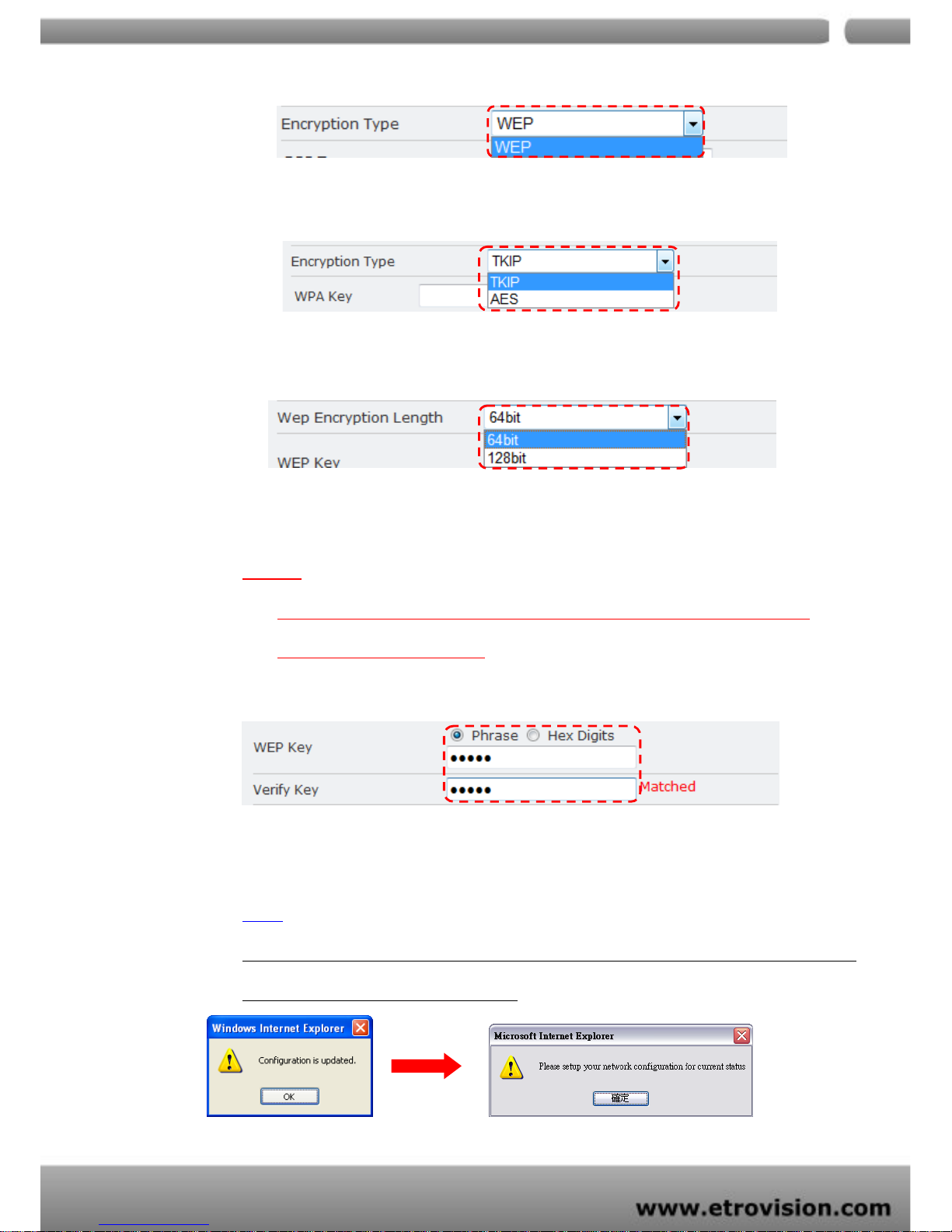
Encryption Type
When selecting authentication type = Open System
There are two encryption types can be selected: None (no encryption key
needed) or WEP
When selecting authentication type = Shared Key
Page 25
04
25
ONLY WEP type can selected
When selecting authentication type = WPA
There are two encryption types can be selected: TKIP or AES
WEP Encryption Length
When selecting WEP mode, you should define encryption length as 64bit
or 128 bit
**NOTE
Contact with your network administrator if you are not sure which type of Wi-Fi
authentication on your network
WEP Key / WPA Key
Select Phrase or Hex Digits as you network security define; then input
WEP Key / WPA key and do again on verify key field
NOTE
Remember to press “OK” after you have changed wireless settings. System will guide you to
go to setup WLAN IP address as following
Page 26
04
26
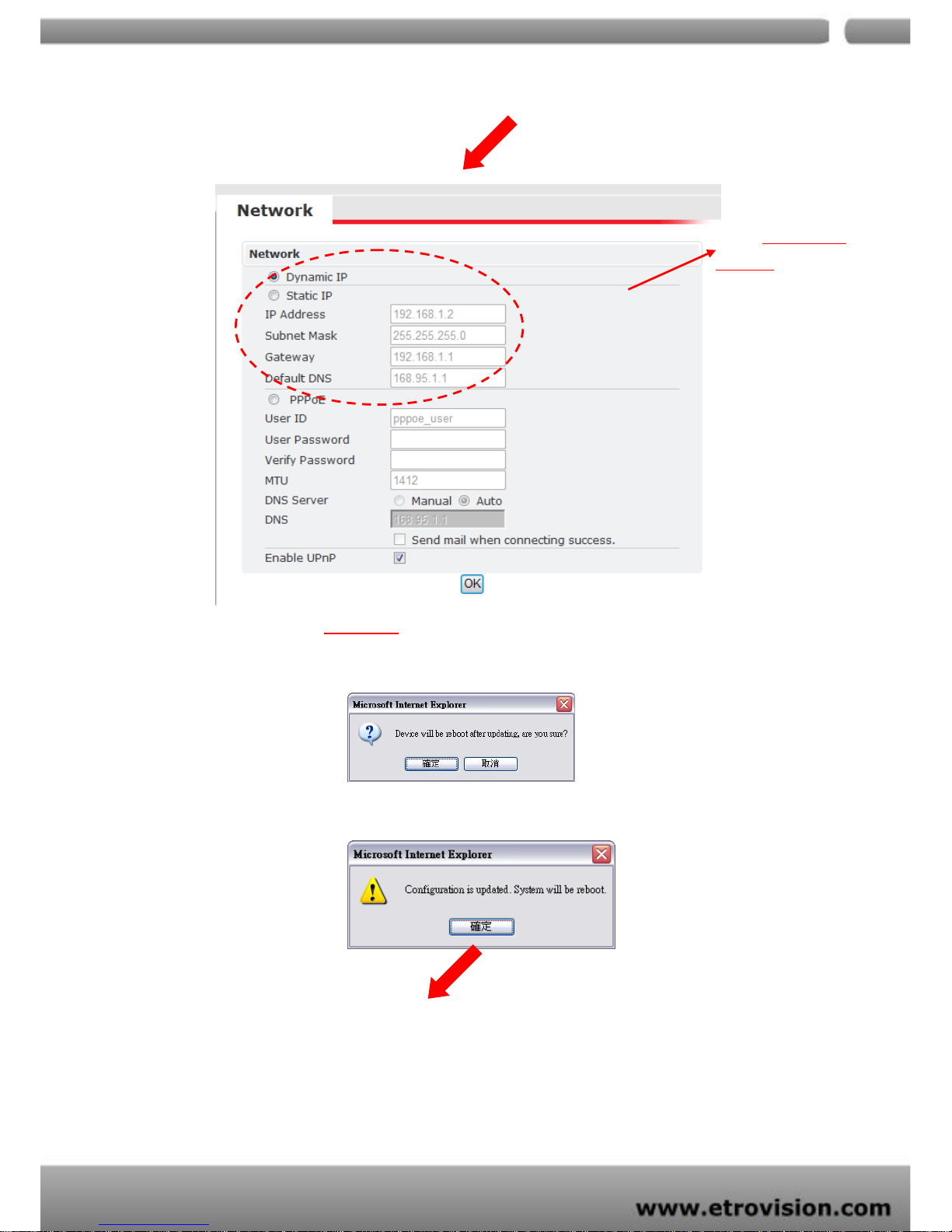
Select correct wireless IP address setting based on your AP router define; then
click OK.
After setting, system will drive you to reboot process as following
Config wireless ip
address setting here
Page 27
04
27
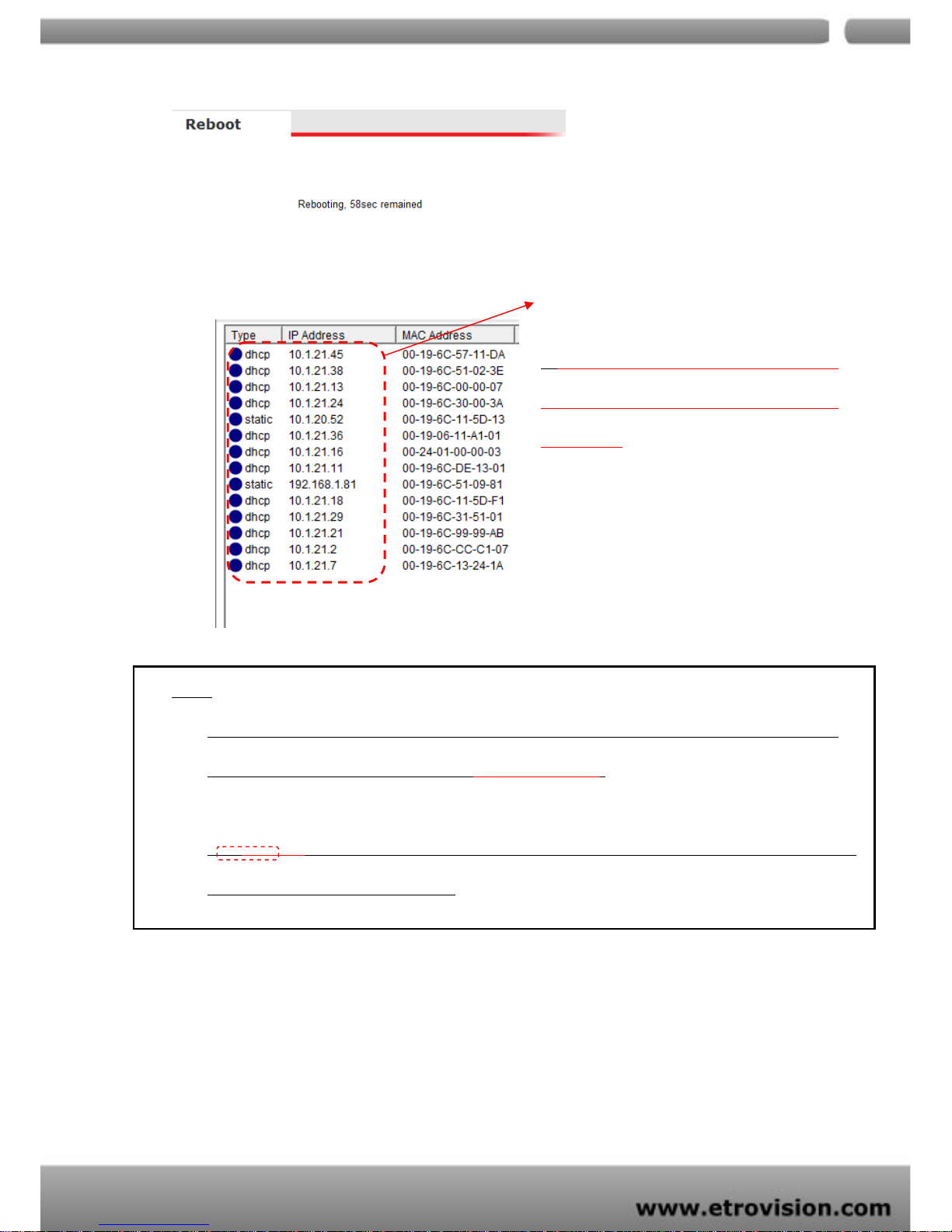
After reboot, the WLAN will be activated and you can find the WLAN ip address via
Scan AP
NOTE
When WLAN successfully enabled and get ip address from AP router, system will automatically
change ip address of wired network as “169.254.100.100”
The “Network” setting page refers to WLAN setting when WLAN is enabled; otherwise, it refers to
wired setting when WLAN is disabled.
WLAN NIC ip
address
**To view WLAN ip address, make sure your
PC is also successfully associated with WLAN
A
ccess Poin
t
Page 28
04
28
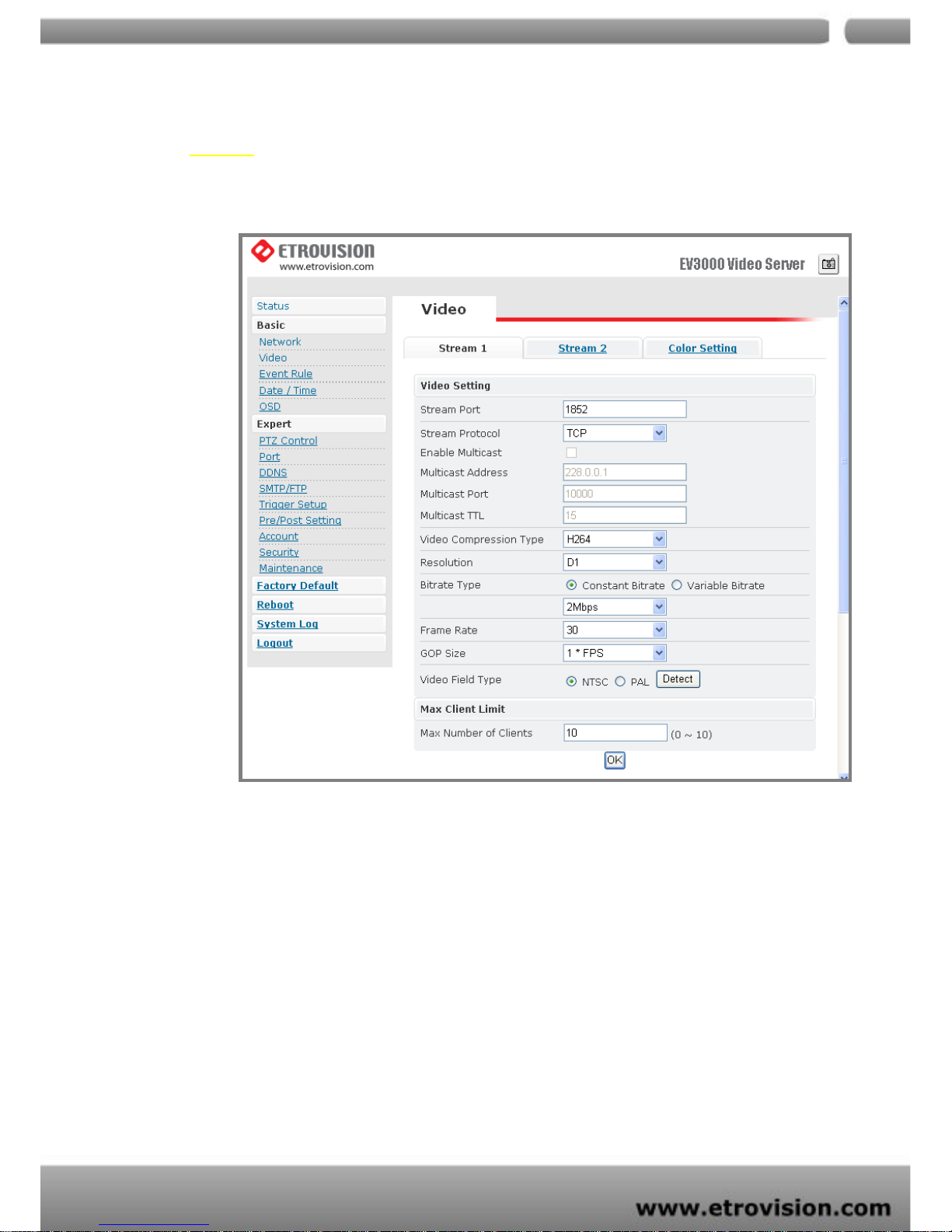
Video
Stream 1
Video Settings
1. Stream Port: Stream 1 port value setting
2. Stream Protocol: Selectable options: TCP/UDP (RTP) / User can decide
whether to enable multicast function or not (If UDP is selected).
3. Video Compression Type: Selectable options : H264/M-JEPG / MPEG-4
4. Resolution: Selectable options :D1/CIF /QCIF
5. Bit rate Type: There are two selectable options: constant bit rates (CBR) and
variable bit rates (VBR), providing the flexibility in choosing bandwidth.
Page 29

04
29
6. Constant bit rates (CBR): 4M / 3M / 2M / 1.5M / 1M / 750K / 500K / 384K /
256K / 128K / 64K
Note: 1M is recommended when using H.264; 1.5M is recommended when using
MPEG-4.
Note:
When mosaic or fragment occurs in the image, users may lower the frame rate or assign
another level of image quality.
7. Variable bit rates (VBR) ranges: 2 ~ 31 (The value “3” is recommended.)
8. Frame per second: 1 / 5 / 10 / 15 / 20 / 25 / 30
9. Group Size (GOP): This function is designed for adjusting the ratio between
“I” frame and “P” frame. Lower the group size represents the lower bandwidth
consumption.
10. Video Type: NTSC / PAL
Note:
System can automatically detect the input video signal when the detect icon clicked.
Max Client
This function allows more than one user to have the access to the video stream.
The relationship between bit rates, resolution, and the client amount is an inverse
ratio.
1. Maximum number of clients depends on the available network bandwidth and
the required video quality. The available range is 0 ~ 10.
Stream 2
Page 30
04
30
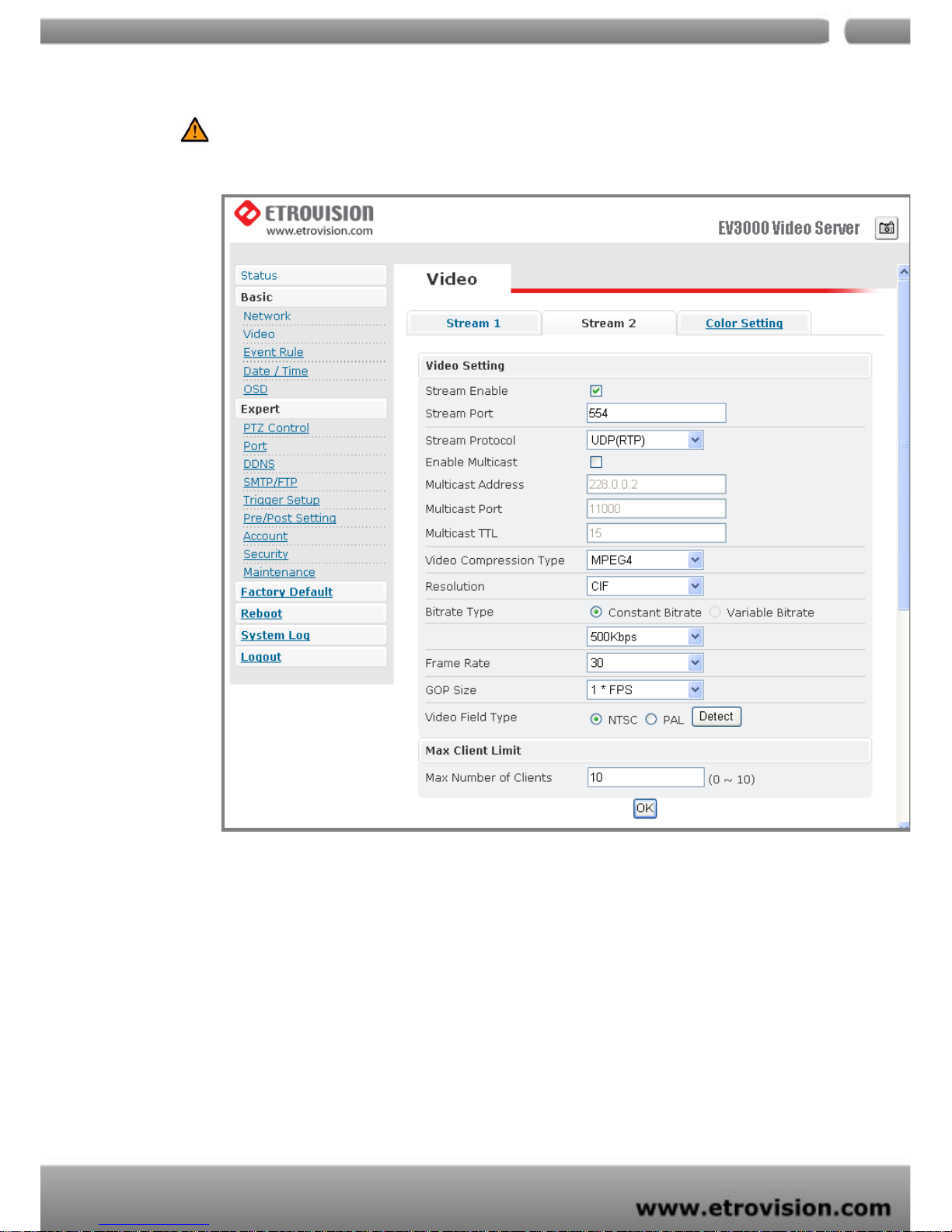
Caution: You have to enable Stream 2 in this section to see the option on the control
panel setting page.
The setting in stream 1 and 2 are the same. ; Administrator can decide whether to
enable this stream or not and see the live video in “Live Viewing” p age.
Color Settings
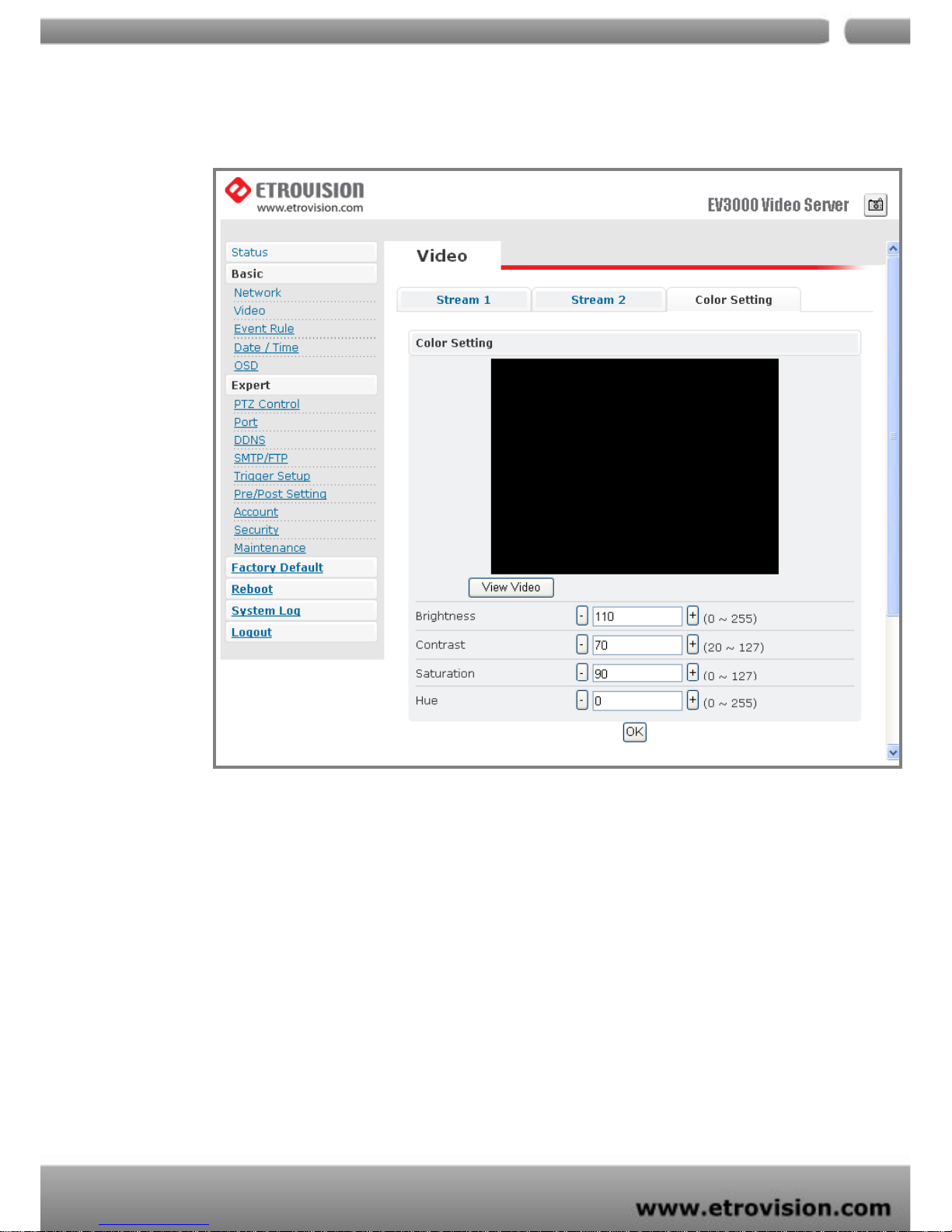
Users may make some fine adjustments to the video quality.
Page 31
04
31
The following is the instruction:
1. BRIGHTNESS: Adjust the brightness of the image.
2. CONTRAST: Adjust the
variation in the intensity of an image.
3. SATURATION: Adjust the intensity of color in the image.
4. HUE: Adjust the gradation or variety of a color.
Video Preview
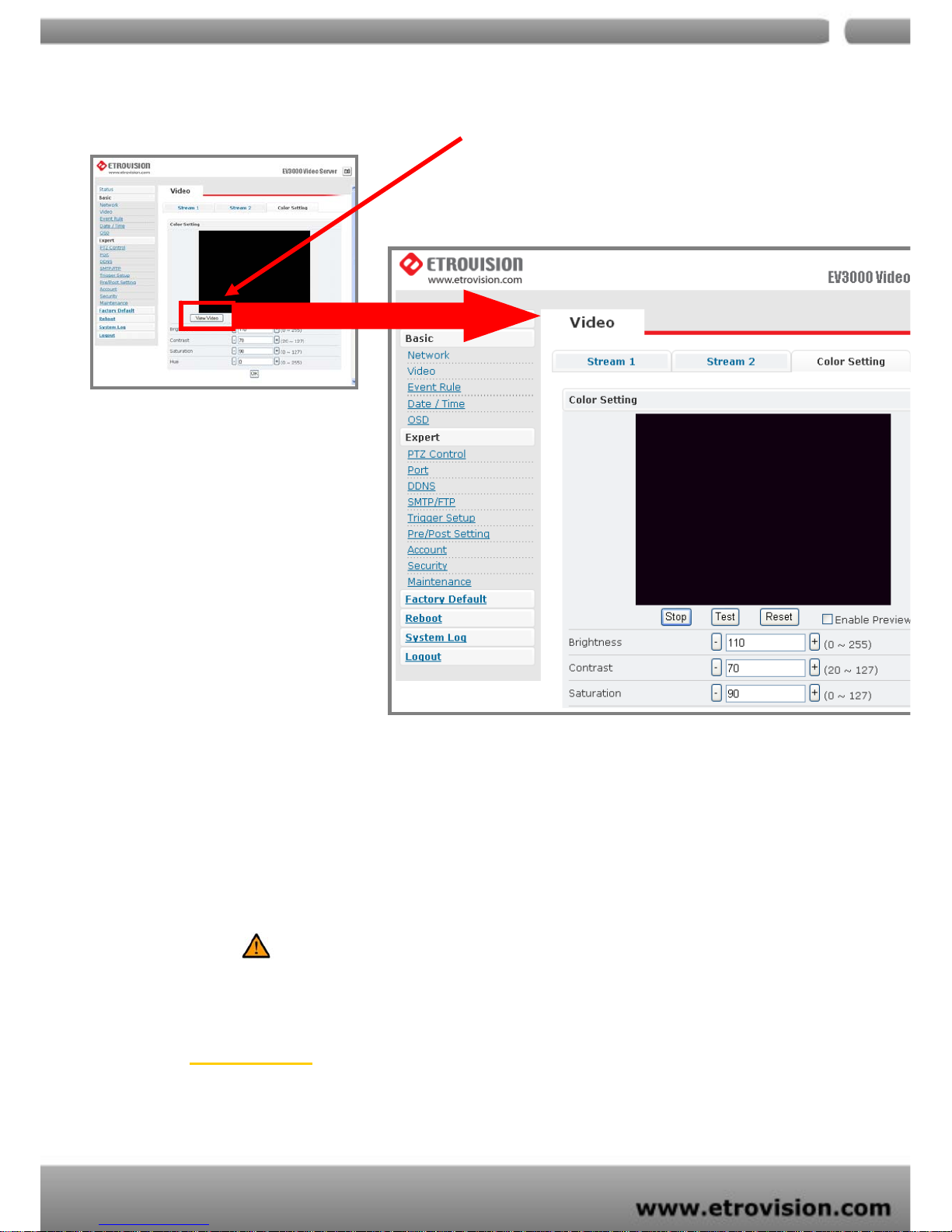
This function makes user easily check the possible change of altering parameters
Page 32
04
32
of setting. By pressing the View Video button, you can see the following
Press Stop to exit preview mode. You could alter other parameters and press
TEST to see the expected video image. In the process, user can press Reset
anytime to return to the default settings. Press Enable Preview to save the
current setting – the new settings will be enabled immediately.
Note: Do not forget to press “OK” button to save the current settings.
Event Rule
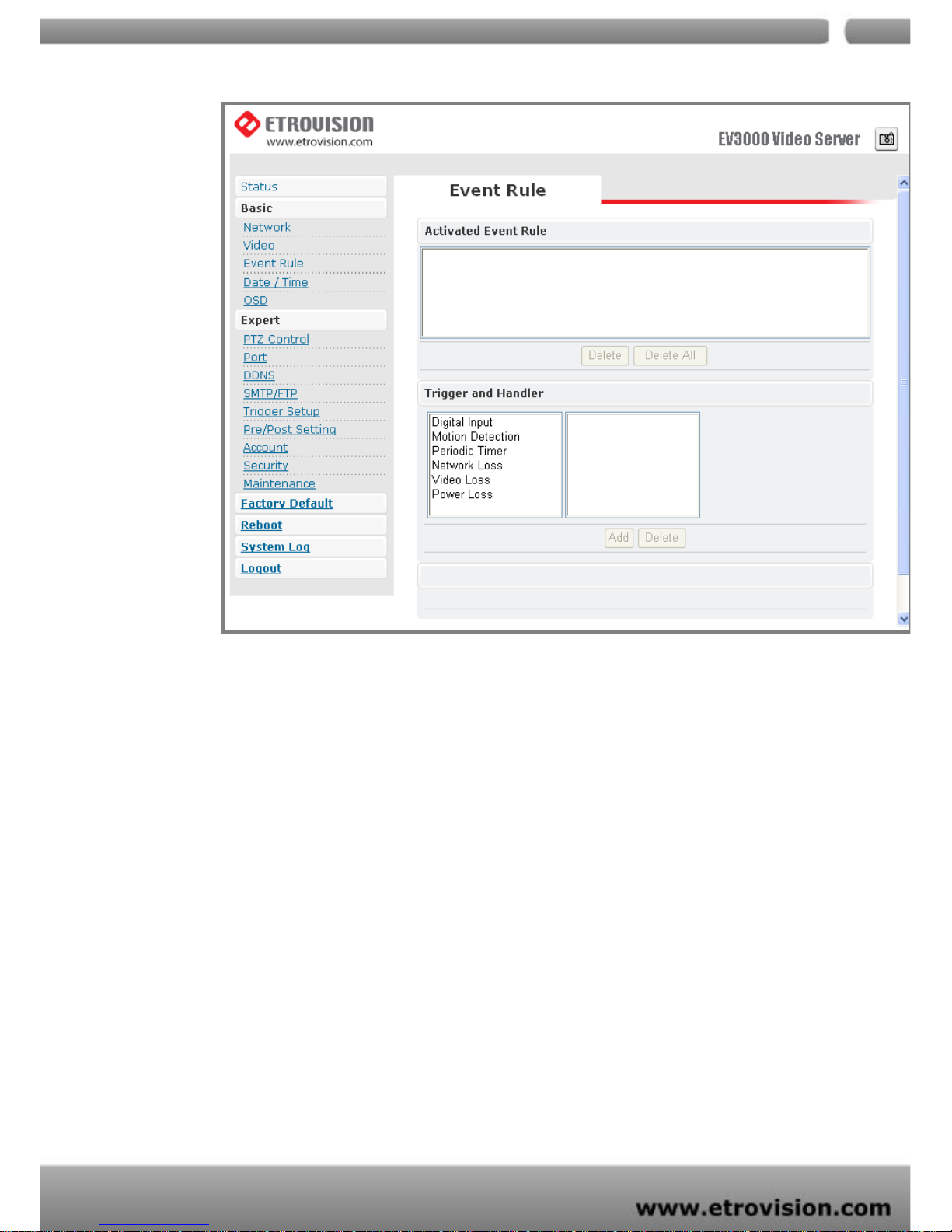
EV3151/EV3151A is capable of handling all basic and standard events.
Page 33

04
33
Note: The functions of EV3151 don’t include D/I and D/O.
Events handled by EV3151
1. Motion Detection
2. Periodic Timer
3. Network Loss
4. Video Loss
5. Power Loss
Actions supported by EV3151
1. PTZ Preset
2. E-mail Notification
3. Record (Record to Local SD Card)
Events handled by EV3151A
1. Digital Input
2. Motion Detection
3. Periodic Timer
4. Network Loss
5. Video Loss
6. Power Loss
Actions supported by EV3151A
1. Digital Output
2. PTZ Preset
3. E-mail Notification
4. Record (Record to Local SD Card)
Page 34
04
34
EVENTS HANDLED
1. Digital Input: Two options: “Normal Open” (N.O.) or “Normal Close” (N.C.)
2. Motion Detection: If a motion is detected in the defined areas, an event will be
triggered.
3. Periodic Timer: An event will be triggered following the schedule of the pre-defined
time interval. For example, if the time interval is set 60-second, the event will be
triggered once per 60-second.
4. Network Loss: When network loss is detected, an event will be triggered.
5. Video Loss: When video loss is detected, an event will be triggered.
6. Power Loss: When system power loss is detected, and event will be triggered. The
Page 35

04
35
e-mail notification which indicates the time interval of power loss will be made as
powering on.
The e-mail notification which indicates the time interval of power loss will be
made as powering on.
ACTIONS TRIGGERED
1. Digital Output: Activate digital output.
2. PTZ Preset: PTZ set to a particular preset value can be triggered based on
occurrence of an event listed out in “Rule Lists
”.
3. E-mail Notification: E-mail can be sent based on occurrence of an event listed out
in “Rule Lists
”.
4. Record: When event triggered, system will record streaming to FTP Server.
RULE LISTS - ADDING/DELETING
Select an event and choose its corresponding actions. Press add button and notice
that is added in the Rule lists
Information box.
MODIFYING RULE LISTS
User may press Delete All to delete the items of event rules.
Page 36
04
36
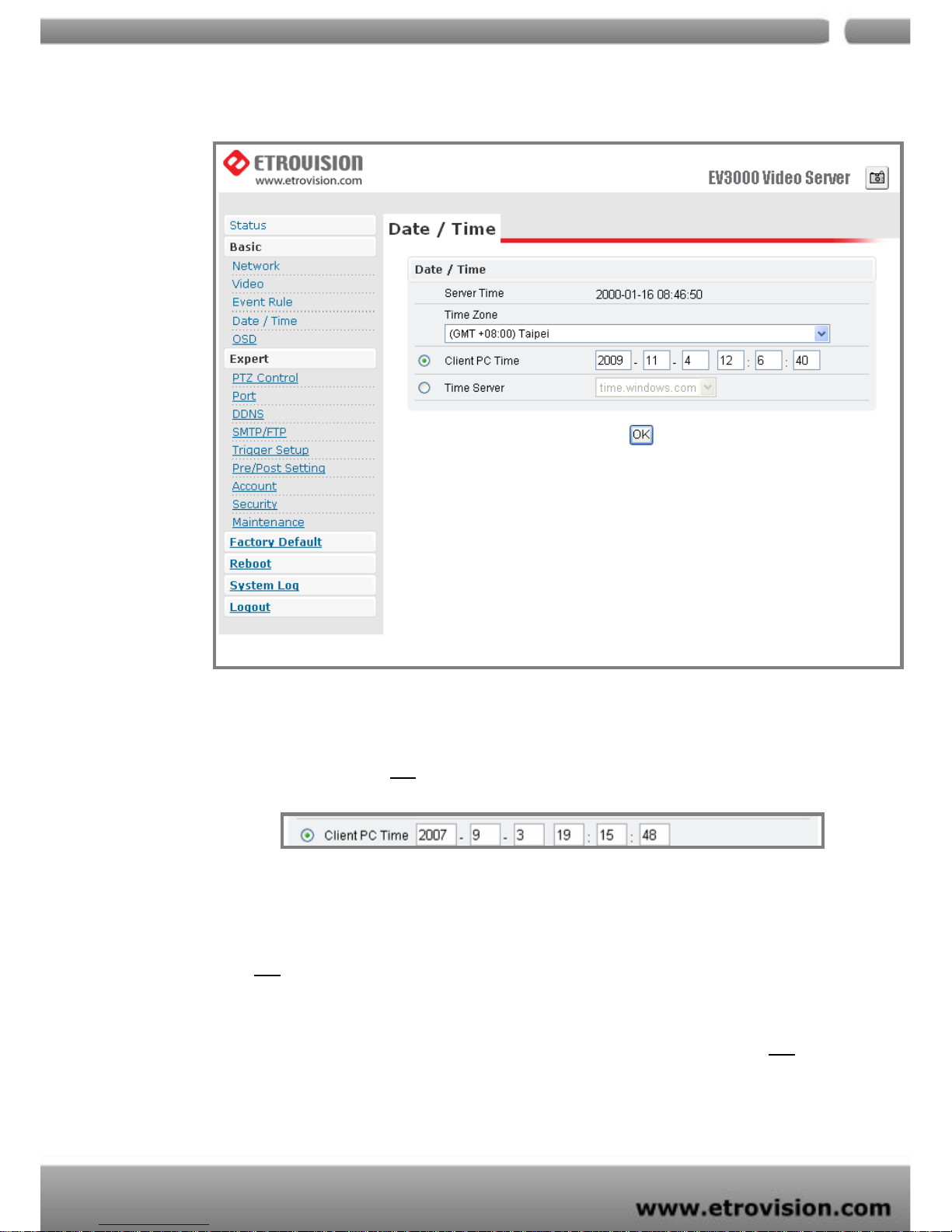
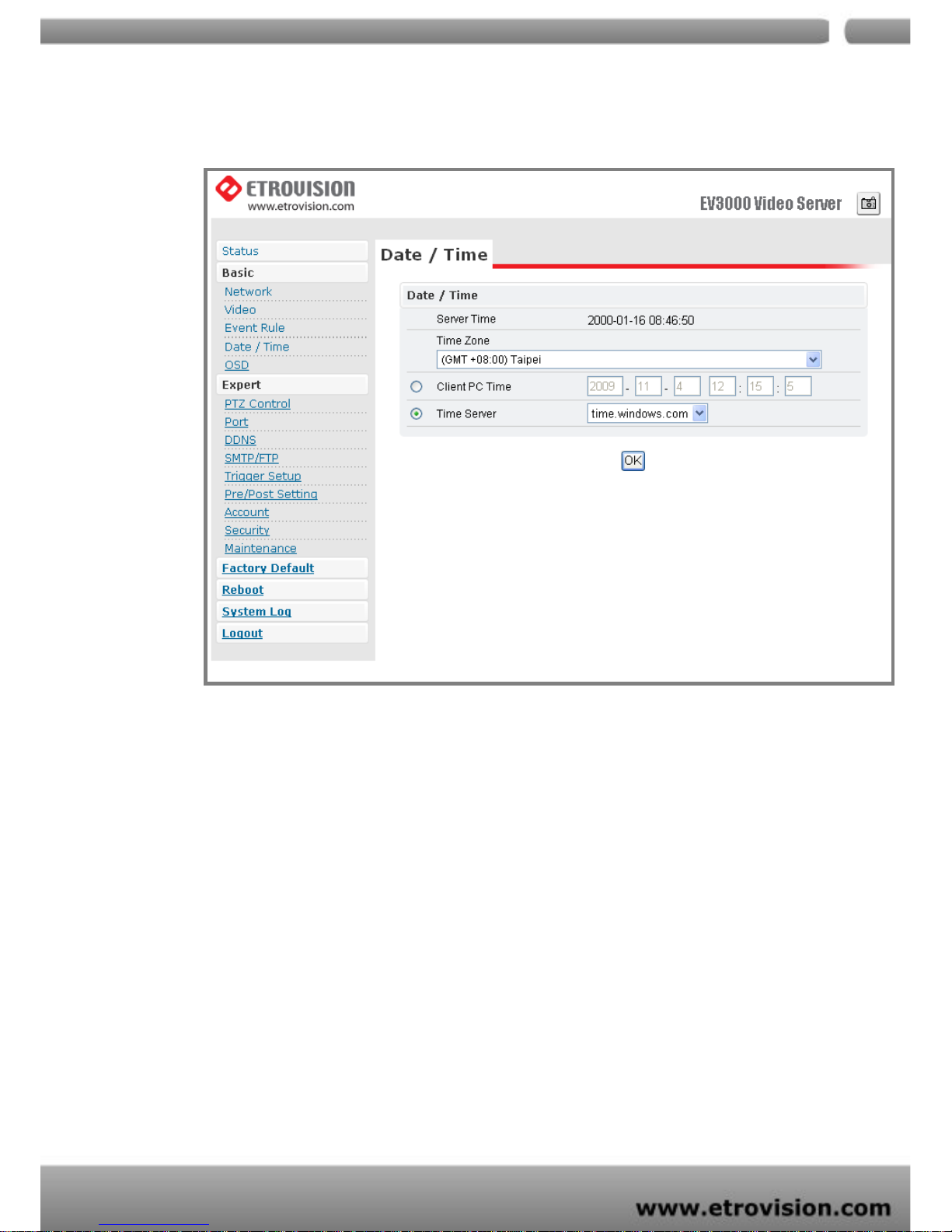
Date & Time
1. Press the “Client PC time” check box, Date and time setting can be synchronized
with PC directly. Press “OK
” after you have the setting done.
2. Time zone can be chosen from the two listed time servers.
3. After selecting, the time server can be set to synchronize the time of video server.
Press “OK
” after you have changed settings.
4. If you want to manually input time server, choose “Other” then you can find a
manually input edit box. Key in your preferred time server and press “OK
”.
Page 37
04
37
Page 38
04
38
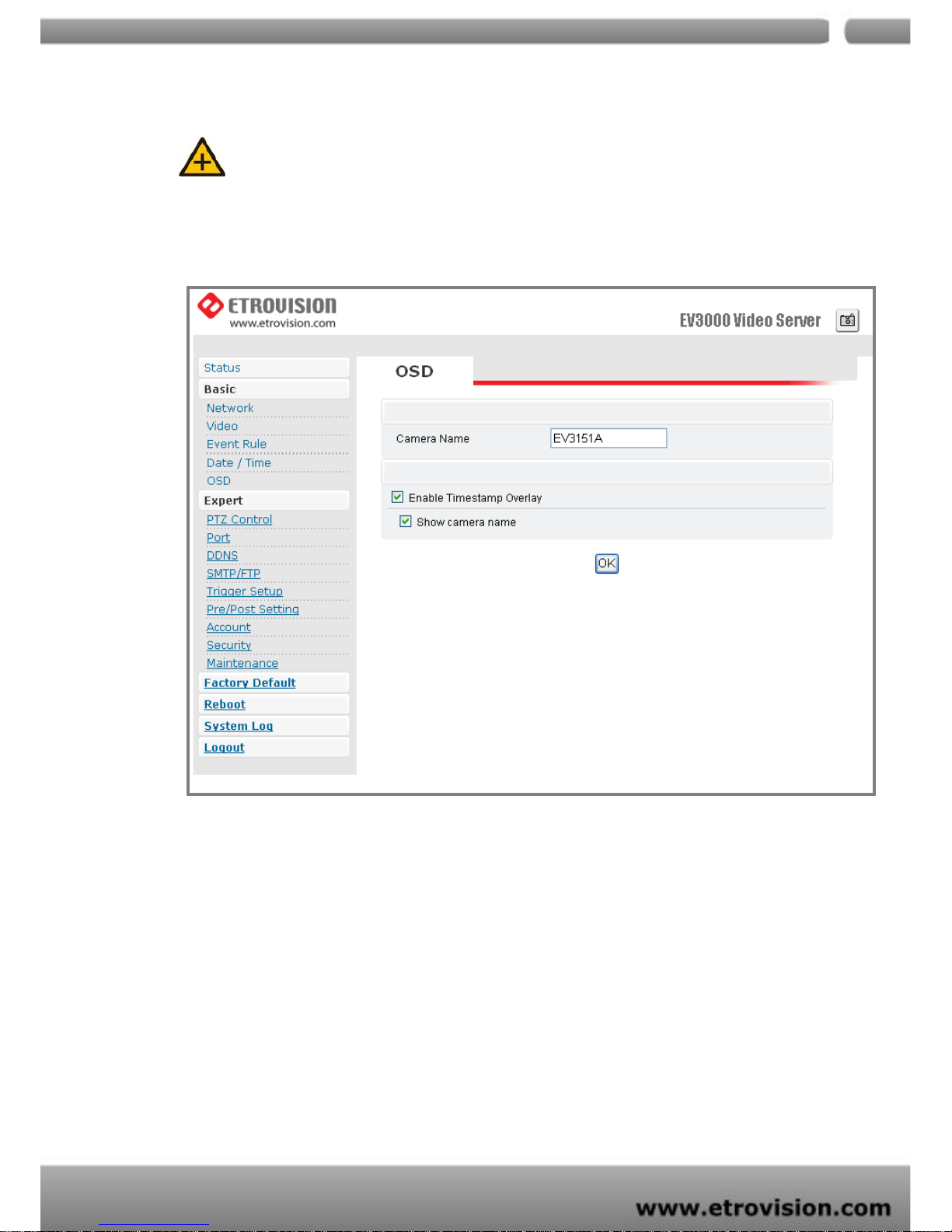
OSD
Note: The OSD and Camera Info. display are independent.
If “Enable” checkbox is checked, the channel name will be shown on OSD. If not,
this information will be shown on the Camera Info. only.
Page 39
04
39
6. WEB INTERFACE SETTINGS - EXPERT
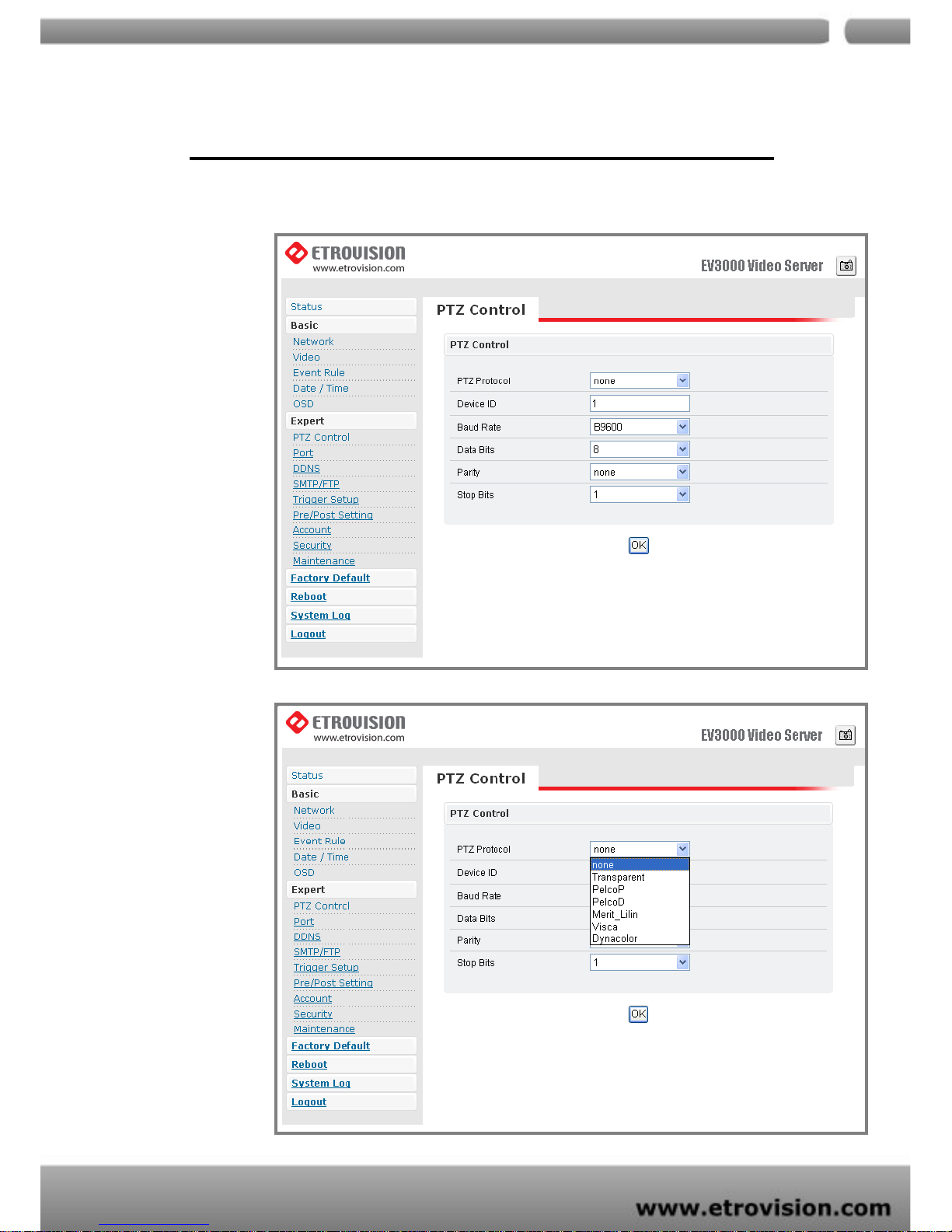
Pan/Tilt/Zoom Control
Page 40
04
40
1. Channel Mode (PTZ model)
a. The Default setting is none.
b. Selectable options include PelcoP / PelcoD / Merit-Lilin / T ransparent
/ Visca /DynaColor.
2. Channel ID
a. Define the address value. The default value is zero.
3. Baud rate / Data bits / Parity / Stop bits
a. The values of these parameters depend on the enabled protocol.
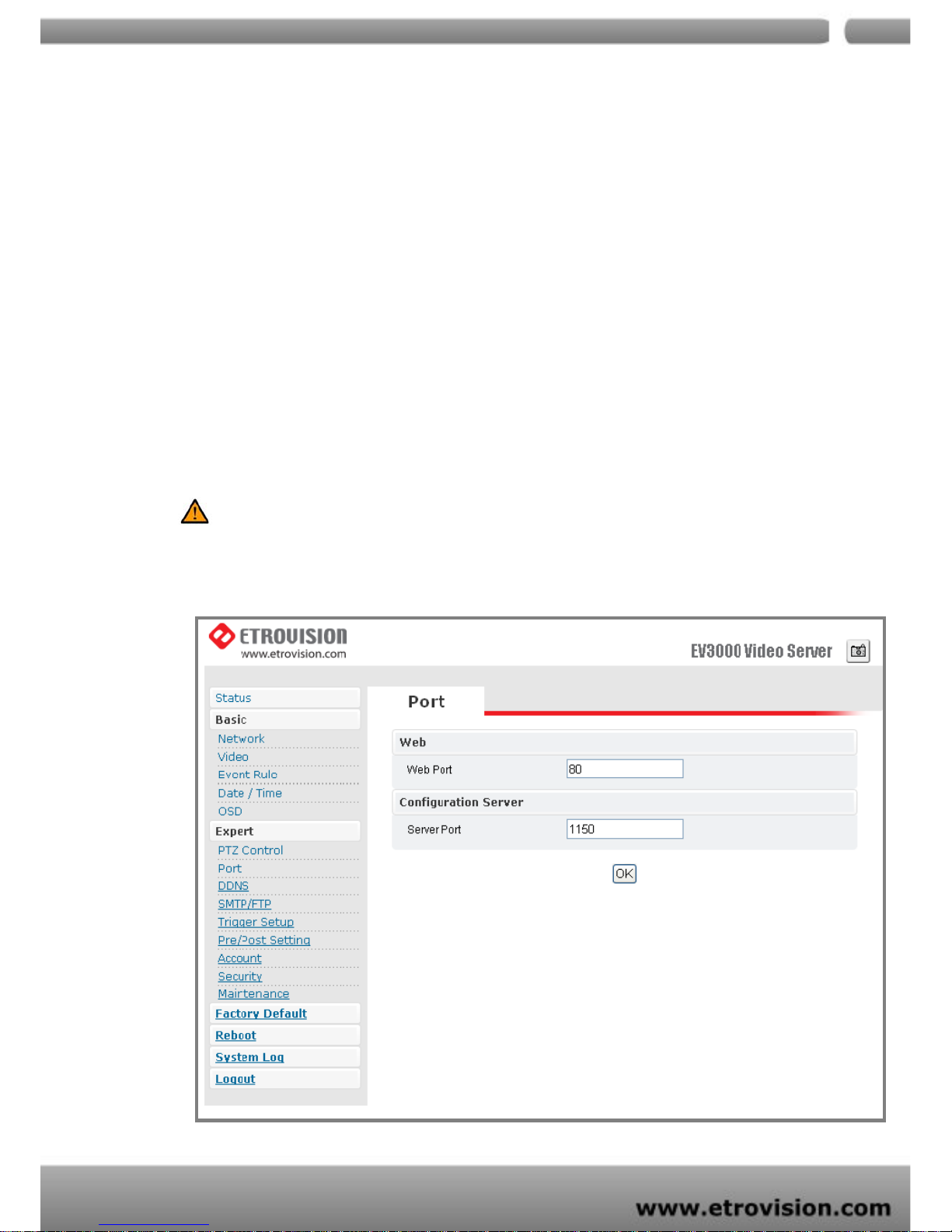
PORT
Caution: The default port value is 80. Users may change the value. Please pay attention
that if the port is changed (e.g.80), users have to put: 80 in the end of the IP address.
The value of WEB and AV port can be changed.
Page 41
04
41
1. Web: The default value of Web Port is 80
2. Configuration Port: The default port is 1150. (Contacting with your NVR vendor
to check this feature is recommended.)
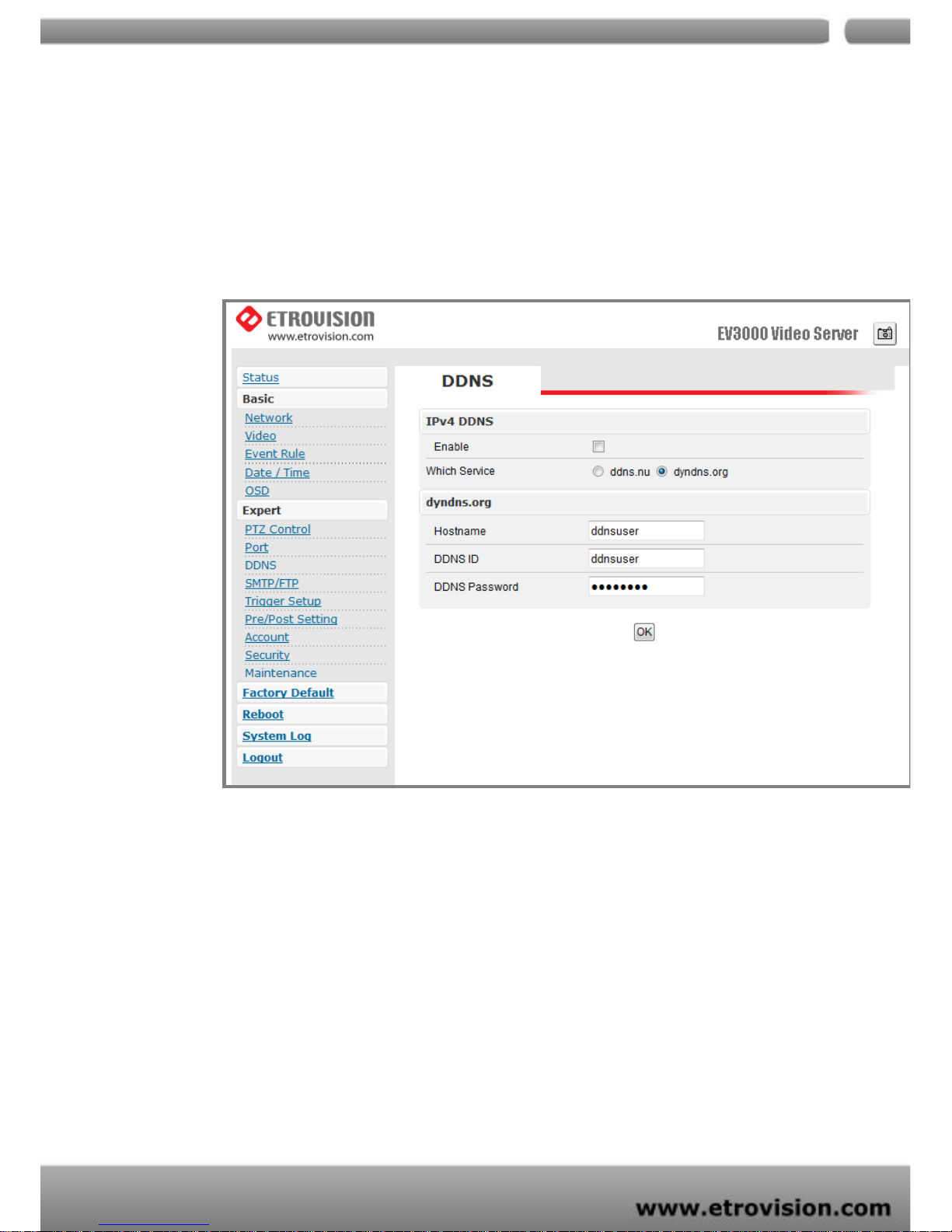
DDNS
The function is used to map an IP address with the host name. If the video server
is set as dynamic IP address, the host name must be provided by DDNS (Dynamic
Domain Name Service).
→
IPv4 DDNS
Check “Enable” and select one from the two options.
Registrations on DDNS service sites are required for the two options.
Please go to dyndns.org for registration and further information.
Page 42
04
42
SMTP/FTP
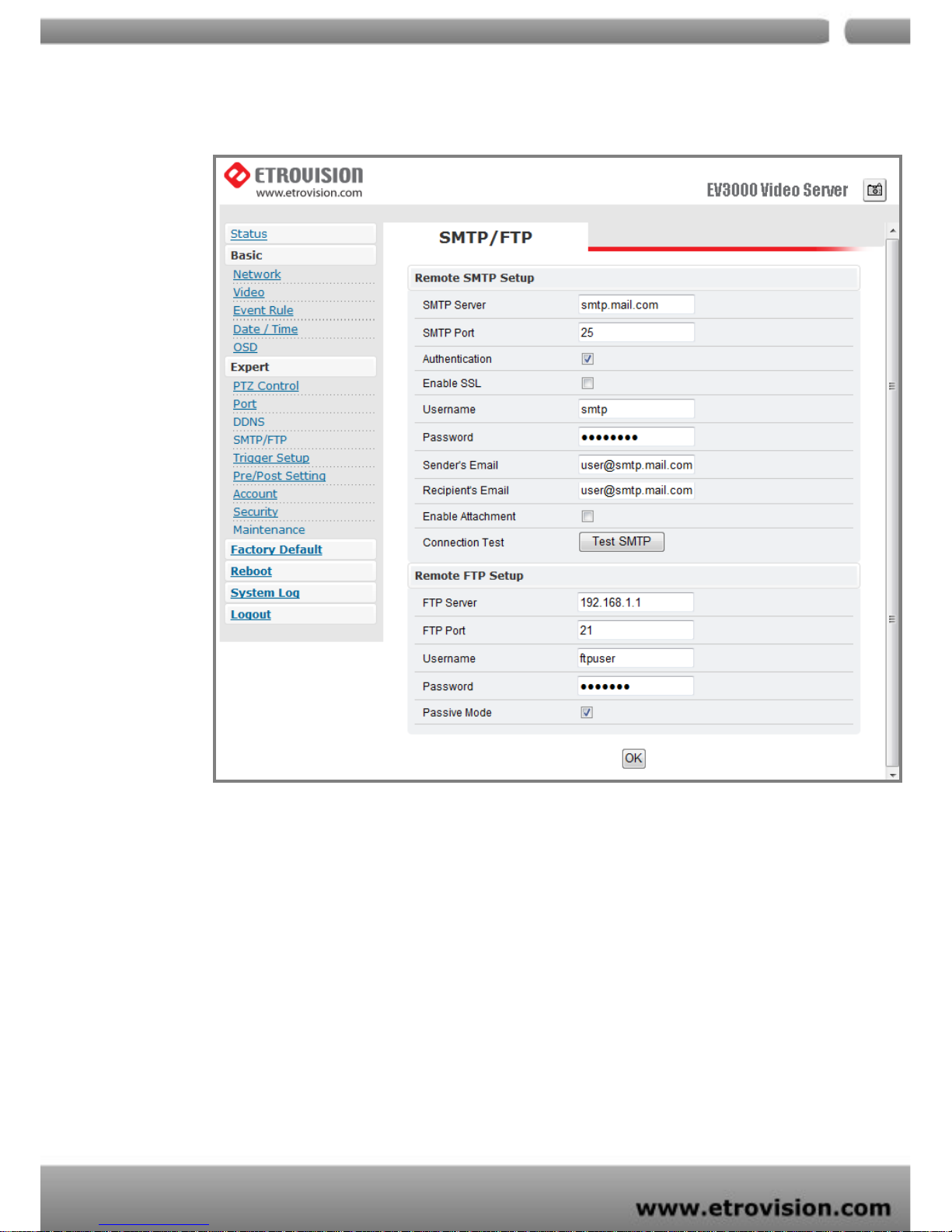
EV3151 / EV3151A support e-mail notification & FTP upload
Page 43
04
43
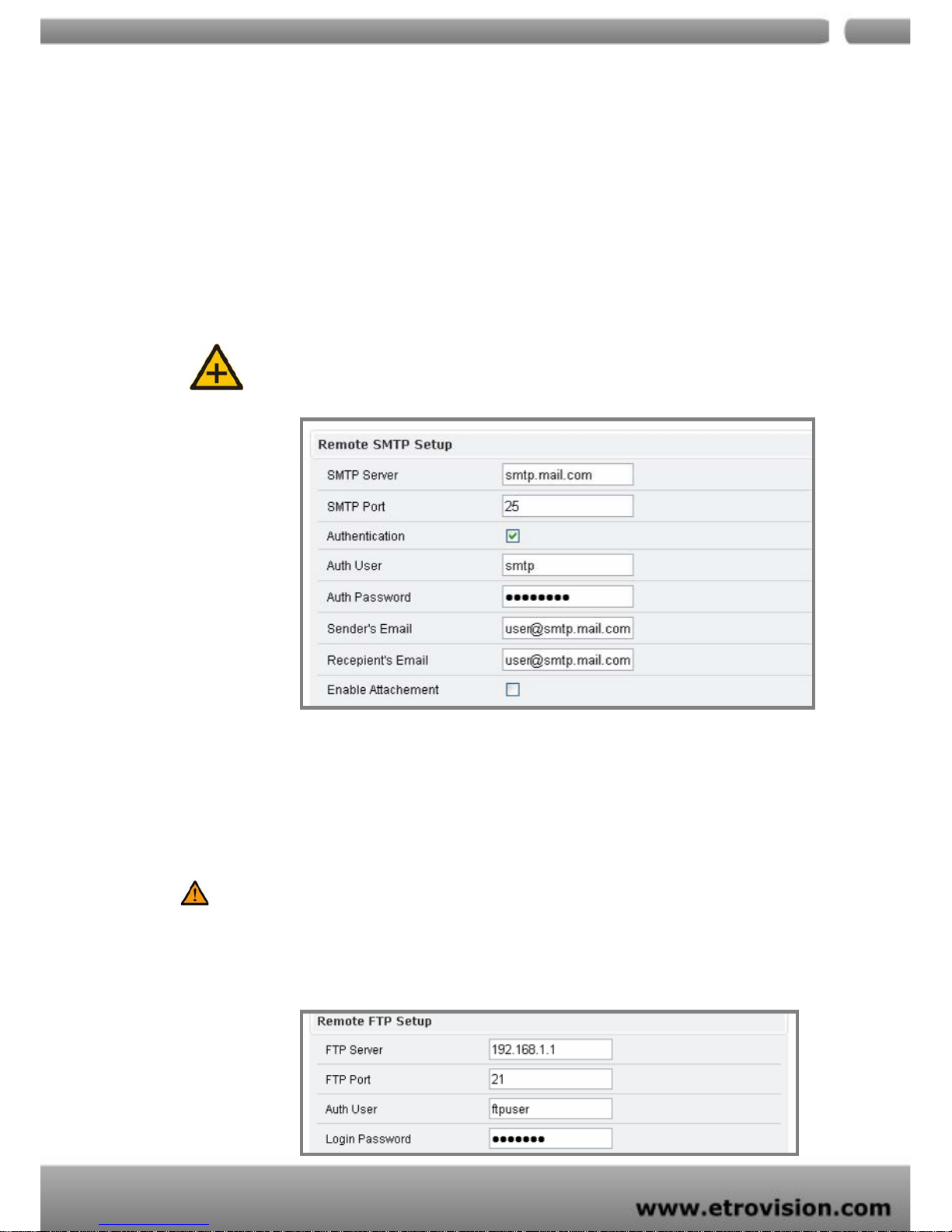
→Email – SMTP Setting
Enter the port number, user name, password, and server name information of the
SMTP server. If you’d like to receive the attached snapshots, please enable the
appropriate check box. Authentication is not a mandatory requirement by SMTP
servers. In some situations, the required information includes the SMTP server name
and e-mail address only.
Note: Users may define the following parameters.
→FTP SETTING
Please fill in the address of remote FTP server, port number, user name, and
password.
Caution: Users may assign the port value (e.g.30). Please pay attention that if the port
is changed (e.g.80), users have to put: 80 in the end of the IP address to facilitate the
operation.
Page 44
04
44
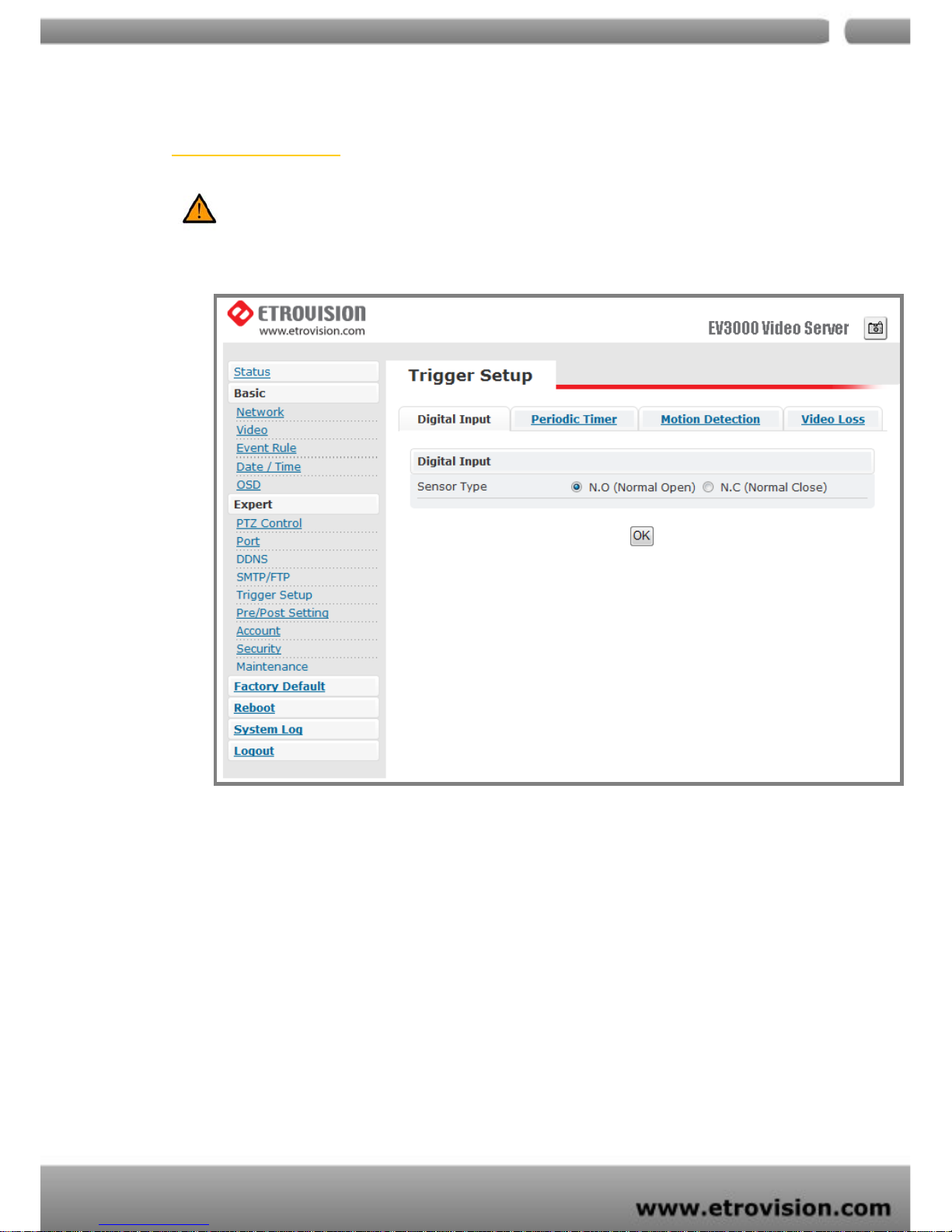
TRIGGER SETUP
Caution: The anode of Mini DIN has to be connected to the anode of the device to
facilitate the operation. So does the cathode.
Three different types of EVENT can be triggered
Digital Input (DI)
There are two selectable options: Normal OPEN (N.O) and Normal Close (N.C).
Users may choose the proper option depending on the input type. Be sure to press
OK to save the setting.
Page 45
04
45
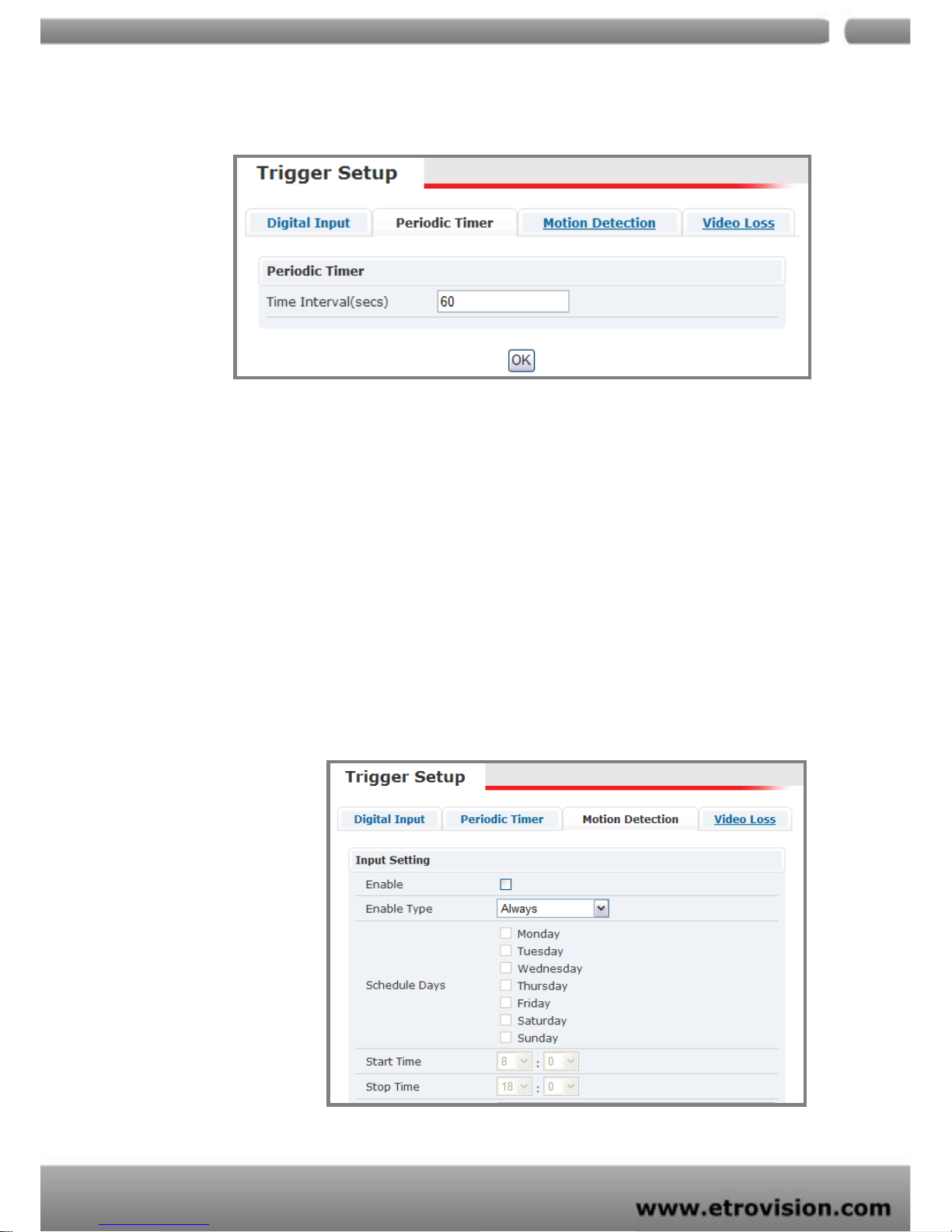
Periodic Timer
Timer interval can be set in terms of seconds. An event will be triggered according
to the schedule.
MOTION DETECTION
1. Type
a. There are two selectable options: “always” and “schedule”
mode.
b. Users can define the schedule as assigning “schedule”.
Page 46
04
46
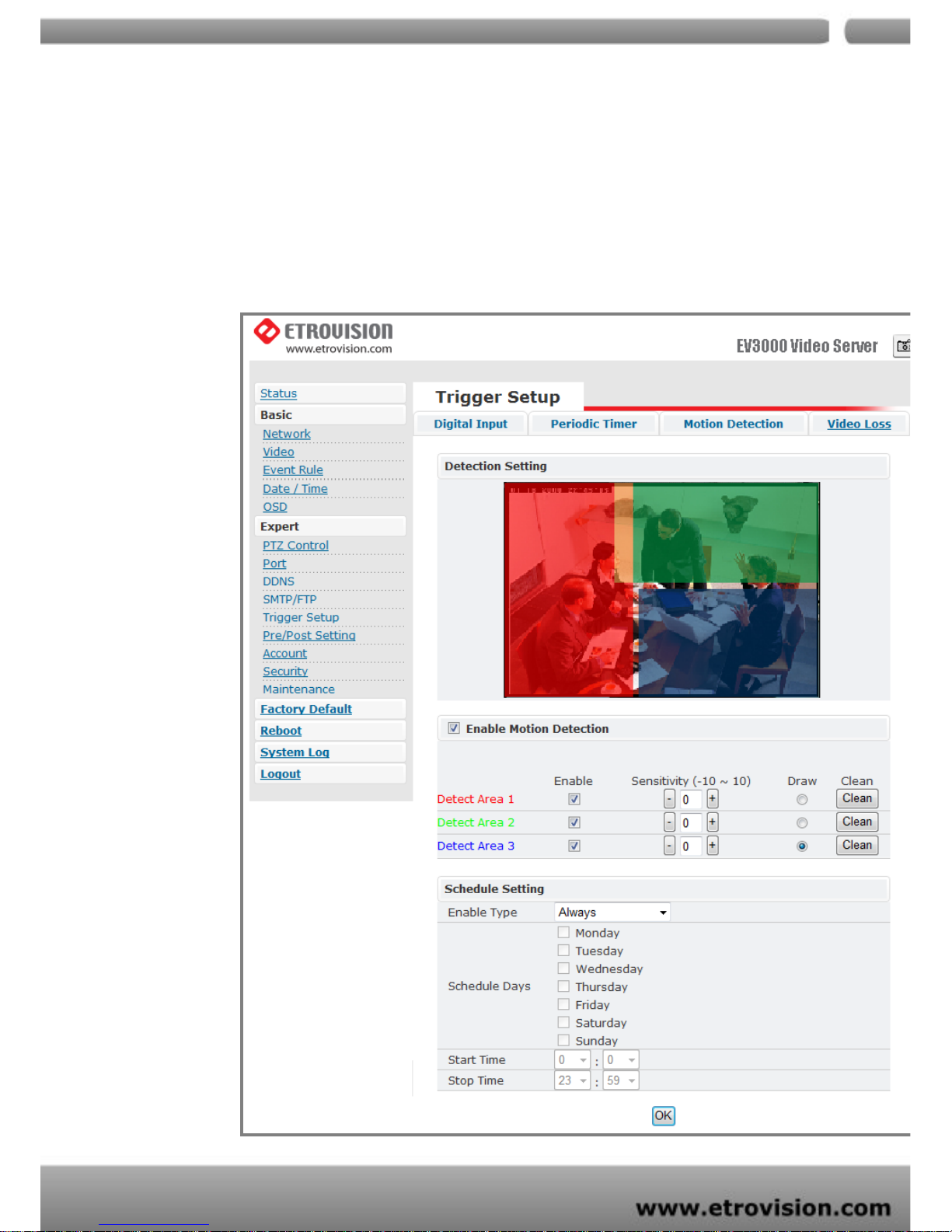
2. Detection Area: Check the check box to enable Motion Detection;
administrator can self-configure 1~3 detection areas. Click area
enable check box and draw icon, then draw desired area within top
preview window; draw area will be changed into a specific color.
Page 47
04
47
3. Sensitivity value: Defines the sensitivity of motion detection. The
range of the value is -10 to 10.
Note: Lower sensitivity value, higher sensitivity level
→
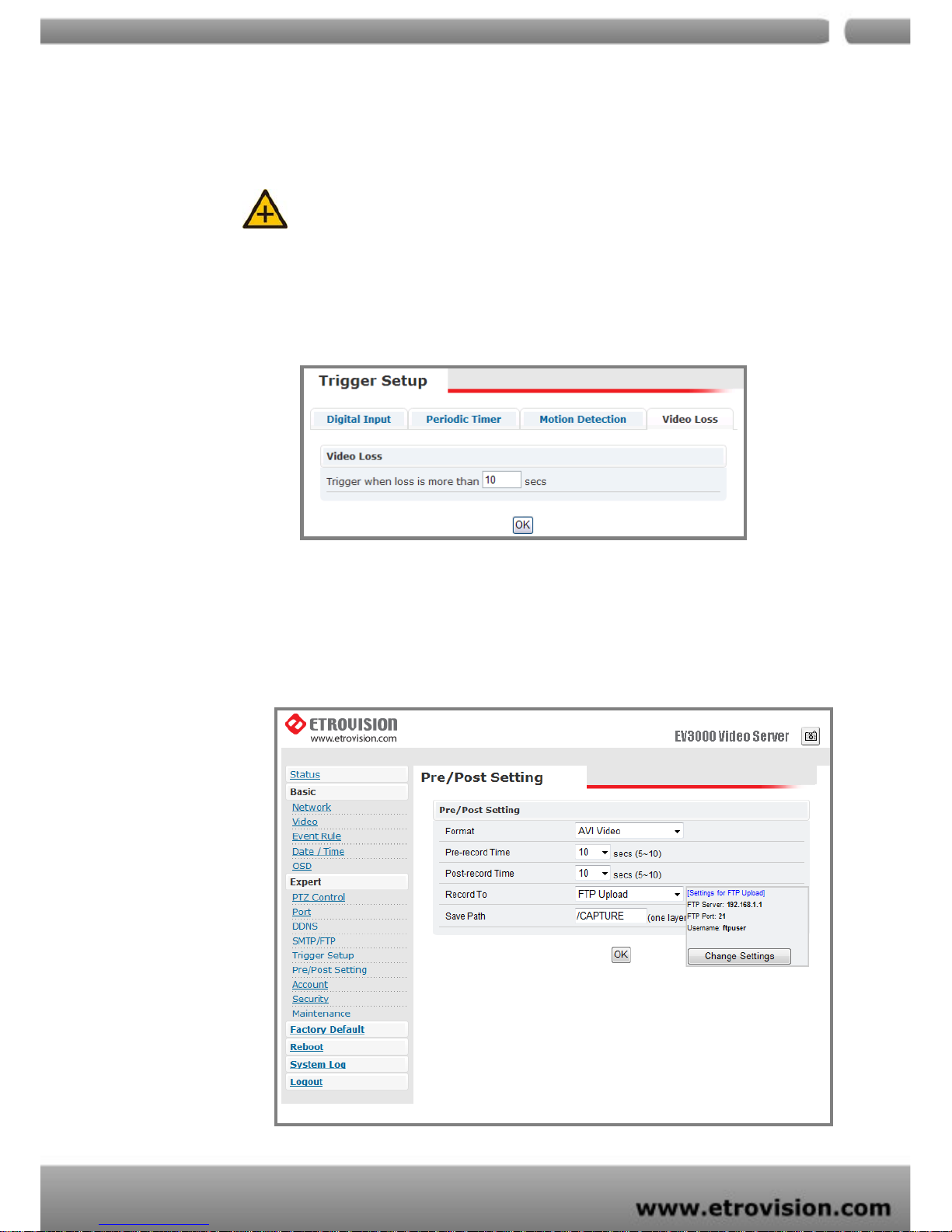
Video Loss
Users may assign the time interval of the event trigger after video loss.
Pre/Post Setting
This function is designed for setting the stream format type and time duration of
Pre/Post buffer.
Format options include “AVI” (for video file) and “JPEG ”(for picture file).
Page 48
04
48
ACCOUNT
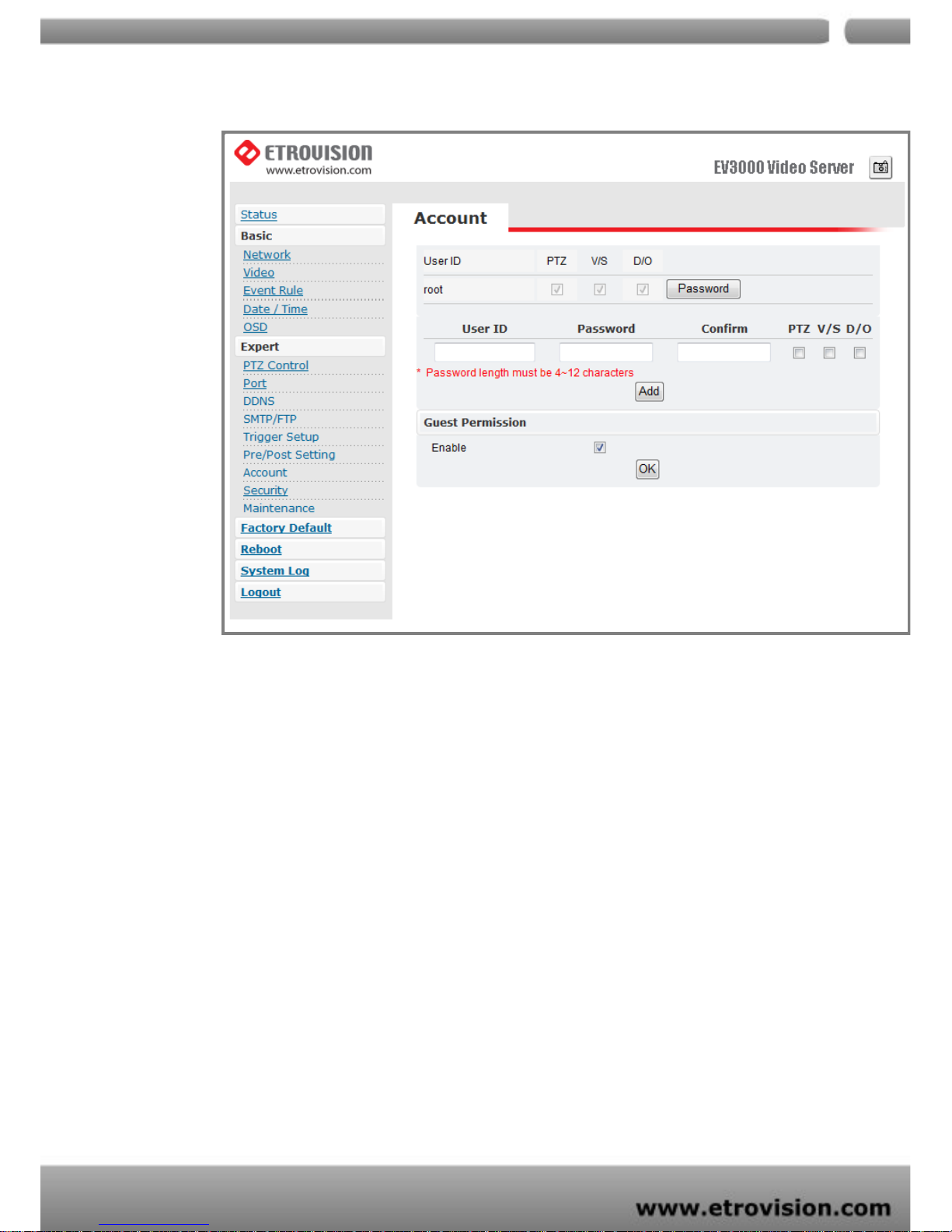
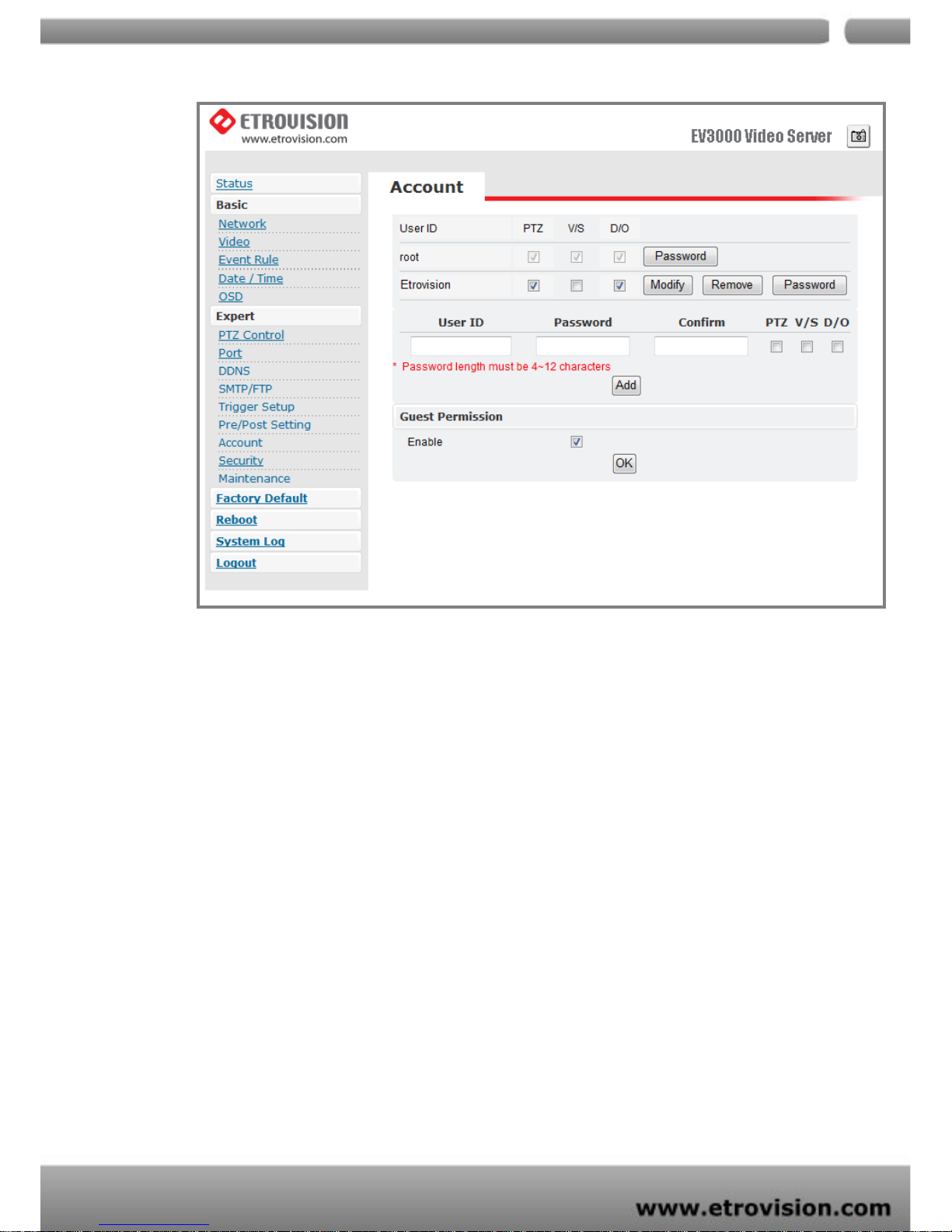
Administrator can create new user accounts. Login as the administrator and create
user accounts by clicking on “Add” . Administrator can assign different combinations
of authorities for each user account. The options include PTZ, video settings, and
digital out. Administrator may alter the combination of authorities anytime.
There are limits to the length of user’s name and password. If the length exceeds
the limit, a dialog box will pop out for notification. Guest permissions can be turned
ON/OFF by each individual account.
Page 49
04
49
The account name” root” of administrator can not be changed or deleted. Only the
password is changeable. Confirmation will be requested as changing the
password.
Account Limitations
Administrator can add up to 5 users and assign different au thorities to each
individual account.
Guest Permissions
Guest account can be turned ON/OFF anytime.
Page 50
04
50
Security
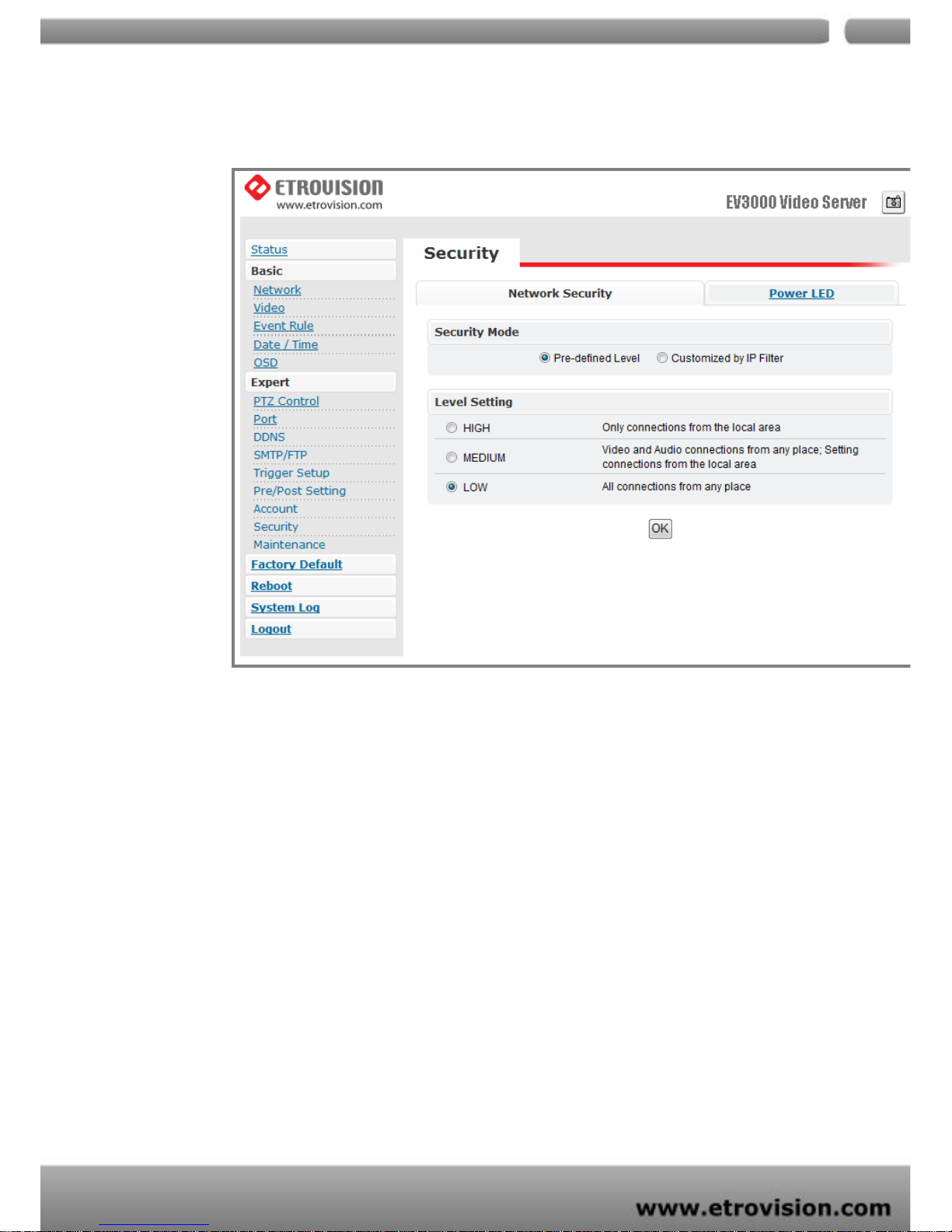
The default setting of security is LOW.
1. Definition of Each Security Level
a. HIGH: ONLY LAN connections are permitted.
b. MEDIUM: Video and audio connections from any location and settings from
LAN are permitted.
c. LOW: All connections from any location are permitted.
2. Power LED
a. Turn On: As the default setting, power LED will always be on during the
operation.
b. Turn Off: Config power LED as off during operation.
Page 51
04
51
Maintenance
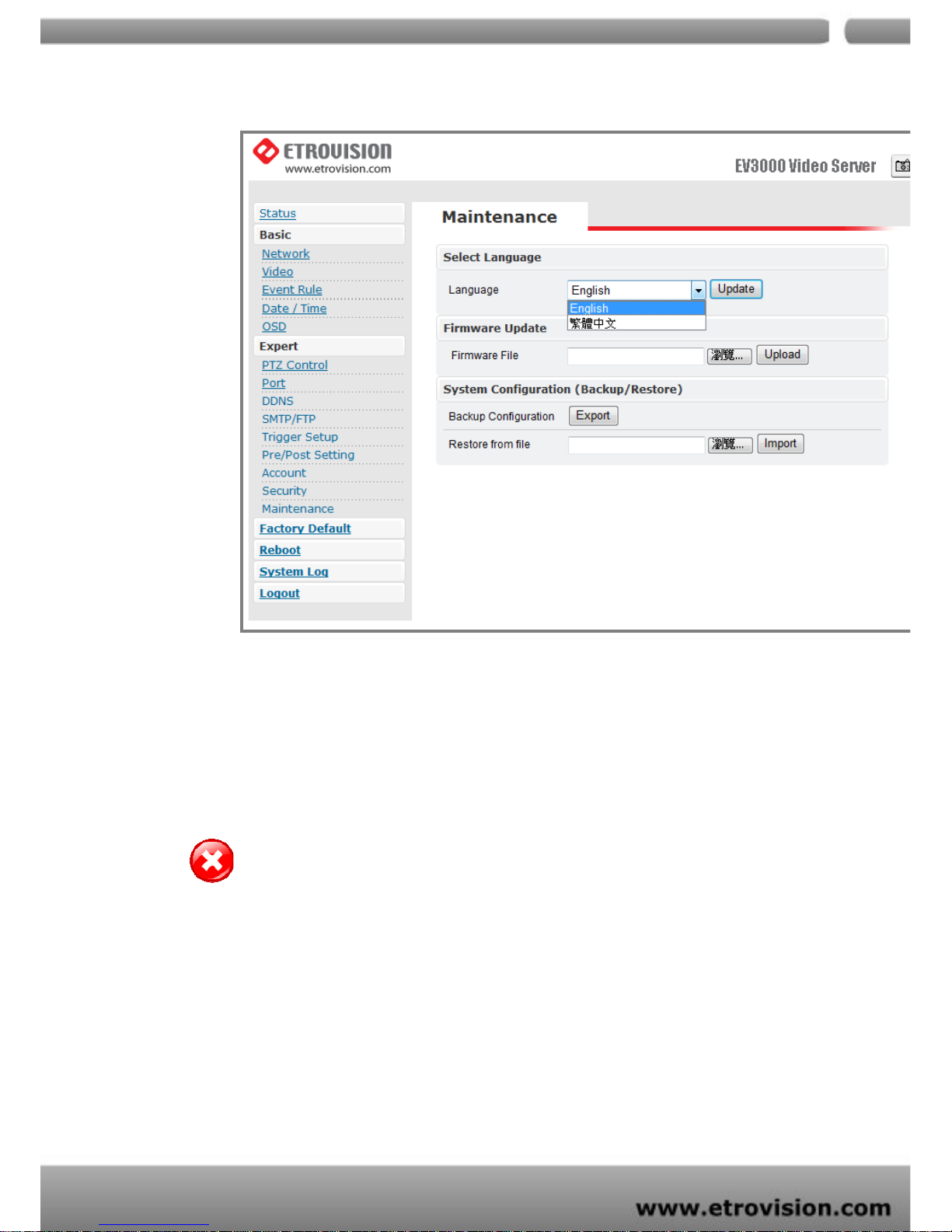
Language
The default setting is English.
Language options include: Traditional Chinese and English.
Firmware update
Warning: The power supply must be steady as upgrading the firmware. The power failure during
the upgrade process results in serious damage to the machine.
Users can download the firmware file from Etrovision official website. Choose the
specific one and press upload. When uploading is finished, reboot will be requested
and automatically triggered.
System Configuration (Backup/Restore)
Yo u can backup the current configuration setting and save it as a file.
Page 52
04
52
7. FACTORY DEFAULT
While the confirmation dialog box appearing, press OK button to load default setting
and do reboot. You will see the countdown timer running. The login page will appear
as finishing. Please login with root/pass.
8. REBOOT
Press Reboot and one dialog box will pop up. Press OK on the dialog box; the reboot
countdown timer will start running. After finishing, the login page will appear. Please
login with the correct account name and password.
9. LOGOUT
Press logout to return to the login page. The login page should appear within few
seconds.
Page 53
04
53
10. ETROLINK™ CONFIG PORT – FIRST TIME EXPERIENCE
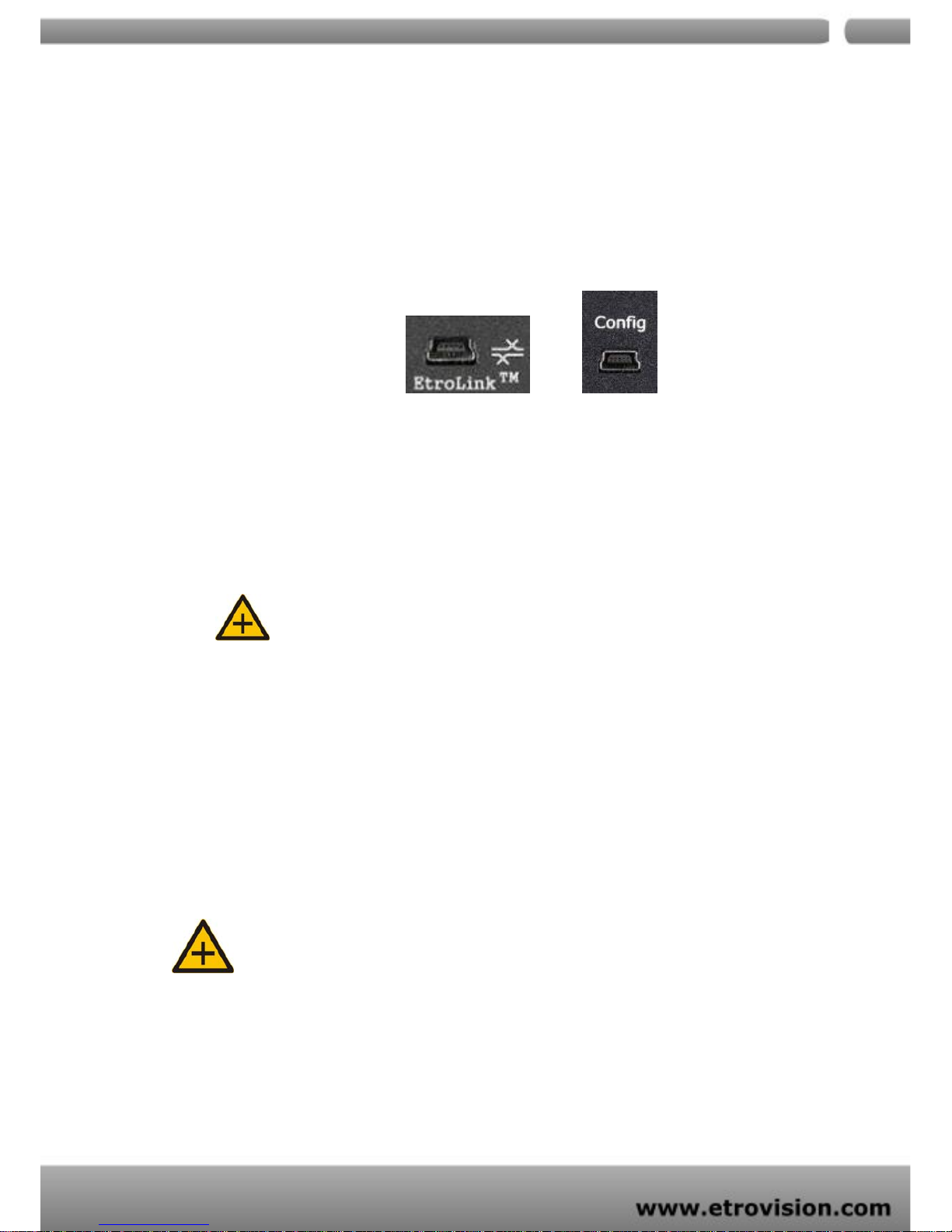
EtroLink™ is designed for quick configuration or factory default. There is EtroLink
config port, a special USB port, on each product of Etrovision.
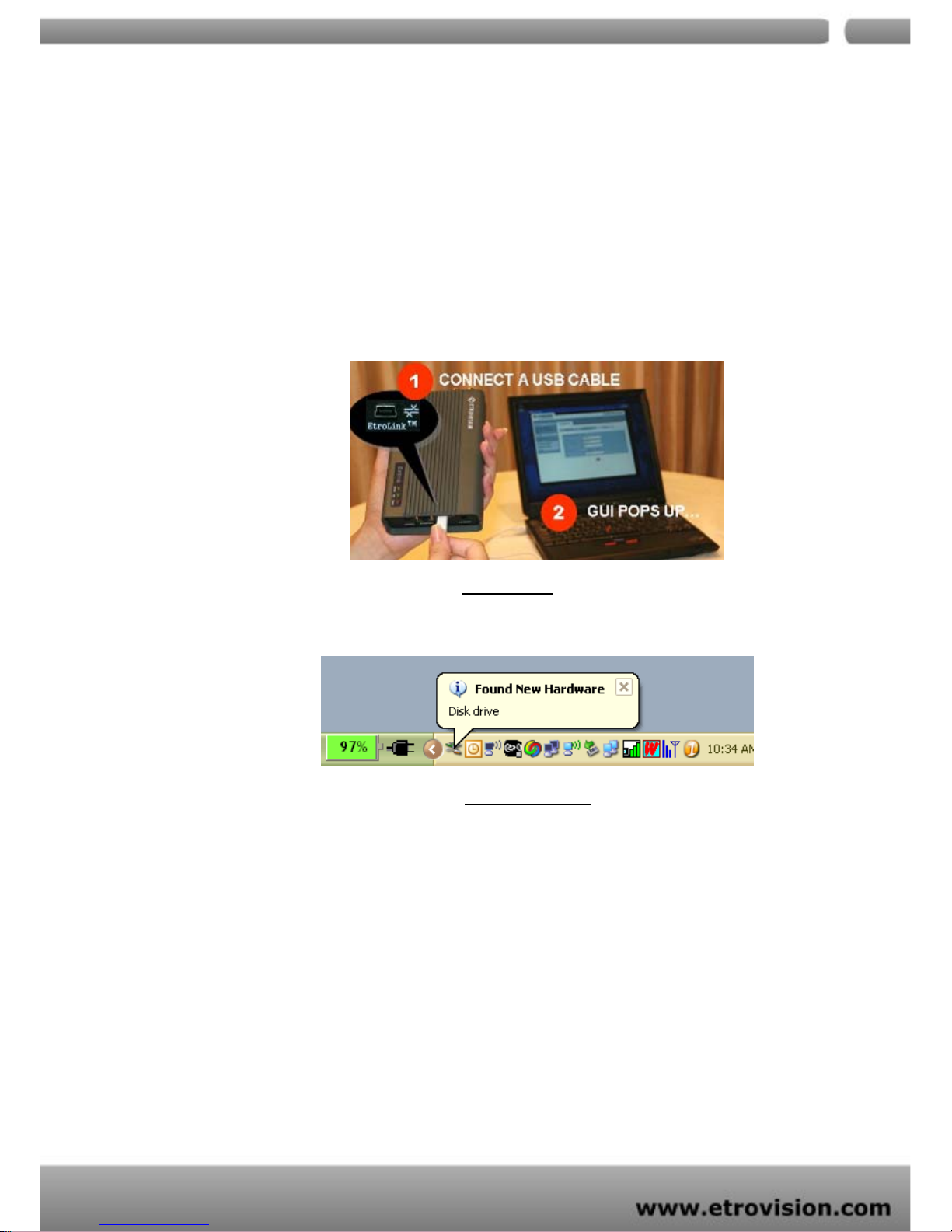
Connect the video server and PC via mini USB cable through EtroLink config port.
Please pay attention that if the video server is powered on, EtroLink will not be
operant. After finishing the configuration or factory default, please unplug the USB
cable.
NOTE:
Remove USB CABLE when the quick configuration is completed.
OS Requirement
Capability of auto/manually run of Quick Config application depends on the OS of PC.
1. Windows XP (all editions) - auto run.
2. Windows 2000 (all editions) – manually run is required.
3. Windows 98 (SE) – manually run is required.
Note: (Generic USB mass storage class driver (Microsoft) will be requested –if you
plan to use EtroLink™ based device recovery on Windows 98, please prepare one in advance)
Page 54
04
54
No Software Installation Required
There is no requirement of installation or setup of any software on Windows XP/2000
platforms.
Steps for Using EtroLink™ Config Port (Windows XP OS)
1. Unplug the power cable from the IP camera.
2. Connect EtroLink™ and PC via the mini USB cable.
3. After 5 ~ 10 seconds, the “Disk drive” will be detected. The detecting speed
is determined by the processing speed of your PC.
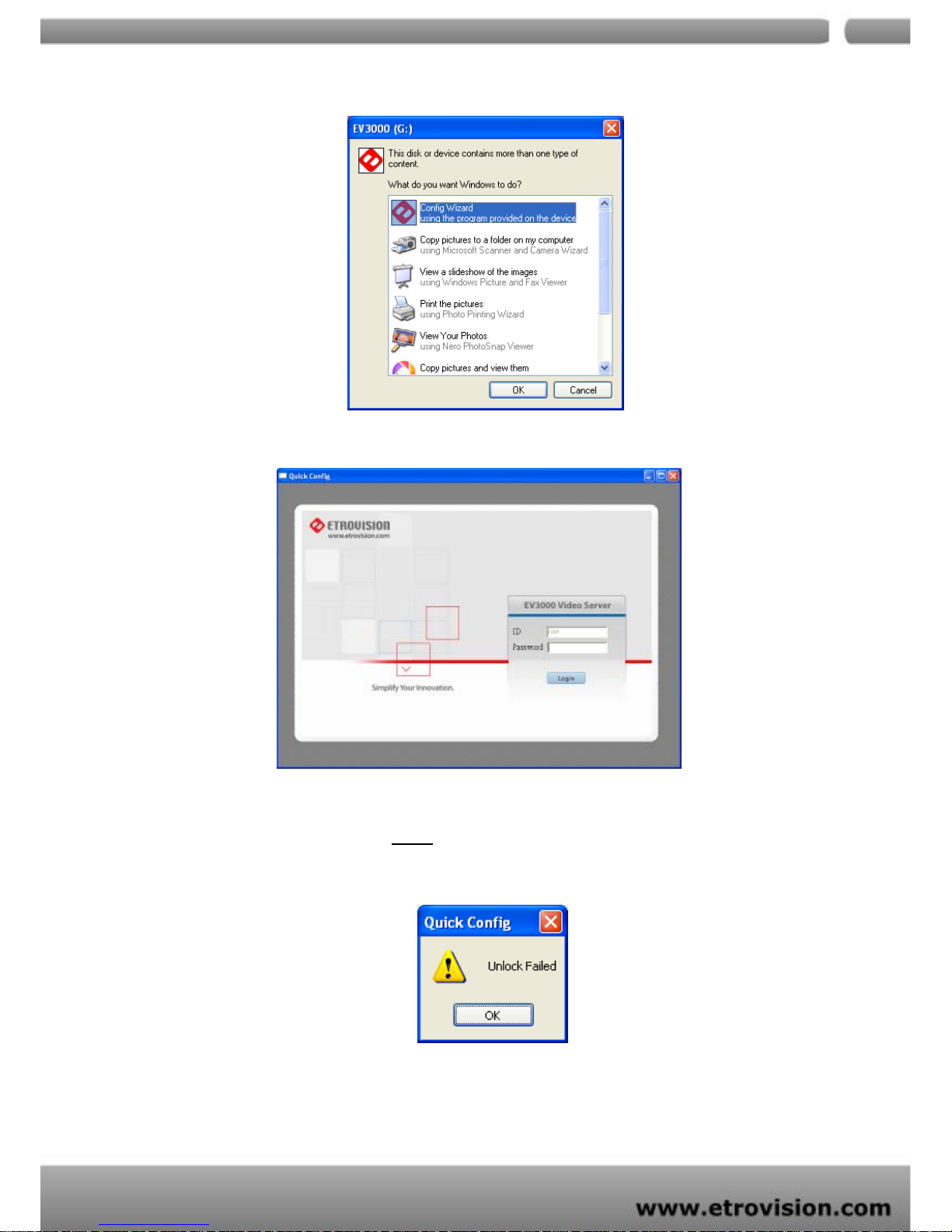
4. A POP-UP dialog indicates “Config Wizard
” being ready to run. Please press
OK.
Page 55
04
55
5. Double click on the Config Wizard. You will see the following page:
The password is required. If you didn’t change the default password,
please type in pass
. Then press the login button. The following dialog box
will pop up if you don’t type in the proper password.
Page 56
04
56
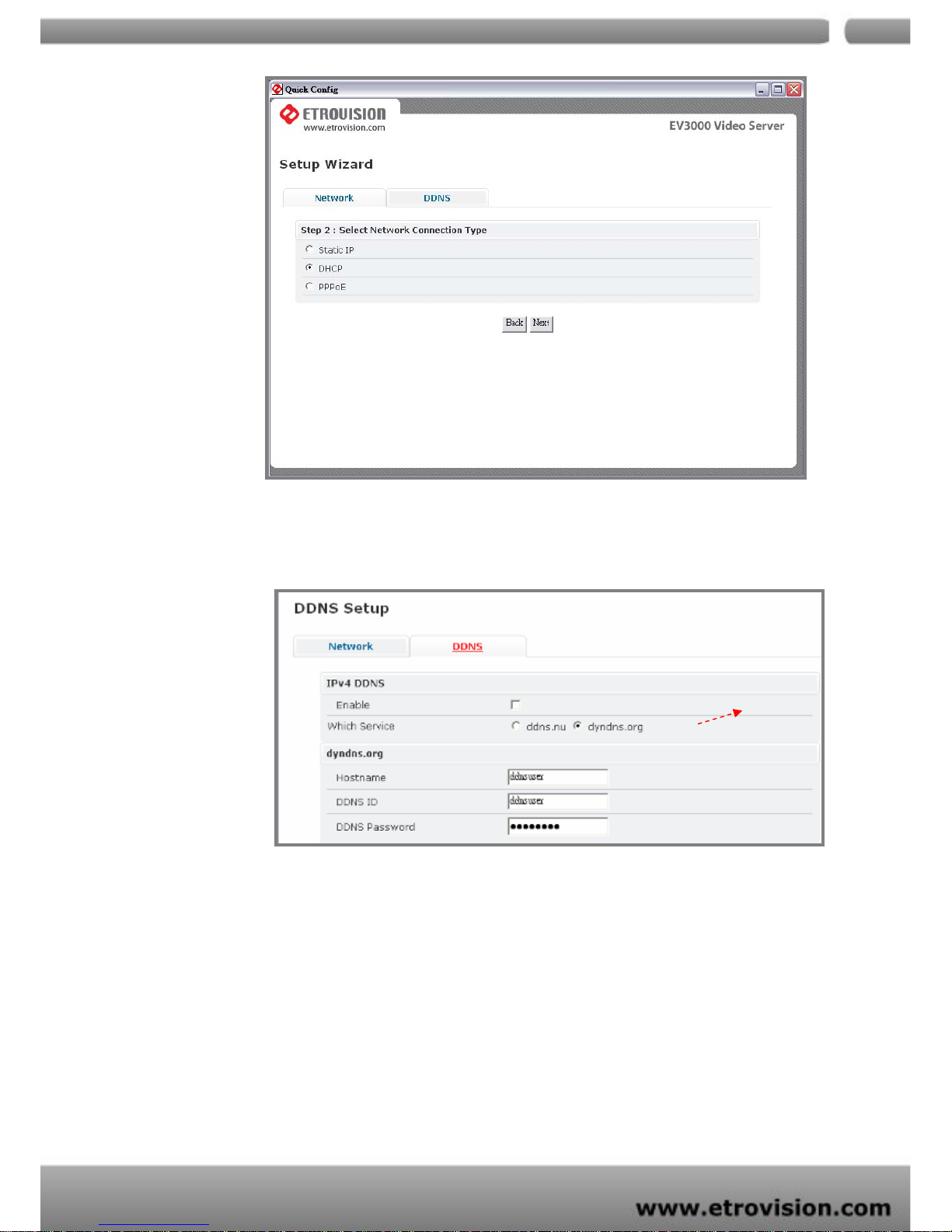
If you’d like to setup DDNS, please fill in the required information.
Return to Network page to set other network setting.
Please press next to go to detailed configuration setting page. The
following page is an example of STATIC network configuration page.
ONLY for
EV3130AW
Page 57
04
57
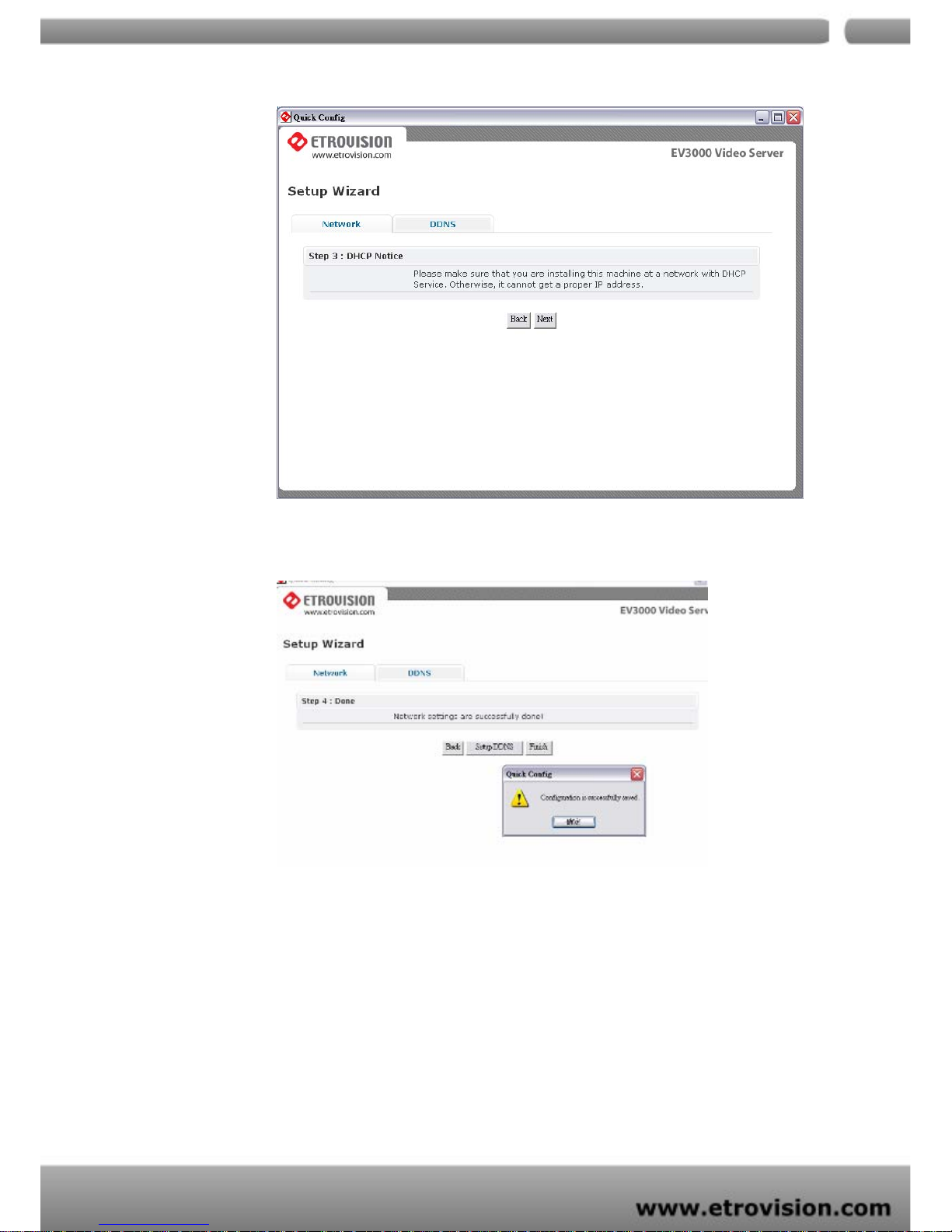
After pressing next, the setting will be saved. You can press finish or
continue to do other setting.
Page 58
04
58
11. TROUBLESHOOTING
What If Quickconfig does not Auto run?
In some situations, Quick Config application may not auto run after connecting to
EtroLink™ via the mini USB cable.
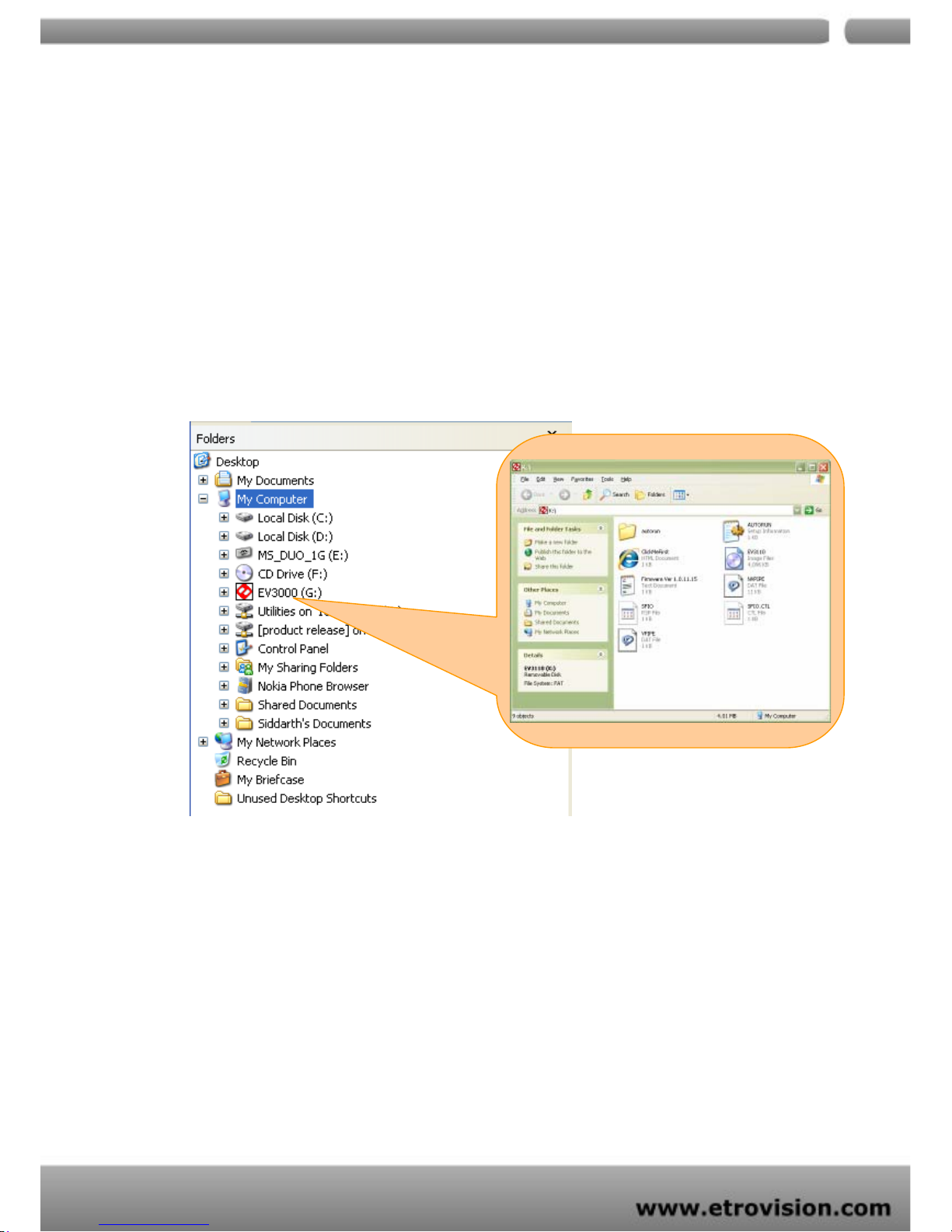
In that situation, you may open the disk drive page (the following is the example
image). The icon starts with EV should appear.
Open the folder named “autorun”. This folder contains a HTML executable file
named “autorun” . Double click the file to enable the operation. Y ou will find that it
is the same “Quick Config” application is running. See the screenshots below to
find that file on the disk drive.
Page 59
04
59
12 .SPECIFICATIONS
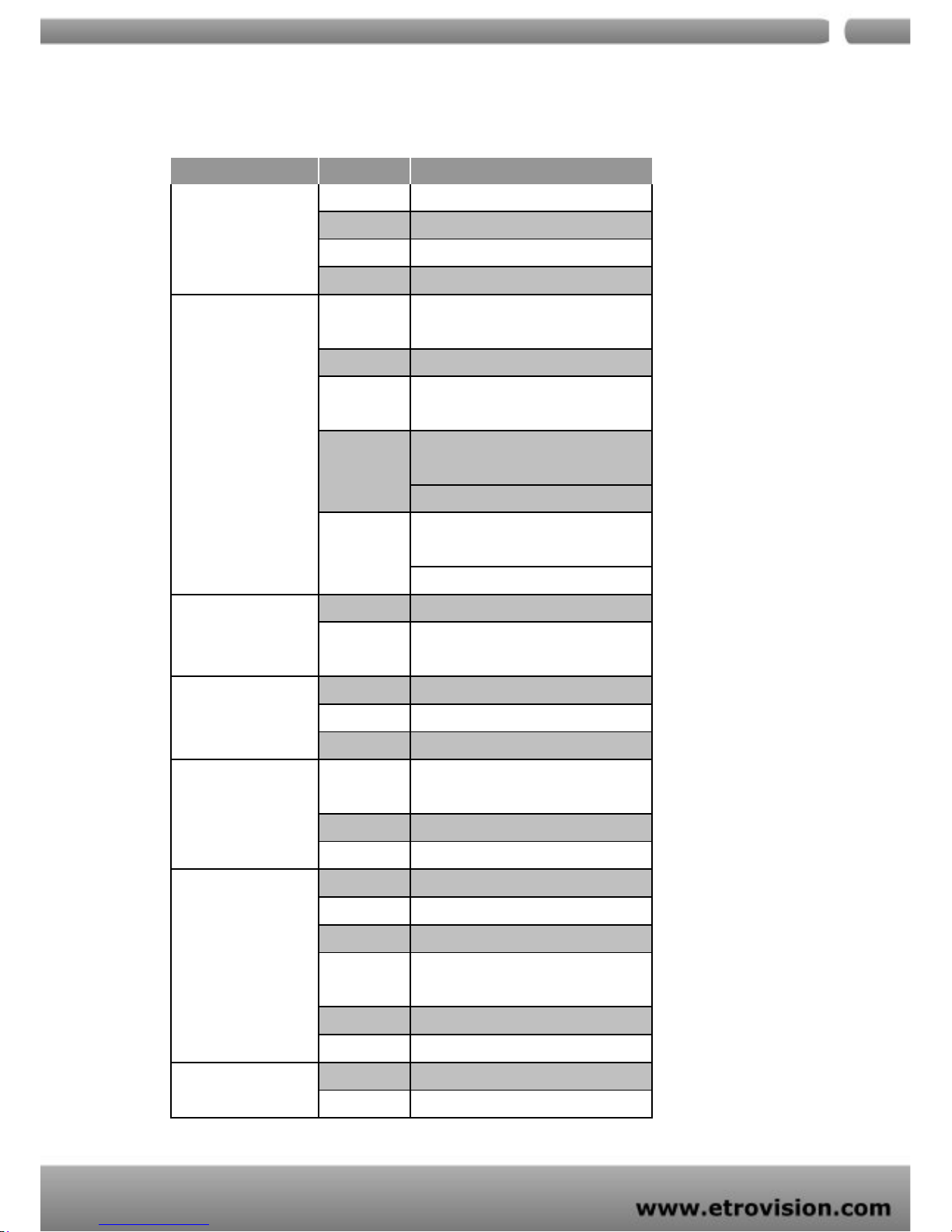
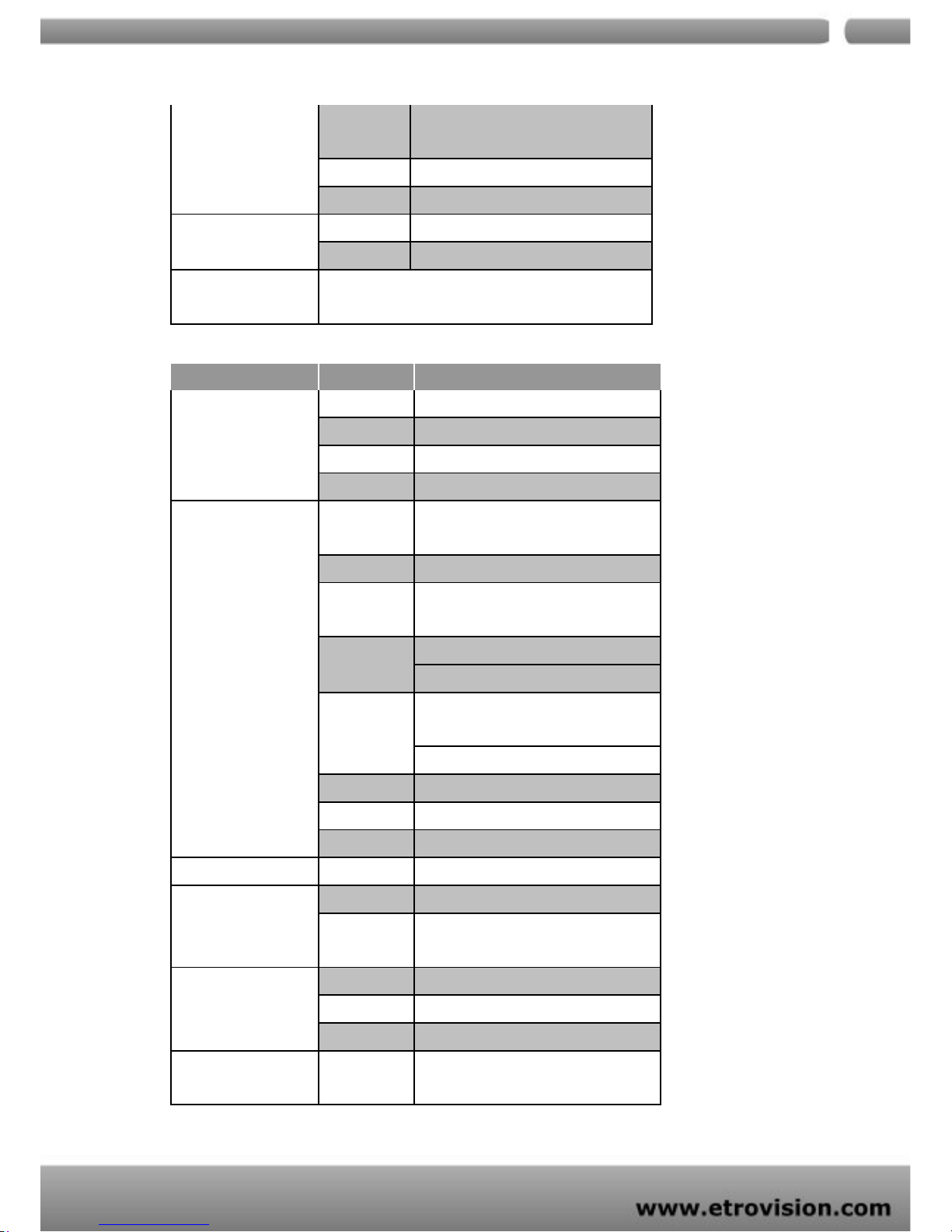
Model EV3151
System
CPU ARM 9 Based 32 Bit RISC
SDRAM 64 MB
Flash 16 MB
Embedded OS Linux 2.6
Compression–Video/Audio
Format
M-JPEG, MPEG-4, H.264 Dual Stream
Simultaneously
Frame Rate Up to 30fps (NTSC) / 25fps (PAL) @ D1 Resolution
Bit Rate
MJPEG: 5 Video Quality Level Selectable;
MPEG-4/H.264 : 64K~4Mbps
Video Resolution
NTSC: D1 (720x480), CIF(352x240),
QCIF(176x120)
PAL: D1 (720x576), CIF(352x288), QCIF(176x144)
Video Input
1CH, NTSC/PAL, BNC Connector,
1.0Vp-p with 75 Ω Loading
1.0Vp-p with 75 Ω Loading
IP Network
Ethernet RJ45 - 10/100 Base-T
Protocol
TCP/IP, DHCP, PPPoE, HTTP, DDNS, NTP,
FTP, SMTP, UDP, RTP, RTSP, 3GPP, UPnP
Mechanical Info
Power Supply DC 12V / 350mA
Dimension 31(H)X61(W)X70(D)mm
Weight 170g
Pan/Tilt/Zoom
Protocols
PelcoP, PelcoD, DynaColor, Merit_Lilin, Visca,
Transparent
Baud Rate 1200, 1800, 2400, 4800, 9600, 19200
Connector RS-485 for PTZ Control
Minimum System
Requirements
CPU Pentinum 4, 2.4GHz and Above
Hard Disk 40 GB or Above
Memory 512 MB or Above
Operating System
Windows XP with SP2 or Above /
Windows 2000 with SP4 or Above
Video Resolution SVGA or XGA with 1024x768 Resolution
Software DirectX 9.0C or Above
Management & Support
Configuration EtroScan Utility
Integration EtroSDK 3.0 Support (Windows, Linux, CGI)
Page 60
04
60
USB Port
EtroLink Config Port /
Mini-USB Female Socket for Network Setting
Web Browser Microsoft Internet Explorer 6.0, or Above
Security Password Protection
Operating Environment
Temperature 0 ºC ~ 40 ºC (32 ºF ~ 104 ºF)
Humidity 20% ~ 80% RH
Supplied Accessories
Power Adapter, USB Cable, Mini-Din Cable, CD-ROM
(User Manual, Free Bundle NVR)
Model EV3151A
System
CPU ARM 9 Based 32 Bit RISC
SDRAM 64 MB
Flash 16 MB
Embedded OS Linux 2.6
Compression–Video/Audio
Format
M-JPEG, MPEG-4, H.264 Dual Stream
Simultaneously
Frame Rate Up to 30fps (NTSC) / 25fps (PAL) @ D1 Resolution
Bit Rate
MJPEG: 5 Video Quality Level Selectable;
MPEG-4/H.264 : 64K~4Mbps
Video Resolution
NTSC: D1 (720x480), CIF(352x240), QCIF(176x120)
PAL: D1 (720x576), CIF(352x288), QCIF(176x144)
Video Input
1CH, NTSC/PAL, BNC Connector,
1.0Vp-p with 75 Ω Loading
1.0Vp-p with 75 Ω Loading
Audio Input 8 kHz Stereo, ADPCM
Audio Output 8 kHz Stereo, ADPCM
Connector 3.5mm Input/Output
Wireless
Wi-Fi IEEE 802.11 b/g *External USB Adapter Support
IP Network
Ethernet RJ45 - 10/100 Base-T
Protocol
TCP/IP, DHCP, PPPoE, HTTP, DDNS, NTP,
FTP, SMTP, UDP, RTP, RTSP, 3GPP, UPnP
Mechanical Info
Power Supply DC 12V / 350mA
Dimension 31(H)X61(W)X70(D)mm
Weight 170g
Pan/Tilt/Zoom
Protocols
PelcoP, PelcoD, DynaColor,
Merit_Lilin, Visca, Transparent
Page 61
04
61
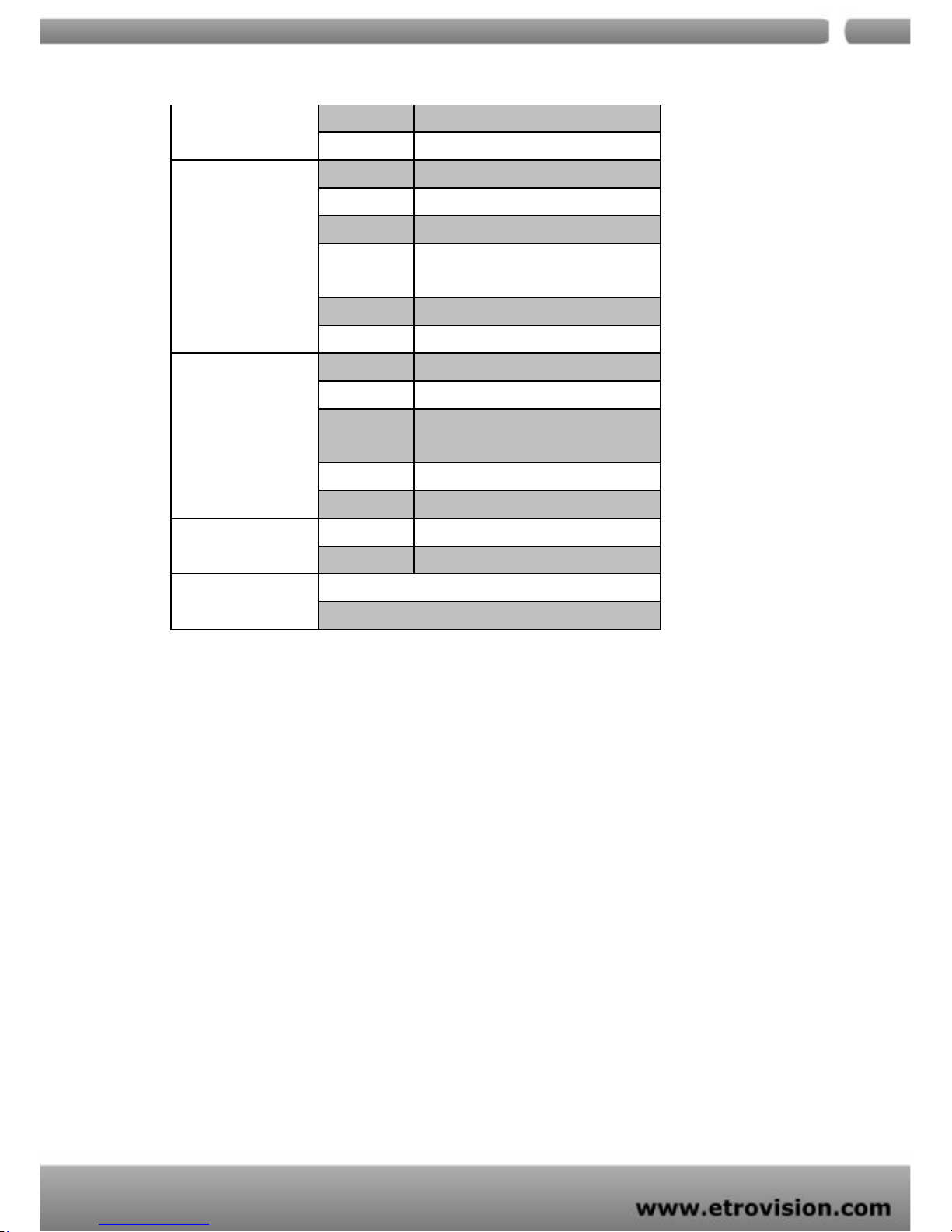
Baud Rate 1200, 1800, 2400, 4800, 9600, 19200
Connector RS-485 for PTZ Control
Minimum System
Requirements
CPU Pentinum 4, 2.4GHz and Above
Hard Disk 40 GB or Above
Memory 512 MB or Above
Operating System
Windows XP with SP2 or Above /
Windows 2000 with SP4 or Above
Video Resolution SVGA or XGA with 1024x768 Resolution
Software DirectX 9.0C or Above
Management & Support
Configuration EtroScan Utility
Integration EtroSDK 3.0 Support (Windows, Linux, CGI)
USB Port
EtroLink Config Port /
Mini-USB Female Socket for Network Setting
Web Browser Microsoft Internet Explorer 6.0, or Above
Security Password Protection
Operating Environment
Temperature 0 ºC ~ 40 ºC (32 ºF ~ 104 ºF)
Humidity 20% ~ 80% RH
Supplied Accessories
Power Adapter, USB Cable,Mini-Din Cable
CD-ROM (User Manual, Free Bundle NVR)
Page 62

04
62
13. APPENDIX
A
ActiveX
ActiveX is Microsoft software component technology, mainly used by Microsoft
Windows. This protocol facilitates the sharing of information between different
components in a networked environment.
AGC (Automatic Gain Control)
This function automatically adjusts the amount of increase depending on the strength
of the incoming signal.
AI (Auto Iris)
A very useful approach to control the strength of lights. This function automatically
detects the light level of image to determine the movement of the device. Basically the
auto iris opens or closes the lens iris as the light turns dimmer or brighter.
Alarm Input
This facility allows various forms of external alarms, such as door contact, reed
switched, Passive Infra-red detector, or vibration sensors, to be connected to the
security camera. As receiving an alarm signal, the specific camera will be switch on.
Analog Signal
Analog signals are continuous rather than discrete or pulsed, varying in voltage,
frequency, or phase of qu antities.
Angle of view
Also known as viewing angle, this refers to the available angular range within a certain
image size. The smaller the focal length, the wider the angle of view is.
Aspect Ratio
Aspect Ratio refers to the ratio of width to height in images. 4:3 is a common aspect
ration used in television screens and computer monitors.
Automatic White Balance
This function automatically adjusts the color to achieve the “color balance”. This
function will give the reference of “true white” to show the camera what the color
white looks like.
Page 63

04
63
B
Bandwidth
Measured in bps, this unit refers to the transmission capacity of telecommunications
links.
BLC (Back Light Compensation)
This function automatically adds more details to darker areas of an image when bright
lights, for example shining from behind, obscuring.
BNC connector
This is a type of RF connectors that interconnect two coaxial cables. BNC connector is
usually used to with CCTV components such as network cards or video connections.
bps (Bits Per Second)
This unit is used to measure the speed of data moving between sources. For example,
1Mbps is roughly equal to 128 KBps.
Byte
This is an unit of digital information. A unit of eight bits is known as a Byte.
Bit rate
The bit rate (in kbit/s or Mbit/s) is defined as the number of bits/time unit.
C
CCD (Charge Coupled Device)
CCD is one type of computer chips. It is designed for the movement of electrical
charge. Basically CCD converts the light energy that enters a camera into an electrical
charge, which is then converted into an electronic image. There are two types of CCD:
frame transfer and interline transfer.
CCTV (Closed Circuit Television)
CCTV represents for the use of video cameras to transmit the signal. In CCTV system,
all devices are linked mostly and directly via cables. The system is different from
broadcast television where the signal is openly transmitted. CCTV system is widely
used in video surveillance, involving analog cameras and recorders.
Page 64

04
64
CIF (Common Intermediate Format)
This format is used to standardize the horizontal and vertical signals of the image. The
default frame resolution of 352x288 for DVR systems is known as the CIF.
CMOS
CMOS is the abbreviation of Complementary Metal-Oxide Semiconductors. This device
is widely used in
static RAM, microprocessors, microcontrollers, and other digital logic
circuits.
CS-Mount
CS-Mount is one of specific types of camera, as well as its corresponding lens
mount. CS-mount has a flange focal distance of 12.52 millimeters.
Coaxial Cable
Coaxial cable is also called coax and used to transmit radio frequency (RF) signals. It
is the kind of copper cable with a central conductor that’s surrounded by a shield
sharing its same axis. It is often used by cable TV companies, telephone companies,
and business and corporation Ethernet and other types of local area network.
CODEC
CODEC means the technology used to compress and decompress data stream or
signal. It converts analogue input into digital, and then converts it back to
analogue. CODECS can be either software applications or hardware components, or
both. CODEC does coding and decoding, containing no compression.
CGI
CGI is the abbreviation of Common Gateway Interface. It is a standard protocol for
interfacing external applications with information servers, such as HTTP or Web
servers. A CGI program can be written in any language that allows it to be executed on
the system, such as: C/C++, PERL, Visual Basic etc.
Compression
It is a process of encoding information while reducing the size of digital signal.
D
D1
D1 is the so-called full resolution for TV specification. D1 refers to the following
Page 65

04
65
resolution: 720x486 (NTSC) or 720x576 (PAL). It was one of Sony’s first digitized
videotape formats.
dB (Decibel)
This unit is used to measure sound level and also widely used in electronics, signals
and communication. A decibel is a logarithmic unit to describe a ratio and measure the
loudness, power, or strength of a signal.
DHCP
DHCP is the abbreviation of Dynamic Host Configuration Protocol. It is a computer
networking protocol used by devices (DHCP clients) to obtain configuration
information for operation in an Internet Protocol network. So that it can communicate
with other host computers. Th ese addresses are usually dynamic, so a connection
cannot be obtained (or maintained) over the open Internet. Use of both static IP
addresses and dynamic DNS helps establish a consistent connection.
DNS
DNS is the abbreviation of Domain Name Service/System/Server. This is an Internet
service that translates domain names into IP addresses.
DSP
DSP is the abbreviation of Digital Signal Pro ces sing. Thes e chips can comp ress video
independent of the CPU, avoiding the need to draw processing power from the CPU,
allowing it to focus on other applications and computing tasks.
Dynamic IP address
This is a temporary numeric identification assigned to a node in a TCP/IP network.
DHCP server will assign an IP address as computers and devices in the network turned
on. This is the rotation of IP addresses such that every time a user logs onto the
Internet, their IP address changes.
E
Electronic Shuttering
This functions used in video cameras will compensate for moderate indoor changes in
light without using auto iris lenses.
E-mail notification
This is a common one of event trigger approaches in Network IP Cameras. When a
specific activity is detected, the system will send an e-mail to the administrator.
Page 66

04
66
Embedded operating system
An embedded operating system is an operating system for embedded computer
systems. For example, cameras with this can also operate as computers. With the
installation of OS such as Linux, they can perform other tasks such as sending images
to a web site via FTP, email notification, and being simultaneously accessible by
multiple users.
Ethernet
Ethernet is the most widely-installed local area network ( LAN) technology. Specified
in a standard, IEEE 802.3, Ethernet can send information either wirelessly (known as
WiFi) or , more commonly , over wires. It runs at 10mbps, and all terminals connect to
a single common bus (sometimes called a highway). A new type, known as Fast
Ethernet, or 100Base- T , runs at 100Mbps, and the newest type, Gigabit Ethernet, runs
at 1gigabit per second.
F
FCC
FCC is the abbreviation of Federal Communications Commission. This is an
independent agency of United States. It regulates international communications by
setting rates, controlling broadcast licensing, and testing electronic equipment to RF
(radio frequency) transmission and related standards.
Firewall
A firewall is a software or hardware application installed on computer to block
unauthorized access to the computer. It is essential in protecting private information
in current days. Four popular types of firewall include packet filtering, application
gateways, circuit-level gateways, and proxy servers.
Focal Length
The focal length is defined as the distance i from the optical center of the lens to the
focal point in mm unit of measurement. A lower focal length results in less
magnification with a greater field of view, and vice versa for longer focal lengths.
Security cameras usually have a focal length of ¼”, 1/3”, or ½”.
fps
It is the abbreviation of frames per second. In the field of video surveillance, fps
means the number of frames an IP camera is able to capture per second.
Page 67

04
67
Frame
One complete picture. A frame contains 525 lines (NTSC) or 625 lines (PAL).
FTP
It is the abbreviation of File Transfer Protocol. FTP
is a standard, client/server network
protocol, used to exchange and manipulate files over a TCP/IP based network.
G
GUI
This is the abbreviation of Graphical User Interface. GUI is a graphical (rather than
purely textual) user interface between a computer and the matrix switcher.
Pronounced as ‘gooey’, this is the interface between the computer and the matrix
switcher.
Gain
Gain is the amplification factor and the extent to which an analog amplifier boosts the
strength of a signal. The decibel (dB) is the most common unit for measuring the gain
of an amplifier.
Gateway
The required hardware and software connect two disparate network environments.
GIF
GIF is the abbreviation of Graphics Interchange Format. GIF is one of the most
common file formats used for storing graphical images up to 256 colors. It is
commonly used in web pages.
GOV
It is the abbreviation of “Group of VOPs”. The group of VOP’s is the basic unit of an
MPEG-4 video stream. The GOV contains different types and members of VOP’s
(I-VOP’s, P-VOP’s, etc.) as determined by the GOV length and GOV structure.
Page 68

04
68
H
Horizontal resolution
The number of discernable lines across on the TV screen is called the horizontal
resolution. This measures the maximum amount of individual picture elements
recognizable in a single scanning line.
HTML
HTML is the abbreviation of Hyper T ext Markup Language. It is the language used for
the creation of WWW pages.
HTTP
HTTP is the abbreviation of HyperT ext Transfer Protocol. This is the protocol utilized to
transmit and request information from WWW servers to browsers, either online or
over networks.
Hub
There are lots of definitions of hub for its comprehensive applications. In data
communications, a hub is a place of convergence where data arrives from one or more
directions and is forwarded out in one or more other directions. Networks apply
devices called hubs to connect multiple computers together into a LAN.
I
I Frame
Intra Frame is known as I Frame. It is a video compression method used in MPEG
decoding. An I Frame is coded without reference to other pictures.
Infrared illuminator
A light source operating in the infrared frequency range.
Interlaced
Interlace is one common way of compressing video. As the frames are projected on
the screen, the electron beams alternates between showing even and odd lines,
resulting in the two vertical scans on the screen, with the field (each set of lines) being
updates 60 times a second, and with the frame (both fields) updated 30 times a
second.
IP
IP is the abbreviation of Internet Protocol. This protocol is used for data transferring
Page 69

04
69
between two computers on the Internet. Each computer (known as a host) on the
Internet has at least one IP address that uniquely identifies it from all others on the
Internet.
IP address
This is a numeric address that is then translated into a domain name by the DNS
(domain name server). In the most widely installed level of the Internet Protocol (IP)
today, an IP address is a 32-bit number that identifies each sender or receiver of
information that is sent in packets across the Internet. When we request a HTML page
or send a e-mail, the computer translates this into its IP address. The TCP/IP protocol
then uses it for routing the data packets to their destinations.
IP Camera (or Network Camera)
IP Camera is also known as Network Camera. The transmission of data is over an IP
network. As receiving the signal, the camera digitizes the images, compresses them,
and then delivers them over the network.
Iris
This section of the lens is use for adjustment to control how much light passes through
it and onto the CCD chip.
IEEE
IEEE is the abbreviation of Institute of Electronics Engineers Inc. , which is an
international organization that regulates electrical and electronic issues by setting
related standard.
ISP
ISP is the abbreviation of Internet Service Provider, which is a company that provides
direct access to the Internet for home or business applications.
J
Joystick
Joystick is a cursor control device, equipped with a hand-held lever that pivots on one
end and transmits its coordinates to a computer. In IP surveillance, users often utilize
this device for pan/tilt/zoom control.
Page 70

04
70
JPEG
JPEG is the acronym of Joint Photographic Experts Group, which set the standard for
information. Also, this is one of the most common formats for compressing
photographic images.
Java
A programming language developed by Sun Microsystems which can run on any
platform which has a Java Virtual Machine installed.
K
L
LAN
LAN is the abbreviation of Local Area Network. A LAN is a high-speed network
connecting computers that share a common communications line or wireless link.
LED
LED is the abbreviation of Light Emitting Device. An LED creates an infrared light
frequency when stimulated by an electric charge.
Lens
This device is responsible for focusing the image on the CCD. Most of lens offer
adjustable focal length and aperture.
Linux
Linux is an open source UNIX implementation, and a popular alternative to the
Windows operating system. This freeware is often used in embedded operating
systems found in advanced Network IP Cameras.
Lux
A lux (symbolized lx) is a unit of illumination in the International System of Units (SI )
used more often than lumens when discussing security cameras. It is defined in terms
of lumens per meter squared (lm/m 2).
M
MJPEG
MJPEG stands for Motion JPEG, which is a video format that uses JPEG picture
compression in each frame of the video. M-JPEG delivers much bigger file size than
MPEG-1, MPEG-3…but makes easier video editing for having all of the required
Page 71

04
71
information stored among it.
Motion Detectors
A device which is commonly used for security reason and sensitive to specific
movement. As a specific movement occurs, the motion detection will enable
the trigger. There are several types of trigger, including recording or alarm
notification. Advanced motion detection is able to analyze the type of the
motion.
MPEG
MPEG is the acronym of Moving Picture Experts Group. This is a working group of
ISO/IEC developing “international standards for compression, decompression,
processing, and coded representation of moving pictures, audio and their
combination.”
MPEG-4
MPEG4 is an ISO/IEC standard set by MPEG working group. MPEG-4 provides full
compatibility in digital television, Interactiv e graphics applications (synthetic content),
and Interactive multimedia (World Wide Web, distribution of and access to content).
Multicast (or Multicasting)
This term refers to the network technology that allows the simultaneous delivery of
packet between a single IP address (the host) and multiple destinations with a single,
local transmit operation.
Multiplexer
A device combines several input signals and one output signal into a signal for
transmission.
MAC (MAC address)
Also referred to MAC address, Media Access Control is a part of the network interface
card (NIC) and used for identification. If MAC address is assigned by the manufacturer,
the address will encode the registered identification numbers.
Manual iris
The opposite of an auto iris, the camera iris must be manually adjusted to determine
the movement of the device. Basically the iris opens or closes the lens iris as the light
turns dimmer or brighter.
Page 72

04
72
Mbit/s
A megabit per second.
Megapixel
A pixel is one of the many tiny , tile-like pict ure elements (dots) that make up a digital
image. Megapixel is equal to one million pixels.
N
Network Camera
Also known as an IP Camera, Network Camera is a stand-alone camera and has access
to live viewing, motion detection via a standard web-browser over a computer
network or Internet. Network Camera often functions as an embedded OS (operating
system) and is equipped with the following features: FTP of images, web server
capability, and built-in motion detection.
NTSC
NTSC is the acronym of National Television Standards Committee. NTSC is the
standard used in North America and most of South America. T aiwan uses NTSC as well.
30 frames are transmitted each second in NTSC standard. And the video format has
60 Hz field frequency and 525 individual scan lines.
NVR
NVR stands for Network Video Recorder. It enables simultaneous recording and
remote access to both live viewing images and recorded ones. NVR can be
software-based and connected to the IP camera.
O
Outdoor Camera Housing
A protective shell for security cameras used in outdoor environmental
P
PAL
PAL is the acronym of Phase Alternating Line. This television video signal standard is
mainly used in Europe and contains 625 picture lines and a 50Hz field frequency.
Page 73

04
73
Pelco-D
This protocol is used for pan/tilt/zoom (PTZ) control in security camera.
Pixel (Picture Element)
A pixel is one of the many tiny , tile-like pict ure elements (dots) that make up a digital
image.
PoE
The abbreviation of Power over Ethernet refers to a method of power supply of an IP
camera via Cat-5 Ethernet cable over a physically wired LAN network.
Power supply
Most security cameras utilize 24V AC or 12V DC power supplies. A power supply is
usually plugged into a regular electrical outlet or part of a centralized power supply.
PPP
PPP is the abbreviation of Point-to-point Protocol. This protocol is used for establishing
direct communication between two computers via a serial interface, typically a
personal computer connected by phone line to a server.
Progressive
Different from Interlaced Scan, progressive scan scans scans all lines in an image at
once, 60 times per second. This scan method dramatically eliminates the flickering.
Protocol
Protocols are the special set of rules or standard procedures used for regulating data
transmission between two end points in a telecommunication connection. The
existence of Protocol minimizes the errors during the data transmission.
PTZ Camera
PTZ is the acronym of pan, tilt, and zoom. In IP surveillance, these cameras are able
to make left and right (pan) or upward and downward (tile) movement. Also, these
cameras can zoom in and zoom out, making it very feature-rich. PTZ cameras are
usually remotely controlled via software or a joystick.
PTZ controller
It is the device to control pan/tilt/zoom camera. It is usually a keypad controller with
software.
Page 74

04
74
Ping
A TCP/IP tool used to test whether a particular host is reachable. Ping can also be used
for the self-test of Network Interface Card (NIC).
Q
QCIF
QCIF is the acronym of Quarter common intermediate format, which is one of the
common video signal standards. QCIF is one quarter of CIF , with the resolution of 144
×176 pixels.
Quad
Utilizing digital video, this piece of equipment displays signals from four surveillance
cameras on one monitor.
R
Real time video
Any picture having 24 or more frames per second appears continuous, or in real time.
Remote monitoring
This function allows off-site user to have access to the monitor of surveillance camera.
The data can be transferred via the Internet or the Ethernet.
RGB
RGB means Red Green Blue, which are the three primary colors of light. RGB model
combine the three colors in the various ways to deliver a broad range of combinations
of colors.
ROI
ROI is the abbreviation of Region of Interest. This feature derives from JPEG2000
standard and allows users to define a specific region within an image. The signal in this
region will be coded and transmitted in a more sophisticated way, presenting better
image quality and less distortion than other part of the image.
Router
A router is the device help facilitating the exchange of packets among LAN or WAN
networks. A router is often a part of the network switch.
Page 75

04
75
RS232 (also known as RS-232)
This is the communication standard developed by EIA (Electronic Industries
Association) for regulating the interface between data communication and data
processing devices. In IP Surveillance, RS232 is commonly used in giving instructions
that control the movement of PTZ camera.
RTP
RTP is the abbreviation of Real-time Transport Protocol. This protocol provides the
real-time end-to-end delivery, including audio and video signals. The provided
services range from sequence numbering, time stamping, and payload type
identification, standardizing the packet format for easy synchronization and Internet
delivery.
RTSP
RTSP is the abbreviation of Real Time Streaming Protocol. This protocol provides the
control of delivered multimedia streams. The services range from recording, possible
device control, and absolute positioning within the media stream.
RAID (Redundant Array of Independent Disk)
RAID means redundant array of independent disks. This device allows the storage of
the same data in different places on multiple hard disks.
RAM (Random Access Memory)
RAM represents Random Access Memory . RAM is the place in computer to keep data of
current use, operating system, and application programs. The advantage of RAM is
that it allows users to have quick access to those data.
Resolution
Resolution is a measure of picture clarity and sharpness. The presentation of
resolution is showed by number of pixels. There is a direct ration between resolution
and number of pixels.
RJ45
RJ-45 is the abbreviation of Registered Jack-45. It is an eight-wire connector,
commonly applied for connecting computers on LAN over the Ethernet.
Page 76

04
76
S
Scanning
As used in video surveillance, scanning is the technology of panning across the
horizontal field of view.
CCTV (Closed Circuit Television)
CCTV is short for Closed Circuit Television. This is a television transmission system in
which the circuit is closed and all the devices are directly connected.
Sensitivity of a surveillance camera
In the unit of lux, the “sensitivity” refers to the minimum level of light required to
deliver an acceptable video picture.
Shutter speed
This function belongs to one of the most common and important controls of camera.
Shutter speed takes charge of controlling the period of time that the digital sensor
exposed to light.
SMTP
SMTP is the abbreviation of Simple Mail Transfer Protocol. This protocol provides the
service of the delivery of e-mail via Internet or TCP/IP protocol.
Static IP address
It is a set of numbers assigned by ISP (Internet Service Provider) to a computer as its
permanent address on the Internet.
Synchronization
This term refers to the process of keeping one operation matching with another . In IP
Surveillance, this term is mostly used as mentioning the frame formation in multi
systems is started simultaneously.
Simplex
This is a type of multiplexer that allows simultaneous recording (to the tape) and live,
full screen displaying.
SNMP (Simple Network Management Protocol)
Page 77

04
77
SNMP is short for Simple Network Management Protocol. This protocol is widely used
in network monitoring and control.
SSL/TSL (Secure Socket Layer/Transport Layer Security)
These two protocols (SSL is succeeded by TSL)are cryptographic protocols that
provide secure communication on a network. SSL is commonly used over HTTP to
form HTTPS, as used e.g. on the Internet for electronic financial transactions. SSL
uses public ket certif icates to verify the identify of the server.
subnet mask
A group of selected bits that determine a sub network within a TCP/IP protocol and
identifies which part is available.
Signal to Noise
Also known as S/N or SVR, it refers to the ratio between the signal voltage and the
noise voltage, measuring the signal strength to background noise. The ratio is
measured in decibels (db).
T
TCP/IP
TCP is short for T ransmission Control Protocol and IP stands for Internet Protocol. The
two protocols enable communication between different networks of different vendors
into the overall network – Internet. IP takes charge in delivering packet of data
between nodes. TCP enhances support of detecting errors or losing data. If the errors
or lost data is detected, TCP will trigger the retransmission until the packet is correctly
and completely delivered.
Te ln e t
Telnet is a network protocol functions as a simple method of accessing another
network device, such as a computer . Using this protocol, users log on as a regular user
with whatever privileges you may have been granted for specific applications and data
residing on that computer.
TVL (TV Lines)
TVL is the measurement of analog video resolution.
Topology
Page 78

04
78
Topology is widely used in various fields. In IP Surveillance, this term is applied to
describe the physical and logical layout of the devices in a network.
T ransceiver: A device that transmits and receives network signals in a single package.
Twisted pair
Twisted pair is a type of wire which two insulated copper wires twisted around each
other.
U
UDP
UDP is the abbreviation of User Datagram Protocol. It is a communications protocol
that works on the top of IP networks. Different from TCP/IP , UDP ignores lost data and
offers few recovery services. It is often used in video streaming or broadcasting
messages over a network for matching the real-time characteristic. .
UPS
UPS is short for Uninterruptible Power Supply. For the storage of electricity in the
battery , this device is capable of supplying power to a system or computer (allowing a
user to shut down w/out losing data or continue for a specific time period) for a short
period of time during a power failure.
URL
URL is the abbreviation of Uniform Resource Locator. It is the Internet, global address
that required by a software browser to find the Internet resource or document on
World Wide Web (WWW).
UTP
UTP stands for Unshielded T wisted Pair . It is a common type of twisted pair wiring used
to transmit video signals across distances. UTP has longer reachable distances and is
cheaper and easier to work with.
Unicast
Unicast defines the communication between a single receiver and a single sender over
a network.
USB (Universal Serial Bus)
Page 79

04
79
A set of connectivity interface allows quick and easy connection of peripherals, such as
printer and scanner, to a PC.
V
Vari-focal lens
Contrary to the fixed focal length lens, vari-focal lens are able to v ary its focal length
to zoom in/out on images. An auto iris feature is required in order to achieve this.
Vertical resolution
Contrast with horizontal resolution, vertical resolution defines the number of elements,
such as rows, dots, or lines, from the top to the bottom in an image.
Video compression
The “compression” technology means packing the information into a smaller space.
Under many situations the video signal takes up a lot of space and results in the
demanding requirement of bit rate and file size. The “compression” of video helps
reduce bit rates, bandwidth, and smaller file size and facilitates the Internet
transmission.
Video intercom
Used at door entryways, this system utilizes audio and video for communication or
movement control of people.
Video server
This device enables an analog camera to be converted into an IP one, digitalizing the
analog signals into digital images and transferring via an Internet Protocol Network
such as Intranet, LAN, or ,ISDN connection. Therefore, an analog surveillance
system can be upgraded to an IP-based surveillance system.
Video streaming
Streaming video delivers compressed content over the Internet in the form of
packets. It is unnecessary for users to download the entire file to view it. Instead,
users may watch the real-time image as downloading. It requires a player to
decompress the signal and deliver it to the display and audio data to a speaker.
Page 80

04
80
Video surveillance
This term refers to the deployment of CCTV, IP camera, NVR, and DVR to monitor
activities in different locations for security purpose.
VPN
VPN refers to Virtual Private Network. This network uses a public telecommunication
infrastructure, such as the Internet, to offer remote secure access to the private
network. The work of VPN allows the use of public infrastructure while maintaining the
privacy (e.g. encryption) of individual use through specific procedures or via special
protocols.
Video Motion Detection
This device can define activity in a scene by analyzing the differences in the image.
The common way is triggering an alarm after detecting the unusual movement.
W
WAN
This term stands for Wide Area Network. It is a communications network spanning a
large geographical area, connecting multiple metro area networks (MAN) or local area
networks (LAN). The Internet is a WAN.
White balance
This function helps adjust the color to ensure a more realistic picture.
Wide angle lens
This type of lens have a short distance between point of focus and the optical center
and enable a wide horizontal field of view.
Wireless
This type of transmission uses the electromagnetic waves instead of wires to carry the
signal for delivery.
W-LAN (Wireless LAN)
This term is short for Wireless LAN. A wireless LAN is a wireless local area network that
mobile users can connect to LAN via wireless connection.
Page 81

04
81
Web server
A web server is a program, which allows Web browsers to possess the files requests.
The operation is that the Web serv er listens for requests from Web browsers and upon
receiving a request for a file sends it back to the browser. Also, the Web server is a
repository of data and content, which is actually a database.
WEP (Wireless Equivalent Privacy)
WEP is short for Wireless Equivalent Privacy. This is a wireless security protocol,
specified in the IEEE 802.11b standard, which is designed to provide a wireless local
area network (WLAN) with a level of security and privacy comparable to that usually
expected of a wired LAN.
WPA-PSK (Wi-Fi Protected Access-Pre-Shared Key)
WPA-PSK stands for Wi-Fi Protected Access-Pre-Shared Key; basically it is an
authentication mechanism in which users provide some form of credentials to verify
that they should be allowed access to a network.
The encryption mechanisms for WPA and WPA-PSK are the same. The only difference
is that the authentication in WPA-PSK is reduced to a simple password, instead of
user-specific credentials.
Web browser
This is basically a software program used for reaching various kinds of information on
the Web.
X
Y
Z
Zoom lens
A zoom lens has the advantage of rapidly changing the focal length.
Page 82

04
82
Zoom ratio
This defines the ratio between the maximum and minimum focal length that a zoom
length is capable of.
TEL: +886-2-26551518
2F, Block C, Nan Kang Software Park,
19-5 San-chung Rd., Nan Kang District,
Taipei 115, Taiwan
www.etrovision.com
 Loading...