

Page 1
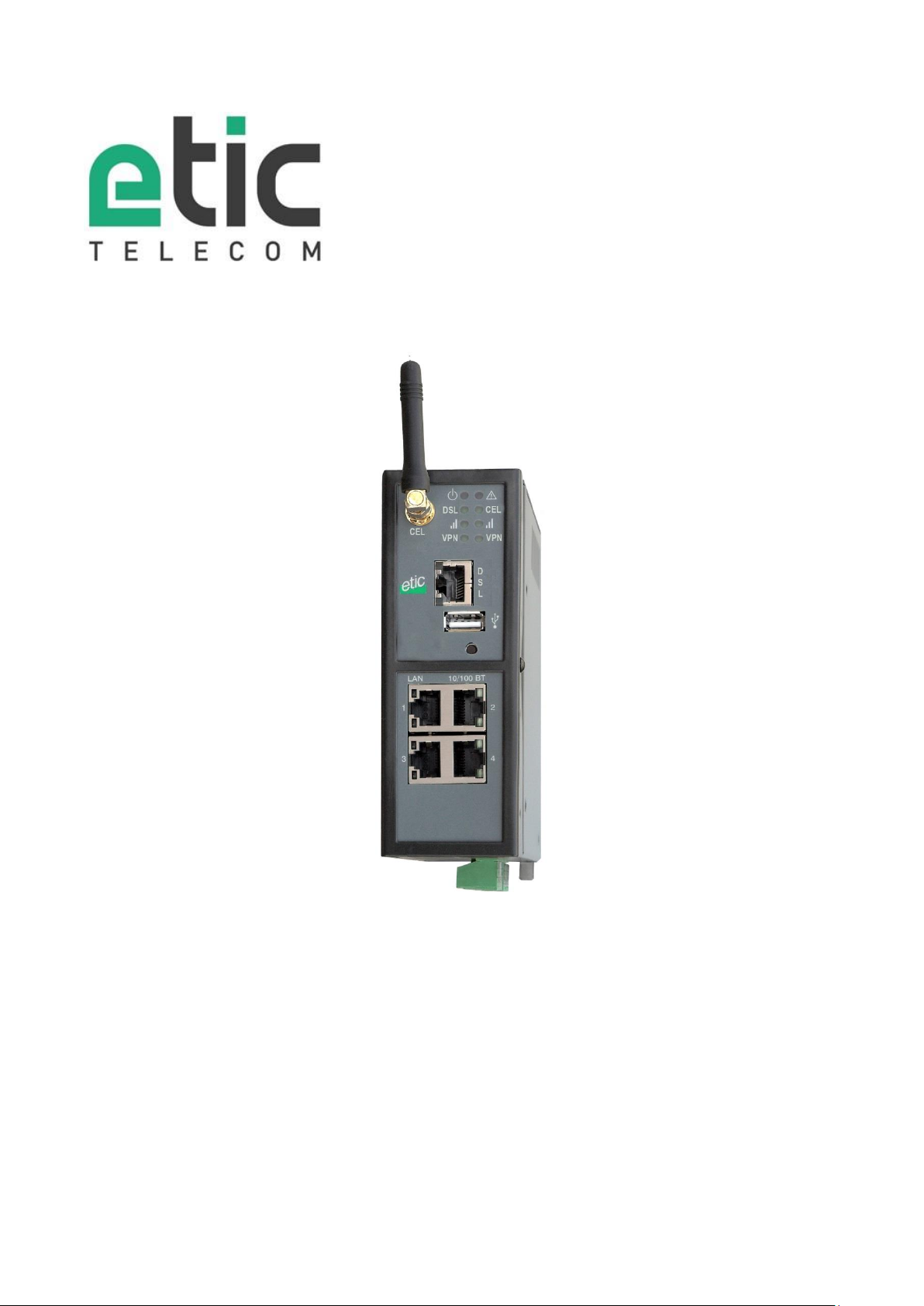
IPL-DAC
ADSL router with cellular backup
_________________
USER GUIDE
ADSL router with cellular backup DOC_DEV_IPL-DAC_User guide_A
Page 2

CONTENT
The IPL-DAC ADSL router with cellular backup is designed and manufactured by
ETIC TELECOM
13 Chemin du vieux chêne
38240 MEYLAN
FRANCE
TEL : + (33) (0)4-76-04-20-05
FAX : + (33) (0)4-76-04-20-01
E-mail : [email protected]
web : www.etictelecom.com
Page 2 DOC_DEV_IPL-DAC_User guide_A ADSL router with cellular backup
Page 3

CONTENT
OVERVIEW ....................................................................................................................... 5
1 CERTIFICATE OF CONFORMITY ....................................................................... 5
2 PRODUCT IDENTIFICATION ............................................................................. 6
3 PRODUCT OVERVIEW ...................................................................................... 7
3.1 Applications ................................................................................................ 7
3.2 Functions .................................................................................................... 8
3.3 Router interfaces & organisation ................................................................. 9
4 DATA-SHEET ................................................................................................. 10
INSTALLATION .............................................................................................................. 13
1 PRODUCT DESCRIPTION ............................................................................... 13
1.1 Dimensions ............................................................................................... 13
1.2 Leds & Push buttons .................................................................................. 14
1.3 Connectors ................................................................................................ 16
2 MOUNTING THE PRODUCT ON A DIN RAIL..................................................... 17
3 COOLING ....................................................................................................... 17
4 GROUNDING .................................................................................................. 17
5 SUPPLY VOLTAGE ......................................................................................... 18
6 DIGITAL INPUT AND OUTPUT ........................................................................ 18
7 CONNECTING THE ROUTER TO THE ADSL LINE ............................................. 18
7.1 Connecting the router to the line ................................................................ 18
7.2 ADSL subscription ..................................................................................... 19
8 CONNECTING THE ROUTER TO THE CELLULAR NETWORK ............................ 19
8.1 Before installing the router ........................................................................ 19
8.2 Cellular antenna ........................................................................................ 19
8.3 Coaxial cable ............................................................................................. 20
8.4 Cellular service subscription ...................................................................... 21
8.5 Installing the SIM card ............................................................................... 21
8.6 Controlling the conformance of the connection .......................................... 22
ADSL router with cellular backup DOC_DEV_IPL-DAC_User guide_A Page 3
Page 4

CONTENT
PREPARING THE SETUP ................................................................................................ 23
1 FIRST SETUP ................................................................................................. 23
2 PROTECTING THE ACCESS TO THE ADMINISTRATION WEB SERVER ............ 23
3 HTTPS SET-UP MODIFICATIONS THROUGH THE WAN INTERFACE ............... 24
4 RECOVERING THE FACTORY LAN IP ADDRESS .............................................. 24
5 RESTORING THE FACTORY SET-UP ............................................................... 24
6 SAVING OR RESTORING A SET OF PARAMETERS .......................................... 25
7 CONFIGURATION STEPS ............................................................................... 26
MAINTENANCE .............................................................................................................. 27
1 DIAGNOSTIC .................................................................................................. 27
1.1 Logs .......................................................................................................... 27
1.2 Network status .......................................................................................... 27
1.3 « Ping » tool .............................................................................................. 28
2 FIRMWARE UPDATE ...................................................................................... 28
Page 4 DOC_DEV_IPL-DAC_User guide_A ADSL router with cellular backup
Page 5

Standard
Title
EN301489-1
Electromagnetic compatibility and Radio spectrum Matters :
Part 1 : General requirements
EN301489-7
Electromagnetic compatibility and Radio spectrum Matters :
Part 7 : Specific conditions for mobile and portable radio and ancillary
equipment of digital cellular radio
EN61000-6-2
Ed. 2001
Immunity :
EN60100-4-2 Electrostatic Discharge
EN60100-4-3 Radiated Immunity
EN60100-4-4 EFT/Burst Immunity
EN60100-4-5 Surge Immunity
EN60100-4-6 Conducted Immunity
EN61000-6-4
Ed 2001
Emission :
EN55022 radiated and conducted emission
EN60950
Security
EN50385
Human exposure to radio frequency fields exposure
ITU G992.5
ADSL2+ et Reach Extended ADSL
OVERVIEW
1 Certificate of conformity
The manufacturer, ETIC Telecom – 13 chemin du vieux chêne – 38240 Meylan – France, Hereby declares
that the listed product
Type of device : Cellular router IPL-DAC
conforms to the Council Directive 1999/5/EC related to radio and telecommunication terminal equipments.
The harmonized standards to which the equipment complies are :
Philippe DUCHESNE
Technical Director
5th January 2015
ADSL router with cellular backup DOC_DEV_IPL-DAC_User guide_A Page 5
Page 6

OVERVIEW
ADSL & cellular router
IPL-DAC-
400
ADSL 2+ & RE-ADSL appendix A (analogue line)
•
3G+ UMTS-GPRS-EDGE cellular modem
•
Firewall SPI
•
25 users remote access server
•
IPSEC & OpenVPN VPN
•
Ethernet 10 / 100 BT
4
USB
1
IP router
•
NAT
•
Port forwarding
•
SNMP
•
DNS
•
DHCP server on the LAN interface
•
Digital input for alarm email
1
Backup status digital output
1
HTTPS / HTML / SSH configuration
•
2 Product identification
Page 6 DOC_DEV_IPL-DAC_User guide_A ADSL router with cellular backup
Page 7
OVERVIEW
3 Product overview
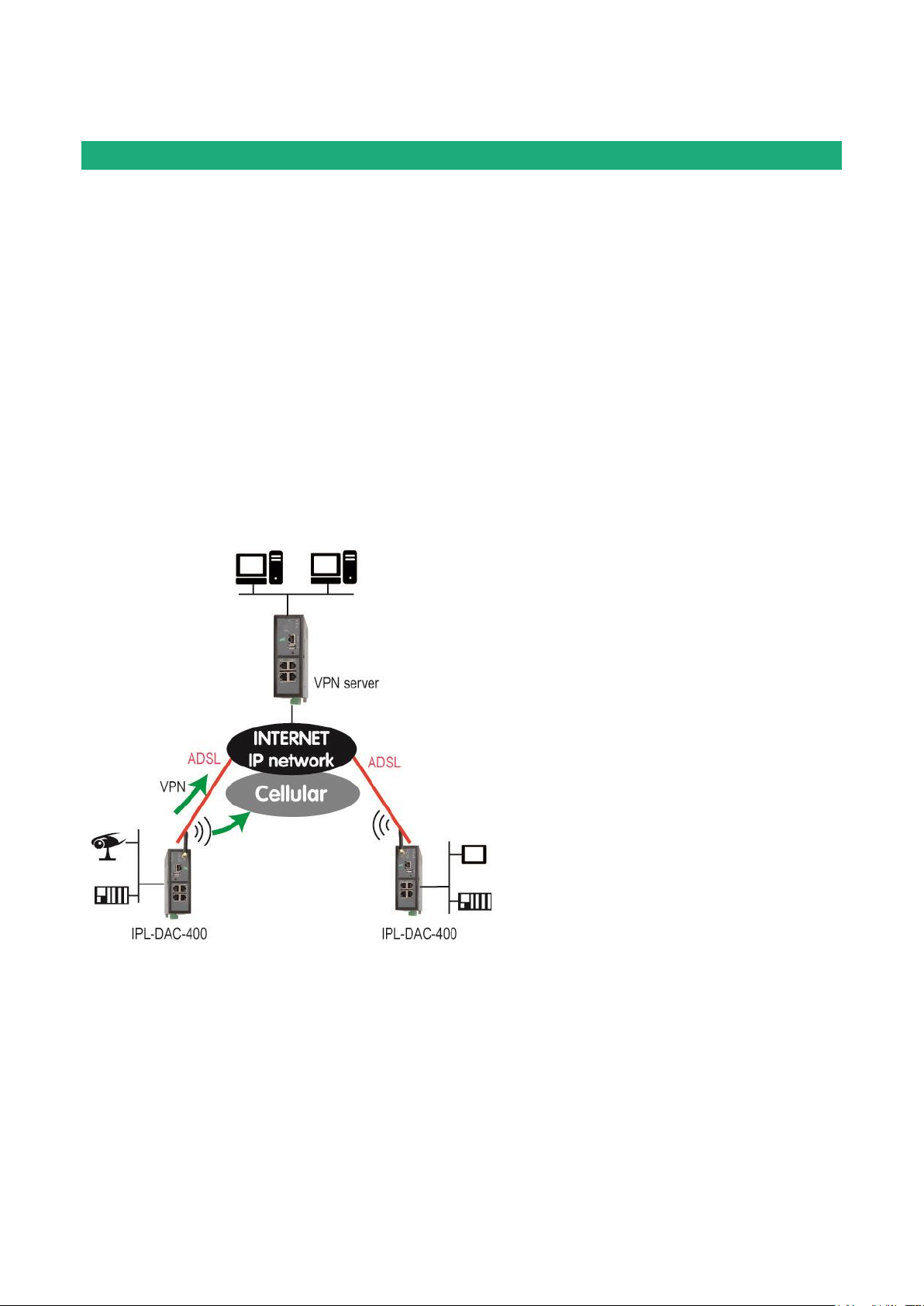
The IPL-DAC router includes at the same time an ADSL 2+ modem and a UMTS modem.
It is designed for critical industrial remote scada systems.
it provides the following functions :
Automatic backup between the ADSL line and the cellular network
Multi-WAN IP routing
IPSec or OpenVPN client or server
Remote access server (RAS) for remote maintenance
SPI Firewall
3.1 Applications
HIGH AVAILABILITY SCADA SYSTEMS
.
ADSL router with cellular backup DOC_DEV_IPL-DAC_User guide_A Page 7
Page 8

OVERVIEW
3.2 Functions
Automatic backup
The IPL-DAC router makes possible to switch the data to the cellular network when the ADSL line fails.
Multi WAN IP router
The IPL-DAC router provides powerful, flexible and comprehensive solutions to route IP packets through the
ADSL or the cellular network.
The solutions include static routes, RIP protocol and address translation (NAT, DNAT) and port forwarding
IPSec & OpenVPN tunnels
The IPL-DAC features IPSec and OpenVPN tunnels to provide a high level of security and also compatibility
with existing devices.
Remote access server for PCs, tablets and smartphones
The IPL-DAC router can also behave like a remote access server.
If he is registered in the user list, a remote user can access to particular devices of a machine network
depending on his identity.
The new HTTPS portal makes possible to access easily and safely to HMIs or PLCS web servers using a
tablet, a PC or a smartphone.
Firewall
The firewall protects against the sophisticated attacks coming from the Internet.
It is also able to filter IP frames between the WAN interface or any VPN interface on one hand, and the LAN
interface on the other hand.
VRRP redundancy
VRRP makes possible to use two routers shaping a redundant solution.
DNS server
DNS makes it possible to assign Internet names to devices or organizations independently of their public IP
address.
The IPL-DAC router behaves like a DNS server for the devices connected to the LAN.
DHCP server
On the LAN interface, the IPL-DAC router can behave like a DHCP server.
Page 8 DOC_DEV_IPL-DAC_User guide_A ADSL router with cellular backup
Page 9
OVERVIEW
3.3 Router interfaces & organisation
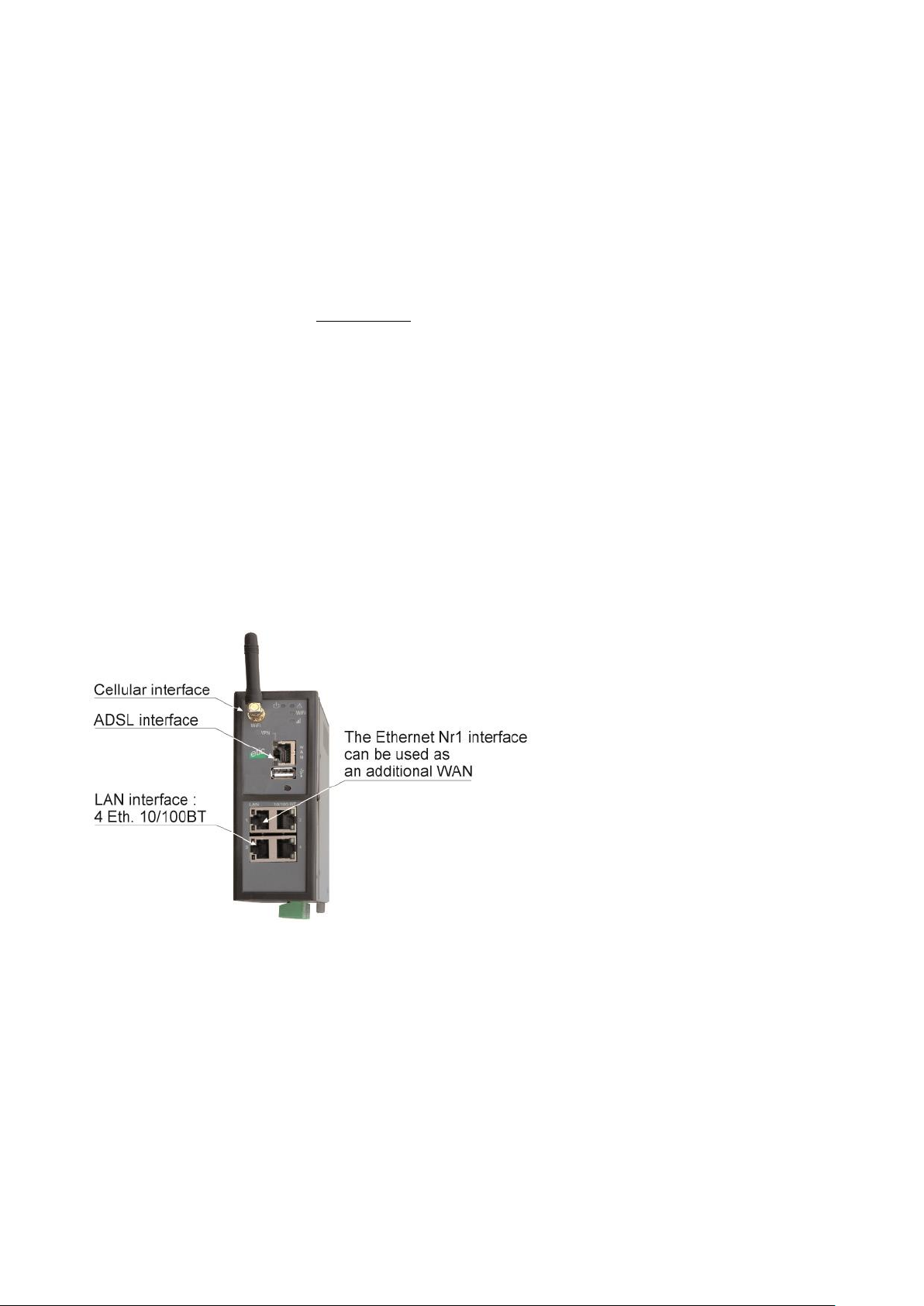
The IPL-DAC router provides, an ADSL interface, a cellular interface and four switched Ethernet interfaces.
WAN interfaces:
The IPL-DAC router provides three WAN interfaces:
The ADSL interface is the main WAN interface
The cellular interface
The Ethernet interface of the RJ45 Nr1, which can be used as a WAN interface.
Only one interface can be selected as the WAN interface at the same time (ADSL, Ethernet port 1, Wi-Fi).
LAN interface:
The LAN interface consists of the four Ethernet ports.
Firewall
The firewall filters the IP frames between the WAN interfaces or any VPN interface on one hand, and the LAN
interface on the other hand.
Remote access server
The IPL-DAC provides a secure remote access server function (RAS function).
The RAS function is available on the WAN interfaces.
ADSL router with cellular backup DOC_DEV_IPL-DAC_User guide_A Page 9
Page 10

OVERVIEW
General characteristics
Dimensions
137 x 48 x 116 mm (h, l, p)
Electrical safety
EN 60950- UL 1950
EMC
ESD : EN61000-4-2 : Discharge 6 KV
RF field : EN61000-4-3 : 10V/m < 2 GHz
Fast transient : EN61000-4-4
Surge voltage : EN61000-4-5 : 4KV line / earth
RoHS
2002/95/CE (RoHS)
Supply voltage
10 to 60 VDC – 7 W
Operating T°
-20°C / + 60°C Humidity 5 – 95 %
ADSL Connection
ADSL
ITU G992.5 (ADSL2+ et Reach Extended ADSL)
Up to 2.4 Mbit/s downstream
Up to 1 Mbit/s upstream
Encapsulation
PPPo Ethernet or PPPo ATM
EoA : Ethernet over ATM RFC2684 Bridged
IPoA : Routed IP over ATM, RFC2684 Routed
Cellular modem
Type
UMTS 3G+ / GPRS-EDGE
UMTS freq.
850 / 900 / 1700 / 1900 / 2100 MHz
GPRS freq.
850 / 900 / 1800 / 1900 MHz
Antenna connector
SMA female
IP router
Ethernet
10/100 BT – 2 or 4 switched ports
IP router
Static routes – RIP V2
IP address
substitution
Source IP @ translation (NAT)
Destination IP @ translation (DNAT)
Port forwarding
Masquerading
DHCP
LAN interface : Fixed IP @ or DHCP client or DHCP server
VPN & firewall
VPN
Client or server IPSEC or OpenVPN
Encryption AES256 3DES
Certificate X509 or preshared key
16 VPNs maximum of the same type (OpenVPN or IPSec)
Firewall
Stateful packet inspection (50 rules)
Deny of service filter
Source & destination IP address & port number filter
Remote users filter
Logs
Date and time stamped logs
4 Data-sheet
Page 10 DOC_DEV_IPL-DAC_User guide_A ADSL router with cellular backup
Page 11

OVERVIEW
Remote access server (RAS)
User list
25 users
Connection
PPTP / L2TP-IPSec / Open VPN / HTTPS
Login & password
Certificate X509
M2Me
(option)
VPN Compliant with the M2Me_Secure VPN client
Compliant with the M2Me_Connect mediation service
Alarms
1 input : emails or SM (cellular models)
ADSL router with cellular backup DOC_DEV_IPL-DAC_User guide_A Page 11
Page 12

Page 13
1 Product description
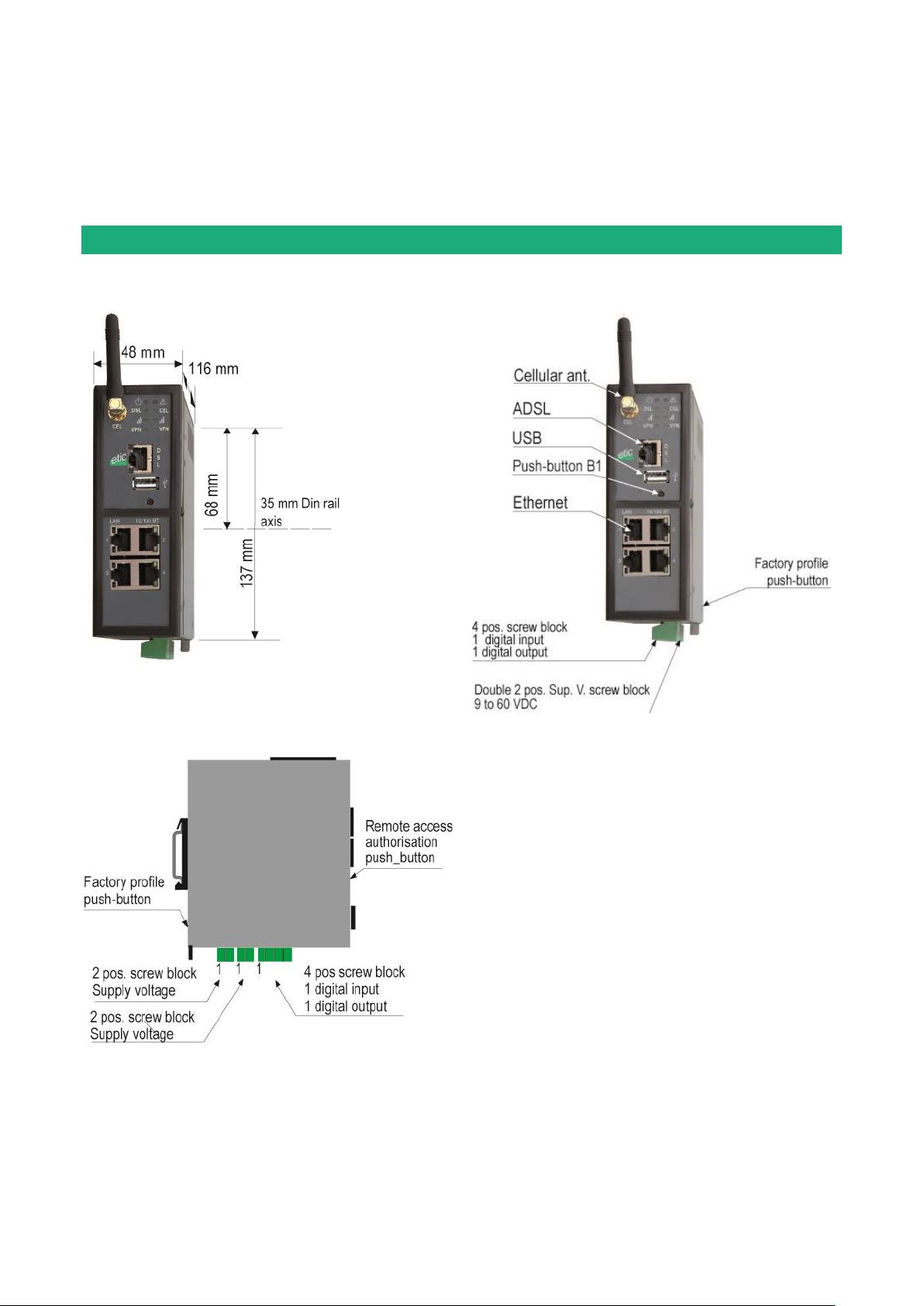
1.1 Dimensions
INSTALLATION
ADSL router with cellular backup DOC_DEV_IPL-DAC_User guide_A Page 13
Page 14
INSTALLATION
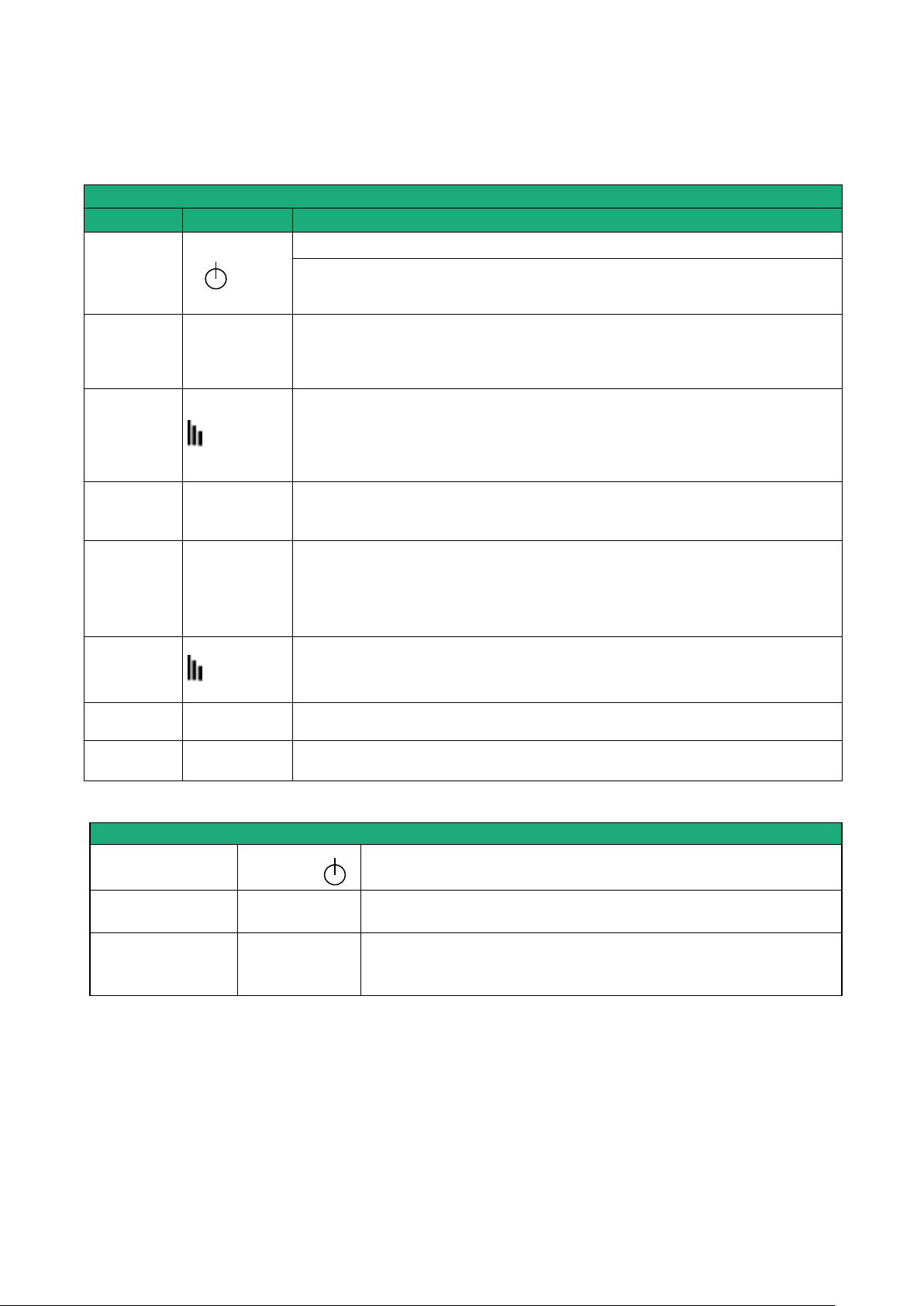
LED INDICATORS IPL-DAC-400
Designation
Function
Operation
Green The unit is ready
Red Power-up
The SIM card is not present
Hardware failure or firmware update process
Cellular
Connection
Cel
Off SIM card not present – cellular interface disabled
Flashing slowly Connection in progress (1st step)
Flashing fast Connection in progress (2nd step)
Green Connected to the cellular ntwk
Cellular
signal level
Cel
Off Cellular interface disabled
1 flash Faint not sufficient signal
2 flashes Sufficient signal
3 flashes Strong signal
See detail further: cellular network connection §
VPN over the
cellular ntwk
VPN
Off No VPN has been enabled
Flashing VPN processing
Green One VPN at least is established on the cellular
ADSL
connection
Dsl
Off ADSL interface disabled
Flashing T=4 s ADSL signal not still detected
Flasning T= 2 s ADSL connection on process
Flasning T= 0.5 s IP connection on process
Green Connected
ADSL
Signal
quality
Dsl
Off ADSL not enabled
1 flash Weak not sufficient signal
2 flashes Sufficient signal
3 flashes Strong signal
Ethernet LAN
Led 1 to 4
Off Ethernet interface not connected
Green Ethernet interface connected
Ethernet LAN
Upper led 1
Green The RJ45 has been setup as the WAN interface
Front panel push-button B1
Pressing the front
panel PB
led
Function
During 5 seconds
3 flashes
The hotline of ETIC TELECOM is authorised to connect remotely to
the router administration server within a 1 hour delay.
During 10 seconds
5 flashes
A remote user is authorised to connect remotely to the router
administration server within a 10 mn delay without entering the
login or password
1.2 Leds & Push buttons
Page 14 DOC_DEV_IPL-DAC_User guide_A ADSL router with cellular backup
Page 15

Rear panel push-button
Pressing the rear
panel PB
led
Function
During operation
Flashing red
The default IP address 192.168.0.128 is selected
The current configuration remains active
During power-up
Flashing red
The factory configuration and the default IP address
192.168.0.128 are selected.
The current configuration is deleted.
INSTALLATION
ADSL router with cellular backup DOC_DEV_IPL-DAC_User guide_A Page 15
Page 16
INSTALLATION
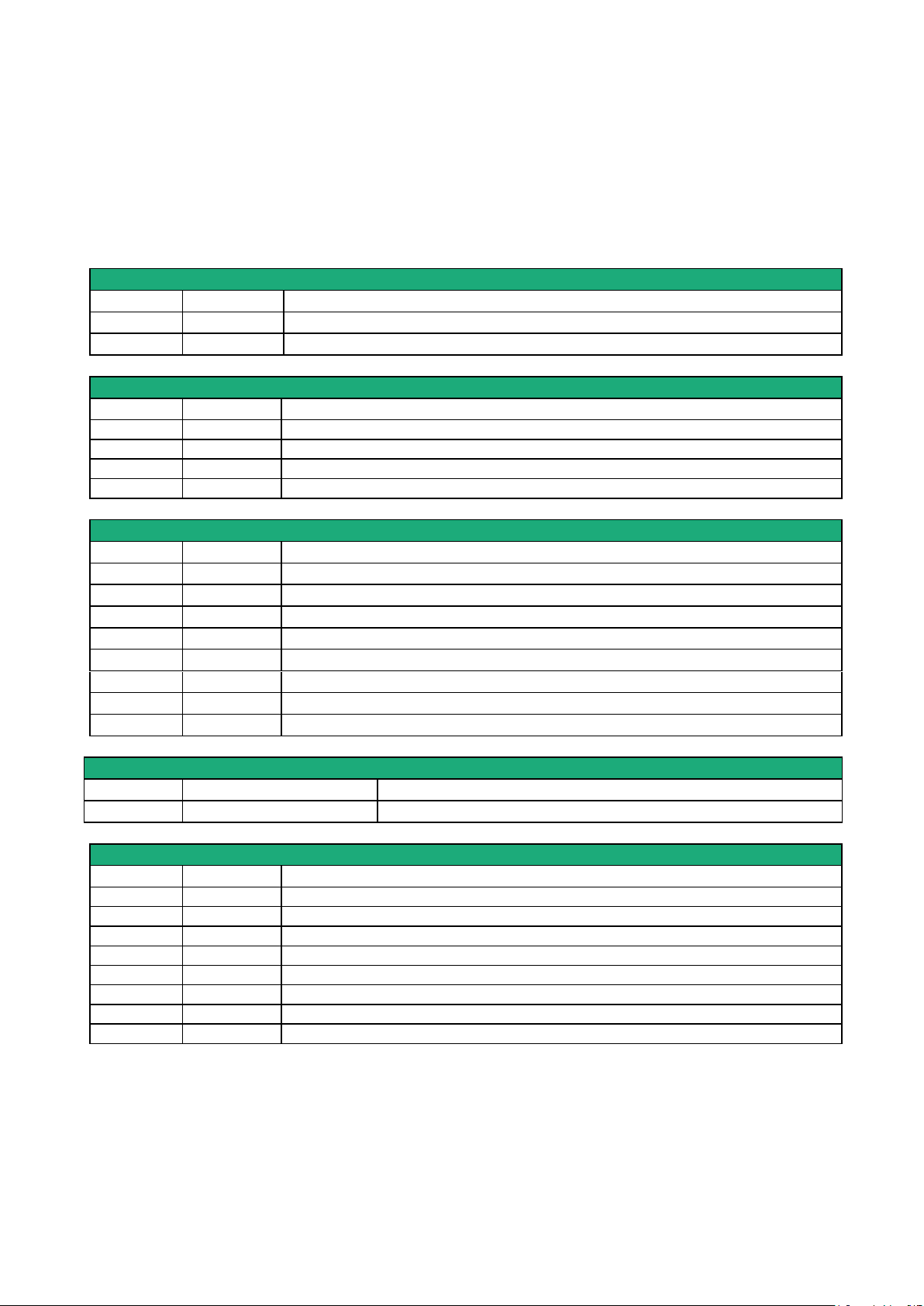
Supply voltage connector
Position
Signal
Function
1
Power 1 +
Supply voltage
2
Power 1 -
0V
Digital inputs & outputs
Position
Signal
Function
1
0V
O V
2
In
Digital input
3
F +
Digital output +
4
F -
Digital output -
RJ45 Ethernet 1 to 4
Position
Signal
Description
1
Tx +
Emission polarity +
2
Tx -
Emission polarity -
3
Rx +
Reception polarity +
4
N.C
-
5
N.C - 6
Rx -
Reception polarity -
7
N.C. - 8
N.C.
-
Cellular Antenna connector
Network
Type
Observation
Cellular
SMA female
RJ45 ADSL connector
Position
Signal
Function
1
N.C. - 2
N.C. - 3
N.C. - 4
TIP
ADSL line
5
RING
ADSL line
6
N.C.
-
7
N.C.
-
8
N.C.
-
1.3 Connectors
Page 16 DOC_DEV_IPL-DAC_User guide_A ADSL router with cellular backup
Page 17
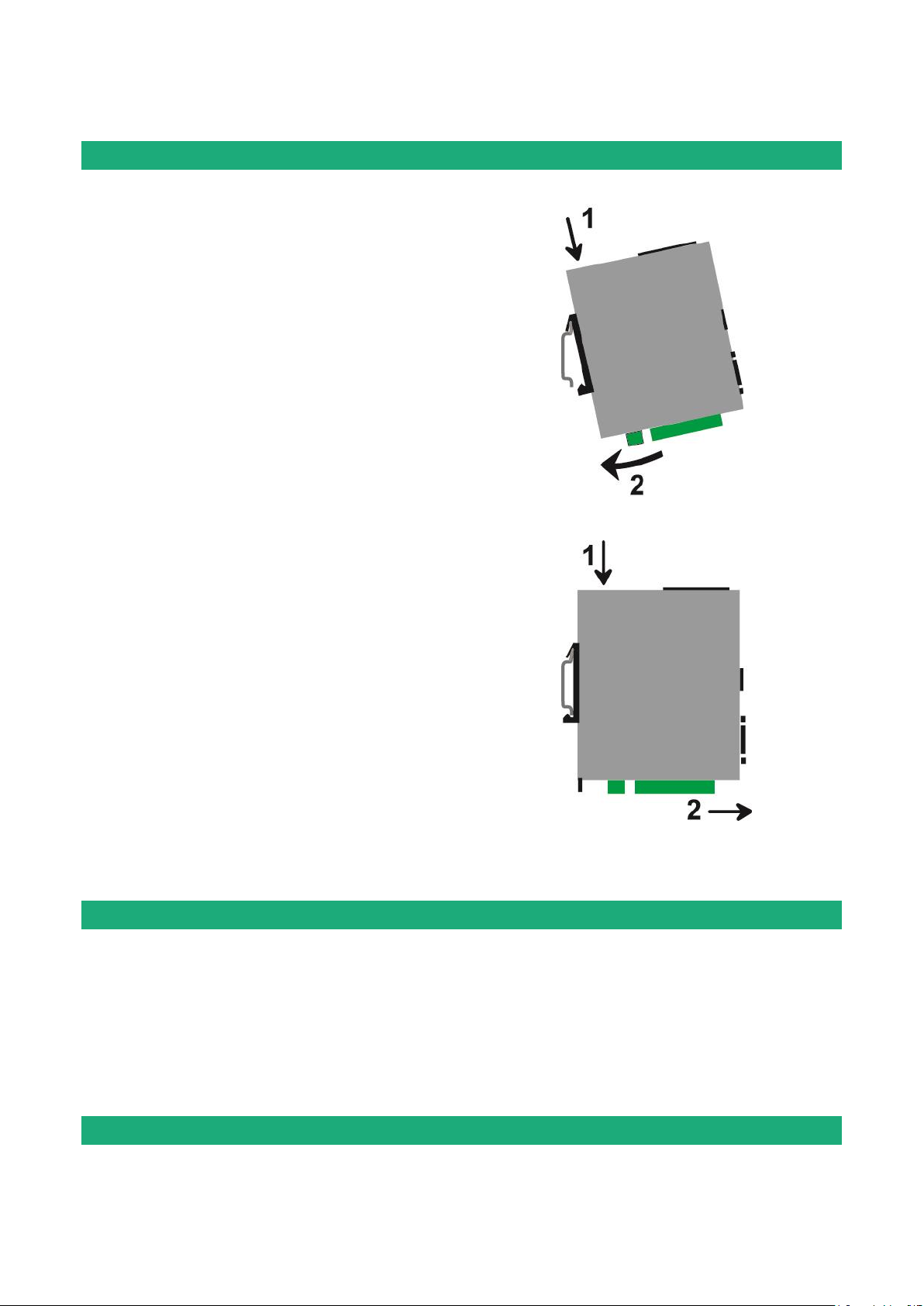
Mounting the unit on the 35 mm horizontal DIN rail
Removing the unit from the DIN rail
2 Mounting the product on a DIN rail
INSTALLATION
3 Cooling
To avoid obstructing the airflow around the unit, the spacing must be at least 25 mm above and below, and
10 mm left and right.
4 Grounding
There is one grounding clip on the bottom side of the router. Connect clip to the grounding surface to ensure
ADSL router with cellular backup DOC_DEV_IPL-DAC_User guide_A Page 17
Page 18
INSTALLATION
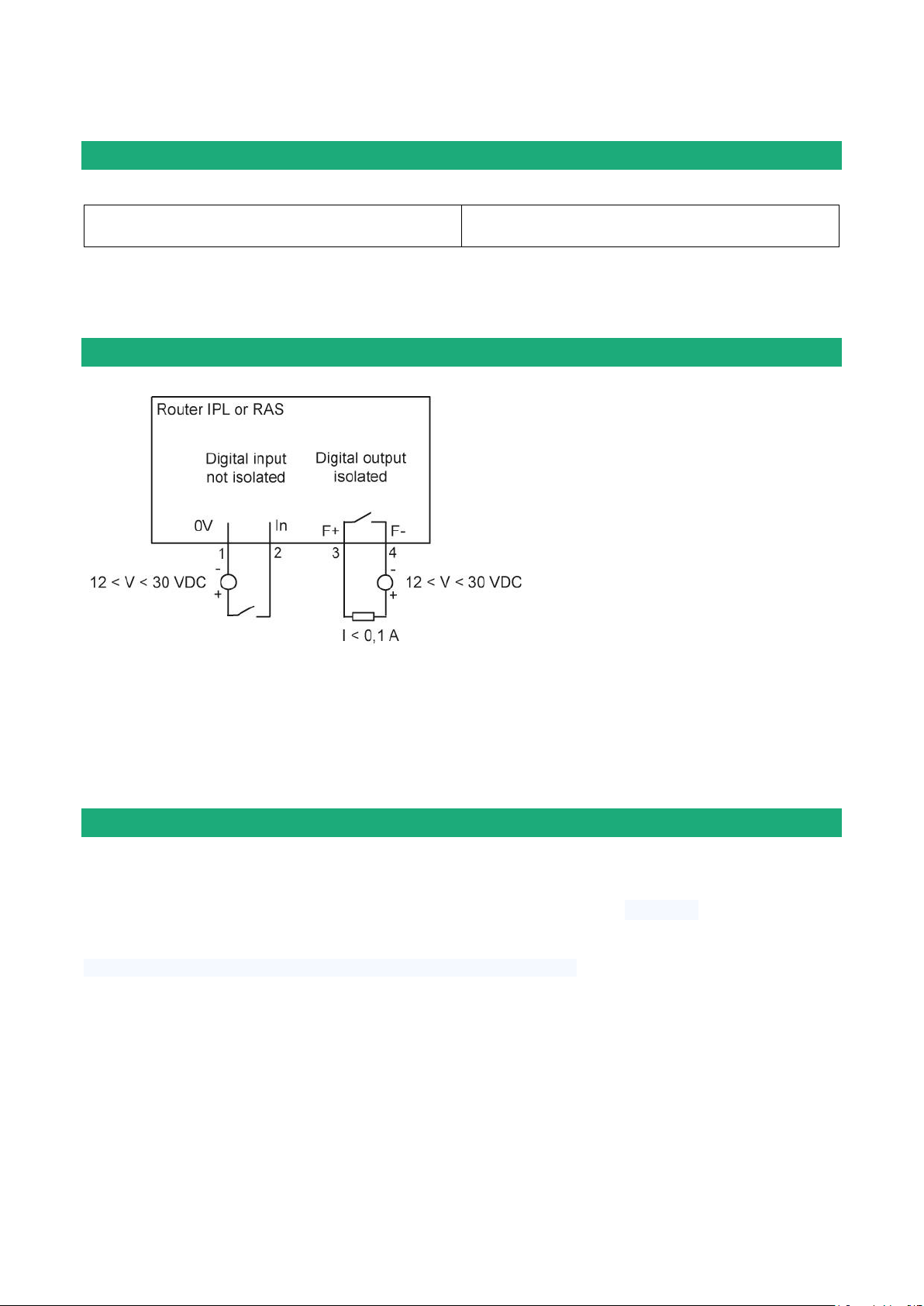
IPL-DAC-400
Minimum input voltage : 10 V DC
Maximum input voltage : 60 VDC
To check that the input and the output are
correctly wired, select
Diagnostic > Hardware > Input / Output
The status of the input is displayed and
the output can be switched ON or OFF.
safety and prevent noise.
5 Supply voltage
The consumption is lower than 8 W.
6 Digital input and output
7 Connecting the router to the ADSL line
7.1 Connecting the router to the line
The IPL-DAC router can be connected to an analogue line telephone line or an unbundled loop when the
attenuation of the reception signal is better than 63 dB
When the reception level is close to the limit, disconnections may occur.
In that situation, we recommend to ask to the ISP to setup the line with the RE-ADSL modulation which is
suited for long line and weak signal.
ADSL filter:
If the line must be used for analogue voice transmission simultaneously with ADSL transmission, it is
necessary to connect an ADSL filter.
Surge arrester:
The ADSL board of the IPL-DAC router is protected very carefully against over voltage coming from the line.
Page 18 DOC_DEV_IPL-DAC_User guide_A ADSL router with cellular backup
Page 19

INSTALLATION
However, when the line is exposed to lightning, we recommend to connect a surge arrester between the line
and the IPL router.
Report to appendix 1 for wiring.
7.2 ADSL subscription
The IP address assigned by the ISP to the ADSL interface of the router can be a fixed or a dynamic public IP
address.
If it is dynamic, it changes frequently; for instance at each ADSL connection.
It is why; the router which owns a dynamic IP address can only initiate the communication (transmit an IP
packet or initiate a VPN for instance) towards a router owning a fixed IP address.
Reciprocally, a router owning a dynamic IP address cannot easily receive a connection except if a DynDNS
or NoIP service is used.
The IP router is fully compatible with that services but we do not recommend to use that kind of service for a
critical industrial application.
8 Connecting the router to the cellular network
8.1 Before installing the router
Authorisations to use a cellular connection
Check the cellular connection is authorised at the location where the router is supposed to be installed.
Control of the reception level before installing the machine
Before installing the router, refer to a coverage map over the Internet to check that the cellular reception
signal is strong enough at the location where the machine is supposed to be installed.
Select the right mobile service provider.
Confirming the transmission quality with a smartphone before installing the router
If the wireless transmission seems possible, confirm with a control on site using a smartphone for instance.
Most smartphones provide the reception level information (parameters or diagnostic menu).
To carry-out that control, use mandatorily a SIM card subscribed with the mobile service provider selected
for the router RAS.
Remark:
The IPL router itself provides the reception level information in two ways:
A reception levelled indicator
The diagnostic menu of the administration web server of the router
8.2 Cellular antenna
We provide a complete catalogue of cellular antennas:
Magnet mount antenna,
Roof antenna,
Ground plane antenna,
Directive antenna,
Omnidirectional antenna.
ADSL router with cellular backup DOC_DEV_IPL-DAC_User guide_A Page 19
Page 20

INSTALLATION
8.3 Coaxial cable
If necessary, the antenna can be connected to the IPL router through a coaxial cable.
The signal attenuation in a usual coaxial cable is 0.2 to 0.4 dB / m at 1 GHz, that is to say 2 to 4 dB for a 10
meter long cable.
If a coaxial cable must be used to connect the antenna to the router, the attenuation in the cable has to be
taken into account to calculate the effective RF signal received by the router.
Refer to our cables and antennas catalogue.
Page 20 DOC_DEV_IPL-DAC_User guide_A ADSL router with cellular backup
Page 21
INSTALLATION
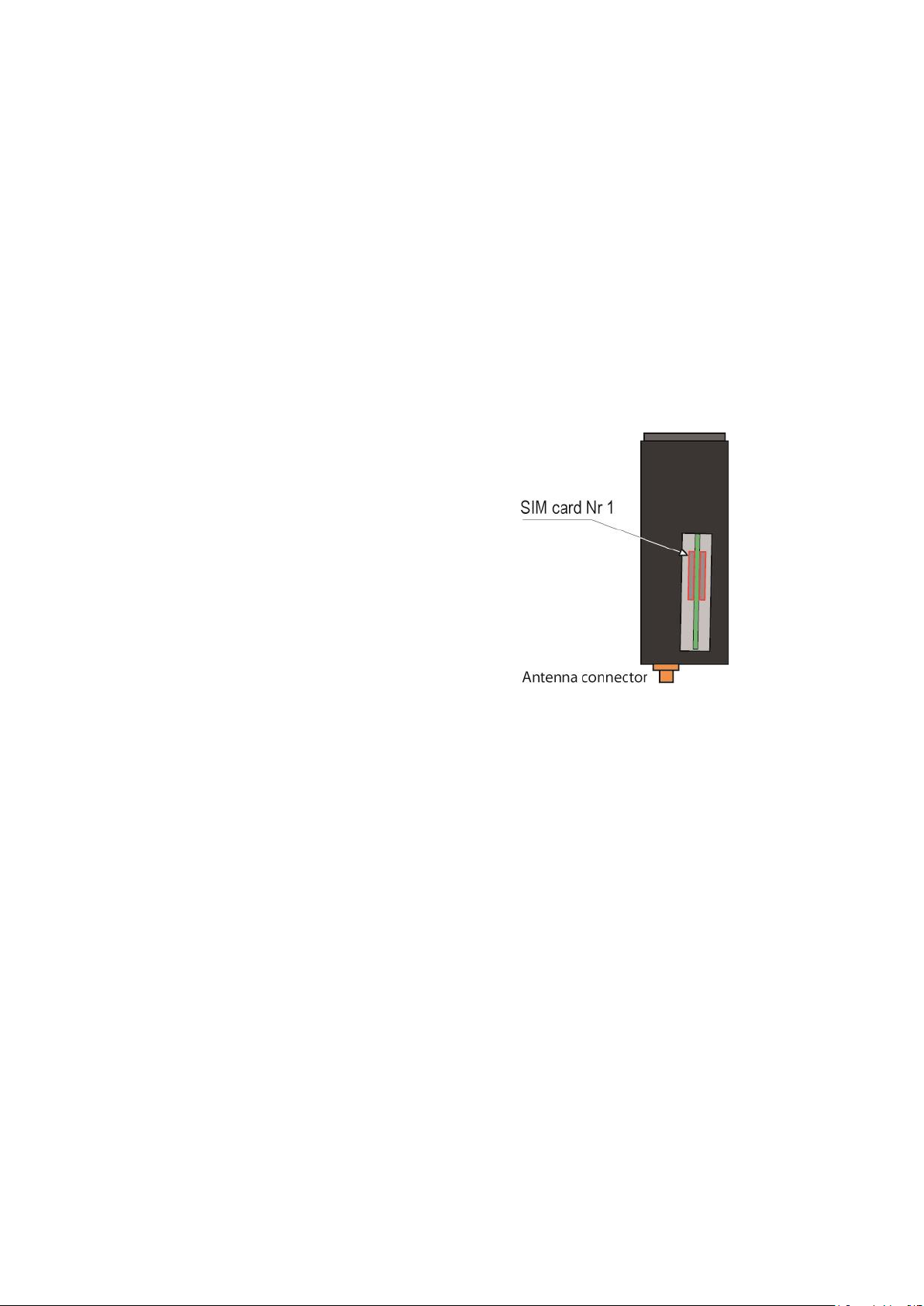
The router provides two SIM card holders. If you use only
one SIM card, use the SIM card holder No 1.
Power off the router.
Remove the anti-steal lid at the top of the product
Insert the SIM card according to the drawing
8.4 Cellular service subscription
The router is designed to connect to the UMTS-GPRS data transmission service like the one used by the
tablets.
The subscription should also provide the SMS service if SMS alarms are required.
A telephone service subscription is not needed.
One will take care to subscribe to a service authorizing the right volume of data per month (MB/month) and
to check the price of the MB exceeding the limit of the subscription plan, if it exists.
The subscription must be preferably signed in the country where the machine is supposed to be installed to
avoid roaming costs.
8.5 Installing the SIM card
ADSL router with cellular backup DOC_DEV_IPL-DAC_User guide_A Page 21
Page 22
INSTALLATION
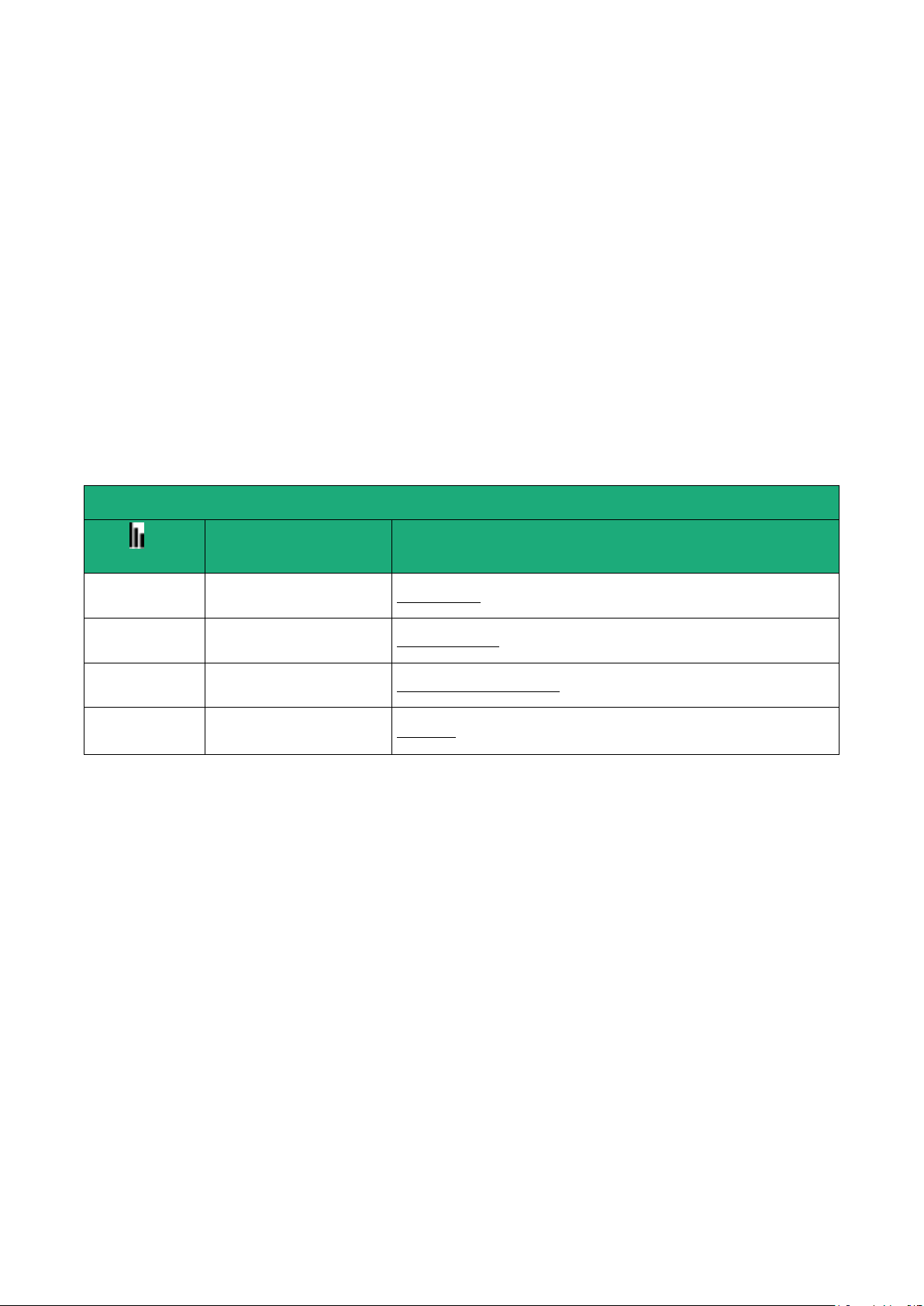
Cellular network reception level
Led
Reception level dBm (*)
3 flashes
-50 à - 80
Strong signal
2 flashes
-81 à –90
Sufficient signal
1 flash
-91 à -110
Weak not sufficient signal
Off
< -111
No signal
8.6 Controlling the conformance of the connection
After installing and setting up the router, control the conformance of the connection:
Reception level
The reception level must be better than -90 dBm (two flashes of the reception level led indicator).
See the table below.
PING error rate
Each PING request must receive an answer.
Network response delay to a PING request
The response delay must be better than 500 ms.
If the delay is longer than one second, it means the network is overloaded or that the signal level is weak.
If the connection is not conform, change the position of the antenna or select an alternative service like
UMTS instead of LTE for instance.
(*) See the web server menu Diagnostic > Network > Interface.
Page 22 DOC_DEV_IPL-DAC_User guide_A ADSL router with cellular backup
Page 23
PREPARING THE SETUP
1 First setup
From factory, the IP address of the router is 192.168.0.128.
Step 1 : Create or modify the PC IP connection
Assign to the PC an IP @ in accordance with the router RAS IP address.
For the first configuration, assign for instance 192.168.0.127 to the PC.
Step 2 : Connect the PC directly to the LAN interface of the router
Step 3 : Launch the HTML browser : http://192.168.0.128
2 Protecting the access to the administration web server
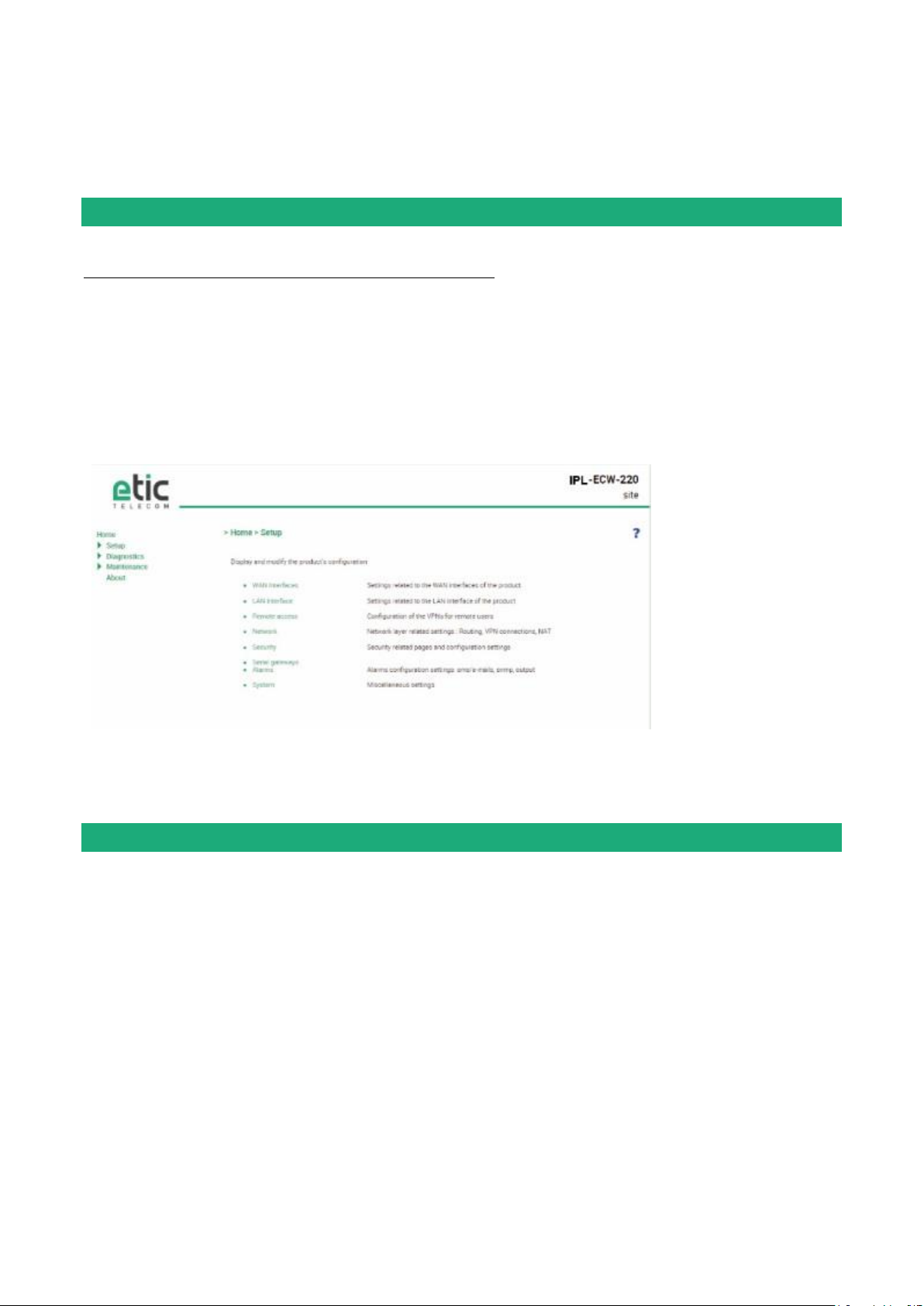
Select Set-up > Security > Administration rights.
Enter an administration identifier and password.
ADSL router with cellular backup DOC_DEV_IPL-DAC_User guide_A Page 23
Page 24

PREPARING THE SETUP
3 HTTPS set-up modifications through the WAN interface
The administration web server is located at the LAN IP address.
Coming from factory, access to the administration web server is not allowed through the WAN interface
To use HTTPS instead of HTTP to setup the product or to authorise access to the administration web server
through the WAN interface,
Select Configuration > Security > Administration rights.
Enter an administration identifier and password.
Check the “HTTPS configuration” box.
Check the “WAN access“ box if you wish to access to the administration web server through the WAN
interface.
Remark: the port No used to access to the administration web server with HTTPS is 4433.
Example: https://192.168.38.191:4433.
4 Recovering the factory LAN IP address
Press the rear panel push-button ;
The OPERATION led indicator will flash.
The factory IP address 192.168.0.128 will be restored but the current configuration remains active.
5 Restoring the factory set-up
If firewall rules have been created finally preventing from reaching any IP address on the LAN interface
including the router itself, it may be necessary to restore the factory configuration of the router.
To restore the factory configuration,
Switch OFF the power supply of the router RAS.
Press the rear panel push button and, switch-on the power supply.
Keep the push button pressed until the operation led turns red.
Remark: The current configuration is cleared and the factory IP address 192.168.0.128 is restored.
Page 24 DOC_DEV_IPL-DAC_User guide_A ADSL router with cellular backup
Page 25

PREPARING THE SETUP
6 Saving or restoring a set of parameters
Once a product has been set-up, the current set of parameters can be stored inside the router.
In a second step, any set stored inside the router and displayed with the Configurations table can be saved
as an editable file stored outside the ETIC router.
Inversely, a saved file can be loaded to the product Configurations table and then, if necessary, declared as
the active set of parameters.
Select the Maintenance > configuration management menu
To store the current configuration set of parameters in the configurations table,
Assign a name for the current set of parameters (“configuration name” field) and click the Save button.
The updated Configurations table is displayed with an additional line.
To save a stored set of parameters as an editable file
Select the set of parameters name in the Configurations table,
Click the Export to the PC button.
The set_of_parameters.txt file is created.
To import an editable **.txt file
Click the Select a file button,
Browse the PC and select the file,
Click the Import from PC button.
The updated Configurations table is displayed with an additional line.
To select a configuration set of parameters in the Configuration table, as the current configuration
Select the set of parameters name in the Configurations table,
Click the Load button.
The selected set of parameters is now the current set of parameters.
ADSL router with cellular backup DOC_DEV_IPL-DAC_User guide_A Page 25
Page 26

PREPARING THE SETUP
7 Configuration steps
To configure the router, we advise to proceed as follows:
ADSL & Cellular interface setup
LAN interface setup
VPNs setup
Routing and IP address translation functions setup
Remote users connections, the user list and the access rights setup
Serial or USB gateway setup
Firewall setup
For detail about the configuration, refer to the IPL routers setup manual reference 90 234 09.
Page 26 DOC_DEV_IPL-DAC_User guide_A ADSL router with cellular backup
Page 27

MAINTENANCE
1 Diagnostic
1.1 Logs
Select the Diagnostic > Logs menu
Main logs
It registers
The ADSL connections & disconnections
The VPN connections & disconnections
The remote users connections & disconnections
The router starts
OpenVPN & IPSec Logs
These logs registers the detail of the VPN connections
Advanced logs
That logs registers details about the following events:
Cellular & ADSL events
M2Me
RIP
DHCP
VRRP
Telnet gateway
Alarm emails
The filter checkbox allow to display particular classes of events.
1.2 Network status
To display the Interfaces status pages ,
Select The Diagnostic > Network status>Interfaces menu.
The Interfaces page summarizes the current information of each interface of the router, like for instance :
LAN interface: MAC and IP address
Ethernet ports status
…
Ethernet WAN interface: MAC and IP address, default gateway address
Priority level…
Cellular & ADSL interface: Connection Status
IP address and remote IP address
ADSL router with cellular backup DOC_DEV_IPL-DAC_User guide_A Page 27
Page 28

MAINTENANCE
To display the M2Me page,
Select The Diagnostic > Network status> M2Me menu.
The M2Me page summarizes the current status of the M2Me connection and also displays the M2Me logs.
To display the remote users page,
Select The Diagnostic > Network status> Remote users menu.
This page displays the table of the remote users currently connected.
To display the VPN connections page,
Select The Diagnostic > Network status> VPN (IPSec or OpenVPN) menu.
This page displays the table of the Open VPN or IPSec VPNs currently connected.
To display the Routes page,
Select The Diagnostic > Network status > Routes menu.
This page displays the table of the routes set-up by the router and the ARP table.
1.3 « Ping » tool
Select the Diagnostic > Tool > Ping menu.
Enter the PING destination IP address.
2 Firmware update
The firmware update can be carried-out locally or remotely.
If the firmware update operation do not succeed, for instance if the connection fails, the ETIC router restarts
with the current firmware.
Once the firmware update has been carried-out, the ETIC router restores the previous current set of
parameters.
To update the firmware,
Select Maintenance > Firmware update menu,
Click the Select the firmware file button,
Click Upgrade now.
When the firmware is updated, the product automatically reboots.
Page 28 DOC_DEV_IPL-DAC_User guide_A ADSL router with cellular backup
Page 29

MAINTENANCE
ADSL router with cellular backup DOC_DEV_IPL-DAC_User guide_A Page 29
Page 30

ETIC TELECOM
13 chemin du vieux Chêne
38240 Meylan
France
[email protected]
 Loading...