

Page 1
Quick Guide
Quick Guide
LapTop Computer
Quick Guide
Page 2
1 2
1
2
Illustrations are reference only Actual product specifications may vary..
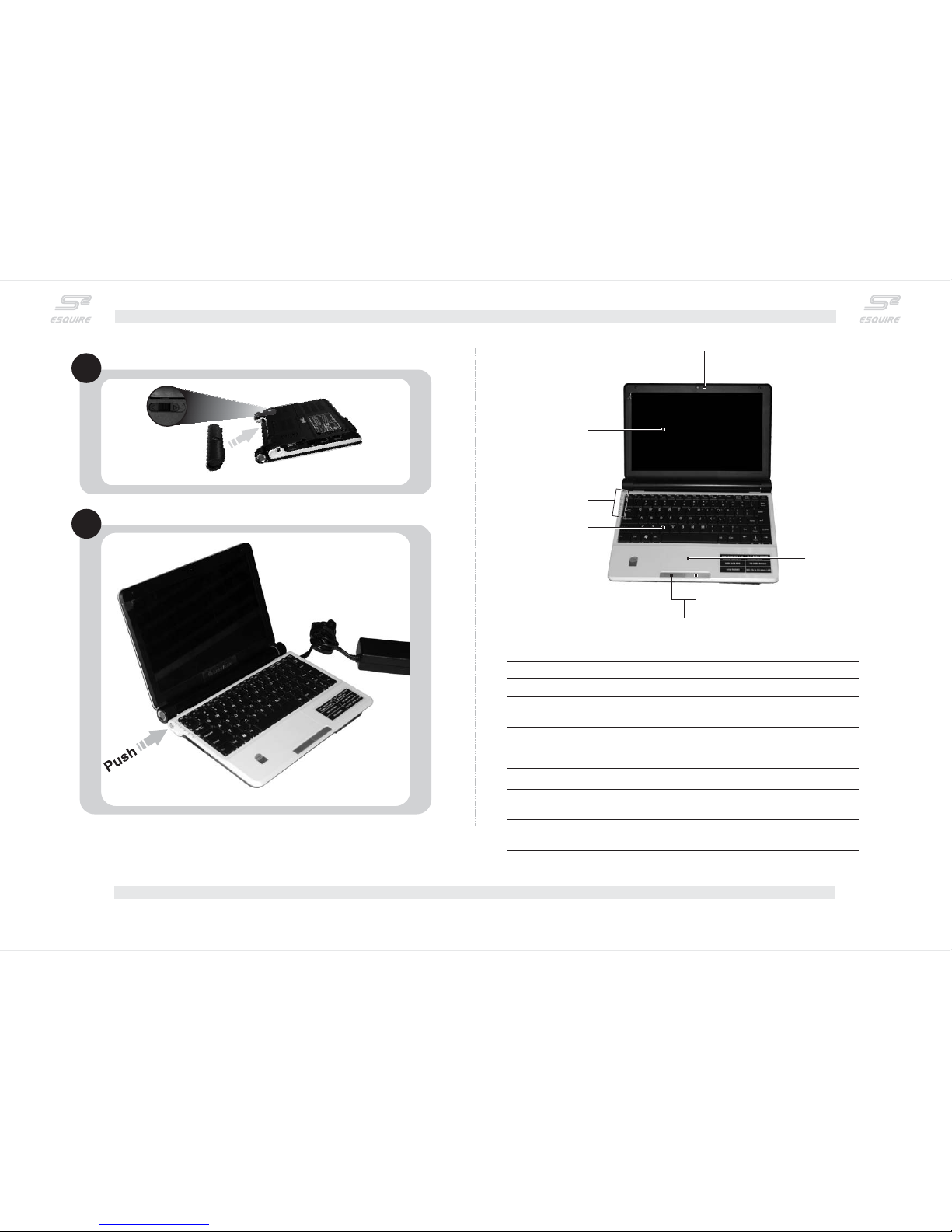
For the first Start up
Ensure the battery is properly locked in place as shown.
Connect the supplied DC Jack to the product.
Push the Power button to turn on the laptop
2
3
1
4
5
6
#
1
2
Item
Description
Web camera for video communication
LCD (Liquid -Crystal Display) for
displaying computer video output
Built in Webcam
Display screen
3
4
5
6
LEDs (Light-Emitting Diode) that light up
to indicate the status of the computer's
functions.
Data input device for the computer.
Sensitive touch pad that can move
around the cursor by user's finger.
The Left and Right click button for
selection and execution.
Status light indicators
Keyboard
Touchpad
Click buttons(left and
right)
Top View
Quick Guide
Page 3
3 4
#
7
8
Item
Description
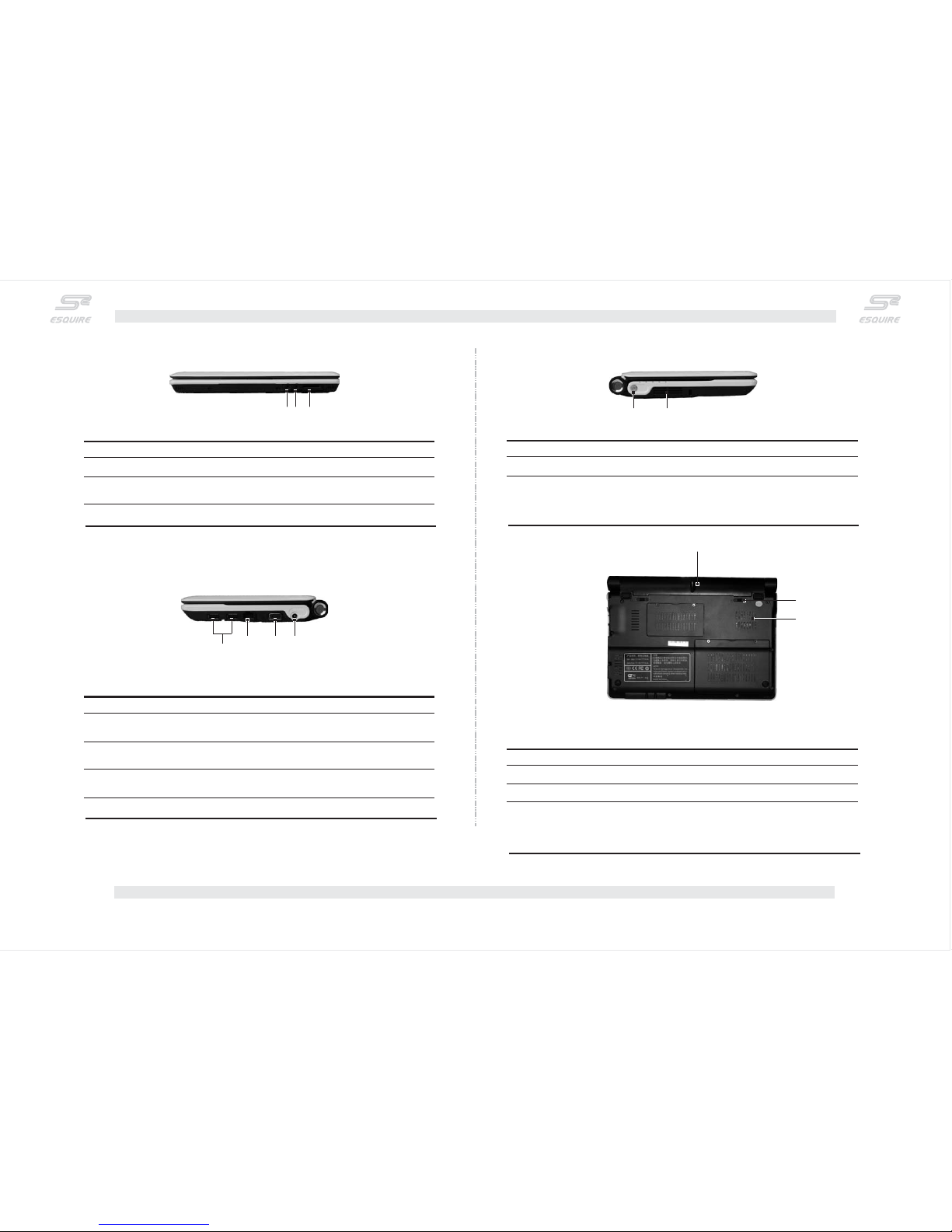
External microphones input terminal.
Audio output terminal for connecting to
headphone or multimedia speaker.
Microphone in jack-
Headphone/speaker/
Line-out jack
9
SD (Secure Digital) card slotSD Card reader
7 89
10
11 12 13
#
10
11
Item
Description
USB inputports for USB devices (eg.USB
Mouse andUSB thumb drive.)
Connects toan Etherent 10/100-based
network
USB 2.0port
Ethernet(RJ-45)port
12
13
Video outputfor connecting to external
display devices(eg. Projector)
Input terminalof the suppliedAC adaptor.
External display
(VGA)port
DC-in jack
Front View
L ft Viewe
18
16
17
14 15
#
14
15
Item
Description
Turns the computer on andoff
Opening slot for cooling fan's air flow to
carry outall the internal heat.
Caution: Do not cover this ventilation slots
to avoidthis product from overheated
Power button
Ventilation slots and
cooling fan
#
16
17
Item
Description
Battery of Computer
Lock thebattery pack in position.
Battery
Battery lock
18
Ventilation slots and
cooling fan
Opening slot for cooling fan's air flow to
carry outall the internal heat.
Caution: Do not cover this ventilation slots
to avoidthis product from overheated
Right View
Bottom View
Quick Guide
Page 4
5 6
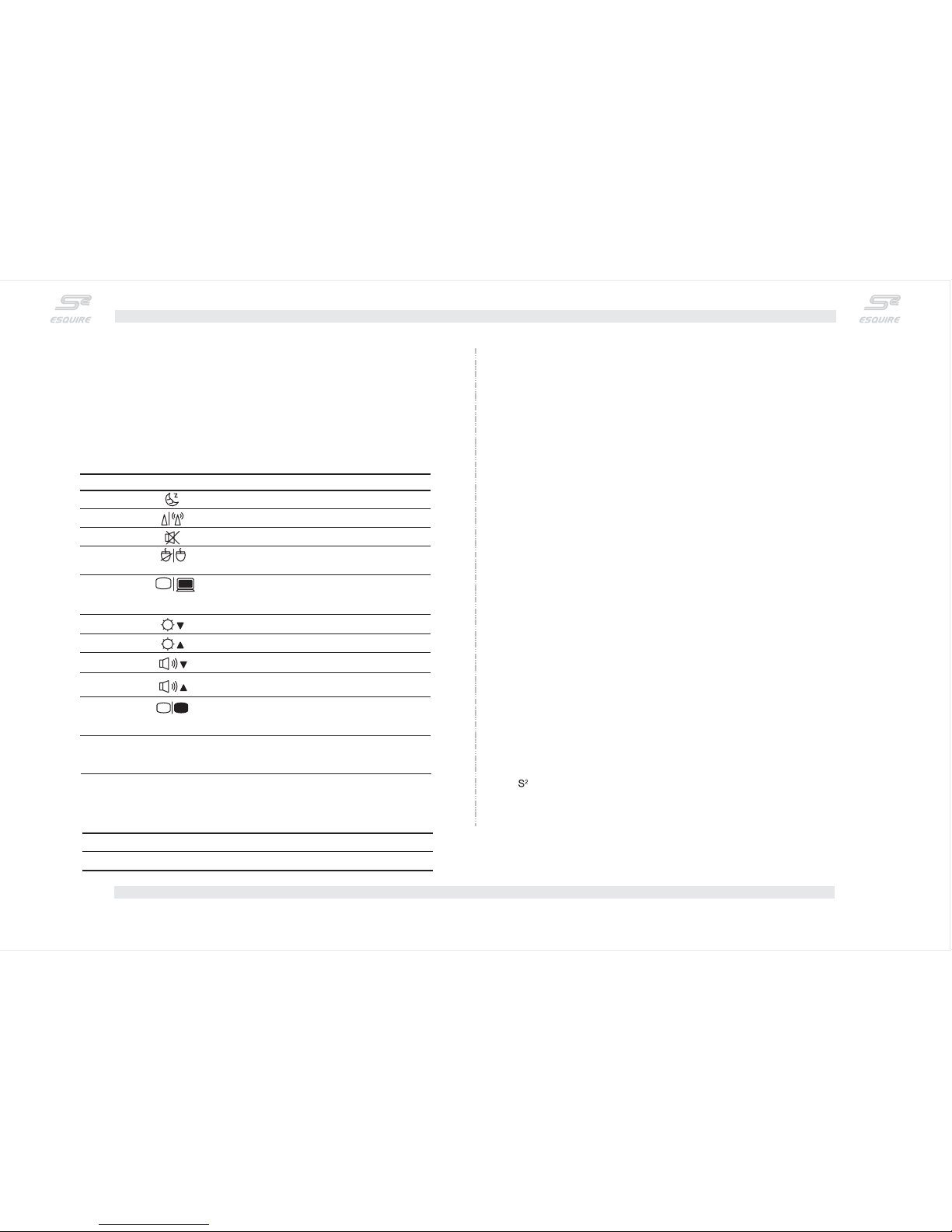
The computer employs hotkeys or key combinations to access most of the computer's
controls like screen brightess volume output etc. To activate hotkeys, press and
hold the<Fn> keybefore pressing the other keyin thehotkey combination.
, .....
&
FunctionIcon Description
Put the computer in sleep mode
Turns Wireless on and off
Turns speaker on and off
Turns the internal touchpad on
and off
Switches display output between
the display screen external
monitor if connected and both
,
().
Decreases the screen brightness
Increases the screen brightness
Decreases the sound volume
Turns the display screen
backlight off to save power
Press any key to return..
Sleep
WiFi
Speaker toggle
Touchpad toggle
Display toggle
Bright down
Bright up
Volume down
Volume up
Screen blank
NumLk
ScrLk
PgUp
PgDn
HotKey
Hotkey
<Fn> + <Esc>
<Fn>+<F1>
<Fn>+<F3>
<Fn>+<F4>
<Fn>+<F5>
<Fn>+<F6>
<Fn>+<F7>
<Fn>+<F8>
<Fn>+<F9>
<Fn> + <F10>
<Fn> + <Ins>
<Fn> + <Del>
<Fn>+< >↑
<Fn>+< >↓
Increases the sound volume
Copyright 2009 Esquire Tech Limited (HongKong)
All Rights Reserved.
Original Issue : 06/2009
Esquire's E2Series NotebookPC
©
is the logo registered trademark of Esquire Tech Limited Hong Kong
This company makes no representations or warranties, either expressed or
implied, with respect to the contents hereof such revisions or changes. such
changes will be incorporated in new editions of this manual or supplementary
documents andpublication is excluded.
Changes may be made periodically to the information in this publication without
obligation to notify any person of such revisions or changes. Such changes will be
incorporated in new editions of this manual or implied, with respect to the contents
hereof and specifically disclaims theimplied warranties of merchantability or fitness for a
particular purpose.
Record the model number, serial number, purchase date and place of purchase
information in the space provided below. the serial number and model number are
recorded on the label affixed to your computer. All correspondence concerning your unit
should includethe serialnumber, model number andpurchase information.
Model number
Serial number:
Date ofpurchase:
Place ofpurchase:
:_____________________________________
_____________________________________
___________________________________
__________________________________
().
http: //www.esquire.com.hk/
When Num Lock is on the
embedded keypad is in numeric
mode,.
When Scroll Lock is on the screen
moves one line up or down when
you press arrow keys
respectively Scroll Lock does not
work with some applications
,
.
.
Page up.
Page down.
Quick Guide
 Loading...