

Page 1

——————————————————————————————
Copyright © 2010 www.espow.com
All Rights Reserved
RM/RMVB/DIVX
Media Player User’s Manual
Page 2

- 1
-——————————————————————————————————————————
Copyright © 2010 www.espow.com
All Rights Reserved
CONTENTS
Introduction………………………………………………………………….2
Warning………………………………………………………………………2
1. Product Specification…………………………………………………….4
1.1 Function List…………………………………………………………….4
1.2 Parameter List…………………………………………………….…….5
1.3 Quick Install……………………………………………………………..7
2. Key Functions of Remote Controller…………………………………..10
3. User Guide………………………………………………………………14
3.1 Main Interface……………………………………………………….…14
3.2 Main Menu……………………………………………………………..15
3.3 Video Play………………………………………………………….…..16
3.4 Music play………………………………………………………….…..19
3.5 Photo play……………………………………………………….……..20
3.6 Text (E-Book)…………………………………………………………..23
3.7 File List……………………………………………………….…………25
3.7.1 File Folder Operation………………………………………….…….25
3.7.2 File Management……………………………………………………26
3.8 Settings………………………………………………………………...30
3.9 Software Upgrade…………………………………………………….32
4. FAQ………………………………………………………………………34
Page 3

- 2
-——————————————————————————————————————————
Copyright © 2010 www.espow.com
All Rights Reserved
INTRODUCTION
This guide shows you how to use and set up your product. Please
read it carefully before operation the unit for you can exactly
understand the using skill.
We repair the damaged goods not caused by users. Body cases
are not included in repair. This warranty does not cover damage
due to accident. Misuse abuse or negligence and it doesn’t extend
to any modification, conversion and alteration.
In order to improve the function and capability of our products, we
reserve the rights to improve it without notice.
WARNING
1. To prevent fire and electric shock, don’t expose the unit to the
moist or rain places. Don’t splash the unit with water or other
liquid.
2. Strong shock may damage the HDD. Please backup your data,
Page 4

- 3
-——————————————————————————————————————————
Copyright © 2010 www.espow.com
All Rights Reserved
we are not responsible for the data lose.
3. Keep the unit away from magnetic devices, which may cause
damage of the data stored in the unit.
4. Please don’t interrupt the transfer progress while upload or
download file by an USB cable, otherwise the data may be
damaged.
5. The player will generate heat during work, so it is
recommended the user to put it at a ventilative place to
dissipate the heat, which is good for its steady operation.
6. We may improve the function and capability of the product
without notice.
Page 5

- 4
-——————————————————————————————————————————
Copyright © 2010 www.espow.com
All Rights Reserved
Chapter I Product Specification
1.1 Function List
◆ Video play: Supporting RM, RMVB, MPEG1(VCD), MPEG2(VOB),
MPEG4(DIVX, XVID), AVI, DAT, MJPEG, etc video formats.
Photo play: Supporting multi-picture preview and slide show in full
screen. Slide show supports verious kinds of special effects. It
supports JPEG, BMP, TIFF, GIF and other photo formats.
Music play: Supporting WMA, MP3, WAV and other music
formats.
Optional hang-up subtitle: Supporting *.TXT、*.PSB、*.SMI、*.SRT、
*.SUB、*.ASS、*.SSA, only suit for AVI format hang-up subtitle.
It supports USB HOST 2.0 interface and hot swap of devices, and
can directly display the files in USB devices such as U disk, HDD
enclosure, digital camera, digital video and card reader.
Support power supply bu USB (optional).
It has high-speed USB 2.0 interface (up to 480MB/s) and can
serve as, without external power supply, mobile hard disk. User
can directly access and manage the content in the built-in hard
disk through computer (optional).
File management functio n: Without connecting it with computer,
Page 6

- 5
-——————————————————————————————————————————
Copyright © 2010 www.espow.com
All Rights Reserved
user can do file copy or deletion within the built-in hard
disk(optional), USB device or card, or among them.
Multi TV display modes: HDV 720P progressive, NTSC interlace,
NTSC progressive, PAL progressive, NTSC composite, PAL
composite.
Firmware upgrade: It is carried out through copying special files to
the external memory card, which is convenient and fast.
It supports SATA HDD, capacity from 20GB-500GB (IDE hard disk
optional).
It supports SD, SDHC, MMC, MS cards (CF, XD optional); can
play all the video, audio, photo file, interview text and manage files
in the above mentioned cards.
It supports remote control.
Language support: Simplified Chinese (or Traditional Chinese),
English.
It supports time selection play.
It supports background music.
It supports continue to play video when power cut off (manual)
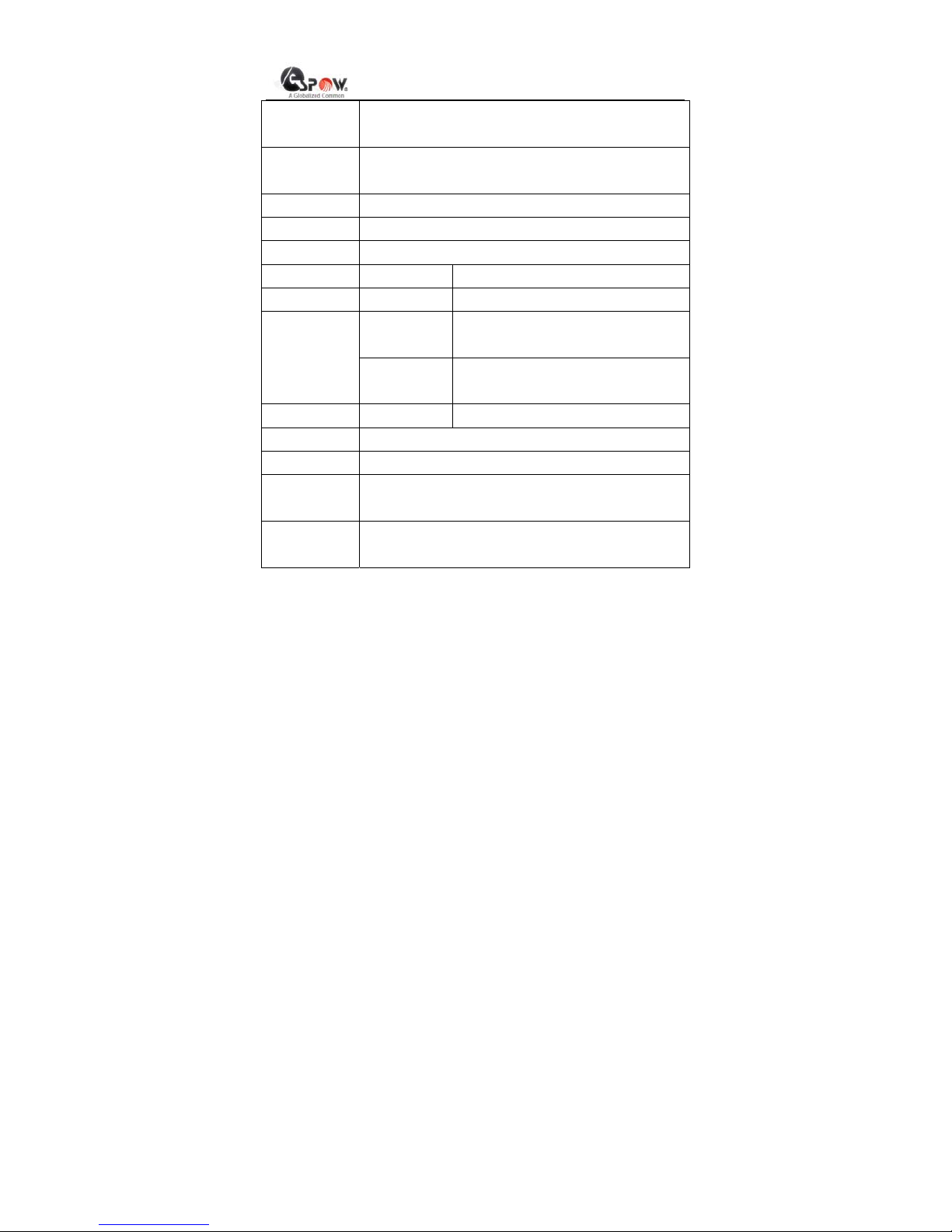
1.2 Parameter List
Page 7
- 6
-——————————————————————————————————————————
Copyright © 2010 www.espow.com
All Rights Reserved
Power Supply Positive voltage for inside and negative voltage for
outside.
Remote
Controller
Full-function infra-red remote controller, with panel
display in Chinese and English.
Video Output
AV out,YpbPr, HDMI
Audio Output Supporting Stereo output
File System FAT32, NTFS
Photo Format
JPG、BMP、TIFF、GIF
Music Format
MP3、WMA
Format
RMVB、AVI、MPG、MPEG、
M2V、DAT、VCD、DVD
TV-Mode
Video code
MPEG1、MPEG2、MPEG4(DIVX,
XVID)、MJPEG、RMVB
Audio code
MP3、MPEG、AC、AC3、WMA
Resolution
480i、576i、480P、576P、720P
USB Power Support power supply by USB (optional)
USB2.0 USB2.0 interface with transmission rate of 480Mbps
(computer being connected).
USB HOST USB2.0 host interface with transmission rate of
480Mbps.It supports devices with USB interface, such
Page 8

- 7
-——————————————————————————————————————————
Copyright © 2010 www.espow.com
All Rights Reserved
as USB hard disk, digital camera, photographic
camera and USB card reader.
Work
Condition
Work temperature: +5~+50 °C, humidity < 90%
Storage temperature: -20~+70 °C, humidity < 95%
1.3 Quick Install
Please confirm the type of your TV set before use.
Please perform the following steps for a common TV set:
Connect the TV set by AV wire. In this condition, the YPbPr AV wire with
is in no use.
Step 1: Connect the TV set.
Please insert the AV wire in the AV interface on the player, and
respectively insert the lotus form plugs at the other end of the AV wire in
the input interfaces on TV set by color.
After the TV set is successfully connected, insert the configured power
adapter (switch to ON position for the player with switch), and switch
the TV set to AV mode, and then it can output.
Page 9

- 8
-——————————————————————————————————————————
Copyright © 2010 www.espow.com
All Rights Reserved
Step 2: Settings
The HD media player defaults that the output to TV set is normal. If you
find any normality, switch to normal display state by pressing the
TV-Mode key on the remote controller.
Please perform the following steps for a HDTV set:
It is recommended you to connect the TV set by the YPbPr AV wire with
green, blue and red lotus form plugs so as to enjoy better AV effect. To
generate sound, you should insert the red and white plugs
(representing right and left sound tracks) of AV wire in the
corresponding interfaces on TV set when you use YPbPr AV wire.
Step 1: Connect the TV set.
Insert the green, blue and red plugs at one end of YPbPr AV wire in
corresponding YPbPr interfaces on TV set, and at the same time insert
the red and white plugs (representing right and left sound tracks) in
corresponding interfaces on TV set, and insert the headset-type plugs
of the two AV wires in YPbPr and AV interfaces of the player.
Take note not to connect the yellow lotus form plug of the AV wire
Page 10

- 9
-——————————————————————————————————————————
Copyright © 2010 www.espow.com
All Rights Reserved
to the TV set, or the video effect may be affected.
After the TV set is successfully connected, insert the configured power
adapter (switch to ON position for the player with switch), and switch
the TV set to YPbPr input port, and then it can output.
Step 2: Settings
The HD media player defaults PAL composite output mode. If the color
on TV YPbPr displays abnormal, in the main menu interface, press the
TV-MODE key on the remote controller to perform switch and set the
display resolution as 720P (1280×720), and then you will see normal
display (please confirm that your TV set supports 720P HD display
mode.)
Press the SET key on the remote controller to set the Screen Display
Ratio in the settings menu as that matching your TV dimension ratio.
Please set it as 4:3 for the TV set in dimension ratio of 4:3, and 16:9 for
the TV set in dimension ratio of 16:9.
Please connect HDMI cable with your TV (which support HDMI
function), then switch the TV to HDMI mode when you need HDMI
function. It’s very convenient.
Page 11

- 10
-——————————————————————————————————————————
Copyright © 2010 www.espow.com
All Rights Reserved
Now, all the installation settings are finished, and then you can fully
enjoy the unlimited fun brought by the HD media player.
Chapter II Key Functions of Remote Controller
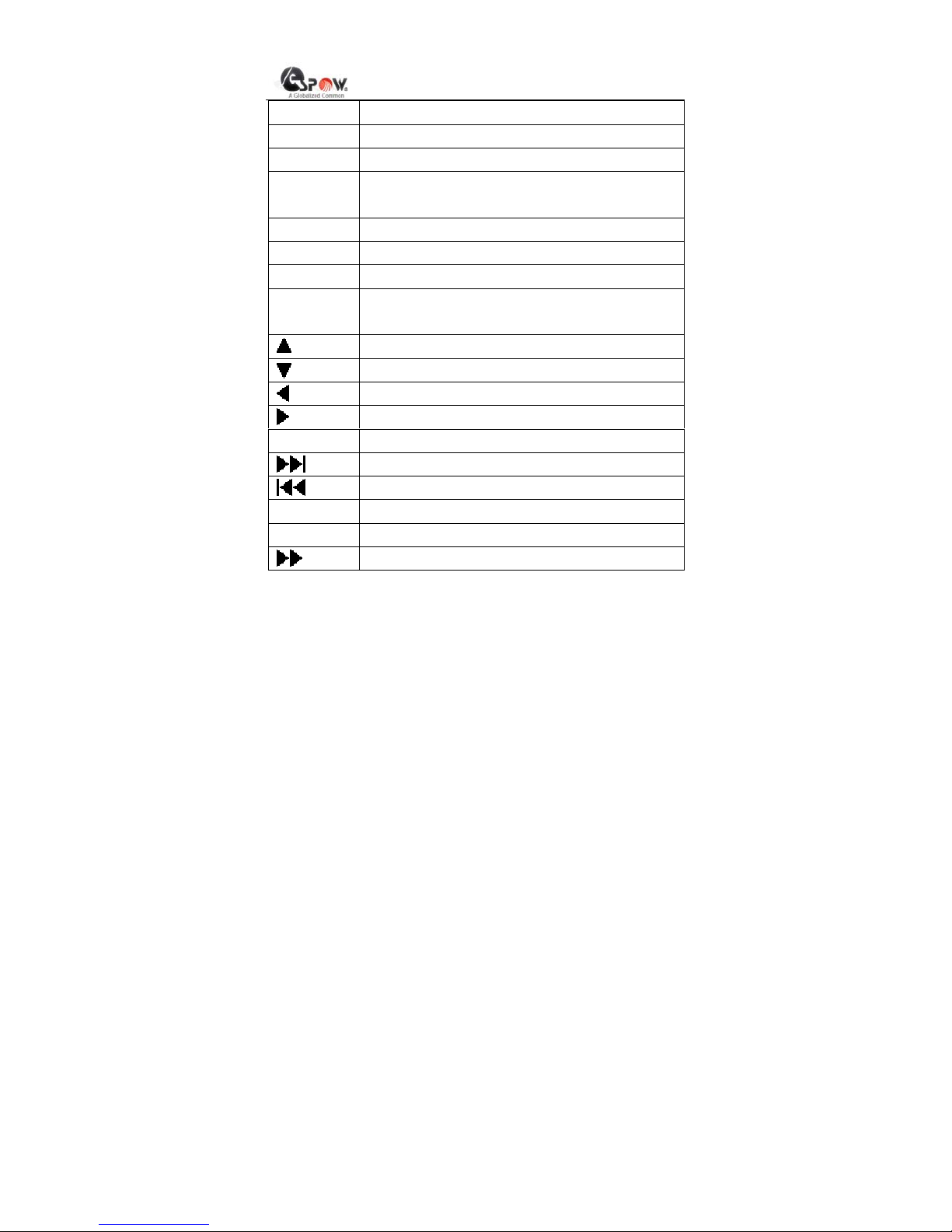
Refer to the following table and pictorial view for the key values and
functions of remote controller, and user can select corresponding key
as actual need.
Key Value Key Function
Power
Supply
Stand by/switch on
Mute Enable/disable the mute
TV-Mode Shortcut key used to switch to output mode
NTSC-PAL-720P. It is available only in main interface
and settings page.
Movie Shortcut key to enter movie playing page layout
Music Shortcut key to enter music playing page layout
HD Shortcut key to switch 720P output mode
Photo Shortcut key to enter photo playing page layout
Page 12
- 11
-——————————————————————————————————————————
Copyright © 2010 www.espow.com
All Rights Reserved
E-book Shortcut key to enter E-book reading page layout
P/N Shortcut key to switch PAL and NTSC
Preview Shortcut key to enter previewing page layout
Angle For each press, the photo will rotate 90 degrees
clockwise.
16:9 Output switch between 16:9 menu and 4:3 menu.
Zoom Zoom image
Set Shortcut key to enter SET page layo ut
OSD Under File Management page, copy or delete the
selected files.
Direction key, up
Direction key, down
Direction key, left
Direction key, right
OK Select and confirm
Next page, Next song
Previous page, Previous song
Volume + Add volume
Volume - Depress volume
Fast Forward
Page 13

- 12
-——————————————————————————————————————————
Copyright © 2010 www.espow.com
All Rights Reserved
Select and play/pause
Rewind
Background Background music
Stop/Back Select and stop/back
Subtitle Select the subt itle language for movie (only support
AVI format hang-up subtitle)
Sound Track Switch the sound track for AV play
Page 14

- 13
-——————————————————————————————————————————
Copyright © 2010 www.espow.com
All Rights Reserved
Page 15

- 14
-——————————————————————————————————————————
Copyright © 2010 www.espow.com
All Rights Reserved
Remote Controller Pictorial View
Chapter III User Guide
3.1 Main Interface
Figure 3.1 Main Interface
Function:
The main interface is the entrance to all cards, hard disk partitions and
settings. User can enter the main menu or settings page of any drive
letter through this page.
Operation:
Page 16

- 15
-——————————————————————————————————————————
Copyright © 2010 www.espow.com
All Rights Reserved
Press direction Key“
/ ”to select, then press “OK” to confirm and
enter interface.
In this page, user can switch the output between NTSC C-PAL-720P
(through the shortcut key TV-Mode. (Suggestion: For the LCD TV set,
it is necessary to adopt 720PYPbPr output.)
3.2 Main Menu
Figure 3.2 Main Menu
Function:
The main menu page is the entrance to all media such as movie, music,
photo, text and file.
Page 17

- 16
-——————————————————————————————————————————
Copyright © 2010 www.espow.com
All Rights Reserved
Operation:
Press direction Key“
/ ”to select, then press “OK” to confirm and
enter interface.
In any page, user can enter corresponding full display by pressing the
shortcut key Movie, Music, Photo.
3.3 A V Play
Select the Movie icon on the main menu page (Shown as Figure 3.3.1) ,
and press the OK key to enter movie file list(Shown as Figure 3.3.2),
and then enter full screen play. Or press the shortcut key Movie to
directly enter full screen.
Figure 3.3.1
Page 18

- 17
-——————————————————————————————————————————
Copyright © 2010 www.espow.com
All Rights Reserved
Figure 3.3.2 AV Preview
Operation instruction about AV Preview page:
Press the OK key to play movies in full screen.
Press the direction keys “
/ ” to select one movie and press the OK
key again to play it in full screen.
Press the direction keys “
/ ” to back and enter the catalog, also user
can enter the catalog by pressing the OK key.
Press “Stop/Back” to back;
Operation instruction about full screen play mode:
Press Volume+/Volume- to adjust volume
Press Mute to enable/disable the mute.
Press AUD to switch among the left track, right track or stereo
Page 19

- 18
-——————————————————————————————————————————
Copyright © 2010 www.espow.com
All Rights Reserved
Press .
to pla y next movie in the same catalog
Press
to pla y previous movie in the same catalog
Press
、 、 to fast forward, rewind, play/pause
Press “Stop/Back” to stop current movie and back to the TV preview
menu.
In full screen play, press the OSD or OK k ey to pop up the function
options of current movie, including Previous, Rewind, Play/Pause, Fast
Forward, Next, Back, Zoom, Subtitle, Play Time and Time Selection
Play.
Operation instruction about time selection play:
Press the direction keys “
/ ” to select the hour/minute/second of the
play time and press the direction keys “
/ ” to search the time you
need, and then press the OK key to search the play time for play.
Operation instruction about subtitle play:
When play AVI movie with hang-up subtitle, press SUB (subtitle)
in screen or SUB in controller to open or close subtitle. There is
no hang-up subtitle function for RM or other format movie, the
SUB can’t work.
Page 20

- 19
-——————————————————————————————————————————
Copyright © 2010 www.espow.com
All Rights Reserved
3.4 Music Play
Select the Music icon (shown as Figure 3.4.1) in the main menu page,
and press the OK key to enter music play list, and then enter the music
play page (shown as Figure 3.4.2). Or press the shortcut key Music to
directly enter music play page.
Figure 3.4.1
Page 21

- 20
-——————————————————————————————————————————
Copyright © 2010 www.espow.com
All Rights Reserved
Figure 3.4.2 Music Play
Operation instruction about music play page:
Press OK to play selected music;
Press direction keys
/ to select music, then press OK to confirm
and play;
Press the direction keys “
/ ” to exit and enter the catalog, also user
can enter the selected catalog by pressing the OK key.
Press
to select next music
Press
to select previous music
Press Volume+/Volume- to adjust volume
Press Mute to enable/disable the mute.
Press Stop/Back to stop playing music.
3.5 Photo Play
Select the Photo icon (Shown as Figure 3.5.1) in main menu page, and
press the OK key to view photo catalog (Shown as Figure 3.5.2), and
then enter full screen play, or press the shortcut key Photo to directly
enter full screen.
Page 22

- 21
-——————————————————————————————————————————
Copyright © 2010 www.espow.com
All Rights Reserved
Figure 3.5.1
Figure 3.5.2 Photo Catalog View
In this page, you can select the catalog you need and enter it, select
any photo in the catalog and press the OK key to enter multi-format
preview interface (Shown as Figure 3.5.3).
Page 23

- 22
-——————————————————————————————————————————
Copyright © 2010 www.espow.com
All Rights Reserved
Figure 3.5.3 Photo Preview
Operation instruction about Photo Preview page:
Press the OK key to play the selected photo in full screen.
Press direction keys / / / to select photo, and press OK
to confirm and enter full screen play.
Press
to next page
Press
to previous page
Press Stop/Back to back Preview catalog
Operation instruction about full screen play mode of photo:
Press “
” to start or pause photo slide show.
Page 24

- 23
-——————————————————————————————————————————
Copyright © 2010 www.espow.com
All Rights Reserved
Press
to sho w next photo;
Press
to sho w previous photo;
Press the Angle key one time to rotate the photo 90 degrees.
Press the Zoom key to zoom the photos, and then press the direction
keys to move the photos.
Press the Stop/Back key to enter Photo Preview page.
In full screen play status, press the OK key to pop up the function
options of current photo, including Previous, Play/Pause, Next, Rotate,
Back and Zoom.
3.6 Text
In main menu page, select the Text icon (Shown as Figure 3.6.1) and
press the OK key to enter Text Catalog View page (Shown as Figure
3.6.2). Or use shortcut key “E-book” to enter text reading page layout.
Figure 3.6.1
Page 25

- 24
-——————————————————————————————————————————
Copyright © 2010 www.espow.com
All Rights Reserved
Figure 3.6.2 Text Catalog View
Operation instruction about text catalog view:
Press the OK key to enter view page of the selected text.
Press the direction keys “ / ” to select text and press the OK key to
enter text full screen view mode.
Operation instruction about text full screen view mode:
Press the direction keys “
/ ” to page up or down the text row.
Press to next page
Press
to previous page
Press Stop/Back to exit text catalog view。
Page 26

- 25
-——————————————————————————————————————————
Copyright © 2010 www.espow.com
All Rights Reserved
3.7 File List
3.7.1 Folder Operation
In main menu page, select the File icon (Shown as Figure 3.7.1.1) and
press the OK key to enter File List Management page (Shown as
Figure 3.7.1.2).
Figure 3.7.1.1
Page 27

- 26
-——————————————————————————————————————————
Copyright © 2010 www.espow.com
All Rights Reserved
Figure 3.7.1.2 Folder Catalog
Folder operation instruction:
Press OK to confirm and enter the selected folder
Press direction keys
/ to select folder,and press OK to
confirm and enter the selected folder;
Press direction keys
/ to select folder,and press OK to
confirm and play the selected folder;
Press direction keys
/ to back and enter the folder。
Press Stop/Back to back.
3.7.2 File Management
Page 28

- 27
-——————————————————————————————————————————
Copyright © 2010 www.espow.com
All Rights Reserved
Figure 3.7.2.1 File Management Page
Page 29

- 28
-——————————————————————————————————————————
Copyright © 2010 www.espow.com
All Rights Reserved
Figure 3.7.2.2 File Operation Selection
Operation instruction about file management page:
Press the directions keys “
/ ” to select files and press the direction
key “ ” to select one, and then a “ ” mark will occur at the right of the
selection file, refer to Figure 3.7.2.1.Press the down key “
” again to
cancel the selection.
Figure 3.7.2.3 File Copy Path Selection
Press the OSD key to pop up file operation options (copy/delete), refer
to Figure 3.7.2.2.
On the page shown in Figure 3.7.2.2, press the direction ke ys “
/ ”
to select Copy or Delete, and then press the OK key to confirm it.
Page 30

- 29
-——————————————————————————————————————————
Copyright © 2010 www.espow.com
All Rights Reserved
On the page shown in Figure 3.7.2.2, press the OSD key to cancel the
selection of Copy or Delete to return to the page shown in Figure
3.7.1.2.
Select Copy to enter the page shown in Figure 3.7.2.3, press the
direction keys “
/ / / ” to select the copy path, press the OK key
to start copy (Shown as Figure 3.7.2.4), and after that press the OK key
again to confirm the copying.
Note: The copy path shall be different with the path for file
selection.
In the page shown in Figure 3.7.2.3, you can cancel the copy operation
and back to file management page by pressing the Stop/Back and
OSD keys.
If Delete is selected, the selected files will be deleted.
Page 31

- 30
-——————————————————————————————————————————
Copyright © 2010 www.espow.com
All Rights Reserved
Figure 3.7.2.4 Copying File
3.8 Settings
In the main interface, select the SET icon and press the OK key to enter
the settings page, or press the shortcut key SET in any status to enter
the page (Shown as Figure 3.8.1).
Page 32

- 31
-——————————————————————————————————————————
Copyright © 2010 www.espow.com
All Rights Reserved
3.8.1 Settings Page
Operation instruction about settings operation page:
Press the direction keys “
/ ” to select the options to be set, press
the direction keys “ / ” to change the value of the options, and press
the OK key to confirm and save the change.
Press the shortcut key TV-Mode to change the TV output settings in
turn.
The options that can be set in settings menu are described as follows:
1. Language: Simplified Chinese (or Traditional Chinese), English
2. Photo Display Speed: The display time of each photo for slide show.
3. Photo Display Mode: The interlude mode for photo change in slide
show.
Page 33

- 32
-——————————————————————————————————————————
Copyright © 2010 www.espow.com
All Rights Reserved
4. Music Repeat Mode: Set the music play mode as Single Play or
Continuous Play.
5. Movie Repeat Mode: Set the movie play mode as Single Play or
Continuous Play.
6. Screen Display Ratio: Set the TV screen dimension. If the screen
ratio of your TV set is 4:3, set it as 4:3; If the screen ratio of your TV set
is 16:9, set it as 16:9
7. TV output settings: HDV progressive (720P), NTSC interlace, NTSC
progressive, PAL interlace, PAL progressive, NTSC composite, PAL
composite.
8. Auto Play: Set switch-on auto play mode. You can enable or disable
it.
9. Default Settings: Restore factory settings.
3.9 Software Upgrade
Page 34

- 33
-——————————————————————————————————————————
Copyright © 2010 www.espow.com
All Rights Reserved
Figure 3.9.1 Upgrade File Selection Page
You can copy the upgra de files to the memory device for upgrade, and
press the OK key in file management page to select the equipment
upgrade file (with the postfix of img often) shown in Figure 3.9.1, press
the directions keys to move left or right, select “Tick”, and press the OK
key to start to upgrade system software. During upgrade process, the
upgrade speed will be displayed in percentage on the screen. The
system will restart automatically after upgrade.
Note:
(1) Do not power off during upgrade;
(2) Suffixal name “.img” is special for upgrade, do not save
the file name as “.img” in the folder
Page 35

- 34
-——————————————————————————————————————————
Copyright © 2010 www.espow.com
All Rights Reserved
Chapter IV FAQ
1. How to format the newly purchased hard disk?
(1) If the hard disk of media player you purchased is internal one,
please install the hard disk to your media player, then take out the
USB wire attached with the player, and insert its MINI end in the
USB interface of the player and the other end in the USB interface
of a computer. After Find new USB device is displayed on the
computer, open the Control Panel - Management Tool –
Computer Management;
(2) Select Disk Management in Computer Management and you
will see an uninitialized disk shown as Figure 4.1
Page 36

- 35
-——————————————————————————————————————————
Copyright © 2010 www.espow.com
All Rights Reserved
Figure 4.1
(3) Right click the uninitialized disk partition, and select Initialize Disk
in the menu popped up, shown as Figure 4.2
Page 37

- 36
-——————————————————————————————————————————
Copyright © 2010 www.espow.com
All Rights Reserved
Figure 4.2
(4) After the initialization, part the disk. It is recommended to part the
disk by FAT32 partition (NTSC is ROM partition). Use PartitionMagic
8.0 tool if you want the memory of FAT32 exceeds 32G.
(5) After the partition and the formatting are finished, back to My
Computer and find corresponding hard disk partition built in the player
to copy photo files, music files and AV files into it, and then you can
enjoy the player programs on the TV set.
Page 38

- 37
-——————————————————————————————————————————
Copyright © 2010 www.espow.com
All Rights Reserved
2. How to restore it if no output of the player is displayed on t he TV
set due to HD Output 720P wrongly set on common TV set?
Switch off the hard disk player and then restart it, after 15 seconds or
more, restore to common TV mode through the TV-Mode key on the
remote controller. Press the TV-Mode key to switch among NTSC-PAL-
720P.
3. How to restore factory settings?
Press the SET key on the remote controller to enter the settings
interface, select the Default Settings option, and then press the OK
key to return to factory default status.
4. How to change the interval tim e for photo p lay?
Press the SET key on the remote controller to enter the settings
interface, select the Photo Display Speed option, press the left and
right direction keys to select the interval time you want, and then press
the OK key to save it.
Page 39

- 38
-——————————————————————————————————————————
Copyright © 2010 www.espow.com
All Rights Reserved
5. Why it cannot switch to full screen display after the 16:9 key is
pressed during movie play?
For the first time to use the player, you should select the actual display
ratio of your TV set in the settings. After your correction selection, it
defaults full screen display for the movie with display ratio of 16:9 on the
TV set with display ratio of 16:9, while for the movie with display ratio of
4:3, press the 16:9 key on the remote controller to display it in full
screen on the TV set with display ratio of 16:9, and vice versa.
6. Why the file name cannot be foun d in movie catalog?
There are 5 ways in this player to view files:
One, displaying all supporting files, which can be entered through the
File option on the main menu.
Two, only displaying the AV files, which can be entered through the
Movie option on the main menu.
Three, only displaying the music files, which can be entered through the
Music option on the main menu.
Four, only displaying the photo files, which can be entered through the
Page 40

- 39
-——————————————————————————————————————————
Copyright © 2010 www.espow.com
All Rights Reserved
Photo option on the main menu.
Five, only displaying the text files, which can be entered through the
Text option on the main menu.
If you view the movie catalog through the Photo option, the movie files
in corresponding catalog will not be displayed.
7. How to operate Background music?
Press Background key when play the photo, and then th ere will be a
symbol of music appears on the top right coner, that means music
function is working. Press Background again to close music playing.
Attention: be remember that there should be music file in the hard disk
or memory card, otherwise this function is useless.
8. How to operate HDMI function?
Please connect the HD Media Player with TV by HDMI cable and
modulate the TV to HDMI mode. If the boot-strap menu display
abnormality, you just to modulate the TV mode to HDV progressive.
Attention: to avoide signal disturbance, please do not use AV and
Page 41

- 40
-——————————————————————————————————————————
Copyright © 2010 www.espow.com
All Rights Reserved
YPBPR cable when use this function.
 Loading...