

Page 1
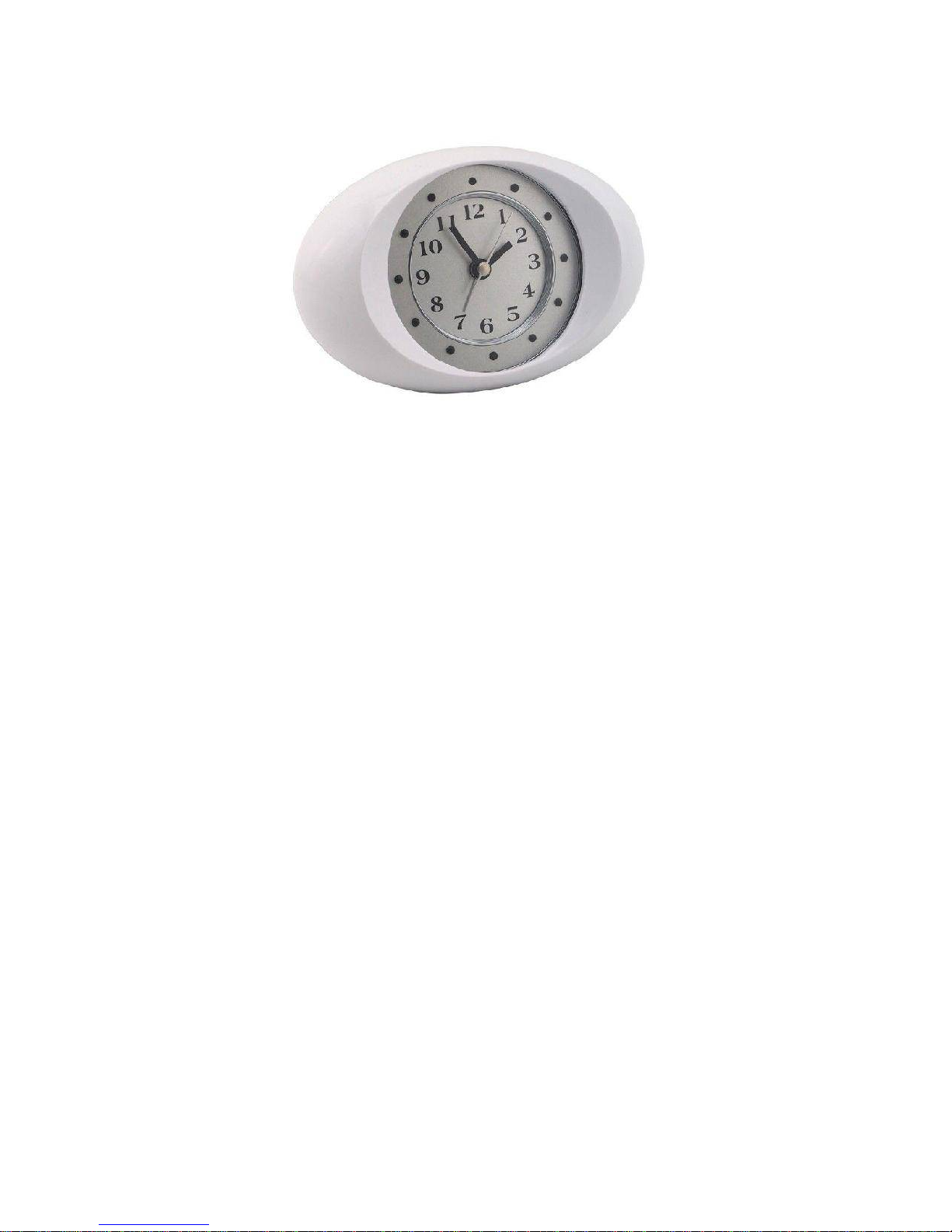
IPC180 Clock IP Camera
http://jedmark.com
User’s Manual
Thank you for using IPC180 Clock IP Camera. It is an oval and
simple style clock with hidden night vision IP camera, supports
iPhone and Android phone. User can review HD 1080P video
via the mobile phone anywhere. It can be used in home, office,
store and any place needs a clock.
Now, upgrade your clock to this remote surveillance
clock.
Page 2
1. Quick Start
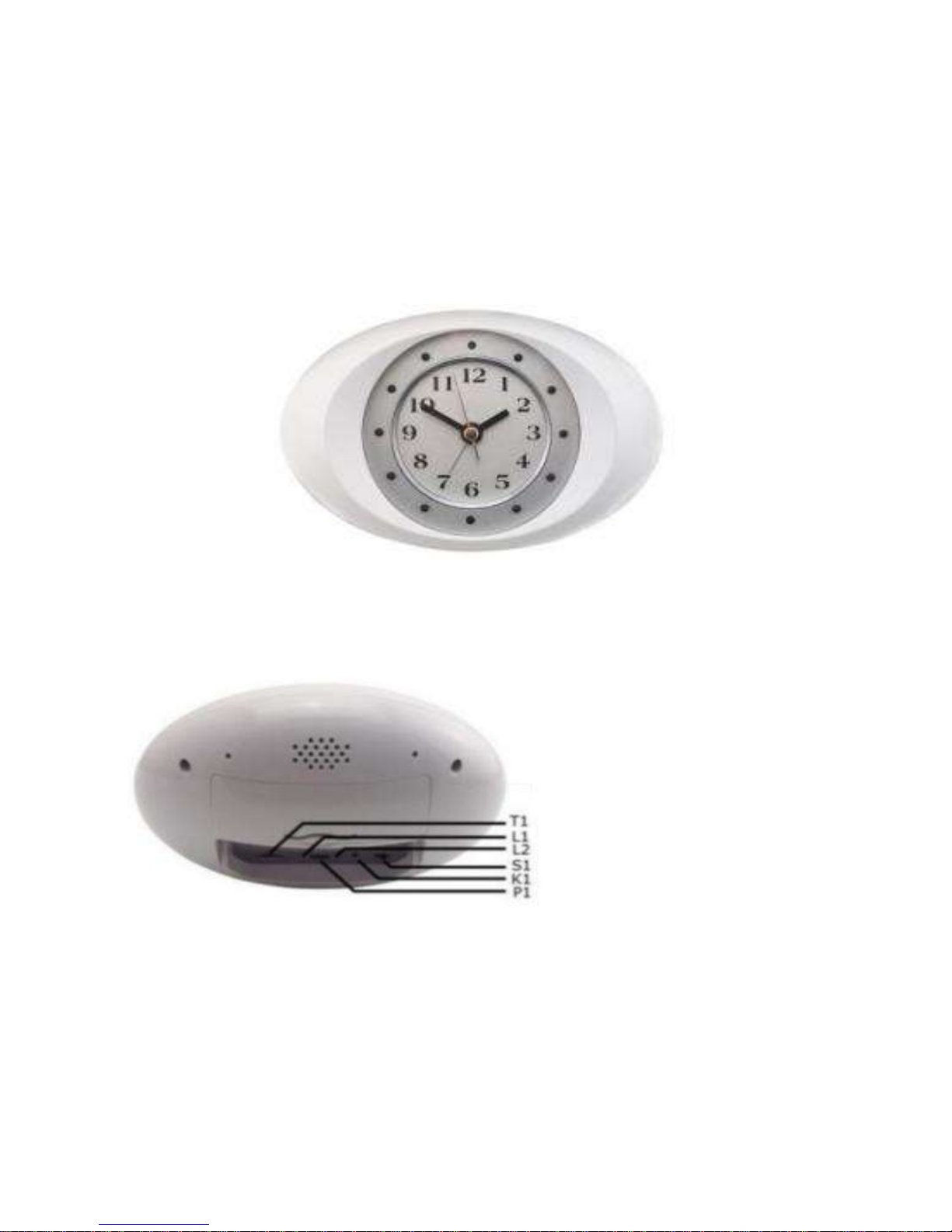
1.1 Appearance
http://jedmark.com
Front
K1: Record/Reset button
L1: Record LED Blue,
Charging LED Red,
Back
Note: The USB is only for charge, not transmit data.
L2: Mode LED, Green
P1: DC-IN, 5V
S1: Power ON/OFF
T1: Micro-SD Card
Page 3

1.2 Button details
http://jedmark.com
K1: Short press, record/stop recording video
Long press for 10S, reset to factory setting
S1: Turn left: ON, Turn right: OFF
1.3 LED Status
L1: BLUE ON: Stop recording in Micro-SD card
BLUE FLASH: Record in Micro-SD card
RED, ON: Charging. OFF: Charging fully.
L2: GREEN OFF: AP mode
GREEN ON: Device mode
GREEN FLASH: Try to connect to router
1.4 Brief Introduction
* Download and install the APP RTCAM
* Switch on S1 to power on the clock
Press K1 for 10s to reset the camera to factory setting is
recommended. It will take about 35s.
* Open the APP RTCAM, connect mobile phone to camera
directly in AP mode
Page 4
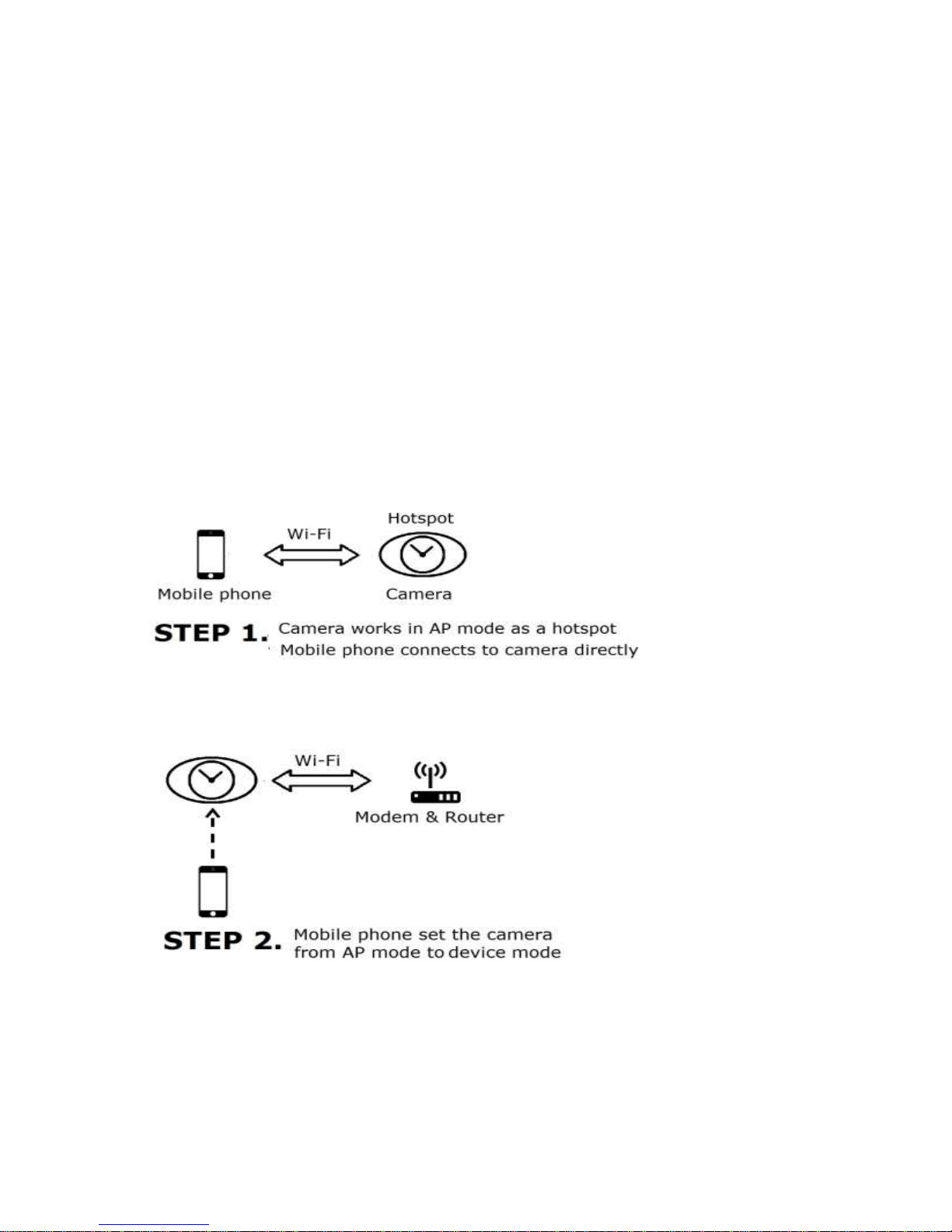
* Set the camera from AP mode to device mode, the camera
http://jedmark.com
changes to device mode and joins the router network.
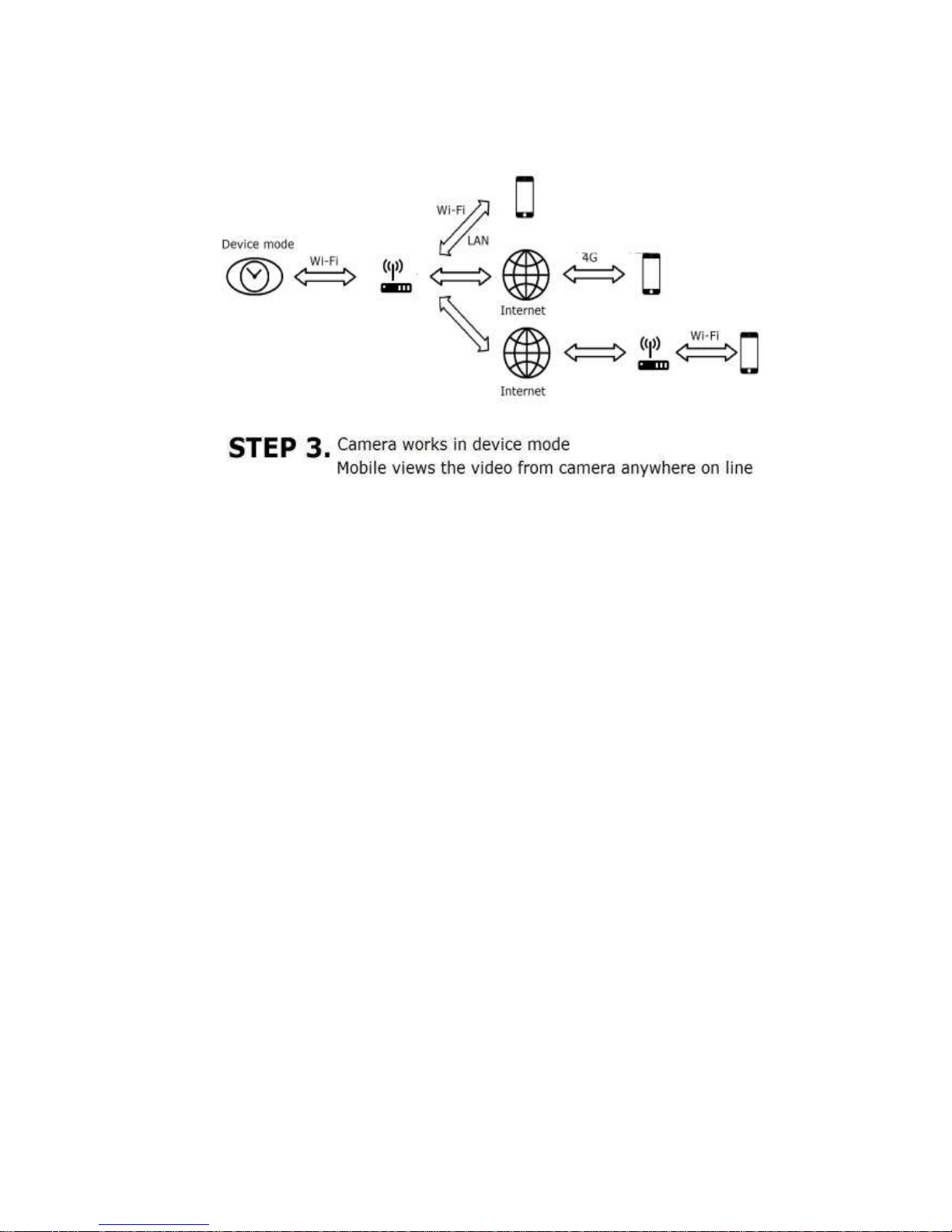
* View the video via mobile phone anywhere on line.
* Next time, if you already set the IPC, all you should
do is review the video anywhere.
As the following figure.
Page 5
http://jedmark.com
2. Operations
2.1 Camera Operation
* Switch S1 to power on, the Green LED L2 turns on, after
about 25 seconds, the Blue LED L1 turns on, that means the
camera can be connected with the mobile phone.
* To start/stop recording (video saved in the Micro-SD Card),
please short press K1. The L1 will flicker when saving video
in the Micro-SD card.
* To reset to factory setting, long press K1 more than 10s
Page 6
2.2 Install APP software
http://jedmark.com
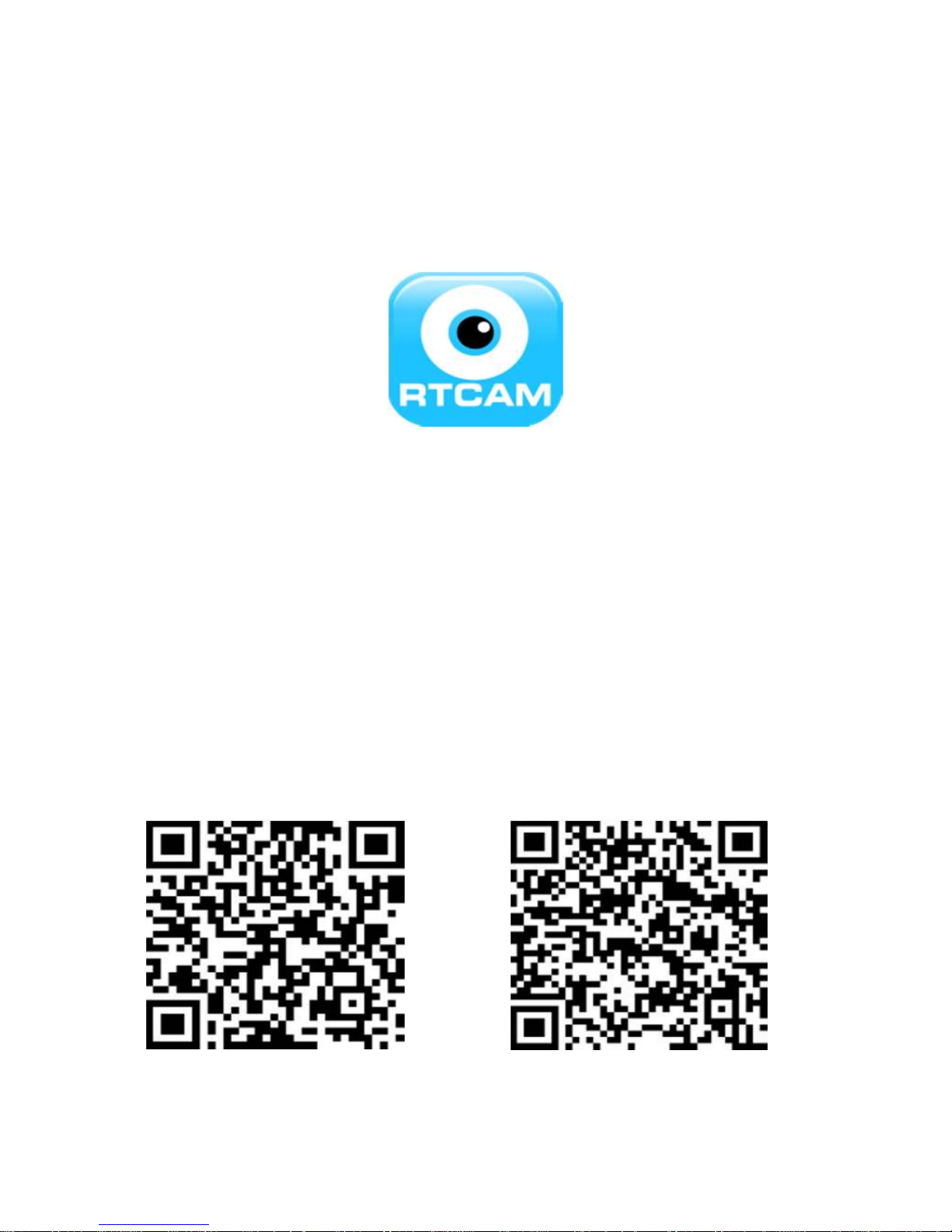
The APP name is RTCAM
Please scan the QR Code to download the APP and
install
For iPhones, please download RTCAM in APP
Store.
For Android phones, please download RTCAM in
Google Play.
iPhone Android phone
Page 7
2.3 APP operation (For Android as an example)
http://jedmark.com
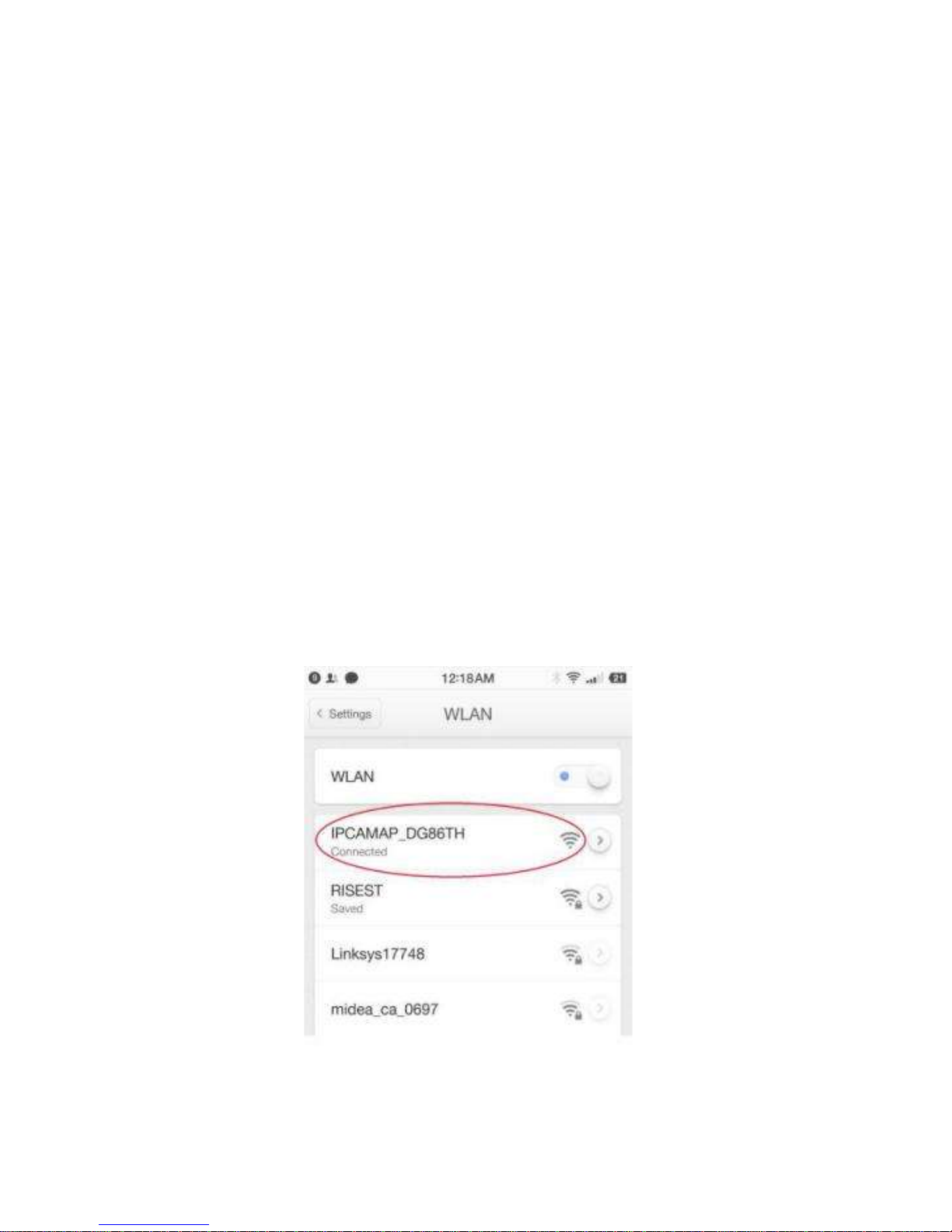
A: AP Direct Connection:
Step 1: Turn on camera, then search the WIFI signal
with your mobile phone.
The Wi-Fi Name is like IPCAMAP_***, connect
IPCAMAP_**** with mobile phone
.
Page 8
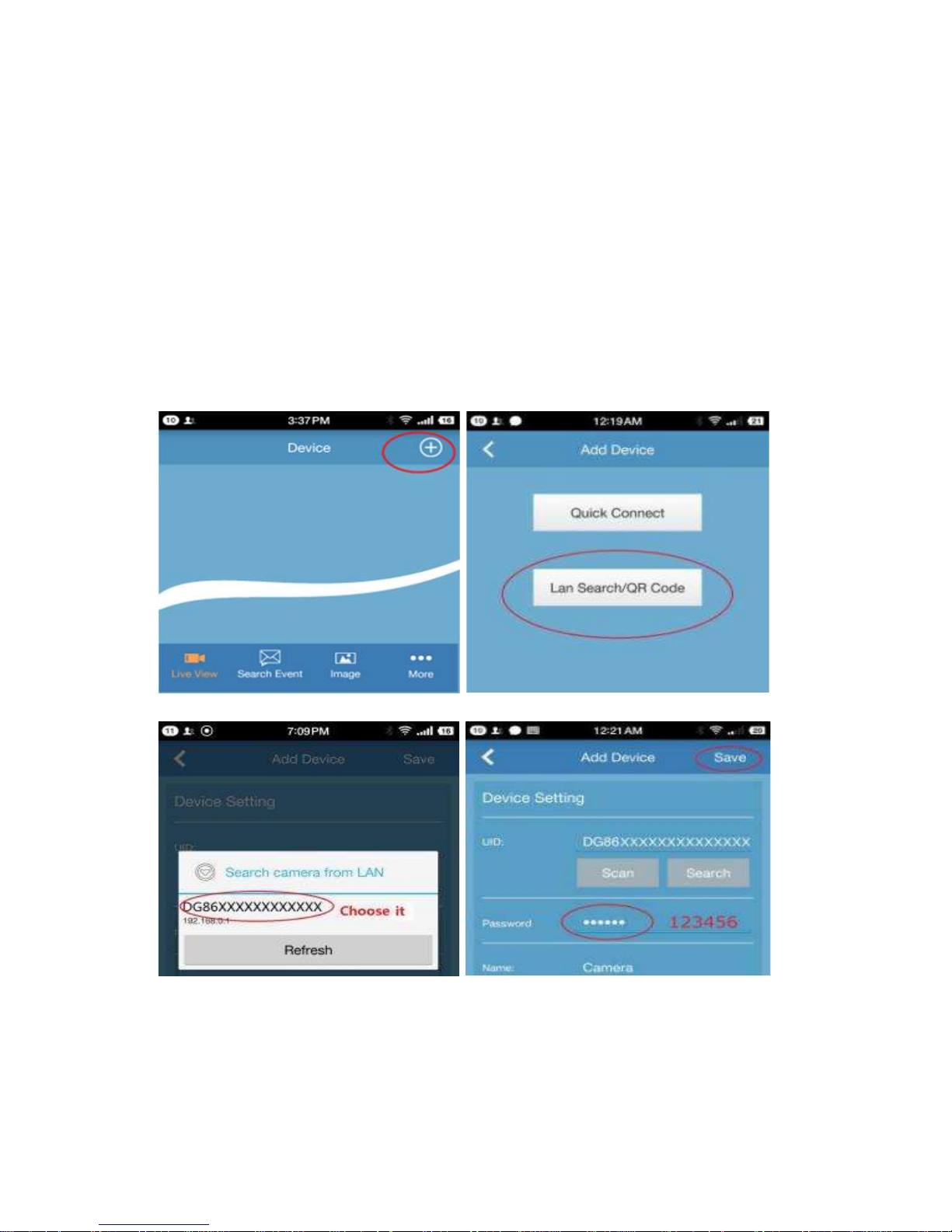
Step 2: Open RTCAM APP, add device, then scan
http://jedmark.com
or search UID, input the password 123456, then
save.
Note: Default Security Code: 123456
Page 9
http://jedmark.com
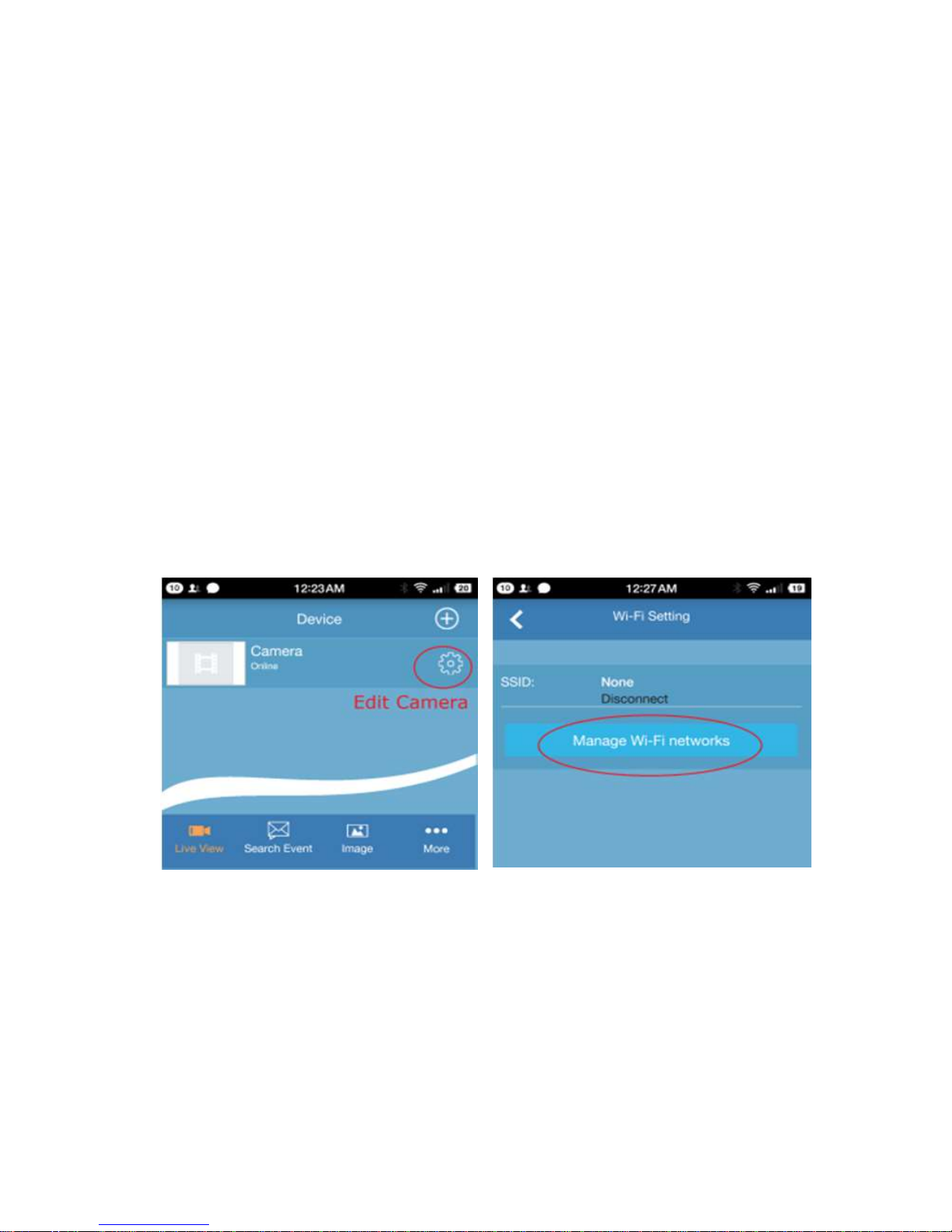
B: Router Connection:
After the direct connection, the camera can be
connected with the router.
Step 1: Edit Camera, then press Wi-Fi Setting
Step 2: Then choose a Wi-Fi network(home, office or
other Wi-Fi), type the password to set the camera
into the network.
Step 3: After connecting with Office or Home Wi-Fi,
then can view the video.
Note: Step 2 will take about 15 seconds.
Page 10
http://jedmark.com
Page 11
http://jedmark.com
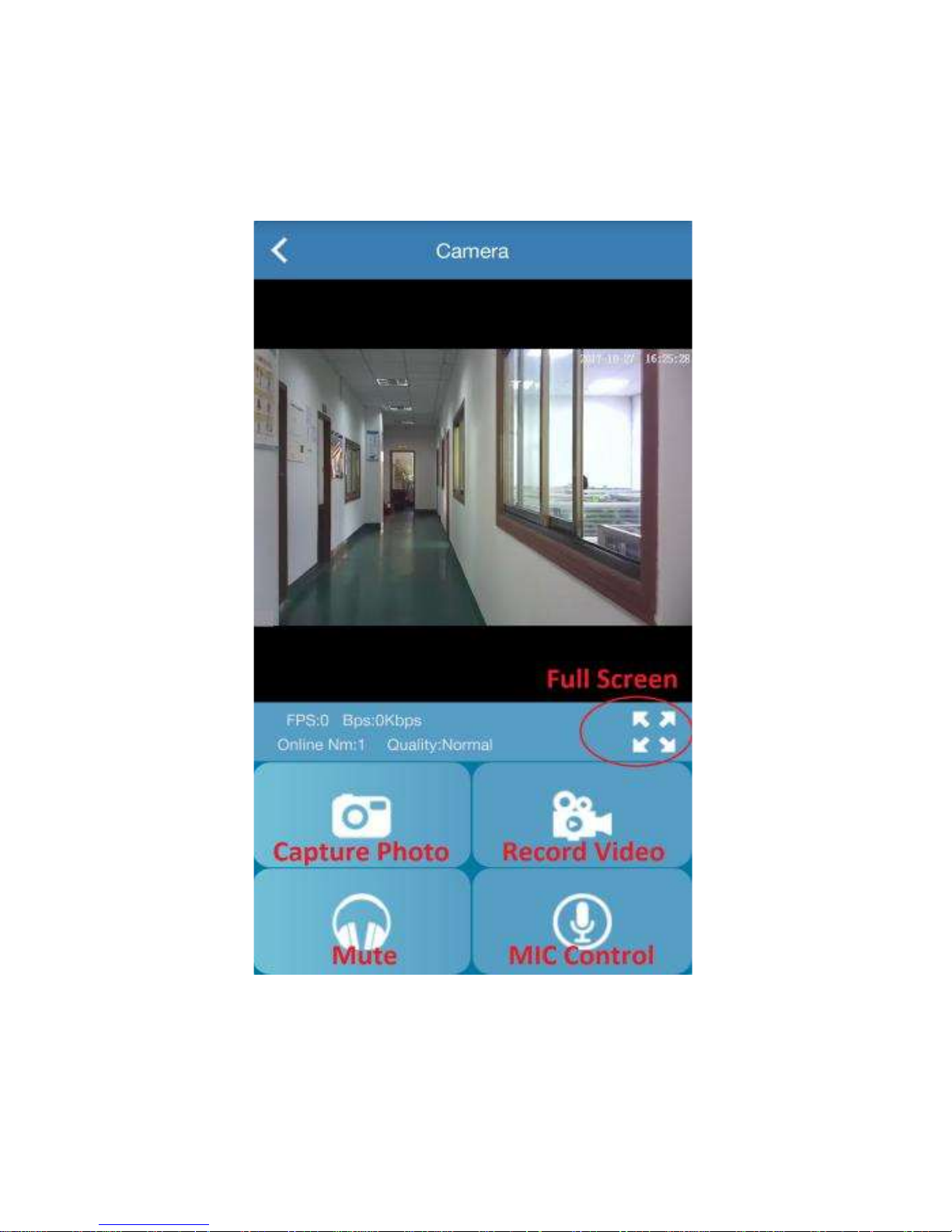
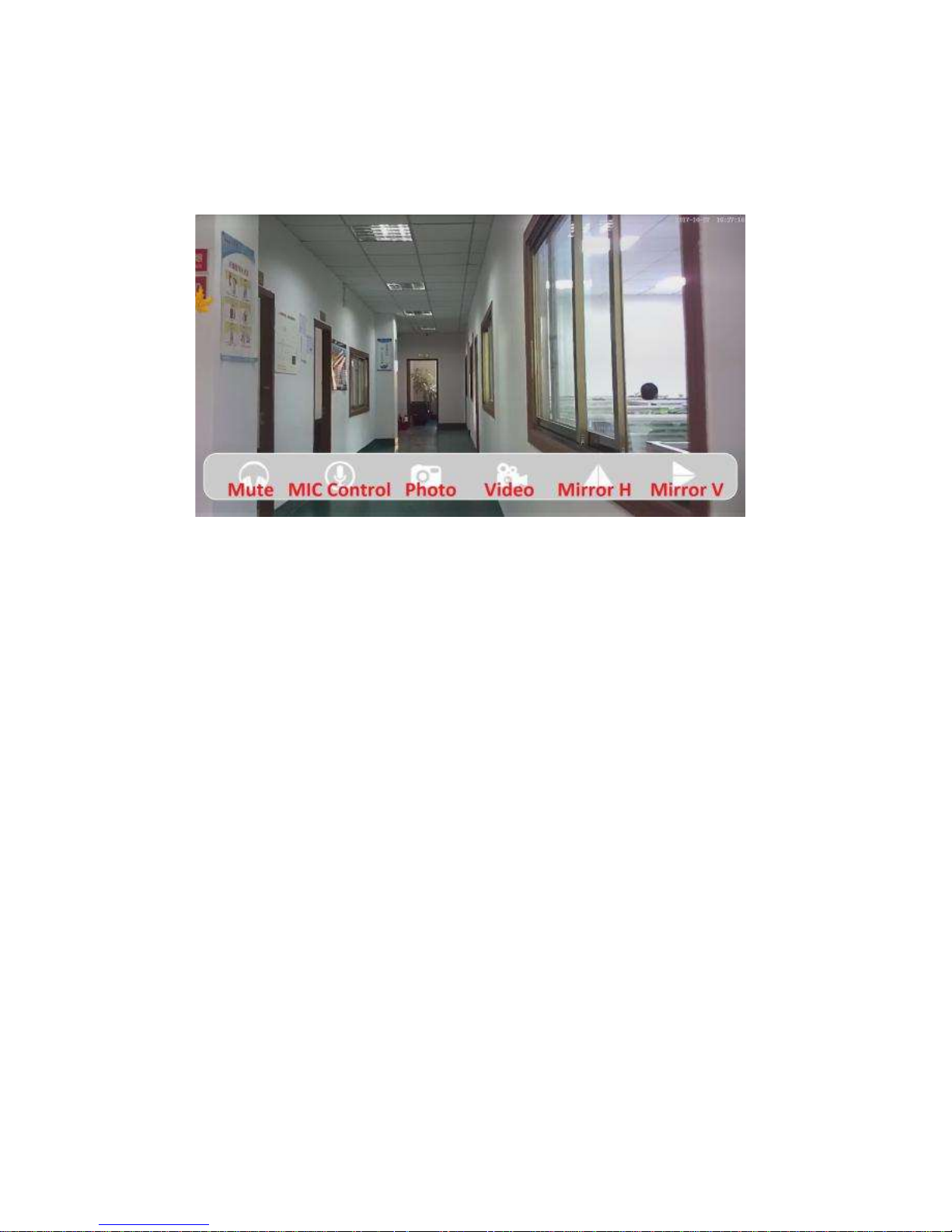
Full Screen, touch the screen to control the voice
and image.
Page 12
http://jedmark.com
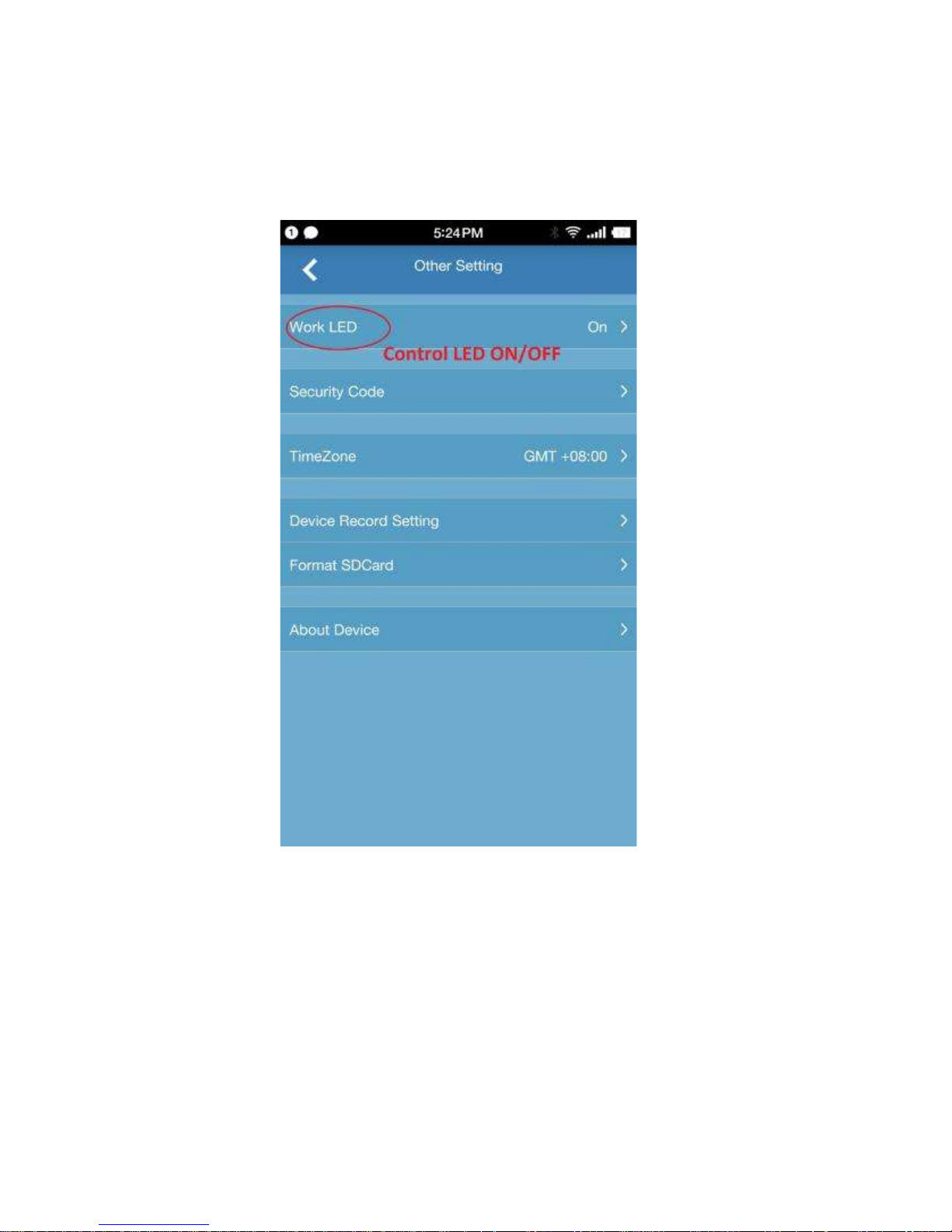
In Other Setting of Edit Camera, LED can be turn
ON or OFF.
Page 13
http://jedmark.com
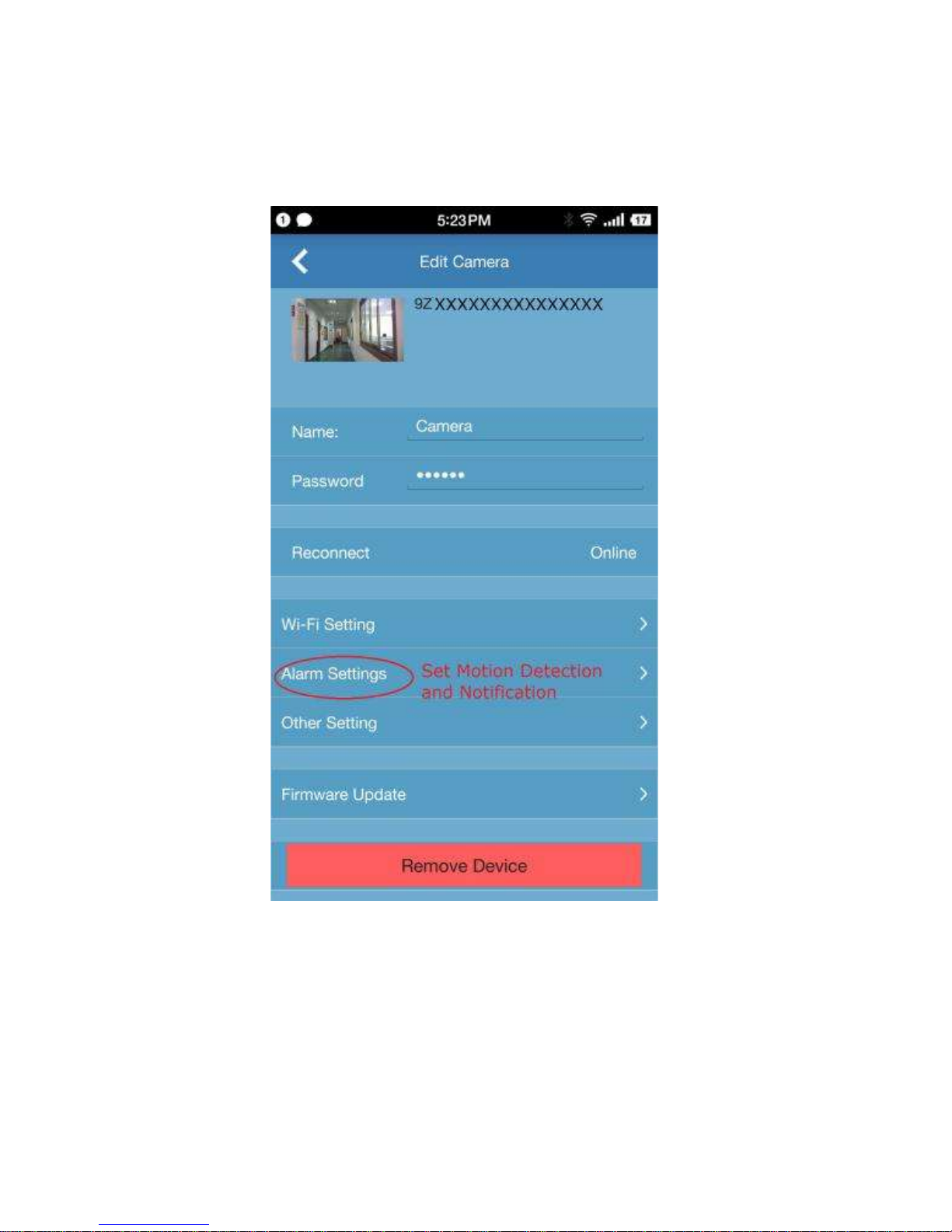
In Alarm Setting of Edit Camera, Motion detection
and Notification can be set.
Page 14

3. Parameters
http://jedmark.com
IPC180
Video encode H.264
Resolution 1920*1080P
Lens Angle 65 °
IR LED 940nm, 10pcs
Wi-Fi 802.11b/g/n
Battery 1500mAH
Power Adaptor DC5V, 1A
OS Support Android and iOS
Color White
Working Temperature -10~+60℃
Page 15
4. Troubleshooting
http://jedmark.com
Phenomenon Analysis Solutions
Fail to start Dead battery
Video not
active
APP not active
5. Accessories
Device frozen
APP frozen
Recharge battery
Turn off and on
power switch again
Exit APP and start
again
Power adaptor 1 Piece
USB cable 1 Piece
User’s manual 1 Piece
Micro-SD card 1 Piece(Optional)
Page 16

6. Precautions
http://jedmark.com
* DO NOT remove Micro-SD card while the device is
ON, it may damage device or Micro-SD card.
* Avoid dropping the device.
* About battery: The work time of the battery will
become shorter, with the growing use of time
* Deal with the disposal: Please pay attention to the
environmental protection, don’t discard this
product freely. Throw this product in the fire is
prohibited in order to avoid an explosion.
* Use limits: Please strictly observe the relevant
national laws, this product can’t be used for any
illegal purpose, or you must be responsible for
the consequences.
 Loading...