

Page 1

Page 1 / 3
User guide for stand-alone quiz buzzers
1. System overview
Wireless stand -alone version, which is easy-to-use response system with smart buttons.
There are many types of quiz buzzers: Dome Buzzer, Cube Buzzer, Pillar Buzzer
item
Quantity pc(s)
Buzzer
1-50(according to your order)
Master controller
1
User guide
1
Accessory
Screws
Note: Cube and Tower buzzers do not t have ABCD multiple choice buttons
Page 2
Page 2 / 3
2. Specifications
Size
Controller: 4.9X10.4X1.5CM; Dome Buzzer: diameter 15CM,height 8.8CM
Cube Buzzer: 10X10X10CM or 20X20X20CM; Tower Buzzer: 37X123CM
Dome Buzzer: 2 D battery
Cube buzzer and Tower buzzer: rechargeable lithium battery
Note:
○1. Insert dry batteries correctly by matching the (+/-) markings
○2. Remove the dry batteries when they are depleted or not using the system for a long period of time.
○3. For rechargeable battery, when recharging, the red indicator light comes on. After fully charged, the green
light indicator light will comes on.
3. Quick step by step guide:
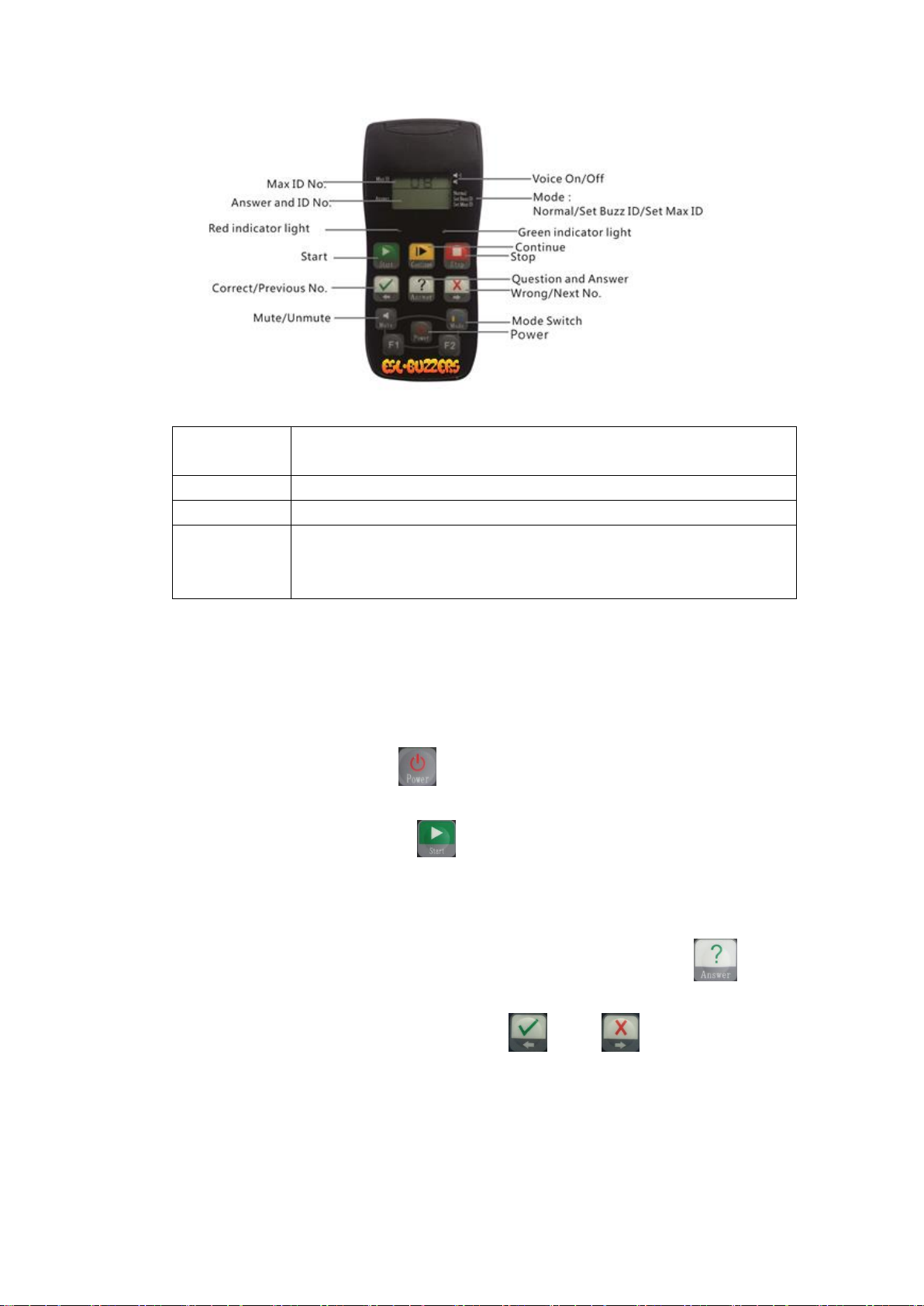
Step one--turn on system. Press “Power” button on master controller and press push button on buzzer
to open the system, the buzzers light will glow red. (For cube buzzer and tower buzzer, turn on the power switch)
Step two--start an activity. Press the “Start” button on master controller, the controller indicator will
twinkle green, and the buzzer light turns to green. Then all players can press the push button for rush. The first
one who pressed the push button, his/her buzzer will flash with white light and buzz audio will play from the
buzzer as well. Other buzzers will turn red light on and locked-out.
Step three—answer quiz. If the quiz question is with A, B,C, D multiple choice, press the “?” button
on master controller, and then the first player who hit the buzzer can answer by select ABCD. The master
controller can see the answer from the player, then press “√” or “×” to judge if the answer is
correct or wrong. At the same time, the buzzers illuminate green or red as well as the buzzers audio to identify
if the answer is correct or wrong. (Note: ○1Cube buzzer and Tower buzzer do not have ABCD choice. ○2If the
quiz is an oral question there is no need to press “?” for answer, the player can answer by orally. ○3 If no
question and answer, please ignore this step)
Range 360 degree
Distance >60 meters
Battery/recharge Master controller: 2 AAA battery
Page 3
Page 3 / 3
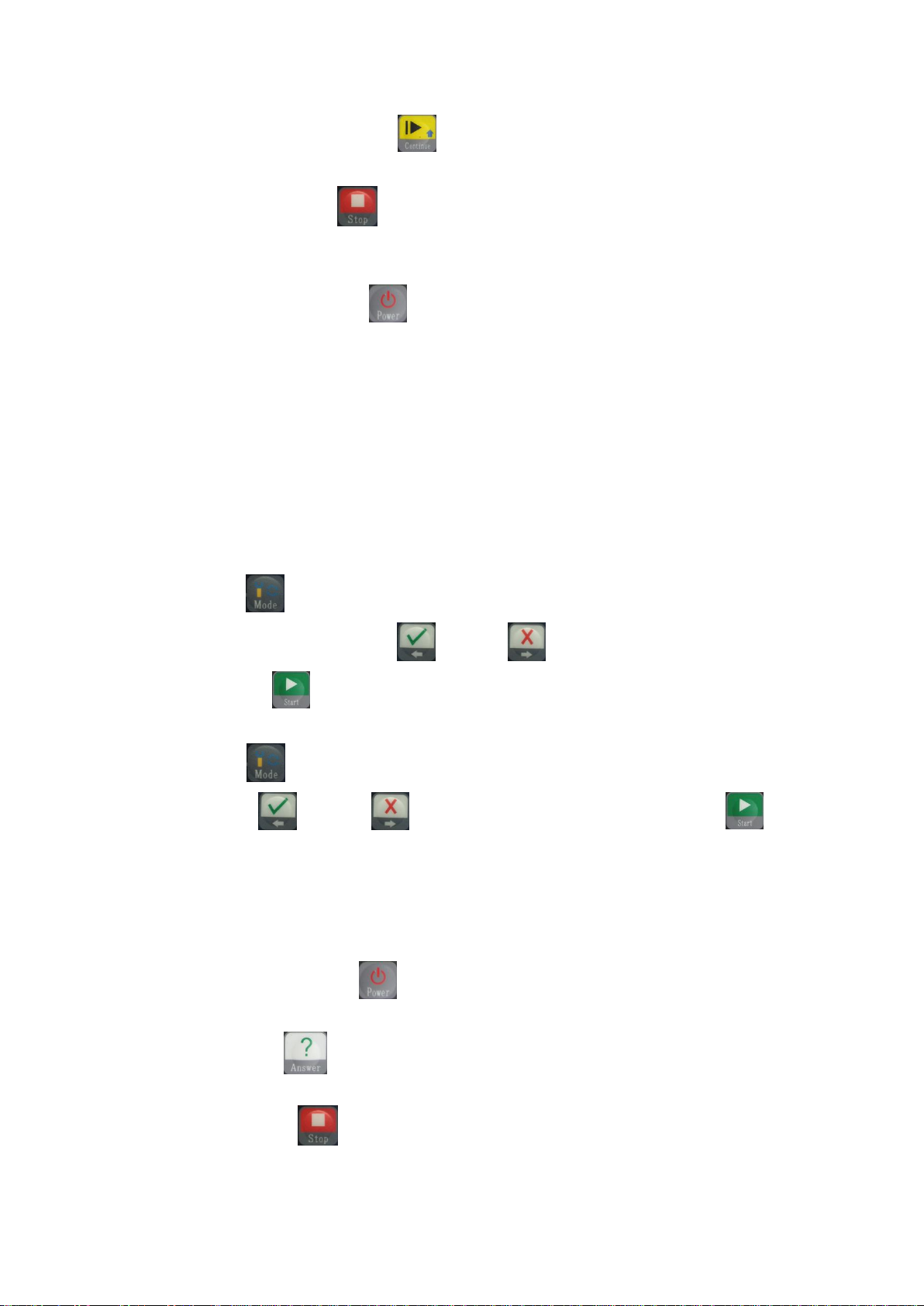
Step four—continue. Press “Continue” button on master controller, other players can press push
button and answer quiz in the same way.
Step five—stop. Press “Stop” button on master controller, all buzzer lights will turn to red, all players
can’t press buzzer buttons any more.
(Repeat above steps can start a new activity).
Step six—Power off. Press “Power” button on master controller. All buzzers will power off accordingly.
(Cube buzzer and Tower buzzer press power switch to power off)
4. Note and trouble shoot
○1If the buzzer brightness is not obvious, please replace battery or recharge.
○2If the buzzers are red and green, light flashes, means the buzzer is searching signal. If the buzzer is always
searching signal, please check the master controller is on.
○3If the master controller can’t control the buzzer, please program the buzzer with master controller. (See
below for how to program.)
5. Other features--Set Max ID No. and Set ID No.
Note: Max ID and ID No already set by factory, if need change it, please follow below steps.
○1 Set Max ID No.
Press “Mode” button on master controller, switch to Set Max Id mode(the arrow in LCD screen point
to Set Max Id) and press “Previous No.“ / “Next No” button to select Max number(1-50) , and
then, press “Start” button, and then OK.
○2 Set ID No.(Program)
Press “Mode” button switch to set Buzz Id (the arrow in LCD screen point to Set Id No.), and press
“Previous No.“ / “Next No” button to select the number, and then, press “Start” . At
the same time, hold press push button and “B” button on buzzer till the buzzer green light flashes, and the
master controller display “ok”.
(Remark: For cube buzzer and tower buzzer, there is no “B” button, so, the Set ID No method is hold press
push button and turn on the power button.)
6. How to use Judge Voting Features (Note: this feature is customize, not normal buzzer.)
○1 Turn on system. Press “Power” button on master controller and press push button on buzzer to open
the system, the buzzer red light will come on. (For cube buzzer and tower buzzer, turn on the power switch)
○2 Start, Press “?” button for start, all buzzers will turn blue, the judges can press the push button
for voting. After pressing the push button, the buzzer light turns to red.
○3 Stop, Press “Stop” button for stop voting. All buzzers lights will turn off.
 Loading...