

Page 1

DATASHEET-USER
GUIDE HUB2
Version 1.3, 02-01-2020
Page 2

103 rue Louvain Ouest, H2N 1A3, Montreal
Contents
1. HUB2 presentation and characteristics ........................................................................................3
1.1 Description use ................................................................................................................................... 3
1.2 Electrical charateristics ....................................................................................................................... 3
1.2.1 Description ................................................................................................................................... 3
1.2.2 Key features ................................................................................................................................. 3
1.2.3 Working temperature .................................................................................................................. 3
1.2.4 Water/Dust protection ................................................................................................................. 3
1.2.5 Physical and body ......................................................................................................................... 3
1.2.6 Electrical specs ............................................................................................................................. 4
1.2.7 Communication protocol ....................................................................................................... 4
1.2.8 Coverage ............................................................................................................................... 4
2. FCC Statements ..........................................................................................................................5
3. IC Statements .............................................................................................................................6
4. Warning .....................................................................................................................................7
4.1 Security ............................................................................................................................................... 7
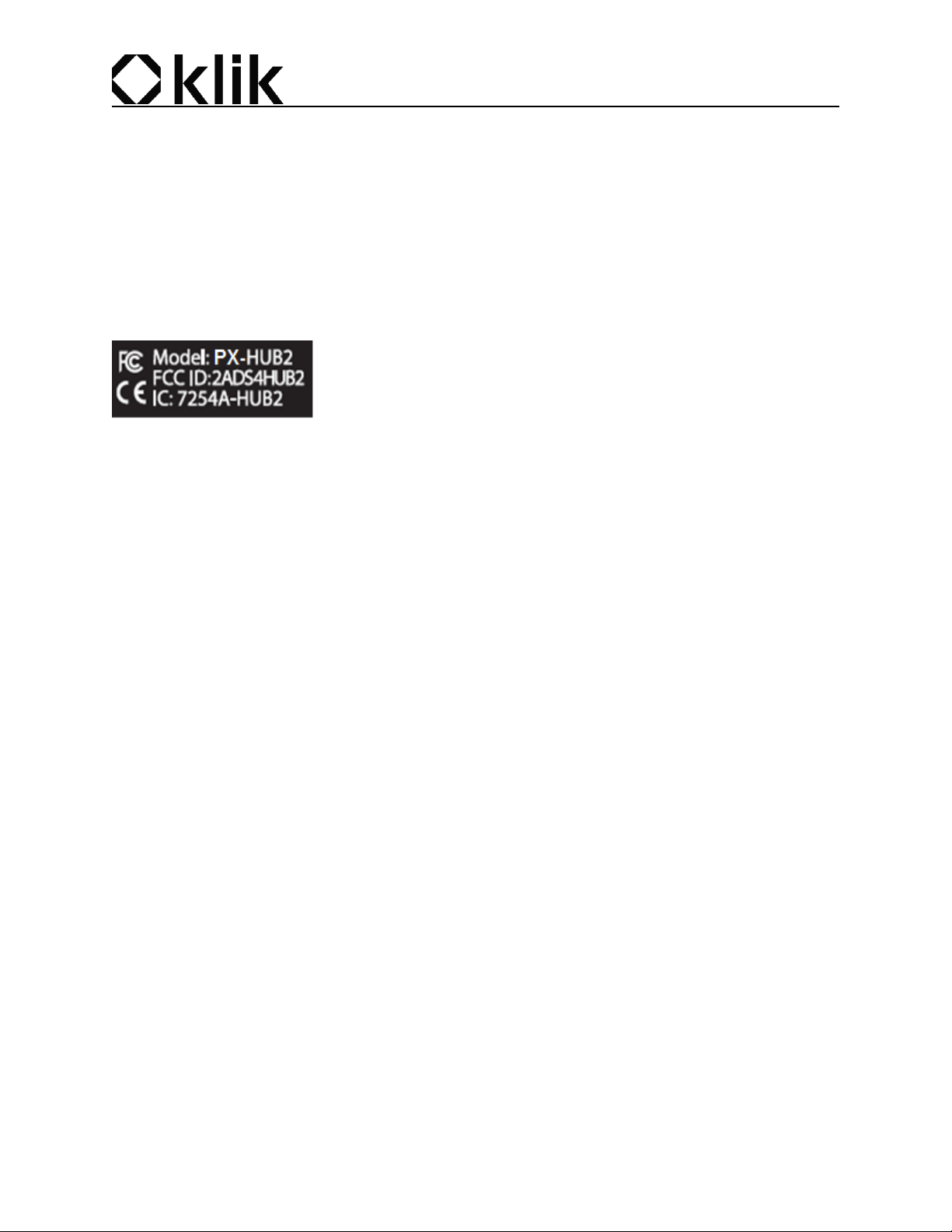
4.2 Label .................................................................................................................................................... 7
5. Material needed .........................................................................................................................7
6. Installation .................................................................................................................................8
6.1 Installation .......................................................................................................................................... 8
6.2 Orientation .......................................................................................................................................... 8
6.3 Connections ........................................................................................................................................ 8
7. HUB2 Button control and light ....................................................................................................9
7.1 Home screen ....................................................................................................................................... 9
8. Troubleshooting ....................................................................................................................... 10
8.1 BLE-Devices ....................................................................................................................................... 10
8.2 PHONE (HUBDROID) .......................................................................................................................... 10
8.3 PHONE (HUBDROID) software update .............................................................................................. 10
8.4 IP NETWORKING ................................................................................................................................ 10
2 USER GUIDE HUB2 | VERSION 1.3
Page 3

103 rue Louvain Ouest, H2N 1A3, Montreal
1. HUB2 presentation and characteristics
1.1 Description use
The Pixmob HUB2 is an improvement from the last version of the HUB. It doesn’t need anymore a hard
line wire for ethernet either an AC plug, smartphone as screen, battery powered, etc. The HUB2 can be
place in hard access position and with the integrated battery, it will last around a half of the day if it always
used.
1.2 Electrical charateristics
1.2.1 Description
The Hub2 detect will take all the information around him via Bluetooth and will transmit it via WIFI or LTE
to the server.
1.2.2 Key features
-Small equipment
-Battery powered
-Easy to recharge
-Same protocol as Klik gear
1.2.3 Working temperature
-20 ° to 60 °C
-5 ° to 140 °F
1.2.4 Water/Dust protection
NONE
1.2.5 Physical and body
Both of HUB have aluminum casing, one is custom (HUB1) and the other is from BUD IND. (Manufactuer
part#: EXN-23352-BK)
3 USER GUIDE HUB2 | VERSION 1.3
Page 4

103 rue Louvain Ouest, H2N 1A3, Montreal
1.2.6 Electrical specs
FREQUENCY BAND: 2400–2483.5 MHz
RF POWER MAX(W): Conducted 115mW
TYPE OF MODULATION: GFSK
POWER REQUIREMENTS: USB 5V with a battery 3.7V 5000mAh inside
MAXIMUM TRANS DUTY CYCLE: 10% of duty cycle
ANTENNAS INFORMATION: Bluetooth antenna RPSMA, 2.4 GHz Gain 4.9 dBi. The EUT is professionally
installed.
1.2.7 Communication protocol
-BLUETOOTH: 4.0 LE Compliant, Support for Bluetooth v4.1 host stack including ATT, GATT, SMP, L2CAP,
GAP
-WIFI/LTE: From Phone to the server
1.2.8 Coverage
Depending the environment where the HUB2 is installed, it can reach more than 300m in an open space
without obstacle, and between 50 to 150m with thick wall.
4 USER GUIDE HUB2 | VERSION 1.3
Page 5

103 rue Louvain Ouest, H2N 1A3, Montreal
2. FCC Statements
FCC ID: 2ADS4HUB2
§ 15.19 (a)(3)
This device complies with part 15 of the FCC Rules. Operation is subject to the following two conditions: (1) This
device may not cause harmful interference, and (2) this device must accept any interference received, including
interference that may cause undesired operation.
§ 15.21
Important! Changes or modifications not expressly approved by the party responsible for compliance could void the
user‘s authority to operate the equipment.
§ 15.105 (b)
Notes: This equipment has been tested and found to comply with the limits for a Class B digital device, pursuant to
part 15 of the FCC Rules. These limits are designed to provide reasonable protection against harmful interference in
a residential installation. This equipment generates, uses and can radiate radio frequency energy and, if not installed
and used in accordance with the instructions, may cause harmful interference to radio communications. However,
there is no guarantee that interference will not occur in a particular installation. If this equipment does cause harmful
interference to radio or television reception, which can be determined by turning the equipment off and on, the
user is encouraged to try to correct the interference by one or more of the following measures:
—Reorient or relocate the receiving antenna.
—Increase the separation between the equipment and receiver.
—Connect the equipment into an outlet on a circuit different from that to which the receiver is connected.
—Consult the dealer or an experienced radio/TV technician for help.
§ 2.1091 (b)
For purposes of this section, a mobile device is defined as a transmitting device designed to be used in other than
fixed locations and to generally be used in such a way that a separation distance of at least 20 centimeters is normally
maintained between the transmitter's radiating structure(s) and the body of the user or nearby persons. In this
context, the term “fixed location” means that the device is physically secured at one location and is not able to be
easily moved to another location. Transmitting devices designed to be used by consumers or workers that can be
easily re-located, such as wireless devices associated with a personal computer, are considered to be mobile devices
if they meet the 20 centimeter separation requirement.
DO NOT operate the transmitter when someone is within 20 cm of the antenna.
5 USER GUIDE HUB2 | VERSION 1.3
Page 6

103 rue Louvain Ouest, H2N 1A3, Montreal
3. IC Statements
IC: 7254A-HUB2
This device complies with Industry Canada license-exempt RSS 247 standard. Operation is subject to the following
two conditions: (1) this device may not cause interference, and (2) this device must accept any interference,
including interference that may cause undesired operation of the device.
DO NOT operate the transmitter when someone is within 20 cm of the antenna.
This radio transmitter 7254A-HUB2 has been approved by Innovation, Science and Economic Development Canada
to operate with the antenna types listed below, with the maximum permissible gain indicated. Antenna types not
included in this list that have a gain greater than the maximum gain indicated for any type listed are strictly
prohibited for use with this device.
Antenna authorized:
Termination: RP-SMA Male
RF Family/Standard: 802.15.4, Bluetooth, WIFI
Frequency Range: 2.4GHz-2.5GHz
Impedance: 50
Gain: 3.8dBi Straight, 4.7dBi Bent 90 degres
Cet appareil est conforme avec Industrie Canada exempt de licence standard RSS 247. Son fonctionnement est
soumis aux deux conditions suivantes: (1) cet appareil ne doit pas provoquer d'interférences et (2) cet appareil doit
accepter toute interférence, y compris celles pouvant causer un mauvais fonctionnement de l'appareil.
NE PAS utiliser l’émetteur quand quelqu’un est à moins de 20 cm de l’antenne.
Le présent émetteur radio 7254A-HUB2 a été approuvé pas Innovation, Sciences et Développement économique
Canada pour fonctionner avec les types d’antenne énumérés ci-dessous et ayant un gain admissible maximal. Les
types d’antenne non inclus dans cette liste sont interdits pour l’exploitation de l’émetteur.
Antenne autorisée:
Connecteur: RP-SMA Male
RF Famille/Standard: 802.15.4, Bluetooth, WIFI
Gamme de Fréquence: 2.4GHz-2.5GHz
Impédance: 50
Gain: 3.8dBi Droite, 4.7dBi Pliée 90 degrés
This class B digital device complies with Canadian ICES-003
Cet appareil numérique de la classe B est conforme à la norme NMB-003 du Canada.
6 USER GUIDE HUB2 | VERSION 1.3
Page 7
103 rue Louvain Ouest, H2N 1A3, Montreal
4. Warning
4.1 Security
-Do not OPEN the HUB2
-Do not submerge it
-The HUB2 is not waterproof or dust proof.
-Do not place it direct to sun light
4.2 Label
5. Material needed
-1 USB-B cable to USB-A (Power and recharge the HUB2)
-1 USB-A cable to USB micro (Communicate and recharge the Phone
-1 antenna 2.4 GHz
-1 phone with the Klik app
7 USER GUIDE HUB2 | VERSION 1.3
Page 8
103 rue Louvain Ouest, H2N 1A3, Montreal
6. Installation
6.1 Installation
The HUB2 might be install near a wall or an AC outlet for big event. The battery can run less than a day
without charging (depending on the usage of these). The HUB2 also need to be out of sight of people and
not in a restricted place to be sure that the data is correctly send to the server. The HUB2 can always be
plug.
6.2 Orientation
The HUB2 orientation depends on the Antennas orientation. The HUB2 can be placed on the floor, on the
wall or under object, but the Antenna must always be placed in vertical position for a maximum coverage.
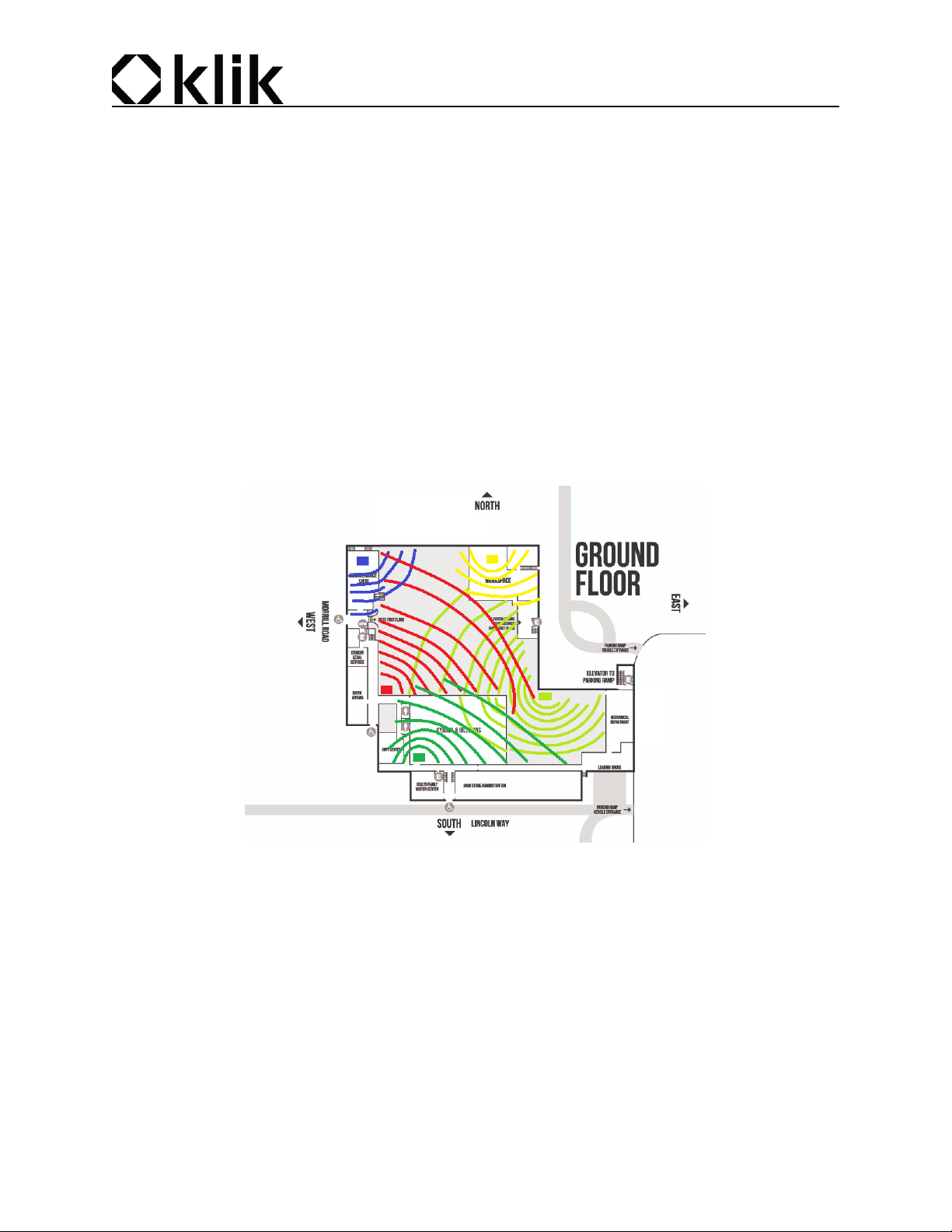
To have a good coverage, the HUB2 must be place in the center of a pieces, unfortunately in realistic
event, it may not be possible due to the AC outlet and the need to be out of sight of people. So it is
recommended to place it in a hidden place near a wall. A place than will have the maximum coverage with
or without thick wall. See image below for an exemple.
6.3 Connections
The user only need to be sure the phone is correctly plug on the HUB2, the antenna is there and the
battery is charged.
8 USER GUIDE HUB2 | VERSION 1.3
Page 9
103 rue Louvain Ouest, H2N 1A3, Montreal
7. HUB2 Button control and light
7.1 Home screen
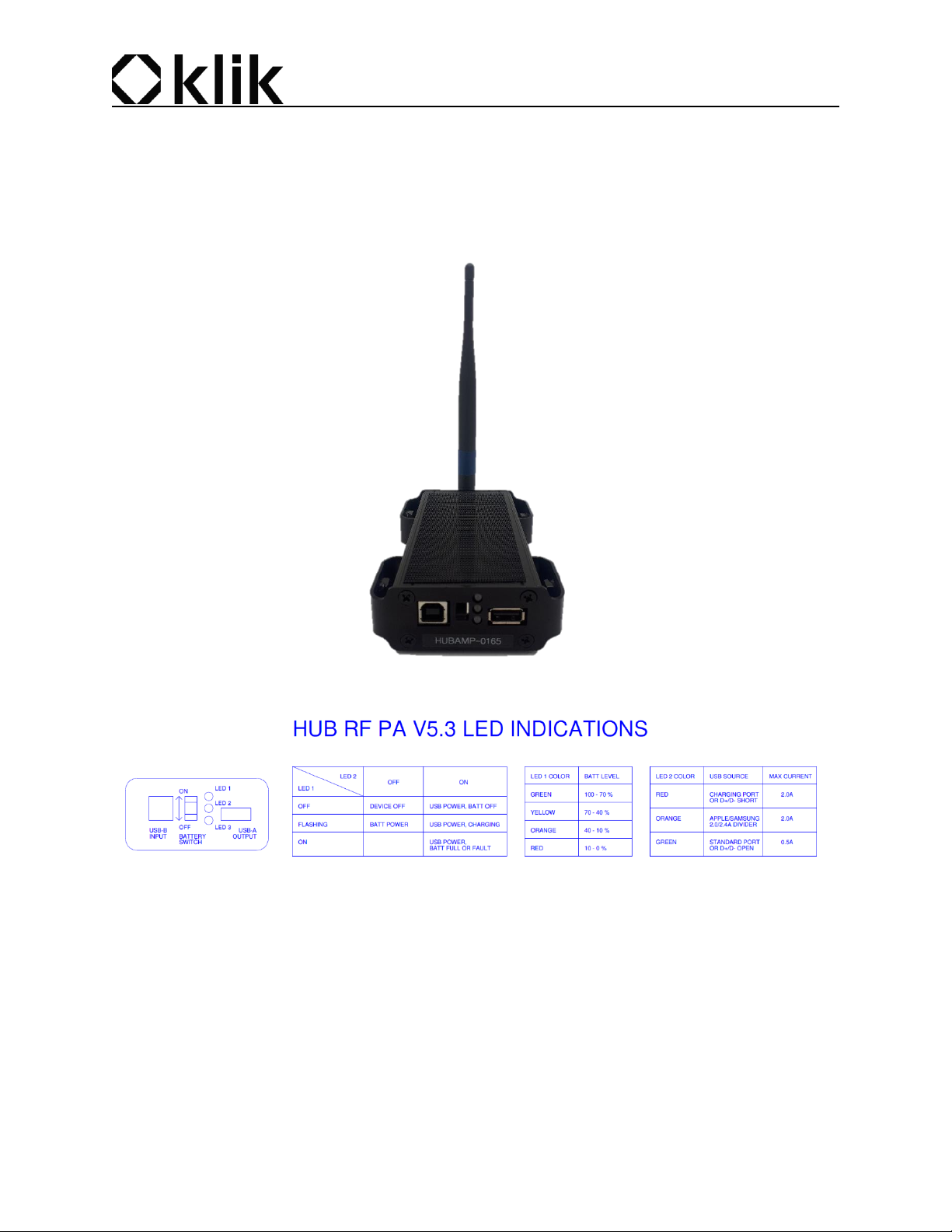
When the HUB2 is open (switch in UP position), it will automatically open the phone and the Klik app. You
will need after to setup the WIFI configuration and some parameter to be sure that the HUB2 is connected
to the good server.
9 USER GUIDE HUB2 | VERSION 1.3
Page 10

103 rue Louvain Ouest, H2N 1A3, Montreal
8. Troubleshooting
8.1 BLE-Devices
-RFPA test levels (part I) are within [1000, 1100] mV?
If antenna connector has bad soldering, add solder to the antenna connector Else replace C42 from 0.5
pF to 0.4 pF.
-RFPA test levels (part I) are below 1000 mV?
The shell cmd not sent at the end. Make sure you sent a shell cmd to the board: i2c-write 02 01 shell.
-Switch is put to on, RX-TX led is not blinking green?
The shell cmd not sent at the end. Make sure you sent a shell cmd to the board: i2c-write 02 01 shell.
8.2 PHONE (HUBDROID)
-Android bluedroid is displayed as HUBID in the app?
Uninstall - reinstall klik app.
-Hubdroid-xxxx has a typo / is misspelled?
Go to BT settings and change the bluetooth name of the device. Then uninstall and reinstall the app.
-Phone is "stuck" in kiosk mode?
Follow procedure in the link on the right
8.3 PHONE (HUBDROID) software update
-Some apps (chrome, hexnode, ...) keep auto updating, killing the focus of Klik app...?
No solution for the moment.
8.4 IP NETWORKING
-Hub2 gets disconnected from event, or jumps on/off?
Switch phone's data mode (LTE \ WiFi) or reboot phone, disconnect from hubamp, and reboot hubamp
too. Reconnect all.
-Hub2’s amp status disappears from CP or Tech APP
Check connection cable or swap the hubamp for a spare one
10 USER GUIDE HUB2 | VERSION 1.3
 Loading...