

Page 1
www.esid.se
Page:
1 / 43
Na
me of document:
eSID 03-06 User Guide
V
ersion:
1.2
eSID 03-06
User Guide
extended Saab Information Display (eSID)
for new generation Saab 9-3 (MY2003-2006)
with HPD (High Position Display)
Page 2

www.esid.se
Page:
2 / 43
Na
me of document:
eSID 03-06 User Guide
V
ersion:
1.2
Introduction ...................................................................................................................... 4
eSID 03-06 components ..................................................................................................... 5
eSID-HPD .................................................................................................................................. 5
eSID-GW ................................................................................................................................... 5
Current consumption ................................................................................................................ 5
User Interface ................................................................................................................... 6
Transition between Active and Passive state ............................................................................. 7
Auto start ................................................................................................................................. 8
Welcome Message .................................................................................................................... 8
Display ............................................................................................................................. 9
Main View ................................................................................................................................ 9
Status View ............................................................................................................................ 10
Display Units .......................................................................................................................... 10
Display Illumination ................................................................................................................ 11
Display Group: Favorites ................................................................................................. 12
Display Group: Powertrain .............................................................................................. 13
Momentary Fuel ..................................................................................................................... 13
Accumulated Fuel Consumption .............................................................................................. 14
Average Fuel Consumption ..................................................................................................... 15
Torque/Power ........................................................................................................................ 16
Intake Air Temperature / Coolant Temperature ....................................................................... 17
Transmission Oil Temperature ................................................................................................ 18
Engine Speed / Vehicle Speed ................................................................................................. 19
Maximum Torque / Power ...................................................................................................... 20
Airmass .................................................................................................................................. 21
Turbo Boost pressure .............................................................................................................. 22
Ethanol Blend ......................................................................................................................... 23
Diesel DPF Data ...................................................................................................................... 24
Performance........................................................................................................................... 25
Display Group: Vehicle .................................................................................................... 26
Page 3

www.esid.se
Page:
3 / 43
Na
me of document:
eSID 03-06 User Guide
V
ersion:
1.2
Drive Time .............................................................................................................................. 26
Acceleration ........................................................................................................................... 27
Battery/Crank Voltage ............................................................................................................ 28
Accumulated Distance ............................................................................................................ 29
Brake distance and time measurement ................................................................................... 30
Display Group: Diagnostics ............................................................................................. 31
Read DTC ................................................................................................................................ 31
Clear DTC................................................................................................................................ 32
Display Group: Settings ................................................................................................... 33
3 Blink .................................................................................................................................... 33
Manual Wiper speed interval .................................................................................................. 34
Automatic Foglight activation ................................................................................................. 35
Welcome Message .................................................................................................................. 36
Fuel correction factor ............................................................................................................. 37
Distance correction factor ....................................................................................................... 38
Auto Start ............................................................................................................................... 39
Extra functionality .......................................................................................................... 40
Custom main view .................................................................................................................. 40
Limitations ..................................................................................................................... 41
Not possible to change volume (ICM: 1) .................................................................................. 41
ICM system freezes and does not go to sleep or deactivate illumination (ICM: ALL) ................. 41
Not possible to change radio channel and CD track using steering wheel (ICM: 1 and 2) ........... 42
Not possible to hang up phone call (ICM: 2) ............................................................................. 42
Not possible to see Navigation directions (ICM: 3) ................................................................... 42
No seatbelt warning sounds (ICM: ALL) ................................................................................... 42
Switch illumination reduced (ICM: ALL) ................................................................................... 42
Parking Assist delayed activation (ICM: ALL) ............................................................................ 42
Not possible to activate Night Panel (ICM: ALL) ....................................................................... 42
Different view when eSID is going passive (ICM: ALL) ............................................................... 43
Page 4
www.esid.se
Page:
4 / 43
Na
me of document:
eSID 03-06 User Guide
V
ersion:
1.2
Introduction
eSID 03-06 (here referred to as eSID) is an integrated add-on system to the Saab NG9-3 2003-2006
which gives the driver the possibility to read internal hidden performance data from the vehicle on
the normal display (SID) together with additional functionality like one-touch-three-blink-indications,
the manual wiper interval function and the possibility to read all fault codes*) in the vehicle and have
them displayed on the integrated standard display.
*) All fault codes in the vehicle, not just the Engine emission codes like the basic diagnostic tools.
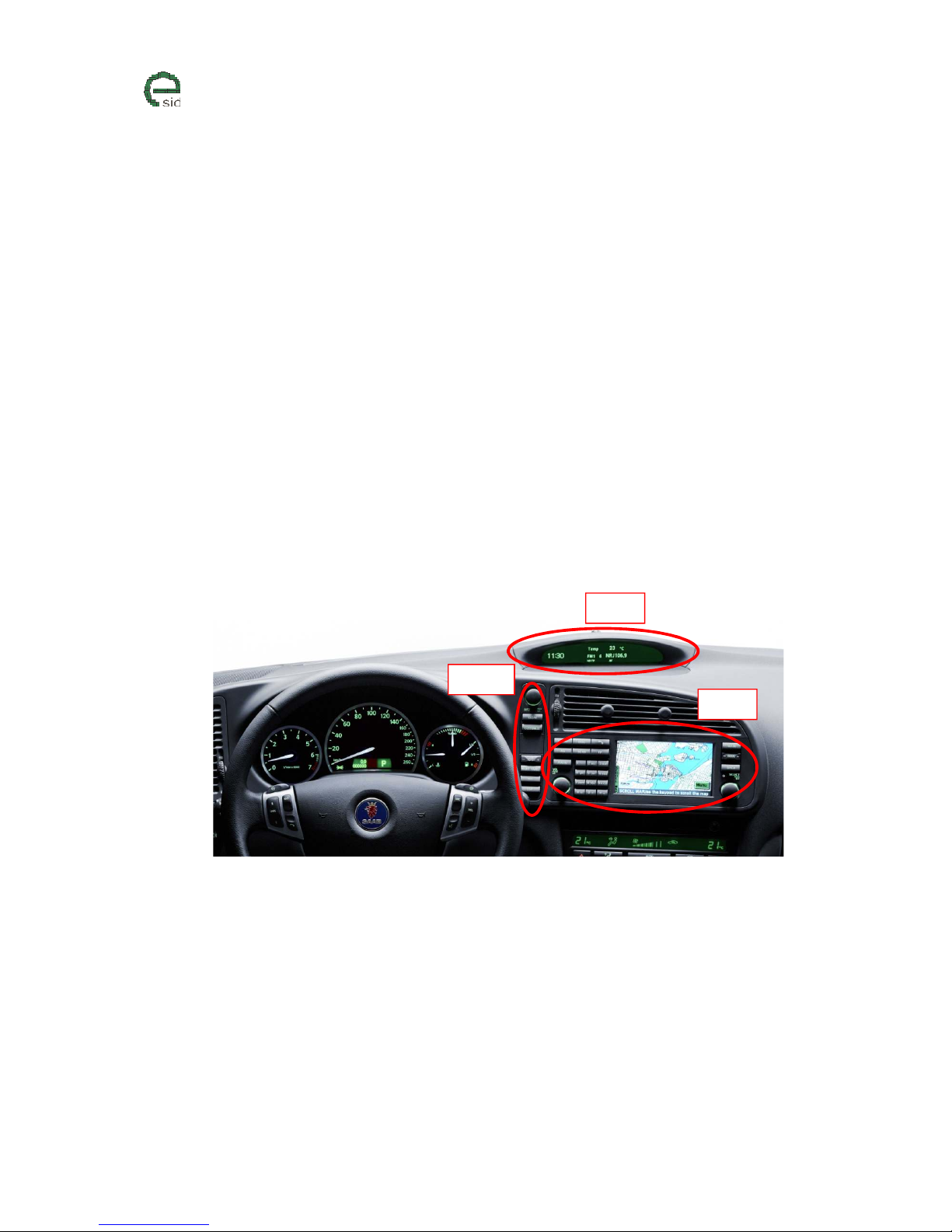
The standard display, SID (Saab Information Display) is controlled by the Infotainment System (more
specifically the Infotainment Control Module (ICM) and the SID control panel (SIDC).
The ICM exist in three-different equipment levels:
• ICM1 – No Display
• ICM2 – Monographic Display
• ICM3 – LCD Display
The figure below shows how these three components look like (Example equipped with ICM3):
Components related to the SID
The standard functionality is that the ICM unit reads the status of the switches/encoders from SIDC
and then controls the output to the SID accordingly.
One of eSID main objectives is to be integrated with the original system and with a long press on the
INFO button on SIDC the SID will switch between ICM and eSID control, making the two systems work
side-by-side.
Note! It is strongly recommended to have ICM2 or ICM3 while using eSID due to limitations in the
Saab Infotainment System, please check the “Limitations” section in this manual.
It is also important to update the ICM system if possible and be aware that ICM could potentially
freeze and don’t go to sleep, please check the “Limitations” section in this manual.
SIDC
SID
ICM3
Page 5
www.esid.se
Page:
5 / 43
Na
me of document:
eSID 03-06 User Guide
V
ersion:
1.2
eSID 03-06 components
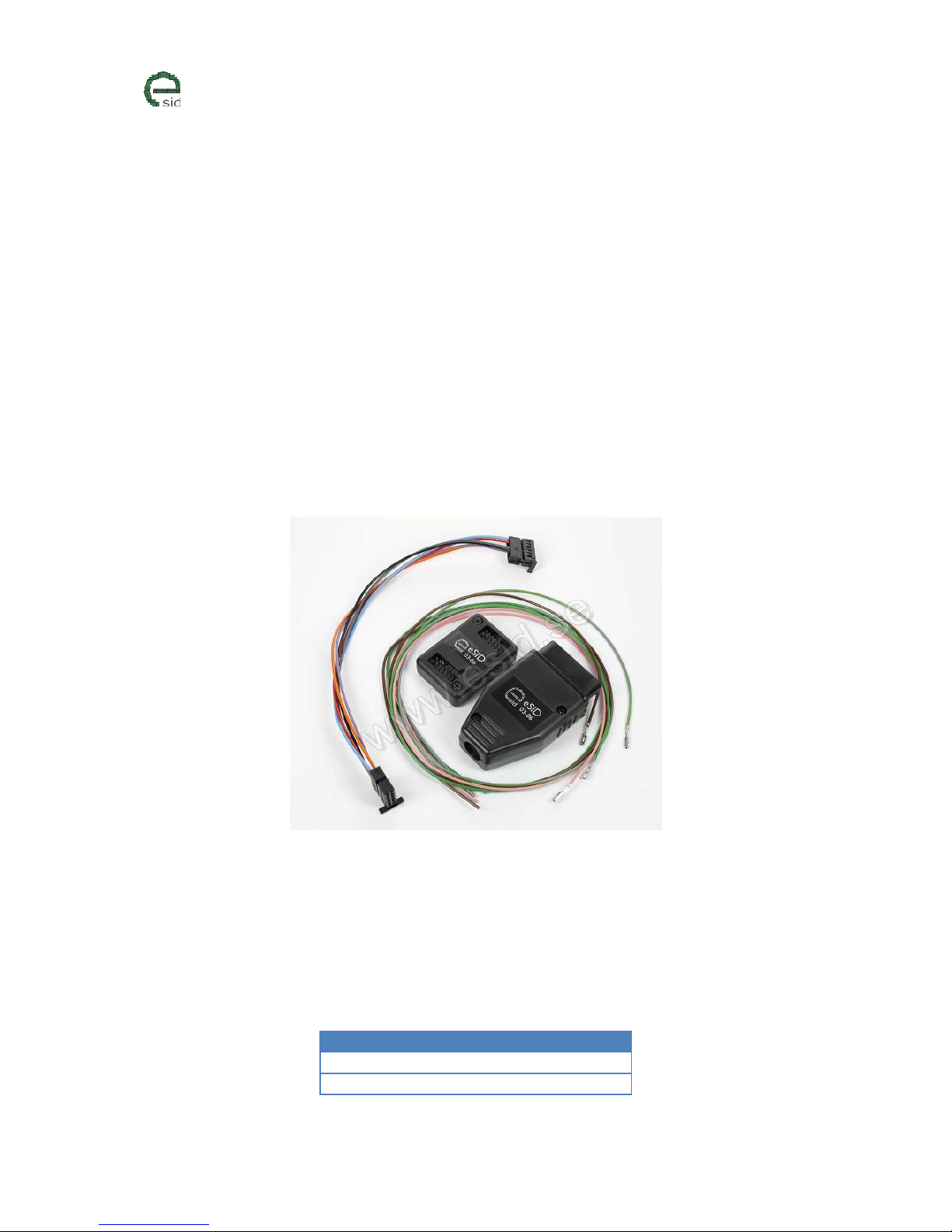
The eSID 03-06 consists of two components: eSID-HPD that mainly controls the display and eSID-GW
that is a data collection and pre-processing unit.
eSID-HPD
HPD is short for “High Position Display” and was the internal development name of the display
located near the windscreen on these model years (commonly known as SID, Saab Information
Display).
eSID-HPD needs to be installed behind the SID, in series with the display cables between ICM and
SID. See separate Installation Guide.
eSID-GW
eSID-GW (Gateway), needs to be placed in the diagnostic connector under the steering wheel above
the driver feet. eSID-GW is easily installed within a few seconds.
Current consumption
It is always important to reduce the quiescent current consumption to avoid having an empty
battery. If the vehicle needs to stand for a longer period of time its recommended to remove the
eSID-GW from the OBD-connector.
eSID-GW does not have any memory and can be removed without losing any settings.
eSID-HPD stores all settings and keeps it also when the battery is removed.
Component
Quiescent Cur
rent
eSID-GW 9 mA
eSID-HPD < 2 mA
Page 6
www.esid.se
Page:
6 / 43
Na
me of document:
eSID 03-06 User Guide
V
ersion:
1.2
User Interface
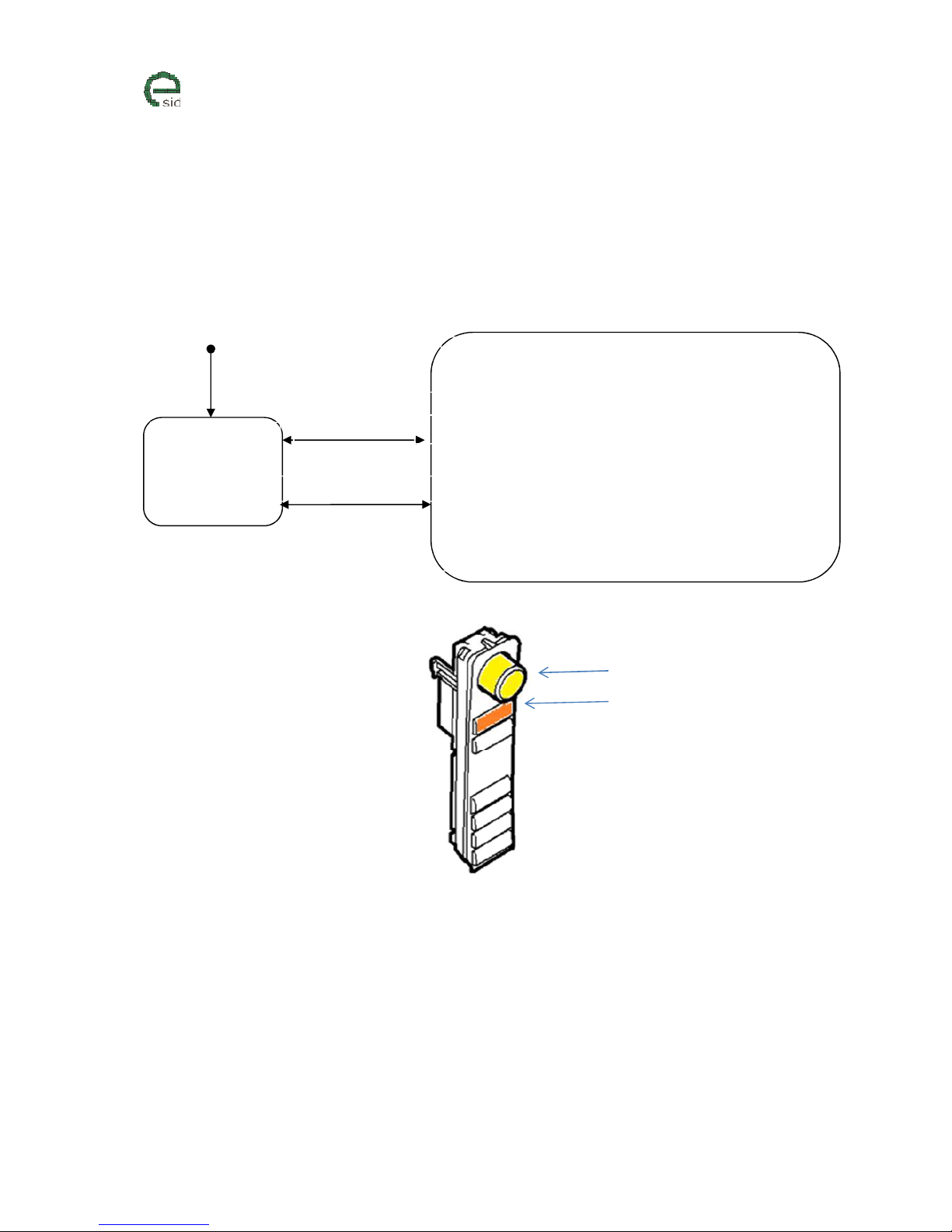
eSID has two major states:
1. Passive Normal vehicle display functionality active
2. Active Display is completely controlled by eSID
eSID Activation/Deactivation
eSID Active
Display is completely controlled by eSID
eSID Passive
Normal vehicle
display functionality
active
Long press on INFO
• eSID will always start in last active display view and last active
display group
• Short press on INFO wheel to:
o Start/Activate function in active display view
o Enter display group (if on root level)
• Short press on CLEAR switch to:
o Leave display group and go back to root level (if in
display group)
• Long press on CLEAR switch to:
o Reset function in active display view
Auto activation/deactivation
Default (power
-
up)
INFO
INFO
CLEAR
Page 7
www.esid.se
Page:
7 / 43
Na
me of document:
eSID 03-06 User Guide
V
ersion:
1.2
Transition between Active and Passive state
Switching between the states occurs:
a) If the driver presses the INFO switch on the SIDC for more than 1.5 seconds a switch between
active and passive state will occur.
Note! eSID can only go to active state if the Ignition Key is in ON.
b) If reverse gear is engaged on a vehicle with Parking Assist, the system will switch from active
to passive state (if currently in active state). It will switch back automatically to active state
when reverse gear is no longer engaged
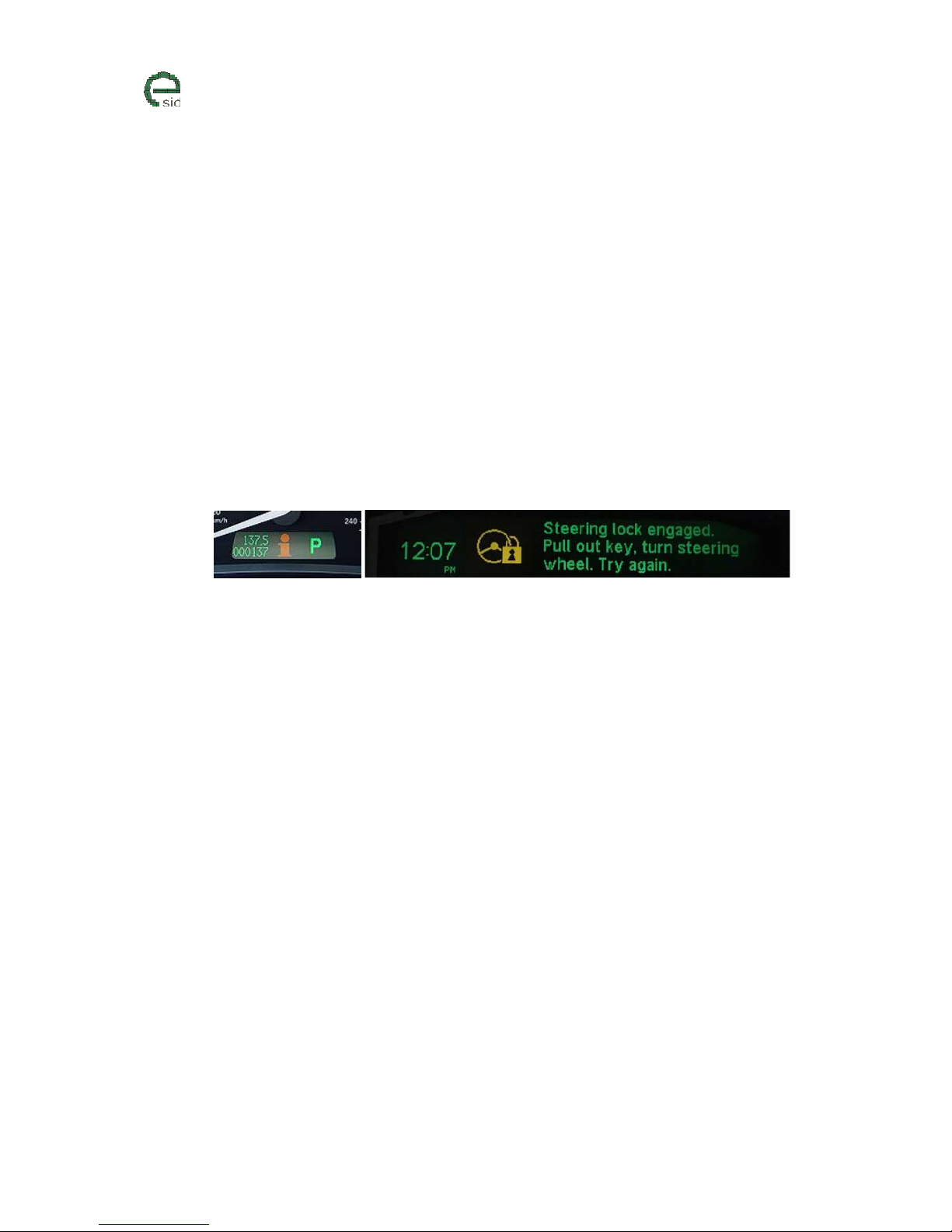
c) If a popup warning is triggered to be shown to the driver (Icon and text) the standard system
requests the information icon in the instrument cluster to be activated (“ i “). eSID listens to
this request and will switch to passive state (if currently in active state), to show the message
to the driver.
Example warning that will trigger eSID to go passive
d) When the driver door is opened and the conditions to trigger the welcome message is
fulfilled it will switch from passive to active state (and show the welcome message).
e) If Auto start is enabled it can trigger eSID to go from passive to active state (see separate
section)
f) If the Ignition key is removed from the Ignition switch, the eSID will be switched to passive
state.
Page 8

www.esid.se
Page:
8 / 43
Na
me of document:
eSID 03-06 User Guide
V
ersion:
1.2
Auto start
The normal SID display will always be active (eSID passive) when the key is inserted into the Ignition
Lock, this to ensure that all warning messages are taken care of before eSID is started.
If Auto start is enabled, eSID switches from passive to active state when vehicle speed goes above 20
km/h if:
• No active warning/icon on the SID
• Driver seatbelt attached
• Auto start has not enabled eSID this driving cycle (i.e. Auto start is only activated once per
driving cycle)
A new driving cycle starts if Ignition key is in OFF or if the driver door is opened while the vehicle
speed is zero.
Welcome Message
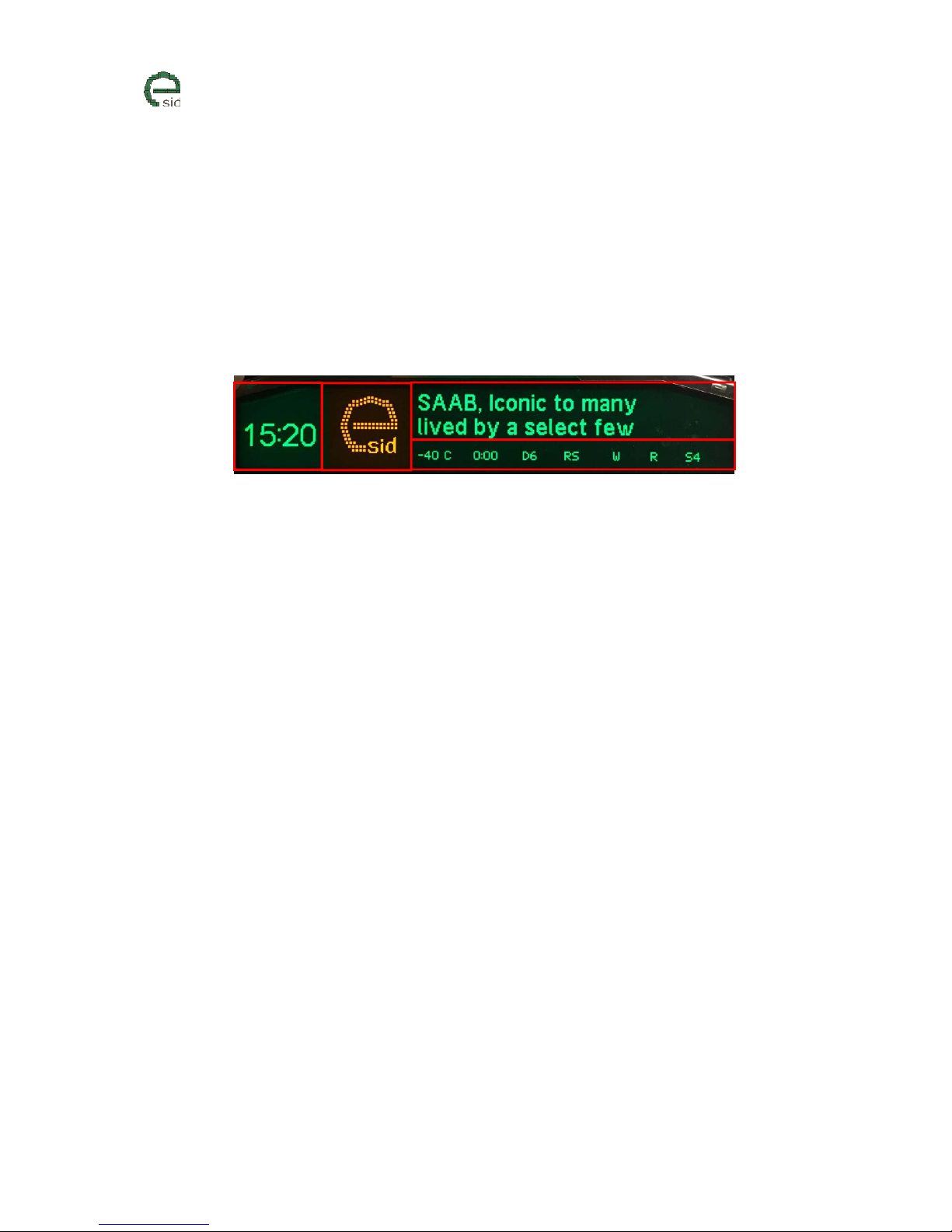
The welcome message consists of a 64x64 orange pixel icon and two rows of text. The text lines can
be adjusted in the settings menu and the icon can be changed using an external tool together with a
CAN-interface. This tool is not finalized when this user guide is written so keep track on the website
and the Facebook page for latest status.
The welcome message will be shown when the driver door is opened if any of the following
conditions has been fulfilled:
• eSID has been a sleep (car has been standing unlocked for a while)
• Driver door has been locked and unlocked.
Page 9
www.esid.se
Page:
9 / 43
Na
me of document:
eSID 03-06 User Guide
V
ersion:
1.2
Display
The display is divided into 4 different segments:
1) Clock View – Shows the clock (12H/24H depending on Units configuration)
2) Icon View – Shows yellow or red icon
3) Main View – Here all the display groups/functions will be showed
4) Status View - Here some extra useful information will be visible to the driver at all times
Main View
The display functions in the Main View are structured in five display groups:
• Favorites
o 5 selectable favorite display functions from the other groups
• Powertrain
o Engine and transmission related display functions
• Vehicle
o Non-powertrain related display functions
• Diagnostics
o Read/Clear diagnostic fault codes
o Internal eSID debug data
o Software versions
• eSID Settings
o The settings are saved when the eSID goes to sleep (i.e. locked car) and the values
will then be remembered if the battery is removed.
o This menu is only enabled when the vehicle is standstill
1
2
3
4
Page 10

www.esid.se
Page:
10 / 43
Na
me of document:
eSID 03-06 User Guide
V
ersion:
1.2
Status View
The status view is always visible when eSID is active and is intended to show information to the
driver that is always of interest, information that typically has a slow update rate.
• Outside Temperature (C/F °)
• Drive Time ( HH:MM )
• Actual Gear
(only Automatic Gearbox, when in Drive)
• Rain sensor active/inactive (RS)
• eSID Wiper function active (W)
• DPF Regeneration Active (R)
(only 1.9 diesel engines with DPF)
•
Active position in display structure
(P5 = Powertrain #5; F1 = Favorite #1 etc.)
Display Units
eSID supports three sets of display units (it is not possible to mix between them):
• Metric
o Torque (Nm)
o Distance (km)
o Temperature (Celsius)
o Fuel (Liter)
o Fuel Consumption (L/100km)
o Boost (bar/bar)
o Clock (24H)
• Imperial UK
o Torque (Lbft)
o Distance (miles)
o Temperature (Celsius)
o Fuel (Liter)
o Fuel Consumption (MPG UK)
o Boost (bar/InHg)
o Clock (12H)
• US
o Torque (Lbft)
o Distance (miles)
o Temperature (Fahrenheit)
o Fuel (US Gallon)
o Fuel Consumption (MPG US)
o Boost (psi/InHg)
o Clock (12H)
The display units are changed in the normal SID settings (“Customize” --> )
Page 11

www.esid.se
Page:
11 / 43
Na
me of document:
eSID 03-06 User Guide
V
ersion:
1.2
Display Illumination
eSID reads the status on the built-in light sensor inside the SID and filters this value to control the
intensity of the display. This is done automatically and it is not possible to manually override the
intensity value when eSID is active.
If Night Panel is active at the same time as the eSID, then the illumination will be fixed to an extra
low intensity value independent on the light sensor status.
A direct consequence of eSID controlling the display is that the ICM loses the value from the light
sensor and therefor enters “failsafe” mode, which is “Night”, i.e. the illumination of the others
switches, ACC panel etc. will have a lower maximum light illumination value when controlling the
illumination using Rheostat +/-.
Page 12
www.esid.se
Page:
12 / 43
Na
me of document:
eSID 03-06 User Guide
V
ersion:
1.2
Display Group: Favorites
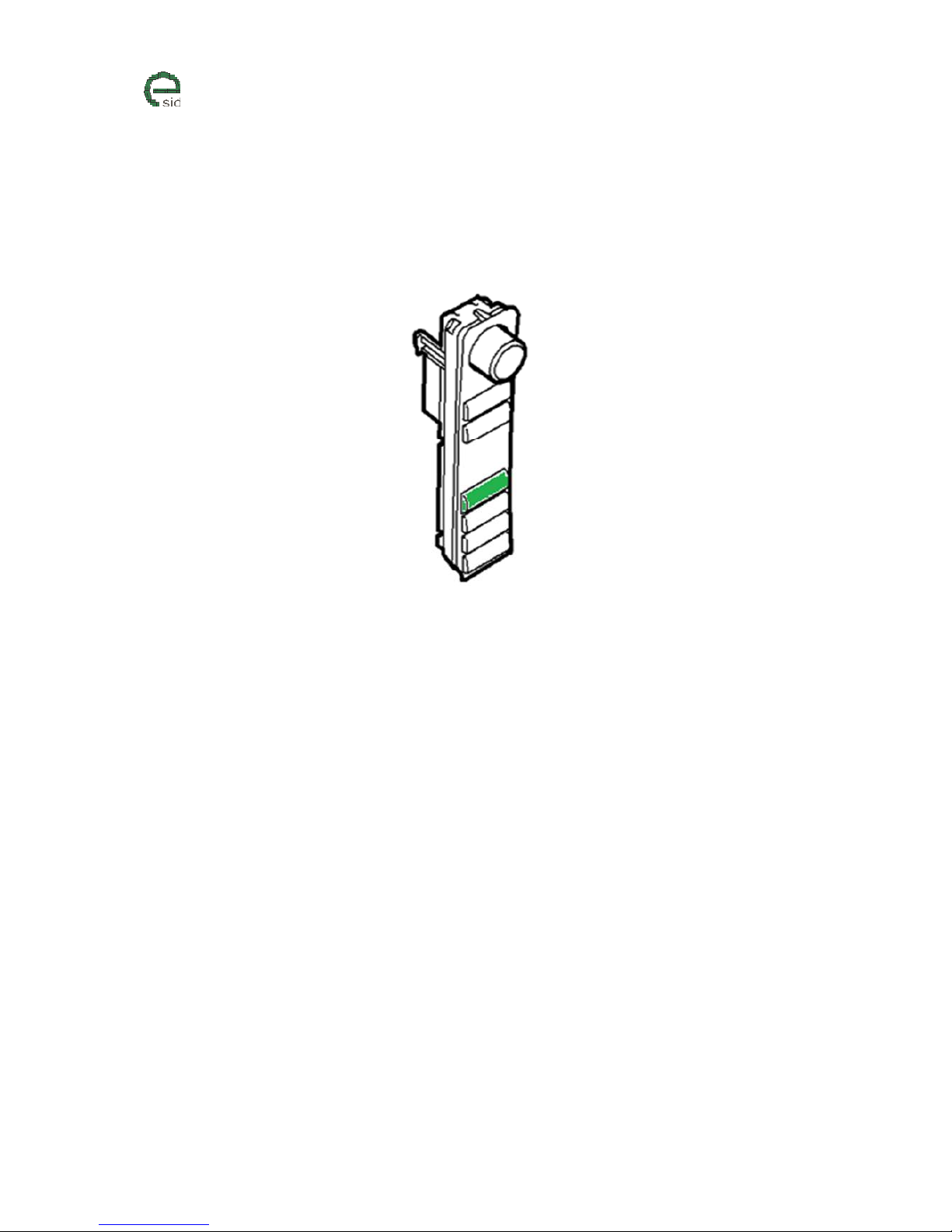
When standing in the Favorite display group, it is possible to change display functions for the active
favorite (1-5) by using the Rheostat+ and Rheostat- switches on the SIDC. The selection will be saved
in eSID.
SIDC Rheostat switches
Page 13
www.esid.se
Page:
13 / 43
Na
me of document:
eSID 03-06 User Guide
V
ersion:
1.2
Display Group: Powertrain
Momentary Fuel
Description
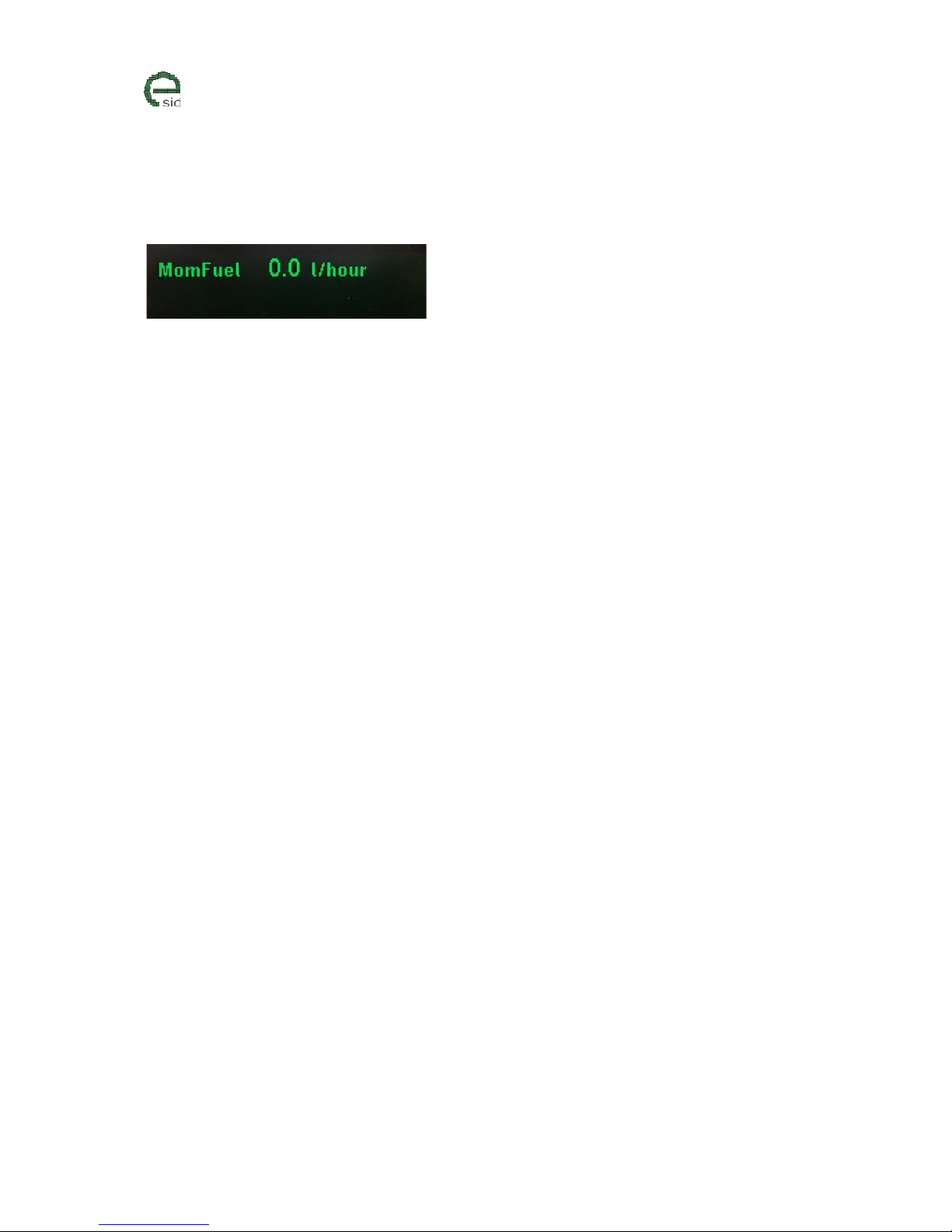
Momentary fuel consumption is calculated every two seconds. If vehicle is standstill with engine
running the consumption is extrapolated to one hour.
Units
• Liter/100km (Metric)
• Liter/hour (Metric)
• Mpg (Imperial UK, US)
• Gal/hour (Imperial UK, US)
User Inputs
N/A
Page 14
www.esid.se
Page:
14 / 43
Na
me of document:
eSID 03-06 User Guide
V
ersion:
1.2
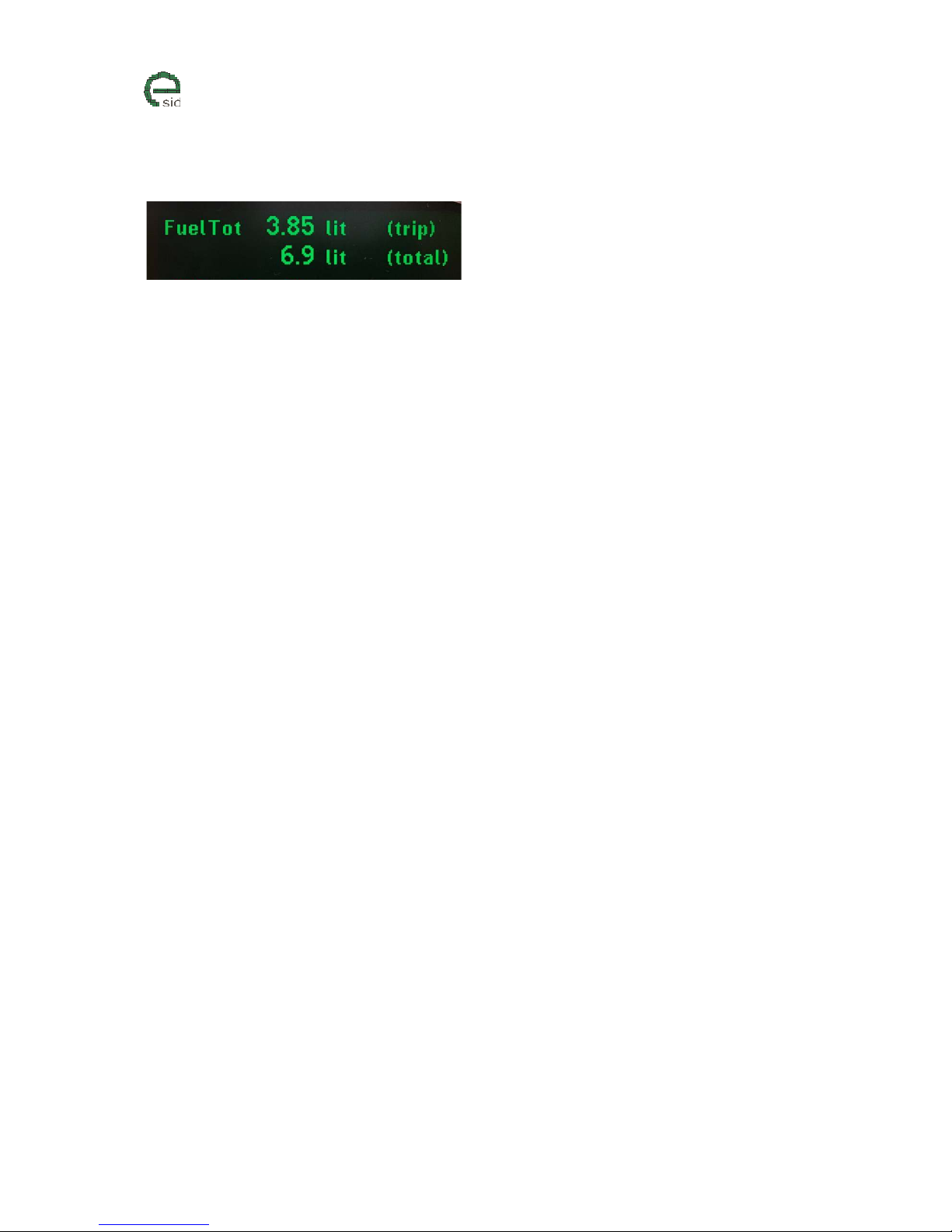
Accumulated Fuel Consumption
Description
The accumulated fuel consumption has two counters, one that resets every trip and one that counts
since last time the counter was manually cleared.
A new trip starts when Ignition key has been removed and inserted.
Units
• Liter (Metric, Imperial UK)
• Gal (US)
User Inputs
• CLEAR resets total accumulated fuel value.
Page 15
www.esid.se
Page:
15 / 43
Na
me of document:
eSID 03-06 User Guide
V
ersion:
1.2
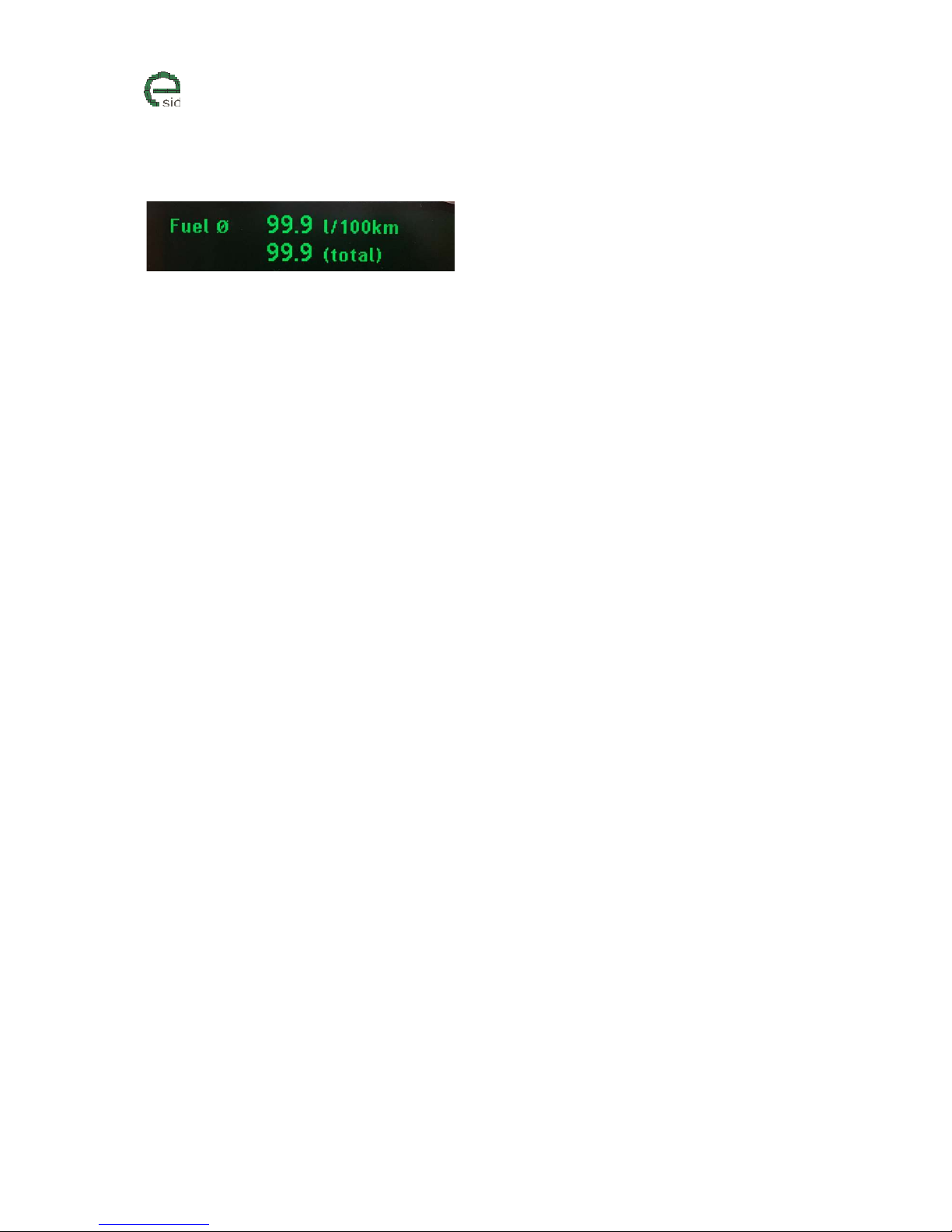
Average Fuel Consumption
Description
The average fuel consumption has two counters, one that resets every trip (upper one) and one that
counts since last time the counter was manually cleared.
A new trip starts when Ignition key has been removed and inserted.
Units
• Liter/100km (Metric)
• Mpg (Imperial UK, US)
User Inputs
• CLEAR resets total average fuel value.
Page 16
www.esid.se
Page:
16 / 43
Na
me of document:
eSID 03-06 User Guide
V
ersion:
1.2
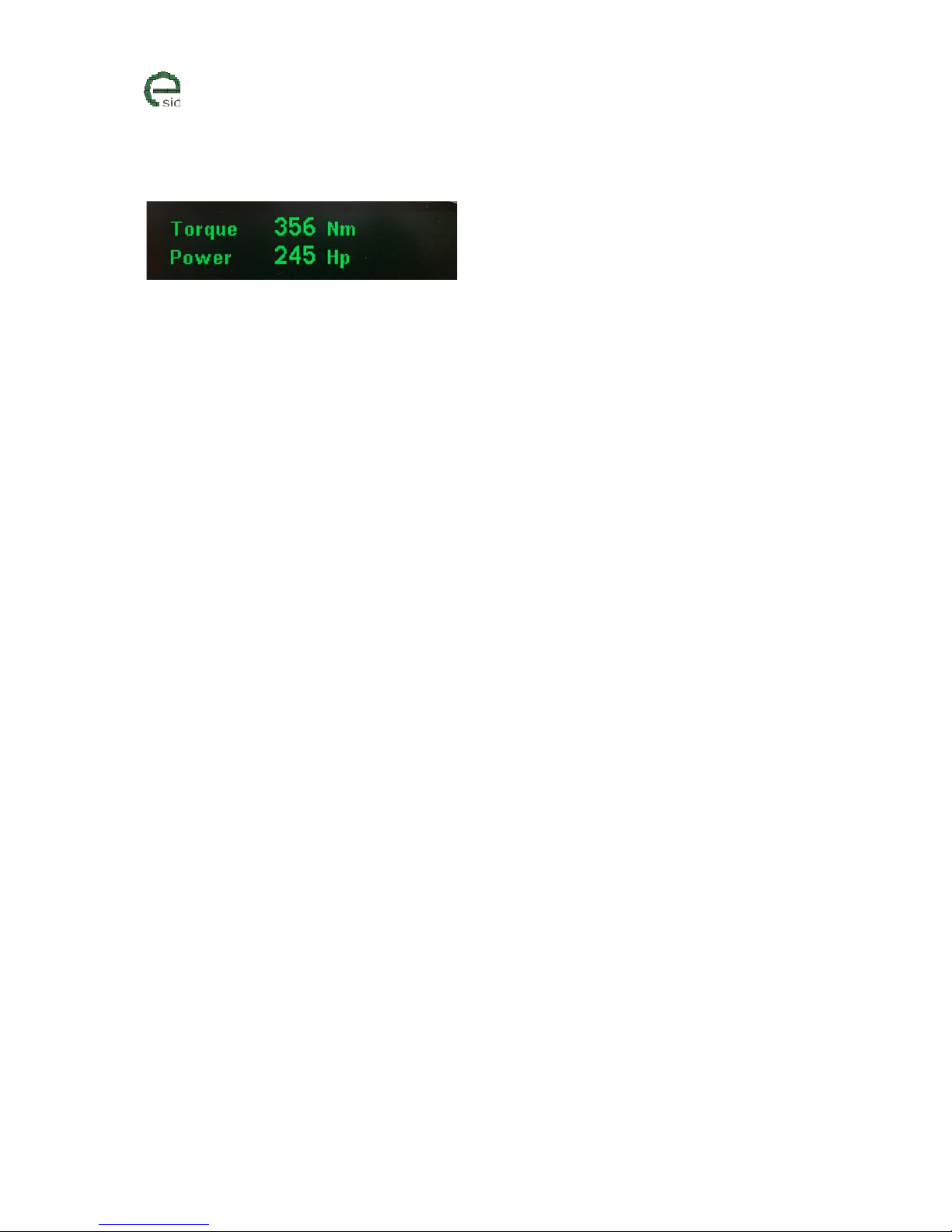
Torque/Power
Description
The actual engine torque is read from the engine controller and the actual power is calculated from
the engine torque and the engine speed.
Note! Tuned vehicles might not show correct values due to tricky limitations in the engine
management software, automatic gearbox limitations or because the tuning company did not recalibrate all the necessary parameters (talk to your tuning company, eSID only reads the estimated
torque from the engine controller)
Units
• Nm/Hp (Metric)
• Lbft/Hp (Imperial UK, US)
User Inputs
• N/A
Page 17
www.esid.se
Page:
17 / 43
Na
me of document:
eSID 03-06 User Guide
V
ersion:
1.2
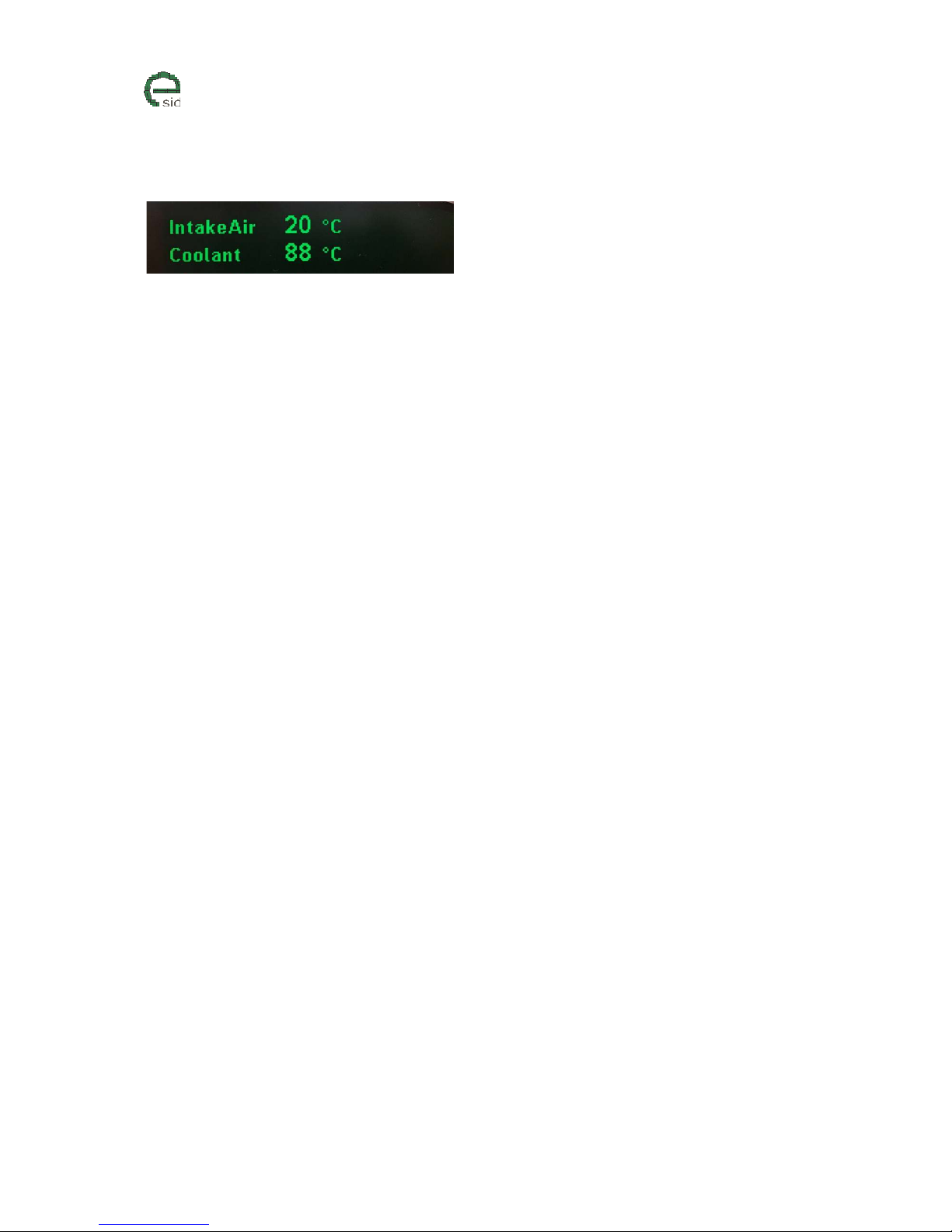
Intake Air Temperature / Coolant Temperature
Description
The intake air temperature and coolant temperature are read from the engine controller.
Units
• ° (Metric, Imperial UK)
• ° (US)
User Inputs
• N/A
Page 18
www.esid.se
Page:
18 / 43
Na
me of document:
eSID 03-06 User Guide
V
ersion:
1.2
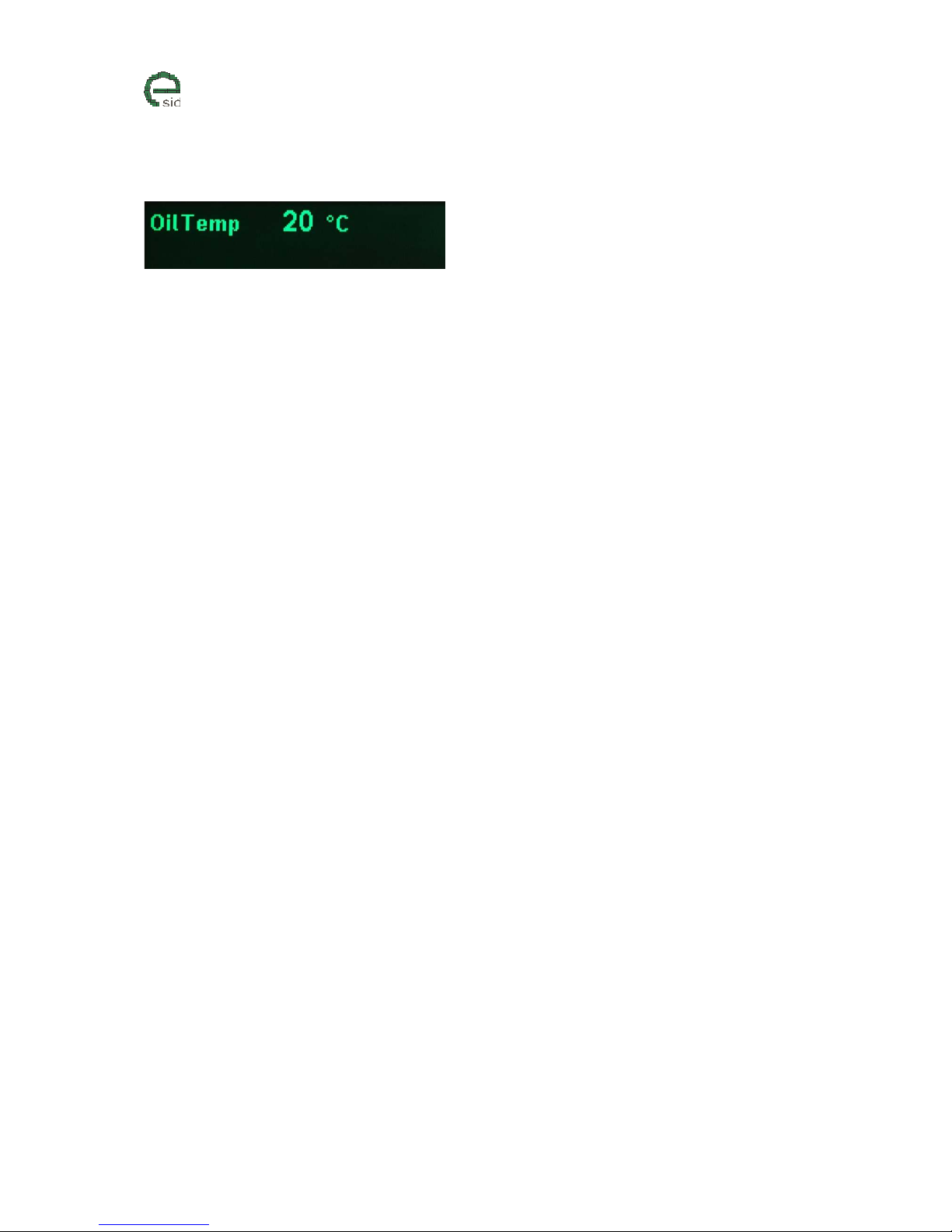
Transmission Oil Temperature
Description
The transmission oil temperature is read from the automatic gearbox controller.
This function only works on Automatic Transmission cars.
Units
• ° (Metric, Imperial UK)
• ° (US)
User Inputs
• N/A
Page 19

www.esid.se
Page:
19 / 43
Na
me of document:
eSID 03-06 User Guide
V
ersion:
1.2
Engine Speed / Vehicle Speed
Description
Unfiltered engine speed (Engine management system does already filter it internally though) and
unfiltered/uncompensated vehicle speed (the instrument cluster adds a few percentage to always
show a higher value than the actual vehicle speed)
Units
• rpm / kmh (Metric)
• rpm / mph (Imperial UK / US)
User Inputs
• N/A
Page 20

www.esid.se
Page:
20 / 43
Na
me of document:
eSID 03-06 User Guide
V
ersion:
1.2
Maximum Torque / Power
Description
The maximum read torque and power values since last cleared.
Units
• Nm / Hp (Metric)
• Lbft/Hp (Imperial UK / US)
User Inputs
• CLEAR resets both values
Page 21
www.esid.se
Page:
21 / 43
Na
me of document:
eSID 03-06 User Guide
V
ersion:
1.2
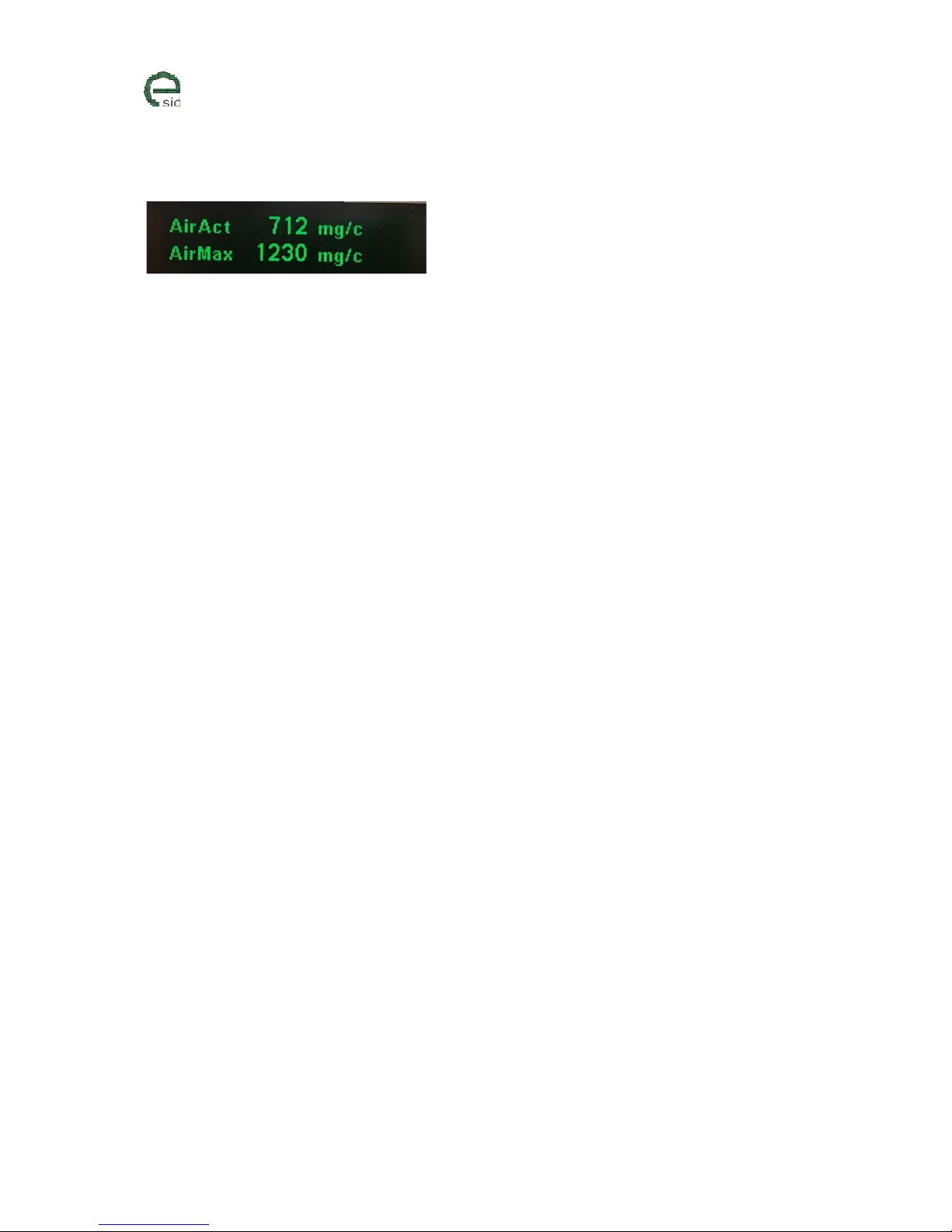
Airmass
Description
The actual engine intake air mass is read from the engine controller. The maximum read value is
shown as maximum air mass.
Units
• mg/c (B207, Gasoline turbocharged engines, 1.8t/2.0t/2.0T
• mg/c (2.2L Diesel)
• g/s (B284, Gasoline turbocharged engines 2.8L)
• kg/h (Z19DTx, Diesel turbocharged engines, 1.9L)
User Inputs
• CLEAR resets maximum air mass value.
Page 22
www.esid.se
Page:
22 / 43
Na
me of document:
eSID 03-06 User Guide
V
ersion:
1.2
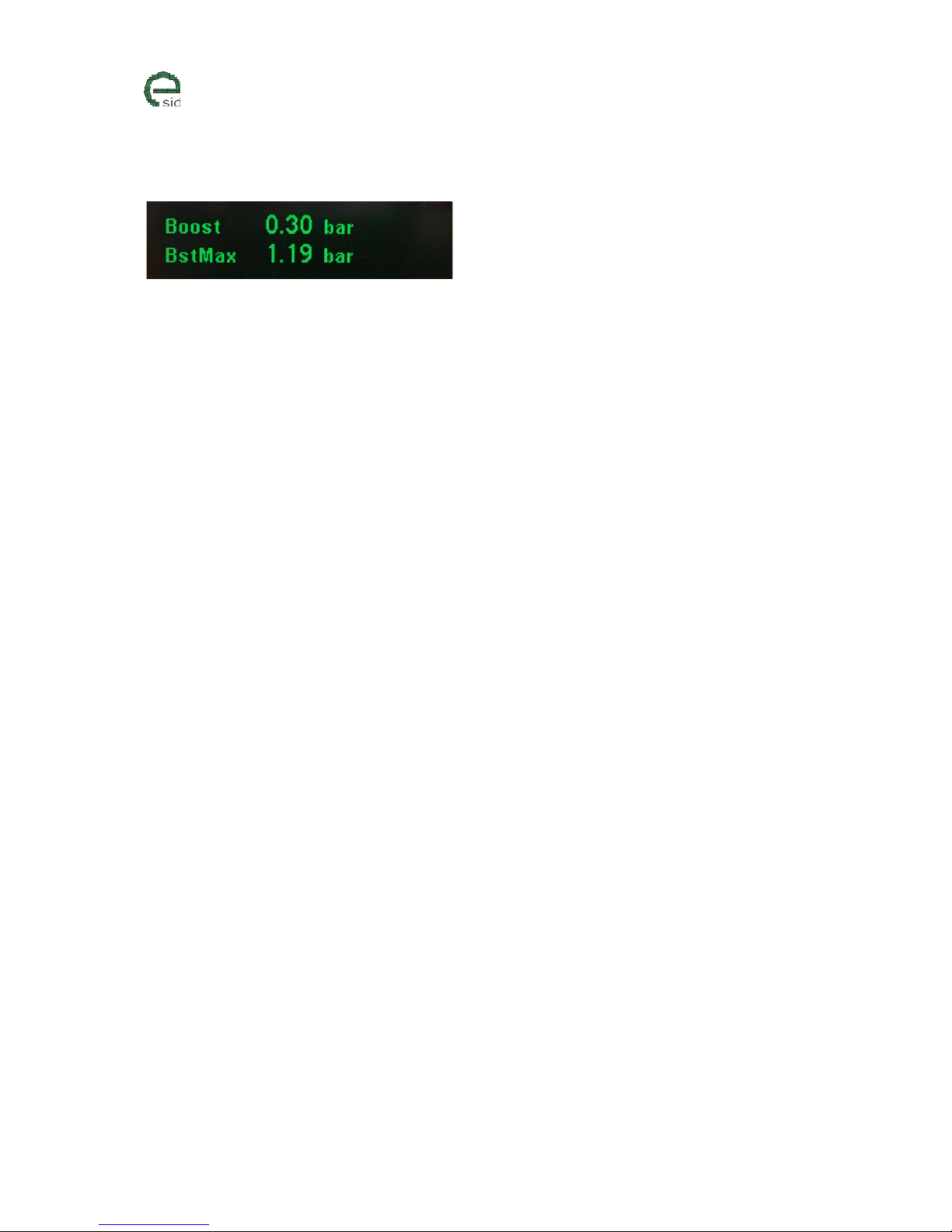
Turbo Boost pressure
Description
The actual engine boost/inlet pressure is read from the engine controller. The maximum read value is
shown as maximum boost.
Units
• bar (Metric)
• bar/InHg (Imperial UK)
• psi/InHg (US)
User Inputs
• CLEAR resets maximum boost value
Page 23

www.esid.se
Page:
23 / 43
Na
me of document:
eSID 03-06 User Guide
V
ersion:
1.2
Ethanol Blend
Description
The estimated ethanol blend is read from the engine controller. BioPower was not officially
introduced on MY2003-2006, but it is quite common to install a BioPower program if the engine
software is tuned, so it has been added as well.
Units
• % (percentage of ethanol in the fuel, 0-85)
User Inputs
• N/A
Page 24
www.esid.se
Page:
24 / 43
Na
me of document:
eSID 03-06 User Guide
V
ersion:
1.2
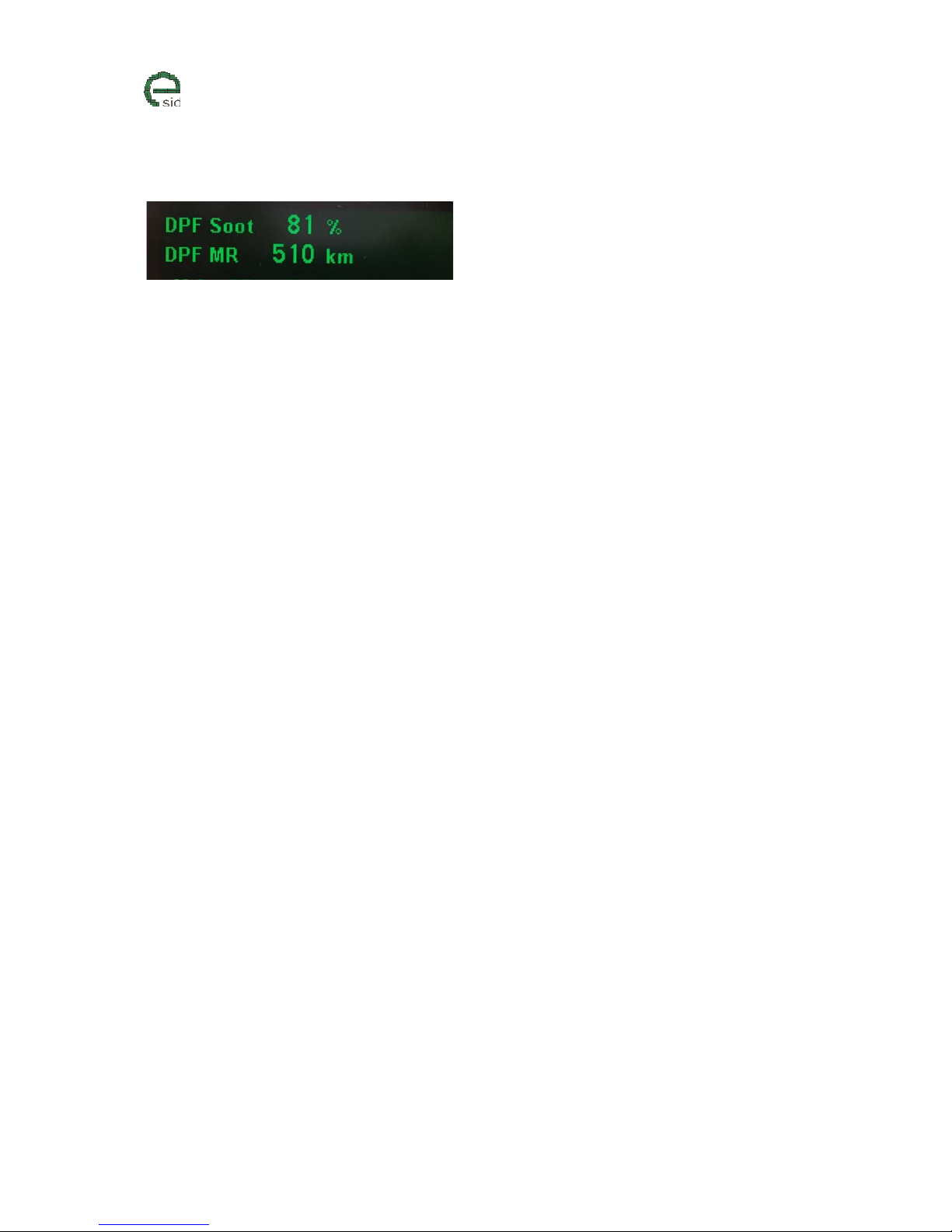
Diesel DPF Data
Description
This display functions shows Diesel Particle Filter (DPF) status to know more about regeneration
when the engine controller determines when to perform regeneration.
• Soot = Soot mass ratio in DPF, mass per filter volume (%)
• MR = Mileage since last regeneration (km)
• Regeneration Active (0-100%) is shown in the upper right corner and also on the status view.
Units
• Km (Metric)
• Miles (Imperial UK, US)
User Inputs
• N/A
Page 25
www.esid.se
Page:
25 / 43
Na
me of document:
eSID 03-06 User Guide
V
ersion:
1.2
Performance
Description
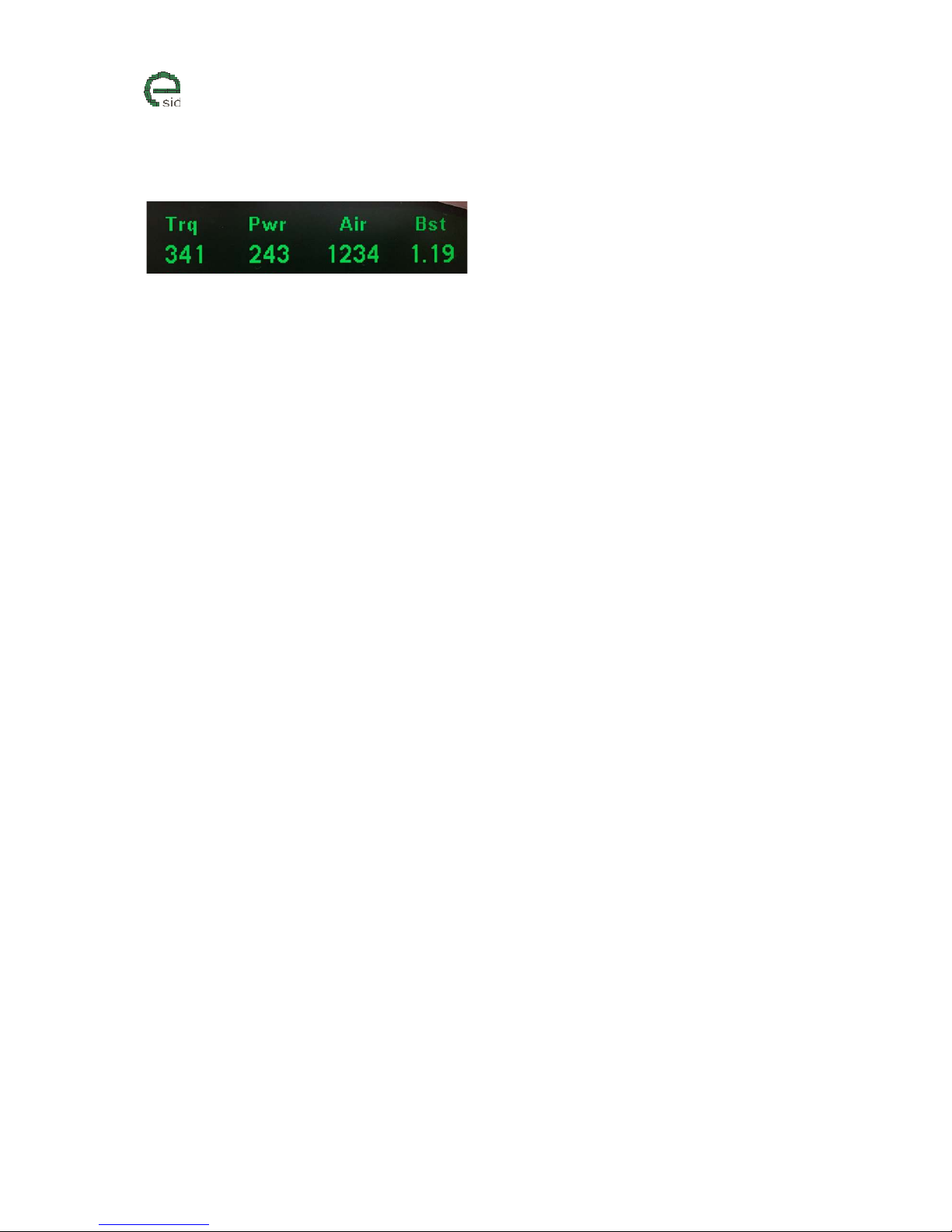
The performance view shows the actual torque, power, air mass and turbo boost. Since it is rather
dangerous to look at the display while performing a full pedal acceleration, the values will reset to
zero when accelerator pedal is pressed more than 80% and directly after it will show the maximum
read value until the accelerator pedal is below 30% for more than 10 seconds, then it will again show
the actual value. This means it is possible to perform acceleration and then afterwards look at the
maximum values during that acceleration.
Units
• Same units as in Torque/Power/Air mass/Boost display views.
User Inputs
• N/A
Page 26
www.esid.se
Page:
26 / 43
Na
me of document:
eSID 03-06 User Guide
V
ersion:
1.2
Display Group: Vehicle
Drive Time
Description
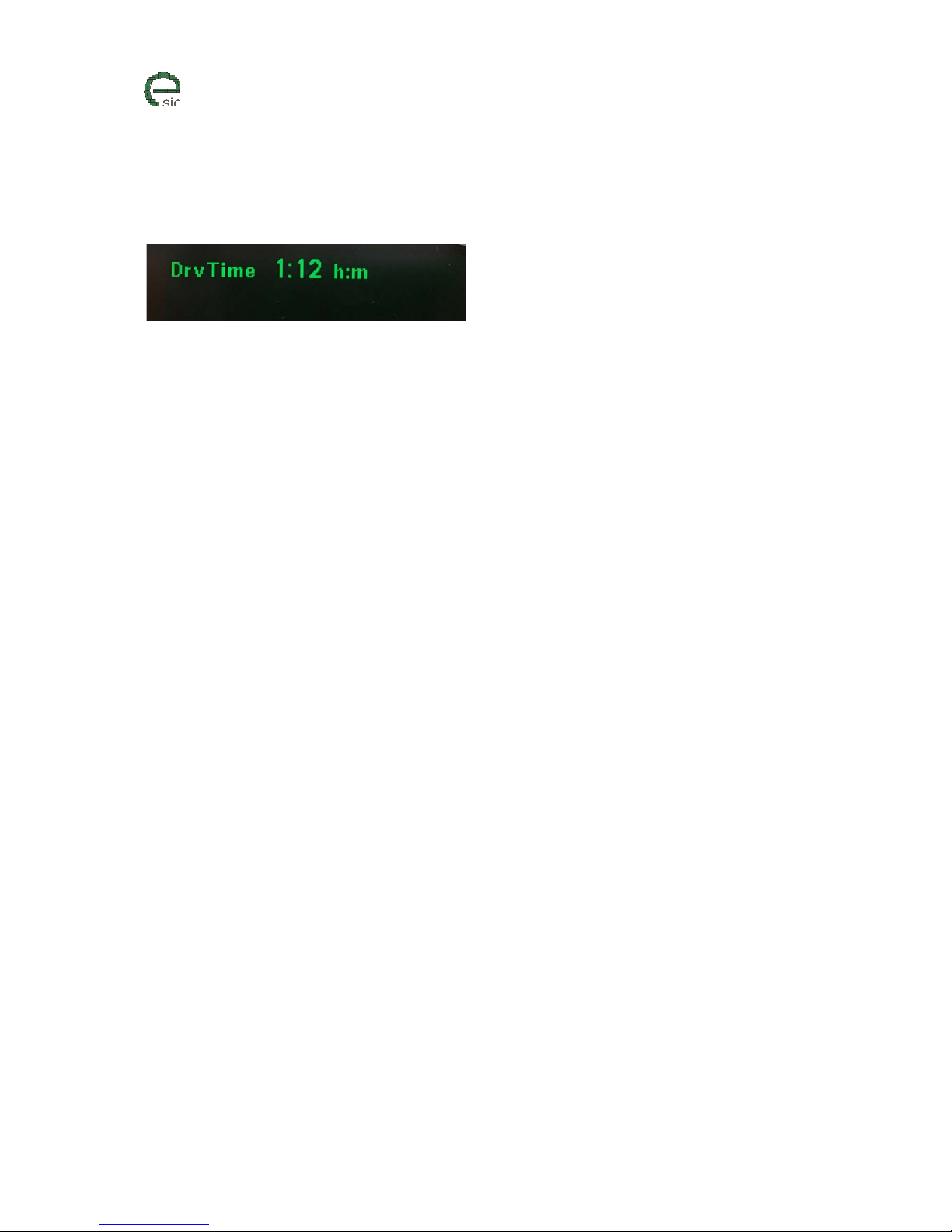
Drive Time shows the accumulated driving since last reset. When the key is removed from the
Ignition Lock the Drive Time will reset, or it can be reset manually.
This value is the same as shown in the Status View, but is possible to reset in this display view.
Units
• Hour:Minutes
User Inputs
• CLEAR resets Drive Time to zero.
Page 27
www.esid.se
Page:
27 / 43
Na
me of document:
eSID 03-06 User Guide
V
ersion:
1.2
Acceleration
Description
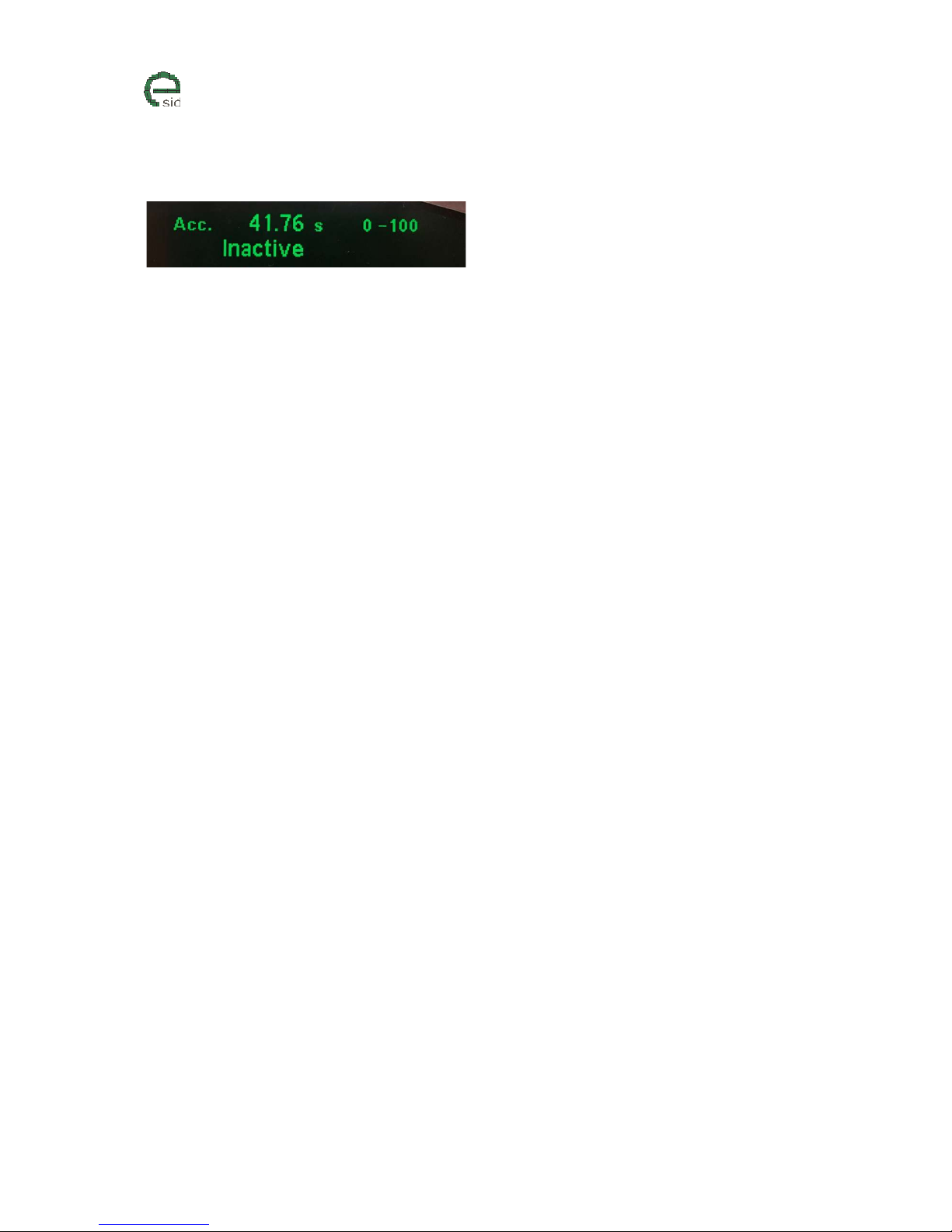
Acceleration shows the time from “Start” to “Stop” which is selected before it is started. “Stop” is
either a speed or a distance (201meter / 402meter). Acceleration has the following states:
1. Inactive – Idle/Finished. Function needs to be started to run again
2. Red.Spd – Function is started but speed is too high to start counting, please reduce it first.
3. Go! – Function is running and the clock is ticking.
Units
• Seconds
• Kmh / meter (Metric)
• Mph / miles (Imperial UK, US)
User Inputs
• INFO – Changes “Start/Stop” values. Will force the display function to Inactive state
• CLEAR – Resets the old acceleration time and restarts the function with the “Start/Stop”
values that are selected.
Page 28
www.esid.se
Page:
28 / 43
Na
me of document:
eSID 03-06 User Guide
V
ersion:
1.2
Battery/Crank Voltage
Description
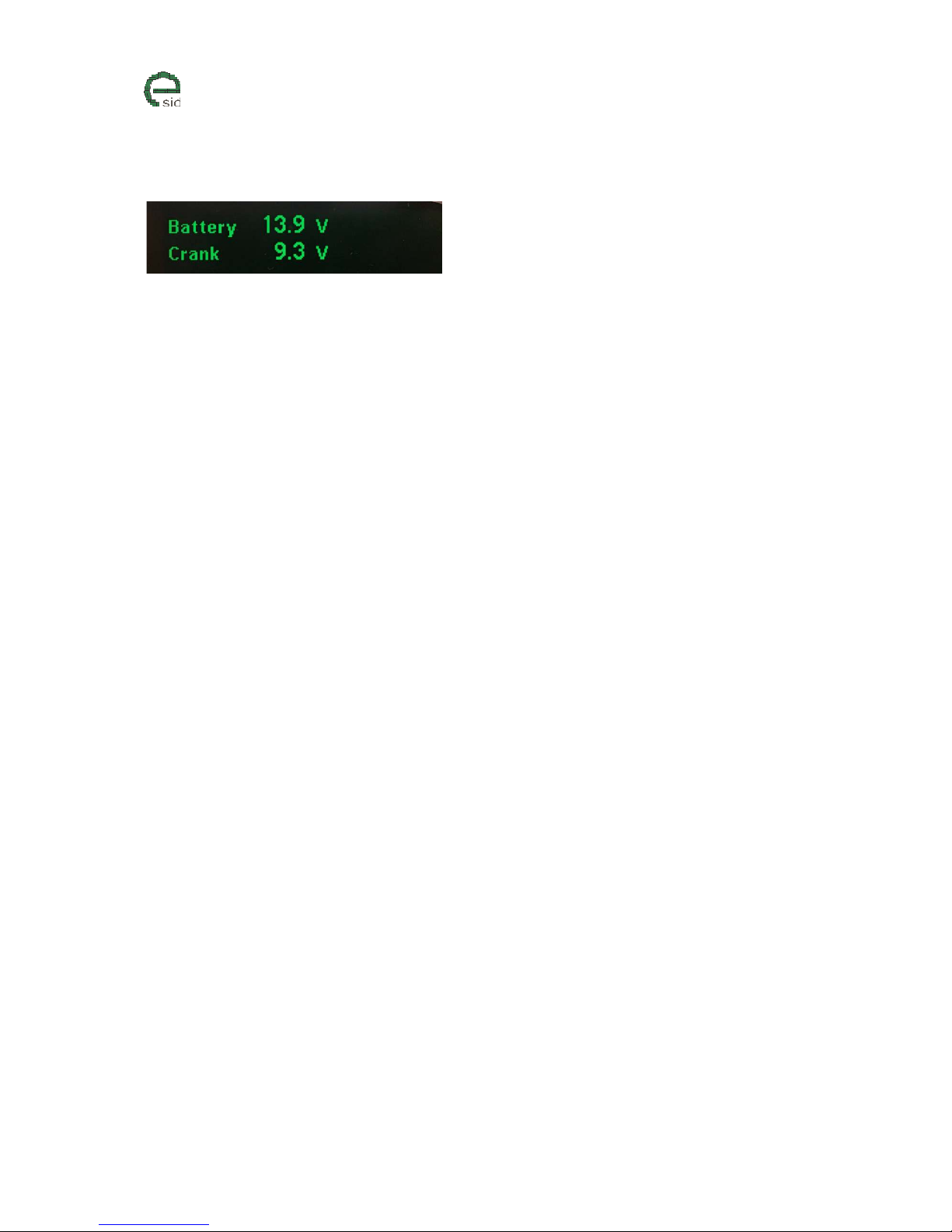
This display function shows the current battery voltage and the lowest registered battery voltage
during the last engine start (crank voltage). eSID reads the voltage when the starter is engaged,
which gives a good hint about the condition of the battery.
Units
• Voltage
User Inputs
• N/A
Page 29
www.esid.se
Page:
29 / 43
Na
me of document:
eSID 03-06 User Guide
V
ersion:
1.2
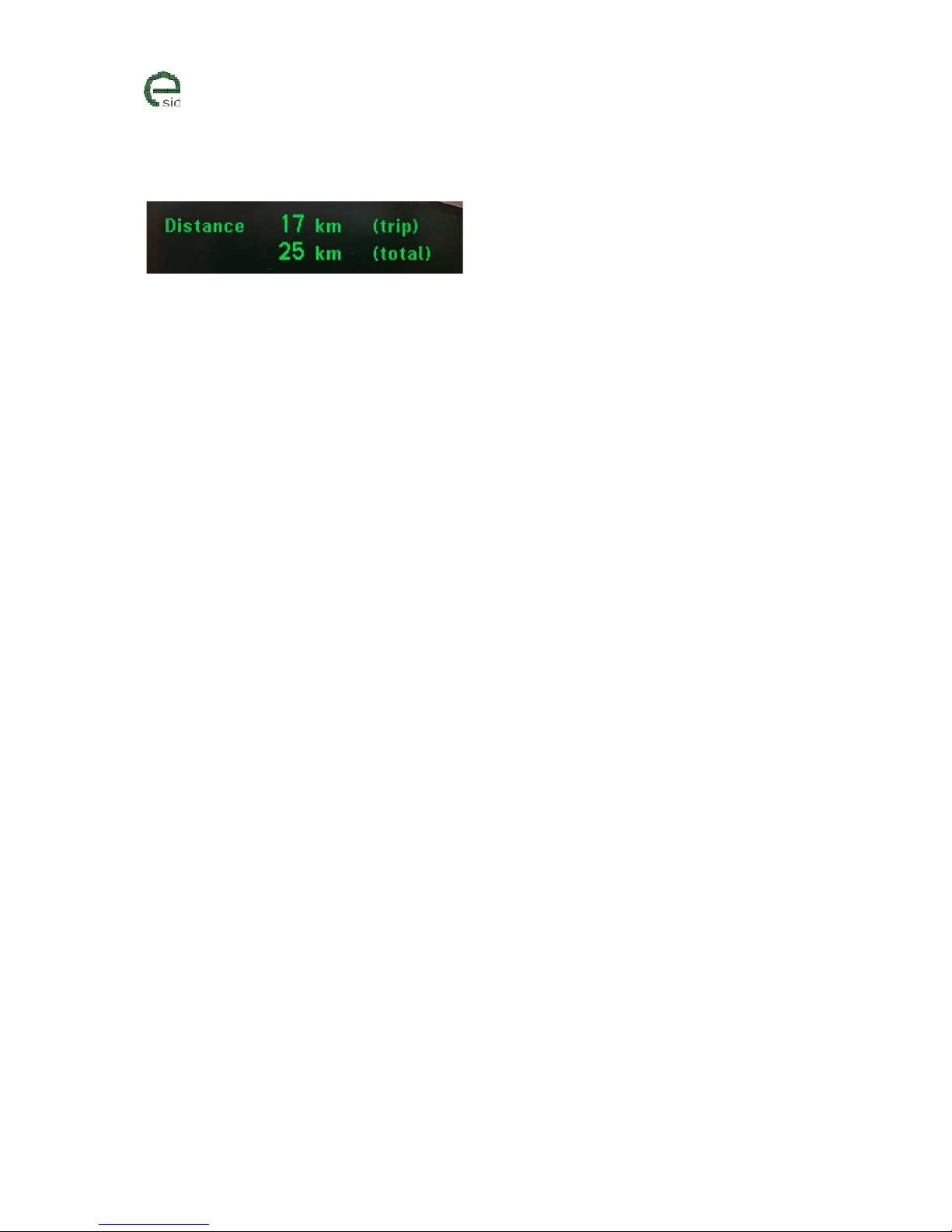
Accumulated Distance
Description
The accumulated distance has two counters, one that resets every trip and one that counts since last
time the counter was manually cleared.
A new trip starts when Ignition key has been removed and inserted.
Units
• km (Metric)
• miles (Imperial UK, US)
User Inputs
• CLEAR resets total accumulated distance value.
Page 30
www.esid.se
Page:
30 / 43
Na
me of document:
eSID 03-06 User Guide
V
ersion:
1.2
Brake distance and time measurement
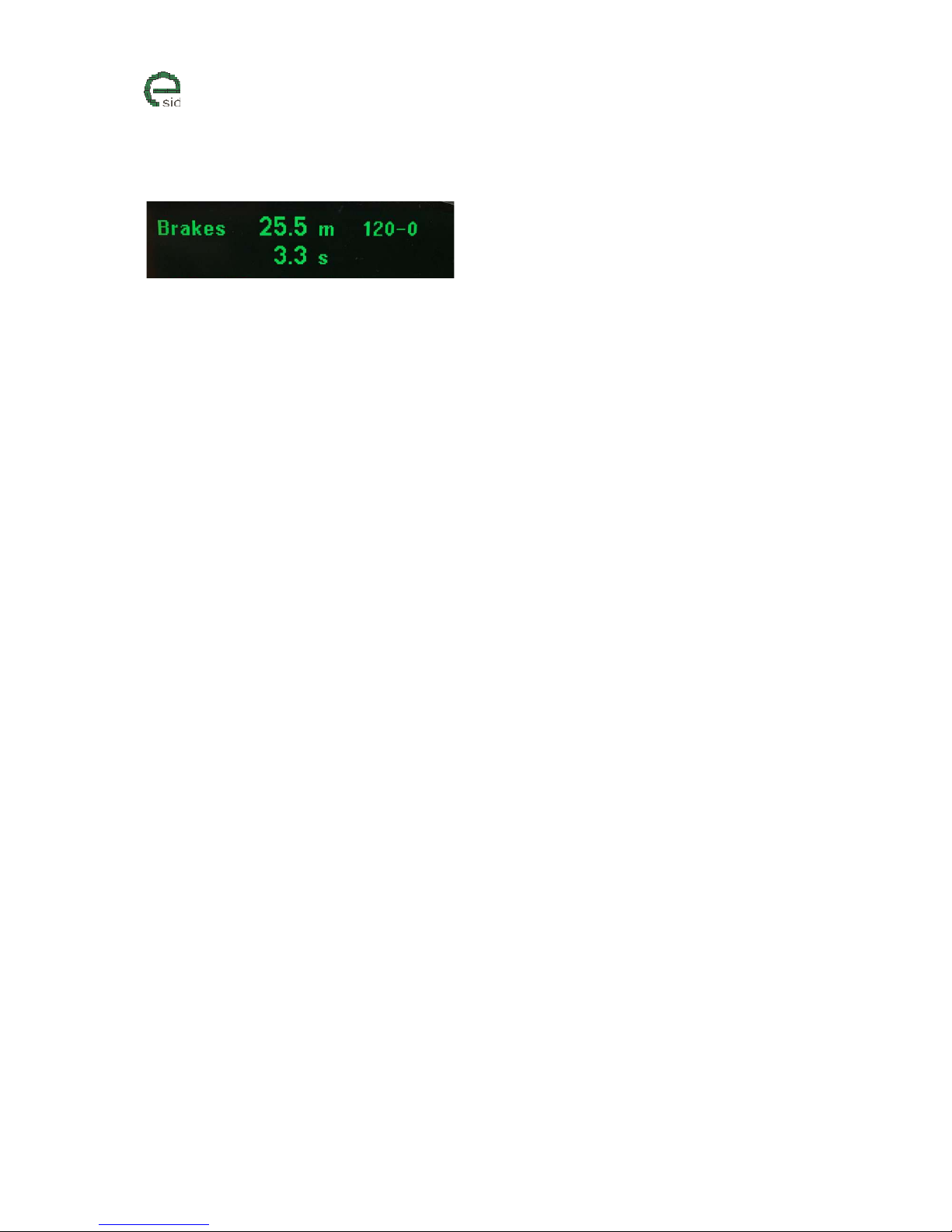
Description
This function runs in the background always and will record and show the last event where the driver
pressed the brake pedal with a vehicle speed higher than 20 km/h. The display will show the duration
of the braking, how long brake distance it was and from what speed the braking began and ended.
In the example above it took 25.5 meters and 3.3 seconds to go down from 120 km/h to standstill.
Units
• meter
• seconds
User Inputs
• N/A
Page 31
www.esid.se
Page:
31 / 43
Na
me of document:
eSID 03-06 User Guide
V
ersion:
1.2
Display Group: Diagnostics
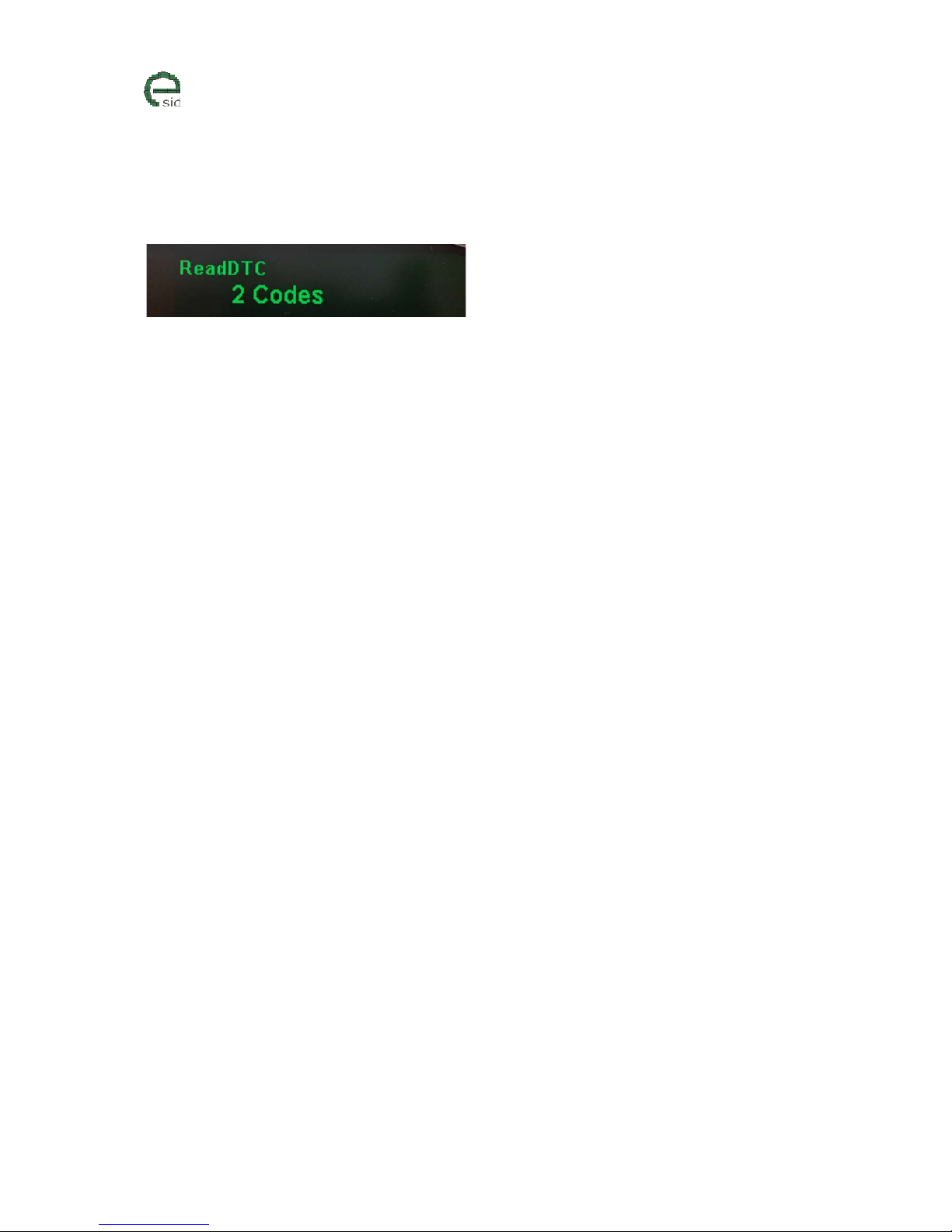
Read DTC
Description
Read DTC function is able to read all the fault codes in the entire vehicle. The result is a list of codes
with ECU and code number. This code number is then needed to look up in Saab WIS (Workshop
Instruction System) before start of fault tracing.
This display function has the following states:
1. Disabled – When engine is running or when Ignition is not in RUN the function is disabled
2. Inactive – When engine is turned off and Ignition Key is in RUN position the functions is
Inactive and ready to be started
3. Running – eSID is reading all the fault codes in all nodes.
4. XXX Codes – eSID finished reading codes and found X number of codes to be displayed.
Note! eSID might find more codes then Tech2 (Genuine Saab dealers analyzing tool), and this is due
to the fact that Tech2 is hiding a large amount of fault codes from the customer due to various
reasons (might not work so good, or is unreliable). Please inform the eSID developers if such codes
are found.
Units
• N/A
User Inputs
• INFO – Start reading codes (if function is not disabled)
• RHEOSTAT +/- shows the next/previous code after it is finished
Page 32

www.esid.se
Page:
32 / 43
Na
me of document:
eSID 03-06 User Guide
V
ersion:
1.2
Clear DTC
Description
Clear DTC function is able to clear/erase all the fault codes in the entire vehicle.
This display function has the following states:
1. Disabled – When engine is running or when Ignition is not in RUN the function is disabled
2. Inactive – When engine is turned off and Ignition Key is in RUN position the functions is
Inactive and ready to be started
3. Running – eSID is erasing all the fault codes
4. Done – eSID has successfully erased all codes.
Units
• N/A
User Inputs
• CLEAR – Triggers a new code erase (If not Disabled)
Page 33
www.esid.se
Page:
33 / 43
Na
me of document:
eSID 03-06 User Guide
V
ersion:
1.2
Display Group: Settings
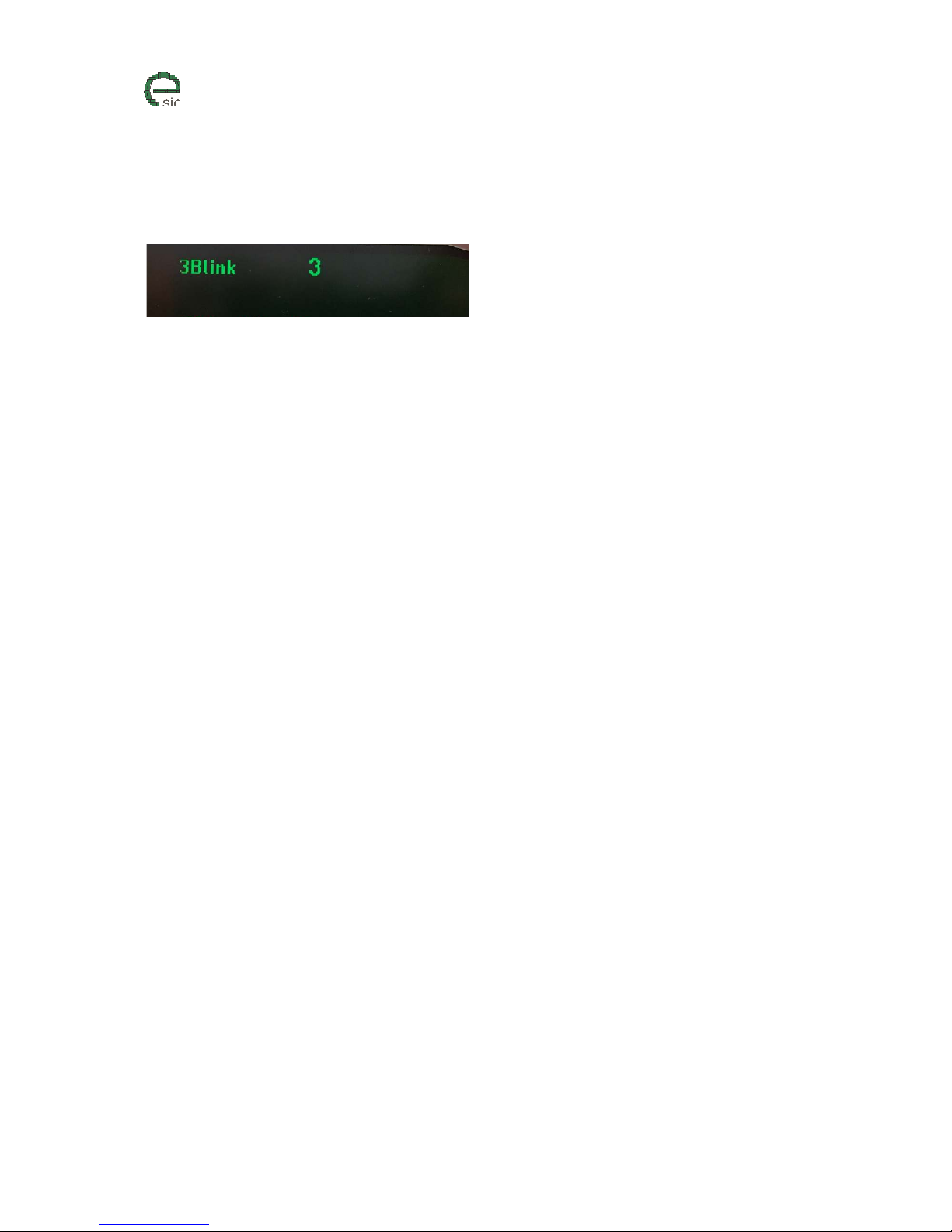
3 Blink
Description
When touching the direction indication stalk for a short amount of time (100-500ms), eSID will give a
selectable number of extra blinks in the same direction.
If the stalk activation time is shorter than 100ms or longer than 500ms, the function will not start.
If the driver interrupts the Three Blink function by using the stalk in left or right direction while its
active, then the function is disabled for three seconds (to avoid blinking back and forth)
User Inputs
• INFO – Triggers change to next settings (0=Off, 3-7 Blinks)
Page 34
www.esid.se
Page:
34 / 43
Na
me of document:
eSID 03-06 User Guide
V
ersion:
1.2
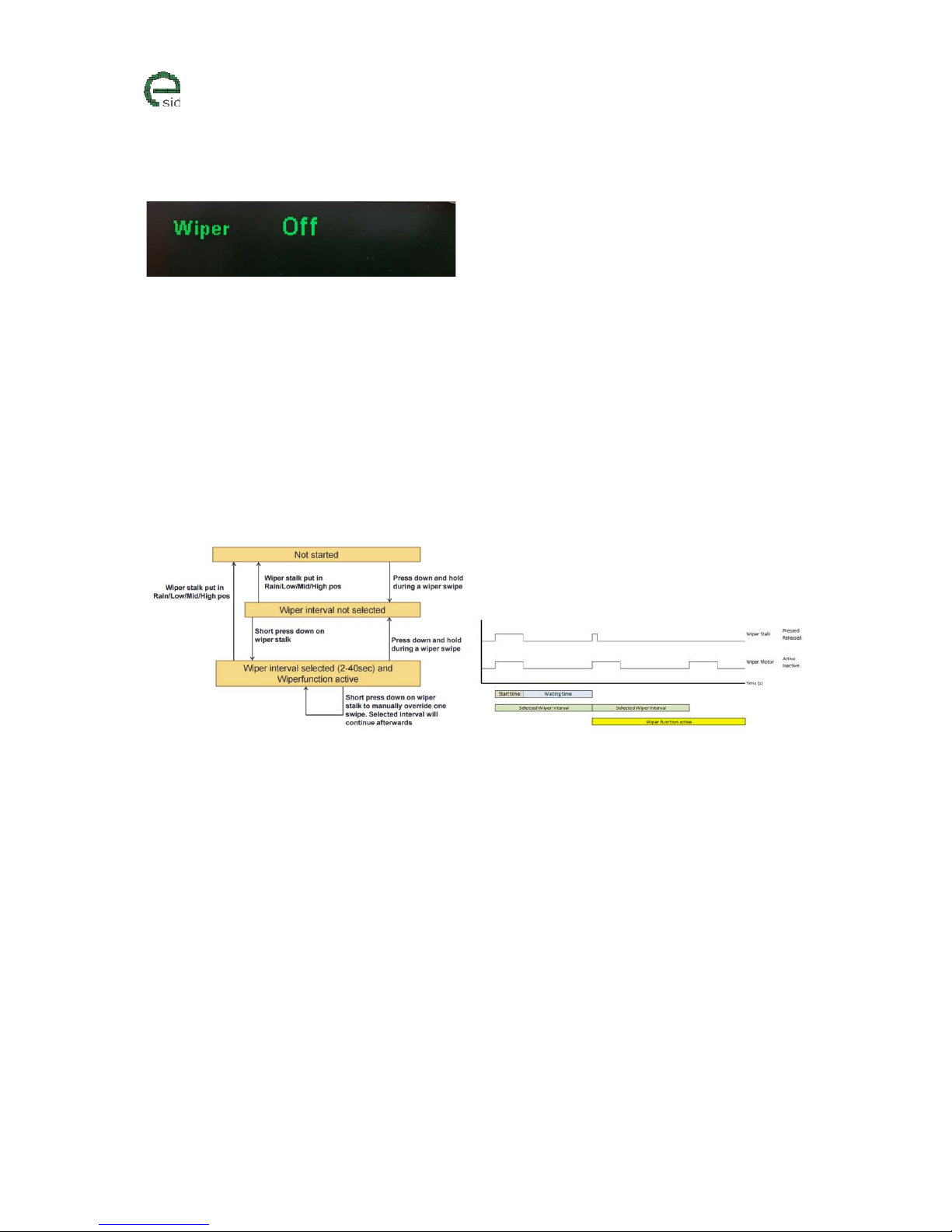
Manual Wiper speed interval
Description
This is a function to manually select the interval between the windscreen wipes. The point is to press
down the wiper stalk and hold it down during a complete ”swipe” of the windscreen and when the
wiper stalk is released back into ”idle” position the eSID counts the time from the stalk was released
until a second short press down on the stalk is performed. Valid delay range is from 2 to 40 seconds.
When the time has been set, the windscreen wiper will continue to run until the driver moves the
wiper stalk into any other position than ”idle” or if the ignition is turned off.
It is possible to manually clean the windscreen with an extra swipe while the function is running and
the wiper will continue with the selected interval afterwards.
Wiper states
User Inputs
• INFO – Triggers change to next settings (Inactive/Active)
Page 35
www.esid.se
Page:
35 / 43
Na
me of document:
eSID 03-06 User Guide
V
ersion:
1.2
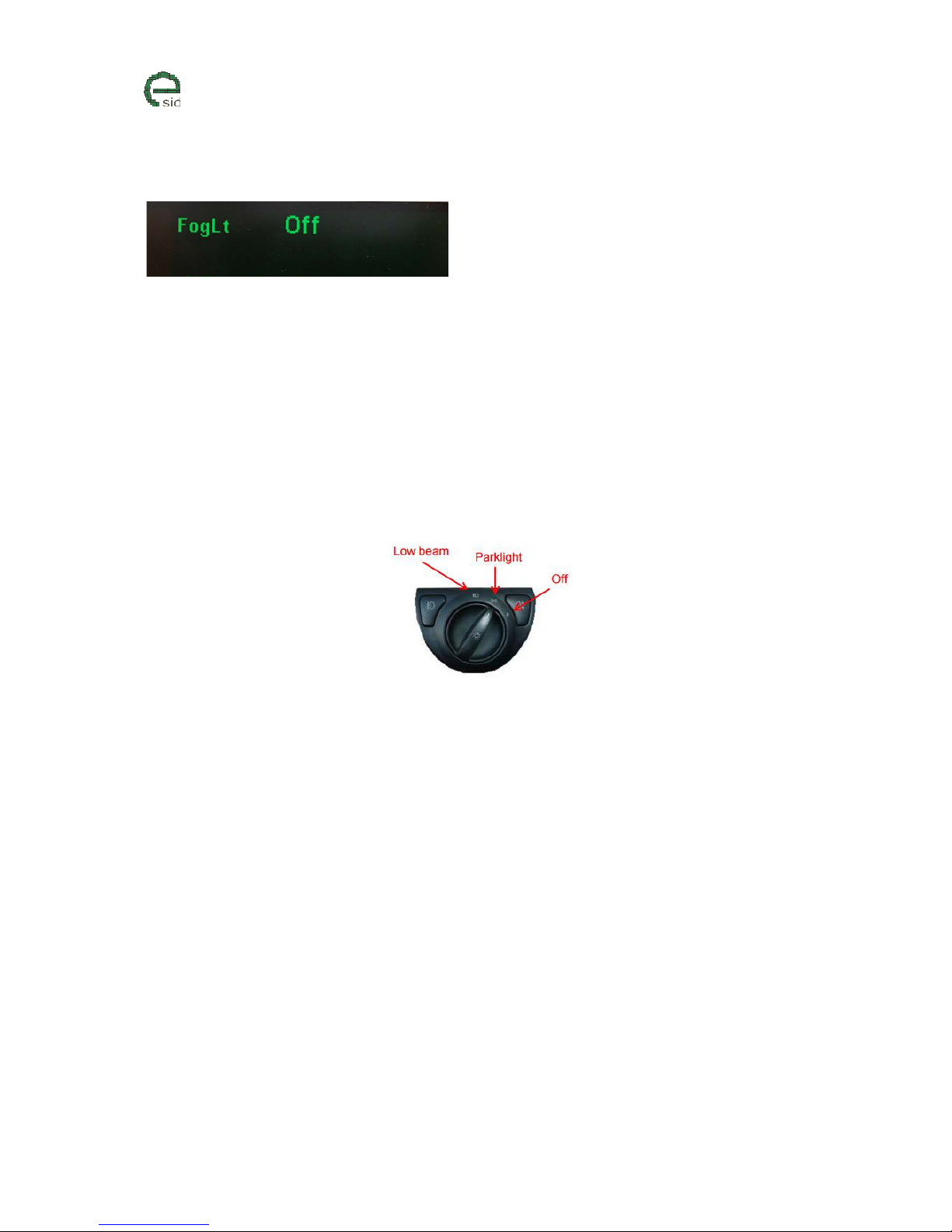
Automatic Foglight activation
Description
This function activates the front fog-lights automatically when turning the Main Light Switch to Park
position or/and when activating the full/main beam
Normally the driver needs to manually switch the light switch to ”Park” and press the fog light switch.
eSID helps with the activation so the driver only needs to turn the light switch to ”Park”.
When turning to ”Park” from ”Off” or ”Low beam” (and the fog Lights are off), then they will be
activated (if configured)
When activating main beam (and the fog lights are off) the fog lights will activated (if configured)
Main Light Switch
Automatic fog light activation in Park is not possible on USA/Canada-vehicles
User Inputs
• INFO – Triggers change to next settings
(Off, Position Light, Main beam or Position Light AND Main beam)
Page 36
www.esid.se
Page:
36 / 43
Na
me of document:
eSID 03-06 User Guide
V
ersion:
1.2
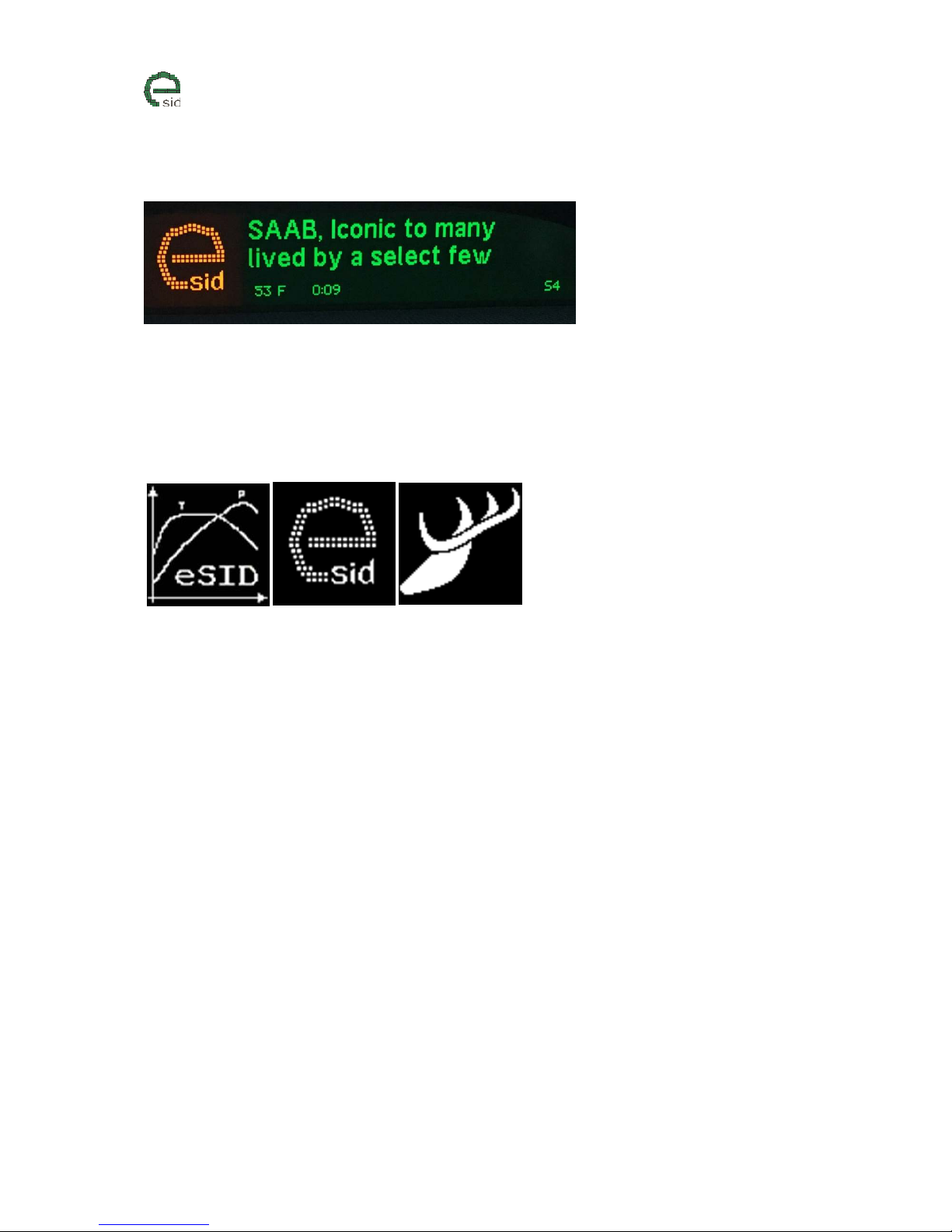
Welcome Message
Description
This view shows the current status of the Welcome message and the welcome message text is
adjustable here.
Welcome Icon
It will be possible to change the welcome icon using a separate utility program.
User Inputs
• INFO – Next character
• RHEOSTAT +/- changes the character (Note! Not all ASCII characters can be displayed on the
screen (will be blank) but keep pressing +/- to change to all supported characters.
Page 37

www.esid.se
Page:
37 / 43
Na
me of document:
eSID 03-06 User Guide
V
ersion:
1.2
Fuel correction factor
Description
Used to trim the measured fuel values
Example: 1.053 means increase the measure value with 5.3%
0.987 means decrease the measured value with 1.3%
User Inputs
• RHEOSTAT +/- changes the value.
Page 38

www.esid.se
Page:
38 / 43
Na
me of document:
eSID 03-06 User Guide
V
ersion:
1.2
Distance correction factor
Description
Used to trim the measured distance values
Example: 1.032 means increase the measure value with 3.2%
0.995 means decrease the measured value with 0.5%
User Inputs
• RHEOSTAT +/- changes the value.
Page 39

www.esid.se
Page:
39 / 43
Na
me of document:
eSID 03-06 User Guide
V
ersion:
1.2
Auto Start
Description
This setting enables / disables the Auto Start function.
User Inputs
• INFO – Triggers change to next settings (Inactive/Active)
Page 40
www.esid.se
Page:
40 / 43
Na
me of document:
eSID 03-06 User Guide
V
ersion:
1.2
Extra functionality
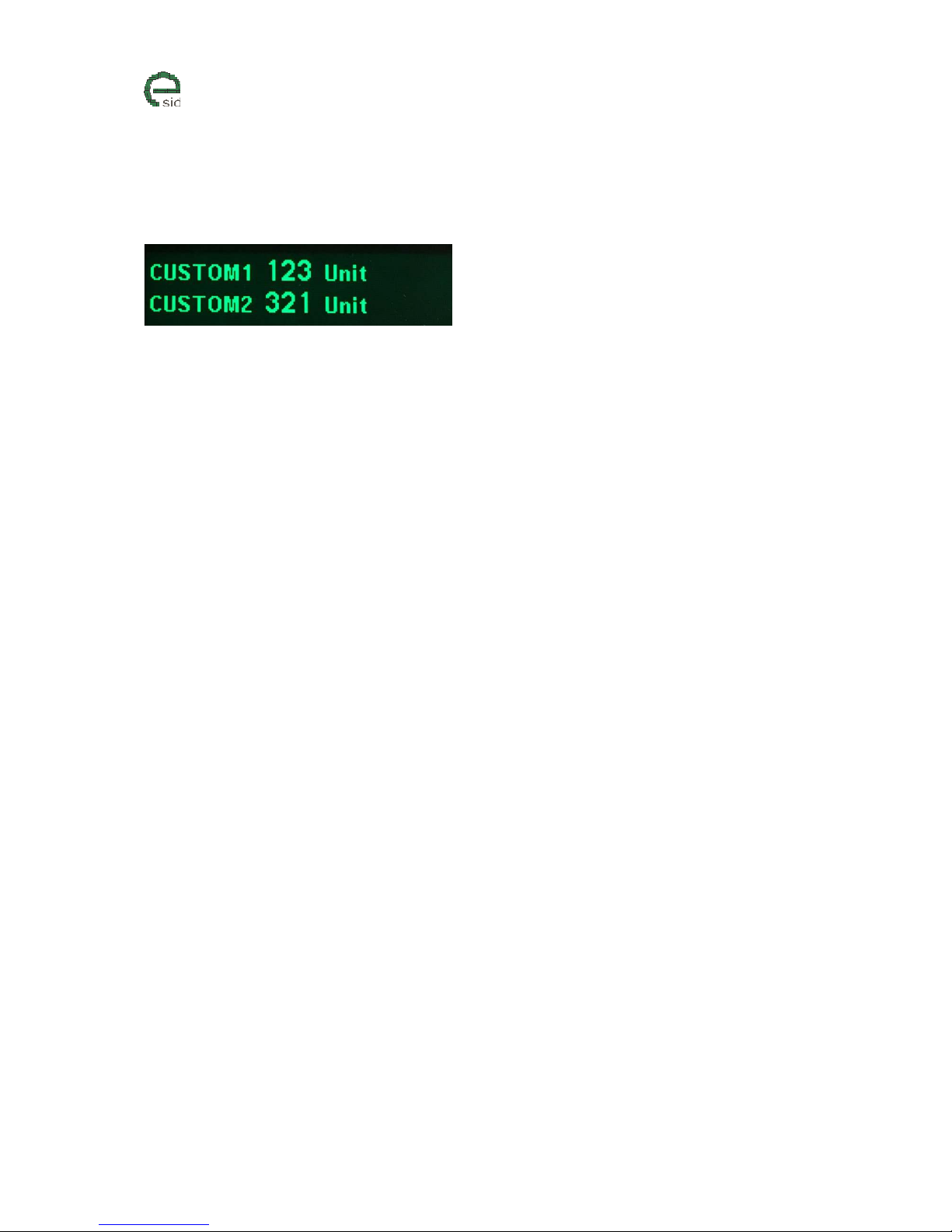
Custom main view
Description
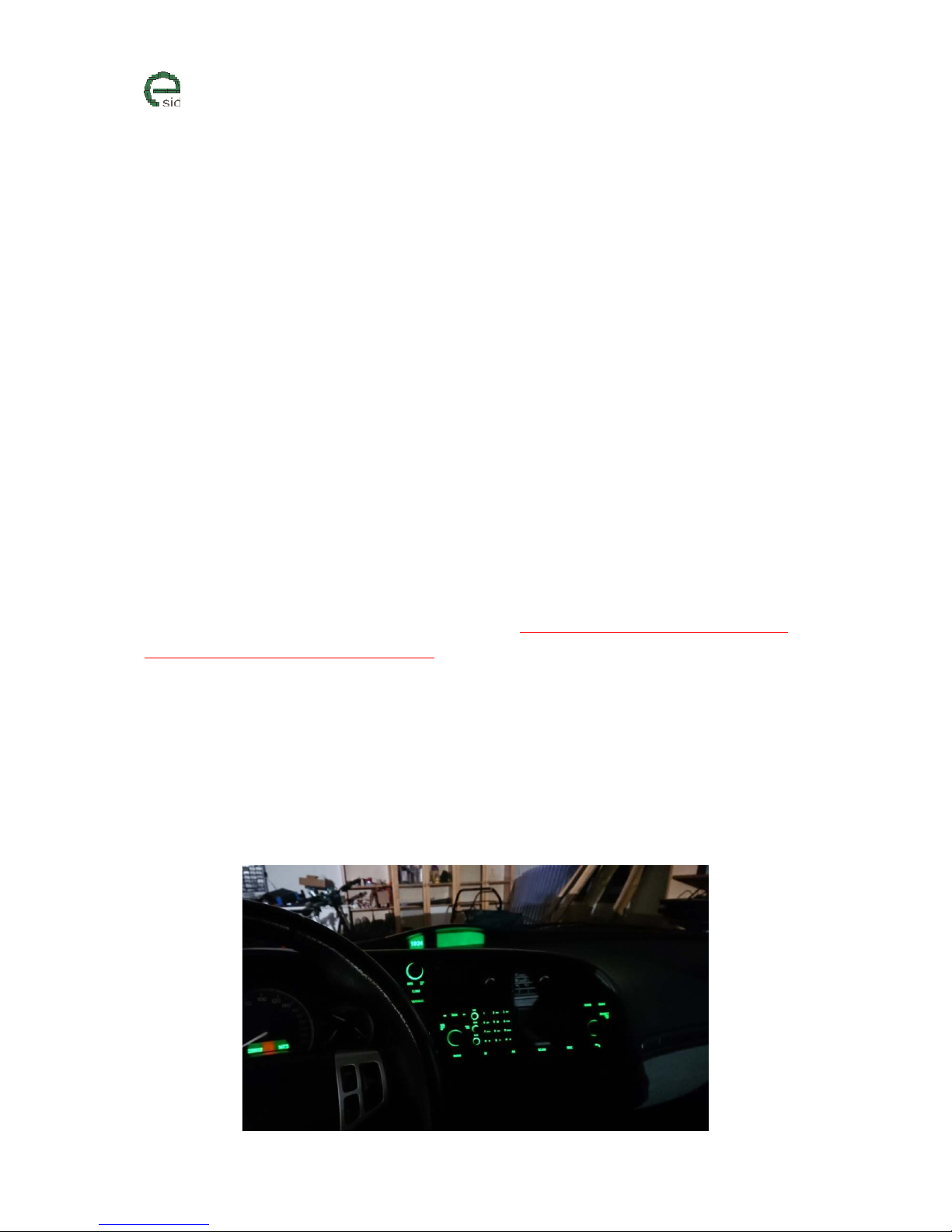
For the people that love customizing their cars and also work with the CAN-bus, a special main view
was added that allows the user to switch to a “Custom main view” where it is possible to show two
variables whose name, value and unit can be changed using CAN bus commands.
It is possible to choose the custom main view as a favorite or switch to it using a CAN bus command.
Page 41
www.esid.se
Page:
41 / 43
Na
me of document:
eSID 03-06 User Guide
V
ersion:
1.2
Limitations
There are some limitations when using this eSID. When eSID goes active it disables the bus
communication from ICM to the SID, thus making ICM believe that SID is not responding/dead and all
the limitations are due to how the Saab infotainment system is designed.
Some are understandable but it is not obvious why certain functions stops working but it is due to
how the supplier of the system divided the software modules/functions between the internal
components.
Not possible to change volume (ICM: 1)
It is not possible to change the volume when eSID is active if the vehicle is equipped with ICM1. This
is an annoying limitation in the Saab ICM system. It is the same issue if the SID is broken. This is the
main reason it is not recommended to have ICM1 and eSID.
ICM system freezes and does not go to sleep or deactivate illumination
(ICM: ALL)
There is a probability that the ICM can "freeze" while removing the key from Ignition Lock when eSID
is active and then it will not go to sleep or turn off the interior illumination when locking the car.
This is a known ICM issue but just much more likely to occur when eSID is active and ICM does not
have any connection to the SID. If this happens one must
remove and re-insert the
Fuse 14
in
the fuse box next to the steering wheel.
Saab identified this issues (and many other issues) and made an aftermarket software release but
only for 2005-2006 (available in TIS and called "field fix" from 2008). I recommend that this field fix is
installed if possible.
For 2003-2004 there is unfortunately no solution except install a newer ICM with the field fix already
installed, manually turn-off the eSID before removing the key from the Ignition Lock when leaving
the car, or be aware of it and remove and insert the fuse whenever it happens. Some customers has
it twice per month others only once in a 3 month period.
Page 42

www.esid.se
Page:
42 / 43
Na
me of document:
eSID 03-06 User Guide
V
ersion:
1.2
Not possible to change radio channel and CD track using steering wheel
(ICM: 1 and 2)
This is another annoying limitation in the Saab ICM system. It is the same issue if the SID is broken.
Not possible to hang up phone call (ICM: 2)
The phone view freezes when hanging up the call and the driver must manually switch eSID to
passive to hang up the call. No issue has been found when receiving the call when eSID is active.
Not possible to see Navigation directions (ICM: 3)
ICM is unable to print navigation direction on the SID while eSID is active. It is possible to select in the
menus to see them on half the ICM3 screen.
No seatbelt warning sounds (ICM: ALL)
The display warning will not be shown in SID and the sounds will not be heard, if the eSID is active.
Switch illumination reduced (ICM: ALL)
As the daylight illumination sensor is located inside the SID, the ICM is unable to determine if its day
or night when eSID active so it will enter a fault mode (Night-mode) with lower intensity of the
switch illumination
Parking Assist delayed activation (ICM: ALL)
In order to have the parking assist audible indication the eSID needs to switch to passive when
reverse gear is engaged and back to active then the gear is not reverse. Each switch takes a little bit
of time so please keep this in mind. The parking assist is not functional until the beep comes from the
Infotainment system.
Not possible to activate Night Panel (ICM: ALL)
On some model years and ICM systems, it is not possible to switch to Night Panel mode while eSID is
active. It is possible to activate Night Panel when eSID is inactive and then switch back to eSID.
Page 43

www.esid.se
Page:
43 / 43
Na
me of document:
eSID 03-06 User Guide
V
ersion:
1.2
Different view when eSID is going passive (ICM: ALL)
ICM is still reading the SIDC at all times, even when eSID is active and the ICM cannot show anything
on the SID. So when returning to ICM it might be in a different view then when switched to eSID.
It might also have detected a long press on INFO as a valid command to change Speed limit for
instance.
It has been found that ICM can fail to print out all the data on the display when eSID is going from
Active to Passive, but it is usually corrected by turning the SIDC. This is erratic fault handling in the
ICM and only a consequence when using eSID, not eSID’s fault.
Note! Avoid pressing “Customize” when eSID is active as one might change the ICM Settings without
knowing/seeing it.
 Loading...