

Page 1
Quick Reference
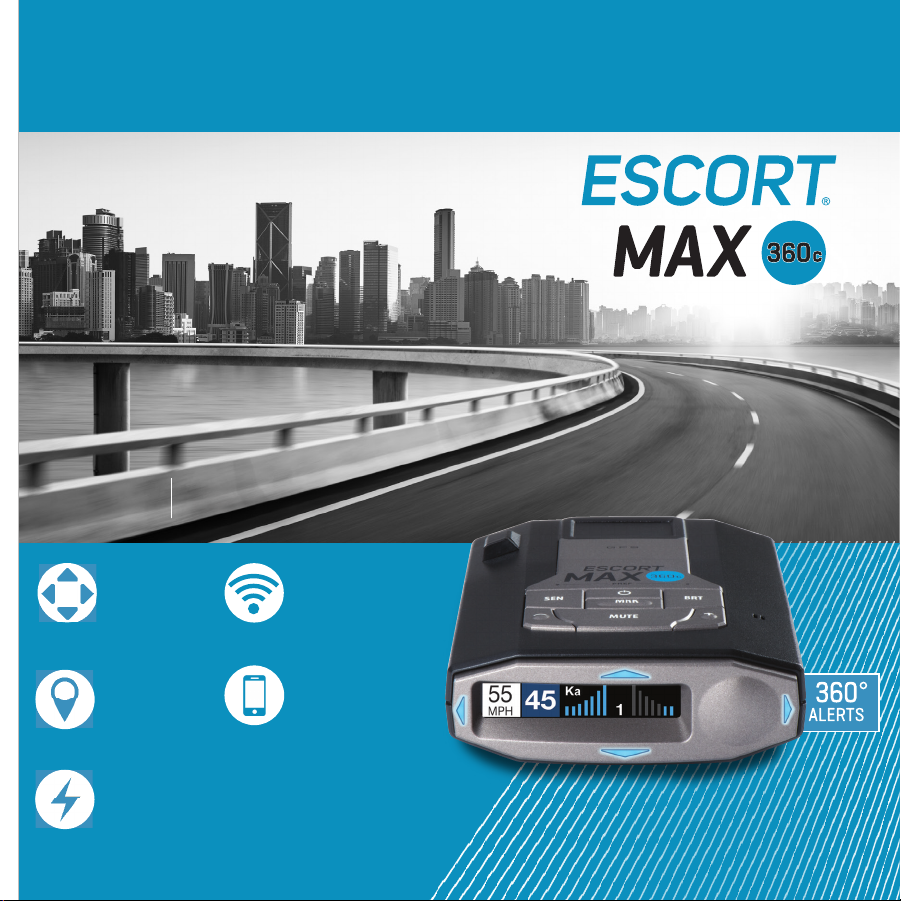
360° Radar/Laser Detector with
Alert-Signaling Arrows
MAX 360c
360° Directional
Alert Arrows
GPS Intelligence
Rejects False Alerts
Lightning Fast Response
Intelligent 360° Radar
Laser Detection
Connected Car’s Wi-Fi
Provides Crowd Sourced
Alerts & Software Updates
ESCORT Live App
Provides CrowdSourced Alerts
Page 2
Congratulations MAX 360c Features
®
•
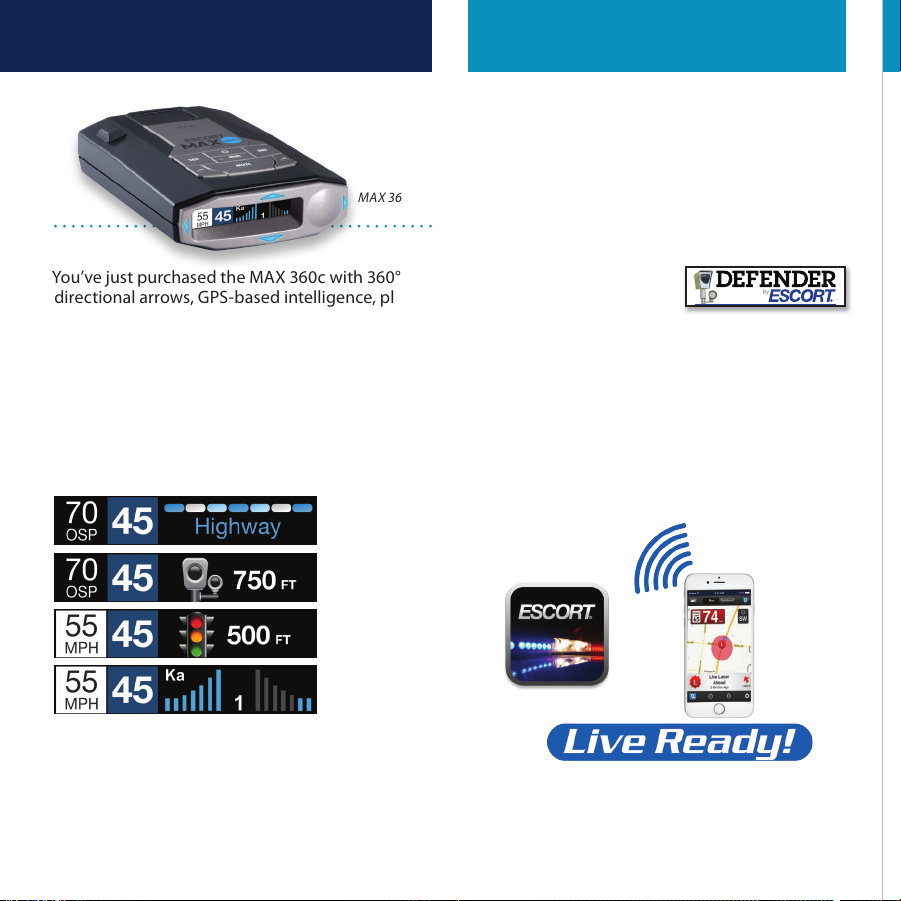
Front and rear radar receivers oer 360° ticket
protection.
• Threat direction arrows report the direction an
alert is coming from.
MAX 36 0c
You’ve just purchased the MAX 360c with 360°
directional arrows, GPS-based intelligence, plus
Bluetooth® and Wi-Fi connectivity.
Go to EscortRadar.com for the full featured
MAX 360c Owner’s Manual.
Guía de Referencia Rápida Española traducida y
manual con todas las funciones también son
disponibles a www.EscortRadar.com
MAX 360c features
a new multi-color
OLED display.
Brilliant graphics
illuminate intuitive
icons that identify
the type of threat at
a glance.
• MAX 360c’s GPS location-based intelligence
automatically locks out false alerts and allows
you to mark locations for future reference.
• Using Wi-Fi, MAX 360c
gives you wireless access
to ESCORT’s DEFENDER
Database, which warns you of veried speed
traps, speed cameras, and red light cameras.
• MAX 360c with built in Bluetooth® and Wi-Fi
technology, gives you access to ESCORT’s
award-winning app, ESCORT Live. Our exclusive
real-time ticket-protection network which
warns you of upcoming alerts received and
reported by other users in the area, and gives
you access to local speed limit data for
over-speed alerts.
360° INTELLIGENT LONG-RANGE
RADAR-LASER DETECTION
2
Page 3
Registration and ESCORT Live
Before downloading ESCORT Live, you must rst
register your device. Be sure to have your device
nearby, as you will need its serial number.
1 Visit www.EscortRadar.com and click Product
Registration.
2 Click the “Registration for all devices” link.
3 Follow the onscreen instructions to register
your device.
Be sure to write down the username and password
you create, as you will need this information to
access and download ESCORT Live. (You will also
receive an e-mail with this information, once you
have registered your device.)
For iPhone:
1 Ensure MAX 360c power is ON
2 Open the App Store on your iPhone
and search for ESCORT Live Radar.
3 Follow the onscreen instructions to download
ESCORT Live Radar and then open the app.
4 When prompted, enter the username and
password you created when registering your
product at EscortRadar.com.
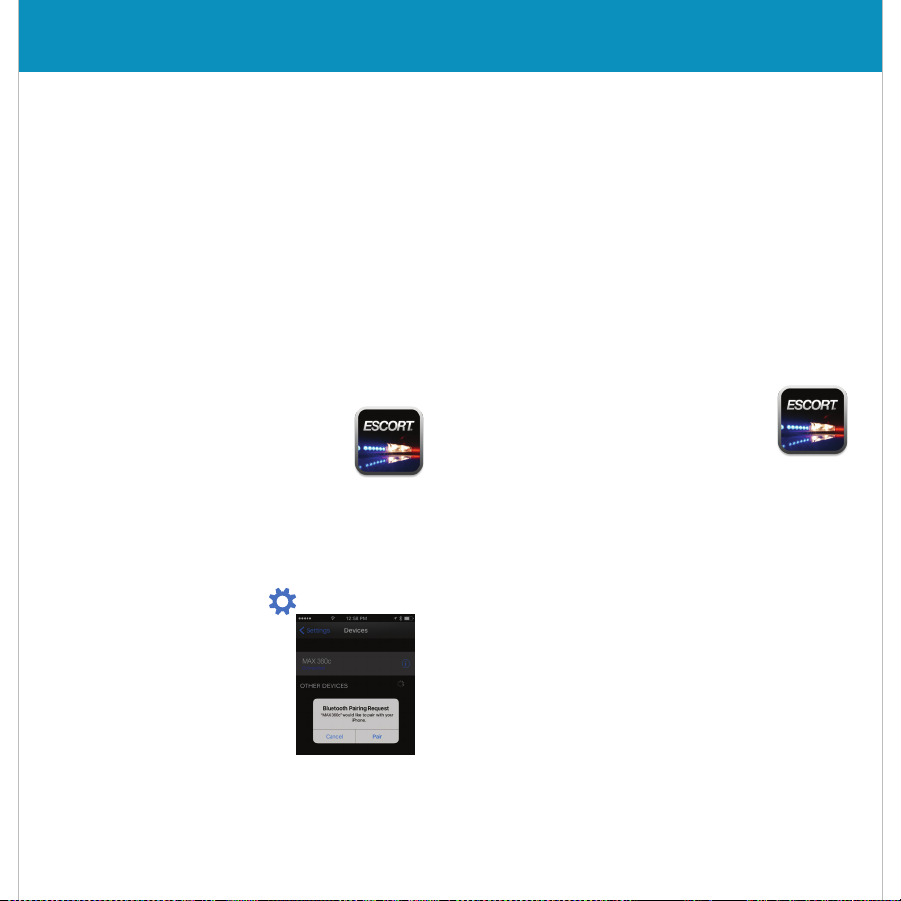
5 Press the Settings button then select
Devices.
6 You should see MAX 360c
listed with Not Connected
underneath.
Press the
entry and when prompted
select Pair.
7 The Bluetooth icon on the MAX 360c display
will appear to conrm that it is paired to your
iPhone.
MAX 360c device
For Android based smartphones:
1 Ensure MAX 360c power is ON.
2 On your smartphone go to Bluetooth® Settings
and make sure that Bluetooth® is ON.
3 Press Scan for devices and wait for the device
list to populate, MAX 360c Live should appear
under Available devices.
4 Press the MAX 360c device entry.
5 The Bluetooth icon on the MAX 360c display
will appear to conrm that it is paired to your
smartphone.
6
Open Google Play on your smartphone
and search for Escort Live Radar.
7 Follow the onscreen instructions to download
Escort Live Radar and then open the app.
8 When prompted, enter the username and
password you created when registering your
product at EscortRadar.com.
7 Open the app, walk through the tutorial, and
you’re ready to hit the road!
3
Page 4
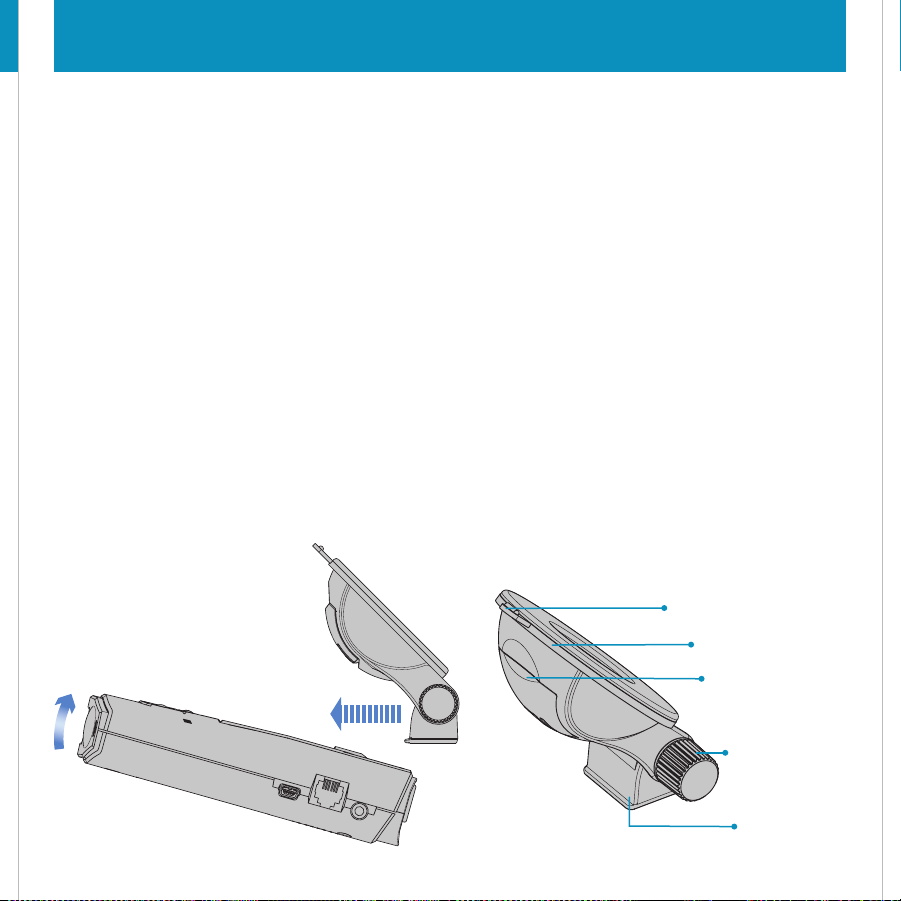
Your new detector comes with our latest EZ Mag
Mount™. Simply tilt the display end of the
detector up and slide it onto the mounting
bracket. The magnetic mount holds the detector
in place. To remove the detector from the mount,
simply lift the display end of the detector and the
detector releases from the mount.
Mounting Tips:
• Center of windshield between driver and
passenger.
• Ensure clear view of road ahead and sky
above.
• Avoid windshield wipers and heavily tinted
areas.
To mount the detector in your vehicle:
1 Remove paper backing from EZ Mag Mount™
StickyCup.
2 Ensure the locking clamp is open.
EZ Mag Mount™
3 Firmly press EZ Mag Mount™ StickyCup onto
windshield and close the locking clamp to
secure.
4 To adjust view, loosen thumb wheel and adjust
angle of mounting bracket. Tighten thumb
wheel to secure.
5 Tilt the display end of the detector slightly
upward and engage with the anged edge
of the mounting bracket. The EZ Mag Mount™
magnet holds the detector in place.
6 To remove the detector, simply lift the display
end of the detector upward. The detector will
release from the mount.
7 To remove mount from windshield, release
locking clamp and pull tab on top of StickyCup.
EZ Mag Mount™ Care Instructions:
Should the EZ Mag Mount™ StickyCup accumulate
debris and lose its stickiness, simply rinse under
warm water, gently wipe o debris and allow to
air dry.
Release Tab
Sticky Cup
Locking Clamp (closed)
MAX 36 0c
Thumb Wheel For
Angle Adjustment
Mounting Bracket
4
Page 5
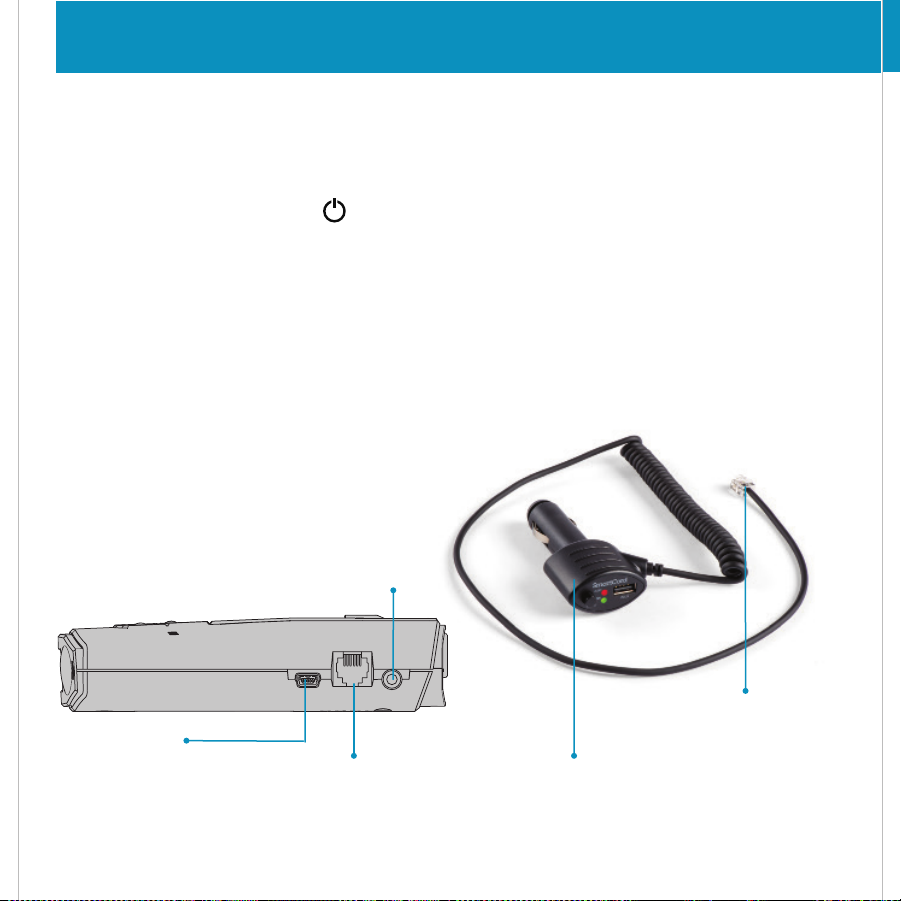
Controls & Features
Controls & Features
Using MAX 360c
1 Plug small end of SmartCord USB into modular
jack on MAX 360c and large end of SmartCord
USB into your car’s lighter/accessory socket.
2 MAX 360c
press the device’s power button.
Using Wi-Fi Connect
To connect MAX 360c to your connected vehicle’s
Wi-Fi network.
1 Follow the directions on page 3 to register your
MAX 360c, download the ESCORT Live app and
pair the MAX 360c to your smartphone.
2 In the ESCORT Live app press Settings, select
Wi-Fi Settings then Connect to Wi-Fi Network.
3 Enter your connected vehicle’s Wi-Fi network
password.
After successfully connecting and when powering
up, MAX 360c will briey display the connected
Wi-Fi network’s name. The speed limit indicator
will be white when receiving Escort Live data
from Wi-Fi (see page 6).
Earphone Jack
Connects to optional 3.5 mm stereo earphone
should power on automatically. If not,
Using SmartCord USB
• Mute Button:
- Press to mute the audio for a specic alert.
- Press three times to lock out a false alert.
- Press twice while receiving a locked-out alert
to unlock.
- When connected to ESCORT Live press and
hold mute button on unit or cord to manually
report to other users a veried X or K-band
alert, or a police ocer observing trac.
• Alert Light: Blinks red when receiving a radar
or laser alert.
•
Power Light: Lights green when receiving power.
•
USB Charging Port: Charge smartphones,
tablets and other USB-charged Devices.
select the type of marker,
Mini USB Jack
Connects to your
computer via USB A / Mini
B cable for downloading
software updates
Modular Jack
Connects to
SmartCord USB
for powering
your device
Modular Connector
Plugs into detector jack
SmartCord USB Adapter
Connects to lighter/accessory socket
5
Page 6
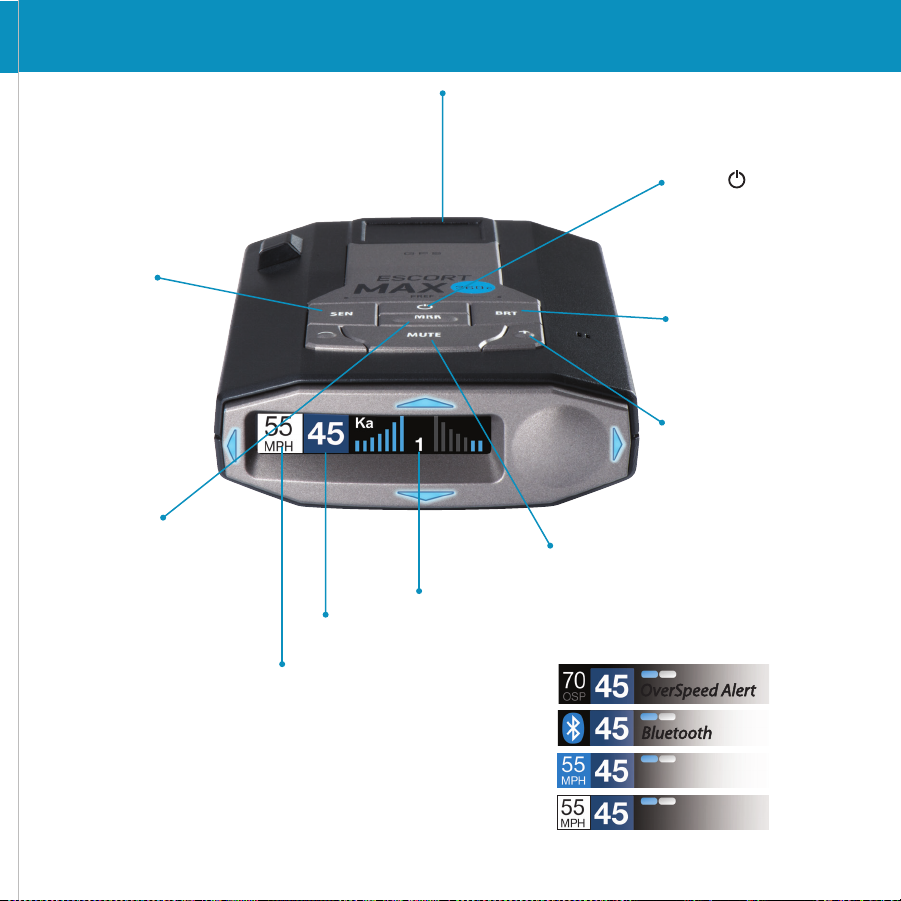
Controls & Features
The EZ Mag Mount™
attaches to device here
Mount Area
Sensitivity (SEN)
Press to adjust detector
sensitivity (Auto, Auto
NoX, AutoLoK, and
Highway)
Mark Location (MRK)
To mark a location for
future alerts, press MRK
twice, then VOL + or – to
select the type of marker,
then MRK again to
conrm. Press twice
while receiving marker
alert to unmark
Display
Display
Alert area
Current speed
Display (OSP)
OverSpeed alert setting, can be
adjusted in Preferences. Bluetooth icon
will appear here when paired to phone.
Speed limit data will appear here when
receiving ESCORT Live data from
smartphone’s bluetooth or from
vehicle’s Wi-Fi.
6
Power
Press to turn
MAX 360c on or o
Brightness (BRT)
Press to adjust display
brightness (Min, Med,
Max, Auto, Dark)
Volume
Press and hold + or − to
adjust volume
Mute
Press to mute an alert; press
three times to lock out a false
alert; press twice while
receiving a locked-out alert to
unlock
OverSpeed Alert
Bluetooth
Speed Limit Data
Speed Limit Data
Speed Limit Data
Speed Limit Data
Continued ➜
Data from
Bluetooth
Data from
Wi-Fi
Page 7

Settings & Preferences
Press and hold the SEN and BRT buttons to access Preferences. To exit Preferences, simply wait a few
seconds without pressing a button. The unit will display Completed to conrm your selections.
Press SEN to go from Press VOLUME + or – to change
one category to the next your setting within a category
User Mode Advanced* Access and customize all Settings and Preferences
Novice Access and customize units and display color, (all other
Settings are set to factory defaults)
NOTE: Switch back to advance mode to view all Preferences.
Pilot Scan Bar* Scanning Bar with Full Word
Full Word Full Word: Auto, Auto NoX, AutoLoK or Highway
Arrow Mode Single* Displays a single threat-direction arrow only for the primary alert
Multiple Displays threat-direction arrows for multiple alerts
Band
X = green, K = blue, Ka/Laser = red
Display Color Blue*/Green/Red/Amber Set color to match your vehicle’s dash display
Speed Display On* Displays current speed
O Displays battery voltage
Cruise Alert 20 mph* Oers double beep alert tones below specied speed
O / 20-160 mph
Over Speed 70 mph* Reminds you when you exceed a specied speed
O / 20-160mph
Over Speed Limit Speed Limit*
O / Speed Limit / 5 Over / 7 Over / 10 Over / 15 Over
Meter Mode Standard Displays primary alert band with front signal strength bar graph
Standard FR1* Displays primary alert band with front and rear signal strength
bar graphs
Standard FR2 Displays primary and secondary alert bands with front and rear
signal strength bar graphs
Spec FR1 Displays primary alert band with numeric frequency and front and
rear signal strength bar graphs
Spec FR2 Displays primary alert band with numeric frequency, secondary alert
band, and front and rear signal strength bar graphs
Expert FR Displays up to four alert bands with front and rear signal strength
bar graphs for each
Simple Simple messages replace alert band and signal strength bar graphs:
Caution (if traveling below cruise alert limit)
Slow Down (if traveling above cruise alert limit)
Displays color-coded threat-direction arrows for multiple alert bands
Reminds you when you reach specied speed at or over the speed limit
7
Page 8
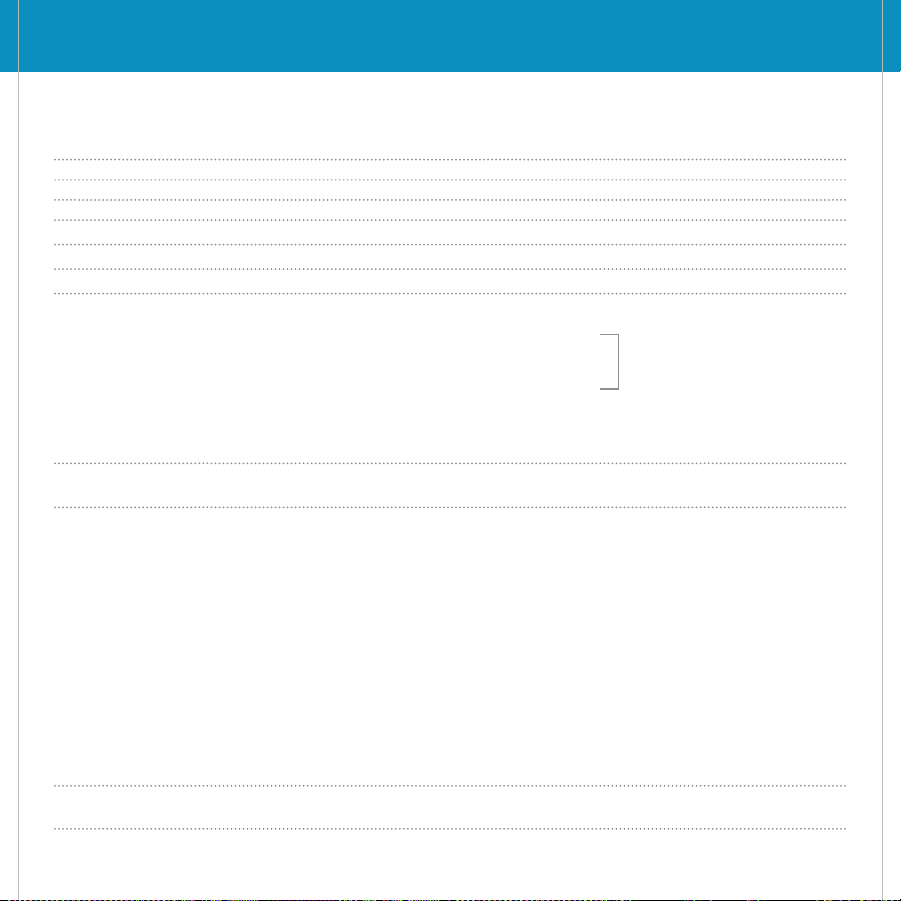
Tones Standard* Standard alert tones
Standard+ Standard alert tones for primary alert and
double -beep tones for additional alerts
Mild Mild doorbell chime alert tones
AutoMute Low / Med* / High / O Automatically reduces audio to preferred volume during alert
AutoLearn On* / O Automatically stores and locks out false alarms
Units English* / Metric Units for distance and speed
Language English* / Espanol Language for voice and text
Voice On* / O Voice announcements
GPS Filter On* / O Enables GPS-powered features
AutoPower O Power turns on or o depending on your vehicle’s ignition
type (constant power or switched)
1 Hour Powers o automatically after 1 hour
2 Hours Powers o automatically after 2 hours
4 Hours* Powers o automatically after 4 hours
8 Hours Powers o automatically after 8 hours
without moving. Display screen will turn on automatically after you reach 10MPH.
Band Enables Default* Default Settings
Modied Band Enables have been modied from their default settings
NOTE: If AutoPower is on, to save screen life the display screen goes blank after 30 minutes
NOTE: AutoPower onl y works with
constant power igni tion.
Press BRT to go from one Press VOLUME + or – to change
Band category to the next your setting within a category
X Band On* / O
K Band On* / O Freq: 24.050 – 24.250 GHz
KN1 O n* / O Freq: 24.050 - 24.110 GHz
KN2 On* / O Freq: 24.110 - 24.175 GHz
KN3 On* / O Freq: 24.175 - 24.250 GHz
KN4 On / O* Freq: 23.950 - 24.050 GHz
K a Band On* / O Freq: 33.400-36.000 GHz
KaN1 On / O* Freq: 33.400 - 33.700 GHz KaN6 On / O* Freq: 34.800 - 35.160 GHz
KaN2 On / O* Freq: 33.700 - 33.900 GHz KaN7 On / O* Freq: 35.160 - 35.400 GHz
KaN3 On* / O Freq: 33.900 - 34.200 GHz KaN8 On* / O Freq: 35.400 - 35.600 GHz
KaN4 On* / O Freq: 34.200 - 34.600 GHz KaN9 On / O* Freq: 35.600 - 35.840 GHz
KaN5 On */ O Freq: 34.600 - 34.800 GHz KaN10 On / O* Freq: 35.840 - 36.000 GHz
Ka-POP On / O*
Laser On* / O
TSR On* / O Automatically rejects trac ow sensors-monitoring false alarms
Marker Enables Default* Default Settings
Modied Marker Enables have been modied from their default settings
NOTE: When K Band is o, you can select separate segments of the band to turn on or o.
NOTE: When Ka Band is o, you can select separate segments of the band to turn on or o.
8
Page 9
Press BRT to go from one Press VOLUME + or – to change
Marker category to the next your setting within a category
Other On* /O Other location
Redlight On* / O Red light camera
Red & Speed On* / O Red light & speed camera
Speed Cam On* / O Speed camera
Speed Trp On* / O Speed trap
Air Patrol On / O* K nown aircraft patroled areas
Clear Locations Marked Clear all user Marked locations. Press MUTE button to conrm
Lockouts Clear all lockouts. Press MUTE button to conrm
Defender Clear all DEFENDER data. Press MUTE button to conrm
Format Clear DEFENDER database, all markers, and all lockouts
Press MUTE button to conrm
Wi-Fi On* /O Turns Wi-Fi Connect on or o
Bluetooth On* / O Turns Bluetooth on or o
Auto Update O/Defender/ Automatically checks for selected updates when detector is powered on
Software/All*
Perform Update Defender Perform Defender update. Press MUTE to conrm
Software Perform Software update. Press MUTE to conrm
*Default Setting
NOTE: User cannot mark an air patrol location.
Notes for Settings & Preferences
For descriptions of features and functions available when connected to ESCORT Live, visit EscortRadar.
com and download the MAX 360c Owner’s Manual.
To view serial number and software revision press MRK and MUTE while powering on detector.
To restore MAX 360c to its original factory Settings, press and hold MRK and BRT while turning the power
on. A “Restored” message will display, acknowledging the reset.
Software Updates
In its factory default settings MAX 360c automatically receives software updates from your connected
vehicle’s Wi-Fi network. See Using Wi-Fi Connect on page 6 for connection instructions.
The MAX 360c operating rmware and red light and speed camera database can also be updated using a
USB A/Mini B cable (not included) connected to a computer using our detector software tools found on
our web site. In order to have access to these updates, please register your MAX 360c at www.
EscortRadar.com
Warranty
9
Page 10
360° Directional
Alert Arrows
GPS Intelligence
Rejects False Alerts
Lightning Fast Response
Connected Car’s Wi-Fi
Provides Crowd Sourced
Alerts & Software Updates
ESCORT Live App
Provides Crowd-
Sourced Alerts
Intelligent 360° Radar
Laser Detection
MAX 360c
360° Radar/Laser Detector with
Alert-Signaling Arrows
Warranty
ESCORT O ne Year Limited Wa rranty
What this warranty covers: Escort, I nc. (“Escort ”) warrants yo ur Product
against all defects in materials and workmanship.
For how lo ng: One (1) year from the date o f original purchas e from an
authorized Escort dealer.
What we will do: If a breach of w arranty occur s, Escort, at it s discretion,
will eith er repair or repla ce your Product fr ee of charge.
What we wi ll not do: Escor t will not pay shipp ing charges that you i ncur
for send ing your Product to u s.
What you must do to maintain this warranty: Show original pr oof of
purchase o r receipt from an au thorized Escor t dealer.
Warranty exclusions: This war ranty does not ap ply to your produc t
under any of t he following cond itions: 1.The serial num ber has been
removed o r modied. 2. Your pro duct has been sub jected to misuse o r
damage (including water damage, physical abuse, and/or improper
install ation). 3. Your product ha s been modied i n any way. 4. Your receipt
or proof- of-purchase is f rom a nonauthori zed dealer or inter net auction
site, inclu ding E-bay, U-bi d, or other non-au thorized rese llers. 5. You are
not the ori ginal purchaser o f the Product fro m an authorized de aler or did
not recei ve it as a gift from th e original purcha ser of the Product f rom an
authorized dealer.
To obtain service: 1. Contact E SCORT (1-800-543-1608) to ob tain a
Return Au thorization Nu mber. 2. Properly p ack your Product a nd include:
your name, c omplete return a ddress, writte n description of t he problem
with your Pr oduct, dayti me telephone num ber, and a copy of the
origina l proof of purchase o r receipt. 3. Lab el the outside of th e package
clearly w ith your Return Aut horization Num ber. Ship the Produc t pre-
paid (insu red, for your prote ction) to: ESCORT, Inc. , 5440 West Ches ter Rd.,
West Chest er, OH 45069.
LIMITATION OF WARRANTY: The obligation s set forth above a re
ESCORT’s so le obligations an d your exclusive rem edy. ESCORT make s no
other express warranty. Any implied warranty of merchantability
or tness for a particular purpose that may be applicable to the
Product is limited in duration to the duration of this warranty. Some
States do no t allow limitation s on how long an impli ed warranty las ts, so
the above li mitation may not ap ply to you. ESCORT SHA LL NOT BE LIABLE
FOR CONSEQUE NTIAL, SPECIAL OR IN CIDENTAL DAMAGES INCLUD ING,
WITHOU T LIMITATION, DAMAGES ARI SING OUT OF THE USE, M ISUSE OR
MOUNTI NG OF THE PRODUC T.
Some State s do not allow the excl usion or limitati on of incidental or
consequ ential damages, s o the above limitati on or exclusion may n ot
apply to yo u. ESCORT is not respo nsible for produ cts lost in ship ment
betwe en the owner and our s ervice center.
Other legal rights: This warrant y gives you specic l egal rights, an d you
may also have ot her rights which v ary from State to Sta te.
©2017 ESCORT Inc. ESCOR T® is a registered t rademark of ESCOR T Inc.
Contact Us
Accessories
800.433.3487
EscortRadar.com
Designed in the USA by Escort, Inc.,
Manufactured in the Philippines
ESCORT Inc.
5440 West Chester Road
West Chester OH 45069
Sales / Service 800.433.3487
www.EscortRadar.com
©2017 ESCORT Inc. ESCOR T®, MAX 360c®, Defender®, AutoLearn®,
TrueLock™, AutoS ensitivity™, Spe cDisplay™, Exper tMeter™, ESCORT Live™,
IVT Filter™, SmartMute™ an d EZ Mag Mount™ are tra demarks of
ESCORT, Inc.
FCC NOTE: Modications not e xpressly approve d by the manufacturer
could void the user’s FCC grante d authority to o perate the equipment.
FCC ID:QKL M6C.CONTAINS FCC ID:TFB-1003.
This devi ce complies with p art 15 of the FCC rules. O peration is subject
to the foll owing two conditions: (1) This device may not cause har mful
interference, and (2) This device must accept any interference received
including interference that may cause undesired operation.
The Bluetooth® word mark and logos are registered trademarks
owned by Bluetooth SIG, Inc. and any use of such marks by ESCORT is
under license.
ESCORT Live Compatible
10
 Loading...