

Page 1
Contact Us Settings & Preferences
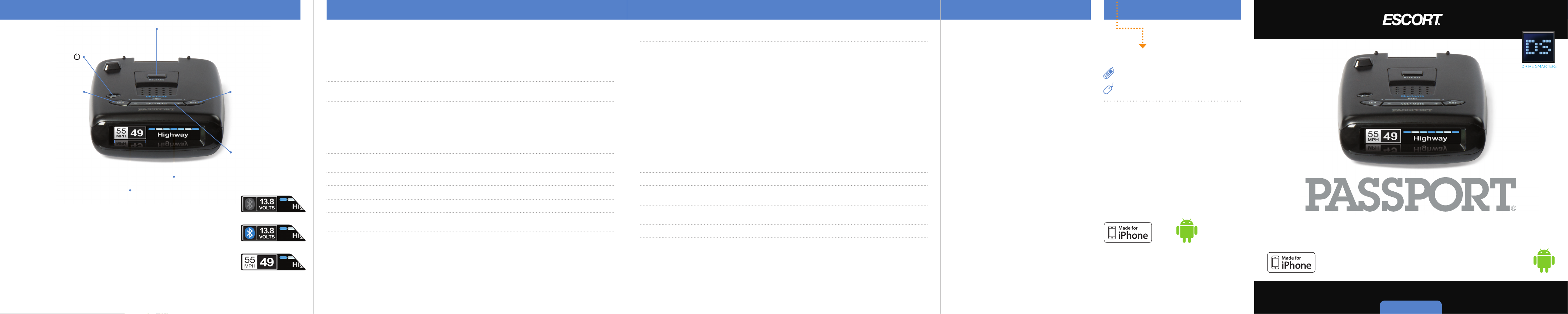
Mount Release
Press to remove device
from mounting
bracket
Power
Press to turn PASSPORT
on or off
Sensitivity (SEN)
Press to adjust detector
sensitivity (Highway,
Auto, Auto NoX)
Brightness (BRT)
Press to adjust display
brightness (Min, Med,
Max, Dark)
l•Mute
Vo
Press to mute an alert;
Press and hold + or −
Display
to adjust volume
Alert area
Display
• Bluetooth icon appears in grey
when not paired to phone and car
battery voltage appears to the right.
• When paired to phone a Bluetooth
icon will appear on display screen
in blue.
• When connected to Escort Live,
the Speed limit data and actual
speed will display on screen.
Important! GPS reception is required to get the most out of your PASSPORT. Actual speed and live
alerts will not be shown on your PASSPORT if your smart phone does not have good gps reception.
To enter preferences Press and Hold SEN and BRT button down for 2 seconds. To exit Preferences,
simply wait a few seconds without pressing a button. The unit will display
your selections
Press SEN to go from Press VOL + or VOL – to change
one category to the next your setting within a category
Pilot Scan Bar* Scanning Bar with Full Word
Full Word Full Word: Auto*, Auto No X, or Highway
Display Color Blue*/Green/Red/Amber Set color to match your vehicle’s dash display. Adding
brighter max screens and lower brightness setting during
when user is in minimum bright setting
Meter Mode Standard* Single band with bar graph of signal strength
Spec Single band with numeric frequency
Expert Multiple bands with bar graph of signal strengths
Tones Standard* Standard ESCORT alert tones
Mild Mild doorbell chime alert tones
AutoMute On* / Off Automatically reduces audio during alert
Language English* / Espanol Language for voice and text
Voice On* / Off Voice announcements
Band Enables Default* Default Settings for North America
Modified Customize the bands you want to monitor
.
87 9 10
Completed to confirm
Press BRT to go from one Press VOL + or VOL – to change
band category to the next your setting within a category
X Band On* / Off Freq: 10.475 -10.575 GHz
K Band On* / Off Freq: 24.050 -24.250 GHz
Ka Band On* / Off Freq: 33.400-36.000 Ghz
NOTE: When Ka Band is off, you can select separate segments of the
band to turn on or off
KaN1 On* / Off Freq: 33.660 - 33.900 GHz
KaN2 On* / Off Freq: 34.200 - 34.400 GHz
KaN3 On* / Off Freq: 34.600 - 34.800 GHz
KaN4 On* / Off Freq: 35.400 – 35.600 GHz
Ka-POP On / Off*
Laser On* / Off Laser Detection
TSR On* / Off Automatically rejects traffic flow sensors-monitoring false alarms
RDR On* / Off Radar Detection Rejection
Additional Preference options within ESCORT Live App when connected to PASSPORT
Cruise Alert 20 mph* Offers double-beep alert tones below specified speed
Off / 20-90 mph
Speed Display On* Displays current speed Default ON when connected to app
Off Displays Battery Voltage when Speed Display is turned off
Units English* / Metric Units for distance and speed
*Default Setting
Notes for Settings & Preferences
For descriptions of features and functions
available when connected to ESCORT Live, visit
EscortRadar.com and download the PASSPORT
Owner’s Manual.
To view serial number and software revision
press SEN and VOL
–
while powering on
detector.
To restore PASSPORT to its original factory
settings, press and hold BRT and VOL
powering on detector.
Restored message will
+
while
display, acknowledging the reset.
Software Updates
PASSPORT is easily updated using our exclusive
detector software tools found on our web site.
Firmware, or the operating software for the
detector, can be updated using these tools.
In order to have access to these updates, please
register your PASSPORT at www.EscortRadar.
com. Once registered, you will receive email
notifications that updates are now available for
your firmware. To handle your software you
need to connect your PASSPORT to a computer
first. You can connect PASSPORT to a computer
via USB A / Mini B cable (not included).
Accessories
800.433.3487
EscortRadar.com
Designed in the USA
ESCORT Inc.
5440 West Chester Road
West Chester OH 45069
Sales / Service 800.433.3487
www.EscortRadar.com
©2014 ESCORT Inc . Escort®, Pass port®, Escor t Live!™, AFR ®, TrueLock ™,
Smart Shield®, SpecDi splay™, AutoSens itivity™, Ex pertMeter™ and
Cincinn ati Microwave a re trademark s of ESCORT In c. Manufac tured in
Canada . Features, sp ecifications and prices sub ject to chan ge without
notice.
FCC NOTE: Modificatio ns not express ly approved by the manufac turer
could vo id the user’s FCC granted autho rity to ope rate the equip ment.
FCC ID: QKLM4BT. Contains FCC ID: QKLBT1.
This device complies with part 15 o f the FCC rul es. Op eration is subj ect
to the f ollowing two co nditions : (1) This d evice may n ot cau se ha rmful
inter ference, and (2) Th is devi ce mus t accep t any interf erence received
including interf erence that may cause undesired operatio n.
For Android
Made for iPhone 4, iPhone 4s, iPhone 5, iPhone 5c, iPhone 5s. iPhone is a
trademark of Apple Inc., registere d in the U.S. and othe r countries. “ Made
for iPho ne” means that an elect ronic acces sory has been desi gned to
conne ct sp ecificall y to iPhone and has b een ce rtified by the de veloper
to meet A pple p erforman ce stan dards. Apple is not respon sible f or the
ope ration of this dev ice or i ts c ompli ance with safe ty and regula tory
standards. Pleas e note that the use of this accessory with iPho ne may affect
wirel ess pe rformanc e. Andr oid is a r egistered trade mark o f Goo gle Inc .
The Blue tooth® word mark and logos are regis tered trademarks owned by
Bluetooth SIG,I nc. and any use of such marks by ESCORT is under license.
O u t s t a n d i n g P e r f o r m a n c e a n d V a l u e
R A D A R
•
L A S E R
Quick Reference
For Android
•
D E T E C T O R
Open ➜
Page 2
Registration Downloading ESCORT Live! Pairing Your Smartphone
Installation
Controls & Features Congratulations PASSPORT Features
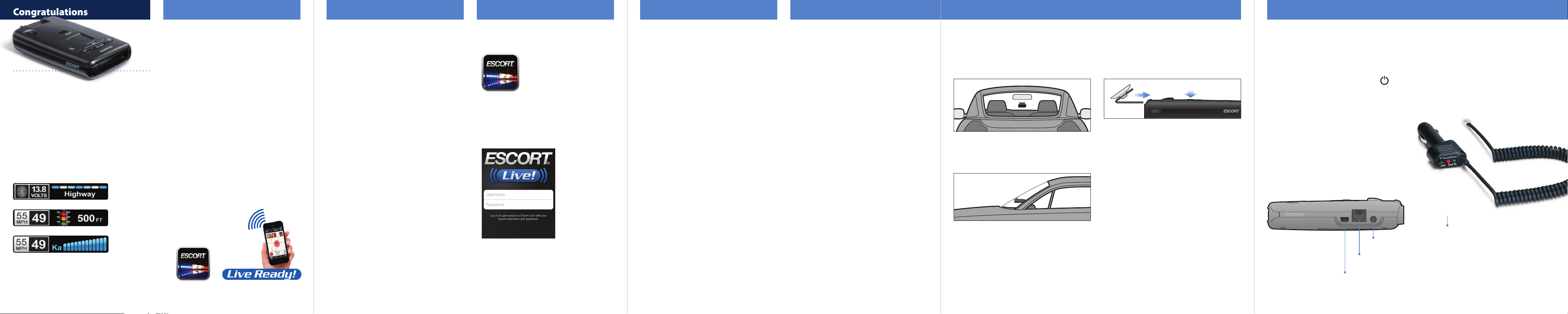
You’ve purchased the al l-new PASSPORT
which is the one of the most advanced high-
performance radar and laser detector on the
market. The PASSPORT provides long-range
warning on all radar bands and laser bands.
Go to EscortRadar.com for the full featured
PASSPORT Owner’s Manual.
Guía de Referencia Rápida Española traducida y
manual con todas las funciones también son
disponibles a www.EscortRadar.com
PASSPORT features
a new multi-color
OLED display.
Brilliant graphics
When connected to ESCORT Live
illuminate intuitive
icons that identify
the type of threat at
When connected to ESCORT Live
R A D A R
•
a glance.
L A S E R
The PASSPORT introduces the following state-of-
the-art performance and features:
• Long-range K and Ka-band radar performance,
including instant-on POP mode.
• Exclusive AutoSensitivity intelligently filters
out annoying false alarms, plus Highway,
Auto, and Auto No X settings.
• Exclusive ExpertMeter tracks and displays up
to 4 radar signals simultaneously.
• Exclusive SpecDisplay provides actual
numeric frequency for any radar signal and
alert bar.
• The PASSPORT now with built in Bluetooth®
technology gives you access to ESCORT’s
award-winning app, ESCORT Live.
Features when connected to ESCORT Live:
• Our exclusive real-time ticket protection
network, which warns you of upcoming
alerts received by other users in the area.
• Our DEFENDER Database, which warns
you of verified speed traps, speed cameras,
and red light cameras.
• Our most popular GPS-powered features,
including speed-limit data for over-speed
alerts, live traffic data for your current
location, and TrueLock™
to help eliminate false
alerts. You can also
Mark Locations for
future reference.
•
D E T E C T O R
Before downloading ESCORT Live, you must first
register your PASSPORT device. Be sure to have
your PASSPORT unit nearby, as you will need the
serial number located on the bottom of the case.
1 Visit www.EscortRadar.com and click Product
Registration.
2 Click the link for Escort Live Ready devices.
3 Follow the onscreen instructions to register
your device.
Be sure to write down the username and
password you create, as you will need this
information to access and download ESCORT
Live. (You will also receive an e-mail with this
information, once you have registered your
device.)
1 Enter the iTunes App Store or Google play
store on your smartphone and search for
ESCORT Live radar!
2 Follow the onscreen instructions to
download.
3 When prompted, enter the username and
password you created when registering your
PASSPORT device.
To pair your Smartphone wit
1 Ensure PASSPORT power is ON.
2 On your Smartphone go to Bluetooth Settings.
3 Ensure Bluetooth is ON.
4 Press Scan for devices and/or wait for the
device list to populate, PASSPORT should
appear under devices.
5 Tap PASSPORT to pair the device to your
phone.
6 Bluetooth icon on the PASSPORT display
screen will appear blue when paired to the
phone.
7 Open the app, walk through the tutorial, and
you’re ready to hit the road!
For Bluetooth pairing tips and more information
on using ESCORT Live! visit:
www.EscortRadar.com
h PASSPORT:
Windshield Mount
PASSPORT’s EasyMount windshield bracket is
designed for unobtrusive and hassle-free
mounting.
Mounting Tips:
• Center of windshield between driver and
passenger.
• Ensure clear view of road ahead and sky
above.
• Avoid windshield wipers and heavily tinted
areas.
PASSPORT Mounting Location
WARNING: ESCORT cannot anticipate the
many ways PASSPORT can be mounted. It is
important that you mount PASSPORT where
it will not impair your view nor present a
hazard in case of an accident.
For optimum detection performance, we
recommend the following:
• Using the Windshield Mount, mount your
PASSPORT level, and high enough on your
front windshield to provide a clear view of the
road from the front and rear.
• Mount PASSPORT away from windshield
wipers, other solid objects, and heavily tinted
areas that might obstruct the radar antenna or
laser lens.
1 Depress the adjustment button on the top of
PASSPORT (by the word ESCORT) and slide the
EasyMount Bracket into the slot until it is locked
into the position which best fits the angle of your
windshield (there are four settings available). For
extremely horizontal or extremely sloped
windshields, the EasyMount Bracket can be bent.
To ensure that the suction cups adhere to the
windshield firmly, be sure to keep both your
windshield and the suction cups clean.
2 To adjust the PASSPORT on your windshield,
use the EasyMount adjustment button located on
the top of the PASSPORT, and slide PASSPORT
forward or backward to obtain a level position.
When installed and adjusted properly, the back
top edge of the PASSPORT should rest solidly
against your windshield.
User’s Tip:
bracket in place on your windshield, and easily
remove PASSPORT by pressing the adjustment
button and sliding PASSPORT off the mount.
Again, be sure to position the bracket where it
won’t present a hazard in the event of an accident.
Additional mounts are available at EscortRadar.
com
5432
You can leave the EasyMount
Using PASSPORT
1 Plug small end of SmartCord into modular
jack on PASSPORT and large end of
SmartCord into your car’s lighter/accessory
socket.
2 PASSPORT should power on automatically. If
not, press the device’s power button.
NOTE: You can easily access and customize all
of your Settings and Preferences by pressing
and holding the SEN and BRT buttons. See
Settings & Preferences for details.
Earphone Jack
Connects to optional 3.5 mm stereo earphone.
Modular Jack
Connects to SmartCord for powering your device
Mini USB Jack
Connects to your computer via USB A / Mini B
cable for downloading software updates
Using SmartCord
• Mute Button: Press to mute an alert. (When
connected to ESCORT Live!) Press mute
button three times to lock out a false alert;
press twice while receiving a locked-out alert
to unlock. Press and hold mute button on
unit or cord to manually report to other users
a verified X or K-band alert, or a police officer
observing traffic.
• Alert Light: Blinks red when receiving an
alert.
• Power Light: Lights green when receiving
power.
Lighter Adapter
Connects to lighter/accessory socket
6
Modular Connector
Plugs into detector jack
Continue
d ➜
 Loading...