

Page 1
FIREBALL SE REMOTE CONTROL GUIDE WD046-1-1
4/30/2007
FIREBALL REMOTE
CONTROL GUIDE
Programming the (silver) Escient FireBall Taurus Wireless IR
Remote Control
6640 Intech Blvd. Suite 250 Indianapolis, IN 46278 317.616.6789 www.escient.com
Page 2
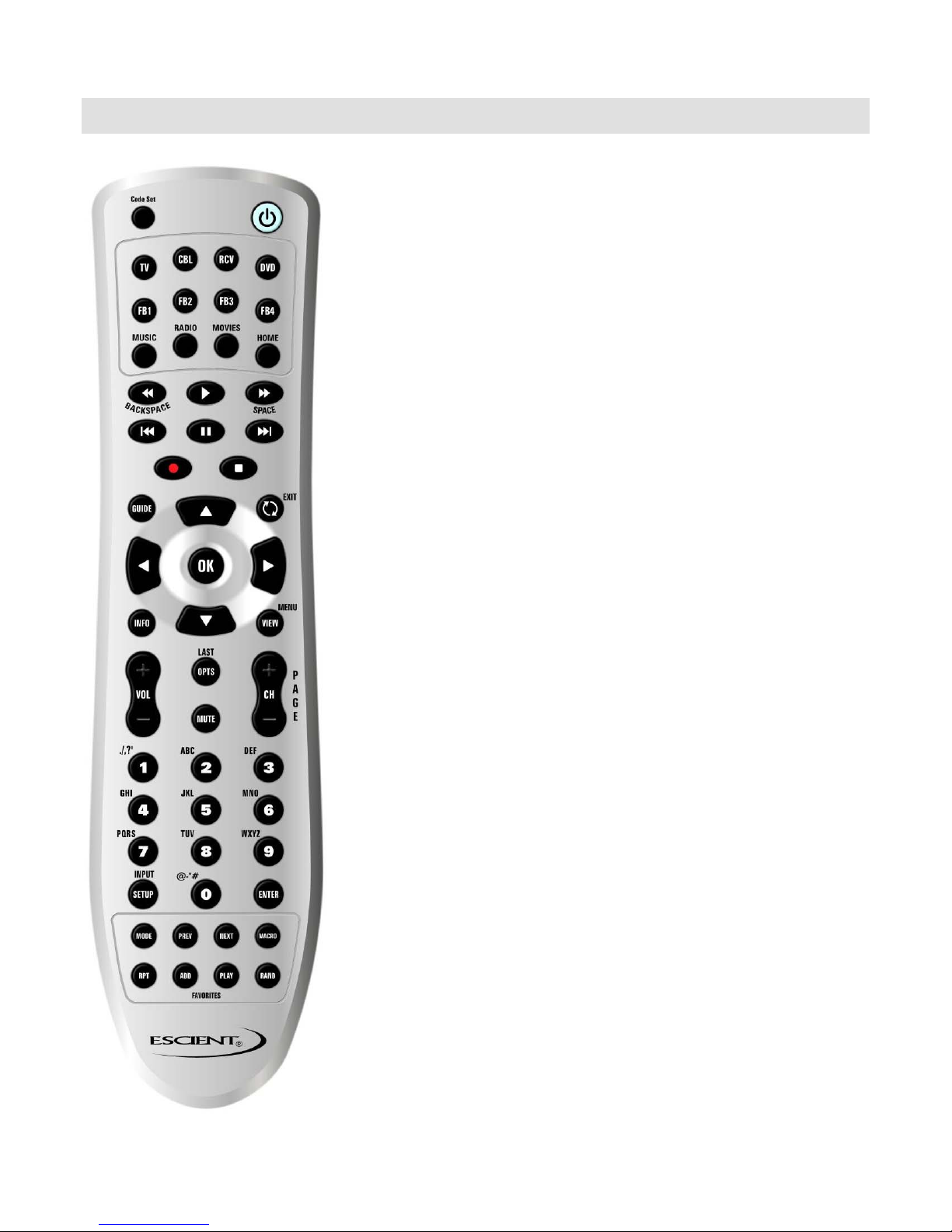
FireBall Remote Control
FireBall server products include an infrared universal remote
control designed to operate the FireBall from up to 30 feet. The
remote can be programmed to operate up to four different
FireBall products in addition to 4 other home theater devices.
The 4 source buttons on the FireBall remote control labeled
FB1, FB2, FB3, and FB4 can only be programmed to operate
the FireBall products. The 4 source buttons on the remote
labeled TV, CBL, RCV, and DVD can be programmed to
operate other devices.
FIREABALL REMOTE CONTROL GUIDE WD046-1-2
4/30/2007
6640 Intech Blvd. Suite 250 Indianapolis, IN 46278 317.616.6789 phone 317.616.6790 fax www.escient.com
Page 3
FIREABALL REMOTE CONTROL GUIDE WD046-1-2
4/30/2007
Controlling Multiple FireBalls with 1 Remote
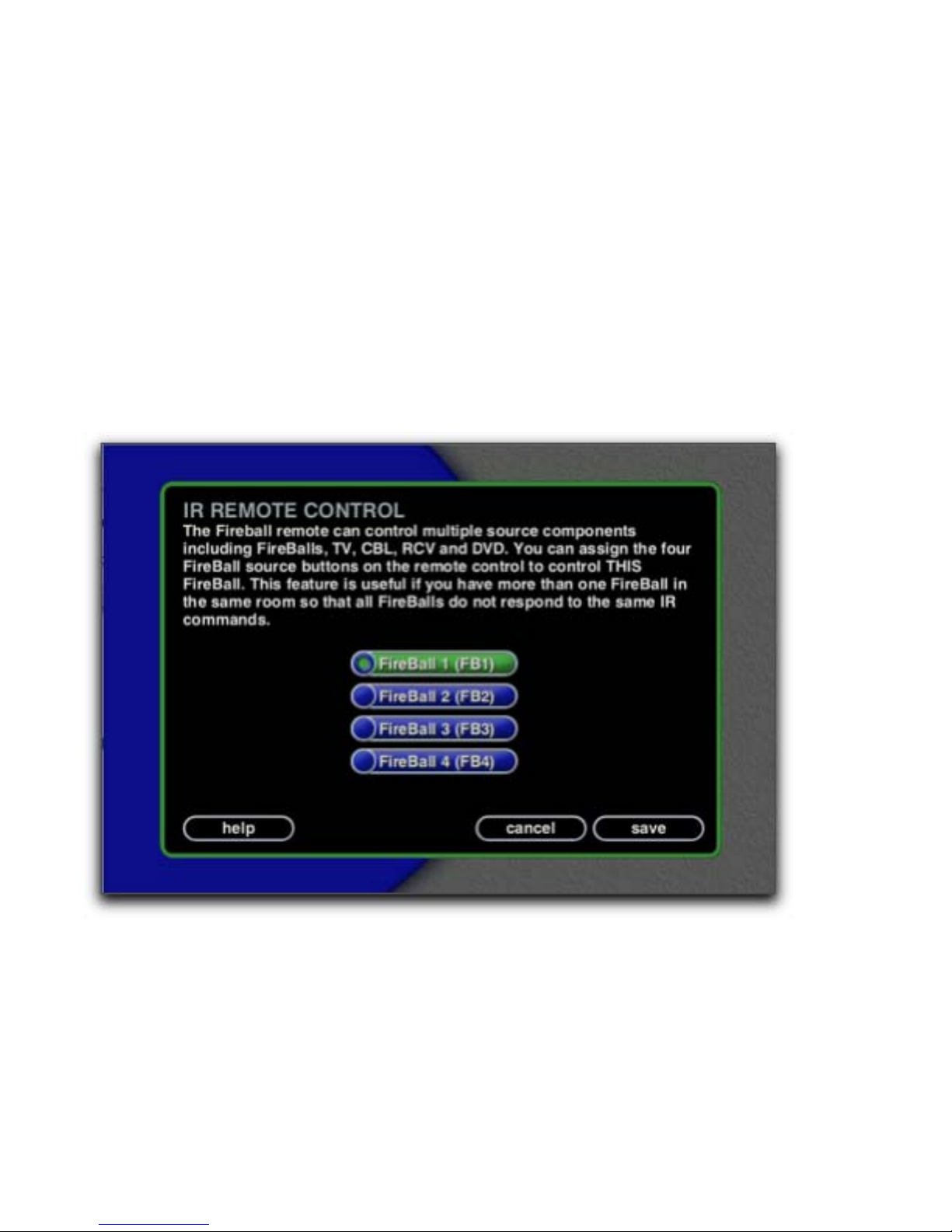
Every FireBall is preset from the factory to operate from the FB1 source button, however, the
FireBall can be configured to use any one of the four source buttons using the on screen Setup
menus. This is useful when there are multiple FireBalls installed at the same location, so all
FireBalls don’t respond to the same IR commands. Use the following steps to change which
source button (FB1, FB2, FB3, or FB4) each FireBall will listen for commands from:
Press the Setup key on the remote to display the FireBall setup menu.
Highlight and Select the Utilities menu item.
Highlight and Select the IR Remote Control menu item.
Highlight and Select which source button to use to control this FireBall.
Press the new source button on your remote to reconfigure the remote and confirm the
change by selecting the OK button on screen.
Repeat these steps for each FireBall in your system, selecting a different FB button for each.
Resetting the FB Source Buttons
The FB1, FB2, FB3, and FB4 source buttons are preprogrammed at the factory with the
correct codes to control four FireBalls. If you changed these buttons to control other devices,
you will have to reset the FB Source buttons back to the original codes in order to control
FireBalls again. Use the following steps to program these buttons back to their factory states:
Press the FB1, FB2, FB3, or FB4 source button to be re-programmed.
Press & Hold the “Code Set” button on the remote until the LED flashes twice.
Enter the factory reset code which corresponds to the FB button being reset:
6640 Intech Blvd. Suite 250 Indianapolis, IN 46278 317.616.6789 phone 317.616.6790 fax www.escient.com
Page 4
FIREABALL REMOTE CONTROL GUIDE WD046-1-2
4/30/2007
o “01370” for FB1
o “01371” for FB2
o “01372” for FB3
o “01373” for FB4
The LED will again flash twice indicating the programming was successful.
Repeat these steps for each FireBall in your system, selecting a different FB button for each.
Programming the Universal Source Buttons
Use the following steps to program the AUX, CBL, DVD, TV, and RCV source buttons to
control other devices. The following table indicates which device types can be programmed on
which source buttons:
Source Button Device Assignment
TV TV
CBL Cable, Video Accessories, Satellite, DSS
RCV Amplifier, Tuner, Phono, Misc. Audio, CD, Home Automation, MD
DVD VCR, Audio Cassette, DVD, LDP, DAT, PVR
Locate the 5 digit device code for the device you want to control in Appendix A.
Press the source button to be programmed.
Press & Hold the “Code Set” button on the remote until the LED flashes twice.
Enter the 5 digit code using the remote’s numeric keypad. The LED will flash twice
indicating the code was accepted.
Note: If the LED does a single long flash then the entered code was not valid for that source
button.
See Appendix B for details and instructions for accessing the other various functions available
on the remote control:
6640 Intech Blvd. Suite 250 Indianapolis, IN 46278 317.616.6789 phone 317.616.6790 fax www.escient.com
Page 5
FIREABALL REMOTE CONTROL GUIDE WD046-1-2
4/30/2007
Using the Macro key
The Macro key is used to enter a command sequence of two or more IR commands. Macros
are used to directly access any title, group, or station from the wireless keyboard, remote
control, or an external IR control system.
Direct Media Access IR Keyboard Definitions
Function Multi-Key Combinations
Direct Play Mode
Macro, M, [play mode number], Enter
Direct Artist-Title
Direct Movie Title
Direct iRadio Station
Direct Disc
Direct Track
Direct Playlist
Direct Group
Macro, A, [artist-title access number], Enter
Macro, V, [movie title access number], Enter
Macro, R, [iRadio access number], Enter
Macro, C, [changer number], D, [disc number], Enter
Macro, T, [track number], Enter
Macro, P, [playlist access number], Enter
Macro, G, [group access number], Enter
Direct Media Access IR Remote Definitions
Function Multi-Key Combinations
Direct Play Mode
Direct Disc
Direct Artist-Title
Direct Group
Direct Movie Title
Direct Playlist
Direct Track
Macro, 1, [play mode number], Enter
Macro, 2, [changer number], Macro, [disc number], Enter
Macro, 3, [artist-title access number], Enter
Macro, 4, [group access number], Enter
Macro, 6, [movie title access number], Enter
Macro, 7, [playlist access number], Enter
Macro, 8, [track number], Enter
Direct iRadio Station
Macro, 9, [iRadio access number], Enter
Next and Previous IR Definitions
Function Multi-Key Combinations
Next Artist-Title Next
Prev Artist-Title Prev
Next Track >>
Prev Artist-Title <<
Next Group CTRL + Next or Macro, Next
Previous Group CTRL + Prev or Macro, Prev
The direct access numbers are available for all music and movie titles, playlists, groups, and
radio stations. To view these numbers, press SETUP then select the UTILITIES menu and
then VIEW DIRECT IR NUMBERS.
6640 Intech Blvd. Suite 250 Indianapolis, IN 46278 317.616.6789 phone 317.616.6790 fax www.escient.com
Page 6

FIREABALL REMOTE CONTROL GUIDE WD046-1-2
4/30/2007
Note: If you do a lot of editing to your music and movie collection, these numbers may change.
If you experience trouble with the Macro key feature, please check that the direct IR numbers
are still correct under SETUP.
Example 1: Use the keyboard to play disc 14 in changer 1.
Press: MACRO, C, 1, D, 1, 4, ENTER
Example 2: Use the keyboard to play playlist number 5
Press: MACRO, P, 5, ENTER
Example 3: Use the remote to play disc 14 in changer 1.
Press: MACRO, 2, 1, MACRO, 1, 4, ENTER
Example 4: Use the remote to play playlist number 5.
Press: MACRO, 7, 5, ENTER
Example 5: Use the remote to play the movie number 123.
Press: MACRO, 6, 1, 2, 3, ENTER
6640 Intech Blvd. Suite 250 Indianapolis, IN 46278 317.616.6789 phone 317.616.6790 fax www.escient.com
Page 7
FIREABALL REMOTE CONTROL GUIDE WD046-1-2
4/30/2007
Other Discrete IR Commands
Discrete IR commands are available by pressing a combination or series of keys. The following
table defines which direct IR codes are available and the corresponding key combination.
Function Single Key Combination Multi-Key Sequence
Power On
Power Off
Play Mode:
Normal
Play Mode:
Repeat Track
Play Mode:
Repeat Title
Play Mode:
Repeat Group
Play Mode:
Random Title
Play Mode:
Random Group
Guide
Player
Music View:
Cover
Music View:
Artist
Music View:
Title
Music View:
Song
Movie View:
Title
Movie View:
Cover
Note: The SHIFT + [key] indicates that both the shift key and the other key are pressed
simultaneously. The Macro, [key] means to press and release the Macro key first and then
press and release the other key
See Appendix B for details and instructions for accessing the other various functions available
on the remote control:
SHIFT + Music Macro, Music
SHIFT + iRadio Macro, iRadio
SHIFT + Movies Macro, Movies
SHIFT + Menu Macro, Menu
SHIFT + Subtitle Macro, Subtitle
SHIFT + Audio Macro, Audio
SHIFT + Repeat Macro, Repeat
SHIFT + Guide Macro, Guide
SHIFT + Mode Macro, Mode
SHIFT + Info Macro, Info
SHIFT + Option Macro, Option
SHIFT + Next Macro, Play Favorites
SHIFT + Setup Macro, Setup
SHIFT + Random Macro, Random
SHIFT + Setup Macro, Setup
SHIFT + Option Macro, Option
6640 Intech Blvd. Suite 250 Indianapolis, IN 46278 317.616.6789 phone 317.616.6790 fax www.escient.com
Page 8

FIREABALL REMOTE CONTROL GUIDE WD046-1-2
4/30/2007
APPENDIX A – Universal Device Codes
###### Setup Code For TVs (T) ######
888 10264
A-Mark 10003
Abex 10032
Addison 11150, 10653, 10092
Admiral 10093, 10463
Advent 10761, 10817, 10815, 11933, 10783,
10842
Adventura 10046
Aiko 10092
Aiwa 11914, 11910
Akai 10812, 10702, 10030, 10672, 11903,
10264
Alaron 10179
Albatron 10843, 10700
Ambassador 10177
America Action 10180
Ampro 10751
Anam 10250, 10180, 10003, 10700, 10161,
10628
Anam National 10250, 10161, 10055, 10650
Anhua 10051
AOC 10451, 10093, 10180, 10060, 10030,
10178, 10019, 10185,
11150, 10018, 10052, 10474, 10003,
10092, 10179
Aolinpike 10264
Apex Digital 10748, 10765, 10767, 11943, 10879
Archer 10003
Audiovox 10451, 10180, 10875, 11952, 10802,
11951, 10092, 10623,
11937, 10003
Axion 11937
Baihe 10264
Baile 10001, 10391
Baohuashi 10264
Baosheng 10817
Beijing 10812, 10391, 10264, 10817, 10001
Belcor 10019
Bell & Howell 10154, 10016
BenQ 11032
Bradford 10180
Brockwood 10019
Broksonic 10236, 10463, 11911, 11938, 10003,
11905, 11935, 11929
Caihong 10817
Cailing 10748
Candle 10030, 10046, 10186, 10056
Carnivale 10030
Carver 10054, 10170
Celebrity 10000
Celera 10765
Changcheng 10051, 10817, 10001, 10391, 10264
Changfei 10817
Changfeng 10817, 10264
6640 Intech Blvd. Suite 250 Indianapolis, IN 46278 317.616.6789 phone 317.616.6790 fax www.escient.com
Page 9

FIREABALL REMOTE CONTROL GUIDE WD046-1-2
4/30/2007
Changhai 10817
Changhong 10156, 10765, 10817, 10264, 10783,
10767, 11910
Chengdu 10817
Ching Tai 10003, 10474, 10179, 10092
Chun Yun 10000, 10180, 10161, 10474, 11150,
10092, 10843, 10003,
10179, 10700
Chunfeng 10264
Chung Hsin 10180, 10053, 11150, 10036, 10474
Chunsun 10817
Cinema 10672
Citizen 10060, 10030, 10039, 10280, 10056,
10186, 10046, 10092,
11928
Clairtone 10185
Clarion 10180
Colt 11906
Concerto 10056
Conrowa 10156, 10145, 10264
Contec 10180, 10157, 10185
Craig 10180, 10161
Crosley 10054
Crown 10180, 10039
Curtis Mathes 10047, 10054, 10154, 10451, 10093,
10060, 10702, 10030,
10145, 10166, 10466, 11347, 10039,
10056, 11147, 10016,
11919
CXC 10180
Daewoo 10154, 10451, 10180, 10030, 10178,
11661, 10474, 10003,
10628, 10032, 11150, 10092, 11928,
10627, 10700, 10056,
11909, 10170, 10391, 10623, 10019,
10672, 10039
Daytron 10019
Dayu 10391
Dell 11080
Denon 10145, 10511
Dumont 10017, 10019
Durabrand 10463, 10180, 10178, 10171, 11034,
10003
Dwin 10774, 10720
ECE 10037
Electroband 10000, 10185
Electrohome 10381
Elektra 10017, 11661
Emerson 10154, 10236, 10463, 10180, 10178,
10171, 10280, 10623,
10038, 11911, 11944, 10179, 10019,
11909, 11929, 10185,
10282, 11905, 10039, 11928, 10177
Envision 10030, 10813
Epson 10833, 10840
Ether 10030, 10161, 10003
Feilu 10817
Feiyan 10264
Feiyue 10817
Firstar 10236
6640 Intech Blvd. Suite 250 Indianapolis, IN 46278 317.616.6789 phone 317.616.6790 fax www.escient.com
Page 10

FIREABALL REMOTE CONTROL GUIDE WD046-1-2
4/30/2007
Fisher 10154, 10159
Fortress 10093
Fujitsu 10186, 10853, 10179, 10809, 10683
Funai 10180, 10171, 10264, 11904, 10179,
10342
Furi 10145, 10817, 10264
Futuretech 10180
Ganxin 10817
Gateway 11756, 11755
GE 11447, 10047, 11454, 10051, 10451,
10180, 10030, 10178,
10092, 11147, 11919, 10055, 10027,
11917, 10135, 10282,
11347, 10021, 11907, 11922
General 10186
Gibralter 10017, 10030, 10019
Gintai 11150, 10474
Go Video 10886
GoldStar 10154, 10030, 10178, 11926, 10019,
10037, 11910, 10001,
10032, 10056, 11150, 10039
Goodmans 10360
Grunpy 10180, 10179
Haier 11034, 10768
Haiyan 10264, 10817
Hallmark 10178
Hankook 10180, 10030, 10178, 10019, 10056,
10628
Harley Davidson 11904, 10179
Harman/Kardon 10054
Harvard 10180
Havermy 10093
Hello Kitty 10451
Himitsu 10180, 10628
Hisense 10156, 10748, 10145
Hitachi 11256, 10156, 10030, 10178, 11145,
10145, 10038, 11245,
10092, 10027, 10381, 10036, 11150,
10056, 11904, 10151,
10165, 10019, 10186, 10032, 10039,
10157, 10016, 10179,
10474
Hongmei 10093, 11910, 10817, 10264
Hongyan 10817, 10264
Hua Tun 11150
Huafa 10145
Huanghe 10817
Huangshan 10264, 10817
Huanyu 11910, 10817, 10264
Huaqiang 10264
Huari 10145, 10264
Huodateji 10051
Hyundai 10849
Imperial Crown 10001, 10391, 10264
Infinity 10054
Inteq 10017
Janeil 10046
JBL 10054
JCB 10000
6640 Intech Blvd. Suite 250 Indianapolis, IN 46278 317.616.6789 phone 317.616.6790 fax www.escient.com
Page 11

FIREABALL REMOTE CONTROL GUIDE WD046-1-2
4/30/2007
Jean 10156, 10051, 10236, 10092, 10179,
10003, 10474
Jensen 10761, 10815, 11933, 10817
Jiahua 10051
Jialicai 10264
Jinfeng 10051, 10817
Jinhai 11910
Jinque 10817, 10264
Jinta 10264, 11910
Jinxing 10054, 10156, 10145, 10264, 10037,
10817
Juhua 10817, 10264
JVC 10053, 10160, 11923, 11253, 10036,
10653
Kaige 10264, 10817
Kangchong 11910
Kangli 10001, 10817, 10391, 10264
Kangyi 10264
Kaypani 10052
KEC 10180
Kenwood 10030, 10019
KLH 10765, 10767
KLL 10037
Kloss 10046, 10024
Kolin 10180, 10053, 11150, 10036, 10474
Kongque 10264, 10817
Konka 10632, 10707, 11940, 10628, 10703,
11939, 10638, 10817
KTV 10180, 10030, 10185, 10039, 10280
Kuaile 10264
Kunlun 10051, 10817, 10264
LG 10060, 10030, 10178, 10056, 10442,
10856, 10001, 10038,
10700, 10019, 10037, 10474, 11178,
10003, 10032, 10006
Lihua 10817
Lloyd's 11904
Loewe 10136
Logik 10016
Longjiang 10264, 10817
Luxman 10056
LXI 10047, 10054, 10154, 10156, 10178
Magnasonic 11928, 11913
Magnavox 11454, 10054, 10030, 10706, 11904,
10020, 11944, 10036,
10179, 10386, 11931, 10096, 10187,
11254, 11913, 10024,
10186
Magnin 11907
Majestic 10016
Marantz 10054, 10030, 10854, 10704, 11154,
10855
Maruman 10627, 10391
Matsushita 10250, 10650, 10161
Megapower 10700
Megatron 10178, 10145, 10003
MEI 10185
Meile 10264, 11910, 10817
Memorex 10154, 10463, 10150, 10178, 10179,
11920, 11927, 10016,
6640 Intech Blvd. Suite 250 Indianapolis, IN 46278 317.616.6789 phone 317.616.6790 fax www.escient.com
Page 12

FIREABALL REMOTE CONTROL GUIDE WD046-1-2
4/30/2007
11911, 11926, 11924
Mermaid 10037
MGA 10150, 10030, 10178, 11907, 10019
Midland 10047, 10017, 10051, 10039, 10135,
10032
Minutz 10021
Mitsubishi 10154, 10250, 10093, 10236, 10180,
11250, 10150, 10030,
10178, 10381, 10836, 10036, 10179,
10817, 11150, 10474,
10019, 10868, 10056, 11917
Monivision 10843, 10700
Motorola 10093, 10055
MTC 10060, 10030, 10185, 10019, 10056
Mudan 10051, 10817, 10264
Multitech 10180
NAD 10156, 10178, 10866
Nanbao 11910, 10264
Nansheng 10817, 10264
National 10051
NEC 10154, 10156, 10051, 10053, 10030,
10178, 10046, 11150,
10056, 10165, 10186, 10474, 10036,
10882, 10381, 10817,
11704, 10170, 10264, 10019, 10497
Newave 10093, 10178, 11150, 10092, 10161
Nikko 10030, 10178, 10092
Nikon 11910
Norcent 10748, 10824
Noshi 10018
NTC 10092
Onking 10280
Onwa 10180
Optimus 10154, 10250, 10166, 11924, 11913,
10650, 11927
Optoma 10887
Optonica 10093, 10165
Orion 10236, 10463, 11911, 11905, 10179,
11463, 11929
Panasonic 10054, 10250, 10051, 10161, 11410,
11927, 11947, 10037,
10055, 10650, 11924, 11946, 11919,
11941
Panda 10051, 10706, 10817, 10264, 11910
Penney 10047, 10156, 10051, 10060, 10030,
10178, 10135, 11347,
11926, 10018, 10027, 10039, 11919,
10003, 10021, 10032,
11907, 10019
Philco 10054, 10180, 10030, 10178, 10628,
10474, 10020, 10037,
10096, 10186, 10774, 10019, 10032,
10056
Philips 11454, 10054, 10000, 10051, 10030,
10178, 10474, 10019,
11154, 10092, 10187, 10774, 10024,
10037, 10056, 10186,
10690, 10020, 10032
Pilot 10030, 10019, 10039
Pioneer 10166, 10038, 10866, 10679
6640 Intech Blvd. Suite 250 Indianapolis, IN 46278 317.616.6789 phone 317.616.6790 fax www.escient.com
Page 13

FIREABALL REMOTE CONTROL GUIDE WD046-1-2
4/30/2007
Portland 10092, 10039, 10019
Prima 10761, 10815, 10783, 11933, 10817
Princeton 10717, 10700
Prism 10051
Proscan 11447, 10047, 11347, 11922
Proton 10030, 10178, 10001, 10039, 10466,
10003, 10052, 10474
Pulsar 10017, 10019
Qingdao 10051, 10817, 10264
Quasar 10250, 10051, 11924, 10165, 11919,
10055, 10650
RadioShack 10047, 10154, 10180, 10030, 10178,
10032, 10056, 11920,
10165, 11904, 10019, 10039
RCA 11447, 10047, 11454, 10000, 10030,
10178, 10679, 11247,
11917, 10090, 11948, 11147, 10019,
11907, 11922, 10135,
11958, 11047, 11347, 10018, 11547,
10038, 11919, 10092,
11953
Realistic 10154, 10180, 10030, 10178, 10056,
10019, 10039, 10165,
10032
Rhapsody 10185
Rowa 10748, 10037, 10817
Runco 10017, 10030, 10603, 10497
Ruyi 10817
Saige 10817
Sampo 10154, 10093, 10030, 10178, 10171,
10032, 10052, 10474,
11755, 10039, 10700, 10036, 10092,
10650
Samsung 10154, 10156, 10060, 10812, 10702,
10030, 10178, 10019,
10056, 11060, 10092, 10474, 10774,
10032, 10817, 10090,
11903, 10264, 10766, 10814, 11150,
10179
Samsux 10039
Sanjian 10264
Sansui 10463, 11904, 11929, 11911
Sanyo 10154, 10156, 10180, 10145, 10376,
10474, 10036, 10893,
11907, 10159, 10280, 10424, 10799,
11154, 10157, 10264,
10381, 10798, 10088, 11150
Sanyuan 10093, 10817
Scimitsu 10019
Scotch 10178
Scott 10236, 10180, 10178, 10179, 10019
Sears 10047, 10054, 10154, 10156, 10178,
10171, 11926, 11904,
10056, 10159, 10179
Shancha 10817, 10264
Shanghai 10264, 11910, 10817
Shaofeng 10145, 10817
Sharp 10093, 10030, 10157, 10386, 10650,
10720, 10032, 10851,
6640 Intech Blvd. Suite 250 Indianapolis, IN 46278 317.616.6789 phone 317.616.6790 fax www.escient.com
Page 14

FIREABALL REMOTE CONTROL GUIDE WD046-1-2
4/30/2007
10256, 10491, 10689, 10818, 10039,
10165, 10474, 10688,
10787, 10036, 11917
Sharper Image 11950
Shen Ying 10092, 10003, 10474, 10179
Shencai 10145, 10264
Sheng Chia 10093, 10236, 10179, 11150, 10474
Shenyang 10817, 10264
Shogun 10019
Signature 10016
Simpson 10187, 10186
Skygiant 10180
Skyworth 10748, 10264, 10037, 10817
Sony 11100, 10000, 10036, 10650, 11300,
10111, 11925, 10080,
10834, 11904
Soundesign 10180, 10178, 10179, 10186
Sowa 10156, 10051, 10060, 10178, 10036,
10092, 10474, 11150
Spectricon 10003
Squareview 10171
SSS 10180, 10019
Starlite 10180
Studio Experience 10843
Supre-Macy 10046
Supreme 10000
SVA 10748, 10587, 10865, 10872, 10768,
10871, 10870
Sylvania 10054, 10030, 10171, 11931, 10381,
11944, 10020, 10096
Symphonic 10180, 10171, 11913, 11904
Synco 10000, 10451, 10093, 10060, 10178,
10092, 10036, 10474
Tacico 10178, 10179, 11150, 10092, 10474
Tai Yi 11150
Taishan 10817, 10391
Tandy 10093
Tashiko 11150, 10650, 10092
Tatung 10054, 10154, 10156, 10051, 10060,
11150, 10474, 10036,
10055, 11756, 10003
Technics 10250, 10051
Technol Ace 10179
Techview 10847
Techwood 10051, 10003, 10056
Teco 10051, 10093, 10178, 10474, 10036,
10280, 10092, 10264,
10653
Teknika 10054, 10180, 10150, 10060, 10019,
10056, 10186, 10016,
10092, 10039, 10179
Telefunken 10702, 10056
Tera 10030, 10466, 10474
Thomas 11904
Tiane 10093, 10817
TMK 10178, 10177, 10056
TNCi 10017
Tobo 10748, 10264
Tongguang 10264
6640 Intech Blvd. Suite 250 Indianapolis, IN 46278 317.616.6789 phone 317.616.6790 fax www.escient.com
Page 15

FIREABALL REMOTE CONTROL GUIDE WD046-1-2
4/30/2007
Toshiba 10154, 11256, 10156, 10060, 10145,
11918, 11945, 10381,
10832, 10036, 11704, 11936, 10264,
10650, 11150, 11656,
11935, 10161, 10509, 10845, 11356
Tosonic 10185
Totevision 10039
Trical 10157
Tuntex 10030, 10474, 10092
TVS 10463
Ultra 10391
Universal 10027
V Inc. 11756, 10885, 10864
Vector Research 10030
Victor 10250, 10053, 10160, 10650, 10376,
10036, 10653
Vidikron 10054
Vidtech 10178, 10019, 10036
Viewsonic 10857, 11755, 10885, 10864
Viking 10046
Wards 10054, 10030, 10178, 10020, 10080,
10165, 10866, 10019,
10027, 10056, 10111, 10179, 10016,
10021, 10096
Warumaia 10391
Waycon 10156
Westinghouse 10889
White Westinghouse 10463, 10186, 11909, 10623
Xiahua 10817, 10264
Xiangyang 10264
Xihu 10817, 10264
Xinghai 10264
Xinrisong 11910
Xuelian 11910
Yamaha 10030, 10838, 10019, 10833, 10769,
10839
Yapshe 10250
Yongbao 11910
Youlanasi 10817
Yousida 11910
Zenith 10017, 10463, 10178, 11911, 10016,
11909, 10092, 11904,
11929
Zonda 10003
###### Setup Code For VCRs (V) ######
ABS 21972
Admiral 20048, 20209
Adventura 20000
Aiko 20278
6640 Intech Blvd. Suite 250 Indianapolis, IN 46278 317.616.6789 phone 317.616.6790 fax www.escient.com
Page 16

FIREABALL REMOTE CONTROL GUIDE WD046-1-2
4/30/2007
Aiwa 20037, 20000, 20307, 20468, 20124,
20406, 20348, 20479
Akai 20041, 20061, 20175, 20106
Alienware 21972
America Action 20278
American High 20035
Amoisonic 20479
Anam 20162, 20037, 20240, 20278, 20226,
21037
Anam National 20162, 20226
Asha 20240
Audiovox 20037, 20278
Beaumark 20240
Bell & Howell 20104
Blaupunkt 20226
Broksonic 20184, 20121, 20209, 20002, 20348,
20295, 21479, 20479
Calix 20037
Canon 20035, 21174, 20167
Carver 20081
CCE 20072, 20278
Changhong 20048, 20081
Citizen 20037, 20278, 21278
Colt 20072
Craig 20037, 20047, 20240, 20072, 20271
Curtis Mathes 20060, 20035, 20162, 20041, 20760,
21035
Cybernex 20240
CyberPower 21972
Daewoo 20045, 20104, 20278, 20210, 20368,
21278, 20637, 20046,
20212, 20561
Dell 21972
Denon 20042
DirecTV 20739, 21989, 21954, 21949
Dish Network System 21943, 21946, 21945, 21944
Dishpro 21944, 21943
Durabrand 20039, 20038
Dynatech 20000
Echostar 21943, 21946, 21945, 21944
Electrohome 20037
Electrophonic 20037
Emerex 20032
Emerson 20035, 20037, 20184, 20240, 20045,
20000, 20121, 20043,
20209, 20002, 20278, 20295, 20036,
20637, 21593, 20561,
21479, 20068, 20208, 20479, 21278,
20061, 20212
Euro1 21962
Expressvu 21944
Fisher 20047, 20104, 20066, 20054
Fuji 20035, 20033
Fujitsu 20045, 20052, 20366
Funai 20000, 20593, 21593
Garrard 20000
Gateway 21972
GE 20060, 20035, 20240, 21060, 20202,
20760, 21035, 20807,
20226, 20761
6640 Intech Blvd. Suite 250 Indianapolis, IN 46278 317.616.6789 phone 317.616.6790 fax www.escient.com
Page 17

FIREABALL REMOTE CONTROL GUIDE WD046-1-2
4/30/2007
General 20045, 20366, 20052
Go Video 20643, 20526, 20432
GOI 21944
GoldStar 20037, 20209, 20038, 20226, 20225,
21237
Gradiente 20000
Haojie 20240
Harley Davidson 20000
Harman/Kardon 20081, 20038
Harwood 20072, 20068
Hauppauge 21992
Headquarter 20046
Hewlett Packard 21972
HI-Q 20047
Hitachi 20037, 20000, 20042, 20041, 20166,
20105, 20089
Howard Computers 21972
HP 21972
HTS 21944
Hughes Network Systems 20042, 21949, 20739
Hyundai 21951
iBUYPOWER 21972
Jensen 20041
JVC 20045, 20067, 20041, 21945, 20008,
21944, 20384, 20366
KEC 20037, 20278
Kenwood 20067, 20041, 20038, 20384
KLH 20072
Kodak 20035, 20037
Kolin 20043, 20041
LG 20037, 20045, 20042, 20209, 20038,
22010, 21037, 20040
Lloyd's 20000, 20208
Logik 20072
LXI 20037
Magnasonic 21278, 20593
Magnavox 20035, 20039, 20081, 20000, 20593,
20563, 20110, 21781
Magnin 20240
Marantz 20035, 20081, 21381
Marta 20037
Matsushita 20035, 20162, 20226, 21162, 20367,
20227
Media Center PC 21972
MEI 20035
Memorex 20035, 20162, 20037, 20048, 20039,
20047, 20240, 20000,
20104, 20209, 21237, 20046, 20479,
21162, 20348, 21048,
21262, 20307, 21037
MGA 20240, 20043, 20061
MGN Technology 20240
Microsoft 21972
Mind 21972
Minolta 20042, 20105
Mitsubishi 20067, 20043, 20041, 20061, 20807,
20173
Motorola 20035, 20048
MTC 20240, 20000
Multitech 20000, 20072
6640 Intech Blvd. Suite 250 Indianapolis, IN 46278 317.616.6789 phone 317.616.6790 fax www.escient.com
Page 18

FIREABALL REMOTE CONTROL GUIDE WD046-1-2
4/30/2007
NAD 20058
National 20226
NEC 20035, 20037, 20048, 20104, 20067,
20041, 20038, 20040,
20008, 20370
Newave 20037
Nikko 20037
Nikon 20253, 20034
Noblex 20240
Northgate 21972
Olympus 20035, 20226, 21046
Onkyo 20222
Optimus 21062, 20162, 20037, 20048, 20104,
21048, 21262, 20593,
21162, 20058, 20432
Optonica 20062
Orion 20184, 20209, 20002, 20479, 20295,
21479
Panarex 21950
Panasonic 21062, 20035, 20162, 20077, 20226,
20616, 21162, 20225,
20367, 20227, 21035, 21262
Pansat 21950
Penney 20035, 20037, 20240, 20042, 20038,
21035, 20040, 20054,
21237
Pentax 20042, 20105
Philco 20035, 20000, 20226, 20479
Philips 20035, 20081, 20000, 20226, 20739,
21381, 20110, 20618,
21181, 20563, 21081, 21949, 20062
Pilot 20037
Pioneer 20042, 20067, 20058
Polk Audio 20081
Profitronic 20240
Proscan 20060, 20760, 21954, 20202, 21060,
20761
Protec 20072
Pulsar 20039
Qisheng 20060
Quarter 20046
Quartz 20046
Quasar 20035, 20162, 21035, 20077, 21162
RadioShack 20000, 21037
Radix 20037
Randex 20037
RCA 20060, 20035, 20240, 20000, 20042,
20807, 21060, 21989,
20106, 20761, 21035, 20058, 21964,
20105, 20226, 20760,
20880, 21954, 20077, 20202, 20453
Realistic 20035, 20037, 20048, 20047, 20000,
20104, 20066, 20046,
20062
ReplayTV 20614, 20616
Ricoh 20253, 20034
Runco 20039
Sampo 20037, 20048
Samsung 20240, 20045, 20212, 20760, 20210,
20432, 21014
6640 Intech Blvd. Suite 250 Indianapolis, IN 46278 317.616.6789 phone 317.616.6790 fax www.escient.com
Page 19

FIREABALL REMOTE CONTROL GUIDE WD046-1-2
4/30/2007
Samtron 20643
Sanky 20048, 20039
Sansui 20000, 20067, 20209, 20041, 20479,
20271, 21479
Sanyo 20047, 20240, 20104, 20046, 20159,
20369, 20368
Scott 20184, 20045, 20121, 20043, 20210,
20212
Sears 20035, 20037, 20047, 20000, 20042,
20104, 20046, 20066,
21237, 20054, 20105
Sharp 20048, 20209, 20363, 20848, 20807,
20062, 20738, 21048
Shinco 20000
Shintom 20072
Shogun 20240
Singer 20072
Sonic Blue 20614, 20616
Sony 20035, 20032, 20033, 20000, 20253,
20639, 21232, 21972,
20636, 21032, 21957, 20034, 20586,
20640, 21956
STS 20042
Sunpak 20253
Sylvania 20035, 20081, 20000, 20043, 20110,
21781, 21593, 20593
Symphonic 20000, 21593, 20593
Systemax 21972
Tagar Systems 21972
Tashiko 20037
Tatung 20045, 20067, 20041, 20366, 20008
Teac 20000, 20041
Technics 20035, 20162
Teco 20035, 20037, 20048, 20041, 20038,
20040
Teknika 20035, 20037, 20000, 20052
Thomas 20000
Tivo 20739, 21957, 20636, 21956, 20618,
21503
TMK 20240, 20208, 20036
Toshiba 20045, 20067, 20043, 20041, 20210,
20384, 21008, 21972,
20366, 20845, 21503, 20066, 20212,
20828, 21145, 20008
Totevision 20037, 20240
Touch 21972
UltimateTV 21989
Unitech 20240
Vector 20045
Vector Research 20038, 20040
Victor 20067, 20041, 20008, 20384
Video Concepts 20045, 20040, 20061
Videomagic 20037
Videosonic 20240
Viewsonic 21972
Villain 20000
Wards 20060, 20035, 20048, 20047, 20081,
20240, 20000, 20042,
20072, 20062, 20212, 20760
White Westinghouse 20209, 20072, 20637
6640 Intech Blvd. Suite 250 Indianapolis, IN 46278 317.616.6789 phone 317.616.6790 fax www.escient.com
Page 20

FIREABALL REMOTE CONTROL GUIDE WD046-1-2
4/30/2007
XR-1000 20035, 20000, 20072
Yamaha 20041, 20038
Zenith 20039, 20033, 20000, 20209, 20034,
20479, 21479, 21139,
20637
ZT Group 21972
###### Setup Code For Digital Video Disks (Y) ######
Adcom 21094
Advent 21016
Aiwa 20641, 21912
Akai 20899, 20770, 21975, 21089
Allegro 20869
Amphion Media Works 22016, 22001
AMW 20872, 22016, 22001, 21176
Anam 21913
Apex Digital 20672, 20717, 20797, 21020, 21100,
20796, 21004, 21061,
21937, 20794, 20830, 21056, 21915,
20755
Aspire Digital 21168
Audiologic 20736
Audiovox 21071, 21122, 21041, 21121, 21072
Axion 21071, 21072
B & K 20662, 20655
Bel Canto Design 21571
Blaupunkt 20717
Blue Parade 20571
Broksonic 20868, 20695
Cambridge Soundworks 21916
CAVS 21057
Changhong 20627, 21061
CineVision 20876, 20869
Classic 21917
Coby 20778, 21107, 21086, 21923, 20852,
21165
Criterion 22007
Curtis Mathes 21087
CyberHome 21023, 21129, 20816, 21117, 21024
Daewoo 20784, 20869, 20833, 21918, 21172,
20705
Denon 20490, 20634
Dual 21085, 21068
DVD2000 20521
Emerson 20591, 20675, 20821
Enterprise 20591
Fisher 20670, 21919
Funai 20675
Gateway 21077, 21073, 21158
GE 20522, 20815, 20717
Go Video 20744, 20869, 21099, 21970, 20715,
20833, 21075, 21730,
20783, 21044, 21144
GPX 20699, 20769
Greenhill 20717
Harman/Kardon 20582, 20702
6640 Intech Blvd. Suite 250 Indianapolis, IN 46278 317.616.6789 phone 317.616.6790 fax www.escient.com
Page 21

FIREABALL REMOTE CONTROL GUIDE WD046-1-2
4/30/2007
Hitachi 20573, 20664, 21919
Hiteker 20672
Initial 20717, 21931
Integra 20627, 21924
Jamo 22003
Jaton 21078
JBL 21926, 20702
Jensen 21016
JVC 20558, 20623, 21940, 21901, 20867
jWin 21051, 21049
Kenwood 20490, 20534, 21063, 20682
KLH 20717, 21939, 21149, 21020
Konka 20720, 20719, 20711, 20721
Koss 20651
Landel 20826
Lasonic 20798, 21173
Lenoxx 21938
LG 20801, 20101
Liquid Video 21980
Lite-On 21158, 21058
Loewe 20511
Magnavox 20503, 20675, 21976, 21914, 20821
Malata 21159, 20782
Marantz 20539
Memorex 20695
Microsoft 20522
Mintek 20839, 20717
Mitsubishi 21521, 20521
Momitsu 21082
NEC 20785
Nesa 20717
Next Base 20826
Niro 22024
Norcent 21003, 20872, 21923, 21107
Onkyo 20503, 20627, 21924, 20792, 21985
Oritron 20651, 21980
Panasonic 20490, 21462, 21907, 21910, 21990,
21362, 21762, 21909,
21986, 20632, 21490, 21908, 21925,
22017
Philco 22000
Philips 20503, 20539, 20646, 20885, 20854,
21914
Pioneer 20525, 20571, 20638, 20632, 20631,
21902
Polaroid 21086, 21061, 21998, 21200
Polk Audio 20539
Portland 20770
Prima 21016
Princeton 20674
Proscan 20522
ProVision 20778
Qwestar 20651
RCA 20522, 20571, 20717, 20822, 21193,
21974, 21132, 21965,
21022, 21913
Regent 21938
Rio 20869
Rotel 20623
Rowa 20823
6640 Intech Blvd. Suite 250 Indianapolis, IN 46278 317.616.6789 phone 317.616.6790 fax www.escient.com
Page 22

FIREABALL REMOTE CONTROL GUIDE WD046-1-2
4/30/2007
Saba 21977
Sampo 20752, 20698
Samsung 20490, 20573, 20820, 21932, 21075,
20899, 21979
Sansui 20695
Sanyo 20695, 20670, 21967, 20873
Sharp 20630, 20752
Sharper Image 21995, 21117
Sherwood 21043, 20770, 20633, 21077
Shinco 20717
Shinsonic 20533, 20839, 21931
Sigma Designs 20674
Sonic Blue 20869, 21970, 21099
Sony 20533, 21533, 20864, 21033, 21904,
22020, 21903, 21981,
20772, 21934
Sungale 21074
Superscan 20821
SVA 20717, 20860, 21105
Sylvania 20821, 20675
Symphonic 20675
Teac 21984, 20809
Technics 20490
Technosonic 20730
Techwood 20692
Terapin 21031
Theta Digital 20571
Tivo 21996
Toshiba 20503, 21154, 22006, 21045, 21996,
20695, 21988
Tredex 20803, 20800, 20799, 20804
TYT 20705
Urban Concepts 20503
US Logic 20839
V Inc. 21226, 21064
Vocopro 21027
Xbox 20522
Xwave 21001
Yamaha 20490, 20539, 20545
Zenith 20503, 20591, 21906, 20869, 22002
###### Setup Code For Audio Amplifiers (A) ######
Accuphase 30382
Acurus 30765
Adcom 31100, 30577
Aiwa 30406
AudioSource 30011
Bel Canto Design 31583
Bose 30674
Carver 30269
Classe 31461, 31462
Curtis Mathes 30300
Denon 30160
6640 Intech Blvd. Suite 250 Indianapolis, IN 46278 317.616.6789 phone 317.616.6790 fax www.escient.com
Page 23

FIREABALL REMOTE CONTROL GUIDE WD046-1-2
Durabrand 31561
GE 30078
Harman/Kardon 30892
JVC 30331
Kenwood 30356
Korsun 31483
Left Coast 30892
Lenoxx 31561
Linn 30269
Logitech 31408
Luxman 30165
Magnavox 30269
Marantz 30892, 30321, 30269
Mark Levinson 31483
Nakamichi 30321
NEC 30264
Optimus 30395, 30300
Panasonic 30521, 30308
Parasound 30246
Philips 30892, 30269
Pioneer 30013, 30300
Polk Audio 30892, 30269
PS Audio 31523
RCA 30300
Realistic 30395
Sansui 30321
Shure 30264
Sony 30689, 30220, 30815
Soundesign 30078, 30211
Technics 30521, 30308
Victor 30331
Wards 30078, 30211, 30013
Yamaha 30354, 30143, 30133, 30504
YBA 31502
###### Setup Code For CD Players (D) ######
ADC 30018
Adcom 30155, 30234
Aiwa 30157, 30124, 30012
Akai 30156
Audio Alchemy 30194
Audio-Technica 30170
BSR 30245, 30194
Burmester 30420
California Audio Labs 30029, 30303
Carrera 30194
Carver 30157, 30437, 30179
Classic 31297
Crown 30122
DAK 30245
DBX 30254
Denon 30873, 30003
DKK 30000
DMX Electronics 30157
Dynamic Bass 30179
Emerson 30305, 30164, 30155, 30469
4/30/2007
6640 Intech Blvd. Suite 250 Indianapolis, IN 46278 317.616.6789 phone 317.616.6790 fax www.escient.com
Page 24

FIREABALL REMOTE CONTROL GUIDE WD046-1-2
4/30/2007
Fisher 30179, 30174, 31325, 30088, 30342
Garrard 30245, 30420, 30393, 30280, 30425
GE 30009
Gemini 30625
Genexxa 30032, 30305, 30164
GoldStar 30417
GPX 31296
Harman/Kardon 30157, 30173, 31202, 30426
Hitachi 30032, 30155
Inkel 30196, 30180, 30437
Integra 30101
JVC 30072, 31294, 30655
Kenwood 30681, 30826, 30626, 30028, 30037,
30036, 30190
KLH 31318
Kodak 30287
Korsun 31484
Koss 31317
Krell 30157
Kyocera 30018
LG 31208
Linn 30157
Luxman 30093
LXI 30305
Magnavox 30157, 30305
Marantz 30626, 30029, 30157, 30180
Mark Levinson 31484
McIntosh 30287
MCS 30029, 30043
Miro 30000
Mission 30157
MTC 30420, 30625
Nakamichi 30147
NEC 30043, 30234
Nikko 30174, 30170, 30164, 30625
NSM 30157
Onkyo 30868, 30101
Optimus 31063, 30000, 30032, 30037, 30342,
30437, 31075, 30145,
30194, 30305, 30426, 30087, 30179,
30280, 30420, 30468,
30175, 30196
Panasonic 30029, 30752, 30303
Parasound 30420, 30194
Philips 30626, 30157, 30287
Pioneer 31063, 31062, 30032, 30305, 30468,
31087
Polk Audio 30157
Proton 30157
QED 30157
Quad 30157
Quasar 30029
RadioShack 31075
RCA 31062, 30032, 30305, 30764, 30179,
30468, 30009, 30155,
30420, 30053
Realistic 30164, 30180, 30155, 30179, 30175,
30420
Rotel 30157, 30420
SAE 30157
6640 Intech Blvd. Suite 250 Indianapolis, IN 46278 317.616.6789 phone 317.616.6790 fax www.escient.com
Page 25

FIREABALL REMOTE CONTROL GUIDE WD046-1-2
4/30/2007
Sansui 30157, 30305, 30202
Sanyo 30179, 30087
SAST 30157
Scott 30305, 30164, 30155
Sears 30305
Sharp 30861, 30037, 30180
Sherwood 31067, 30196, 30180, 30426
Shure 30043
Silsonic 30888, 30036
Sonic Frontiers 30157
Sony 30490, 30000, 31364, 30185, 30605,
30100, 30604
Soundesign 30425, 30145
STS 30018
Symphonic 30305
TAG McLaren 30157
Tascam 30420
TDK 31208
Teac 30393, 30180, 30174, 30420
Technics 30029, 30207, 30303
Tivoli Audio 31553
Vector Research 30194, 30417
Victor 30072
Wards 30157, 30053
Yamaha 30888, 30036, 30187, 30170, 31292
YBA 30625
Yorx 30461
Zonda 30157
###### Setup Code For Audio Amp/Tuners (R) ######
ADC 30531
Adcom 31616, 30616, 31617
Aiwa 31405, 30158, 30189, 31243, 31089,
31388, 30121, 30405,
31321, 31641, 31347
Akai 30224, 30076, 31512, 31255
Alco 31390
Amphion Media Works 31615, 31563
AMW 31563, 31615
Anam 31609, 31074, 30281
Apex Digital 31430, 31257
Arcam 31120
Audiophase 31387
Audiotronic 31189
Audiovox 31390, 31627
AVLight 30158
Bel Canto Design 31584
Bose 31229, 31253, 30639
Brix 31602
Cambridge Soundworks 31477, 31370
Capetronic 30531
Carver 31189, 30189, 30042, 31089, 30008,
30360
Casio 30195
Clarinette 30195
Classic 31352
Coby 31513, 31389, 31263
6640 Intech Blvd. Suite 250 Indianapolis, IN 46278 317.616.6789 phone 317.616.6790 fax www.escient.com
Page 26

FIREABALL REMOTE CONTROL GUIDE WD046-1-2
4/30/2007
Compaq 31136
Criterion 31420
Curtis 31596
Curtis Mathes 30080
Daewoo 31250
Dell 31383
Denon 31360, 30004, 31104, 30771, 31311,
30273, 31142, 30301
Dynamic Bass 30360
Emerson 30424, 30255
Fisher 31409, 30360, 30219, 31801, 30042
Fonmix 31360
Fosgate 31487
Garrard 30424, 30281, 30463, 30146, 30440
Gateway 31517, 31567
GE 31379
Glory Horse 31263
Go Video 31532
GoldStar 30281
GPX 31299
Hafler 30146
Harman/Kardon 30110, 30189, 30891
Hewlett Packard 31181
Hitachi 31801, 31273
Initial 31426
Inkel 30027, 30062, 30502, 30491
Integra 30135, 31298
JBL 30110, 31306, 30281
JVC 30074, 31282, 31263, 31495, 31374
Kansai 30440
Kenwood 31313, 31570, 31569, 30027, 31051,
30077, 30313, 31027,
30042, 30239, 30569, 31052, 30186,
30314
KLH 31412, 31390, 31428
Koss 30424, 30255, 31366
Lasonic 31798, 31510
Lenoxx 31437
Lexicon 31076
Linn 30189
Liquid Video 31497
Lloyd's 30195
LXI 30181
Magnavox 31189, 31269, 30189, 30128, 30391,
30195, 31089, 31514,
30531
Marantz 31189, 31269, 30039, 30189, 31089,
31289, 30200, 30128
MCS 30039, 30346
Memorex 31596
Mitsubishi 31393
Modulaire 30195
Musicmagic 31089
NAD 30320
Nakamichi 30347, 30097, 31555
NEC 30235
Norcent 31389
Onkyo 30135, 31298, 30842, 30380, 31531
Optimus 31023, 30801, 31074, 30080, 30186,
30531, 30797, 30042,
6640 Intech Blvd. Suite 250 Indianapolis, IN 46278 317.616.6789 phone 317.616.6790 fax www.escient.com
Page 27

FIREABALL REMOTE CONTROL GUIDE WD046-1-2
4/30/2007
30181, 30440, 30738, 30849, 30177,
30219, 30670
Oritron 31497, 31366
Panasonic 31518, 30039, 31548, 31764, 30518,
31350, 31763, 30367,
31316, 31509, 31633, 30309, 31288,
31363
Penney 30195
Philco 31390
Philips 31189, 31269, 30189, 31365, 31089,
31266, 31283, 30891,
31368, 30391, 31120, 31268
Pioneer 31023, 30150, 30630, 31184, 30080,
30531, 31084, 31384,
30244, 31343
Polaroid 31508
Polk Audio 30189, 31289
Proscan 31254
Qisheng 31609, 31390
Quasar 30039
RadioShack 31263
RCA 31023, 31609, 31254, 30346, 30531,
31154, 31511, 30080,
30530, 31074, 31390, 30054, 30360
Realistic 30195, 30181, 30163
Regent 31437
Rio 31869, 31383
Saba 31519
Samsung 31500, 31295
Sansui 30189, 30346, 30193, 31089
Sanyo 30801, 30360, 31469, 30219, 31251
Scott 30163, 30322
Sharp 31286, 30186, 31386, 31361
Sharper Image 31545, 31556, 30797, 31409, 31416,
31549, 31385, 31411,
31546, 31723, 31263, 31410
Sherwood 30491, 31423, 30062, 31077, 30502,
31653
Shinco 31390
Shinsonic 31426
Silsonic 30176, 31426
Sonic 30281
Sonic Blue 31383, 31869, 31532
Sony 31058, 31441, 31258, 31759, 30158,
31442, 31529, 31758,
31371, 31503, 31042, 31658, 31158,
31858, 31367, 31406,
31458, 30168, 31558, 31131, 31349,
31382
Soundesign 30670
Stereophonics 31023
Sunfire 31313, 30314, 30313, 31052
Tae Kwang 30440
Teac 30163, 31267, 31074, 31528, 30463,
31390
Technics 31308, 31518, 30039, 30518, 30309,
31309, 30208
Techwood 30281
Thorens 31189
Venturer 31390, 30849
6640 Intech Blvd. Suite 250 Indianapolis, IN 46278 317.616.6789 phone 317.616.6790 fax www.escient.com
Page 28

FIREABALL REMOTE CONTROL GUIDE WD046-1-2
4/30/2007
Victor 30074
Wards 30158, 30189, 30080, 30054
Yamaha 30176, 30081, 31176, 31375, 30186,
31331, 31276
Yorx 30195
Zenith 31293, 30857, 30281, 31869
###### Setup Code For Cable Converters (C) ######
ABC 00003, 00008, 00014, 00001, 00007,
00013, 00011, 00017
Allegro 00315, 00153
Americast 00899
Antronix 00207, 00022
Archer 00797, 00207, 00153, 00022
Belcor 00056
Bell & Howell 00014
Bell South 00899
Cable Star 00056
Cabletenna 00022
Cableview 00022
Century 00153
Citizen 00315, 00153
Clearmaster 00883
ClearMax 00883
Colour Voice 00025, 00031
Comtronics 00040
Contec 00019
Coolmax 00883
Daeryung 01877, 00877, 00477, 00008
Digi 00637
Director 00476
Dumont 00637
Eastern 00002
Emerson 00797
Everquest 00040, 00015
Focus 00400
Funai 00019
Garrard 00153
GC Electronics 00207, 00056
Gehua 00476
Gemini 00797, 00015
General Instrument 00476, 00810, 00276, 00003, 00014,
00011, 00015
Global 01327
GMI 00015, 00797
GoldStar 00144, 00040
Goodmind 00797
Hamlin 00009, 00273, 00034, 00020, 00259
Hitachi 00014, 00011
Hytex 00007
Jasco 00015, 00315, 00153
Jebsee 00400
Jerrold 00476, 00810, 00276, 00003, 00012,
00014, 00011, 00015
Leon 00015
LG 00144, 00040
Linsay 00440
Magnavox 00027
Memorex 00000
6640 Intech Blvd. Suite 250 Indianapolis, IN 46278 317.616.6789 phone 317.616.6790 fax www.escient.com
Page 29

FIREABALL REMOTE CONTROL GUIDE WD046-1-2
4/30/2007
Motorola 00476, 00810, 00276, 01254, 01106,
01376
Movie Time 00156, 00063
MS 00015
MultiVision 00012
Novaplex 00618
NSC 00063, 00156
Oak 00019, 00007
Optimus 00021
Pace 01877, 00237
Panasonic 00000, 00008, 00107, 00040, 00021
Panther 00637
Paragon 00000
Philips 00317, 00027, 00025, 00153, 00013,
00031, 01305
Pioneer 01877, 00877, 00144, 00533, 01021
Popular Mechanics 00400
Pulsar 00000
Quasar 00000
RadioShack 00015, 00883, 00797, 00315
RCA 00021
Realistic 00207
Recoton 00400
Regal 00279, 00273, 00259, 00020
Regency 00002
Rembrandt 00011
Runco 00000
Samsung 00000, 00144, 00040
Scientific Atlanta 01877, 00877, 00477, 00008, 00017
Seam 00510
Signal 00040, 00015
Signature 00011
SL Marx 00040
Sony 01006
Sprucer 00021
Starcom 00003, 00014, 00015
Stargate 00015, 00797, 00040
Starquest 00015
Supercable 00276
Supermax 00883
Sylvania 00001
Tandy 00258
Teleview 00040
Texscan 00001
TFC 00310
Timeless 00040
Tocom 00012, 00013
Torx 00003
Toshiba 00000
Trans PX 00276, 00153, 00315
Tristar 00883
TS 00003
Tusa 00015
TV86 00063
Unika 00207, 00153, 00022
United Artists 00007
Universal 00153, 00056, 00207, 00022, 00191
V2 00883
Viewmaster 00883
Viewstar 00063, 00027, 00258
6640 Intech Blvd. Suite 250 Indianapolis, IN 46278 317.616.6789 phone 317.616.6790 fax www.escient.com
Page 30

FIREABALL REMOTE CONTROL GUIDE WD046-1-2
Vision 00883
Vortex View 00883
Zenith 00000, 00525, 00899
Zentek 00400
###### Setup Code For Video Accessories (N) ######
ABS 01272
Alienware 01272
CyberPower 01272
Gateway 01272
Hewlett Packard 01272, 01267
Howard Computers 01272
HP 01272
iBUYPOWER 01272
InterVideo 01393
Jensen 01165
JVC 01384
Keyspan 01344
KWorld 01403
LG 01415
Linksys 01365
Macro Image Technology 01383
Media Center PC 01272
Microsoft 01272
Mind 01272
Motorola 01363
MyHD 01383
Northgate 01272
Panasonic 01120
Pinnacle Systems 01268
Pioneer 01010
Princeton 00113, 00295
Rabbit 00081
Roku 01486
Samsung 01190, 01490
Sensory Science 01126
Sharp 01010
SMC 01456
Sony 01272, 01324, 01364
Streamzap 01309
Systemax 01272
Tagar Systems 01272
TeleCaption 00171
Toshiba 01272
Touch 01272
Viewsonic 01272, 01329
ZT Group 01272
###### Setup Code For Satellite Receivers (S) ######
AlphaStar 00772
Chaparral 00216
Crossdigital 01109
4/30/2007
6640 Intech Blvd. Suite 250 Indianapolis, IN 46278 317.616.6789 phone 317.616.6790 fax www.escient.com
Page 31

FIREABALL REMOTE CONTROL GUIDE WD046-1-2
4/30/2007
DirecTV 00392, 00566, 00639, 01639, 01142,
00247, 00749, 01749,
00724, 00819, 01856, 01076, 01109,
00099, 01444, 01108,
01392, 01443, 01640, 01442, 01414
Dish Network System 01005, 00775, 01775, 01505, 01170
Dishpro 01005, 00775, 01505, 01775
Echostar 01005, 00775, 01170, 01775, 01505
Expressvu 00775, 01775
Funai 00338
GE 00566
General Instrument 00869
GOI 00775, 01775
Goodmans 01246
Hisense 01535
Hitachi 00819, 01250, 00214, 00491, 00489,
00201
HTS 00775, 01775
Hughes Network Systems 01142, 00749, 01749, 01443, 01442,
01444
I-Lo 01535
JVC 00775, 01170, 00492, 01775
LG 01414, 01226
Magnavox 00724, 00722
Matsushita 00340, 00214, 00500
Memorex 00724
Mitsubishi 00749, 00491
Motorola 00869
NEC 00496, 01270
Next Level 00869
Panasonic 00247, 00701, 00214, 00500, 00340
Paysat 00724
Philips 01142, 00749, 01749, 00724, 01076,
00722, 00099, 01442
Proscan 00392, 00566
Proton 01535
RadioShack 00869
RCA 00392, 00566, 00855, 00143, 01392
Samsung 01276, 01109, 01108
Sanyo 00493, 01219
Sharp 00494
SKY 00856
Sony 00639, 01639, 00294, 01640, 00163
Star Choice 00869
Tivo 01142, 01444, 01443, 01442
Toshiba 00749, 01749, 00790, 00486, 01285
UltimateTV 01392, 01640
Uniden 00724, 00722
US Digital 01535
USDTV 01535
Victor 00492
Voom 00869
Zenith 00856, 01856
6640 Intech Blvd. Suite 250 Indianapolis, IN 46278 317.616.6789 phone 317.616.6790 fax www.escient.com
Page 32

FIREABALL REMOTE CONTROL GUIDE WD046-1-2
4/30/2007
APPENDIX B – Detailed Remote Instructions
Nomenclature:
<<Code Set>> means to press and hold the Code Set button on the remote until the LED
flashes twice.
Mode is any of the eight source buttons on the remote.
ID Code Setup
The five digit code obtained from the Appendix A can be programmed as follows:
Mode Æ <<Code Set>> Æ DigitÆ DigitÆ DigitÆ DigitÆ Digit
When successful, the LED will blink two times after <<Code Set>>. The LED will blink once
after each digit entry except for the last digit and will blink two times to confirm that a valid
code has been programmed. The remote will turn off the LED, automatically exit the
programming mode, return to the idle mode and restore the last preprogrammed codes under
two conditions:
1. When 10 seconds has elapsed after the last key press.
2. When an invalid code is entered upon which the LED will display one long blink.
The programming mode will be exited at any time by pressing any key other than the digit key.
ID Code Verification (990)
The device code for a mode will be verified as follows:
Mode Æ <<Code Set>> Æ 9 Æ 9 Æ 0 Æ 1 (count blinks)Æ 2 (count blinks) Æ 3 (count blinks)
Æ 4 (count blinks).
The number of blinks counted after pressing each digit 1, 2, 3 and 4 key represents the 4 digit
device code for the selected mode beginning with the left most digit. The remote will exit the
Code Verification state when, after performing the sequence <9> Æ <9> Æ <0>, the user
presses any key other than digit 1. If the sequence of pressing digits 1, 2, 3 and 4 for counting
blinks is not maintained, the remote will exit Code Verification state. Operation error and state
exit will be marked by the LED emitting a long blink. The remote will time out after 10 seconds
during programming if no keys are pressed.
Example:
To verify the TV code is 0047:
<TV>Æ<<Code Set>> Æ 9 Æ 9 Æ 0 Æ
<1> Æ 0 blinks
<2> Æ 0 blinks
<3> Æ 4 blinks
6640 Intech Blvd. Suite 250 Indianapolis, IN 46278 317.616.6789 phone 317.616.6790 fax www.escient.com
Page 33

FIREABALL REMOTE CONTROL GUIDE WD046-1-2
4/30/2007
<4> Æ 7 blinks
Step and Set (991)
In the event that the device code for a component is unknown, the user can cycle the remote
through the available codes for that device mode and sample functions from each code in
order to find the code that properly operates the component. The keys available to be
sampled, provided they are applicable to that mode are: 0, 1, 2, 3, Power, Channel Up,
Volume Up, Play and Stop. Invalid key presses will be ignored while in Step and Set
programming state.
To cycle through each available device code and sample its functions:
Mode Æ <<Code Set>> Æ 9 Æ 9 Æ 1 Æ Function 1 [Function 2 Æ … Function N] ÆMode Æ
Code Set
The available functions within a code may be sampled as many times as desired until
advancing to the next code by pressing the Mode key. Pressing Code Set listed at the end of
the sequence will then program the remote with the device code that was last sampled.
The search function will indicate it has cycled through all of the available codes by blinking the
LED three times. The remote will begin to cycle through the available codes again. The LED
will light each time a function is sent. If no key is pressed within 10 seconds, the remote will
exit the set up mode and return to the code previously set up before “Step and Set” was
initiated. The remote will blink two times after successful completion of the programming
sequence. The remote will time out after 10 seconds during programming if no keys are
pressed.
Volume Lock (993)
The user will lock volume to one mode as follows (a.k.a. Global Volume Lock):
<<Code Set>> Æ <9> Æ <9> Æ <3> Æ <Desired Mode>
The user will reset the volume controls to be that of the original device code as follows (a.k.a.
Global Volume Unlock):
<<Code Set>> Æ <9> Æ <9> Æ <3> Æ <Volume Up>
The remote will blink two times upon being locked and blink 4 times when unlocked.
If user wants to unlock volume for a specific mode (a.k.a. Individual Volume Unlock):
ModeÆ <<Code Set>> Æ <9> Æ <9> Æ <3> Æ <Volume Down>
The remote will blink 4 times upon being unlocked.
The remote will time out after 10 seconds during programming mode if no keys are pressed.
6640 Intech Blvd. Suite 250 Indianapolis, IN 46278 317.616.6789 phone 317.616.6790 fax www.escient.com
Page 34

FIREABALL REMOTE CONTROL GUIDE WD046-1-2
4/30/2007
Example:
[TV] Æ <<Code Set>> Æ <9> Æ <9> Æ <3> Æ <Volume Down>
Upon entry of an invalid key sequence, the remote control will display one long blink and return
to normal operation.
The remote will exit programming state and return to normal operation if 10 seconds has
elapsed between key presses.
Mode Reassignment (992)
This feature will change a selected device Mode Key to the desired device Mode
Key. For example, an AUX device mode key (destination mode) could be changed to an
additional VCR device mode key (source mode) to facilitate the operation of two different VCR
devices.
<< Code Set >>Æ 9 Æ 9 Æ 2 Æ Source Mode Æ Destination Mode
The ID in the destination mode now is the default ID of the source mode. The remote will blink
two times after successful completion of the programming sequence. The remote will time out
after 10 seconds during programming.
Example: To designate the AUX key to become a second DVD key
<< Code Set >> Æ <9> Æ <9> Æ <2> Æ <DVD> Æ <AUX>
Learning (975)
• Purpose:
The Learning feature is used as a supplement to a standard pre-programmed library. In
other words, the standard ROM library provides most of the functions needed, but the user
can add a small number of additional functions of his choice.
• Target key types for learning:
Learned keys are mode specific and can learn onto any primary or dedicated key. Cannot
learn onto programming key type or Mode key.
• Learning capacity:
Approximately 42 to 75 keys, depending on code being learned. Learned functions are
stored in a separate section of Flash memory and are independent of macro/keymover or
upgrade capacity.
• Learning operation:
To optimize success, the learning process should be conducted in an area where there is a
low level of IR emission. High levels of “nature light” or energy efficient fluorescent lights
could interfere with a learning event. The source and target (learner) remotes should be
no more that 1 to 2 inches apart during a learning event and the IR LEDs of the two units
should be aligned with each other. The learning operation is initiated as follows:
Method A:
6640 Intech Blvd. Suite 250 Indianapolis, IN 46278 317.616.6789 phone 317.616.6790 fax www.escient.com
Page 35

Method B:
FIREABALL REMOTE CONTROL GUIDE WD046-1-2
4/30/2007
1. <<SETUP>> Æ <9>Æ <7>Æ <5> initiates learning mode. (Double blink confirmation)
2. Press [mode] Æ[setup] Æ <key to be learned> (time out if no key pressed in 10
seconds & backlight, if applicable, must be OFF)
3. Visible LED or current mode LEDnflashes rapidly (time out if no received signal
detected in 5 sec)
4. Hold teaching remote close to IR LED and press key to be taught.
5. Visible LED goes out. Continue to press teaching key until double blink
from visible LED.
6. Repeat steps 2 through 5 as often as desired (up to limit of memory)
7. Exit learning mode by pressing <<SETUP>>, or by time out (10 seconds).
1. <<SETUP>> Æ <9>Æ <7>Æ <5> initiates learning mode. (Double blink confirmation)
2. Press [mode] Æ <key to be learned> (time out if no key pressed in 10 seconds &
backlight, if applicable, must be OFF)
3. Visible LED flashes rapidly (time out if no received signal detected in 5 sec)
4. Hold teaching remote close to IR LED and press key to be taught.
5. Visible LED goes out. Continue to press teaching key until double blink
from visible LED.
6. Repeat steps 2 through 5 as often as desired (up to limit of memory)
7. Exit learning mode by pressing <<SETUP>>, or by time out (10 seconds).
At step 5, one long blink indicates learning failure, which could be:
Bad capture (try again)
Memory full (delete some other function)
Unlearnable code.
At step 1, one long blink indicates low battery or faulty flash memory detected. (I.e. the unit
will not go into learn mode if either of these conditions exist.)
Delete Learning (976)
To delete a learned code, either overwrite it with a new code on the same key, or use the
sequence:
Method A:
1. <<SETUP>> Æ <9> Æ <7> Æ <6> Æ initiates delete learning mode. (Double blink
confirmation)
2. Press [mode] Æ [setup] Æ <key to be deleted> Æ <key to be deleted> (2 blinks)
Method B:
1. <<SETUP>> Æ <9> Æ <7> Æ <6> Æ initiates delete learning mode. (Double blink
confirmation)
6640 Intech Blvd. Suite 250 Indianapolis, IN 46278 317.616.6789 phone 317.616.6790 fax www.escient.com
Page 36

FIREABALL REMOTE CONTROL GUIDE WD046-1-2
4/30/2007
2. Press [mode] Æ <key to be deleted> Æ <key to be deleted> (2
blinks)
To delete all learned codes within a specific mode, use the sequence:
<<SETUP>> Æ <9> Æ <7> Æ <6> Æ <mode>Æ<mode> (2 blinks)
• Sending a key’s original (preprogrammed) function:
If a function is learned onto a key, then <SETUP> Æ <key> will send the key’s original
function (as long as nothing else has been learned or keymoved onto the “shifted” key as
well.)
• Limitations on learning:
• There are certain device codes which are not learnable. These include multi-
frequency codes (e.g. Telefunken), some high frequency codes, and other unusual
formats.
• The learner will support IR codes with carrier frequency up to 135 Khz. Some
higher frequency codes can be supported by a special software feature.
• The unit can learn only one code per key. It can’t be taught a sequence of
several keystrokes on one key. In order to perform a sequence, learn each
function onto it’s own key and then program a macro to use them.
• The maximum code gap is 131,070 micro seconds.
• The placement of the IR LED in the source or target unit may make it difficult to
correctly align these units. In some cases it may require the user to re-learn a
code if it is not correctly learned.
• Source units which include a lens may require the user to re-learn a code if not
correctly learned. When proper alignment is established, the target remote will
correctly learn the source data.
• In general, it is not recommended to learn a function to the Record Key. The
Record Key requires a double key press to send the record function in normal
operation. The double key press is lost when the Record key is involved in most
learning operations. This lack of consistency in operation generates a source of
confusion for the user and is best to be avoided when possible.
• Upon entry of an invalid key sequence, the remote control shall display one long
blink and return to normal operation.
• The unit shall exit programming state and return to normal operation if 10 seconds
has elapsed between key presses.
Reset to Defaults
Operational Features Reset (980)
Clear all setup features not related to ID code setup. Namely, Key Movers, Volume lock, ID
lock, and any EEPROM information related to these features.
<< Code Set >>Æ 9 Æ 8 Æ 0
6640 Intech Blvd. Suite 250 Indianapolis, IN 46278 317.616.6789 phone 317.616.6790 fax www.escient.com
Page 37

FIREABALL REMOTE CONTROL GUIDE WD046-1-2
4/30/2007
The remote will blink two times, pause, then blink two more times after successful completion
of the programming sequence. There will be 2 blinks if no EEPROM or EEPROM is bad. The
remote will time out after 10 seconds during programming.
Manufacturing Reset (981)
Functions the same as the Operational Reset (980) with the exception that the remote resets
to the default ID and additionally clears all EEPROM data including all upgraded codes:
<< Code Set >>Æ 9 Æ 8 Æ 1
The remote will blink two times, pause then blink two more times after successful completion of
the programming sequence. There will be 2 blinks and one long blink if EEPROM is bad. The
remote will time out after 10 seconds during programming.
Basic User Reset (977)
Similar to the Operational Features Reset (980) with the exception that the remote will reset
codes to the default settings:
<< Code Set >> Æ 9 Æ 7 Æ 7
The remote will blink two times, pause, then blink two more times after successful completion
of the programming sequence. There will be 2 blinks if no EEPROM or EEPROM is bad. The
remote will time out after 10 seconds during programming.
Code Lock/Unlock for Specific Mode (982)
After a valid code has been set, the code for a specific mode will be locked and unlocked as
follows:
Mode Æ << Code Set >> Æ 9 Æ 8Æ 2
The remote will blink two times upon being locked and blink 4 times when unlocked.
The remote will time out after 10 seconds during programming.
Step and Set and Mode Reassignment will not be allowed when the code has been
locked.
6640 Intech Blvd. Suite 250 Indianapolis, IN 46278 317.616.6789 phone 317.616.6790 fax www.escient.com
Page 38
FIREABALL REMOTE CONTROL GUIDE WD046-1-2
4/30/2007
APPENDIX C – FIREBALL RC6 Mode 6A Code Table
The FireBall IR remote uses the Philips RC6 Mode 6A IR protocol. The following table lists
the RC6 Mode 6A key codes used by the FireBall that can be used in the ProntoEdit PC
application to generate the IR codes for the Philips Pronto remote products and can also be
used to generate the CCF files that can be imported into other 3rd party applications and
control systems.
Note: There are also discrete IR codes listed in the table that are not available on the IR
remote but can be used by control systems for functions such as discrete Power On and Off.
Escient Company Code: 32790
FB1: Address = 1
FB2: Address = 2
FB3: Address = 3
FB4: Address = 4
IR Remote RC6 Mode 6A Key Codes:
RC6
Remote Key Label
Power 0Fh
DVD ----RCV ----FB3 ----TV ----FB1 ----FB2 ----CBL ----FB4 ----Music 2Ch
Radio 2Ah
Movies 26h
Home 34h
Rewind/ Backspace 20h
Play 21h
Fast Forward/ Space 22h
Skip Reverse 29h
Pause 25h
Skip Forward 28h
Record 23h
Stop 24h
Guide 14h
Exit/Toggle 15h
Up 16h
Down 17h
Left 18h
Right 19h
OK 1Ah
Info 1Bh
Menu/ View 1Ch
Volume Up 0Ah
Key Code
6640 Intech Blvd. Suite 250 Indianapolis, IN 46278 317.616.6789 phone 317.616.6790 fax www.escient.com
Page 39
FIREABALL REMOTE CONTROL GUIDE WD046-1-2
Volume Down 0Bh
Last/ Options 13h
Mute 0Ch
Channel Up 0Dh
Channel Down 0Eh
Digit 1/ (./?’) 01h
Digit 2/ (ABC) 02h
Digit 3 (DEF) 03h
Digit 4 (GHI) 04h
Digit 5 (JKL) 05h
Digit 6 (MNO) 06h
Digit 7 (PQRS) 07h
Digit 8 (TUV) 08h
Digit 9 (WXYZ) 09h
Digit 0 (@-*#) 00h
Input/Setup 12h
Enter 10h
Mode 11h
Prev 32h
Next 2Bh
Macro 31h
RPT 33h
Add 2Dh
Play 2Eh
Rand 2Fh
Discrete RC6 Mode 6A Key Codes:
RC6
Discrete Function
Power On 41h
Power Off 42h
Normal Play Mode 43h
Repeat Track Play Mode 44h
Repeat Title Play Mode 45h
Repeat Group Play Mode 46h
Random Title Play Mode 47h
Random Group Mode 48h
View Artist 49h
View Title 4Ah
View Song 4Bh
View Cover 4Ch
Player 4Dh
Guide 4Eh
Jukebox Mode On 4Fh
Jukebox Mode Off 50h
Jukebox Play Once 51h
Jukebox Play Repeat 52h
Jukebox Randomize 53h
Jukebox Clear 54h
View Hierarchy 55h
Key Code
4/30/2007
6640 Intech Blvd. Suite 250 Indianapolis, IN 46278 317.616.6789 phone 317.616.6790 fax www.escient.com
 Loading...