

Page 1
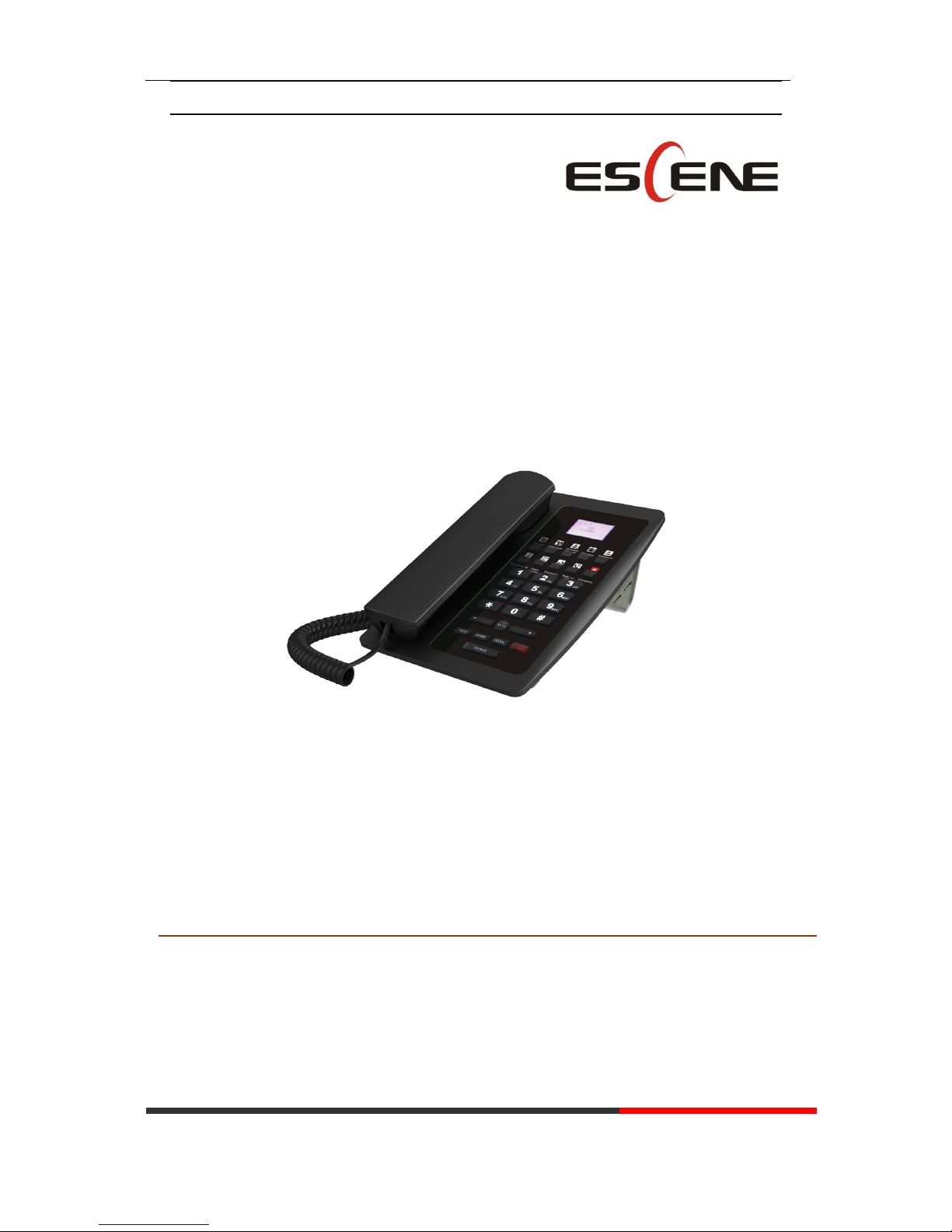
WS118 IPPhone
www.escene.cn/en/
Escene Communication
WS118 IP Phone
User Manual
EEsscceennee CCoommmmuunniiccaattiioonn CCoo..LLttd
d
Page 2

WS118 IPPhone
www.escene.cn/en/
Escene Communication
Tables of Contents
1.Getting Started ............................................................................................................................... 1
Technical Features ..................................................................................................................... 1
2.Phone overview .............................................................................................................................. 3
3.2 Phone Screen Display Features ........................................................................................... 4
3.3 Basic Network Settings ........................................................................................................ 5
3.4 SIP Account Settings ............................................................................................................ 7
3.5 Basic Features ...................................................................................................................... 8
3.5.1 Making a Call ........................................................................................................... 8
3.5.2 Redial ....................................................................................................................... 8
3.5.3 Ending a Call ............................................................................................................ 8
3.5.4 Using Hold and Recover (Switch Calling Line) ...................................................... 9
3.5.5 Using Mute ............................................................................................................... 9
3.5.6 Voice Mail ................................................................................................................ 9
4. WEB User Interface .................................................................................................................... 10
Main Interface-Phone Status .................................................................................................. 10
4.1 Network ............................................................................................................................. 11
4.1.1 Wi-Fi Setting .......................................................................................................... 11
5 SIP Account .................................................................................................................................. 16
5.1Basic ................................................................................................................................... 16
5.2 Advanced ........................................................................................................................... 18
6 Programmable keys ...................................................................................................................... 19
6.1 Memory keys ............................................................................................................. 19
6.3 Function Keys ........................................................................................................... 19
7 Phone Setting ............................................................................................................................... 20
7.1 Basic .................................................................................................................................. 20
7.1.1 Time Settings .......................................................................................................... 20
7.1.2 Backlight ................................................................................................................ 21
7.1.3 Keyboard Lock ....................................................................................................... 21
7.1.4 Ring ........................................................................................................................ 21
7.1.5 Volume Setting ....................................................................................................... 22
7.2 Features ..................................................................................................................... 23
7.2.1 VoIP Call Forward .................................................................................................. 23
7.2.2 Auto Redial ..................................................................................................................... 23
7.2.3 Pickup function............................................................................................................... 23
7.2.4 Hotline function ............................................................................................................. 24
7.2.5 Auto Answer ................................................................................................................... 24
7.2.6 Remote Control .............................................................................................................. 24
7.2.7 Action URL ...................................................................................................................... 24
7.2.8 EP+.................................................................................................................................. 25
7.2.9 Other features settings ................................................................................................... 25
Page 3

WS118 IPPhone
www.escene.cn/en/
Escene Communication
7.3 Advanced ................................................................................................................... 27
7.3.1 Audio ...................................................................................................................... 27
8 Phone Book .................................................................................................................. 29
8.1 Group ................................................................................................................................ 29
8.2 Contact .............................................................................................................................. 29
8.3 LDAP .................................................................................................................................. 30
8.4 Blacklist ............................................................................................................................. 31
9 Phone Maintenance ...................................................................................................................... 32
9.1 Basic .................................................................................................................................. 32
9.1.1 HTTP Upgrade ....................................................................................................... 32
9.1.2 FTP Upgrade .......................................................................................................... 33
9.1.3 TFTP Upgrade ........................................................................................................ 34
9.1.4 Default Setting ....................................................................................................... 35
9.1.5 Reboot .................................................................................................................... 35
9.2 Advanced ........................................................................................................................... 35
9.2.1 Log ......................................................................................................................... 35
9.2.2 Auto Provision ........................................................................................................ 36
10 Security ...................................................................................................................................... 37
10.1 Password ................................................................................................................................. 37
10.2 Trusted Certificates ................................................................................................. 37
10.3 IP Strategy ............................................................................................................... 38
11 WEB Other Settings or Information - Appendix ........................................................................ 38
11.1 WEB User ......................................................................................................................... 38
11.2 Multi-Language ............................................................................................................... 38
11.3 Note Tips ......................................................................................................................... 38
Tips: Under the paper, there hide a 1.5 inch 132x64 pixel
black&white LCD screen.
Page 4

WS118 IPPhone
www.escene.cn/en/
Escene Communication
1.Getting Started
Technical Features
Item
Technical Features
Language
English, Chinese, French, Italian, Russian, Spanish, Turkish etc
Line
2
Function
Keys
Programmable Keys、Line Keys、Number Keys and Function Keys
Voip
Protocol
SIP 2.0
Network
Protocol
HTTP、BOOTP、FTP、TFTP、IEEE 802.1Q
Codec
G.723.1 (5.3K 6.4K b/S)、G.729 A (8Kb/s)、G.711 A/U (64Kb/S)、G.722(64Kb/S)
QoS
TOS, Jiffer Buffer, VAD, CNG, G.168 (32ms)
Network
1*RJ45 10/100M Ethernet interfaces(LAN)
IP Assignment: Static IP or DHCP
VPN(L2TP) ,VLAN/QoS
DNS Clients (Primary and Secondary)
Speech
Handset, Headset or Hand-free Mode,
Call center headset and 3.5mm headset supported
9-levels volume adjustment
Call
Processing
Call Waiting, Call Queuing
Call Forward, Call Holding, Call Pickup, Callback
Redial,Auto-answer
Phone directory speed dial, call record direct dial
3-way conference
DnD
Application
(WEB set)
Enterprise phone directory
Banlist
Security
Password Login Web
Signaling encryption
Media encryption
Management
Upgrade: HTTP/TFTP/PnP auto-provision
Configurations: Phone/Web/auto-provision
Debug: Telnet/Phone/Web
Power
Supply
Power adapter:AC100~240V input and DC 5V/1A output
PoE(IEEE 802.af)
Page 5

WS118 IPPhone
www.escene.cn/en/
Escene Communication
Specification
Storage Temperature: 0℃ ~ 60℃
Operating Humidity: 10%~90%
Operating Humidity::10% ~ 90%
Page 6
WS118 IPPhone
www.escene.cn/en/
Escene Communication
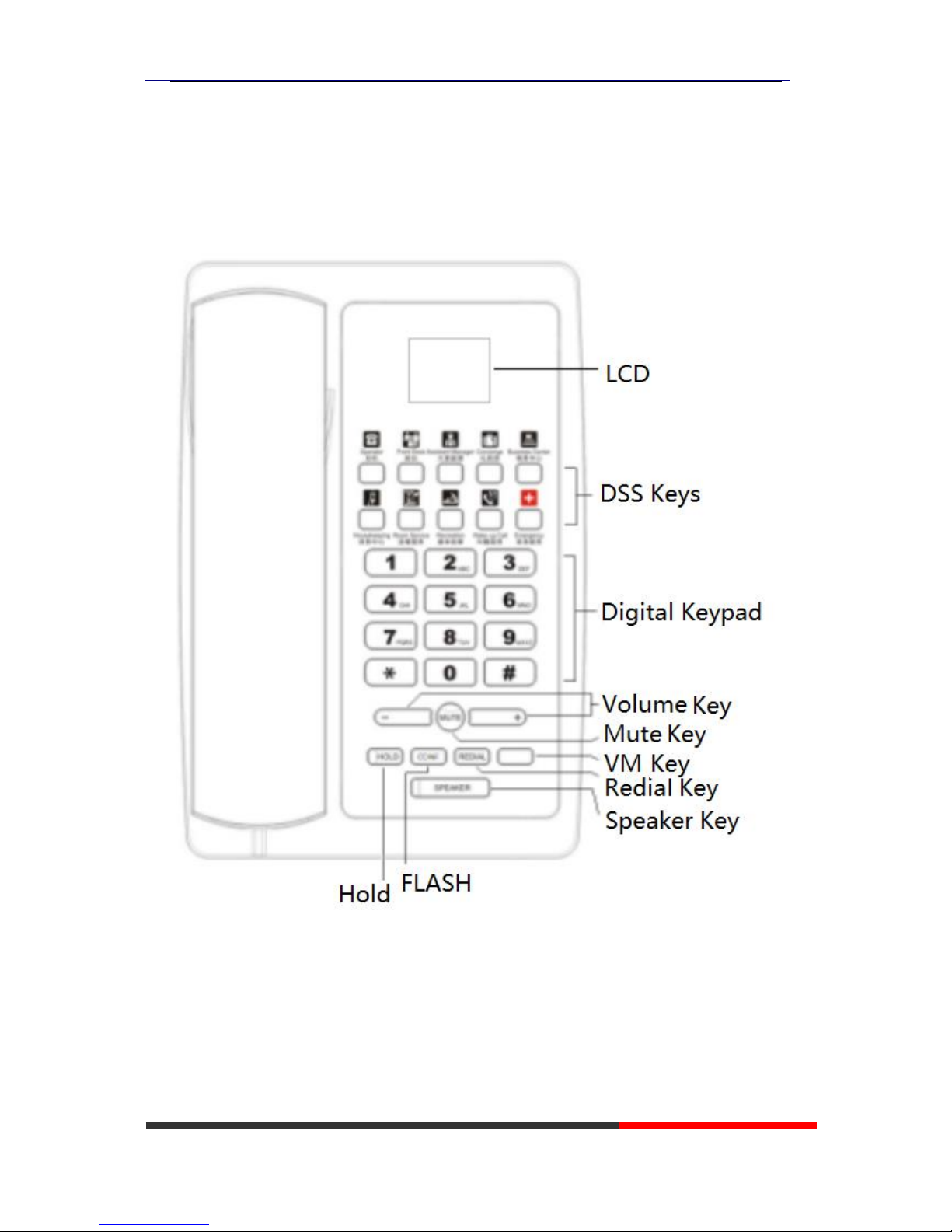
2.Phone overview
The unit keys and hardware
Page 7
WS118 IPPhone
www.escene.cn/en/
Escene Communication
Hardware component instructions of the WS118 IP Phone are:
ITEM
DESCRIPTION
LCD Screen
Displayed information about calls, messages, soft keys, time, date and
other relevant data:
• Call information — caller ID, call duration
• Icons (e.g. )
• Missed calls or second incoming caller's information
•Time and date
Navigation Key
UP: 2
DOWN: 8
RIGHT: 6
LEFT: 4
OK Key
Confirm the action
In Main Menu: 5
In the text box: vol +
Functions Key
Mute\Redial\Flash\Hold
Speaker Key
Toggles the hands-free speaker phone mode.
Volume Key
Adjusts the volume of the handset, headset, speaker and ringer
Keypad
Provides the digits, letters and special characters in context-sensitive
applications.
Message Key
Indicates and accesses voice messages.
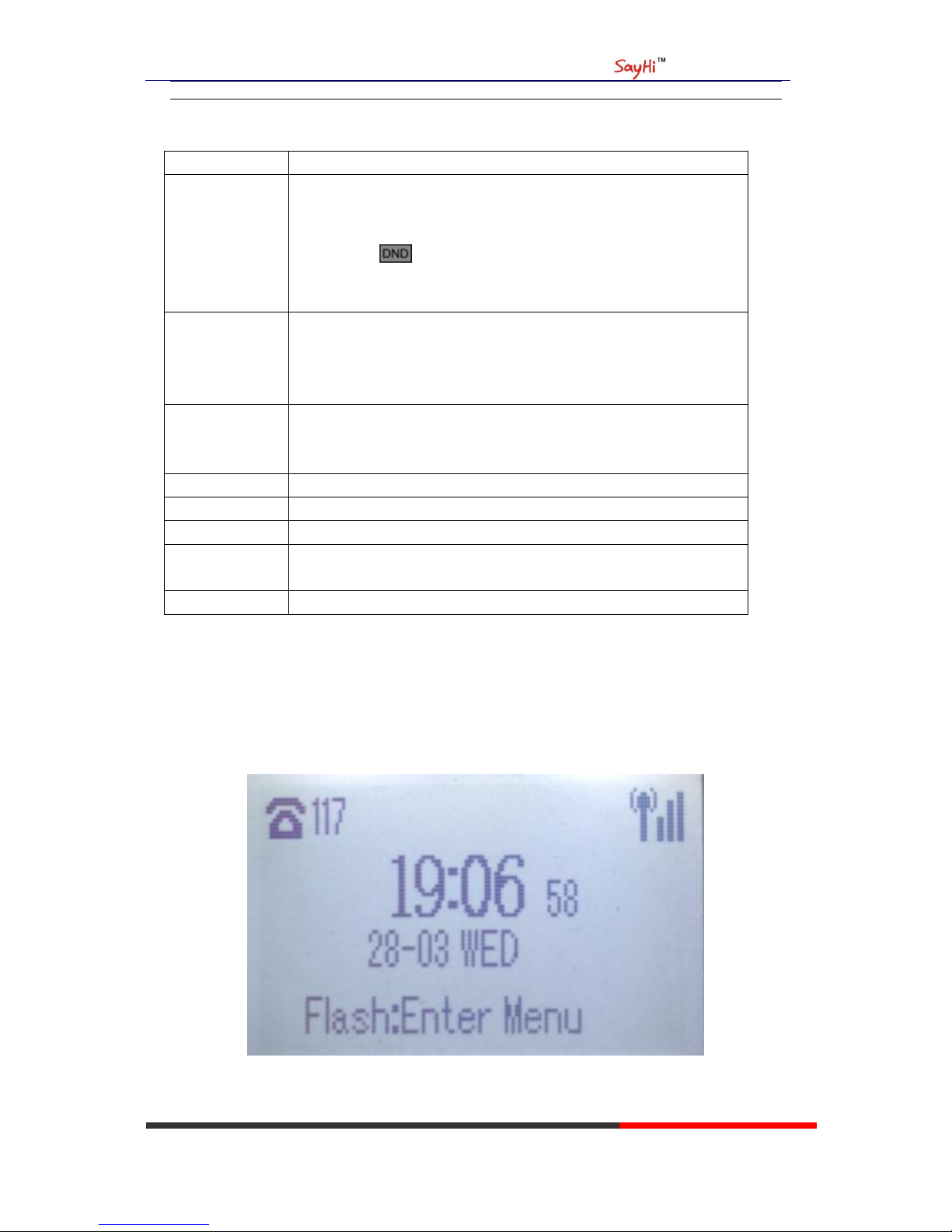
3.2 Phone Screen Display Features
If the phone has successfully started up and after using, the idle LCD display will show
information as below:
Page 8

WS118 IPPhone
www.escene.cn/en/
Escene Communication
ITEM
DESCRIPTION
1
TIME & DATE
TIME & DATE display in the middle of the screen.
2
Auto-Answer icon
Enable this feature, it will display "AA" at the top right corner.
3
Missed Call
Missed Call under the TIME in the middle of screen
4
Line Status
There are four status as below:
a. :Disconnect the network
b. :Account failed to register
c. :Account successfully registered
d. :Account successfully registered and DND feature is enabled.
The DND icon also will display at the top right corner.
5
Soft Key Area
Labels automatically to identity their context-sensitive features
6
Screen Top Icon
The Screen Top Icon from left to right is:
: Handset Hand on status
:Speaker Hand on status
:Headset Hand on status
:Call MUTE
:Missed Call
:Call Forward
:Text Message
:Keypad Lock
:Network is unavailable
3.3 Basic Network Settings
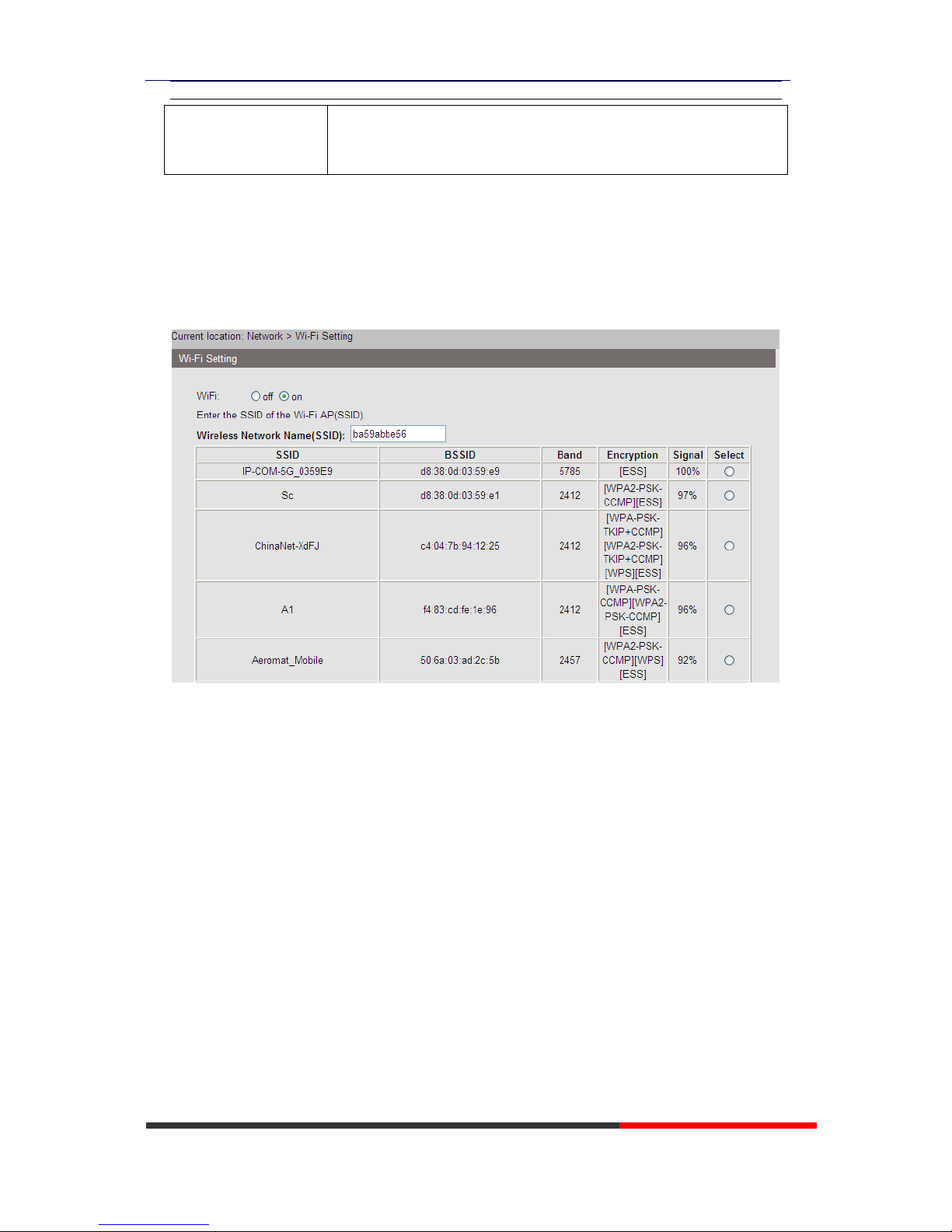
The phone supports Three Modes of Network Setting. Include Wi-Fi Setting\Static IP\DHCP.
Wi-Fi Setting
In order to more easily and quickly implement Wi-Fi series phone deployment, we provide
EWFC(Enhanced WIFI Fast Connection) technology to implement automatic connection between
the 5.8G Wi-Fi phone and AP-3.
Page 9

WS118 IPPhone
www.escene.cn/en/
Escene Communication
①When the AP-3 is set up wireless parameters by the administrator, you can long press "ok" to
enter the password to connect it.
②If you don’t use EWFC rapid deployment, you can According to the normal method for manual
connection and settings as following:
Feature
Operating Steps
Wi-Fi
Press Flash key to enter Menu> System Settings> Advanced Settings>
Password(Default is Empty)> Network> Wi-Fi Setting
Press Wi-Fi Setting to login in to the
menu
Select "Wi-Fi", and choose “enable”
Press "Save" key
Select “Hotspot List”
Press "Enter" key
Select the hotspot which you want to
connect
Enter “Password”
Press "OK" key to make it work
DHCP Setting
Feature
Operating Steps
DHCP
Press Flash key to enter Menu> System Settings> Advanced Settings>
Password(Default is Empty)> Network> IP Setting
Press IP Setting to login in to the
menu
Select "DHCP" mode
Press "Enter" key
Set the DNS\web port\telnet port
Press "Save" key to make it work
Tips "Network is changed, press OK
reboot "
Static IP Setting
Feature
Operating Steps
Static IP
Press Flash key to enter Menu >System Settings> Advanced Settings>
Password(Default is Empty)> Network> IP Setting
Press IP Setting to login in to the
menu
Select "Static" mode
Press "Enter" key
Set the IP\Mask\GW\DNS\web
port\telnet port
Press "Save" key to make it work
Page 10

WS118 IPPhone
www.escene.cn/en/
Escene Communication
Tips "Network is changed, press OK
reboot "
3.4 SIP Account Settings
WS118 IP phone makes calls based on sip accounts, It can support Single account or
Multi-account, Each account can be configured to the different SIP server.
If you want to…
Then...
Create an SIP account
--1) Press Flash key to enter MenuSystem Settings> Advanced
Settings> Password(Default is Empty)> SIP Accounts;
--2) Select one of the account you want to setting, you can configure the
following parameters
-Enable account*: Select Enable
-Number of lines: Default is 2
-Description: description of this account
-Display Name: The name displayed on the screen
-Authentication user: the Authenticated users are matched with
the SIP server.(The default With the same account)
-Account*: the account matches with the SIP server.(extension
number)
-User pass word*: the user password matches with the SIP server
-SIP Server*: The primary SIP server, all calls through this server
-Out Bound Server: The out bound SIP server
-STUN Type: Enable/Disable STUN feature
-STUN: Input STUN URL
-Auto Answer: Enable/Disable this account auto answer feature
* Note: When you finish the setting, you can press Save to make it
work, and then you can see the status icon in the LCD idle.
The parameters with the * mark must be set.
Disable sip account
--1) Press Flash key to enter MenuSystem Settings> Advanced
Settings> Password(Default is Empty)> SIP Accounts;
Page 11

WS118 IPPhone
www.escene.cn/en/
Escene Communication
--2) Select “Enable account” > “Disable”;
--3) Select “Save” to saves settings
3.5 Basic Features
3.5.1 Making a Call
Here are some easy ways to place a call on SayHi IP Phone:
If you want to...
Then…
Place a call using
the handset
Pick up the handset
--1) You can hear dial tone;
--2) Enter a number;
--3) Press # button (default),
-or wait 5s (default), then it send the
number automatically.
Place a call using
a speakerphone
Press Speaker button
3.5.2 Redial
To redial the last placed call from your phone
Redial
--Press REDIAL button to dial the last number
3.5.3 Ending a Call
To end a call, hang up. Here are some more details.
Hang up while using the
Handset
--Return the handset to its cradle,
-or press End
Hang up while using the
Speakerphone
--Press Speaker button that is Red ,
-or press Line button for the appropriate line,
-or press End
Hang up while using the
Headset
--Press Handset button, (Do not keep the headset mode) ,
-or press End (keep the headset mode)
Page 12
WS118 IPPhone
www.escene.cn/en/
Escene Communication
Hang up one call, but
preserve another call on
the other line
--Press End,
-or refer to the above three methods
3.5.4 Using Hold and Recover (Switch Calling Line)
You can hold and resume calls. You can take a call in one line at anytime, and the other lines
would be hold. As a result of that, you can switch different calling line on our phone.
If you want to...
Then...
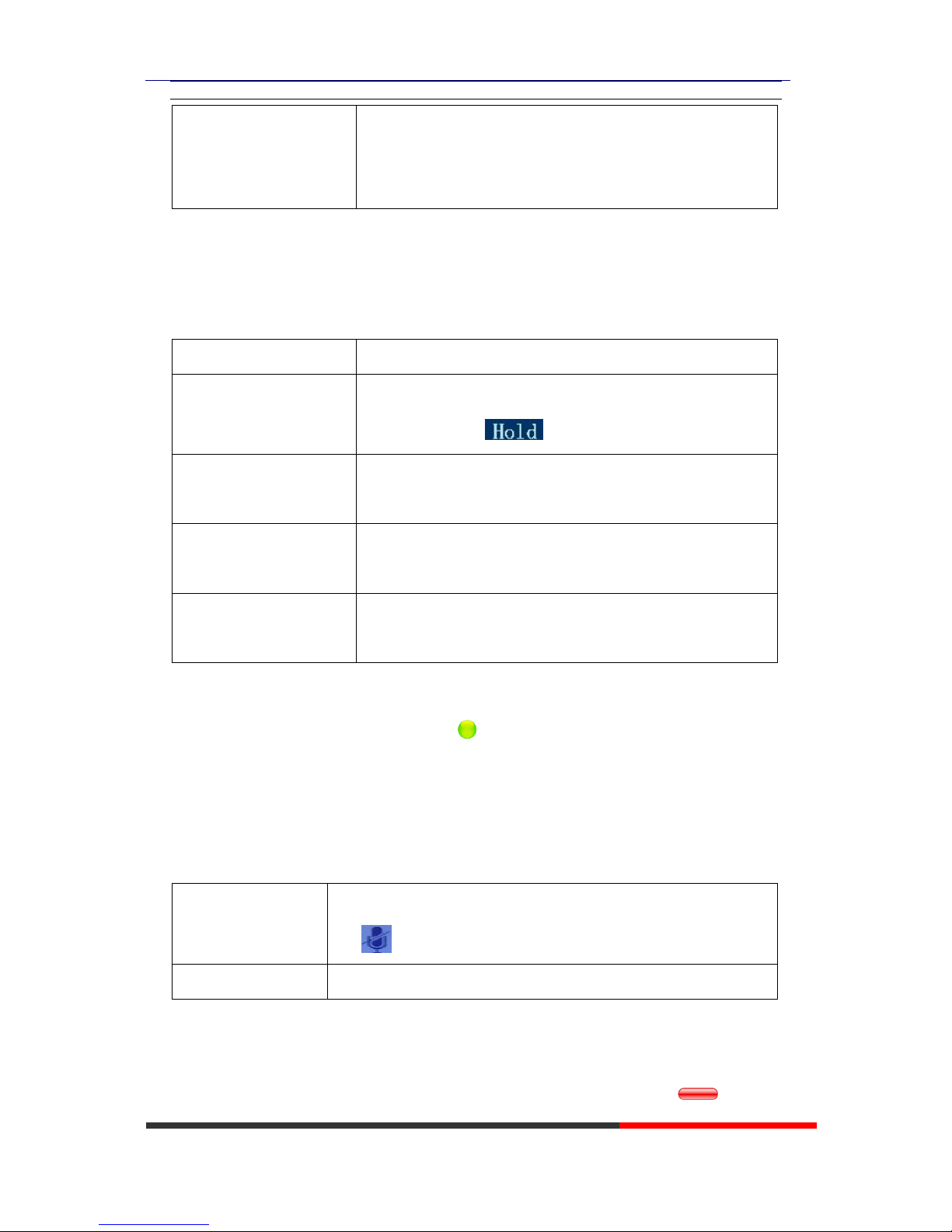
Put a call on hold
--Press HOLD button,
-or press soft key
Hold a line and switch to
another line
Press another Line button for the appropriate line
Resume a call on current
line
--Press Line button,
Release a call on different
line
Select the line want to release hold, press the line, so recovery;
NOTES
• Engaging the Hold feature typically generates music or a beeping tone.
• A held call is indicated by the Yellow-green and flashing Line button or Hold in the LCD.
3.5.5 Using Mute
With Mute enabled, you can hear other parties on a call but they cannot hear you. You can use
mute in conjunction with the handset, speakerphone, or a headset。
Toggle Mute on
Press C button, then the screen top and left will have a MUTE
icon
Toggle Mute off
Press C button again, then the button light off
3.5.6 Voice Mail
When the Phone get a voice mail from server. it will light up the voice mail button .
Page 13
WS118 IPPhone
www.escene.cn/en/
Escene Communication
Voice Mail
--1 ) Press the Voice Mail button(There has Voice Mail
icon ,without is )
--2)Enter the User Password
--3)It will login into the voice mail server. You need to follow the IVR
to do it.
4. WEB User Interface
In addition to the phone user interface, you can also customize your phone via web user interface.
In order to access the web user interface, you need to know the IP address of your new phone. To
obtain the IP address, press the Flash key> Menu> View Status on the phone. Enter the IP address
(e.g. HTTP://192.168.0.10 or 192.168.0.10) in the address bar of web browser on your PC. The
default user name is root (case-sensitive) and the password is root (case-sensitive).
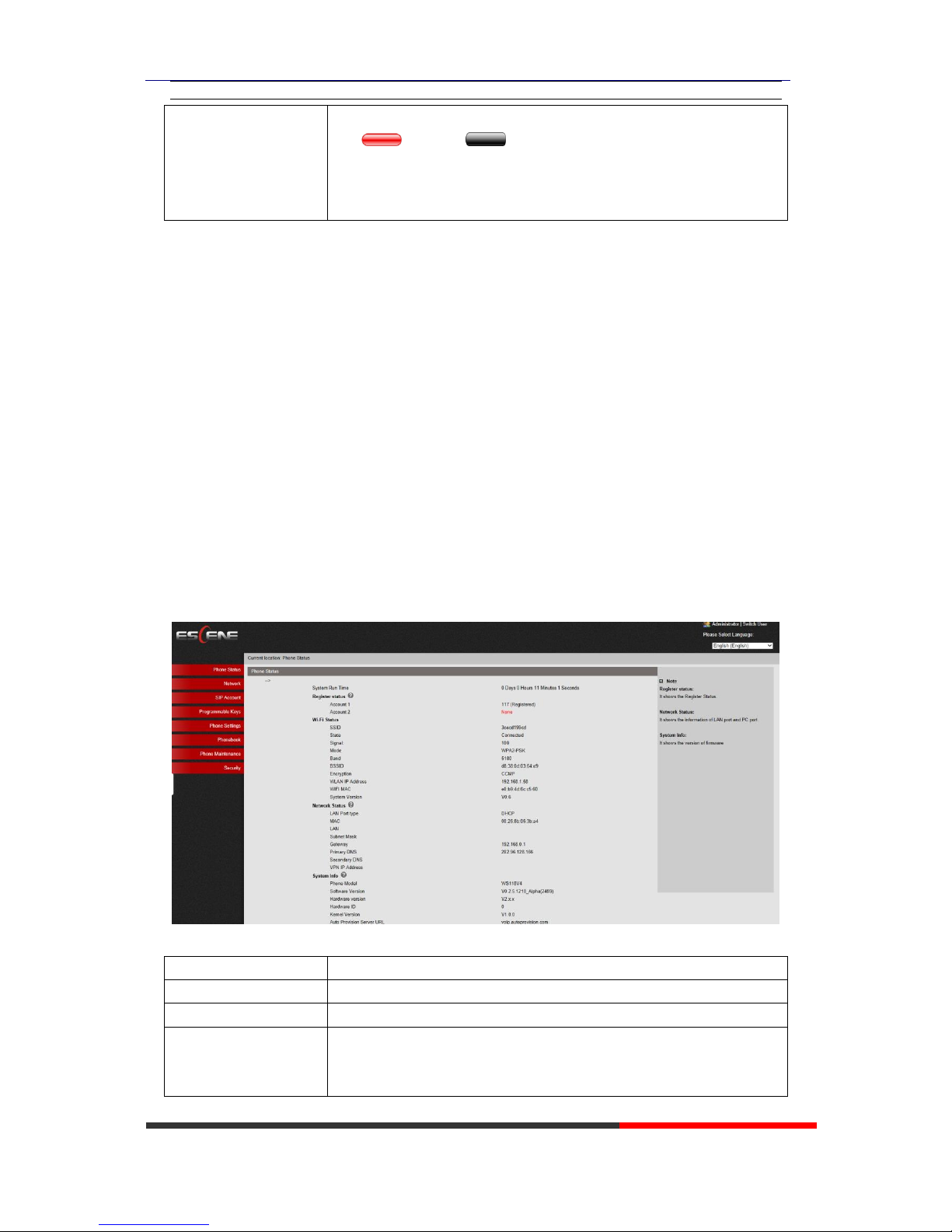
Main Interface-Phone Status
Here you can see as below information: System Run Time, Register Status, Network Status,
System Information,
ITEM
DESCRIPTION
System Run Time
The phone system normal running time.
Register Status
The status with Account 2.
Network Status
The status with LAN, MAC, LAN IP, Net mask, Gateway, Primary
DNS, Secondary DNS, VPN IP, PC IP, PC Net mask, Device Type,
DHCP Server.
Page 14
WS118 IPPhone
www.escene.cn/en/
Escene Communication
System Information
The status with Phone Model, Software Version, Hardware Version,
Hardware ID, Kernel Version, Auto-Provision Server URL, TFTP
Server IP.
4.1 Network
4.1.1 Wi-Fi Setting
Page 15
WS118 IPPhone
www.escene.cn/en/
Escene Communication
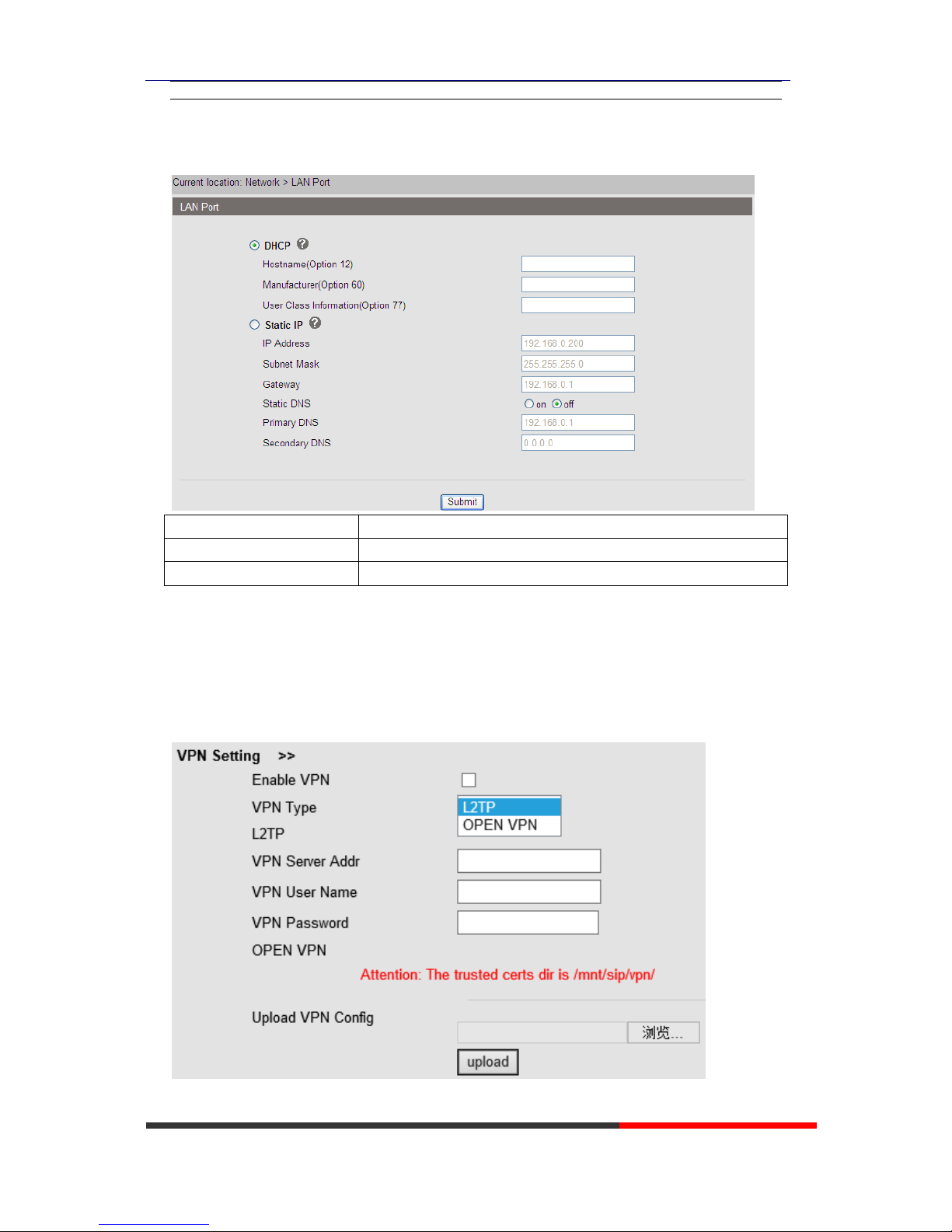
4.1.2 IP Setting
ITEM
DESCRIPTION
Network Connection Mode
Network Connection Mode has DHCP, Static IP
DNS Settings
Select the DNS mode that you want.
4.1.3 Advanced
VPN Setting
When using VPN Setting option, you can set several parameters as follow:
Page 16
WS118 IPPhone
www.escene.cn/en/
Escene Communication
VLAN Setting
Enable VPN
You can enable/disable VPN for phone and pc.
VPN Type:
Choose the appropriate type of VPN.
VPN Server Addr
VPN server's IP.
VPN User Name
VPN user's name
VPN Password
A password be used for authentication
OPEN VPN
Upload the *.ovpn file to the phone
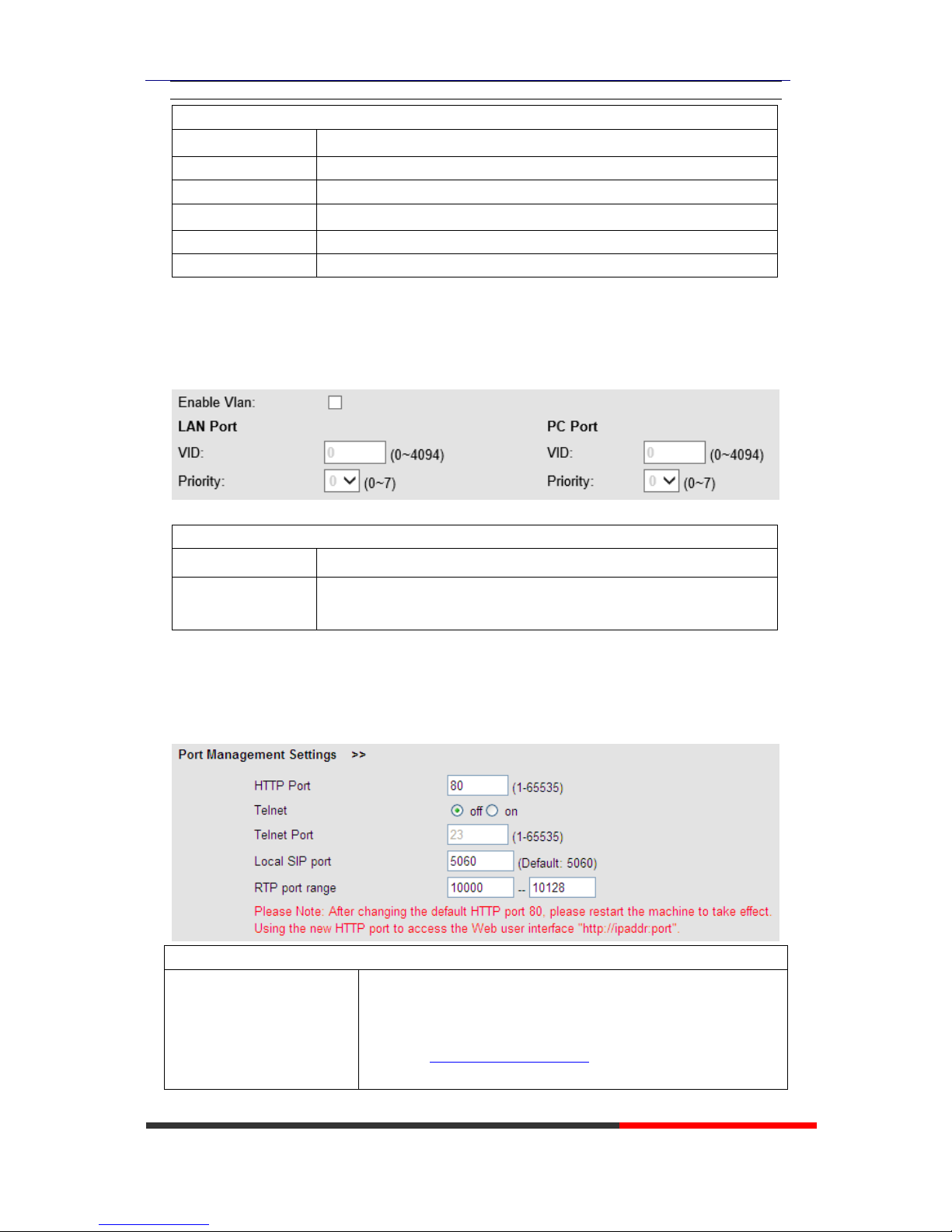
VLAN Setting
When using VLAN Setting option, you can set several parameters as follow:
VLAN Setting
Enable VLAN
You can enable/disable vlan for phone and pc
VID
[LAN/PC Port]
The vlan ID you want the phone or pc to join
Port Management Settings
Port Management Settings
HTTP Port
The default web port is 80,if you want to change it(for example
change it to88),
You must input IP and Web port to login the web page(for
example HTTP://192.168.0.200:88). It will take effect on next
reboot.
Page 17
WS118 IPPhone
www.escene.cn/en/
Escene Communication
Telnet Port
The default Telnet port is 23,if you want to change it(for example
change it to 2003). You must input IP and Telnet port to login the
manage page (for example telnet 192.168.0.200:2003).It will take
effect on next reboot.
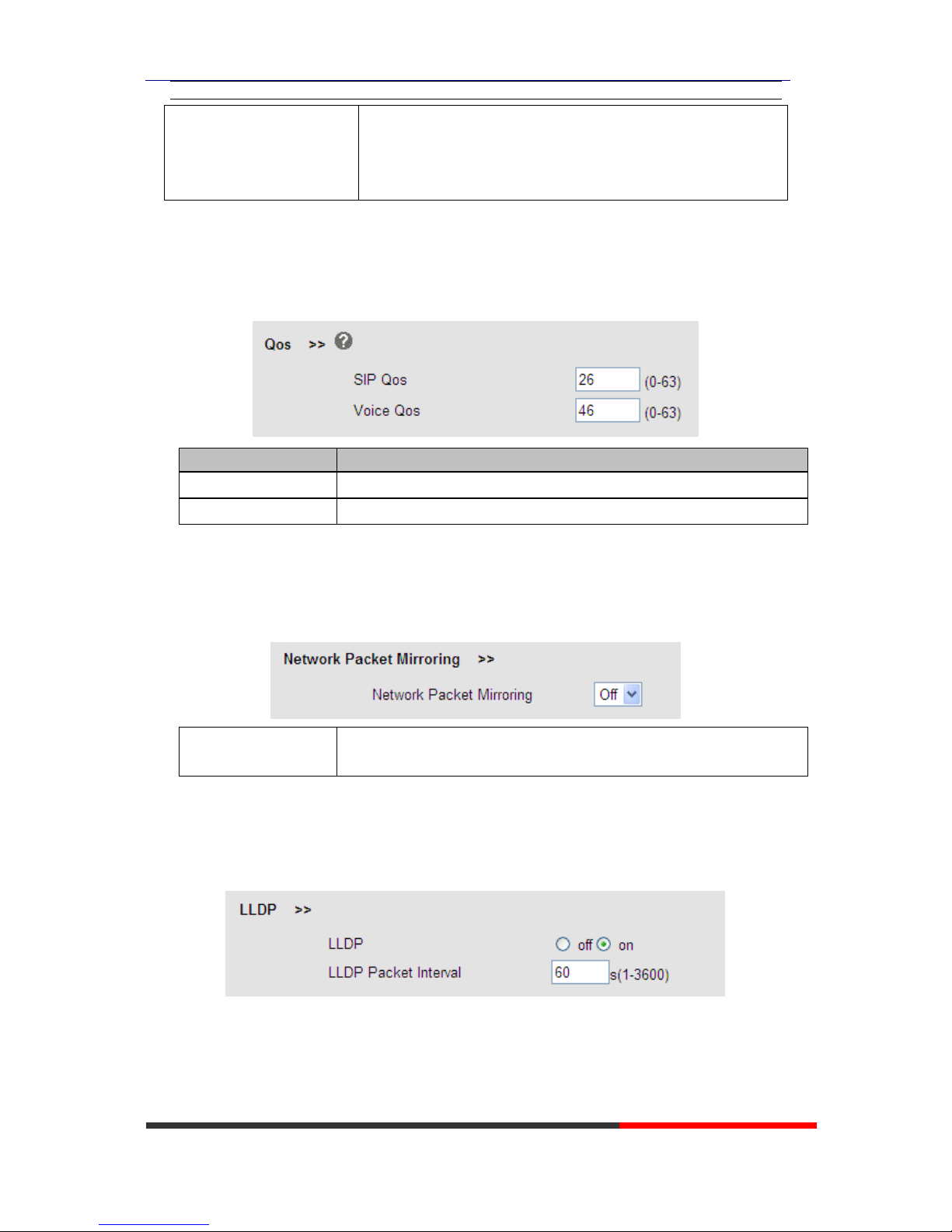
QoS
ITEM
DECSRIPTIO
SIP QoS
The range is 0~63,default is 26
Voice QoS
The range is 0~63,default is 46
Network Packet Mirroring
Network Packet
Mirroring
When select on, then you can capture the phone’s packet use notebook
which connect to pc port of the phone
LLDP
Page 18
WS118 IPPhone
www.escene.cn/en/
Escene Communication
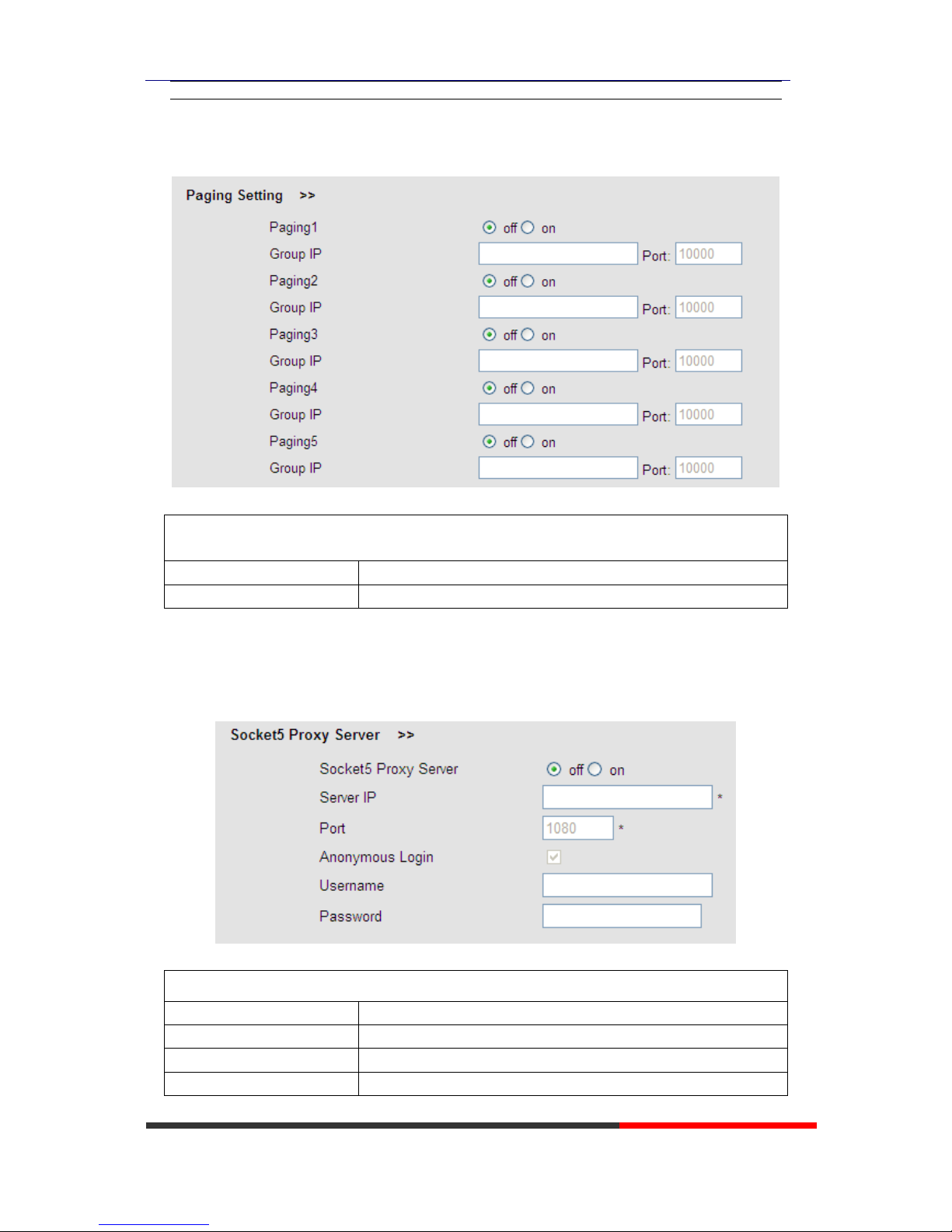
Paging Setting
Paging Setting(NOTE: This feature priority is followed the serial number, In other words,
"paging 1" is the highest priority)
Paging1
Enable/Disable Paging feature.
Group IP and Port
Group IP and Port with Paging.
Socket5 Proxy Server
Socket5 Proxy Server
Socket5 Proxy Server
Enable/Disable Socket5 Proxy Server.
Server IP
Socket5 Proxy Server IP address.
Port
Socket5 Proxy Server port, default is 1080.
Anonymous Login
Enable/Disable Socket5 Proxy Server login username.
Page 19
WS118 IPPhone
www.escene.cn/en/
Escene Communication
5 SIP Account
5.1Basic
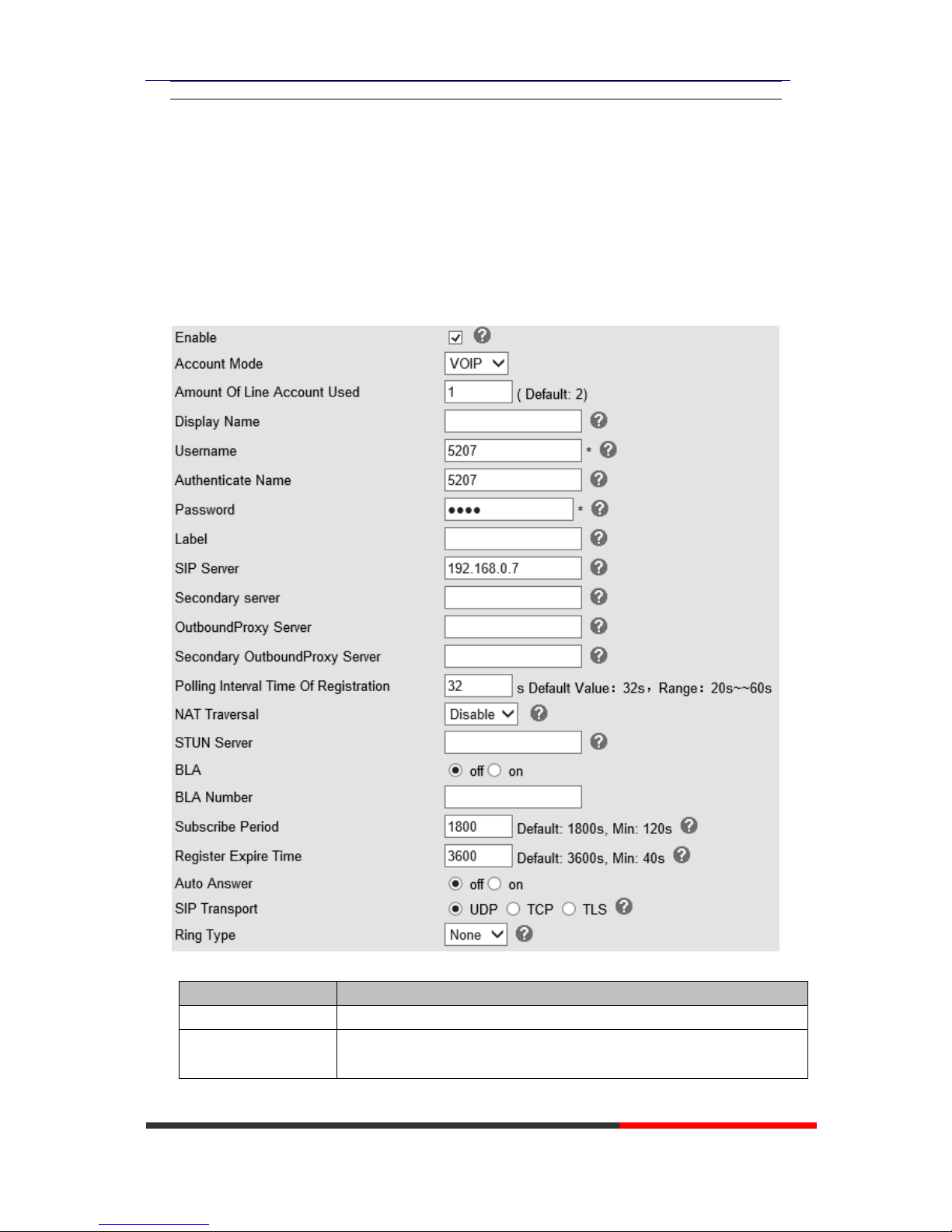
Choose one Account, you will find the following parameters:
ITEM
DECSRIPTIO
Enable
You can choose on/off to enable/disable the line.
Account Mode
You can choose VOIP/PSTN, but this model nonsupport PSTN, If you
need, Pls contact us to buy another model that can supports PSTN.
Page 20

WS118 IPPhone
www.escene.cn/en/
Escene Communication
Amount Of Line
Account Used
The line key of account used, default is 2
Display Name
It is showed as Caller ID when making a phone call
Username
It is a username provided by SIP Server
Authenticate Name
It is authenticated ID for authentication
Password
It is a password provided by SIP Server
Label
Label with this account.
SIP Server
Server for registration, provided by administrator
Secondary server
When the main server can't work, it also can register in this secondary
server.
Outbound Proxy Server
Put into the address with the outbound proxy server.
Secondary Outbound
Proxy Server
When the main out bound server can't work, it also can use this secondary
server.
Poling Interval Time Of
Registration
Poling Interval Time Of Registration, default is 32 s.
NAT Traversal
Defines the STUN server will be active or not
STUN Server
Session traversal utilities for NAT.
BLA
Share with the line.
BLA Number
BLA Number
Subscribe Period
Subscribe expire time.
Register Expire Time
IP phone automatically registered every time
SIP Transport
There are UDP/TCP/TLS three options
Ring Type
Select this account ringing type.
Page 21
WS118 IPPhone
www.escene.cn/en/
Escene Communication
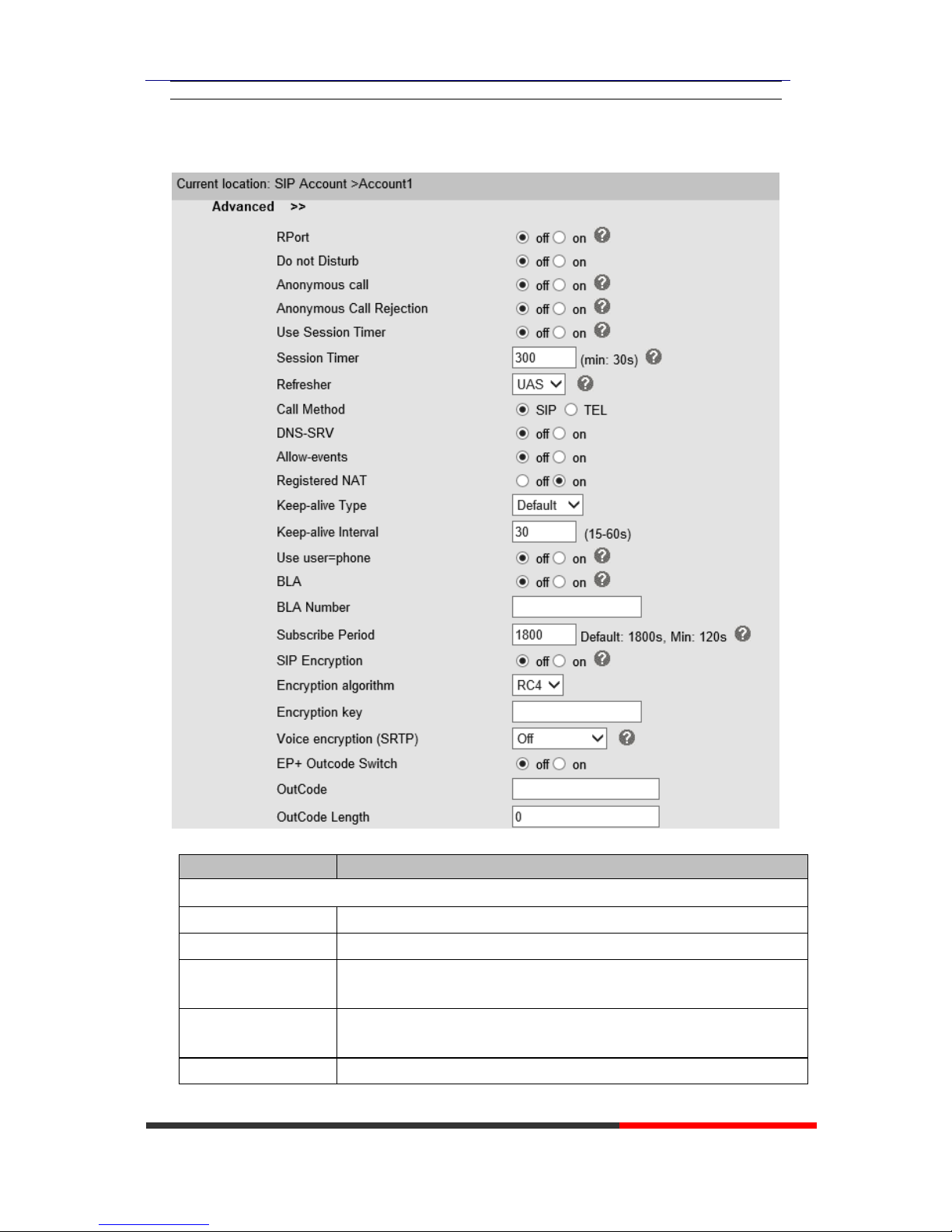
5.2 Advanced
ITEM
DECSRIPTIO
Advanced
Do Not Disturb
Enable/Disable Do Not Disturb
Anonymous Call
Enable/Disable anonymous call.
Anonymous Call
Rejection
Enable/Disable anonymous call rejection.
Use Session Timer
Enable/Disable refresh session function. The device will send an Invite
packet to refresh the session during a call if it enable.
Session Timer
The refresh session time interval.
Page 22
WS118 IPPhone
www.escene.cn/en/
Escene Communication
Call Method
This method include SIP and TEL.
DNS-SRV
Enable/Disable DNS-SRV.
Allow-events
Enable/Disable Allow-events.
Registered NAT
Enable/Disable Registered to NAT
UDP Keep-alive
Message
The phone periodically sends a UDP packet to keep the port active and to
avoid the server to shut down the port
UDP Keep-alive
Interval
Default is 30 second.
SIP Encryption
Enable/Disable SIP encryption.
RTP Encryption
Enable/Disable RTP encryption.
Encryption Algorithm
The encryption algorithm at this time we only have RC4.
Encryption Key
The key with encryption.
6 Programmable keys
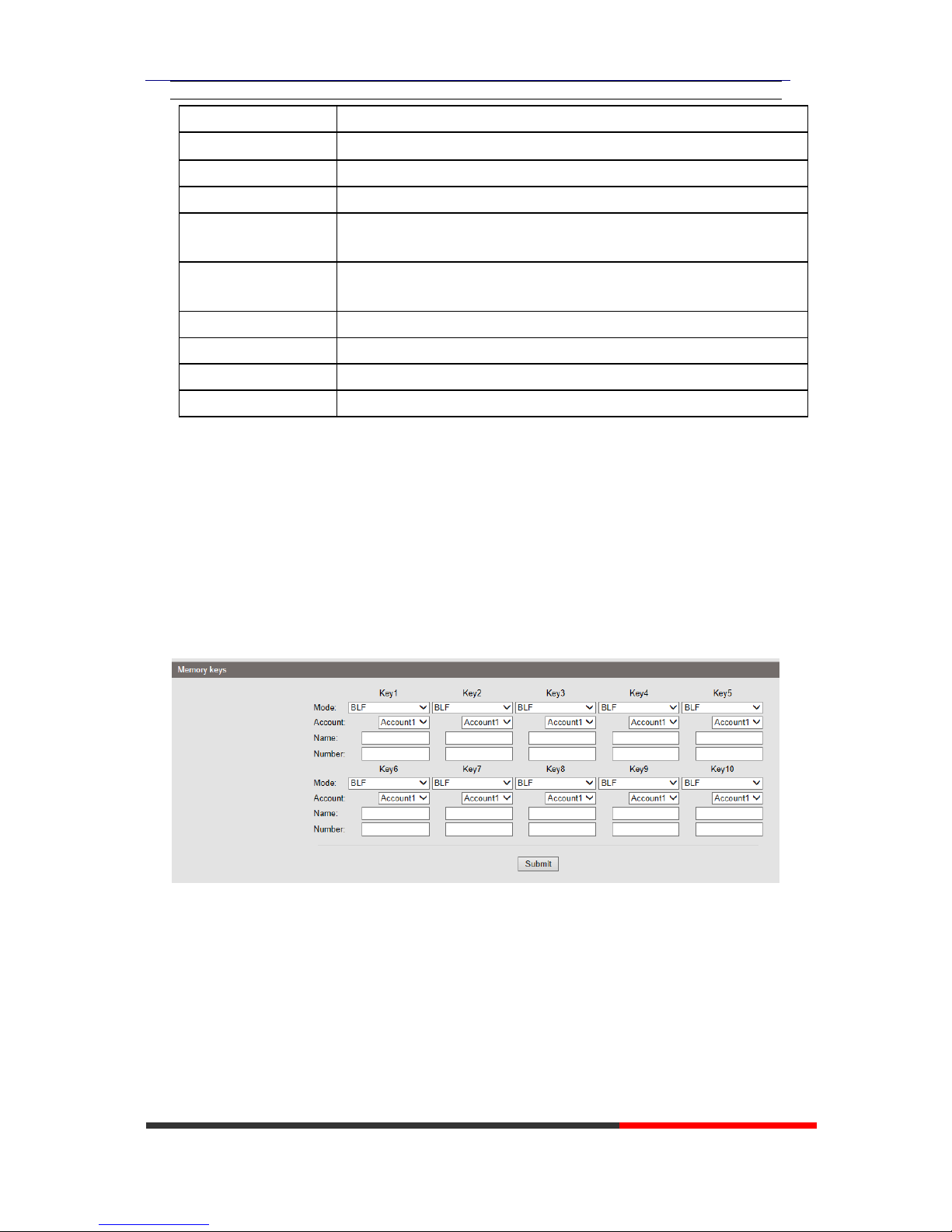
6.1 Memory keys
The definition of memory keys features
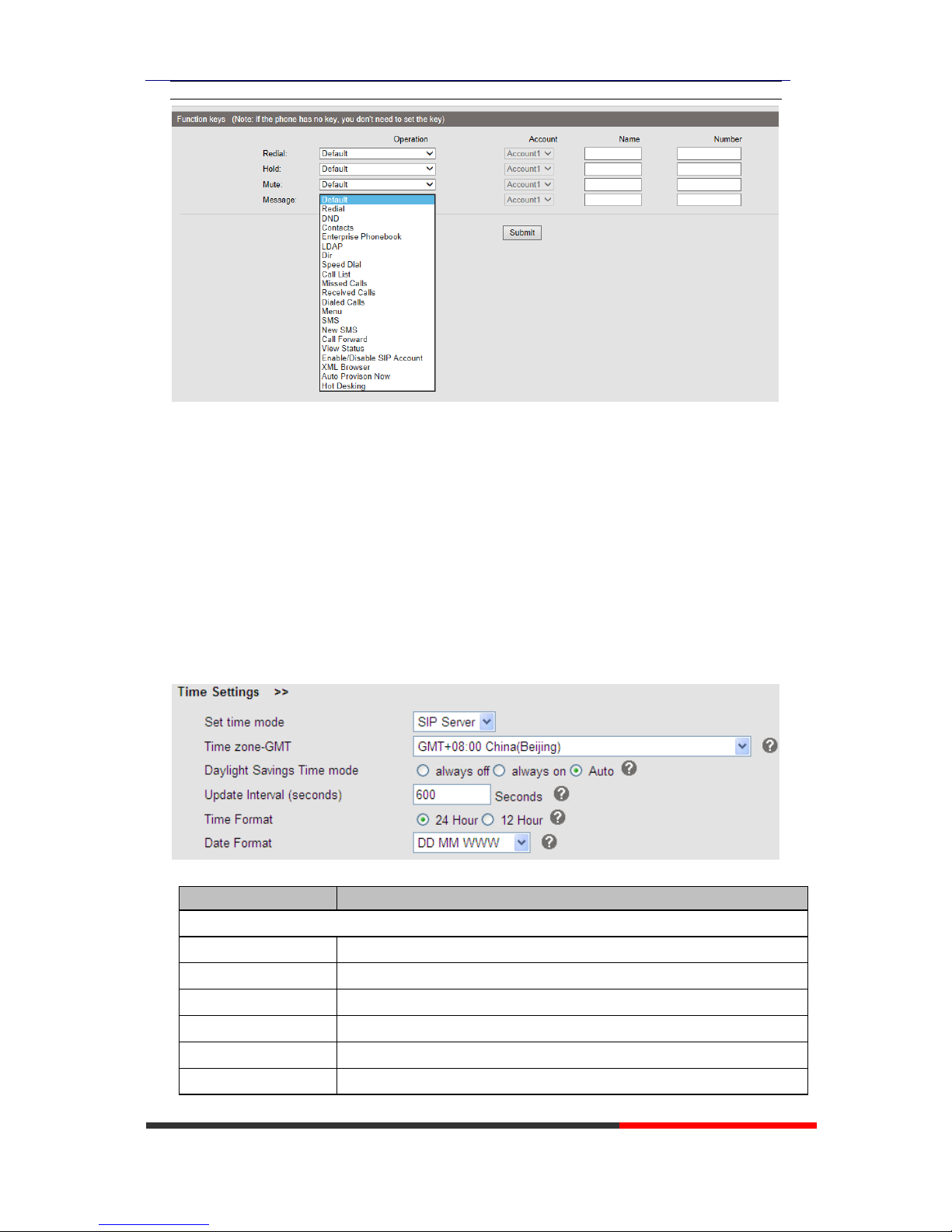
6.3 Function Keys
Function Keys: If you do not like the default setting with the function keys feature. You can
change to whatever you like.
NOTE: IF THE PHONE WITHOUT THE KEY, YOU CAN IGNORE IT.
Page 23
WS118 IPPhone
www.escene.cn/en/
Escene Communication
7 Phone Setting
7.1 Basic
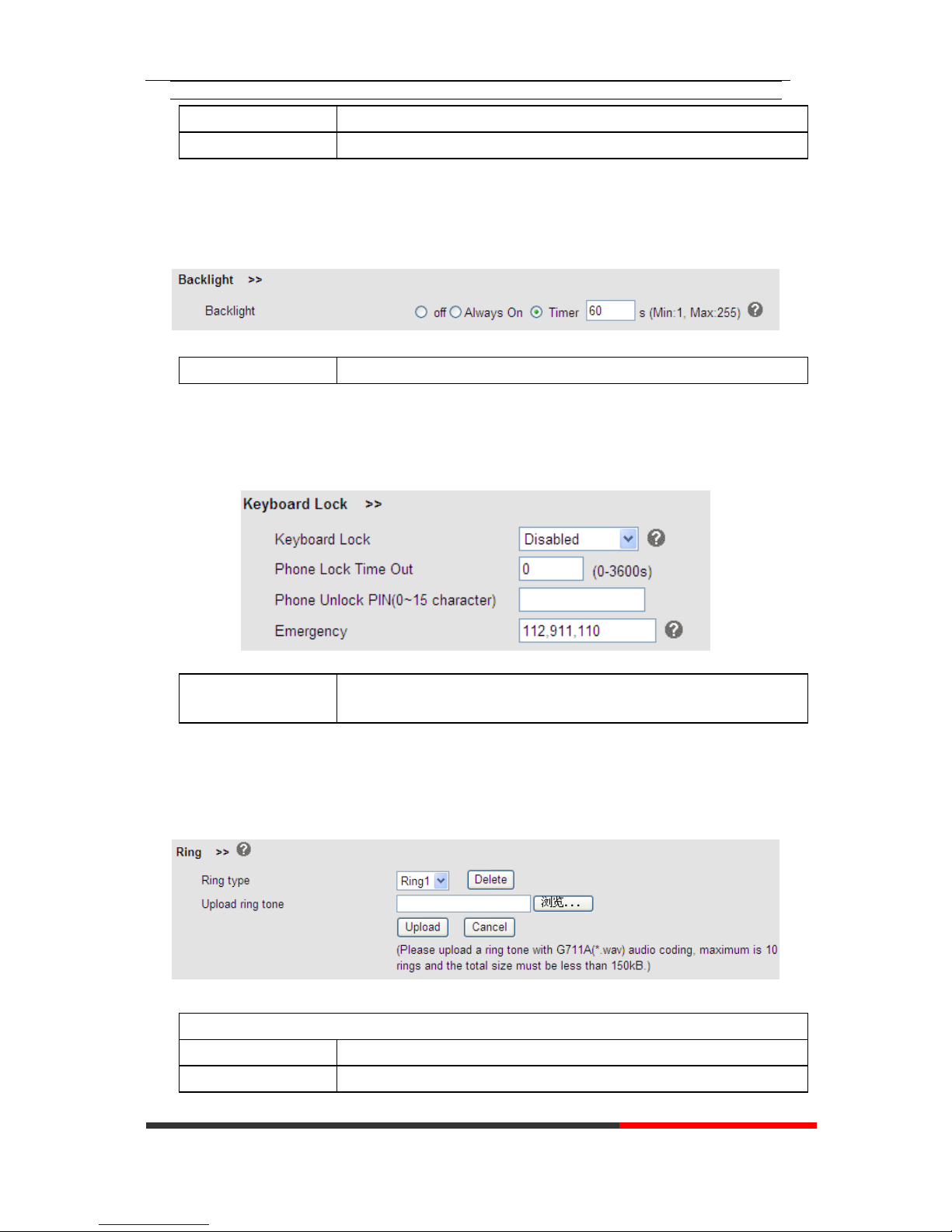
7.1.1 Time Settings
ITEM
DECSRIPTIO
Time Settings
Set Time Mode
Include SNTP/SIP Server/PSTN/Manual
SNTP Server
You can select in the list or input owner server address.
Update Interval
The update interval with SNTP.
Day Light Saving Time
Enable/disable the DST for the phone
Time Format
You can use 24 hour time format or 12 hour time format
Date Format
You can choose the appropriate time format.
Page 24
WS118 IPPhone
www.escene.cn/en/
Escene Communication
Time Zone-GMT
You can select different time zone for the phone
Manual Setting
Setting time manually.
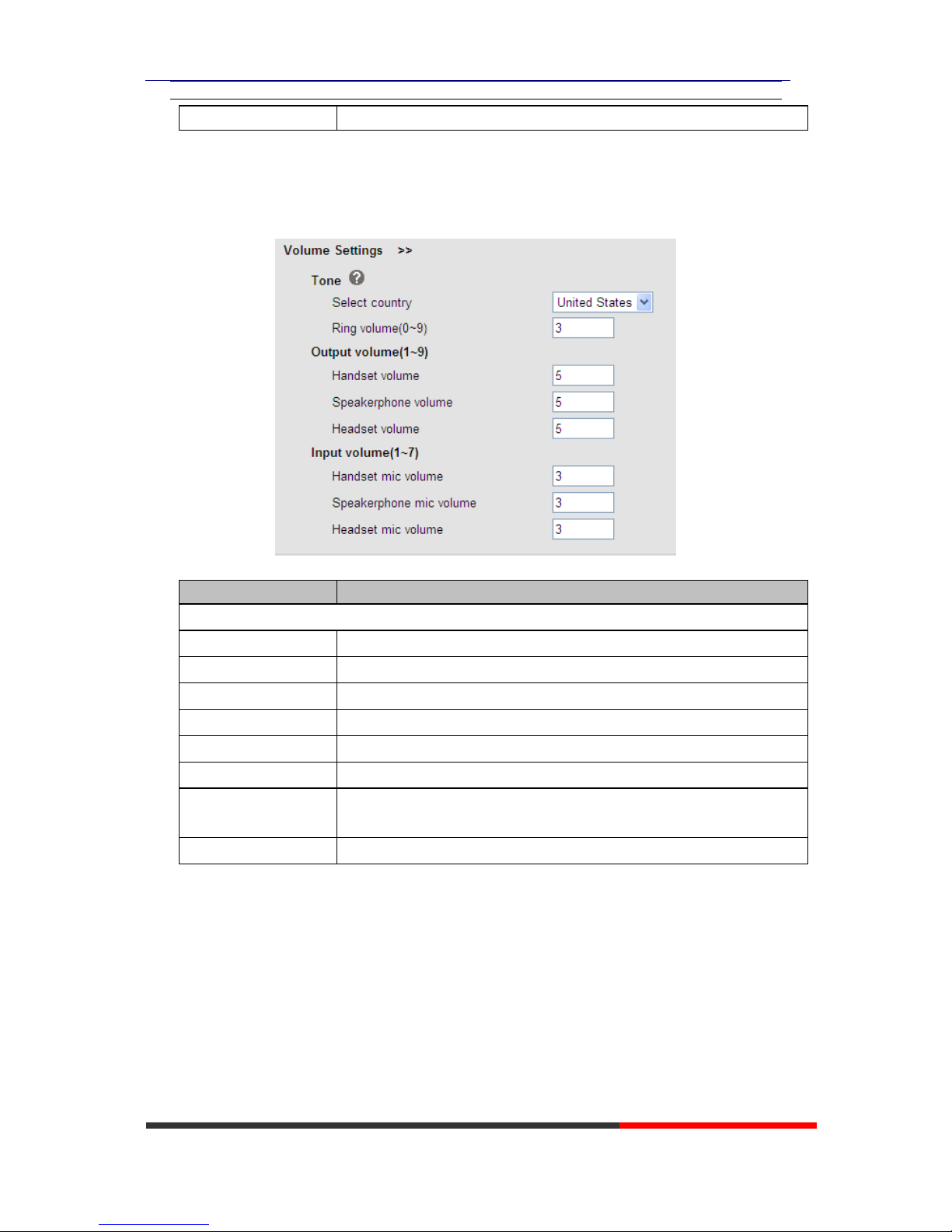
7.1.2 Backlight
Back Light
The backlight of the phone LCD.
7.1.3 Keyboard Lock
Keyboard Lock
Enable/Disable keyboard lock, you can lock: MENU Key, FUNCTION
Key., ALL Keys, LOCK all keys but auto Answer.
7.1.4 Ring
Ring
Ring Type
Select the ring type. Default is Ring 1.
Uploading Ring Tone
Please upload a ring tone with G711A audio coding, Maximum 10 rings
Page 25
WS118 IPPhone
www.escene.cn/en/
Escene Communication
and the total sizes must less than 150k.
7.1.5 Volume Setting
ITEM
DECSRIPTIO
Basic
Select Country
Select the country dial tone. Default is United States.
Ring Volume
The ring volume default is Lv3, the range is 0~9.
Handset Volume
The handset volume default is Lv5, the range is 1~9.
Speaker Phone Volume
The speaker volume default is Lv5, the range is 1~9.
Headset Volume
The headset volume default is Lv3, the range is 1~9.
Handset MIC Volume
The handset MIC volume default is Lv3, the range is 1~7.
Speaker Phone MIC
Volume
The speaker MIC volume default is Lv3, the range is 1~7
Headset MIC Volume
The headset MIC volume default is Lv3, the range is 1~7
Page 26
WS118 IPPhone
www.escene.cn/en/
Escene Communication
7.2 Features
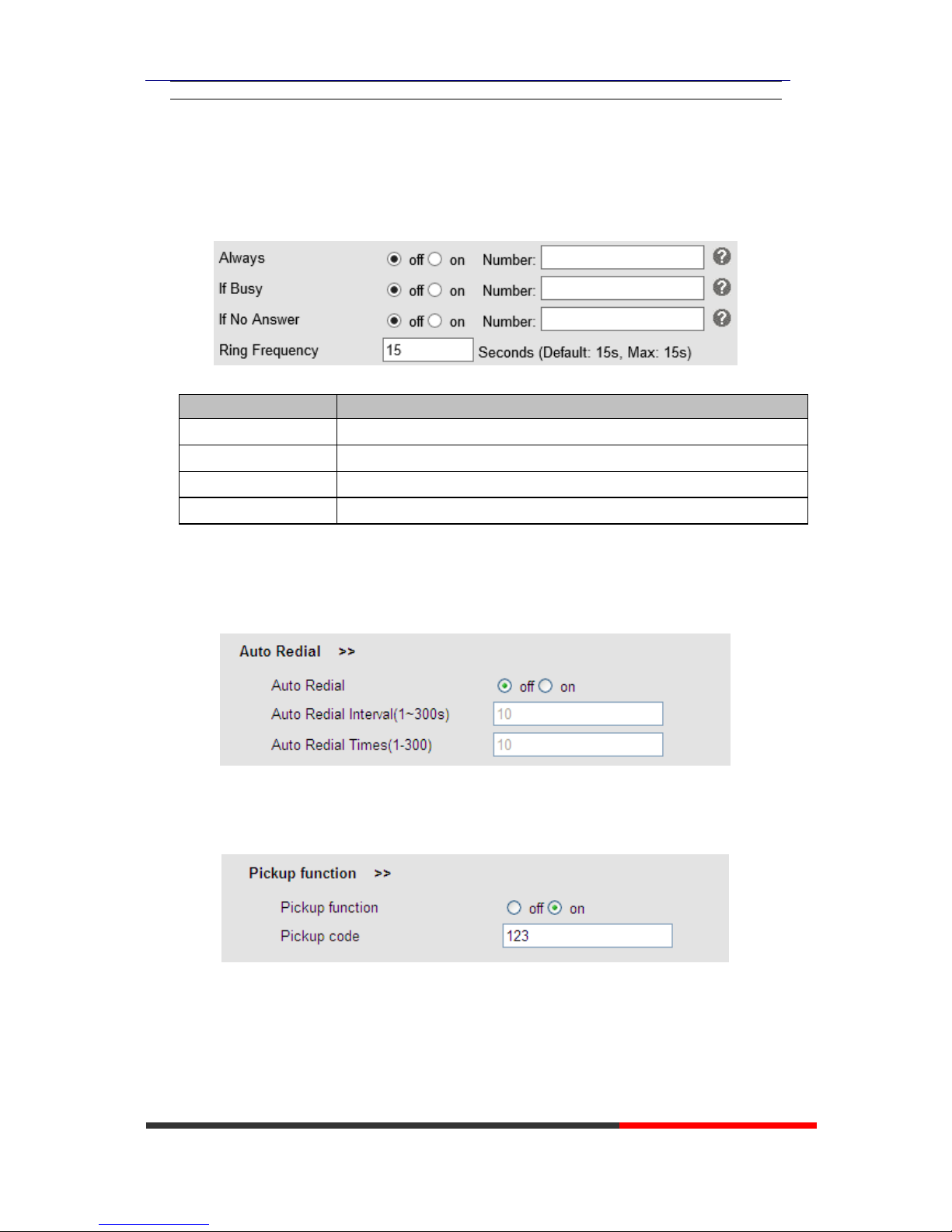
7.2.1 VoIP Call Forward
ITEM
DECSRIPTIO
Always
All ways transfer the call to others.
If Busy
If the phone was busy working, the call will be transfer to others.
If No Answer
If the phone was no answer, the call will be transfer to others.
Ring Frequency
The ring frequency with the VOIP Call Forward.
7.2.2 Auto Redial
7.2.3 Pickup function
Page 27
WS118 IPPhone
www.escene.cn/en/
Escene Communication
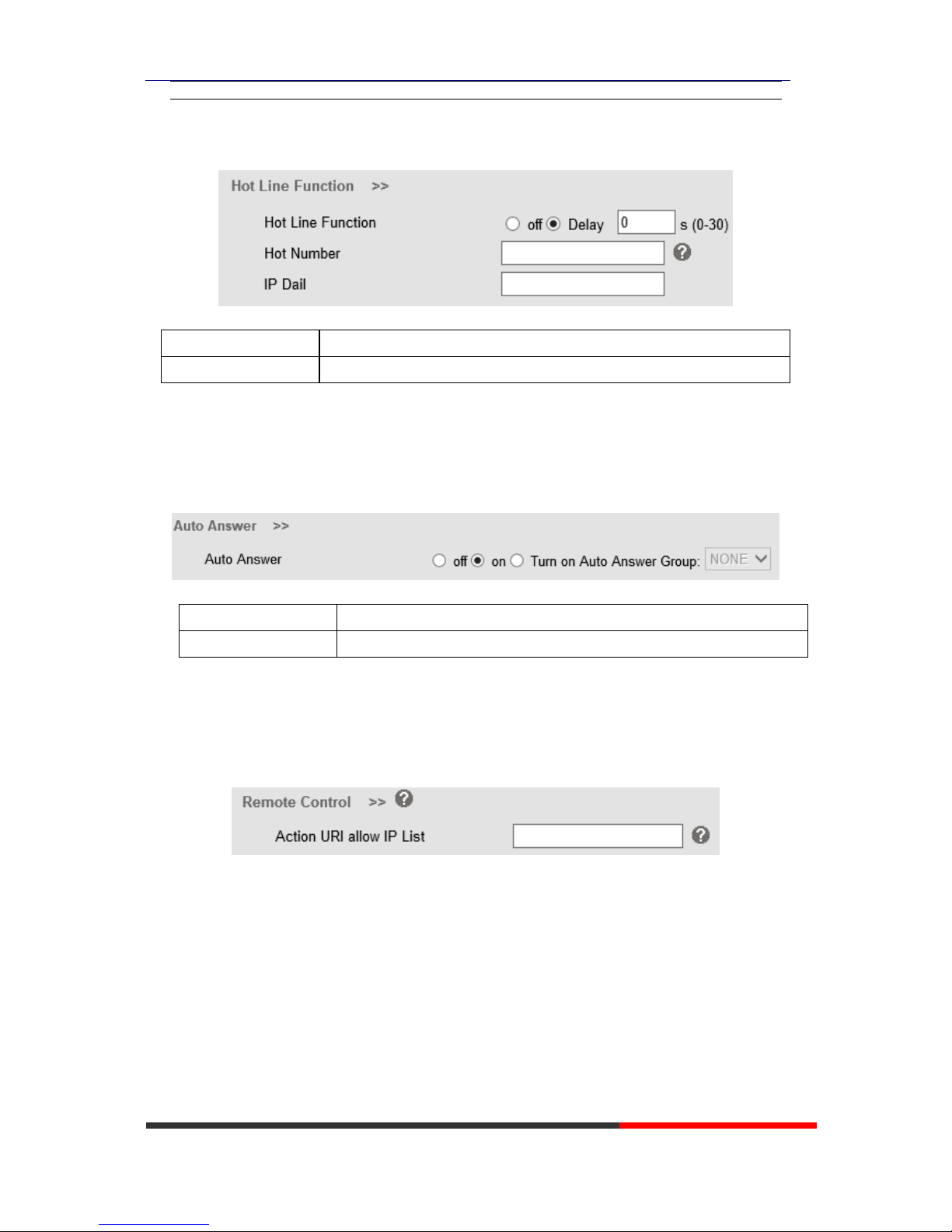
7.2.4 Hotline function
Hot Line function
When you pick up the handset, it will dial out with the hot number.
Hot Number
Input the number what you want to.
7.2.5 Auto Answer
Default value is on, Values can be changed accordingly。
Auto Answer
Auto-answer the coming call, it also can filter a contact group.
Auto Answer Mode
Auto-answer the coming call, it also can filter a device to answer.
7.2.6 Remote Control
A Third party is permitted to control this device
7.2.7 Action URL
The device will send orders to action URL initiative。
Page 28
WS118 IPPhone
www.escene.cn/en/
Escene Communication
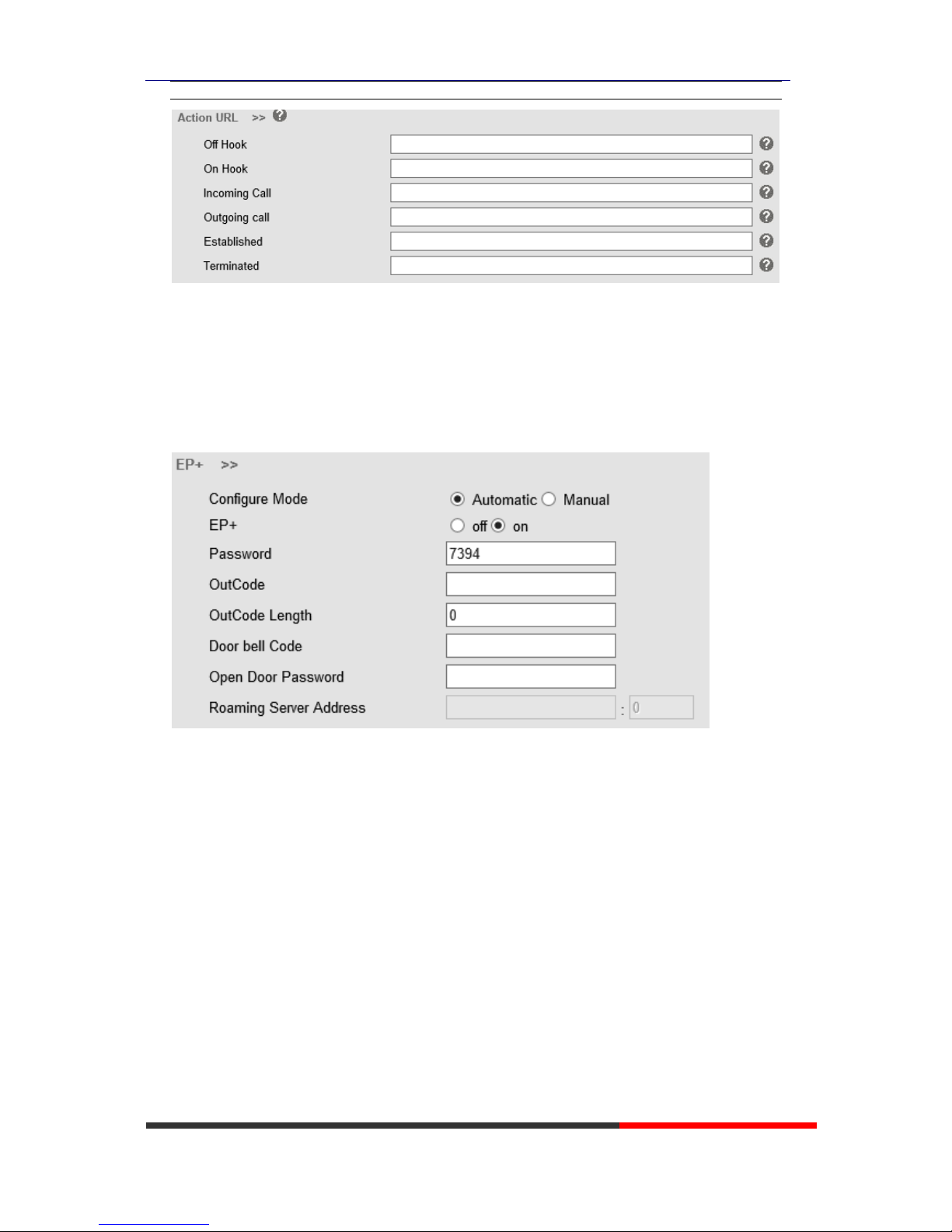
7.2.8 EP+
EP+ options are for the users who download the EP+ application on mobile phone.
After Completing below settings, EP+ will be activated. For more details, please
refer to www.escene.cn/en
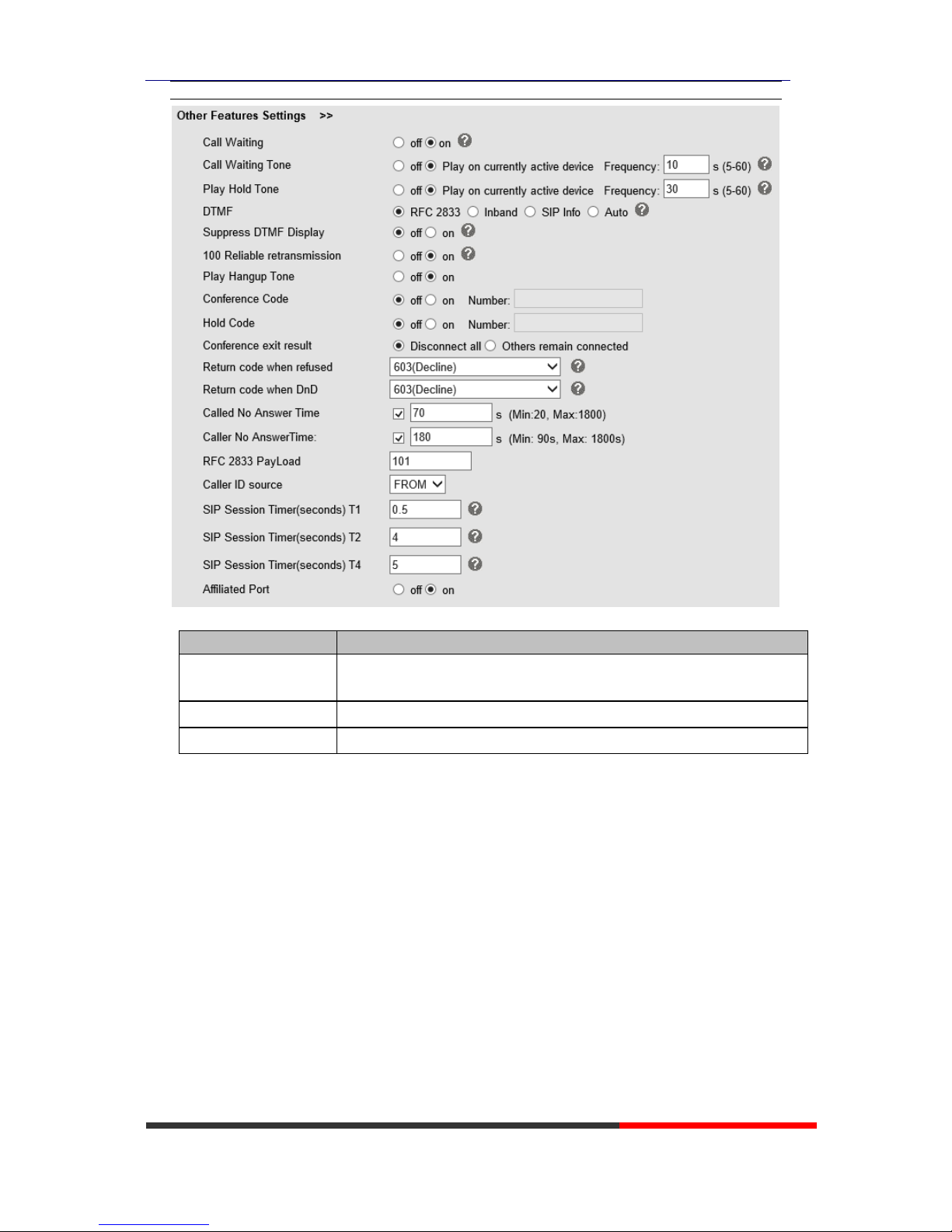
7.2.9 Other features settings
For other features such as call waiting, DTMF etc.
Page 29
WS118 IPPhone
www.escene.cn/en/
Escene Communication
ITEM
DECSRIPTION
Call Waiting
When there's coming a call or the phone is talking, the second call will be in
the queue.
Call Waiting Tone
Select the frequency with the tone when call waiting.
DTMF
The DTMF transmitted mode, include RFC2833,Inband,SIP Info, Auto
Page 30
WS118 IPPhone
www.escene.cn/en/
Escene Communication
7.3 Advanced
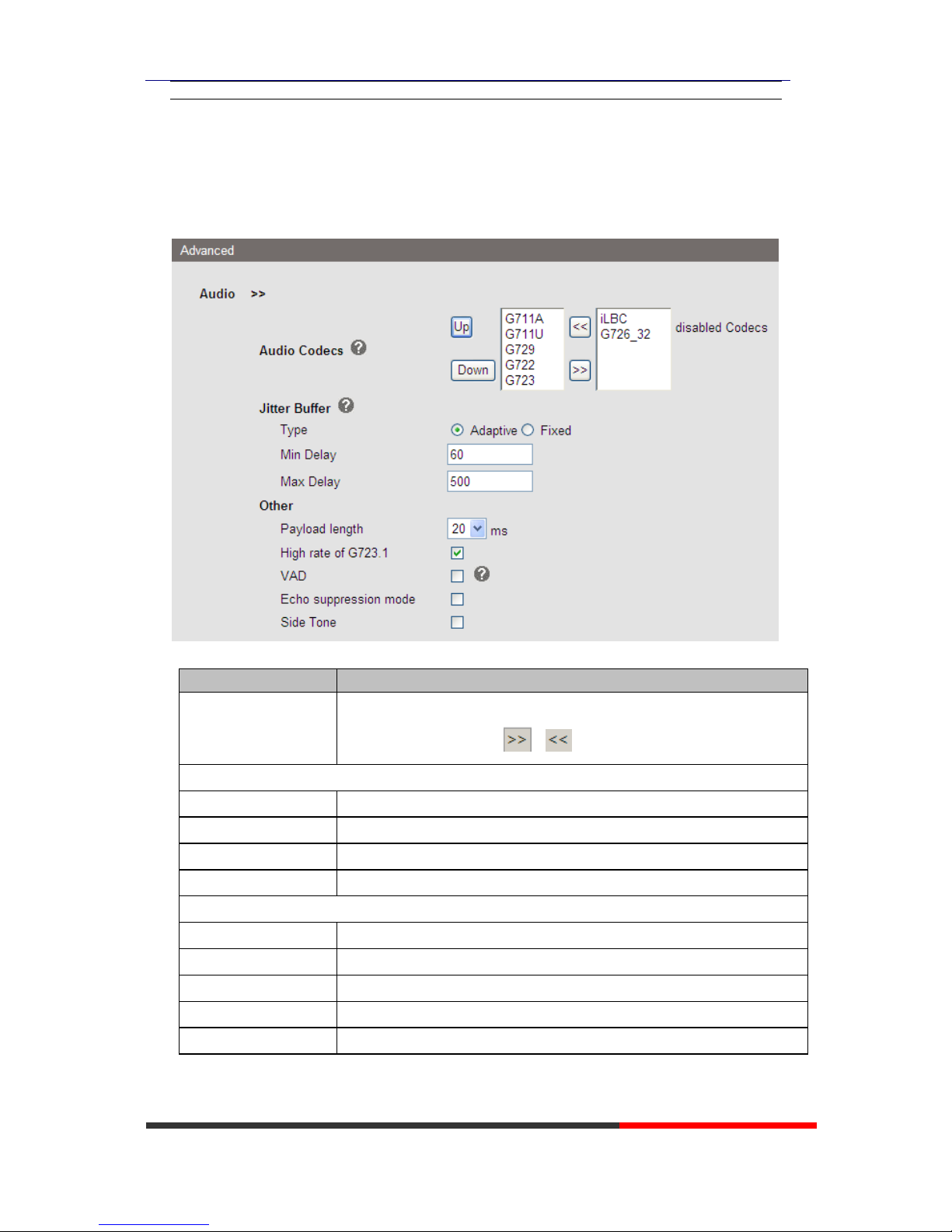
7.3.1 Audio
ITEM
DECSRIPTIO
Audio Codec
Use the navigation keys to highlight the desired one in the Enabled/Disable
Codes list, and press the / to move to the other list.
Jitter Buffer
Type
The type of Jitter Buffer is Adaptive or Fixed, default is adaptive.
Min Delay
The min delay range setting , default is 60.
Max Delay
The max delay range setting , default is 150.
Normal Delay
The normal delay range setting , default is 120.
Other
Play Load Length
The play load length setting, default is 30ms.
High Rate Of G723.1
Enable/Disable High Rate of G723.1 feature.
VAD
Enable/Disable VAD feature.
Echo Suppression Mode
Enable/Disable Echo Suppression Mode feature.
Side Tone
Enable/Disable Side Tone feature.
Page 31
WS118 IPPhone
www.escene.cn/en/
Escene Communication
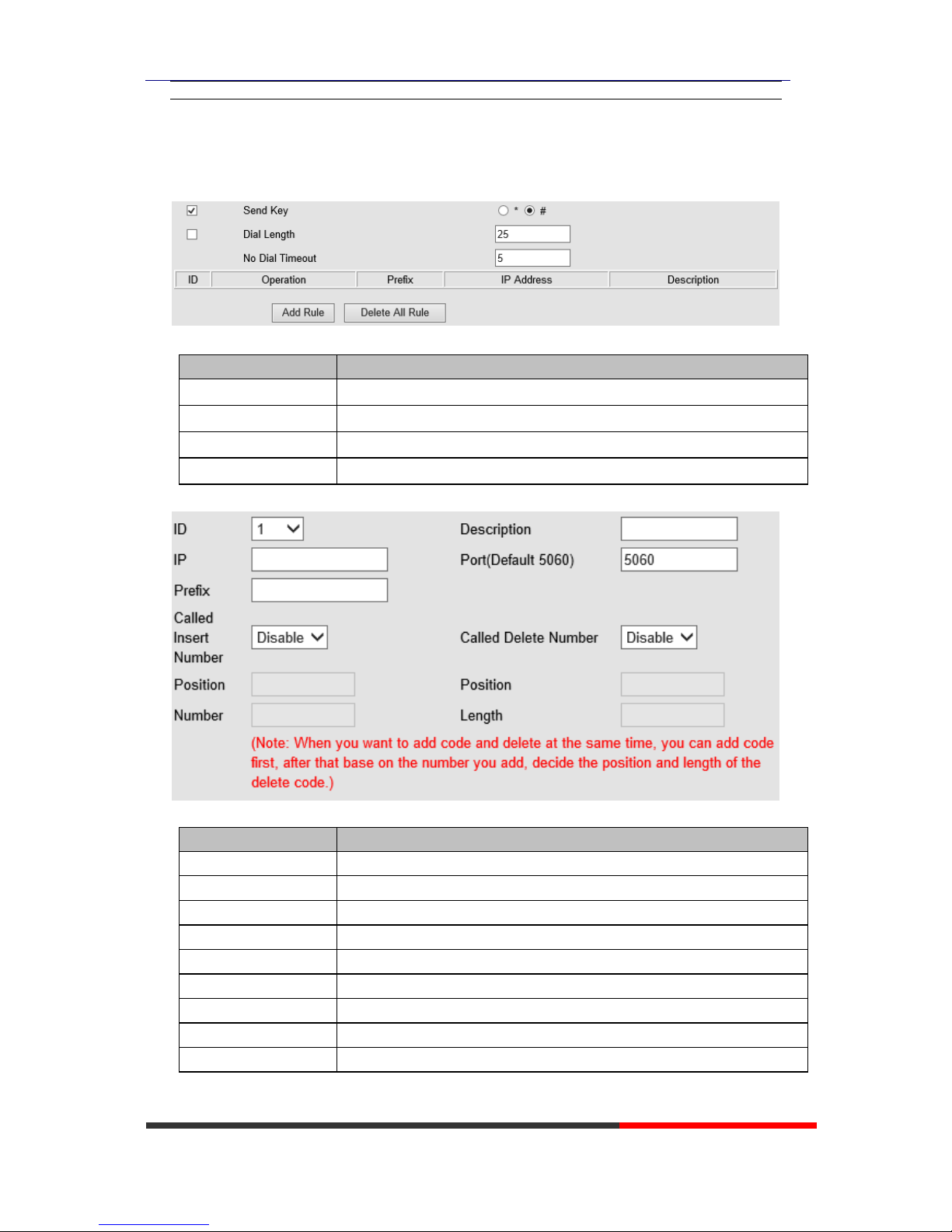
7.3.2 Dial Plan
If you want to setup a dial plan, you can click "Dial Plan"
ITEM
DECSRIPTIO
Send Key
Select the default send key mode you want to use.
Dial Length
Enable this feature will limit the dial length. Default is 25.
No Dial Timeout
Setting the range with no dial timeout, default is 5.
Dial Rule
Select the Add Rule button to add dial rule, pls see as below detail.
ITEM
DECSRIPTIO
ID
Dial Plan ID
IP
The ip of a phone which you want to call
Description
Description with this dial rule.
Port
Setting the Port with this dial rule, default is 5060.
Prefix
The number which you need to press actually if you want to call the phone
Called Insert Number
There have two option, Enable or Disable.
Position
Which position you want insert the number
Number
Which number you want to insert
Called Delete Number
There have two option, Enable or Disable.
NOTES: If you want to know more detail about Dial Rule, pls find it in the official website to
Page 32

WS118 IPPhone
www.escene.cn/en/
Escene Communication
download the specific document. HTTP://www..cn/en.
8 Phone Book
The phone book including Group, Contact, LDAP and Ban list, please review the following for
more details:
8.1 Group
You can add, edit and delete group in a phone book on this web page.
If you want to add a Group, you just ought to click ‘Add Group’ .
You can edit an existed Group by click .
You can delete an existed Group by click , if you want to delete all Groups, you just ought to
click ’Delete All Group’.
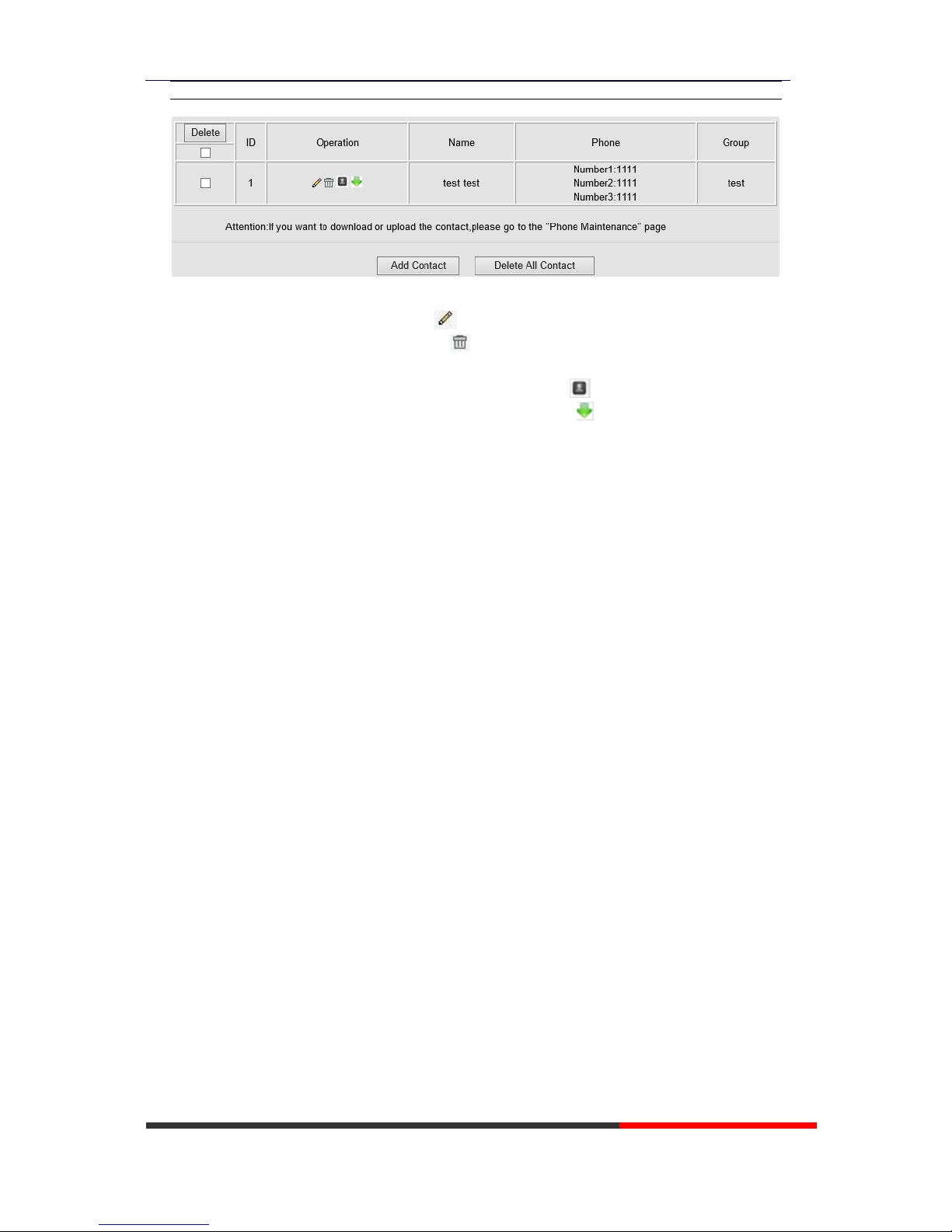
8.2 Contact
You can add, edit and delete contact in a phone book on this web page .
The phonebook can storage 300 contacts entry
Page 33
WS118 IPPhone
www.escene.cn/en/
Escene Communication
If you want to add a Contact, you just ought to click ‘Add Contact’ .
You can edit an existed Contact by click .
You can delete an existed Contact by click , if you want to delete all Contacts, you just ought
to click ’Delete All Contact’.
You can edit or move this contact to Ban List after you select .
You can download and save this contact to PC after you select .
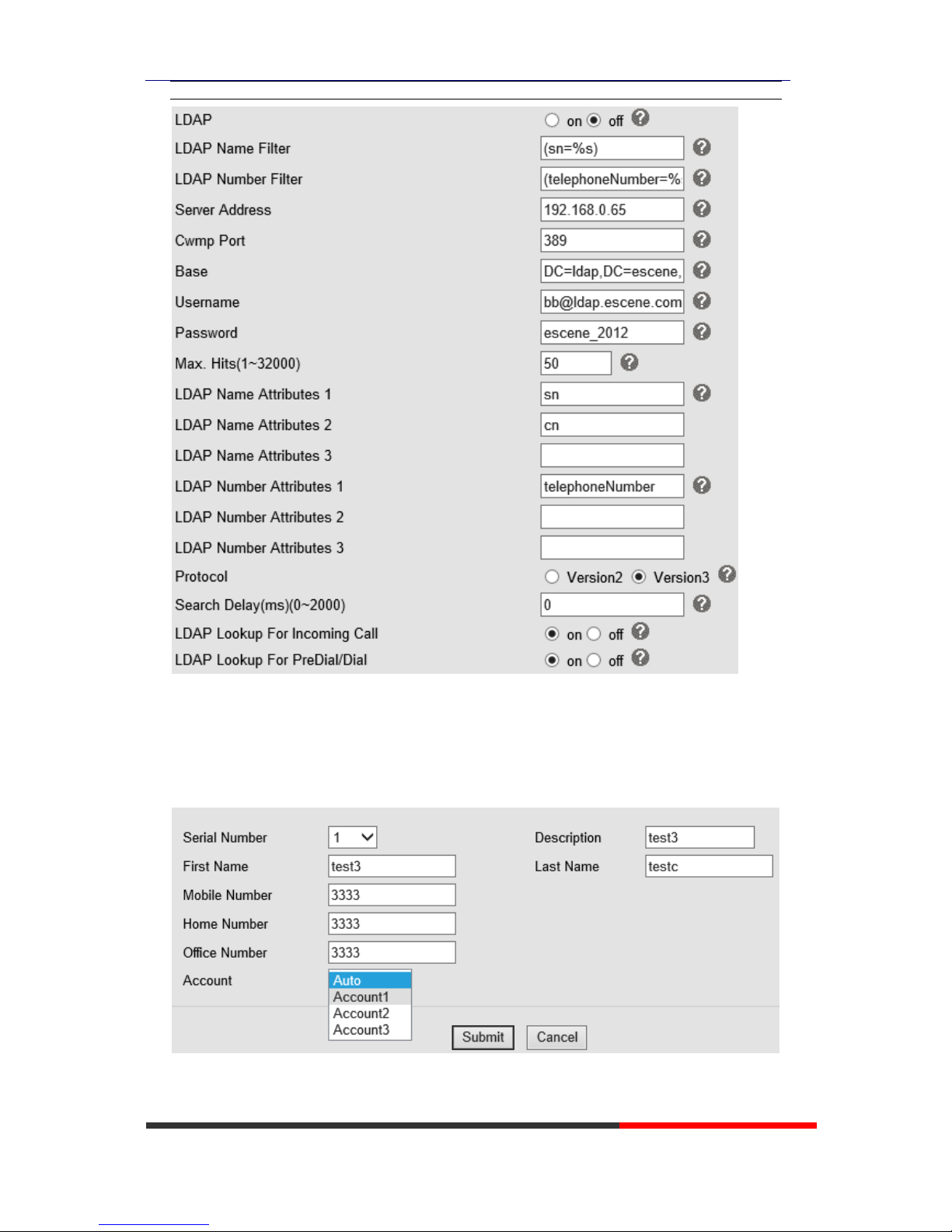
8.3 LDAP
NOTES: If you want to know more detail about LDAP, pls find it in the office website to
download the specific document. HTTP://www..cn/en. As below figure is an example.
e.g.
LDAP Name Filter:(sn=%s)
LDAP Number Filter:(telephoneNumber=%s)
Server Address:192.168.0.65
BASE:DC=ldap,DC=,DC=com
User Name:[email protected]
Pass Word:_2012
LDAP Name Attributes 1:sn
LDAP Name Attributes 2:cn
LDAP Number Attributes 1:telephoneNumber
Page 34
WS118 IPPhone
www.escene.cn/en/
Escene Communication
8.4 Blacklist
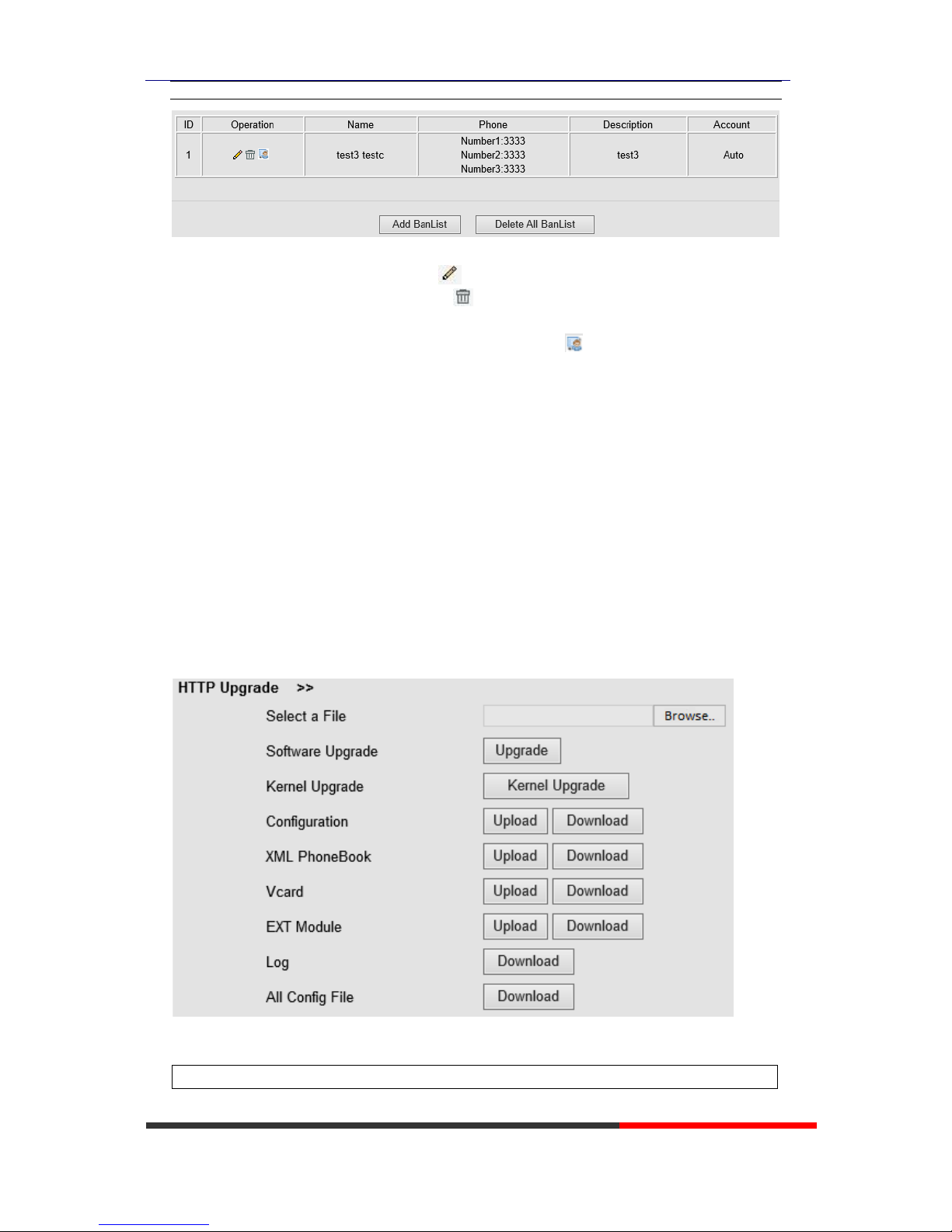
You can add, edit and delete contact in a Ban List on this web page .
Page 35
WS118 IPPhone
www.escene.cn/en/
Escene Communication
If you want to add a Ban List, you just ought to click ‘Add Ban List’.
You can edit an existed Ban List by click .
You can delete an existed Ban List by click , if you want to delete all Ban List, you just ought
to click ’Delete All Ban List’.
You can edit or move this contact to Contact after you select .
9 Phone Maintenance
9.1 Basic
NOTES: Don't cut off the electricity or network cable when doing upgrade in the below
ways!
9.1.1 HTTP Upgrade
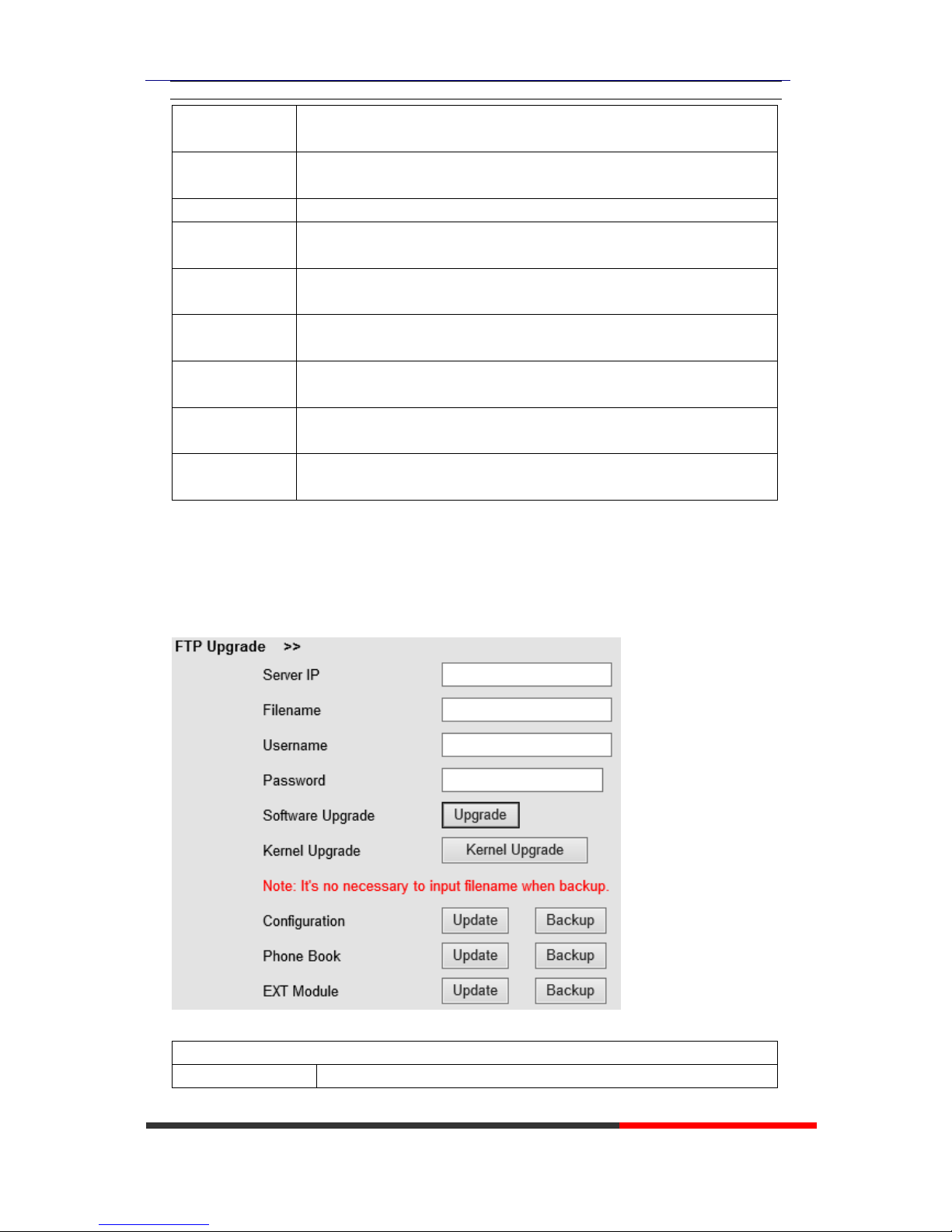
You can upgrade the software, kernel and configuration etc. files by HTTP.
When using HTTP upgrade, you can set several parameters as follow:
HTTP Upgrade
Page 36
WS118 IPPhone
www.escene.cn/en/
Escene Communication
Select a File
Browse the software/kernel/configuration file which you need to upgrade
from HTTP
Software
Upgrade
Used for upgrading the software of the phone
Kernel Upgrade
Used for upgrading the kernel of the phone
Configuration
You can used upload/download to upload/download the configure file of
the phone
XML Phone
Book
Used for uploading/downloading the XML phonebook of the phone
Vcard
Downloading all contacts in the Vcard mode, but upload only support one
by one.
EXT Module
Used for updating/backup the expansion of the phone
[NOTES:The mode doesn't support this feature]
Log
Used for the administrator to find out or making sure the problem with this
equipment.
All Config File
All Config File includes: Configuration, Extern, Log, XML Phone book,
Enterprise Phone Book.
9.1.2 FTP Upgrade
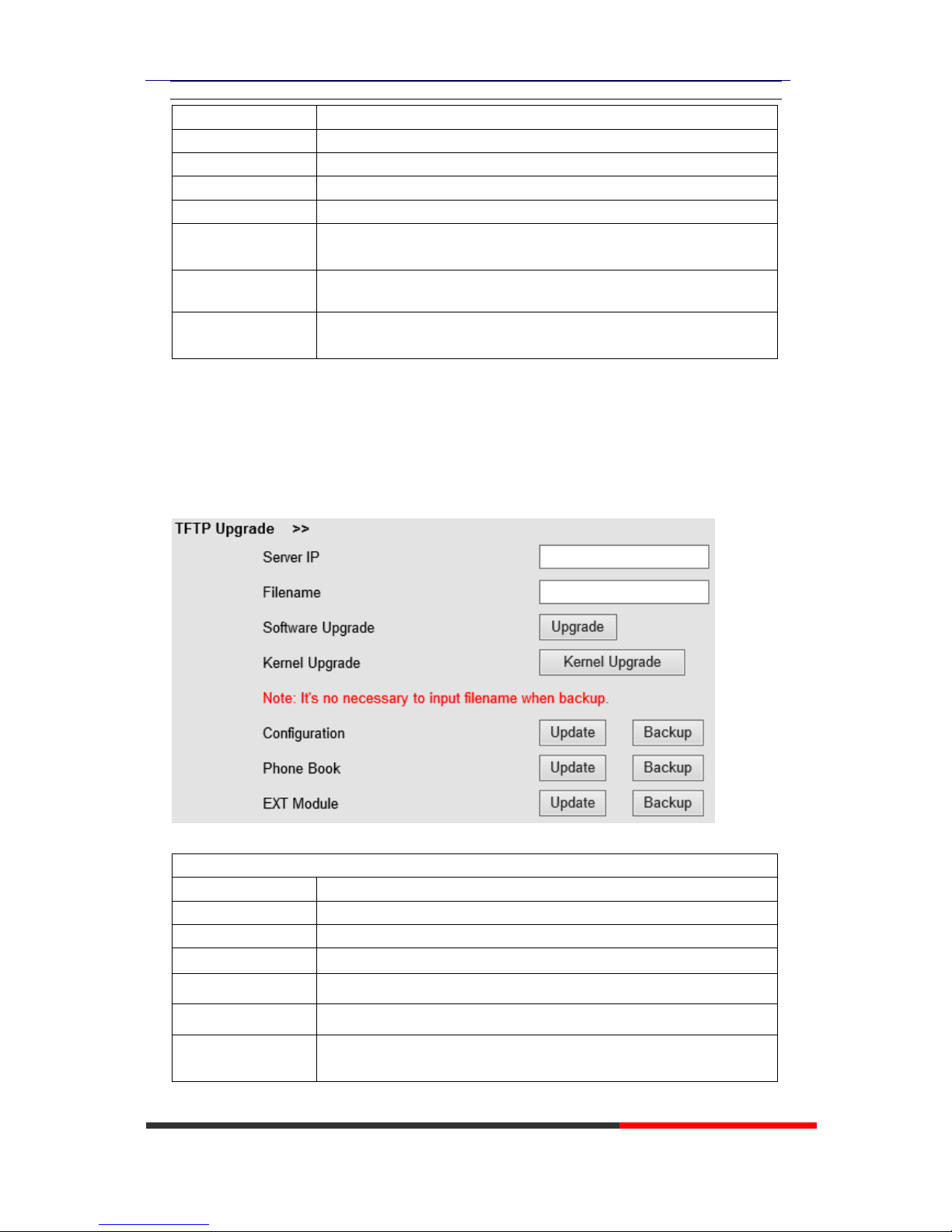
You can upgrade the software, kernel and configure files by FTP.
When using FTP upgrade, you can set several parameters as follow:
FTP Upgrade
Server IP
The IP address of the FTP server
Page 37
WS118 IPPhone
www.escene.cn/en/
Escene Communication
Filename
Downloading from FTP server
Username
Providing by FTP server
Password
Providing by FTP server
Software Upgrade
Used for upgrading the software of the phone
Kernel Upgrade
Used for upgrading the kernel of the phone
Configuration
Used for updating/backup to update/backup the configure file of the
phone
Phone Book
Used for updating/backup to update/backup the phonebook of the phone
EXT Module
Used for updating/backup the expansion of the phone
[NOTES:The mode doesn't support this feature]
NOTES: It's not necessary to input filename when doing backup Configuration,
Phone Book, EXT Module.
9.1.3 TFTP Upgrade
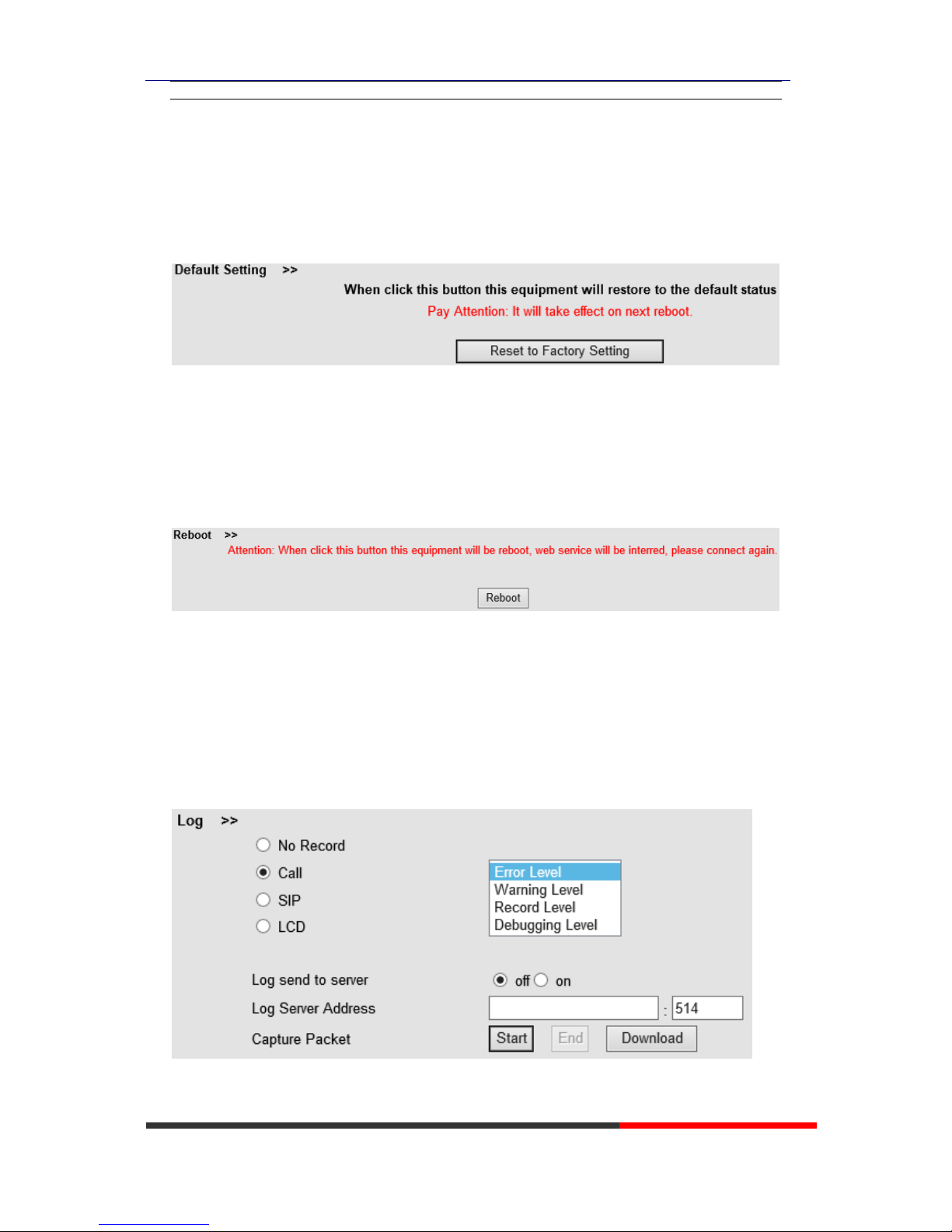
You can upgrade the software, kernel and configure files by TFTP.
When use TFTP upgrade, you can set several parameters as follow:
TFTP Upgrade
Server IP
The IP address of the TFTP server
Filename
Downloading from FTP server
Software Upgrade
Used for upgrading the software of the phone
Kernel Upgrade
Used for upgrading the kernel of the phone
Configuration
Used for updating/backup the configure file of the phone
Phone Book
Used for updating/backup the phonebook of the phone
EXT Module
Used for updating/backup the expansion of the phone
[NOTES:The mode doesn't support this feature]
Page 38
WS118 IPPhone
www.escene.cn/en/
Escene Communication
NOTES: It's not necessary to input filename when doing backup Configuration,
Phone Book, EXT Module.
9.1.4 Default Setting
You can load the phone to the factory default setting in default setting option.
Press the ‘Reset to Factory Setting’ option, the phone will load to factory default setting on next
reboot.
9.1.5 Reboot
You can use reboot option to reboot the phone.
9.2 Advanced
9.2.1 Log
This feature is use for the administrator to managing the equipment, like debugging, SIP etc,. If
you need to catch a debugging Level, you need to setup on this interface.
Page 39
WS118 IPPhone
www.escene.cn/en/
Escene Communication
9.2.2 Auto Provision
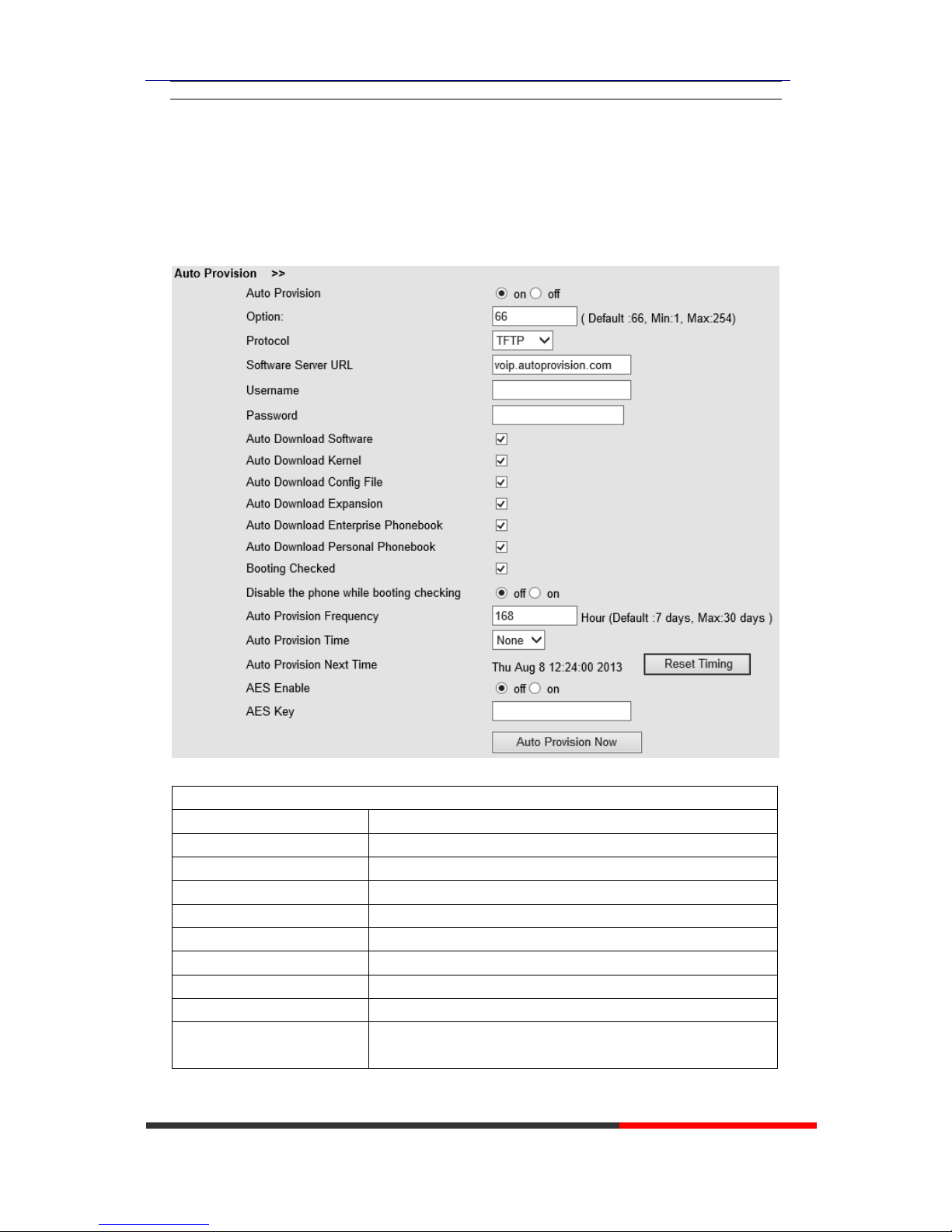
When you open this auto provision feature, the phone will do auto provision after it detect a
different software or kernel (Higher or Lower) which are putted on the TFTP,HTTP,HTTPS,FTP,
server. For the detailed information about auto provision, you can find it in the official website:
HTTP://www..cn/en
When using auto provision, you can set several parameters as follow:
Auto Provision
Auto Provision
You can enable/disable auto provision by select on/off
Protocol
Used for auto provision, it includes TFTP/HTTP/FTP
Software Server URL
The server address of the auto provision
Username
Providing by provision server
Password
Providing by provision server
Auto Download Software
Used for auto download software from server
Auto Download Kernel
Used for auto download kernel from server
Auto Download Config File
Used for auto download config file from server
Auto Download Expansion
NOTES: The model doesn't support this feature.
Auto Download Enterprise
Phonebook
Used for auto download Enterprise Phonebook from server
Page 40
WS118 IPPhone
www.escene.cn/en/
Escene Communication
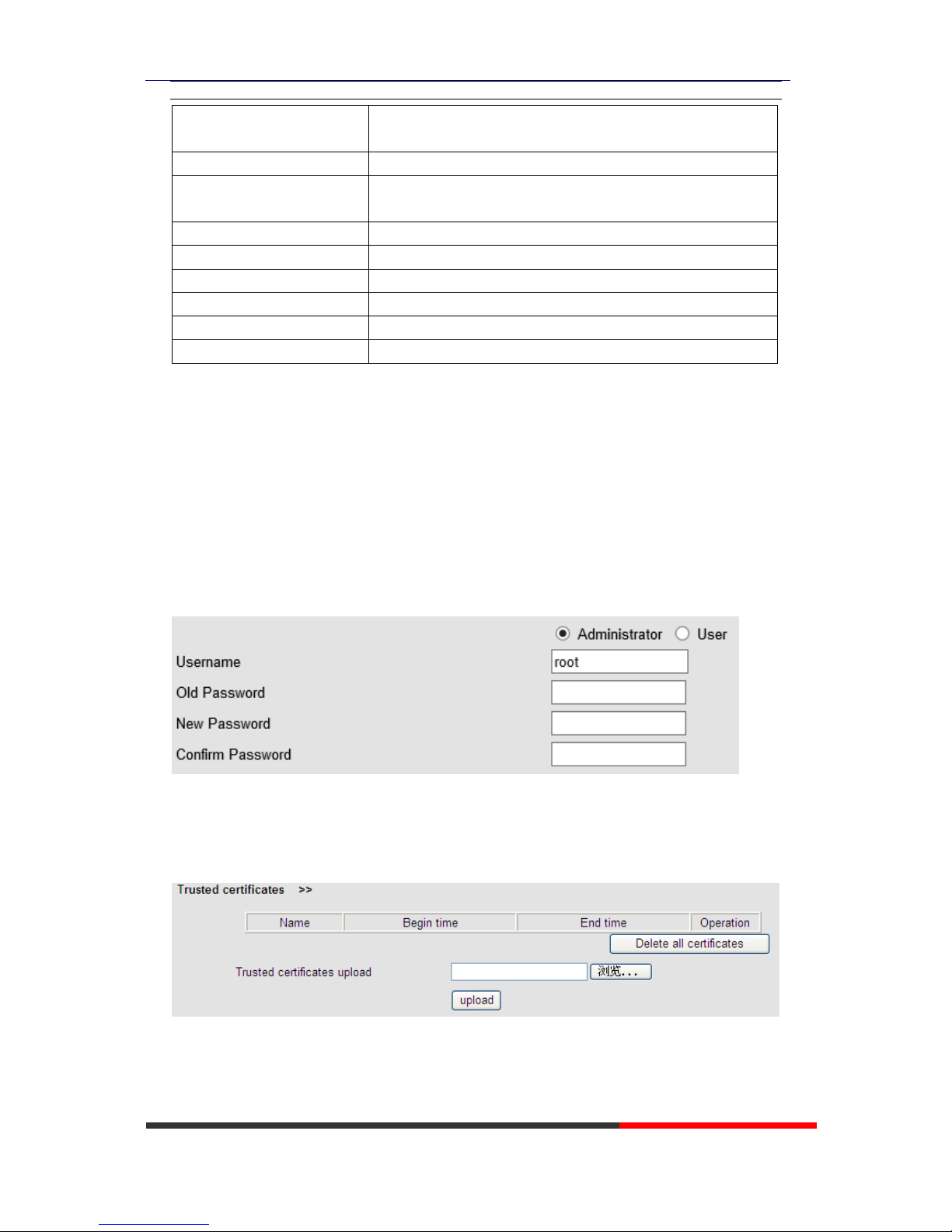
Auto Download Personal
Phonebook
Used for auto download personal phonebook from server
Booting Checked
Used for checking the auto provision when phone booting
Disable the phone while
booting checking
Enable/Disable the booting checking feature.
Auto Provision Frequency
Used for setting the time interval for auto provision
Auto Provision Time
Used for the specific time for auto provision
Auto Provision Next Time
Reset the Auto Provision Next Upgrading time.
AES Enable
You can enable/disable AES encrypt for auto provision
AES Key
The key of the AES
Auto Provision Now
Used for doing auto provision immediately
10 Security
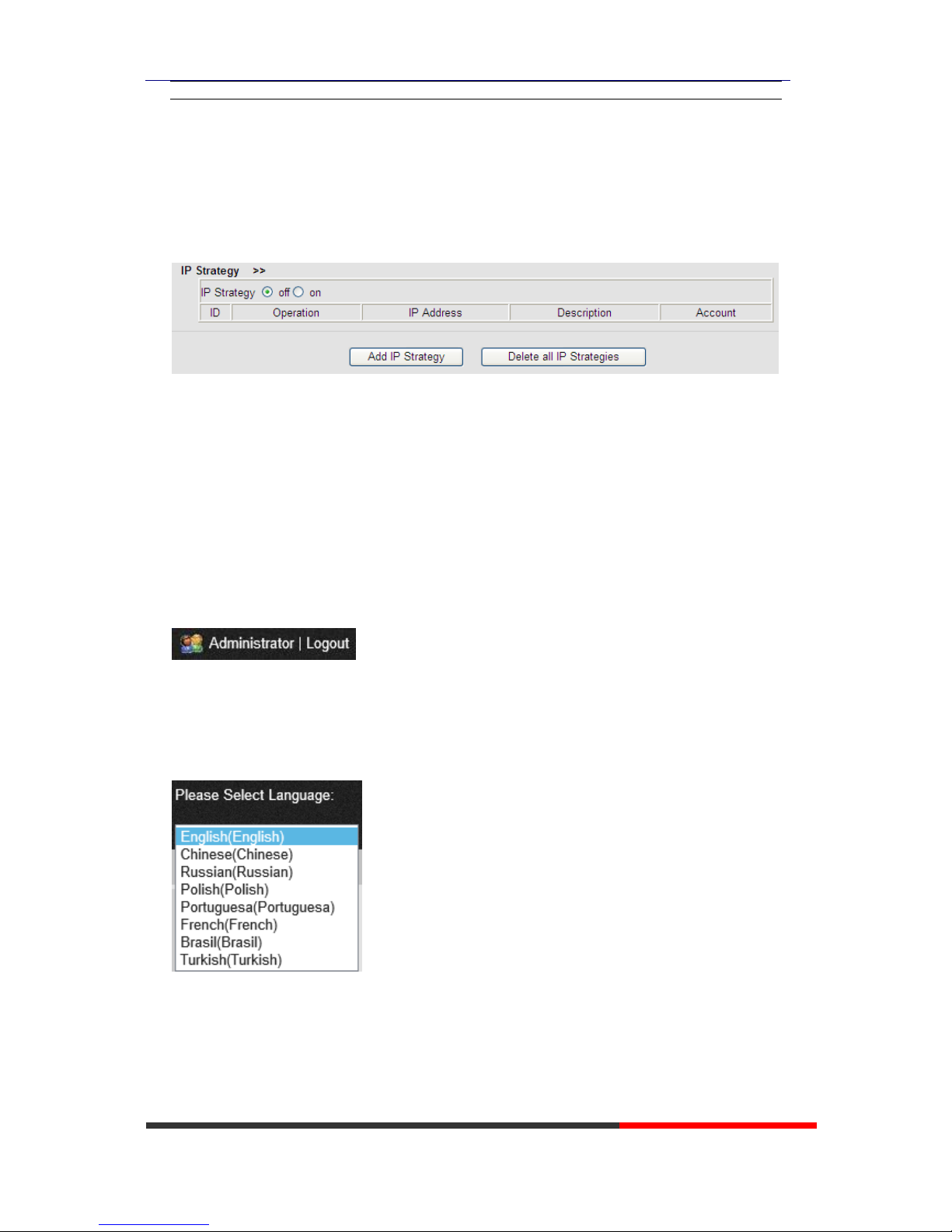
10.1 Password
Here you can setting the administrator or user WEB password management. Select your type. If
you login as an administrator, you can modify both the user's and admin's passwords.
10.2 Trusted Certificates
Page 41
WS118 IPPhone
www.escene.cn/en/
Escene Communication
10.3 IP Strategy
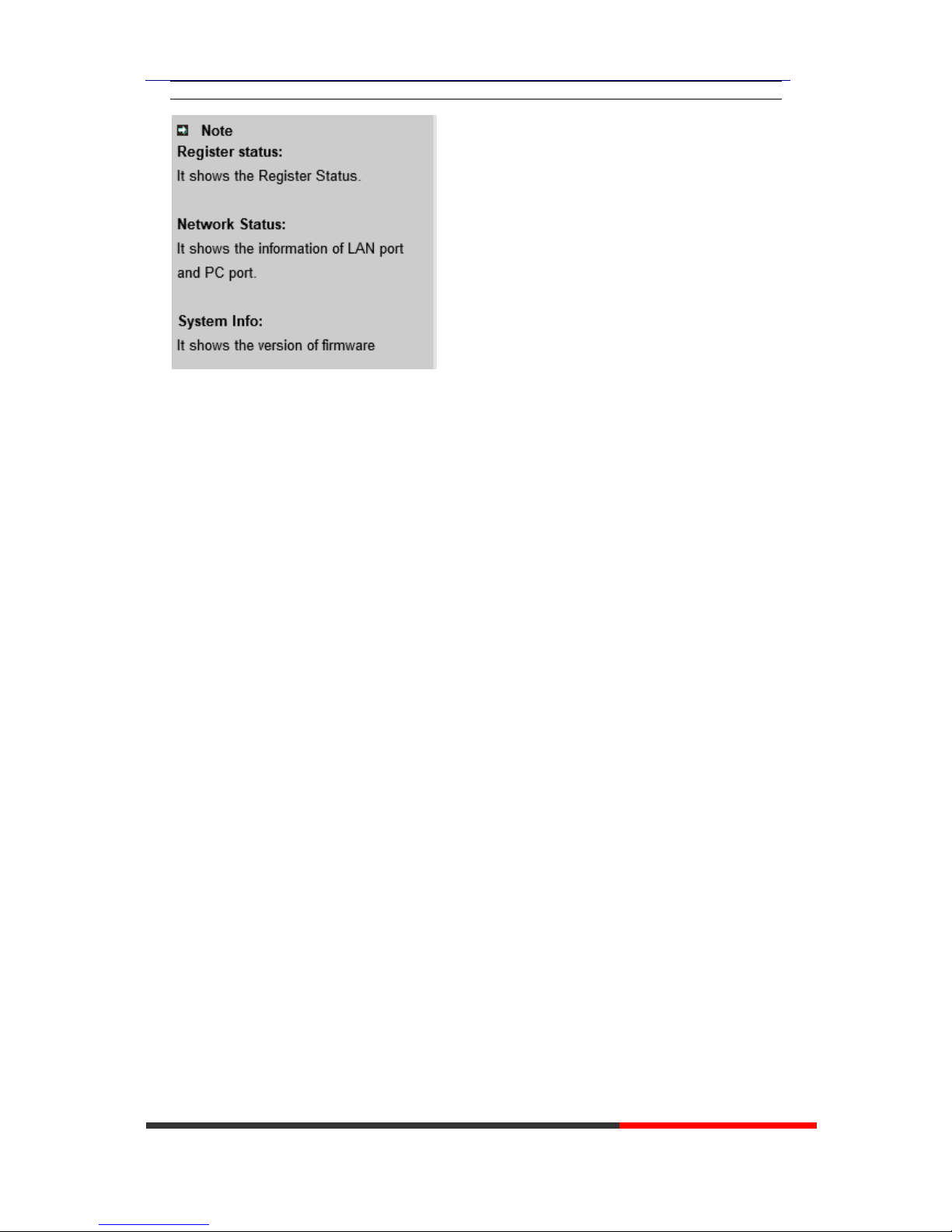
You can use IP Strategy feature to make a list which can be set to only allow the incoming call on
the list.
e.g. As following picture you can see it has 192.168.0.248 in the list. When you open this feature.
It means you just allow come from this IP address meeting
11 WEB Other Settings or Information Appendix
11.1 WEB User
In the upper right corner of the website page, you can select the user or logout.
11.2 Multi-Language
In the upper right corner of the website page, you can select the language in the below list.
11.3 Note Tips
In the right middle of the website page, there is a Note tips in every function page. Hope it can
help you to know something about that.
Page 42
WS118 IPPhone
www.escene.cn/en/
Escene Communication
 Loading...