

Page 1
www.escene.hk
Escene Communication
US102 IP Phone
User Manual
EEsscceennee CCoommmmuunniiccaattiioonn TTeecchhnnoollooggyy CCoo..LLttd
d
Page 2

www.escene.hk
Escene Communication
Tables of Contents
1. Getting Started..............................................................................................................................1
About........................................................................................................................................1
Feature Highlights:...................................................................................................................1
Technical Features....................................................................................................................1
2. Connecting Your Phone................................................................................................................3
3. Phone overview.............................................................................................................................4
Understanding Buttons and Hardware......................................................................................4
Understanding Phone Screen Features......................................................................................6
4. Basic Call Handling......................................................................................................................7
Placing a Call............................................................................................................................7
Answering a Call......................................................................................................................8
Ending a Call............................................................................................................................8
Using Hold and Resume (Switch Calling Line)........................................................................9
Transfer Calls............................................................................................................................9
Using Mute.............................................................................................错误!未定义书签。
Do Not Disturb..........................................................................................................................9
3-way Conference...................................................................................................................10
5. Advanced Call Handling.............................................................................................................11
Using the Phone Book............................................................................................................11
Using Call Logs......................................................................................................................11
6. Keypad Instruction......................................................................................................................12
SIP Account Settings...............................................................................................................12
Network Setting......................................................................................................................13
Customizing Rings and Volume..............................................................................................14
7. Web Settings...............................................................................................................................15
Config Guide...........................................................................................................................15
Network..................................................................................................................................17
SIP Account............................................................................................................................18
Audio......................................................................................................错误!未定义书签。
PhoneBook..............................................................................................错误!未定义书签。
Group..............................................................................................错误!未定义书签。
Contact............................................................................................错误!未定义书签。
BanList............................................................................................错误!未定义书签。
Enterprise Phonebook.....................................................................错误!未定义书签。
Advance................................................................................................. 错误!未定义书签。
Phone Setting..................................................................................错误!未定义书签。
VLAN Setting.................................................................................错误!未定义书签。
VPN Setting....................................................................................错误!未定义书签。
Dial Plan setting..............................................................................错误!未定义书签。
Global SIP.......................................................................................错误!未定义书签。
Phone Maintenance.................................................................................错误!未定义书签。
Log..................................................................................................错误!未定义书签。
Page 3

www.escene.hk
Escene Communication
Default Setting................................................................................错误!未定义书签。
Auto Provision................................................................................错误!未定义书签。
FTP Upgrade...................................................................................错误!未定义书签。
TFTP Upgrade.................................................................................错误!未定义书签。
HTTP Upgrade................................................................................错误!未定义书签。
Reboot.............................................................................................错误!未定义书签。
Phone Status............................................................................................错误!未定义书签。
System Info.............................................................................................错误!未定义书签。
About......................................................................................................错误!未定义书签。
Appendix:.............................................................................................................................37
Page 4

US102 IPPhone
www.escene.hk
Escene Communication
1. Getting Started
About
US102 is a popular type IP Phone in Sayhi phones series, with modern design, functional,
practical and voice clarity characteristics. It accomplished the powerful telephony features by
cooperating with the communications platform, such as call transfer, hotline, third-party
conferences, voice mail, interruption-free, etc.
Feature Highlights:
l HD Voice: HD Codec
l Support unified maintenance and auto upgrade
l Enterprise Phone Book
l Support Headset interface
l Support PoE and AC power adapter
l Support HTTP/TFTP/FTP Auto-provision/TR069 for upgrade software
Technical Features
Item Technical Features
Grayscale LCD with background light
Screen
128*64 characters
Language
English, Chinese
Line
2
Function
Keys
5 Navigation keys (Arrow button, OK button)
Volume button(multiplex up and down keys)
Hands-free
Mute
Headset
Message
Menu
Hold
Redial
Conference
Transfer
VoIP
Protocol
SIP 2.0
Page 5

US102 IPPhone
www.escene.hk
Escene Communication
Network
Protocol
HTTP, BOOTP, FTP, TFTP, IEEE 802.1Q, *IEEE 802.1X
Codec
G.723、G.729 A 、G.711 A/U G.722
QoS
TOS, Jiffer Buffer, VAD, CNG, G.168 (32ms)
Network
2*RJ45 10/100M Ethernet interfaces(LAN/PC)
IP Assignment: Static IP or DHCP
VPN(L2TP) ,VLAN/QoS
DNS Clients (Primary and Secondary)
Speech
Handset, Headset or Hand-free Mode,
Call center headset and 3.5mm headset supported
9-levels volume adjustment
Call
Processing
Call Waiting, Call Queuing
Call Forward, Call Transfer, Call Holding, Call Pickup, Callback
Redial,Auto-answer
Phone directory speed dial, call record direct dial
3-way conference
DnD
Voice mail, Voice Prompt, Voice Message
Application
Enterprise phone directory
XML Phonebook
Private phone directory
Security
Password Login Web
Signaling encryption
Media encryption
Management
Upgrade: HTTP/TFTP/PnP auto-provision
Configurations: Phone/Web/auto-provision
Debug: Telnet/Phone/Web
Power
Supply
Power adapter:AC100~240V input and DC 5V/1A output
PoE(IEEE 802.af)
Specification
Storage Temperature: 0 ~ 60℃℃
Operating Humidity: 10%~90%
Size: 335mm*219mm*68mm
Net weight: 1.07kg
Page 6
US102 IPPhone
www.escene.hk
Escene Communication
2. Connecting Your Phone
Your system administrator will likely connect your new SayHi US102IP Phone to the corporate IP
telephony network. If that is not the case, refer to the graphic and table below to connect your
phone.
1) Open the box of US102 IP Phone,carefully check the packing list as follow:
Item Counts
IP Phone 1
Handset 1
Handset Cord 1
Power adapter 1 (Phone with PoE without Power adapter)
RJ45 cable 1
RJ11 cable 1
CD 1
Quick Installation 1
Quick User Guide 1
Product certification 1
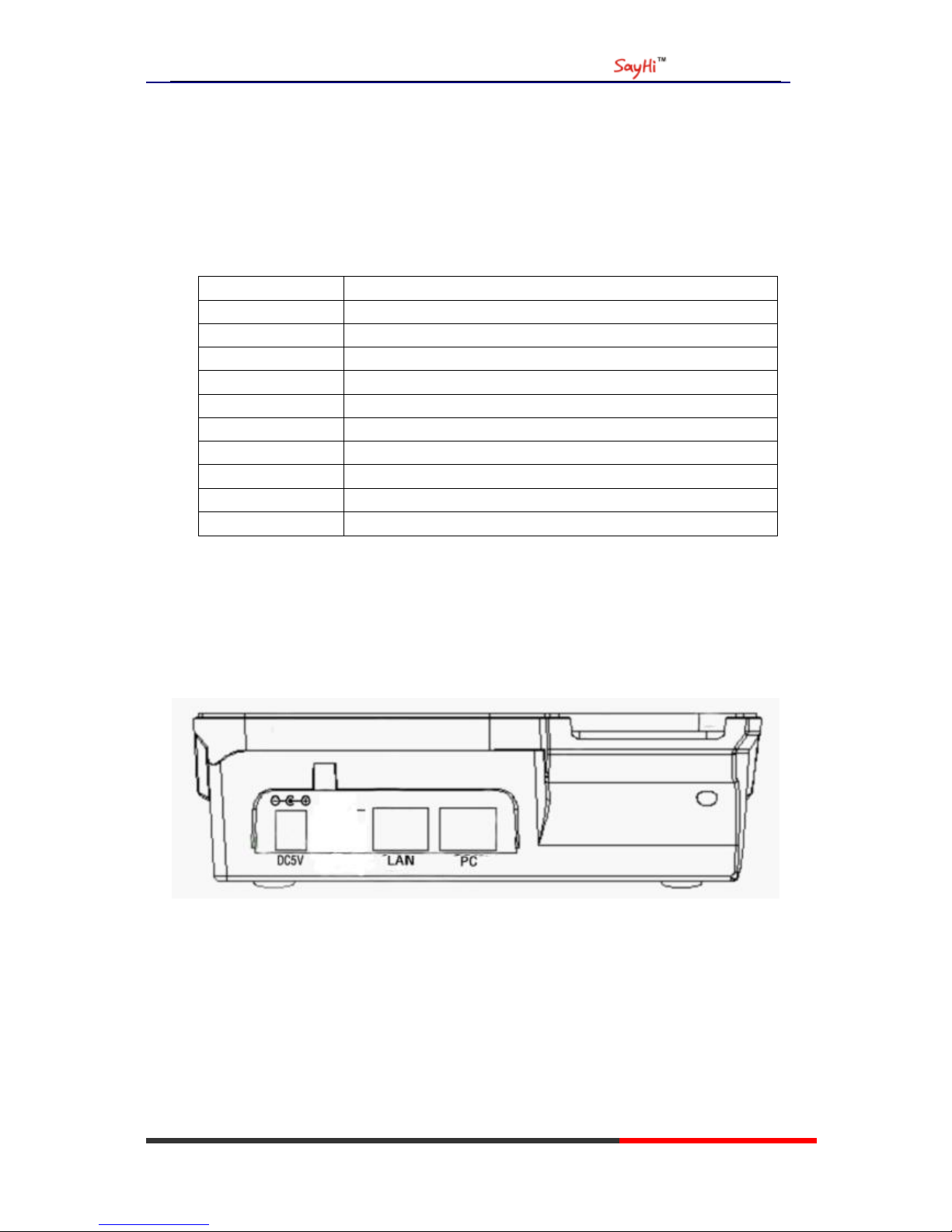
2) As shown in figure 2.1,please plug Handset Cord into RJ11 interfaces (IP Phone and
Handset),RJ45 cable into the LAN interface;IP Phone will automatically start if IP Phone with
POE function.
3) The phone must work together with power adapter without POE support.
4) If you want connect your computer into LAN at the same time, please connect your
computer to PC interface of the phone with a RJ45 cable.
Figure2.1 Interfaces of SayHi US102
Page 7
US102 IPPhone
www.escene.hk
Escene Communication
3. Phone overview
Understanding Buttons and Hardware
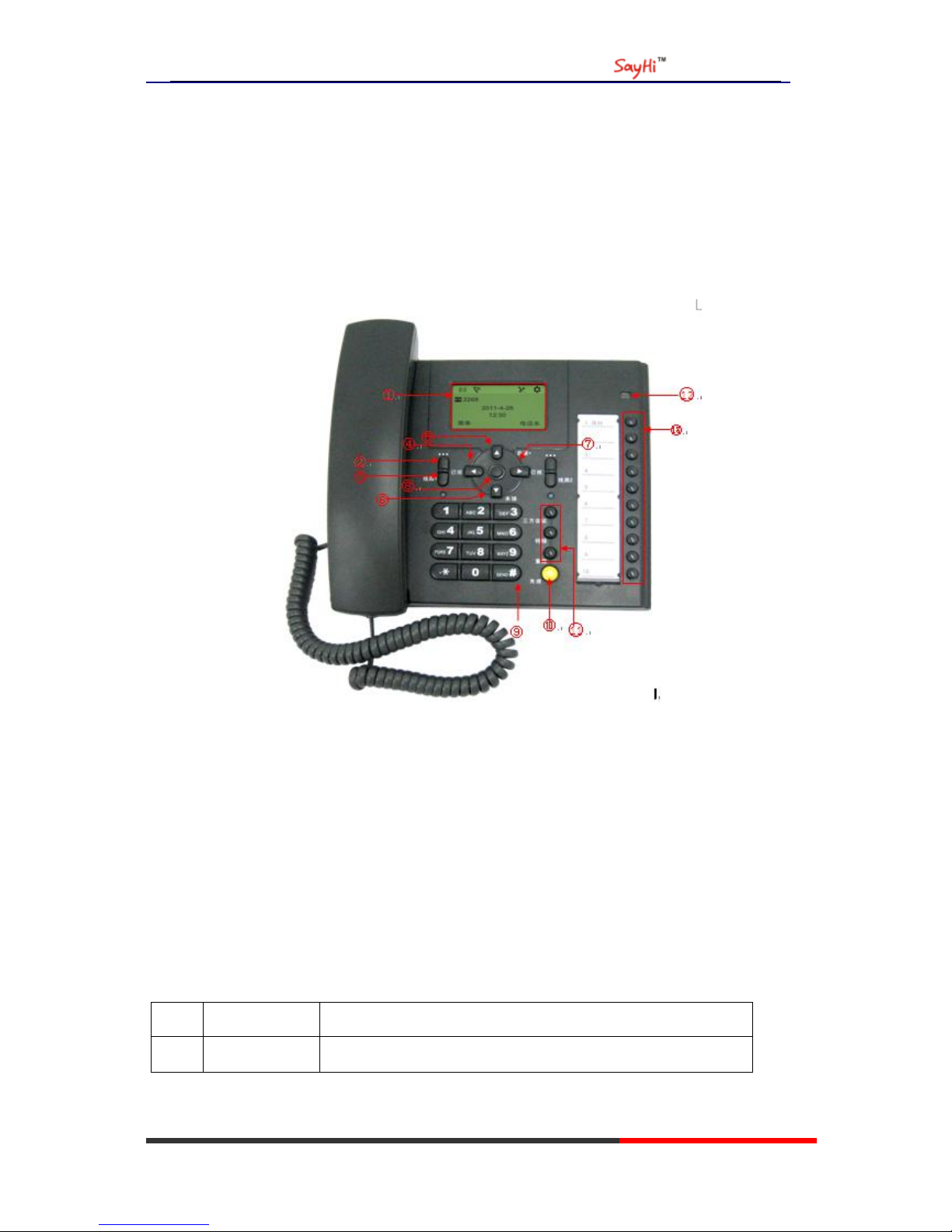
You can identify buttons and hardware on your SayHi US102 from figure 3.1.
Figure 3.1 SayHi US102
Item Description
1 LCD Screem 128*64 characters, grayscale LCD with background light
Page 8
US102 IPPhone
www.escene.hk
Escene Communication
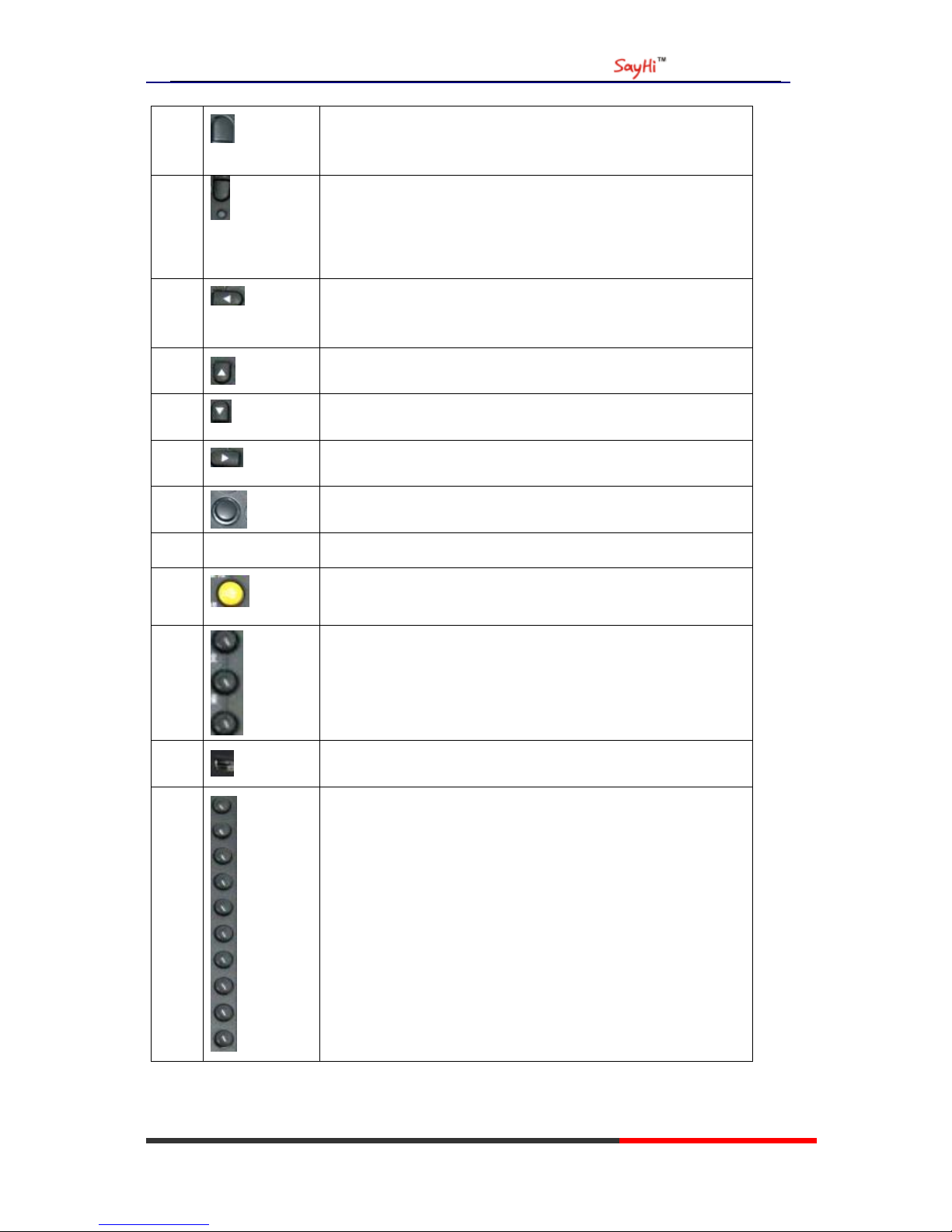
2
Menu button: which buttom make you enter the menu setting
interface
3
Line button: US102 have two account ,one account have a
corresponding line button .If the call coming or the line is used, the
light will become red.
4
Received button: you can search the phone number which you have
receive by press this button
5
Vol+ button: you can adjust the volume
6
Missed button: you can search the phone number which you have
missed by press this button.
7
Dialed button: you can search the phone number whhich you hace
dailed by press this button.
8
OK button: To confirm the action.
9
0-9,*,#
Basic Call Handling: press “#” send out a call by default.
10
Speaker button: Toggles the speakerphone on or off.
11
There button:
Conference button: Connect calling / called party
Transfer button:Transfer redirects a connected call.
Redial button: To dial the last number.
12
light : It will flash if a call come in
It will become red if you want to dail a phone number.
13
Blf button:
You can set four type on blf . there are speed dial, Asterisk
BLF,Speed Dial Prefix, DTMF.
Page 9
US102 IPPhone
www.escene.hk
Escene Communication
Understanding Phone Screen Features
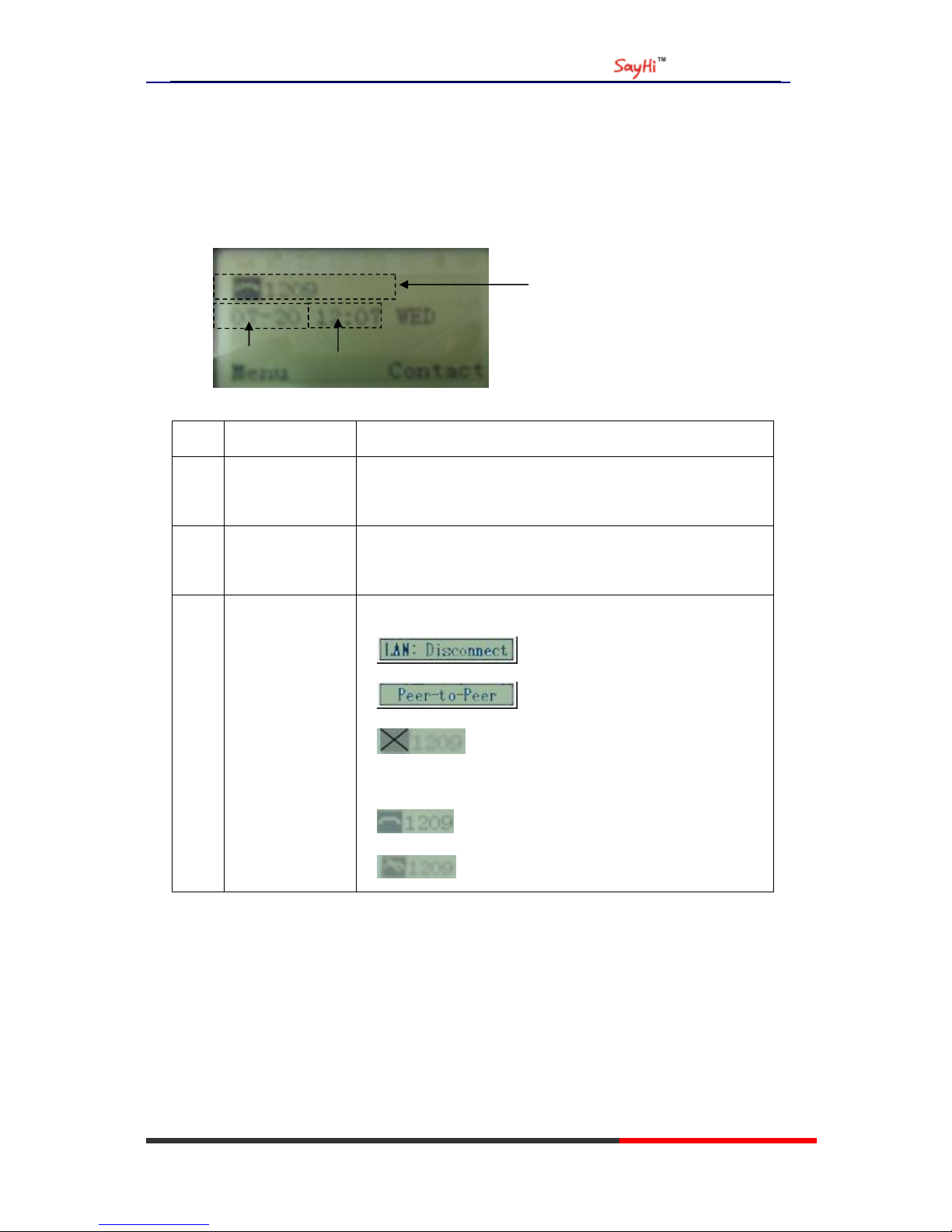
This is what your main phone screen might look like:
Figure 3.3 SayHi US102 Phone LCD
Screen displays Functions
1 Date
Show current date(You can set with different sources,the more
7. Web Setting)
2 Time
Show current time(You can set with different sources,the more
7. Web Setting)
3 Line status Show the phone line status:
1) : Disconnect into network.
2) : Only Peer-to-Peer call.
3) : Network connected normal, but the line is not
successfully registered.
4) : Network is OK and the line is available.
5) : Line is turned on DND.
○
1
○
2
○
3
Page 10
US102 IPPhone
www.escene.hk
Escene Communication
4. Basic Call Handling
You can perform basic call-handling tasks using a range of features and services. Feature
availability can vary; see your system administrator for more information.
Note: The bold type of the following text in table signifies the phone's button.
Placing a Call
Here are some easy ways to place a call on SayHi US102 IP Phone:
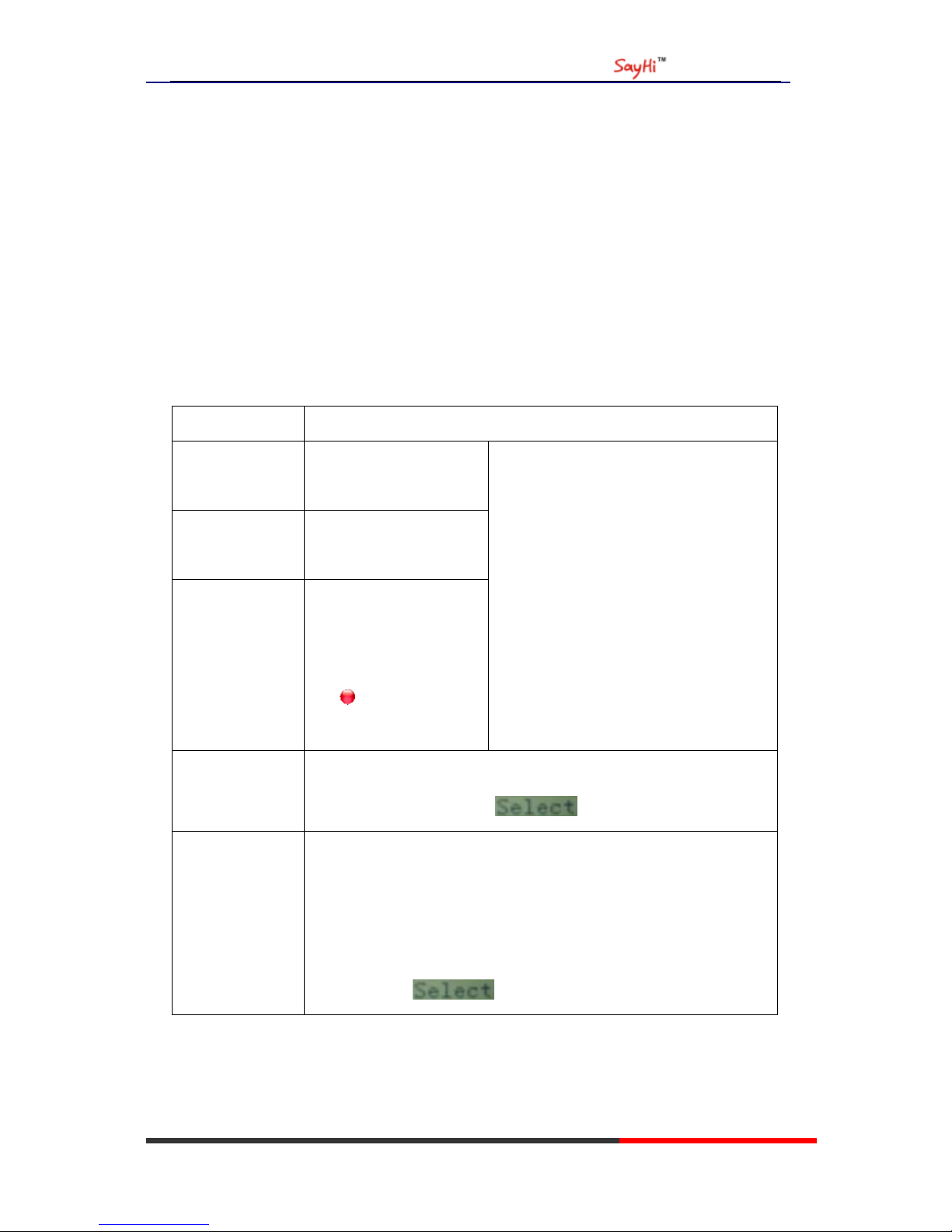
If you want to... Then…
Place a call using
the handset
Pick up the handset
Place a call using
a speakerphone
Press Speaker button
Place a call using
a headset
Put on
your headset,
active Headset button so
that the status light is
Red , and then do as
using speakerphone
--1) You can hear dial tone;
--2) Enter a number;
--3) Press # button (default),
-or wait 5s (default), then it send the
number automatically.
Redial
-- press Navigation button-Right (in Standby interface) > “Dialed ”,
select a number, and press .
Dial from a call
log
--1) Press MENU or OK button > “Calls ”, you can select “Missed calls”,
“Received calls” and “Dialed numbers”,
- or press Navigation button (in Standby interface) > select “Missed ”
(down), “Received ” (left) and “ numbers” (right) );
--2) Then press .
Tips
• You can dial on-hook, without a dial tone (pre-dial). To pre-dial, enter a number, and then go
off-hook by lifting the handset or pressing Headset or Speaker button.
Page 11
US102 IPPhone
www.escene.hk
Escene Communication
Answering a Call
You can answer a call by simply lifting the handset, or you can use other options if they are
available on SayHi US102.
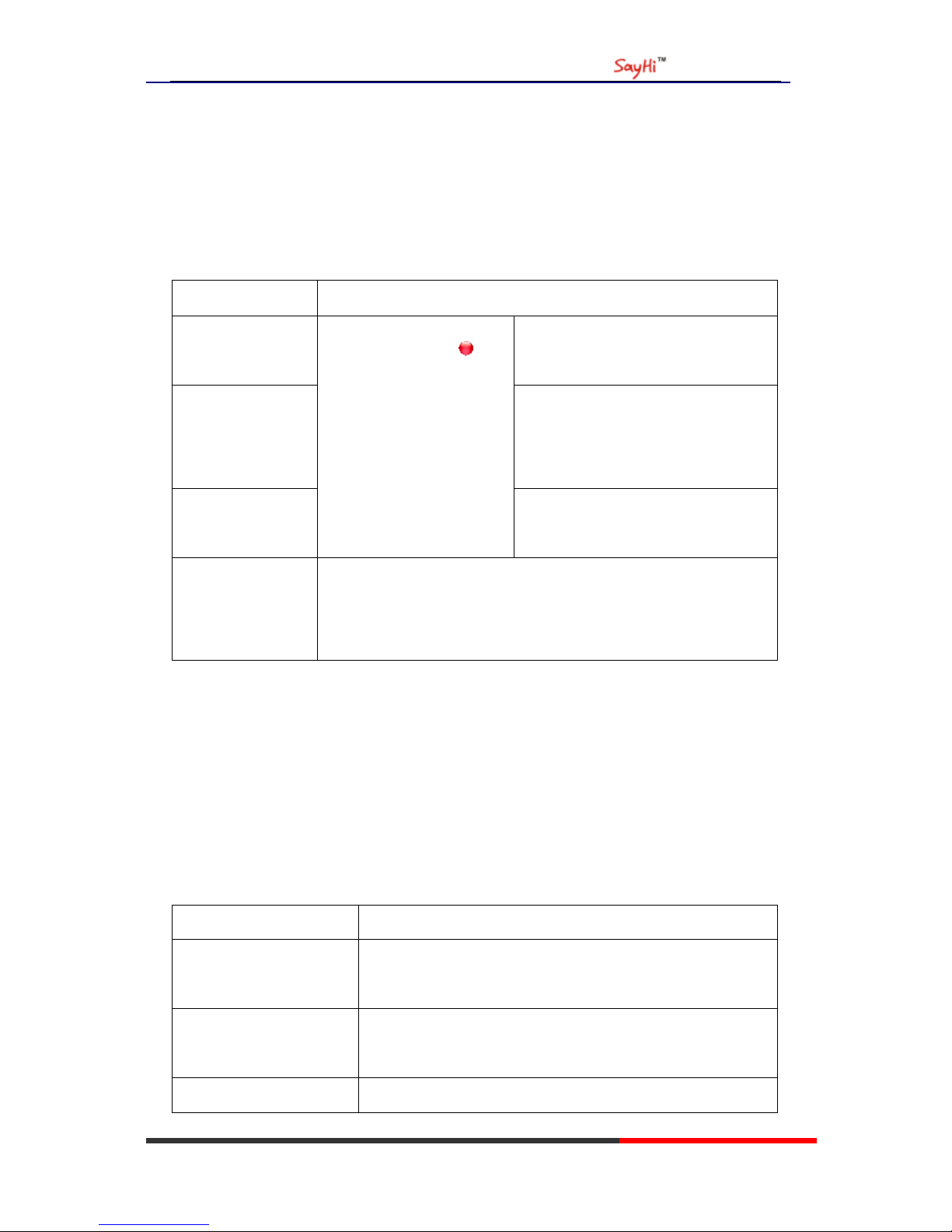
If you want to... Then...
Answer with a
handset
--Pick up the handset
Answer with the
speakerphone
(Non-headset mode)
--Press Speaker button
Answer with the a
headset
--1) Your phone ring;
--2) Light strip is Red
and flashing;
--Put on headset, press Headset button ,
and then do as using speakerphone
Auto-answer
--1) Press MENU or OK button > “Functions ” > “Auto answer”;
--2) Select “Enable”;
--3) Your phone answers incoming calls automatically after a few rings.
Tips
• Your system administrator configures Auto-answer to use either the speakerphone or a headset.
You might use Auto-answer if you receive a high volume of incoming calls.
Ending a Call
To end a call, hang up. Here are some more details.
If you want to... Then...
Hang up while using the
Handset
-- Return the handset to its cradle
Hang up while using the
speakerphone
-- Press Speaker button
Hang up while using the
--Press Handset button, (Do not keep the headset mode)
Page 12
US102 IPPhone
www.escene.hk
Escene Communication
Headset
Using Hold and Resume (Switch Calling Line)
You can hold and resume calls.
If you want to... Then...
Put a call on hold
Press HOLD button
Resume a call
Press HOLD button
Tips
• Engaging the Hold feature typically generates music or a beeping tone.
Transfer Calls
Transfer redirects a connected call. The target is the number to which you want to transfer the call.
If you want to... Then...
Talk to the transfer
recipient before
transferring a call
(consult transfer)
--1) Press TRANSFER button;
--2) Enter number;
--3) press “#”(default) ,
-or wait five seconds(default)then transfer the call
Do Not Disturb
You can use the Do Not Disturb(DND) feature to block incoming calls on your phone with a busy
tone(Can also be set to their voice mail or other extension numbers, etc.).
If you want to... Then...
Enable DND on a line
--1) Press MENU or OK button > “Functions ” > “DND” > (select
line) “Enable”
Page 13

US102 IPPhone
www.escene.hk
Escene Communication
--2) All enabled line on the phone would changes to
status.
Disable DND
Press MENU or OK button > “Functions” > “DND” >(select line)
“Disable”
3-way Conference
You can establish a three-party conference, during the conversation three phone parties can
communicate with each other.
If you want to... Then...
Invite the transfer
recipient into a
conference in a
transferring
--1) When the transfer recipient answer the call, press
CONFERCENCE button on your phone;
--2) Then the held one, transfer recipient and you will be into a
conference.
Invite the third party
into a conference in
a active call
--1) Press CONFERENCE button in an active call;
--2) Enter the third party number;
--3) After connected the third party, press CONFERENCE button
again
Page 14

US102 IPPhone
www.escene.cn
Escene Communications
5. Advanced Call Handling
Using the Phone Book
You can store a large number of contacts in your phone's directory. You can add, edit, delete, dial,
or search for a contact in this directory. However, it only can configure the phone book on web
page in SayHi US102. For details, you can refer to 7.Web Settings.
However, you can dial from Phone Book on the phone after setting phone book on web page.
Call from phone
book
--1) Press MENU button > “Contact”,
--2) Select “Personal phone book”>"View All",
-or select a contact button beside the menu button.
Using Call Logs
Your phone maintains records of your missed, placed, and received calls.
If you want to… Then…
View your call logs
--1) Press MENU button > “Calls > “Missed Calls”, “Received
Calls”, or “Dialed numbers”
--2) Use the navigation keys to view the call record information.
Dial from a call log Please refer to the previous part 4.Basic call handing – Placing a call.
Tips
• Each call log store up to 20 entries on SayHi US102 IP phone.
Page 15

US102 IPPhone
www.escene.hk
Escene Communication
6. Keypad Instruction
SayHi series IP phones are can be configured in two ways. The first you can use the phone keypad
where you can settings for you IP phones, the other you can log in to User Options web pages
where you can settings for you IP phones.
Use phone keypad to setting. Press MENU or OK button to the main menu, Use the navigation
keys to select menu, press OK button to confirm menu selections, press back button or cancel
button to delete input information.
SIP Account Settings
SayHi US102 series IP phone make calls based on sip accounts, sayHi US102 series IP phones can
support 2 independent SIP account, Each account can be configured to different SIP server.
If you want to… Then...
Create an SIP account
--1) Select “Settings” > “Advanced settings”;
--2) Enter the password required(The default is empty) ;
--3) Select “SIP” > “Account sip”;
--4) Select one of the account you want to setting, you can configure the
following parameters
-Enable account*: Select Enable
-Account Mode: the type of account
-Display Name: The name displayed on the screen
-User Name*: the account matched with the SIP server.(extension
number) ,
-Authen usr: the Authenticated users matched with the SIP server.
(The default With the same account)
-user pwd*: the user password matched with the SIP server
-Description: description of this account,
-SIP1*: the primary SIP server, By default all calls through the
server,
-SIP2: the secondary SIP , When the primary server is
Page 16

US102 IPPhone
www.escene.hk
Escene Communication
unavailable ,use the SIP server
-Refresh time: Registration refresh interval, the minimum value is
20 The default value is 3600.
-Con type: which protocol the phone used to send the
voip packets
-Amount of used lines: Maximum line are allowed to
used
--5) Set up the above parameters, select “Submit changes” to saves
settings, Complete the account creation.
Disable sip account
--1) Select “Settings” > “Advanced setting”;
--2) Enter the password required(The default is empty) ;
--3) Select “SIP” > “Account sip”;
--4) Select “Enable account” > “Disable”;
--5) Select “Submit changes” to saves settings
Network Setting
If you want to …
Then…
network setting
--1) Select “Settings” > “Advanced settings”;
--2) Enter the password required(The default is empty) ;
--3) Select “Network”, you can configure the following parameters:
-Type: static IP or DHCP
- DNS1: enter IP address of the primary DNS server
- DNS2: enter IP address of the secondary DNS server
-Web port: the default Web port is 80,if you change it(for example
change it to 88),you must use IP and Web port to login the web page (for
example http://192.168.0.200:88).It will take effect on next reboot.
-Telnet port: the default Telnet port is 23, if you change it (for
example change it to 2003), you must use IP and Telnet port to login the
manage page (for example telnet 192.168.0.200:2003).It will take effect
on next reboot.
Page 17

US102 IPPhone
www.escene.hk
Escene Communication
Customizing Rings and Volume
If you want to…
Then…
Change the ring
tone
--1) Select “Settings” > “Phone settings” > “Ring type”;
--2) Press navigation to Select ring tone
Adjust the volume
level
--1) Select “Settings” > “Phone settings” > “Volume settings”
--2) You can adjust the volume level of following types
-Ring volume: Phone call ring volume,
-Handset volume: Handle output volume,
-Handset mic volume: Handle input volume,
-Speaker volume: Hands-free speaker output volume,
-Speaker mic volume: Hands-free input volume,
-Headset volume: Headphone output volume,
-Headset mic volume: Headset microphone input volume
Page 18
US102 IPPhone
www.escene.hk
Escene Communication
15
7. Web Settings
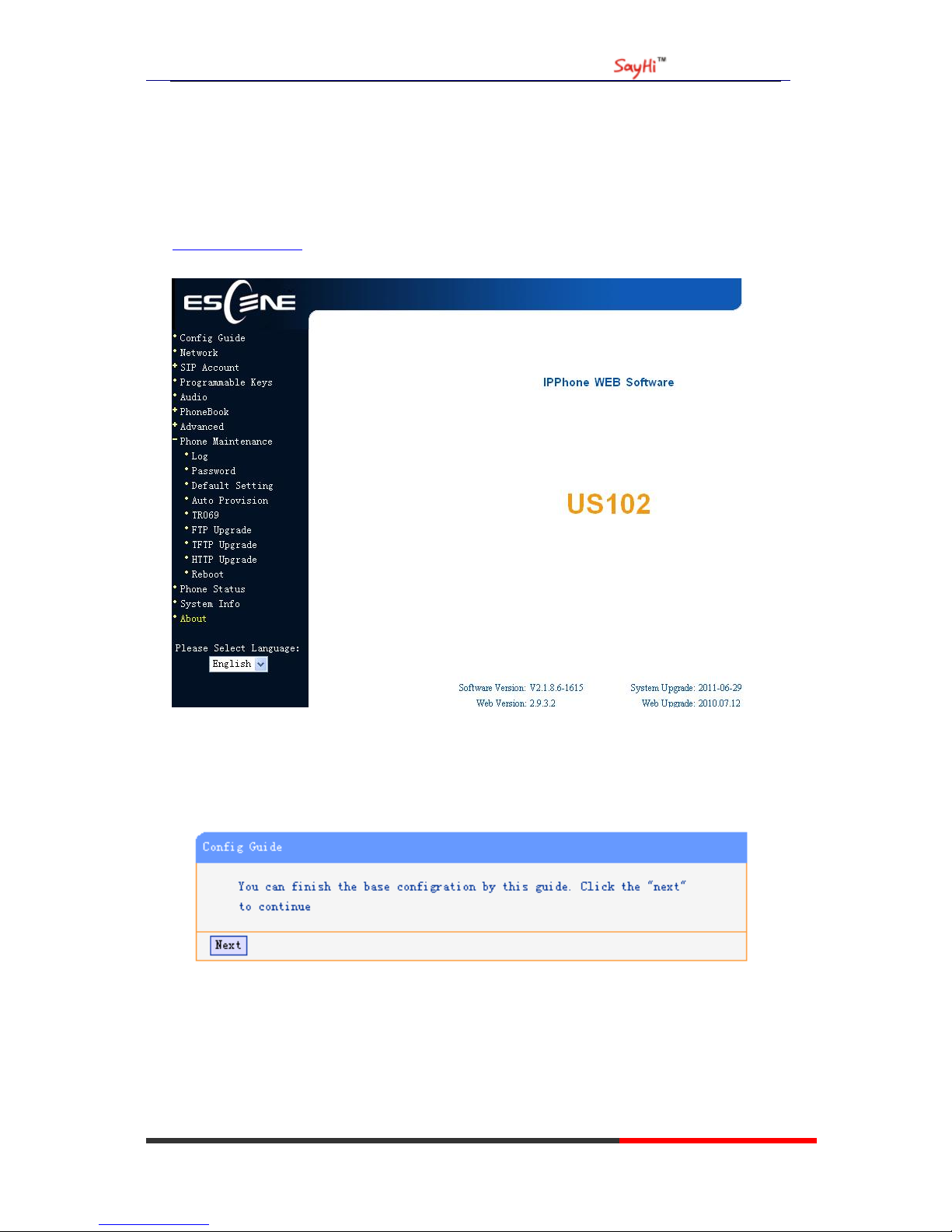
We can configure IP Phone more handy through web setting. Press OK button on the keypad of the
phone to enter the status page and find out the IP address of IP phone. Enter it (for example
http://192.168.0.200) into the address bar of web browser. The default login name and password
are both “root”.
Config Guide
You can finish the base configration step-by-step by this guide.
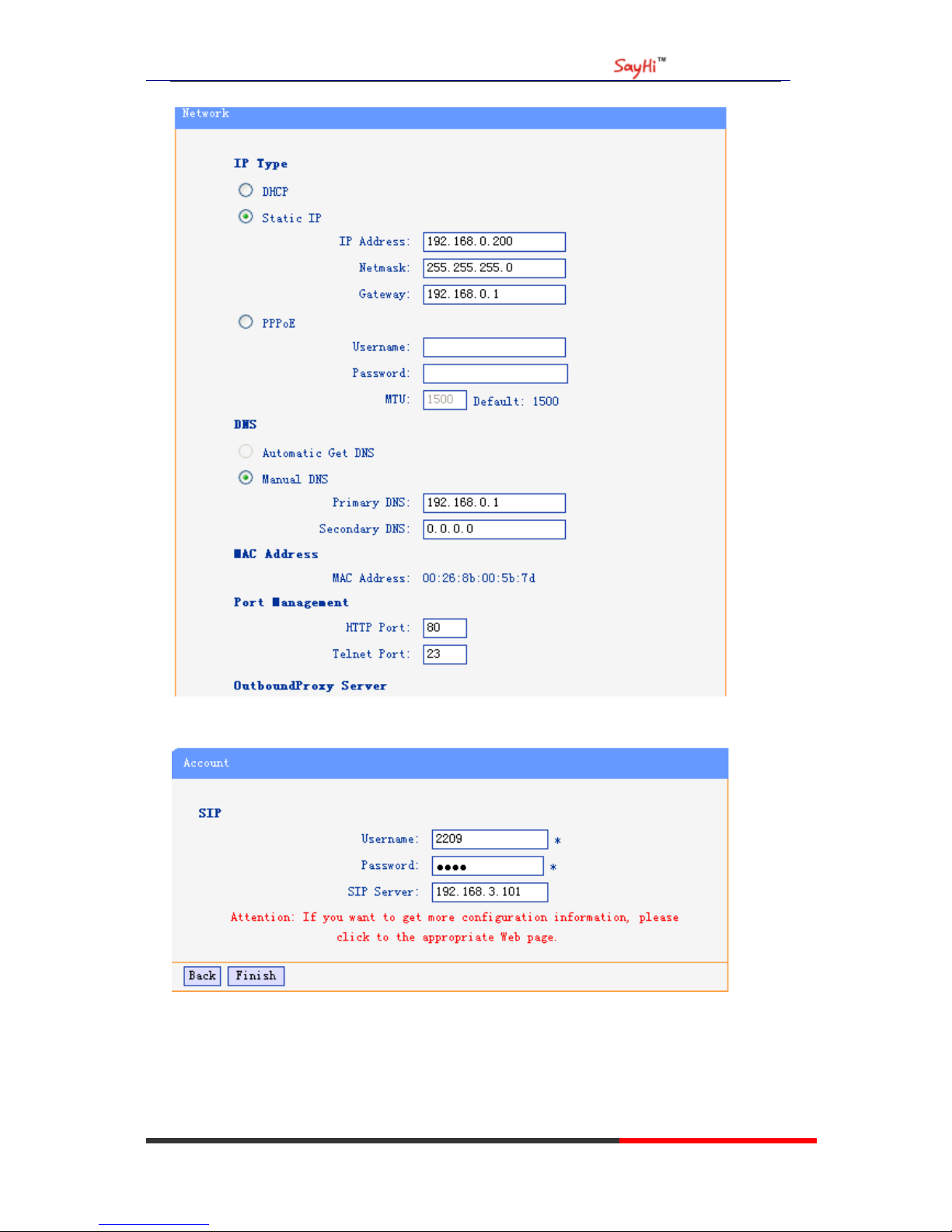
When press ‘next’,you can configure the Network parameters for the phone,
Page 19
US102 IPPhone
www.escene.hk
Escene Communication
16
After config the network parameter,press next,then you can config sip account for the phone.
Press Finish,the base configuration of the phone is complete,now you can use the phone to call
with sip.
Page 20
US102 IPPhone
www.escene.hk
Escene Communication
17
Network
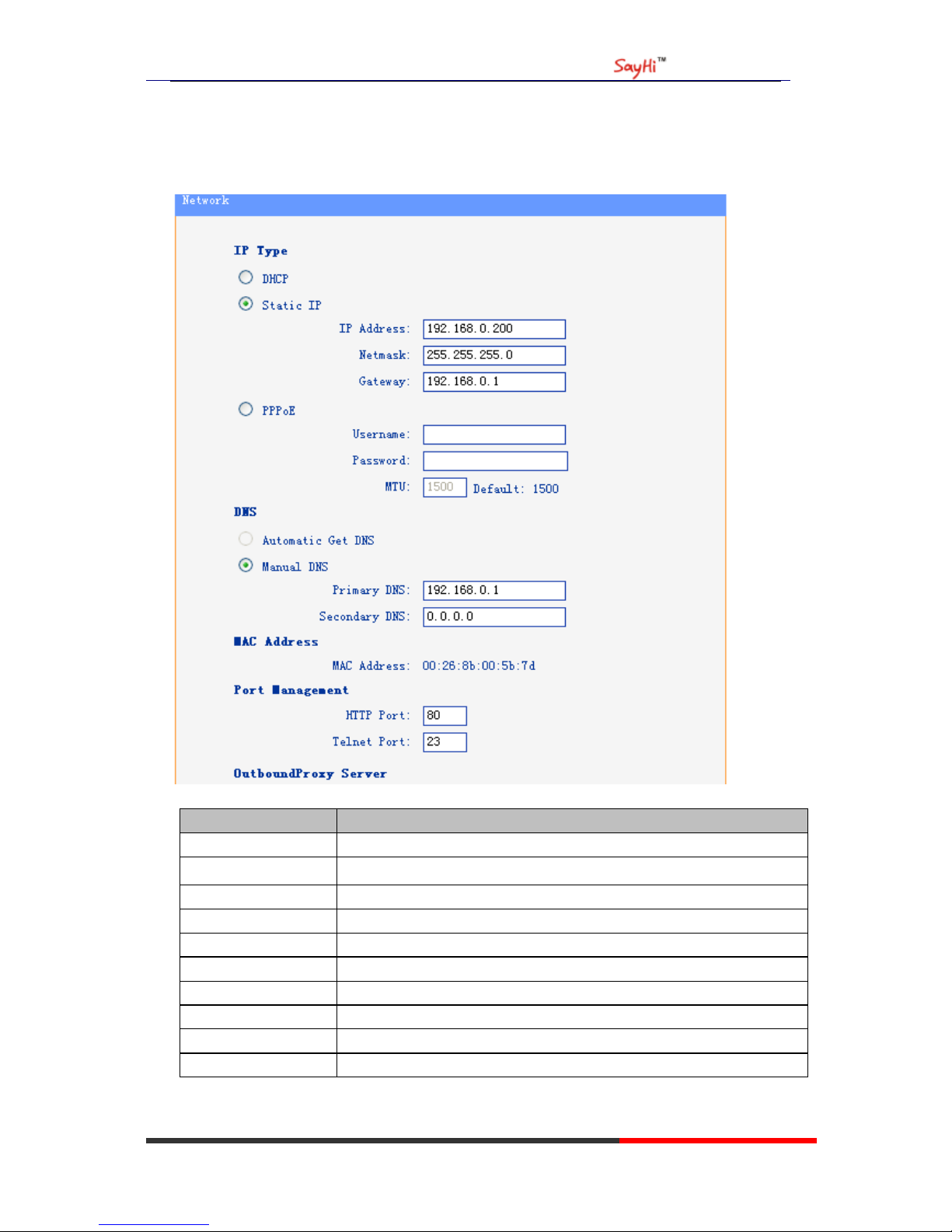
You can config the network parameters for the phone on the web page.
Choose network,you will find the following parameters:
Field
Description
DHCP
C
onfig the phone get ip info from DHCP server
IP Address Config the ip manual for phone
Netmask
Config the netmask manual for phone
Gateway
Config the gateway manual for phone
Username (pppoe)
The pppoe username
Password (pppoe)
The pppoe password
MTU (pppoe)
The mtu for pppoe,default is 1500
Primary DNS
The primary D
NS server
Secondary
The secondary DNS server
MAC Address
Display the MAC of the phone
Page 21
US102 IPPhone
www.escene.hk
Escene Communication
18
HTTP Port The default web port is 80,if you change it(for example change it to88),
You must use IP and Web port to login the web page(for example
http://192.168.0.200:88). It will take effect on next reboot.
Telnet Port the default Telnet port is 23,if you change it(for example change it to
2003),you must use IP and Telnet port to login the manage page (for
example telnet 192.168.0.200:2003).It will take effect on next reboot.
SIP Account
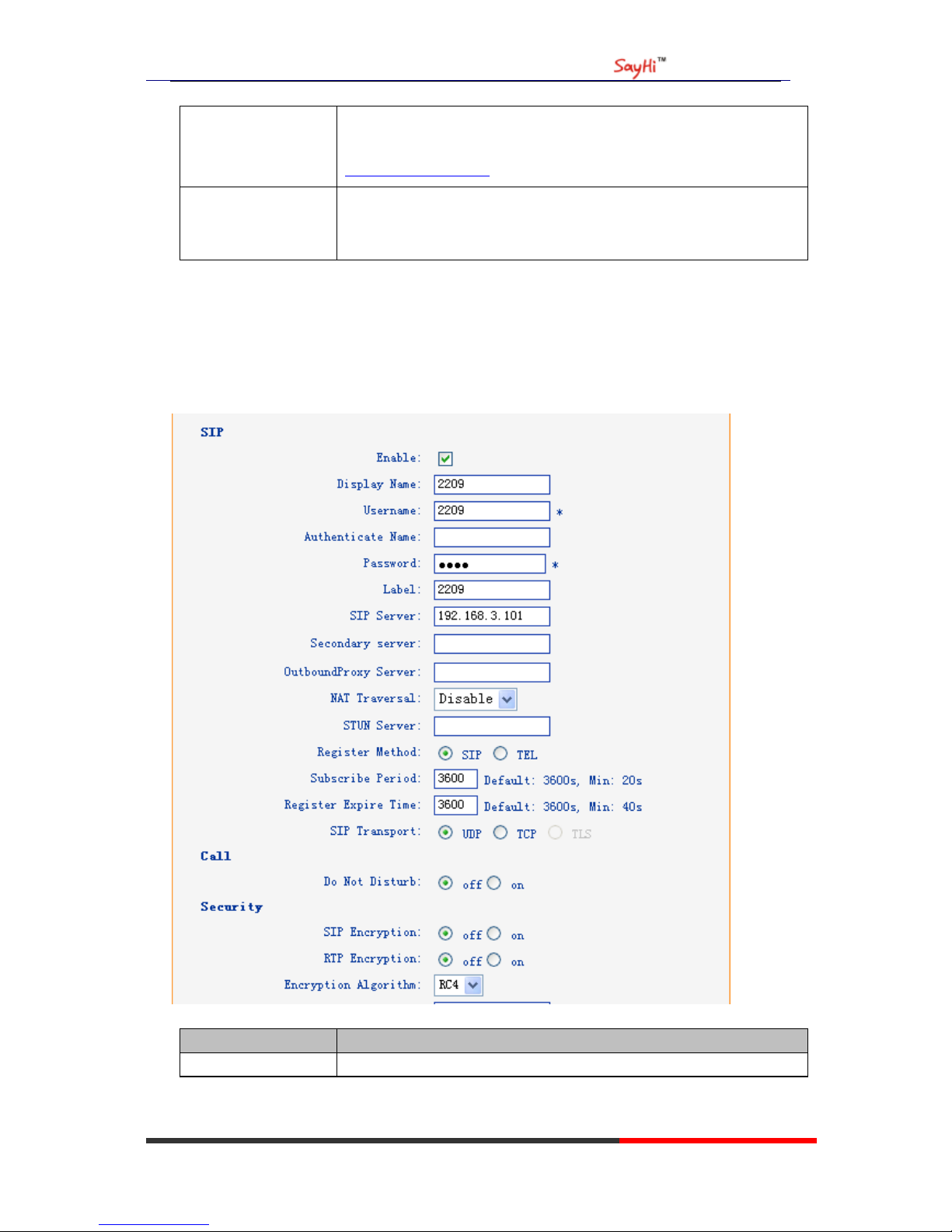
The phone attempts to register to the SIP server using the account/registrar data provided by the
automatic or manual initialization.
Choose one Account, you will find the following parameters:
Field
Description
Enable
You can choose on/off to enable/disable the line.
Page 22
US102 IPPhone
www.escene.hk
Escene Communication
19
Account Mode You can choose VOIP
Display Name It is showed as Caller ID when making a phone call
Username It is a username provide by SIP Server
Authenticate Name It is authenticated ID for authentication
Password It is a password provide by SIP Server
SIP Server Server for registration, provided by administrator
Register Expire Time IP phone automatically registered every time
Amount Of Line
Account Used
The line key of account used,default is 1
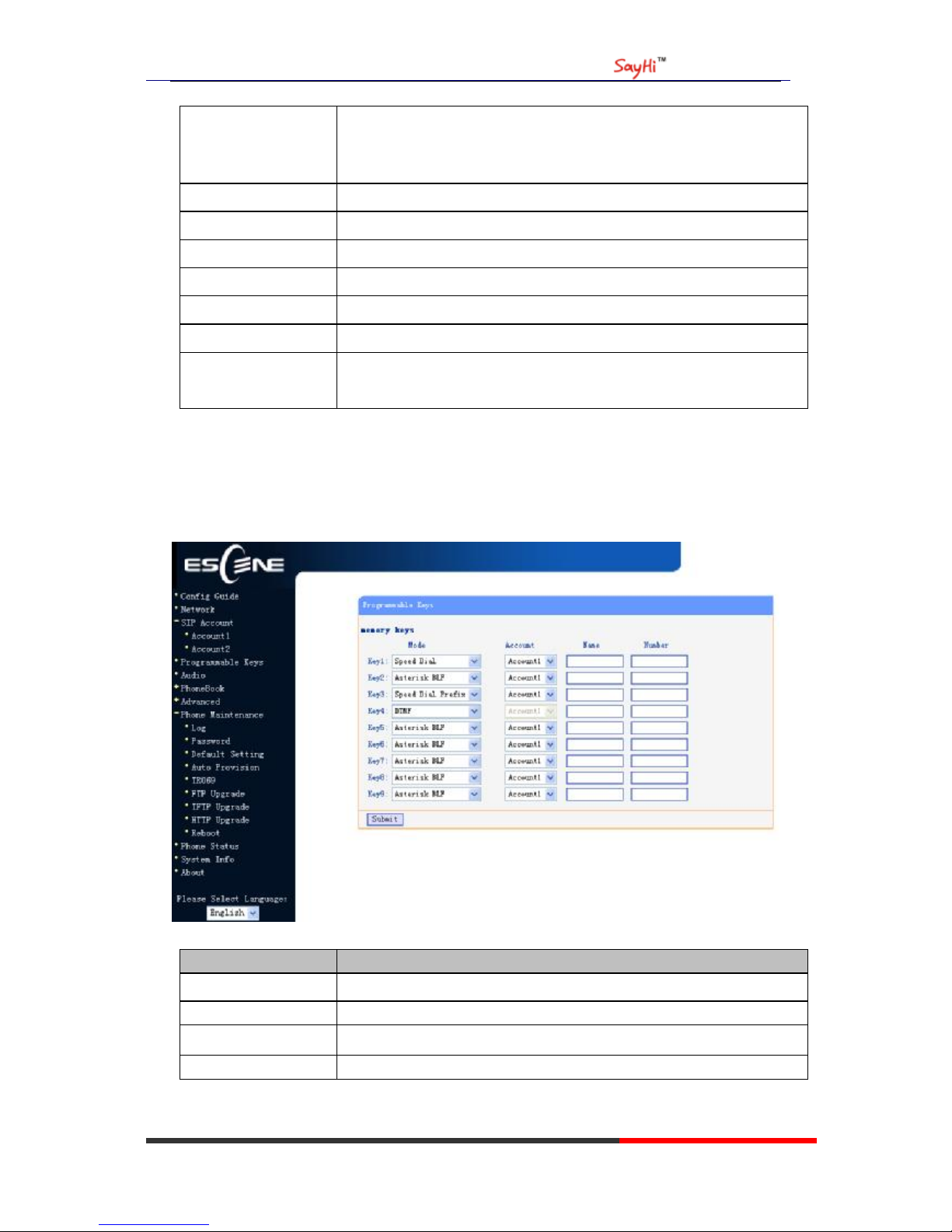
Programmable Keys
Choose Programmable Keys,you will find the following parameters:
Field
Description
Speed Dial(Mode) Use specific Key as Speed Dial key
Asterisk BLF(Mode)
Use specific Key as BLF key
Speed Dial Prefix(Mode) Use specific Key as Speed Dial Prefix key
DTMF
Use specific Key as DTMF key
Page 23
US102 IPPhone
www.escene.hk
Escene Communication
20
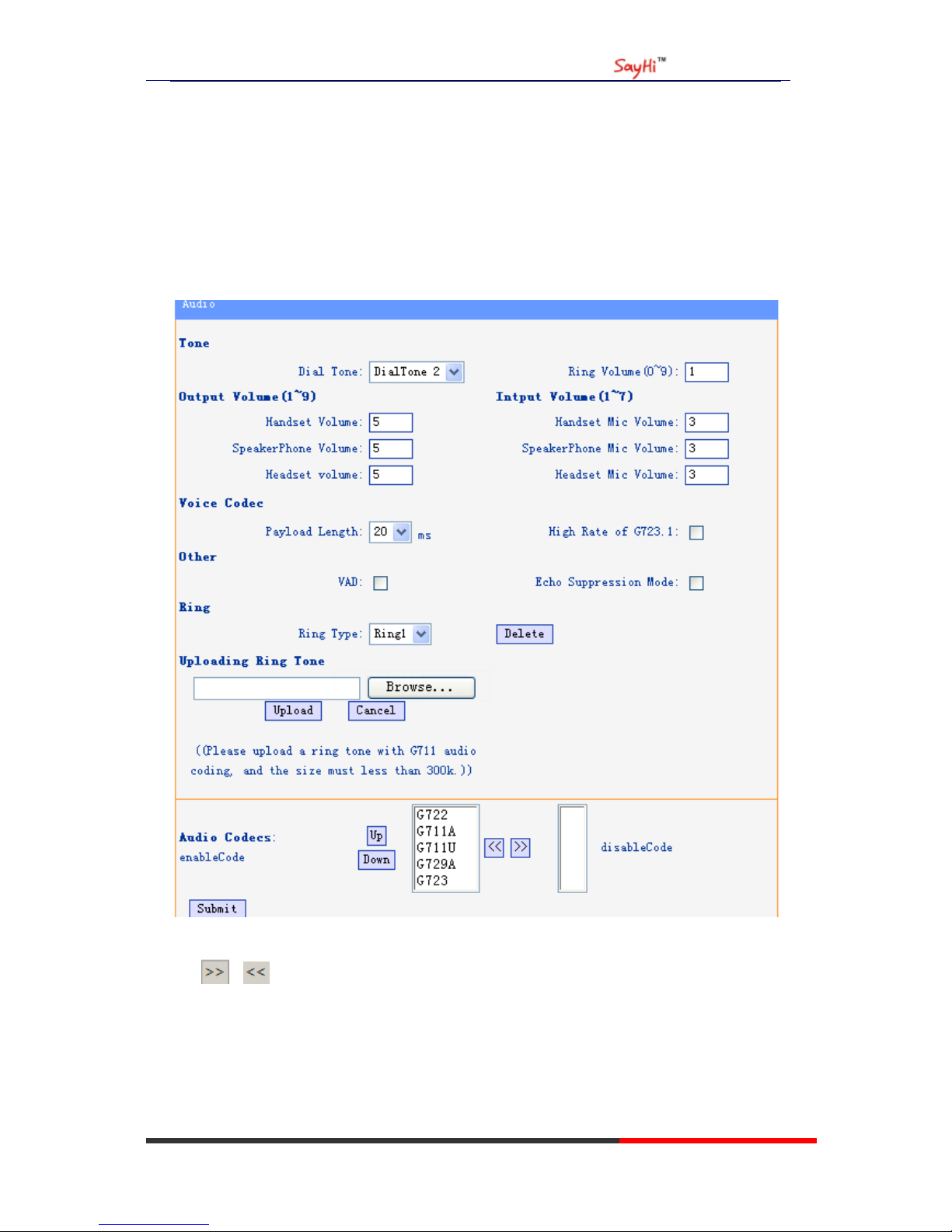
Audio
The IP phone supports the following voice codecs: G.722, G.711A, G.711U, G.723, and G.729A.
You can enable/disable the desired codecs via Web interface. Please contact your system
administrator for more details about the codecs.
To enable/disable the codecs:
1) Choose Audio-> Audio Codecs
2) Use the navigation keys to highlight the desired one in the Enabled/Disable Codecs list, and press
the / to move to the other list.
3) Choose Submit to save the change.
Of course, you can control the voice bulk in this choose.
Page 24
US102 IPPhone
www.escene.hk
Escene Communication
21
PhoneBook
Group
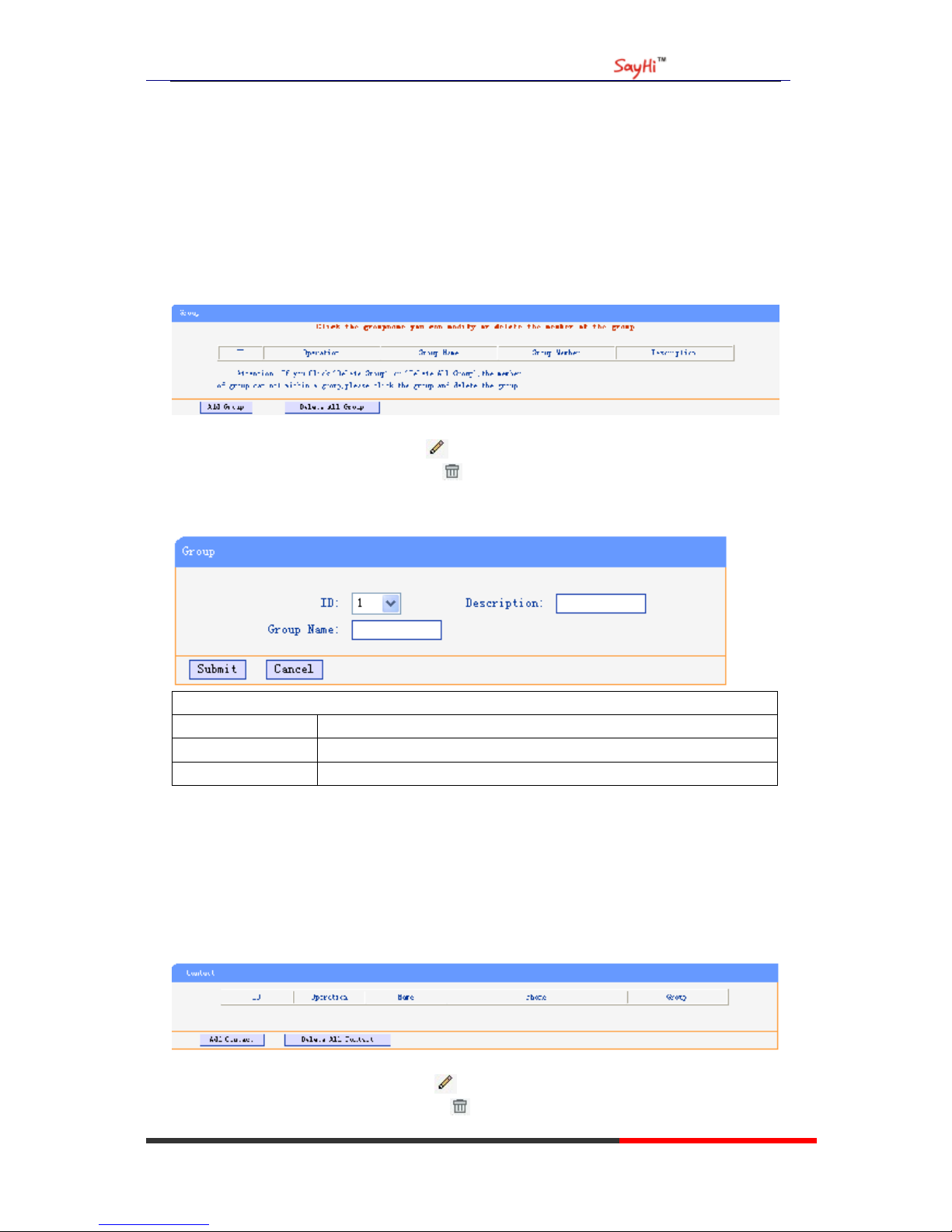
You can add, edit and delete group in a phone book on web page of US102.
1) Click “PhoneBook” > “Group”,
If you want to add a Group, you just ought to click ‘Add Group’ .
You can edit an existed Group by click .
You can delete an existed Group by click , if you want to delete all Groups, you just ought to
click ’Delete All Group’.
2) When you add a group or edit an existed group, you can set several parameters as follow:
Group
ID Serial number of a group
Description Description of a group
Group Name Name of a group
Contact
You can add, edit and delete contact in a phone book on web page of US102.
The phonebook can storage 300 contact entry.
1) Click “PhoneBook” > “Contact”,
If you want to add a Group, you just ought to click ‘Add Contact’.
You can edit an existed Contact by click .
You can delete an existed Contact by click , if you want to delete all Contacts, you just ought
Page 25
US102 IPPhone
www.escene.hk
Escene Communication
22
to click ’Delete All Contact’.
2) When you add a Contact or edit an existed Contact, you can set several parameters as follow:
Contact
Serial Number Serial number of a contact
First Name The First Name of a contact
Last Name The Last Name of a contact
Mobile Number The Number1 phone number of a contact
Office Number The Number2 phone number of a contact
OtherNumber The Number3 phone number of a contact
Group You can assign a contact to a specific group. If there isn’t any group set
on the phone, the group is None by default.
Account Select a SIP account relating this contact, that is you can dial to the
contact from this SIP account.
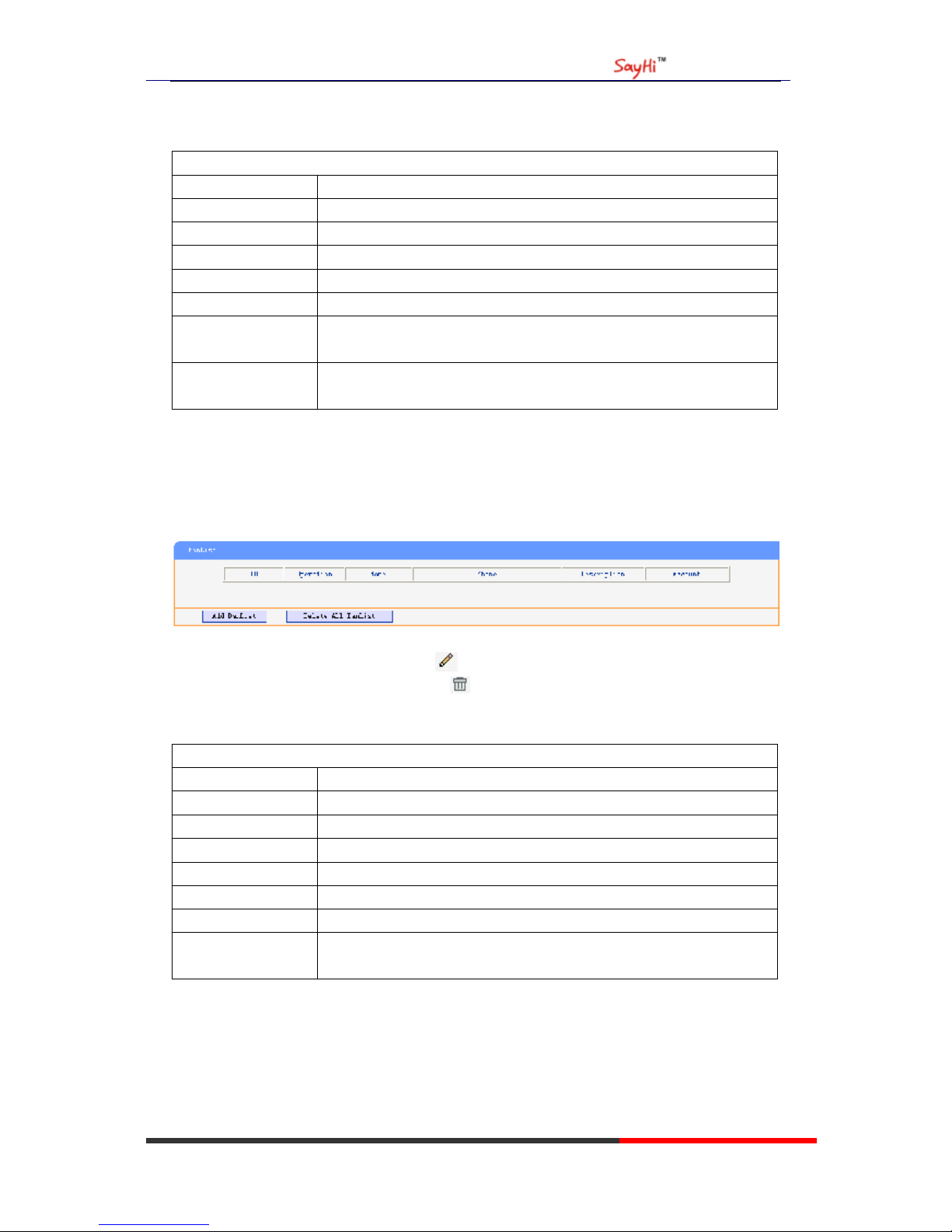
BanList
You can add, edit and delete banlist in a phone book on web page of US102..
1) Click “PhoneBook” > “BanList”,
If you want to add a BanList, you just ought to click ‘Add BanList’.
You can edit an existed BanList by click .
You can delete an existed BanList by click , if you want to delete all BanLists, you just ought
to click ’Delete All BanList’.
2) When you add a BanList or edit an existed BanList, you can set several parameters as follow:
BanList
Serial Number Serial number of a BanList
Description Description of a BanList
First Name The First Name of a ban contact
Last Name The Last Name of a ban contact
Mobile Number The number1 phone number of a ban contact
Home Number The number2 phone number of a ban contact
Office Number The number3 phone number of a ban contact
Account Select a SIP account relating this ban contact, that is the ban contact
can’t dial to this SIP account.
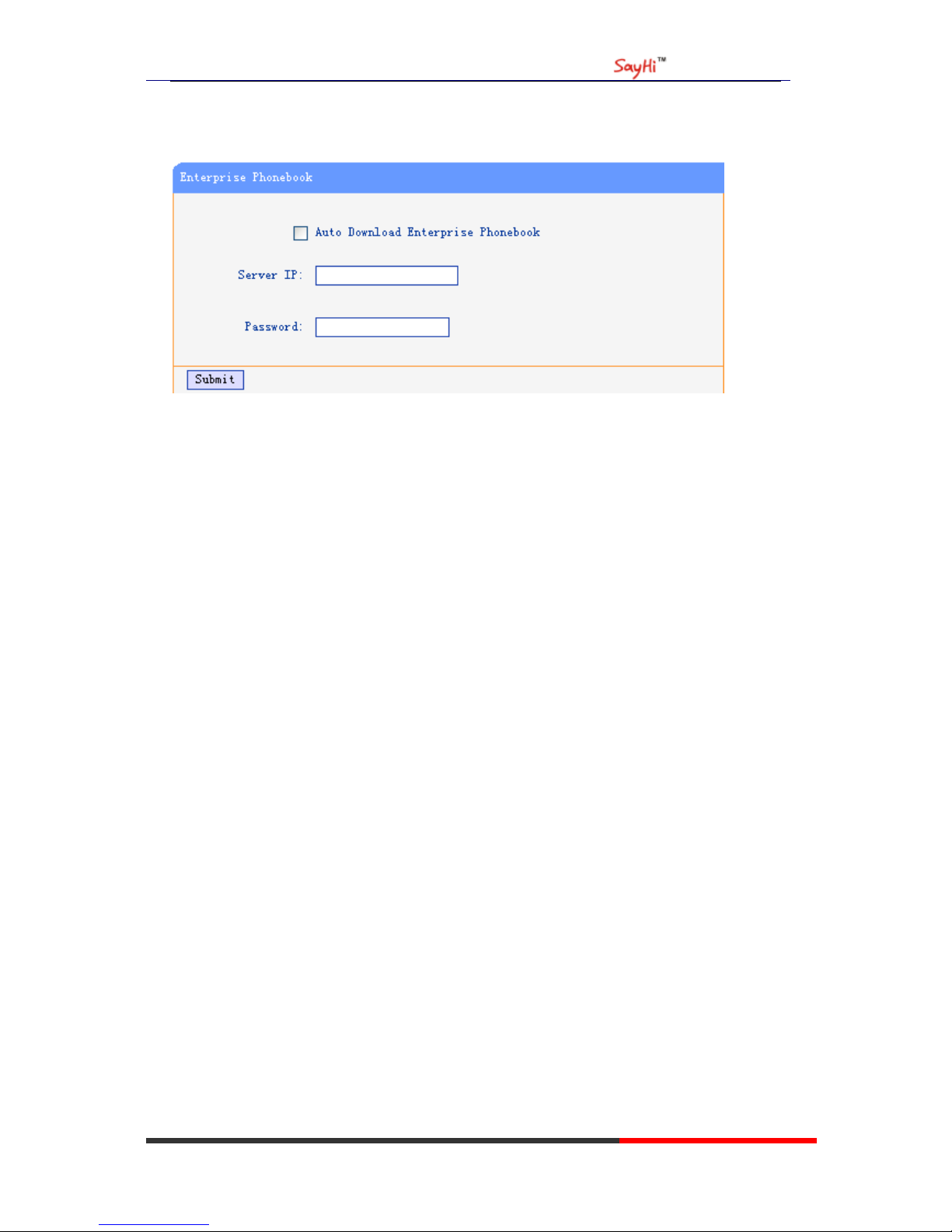
Enterprise Phonebook
You can download Enterprise Phonebook from this web interface. But you should do second
develop on the sip server to enable this function completely.
Page 26
US102 IPPhone
www.escene.hk
Escene Communication
23
If the sip server no add some function to hold this option ,this option can be userd.
Advance
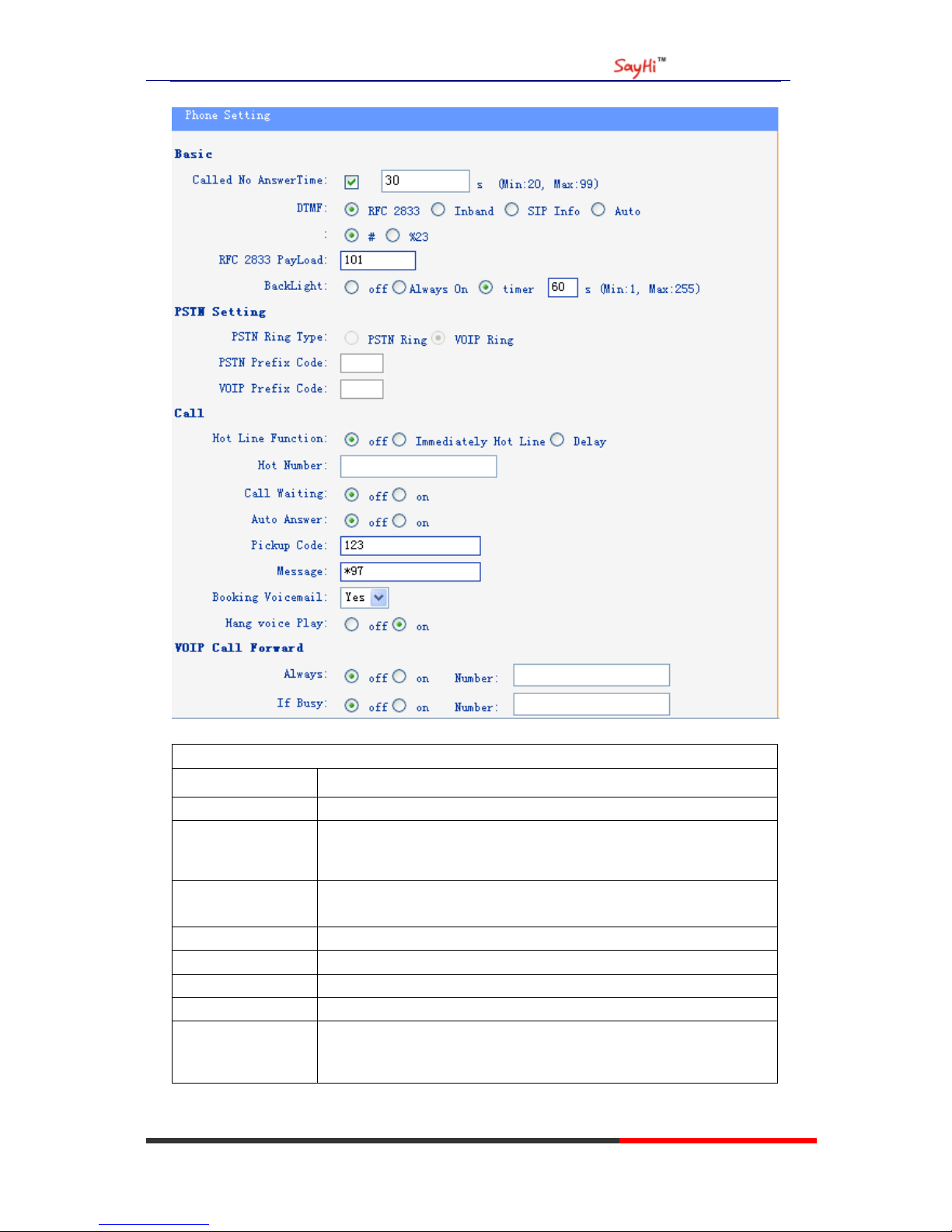
Phone Setting
You can use phone setting to set the time,qos,port Mirroring for the phone.
Page 27
US102 IPPhone
www.escene.hk
Escene Communication
24
When used Phone Setting option,you can set several parameters as follow:
Phone Setting
DTMF The DTMF transmitted mode,include RFC 2833,Inband,SIP Info
BackLight The backlight of the phone LCD
Set Time Mode The mode of set time for phone,include SNTP/SIP
Server/PSTN/Manual
Daylight Saving
Time
Enable/disable the DST for the phone
Time Format You can use 24 hour time format or 12 hour time format
Time Zone-GMT You can select different time zone for the phone
Manual Setting This used to manual set time for the phone
QoS The qos priority,support diff-serv and precedence
Network Packet
Mirroring
When select on,then you can capture the phone’s packet use notebook
which connect to pc port of the phone
Page 28
US102 IPPhone
www.escene.hk
Escene Communication
25
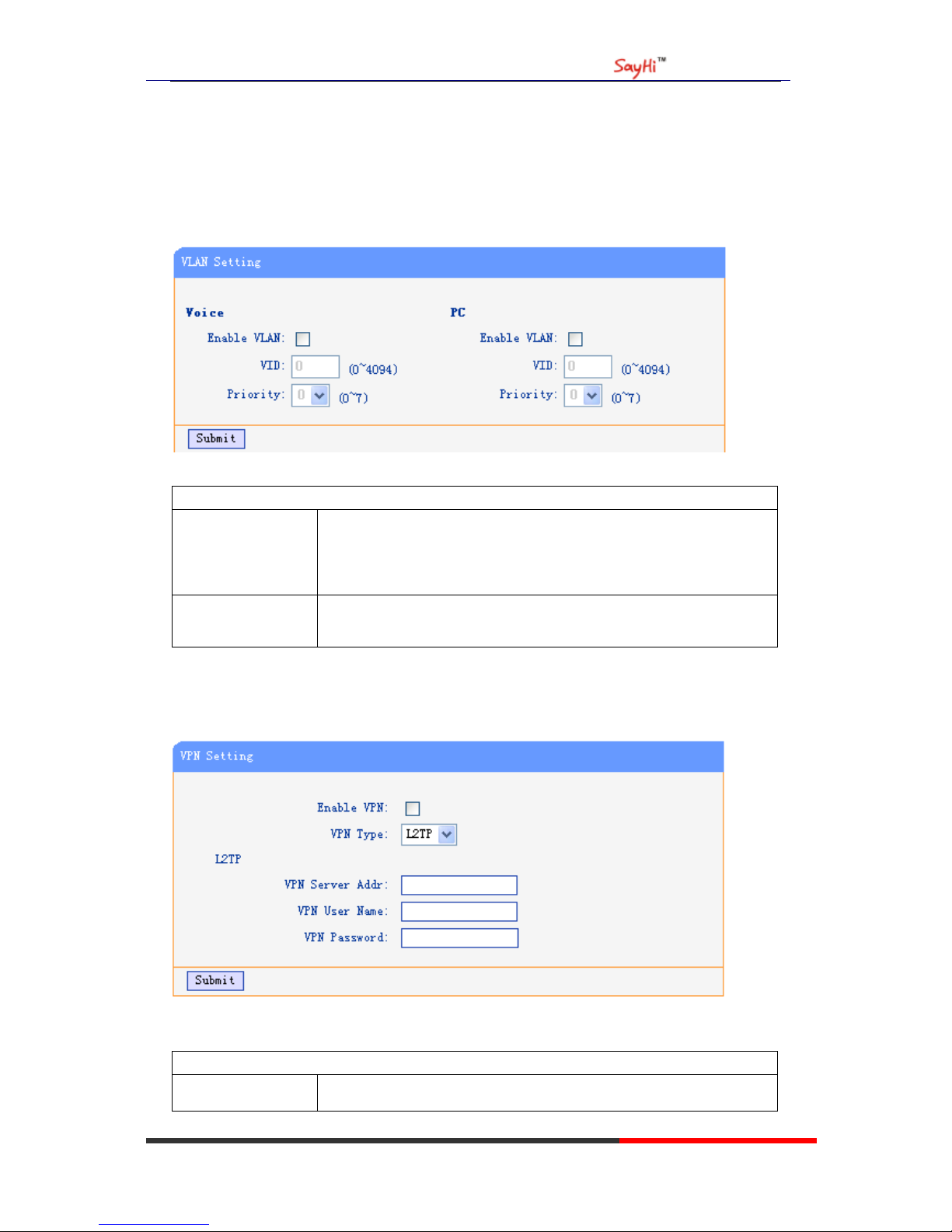
VLAN Setting
You can add the phone and PC to different VLAN used VLAN Setting option.
When used VLAN Setting option,you can set several parameters as follow:
VLAN Setting
Enable VLAN You can enable/disable vlan for phone and pc
VID The vlan you want the phone or pc to join
VPN Setting
IF you need to serup a VPN Setting, you shoule fill below options.
When used VPN Setting option,you can set several parameters as follow:
VLAN Setting
Enable VPN You can enable/disable VPN for phone and pc
Page 29
US102 IPPhone
www.escene.hk
Escene Communication
26
VPN Type: There is one choose you can choice.
VPN Server Addr VPN server'ip
VPN User Name VPN iser's name
VPN User Name A password be userd foe authentication
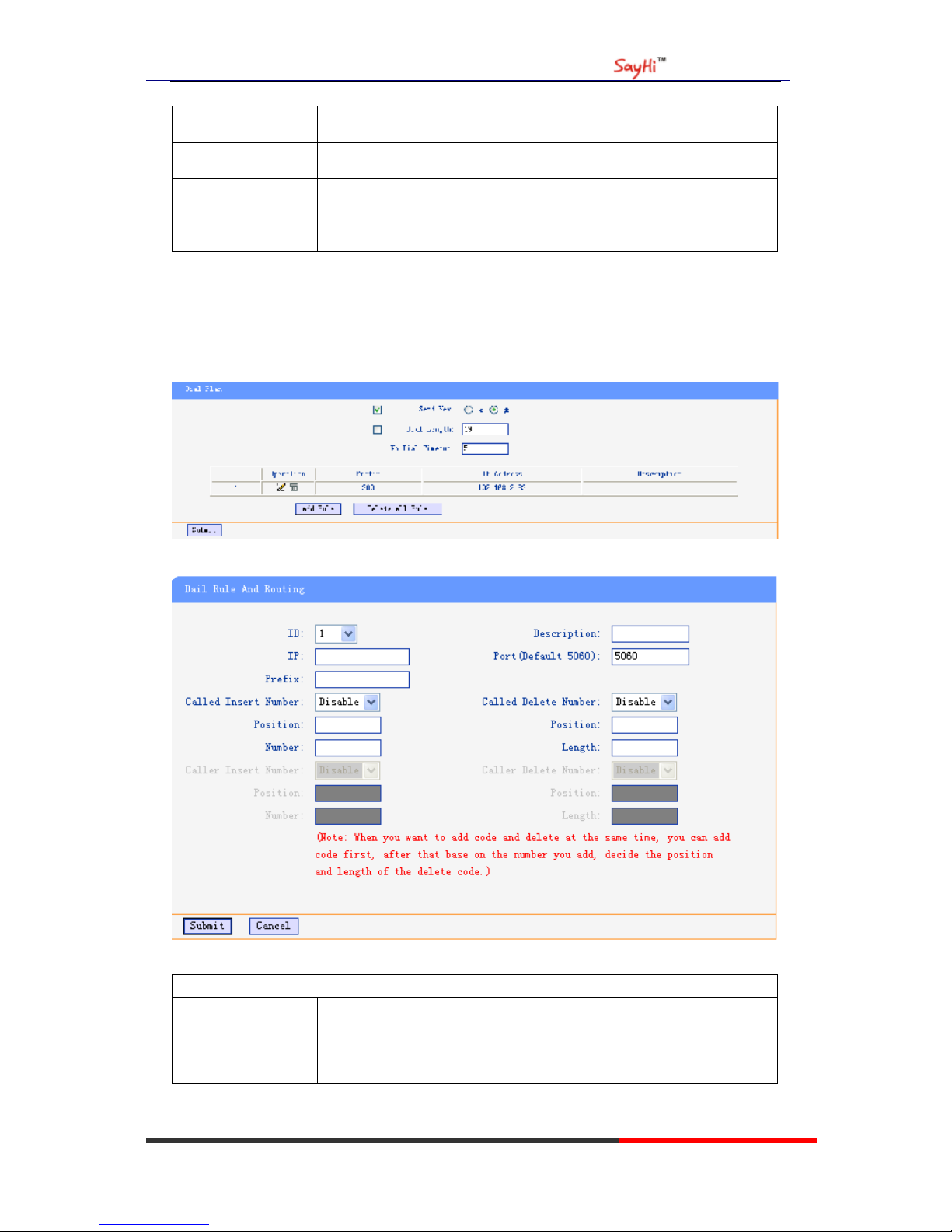
Dial Plan setting
If you want to setup a dial plan, you can click "Dial Plan".
Click "add rule" to entry this interface.
Dial Plan Setting
ID Dial Plan ID
Page 30

US102 IPPhone
www.escene.hk
Escene Communication
27
IP The ip of a phone which you want to call
prefix The number which you need to press actually if you want to call the
phone
Called Insert
Number
There have two option, Enable or Disable.
Position Which position you want insert the number
Number Waht number you want to insert
Called Delete
Number
There have two option, Enable or Disable.
Tips
(Note: When you want to add code and delete at the same time, you can add code first, after that
base on the number you add, decide the position and length of the delete code.)
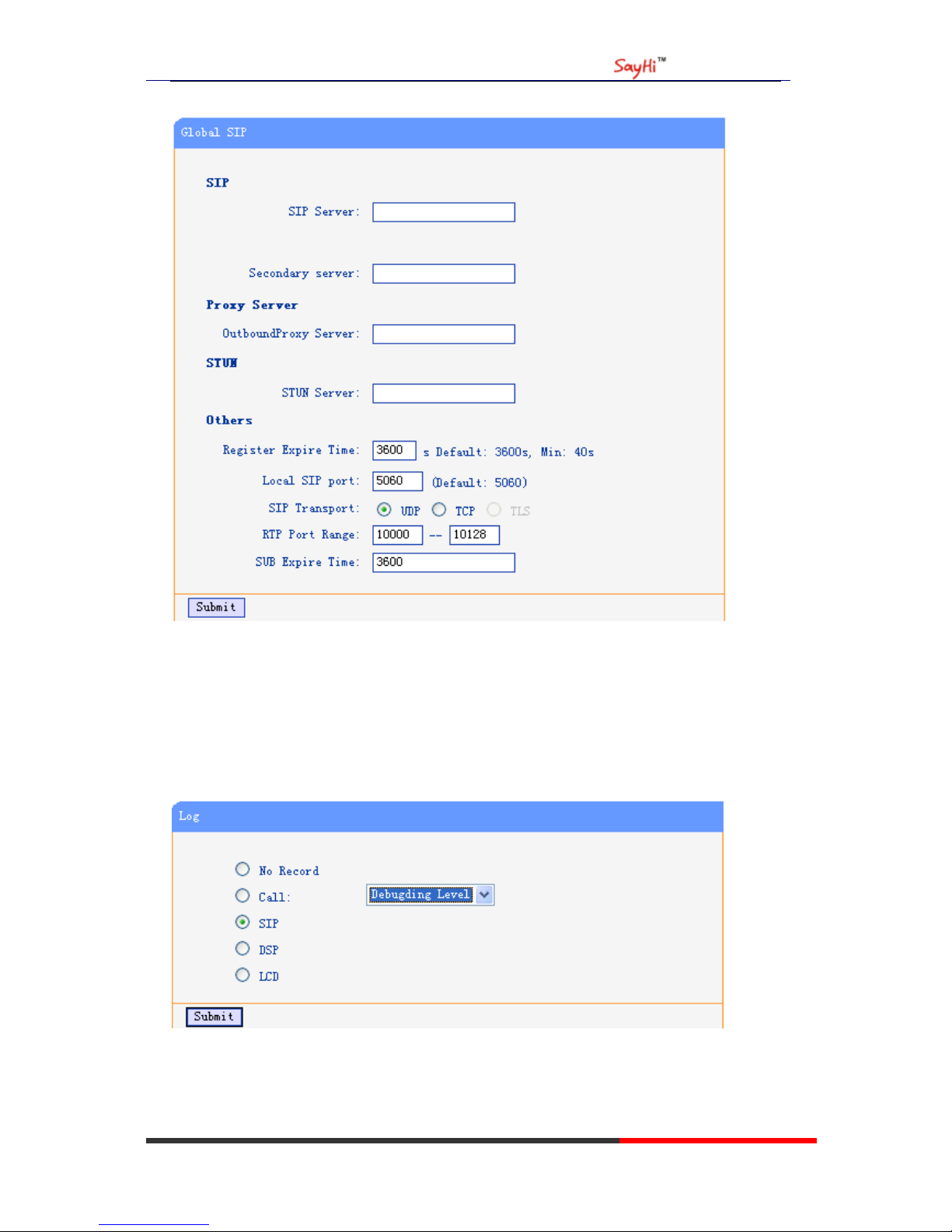
Global SIP
You also can setup the SIP server on Global SIP.
Page 31
US102 IPPhone
www.escene.hk
Escene Communication
28
Phone Maintenance
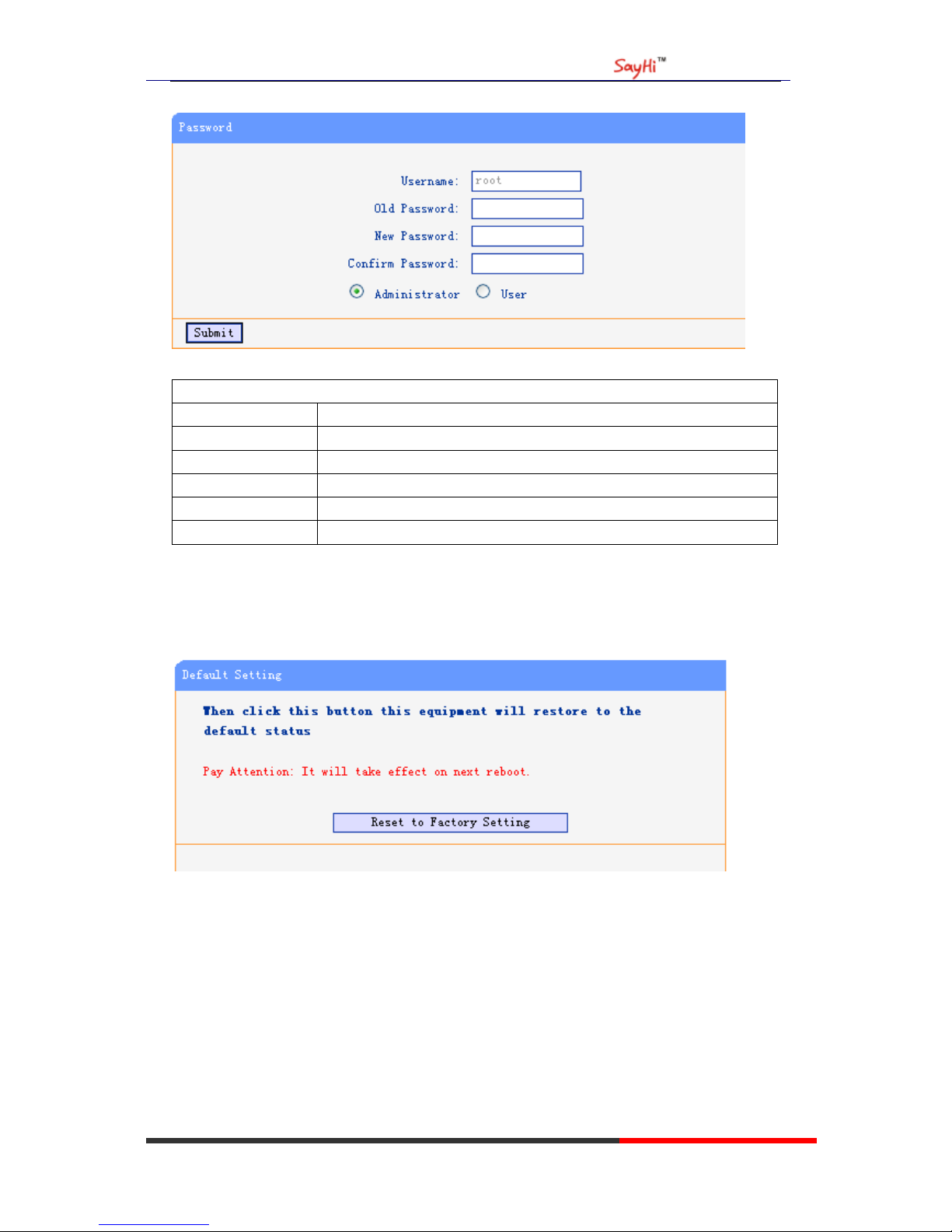
Log
If you need to catch a debuging Level log, you need setup on this interface.
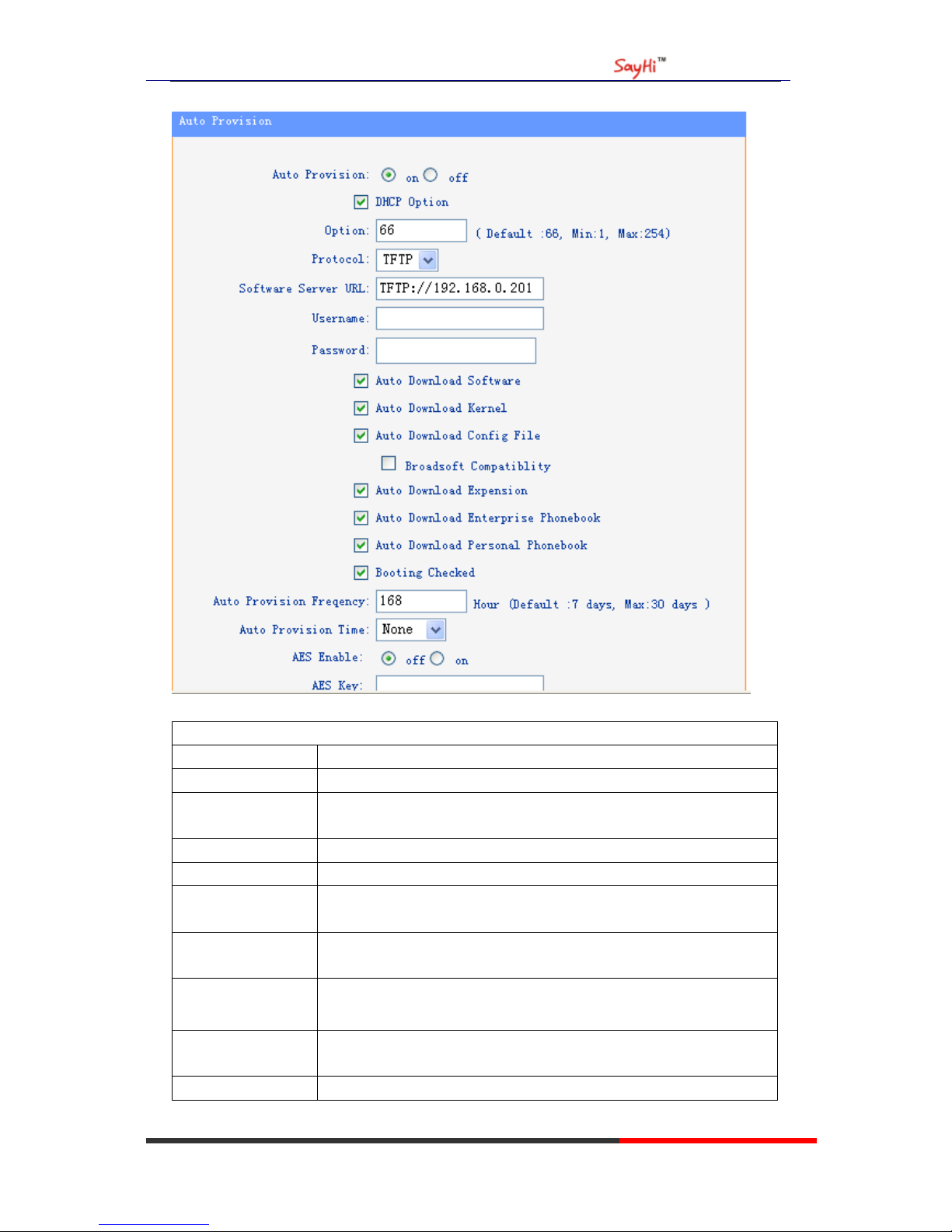
You can change the password used to login phone GUI in Password option.
Page 32
US102 IPPhone
www.escene.hk
Escene Communication
29
In Password option, you can set several parameters as follow:
Password
Username The login username of the web page
Old Password The old password used to login of the web page
New Password The new password used to login of the web page
Confirm Password The new password used to login of the web page
Administrator Login phone web page used administrator privileged
User Login phone web page used general user privileged
Default Setting
You can load the phone to the factory default setting in default setting option.
Press the ‘Reset to Factory Setting’ option,the phone will load to factory default setting on next
reboot.
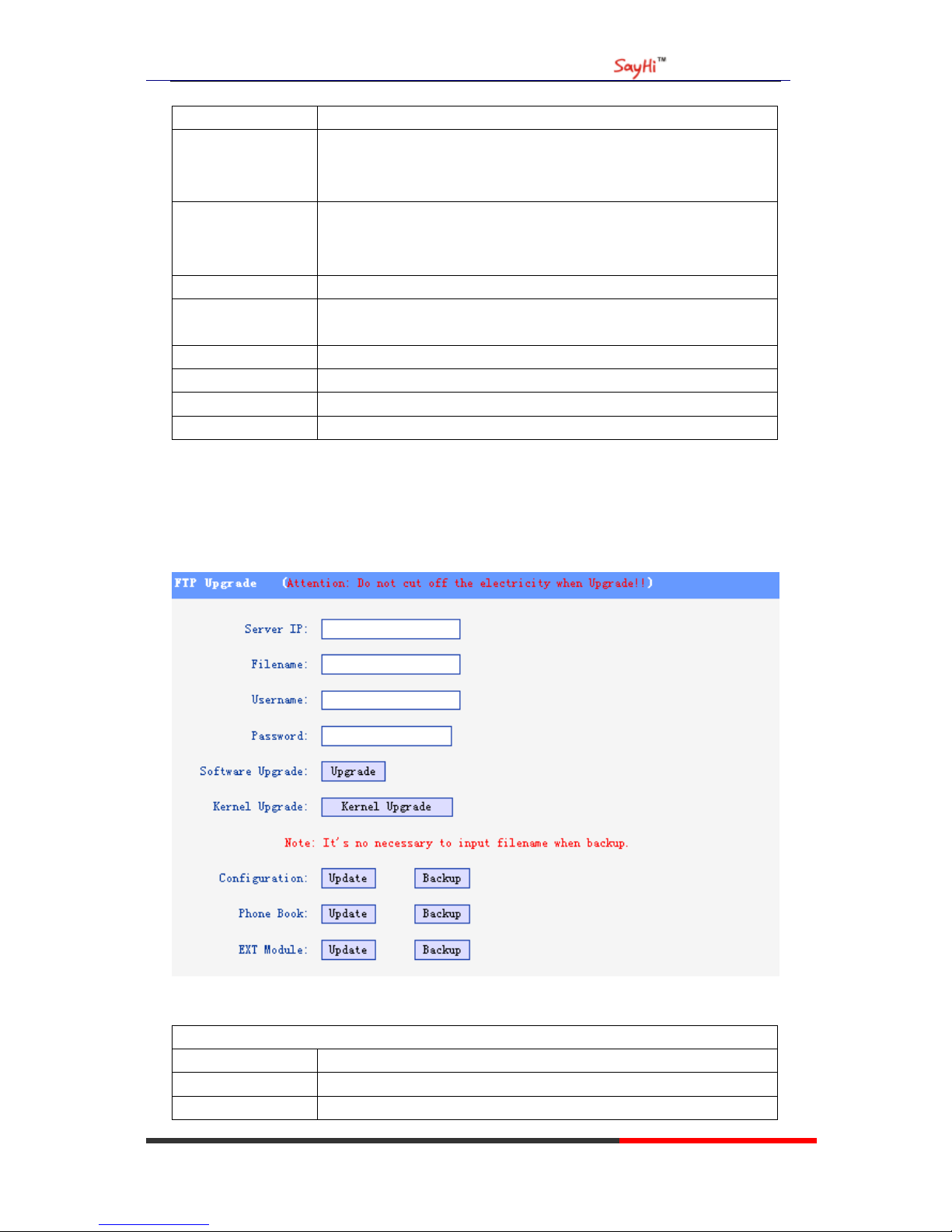
Auto Provision
When you open the auto provision function, the phone will auto provision if the phone detect a
higher sofrwre or kernel which are put on the software server. The detail information about auto
provision you can see the appendix.
Page 33
US102 IPPhone
www.escene.hk
Escene Communication
30
When use auto provision, you can set several parameters as follow:
Auto Provision
Auto Provision You can enable/disable auto provision by select on/off
Protocol The protocol use for auto provision,it include tftp/http/ftp
Software Server
URL
The server address of the auto provision
Username The username provide by provision server
Password The password provide by provision server
Auto Download
Software
This used to auto download software from server
Auto Download
Kernel
This used to auto download kernel from server
Auto Download
Config File
This used to auto download config file from server
Broadsoft
Compatiblity
This used to compatible the broadsoft format’s config file
Auto Download This used to auto download expansion’s config from server
Page 34
US102 IPPhone
www.escene.hk
Escene Communication
31
Expension
Auto Download
Enterprise
Phonebook
This used to auto download enterprise phone from server
Auto Download
Personal Phonebook
This used to auto download personal phonebook from server
Booting Checked This used to checked the auto provision when phone booting
Auto Provision
Freqency
This used to set the time interval for auto provision
Auto Provision Time This used to the specific time for auto provision
AES Enable You can enable/disable AES encrypt for auto provision
AES Key The key of the AES
Auto Provision Now This used to do auto provision immediately
FTP Upgrade
You can upgrade the software,kernel and configure file for the phone use ftp.
When use ftp upgrade, you can set several parameters as follow:
FTP Upgrade
Server IP The ip address of the ftp server
Filename The name of the file want to download from ftp server
Username The username provide by ftp server
Page 35
US102 IPPhone
www.escene.hk
Escene Communication
32
Password The password provide by ftp server
Software Upgrade Used to upgrade the software of the phone
Kernel Upgrade Used to upgrade the kernel of the phone
Configuration You can used update/backup to update/backup the configure file of the
phone
Phone Book You can used update/backup to update/backup the phonebook of the
phone
EXT Module You can used update/backup to update/backup the expansion of the
phone
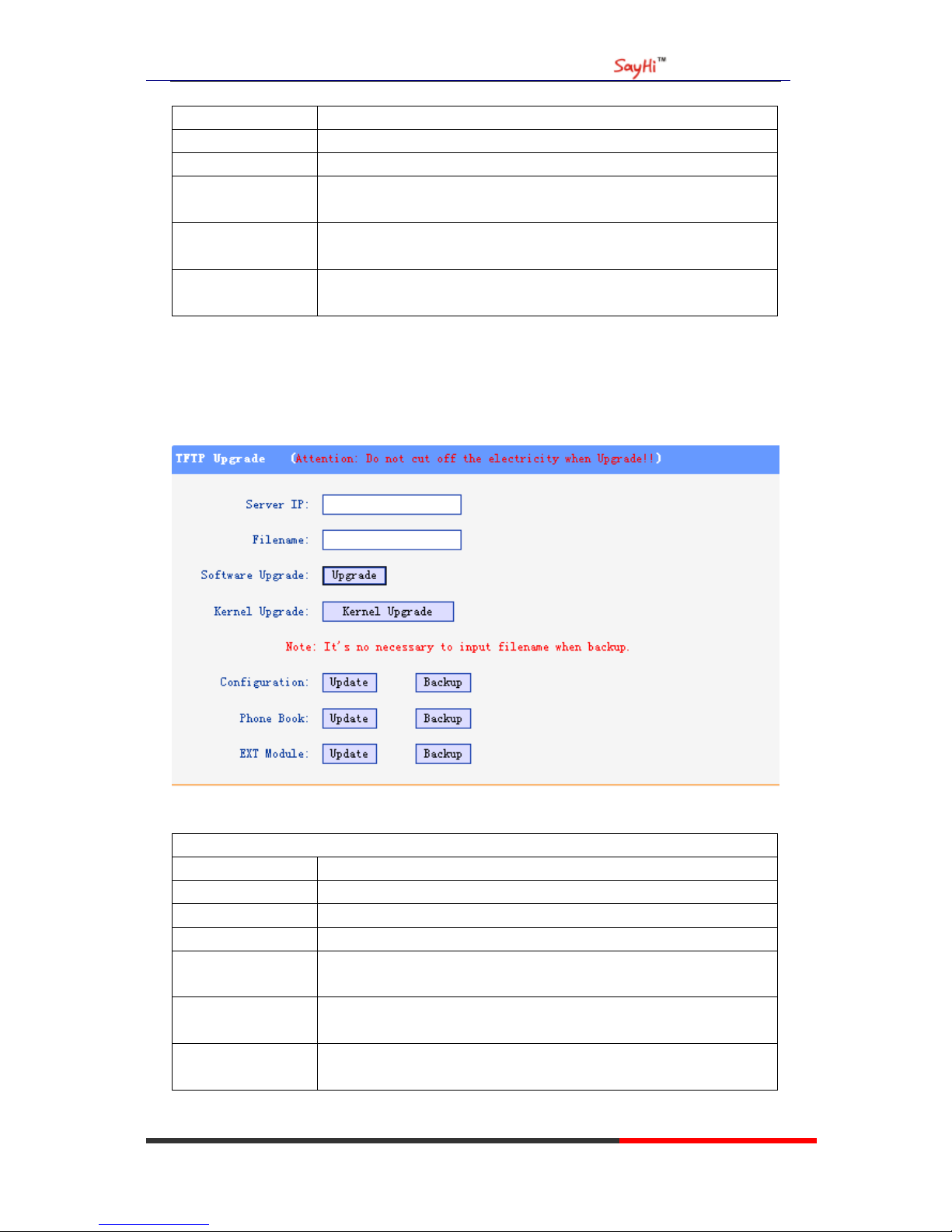
TFTP Upgrade
You can upgrade the software,kernel and configure file for the phone use tftp.
When use tftp upgrade, you can set several parameters as follow:
TFTP Upgrade
Server IP The ip address of the tftp server
Filename The name of the file want to download from ftp server
Software Upgrade Used to upgrade the software of the phone
Kernel Upgrade Used to upgrade the kernel of the phone
Configuration You can used update/backup to update/backup the configure file of the
phone
Phone Book You can used update/backup to update/backup the phonebook of the
phone
EXT Module You can used update/backup to update/backup the expansion of the
phone
Page 36
US102 IPPhone
www.escene.hk
Escene Communication
33
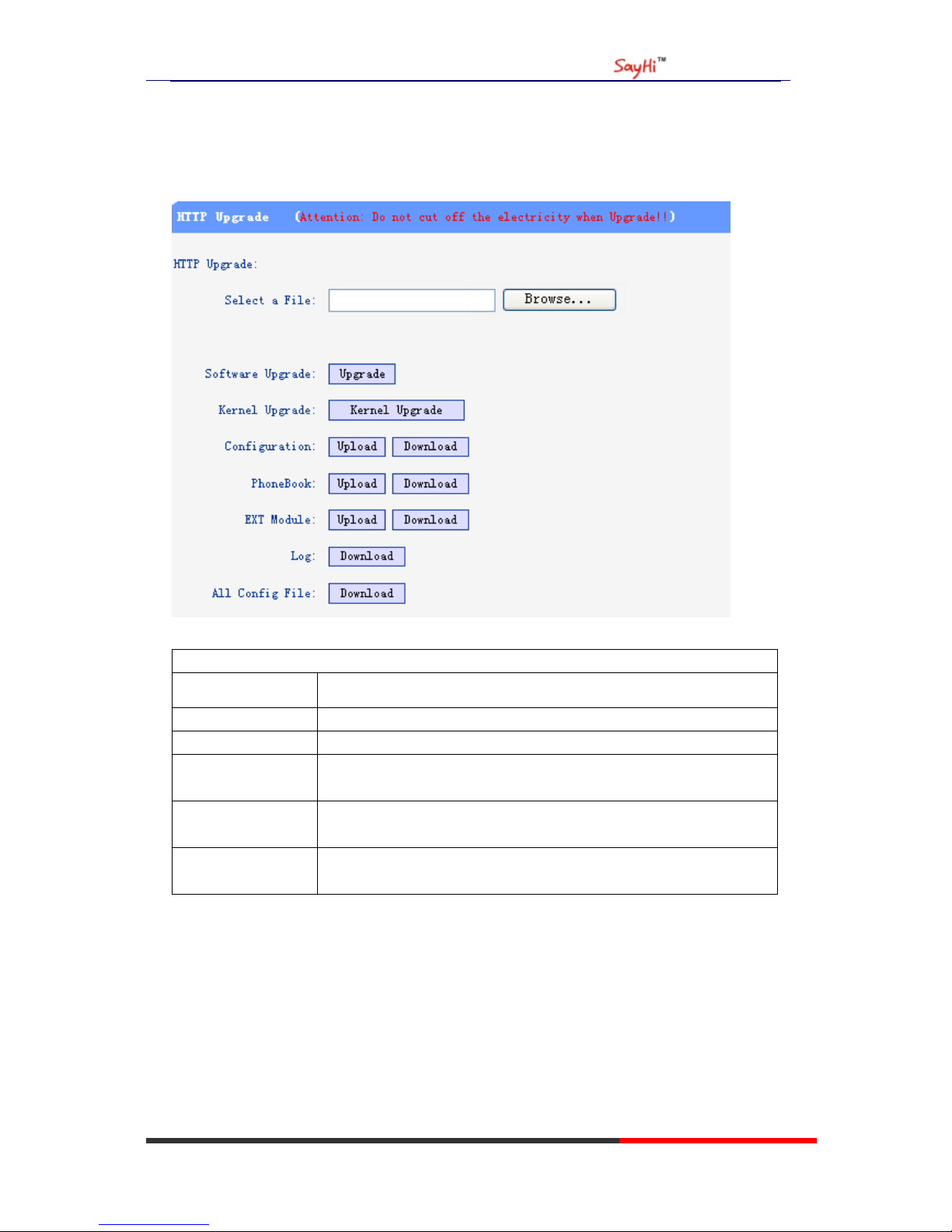
HTTP Upgrade
You can upgrade the software,kernel and configure file for the phone use http.
When use http upgrade, you can set several parameters as follow:
HTTP Upgrade
Select a File Browse the software/kernel/config file you want to upgrade from http
Software Upgrade Used to upgrade the software of the phone
Kernel Upgrade Used to upgrade the kernel of the phone
Configuration You can used upload/download to upload/download the configure file
of the phone
Phone Book You can used upload/download to upload/download the phonebook of
the phone
EXT Module You can used update/backup to update/backup the expansion of the
phone
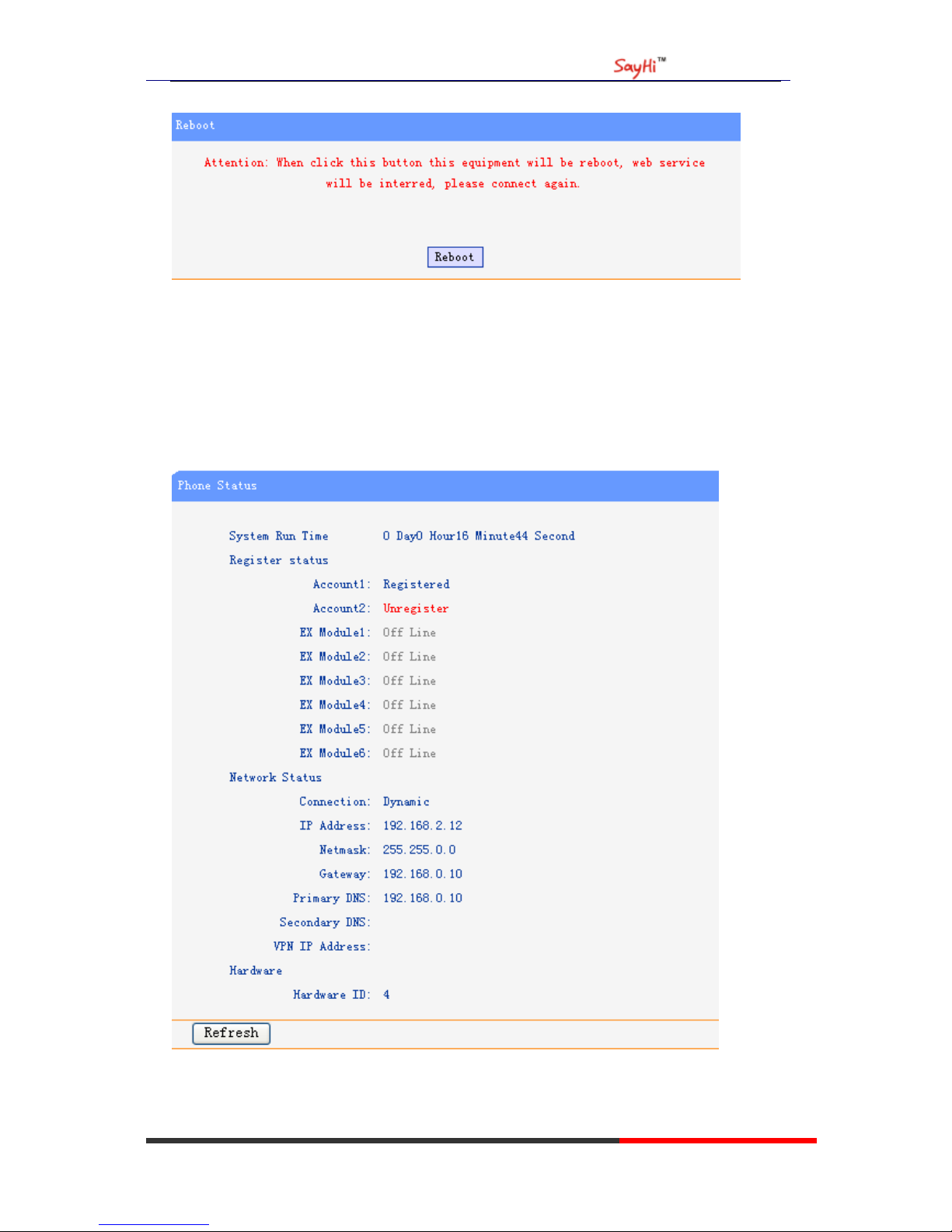
Reboot
You can use reboot option to reboot the phone.
Page 37
US102 IPPhone
www.escene.hk
Escene Communication
34
When you press ‘Reboot’,the phone will reboot.
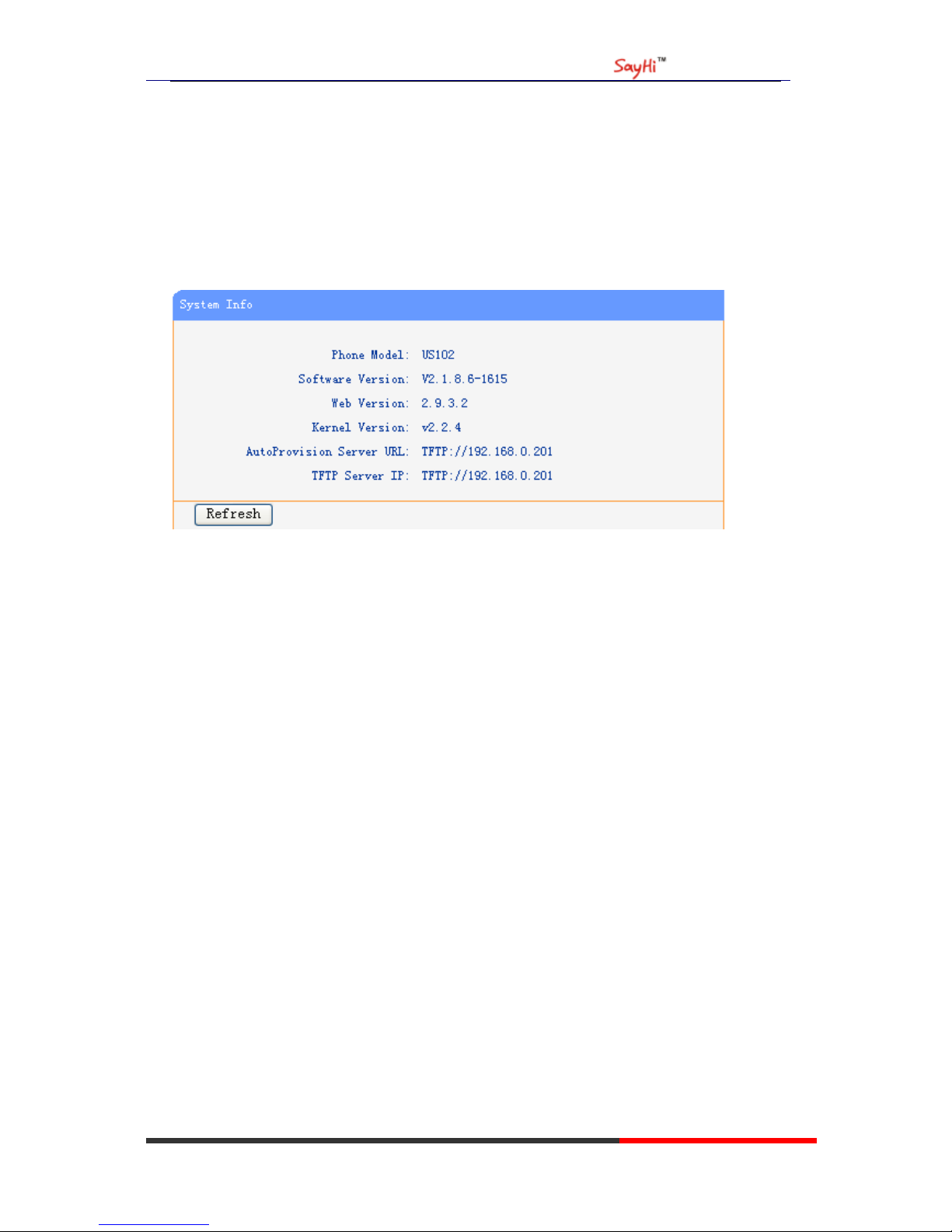
Phone Status
You can see the currently status of the phone when use Phone Status option.
Page 38
US102 IPPhone
www.escene.hk
Escene Communication
35
System Info
You can see the system information when used System Info option.
Attention:
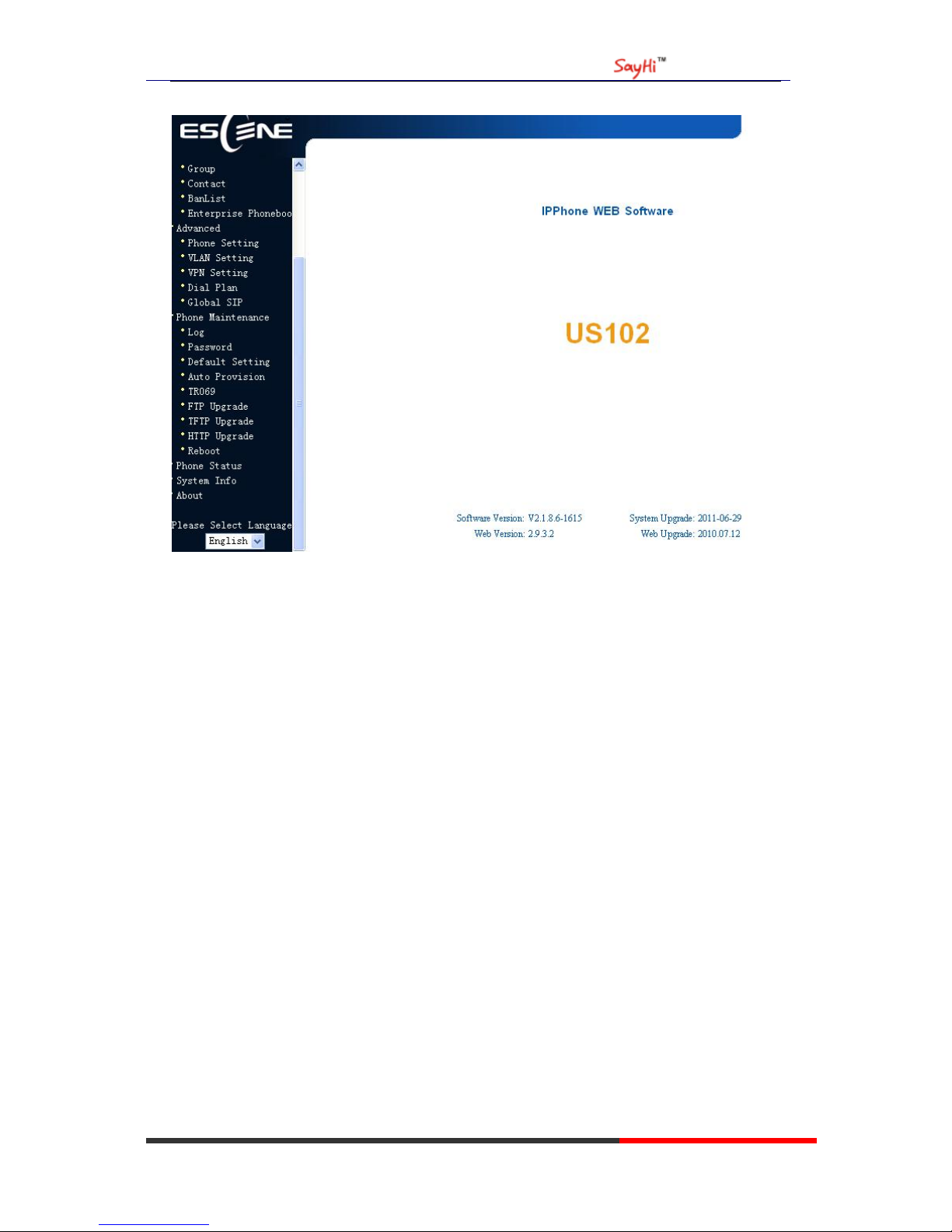
On this interface ,you can see the software and kernel which we used for test and this user_manual
is written base on this software and kernel.
This software version is V2.1.8.6-1615
This kernel version is v2.2.4
About
You can see the phone model when used About option.
Page 39
US102 IPPhone
www.escene.hk
Escene Communication
36
Page 40

US102 IPPhone
www.escene.hk
Escene Communication
37
Appendix:
Auto Provision
Pre-configuration on TFTP/HTTP/HTTPS/FTP Server
When the software or kernel auto-provision is enabled and want to run, IP Phone will
check the software and kernel version at first, so we need make some
pre-configuration on the provisioning server.
Auto Provision for Software:
1. Create a notepad file named“F000X00.cfg”(the “X” is decided by the model of
the IP phone you are using, for example, if the model is ES620, the file name is
“F000600.cfg”);
*Named rule of the file:
F00600.cfg: for ES620, ES610 and DS622;
F00400.cfg: for ES410 and DS412;
F00300.cfg: for ES310 and DS312;
F00200.cfg: for ES210 and DS212.
2. Open the notepad file “F000X00.cfg” and write the new software name in it, for
example,
S_ES6xx_version2.0.4.6: for ES620, ES610 and DS622;
S_ES410_version2.0.4.6: for ES410 and DS412;
S_ES310_version2.0.4.6: for ES310 and DS312;
S_ES210_version2.0.4.6: for ES210 and DS212
Write down the new version you want to upgrade and save it on your
provisioning server.
*Please note that if the version is not older than (and same as) the one on your phone,
auto-provision of your software would be not available.
3. After it, upload the new software to the TFTP/HTTP/HTTPS/FTP provisioning
server and complete the pre-configuration steps.
Auto Provision for Kernel:
1. Create a notepad file named“K000X00.cfg”(the “X” is decided by the model of
the IP phone you are using, for example, if the model is ES620, the file name is
“K000600.cfg”);
*Named rule of the file:
K00600.cfg: for ES620, ES610 and DS622;
K00400.cfg: for ES410 and DS412;
K00300.cfg: for ES310 and DS312;
K00200.cfg: for ES210 and DS212.
2. Open the notepad file “K000X00.cfg” and write the new kernel name in it, for
example,
K_uImage_600.bin_version2.1.6: for ES620, ES610 and DS622;
K_uImage_400.bin_version2.1.6: for ES410 and DS412;
Page 41

US102 IPPhone
www.escene.hk
Escene Communication
38
K_uImage_300.bin_version2.1.6: for ES310 and DS312;
K_uImage_200.bin_version2.1.6: for ES210 and DS212
Write the new version you want to upgrade and save it on your provisioning
server.
*Please note that if the version is not older than (and same as) the one on your phone,
auto-provision of your kernel would be not available.
3. After it, upload the new kernel to the TFTP/HTTP/HTTPS/FTP provisioning
server and complete the pre-configuration steps.
Configuration files on TFTP/HTTP/HTTPS/FTP Server
l Name of configuration file:
The configuration file on the provisioning server is named as the MAC address of IP
phone itself. Escene’s IP phones support two different configuration files for
auto-provision:
1. Normal Configuration file:
Normal Configuration file is the configuration file of your Escene IP phone. You can
download it from your phone (You can see the following chapter to see how to
download a configuration file from Escene IP hone) and modify by yourself. If the IP
phone’s MAC address is 00:11:22:33:44:55, the normal configuration file of it should
be 001122334455.xml.
2. Broadsoft Configuration files:
Broadsoft Configuration files support the format of Broadsoft IP-PBX. However, you
can use them for provisioning. There are two files should be set on your provisioning
server, they are also named by the MAC address of your phone
1) 001122334455.cfg: a configuration file for system settings, for example,
network, audio and so on.
2) 001122334455.txt: a configuration file for SIP accounts.
l Download a configuration file from your phone:
You can download a configuration file from your phone by HTTP as follow:
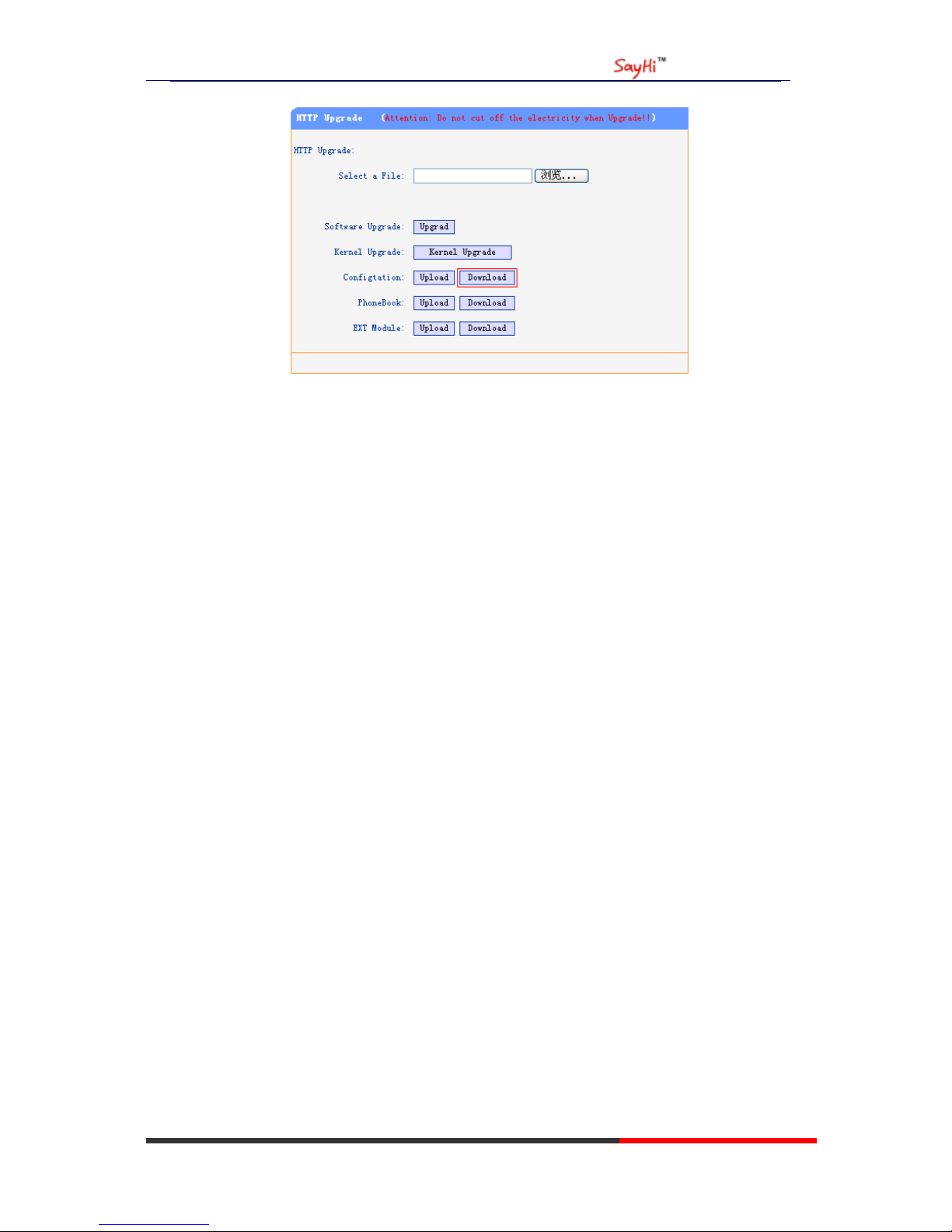
1. Open the web page of your IP phone, click “Phone Maintenance”>“HTTP
Upgrade”;
2. Then click “Download” of Configuration:
Page 42
US102 IPPhone
www.escene.hk
Escene Communication
39
3. If you want to use this file to auto-provision, you just need to modify it by
yourself and rename it to the MAC address of your IP Phone with .xml suffix.
Extern.xml file on TFTP/HTTP/HTTPS/FTP Server
The Extern.xml includes the settings of programmable buttons on the phone and all
Expansion Modules. All the phones can download the settings from a same file and
they will have the same settings (for example, Speed-dial, BLF and so on).
*You can’t rename the file on the provisioning server. The file name is fixed to
Account1_Extern.xml.(Account1 is the first account you register)
Phonebook on TFTP/HTTP/HTTPS/FTP Server
Escene IP phone supports Enterprise Phonebook and Personal Phonebook.
l Enterprise Phonebook:
Enterprise Phonebook is used for all staffs in your office. All phones will download a
common phonebook for all staffs. The file’s name must be
Enterprise_Phonebook.xml on your provisioning server and you can not rename it.
l Personal Phonebook:
Personal Phonebook is individual for each IP phone. The file on your provisioning
server is named by the first account of your IP phone. If the IP phone’s first account is
1287, the Personal Phonebook of this phone is 1287_Phonebook.xml.
Automatic Provisioning using DHCP Option 66
The following steps will descript auto-provision by TFTP. You also can use HTTP
and FTP for auto-provision with our phones.
DHCP Server: (Microsoft Windows 2003 server)
Page 43
US102 IPPhone
www.escene.hk
Escene Communication
40
1. Start up the “DHCP Management Console”;
2. Expand the DHCP scope which will contain the phones
3. Right-click on the “Scope Options” node
4. Select “Configure Options”
5. In the “General” tab, scroll down the list of options and identify the option
labeled “066 Boot Server Host Name”
6. Enable the “066 Boot Server Host Name” and enter the string value according to
the examples discussed previously
string value:
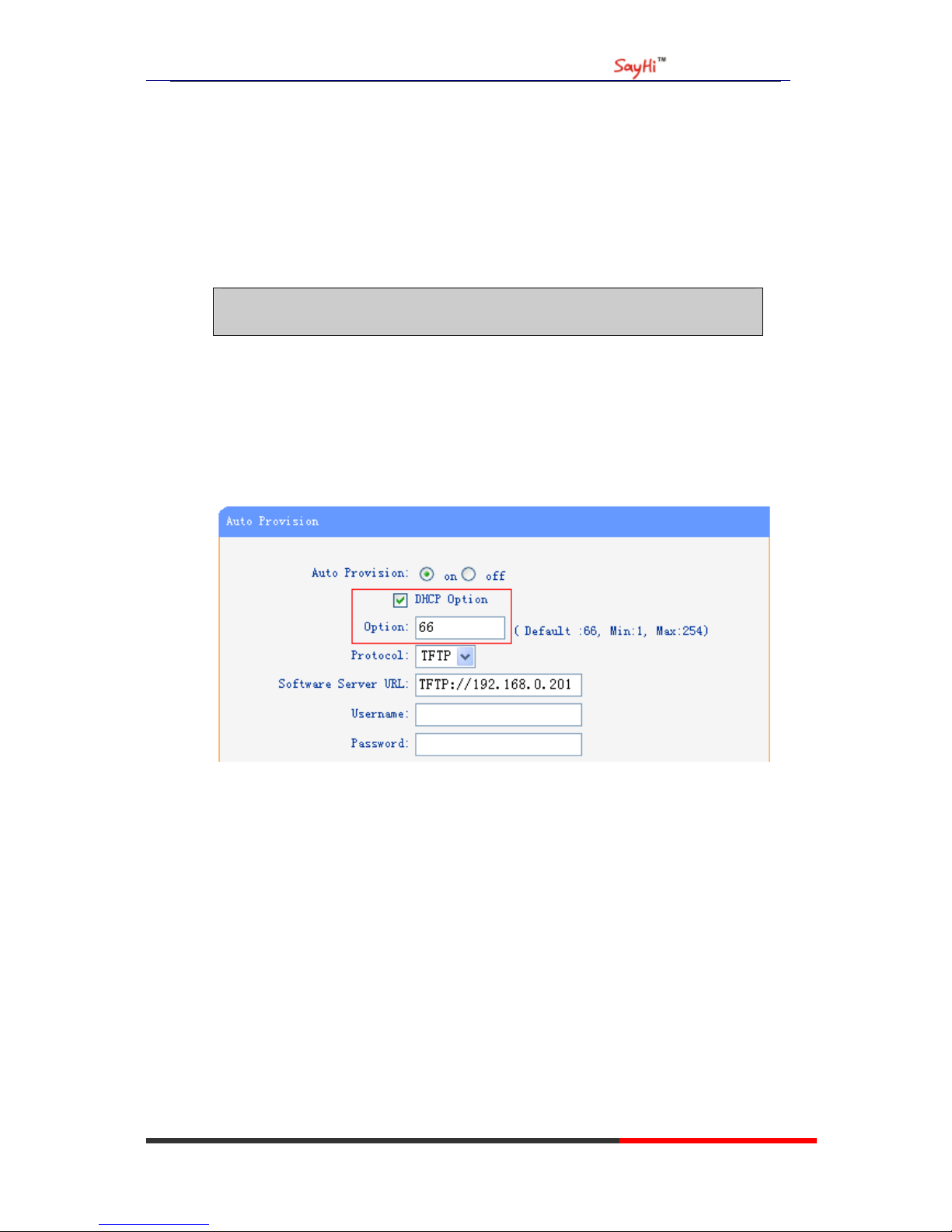
192.168.0.201(TFTP Server IP Address);
7. Click the “OK” button
IP Phone:
1. Input the IP Phone’s IP Address in browser;
2. Enter user and password with “root” then open the web page;
3. Click “Phone Maintenance” and select “Auto Provision”;
4. Select like as follows:
5. Click “Submit” to save it.
Auto-Provision via fixable TFTP/HTTP/HTTPS/FTP Server
IP Phone:
1. Input the IP Phone’s IP Address in browser;
2. Enter user and password with “root” then open the web page;
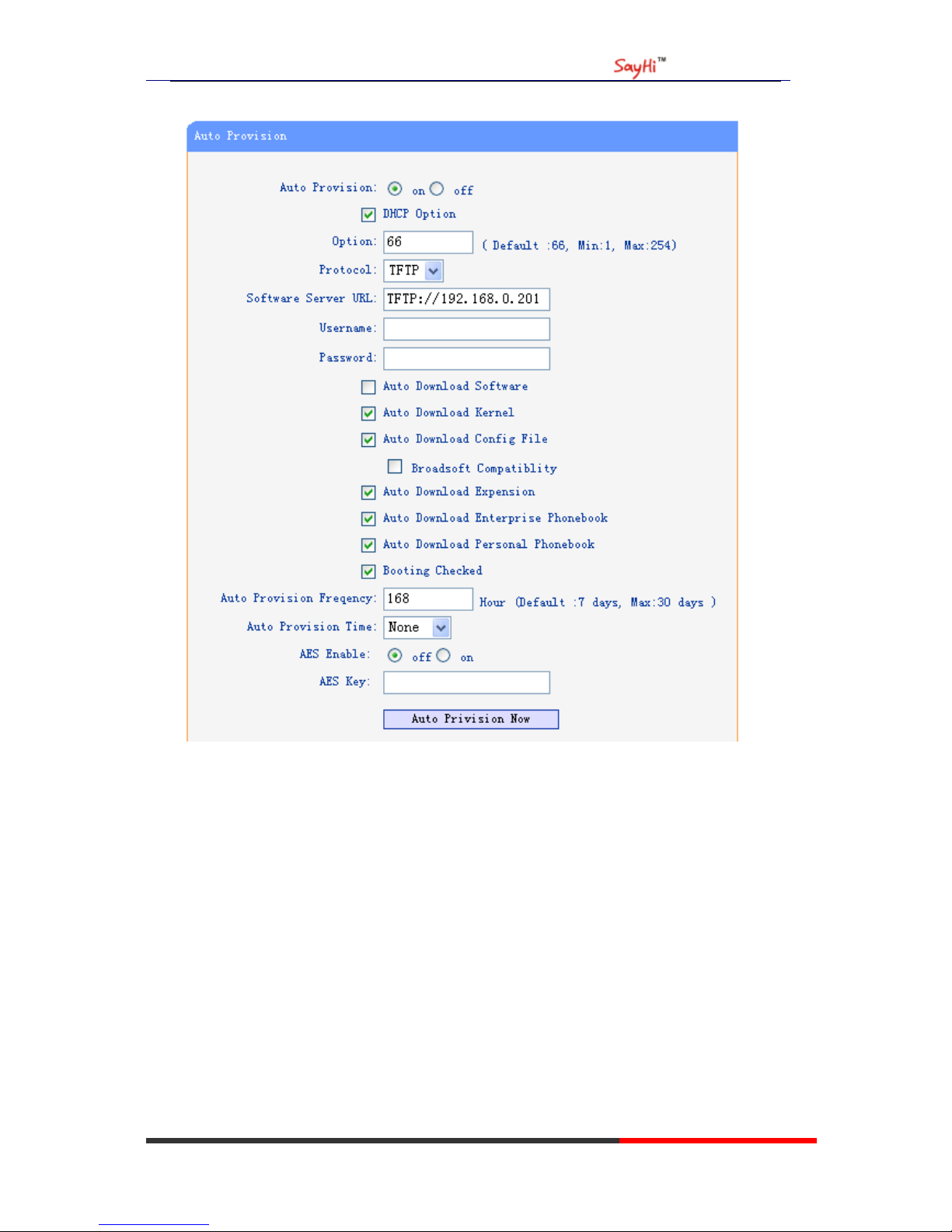
3. Click “Phone Maintenance” and select “Auto Provision”;
4. select like as follows:
Page 44
US102 IPPhone
www.escene.hk
Escene Communication
41
It supports three protocols in Auto-Provision:TFTP,HTTP and FTP.
The format with provisioning server URL is:
TFTP:
TFTP://192.168.0.201(192.168.0.201 is the default Server IP address)
HTTP:
HTTP://192.168.0.201
HTTPS:
HTTPS://192.168.0.201
FTP:
FTP://192.168.0.201
Username: the user to login FTP/HTTP/HTTPS server
Password: the password of the user using to login FTP/HTTP/HTTPS server
*Username and password are available in FTP/HTTP/HTTPS only (unavailable in
TFTP).
Page 45

US102 IPPhone
www.escene.hk
Escene Communication
42
Auto Download Software:
Download software from server and upgrade it automatically.
Auto Download Kernel:
Download kernel from server and upgrade it automatically.
Auto Download Config File:
Download configuration file from server and update it automatically.
BroadsoftCompatibility:
If you select this function, you need to put two configuration files (with
Broadsoft format) on the provisioning server. Otherwise, you can download the
configuration file from your phone via HTTP (regarding the steps, you can refer to
“Download a configuration file from your phone” in this document.), modify it
and upload it to the server for auto-provision.
Auto Download Expansion:
Download configuration file of the Programmable buttons on your phone or
Expansion Modules automatically.
Auto Download Enterprise Phonebook:
Download Enterprise Phonebook from server and update it automatically.
Auto Download Personal Phonebook:
Download Personal Phonebook from server and update it automatically.
Booting Checked:
Check all items you had selected and upgrade/update them when the phone boot
Auto Provision Frequency:
The auto provision Frequency which you want.
Auto Provision Time:
The time you want to execute auto-provision.
Examples of Auto Provision Frequency and Time
1) When you set the Auto Provision Frequency and disableAuto Provision Time
(set to None), the Auto Provision function will work after the AutoProvision
Frequency;
2) When you set both Auto Provision Frequency and Auto Provision Time, for
example:
You set the AutoProvision Frequency to 24 hours, and the Auto Provision
Time to 2:00 at 8:00 today (1, Jan), it will pass 24 hours at first and work at the
nearest 2:00, it means that the Auto Provision function will work at 2:00 on the
day after tomorrow (3, Jan).
Therefore, if you want this function work at 23:00 tonight and it is 8:00 now, you
need to set the Auto Provision Frequency to 0 hours and the Auto Provision
Time to 23:00.
AES Encryption:
AES encryption is used for all the setting files of your phone (include configuration file,
Expansion file, Enterprise/Personal Phonebook etc. You just need to enable the AES Encryption
Page 46

US102 IPPhone
www.escene.hk
Escene Communication
43
function and input the AES Key matching the one on your server on.
----------------------------------------------------------------------------------------------------------------------
EEsscceennee CCoommmmuunniiccaattiioonn TTeecchhnnoollooggyy CCoo..LLttdd
Address: Floor 4,Building C,Yuean Industrial Park,Huangcun Road No.51,Tianhe
District,Guangzhou,China.
Postal Code: 510660
Tel: (+86)20-28096798
Fax: (+86)20-28096786
http://www.escene.hk
Technical Support:
E-mail: [email protected]
 Loading...