

Page 1
www.escene.cn/en/
Escene Communication Co.,Ltd
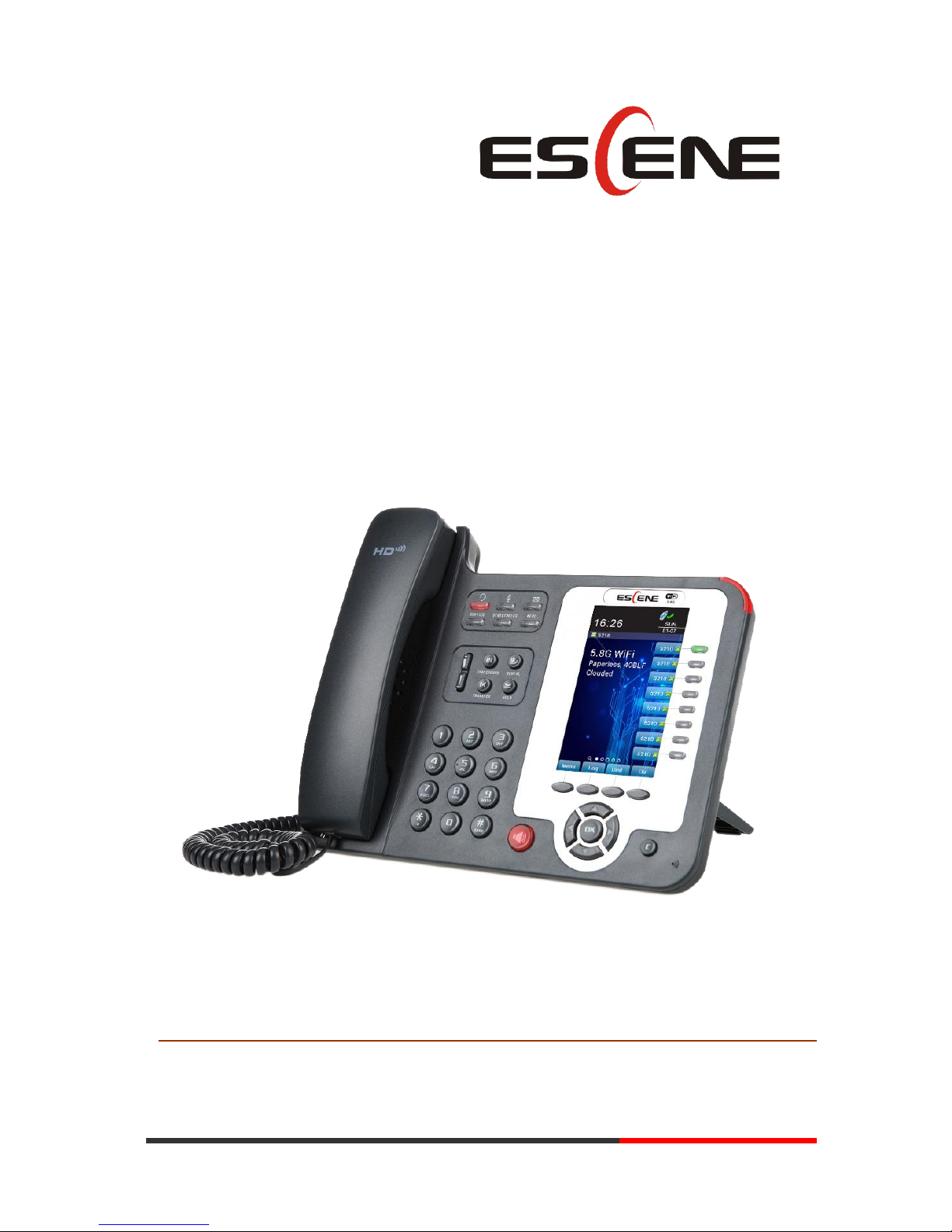
620 Series IP Phone
User Manual
EEsscceennee CCoommmmuunniiccaattiioonn CCoo..LLttd
d
Page 2

www.escene.cn/en/
Escene Communication Co.,Ltd
Tables of Contents
1. Getting Started ............................................................................................................................. 1
About......................................................................................................................................... 1
Illustrate .................................................................................................................................... 1
Features ..................................................................................................................................... 1
Technical Parameters .................................................................................................................... 2
2. Connecting Your Phone ............................................................................................................... 4
3. Phone overview ........................................................................................................................... 7
Understanding Buttons and Hardware ...................................................................................... 7
Understanding Phone Screen Features .................................................................................... 11
4. Basic Call Handing .................................................................................................................... 12
Placing a Call .......................................................................................................................... 13
Answering a call...................................................................................................................... 14
Ending a Call ........................................................................................................................... 14
Using Hold and Resume ......................................................................................................... 15
Transferring Calls .................................................................................................................... 16
Using Mute .............................................................................................................................. 16
Do Not Disturb ........................................................................................................................ 17
3-way Conference ................................................................................................................... 17
Expansion Installation ............................................................................................................... 18
Expansion Settings .................................................................................................................... 18
Time & Date .................................................................................................................................... 19
VOIP Call Forwarding .................................................................................................................... 19
5. Advanced Call Handling ........................................................................................................... 20
Speed Dialing .......................................................................................................................... 20
Using the phone book ............................................................................................................. 21
Using Call Logs ...................................................................................................................... 23
6. Keypad Instruction .................................................................................................................... 24
Language ................................................................................................................................. 24
SIP Account Settings ............................................................................................................... 25
Network Setting ...................................................................................................................... 26
Load default settings ............................................................................................................... 27
Modify password..................................................................................................................... 27
Customizing Rings and Volume .............................................................................................. 27
WIFI setting(only WS620 have this item) .............................................................................. 28
Bluetooth setting(only ES620-N have this item) .................................................................... 29
View status .............................................................................................................................. 30
Diagnose ................................................................................................................................. 30
WIFI setting(only WS620 has this item) ................................................................................. 30
7. Web Settings .............................................................................................................................. 31
Phone Status ............................................................................................................................ 31
Network ................................................................................................................................... 32
WIFI Setting(only WS620 has this item) ........................................................................ 32
Page 3

www.escene.cn/en/
Escene Communication Co.,Ltd
IP Settings ....................................................................................................................... 33
PC Port ............................................................................................................................ 35
Advanced ........................................................................................................................ 35
SIP Account ............................................................................................................................. 37
Programmable Keys ................................................................................................................ 40
Paperless Program Keys .................................................................................................. 41
Line keys ......................................................................................................................... 42
Function keys .................................................................................................................. 43
Softkey ............................................................................................................................ 43
EX Module ...................................................................................................................... 44
Phone Setting .......................................................................................................................... 46
Basic ................................................................................................................................ 46
Featuers ........................................................................................................................... 49
Advanced ........................................................................................................................ 52
Phone Book ............................................................................................................................. 53
Group .............................................................................................................................. 53
Contact ............................................................................................................................ 54
LDAP .............................................................................................................................. 55
BanList ............................................................................................................................ 56
Phone Call Info ............................................................................................................... 57
Phone Maintenance ................................................................................................................. 57
Basic ................................................................................................................................ 57
Advanced ........................................................................................................................ 60
Security ................................................................................................................................... 62
8. WEB Other Settings or Information .......................................................................................... 63
WEB User ............................................................................................................................... 63
Multi-Language ....................................................................................................................... 63
Note Tips ................................................................................................................................. 63
Page 4

620 Series IPPhone
www.escene.cn/en
Escene Communication
1. Getting Started
About
620 SERIES IP Phone series is a new generation intellectual desktop terminal. It brings in
you a completely new and more efficient work experience in modern offices.
IP Phone series is a fashionable, beautifully shaped and high-tech product. Its excellent
speech quality gives you an unprecedentedly comfortable talking and its rich function keys make
the operation very convenient. One key dial can be easily achieved with proper settings. 4.3”, high
resolution LCD displayer provides you a friendly user interface. Benefit from which, more detail
information can be displayed. With the help of the integrated browser, users can access any XML
based information, and extend more commercials.
620 SERIES IP Phone series support multi account registering and multi call management.
Call Waiting, Call Queuing and Call Forward can be well implemented; meanwhile, it makes
conference to be created very quickly. No matter how busy the calls will be, IP Phone can easily
satisfy the requirement.
620 SERIES IP Phone series supports 2 extend modules that totally contain 64 programming
buttons, and up to 2 ESM20-LCD expansion modules and 80 programmable buttons. With the
Busy Lamp Field function, operators can manage and monitor the calls more efficiently. It
provides headset jack that compatible with professional microphone headsets, which will finely
satisfy the call centre.
Illustrate
Firstly, before you use this user manual, please check the below illustrate carefully. This user
manual is common use in WS620-PEGV4、ES620-PEGV4. please check the different.
WS 620 is wifi phone, it has wifi module, it is the different from ES620,but the function is
the same .
ES: Enterprise Series, WS: Wi-Fi Series, P: support POE, E: support Expansion Module, G:
Gigabit Port.
Expansion support list. Pls make sure your model is support or not.
Features
4.3”480x272 Pixels HD LCD
Customizable Screen
Page 5

620 Series IPPhone
www.escene.cn/en
Escene Communication
HD Voice: HD Codec
Advanced Call capability:
8 VoIP Line/programmable buttons (dual-colors LED) and support BLF in programmable
buttons.
Expansion Module:
Up to 2 EMS32 expansion modules and 64 programmable buttons, and up to 2
ESM20-LCD expansion modules and 80 programmable buttons, BLF supported.
Extensible Markup Language(XML)
Support PoE and AC power adapter
Technical Parameters
Item
620 SERIES
Screen
High-definition color LCD with Background light
480*272 pixel, 4.3 inch.
Line
8 Light status: Coming call (Red flashing) Hold(Green flashing);Talking
(Green)
Language
Multi-Language(e.g.CN/EN/Spain/Portugal/Poland/Turkey/French/Italy etc.)
Function Keys
4 soft keys, 8 Line keys
6 Navigation keys(Arrow button, OK button, C button)
Volume adjust, Hands-free, Mute, Headset, Message, Menu
Directory, Service, Hold, Redial, Conference, Transfer
VoIP Protocol
SIP 2.0
Network Protocol
HTTP, BOOTP, FTP, TFTP, IEEE 802.1Q, *IEEE 802.1X
Codec
G.723.1(5.3Kb/s,6.4Kb/s), G.729 A/B(8Kb/s), G.711 A/U, G.722(64Kb/s)
QoS
TOS, Jiffer Buffer, VAD, CNG, G.168 (32ms)
Network
3×RJ45 10/100/1000M Ethernet Interfaces (LAN/PC/EXT), EXT port just
only in E model;
Tips: ES620 only have 2xRJ45 10/100M Ethernet Interfaces
IP Assignment: static IP, DHCP, PPPoE
PC port support Bridge and Router
DNS SRV,STUN, VPN(L2TP), VLAN/QoS
STUN,DTMF(In-band/RFC2833/SIP INFO)
WIFI support IEEE 802.11 a/b/g/n/ac
Function APP
Always Forward, Busy Forward, No-answer Forward
Hotline line (Immediately/Delay)
Call Waiting, Call Queuing
Call Forward, Call Transfer, Call Holding, Call Pickup, *Callback
Redial
Phone directory speed dial, Call record direct dial
3-way conference
DnD, Blacklist, SMS
Page 6

620 Series IPPhone
www.escene.cn/en
Escene Communication
Voice mail, Voice Prompt, Voice Message
P2P(Peer-to-Peer)
PBX
Call Transfer, Call Pick-Up, Network-Meeting, DND, Call Waiting, Call
Hold.Call Barring, Call Back On Busy, Anonymous Call ,Intercom, Paging
Expansion
Interface
EXT: ESM32 & ESM20-LCD programmable key module
SOR: FXS, FXO, Record
Application
LDAP(2): search someone in two LDAP server.
Enterprise phone directory, download with server, and it support 800 contacts
Public phone directory
XML Phonebook : Search /Input/ Out put
Private phone directory: input/output 300 contacts, every contact can save 3
numbers and the size of number is 19 byte.
Call History(600): every records is 200 with Miss Calls /Received
Calls/Dialed Calls.
Voice Message, Voice Mail Box, Light of Message.
Ringing Update, Input, Del,
*we also support to order the other APP.
Security
Login the website by password
Login the LCD by password
Signaling encryption(RC4)
Media encryption(RC4)
VPN, 802.1X, VLAN QoS(802.1pq), *LLDP
AES, ROOT/USER Management
Management
Upgrade: HTTP/TFTP/FTP Auto-provision/TR069
Configurations: Phone/HTTP/Auto-provision/TR069
Debug: Telnet/Phone/Web
Power Supply
Power adapter:AC100~240V input and DC 12V/1A output
PoE(IEEE 802.af); USB(Standard DC 5V)
Specifications
Infineon Chipset
42 Buttons, include 8 programmable keys
Storage Temperature: 0℃ ~ 60℃
Operating Humidity: 10%~90%
Size: 275mm*215mm*90mm
Net weight:1.37kg
Certifications
CE、FCC、RoHS、Avaya、Broadsoft、Alcatel、Yeastar、Digium
Note: “*” Sign means function has not been published yet.
Page 7

620 Series IPPhone
www.escene.cn/en
Escene Communication
2. Connecting Your Phone
Your system administrator will likely connect your new ES620 IP Phone to the corporate IP
telephony network. If that is not the case, refer to the graphic and table below to connect your
phone.
1) Open the box ES620 IP Phone; carefully check the packing list, Packing List as follows:
Item
Counts
IP Phone
1
Handset
1
Handset Cord
1
Power adapter
1
RJ45 cable
1
Quick Reference
1
Product certification
1
2) As shown in figure 2.1 and figure 2.2, Please plug Handset Cord into RJ11 interface(IP
Phone and Handset), RJ45 cable into the LAN interface;IP Phone will automatically start if IP
Phone with POE function.
3) The phone must work together with power adapter without POE support.
4) Connect your computer to PC interface of the phone with cable.
* More detailed description please refers to the 3.Phone overview-Understanding phone
buttons and hardware.
Figure 2.1 Interfaces of 620 Series
Page 8

620 Series IPPhone
www.escene.cn/en
Escene Communication
Page 9
620 Series IPPhone
www.escene.cn/en/
Escene Communication
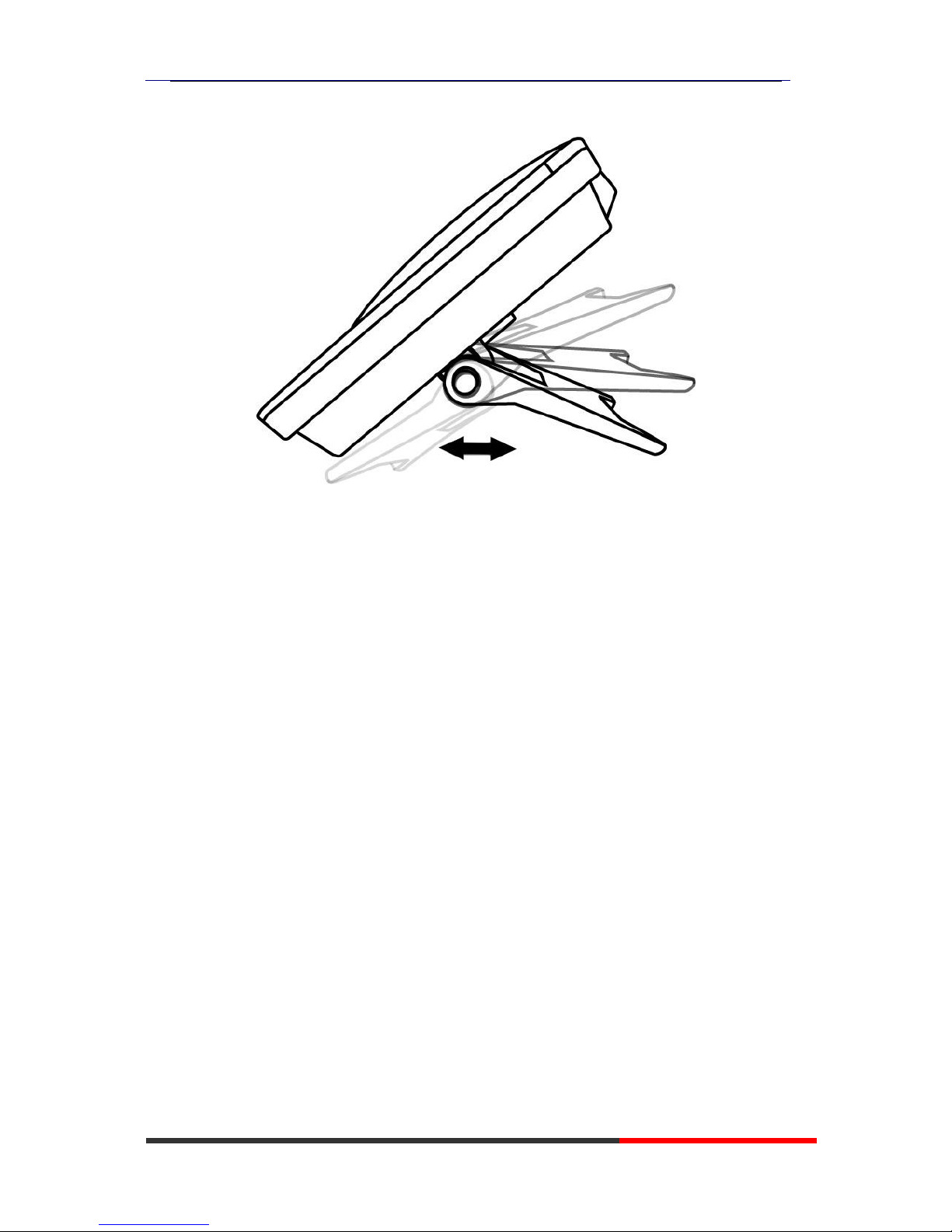
Figure 2.2 Footstand of 620 Series
5) If you want to connect an ESM (Expansion module), you could connect it (any interface on the
ESM) to the EXT interface on the phone with a RJ-45 cable (a straight-through cable), and the
second ESM can be connected to the first one too.
Page 10
620 Series IPPhone
www.escene.cn/en/
Escene Communication
3. Phone overview
Understanding Buttons and Hardware
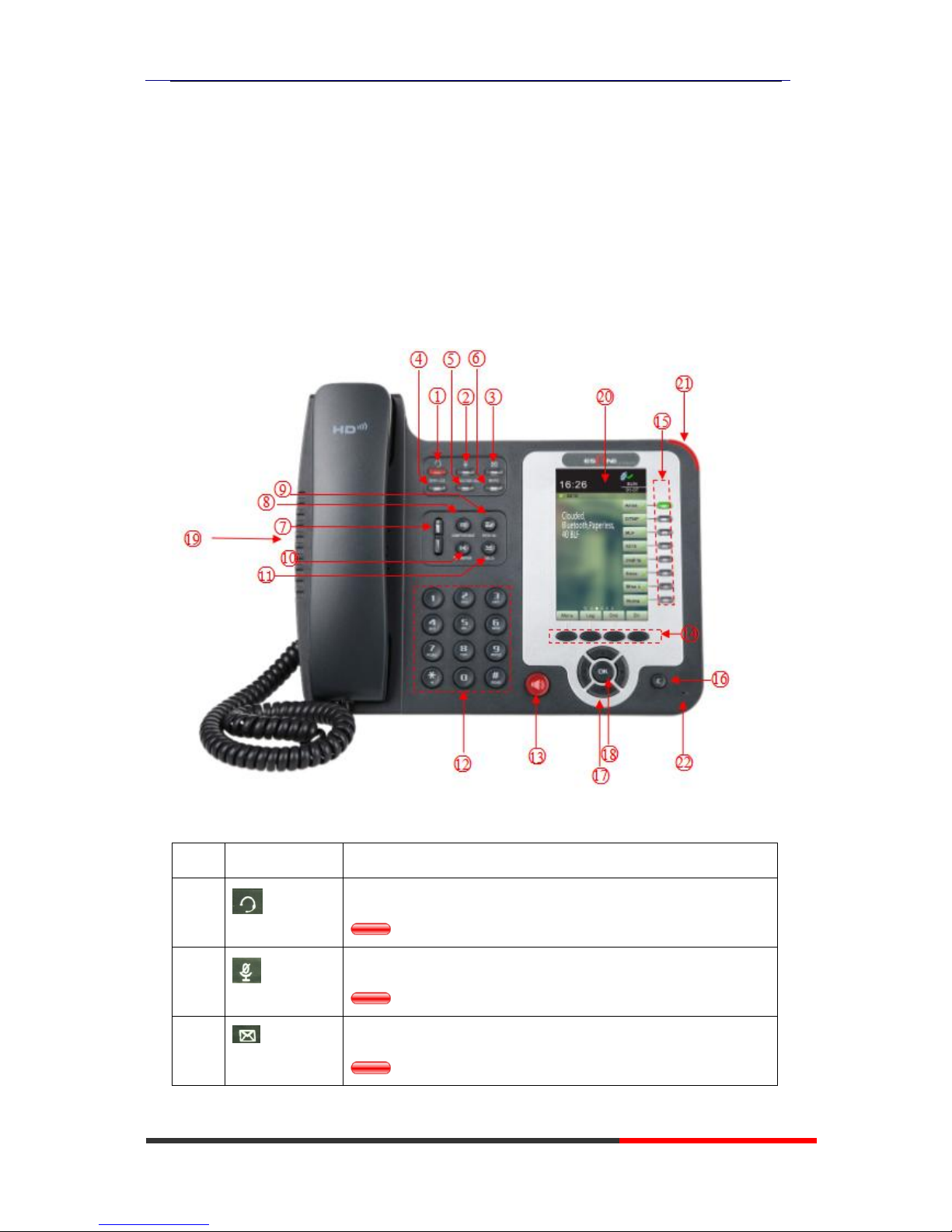
From figure 3.1 to figure 3.2,you can understand buttons and hardware about 620 Series。
Figure 3.1 620 Series overview
Num
Buttons
Description
1 Headset button: Toggles the headset on or off
Red means the feature is enabled.
2 Mute button: Toggles the Mute feature on or off.
Red means the feature is enabled.
3 Message button: Typically auto-dials your voice message service.
Red means have unread voice mail.
Page 11
620 Series IPPhone
www.escene.cn/en/
Escene Communication
4
SERVICE
Service button: Open or Close the Services menu.
5
DIRECTORIES
Directories button: Use it to access call logs and corporate
directories.
6
MENU
Menu button: Allows you to scroll through menus.
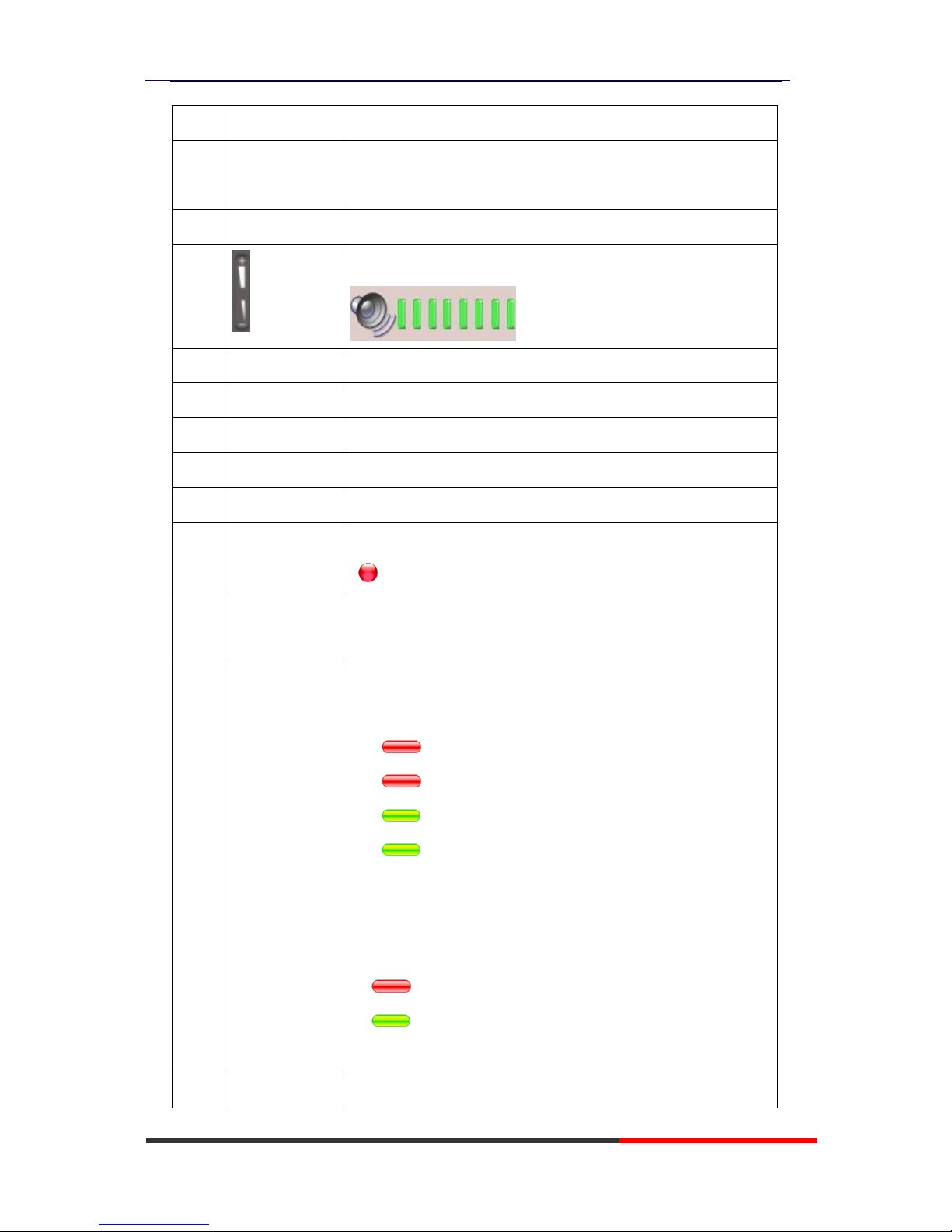
7 Volume button: Controls the volume and other settings.
8
CONFERENCE
Conference button: Connect calling / called party to the conference
9
REDIAL
Redial button: To Redial the last number.
10
TRANSFER
Transfer button: Transfer redirects a connected
11
HOLD
Hold button: Put a call on hold
12
0-9,*,#
Basic Call Handling: Press “#” send out a call(default)
13
Speaker button
Speaker button: Toggles the speakerphone on or off.
Red, steady: Pick up and enter normal call.
14
Softkey
Each displays a softkey function, To activate a softkey, press the
softkey button.
15
Line/Programm
able Buttons
Line button: Select the phone line(Call or Answer)
Different colors for different status:
1) Red, flashing: There is an incoming call.
2) Red, steady: Pick up and enter normal call.
3) Yellow-green, flashing: Holding call.
4) Yellow-green, steady: Active call.
Programmable Keys:
Hotline number can be used to bind in order to achieve speed dial;
Turn on BLF:
1) Red, steady: Remote line is busying.
2) Yellow-green, steady: Remote line is idle.
16 C Back button: Return to the standby interface;
Page 12

620 Series IPPhone
www.escene.cn/en/
Escene Communication
17
Navigation
button
“Up”: Open “Speed Call” list;
“Down”: Open “Missed Calls” list:
“Left”: Open “Received Calls” list;
“Right”: Open “Dialed Numbers” list
18
OK
OK button: To confirm the action;
19
Hands-free
speakerphone
Hands-free voice of the output.
20
LCD screen
480*272 pixel Color high-definition display.
21
Status light
Red flashing: There are incoming call;
Red, steady: Missed Calls, or phone busy;
22
Hands-free
microphone
Hands-free voice of the output.
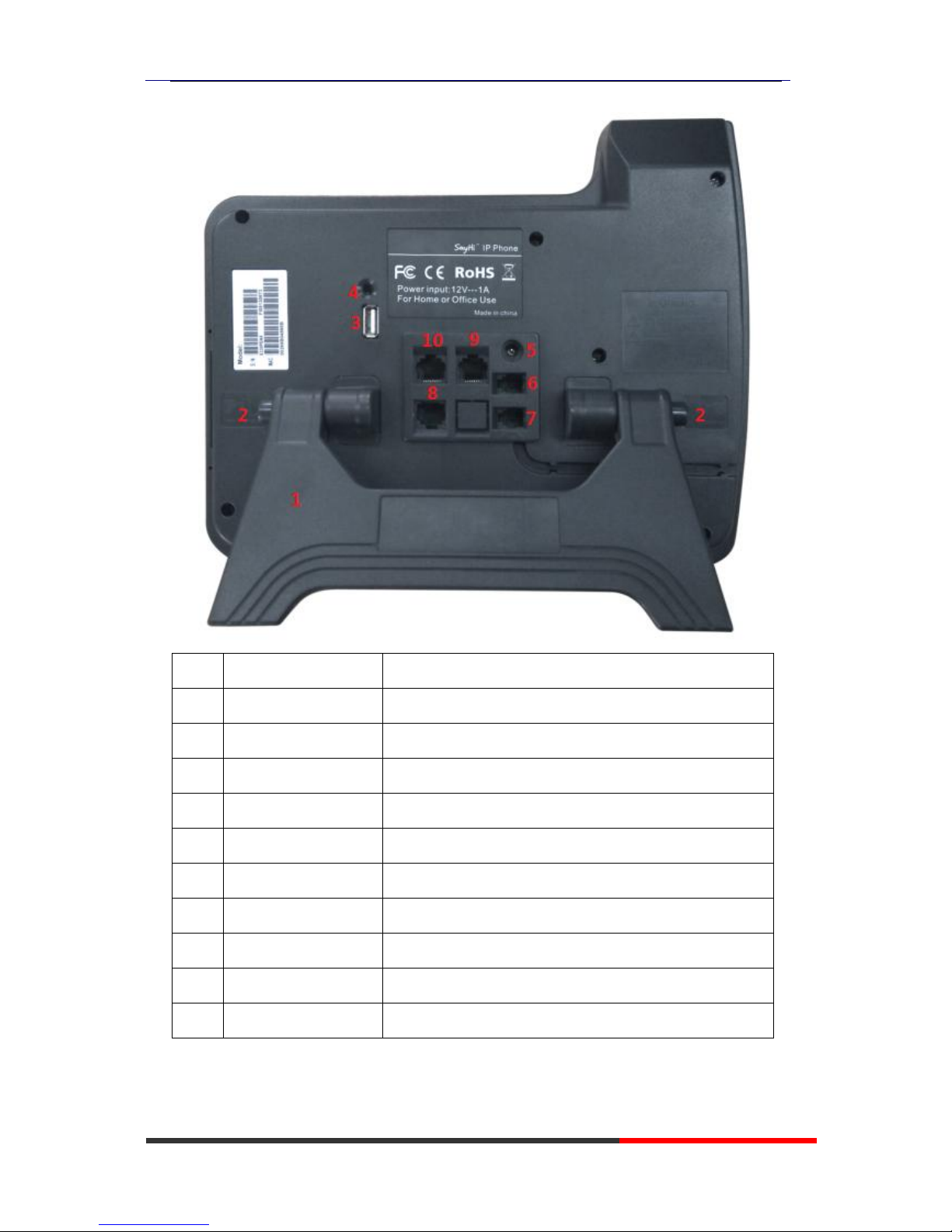
Figure 3.2 Interfaces of 620 Series
Page 13
620 Series IPPhone
www.escene.cn/en/
Escene Communication
Num
Hardware
functions
1
Footstand
Hold up phone
2
Footstand button
Press buttons at the same time to adjust the angle
3
Reserved for USB port
Enhanced scalability
4
Microphone port
Connect the Microphone
5
Power port
12VDC
6
Headset port
Support RJ9 interface connection
7
Handset port
Connect the Handset
8
EXT port
Expansion module interface
9
LAN port
Connect to a LAN interconnecting device
10
PC port
Connect to a local PC
Page 14
620 Series IPPhone
www.escene.cn/en/
Escene Communication
Understanding Phone Screen Features
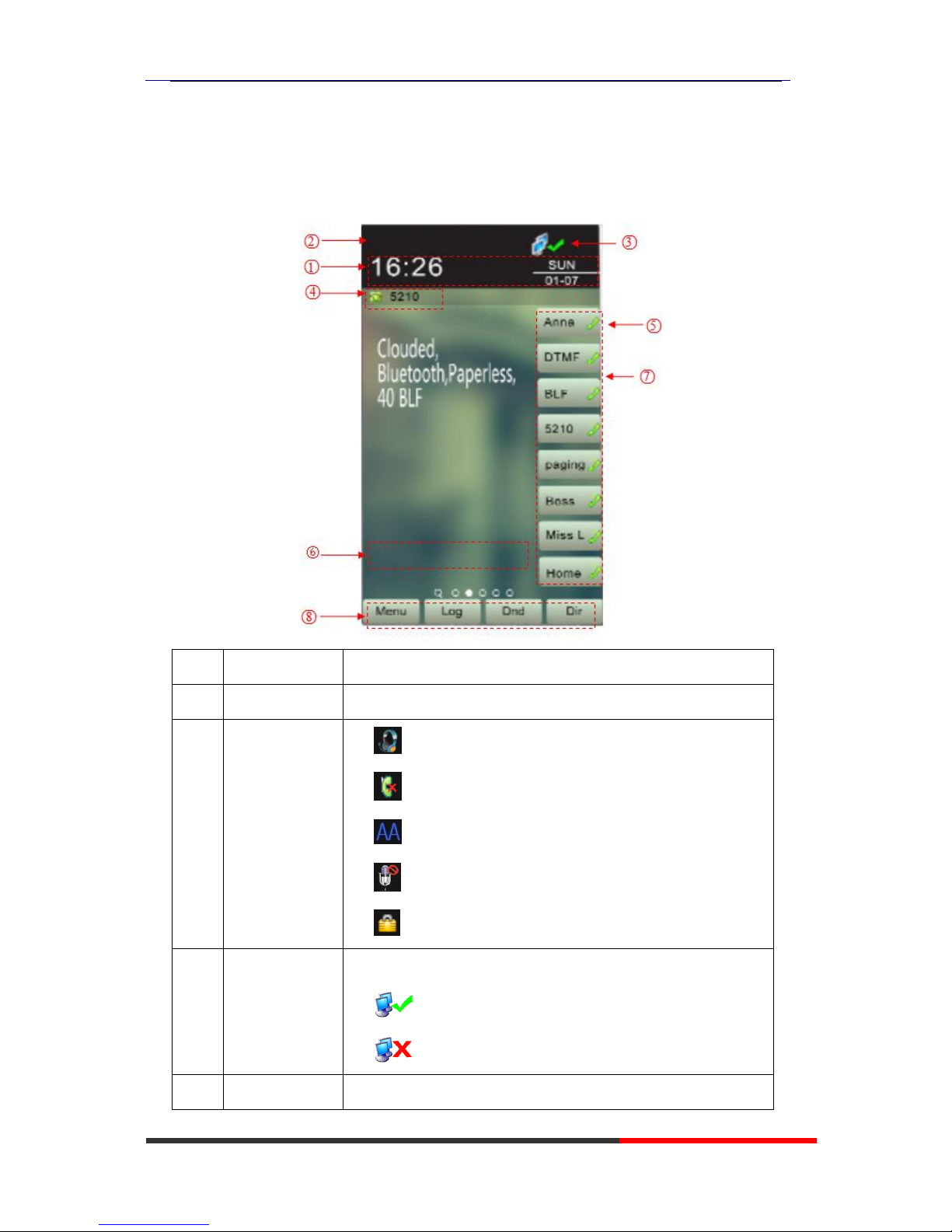
This is what your main phone screen might look like with an active call:
Figure 3.3 LCD of 620 Series
Num
Screen
Functions
1
Time and Data
Display current time and data
2
Service status
1) : Headset turned on
2) : There are Missed calls
3) : Auto-answer turned on
4) : Mute turned on
5) : DND turned on
3
Network
connection
status
Phone LAN interface network connection status display:
1) : Network connection is successful
2) : Network is disconnected.
4
Primary phone
Displays the phone number(extension number)for your primary
Page 15
620 Series IPPhone
www.escene.cn/en/
Escene Communication
Line
Phone line.
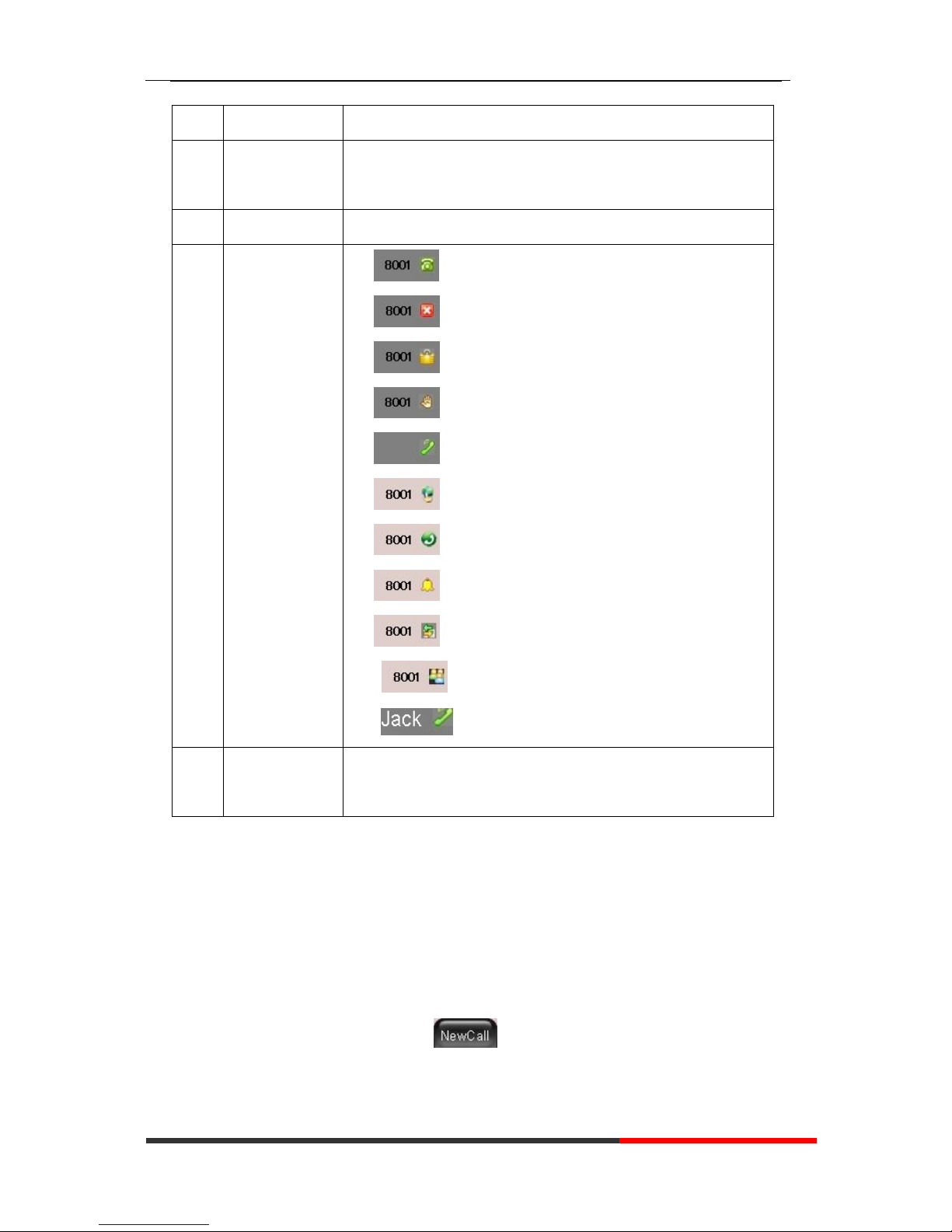
5
Call activity
Area
Displays calls per line, including caller ID, for the highlighted line.
6
Missed calls tips
Show the number of missed calls.
7
Line status/
Speed Call
1) : Line is successfully registered to a SIP server
2) : Line is not successfully registered to a SIP server
3) : DND turned on in this line
4) : Line is held
5) : Peer-to-Peer status
6) : dialing
7) : talking
8) : ringing
9) : Transferring a call
10) : 3-ways conference
11) : speed dial key
8
Softkey labels
Each displays a softkey function. To activate a softkey, press the
softkey button.
4. Basic Call Handing
You can perform basic call-handling tasks using a range of features and services. Feature
availability can vary; see your system administrator for more information.
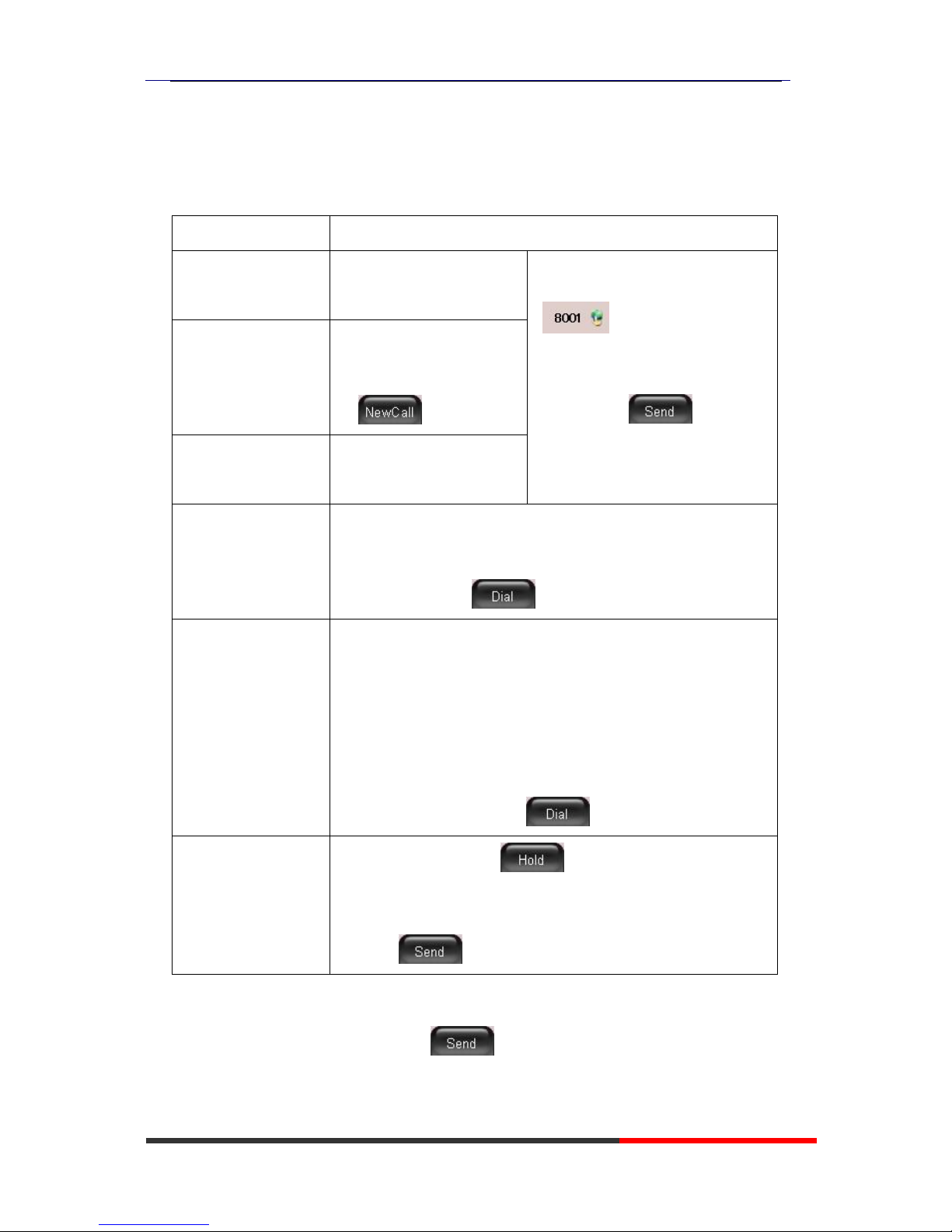
Note: The bold type of the following text and following a “button” in table signifies the phone's
button (for example, OK button), and the signifies softkey.
Page 16
620 Series IPPhone
www.escene.cn/en/
Escene Communication
Placing a Call
Here are some easy ways to place a call on 620 Series IP Phone: :
If you want to...
Then...
Place a call using the
handset
Pick up the handset;
--1)Hear the dial tone;
--2)The first line light and display
;
--3)Enter number;
--4)Press “#” button(default);
or press ;
or wait five seconds(default)
Then send the call;
Place a call using a
Speakerphone
Press Speaker button;
or Programmable buttons;
or ;
Place a call using a
headset
Press Headset button.
Redial
--Press REDIAL button to dial the last number
-or press Navigation button-Right > “Dialed number”, select a
number, and press or OK button.
Dial from the
Directory on your
phone
--1) Press MENU or OK button > “Call history”, you can select
“Missed calls”, “Received calls” and “Dialed numbers”,
- or press Navigation button (in Standby interface) > select “Missed
calls” (down), “Received calls” (left) and “Dialed numbers”
(right) );
--2) Then press OK button or .
Place a call while
Another call is active
--1) Press Hold button or ;
--2) Enter a number;
--3) Press „#’ button (default) ;
-or press to send the number.
Tips
• You can dial on-hook, without a dial tone (pre-dial). To pre-dial, enter a number, and then go
off-hook by lifting the handset or pressing , Headset or Speaker button.
• If you make a mistake while dialing, press C button to erase digits.
Page 17
620 Series IPPhone
www.escene.cn/en/
Escene Communication
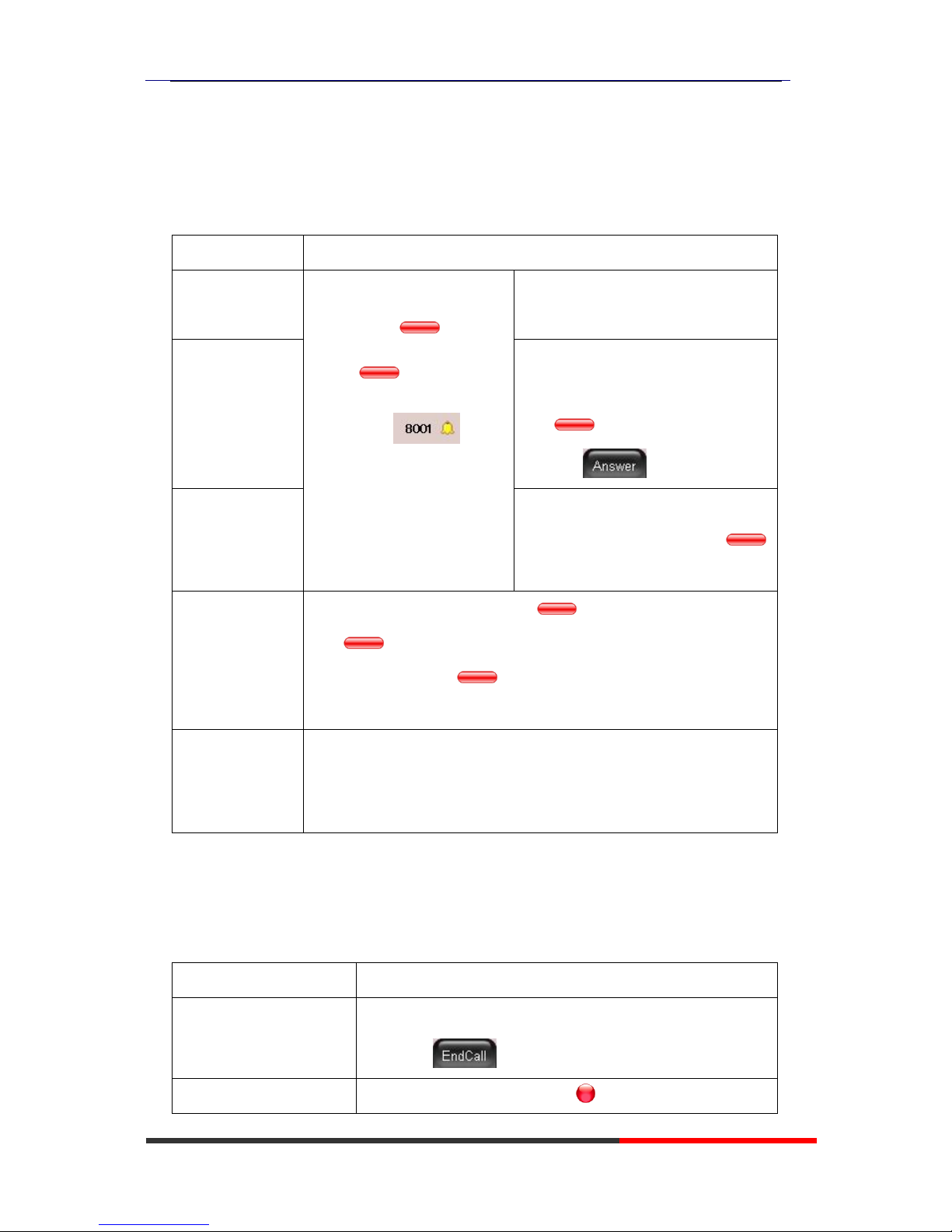
Answering a call
You can answer a call by simply lifting the handset,or you can use other options if they are
available on 620 Series:
If you want to...
Then...
Answer with a
handset
--1) Your phone ring;
--2) Line button of the ringing
line is Red and
flashing, Light strip is
Red and flashing;
--3) Status of the line on the
phone is .
--Pick up the handset
Answer with the
speakerphone
(Non-headset
mode)
--Press Speaker button
-or press the Line button flashing
Red ,
-or press
Answer with the a
headset
--Put on headset, press Headset button
so that the status light is Red ,
and then do as using speakerphone
Switch from a
connected Call to
answer a ringing
Call
--1) Another Line button is Red and flashing, Light strip is
Red and flashing;
--2) Press the flashing Line button to answer (at this time, the
original call will be hold.)
Auto-answer
--1) Press MENU or OK button > “Function settings” > “Auto answer”;
--2) Select “Enable”;
--3) Your phone answers incoming calls automatically after a few rings.
Ending a Call
To end a call, simply hang up, here are some more details:
If you want to...
Then...
Hang up while using the
Handset
--Return the handset to its cradle,
-or press
Hang up while using the
--Press Speaker button that is Red ,
Page 18

620 Series IPPhone
www.escene.cn/en/
Escene Communication
Speakerphone
-or press Line button for the appropriate line,
-or press
Hang up while using the
Headset
--Press Handset button, (Do not keep the headset mode) ,
-or press (keep the headset mode)
Hang up one call, but
preserve another call on
the other line
--Press ,
-or refer to the above three methods
Using Hold and Resume
You can hold and resume calls. You can take a call in one line at anytime, and the other lines
would be hold. As a result of that, you can switch different calling line on our phone.
If you want to...
Then...
Put a call on hold
--Press HOLD button,
-or press
Hold a line and switch to
another line
Press another Line button for the appropriate line
Resume a call on current line
--Press appropriate line button,
Release a call on different
line
Select the line want to release hold, press the line, so recovery;
Tips
• Engaging the Hold feature typically generates music or a beeping tone.
• A held call is indicated by the Yellow-green and flashing Line button. And line status
is .
Page 19
620 Series IPPhone
www.escene.cn/en/
Escene Communication
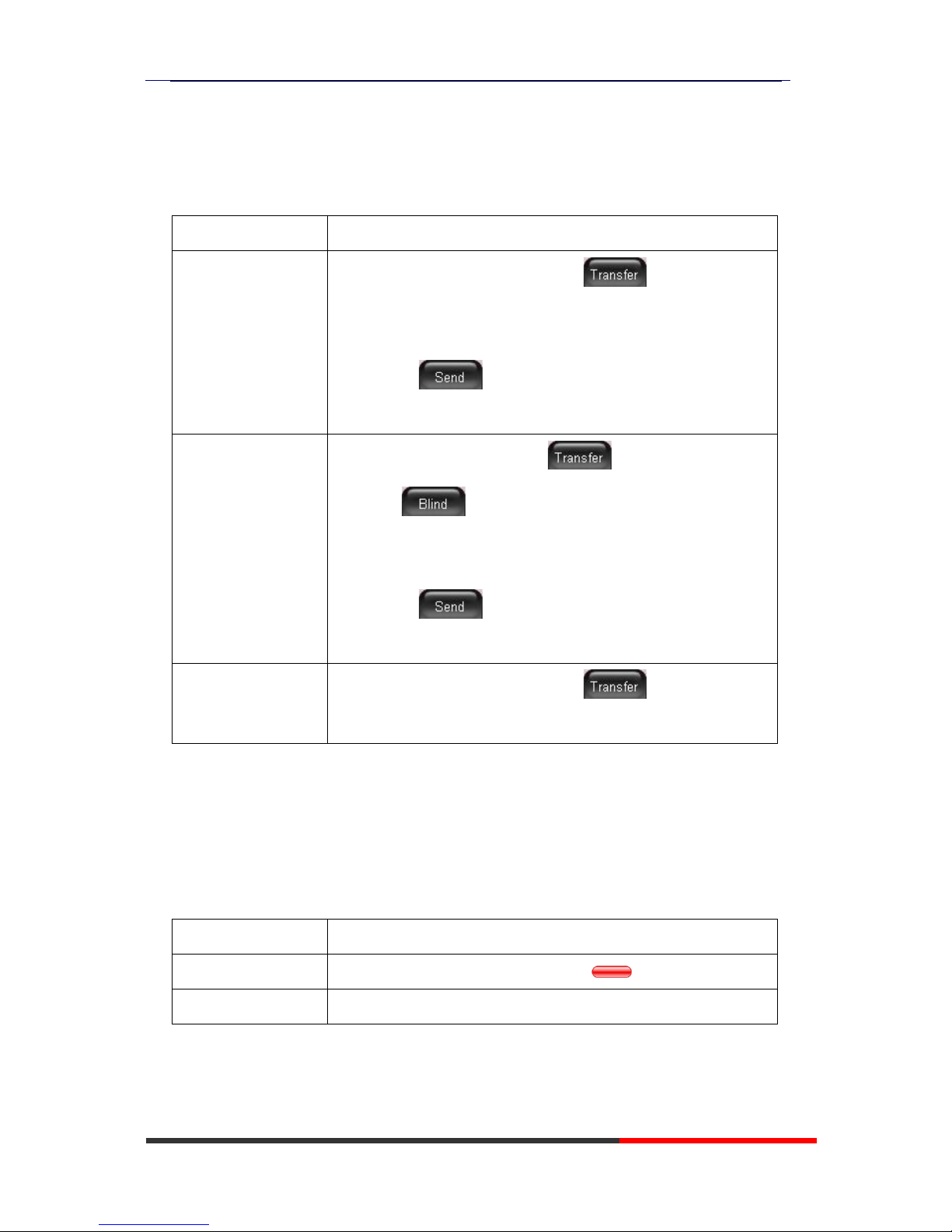
Transferring Calls
Transfer redirects a connected call. The target is the number to which you want to transfer the
call。
If you want to...
Then...
Talk to the transfer
recipient before
transferring a call
(consult transfer)
--1) Press TRANSFER button or press ;
--2) Enter number;
--3) press “#”(default) ,
-or press then transfer the call,
-or wait five seconds(default)then transfer the call
Transferred to idle
lines or other numbers
without talking to the
transfer recipient
(Blind transfer)
--1) Press TRANSFER button or ;
--2) Press ;
--3) Enter number;
--4) Press “#”(default)
-or press , then transfer the call;
-or wait five seconds(default)then transfer the call
Blind transfer to the
Held line
--1) Press TRANSFER button or press ;
--2) Press the Line button of held line
Using Mute
With Mute enabled, you can hear other parties on a call but they cannot hear you. You can use
mute in conjunction with the handset, speakerphone, or a headset。
If you want to...
Then...
Toggle Mute on
Press Mute button, then the button is Red
Toggle Mute off
Press Mute button, then the button light off
Page 20
620 Series IPPhone
www.escene.cn/en/
Escene Communication
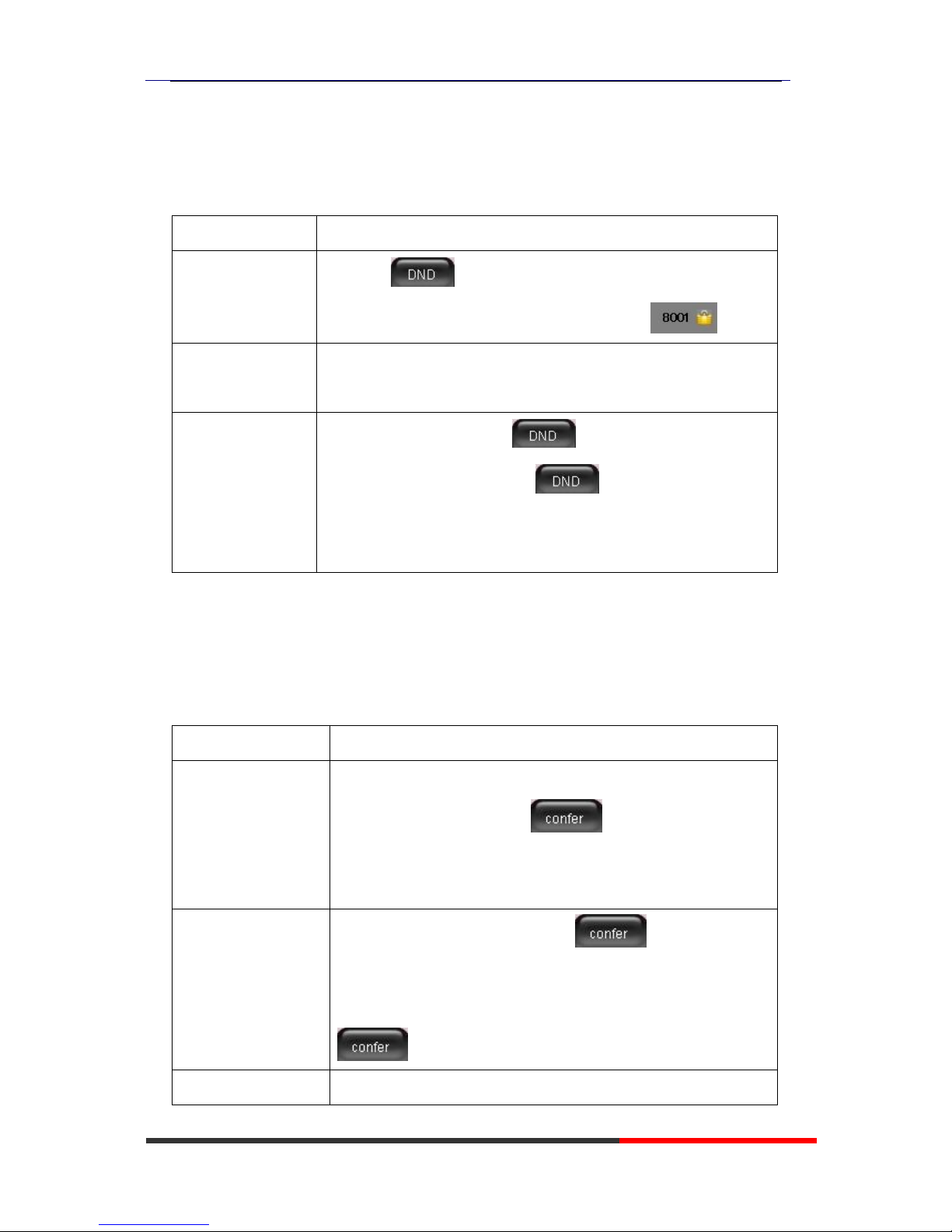
Do Not Disturb
You can use the Do Not Disturb(DND)feature to block incoming calls on your phone with a busy
tone(Can also be set to their voice mail or other extension numbers, etc.)。
If you want to...
Then...
Enable global DND
--1) Press ;
--2) All enabled line on the phone would changes to status.
Enable DND on a
single line
Press MENU or OK button > “Function setting” > “DND” > (select
line) “Enable”
Disable DND
--Global DND enabled, press to disable global DND;
--Line DND enabled, press twice ,
-or press MENU or OK button > “Function setting” > “DND” >(select
line) “Disable”
3-way Conference
You can establish a three-party conference, during the conversation three phone parties can
communicate with each other.
If you want to...
Then...
Invite the transfer
recipient into a
conference in a
transferring
--1) When the transfer recipient answer the call, press
CONFERCENCE button or on your phone;
--2) Then the held one, transfer recipient and you will be into a
conference.
Invite the third party
into a conference in a
active call
--1) Press CONFERENCE button or in an active call;
--2) Enter the third party number;
--3) After connected the third party, press CONFERENCE button or
again
establish a conference
--1) when one phone line is holding on and the other line is busy;
Page 21

620 Series IPPhone
www.escene.cn/en/
Escene Communication
with held line
--2) Press CONFERENCE button,
-or Press Soft key
--3) press the held line's programmable button, the 3-way Conference
will establish.
Expansion Installation
If you want to...
Then...
Expansion installation
--1) Press MENU or OK button > “Function setting” > “expansion
installation”,
--2) if you want to install expansion, please according to tips to
do ,after you install ,press”finish”.
Expansion Settings
If you want to...
Then...
Expansion setting
--1) Press MENU or OK button > “Function setting” >
“expansion installation”,
--2) choose which you want to set “expansion”
--3)choose which you want to set “ programmable keys “
--4)you can set :
Mode:Speed Dial、Asterisk BLF、Speed Dial Prefix、BLA、
DTMF
Account :choose account which you want to set
Name:give it a name which you want
Number: set your expansion number
Page 22

620 Series IPPhone
www.escene.cn/en/
Escene Communication
Time & Date
If you want to...
Then...
Time & Date
--1) Press MENU or OK button > “Function setting” > “time &
date”,
--2)you can select :
SNTP: select “enable ”to set parameter: time 、server 、daylight
SIP server: select “enable ” to set parameter: root can modify
date .
manual Settings: select “enable ”to set parameter: date and time
VOIP Call Forwarding
If you want to...
Then...
Unconditional transfer
--1) Press MENU or OK button > “Function setting” > “voip
call forwarding”;
--2)select “unconditional transfer”, select enable.
--3)input number which you want to transfer, when have a
call in ,it will unconditional transfer.
Busy transfer
--1) Press MENU or OK button > “Function setting” > “voip
call forwarding”;
--2)select “busy transfer”, select enable.
--3) input number which you want to transfer, when have a
call in conversation ,it will transfer.
Page 23

620 Series IPPhone
www.escene.cn/en/
Escene Communication
No answer transfer
--1) Press MENU or OK button > “Function setting” > “voip
call forwarding”;
--2)select “no answer transfer”, select enable.
--3) input number which you want to transfer, when have a
call in but you don‟t have time to answer ,it will transfer.
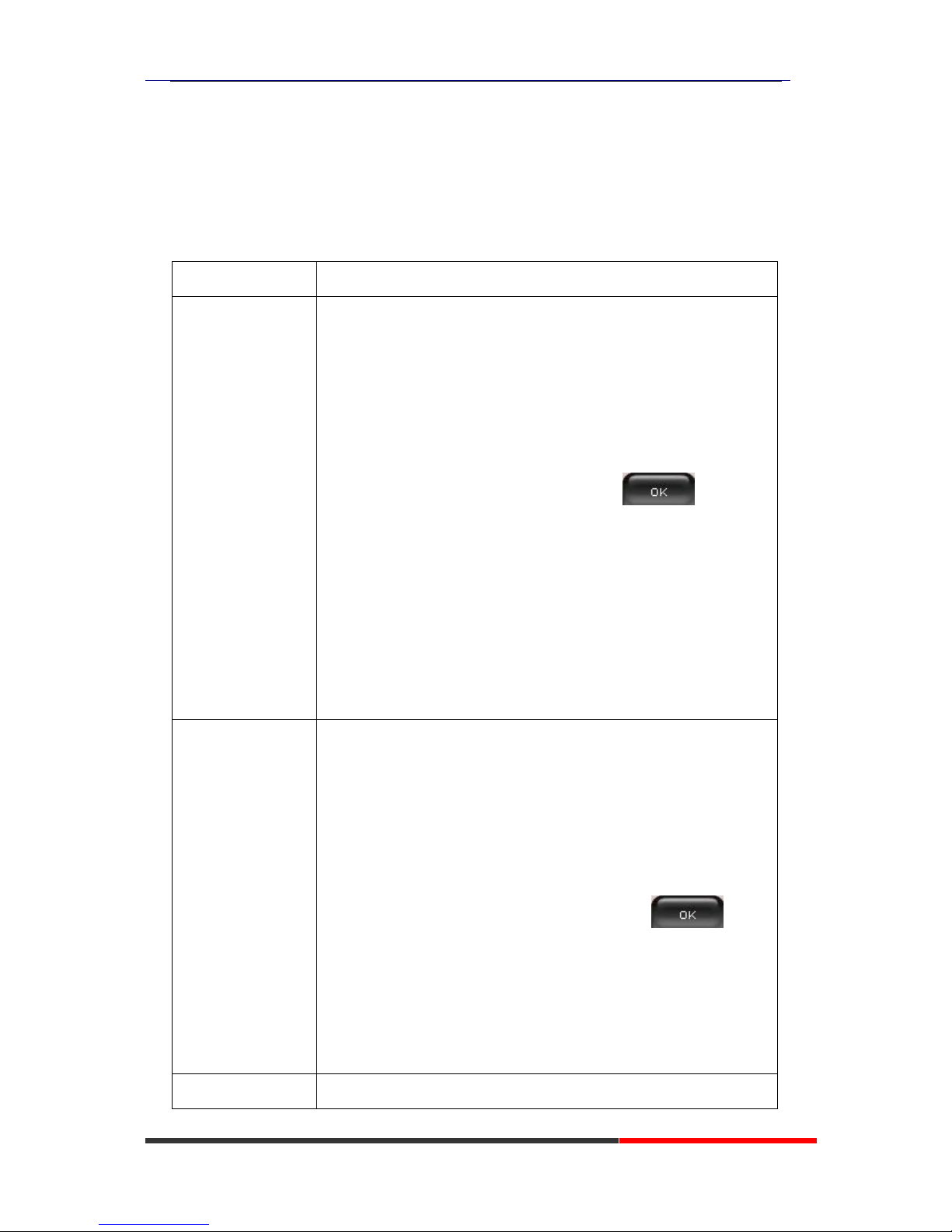
5. Advanced Call Handling
Speed Dialing
Speed dialing allows you to enter an index number, press a button, or select a phone screen item to
place a call.
If you want to...
Then…
Set up Speed Dials
on your phone
--1) Press MENU or OK button > “Function setting” > “Hot line ,You
can configure twelve speed dial numbers on the 620 Series IP Phone;
--3) Press OK button to set and modify:
-Mode:
-Hot Line: Dial quickly.
-Warn Line: It will auto dial after 5 sec.
-Press OK to save the changes
Page 24
620 Series IPPhone
www.escene.cn/en/
Escene Communication Co.,Ltd
Using the phone book
You can store a large number of contacts in your phone's directory. You can add, edit, delete, dial,
or search for a contact in this directory.
The personal phonebook can storage 300 contact entry,and the enterprise phonebook can storage
800 contact entry.
If you want to…
Then…
Add Contacts
--1) Press DIR
-or press MENU button > “Phone book”>“Personal phone book”,
-or press Directories button > “Phone book”>“Personal phone
book”;
--2) Press OPT.;
--3) Select “Add contact”, press OK button or ;
--4) Use the navigation keys to select content, press OK button to set
and modify:
-Name: set the name of contact,
-NO.1-3: you can set up 3 contacts‟ numbers,
-Group: the contacts be divided into different user‟s groups
--5) Press Save soft key to complete
Add group
--1) Press DIR soft key,
-or press MENU button > “Phone book”>“Personal phone book”,
-or press Directories button > “Phone book”>“Personal phone
book”;
--2) Press OPT. soft key;
--3) Select the “add group” then press OK button or ;
--4) Use the navigation keys to select content, press OK button to set
and modify:
-Group name: name of the group
--5) Press Save soft key to complete
Modify group
--1) Press DIR soft key,
Page 25
620 Series IPPhone
www.escene.cn/en/
Escene Communication Co.,Ltd
-or press MENU button > “Phone book”>“Personal phone book”,
-or press Directories button > “Phone book”>“Personal phone
book”;
--2) Press OPT. soft key;
--3) Select the “Modify group” then press OK button or press
;
--4) Select the group you want to modify, press the OK button or OPT.
to set and modify, press Save to save the change
Delete group
--1) Press DIR soft key,
-or press MENU button > “Phone book”>“Personal phone book”,
-or press Directories button > “Phone book”>“Personal phone
book”;
--2) Press OPT. soft key;
--3) Select the “Delete group” or OK button or ;
--4) Select a group you want to delete, press OK button or
View/Edit Contacts
--1) Press DIR soft key,
-or press MENU button > “Phone book”>“Personal phone book”,
-or press Directories button > “Phone book”>“Personal phone
book”;
--2) Select “View ALL”,
-or select a contact who are belong to different group;
--3) Select the contact, press the OK button or (to edit
the contact‟s information, press OK button or OPT.)
LDAP
--1) --1) Press DIR soft key,
-or press MENU button > “Phone book”
-or press Directories button > “Phone book”
--2)Select “LDAP”, press the OK button.
--3)Select “Search name->name”, then input the name ,and press OK
Page 26
620 Series IPPhone
www.escene.cn/en/
Escene Communication Co.,Ltd
or Del.
--4)Select “Search number->Number”, then input the number ,and
press OK or Del.
Pay attention: before you use LDAP function, you need to
configure LDAP rule in the web configure page.
Call from phone
book
--1) Press DIR soft key,
-or press MENU button > “Phone book”>“Personal phone book”,
-or press Directories button > “Phone book”>“Personal phone
book”;
--2) Select “View ALL”,
-or select a contact who are belong to different group;
--3) Select a contact, then press ,
(If there are multiple numbers of one contact, press to
enter the interface of “call options”, select the one you want to call and
press )
Using Call Logs
Your phone maintains records of your missed, placed, and received calls.
If you want to…
Then…
View your call logs
--1) Press MENU button > “Call history” > “Missed Calls”, “Received
Calls”, or “Dialed numbers”
--2) Use the navigation keys to view the call record information.
Dial from a call log
Please refer to the previous part 4.Basic call handing – Placing a call.
Erase your call logs
--1) If you want to delete a call record, you have to select this record
from the logs and press Del;
--2) If you want to delete an entire call record list, you have to select
this record list from the logs
Tips
Page 27

620 Series IPPhone
www.escene.cn/en/
Escene Communication Co.,Ltd
• Each call log store up to 100 entries on 620 Series IP phone.
6. Keypad Instruction
series IP phones are can be configured in two ways. The first you can use the phone keypad where
you can settings for you IP phones, the other you can log in to User Options web pages where you
can settings for you IP phones.
Use phone keypad to setting. Press MENU or OK button to the main menu, Use the navigation
keys to select menu, press OK button to confirm menu selections, press C button or Del to delete
input information.
Language
620 IP Phone supports Simplified Chinese 、English、Russian、French、Polish、Spanish、Portuguese
If you want to…
Then…
To change the language
via phone interface
--1) Choose “System setting” > “Phone settings” > “Language”;
--2) Scroll through the list of available languages.
--3) Press OK button or OPT. when the desired language is
highlighted. The language appears on the graphic display will be
changed to the one you chose.
--4)Or press OK button or MENU, navigate to Language, press OK,
then select the language you want, press OK it will be changed to
the one you chose.
Page 28

620 Series IPPhone
www.escene.cn/en/
Escene Communication Co.,Ltd
SIP Account Settings
620 series IP phone make calls based on sip accounts, 620 series IP phones can support 8
independent SIP account, each account can be configured to different SIP server.
If you want to…
Then...
Create an sip account
--1) Choose “System settings” > “Advanced settings”;
--2) Enter the password required(The default is empty) ;
--3) Choose “SIP” > “Accounts SIP”;
--4) Choose one of the account you want to setting, you can configure
the following parameters
-Enable account: choose Enable
-Account Mode: VOIP
-Display Name: The name displayed on the screen
-User Name: the account matched with the SIP server.
(extension number),
-Authen user: the Authenticated users matched with the SIP
server.(The default With the same account)
-user pwd: the user password matched with the SIP server
-Description: description of this account,
-SIP1: the primary SIP server,By default all calls through the
server,
-SIP2: the secondary SIP , When the primary server is
unavailable ,use the SIP server
-Refresh time: Registration refresh interval, the minimum value
is 20 The default value is 3600.
-Con type: the protocol use to communicate with SIP server.
-Amount of used lines: the lines the extension used,can use
1-8,default is 2.
--5)Set up the above parameters,Press Save softkey to saves
settings,Complete the account creation;
* Note: the parameters with the * mark must be setted.
Page 29

620 Series IPPhone
www.escene.cn/en/
Escene Communication Co.,Ltd
Disable sip account
--1) Choose “System setting” > “Advanced settings”;
--2) Enter the password required(The default is empty) ;
--3) Choose “SIP” > “Account sip”;
--4) Choose “Enable account” > “Disable”;
--5)Press Save soft key
Network Setting
If you want to…
Then…
network setting
--1) Choose “System settings” > “Advanced settings”;
--2) Enter the password required(The default is empty) ;
--3) Choose “Network”>”LAN Settings”, you can configure the following
parameters:
-Type: static IP or DHCP or PPPOE
-IP: enter IP address ,Note: Do not duplicate the ip address with
other devices on the network
-Mask: enter appropriate sub mask
-GW: enter appropriate gateway
- DNS1: enter IP address of the primary DNS server
- DNS2: enter IP address of the secondary DNS server
-Web port: the default Web port is 80,if you change it(for example
change it to 88),you must use IP and Web port to login the web page (for
example http://192.168.0.200:88).It will take effect on next reboot.
-Telnet port: the default Telnet port is 23,if you change it(for
example change it to 2003),you must use IP and Telnet port to login the
manage page (for example telnet 192.168.0.200:2003).It will take effect
on next reboot.
Page 30

620 Series IPPhone
www.escene.cn/en/
Escene Communication Co.,Ltd
Load default settings
If you want to...
Then...
Load default settings
--1) Choose “System settings” > “Advanced
settings”;
--2) Enter the password required(The default is
empty) ;
--3) Choose “load default settings ”,and press
“OK”, then “Reboot” the phone.
Modify password
If you want to...
Then...
Modify password
-1) Choose “System settings” > “Advanced
settings”;
-2) Enter the password required(The default is
empty) ;
--3) Choose “modify password ”,then input
“old password ,new password to change
“Advanced password” to login IP phone
Customizing Rings and Volume
If you want to…
This…
Change the ring
tone
--1) Choose “System settings” > “Phone settings” > “Ring type”;
--2) Press navigation to choose ring tone;
--3)Press softkey to choose a ring tone to play a sample of
it.
Press softkey to Stop Playing
Page 31
620 Series IPPhone
www.escene.cn/en/
Escene Communication Co.,Ltd
Press OK softkey to set the ring tone,
Press softkey to return to previous menu.
Adjust the volume
level
--1) Choose “System settings” > “Phone settings” > “Volume settings”
--2)You can adjust the volume level of following types
-Ring volume: Phone call ring volume,
-Handset volume: Handle output volume,
-Handset mic volume: Handle input volume,
-Speaker volume: Hands-free speaker output volume,
-Speaker mic volume: Hands-free input volume,
-Headset volume: Headphone output volume,
-Headset mic volume: Headset microphone input volume
WIFI setting(only WS620 have this item)
If you want to…
This…
Set WIFI
--1)Choose "System settings">"advanced settings">"advanced password:"
--2) Press navigation to choose WIFI setting;
--3)Press "ok" button or
-Current site: the wifi which the phone use now
-Site list: where you can choose wifi
--4)Press "site list", choose one wifi network which the phone searched
-SSID: SSID name
-BSSID: the mac address of the WIFI network
-Channel:the channel of the WIFI network use
-Type:the type of the WIFI network
-Encrypt:the encrypt of the WIFI network
-Signal:the signal of the WIFI network
--5)Press "SSID",set WIFI which you choose
Page 32

620 Series IPPhone
www.escene.cn/en/
Escene Communication Co.,Ltd
-Encryption: the encryption of the WIFI network
-Key type: the key type of the WIFI network
-Key: the password which you should set to allow yourself to enter
the WIFI network
Bluetooth setting
This is a new feature It allowing you to receive calls wherever you are in the office through
Bluetooth headset. You can be free to answer or hang up the calls.
When you using this feature, please make sure you have BWM36. If you didn't have, you cannot
use this Bluetooth feature.
Make your Bluetooth headset working:
Make sure BWM36 equipment is connected and work normal.
Make sure your IP phone support this Bluetooth feature.
Make sure you have Bluetooth headset and work normal.
Note: In the IP phone Bluetooth searching mode, you need to make your Bluetooth headset
also in the searching mode. How to make your Bluetooth headset into the searching mode,
please find and follow the Bluetooth headset User Guide. If the Bluetooth headset not in the
searching mode, it will make the IP phone searching failed.
Setting way: Menu> System Setting> Advanced Settings>Password(Default is
empty)>Bluetooth
If you want to....
Then...
Bluetooth
You can Enable/Disable Bluetooth feature.
Current Bluetooth
You can saw the Bluetooth headset
information with Name/MAC/State. Also you
can disconnect the current Bluetooth headset
and researching another equipment.
Bluetooth Searching
You can searching and connect the Bluetooth
headset in the Bluetooth range. Please make
sure your Bluetooth headset also in the
searching mode. After connected, the
interface will transfer to Current Bluetooth,
you can saw the state and begin to used.
Main Features:
>Plug and play, easy to use
>Support wideband audio
>Operating distance: 10 meters, Optimum distance: 1~2 meters(3~6 feet)
Page 33

620 Series IPPhone
www.escene.cn/en/
Escene Communication Co.,Ltd
>Answer incoming calls through Bluetooth headset
>Terminate calls through Bluetooth headset
>Adjusts the volume through Bluetooth headset
>Transmitted power: Class 2
>Bluetooth frequency range: 2.402GHz-2.480GHZ
>Support 3xx/4xx/620 series IP Phone
>Symbol rate: 3Mbit/sec
View status
If you want to see the phone status,Press MENU button > “view status” ,or press OK button >
“view status”, you can see the detail information of the phone.
If you want to ......
Then......
Network
You can see the network detail information of
the phone
Lines
You can see the SIP account
software
It include phone Mode、software version、
kernel version、Upgrade date、Running time
Expansion
Can check the expansion
Diagnose
If you want to check the phone hardware function,Press C button > “diagnose” you can check
the phone item as below.
If you want to ....
Then ....
Keys
You can check the phone keys
LCD
Press‟OK‟to start,press‟C‟to exit
Lights
Press‟OK‟to start,press‟C‟to exit
Sound
Press‟OK‟to start
WIFI setting(only WS620 has this item)
Tips: The WIFI ip phone support 802.11b/g/n/ac.
If you want to…
This…
Page 34

620 Series IPPhone
www.escene.cn/en/
Escene Communication Co.,Ltd
Set WIFI
--1)Choose "Menu">"System settings">"advanced settings">"advanced
password (default is empty)>”Network”"
--2) Press navigation to choose WIFI settings;
--3)Press "ok" button to change the it Enable or Disable
-Hot list: search site what you want to connect.
--5)Press "Hot List >Manual", set WIFI which you choose
-Encryption: the encryption of the WIFI network
-Key type: the key type of the WIFI network
-Key: the password which you should set to allow yourself to enter
the WIFI network
7. Web Settings
We can configure the IP Phone more handy through web setting. Press OK button on the keypad of
the phone to enter the status page and find out the IP address of IP phone. Enter it (for example you
can enter the default ip of the phone: http://192.168.0.200) into the address bar of web browser. The default
login name and password are both “root”.
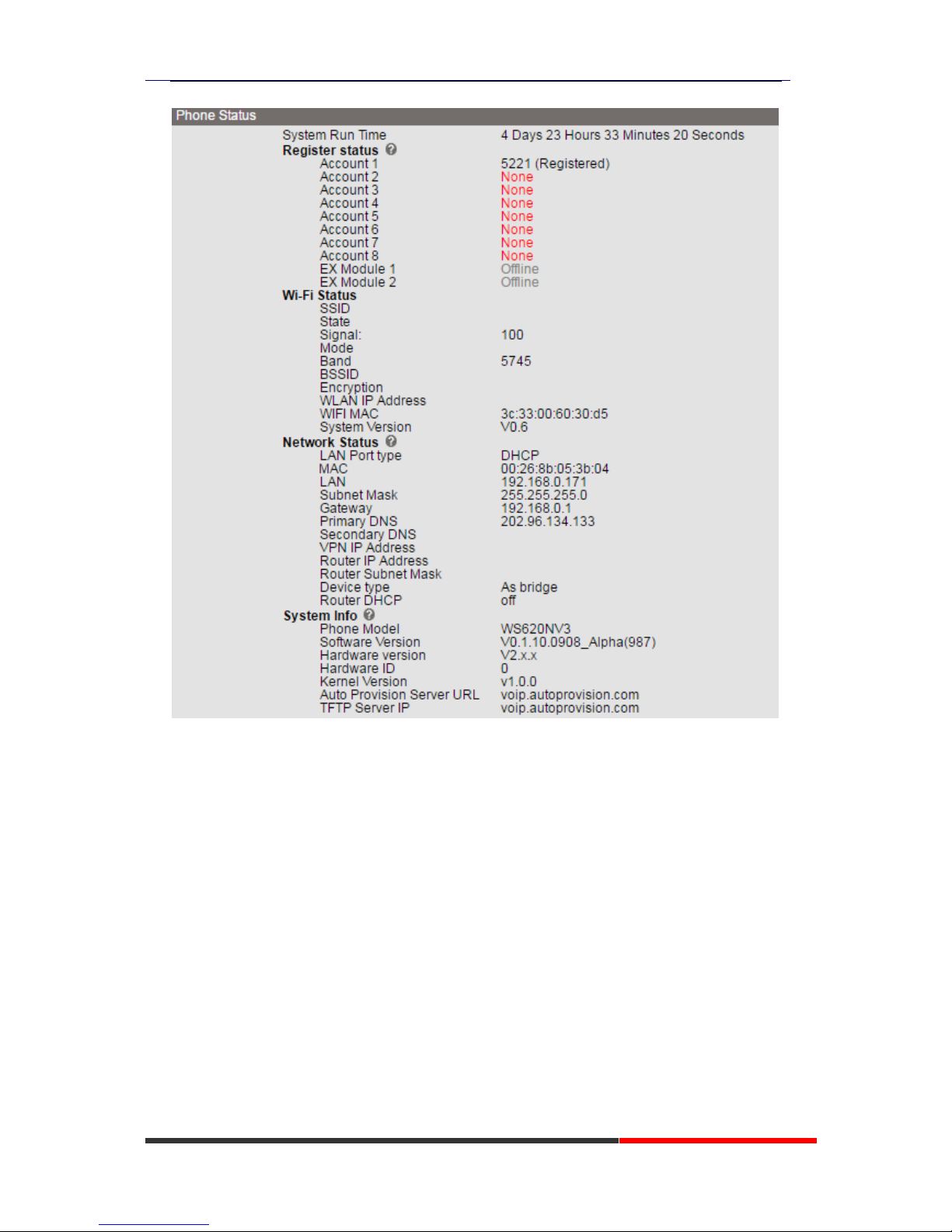
Phone Status
You can see the currently status of the phone when use Phone Status option.
Page 35
620 Series IPPhone
www.escene.cn/en/
Escene Communication Co.,Ltd
Network
WIFI Setting(only WS620 has this item)
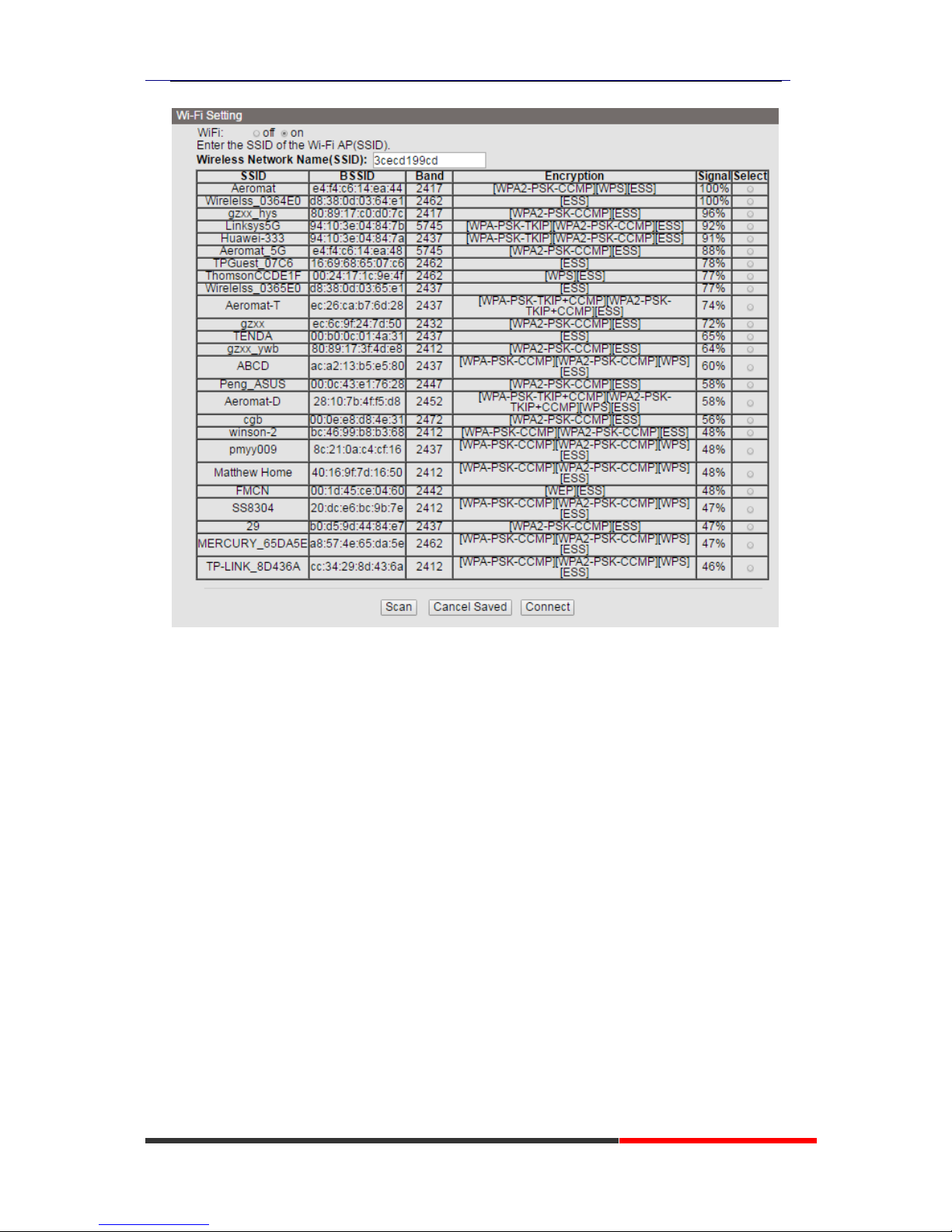
Open wireless function, scan hot spots, connect to hot spots, remove hot spots.
Connected with WIFI as following the picture . You can open it up and select the support
encryption mode. Press “Scan” to refresh the SSID information.
Page 36
620 Series IPPhone
www.escene.cn/en/
Escene Communication Co.,Ltd
When you choise an SSID above, press “Connect” you can connect to it.
IP Settings
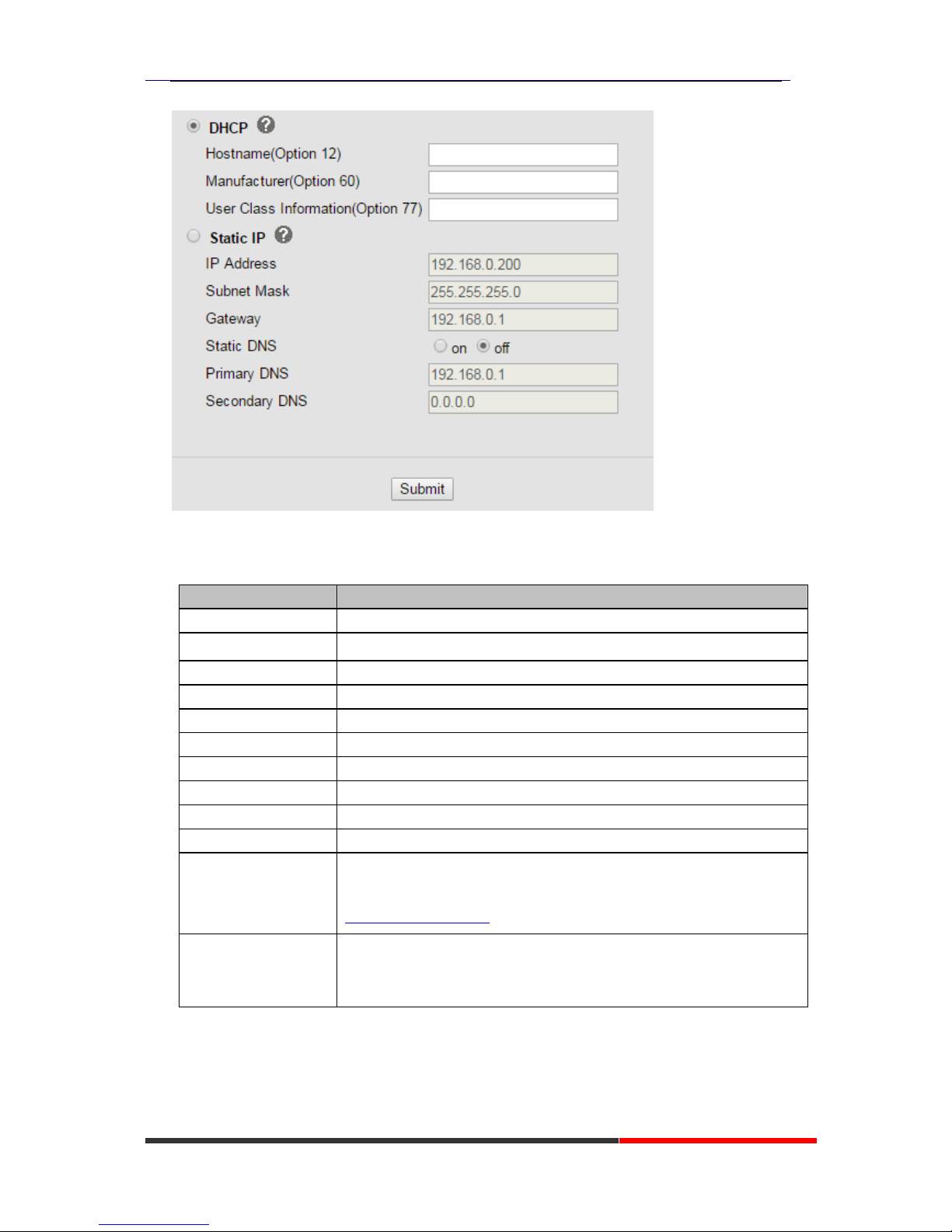
You can config the network parameters for the phone on the web page.
Page 37
620 Series IPPhone
www.escene.cn/en/
Escene Communication Co.,Ltd
Choose network,you will find the following parameters:
Field
Description
DHCP
Config the phone get ip info from DHCP server
IP Address
Config the ip manual for phone
Netmask
Config the netmask manual for phone
Gateway
Config the gateway manual for phone
Username (pppoe)
The pppoe username
Password (pppoe)
The pppoe password
MTU (pppoe)
The mtu for pppoe,default is 1500
Primary DNS
The primary DNS server
Secondary
The secondary DNS server
MAC Address
Display the MAC of the phone
HTTP Port
The default web port is 80,if you change it(for example change it to88),
You must use IP and Web port to login the web page(for example
http://192.168.0.200:88). It will take effect on next reboot.
Telnet Port
the default Telnet port is 23,if you change it(for example change it to
2003),you must use IP and Telnet port to login the manage page (for
example telnet 192.168.0.200:2003).It will take effect on next reboot.
Page 38
620 Series IPPhone
www.escene.cn/en/
Escene Communication Co.,Ltd
PC Port
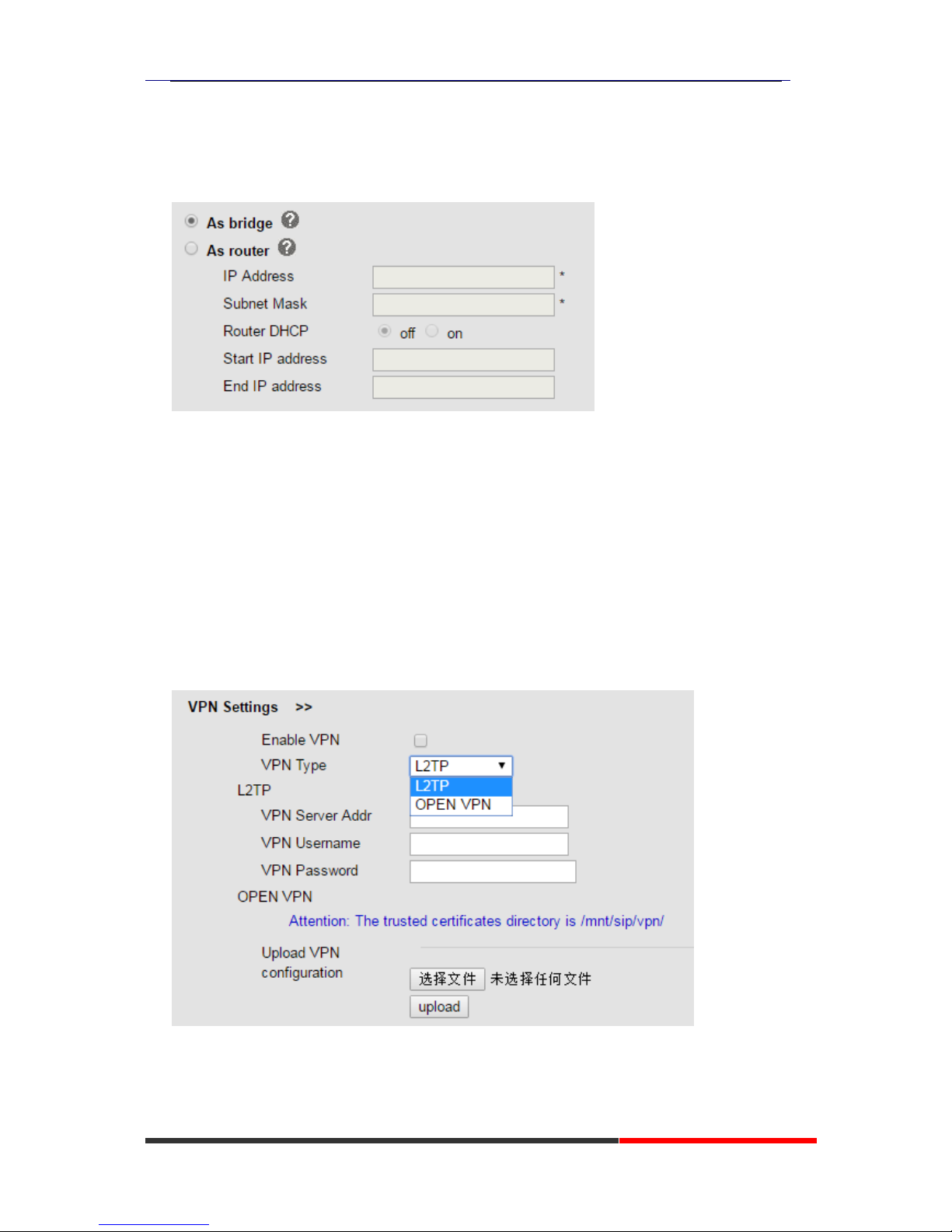
Bridge mode and router mode can be configured as needed.
Bridge mode
Normally, you should choose “bridge” feature, it means that pc port and LAN port will share the
same network.
Router mode
Router feature is for the phone PC Port. You must input IP address (it‟s equivalent to a gateway)
and Net mask. If you want to use DHCP function, please turn it on, input start IP and end IP.
Advanced
VPN Settings
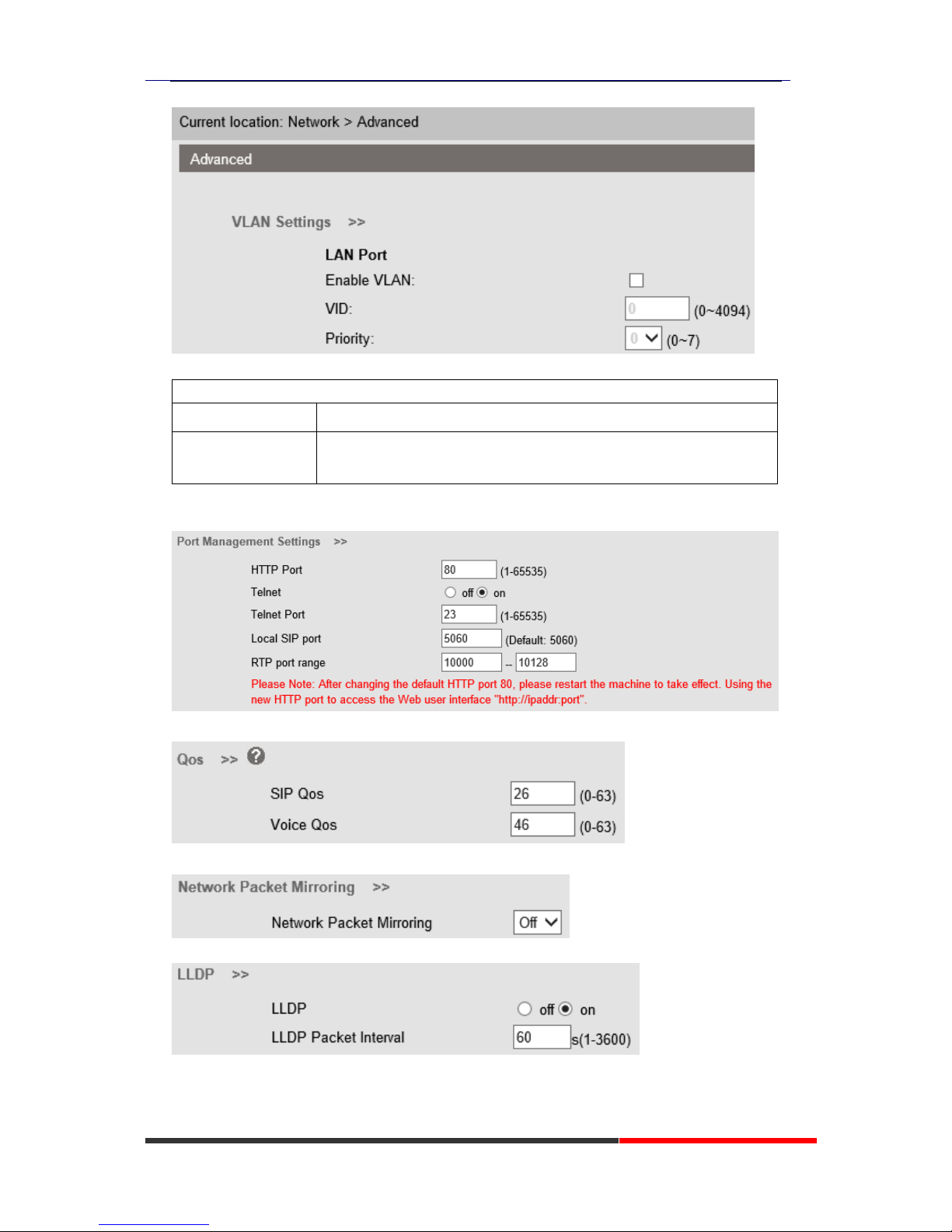
VLAN Settings
Page 39
620 Series IPPhone
www.escene.cn/en/
Escene Communication Co.,Ltd
When using VLAN Setting option, you can set several parameters as follow:
VLAN Setting
Enable VLAN
You can enable/disable vlan for phone and pc
VID
[LAN/PC Port]
The vlan ID you want the phone or pc to join
Port management Settings
QoS
Network Packet Mirroring
LLDP
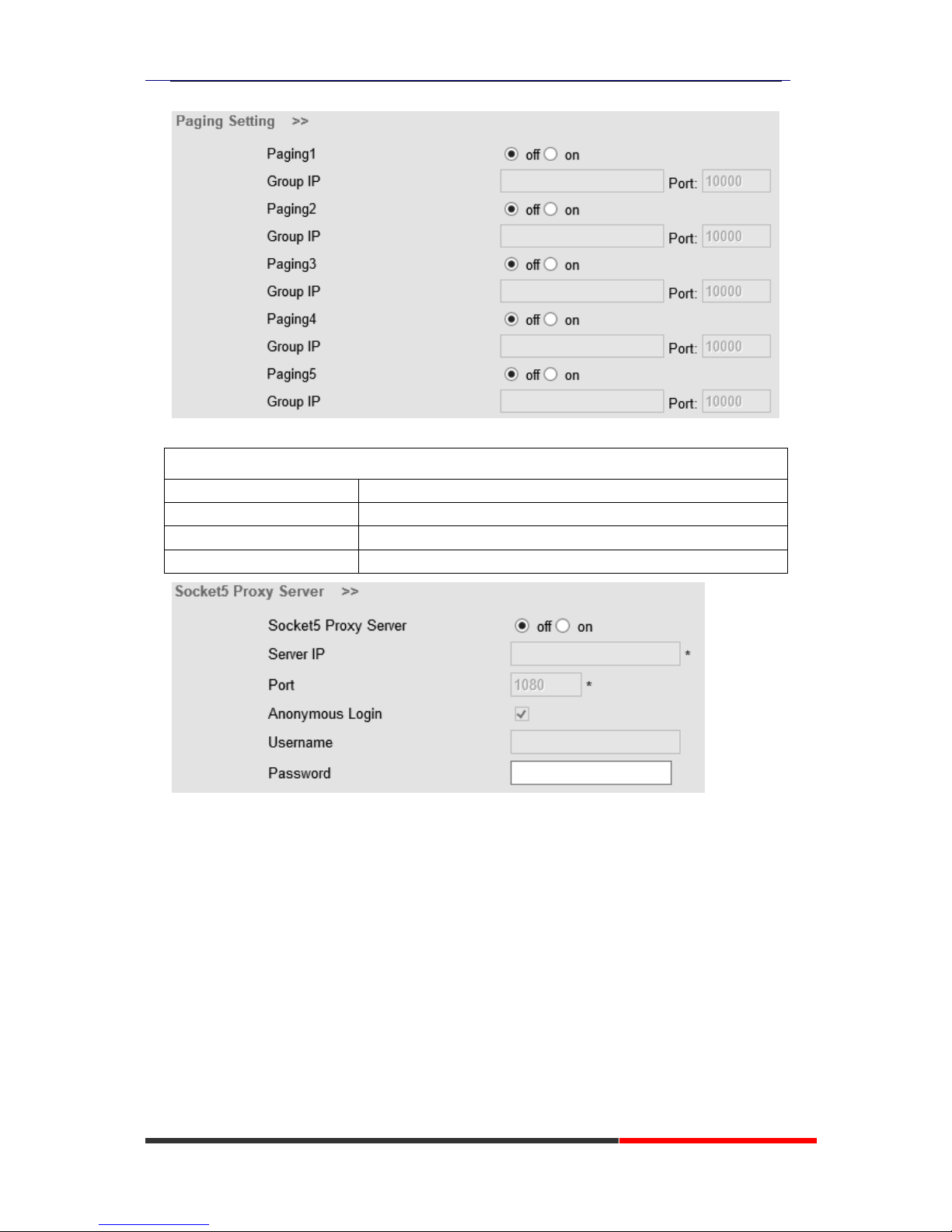
Paging settings
Paging Setting(NOTE: This feature priority is followed the serial number, In other words,
"paging1" is the highest priority)
Page 40
620 Series IPPhone
www.escene.cn/en/
Escene Communication Co.,Ltd
Socket5 Proxy Server
Socket5 Proxy Server
Socket5 Proxy Server
Enable/Disable Socket5 Proxy Server.
Server IP
Socket5 Proxy Server IP address.
Port
Socket5 Proxy Server port, default is 1080.
Anonymous Login
Enable/Disable Socket5 Proxy Server login userame.
SIP Account
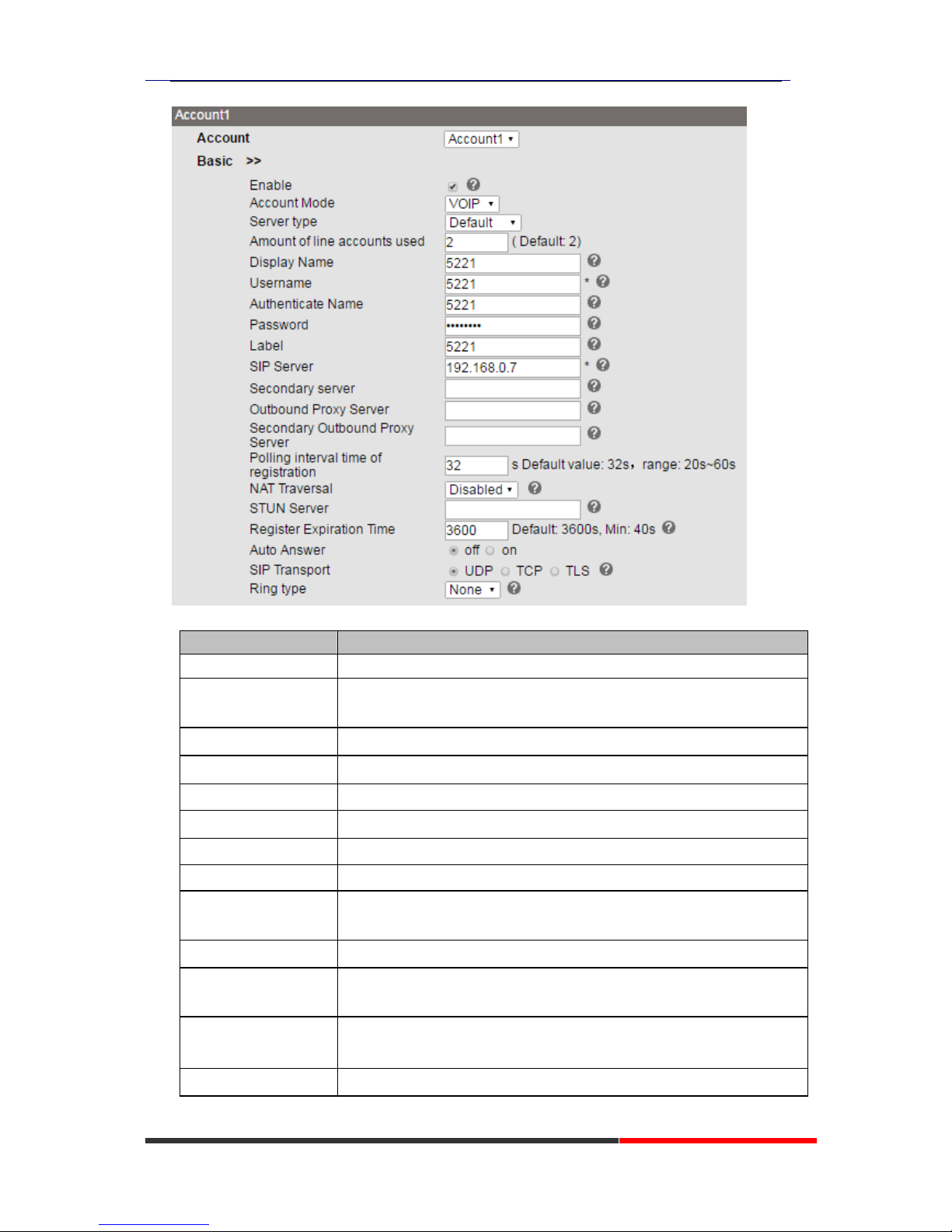
The phone attempts to register to the SIP server using the account/registrar data provided by the
automatic or manual initialization.
Basic
Page 41
620 Series IPPhone
www.escene.cn/en/
Escene Communication Co.,Ltd
Choose one Account, you will find the following parameters:
ITEM
DECSRIPTIO
Enable
You can choose on/off to enable/disable the line.
Account Mode
You can choose VOIP/PSTN, but this model nonsupport PSTN, If you
need, Pls contact us to buy another model that can supports PSTN.
Display Name
It is showed as Caller ID when making a phone call
Username
It is a username provided by SIP Server
Authenticate Name
It is authenticated ID for authentication
Password
It is a password provided by SIP Server
Label
Label with this account.
SIP Server
Server for registration, provided by administrator
Secondary server
When the main server can't work, it also can register in this secondary
server.
Outbound Proxy Server
Put into the address with the outbound proxy server.
Secondary Outbound
Proxy Server
When the main out bound server can't work, it also can use this secondary
server.
Poling Interval Time Of
Registration
Poling Interval Time Of Registration, default is 32 s.
NAT Traversal
Defines the STUN server will be active or not
Page 42
620 Series IPPhone
www.escene.cn/en/
Escene Communication Co.,Ltd
STUN Server
Session traversal utilities for NAT.
Register Expire Time
IP phone automatically registered every time
SIP Transport
There are UDP/TCP/TLS three options
Ring Type
Select this account ringing type.
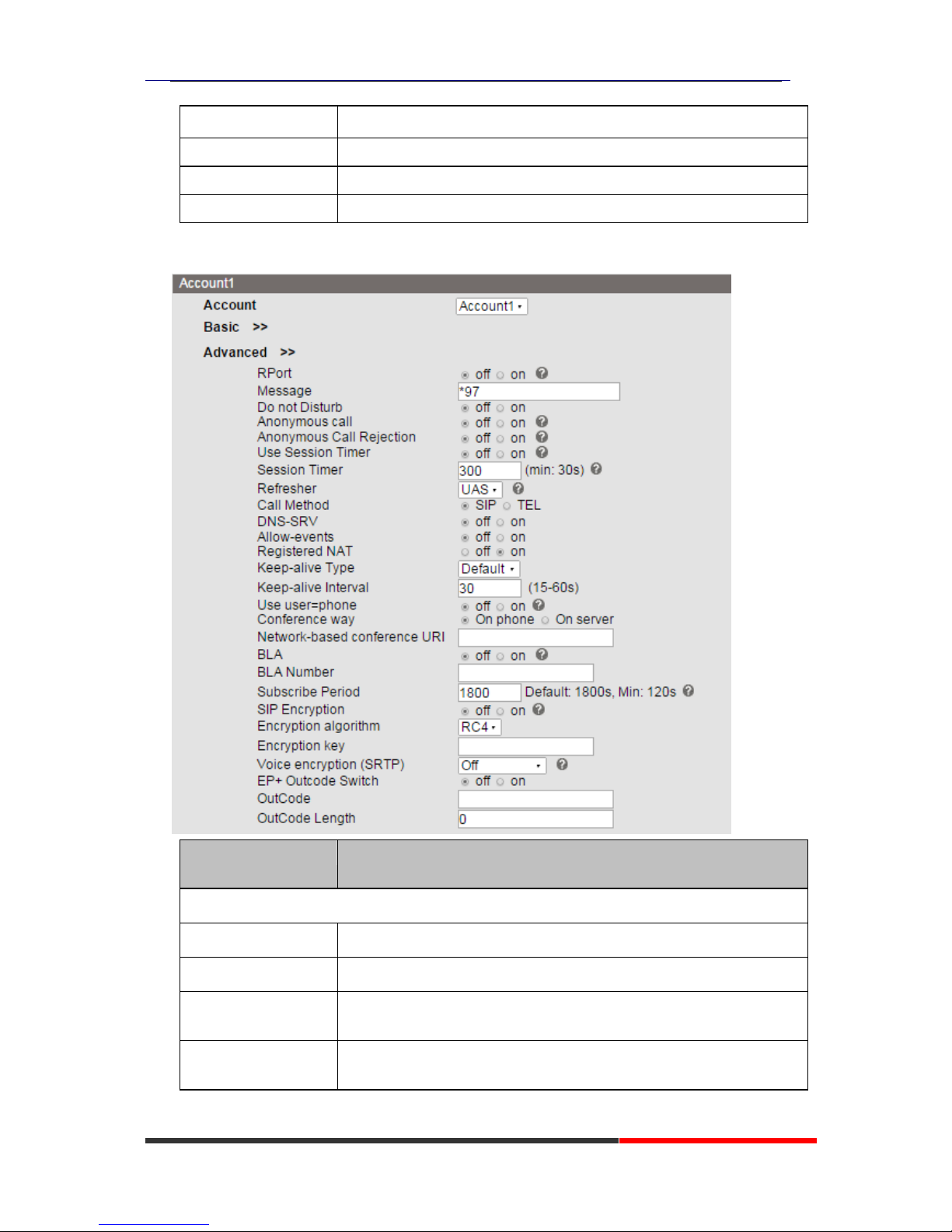
Advanced
ITEM
DECSRIPTIO
N
Call
Do Not Disturb
Enable/Disable Do Not Disturb
Anonymous Call
Enable/Disable anonymous call.
Anonymous Call
Rejection
Enable/Disable anonymous call rejection.
Use Session Timer
Enable/Disable refresh session function. The device will send an Invite
packet to refresh the session during a call if it enable.
Page 43

620 Series IPPhone
www.escene.cn/en/
Escene Communication Co.,Ltd
Session Timer
The refresh session time interval.
Call Method
This method include SIP and TEL.
DNS-SRV
Enable/Disable DNS-SRV.
Allow-events
Enable/Disable Allow-events.
Registered NAT
Enable/Disable Registered to NAT
Keep-alive Type
Select keep alive type.
Keep-alive Interval
Default is 30 second.
BLA
Share with the line.
BLA Number
BLA Number
Subscribe Period
Subscribe expire time.
ITEM
DECSRIPTIO
N
Security
SIP Encryption
Enable/Disable SIP encryption.
Encryption Algorithm
The encryption algorithm at this time we only have RC4.
Encryption Key
The key with encryption.
Voice encryption
(SRTP)
Enable/Disable voice encryption(SRTP).
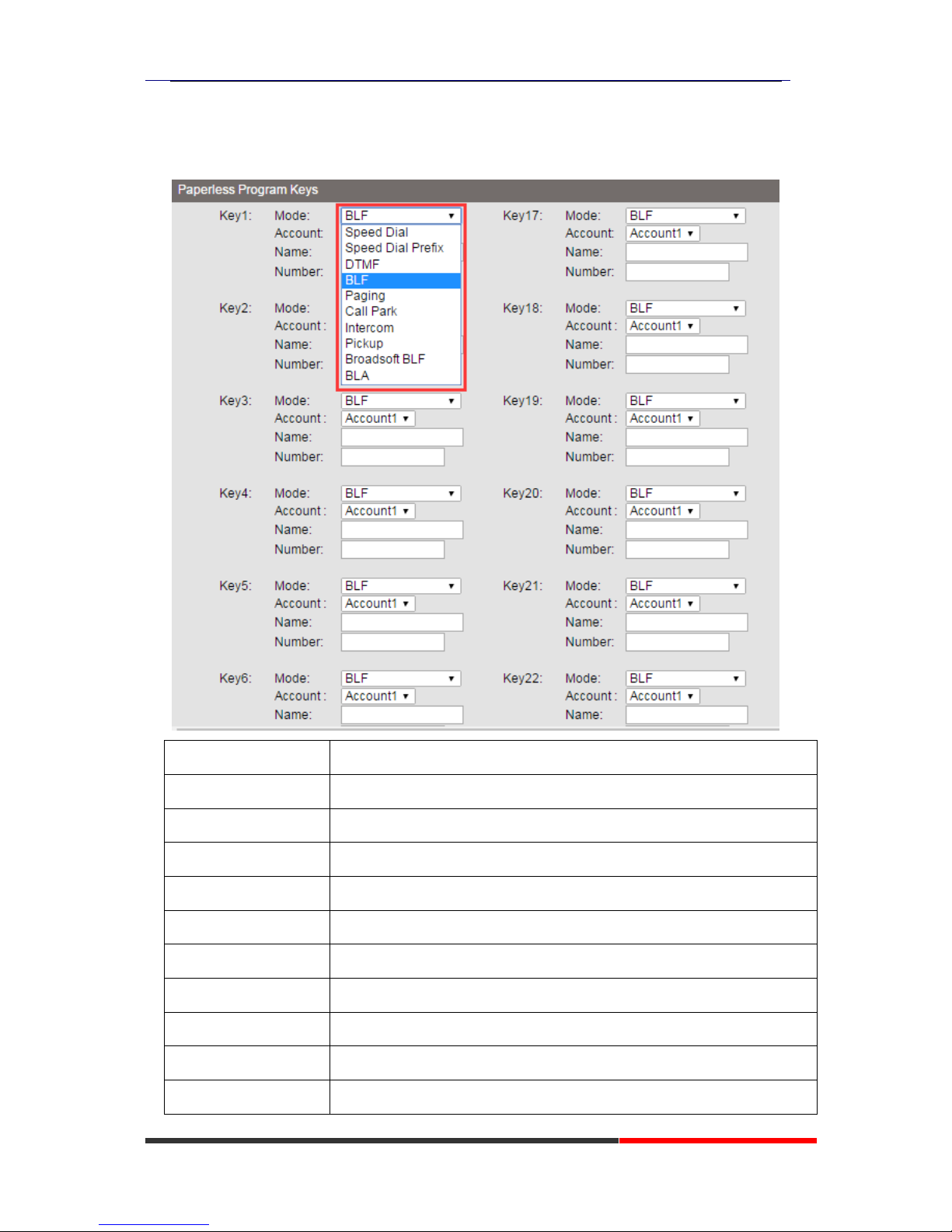
Programmable Keys
Page 44
620 Series IPPhone
www.escene.cn/en/
Escene Communication Co.,Ltd
Paperless Program Keys
Item
Description
Speed Dial
Use specific Key as Speed Dial key
Speed Dial Prefix
Use specific Key as Speed Dial Prefix key
DTMF
Use specific Key as DTMF key
BLF
Use specific Key as BLF key
Paging
Use specific Key as Paging key
Call Park
Use specific Key as call park key
Intercom
Use specific Key as intercom key
Pickup
Use specific Key as pickup key
Broadsoft BLF
Use specific Key as Broadsoft BLF key
BLA
Use specific Key as BLA key
Page 45
620 Series IPPhone
www.escene.cn/en/
Escene Communication Co.,Ltd
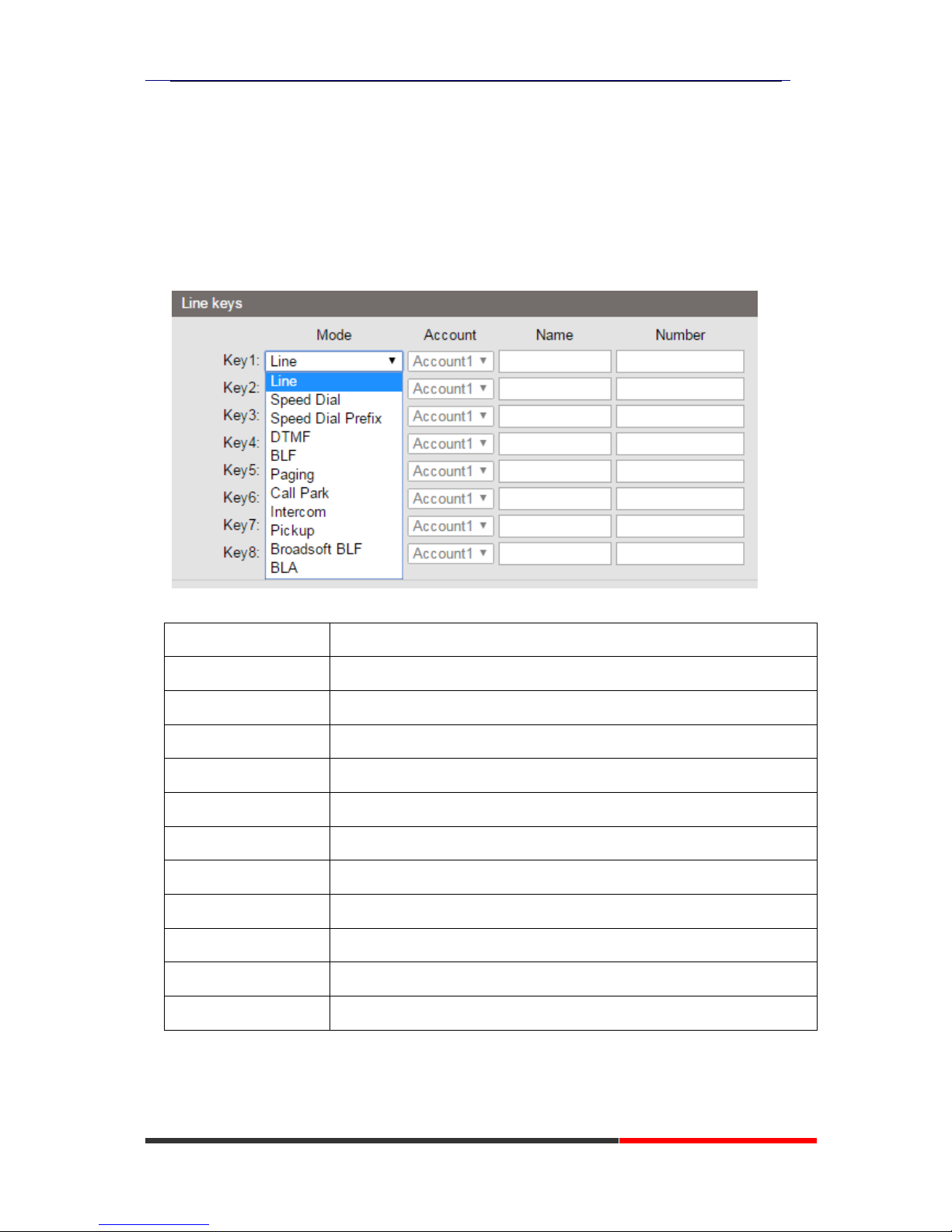
Line keys
In the Programmable Keys option, you can use all the 8 line keys of ES620 as programmable
keys.
Choose Programmable Keys,you will find the following parameters:
Item
Description
Line
Use specific Key as Line key,default is Line key
Speed Dial
Use specific Key as Speed Dial key
Speed Dial Prefix
Use specific Key as Speed Dial Prefix key
DTMF
Use specific Key as DTMF key
BLF
Use specific Key as BLF key
Paging
Use specific Key as Paging key
Call Park
Use specific Key as call park key
Intercom
Use specific Key as intercom key
Pickup
Use specific Key as pickup key
Broadsoft BLF
Use specific Key as Broadsoft BLF key
BLA
Use specific Key as BLA key
Page 46
620 Series IPPhone
www.escene.cn/en/
Escene Communication Co.,Ltd
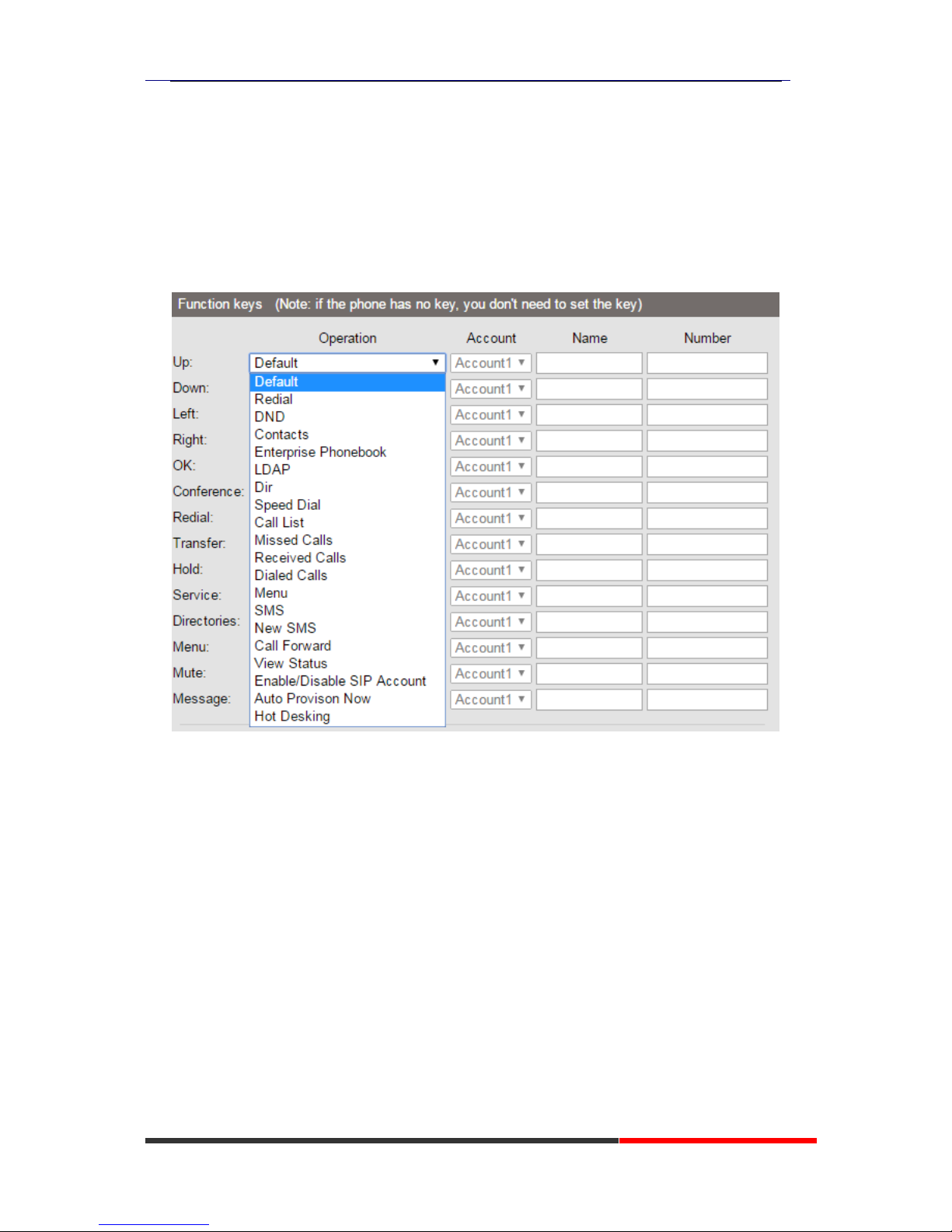
Function keys
Function Keys: If you do not like the default setting with the function keys feature. You can
change to whatever you like.
NOTE: IF THE PHONE WITHOUT THE KEY, YOU CAN IGNORE IT.
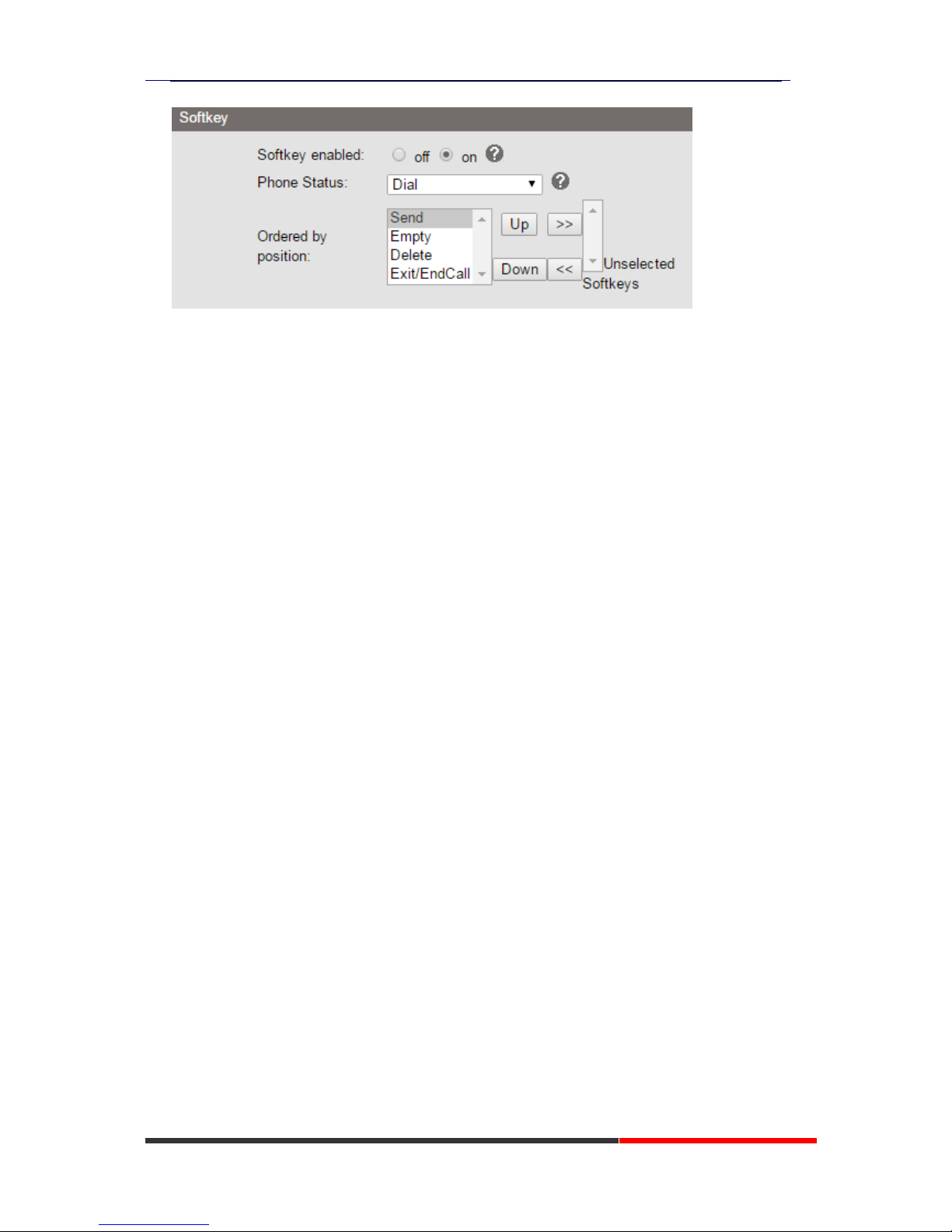
Softkey
Soft Keys: Soft key is the key with below display in the LCD. You can change it for your mind to
the other features in many all kinds of status. As below example, when you dialing with someone,
the LCD display soft key is Send \Del \Empty\End, Empty means nothing in it.
Page 47
620 Series IPPhone
www.escene.cn/en/
Escene Communication Co.,Ltd
EX Module
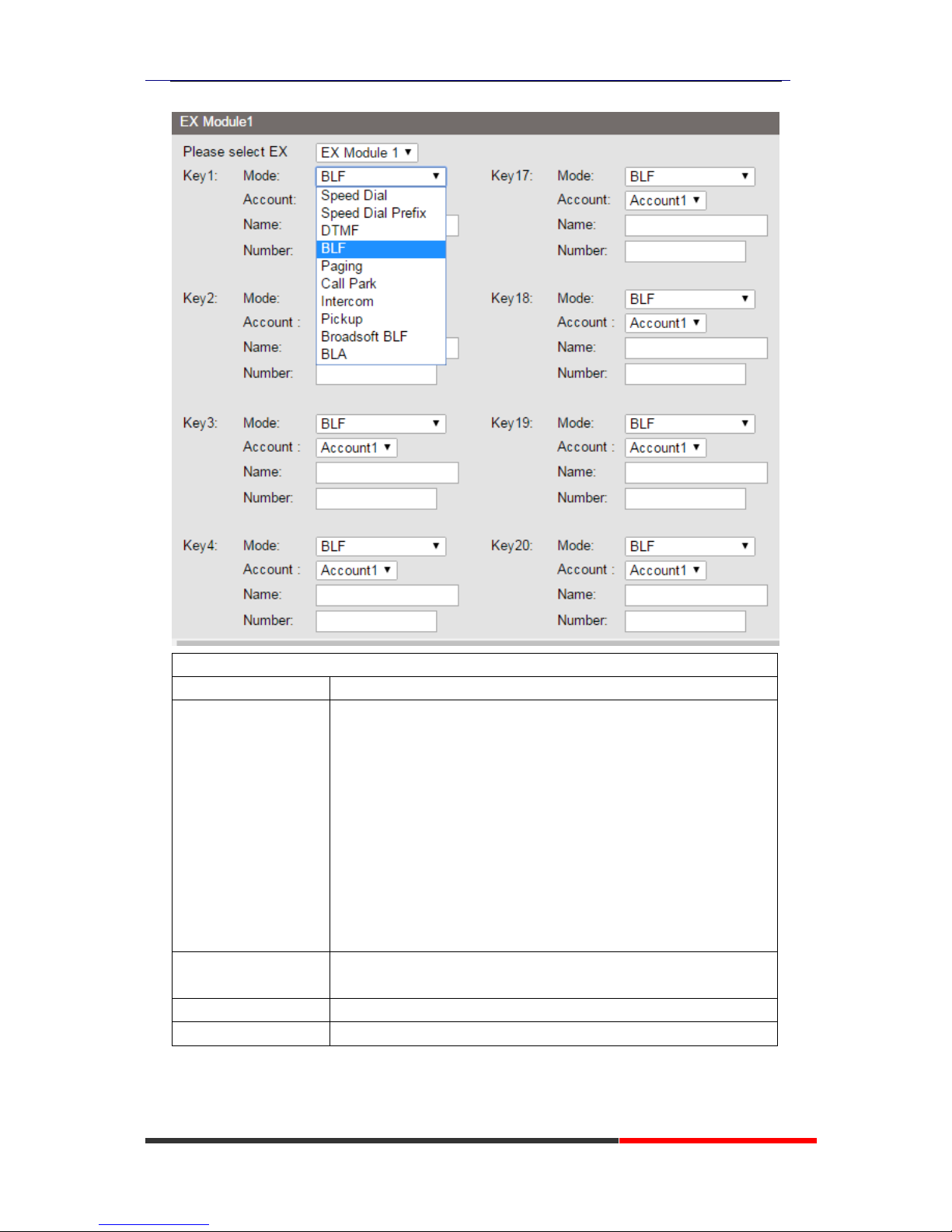
Setting extend modules and its programmable keys in here.
Expansion module is extended Hotline function; you can believe it support more hotline by using
Expansion module. You can refer to 2.Connecting Your Phone about connecting of Expansion
module.
After connecting Expansion module to a phone, you can install it as follow:
After installing, you can set parameters of each Extension as follow:
Page 48
620 Series IPPhone
www.escene.cn/en/
Escene Communication Co.,Ltd
Ex Module
Key n
Each Expansion module supports ESM32 & ESM20-LCD .
Mode
Five modes:
--Speed Dial: Enable speed dialing in this key;
--Speed Dial Prefix
--DTMF
-- BLF: Enable BLF in this key;
-- Paging
-- Call Park
-- Intercom
-- Pickup
-- Broadsoft BLF
--BLA
Account
A SIP account relates to this key, another word, you will call this
hotline by this SIP account.
Name
Description of this hotline.
Number
Number relates to this key.
*Regarding the settings of Expansion module, please confirm the model of your phone is
GS/WS/ES620_E.
Page 49
620 Series IPPhone
www.escene.cn/en/
Escene Communication Co.,Ltd
Phone Setting
Basic
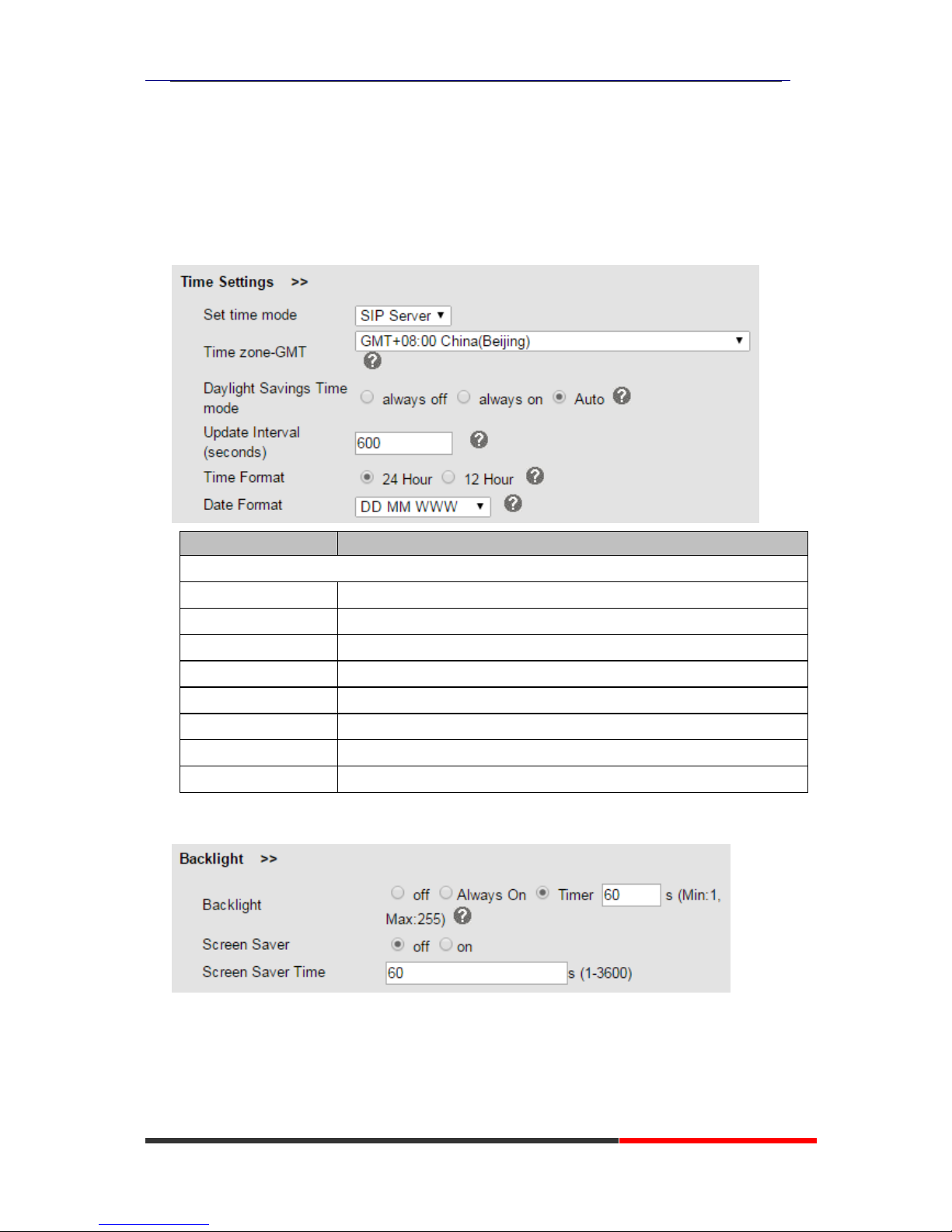
Time Settings
ITEM
DECSRIPTIO
Time Settings
Set Time Mode
Include SNTP/SIP Server/PSTN/Manual
SNTP Server
You can select in the list or input owner server address.
Update Interval
The update interval with SNTP.
Day Light Saving Time
Enable/disable the DST for the phone
Time Format
You can use 24 hour time format or 12 hour time format
Date Format
You can choose the appropriate time format.
Time Zone-GMT
You can select different time zone for the phone
Manual Setting
Setting time manually.
Backlight
Keyboard Lock
Page 50
620 Series IPPhone
www.escene.cn/en/
Escene Communication Co.,Ltd
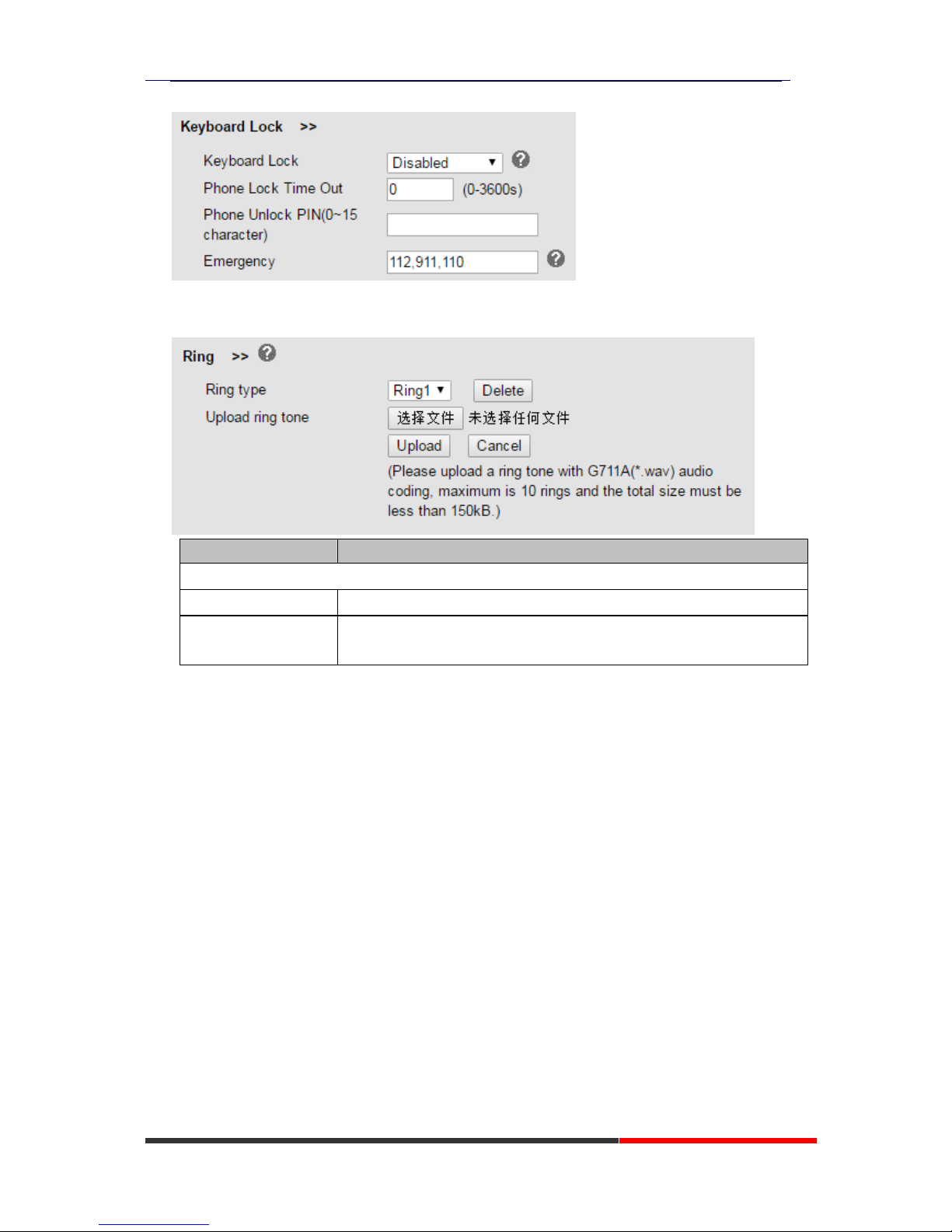
Ring
ITEM
DECSRIPTIO
Ring
Ring Type
Select the ring type. Default is Ring 1.
Uploading Ring Tone
Please upload a ring tone with G711A audio coding, Maximum 10 rings
and the total sizes must less than 150k.
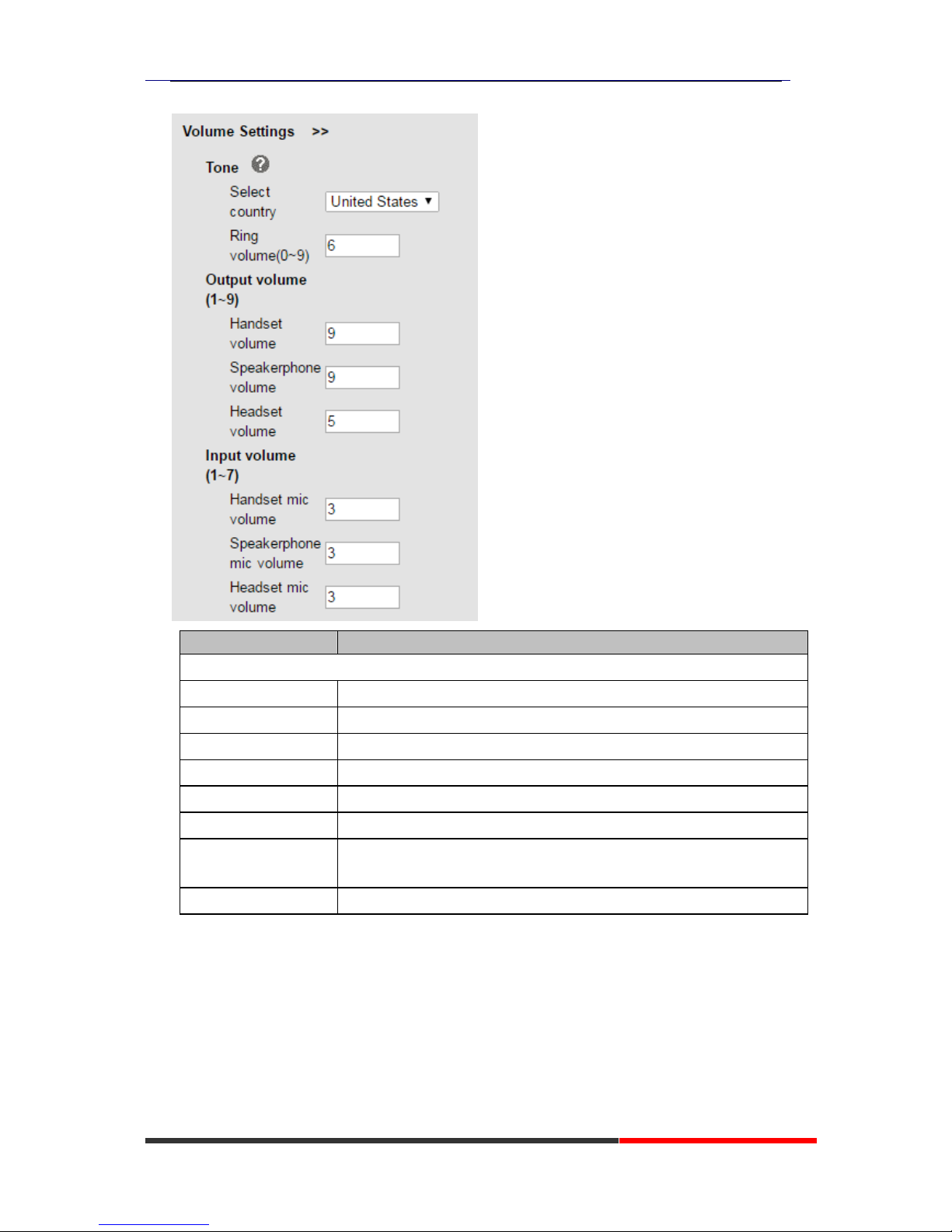
Volume Settings
Page 51
620 Series IPPhone
www.escene.cn/en/
Escene Communication Co.,Ltd
ITEM
DECSRIPTIO
Basic
Select Country
Select the country dial tone. Default is United States.
Ring Volume
The ring volume default is Lv3, the range is 0~9.
Handset Volume
The handset volume default is Lv5, the range is 1~9.
Speaker Phone Volume
The speaker volume default is Lv5, the range is 1~9.
Headset Volume
The headset volume default is Lv3, the range is 1~9.
Handset MIC Volume
The handset MIC volume default is Lv3, the range is 1~7.
Speaker Phone MIC
Volume
The speaker MIC volume default is Lv3, the range is 1~7
Headset MIC Volume
The headset MIC volume default is Lv3, the range is 1~7
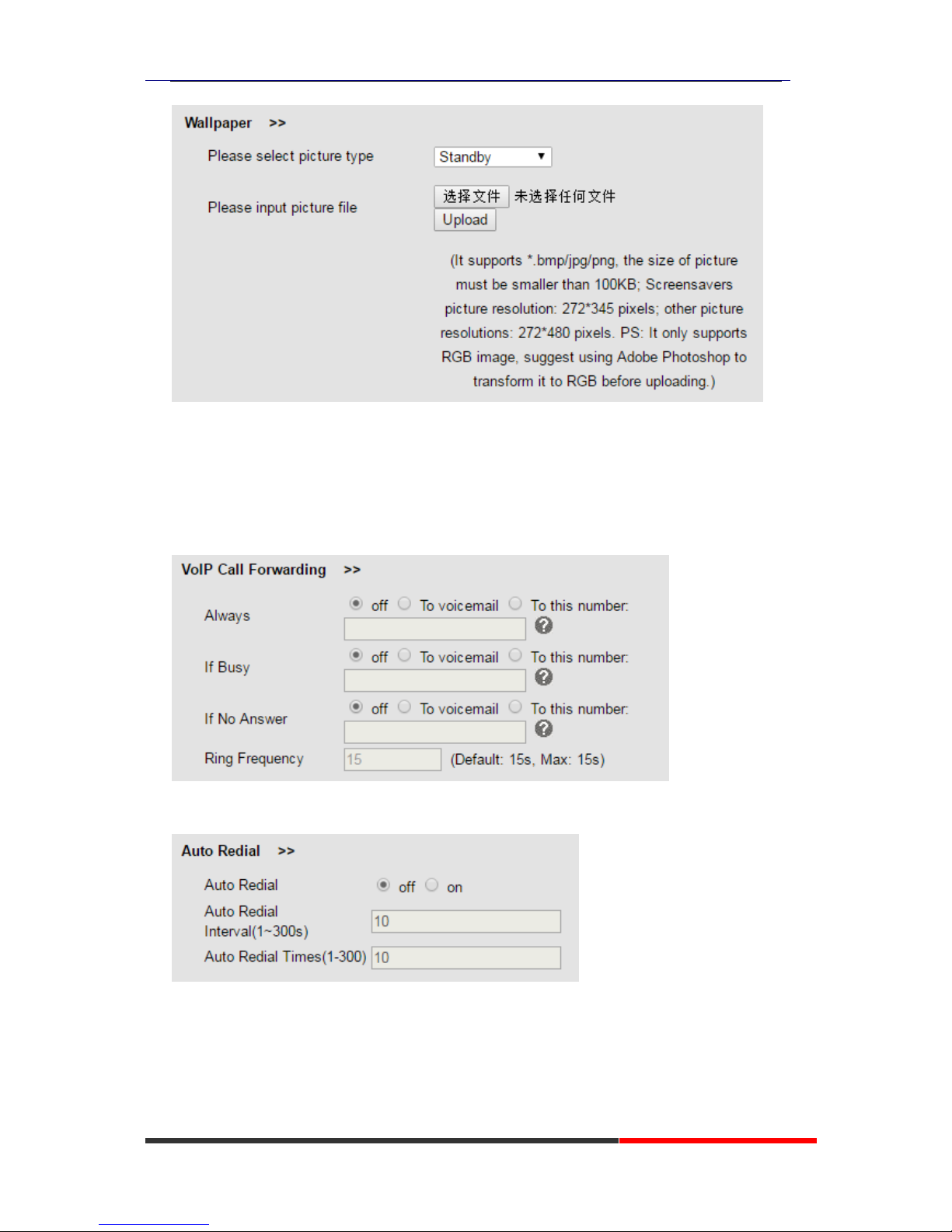
Wallpaper
Page 52
620 Series IPPhone
www.escene.cn/en/
Escene Communication Co.,Ltd
Featuers
VoIP Call Forwarding
Auto Redial
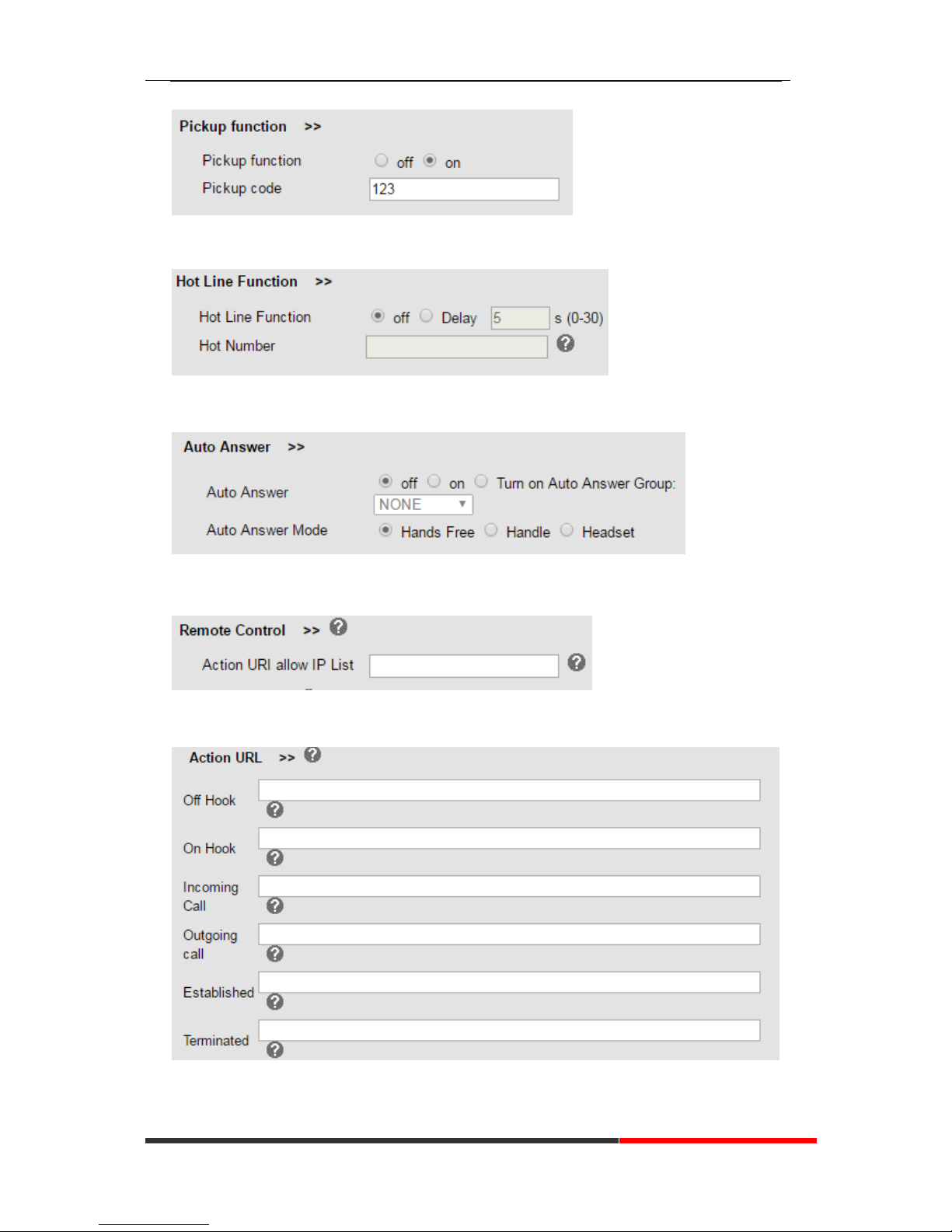
Pickup function
Page 53
620 Series IPPhone
www.escene.cn/en/
Escene Communication Co.,Ltd
Hot Line Function
Auto Answer
Remote Control
Action URL
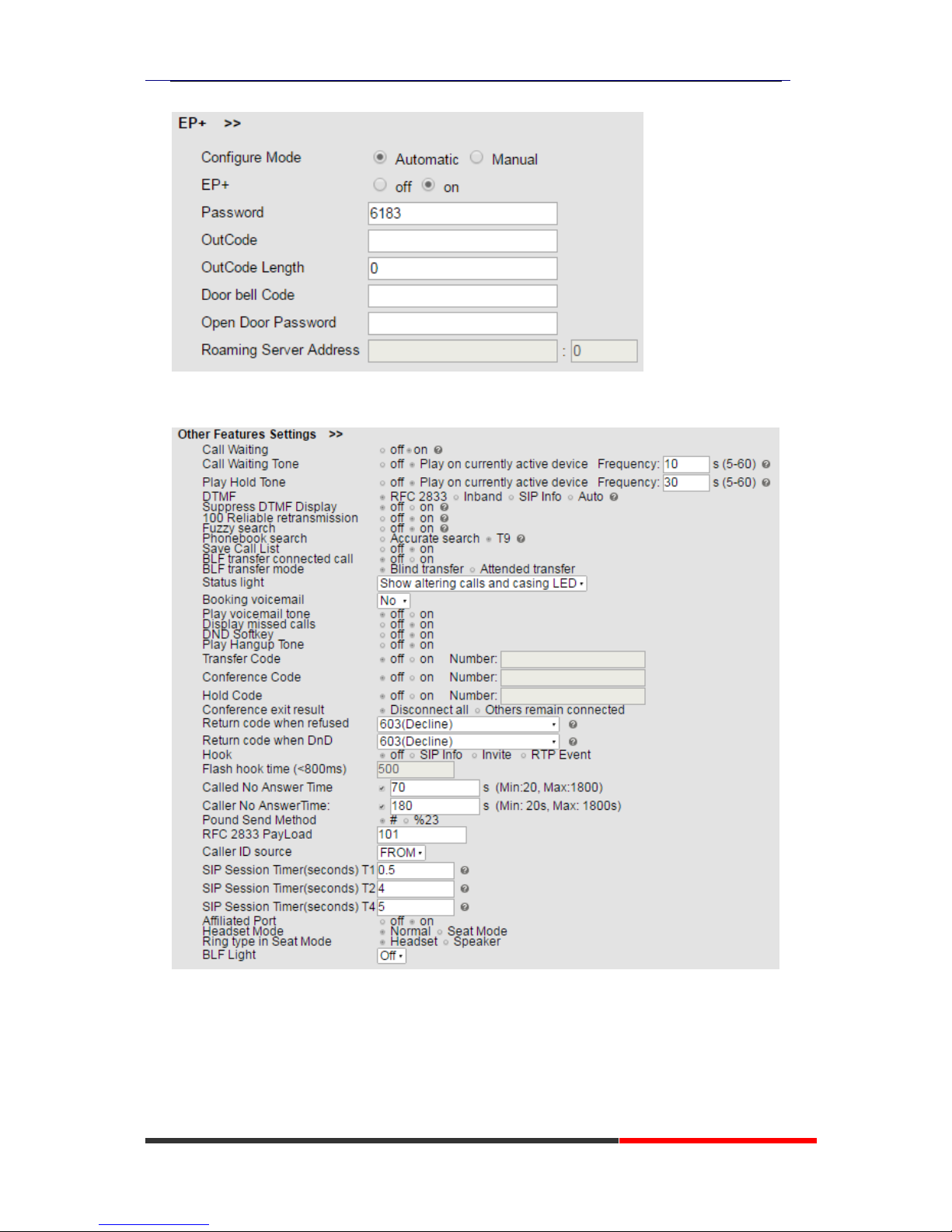
EP+
Page 54
620 Series IPPhone
www.escene.cn/en/
Escene Communication Co.,Ltd
Other Features Settings
Page 55
620 Series IPPhone
www.escene.cn/en/
Escene Communication Co.,Ltd
Advanced
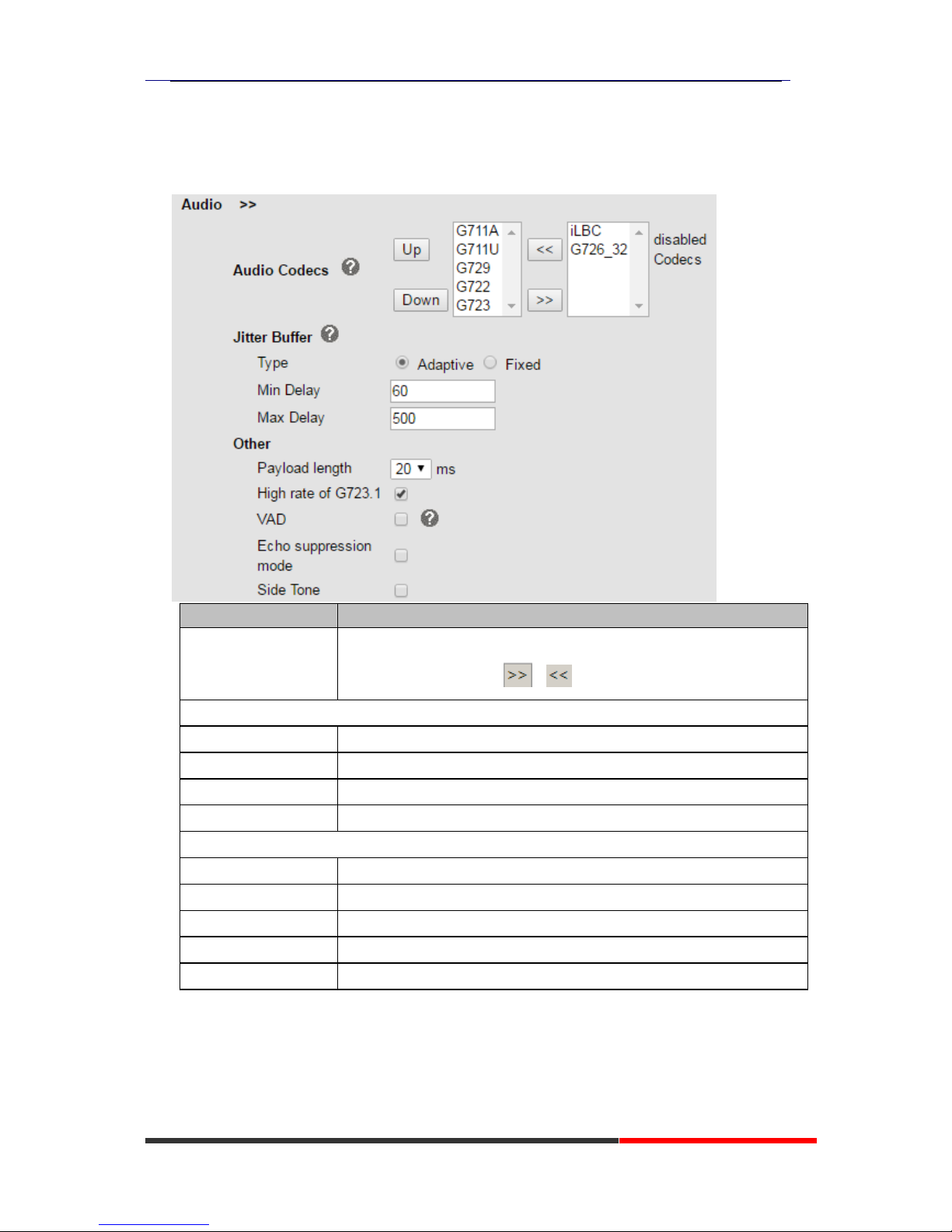
Audio
ITEM
DECSRIPTIO
Audio Codec
Use the navigation keys to highlight the desired one in the Enabled/Disable
Codes list, and press the / to move to the other list.
Jitter Buffer
Type
The type of Jitter Buffer is Adaptive or Fixed, default is adaptive.
Min Delay
The min delay range setting , default is 60.
Max Delay
The max delay range setting , default is 150.
Normal Delay
The normal delay range setting , default is 120.
Other
Play Load Length
The play load length setting, default is 30ms.
High Rate Of G723.1
Enable/Disable High Rate of G723.1 feature.
VAD
Enable/Disable VAD feature.
Echo Suppression Mode
Enable/Disable Echo Suppression Mode feature.
Side Tone
Enable/Disable Side Tone feature.
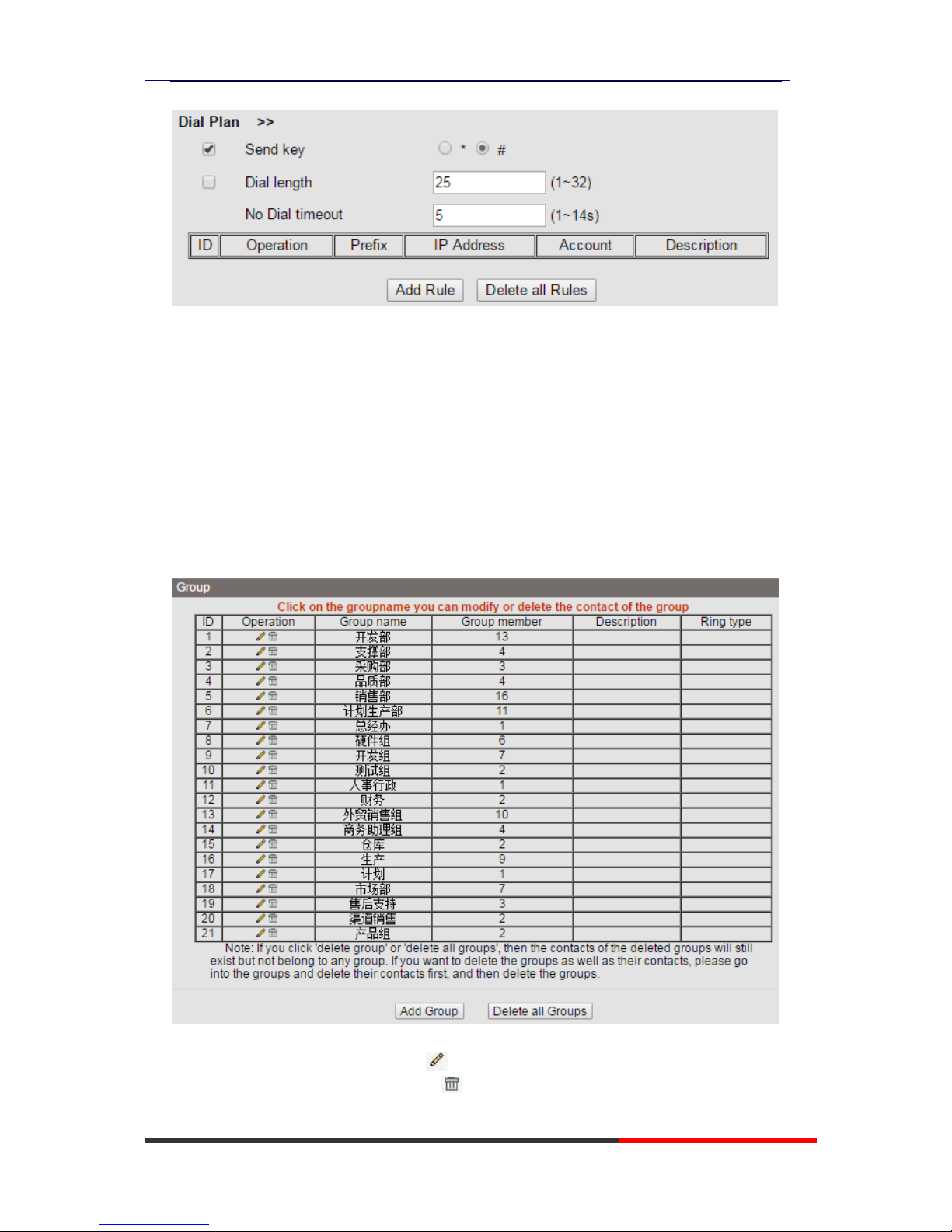
Dial Plan
Page 56
620 Series IPPhone
www.escene.cn/en/
Escene Communication Co.,Ltd
Phone Book
Group
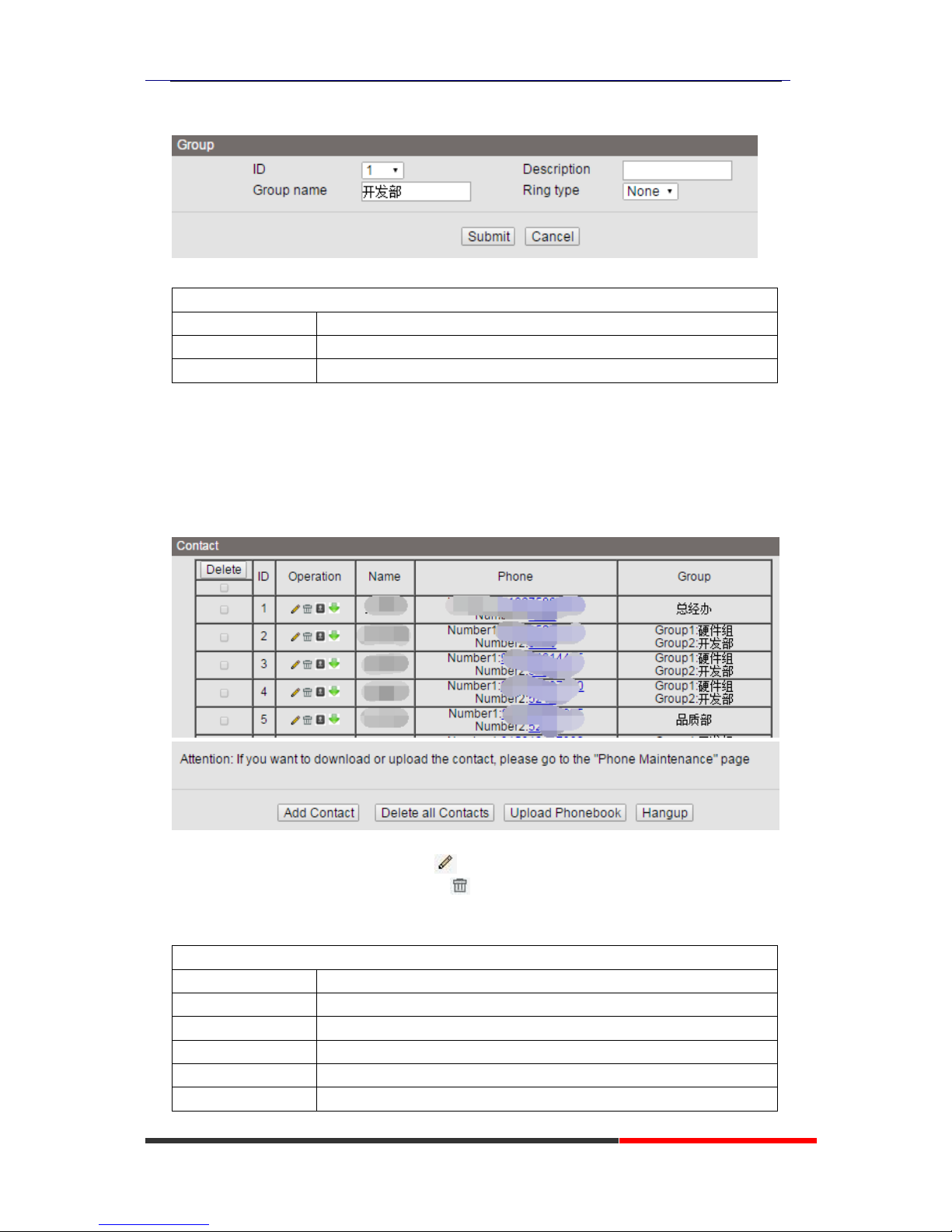
You can add, edit and delete group in a phone book on web page of ES620.
1) Click “Phone Book” > “Group”,
If you want to add a Group, you just ought to click „Add Group‟ .
You can edit an existed Group by click .
You can delete an existed Group by click , if you want to delete all Groups, you just ought to
click ‟Delete All Group‟.
Page 57
620 Series IPPhone
www.escene.cn/en/
Escene Communication Co.,Ltd
2) When you add a group or edit an existed group, you can set several parameters as follow:
Group
ID
Serial number of a group
Description
Description of a group
Group Name
Name of a group
Contact
You can add, edit and delete contact in a phone book on web page of ES620.
The phonebook can storage 300 contact entry.
1) Click “Phone Book” > “Contact”,
If you want to add a Group, you just ought to click „Add Contact‟.
You can edit an existed Contact by click .
You can delete an existed Contact by click , if you want to delete all Contacts, you just ought
to click ‟Delete All Contact‟.
2) When you add a Contact or edit an existed Contact, you can set several parameters as follow:
Contact
Serial Number
Serial number of a contact
First Name
The First Name of a contact
Last Name
The Last Name of a contact
Mobile Number
The Number1 phone number of a contact
Office Number
The Number2 phone number of a contact
OtherNumber
The Number3 phone number of a contact
Page 58

620 Series IPPhone
www.escene.cn/en/
Escene Communication Co.,Ltd
Group
You can assign a contact to a specific group. If there isn‟t any group set
on the phone, the group is None by default.
Account
Select a SIP account relating this contact, that is you can dial to the
contact from this SIP account.
LDAP
1).
Over
view
LDAP stands for Lightweight Directory Access Protocol which is a client-server protocol
for accessing a directory service. LDAP lets you locate organizations, individuals, and other
resources such as files and devices in a network, whether on the Internet or on a corporate
intranet, and whether or not you know the domain name, IP address, or geographic
whereabouts.
An LDAP directory can be distributed among many servers on a network, then replicated and
synchronized regularly.
2).
Con
figuration
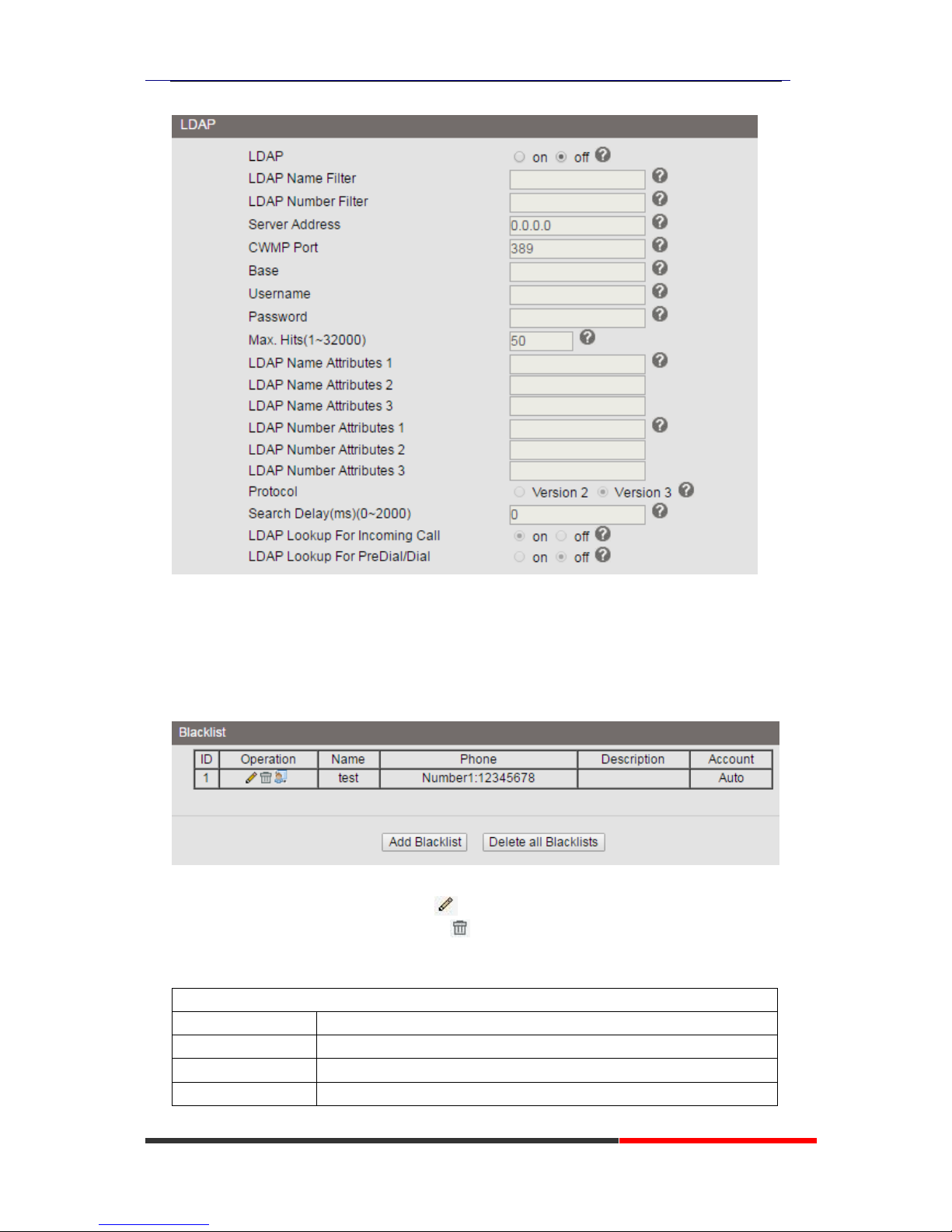
Please note that LDAP Phonebook support on ES620\ES410\ES330\ES320\ES310\ES210, the
version must be V2.2.3.1-2210 and higher, then access to the web “PhoneBook>LDAP page,
you can find the configured option is like following picture. the detail configure in the
appendix.
Page 59
620 Series IPPhone
www.escene.cn/en/
Escene Communication Co.,Ltd
BanList
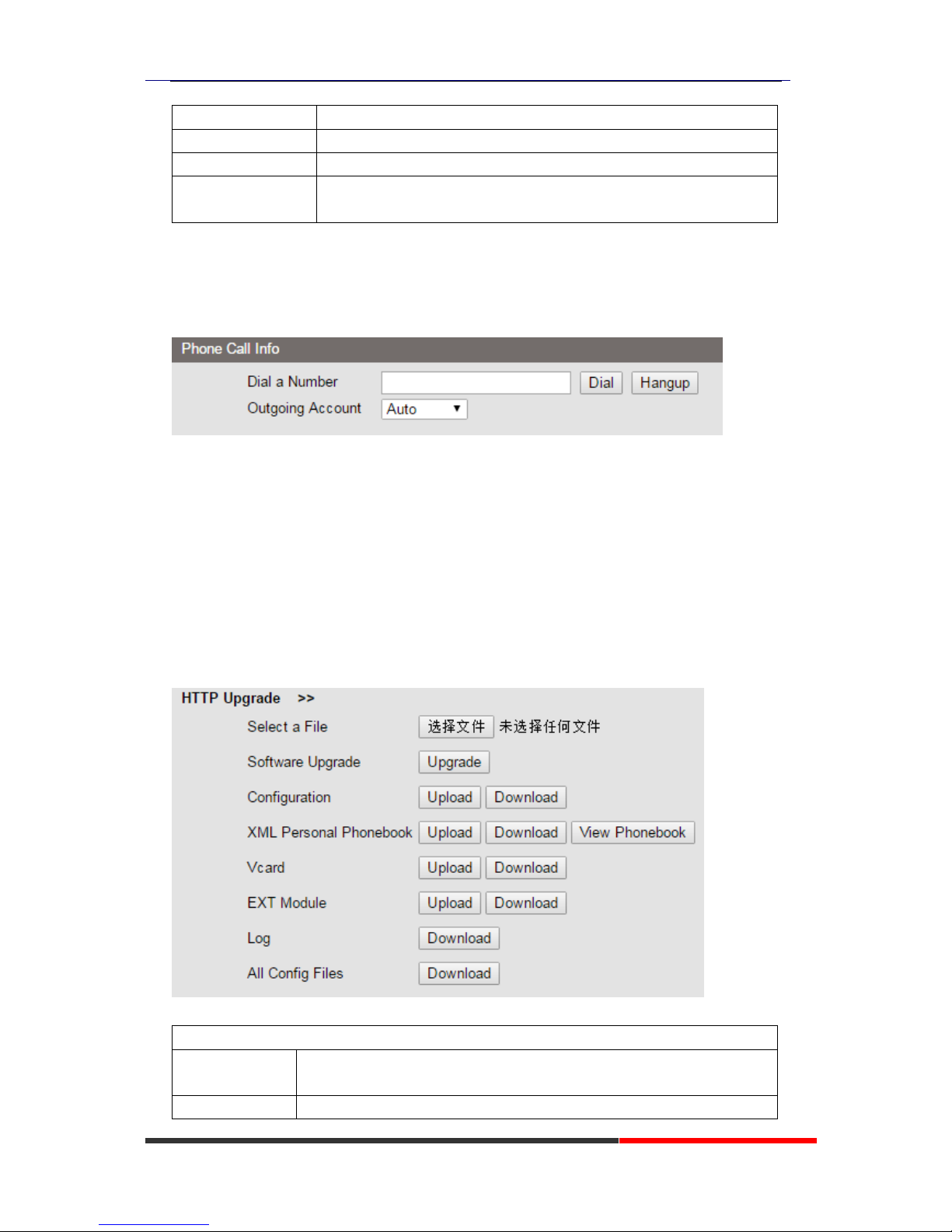
You can add, edit and delete banlist in a phone book on web page of ES620.
1) Click “PhoneBook” > “BanList”,
If you want to add a BanList, you just ought to click „Add BanList‟.
You can edit an existed BanList by click .
You can delete an existed BanList by click , if you want to delete all BanLists, you just ought
to click ‟Delete All BanList‟.
2) When you add a BanList or edit an existed BanList, you can set several parameters as follow:
BanList
Serial Number
Serial number of a BanList
Description
Description of a BanList
First Name
The First Name of a ban contact
Last Name
The Last Name of a ban contact
Page 60
620 Series IPPhone
www.escene.cn/en/
Escene Communication Co.,Ltd
Mobile Number
The number1 phone number of a ban contact
Home Number
The number2 phone number of a ban contact
Office Number
The number3 phone number of a ban contact
Account
Select a SIP account relating this ban contact, that is the ban contact
can‟t dial to this SIP account.
Phone Call Info
Phone Maintenance
Basic
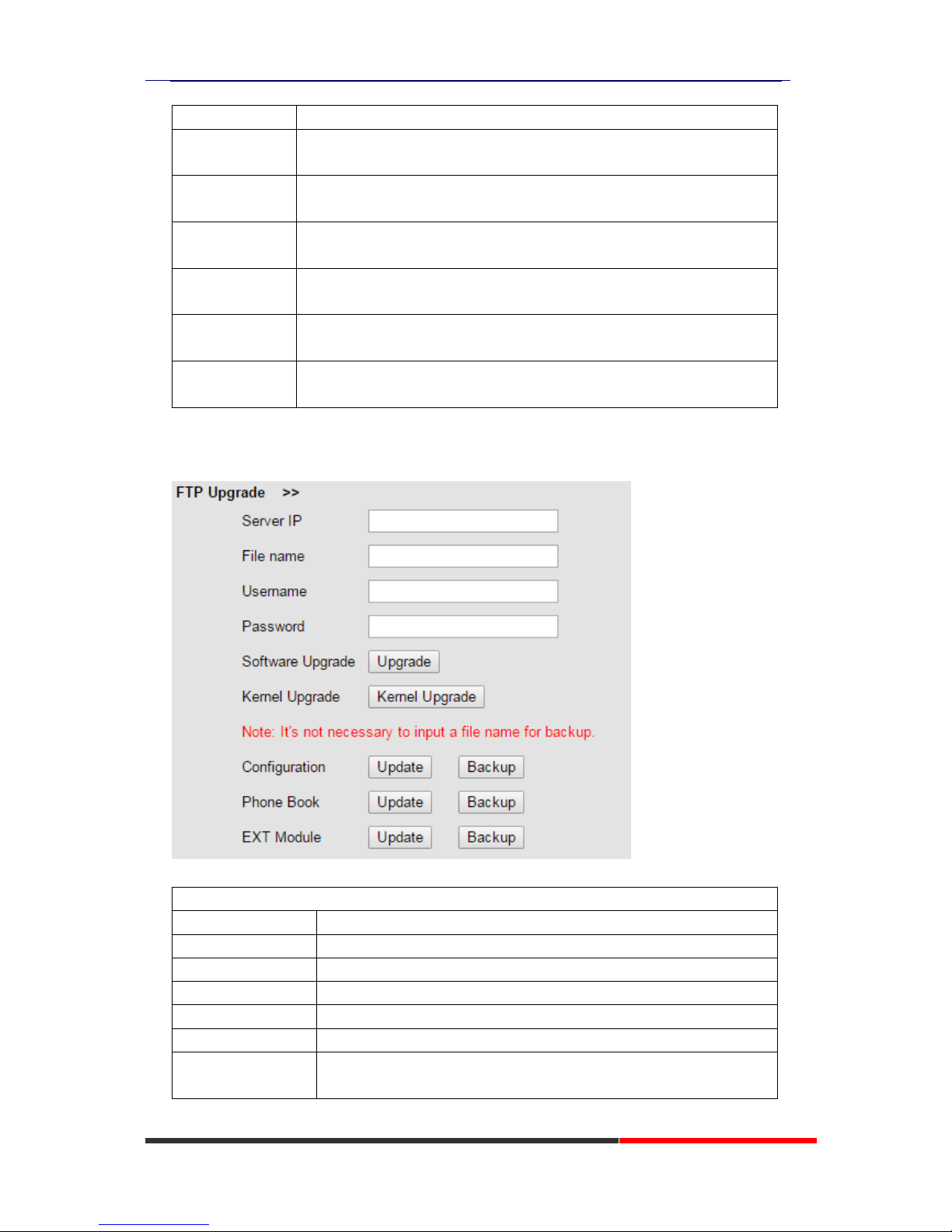
HTTP Upgrade
You can upgrade the software and configuration etc. files by HTTP.
When using HTTP upgrade, you can set several parameters as follow:
HTTP Upgrade
Select a File
Browse the software/kernel/configuration file which you need to upgrade
from HTTP
Software
Used for upgrading the software of the phone
Page 61
620 Series IPPhone
www.escene.cn/en/
Escene Communication Co.,Ltd
Upgrade
Configuration
You can used upload/download to upload/download the configure file of
the phone
XML Personal
Phonebook
Used for uploading/downloading the XML personal phonebook of the
phone
Vcard
Downloading all contacts in the Vcard mode, but upload only support one
by one.
EXT Module
Used for updating/backup the expansion of the phone
[NOTES:The mode doesn't support this feature]
Log
Used for the administrator to find out or making sure the problem with this
equipment.
All Config File
All Config File includes: Configuration, Extern, Log, XML Phone book,
Enterprise Phone Book.
FTP Upgrade
You can upgrade the software and configuration etc. files by FTP.
When using FTP upgrade, you can set several parameters as follow:
FTP Upgrade
Server IP
The IP address of the FTP server
File name
Downloading from FTP server
Username
Providing by FTP server
Password
Providing by FTP server
Software Upgrade
Used for upgrading the software of the phone
Kernel Upgrade
Used for upgrading the kernel of the phone
Configuration
Used for updating/backup to update/backup the configure file of the
phone
Page 62
620 Series IPPhone
www.escene.cn/en/
Escene Communication Co.,Ltd
Phone Book
Used for updating/backup to update/backup the phonebook of the phone
EXT Module
Used for updating/backup the expansion of the phone
[NOTES:The mode doesn't support this feature]
NOTES: It's not necessary to input filename when doing backup Configuration,
Phone Book, EXT Module.
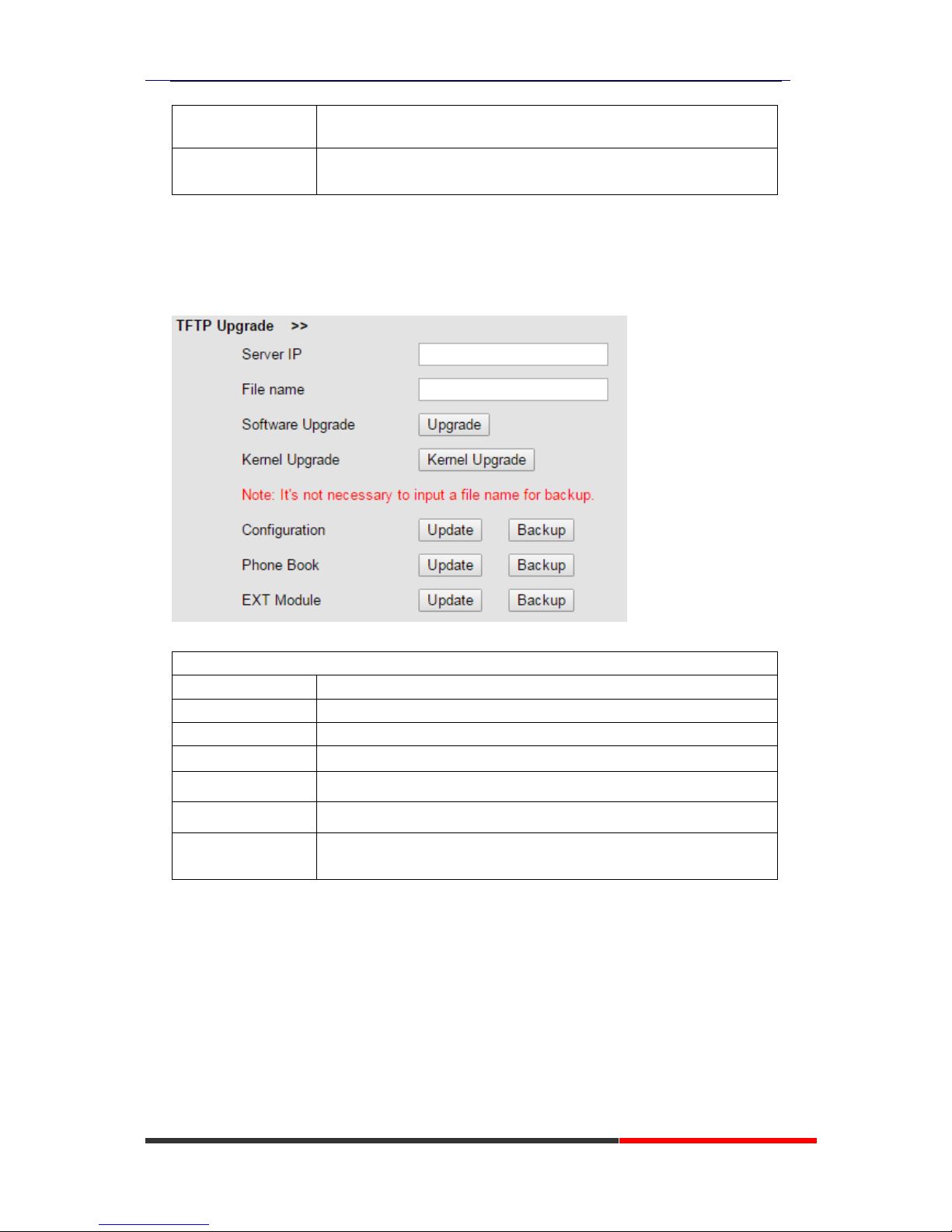
TFTP Upgrade
You can upgrade the software and configuration etc. files by TFTP.
When use TFTP upgrade, you can set several parameters as follow:
TFTP Upgrade
Server IP
The IP address of the TFTP server
Filename
Downloading from FTP server
Software Upgrade
Used for upgrading the software of the phone
Kernel Upgrade
Used for upgrading the kernel of the phone
Configuration
Used for updating/backup the configure file of the phone
Phone Book
Used for updating/backup the phonebook of the phone
EXT Module
Used for updating/backup the expansion of the phone
[NOTES:The mode doesn't support this feature]
NOTES: It's not necessary to input filename when doing backup Configuration,
Phone Book, EXT Module.
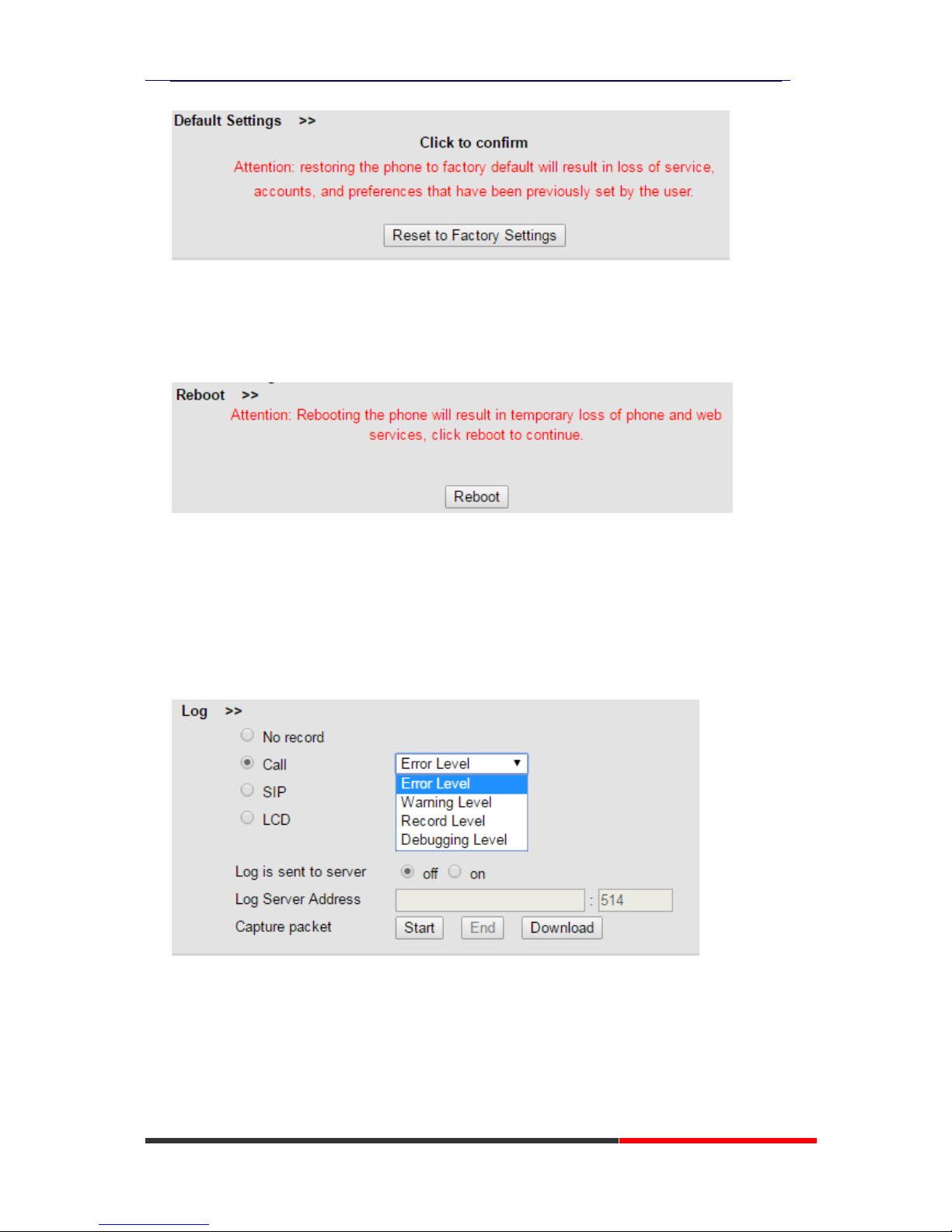
Default Settings
You can load the phone to the factory default setting in default setting option.
Page 63
620 Series IPPhone
www.escene.cn/en/
Escene Communication Co.,Ltd
Press the „Reset to Factory Setting‟ option, the phone will load to factory default setting on next
reboot.
Reboot
You can use reboot option to reboot the phone.
Advanced
Log
This feature is use for the administrator to managing the equipment, like debugging, SIP etc,. If
you need to catch a debugging Level, you need to setup on this interface.
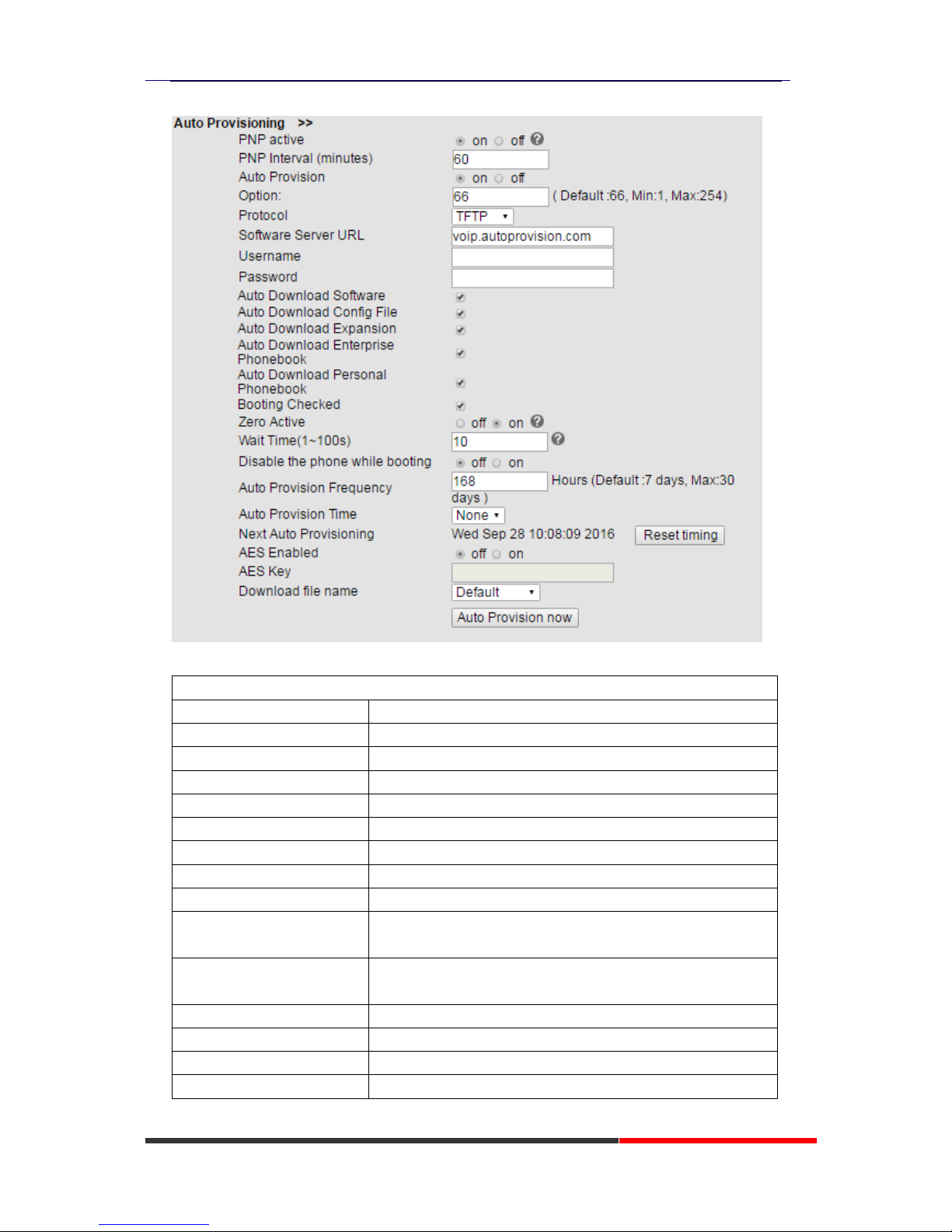
Auto Provisioning
When you open this auto provision feature, the phone will do auto provision after it detect a
different software or kernel (Higher or Lower) which are putted on the TFTP,HTTP,HTTPS,FTP,
server. For the detailed information about auto provision, you can find it in the official website:
HTTP://www.escene.cn/en
Page 64
620 Series IPPhone
www.escene.cn/en/
Escene Communication Co.,Ltd
When using auto provision, you can set several parameters as follow:
Auto Provisioning
Auto Provision
You can enable/disable auto provision by select on/off
Protocol
Used for auto provision, it includes TFTP/HTTP/FTP
Software Server URL
The server address of the auto provision
Username
Providing by provision server
Password
Providing by provision server
Auto Download Software
Used for auto download software from server
Auto Download Kernel
Used for auto download kernel from server
Auto Download Config File
Used for auto download config file from server
Auto Download Expansion
NOTES: The model doesn't support this feature.
Auto Download Enterprise
Phonebook
Used for auto download Enterprise Phonebook from server
Auto Download Personal
Phonebook
Used for auto download personal phonebook from server
Booting Checked
Used for checking the auto provision when phone booting
Zero Active
Wait Time
Disable the phone while
Enable/Disable the booting checking feature.
Page 65
620 Series IPPhone
www.escene.cn/en/
Escene Communication Co.,Ltd
booting checking
Auto Provision Frequency
Used for setting the time interval for auto provision
Auto Provision Time
Used for the specific time for auto provision
Next Auto Provisioning
Reset the Auto Provision Next Upgrading time.
AES Enable
You can enable/disable AES encrypt for auto provision
AES Key
The key of the AES
Auto Provision Now
Used for doing auto provision immediately
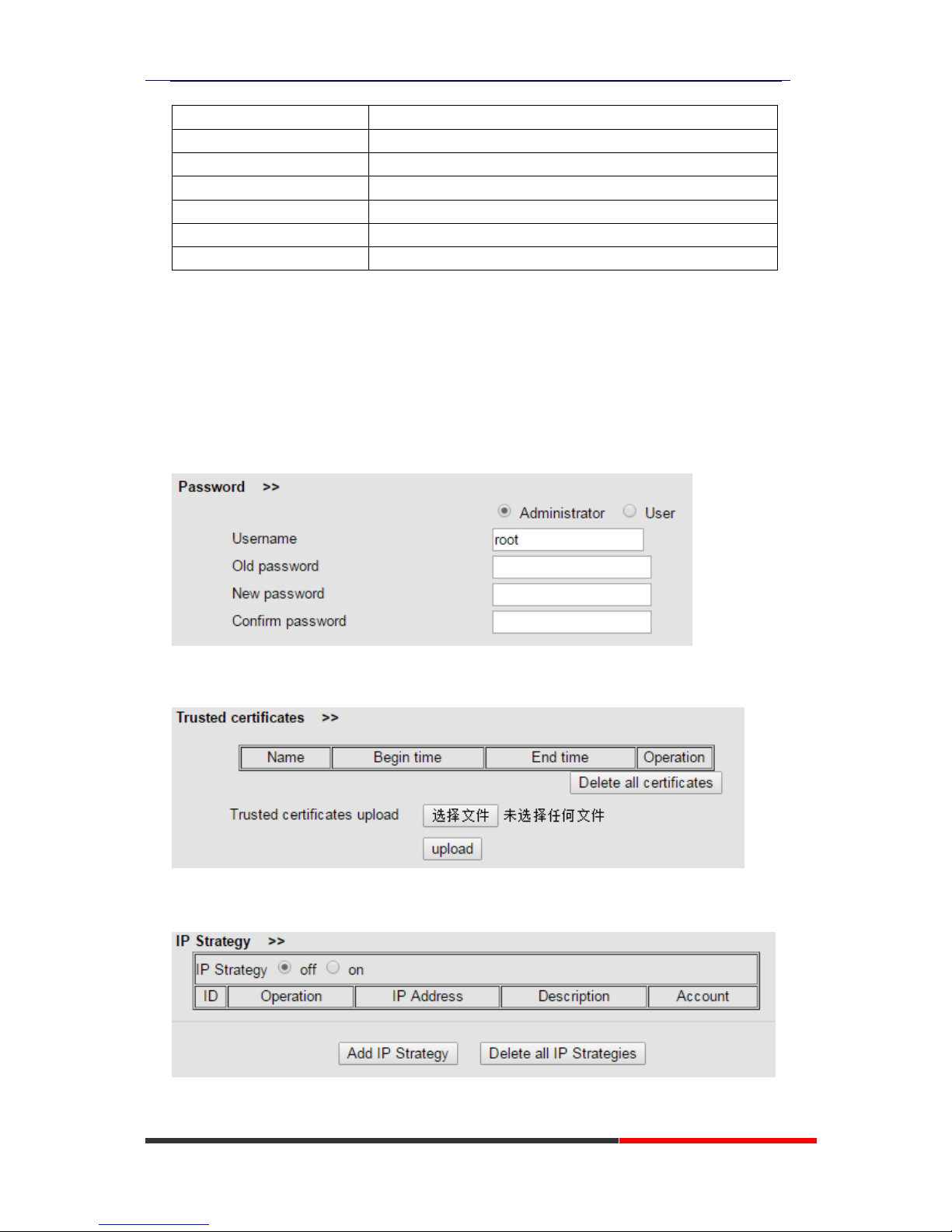
Security
Password
Here you can setting the administrator or user WEB password management. Select your type. If
you login as an administrator, you can modify both the user's and admin's passwords.
Trusted certificates
IP Strategy
Page 66
620 Series IPPhone
www.escene.cn/en/
Escene Communication Co.,Ltd
8. WEB Other Settings or Information
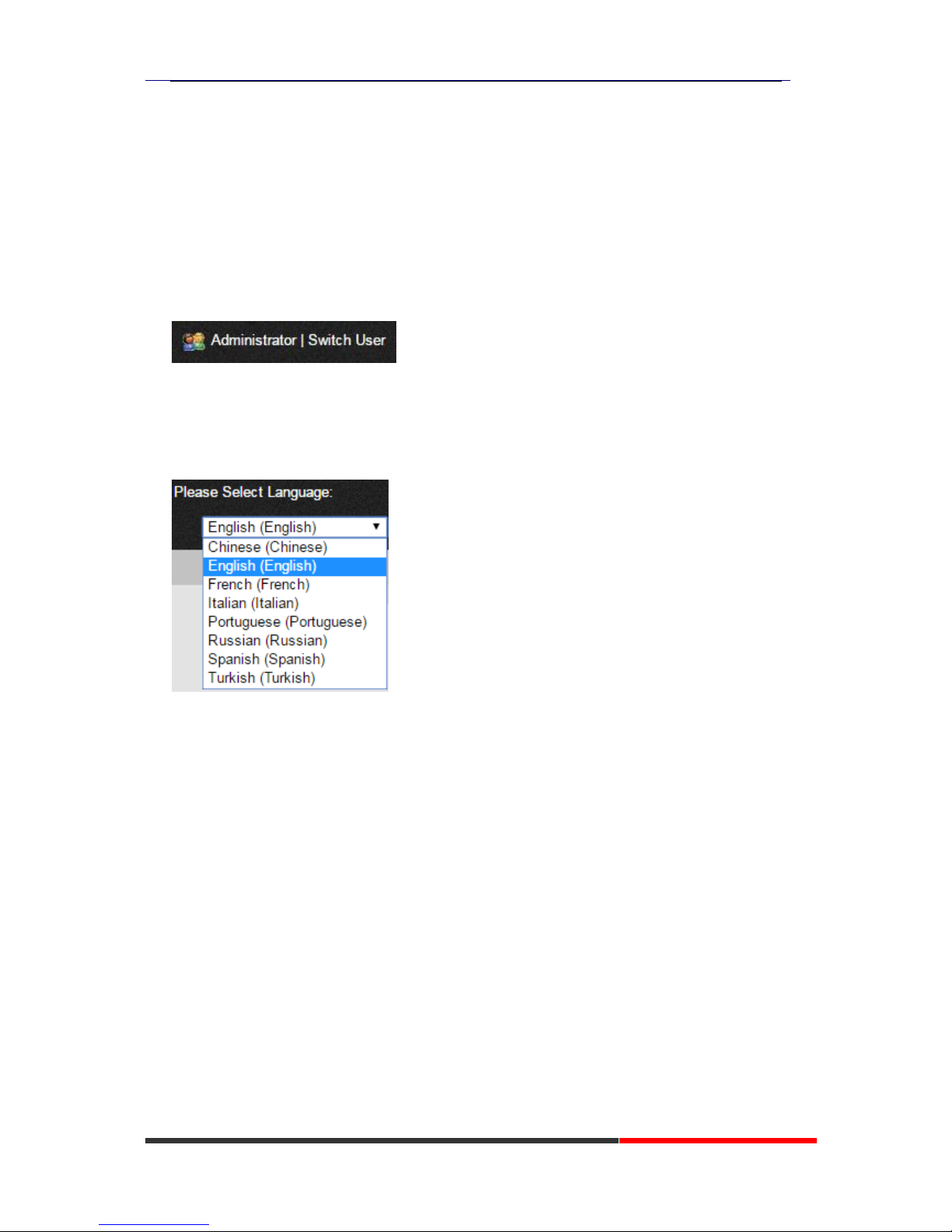
WEB User
In the upper right corner of the website page, you can switch user.
Multi-Language
In the upper right corner of the website page, you can select the language in the below list.
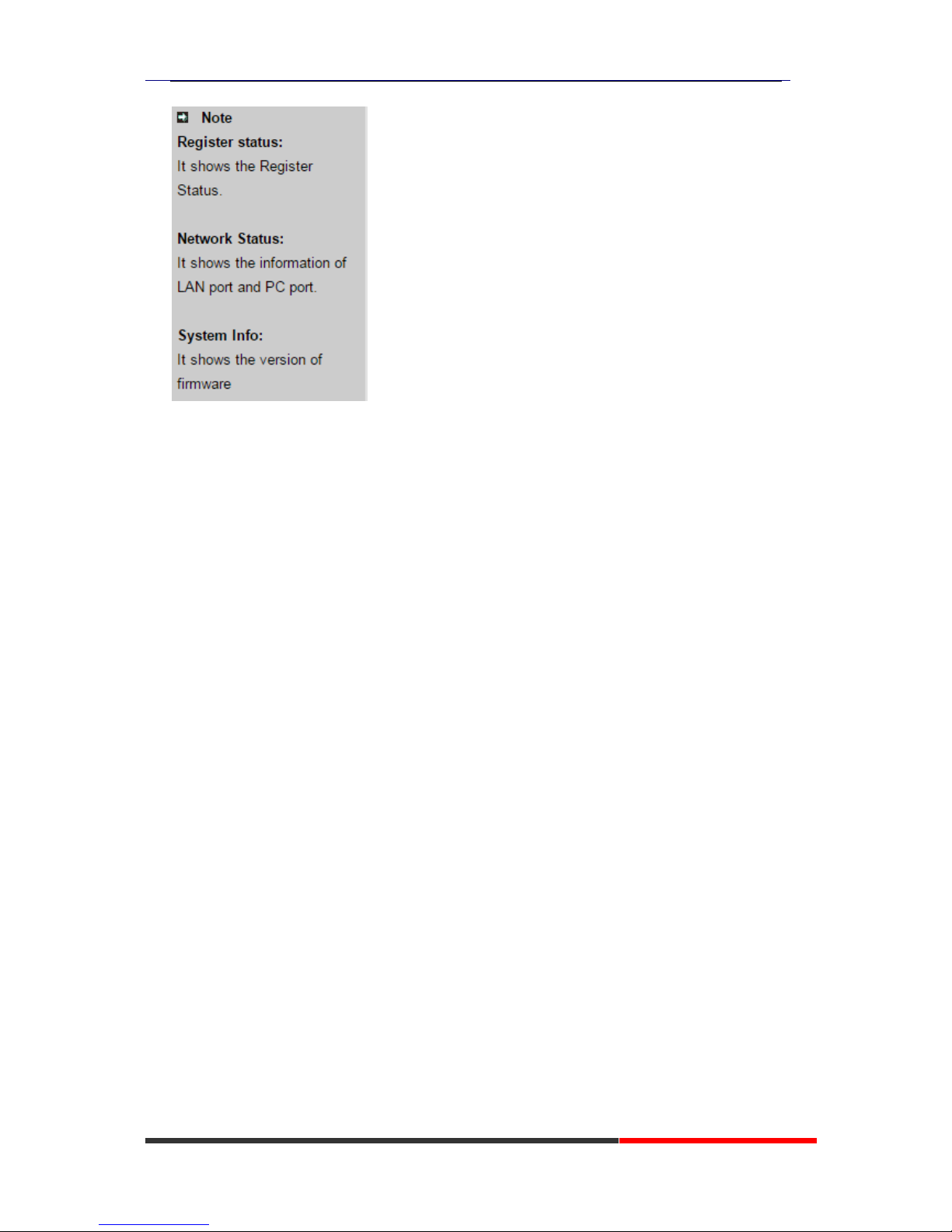
Note Tips
In the right middle of the website page, there is a Note tips in every function page. Hope it can
help you to know something about that.
Page 67
620 Series IPPhone
www.escene.cn/en/
Escene Communication Co.,Ltd
 Loading...