

Page 1

Polycom VVX 1500
User Guide
www.escaux.com
Page 2

Content
www.escaux.com
• Phone overview
• Basic telephony features
• How to place a call
• How to answer a call
• How to terminate a call
• How to redial a number
• How to mute a call
• How to set a call on hold
• How to transfer a call
• Advanced telephony features
• How to make conference calls
• How to answer a call while
you’re on the line
• How to switch between active
calls
• Phone preferences
• How to change the ring tone
• How to change the language
• How to change the volume
• Voicemail & Call history
• How to listen to your voicemail
• How to consult the Call history
• How to clear the Call history
• Contacts management
• Local telephone Directory
• Speed dials
• Corporate Directory
• Various
• How to reboot your phone
• How to reset your phone
Page 3
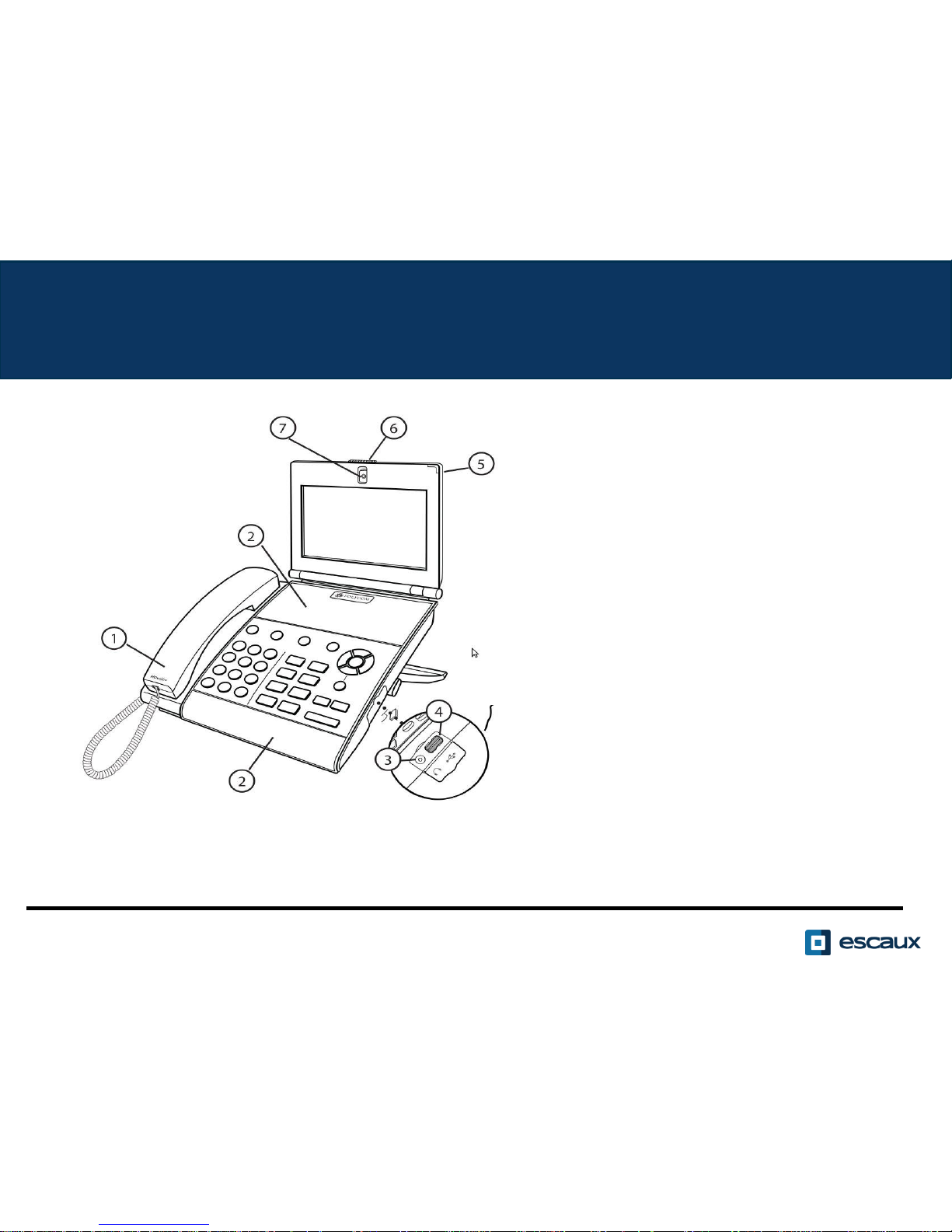
1: Handset
2: Speakerphone
3: Headset connector
4: USB connector
5: LED Indicator
6: Privacy shutter
7: Integrated camera
Polycom VVX 1500: Phone overview (1)
www.escaux.com
Page 4
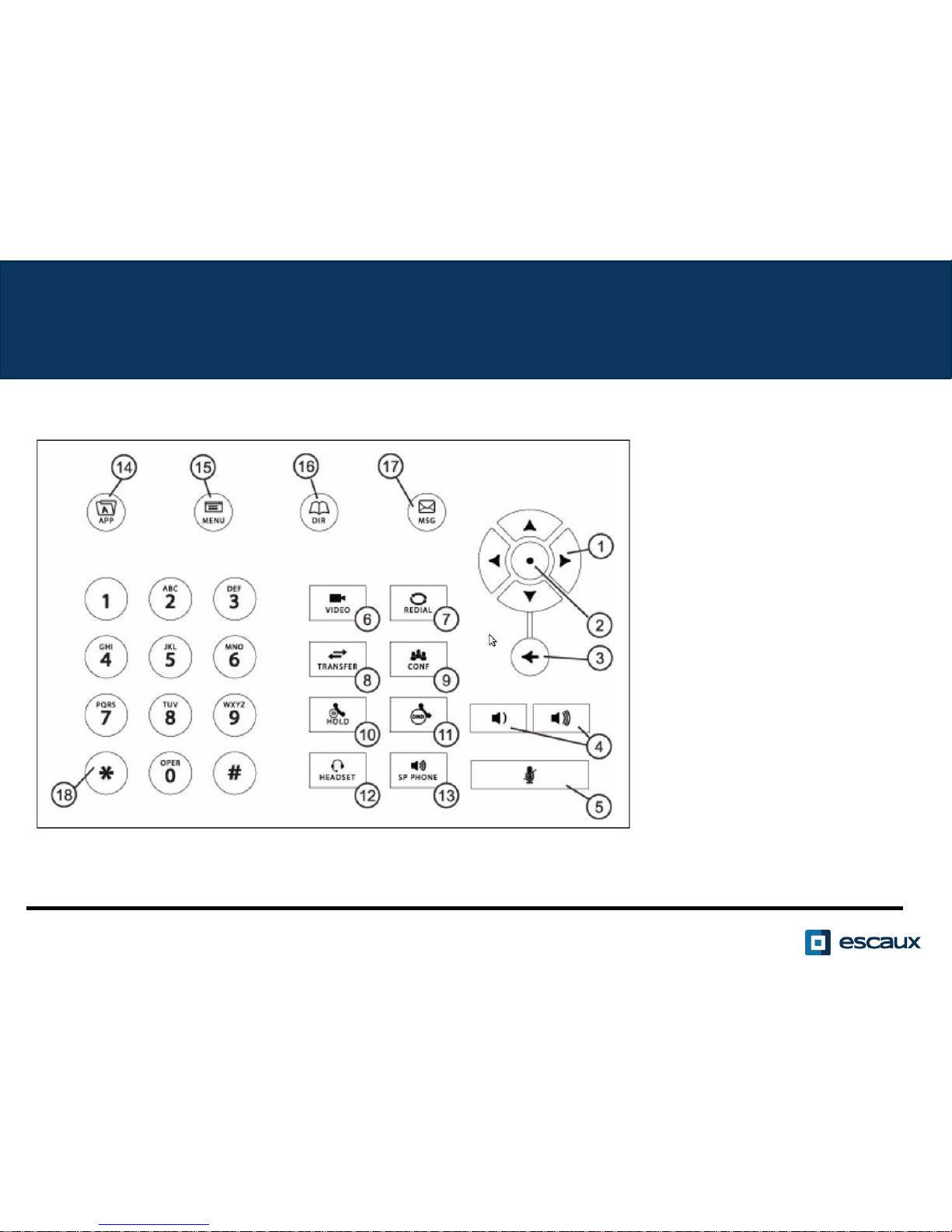
1: Arrow Keys
2: Select Key
3: Delete Key
4: Volume Keys
5: Mute Key
6: Video Key
7: Redial Key
8: Transfer Key
9: Conference Key
10: Hold Key
11: Do Not Disturb Key
12: Headset Key
13: Speakerphone Key
14: Applications Key
15: Menu Key
16: Directories Key
17: Msg Key
18: Dialpad Keys
Polycom VVX 1500 : Phone overview (2)
www.escaux.com
Page 5

The touchscreen
www.escaux.com
• Tap to select and highlight screen items.
• To scroll, touch the screen, and swipe your finger up, down,
right, or left.
• To go back to a previous screen, tap Back.
Page 6

The camera
www.escaux.com
Your phone displays video in two windows:
• a small picture-in-picture (PIP) window located on the topright of the touch screen
• A larger windowcentered in the middle of the touch screen.
By default, the near site displays in the PIP, and the far site
displays in the window in the center of the touch screen.
Information about the call, such as the phone number of the
party with whom you’re talking and the duration of the call,
appears next to the far site when it is displayed in the window
in the center of the touch screen.
Page 7

Basic functions
www.escaux.com
Placing a call:
• You can do it by three different ways :
Enter the phone number and pick up the handset.
Enter the phone number and tap on Dial on the
touchscreen.
Pick up the handset, enter the phone number, and tap on
Send on the touchscreen.
Page 8
Answering calls:
• Pick up the handset
OR
• Tap on Answer on the touchscreen
Ending calls:
• Replace the handset
• OR
• Tap on End Call on the touchscreen
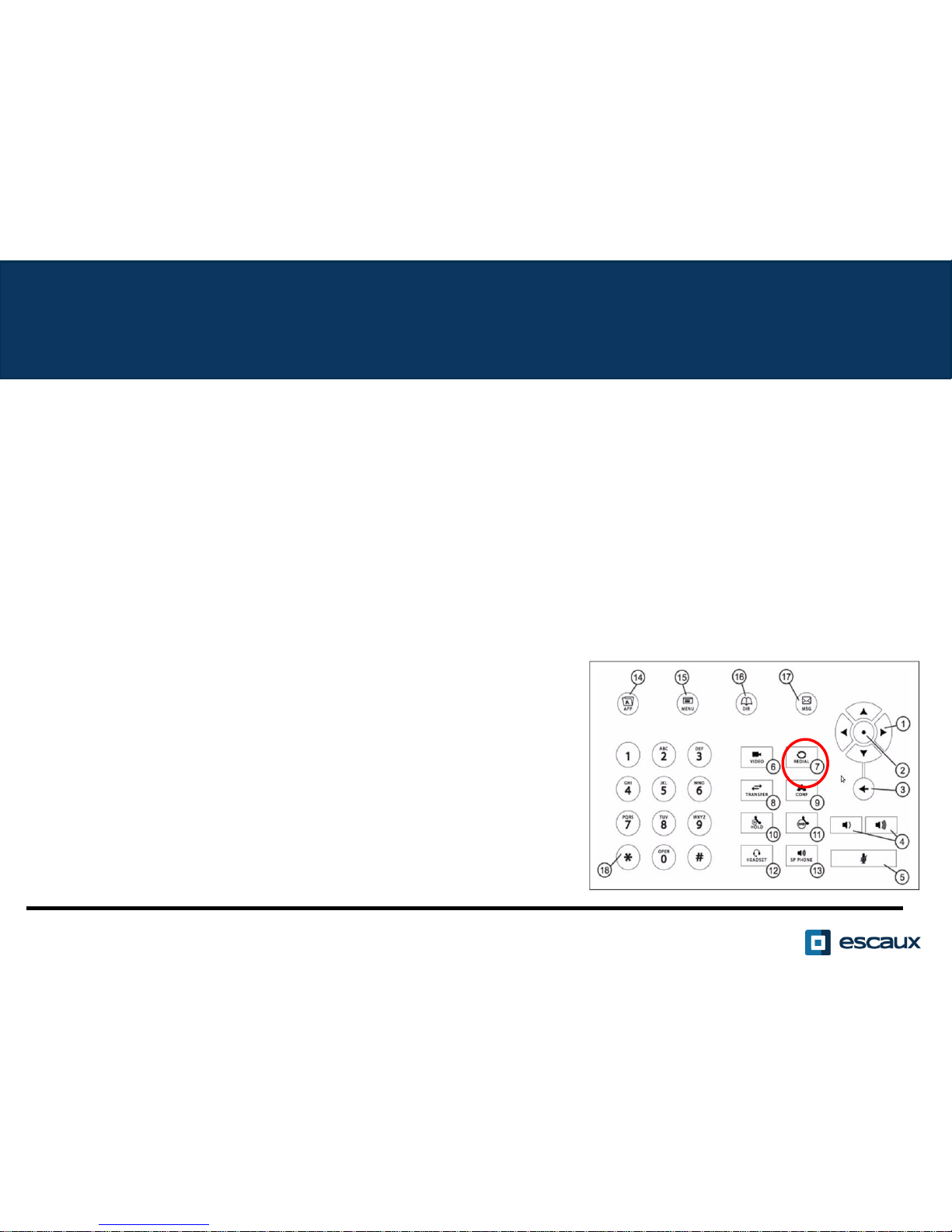
Redial a number:
• Use the Redial button
Basic functions (2)
www.escaux.com
Page 9
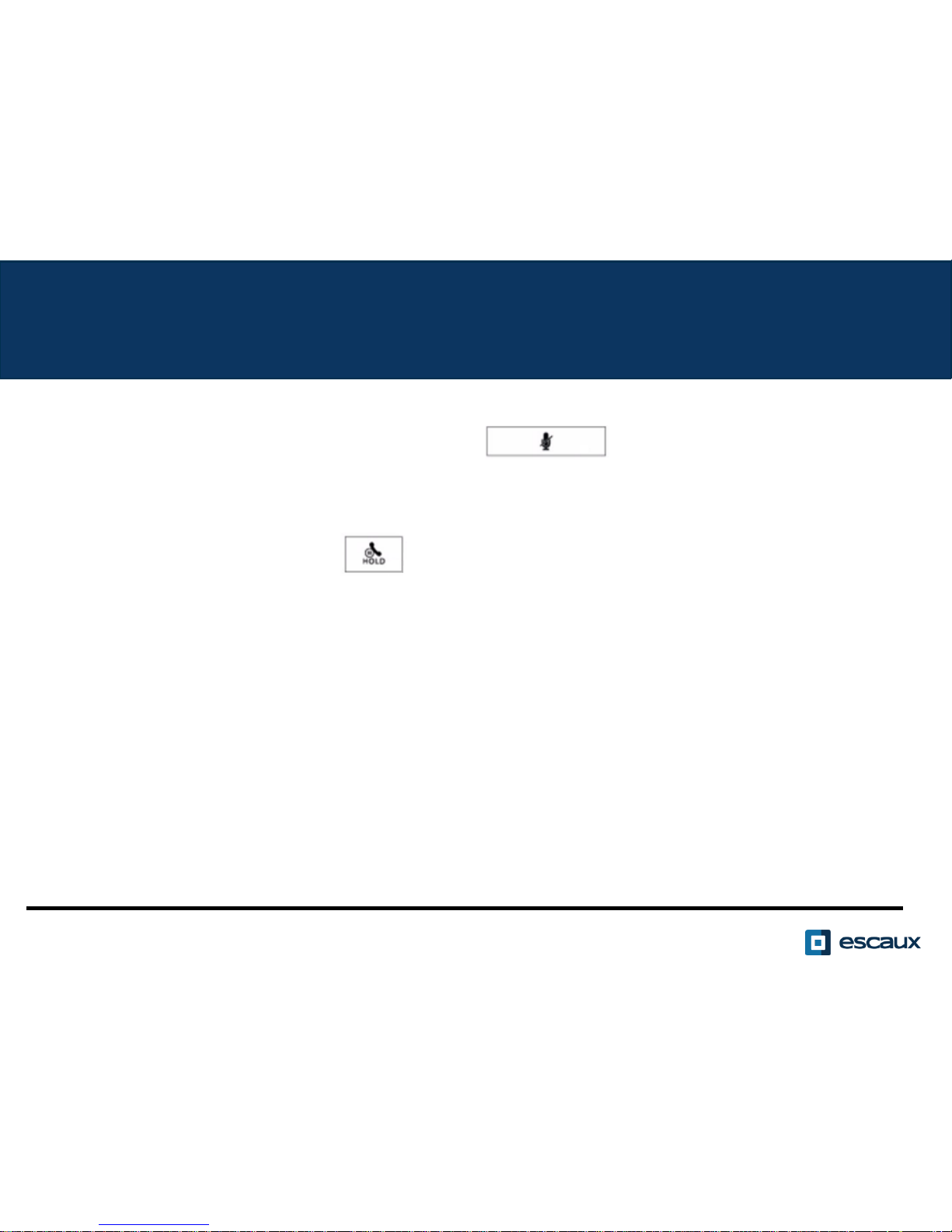
• Muting the microphone
• During the call, click on the Mute key (11). To
disable Mute, click again on the Mute key.
• Put a call on hold
• Click on the Hold key. The caller will hear music.
• Resume a call
• To get back a call that was put on hold, tap on the
conversation you want to resume and then tap on
Resume.
Basic functions (3)
www.escaux.com
Page 10
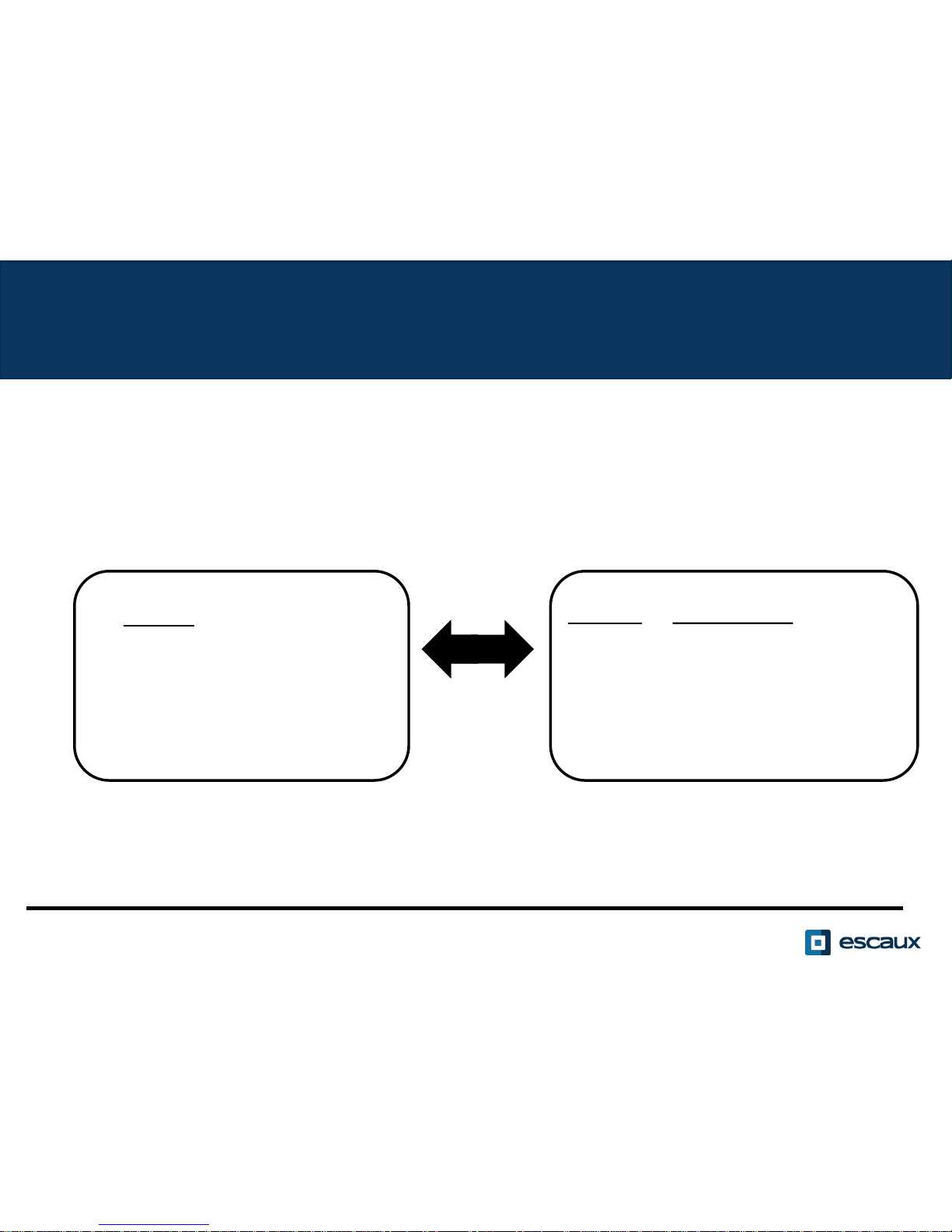
• Tranferring a call
Basic functions (4)
2 options:
www.escaux.com
Blind transfer (1)
You transfer the call
without speaking to the
third person and you
“forget” the call
Warm / Attended transfer
(2)
You first speak to the third
person before transferring
the call.
Page 11

Blind transfer
• Call the remote party or answer the call
• Tap on Transfer on the screen
• Tap on Blind
• Introduce the number you want to transfer the call to
• Tap on Send
What the 3rdparty sees:
When you speak to him: the 3rd party sees your extension
When you have transferred the call, the 3rd party sees the ID of
the originator caller
Basic functions (5)
www.escaux.com
Page 12

Warm / Attended transfer
• Call the remote party or answer the call
• Tap on Transfer on the screen
• Introduce the number you want to transfer the call to
• Tap on Send
• Once you are ready tap again on Transfer to transfer the call to
the 3rdperson.
What the 3rdparty sees:
Initial caller ID
Basic functions (6)
www.escaux.com
Page 13

Placing a conference call:
• Call the first party and while in conversation with him
tap on Conference on the screen or on the CONF key on
the phone.
• Dial the 3
rd
party phone number and tap on Send.
• Tap Hold to hold the conference.
• Tap End Call to end the conference.
• Tap Manage to manage each participant (if available).
• Tap Split to end the conference and hold all participants.
Advanced functions (1)
www.escaux.com
Page 14
Advanced functions (2)
• www.escaux.com
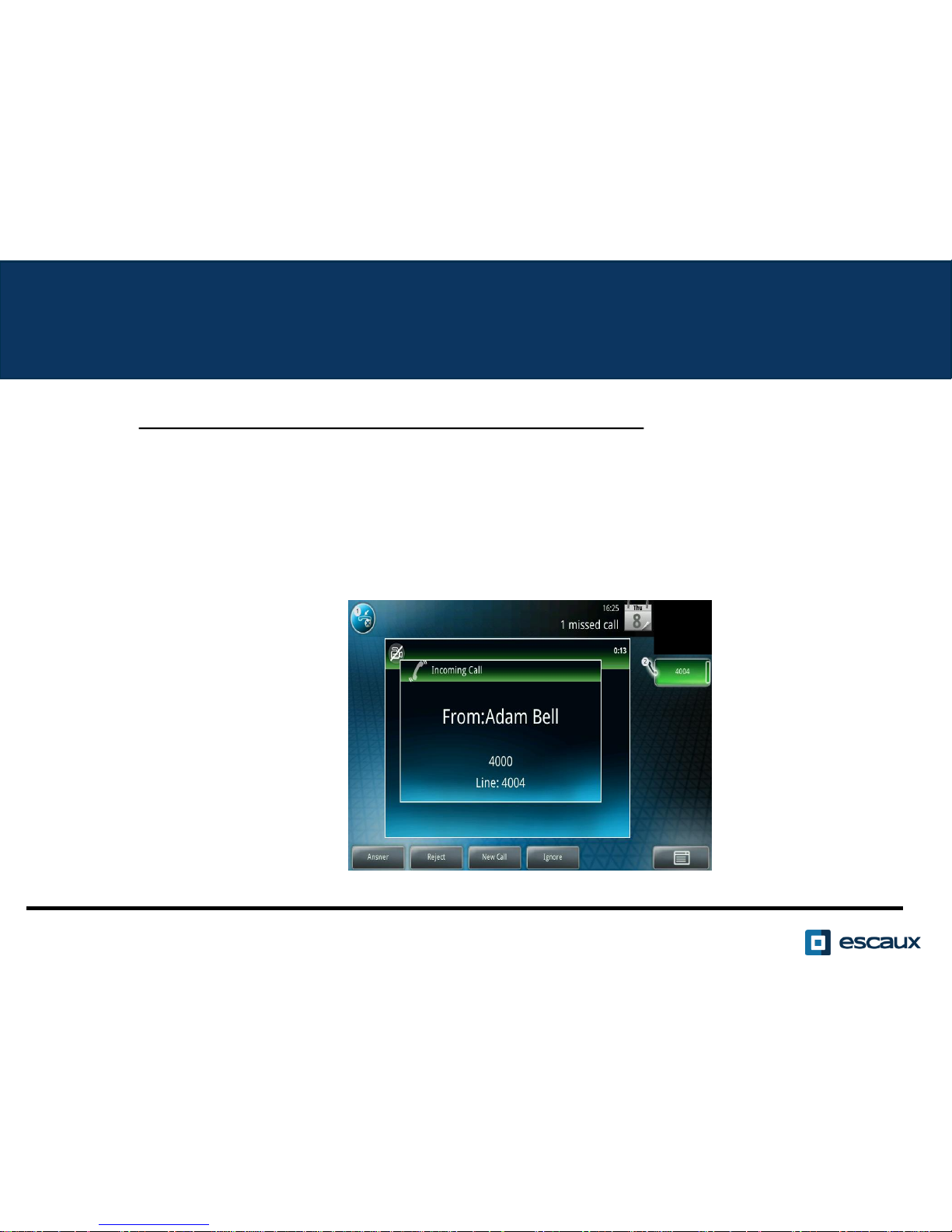
• How to answer a call while you are on the line?
• You will receive a bip when a new call comes in
• You can answer the second incoming call by clicking on Answer
• The first call call will be put on hold
Page 15
Advanced functions (2)
• www.escaux.com
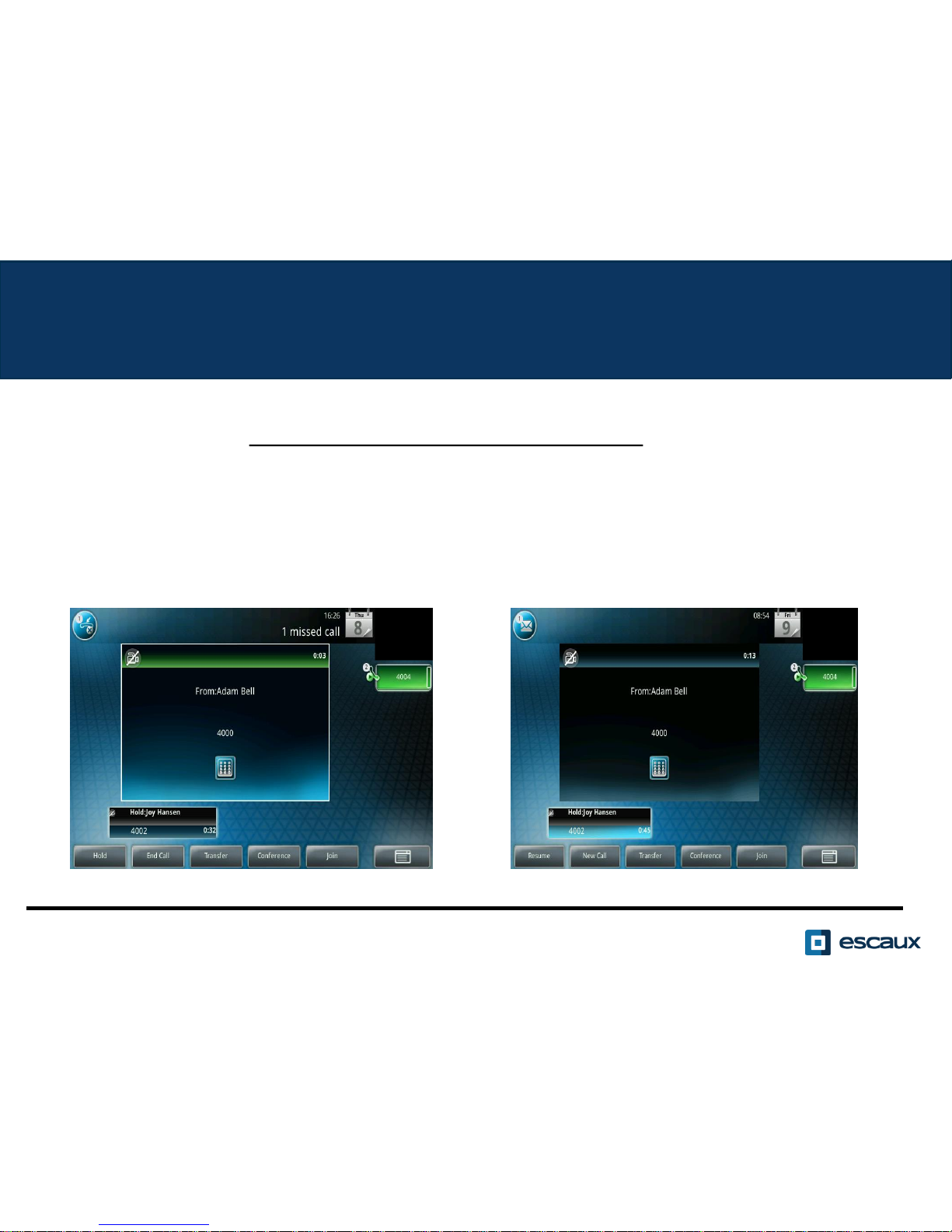
• How to make switch between active calls?
• You can switch between active calls by taping on the screen the specific call
and selecting Resume to switch to the selected call
• When your current call ends up you have also to press Resume to continue
with your other correspondent
Page 16
• How to change your ringtone
Settings (1)
www.escaux.com
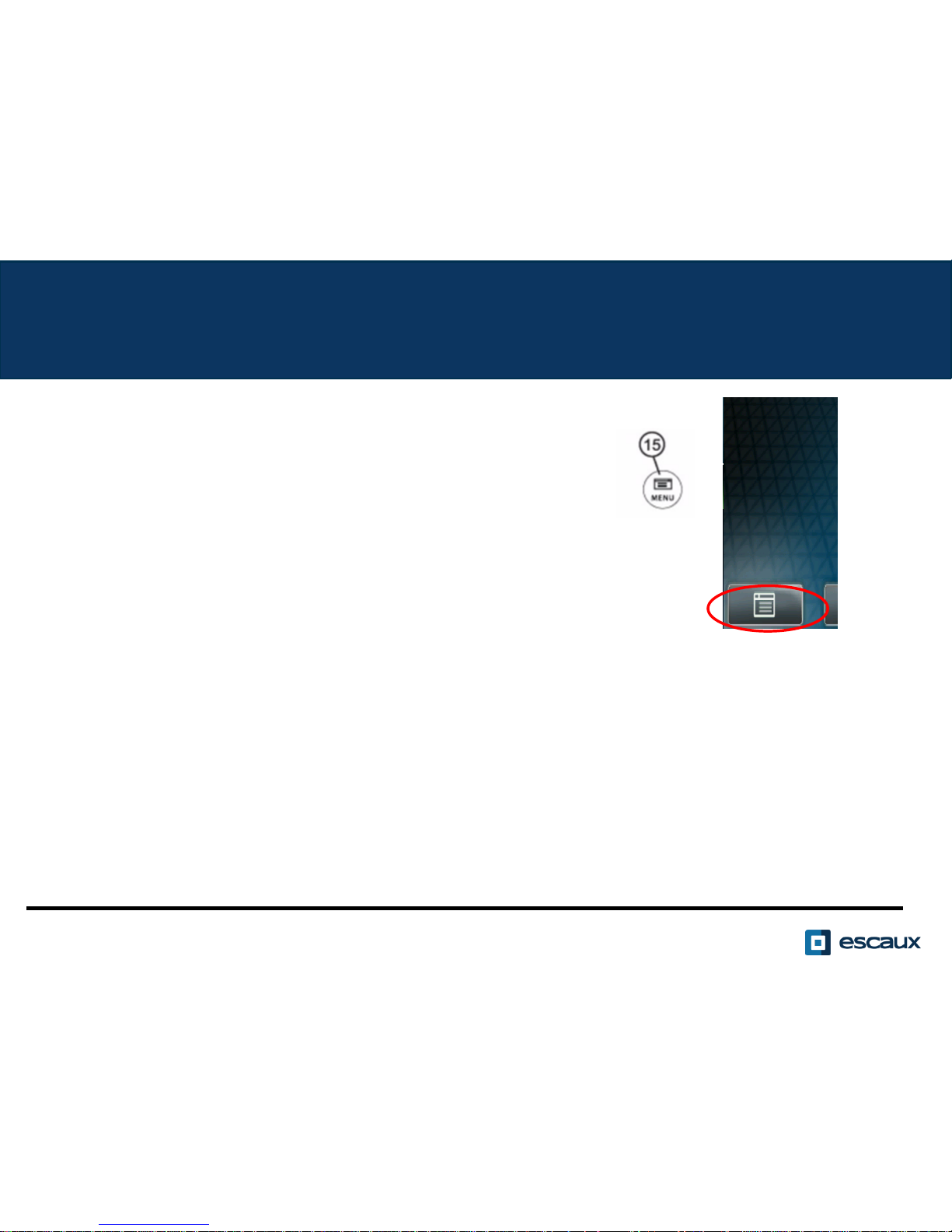
• Press on Menu on the screen or on the phone
• Select Settings (either tap on the screen,
or use the arrows and press on the .
in the middle of the arrows)
• Select Basic
• Go to Ring Type
• With the arrows (or via the touchscreen), navigate through the different
ring types and play/select the ringtones
Page 17

If you want to change the language of your phone please
contact your administrator so that he can modify the
language of your phone resource on the SMP.
• How to change the language
Settings (2)
www.escaux.com
Page 18

• Use the Volume keys
• Ring tone : Press on + or – when the phone is ringing
• Voice : Press on + or – while you are speaking
• How to adjust the volume?
Settings (3)
www.escaux.com
Page 19
Voicemails (1)
VoiceMails Service
www.escaux.com
• Everyone can have his own voicemail service *
• Voicemail service works like the voicemail
on your mobile phone
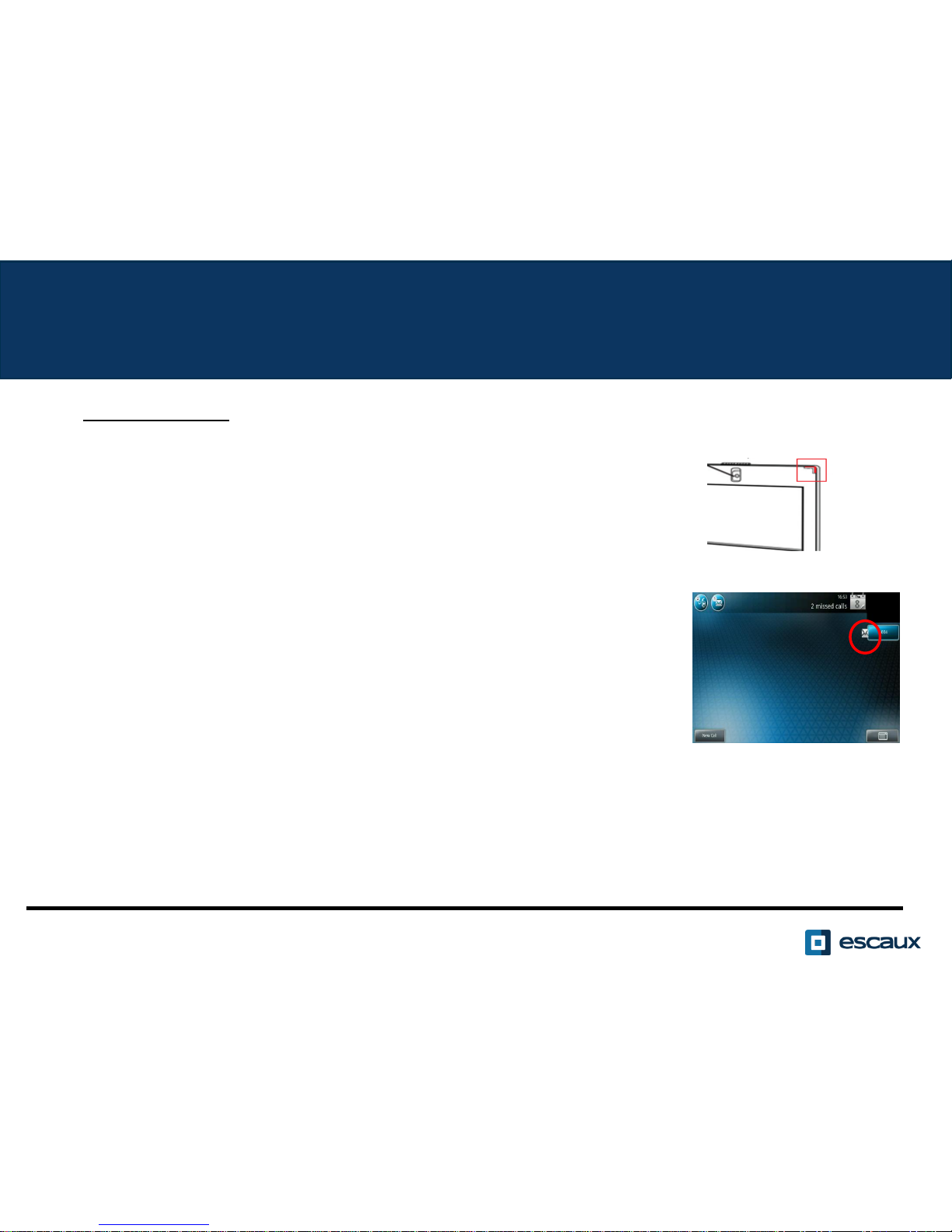
• Red light flashing ? New voicemail is in !
• Little envelope on screen? New voicemail is in !
• If configured, voicemails are also sent via email
* The availability of the feature depends on the configuration
Page 20
Voicemails (2)
• Listen to your VoiceMail
www.escaux.com
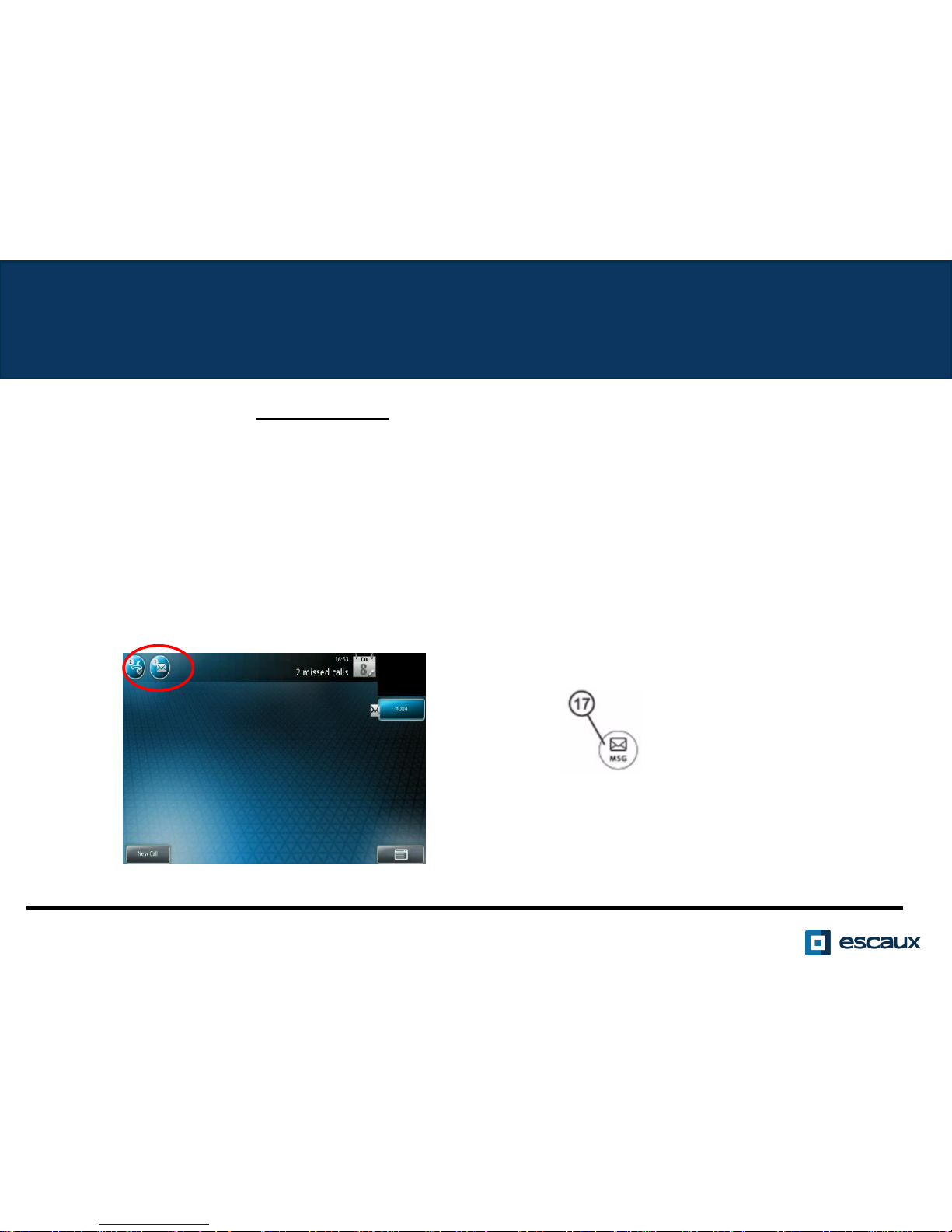
• To access your voice messages, either click on the
envelope on the touchscreen or on the MSG key on the
phone
• Select Message Center
• Click on Connect
Page 21

Call History (1)
How to consult your Call history ?
• Press Menu > Features > Call Lists
• Tap on Type on the touch screen and select the type of
calls:
• Placed calls
• Received calls
• Missed calls
You can call directly one of the contacts in the list by
tapping on Dial on the touchscreen or by lifting the horn.
www.escaux.com
Page 22
Call history (2)
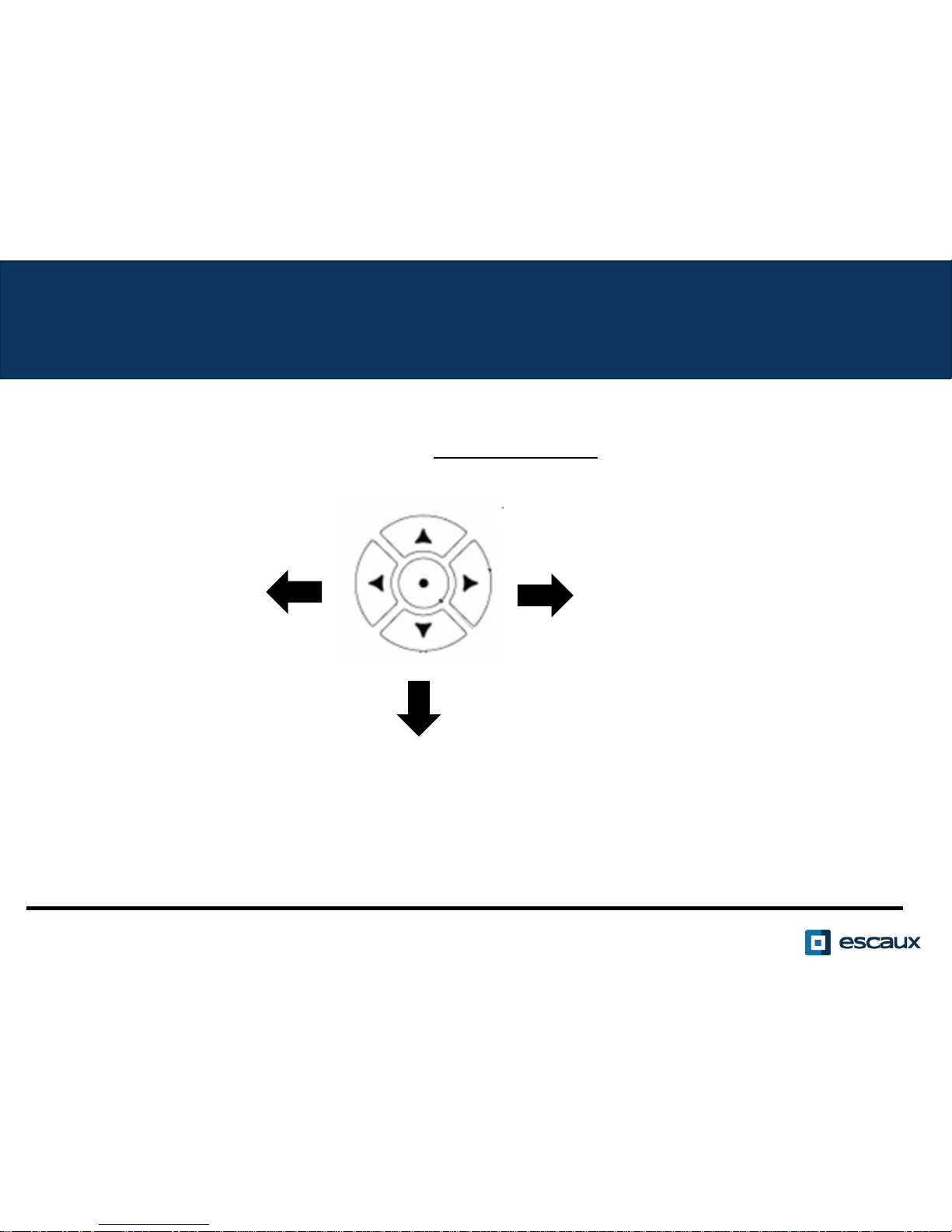
• Other way to consult your Call History
Received calls
Missed calls
Placed calls
www.escaux.com
Page 23
Call history (3)
How to clear your Call history ?
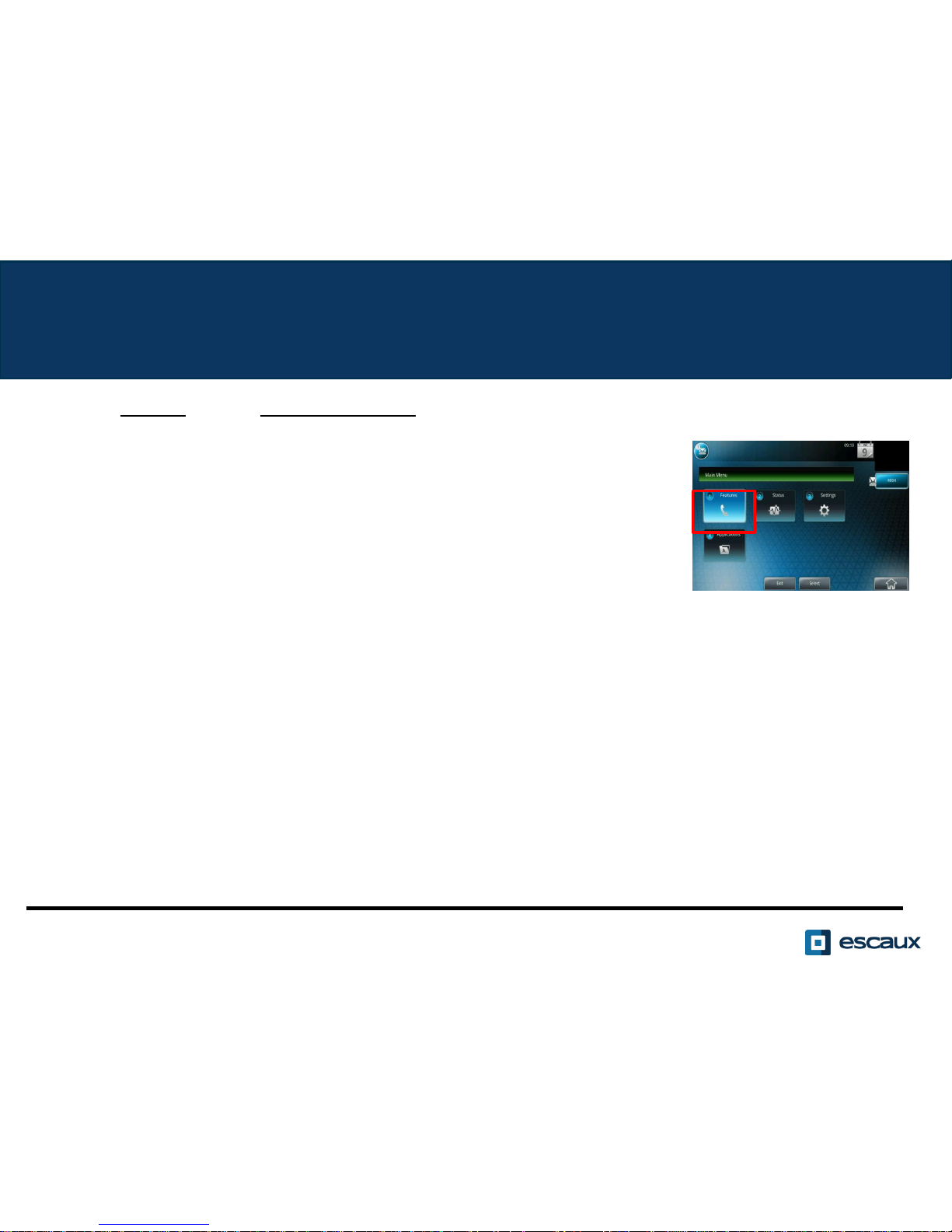
• Press Menu > Features > Call Lists > Clear
(or tap on the Menu image on the touch screen)
• Select the type of calls you want to clear or All calls:
• Placed calls
• Received calls
• Missed calls
www.escaux.com
Page 24

Contact management- Local telephone directory
www.escaux.com
Contact management (add, delete or update a contact) is managed via
Escaux Connect.
The local telephone directory on your phone is not linked to Escaux
Connect. As a consequence, all modifications to your contacts made via your
phone directory (add, delete or update a contact via your phone directory)
will be erased when your phone is rebooted.
We therefore advise you not to use the local telephone directory and to use
Escaux Connect to store your local contacts.
The speed dials are managed via Escaux Connect but they are available via
your phone: for more information see further.
The corporate directory is available on your phone in read-only: see further.
Page 25
www.escaux.com
The speed dials are managed via Escaux Connect.
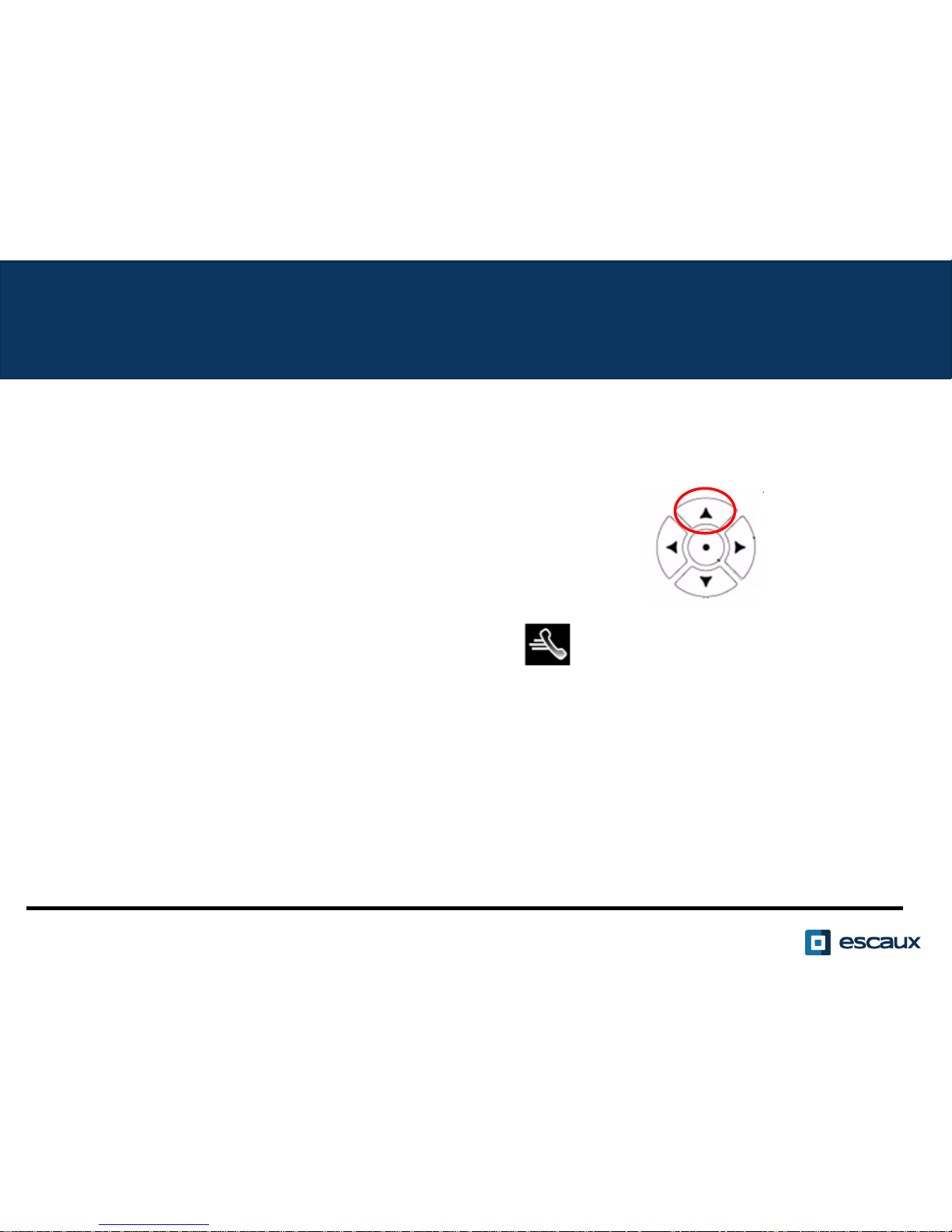
To access the list of speed dials, go to Home > Features > Speed Dial,
or use the up arrow to show all your Speed Dial’s
Speed dials are displayed with this icon on the phone screen.
To call one of your speed dial numbers, enter the speed dial index on
the keypad followed by #.
Contact management- Speed dials
Page 26
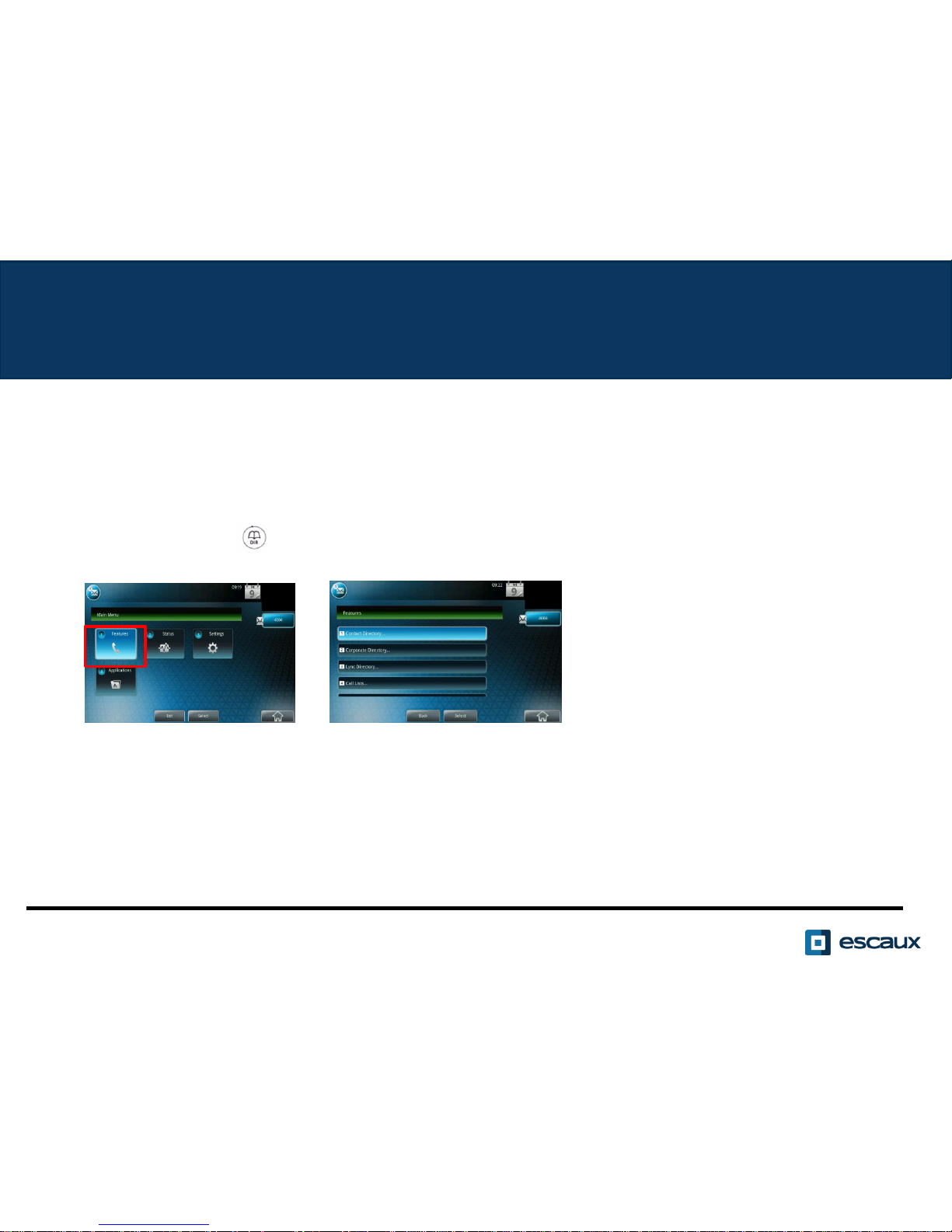
The Corporate directory is linked to the PBX Corporate Directory and is
available in read-only on your phone.
To access it, go to Home, select Features and then Corporate Directory
or press the DIR button on the phone and then Corporate Directory
You can search the Corporate Directory by typing your search query using the
dialpad. You can press Encoding to change the encoding type and switch to
capital letters or digits.
The search is carried out on the PBX Corporate Directory.
www.escaux.com
Contact management - Corporate Directory
Page 27

User status
www.escaux.com
• User extension and status change
• The phone displays the extension & current user status *. Examples of
possible status *: Office, busy, telework, holiday, out of the office,
• Dynamic queue login status
• The phone can also display the dynamic login status in queues *
• X__ for example (logged into first configured queue)
* The availability of the features depends on the configuration
Page 28

• Plug out – plug in the PoE cable
OR
• Press Menu > Settings > Basic > Restart Phone, confirm with Yes
This operation takes about 2 minutes
Why should I reboot my phone ?
- If the IT administrator has made changes to the configuration
- If there is any problem, a reboot is the first action to take
Reboot
• How to reboot your phone?
www.escaux.com
Page 29

• Reset user configuration: language, ringtone, directory
• Press Menu > Settings > Advanced
• Enter the admin password
• Press Admin Settings > Reset to Defaults > Local Configuration
• After some time the phone will reboot and get the default user
configuration from the SOP
Phone reset
• How to clear user settings?
• Reset network configuration
• Press Menu > Settings > Advanced
• Enter the admin password
• Press Admin Settings > Reset to Defaults > Reset Dev. Settings
• After some time the phone will reboot and get his network configuration
from the SOP
• How to clear device settings?
www.escaux.com
Page 30

• This will format the phone’s filesystem
• Press Menu > Settings > Advanced
• Enter the admin password
• Press Admin Settings > Reset to Default > Format File System
• After some time the phone will reboot and get his default configuration
from the SOP
Phone reset (2)
• How to make a factory reset?
www.escaux.com
 Loading...