

Page 1
Escape
TM
P6 Air
Quick Start Guide
Carefully read all safety precautions in the attached document or on the website
www.escapespeakers.com before using this product.
ENG
DE
P6 Air QSG ENG (V2022.02)
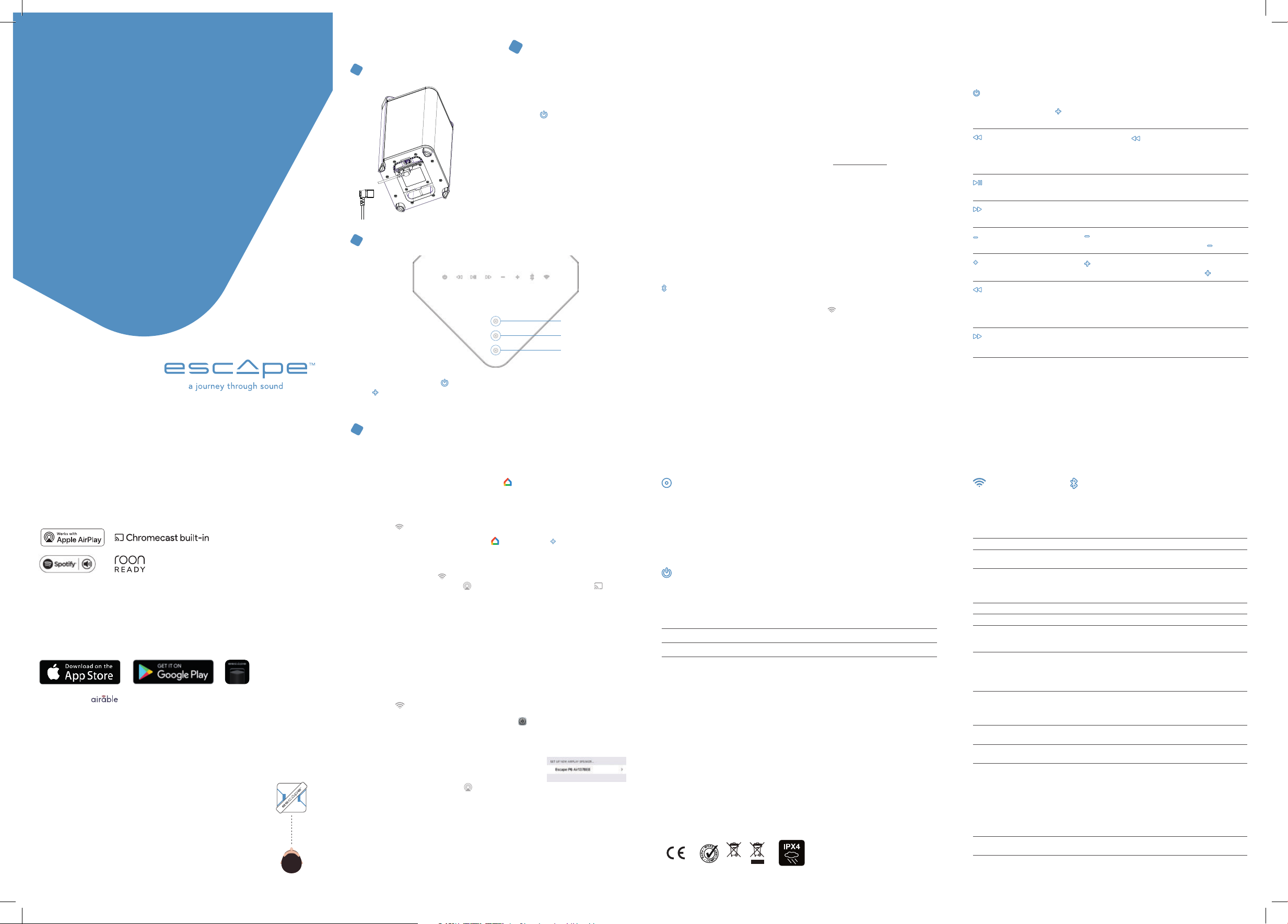
Enjoy your Escape™ P6 Air in 3 steps
CHARGING THE INTERNAL BATTERY
1
• Connect the enclosed power cord to the input
of the device (at the bottom of the unit).
• Plug the power cord into an electrical outlet
• The red power LED [
light up to indicate that the battery is charging.
Leave the unit connected to the mains until
the red LED goes out. The battery is then fully
charged.
• Remove the power cord and close the
protective cover.
• A full charge cycle of the battery takes
approximately two to three hours. Never leave
the P6 Air unattended while charging.
TURNING ON THE UNIT
2
Press the power button [ ] for a few seconds until the LED of the volume up button
[ ] and presets lights up briefly.
Wait until the P6 Air is in setup mode. The WIFI Led will then flash white 0.5s on and 0.5s off.
CONNECTING THE P6 AIR WITH YOUR WIRELESS NETWORK TO STREAM MUSIC
3
SPOTIFY® CONNECT, AIRPLAY 2 AND CHROMECAST SETTINGS VIA THE GOOGLE® HOME
APP
] on the keyboard will
Preset 1
Preset 2
Preset 3
USING SPOTIFY® CONNEC.
Spotify® is a digital music service providing access to millions of songs. Spotify® Connect can be
used to create a connection between the P6 Air and the internet, using the Spotify® app for iOS® or
Android®, Mac or PC. You can make and receive telephone calls without interrupting the music. Once
you have connected with the P6 Air you can switch off your mobile device or computer and the music
will continue to play. Spotify® Connect can only play on a single speaker at any time.
ROON READY
Roon uses a cutting edge audio transport protocol which not only supports high resolution
audio but also offers 2-way communication between Roon Ready endpoints and the Roon server.
Being Roon Ready means that the Escape™ P6 Air uses the high end Roon RAAT streaming
technology (Roon Advanced Audio Transport). This delivers an incredible user interface, easy
installation, rock steady day-to-day reliability and the highest level of audio performance,
without compromises. You can find more information on the www.roonlabs.com website.
USING THE ESCAPE™ REMOTE APP
Download the Escape™ Remote app via the Google® Play or Apple® App store and follow the
steps on the screen to get the most out of the P6 Air.
Note: The P6 Air can only retain a single WiFi network at any one time. If you modify your WiFi
network you must reset the P6 Air to the new network. You may first need to carry out a reset
on the P6 Air.
AUTOMATIC SOFTWARE UPDATES
The P6 Air’s internal software will be updated automatically when a new version is available,
provided the device is powered up and connected with a WiFi network. The mode LED flashes
red-green-blue every 0.5 seconds during an update, and the device will restart automatically
when the update is complete. Ensure that the P6 Air remains switched on during the update.
BLUETOOTH® VERBINDING
Streaming music to the P6 Air via wireless Bluetooth® technology. Wait until the P6 Air is in
configuration mode or connected to a WIFI network. The
0.5s on/off or is permanently on Briefly press the Bluetooth® key to initiate the Bluetooth®
connection. The status LED will flash blue and white. Go to Settings on your Apple® or Android®
device, select Bluetooth® in the connections list and switch on Bluetooth®.
Select Escape™ P6 Air xxxx in the list of devices. xxxx stands for the last 4 letter/digit
combination in the device’s unique serial number. You will find the full serial number on the
packaging or on the label on the underside of the device. The blue LED will illuminate steadily
once the connection is created.
Important!
always prioritizes a WIFI connection when available. The P6 Air does not support Twin mode in
Bluetooth®.
Note: If the Bluetooth® connection failed and your mobile device asks you to forget the device,
P6 Air may not reappear in the list. In that case, turn Bluetooth® off on your mobile device and
turn it on again. P6 Air will then be listed again.
The P6 Air only remembers the last Bluetooth® device previously connected and
[ ]
LED on the P6 Air flashes white
Overview functions of control buttons
BUTTON FUNCTION
Turn the Escape™ P6 Air on and off. To turn on the P6 Air, press the
On/off button
Skip backwards
Play/pause
Skip forward
Decrease volume
Increase volume
5 sec
Keypad lock
5 sec
Keypad unlock
Standby mode When the unit is turned on and does not receive any audio signal
power button for 2 seconds until the LED of the volume up button
] and presets lights up briefly. Briefly press the power button
[
to turn off the P6 Air.
Press the skip backwards [
] button to replay the song from
the beginning or press it twice in quick succession to go back to
the previous song. (This function does not work with airable radio
stations)
Start or pause the music.
Play the next song. (This function does not work with
airable radio stations)
Press the [
To decrease the volume quickly, press and hold the [
Press the [
To increase the volume quickly, press and hold the [
] briefly to decrease the volume step by step.
] briefly to increase the volume step by step.
].
].
Press the skip backwards button for 5 seconds until you hear
a confirmation tone. The keypad is now locked. To confirm,
the skip backwards LED starts flashing three times each
time you touch any key.
Press the skip forward button for 5 seconds until you hear
a confirmation tone. The keyboard is now unlocked.
for 20minutes, the P6 Air enters standby mode to save power.
The power button will blink, and all other LEDs will turn off.
Press the power button to turn on the P6 Air again. Standby
mode is disabled when the unit is connected to an outlet
Thank you for your purchase!
Thank you for purchasing the Escape™ P6 Air, a portable High End speaker that supports both
Chromecast Audio, AirPlay2, Spotify® Connect and Roon (endpoint).
IMPORTANT INFORMATION FOR CORRECT OPERATION OF THE P6 AIR
The P6 Air creates a wireless connection with your WiFi router. Ensure that you have
a sufficiently strong WiFi signal in locations where you wish to use the P6 Air.
ESCAPE™ REMOTE APP
Use of the dedicated Escape™ Remote application for the P6 Air is strongly recommended.
It can be downloaded free from the Apple® App Store (iOS®) and the Google® Play Store (Android®)
AIRABLE RADIO
Using the Escape™ Remote app you can select the airable catalogue, with more than 30,000
radio stations around the world and 25,000 podcasts. This enormous catalogue can be sorted
by region, genre, popularity and quality. The internet radio stations are managed by airable
GmbH, with a team ensuring that new content is constantly added, creating an unlimited source
of freely accessible music, news and entertainment. This service falls outside the responsibility
of Escape™ bv. and works only when P6 Air is in WIFI mode (not in Bluetooth®)
IDEAL LISTENING POSITION
• The P6 Air’s specially developed DSP is set to “wide” mode for
a three-dimensional sound reproduction.
• Turn the speaker slightly towards the listening position for optimal
soundstage. This allows the listener to hear the location of different
instruments when listening to a particular piece of music.
• The “wide” mode can be changed to “direct” if desired via
the Escape™ Remote app.
L R
• Step 1: Download the Google® Home-app [ ] to your phone or tablet to connect
the P6 Air with your wireless network. Ensure that your phone or tablet is connected
with the same WiFi network that you wish to use to set up the P6 Air.
•
Step 2: Wait until the P6 Air is in configuration mode.
] LED on the P6 Air flashes white 0.5s on/off.
The [
• Step 3: Open the Google® Home app [
the start screen or select “Set up Escape™ P6 Air”. Follow the steps set out in
the Google® Home app.
Setup is complete. The [
and select the AirPlay 2 symbol [
and Android® devices) and stream the music to the P6 Air. Or stream directly via Spotify®
Connect.
Tip: Select the P6 Air in the Google® Home app, go to device settings and activate
“full dynamic range”.
Tip: Group a combination of speakers via the Google® Home app to play music
synchronously throughout the home via Cast. Note: This function is not supported
for Chromecast (1st generation) or devices with Chromecast built in.
CONFIGURATION IN AIRPLAY 2 AND SPOTIFY® CONNECT ONLY, VIA AN IPHONE OR IPAD.
• Step 1: Ensure that your iPhone or iPad is connected with the same WiFi network that
you wish to use to set up the P6 Air. Wait until the P6 Air is in configuration mode.
] LED on the P6 Air flashes white 0.5s on/off.
The [
• Step 2: Open “settings” on your iPhone or iPad [
temporary network and will appear in the list of available networks. Important!
Do not select the temporary Escape™ P6 Air network (xxxxxxx) in the list of available
networks. Instead select the “Escape™ P6 Air (xxxxxx)” under the message
“Configure new AirPlay loudspeaker”. Follow the
steps set out under AirPlay configuration. Setup is
complete. Open your favourite music app and
select the AirPlay 2 symbol. [
Note: if the “Configure new AirPlay loudspeaker” message is no longer visible then carry out
a reset on the P6 Air and allow sufficient time for the device to start up again.
Tip: You can mix several different AirPlay 2 compatible loudspeakers or modules to allow
music streaming in several rooms. AirPlay 2 is however not available on Android® devices.
AirPlay 2 is supported on a MacBook or IMac via Apple® Music and on a Windows® PC
via iTunes and Apple® Music.
] LED lights up in solid white. Open your favourite music app
] and select the [ ] symbol at top left on
] (iOS® devices only) or the Cast symbool [ ] (iOS®
]
]. The P6 Air will create a
Programming of the 3 presets on
the P6 Air keyboard
Select an airable radio station via the Escape™ Remote app. While the airable radio station is
playing, press the desired preset buttons on the top of the P6 Air for 4 seconds until you hear
a confirmation tone. Presets are selected by briefly pressing the button. Stored presets can be
erased through the Escape™ Remote app or reprogrammed by pressing the preset again
for 4seconds.
Power-LED - battery status indicator
LED-APPEARANCE BATTERY STATUS
Flashing red for
3 seconds and white
for 0.5 seconds
Solid red The unit is connected to a power outlet and is charging.
White The battery is fully charged.
Rapidly flashing red
for 10 seconds
Warranty and regulations
Limited warranty for the product
The product is covered by a 1-year limited warranty (*) in accordance with the Escape™ P6 Air User Manual. The warranty
includes all parts and labour required to repair the product. This warranty does not cover damage caused by misuse,
accident, misuse, negligence or improper operation or installation, products that have been altered or products whose
identification number or serial number has been altered, defaced or removed. For this warranty to apply, you must use
the product in accordance with the instructions. (*) The limited warranty on Escape™ products is not subject to change
but is subject to alternative legal regulations that may vary from country to country.
Battery Warranty Limitation
The battery is guaranteed for 6 months from date of purchase worldwide.
Returning a P6 Air for repair
Repack the speaker in its original packaging or in a corrugated carton with at least 7.5 cm of resilient material
to protect it from damage in transit. Escape™ bv is not responsible for any damage in transit.
European Union
Escape™ bv hereby declares that this product is in compliance with the essential requirements and other relevant
provisions of Directive 2014/53 / EU and all other applicable EU Directives.
EU WEEE
The battery charge has reached approximately 10%. The unit is not
connected to a power outlet and the battery needs to be charged.
Battery error, for example when the power cable is connected to
a power outlet but no battery has been installed.
The IPX4 rating of a product means it is suitable for all
weather conditions and can withstand strong water
splashes. However, it is not resistant to immersion.
WIFI-Led and Bluetooth® status indicator
MODE/STATUS LED (RED, GREEN,
P6 Air is starting up
DSP initialization
Searching available
network(s)
Setup Mode
Connected
Network Source
Factory Reset
Firmware update
in progress
Firmware update error
Bluetooth® Pairing
Bluetooth® source
Bluetooth® pairing
Bluetooth® memory reset
WIFI and factory reset
BLUE, WHITE)
Flashing green
0.2s on and 0.2s off
Green Solid P6 Air is in DSP initialization mode.
White/Green blinking
0.5s White and 0.5s Green
White blinking 0.5s on
and 0.5s off
White Solid Successful network connection with known credentials.
White Solid Speaker in Spotify® Connect or AirPlay or Cast mode.
White - Magenta
0.5s White and 0.5s
Magenta
Red-Green-Blue repeat
0.5s-0.5s-0.5s
Red Blinking
0.5s on and 0.5s off
Blue / White Blinking
0.5s blue and 0.5s white
Blue Solid Switch to Bluetooth® source (if network is not setup,
Important! Bluetooth® pairing button can only be activated when the device is in wifi setup
mode (wifi LED flashes white 0.5s on and 0.5s off) or when the P6 Air is connected to a
wireless network (WIFI LED permanently lit white). Press the Bluetooth® button briefly until
you hear a confirmation tone. 1) If the Bluetooth® pairing list is empty, it will enter pairing
mode. 2) If the Bluetooth® pairing list is not empty, it will try to connect to the previous
phone within 15 seconds. If it fails to connect to a phone within 15 seconds, the BT pairing
process will start automatically after 15 seconds. 3) It is possible to reselect the WIFI
connection on the P6 Air if it is already set by briefly pressing the WIFI switch.
(Status LED goes from blue to white)
Press and hold the Bluetooth® button for more than 10 seconds.
All Bluetooth® devices stored in memory will be deleted.
A factory reset can only be performed after the P6 Air is fully booted up. Press the
WIFI button for more than 5 seconds until you hear a double confirmation tone.
DEFINITION
P6 Air has just been powered on and in booting state.
(takes +/- 45 seconds)
P6 Air is in access point (AP) mode. Searching for all
available wireless networks. (+/- 20 seconds)
Wireless network(s) found. User needs to connect P6
Air to the wireless network of his choice via Google®
Home App (ChromeCast Audio and AirPlay 2 setup)
or iOS® device (AirPlay 2 setup only)
A factory reset triggered - restart booting stage.
Firmware update in progress via one of the following:
• Programming the P6 Air via webpage.
• Connecting to the network and OTA Server.
• Downloading firmware from the OTA server.
File transfer error (while downloading FW.bin file)
• Flash write error (while writing in flash)
• Network error (while connecting to OTA Server)
• Downloading firmware failed.
Bluetooth® not paired (discoverable)
it will turn to setup mode also)
Page 2
Escape
TM
P6 Air
Schnellstart-Anleitung
Lesen Sie alle Sicherheitsmaßnahmen im beigefügten Dokument oder auf der Website
www.escapespeakers.com sorgfältig durch, bevor Sie dieses Produkt benutzen.
P6 Air QSG DE (V2022.02)
DE
ENG
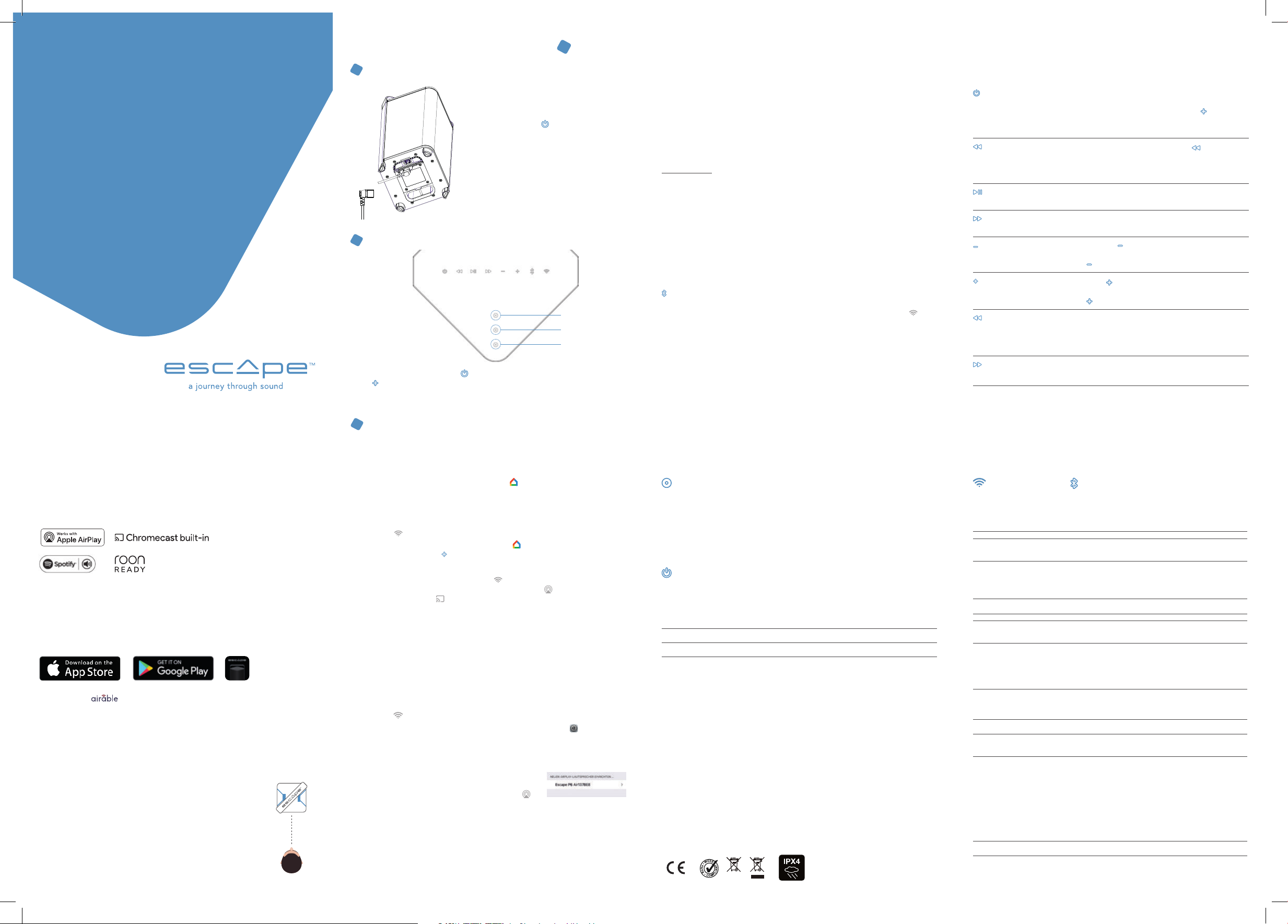
Genießen Sie Ihren Escape™ P6 Air in 3 Schritten
AUFLADEN DES EINGEBAUTEN AKKUS
1
• Schließen Sie das mitgelieferte Netzkabel an die
Eingangsbuchse des Gerätes (auf der Unterseite) an.
• Schließen Sie den Stecker des Netzkabels
an eine Steckdose an.
• Die rote Power-LED [
leuchtet auf, um anzuzeigen, dass der Akku
geladen wird. Lassen Sie das Gerät an das
Stromnetz angeschlossen, bis die rote LED
erlischt. Der Akku ist dann vollständig geladen.
• Entfernen Sie das Netzkabel und schließen Sie
die Schutzkappe.
• Ein vollständiger Ladezyklus des Akkus dauert
2bis 3 Stunden. Lassen Sie den P6 Air während
des Ladevorgangs niemals unbeaufsichtigt.
EINSCHALTEN DES GERÄTS
2
Drücken Sie die Einschalttaste [ ] für einige Sekunden, bis die LED der Lautstärketaste
] und der Voreinstellungen (Presets) kurz aufleuchten.
[
Warten Sie, bis sich den P6 Air im Setup-Modus befindet. Die WIFI-LED blinkt dann
0,5 Sekunden lang weiß auf und 0,5 Sekunden lang aus.
VERBINDEN SIE DEN P6 AIR MIT IHREM DRAHTLOSEN NETZWERK, UM MUSIK ZU STREAMEN.
3
EINSTELLEN VON SPOTIFY® CONNECT, AIRPLAY 2 UND CHROMECAST
ÜBER DIE GOOGLE® HOME-APP
] auf der Tastatur
Preset 1
Preset 2
Preset 3
VERWENDUNG VON SPOTIFY® CONNECT.
Spotify® ist ein digitaler Musikdienst, mit dem Sie Zugriff auf Millionen von Songs haben. Mit Spotify®
Connect können Sie dem P6 Air über die Spotify®-App für IOS® oder Android®, Mac oder PC mit
dem Internet verbinden. Sie können Telefonanrufe tätigen und entgegennehmen, ohne die Musik zu
unterbrechen. Sobald Sie mit dem P6 Air verbunden sind, können Sie Ihr tragbares Gerät oder Ihren
Computer ausschalten und die Musik wird weiterhin abgespielt. Spotify® Connect kann nur auf jeweils
einem Lautsprecher wiedergegeben werden.
ROON READY
Roon verwendet ein sehr modernes Audiotransportprotokoll, das nicht nur hochauflösendes Audio
unterstützt, sondern auch eine 2-Wege-Kommunikation zwischen Roon Ready-Endgeräten und dem
Roon-Server ermöglicht. Roon Ready bedeutet, dass der Escape™ P6 Air die hochwertige Roon
RAAT Streaming-Technologie nutzt. (Roon Advanced Audio Transport). Sie bietet eine unglaubliche
Benutzeroberfläche, einfache Installation, grundsolide Zuverlässigkeit im Alltag und höchste
Audioleistung ohne Kompromisse. Weitere Informationen finden Sie auf der Website
www.roonlabs.com.
VERWENDUNGEN DER APP „ESCAPE™ REMOTE“
Laden Sie die App „Escape™ Remote“ aus dem Google® Play- oder Apple® App-Store herunter und
befolgen Sie die Schritte auf dem Bildschirm, um das M1Air optimal zu nutzen.
Hinweis: Das P6 Air kann sich jeweils nur ein WLAN „merken“. Wenn Sie das WLAN geändert haben,
müssen Sie den P6 Air auf das neue Netzwerk einstellen. Möglicherweise müssen Sie zuerst
einen Reset auf dem P6 Air durchführen.
AUTOMATISCHE SOFTWARE-UPDATES
Die interne Software des P6 Air wird automatisch aktualisiert, wenn eine neue Version verfügbar ist
und das Gerät eingeschaltet und mit einem WLAN verbunden ist. Die Modus-LED blinkt während eines
Updates alle 0,5 Sekunden rot-grün-blau, und das Gerät startet automatisch neu, sobald das Update
abgeschlossen ist. Sorgen Sie dafür, dass der P6 Air während des Updates eingeschaltet bleibt.
BLUETOOTH® VERBINDUNG
Streaming van Music zum P6 Air über die drahtlose Bluetooth®-Technologie. Warten Sie, bis sich der P6
Air im Konfigurationsmodus befindet oder mit einem WIFI-Netzwerk verbunden ist. Die LED
dem P6 Air blinkt alle 0,5 Sekunden weiß oder ist permanent weiß. Um die Bluetooth®-Verbindung zu
starten, drücken Sie kurz die Bluetooth®-Taste. Die Status-LED beginnt, blau / weiß zu blinken. Gehen
Sie auf Ihrem Apple®- oder Android®-Gerät auf Einstellungen, wählen Sie in der Liste der Verbindungen
Bluetooth® und aktivieren Sie Bluetooth®.
Wählen Sie in der Geräteliste Escape™ P6 Air xxxx. xxxx steht für die letzten vier Stellen (Kombination
aus Buchstaben/Zahlen) der einmaligen Seriennummer des Gerätes. Die vollständige Seriennummer
finden Sie auf der Verpackung oder dem Aufkleber auf der Unterseite des Geräts. Die blaue LED
leuchtet permanent, wenn die Verbindung hergestellt ist.
Wichtig! Der P6 Air merkt sich nur das zuletzt verbundene Bluetooth®-Gerät und gibt einer WIFIVerbindung immer den Vorrang, wenn diese verfügbar ist. Der P6 Air unterstützt den Twin-Modus in
Bluetooth® nicht.
Anmerkung: Wenn die Bluetooth®-Verbindung fehlgeschlagen ist und Ihr Mobilgerät dazu auffordert,
das Gerät zu vergessen, erscheint P6 Air möglicherweise nicht mehr in der Liste. Schalten Sie in diesem
Fall Bluetooth® auf Ihrem Mobilgerät aus und wieder ein. Der P6 Air erscheint dann wieder in der Liste.
]
[
auf
Übersicht der Bedientasten und ihrer Funktionen
TASTE FUNKTION
Zum Ein-/Ausschalten des Escape™ P6 Air. Um den P6 Air
Ein-/Aus-Taste
Rückwärts springen
Wiedergabe/Pause
Vorwärts springen
Lautstärke verringern
Lautstärke erhöhen
5 sec
Tastensperre
5 sec
Tastenfreigabe
Standby-Modus
einzuschalten, drücken Sie die Ein-/Aus-Taste 2 Sekunden
lang, bis die LED der Taste für höhere Lautstärke [
] und
die Voreinstellungen kurz aufleuchtet. Drücken Sie kurz die
Ein-/Aus-Taste, um den P6 Air auszuschalten.
Drücken Sie die Taste zum Rückwärtsspringen [
] ,um den
Titel noch einmal vom Anfang an wiederzugeben, oder zweimal
in schneller Folge, um zum vorherigen Lied zurückzukehren.
(funktioniert nicht mit airable-Radiosendern)
Starten oder Pausieren der Musikwiedergabe.
Wiedergabe des nächsten Titels. (funktioniert nicht mit airableRadiosendern)
Drücken Sie kurz auf [
zu verringern. Um die Lautstärke schnell zu verringern,
halten Sie [
Drücken Sie kurz [
] um die Lautstärke Schritt für Schritt
] gedrückt.
] um die Lautstärke Schritt für Schritt
zu erhöhen. Um die Lautstärke schnell zu erhöhen,
halten Sie [
] gedrückt.
Drücken Sie 5 Sekunden lang die Rückwärtsspringen-Taste, bis
Sie einen Bestätigungston hören. Die Tastatur ist nun gesperrt.
Zur Bestätigung blinkt die Rückwärtsspringen-LED bei jedem
Tastendruck dreimal auf.
Drücken Sie 5 Sekunden lang die Vorwärtsspringen-Taste, bis
Sie einen Bestätigungston hören. Die Tastatur ist nun entriegelt.
Wenn das Gerät eingeschaltet ist und 20 Minuten lang kein Audiosignal
empfängt, wechselt der P6 Air in den Standby-Modus, um Energie
zu sparen. Die Ein-/Aus-Taste blinkt und alle anderen LEDs werden
ausgeschaltet. Drücken Sie kurz die Ein-/Aus-Taste, um den P6 Air
wieder einzuschalten. Der Standby-Modus ist deaktiviert, wenn das
Gerät an eine Steckdose angeschlossen ist.
Vielen Dank für Ihren Kauf!
Vielen Dank, dass Sie sich für die Escape™ P6 Air entschieden haben, einen tragbaren HighEnd-Lautsprecher, das Chromecast Audio, AirPlay2, Spotify® Connect und Roon (endpoint)
unterstützt.
WICHTIGER HINWEIS FÜR DEN KORREKTEN BETRIEB DES P6 AIR
Der P6 Air verbindet sich drahtlos mit Ihrem WLAN-Router. Vergewissern Sie sich, dass an den Orten,
an denen Sie den P6 Air verwenden möchten, ein ausreichend starkes WLAN-Signal vorhanden ist.
ESCAPE™ REMOTE-APP
Verwenden Sie unbedingt die spezielle Escape™ Remote-Anwendung für den P6 Air. Sie kann kostenlos
aus dem Apple® App Store (iOS®) und dem Google® Play Store (Android®) heruntergeladen werden.
AIRABLE RADIO
Über die Escape™ Remote-App können Sie den airable-Katalog von über 30.000 globalen
Radiosendern sowie 25.000 Podcasts auswählen. Diese riesige Auswahl ist nach Region,
Genre, Beliebtheit und Qualität sortiert. Die Internet-Radiosender werden von der airable
GmbH verwaltet und ein Team sorgt dafür, dass ständig neue Inhalte hinzukommen und so eine
unbegrenzte Quelle für frei zugängliche Musik, Nachrichten und Unterhaltung geschaffen wird.
Dieser Service unterliegt nicht der Verantwortung von Escape™ bv. und funktioniert nur,
wenn sich der P6 Air im WIFI-Modus befindet (nicht im Bluetooth®-Modus)
IDEALE HÖRPOSITION
• Der speziell entwickelte DSP des P6 Air ist für eine dreidimensionale
Klangwiedergabe auf den „Wide“-Modus eingestellt.
• Für ein optimales Klangbild sollten Sie den Lautsprecher leicht in
Richtung des Hörers drehen. So ist dieser in der Lage die Position der
verschiedenen Instrumente wahrzunehmen, wenn er sich ein bestimmtes
Musikstück anhört.
• Bei Bedarf kann der „Wide“-Modus über die Escape™ Remote App
auf „direct“ umgestellt werden.
L R
• Schritt 1: Laden Sie die Google® Home-App [ ] auf Ihr Smartphone oder Tablet, um
den P6 Air mit Ihrem drahtlosen Netzwerk zu verbinden. Vergewissern Sie sich, dass
Ihr Smartphone oder Tablet mit demselben WLAN verbunden ist, das Sie für
die Einrichtung Ihres P6 Air verwenden möchten.
•
Schritt 2: : Warten Sie, bis sich der P6 Air im Konfigurationsmodus befindet.
] LED auf dem P6 Air blinkt weiß 0,5s an/aus.
Die [
•
Schritt 3: Öffnen Sie die Google® Home-App [
Startbildschirm das [
] Symbol oder wählen Sie „Escape™ P6 Air einstellen“.
] und wählen Sie links oben im
Folgen Sie den Schritten in der Google® Home-App.
Die Einstellung ist abgeschlossen. Die LED [
bevorzugte Musik-App und wählen Sie das AirPlay 2-Symbol [
oder das Cast-Symbol [
] (iOS®- und Android®-Geräte) und streamen Sie die Musik auf
] leuchtet permanent weiß. Öffnen Sie Ihre
] (nur bei iOS®-Geräten)
den P6 Air. Oder streamen Sie direkt über Spotify® Connect.
Tipp: Wählen Sie das P6 Air in der Google® Home-App aus, öffnen Sie die Geräteeinstellungen und aktivieren Sie „voller Dynamikbereich“. (full dynamic range)
Tipp: Gruppieren Sie eine Kombination von Lautsprechern über die Google® Home-App, um
Musik im ganzen Haus synchron über Cast abzuspielen. Anmerkung: Diese Funktion wird nicht
für Chromecast (1. Generation) oder Geräte mit eingebautem Chromecast unterstützt.
KONFIGURATION NUR IN AIRPLAY 2 UND SPOTIFY® CONNECT ÜBER EIN IPHONE ODER IPAD.
• Schritt 1: Vergewissern Sie sich, dass Ihr iPhone oder iPad mit demselben WLAN
verbunden ist, das Sie für die Einrichtung des P6 Air verwenden möchten.
Warten Sie, bis sich der P6 Air im Konfigurationsmodus befindet.
Die [
] LED auf dem P6 Air blinkt weiß 0,5s an/aus.
• Schritt 2: Öffnen Sie die Einstellungen in Ihrem iPhone oder iPad [ ]. Der P6 Air
bildet ein temporäres Netzwerk und wird in der Liste der verfügbaren Netzwerke
angezeigt. Wichtig! Wählen Sie nicht das temporäre Netzwerk Escape™ P6 Air (xxxxx)
aus der Liste der verfügbaren Netzwerke aus. Wählen Sie dagegen unter dem Eintrag
„Neuen AirPlay-Lautsprecher konfigurieren“ „Escape™ P6 Air (xxxxxx)“ aus und
folgen Sie den Schritten der AirPlay-Konfiguration. Die
Einstellung ist abgeschlossen. Öffnen Sie Ihre bevorzugte
Musik-App und wählen Sie das AirPlay 2-Symbol [
]
Hinweis: Wenn die Meldung „Neuen AirPlay-Lautsprecher konfigurieren“ nicht mehr
angezeigt wird, führen Sie einen Reset am P6 Air durch und lassen Sie dem Gerät genügend
Zeit für einen Neustart.
Tipp: Man kann mehrere AirPlay 2-kompatible Lautsprecher oder Module miteinander
kombinieren, um Musik in mehrere Räume zu streamen. AirPlay 2 ist jedoch nicht auf
einem Android®-Gerät verfügbar.
AirPlay 2 wird auf einem MacBook oder iMac über Apple® Music und auf einem Windows®
PC über iTunes und Apple® Music unterstützt
Programmierung der 3 Voreinstellungen (Presets)
auf der Tastatur des P6 Air
Wählen Sie einen airable-Radiosender über die Escape™ Remote-App aus. Drücken Sie während der
Wiedergabe des airable-Radiosenders 4 Sekunden lang die gewünschten Voreinstellungstasten auf der
Oberseite des P6 Air, bis Sie einen Bestätigungston hören. Die Voreinstellungen werden durch einen
kurzen Druck auf die Taste ausgewählt. Gespeicherte Voreinstellungen können über die Escape™ Remote
App gelöscht oder durch erneutes Drücken der Voreinstellung für 4 Sekunden neu programmiert werden.
Power-Led – Akku-Statusanzeige
STATUS-LED AKKU-STATUS
3 Sekunden lang rot
blinkend und 0,5
Sekunden weiß
Konstant rot Das Gerät ist an eine Steckdose angeschlossen und wird aufgeladen.
Weiß Der Akku ist vollständig geladen.
10 sekundenlang schnell
rot blinkend
Garantie und Bestimmungen
Eingeschränkte Garantie für das Gerät
Das Gerät ist durch eine 1-jährige eingeschränkte Garantie (*) gemäß der Bedienungsanleitung des Escape™ P6 Air
abgedeckt. Die Garantie umfasst alle Teile und Arbeiten, die erforderlich sind, um das Produkt zu reparieren. Diese
Garantie deckt keine Schäden ab, die durch Missbrauch, Unfälle, unsachgemäße Benutzung, Fahrlässigkeit oder
unsachgemäße Bedienung oder Installation, verursacht wurden oder an veränderte Produkte oder Produkte, deren
Identifikationsnummer oder Seriennummer verändert, unkenntlich gemacht oder entfernt wurde. Damit diese Garantie
gilt, müssen Sie das Produkt entsprechend den Anweisungen verwenden. (*) Die eingeschränkte Garantie für Escape™
Produkte kann nicht geändert werden, unterliegt jedoch alternativen gesetzlichen Bestimmungen, die von Land zu Land
unterschiedlich sein können.
Eingeschränkte Akku-Garantie
Auf den Akku wird weltweit eine Garantie von 6 Monaten gewährt.
Rücksendung eines P6 Air zwecks Reparatur
Verpacken Sie den Lautsprecher in der Originalverpackung oder in einem Wellpappkarton mit mindestens 7,5 cm
elastischem Material, um ihn vor Transportschäden zu schützen. Escape™ bv haftet nicht für eventuelle Transportschäden.
Europäische Union
Escape™ bv erklärt hiermit, dass dieses Produkt den wesentlichen Anforderungen und anderen relevanten Bestimmungen
der Richtlinie 2014/53 / EU und allen anderen anwendbaren EU-Richtlinien entspricht.
EU WEEE
Der Akku hat etwa 10% seiner Kapazität erreicht. Das Gerät ist nicht
an eine Steckdose angeschlossen und der Akku muss aufgeladen
werden.
Akkufehler, zum Beispiel wenn das Netzkabel an eine Steckdose
angeschlossen ist aber kein Akku eingesetzt ist.
Die IPX4-Klassifizierung eines Produkts bedeutet,
dass es für alle Wetterbedingungen geeignet ist
und allseitigem Spritzwasser standhält. Eintauchen
widersteht es jedoch nicht.
WIFI-Led und Bluetooth®-Statusanzeige
MODE/STATUS LED (ROT, GRÜN,
P6 Air gestartet
DSP-Initialisierung
Suche nach verfügbaren
Netzwerken
Setup-Modus
abgeschlossen
Verbunden
Netzwerkquelle
Reset auf
Werkseinstellungen
Firmware wird aktualisiert
Firmware-Update-Fehler
Bluetooth®Kopplungsmodus
Bluetooth®-Quelle
Bluetooth®-Kopplung
Bluetooth®-Gerät löschen
Reset
BLAU, WEIß)
Blinkt Grün
0,2 s an und 0,2 s aus
Leuchtet permanent Grün P6 Air befindet sich im DSP-Initialisierungsmodus
Blinkt Grün / Weiß
0,5 s an und 0,5 s aus
Blinkt Weiß
0.5s aan/uit
Leuchtet permanent Weiß Erfolgreiche Netzwerkverbindung mit bekannten
Leuchtet permanent Weiß P6 Air im Streaming-Modus
Weiß / Magenta
0,5 s Weiß und 0,5 s
Magenta
Rot - Grün - Blau in einem
wiederholten Muster.
0,5 s - 0,5 s - 0,5 s
Blinkt Rot
0,5 s an und 0,5 s aus
Blinkt Blau / Weiß
0,5 s Blau und 0,5 s Weiß
Leuchtet permanent blau Auf Bluetooth®-Quelle umstellen (wenn das Netzwerk
Wichtig! Die Bluetooth®-Kopplungstaste kann nur aktiviert werden, wenn sich das Gerät im
WLAN-Setup-Modus befindet (die WLAN-LED blinkt 0,5 Sekunden lang weiß auf und
0,5 Sekunden lang aus) oder wenn das P6 Air mit einem drahtlosen Netzwerk verbunden ist
(die WLAN-LED leuchtet permanent weiß). Drücken Sie kurz die Bluetooth®-Taste, bis Sie einen
Bestätigungston hören. 1) Wenn die Bluetooth®-Kopplungsliste leer ist, geht das Gerät in den
Kopplungsmodus über. 2) Wenn die Bluetooth®-Kopplungsliste nicht leer ist, wird innerhalb
von 15 Sekunden versucht, eine Verbindung mit dem vorherigen Telefon herzustellen. Wenn
innerhalb von 15 Sekunden keine Verbindung zu einem Telefon hergestellt werden kann, wird
der BT-Kopplungsprozess nach 15 Sekunden automatisch gestartet.3) Es ist möglich, die WIFIVerbindung auf dem P6 Air neu zu wählen, wenn sie bereits eingestellt ist, indem Sie kurz auf den
WIFI-Schalter drücken. (Status-LED wechselt von blau auf weiß)
Halten Sie die Bluetooth®-Taste für mehr als 10 Sekunden gedrückt. Alle gekoppelten
Bluetooth®-Geräte im Speicher werden gelöscht.
Ein Zurücksetzen auf die Standardeinstellungen kann nur nach einem vollständigen
Neustart des Geräts durchgeführt werden. Drücken Sie die WIFI-Taste länger als
5 Sekunden, bis Sie einen doppelten Bestätigungston hören.
BEDEUTUNG
P6 Air wurde soeben eingeschaltet und befindet sich
im Startmodus. (dauert +/- 45 Sekunden)
P6 Air befindet sich im Access Point (AP) Modus und
sucht nach verfügbaren Netzwerken.
(dauert +/- 20 Sekunden)
Drahtlose(s) Netzwerk(e) gefunden. Der Benutzer muss
den P6 Air über die Google® Home-App (ChromeCast
Audio und AirPlay 2-Setup) oder ein iOS® -Gerät (nur
AirPlay 2-Setup) mit dem drahtlosen Netzwerk seiner
Wahl verbinden.
Zugangsdaten.
Ein Reset auf Werkseinstellungen wurde ausgelöst - P6
Air befindet sich im Startmodus
Firmware-Update wird auf eine der folgenden Arten
ausgeführt:
• Programmierung des P6 Air über die Escape™ SyncWebsite
• Verbindung mit Netzwerk und OTA-Server herstellen
• Firmware vom OTA-Server herunterladen.
Fehler bei Dateiübertragung (beim Download der Datei FW.bin)
• Flash-Schreibfehler (beim Schreiben in Flash)
• Netzwerkfehler (bei Verbindung mit OTA-Server)
• Download der Firmware misslungen
Bluetooth® nicht gekoppelt (feststellbar)
nicht eingestellt ist, wird auch der Setup-Modus
eingeschaltet)
 Loading...