

Page 1

1
ESBS
Apprentice Payee
CoreHR V28 for Payees
User Reference Guide
December 2020
• This Manual is a live document.
Updates are ongoing and the
contents subject to change.
Page 2

2
Table of Contents
Introduction ______________________________________ 3
➢ The purpose of this manual is to: _____________________________________________________ 3
➢ This document will show you how to:__________________________________________________ 3
➢ Point of Contact: _________________________________________________________________ 3
Chapter 1 – Registering & Logging into my new CoreHR Portal account ___ 5
➢ How do I register to the new CoreHR Portal? ___________________________________________ 6
➢ How do I log into the CoreHR Portal? _________________________________________________ 8
➢ I forgot my Password / Security Questions, how do I log in? ________________________________ 9
➢ How do I change the ‘Security Questions’ on my account? ________________________________ 15
➢ What functionality is available to me? (Dashboard) ______________________________________ 17
Chapter 2 – My Payslip ___________________________________________ 18
➢ How do I view my payslip / any other documentation available to me? _______________________ 19
➢ Your Payslip explained: ___________________________________________________________ 21
Page 3

3
Introduction
➢ The purpose of this manual is to:
The purpose of this document is to enable Apprentices to access their Payslips via
CorePortal. It is important to note if an Apprentice does not register for CorePortal, they will
not be able to access their payslips.
Please note: where screenshots are used, they are for illustrative purposes only & use
anonymised data.
➢ This document will show you how to:
• Register, log in and update your portal
• View all pay related information (Payslips, Tax Detail, Etc.)
➢ Point of Contact:
For any issues you come into contact with when using the portal that you feel are not
covered by the content of this manual, please contact your local ETB who should be able to
assist you further – see list below or for the most up-to-date contact details, see the
Apprenticeship website here & select your respective county’s ETB.
ETB
Operational Areas (for
Standard Based
Apprenticeship)
Contact Number
City of Dublin ETB
Dublin - City Council Area
Ballyfermot: 01 605 5900
Dublin and Dún Laoghaire ETB
Dublin - excluding Dublin
City Council Area
Baldoyle: 01 816 7400
Loughlinstown: 01 204
3600
Cork ETB
Cork
Cork: 021 485 6200
Limerick Clare ETB
Limerick, Clare
Limerick: 061 487 900
Kerry ETB
Kerry
Tralee: 066 712 6444
Donegal ETB
Donegal
Letterkenny: 074 912
0500
Waterford and Wexford ETB
Waterford, Wexford
Waterford: 051 301 500
Galway and Roscommon ETB
Galway, Roscommon
Galway: 091 706 200
Mayo, Sligo and Leitrim ETB
Mayo, Sligo, Leitrim
Sligo: 071 915 9500
Louth and Meath ETB
Louth, Meath
Dundalk: 042 935 5700
Longford and Westmeath ETB
Longford, Westmeath
Athlone: 090 642 4200
Laois and Offaly ETB
Laois, Offaly
Portlaoise: 057 867 1544
Tipperary ETB
Tipperary
Clonmel: 052 0612 1067
Cavan Monaghan ETB
Cavan, Monaghan
Cavan: 049 435 3922
Page 4

4
Kildare Wicklow ETB
Kildare, Wicklow
Naas: 045 988 050
Kilkenny and Carlow ETB
Kilkenny, Carlow
Kilkenny: 056 781 3035
Page 5
5
Chapter 1 – Registering &
Logging into my new CoreHR
Portal account
Key Topics Covered
o How do I register?
Hold CTRL button on keyboard and click mouse here
o What functionality is available to me?
Hold CTRL button on keyboard and click mouse here
Page 6
6
➢ How do I register to the new CoreHR Portal?
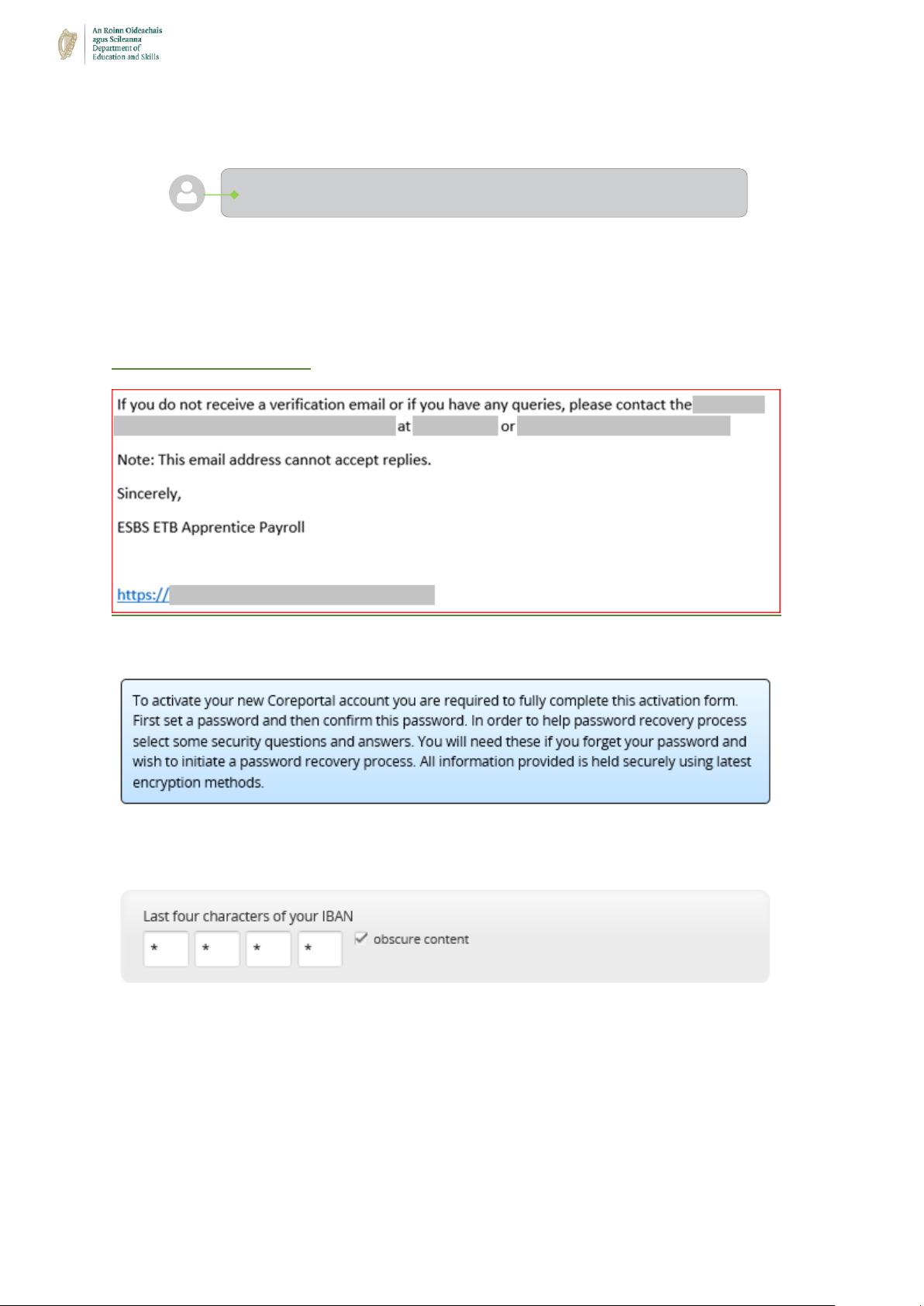
Step 1: Click on hyperlink at bottom of email.
Sample Text from Email:
This will direct you to your registration page where you will be presented with the following
message:
Step 2: Confirm the last 4 digits of your Payroll Bank Account
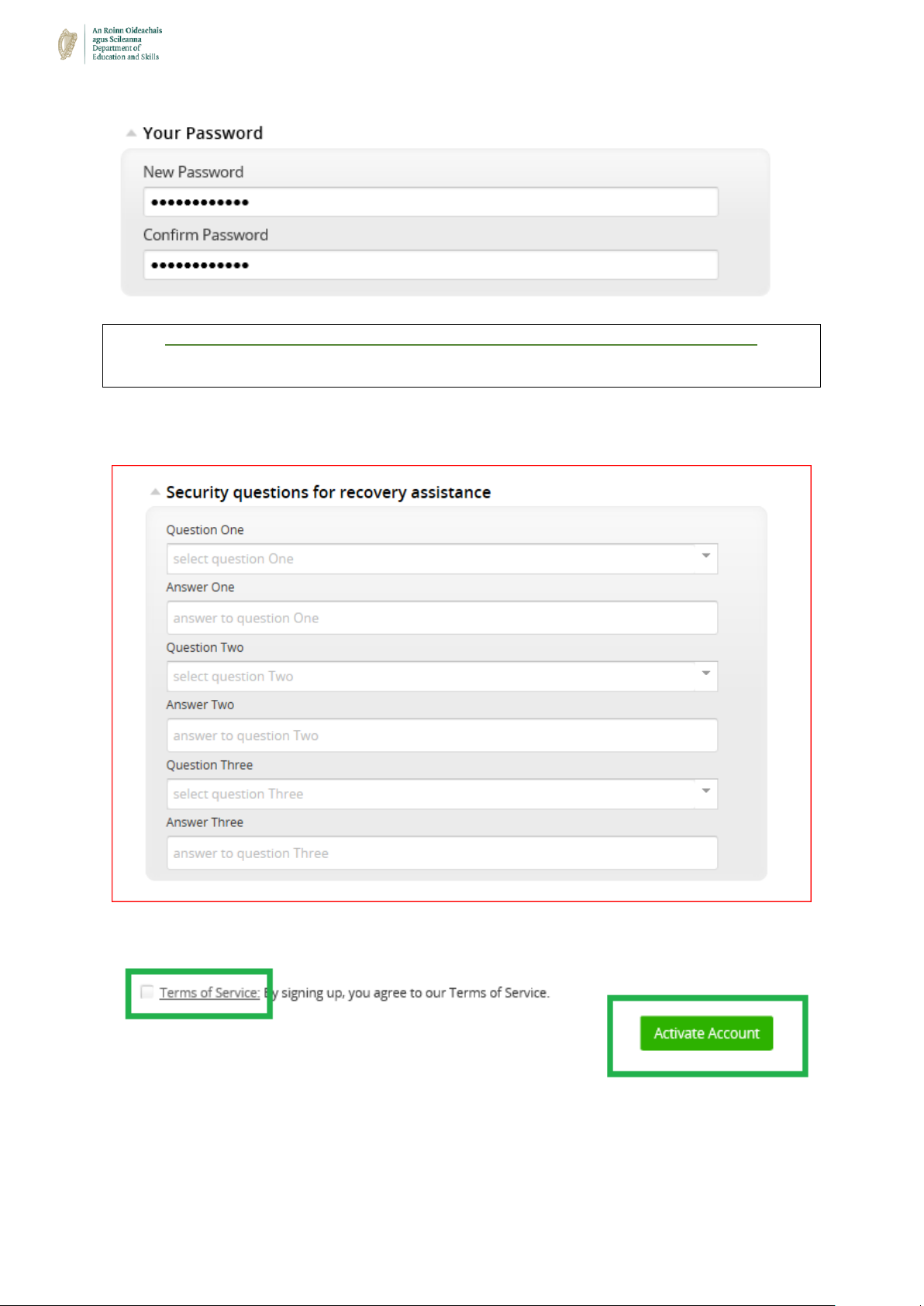
Step 3: Enter and Confirm your Password
I am new to CoreHR / this version of CoreHR
Page 7
7
Please Note the Password Requirement as specified in registration Email
Must be a minimum of 8 Characters and must include:
1 Uppercase, 1 Lowercase, 1 Number and 1 Special Character
Step 4: Security Questions for Recovery Assistance
Step 5: Click on Check box for Terms of Service and Select ‘Activate Account’
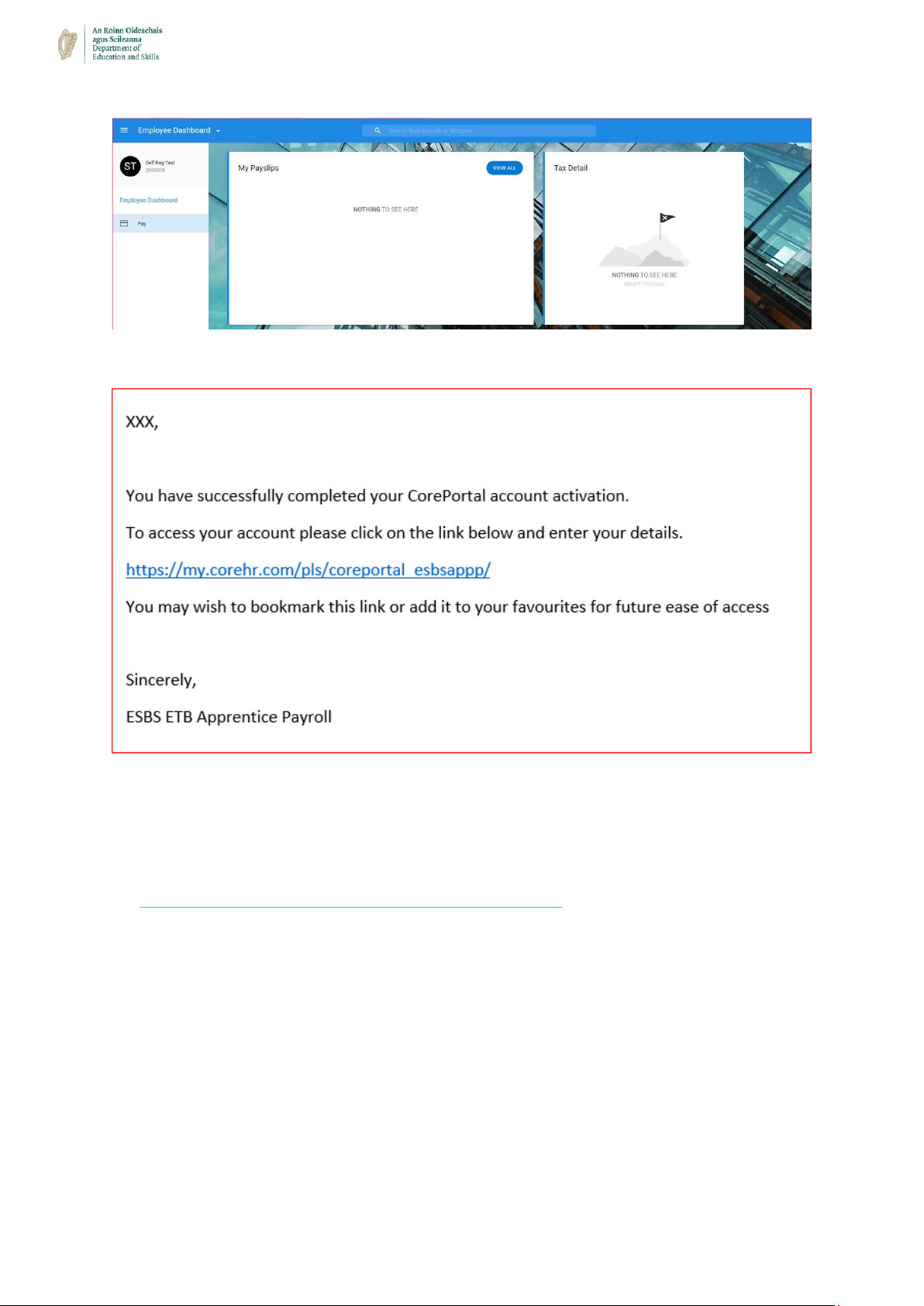
Step 6: You will be brought to your account landing page
Page 8
8
You will also receive the following email (Example):
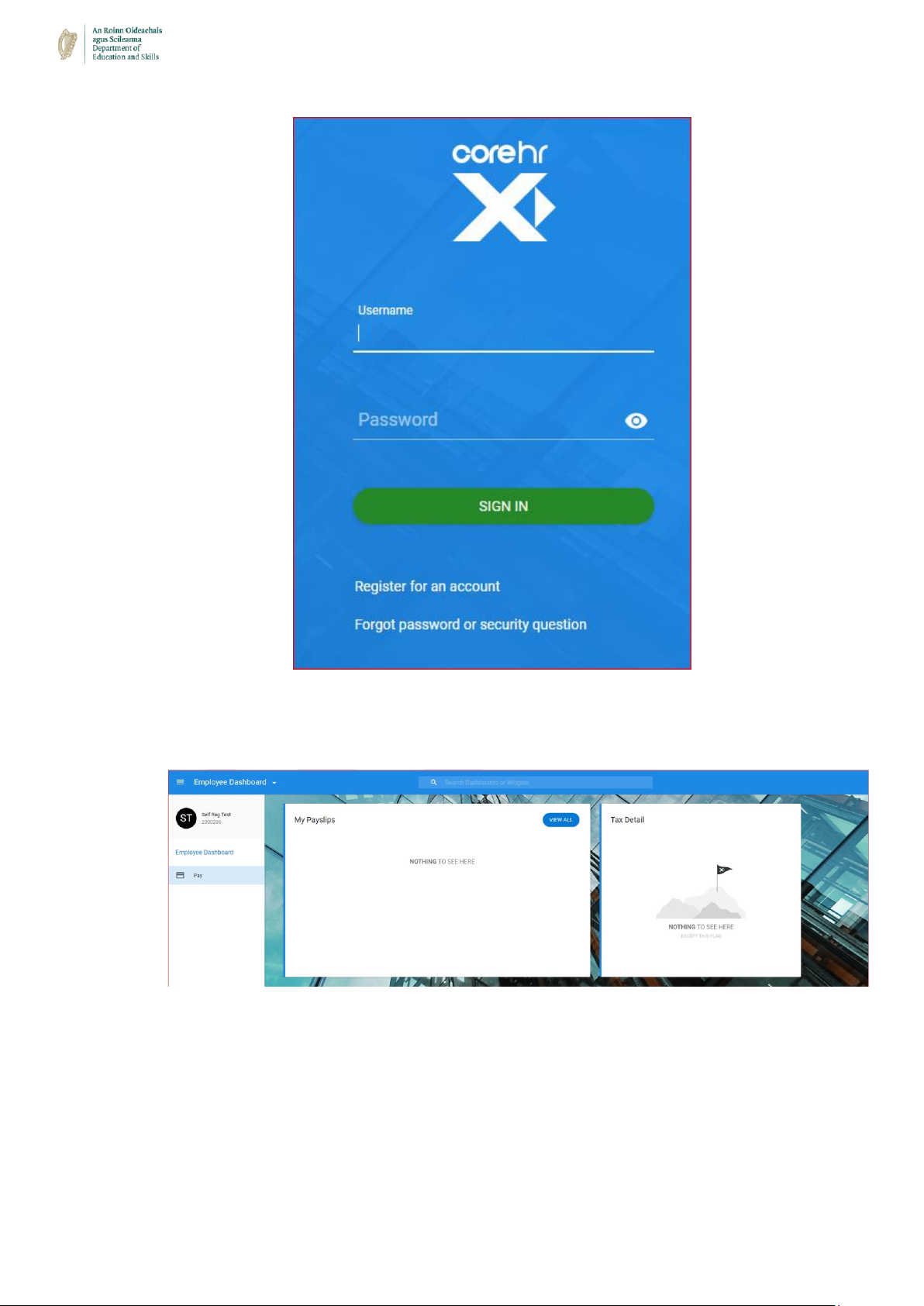
➢ How do I log into the CoreHR Portal?
o Please note – You must be registered at this point, and be on the log-in page:
To access your account please click on the link below and enter your details.
https://my.corehr.com/pls/coreportal_esbsappp/
You may wish to bookmark this link or add it to your Favourites for future ease of access.
o Step 1 – Enter Username & Password in the required fields and click ‘Sign In’.
Page 9
9
o Step 2 – Once logged in you should see the standard screen as below (Payee
Dashboard).
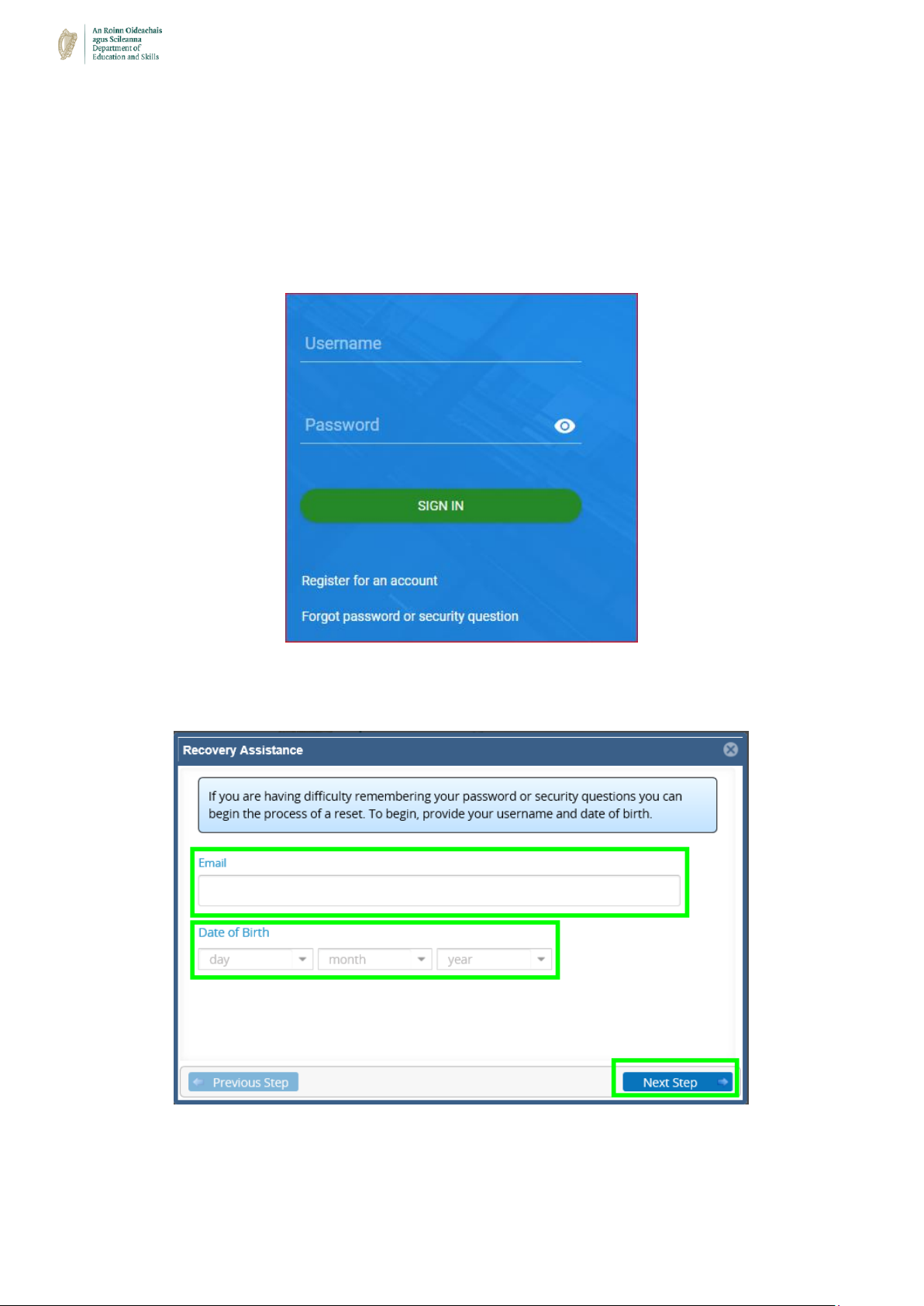
➢ I forgot my Password / Security Questions, how do I log in?
o Please note – The below steps are outlined when navigating from the CoreHR portal
log-in page
Page 10
10
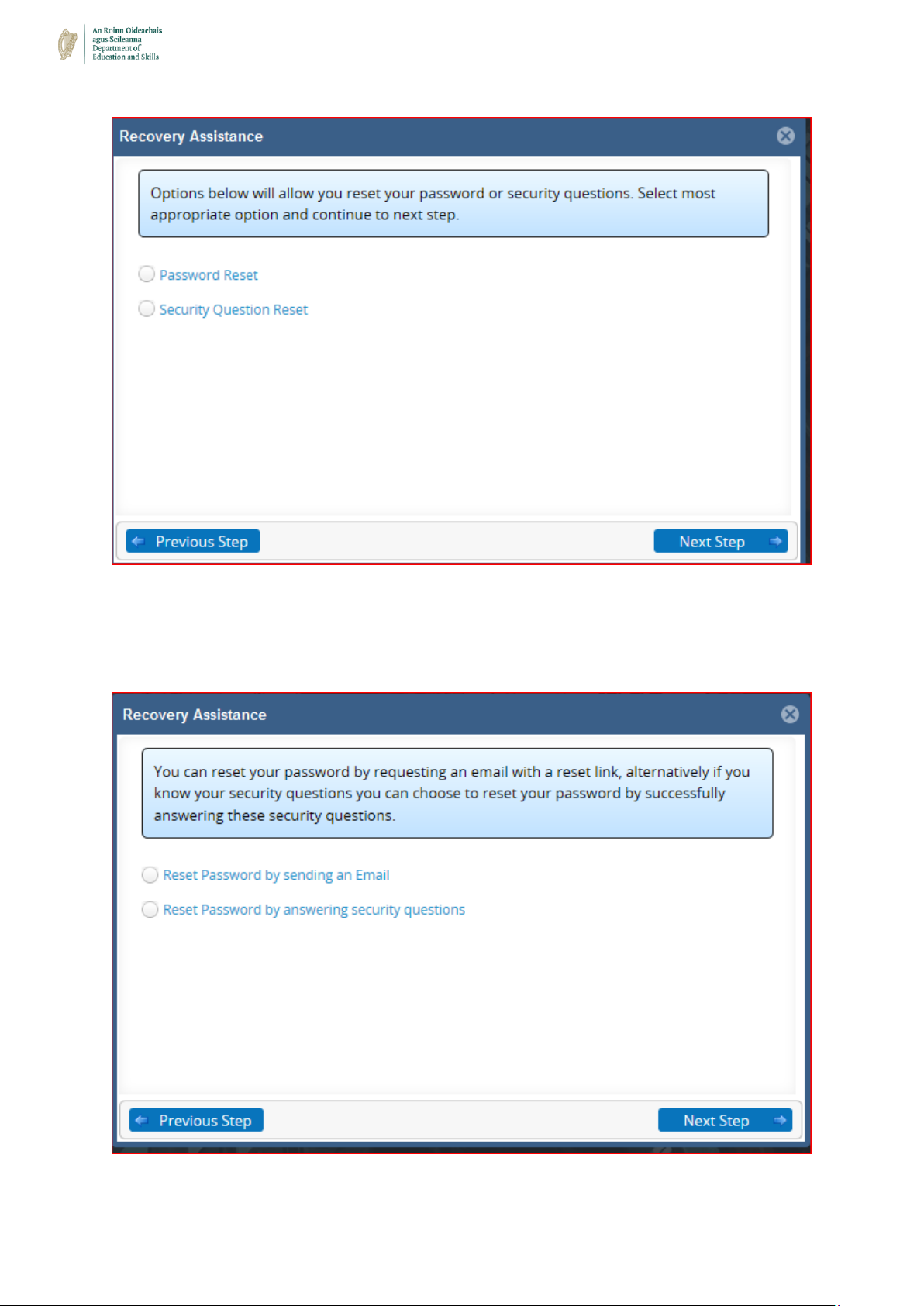
o Please note – You have two options when resetting your password – it can be reset
by sending an email, or by answering your security questions – both methods are
stepped out below.
o Step 1 – Select the ‘Forgot password or security question’ option below the
username log in box
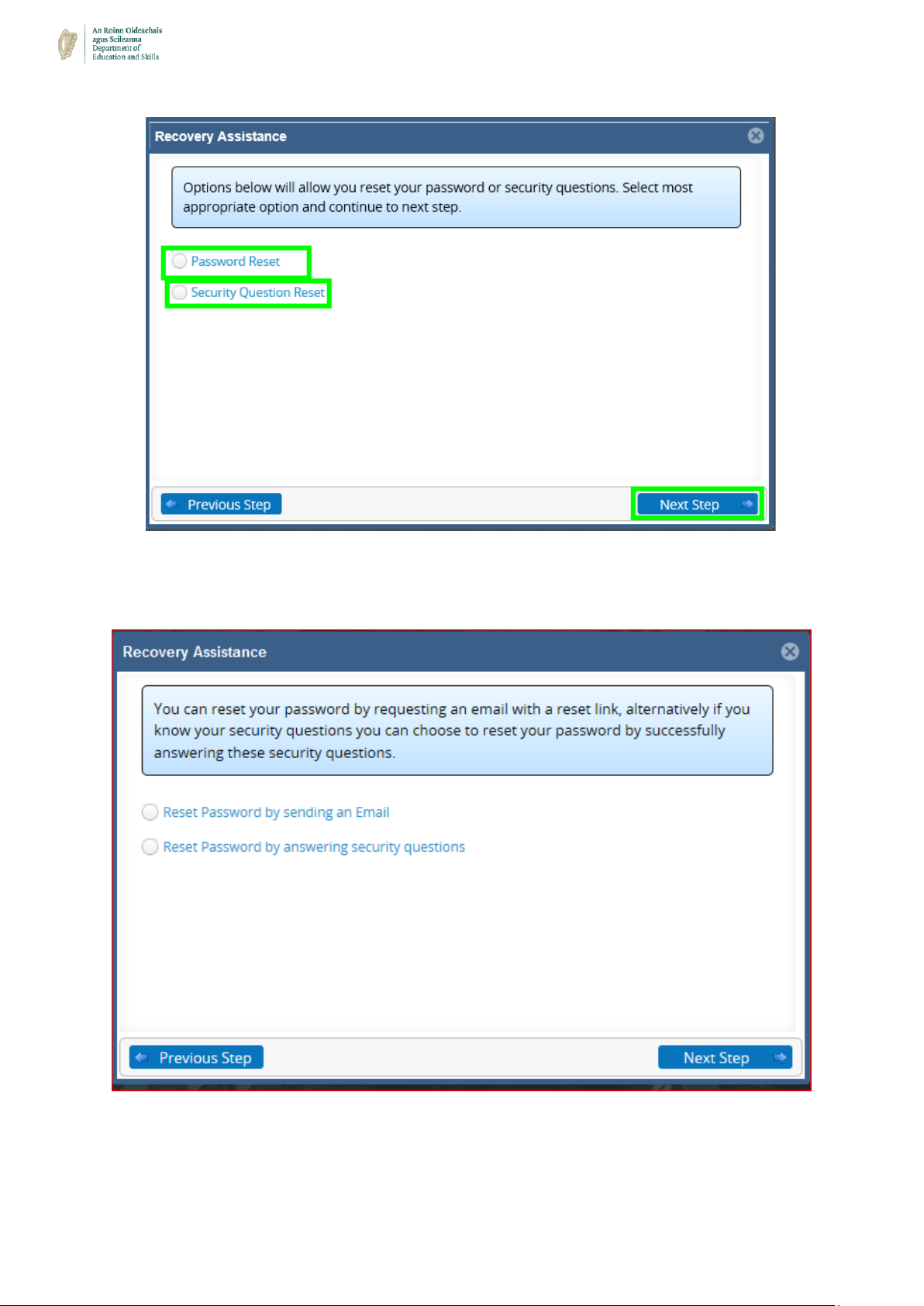
o Step 2 – Enter your email address and Date of Birth as requested – click ‘Next Step’:
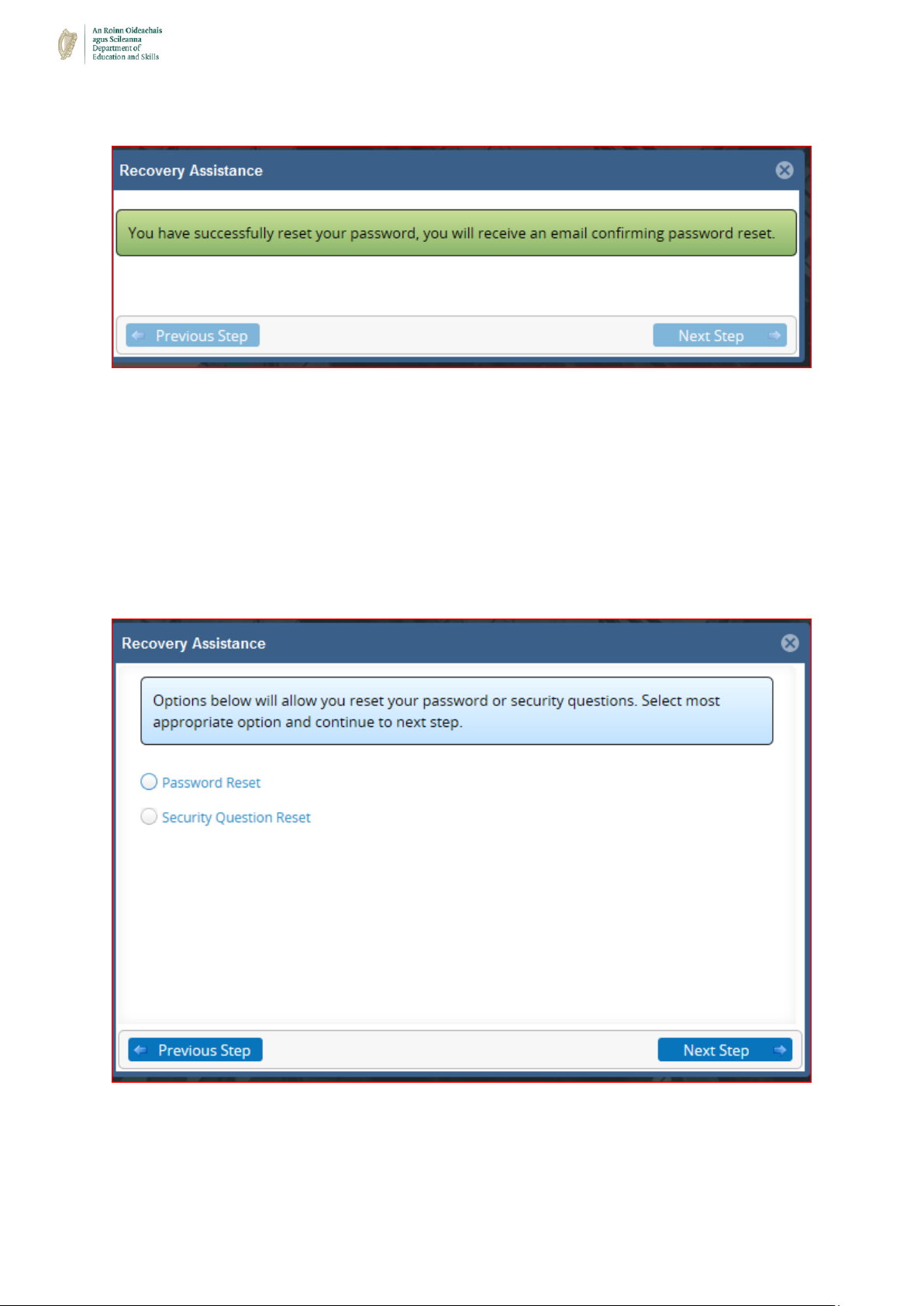
o Step 3 – Select whether you want to reset your password or security questions –
click ‘Next Step’:
Page 11
11
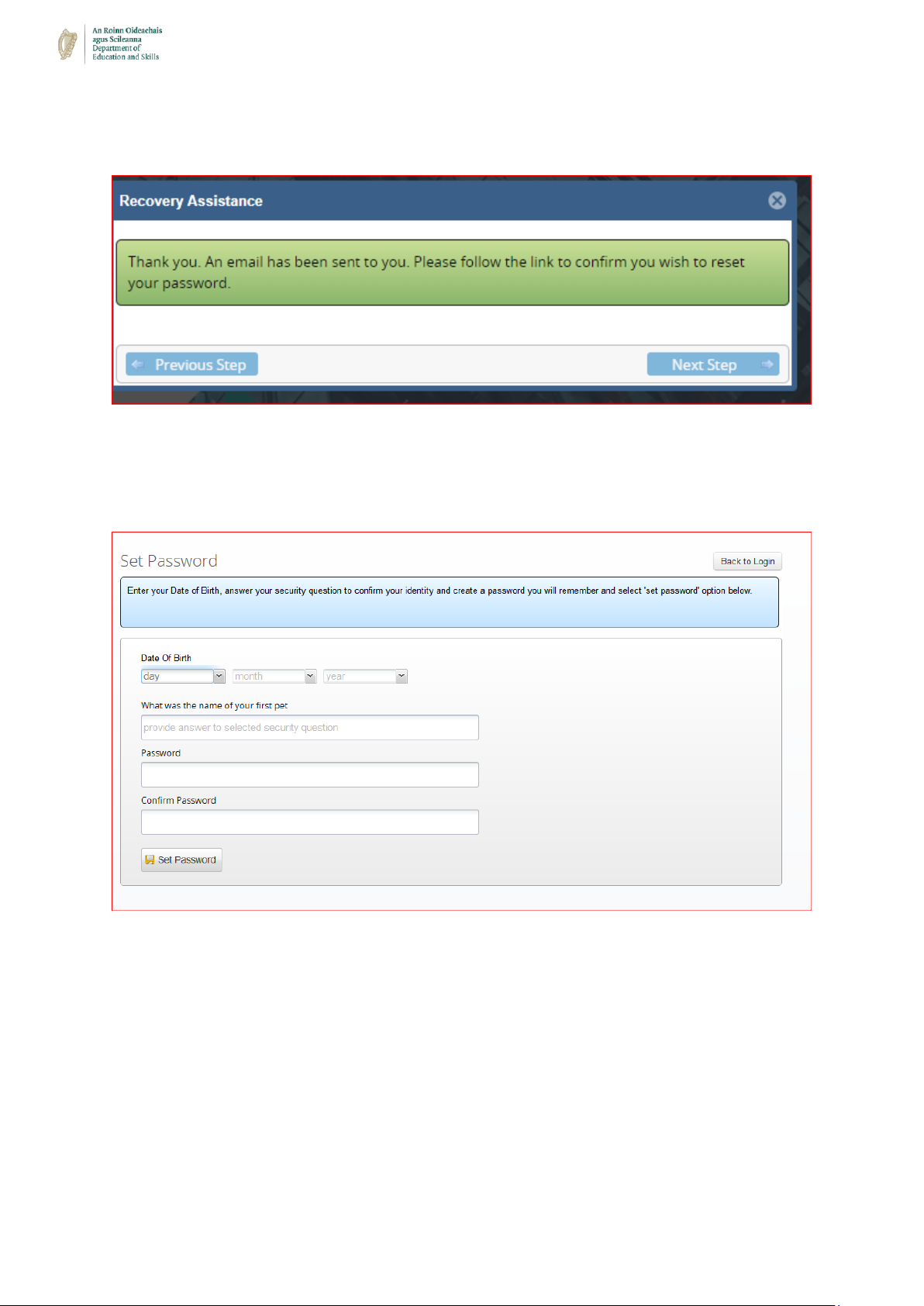
Password Reset (2 options):
Option 1: When resetting your password via sending an email:
Page 12
12
o Step A – Select the ‘Reset password by sending an Email’ option – click ‘Next Step’
– you will receive an email with a link – click this link and follow the next steps
o Step B – Once you have clicked into the link - you will require your Date of Birth and
will be asked to answer one of your security questions. Enter these details. Then
enter your new password & confirm your new password – click ‘Set Password’
Option 2: When resetting your password by answering Security Questions:
Step A – Select password Reset – click ‘Next Step’:
Page 13
13
o Step B - Select the ‘Reset Password by answering security questions’ option & click
‘Next Step’
Page 14
14
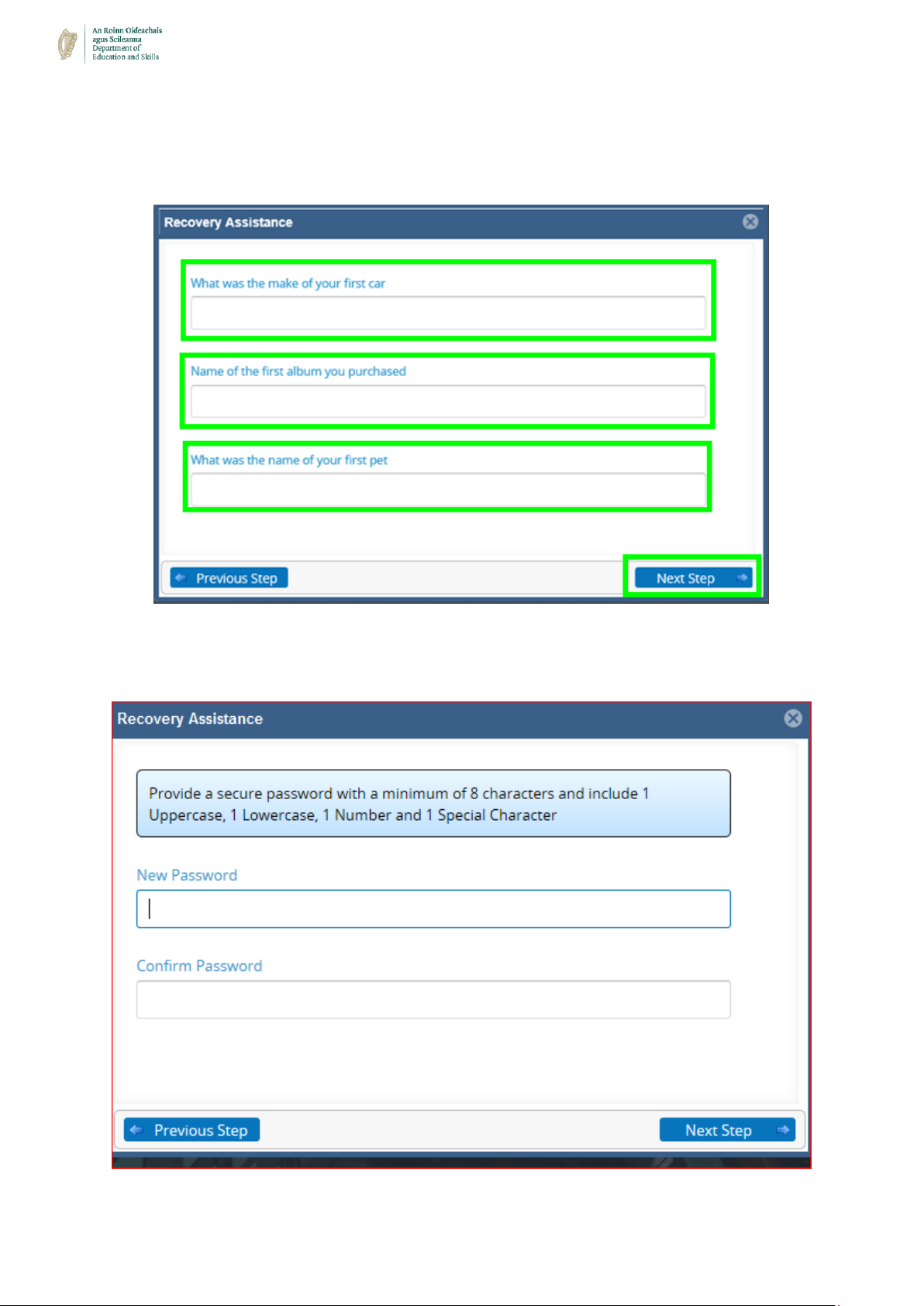
o Step C – Answer your 3 security questions (as set out when first registered for the
system) – click ‘Next Step’
o Step D – Enter your new password and confirm your new password – click ‘Next
Step’
Page 15
15
➢ How do I change the ‘Security Questions’ on my account?
o This is a security step that can help you regain access to the portal if you are locked
out or forget your password.
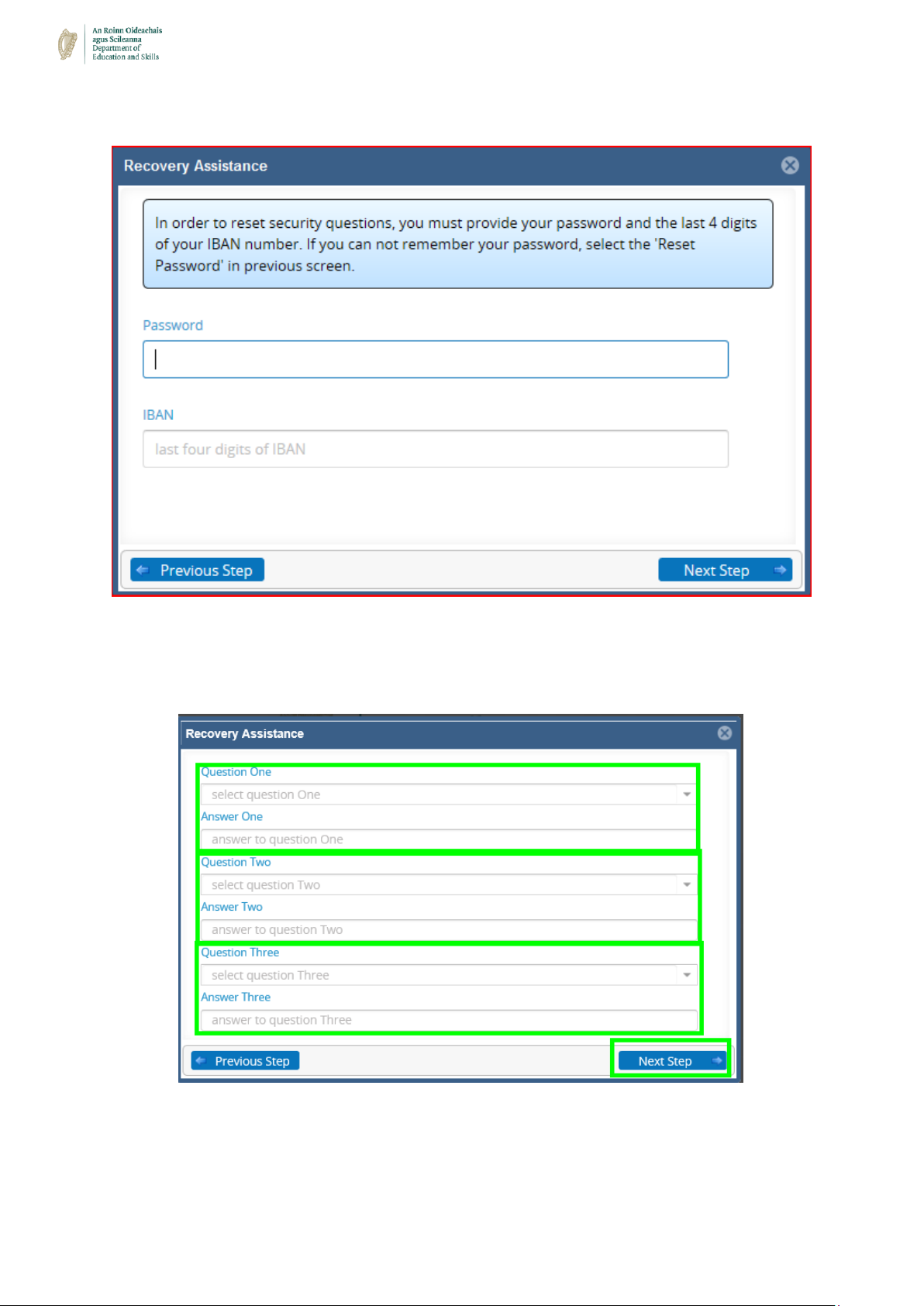
o Please note: To reset your security questions you will need your password and the
last 4 digits of your Bank Account Number (IBAN).
o Step 1: Select “Security Question Reset” & click “Next Step”.
o Step 2: Enter your Password and the last 4 digits of your Bank Account Number
(IBAN) into the relevant fields – click “Next Step”.
Page 16
16
o Step 3: Enter your New Security Questions and Answers into the relevant field –
click ‘Next Step’ – Your Security Questions will then be updated
Please note: If the above steps do not work for you – please call your local ETB helpdesk.
Details for the Helpdesk can be found in the ‘Introduction’ section
Page 17
17
➢ What functionality is available to me? (Dashboard)
o Please note: You must have logged-in successfully and navigated to your
dashboard.
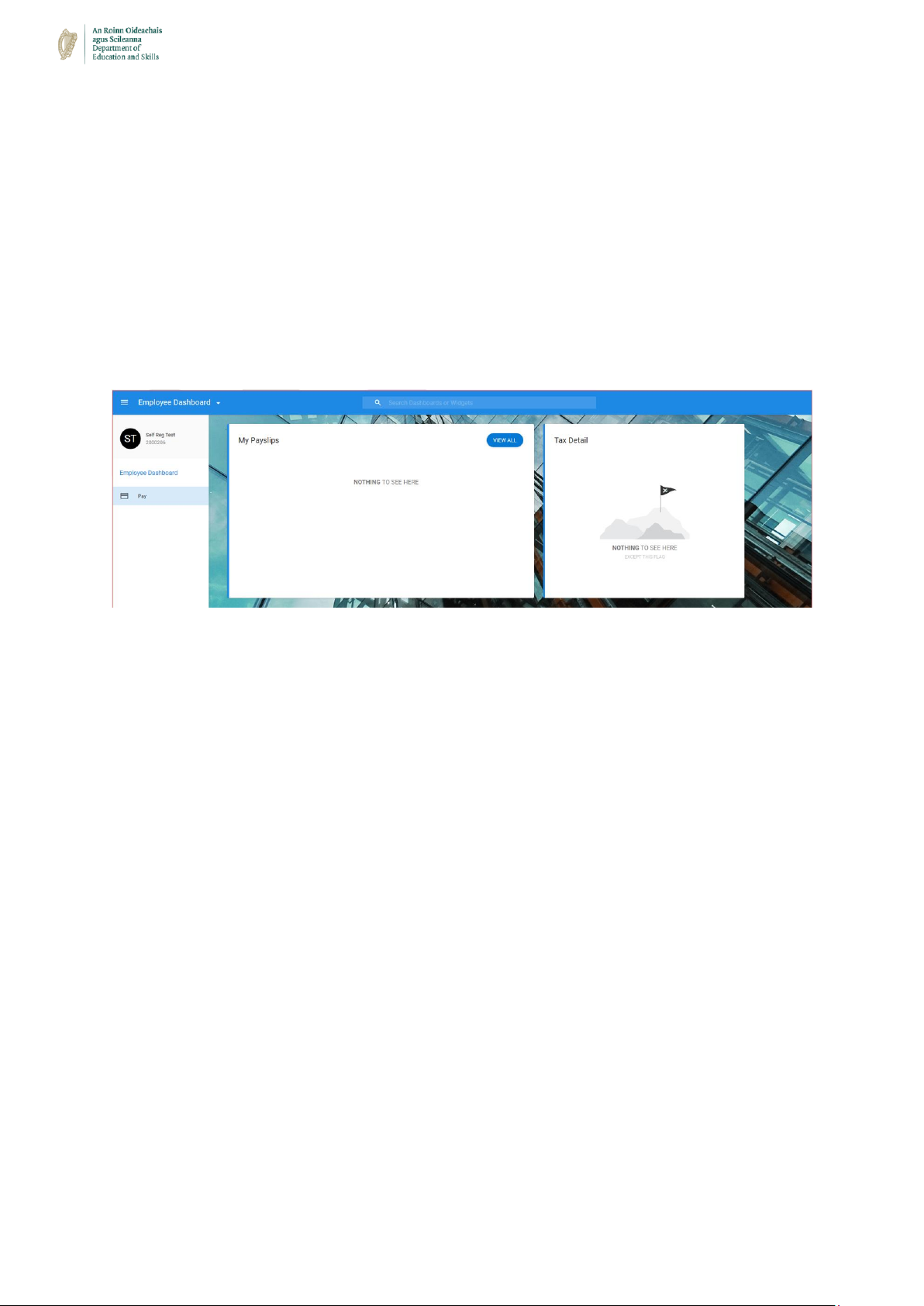
o Step 1 – Check to ensure the “Pay” widget / tab is visible on the left-hand-side of the
screen & the following associated tiles are visible:
o My Payslips
o Tax Detail
Page 18
18
Chapter 2 – My Payslip
Key Topics Covered
o How to View & Print my Payslip and
Other Documentation
Hold CTRL button on keyboard and click mouse here.
o My Payslip explained
Hold CTRL button on keyboard and click mouse here.
Page 19
19
➢ How do I view my payslip / any other documentation available to me?
o Please note – This section offers a ‘How-To’ view your payslip guide. All have the
options to print on the bottom of the relevant pop-up screens.
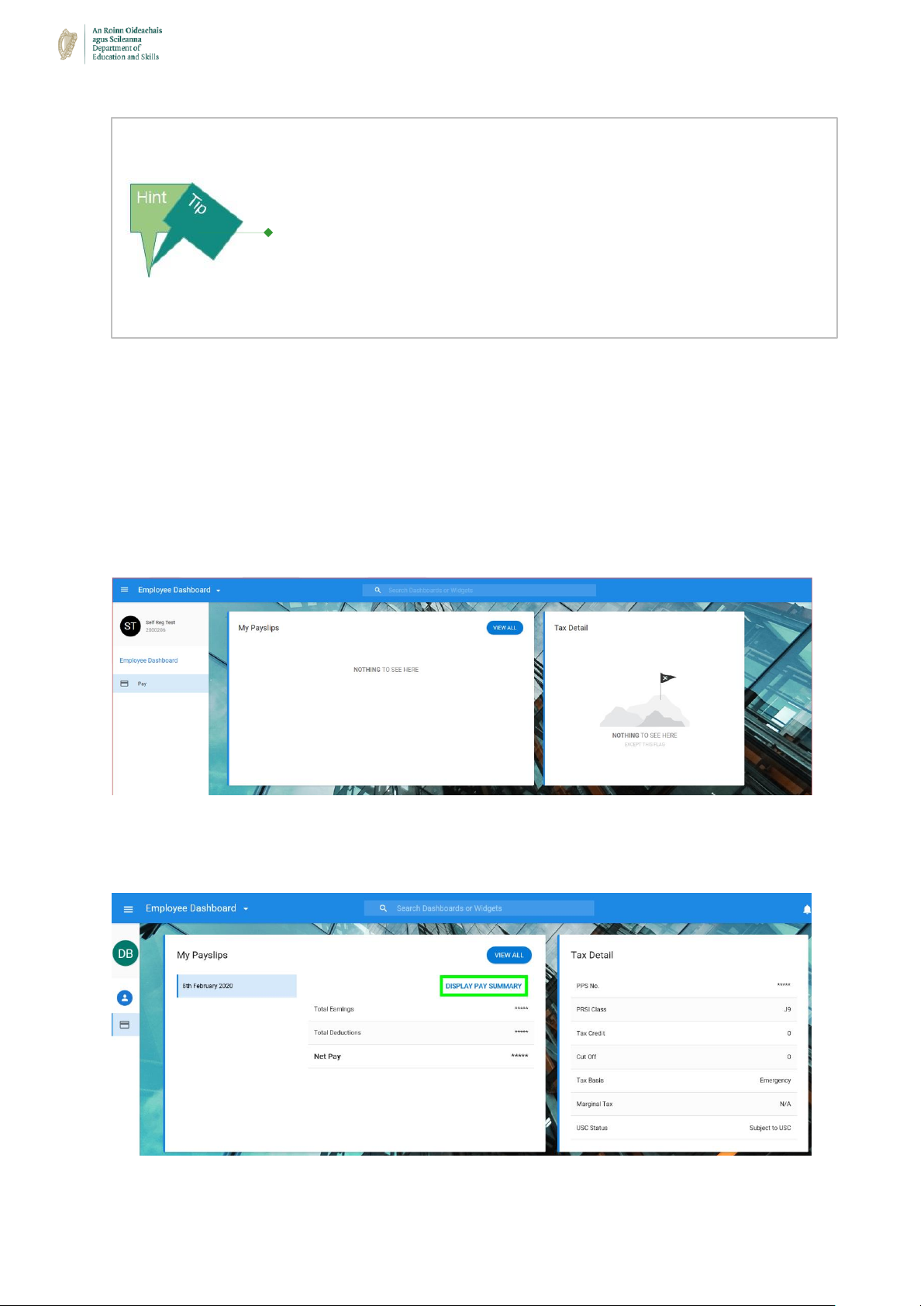
o Step 1 – In order to view your payslip(s) you will need your login password –
navigate to your “Pay” tab on the left-hand-side of your screen:
o Step 2 – To view and print your payslip(s) – click the ‘Display Pay Summary’ button
in your “My Payslips” section:
What will I need to view & print my Payslip on the new CoreHR
Portal?
You will need the following information:
o Your password will be needed to view and print your payslip
Page 20
20
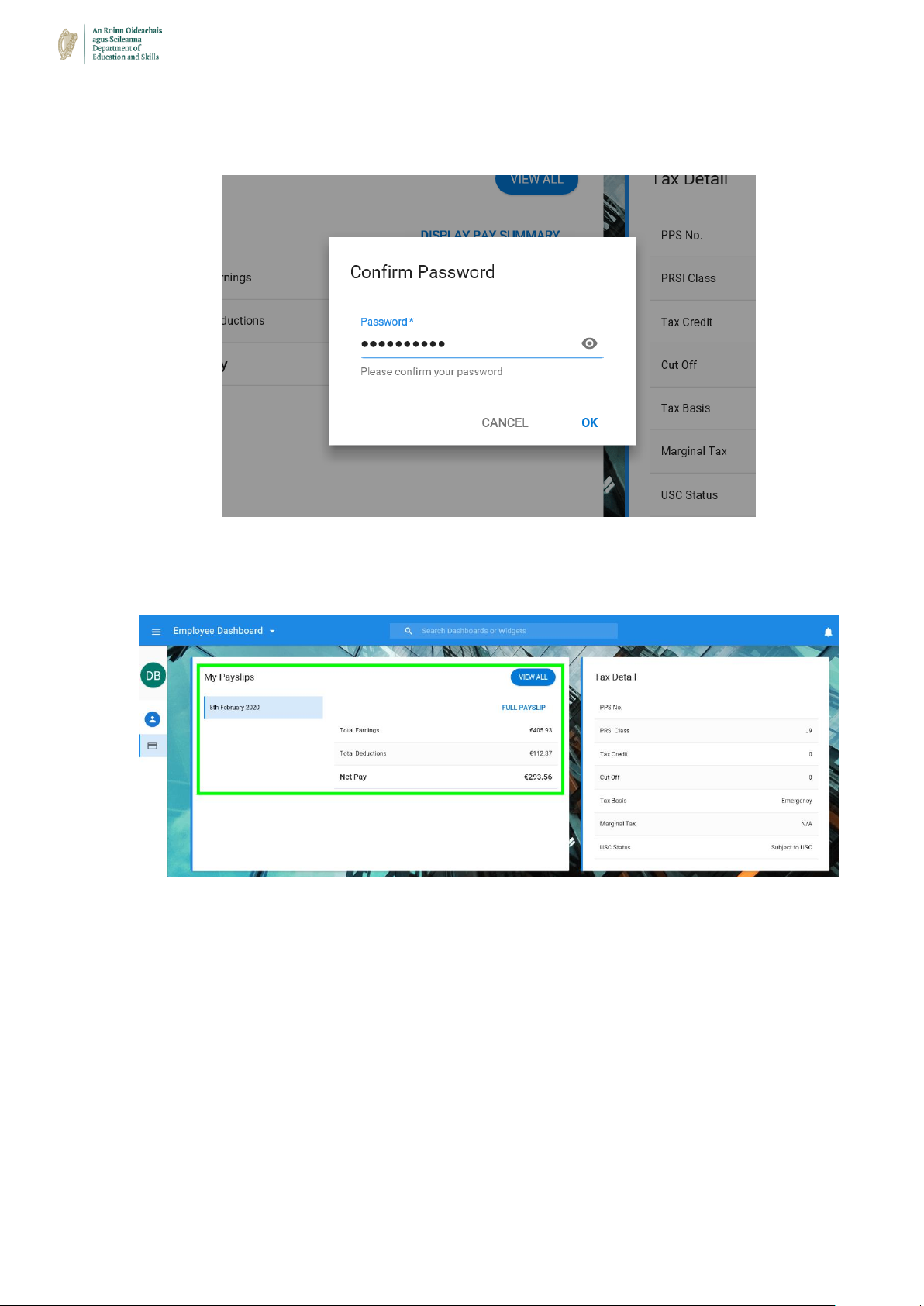
o Step 3 – Once selected you will be prompted to enter your login password – enter
your password and click “Confirm”.
o Step 4 – Once you have confirmed your password, you will return to the following
screen. To view your pay slip – select the ‘Full Payslip’ button:
o Step 5 – When your payslip pops up (as seen below) – select the ‘Print’ button on
the top-right-hand-side of your screen in order to print your payslip:
Page 21
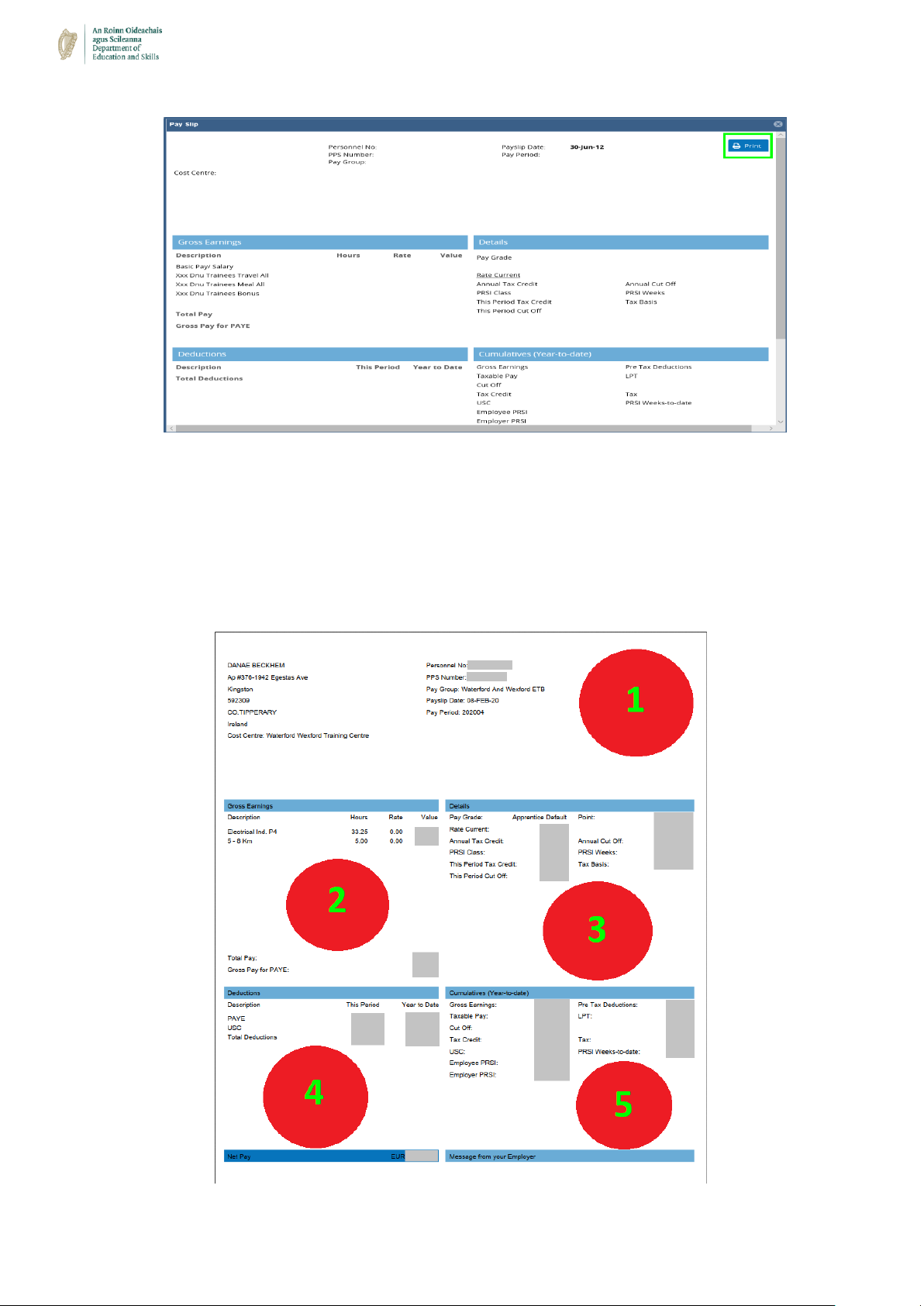
21
➢ Your Payslip explained:
o Please note – This section outlines what information can be found on your payslip
and where. For explanation purposes your payslip is split into 5 sections outlined in
the screenshot below (In order to view your payslip please refer to the previous
process ‘How to view my Payslip / Any other documentation?’)
Page 22
22
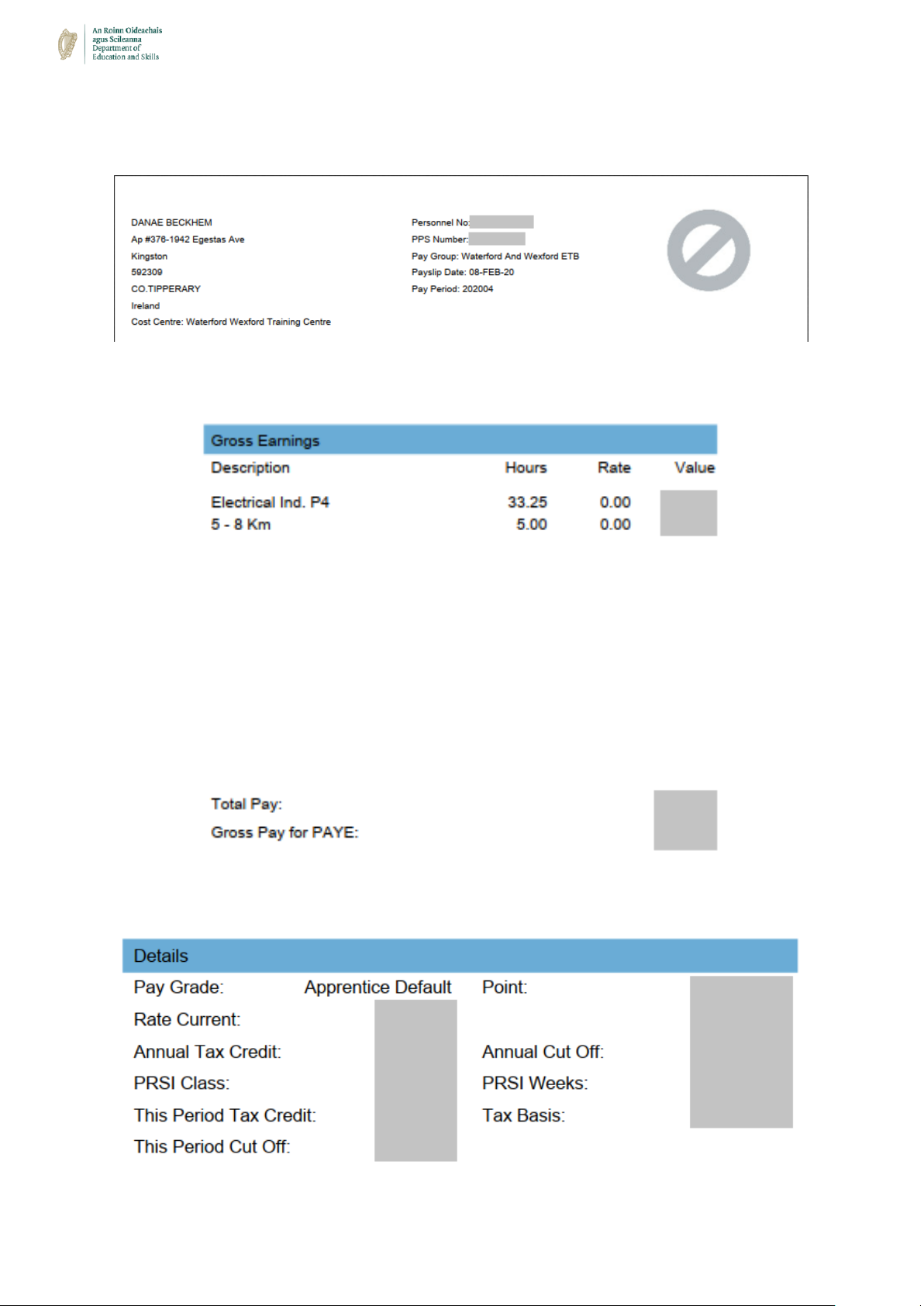
o Section 1 – This section details your personal details including your ‘Personnel
Number’ / ‘Pay Group’ etc.
o Section 2 – This section details your Basic Pay & Allowances for the pay period
o Section 3 – This section details your tax details, including your annual tax credit
Page 23
23
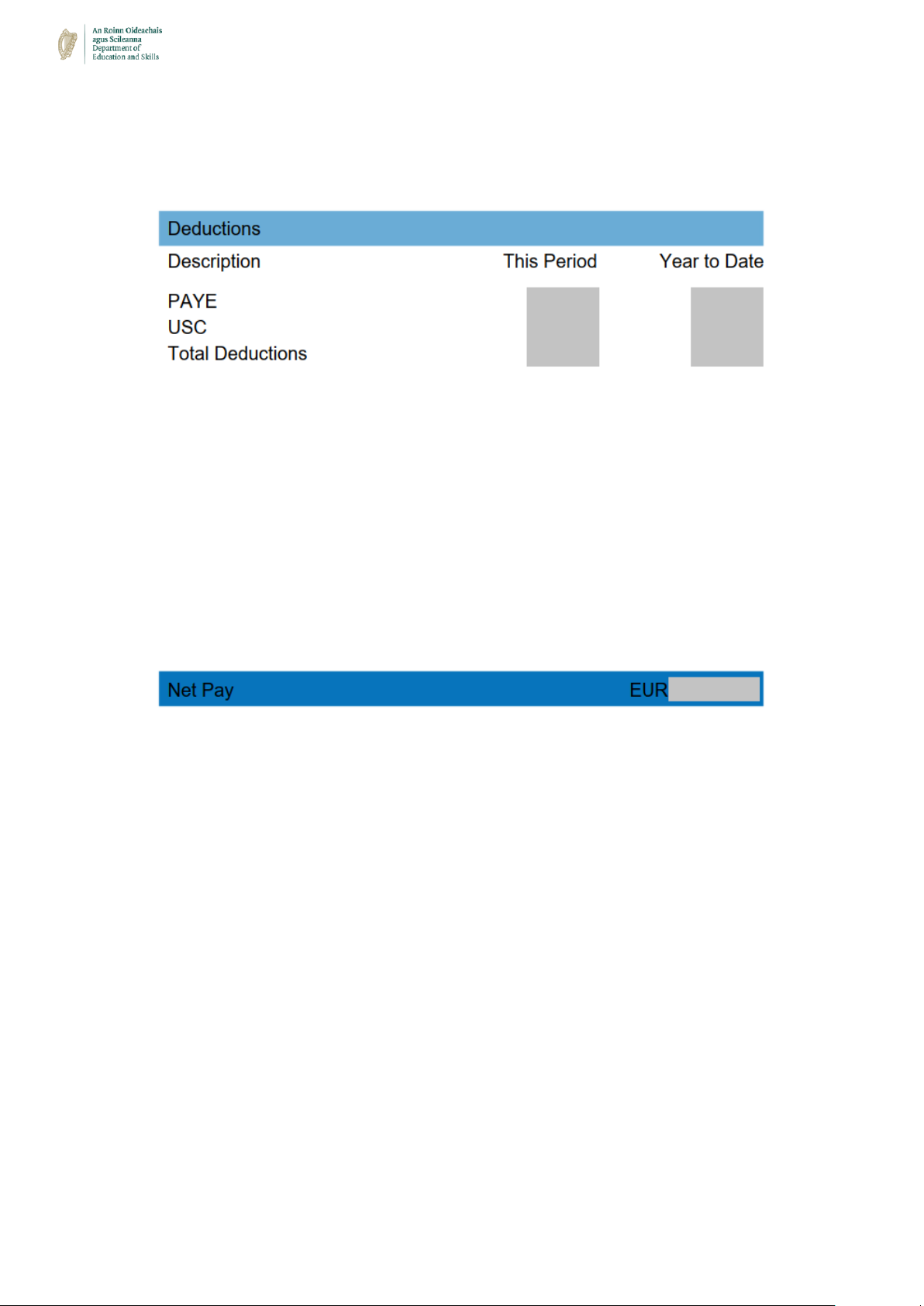
o Section 4 – This section details all your specific deductions for the period and
outlines your Net Pay figure at the bottom (once all deductions have been calculated)
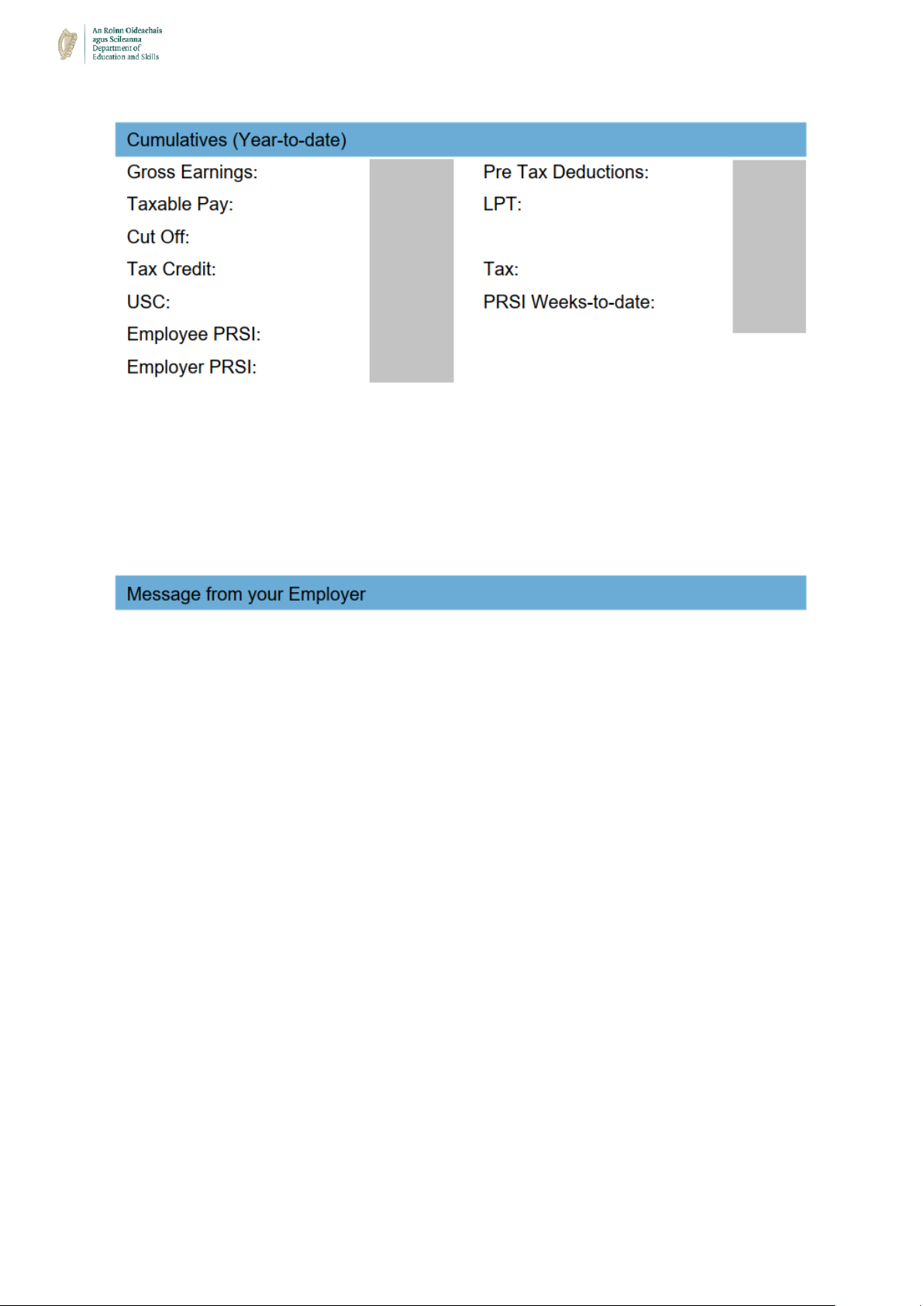
o Section 5 – This section is your ‘Year-To-Date’ cumulative figures such as your
gross earnings, tax deductions etc. If an ETB / Training Centre wishes to populate a
message for all payees, this can be added to a payee’s payslip and will be seen at
the bottom of this section
Page 24
24
 Loading...