

Page 1

ERTF User Guide SpeedoCap 3 V 1.22 Page 1 / 13
ERTF COMPETITION Parc Technologique de Soye – 56275 PLOEMEUR CEDEX
Page 2
DATE
UPDATING
SUB
JECT Autho
r
User Guide
Speedocap 3
Evolutions of the document
2/10/2012 0 Creation ERTF
21/03/2013
29/08/2014
15/01/2016
1 Evolution V1.11 ERTF
2 Addition of paragraph 2.1 ERTF
3 Evolution V1.22 ERTF
ERTF User Guide SpeedoCap 3 V 1.22 Page 2 / 13
Page 3

SUMMARY
1. GENERAL PRESENTATION 4
1.1 SPEEDOCAP 4
1.2 SPEEDOCAP EVO 4
2. DESCRIPTION 4
2.1 INSTALLATION 5
3. FUNCTIONNING CONNECTED TO GPS UNIK 2 5
3.1 SWITCH ON 5
3.2 CONFIGURATION 5
3.2.1 Backlight 5
3.2.2 Info Waypoint 5
3.2.3 Automatic Backlight 5
3.2.4 Enable remote (from 1.11 version) 5
3.2.5 Output 5
3.2.6 Odometer 5
3.2.7 GPS Status 5
3.2.8 GPS Frame Rate (Speedocap Evo from V1.22) 6
3.2.9 TimeZone (SpeedoCap Evo) 6
3.3 SCREENS DESCRIPTION 6
3.3.1 Browse in the screens 6
3.3.2 COG screen 6
3.3.3 COG+SPD screen 7
3.3.4 Speed screen 7
3.3.5 ODO screen 7
3.3.6 COG+ODO screen 7
3.4 ODO ADJUSTMENT 7
3.5 WARNING SPEED ZONES 8
3.5.1 In the DZ entry 8
3.5.2 In the slowing down zone 8
3.5.3 When the limit is active 8
3.6 SPEEDOX FUNCTION 9
3.7 MAX SPEED 9
4. SPECIFICITIES OF SPEEDOCAP EVO 10
4.1 BROWSE AND REMOTE CONTROL 10
4.1.1 Browse from the keyboard 10
4.1.2 Browse from the remote control 11
4.2 TIME CHRONO SCREEN 11
4.3 CONNECTIONS 12
ERTF User Guide SpeedoCap 3 V 1.22 Page 3 / 13
Page 4
1. GENERAL PRESENTATION
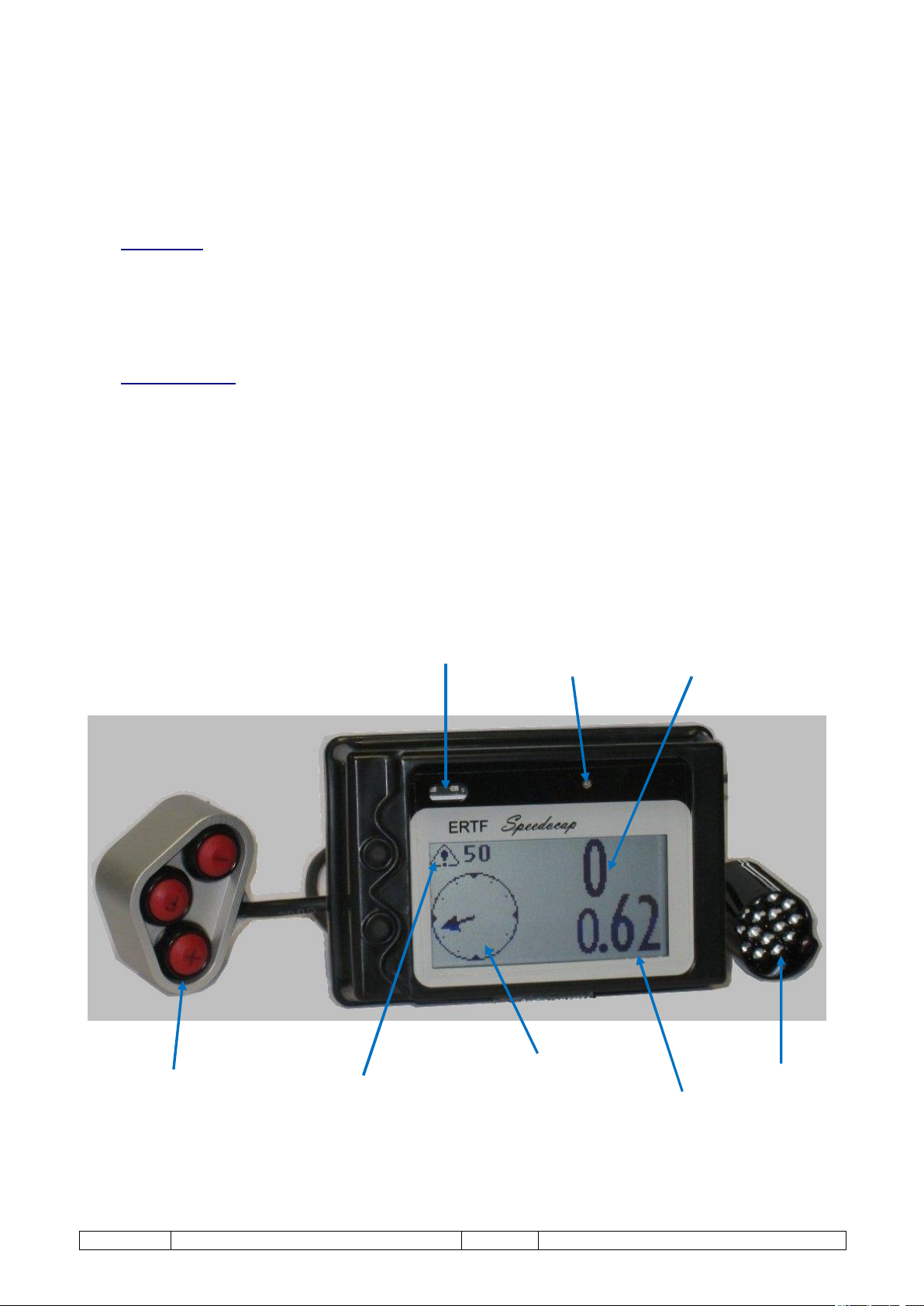
Remote control (option)
Speed limit warning
Compass or Waypoint
Sign leds
Light sensor
Heading
Flash (option)
ODO
Speedocap 3 is a major evolution of the Speedocap, it is equipped with a new transflectif screen of high
quality, the case was completely rethought to become integrated easily on bikes and cars. But especially
Speedocap 3 copies out the essential information of the GPS Unik2 to help a driving without having to lower
the head to look at its GPS.
Speedocap exists in 2 versions: the Speedocap version and the Speedocap Evo version.
1.1 Speedocap
The standard Speedocap version still has all the functions of previous Speedocap with there more:
- Display of the compass or the name and the number of Waypoint
- Bright Repetition (in parallel of the GPS) of the Speedox function
- Possibility to browse between the various screens from the remote control of the GPS
1.2 Speedocap Evo
The Evo version is equipped with a GPS chip which allows a functioning without being connected to the GPS
Unik 2.
Speedocap Evo not connected to the GPS Unik 2 shows the speed, the course, the odo as well as the hour
and a stopwatch.
These functions are accessible by the keyboard of Speedocap, but more easily with the remote control
(optional remote control same as the GPS Unik2 one).
2. DESCRIPTION
ERTF User Guide SpeedoCap 3 V 1.22 Page 4 / 13
number and name
Example of display according to the chosen configuration
Page 5

2.1 Installation
Caution:
Installation: Guarantee is not applicable if mounting is not correct and/or without using the silent-bloc.
Washing: Devices must be protected and taken out of water during the wash of vehicles; any problem of
waterproofness due to the lack of protection could not be taken under the commercial guarantee.
3. FUNCTIONNING CONNECTED TO GPS UNIK 2
3.1 Switch on
Speedocap switches on automatically when the GPS is started up.
It goes out when the GPS goes out. The configuration is kept but the MAX SPEED value resets to 0 and in
off-line mode the ODO value resets to 0.
From 1.11 version, at switch on, Speedocap displays the last screen shows before the switch off (if it was
displayed 30 seconds at least).
3.2 Configuration
To reach the configuration screen, it is necessary to press on 2 buttons at the same time.
You browse in the configuration screens using the high and low keys (+ and-) the selection of one under
menu or a parameter is made by pressing on 2 keys at the same time.
3.2.1 Backlight
ON = 1 : To set the backlight from 0 to 100%.
OFF = 0 : Automatic mode.
3.2.2 Info Waypoint
When the compass is visible on the GPS, it is automatically displayed on the Speedocap.
When the compass is not visible on the GPS, there are 3 possibilities:
a) Info Wpt= 0, nothing displayed
b) Info Wpt= 1, name of the target Waypoint is displayed
c) Info Wpt= 2, name and number of the target Waypoint are displayed
3.2.3 Automatic Backlight
To appropriate the backlight to the outside luminosity. Work on Day/Night mode: when it is the night
luminosity is minimal.
3.2.4 Enable remote (from 1.11 version)
To activate or deactivate the navigation in the Speedocap screens via the GPS remote control.
3.2.5 Output
To activate the output for the external lamp.
3.2.6 Odometer
To set to 1 or 2 the decimals number of the odometer counter.
For the Speedocap Evo, you can also set an adjustment odo from -99m by kilometre to +99m by kilometre.
By default it is 0.
From 1.10 version, the parameter “Display Odo Type” allows to choose between the display of Odo Total (0)
or Partial (1).
3.2.7 GPS Status
To check the satellite reception.
ERTF User Guide SpeedoCap 3 V 1.22 Page 5 / 13
Page 6
screen
screen
screen
screen
screen
screen
3.2.8 GPS Frame Rate (Speedocap Evo from V1.22)
To modify the speed of the GPS module sampling when Speedocap is in internal GPS mode with the choice
"2Hz”, “5Hz” and “10Hz” for a more or less fast refreshment of indicators in the screen (course, speed,
odometer).
By default, the speed GPS calculation is of "2Hz”.
3.2.9 TimeZone (SpeedoCap Evo)
To choose the time zone (for Speedocap Evo only).
3.3 Screens description
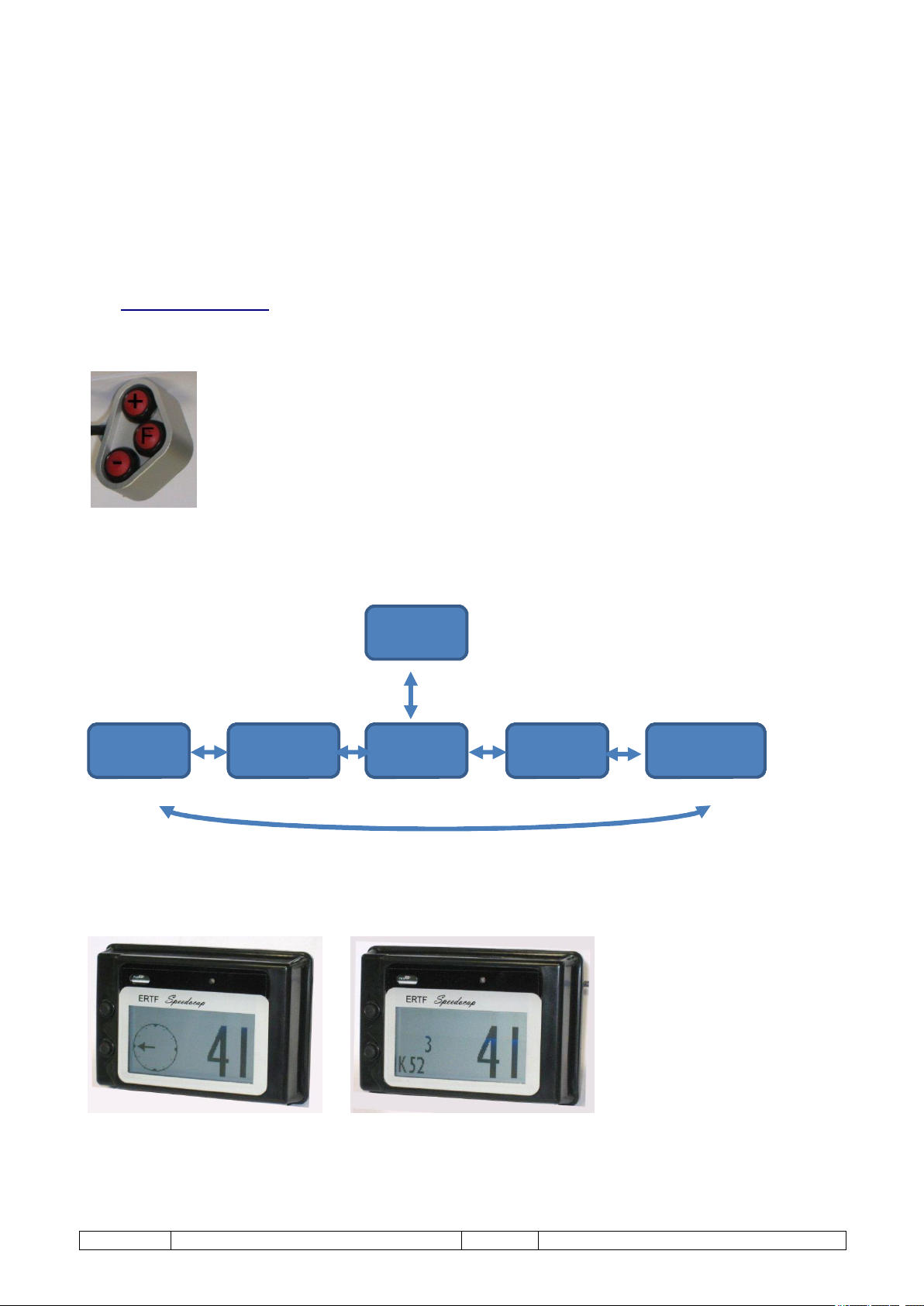
At the switch on, Speedocap is automatically on the COG screen.
To go from one screen to another, 2 ways:
- With +,- Speedocap keys
- Via the GPS remote control:
o Press on the function key to move in AUX mode
o Press on the +/- keys to browse
o A second press on the F key removes in ODO mode (ODO modification)
3.3.1 Browse in the screens
Max SPD
COG
COG+SPD
SPD
3.3.2 COG screen
Here the target Waypoint is the number 3, its name is K52.
Configuration Info Wpt = 2 (see paragraph 3.2.2).
ODO
COG+ODO
Display in a visibility radius Display in WPM (masked waypoint)
ERTF User Guide SpeedoCap 3 V 1.22 Page 6 / 13
Page 7
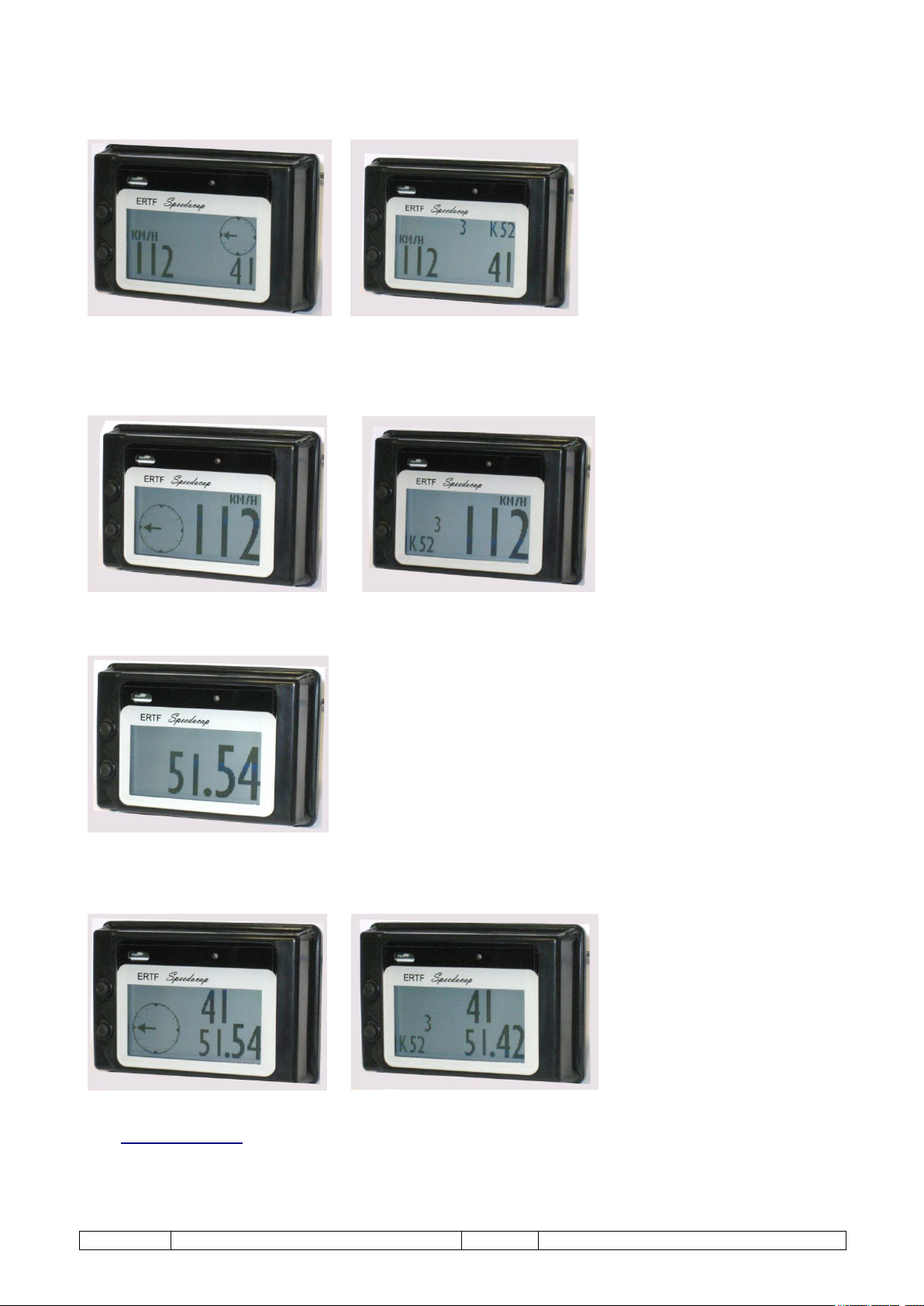
3.3.3 COG+SPD screen
Here the target Waypoint is the number 3, its name is K52.
Configuration Info Wpt = 2 (see paragraph 3.2.2).
Display in a visibility radius Display in WPM (masked waypoint)
3.3.4 Speed screen
Here the target Waypoint is the number 3, its name is K52.
Configuration Info Wpt = 2 (see paragraph 3.2.2).
Display in a visibility radius Display in WPM (masked waypoint)
3.3.5 ODO screen
3.3.6 COG+ODO screen
Here the target Waypoint is the number 3, its name is K52.
Configuration Info Wpt = 2 (see paragraph 3.2.2).
Display in a visibility radius Display in WPM (masked waypoint)
3.4 ODO adjustment
When the GPS process to an ODO adjustment on a Waypoint, besides indicates it on the GPS with the
message « ADJUST OK », the green Speedocap LED blinks a few seconds.
ERTF User Guide SpeedoCap 3 V 1.22 Page 7 / 13
Page 8
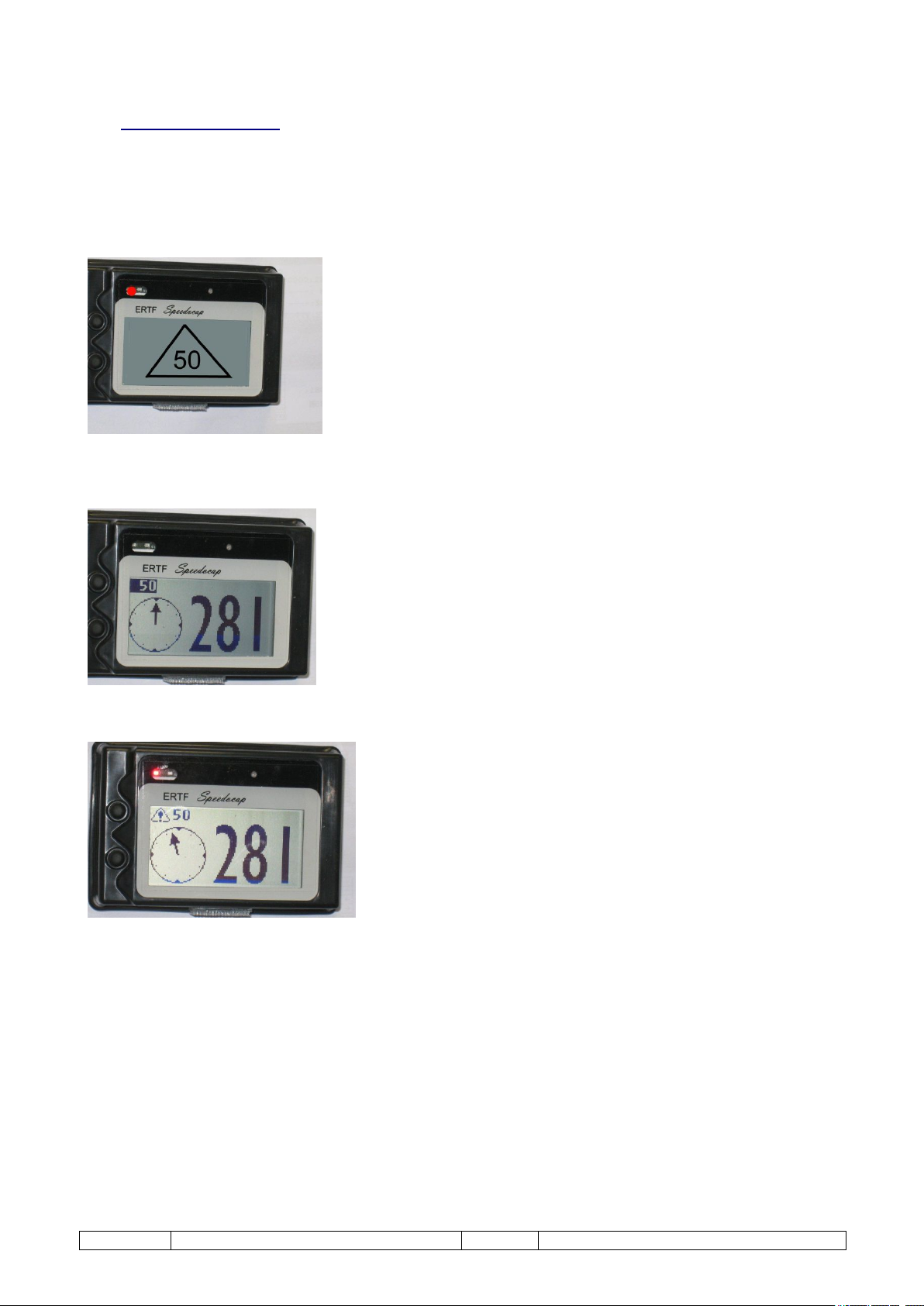
3.5 Warning speed zones
Speedocap signals the speed limitation zones the same way as the GPS.
3.5.1 In the DZ entry
SpeedoCap signals your entry in a DZ displaying alternately the screen chosen and the warning DZ entry
screen.
Warning DZ entry screen
3.5.2 In the slowing down zone
3.5.3 When the limit is active
Here the red le dis active because the driver is over the limit defined by the Speedox function.
If the lamp is connected, it will also be on.
ERTF User Guide SpeedoCap 3 V 1.22 Page 8 / 13
Page 9
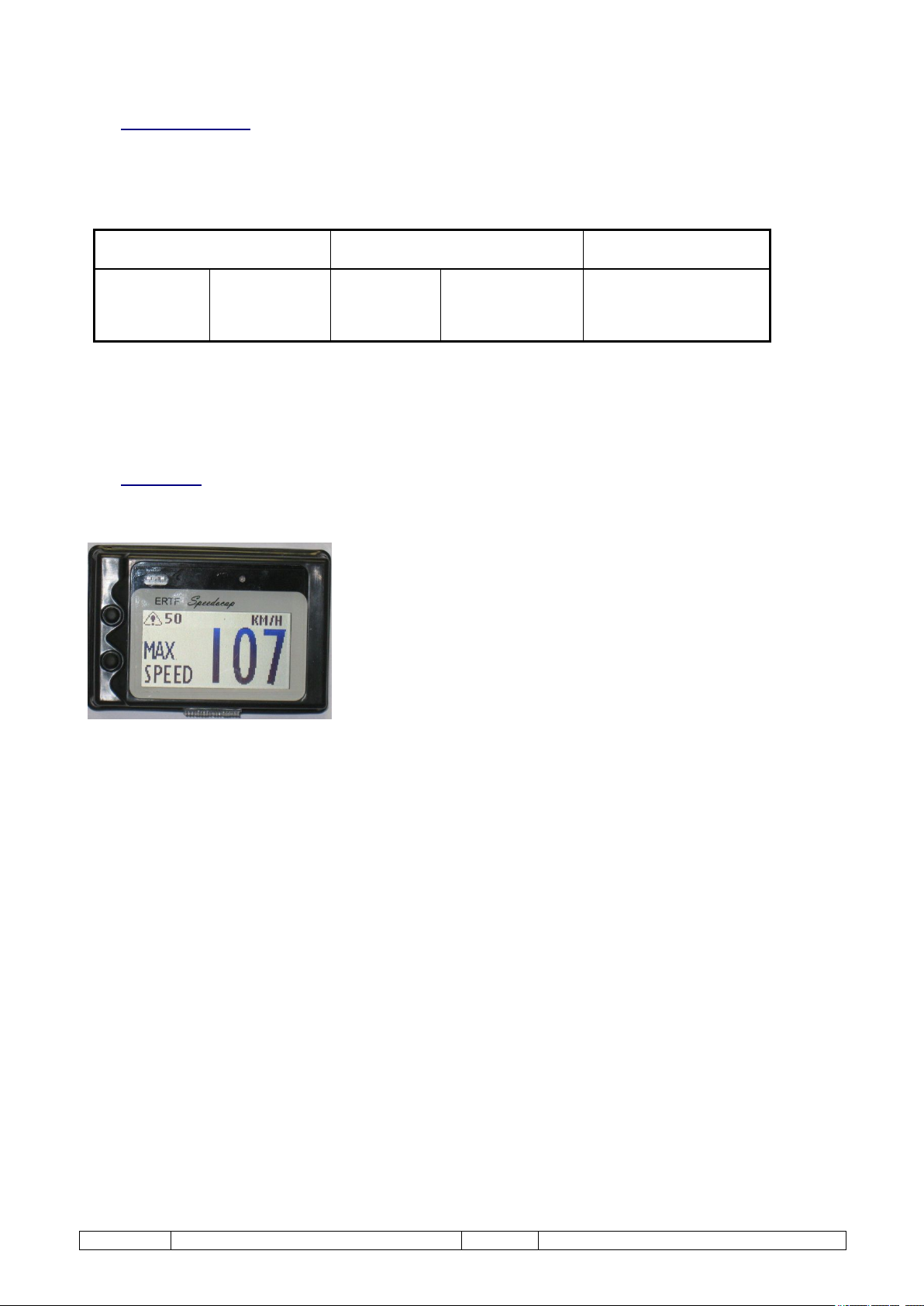
3.6 Speedox function
Speedox function is a GPS Unik2 function.
It shows to the competitor where he is compared with an existing speed limit.
Reminder for a typical limit of 50 km/h
SECURITE Mode
2 beep per second
from the speed limit
– 5 km/h
For more information on Speedox function, see the GPS Unik2 manual.
Continuous sound
from the speed limit
– 3 km/h
1 beep per minute
from the speed limit
PERFORMANCE Mode
– 4 km/h
Continuous sound
from the speed limit
– 2 km/h
STOP Mode
No sound signal
Speedocap collects the Speedox function of the GPS and adds a visual signal to the GPS sound signal. The
visual signal is made by a red led integrated into the Speedocap and the optional external lamp which works
in synchronization with the GPS.
3.7 Max Speed
Max speed screen records the maximal speed done from the last Speedocap switch on.
A long press on the – key resets it.
ERTF User Guide SpeedoCap 3 V 1.22 Page 9 / 13
Page 10
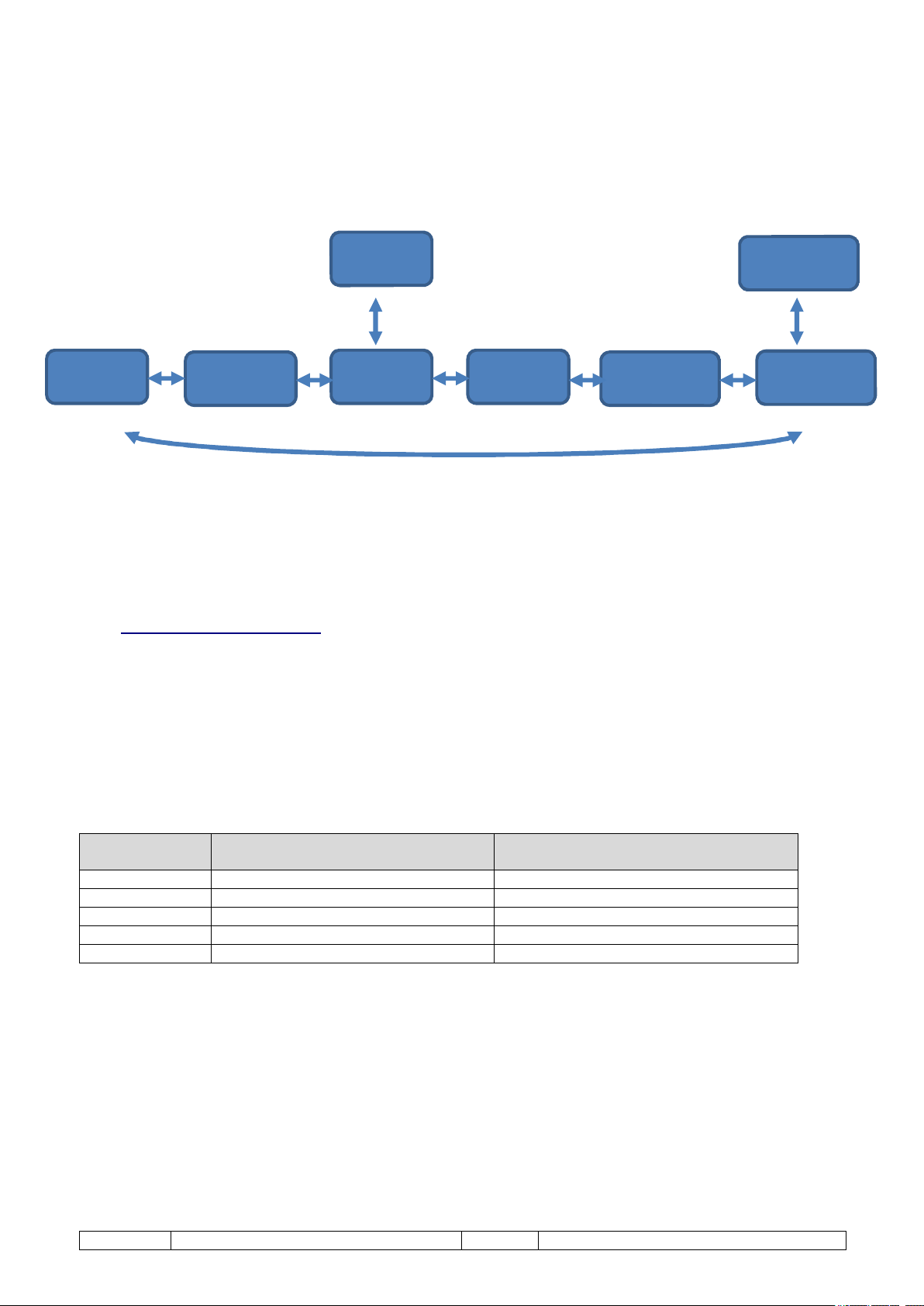
screen
screen
screen
screen
screen
screen
screen
screen
4. SPECIFICITIES OF SPEEDOCAP EVO
Thanks to its GPS chip integrated, the Speedocap Evo make possible to have the basic functions even when
we are not connected to GPS Unik2.
Two screens are added: TIME and Chrono
COG
Information linked to the GPS is not displayed anymore.
It is:
- Waypoint name
- Waypoint number
- Compass
- Speed limits
- Automatically ODO adjustment
COG+SPD
Max SPD
SPD
ODO
COG+ODO
CHRONO
TIME
4.1 Browse and remote control
Programming and basic functions are accessible from the 2 Speedocap buttons but it is really recommended
to use the remote control.
Speedocap Evo is delivered with a remote control connector to plug the GPS remote control without making
a modification on the wiring.
4.1.1 Browse from the keyboard
Keyboard is used as when Speedocap is connected to GPS.
Situation for the screens TIME and CHRONO which do not appear when Speedocap is connected to GPS
Action on
keyboard
‘+’ short
‘-‘ short
'+' long
'-' long
‘-‘ long
Next nav screen
Previous nav screen
Nothing
Go to Chrono screen
Nothing
On Time screen
On Chrono screen
Next nav screen
Previous nav screen
Chrono on/off
Go to Time screen if Chrono is 0 and off
Chrono reset (if chrono is not on)
ERTF User Guide SpeedoCap 3 V 1.22 Page 10 / 13
Page 11
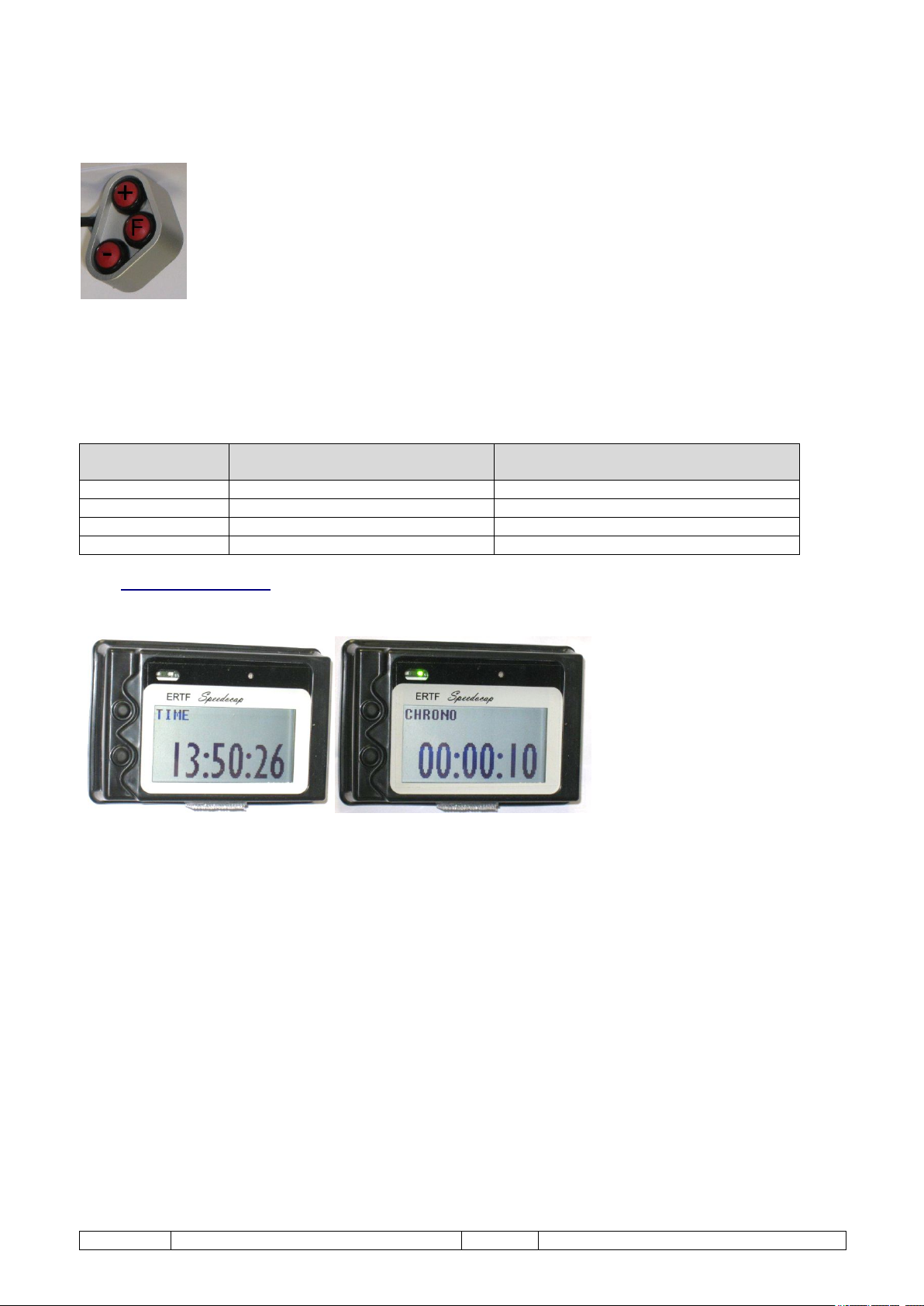
4.1.2 Browse from the remote control
Press on the F key make browse between the screens.
The + and – keys are used for the ODO correction:
- A short press on ‘+’ adds 100m to ODO
- A continuous press on ‘+’ adds ODO continuously
- A short press on ‘-’ removes 100m from ODO
- A continuous press on ‘-‘ removes ODO continuously
- A long press on F reset ODO to 0
In SPEED screen a long press on ‘+’ goes to MAX SPEED screen (as with keyboard)
In MAX SPEED screen a long press on ‘-‘ reset MAX SPEED to 0 (as with keyboard)
In TIME screen, remote control works like below:
Action on remote
control
‘F’ long
‘F’ short
‘-‘ long
‘+’ short
Go to Chrono screen
Next nav screen
Nothing
Nothing
On Time screen
On Chrono screen
Go to Time screen
Next nav screen
Chrono reset (if chrono is not on)
Chrono on/off
4.2 Time Chrono screen
When Chrono is working, the green LED is on even if you are not in the Chrono screen.
ERTF User Guide SpeedoCap 3 V 1.22 Page 11 / 13
Page 12
GPS Unik 2 power
Provided cable
Repeater
Provided cable
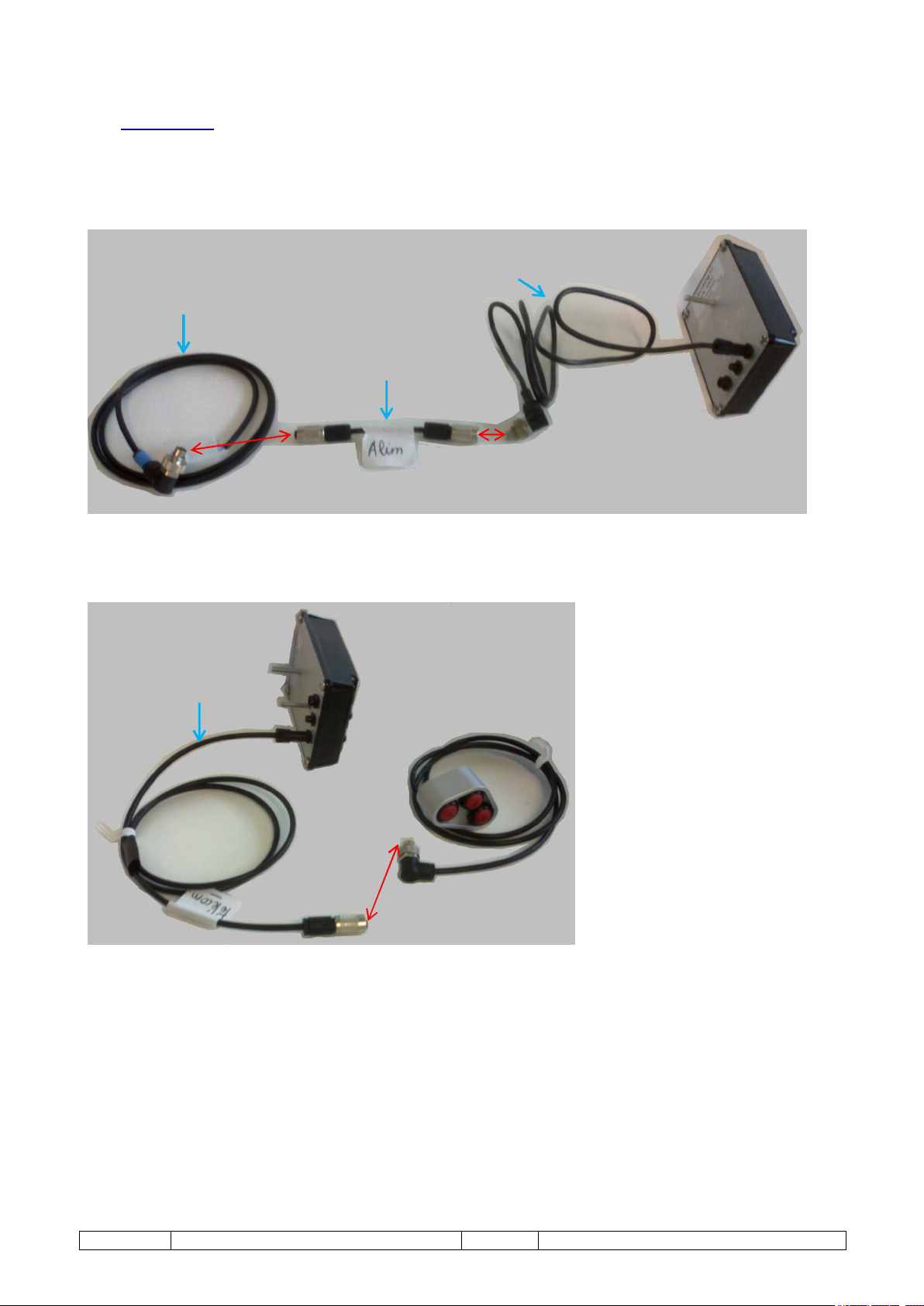
4.3 Connections
Speedocap Evo is provided with 2 adaptation cables:
- 1 cable for power supply to connect on your GPS Unik 2 power supply cable and your repeater connection
cable.
connection cable
supply cable
- 1 cable for the remote control to connect on your remote control.
ERTF User Guide SpeedoCap 3 V 1.22 Page 12 / 13
Page 13

ERTF COMPETITION Parc Technologique de Soye – 56275 PLOEMEUR CEDEX
+33(2).97.87.25.85 - +33(2).97.37.59.21 - [email protected]
 Loading...