

Page 1
1
Quick Instruction for ERISAN AnyCast
Any questions, please email: [email protected]
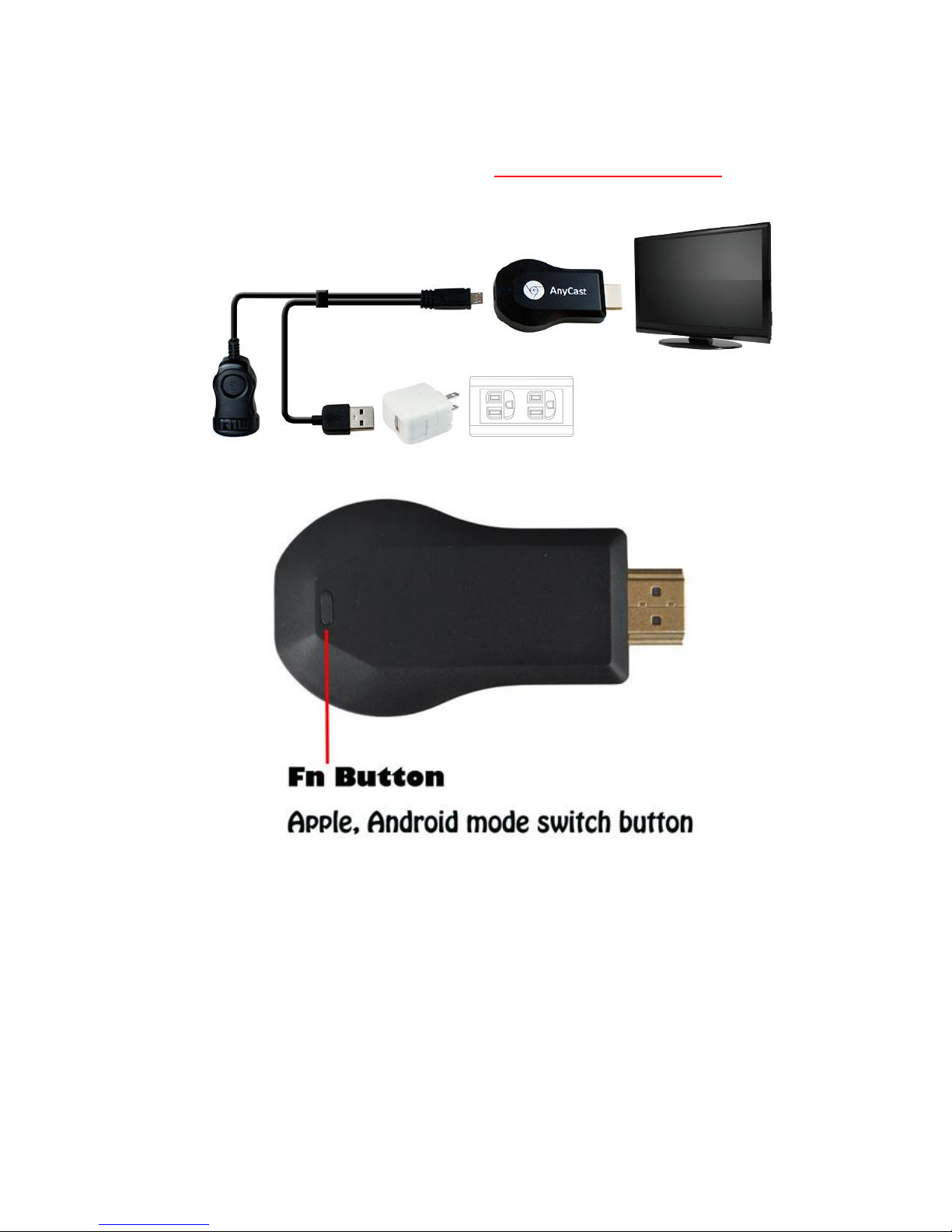
The EZM2 has two modes for Wi-Fi connection, one is the Miracast for Android, the other is the
DLNA for iOS(like iPhone, iPad or Macbook)
Please press the "Fn" button to enter in the correct mode.
Page 2
2
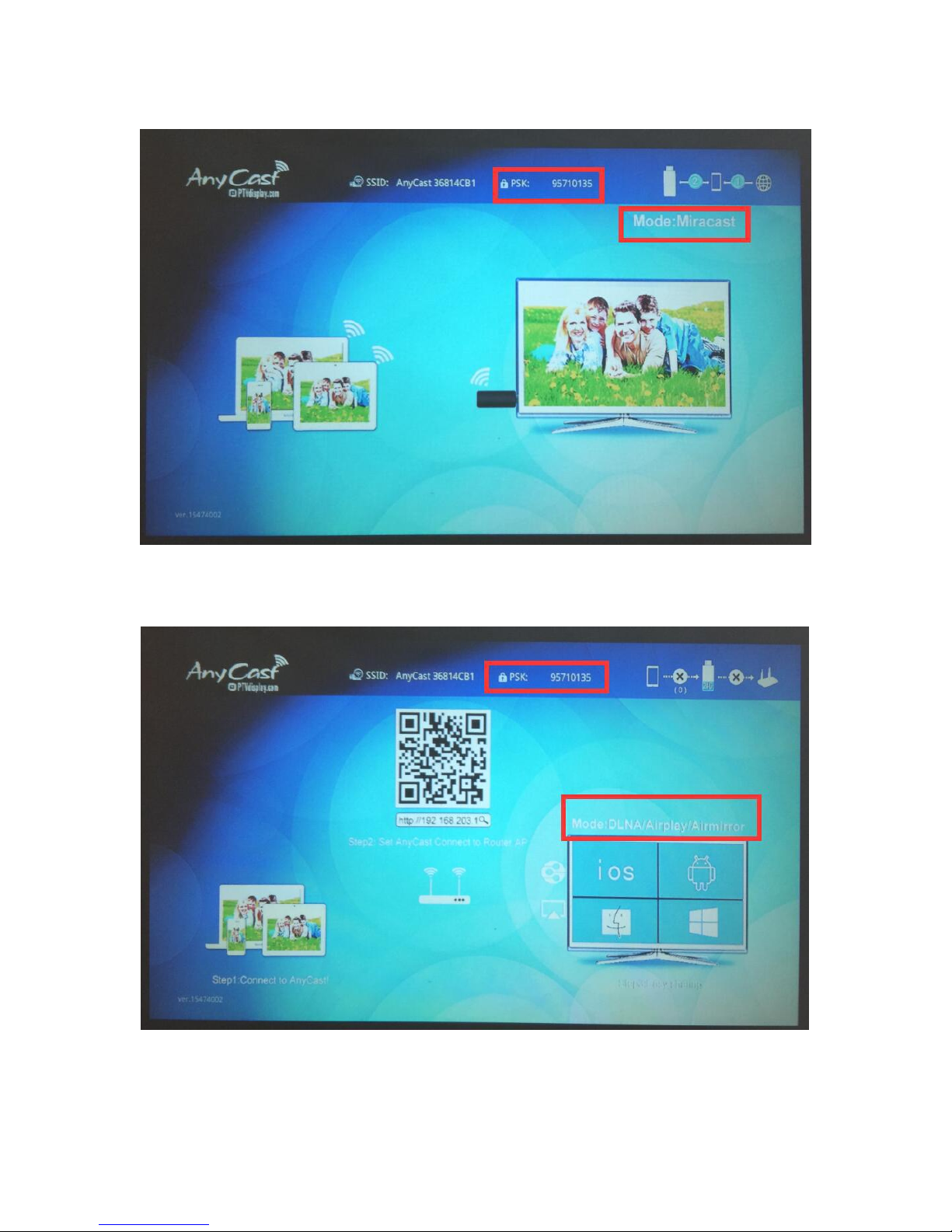
Miracast: for Android(PSK:xxxxxxxx, the numbers“xxxxxxxx” is the password)
DLNA: for iOS devices.(PSK:xxxxxxxx, the numbers“xxxxxxxx” is the password)
Page 3
3
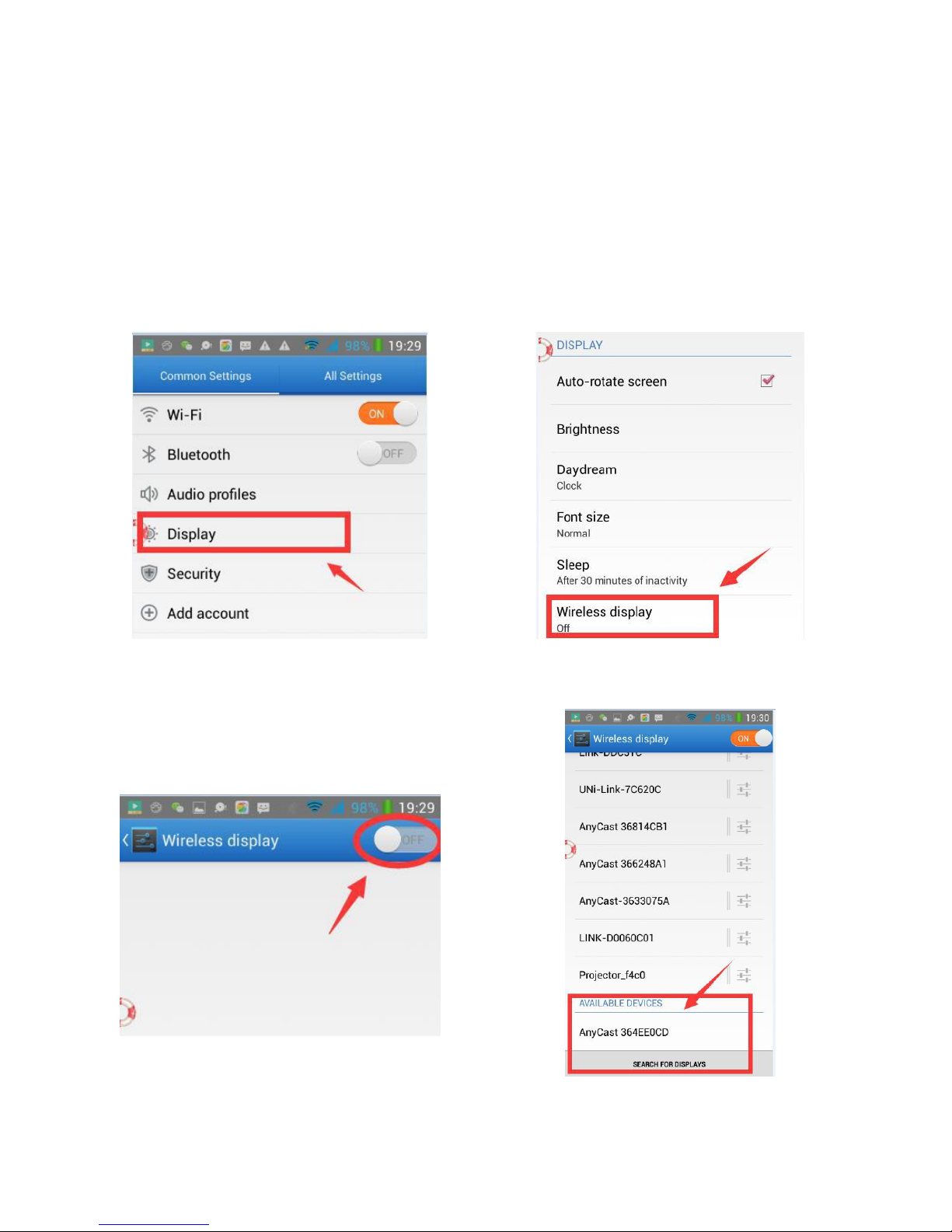
Part 1. Instruction For android device(Press the FN button to enter in the Miracast mode):
Please plug the EZM2 Wi-Fi device in the HDMI port & 5V USB ports of the projector/TV, then power on
the projector/TV and select the input signal as HDMI, it will show the booting screen.
Notice: Android device Must support Miracast, please check the settings of android phone/tablet
to use “Smart View”/ "Wireless Display" / "Screen Mirroring" to connect.
Not sure? Please consult the device manufacturer for assistance.
(1)
(2)
(3)
(4)
Page 4
4
Part 2. Instruction For iOS device(Press the FN button to enter in the DLNA mode):
Please plug the EZM2 Wi-Fi device in the HDMI port & 5V USB ports of the projector/TV, then power on
the projector/TV and select the input signal as HDMI, it will show the booting screen.
Mode: DLNA, PSK:xxxxxxxx, the numbers“xxxxxxxx” is the password
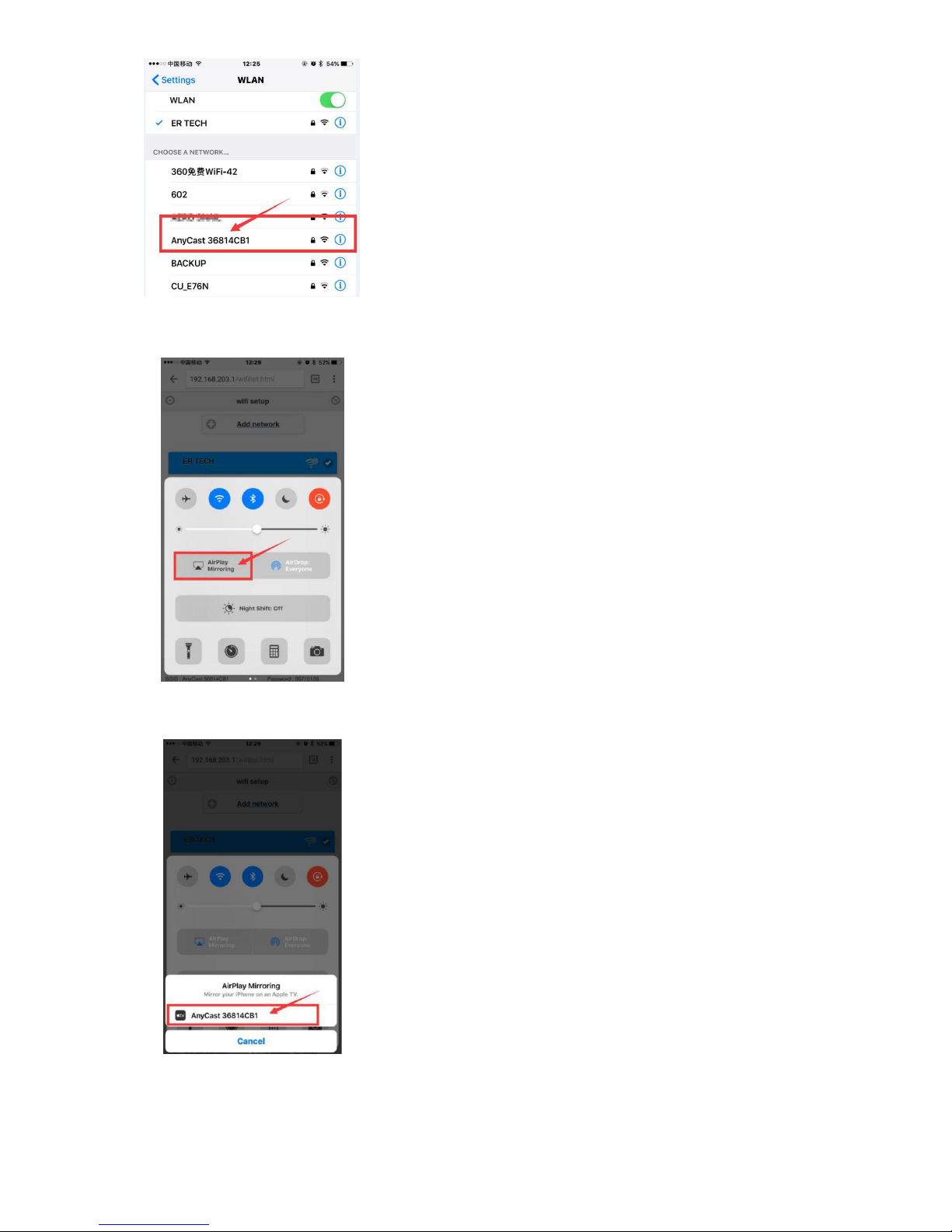
(1)
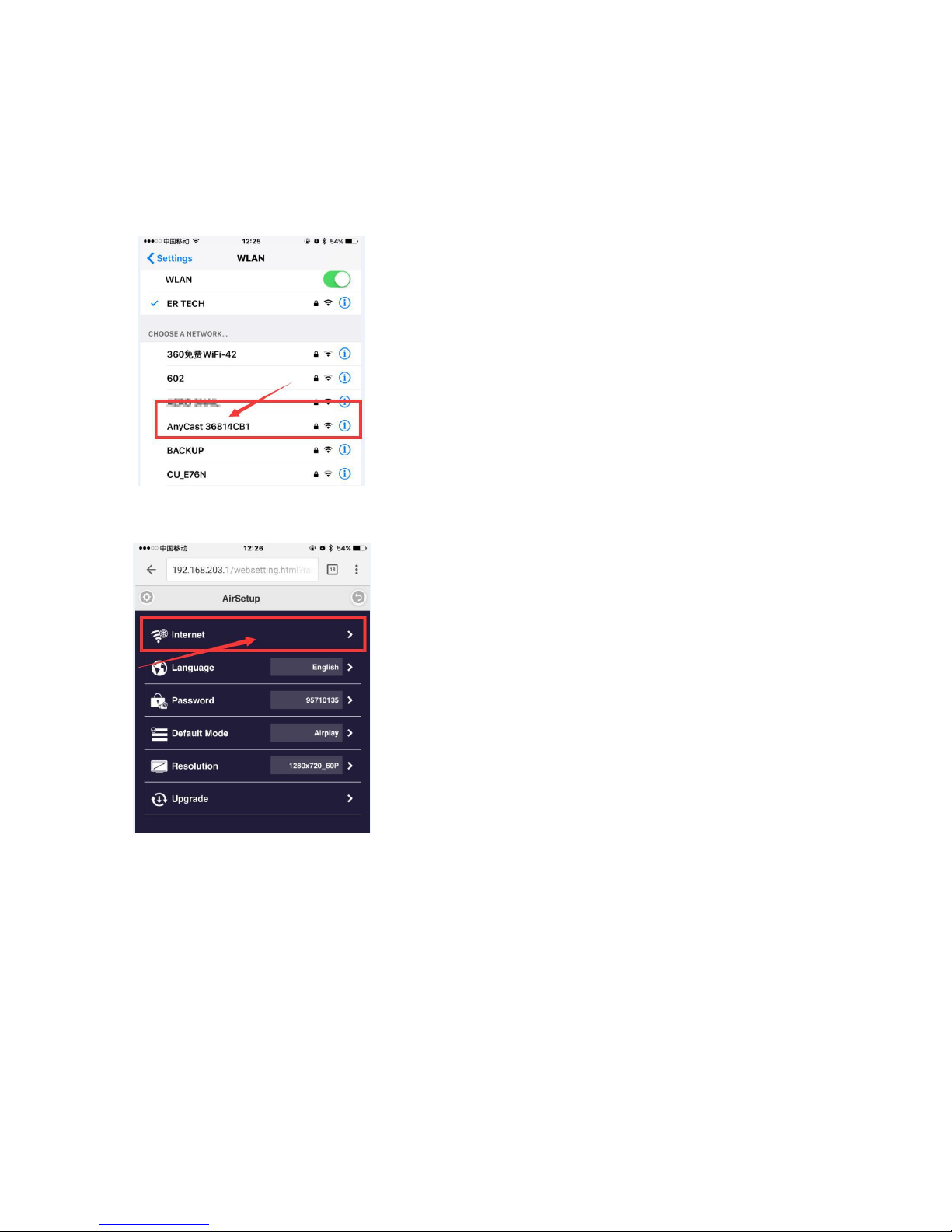
Go to Setting of your iPhone/iPad, In the WLAN, please
connect to the WiFi named like "Anycast-xxxxxx", input the
Password(PSK:xxxxxxxx, the numbers“xxxxxxxx” is
the password).
(2)
Open the web browser of your iPhone/iPad, like Safari or
Chrome, input the IP:“192.168.203.1”, please click the first
option "Internet", then you can find your home's WiFi and
please connect to it.
Please wait about 3-5 seconds after you input the
Password of your WiFi password.
Page 5
5
(3)
Go back to Setting of your iPhone/iPad, In the WLAN,
please click the WiFi named like "Anycast-xxxxxx" again.
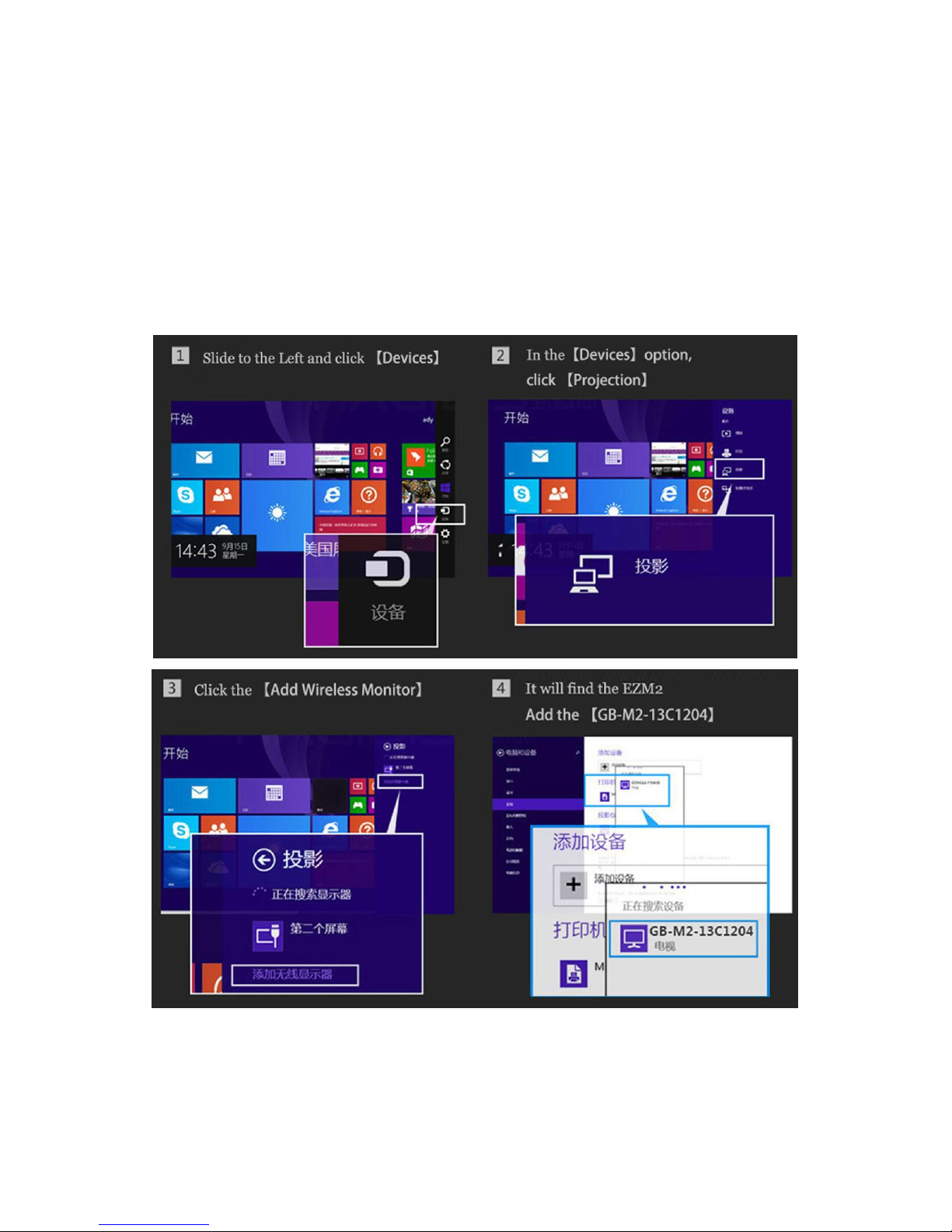
(4)
Slide upward from the bottom of iPhone/iPad to display
the hidden menu, please click "Airplay Mirroring".
(5)
Then please click "Anycast-xxxxxx".
Page 6
6
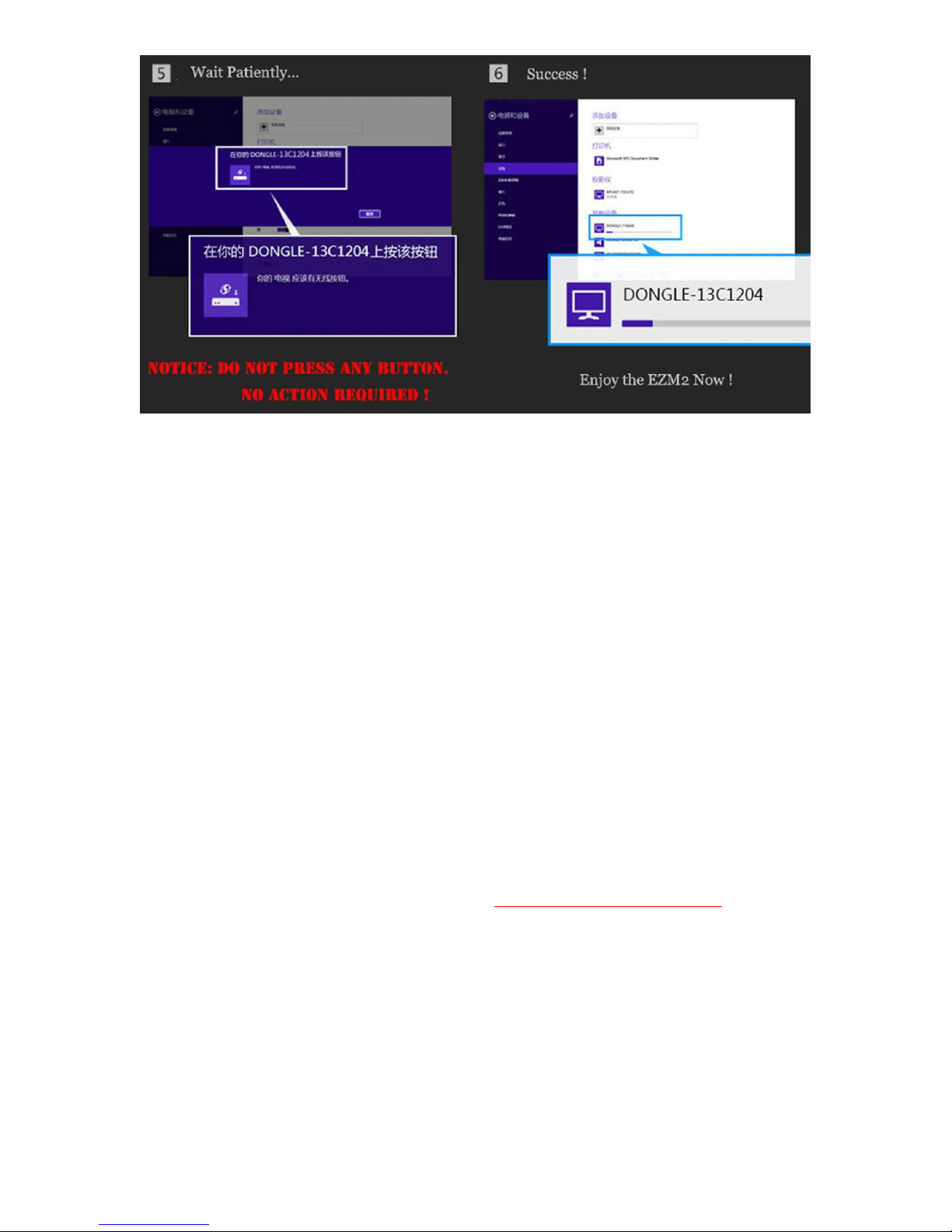
Part 3. Instruction For Windows(Press the FN button to enter in the Miracast mode)
Notice: Only support Windows® 10 Operating system with a 4th Generation (or newer) processor.
Does Not support Windows 7 and Windows 8.
For Windows, Please check the Compatibility, GO to www.intel.com & Search 000021494
If Windows PC/Laptop/Tablet does not have the Inter WIDI feature, please use the third-party
Software“AirParrot”to connect.
Page 7
7
You can set the Default Booting Mode in AirSetup, here is how:
1. Press Fn button to enter in DLNA mode.
2. In Wi-Fi of Android/iOS, connect to “Anycast-xxxxxx", (PSK: xxxxxxxx, the numbers“xxxxxxxx” is
the password).
3. After connected, open the web browser of your iOS/Android (like Safari or Chrome), input the IP:
“192.168.203.1”, you can set the default booting mode by clicking the option "Default Mode".
4. Default Booting Mode can be switched to selected.
Any questions, please email: [email protected]
 Loading...