

Page 1
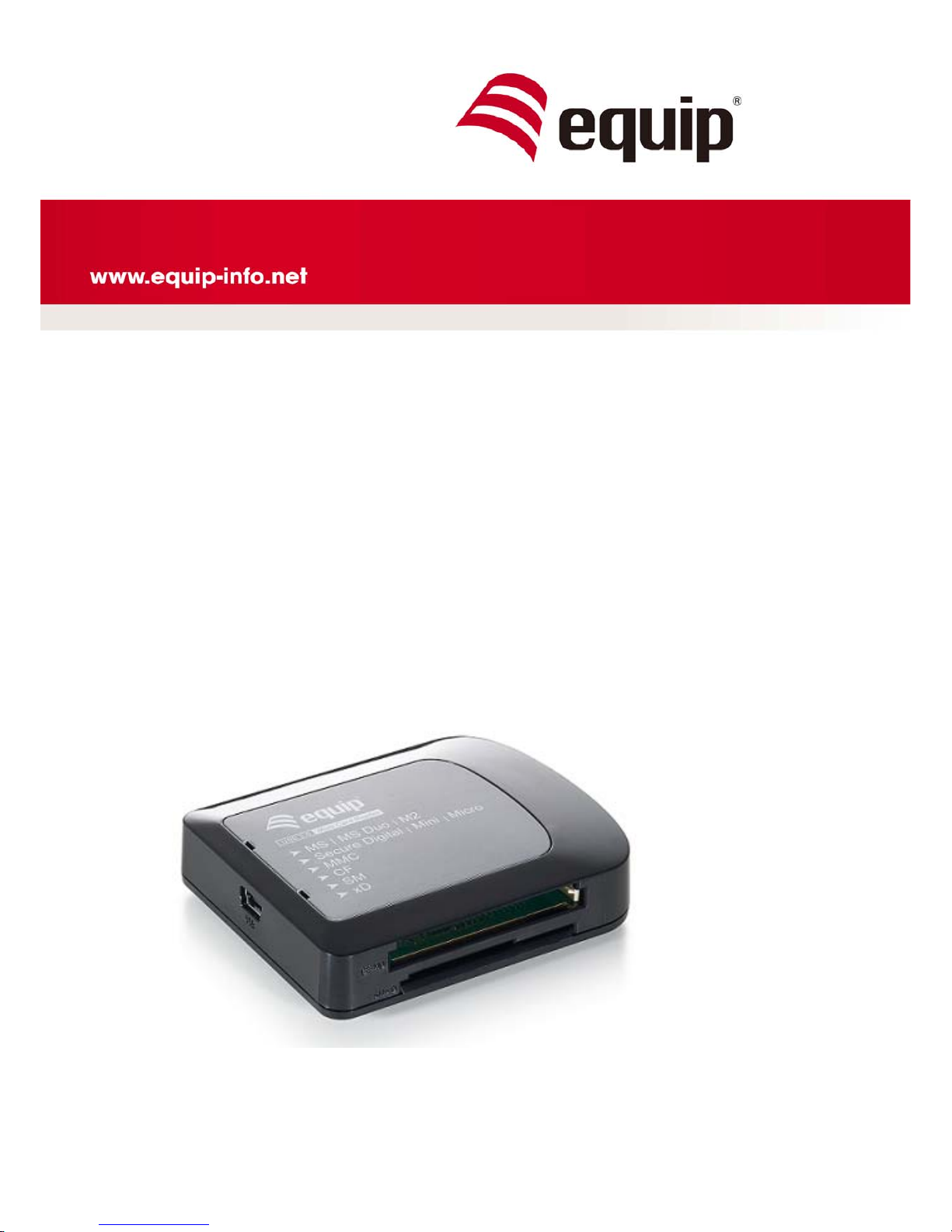
USB 2.0 ALL-IN-ONE
Card Reader
Universal | 128552
Page 2

I
NDEX
FEATURES........................................ 1
SYSTEM REQUIREMENTS .............................. 1
PACKAGE CONTENTS ................................ 1
MEMORY CARD SLOT ................................ 2
MEDIA ICON PROGRAM INSTALLATION...................... 5
PRODUCT SPECIFICATIONS............................ 11
Page 3

User Manual
1
1. FEATURES
Compliant with USB specification 1.1 & 2.0
Directly access small from factor flash card; such as Mini SD, RS-MMC,
Micro-SD, xD, MS Duo, M2 etc.
Hot swappable and Plug & Play capability.
Slots can be used at the same time for data exchange within Micro SD and
SD slots. (exclude MS and M2 slot)
Supports Media Card Icon display and two indicators for easy recognition.
Work on Bus-powered, no external power supply required.
2. SYSTEM REQUIREMENTS
A computer with one available USB port.
Windows 98/2000/XP/Vista/7, Mac os V10.4 or above, Linux Kemel 2.4 or
above
3. PACKAGE CONTENTS
1 x USB 2.0 All-in-One Card Reader
1 x USB 2.0 Cable
1 x Driver Disc
1 x User Manual
Page 4
User Manual
2
4. MEMORY CARD SLOT
The card reader provides five slots for different types of media memory cards
application. You must load each media card in the correct slot. Do not attempt
to insert the card in the reversed direction by force. Insert in the wrong slot or
wrong direction may damage your memory card and card slot. Please read the
following description and illustrations clearly before using the card reader.
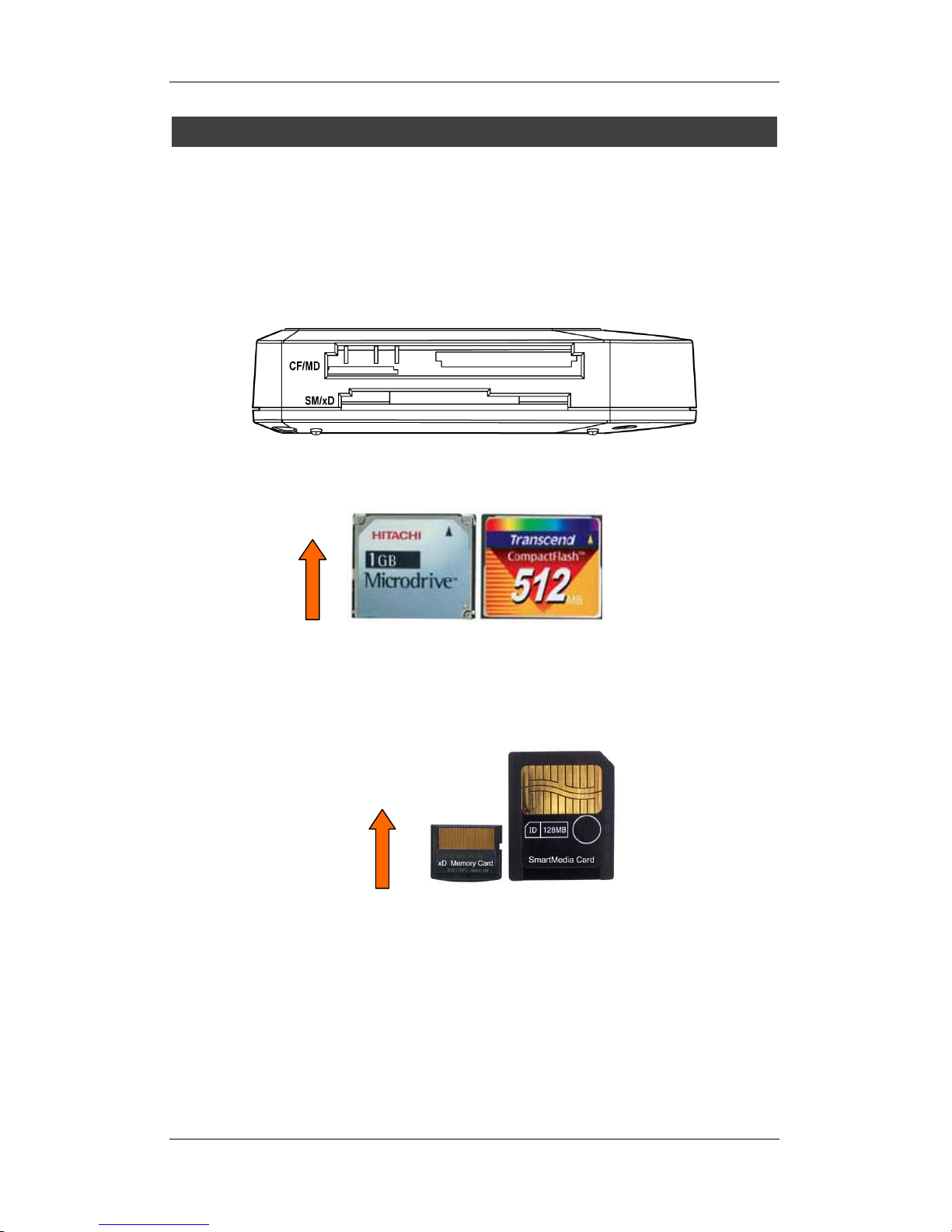
CF/MD
This slot is labeled as “CF/MD” which accepts Compact Flash memory cards
type I/II, Micro Drive, and Magicstor cards.
SM/xD
The SM/xD slot locates in lower and labeled as “SM/xD” which can accept xD
picture card. The memory gold contact area (gold finger) should be upward
when inserting. (The xD picture card should be loading from the side of upper
fillister of inlet)
Page 5
User Manual
3
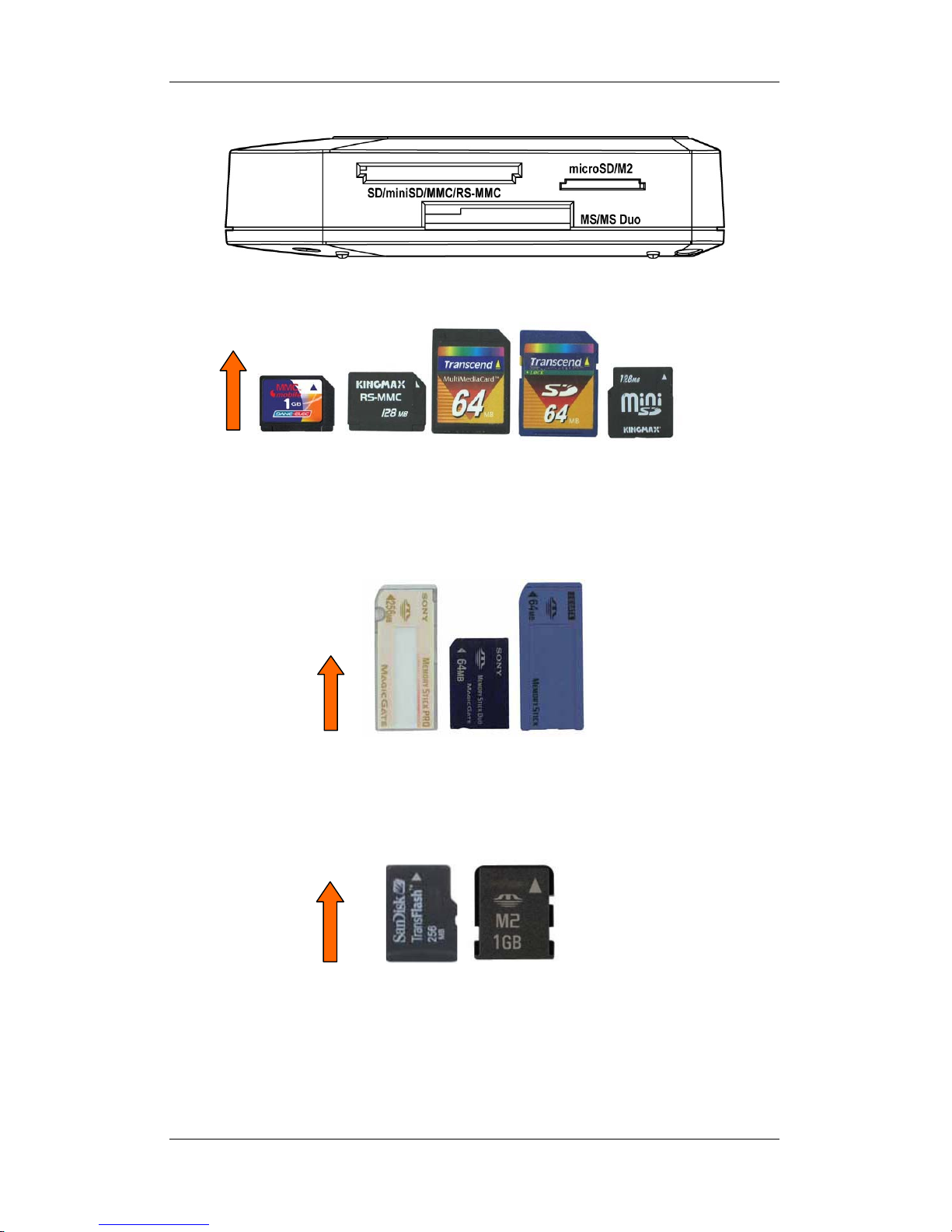
SD/MMC
This slot locates in upper left and label as “SD/miniSD/MMC/RS-MMC” which
can accept Secure Digital card (SD), mini SD, Multi media card or RS MMC
etc. (The mini SD card should be loading from the middle of the slot’s inlet.)
MS/MS Duo
This slot is labeled as “MS/MS Duo” accepts Memory stick, MS Pro, MS Duo,
MS Pro Duo, and MS Micro memory cards.
Micro SD/M2
The Micro SD also name as T-flash. The slot is labeled as “Micro SD/M2”
which accepts Micro SD and M2 memory card without adapter. (M2 card
should be loading straight of the inlet.)
Page 6

User Manual
4
LED Indicator Description
The card reader has the LED status indicator for power and data access.
Power On: The red LED indicator will light on when reader is linked by USB
port.
Data Access: The green LED indicator will flash while data transmitting.
Note: Please do not remove any of the inserted media memory card(s) while data is being
transmitting between the PC and the card reader or when the access green indicator is
flashing. This may cause your computer to crash and lost your valuable data.
Page 7
User Manual
5
5. MEDIA ICON PROGRAM INSTALLATION
After you install the card reader to your PC, then you need to setup the icon
program as follow steps.
Windows XP
A. Close all of your exist executing file.
B. Insert program disc into the CD-ROM drive.
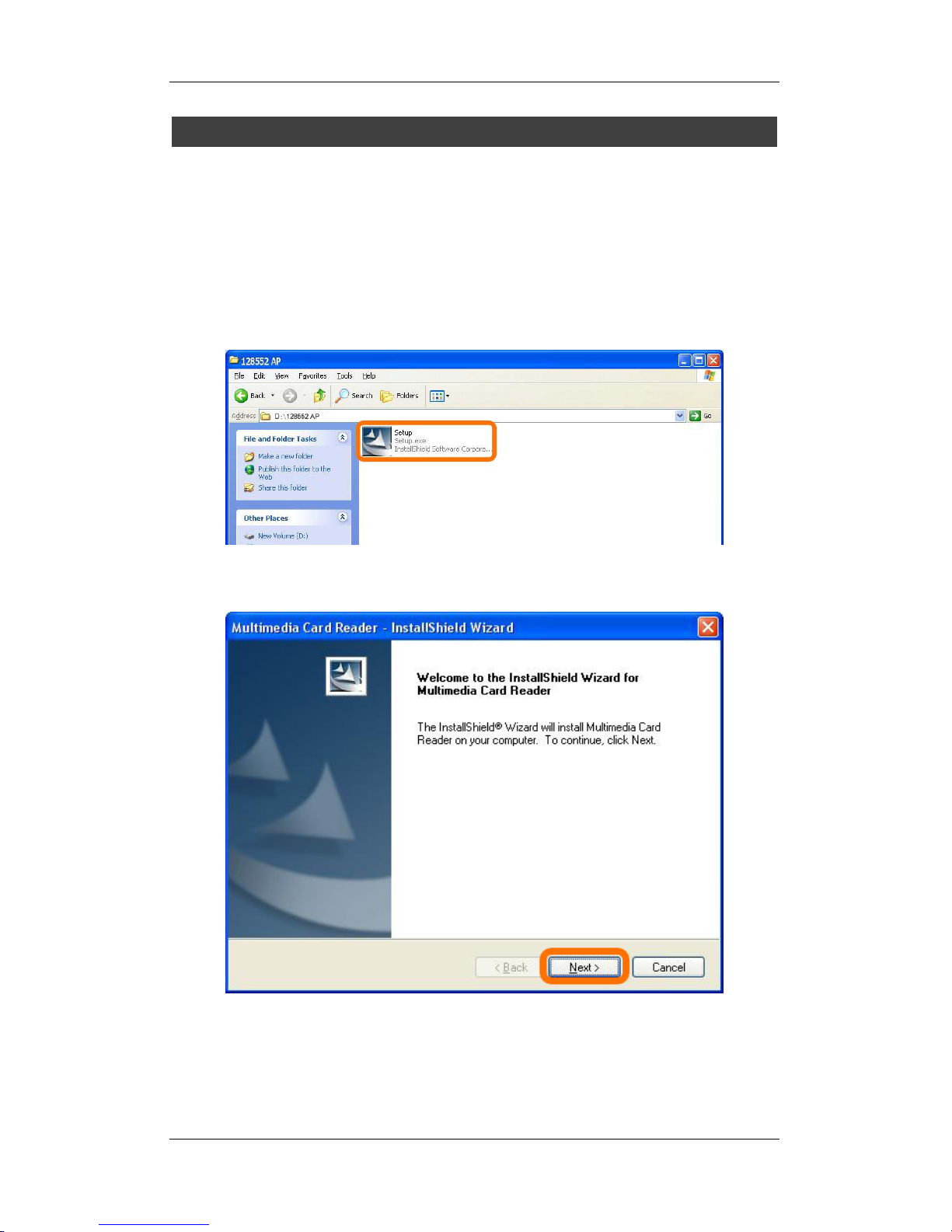
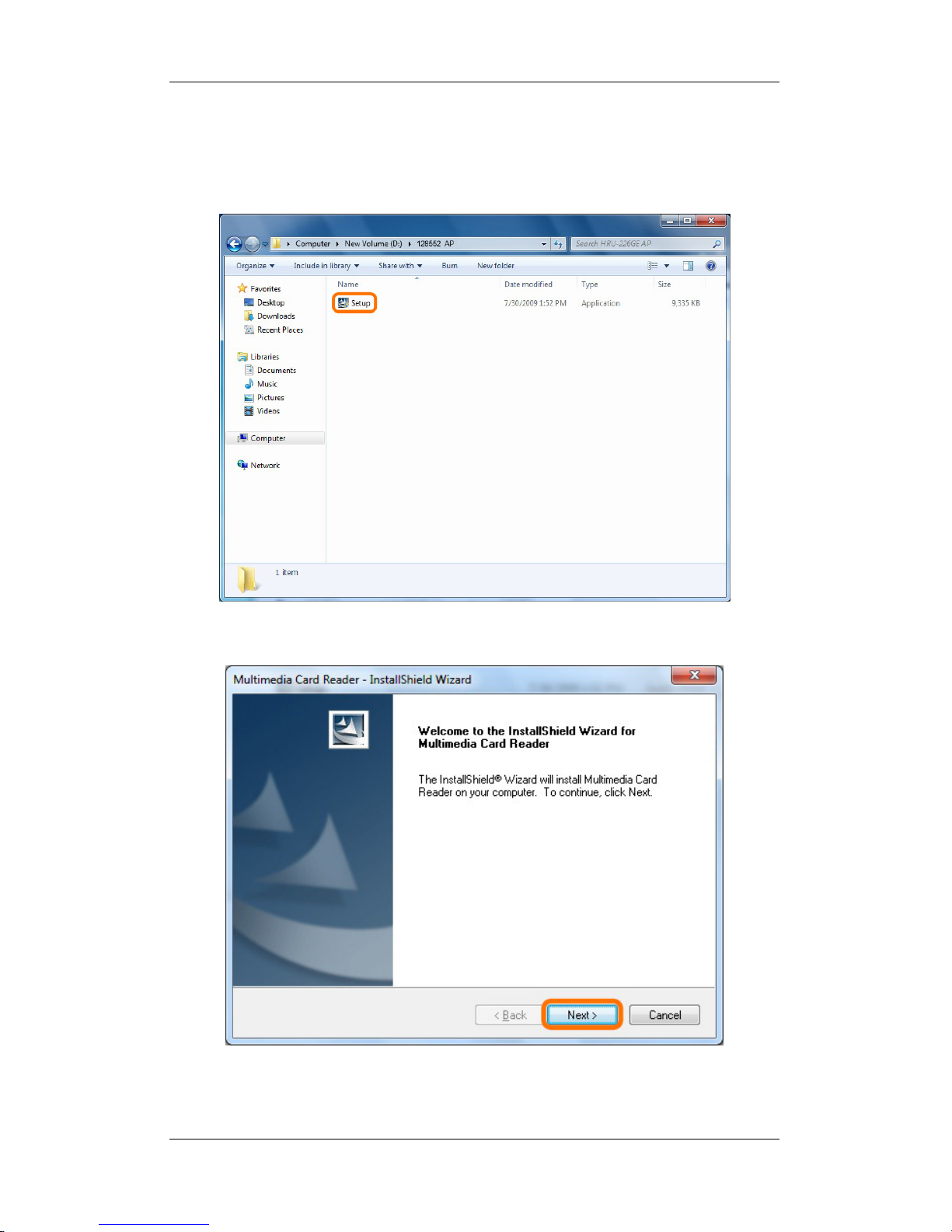
C. Double click “Setup” to install.
D. Click “Next” to begin software installing.
Page 8
User Manual
6
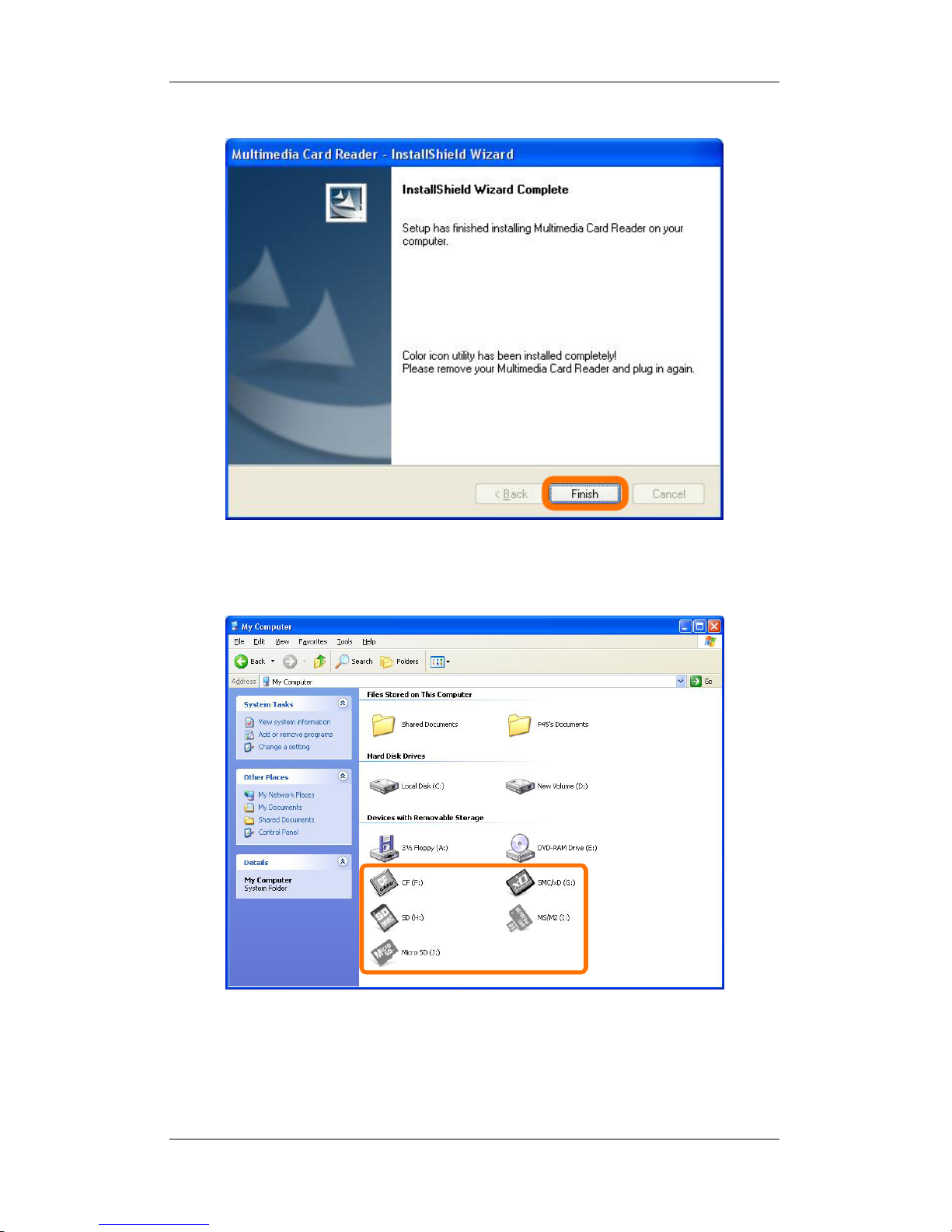
E. Click “Finish” to complete the program.
F. Windows will detect card reader and display five media icons in “My
Computer”, now you can insert your memory card for application.
Page 9
User Manual
7
Windows VISTA
A. Close all of your exist executing file.
B. Insert program disc into the CD-ROM drive.
C. Double click “Setup” to install.
D. Click “Next” to begin software installing.
Page 10
User Manual
8
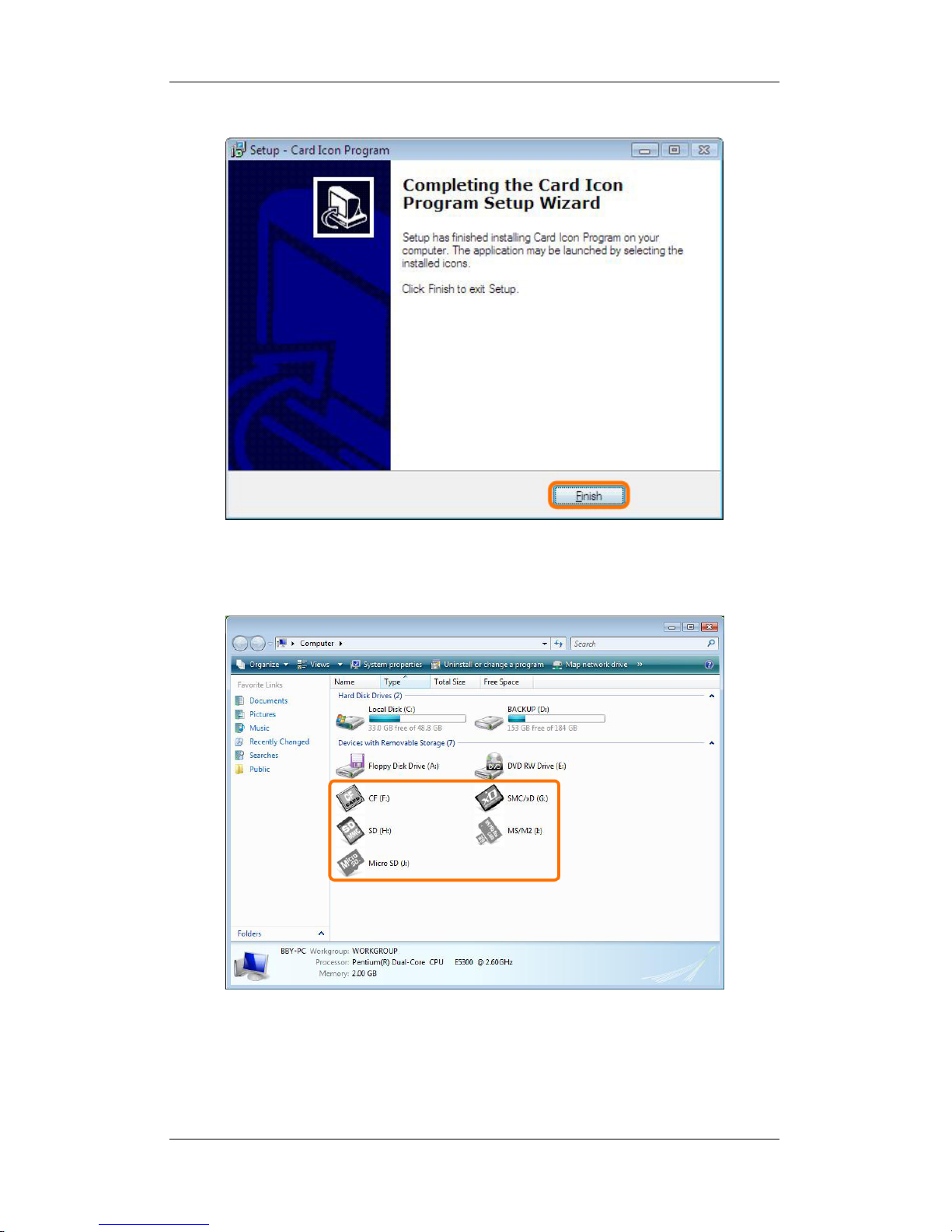
E. Click “Finish” to complete the program.
F. Windows will detect card reader and display five media icons in “My
Computer”, now you can insert your memory card for application.
Page 11
User Manual
9
Windows 7
A. Close all of your exist executing file.
B. Insert program disc into the CD-ROM drive.
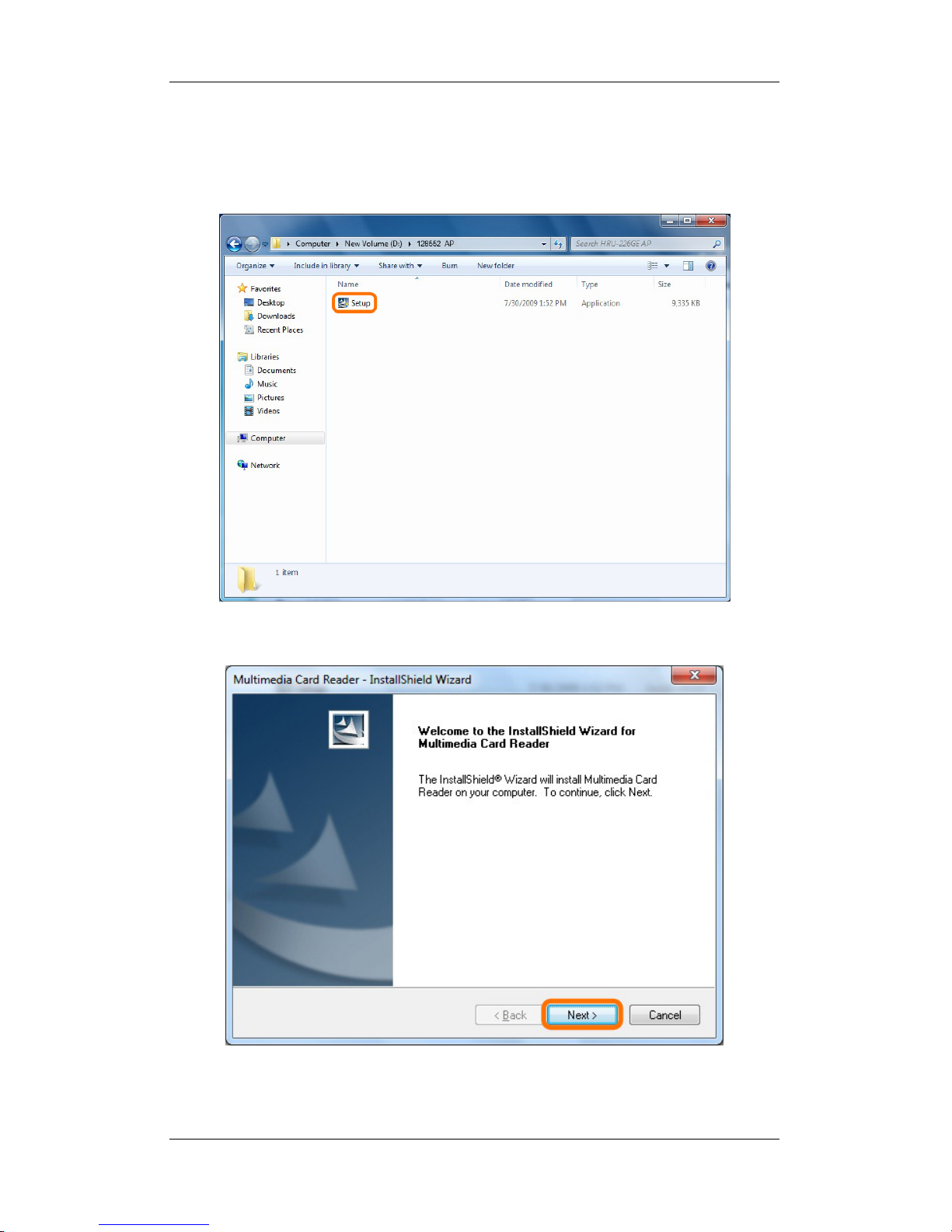
C. Double click “Setup” to install.
D. Click “Next” to begin software installing.
Page 12
User Manual
10
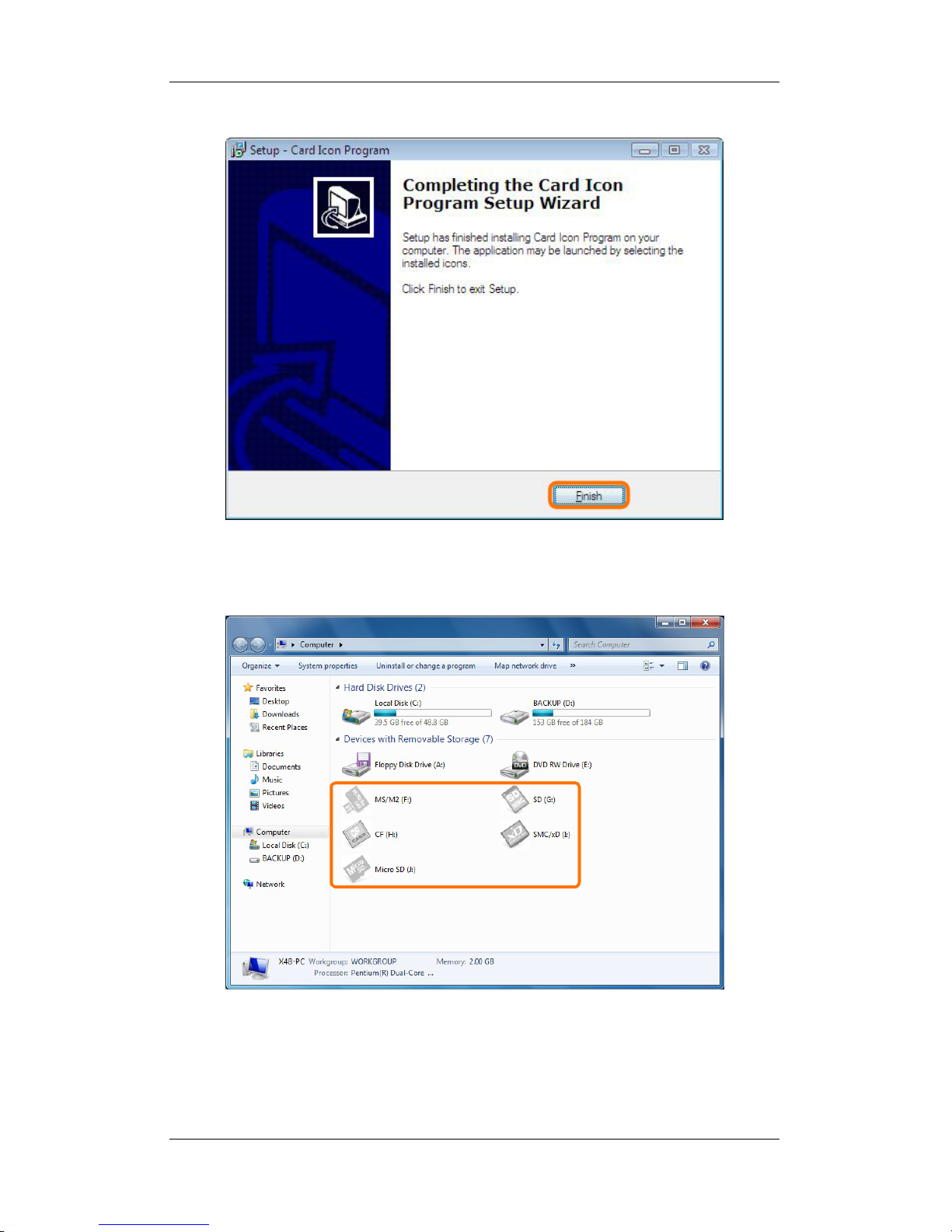
E. Click “Finish” to complete the program.
F. Windows will detect card reader and display five media icons in “My
Computer”, now you can insert your memory card for application.
Note: 1. It will display the removable disk as you insert the card (s).
2. This M2 and MS shared one icon, in other words they can not be used at the same
time.
Page 13
User Manual
11
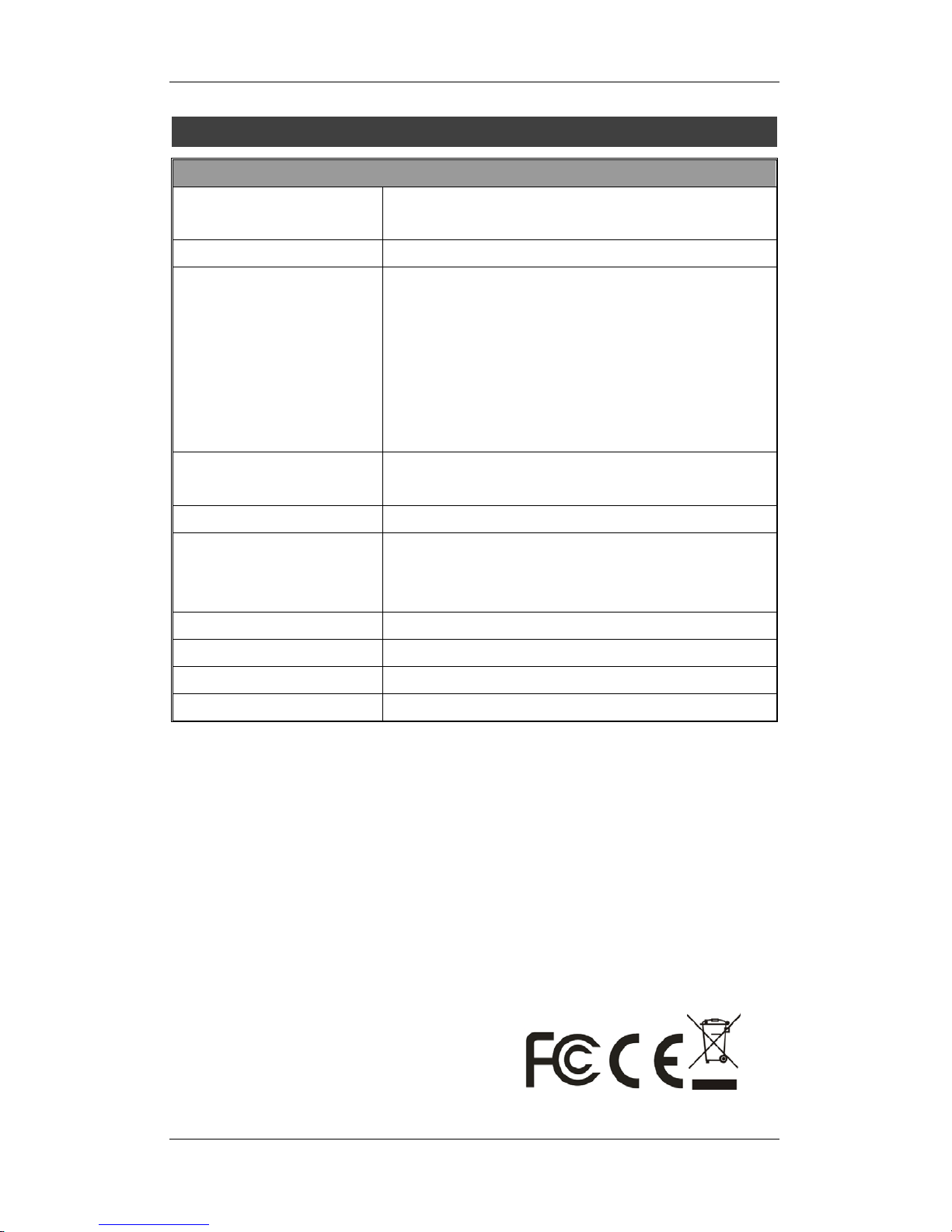
6. PRODUCT SPECIFICATIONS
SPECIFICATIONS
Standards Compliant
USB specification Rev. 2.0
USB mass storage class drive
Five Memory Slots
CF, SD/MMC, SM/xD, Micro SD/M2, MS/MS Duo
Media Cards Support
CF type I, CF type II, CF UDMA, CF Ultra II,
Microdrive, Magicstor, xD, xD H type, xD M type,
SD, SD Ultra II, Mini SD, Micro SD, MMC,
MMC-I, MMC-II, MMC 4.0, MMC Dual voltage,
RS-MMC, MMC-Micro, MS, MS Select, MS
ROM, MS Magic Gate, MS Pro, MS Duo, MS Pro
Duo, MS Micro (M2)
Indicators
One power on indicator
One media card detect and data access
Interface
5 pin mini USB support USB 1.1/2.0
System Support
Windows 98, XP, VISTA 32/64bit, Windows7
Linux OS 2.4.X or above
Mac OS 10.4 or above
Operating Temperature
0°C~40°C
Storage Temperature
-20°C~60°C
Operating Humidity
0%~80% RH, non-condensing
Certification
FCC Class B, CE
Specifications are subject to revision or update without notice.
 Loading...