

Page 1
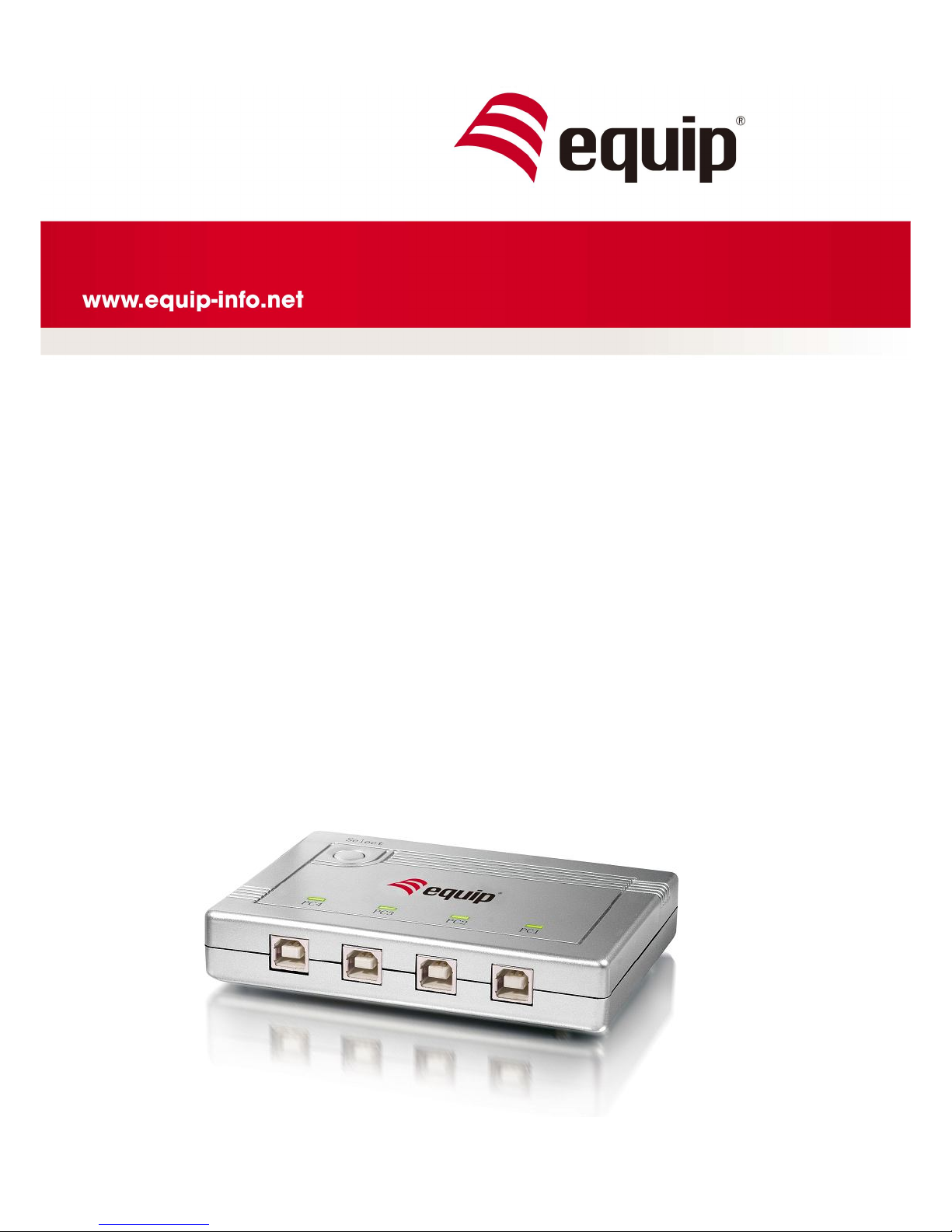
4-Port USB 2.0
SHARING SWITCH
Universal | 128544
Page 2

1
1. Introduction
Thank you for purchasing equip™ 4-Port USB 2.0 Sharing switch. The Intelligent
USB Sharing Switch allows four computers to share one USB printer or other USB
2.0 device. It can save your cost, time, space, power, and equipment to improve
efficiency.
1.1 Features
l 4 computers share one USB printer or USB 2.0 device
l Compliant with USB 2.0, 1.1
l Supports EHCI, UHCI and OHCI
l Supports USB bus power mode
l USB device selection by push button (PC, Mac, Sun), and Hot Key (PC only)
l Supports Windows 98/SE/ME/2000/XP/Vista/7, Mac OS
1.2 Package Contents
l 1 x 4-Port USB 2.0 Sharing Switch
l 1 x User Manual
Page 3

2
2. Application Diagram
3. Cable Diagram
USB A-B Cable:
4. Technical Specifications
Model No. 128544
Connectors
4 x USB Type B, female
1 x USB Type A, female
USB Device Selection
Push Button (for PC/MAC/SUN)
Hot Key (for PC only)
LED 4 x LED for PC port status
Cable Length (meters) 1.8
Power Mode Bus Power
Operation Temperature
0~50℃
Storage Temperature
-20~60℃
Humidity
0~80℃, Non-condensing
Housing Plastic
Dimension (mm) 120(L) x 84(W) x 20(H)
Weight (g) 140g
Page 4

3
5. LED Indication
l If one of PC ports is connected to the USB port, the PC port LED is lit. Only one
LED is lit each time.
l The PC LED flash means USB device emulation or USB host enumeration of PC is
processed or the other PC is going to sleeping mode.
6. Operation
Power
Sharing Switch draws power from PCs. When one of PCs is powered on, it will link
the USB device to this PC first.
Push Button
USB 2.0 Sharing Switch supports one push button. To press the push button and will
wait 2 seconds for switching current PC port to another one.
Hot Key Control
The User does not leave his desk to press the push button. Just press “Scroll Lock”
twice within two seconds to retrieve the USB device port.
+ = Retrieve the USB device
If the destination PC port is empty or powered off, only push button can be used at
this moment.
The Sharing Switch does not support hot key function for Mac and Sun Micro
Systems. You have to use push button to switch the PC port.
Note
l If the PC LED flashes, please don’t use hot key command until LED is lit.
l If PC goes into sleeping mode, please don’t use hot key command until to
wake PC up first.
l If you want to switch PC port and the connected USB device such as HDD,
CDRW, …etc., please be careful to make sure the other computer finishes
the job.
Scroll
Lock
Scroll
Lock
 Loading...