

Page 1
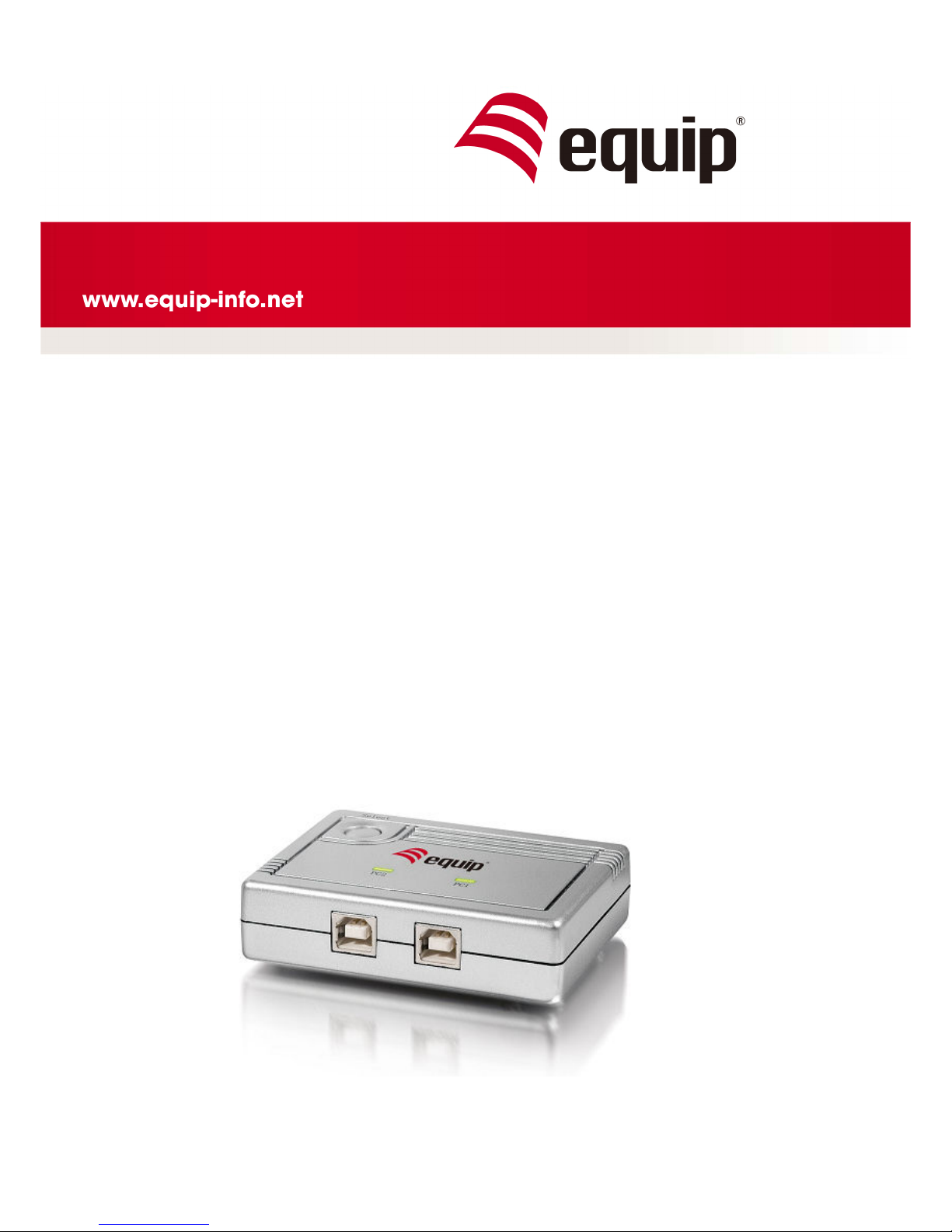
2-Port USB 2.0
SHARING SWITCH
128542
Page 2

1
1. Introduction
Thank you for purchasing equip 2-Port USB 2.0 Sharing switch. The Intelligent USB
Sharing Switch allows two computers to share one USB printer or other USB 2.0
device. It can save your cost, time, space, power, and equipment to improve
efficiency.
1.1 Features
2 computers share one USB printer or USB 2.0 device
Compliant with USB 2.0, 1.1
Supports EHCI, UHCI and OHCI
Supports USB bus power mode
USB device selection by push button (PC, Mac, Sun), and Hot Key (PC only)
Supports Windows 98/SE/ME/2000/XP/Vista, Mac OS 10.x or above
1.2 Package Contents
1 x 2-Port USB 2.0 Sharing Switch
1 x User Manual
Page 3
2
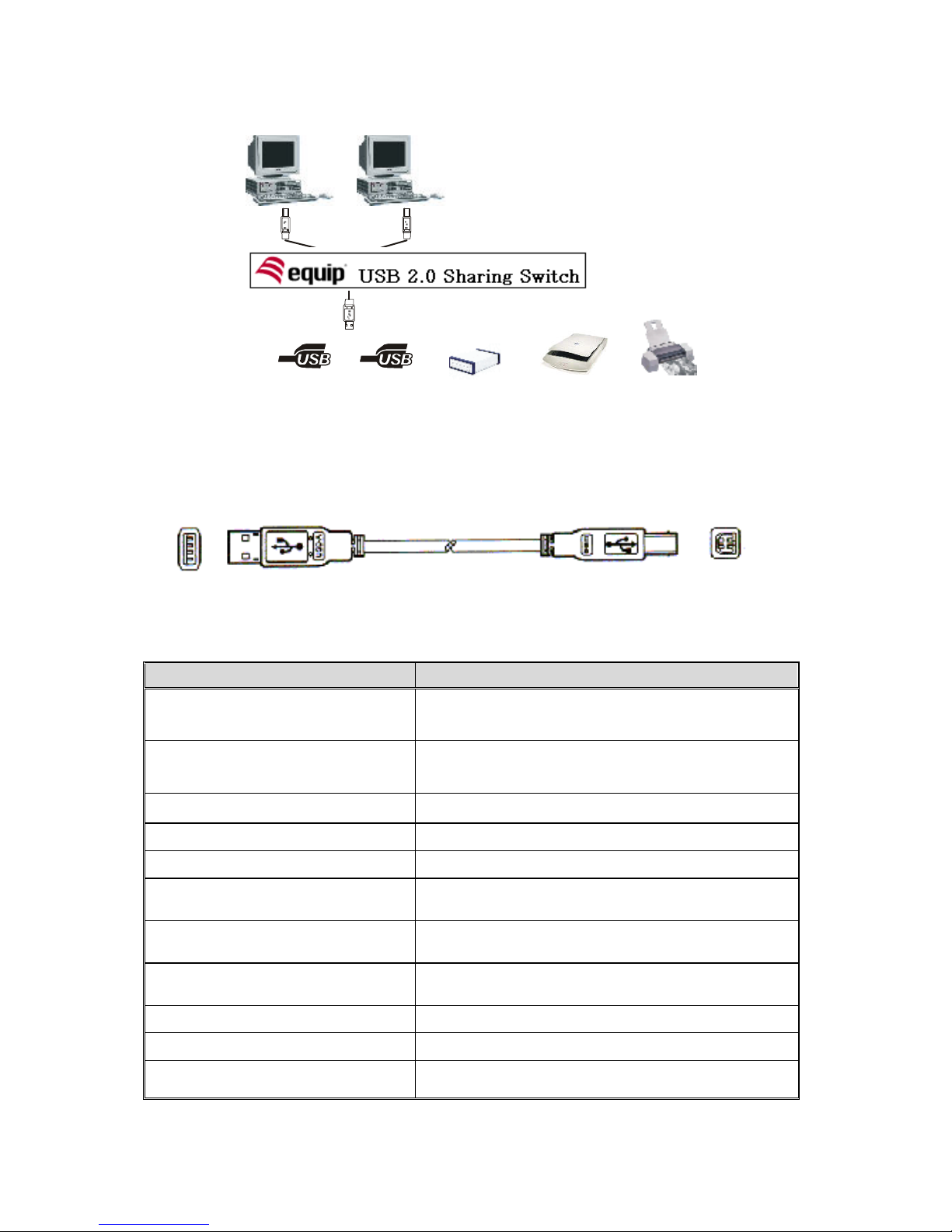
2. Application Diagram
3. Cable Diagram
USB A-B Cable:
4. Technical Specifications
Model No. 128542
Connectors
2 x USB Type B, female
1 x USB Type A, female
USB Device Selection
Push Button (for PC/MAC/SUN)
Hot Key (for PC only)
LEDs 2
Cable Length (meters) 1.8
Power Mode Bus Power
Operation Temperature
0~50℃
Storage Temperature
-20~60℃
Humidity
0~80℃, Non-condensing
Housing Plastic
Dimension (mm) 85(L) x 64(W) x 20(H)
Weight (g) 90g
USB-A
USB-B USB-B
USB-211
PC1 PC2
Devi ce or HUB
US B CD- RW US B Sca nner USB Pri n ter
...
Page 4

3
5. LED Indication
If one of PC ports is connected to the USB port, the PC port LED is lit. Only one
LED is lit each time.
The PC LED flash means USB device emulation or USB host enumeration of PC is
processed or the other PC is going to sleeping mode.
6. Operation
Power
Sharing Switch draws power from PCs. When one of PCs is powered on, it will link
the USB device to this PC first.
Push Button
USB 2.0 Sharing Switch supports one push button. To press the push button and will
wait 2 seconds for switching current PC port to another one.
Hot Key Control
The User does not leave his desk to press the push button. Just press “Scroll Lock”
twice within two seconds to retrieve the USB device port.
+ = Retrieve the USB device
If the destination PC port is empty or powered off, only push button can be used at
this moment.
The Sharing Switch does not support hot key function for Mac and Sun Micro
Systems. You have to use push button to switch the PC port.
Note
If the PC LED flashes, please don’t use hot key command until LED is lit.
If PC goes into sleeping mode, please don’t use hot key command until to
wake PC up first.
If you want to switch PC port and the connected USB device such as HDD,
CDRW, …etc., please be careful to make sure the other computer finishes
the job.
Scroll
Lock
Scroll
Lock
Page 5

4
7. Hardware Installation
Before installation, please make sure all peripherals and computers
have been turned off.
1. To connect USB A-B cable “type B connector” to PC port of USB2.0 Sharing
Switch, and the cable “ type A connector” to PC.
2. To connect the cable “type A connector “, which accompanied with USB device,
to the USB device port of Sharing Switch.
3. Power on PCs
Page 6
5
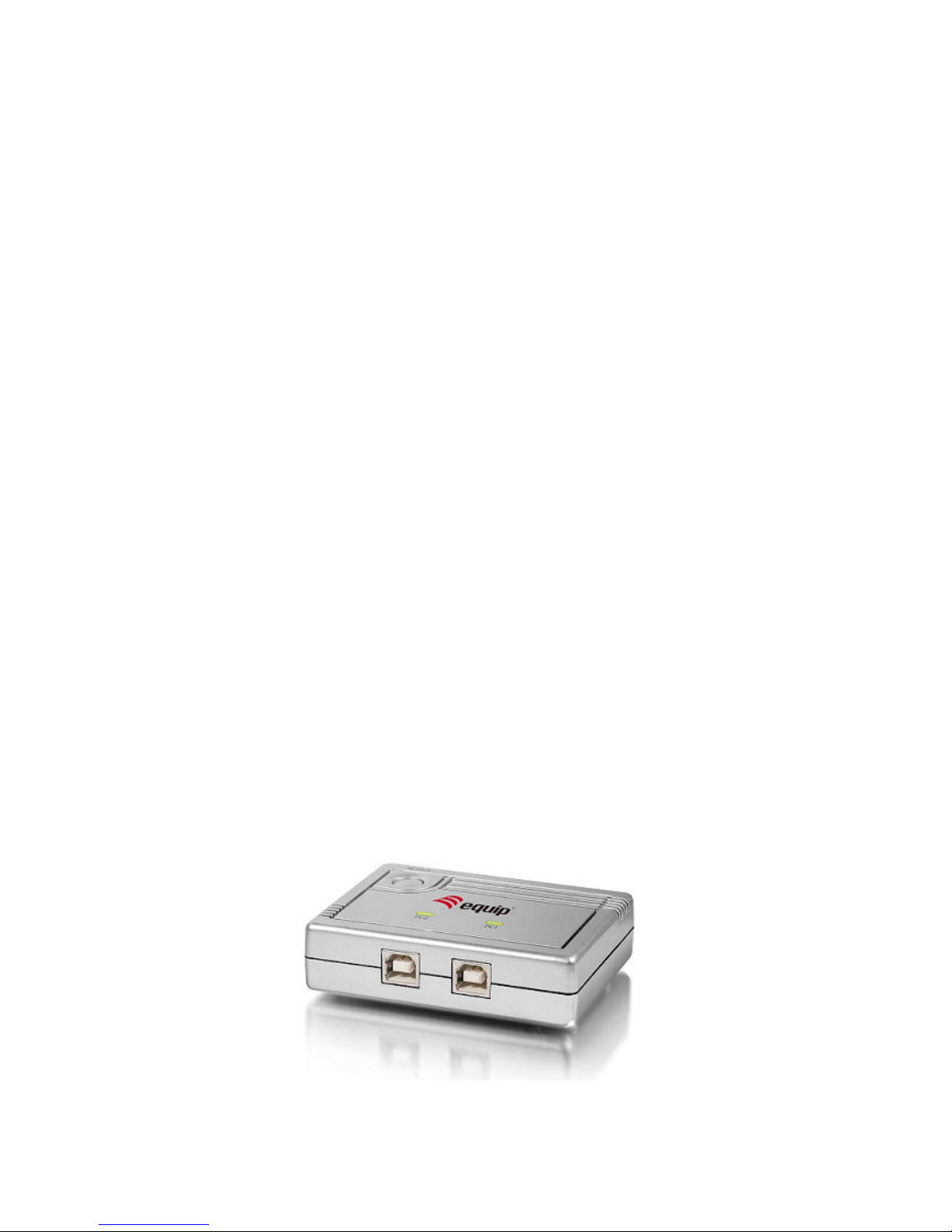
1. Einführung
Danke für den Kauf des equip 2-Port USB 2.0 Sharing Switch. Der intelligente USB
Sharing Switch ermöglicht zwei Computern einen USB-Drucker oder ein USB 2.0
Gerät gemeinsam zu benutzen. Es können Ihre Kosten, Zeit, Raum, Energie zu
sparen, und Ausrüstung, um die Effizienz zu verbessern.
1.1 Features
Zwei computer nutzen gemeinsam einen USB-Drucker oder ein anderes USB
2.0 Gerät
USB 2.0, 1.1 kompatibel
Unterstützt EHCI, UHCI und OHCI
Unterstützt USB-Bus Energiemodus
USB-Gerät Auswahl durch Knopfdruck (PC, Mac, Sun) und Hot Key (nur PC)
Unterstützt Windows 98/SE/ME/2000/XP/Vista, Mac OS
1.2 Verpackungsinhalt
1 x 2-Port USB 2.0 Sharing Switch
1 x Benutzerhandbuch
Page 7
6
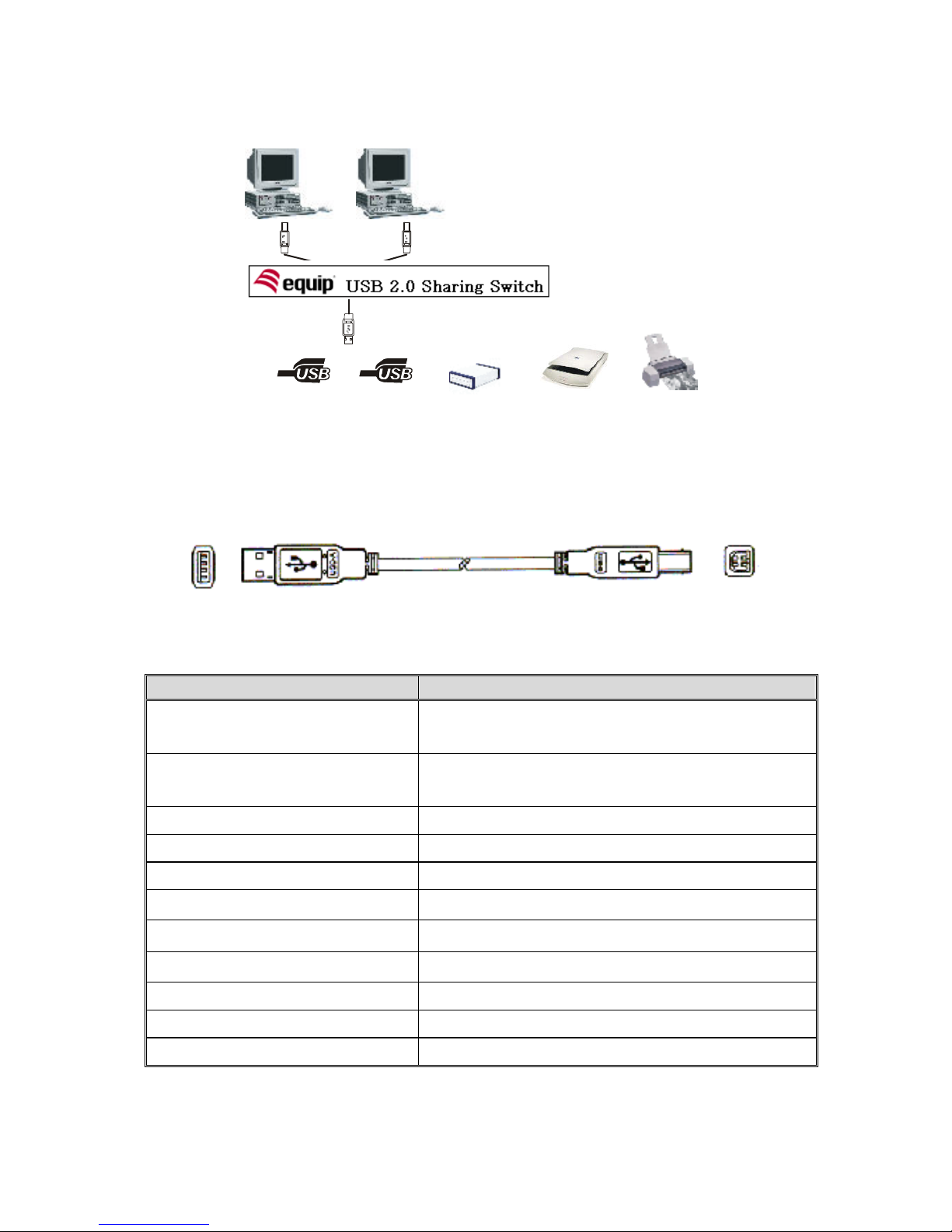
2. Anwendungsdiagramm
3. Kabeldiagramm
USB A-B kabel:
4. Technische Spezifikationen
Modell Nr. 128542
Anschlusstyp
2 x USB Type B Buchse
1 x USB Type A Buchse
USB-Geräteauswahl
Drucktaste (PC/MAC/SUN)
Hot Key (PC)
PC-Anschluss-LED 2
Kabellänge (meter) 1,80
USB-Energie Bus-Strom
Betriebstemperatur
0~50℃
Lagertemperatur
-20~60℃
Feuchtigkeit
0~80℃, nicht-kondensierend
Gehäuse Plastik
Abmessungen (mm) 85(B) x 64(T) x 20(H)
Gewicht (g) 90g
USB-A
USB-B USB-B
USB-211
PC1 PC2
Devi ce or HUB
US B C D- RW US B Sc a nner USB Prin ter
...
Page 8

7
5. LED Anzeige
Auf der Geräteoberseite gibt es zwei PC-LEDs:
Wenn einer der PC-Ports an den USB-Port angeschlossen ist, leuchtet die PC-
Port-LED auf. Es leuchtet jeweils nur eine PC-Port-LED auf.
Wenn die PC-LED blinkt, wird eine USB-Geräteemulation oder USB-
Hostaufzählung ausgeführt oder der andere PC wechselt in den Schlafmodus.
6. Gebrauch
Switch einschalten
Der Sharing Switch bezieht Strom von den PCs. Wenn einer der PCs eingeschaltet
wird, verbindet sich der Switch mit diesem PC zuerst.
Drucktaste
Der USB Sharing Switch verfügt über eine Drucktaste. Durch Betätigen der Taste
wird vom aktuellen PC-Anschluss zum anderen umgeschaltet.
Hot Key-Steuerung
Der Benutzer muss seinen Arbeitsplatz nicht verlassen, um die Drucktaste zu
betätigen. Drücken Sie innerhalb von zwei Sekunden zweimal die Tast “Rollen” um
den USB-Geräteanschluss abzurufen.
+ = Abrufen des USB-Geräts
Wenn der Ziel-PC ausgeschaltet ist, kann nur die Drucktaste benutzt werden.
Der Sharing Switch unterstützt keine Hotkey-Funktion für Mac und Sun Micro
Systems. Sie haben zu drücken, um die PC-Port-Switch.
Hinweis:
Wenn die PC-LED blinkt, benutzen Sie keinen Hot Key-Befehl.
Wenn der PC in den Schlafmodus wechselt, benutzen Sie keinen Hot Key-
Befehl.
Wenn das angeschlossene USB-Gerät der Speicherung dient, wie z.B.
HDD, CDRW, etc., stellen Sie sicher, dass der andere Computer vor der
Umschaltung alle Anwendungen beendet hat.
Rollen
Rollen
Page 9

8
7. Hardwareinstallation
Stellen Sie vor der Installation sicher, dass alle Peripheriegeräte und Computer
ausgeschaltet sind.
1. Verbinden Sie den Type B Anschluss des USB A/B-Kabels mit dem PC-Port des
Switches und Type A Anschluss des Kabels mit dem PC.
2. Verbinden Sie den Type A Anschluss des USB-Kabels des jeweiligen
anzuschließenden Geräts mit dem USB-Port des Switches.
3. PCs einschalten.
 Loading...